

A new employee needs access to business email and other resources required for their role. Exchange mailbox creation is a part of this process. But doing it manually is repetitive and tiring, particularly when your organization hires employees frequently.
Manual data entry can also cause problems, including delays and inconsistencies between records.
You can reduce this administrative work by connecting employee lifecycle events with your identity provisioning process.
With HR-driven provisioning, information from your Human Resource Management System (HRMS) can initiate account creation and updates across connected IT systems. miniOrange helps automate identity provisioning across HRMS platforms, Active Directory, and Microsoft 365, reducing the manual effort involved in managing employee accounts.
In this guide, you'll learn how Exchange mailbox creation works and how to automate the identity provisioning steps involved in employee onboarding and offboarding.
What Is Exchange Mailbox Creation?
Exchange mailbox creation is the process of setting up a dedicated email storage container in Microsoft Exchange and linking it to a specific user identity. Once provisioned, the mailbox lets an employee send, receive, and organize business emails, calendar invites, contacts, and tasks.
How Are Active Directory and Exchange Connected?
In on-premises and hybrid environments, Exchange relies directly on Active Directory (AD) to manage user identities.
AD stores the user's account information, including their username, email-related attributes, department, and other directory details. Exchange uses the associated directory object to manage the user's mailbox and email-related settings.
When an administrator creates a mailbox for an employee, Exchange attaches the mailbox to that specific AD user object or, in hybrid deployments, syncs those identity attributes to Microsoft Entra ID.
Types of Exchange Mailboxes
Depending on how you use email and collaboration resources, there are three mailbox types:
User mailbox: Assigned to an individual employee for their day-to-day emails.
Shared Mailbox: Built for teams who need access to a common email address, such as support@ or billing@.
Resource mailbox: Dedicated to booking shared company assets, including conference rooms, projectors, and fleet vehicles.
When Do You Need Exchange Mailbox Creation?
Most often, you need to create a mailbox for a new employee during onboarding. However, mailbox provisioning may also be required when existing employees need an additional email alias, request a shared team inbox, or set up new meeting spaces across an office.
Common Ways to Create an Exchange Mailbox
How you create an Exchange mailbox depends on whether you use Exchange Server on-premises, Exchange Online, or a hybrid deployment.
Creating a Mailbox Through Exchange Admin Center
The Exchange Admin Center (EAC) gives you a browser-based graphical interface to create and manage mailboxes. The steps are:
- Signing in to the Exchange Admin Center.
- Navigating to Recipients > Mailboxes.
- Selecting New > User mailbox.
- Choosing whether to create a new user or use an existing AD account.
- Entering the required details, such as the user's name, alias, and logon information.
- Configuring additional settings, such as the mailbox database and archive options.
- Saving the configuration to create the mailbox.
Keep in mind that the exact steps vary between Exchange Server and Exchange Online. In an on-premises Exchange Server environment, EAC ties the mailbox directly to an on-premises Active Directory account and a local mailbox database. In Exchange Online (Microsoft 365), creating a user mailbox also requires assigning an active Microsoft 365 or Exchange Online license to activate the mailbox in the cloud.
Creating an Exchange Mailbox Using PowerShell
Instead of configuring each mailbox through a graphical interface, you can execute commands to perform specific mailbox operations with PowerShell. You can also use scripts to automate repetitive tasks and process multiple accounts.
For example, if an on-premises Active Directory user already exists, you can enable their mailbox with a single cmdlet:
Enable-Mailbox -Identity "alex.morgan@company.com" -Database "MailboxDB01"
If you want to create both the Active Directory user and the Exchange mailbox at once on-premises, you can use New-Mailbox:
New-Mailbox -Name "Alex Morgan" -Alias "alex.morgan" -UserPrincipalName "alex.morgan@company.com" -SamAccountName "alex.morgan" -FirstName "Alex" -LastName "Morgan" -Password (ConvertTo-SecureString -String "TempP@ssw0rd!" -AsPlainText -Force) -ResetPasswordOnNextLogon $true
Active Directory-Based Mailbox Provisioning
In directory-driven setups, everything starts in Active Directory. You create the employee's user account and populate core attributes like givenName, sn, department, and userPrincipalName. From there, directory synchronization and configured provisioning workflows detect the new user object and trigger Exchange mailbox provisioning automatically.
Which Exchange Mailbox Creation Method Should You Choose?
| Method | Advantages | Limitations |
|---|---|---|
| Exchange Admin Center | Easy graphical interface for quick, one-off changes | Manual, repetitive, and slow at scale |
| PowerShell | Supports scripting and bulk mailbox operations | Requires scripting expertise and ongoing script maintenance |
| AD-Based Provisioning | Connects user account creation directly with mailbox provisioning | Requires proper directory and Exchange configuration |
Challenges of Manual Exchange Mailbox Creation
Manual Exchange mailbox creation can get the job done when you onboard a few employees every month. But as your workforce grows, the number of accounts IT administrators need to manage increases.
Delays in Employee Onboarding
When HR adds a new employee to its system, the IT team must raise a ticket, verify the employee's details, create an AD account, and provision the Exchange mailbox. Every step is manual and prone to delays.
Inconsistent Employee Information
Typing employee names, departments, job titles, and email aliases by hand increases the probability of human error. This can create mismatches across your HRMS, Active Directory, and Exchange.
Repetitive Administrative Tasks
Most administrative tasks, such as creating AD accounts, configuring mailbox settings, adding employees to distribution lists, and verifying delivery rules, are repetitive and time-consuming.
Orphaned Mailboxes After Employee Exit
If your IT teams do not revoke an employee’s access upon exit, the employee's account may remain active longer than intended. On the other hand, deleting an account or mailbox without checking retention requirements can result in the loss of information your organization needs to preserve.
Lack of Centralized Monitoring
Tracking all provisioning activities becomes difficult when each step is handled separately. A centralized identity provisioning process helps administrators monitor account lifecycle activities and investigate provisioning issues.
How miniOrange Automates Exchange Mailbox Creation
To automate Exchange mailbox creation, you need to connect your HR system and IT directories. miniOrange bridges that gap by connecting HRMS-driven identity provisioning workflows directly with Active Directory and Exchange.
Here is how the automation works under the hood:
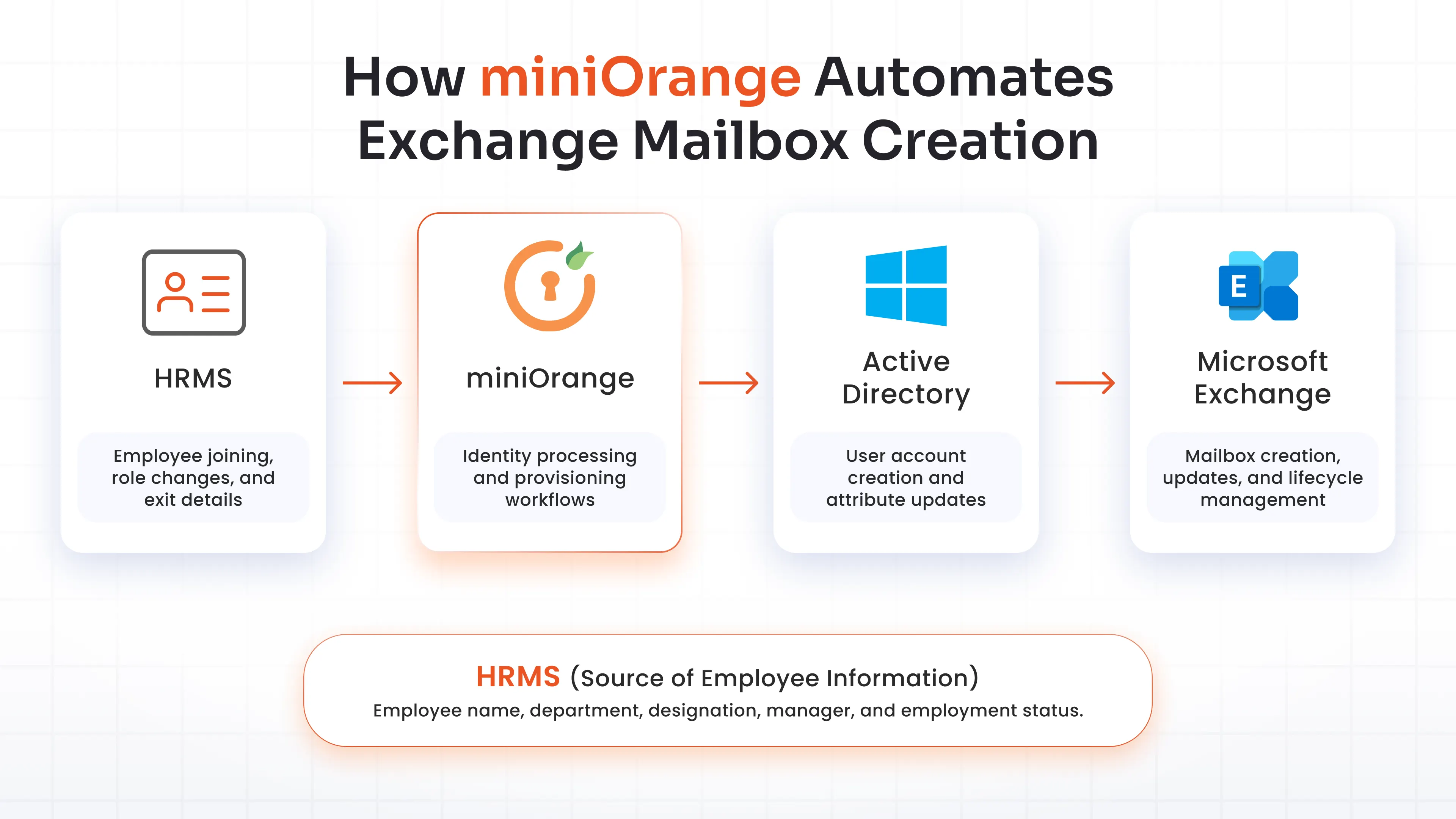
The HRMS is the source of employee information, holding details such as employee name, department, designation, manager, and employment status.
miniOrange connects with your HRMS to detect new hires, role updates, and exits automatically. It processes employee attributes and maps them cleanly to the right directory fields.
HR-driven IT provisioning workflows automatically create or update user accounts in Active Directory. Once the directory identity is ready, your configured integration workflow triggers Exchange mailbox provisioning, setting up the mailbox and assigning the appropriate groups.
You get updates via built-in notifications and detailed audit logs.
Joiner – Automate Mailbox Creation for New Employees
When you onboard a new hire, miniOrange executes your onboarding workflow without manual ticket handoffs:
- HR creates a new employee record in your HRMS.
- miniOrange automatically retrieves the new employee information.
- The platform processes the employee's identity and maps all required attributes.
- A new user account is automatically created in Active Directory.
- Exchange mailbox provisioning is initiated through your configured workflow.
- The employee's mailbox becomes available according to your organization's rules and policies.
- IT administrators and designated stakeholders receive instant provisioning status notifications.
Mover – Update Mailbox and Employee Information After Role Changes
When someone gets promoted or transfers teams, miniOrange keeps their identity and mailbox details accurate across every connected system:
- Updates the employee's department and job designation automatically.
- Reflects new reporting lines by updating manager and organizational attributes.
- Synchronizes updated user attributes between your HRMS and Active Directory in real time.
- Adjusts mailbox-related settings, distribution lists, or group memberships where required.
- Keeps employee records uniform across HR and IT systems without helpdesk tickets.
Leaver – Automate Mailbox Handling During Employee Offboarding
miniOrange automates the offboarding stage of your Joiner-Mover-Leaver (JML) process so that there is no standing access:
- Detects the employee exit event directly from your HRMS.
- Triggers your configured offboarding workflow immediately.
- Revokes employee authentication and SSO application access across connected tools.
- Disables the corresponding Active Directory user account right away.
- Handles the Exchange mailbox according to your organization's retention policies, whether you convert it to a shared mailbox for a manager, retain it for compliance, or remove it after the retention period ends.
Benefits of Automating Exchange Mailbox Creation
Connecting employee lifecycle information with identity provisioning can improve several aspects of your IT operations.
Faster Employee Onboarding
New hires get their email addresses and communication tools ready quickly after joining. For Microsoft 365 deployments, configured user and license provisioning can also support Exchange Online mailbox availability.
Reduced IT Administrative Workload
Automating user provisioning reduces repetitive tasks across multiple systems. Pairing it with centralized Active Directory management lets your team focus on high-impact infrastructure projects instead of data entry.
Consistent Employee Information
The HRMS is the source of truth. Employee attributes stay aligned across connected systems. You can synchronize details such as names, departments, designations, managers, and email-related user attributes according to your configuration.
Improved Security During Offboarding
Automated deprovisioning helps disable accounts and revoke access across connected systems when HR records a termination.
This reduces the possibility of former employees retaining access to business applications because someone overlooked a manual offboarding task.
Better Visibility and Accountability
With automated user provisioning logs, you can verify every mailbox creation, attribute update, and offboarding action for internal reviews and compliance audits.
Use Cases of Automated Exchange Mailbox Provisioning
Automating mailbox provisioning can benefit organizations that manage a large number of employee accounts. Here are some common use cases:
Enterprises With Frequent Employee Onboarding
If you hire at scale, you do not have to manually provision every employee. You can connect HR events with identity provisioning workflows.
This is particularly useful if you have multiple departments, locations, and employee categories that require different access configurations.
Organizations Using On-Premises Exchange
If you run local Exchange Server infrastructure, you can coordinate Active Directory user creation with automated mailbox workflows instead of running manual scripts for every hire.
Organizations With Hybrid Exchange Environments
If you run both on-premises Exchange and Exchange Online, you can keep directory attributes and cloud mailbox provisioning aligned without sync conflicts.
Organizations Using HRMS-Driven Provisioning
If you use platforms like Workday, BambooHR, or SAP SuccessFactors, you can turn HR lifecycle updates into instant IT actions through end-to-end user lifecycle management.
FAQs
Can Exchange mailbox creation be automated using HRMS data?
Yes. When you connect your HRMS to an identity provisioning platform like miniOrange, new hire records in HR can trigger user creation in Active Directory and initiate Exchange mailbox provisioning based on mapped employee attributes.
How does Active Directory relate to Exchange mailbox creation?
In on-premises and hybrid setups, Exchange ties every user mailbox directly to an Active Directory user object. You create and maintain the user's identity attributes in Active Directory first, and Exchange links the mailbox to that account.
Can Exchange mailboxes be created automatically when a new employee joins?
Yes. With automated Joiner workflows, adding a new employee to your HRMS triggers directory account creation and Exchange mailbox setup automatically, ensuring their email is ready on day one.
Can PowerShell be used to automate Exchange mailbox creation?
Yes. Administrators frequently use PowerShell cmdlets like Enable-Mailbox and New-Mailbox to automate bulk mailbox creation via scripts. However, PowerShell scripts still require manual execution or custom scheduling and ongoing maintenance, whereas an IAM platform automates the full lifecycle directly from HR events.
What happens to an Exchange mailbox when an employee leaves?
When an employee exits your HRMS, an automated offboarding workflow revokes their application access, disables their Active Directory account, and handles their Exchange mailbox per your company policy, such as converting it to a shared mailbox, archiving it for compliance, or deleting it after a set retention window.
Does automated Exchange mailbox provisioning support hybrid environments?
Yes. Automated provisioning workflows can create and update user accounts in on-premises Active Directory while keeping attributes synchronized with Microsoft Entra ID and Exchange Online, ensuring smooth mailbox provisioning across hybrid deployments.
Leave a Comment