

Passwords and phone-based MFA can still expose Windows accounts to phishing attacks. Traditional certificate-based smart cards offer strong protection but require PKI infrastructure that organizations must maintain.
FIDO2 smart card authentication offers another approach, combining hardware-protected credentials with phishing-resistant authentication without traditional certificate authority management. Here's how it works, where it fits into Windows authentication, and how to configure it.
TL;DR
- FIDO2 smart cards use hardware-protected credentials and public-key cryptography.
- Unlike certificate-based cards, FIDO2 authentication does not require a traditional certificate authority.
- Windows console and RDP authentication require compatible authentication integrations.
- Card compatibility, credential registration, PIN policies, and recovery procedures determine deployment readiness.
What Is FIDO2 Smart Card Authentication?
FIDO2 smart card authentication uses a physical card containing a FIDO2 credential. The private key remains protected within the authenticator, while users verify their identity through a PIN or another supported verification method.
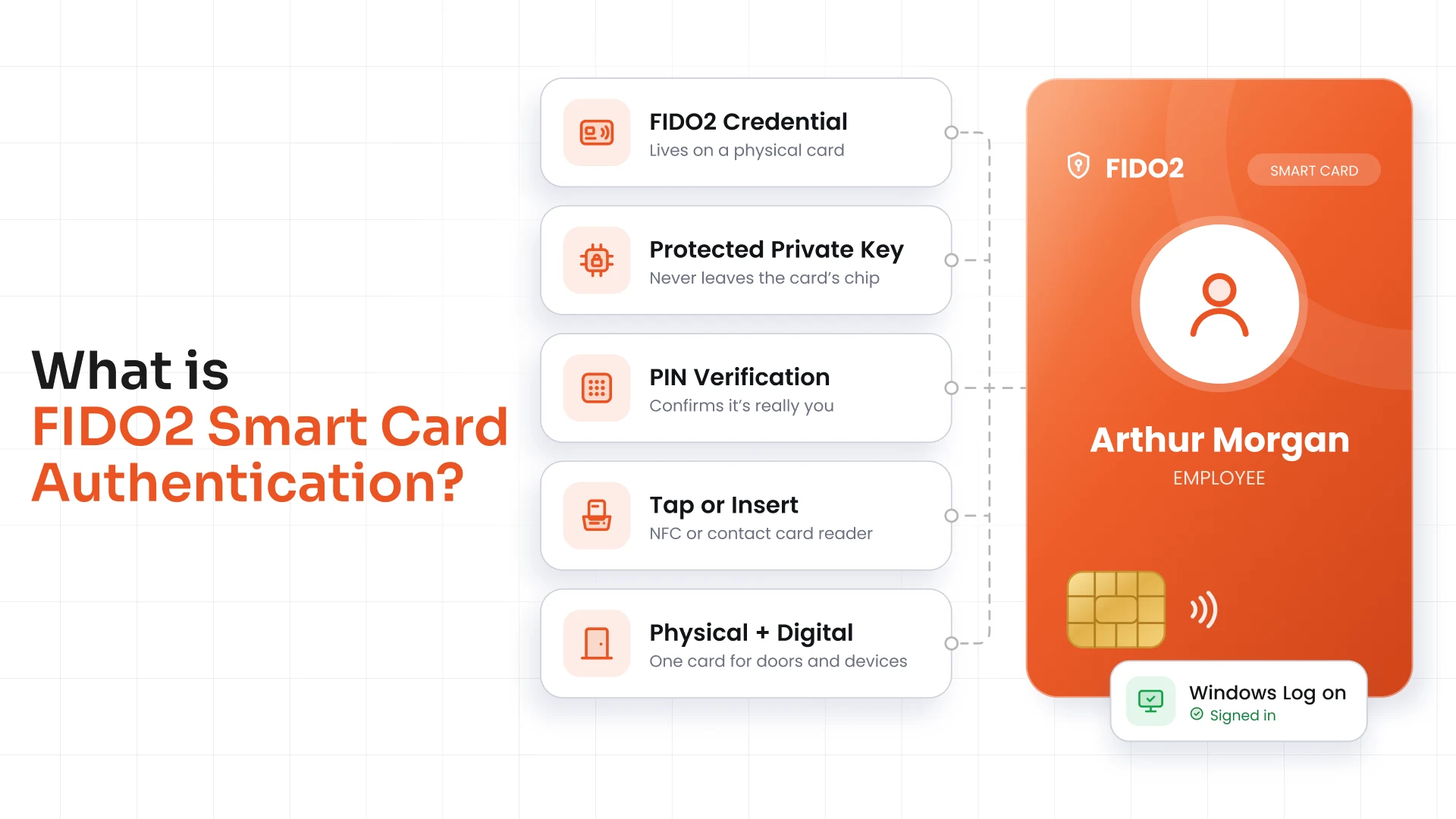
With compatible physical access technology, the same card can support building entry and digital authentication.
FIDO2 Smart Cards vs Certificate-Based Smart Cards
Both technologies provide strong, hardware-backed authentication. Their main difference lies in how credentials are issued, registered, and managed.
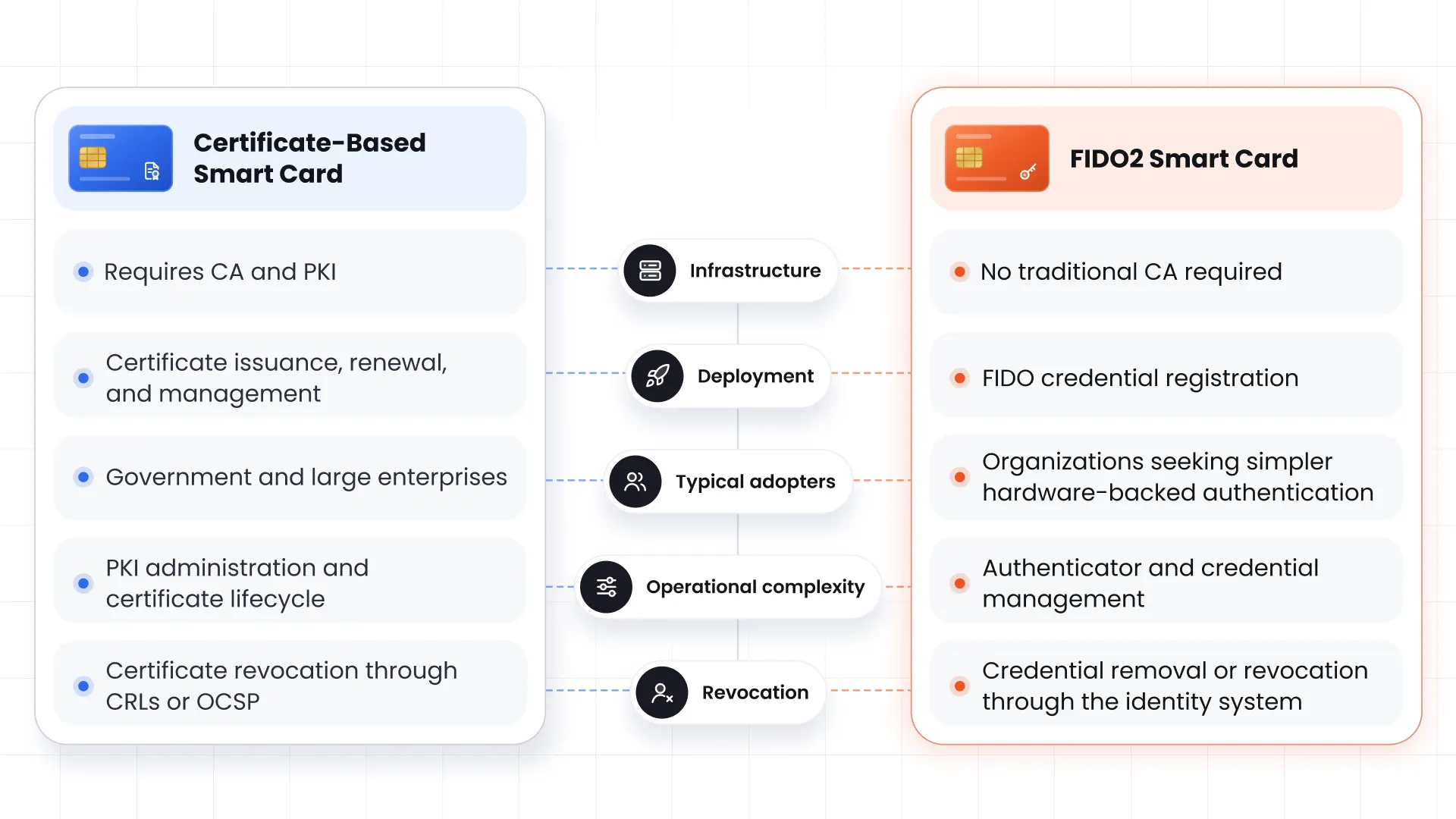
Certificate-based smart cards are not inherently less secure. The difference in FIDO2 vs certificate-based smart card authentication is primarily the infrastructure and credential lifecycle, not the strength of the underlying security.
FIDO2 Smart Card vs Security Key vs Platform Authenticator
FIDO2 supports three common authenticator form factors:
- Roaming authenticators: Physical USB or NFC security keys that users carry between devices. They suit employees working across multiple workstations.
- Platform authenticators: Built into laptops and phones, including Windows Hello. They are convenient for users working primarily on assigned devices.
- Smart cards: Physical cards equipped with compatible FIDO2 functionality. They suit organizations that want to combine employee credentials with existing physical access programs.
The right choice depends on portability, physical-access integration, and the hardware required to authenticate.
How FIDO2 Smart Card Authentication Works
FIDO2 uses public-key cryptography instead of transmitting reusable authentication secrets.
During registration, the authenticator creates a public-private key pair. The private key stays protected on the authenticator, while the public key and credential information are registered with the authentication service.
WebAuthn defines the authentication interface, while CTAP2 enables communication between the client device and external authenticators. During sign-in, the service generates a challenge that the authenticator signs after the required user verification.
The service verifies the response using the registered public key. Because FIDO2 credentials are bound to the legitimate relying party, an attacker cannot simply replay the response through a phishing website.
Registration: Enrolling a Card
- The user initiates registration through the authentication service.
- The service generates a registration challenge.
- The card creates a new FIDO2 credential.
- The user establishes the required PIN or verification method.
- The public credential information is registered against the user's account.
Authentication: Signing In with a Card
- The user initiates Windows authentication.
- The authentication integration requests a challenge.
- The user presents the card and completes PIN verification.
- The card signs the challenge using its protected private key.
- The authentication service verifies the response and approves access.
The private key never needs to leave the authenticator during this process.
Benefits of FIDO2 Smart Cards for Windows Logon
Phishing-resistant authentication: Hardware-protected credentials and relying-party binding prevent attackers from reusing captured authentication responses on fraudulent websites.
No traditional certificate authority: Organizations can deploy FIDO2 credentials without building and maintaining the certificate authority infrastructure required by conventional smart cards.
One credential for physical and digital access: Compatible dual-purpose cards can support building access and employee authentication, reducing the need to issue separate credentials.
Lower PKI administration: Removing certificate issuance and renewal workflows reduces infrastructure overhead, although card inventory, enrollment, and replacement still require management.
Convenient employee authentication: A tap or insertion followed by PIN verification provides a consistent authentication experience across compatible devices.
Where Can You Use FIDO2 Smart Cards with Windows?
The authentication scenarios depend on the Windows integration, authenticator, and identity environment. FIDO2 support for one scenario does not automatically establish support for every Windows login method.
Windows Console Logon
Organizations can introduce FIDO2 authentication into Windows workstation sign-in through a compatible credential provider.
Users can authenticate using their Windows credentials followed by a registered hardware authenticator, or use a supported passwordless flow.
Remote Desktop (RDP) Sign-In
FIDO2 RDP authentication can strengthen remote access when the Windows authentication integration supports the required authenticator communication.
However, native Microsoft Entra FIDO2 security-key sign-in does not support every RDP configuration. Security-key redirection and compatible authentication integrations must be considered before deployment.
Offline Sign-In
Offline FIDO2 authentication requires a separate local verification mechanism. An authenticator's ability to sign a challenge does not automatically mean Windows can validate that challenge without contacting the authentication service.
Organizations should confirm whether their Windows authentication agent supports offline FIDO2 verification, cached authentication, or alternative offline MFA methods.
VPNs, Firewalls, and Web Applications
FIDO2 credentials can also protect compatible web applications and identity provider sign-ins. VPNs and firewalls require suitable authentication integrations, such as RADIUS support, rather than assuming that every FIDO2 card works directly with network devices.
How Users Authenticate: Tap or Insert
The physical interaction depends on the card and reader technology.
Tap to Authenticate (Contactless)
For a compatible NFC-enabled card and reader, the authentication experience typically follows this sequence:
- Enter Windows credentials, if required by the configured policy.
- Tap the card against the NFC reader.
- Complete the PIN or other required verification.
- Allow the authentication service to validate the response.
Insert to Authenticate (Contact)
For a compatible contact smart card and reader, users insert the card before completing the authentication process.
- Enter Windows credentials, if required.
- Insert the card into the reader.
- Enter the card PIN.
- Complete authentication and access the Windows session.
Contact readers can suit fixed workstations and environments where inserted-card interaction is part of existing security procedures.
Prerequisites for Windows Smart Card Login
Before deploying smart card authentication for Windows, verify the following requirements:
- FIDO2 authenticators: Select supported FIDO2-certified hardware and confirm its compatibility with the authentication integration.
- Card readers: Check NFC or contact reader compatibility.
- Windows environment: Verify supported Windows client and Server versions for the specific credential provider.
- Authentication integration: Install the compatible Windows logon agent or credential provider.
- User directory: Connect the authentication service to Active Directory, LDAP, or the supported identity source.
- MFA policies: Define authentication requirements for employees, administrators, and privileged users in MFA software.
- PIN management: Establish PIN requirements, retry limits, and reset procedures.
- Recovery: Define backup authentication and lost-card replacement processes.
Before deployment: Test the exact combination of Windows version, card model, reader, and authentication agent. FIDO2 certification alone does not guarantee compatibility with Windows logon or RDP.
How to Configure FIDO2 Authentication for Windows Logon
A successful deployment requires more than enabling a FIDO2 authentication method. Organizations must configure Windows authentication, connect the identity source, enroll authenticators, and validate the intended access scenarios.
The following steps outline the miniOrange Windows MFA deployment using its documented FIDO2 security-key support.
Step 1: Prepare Windows Devices and User Groups
Identify the workstations, servers, and employee groups that require phishing-resistant MFA for Windows logon.
Check operating system compatibility, user directory connections, and Windows MFA agent requirements before installation.
Step 2: Install the miniOrange Windows MFA Agent
Deploy the miniOrange Windows MFA agent on the target workstations and servers. The agent integrates with the Windows Credential Provider to introduce an additional authentication step during login.
For larger environments, use Group Policy to distribute the agent across the required devices.
Step 3: Enable FIDO2 Authentication
Enable the supported FIDO2 authentication method in the miniOrange authentication configuration. Define which users can register and use FIDO2 authenticators.
The miniOrange Windows Agent 5.2.0 release, dated October 27, 2026, specifically introduces YubiKey FIDO2 authentication in the Windows Credential Provider for passwordless or second-factor sign-in, where policy allows.
Step 4: Register Users' FIDO2 Authenticators
Users register their compatible FIDO2 devices through the supported enrollment workflow. Associate each registered authenticator with the correct user account and complete the required PIN or user-verification setup.
For a YubiKey deployment, confirm that the selected model and configuration are supported.
Step 5: Apply MFA Policies and Test Windows Logon
Assign the FIDO2 method to the intended user groups. Test successful authentication, incorrect PIN attempts, unregistered authenticators, and recovery procedures.
Verify the Windows console login experience before expanding the policy.
Step 6: Validate RDP Authentication
Test Remote Desktop sessions separately from local workstation sign-ins. Confirm that the Windows MFA agent invokes the configured authentication method and that remote sessions complete successfully.
Do not assume that FIDO2 support for local Windows logon automatically establishes FIDO2 support for every RDP connection.
Step 7: Test Offline Access and Roll Out in Phases
Disconnect selected test devices and validate the configured offline authentication and recovery methods.
miniOrange documents offline Windows MFA capabilities, including backup codes and machine-specific recovery codes. This should not be interpreted as confirmation of offline FIDO2 verification.
Once testing is complete, roll out authentication policies in phases and monitor authentication failures, enrollment issues, and user feedback.
Use Cases: Who Benefits Most from FIDO2 Smart Cards?
Healthcare: Hospitals can use compatible employee cards for physical access and authentication to clinical workstations, reducing dependence on separate credentials.
Government and public sector: Agencies can adopt hardware-backed authentication for employees accessing sensitive systems while meeting their specific identity assurance requirements.
Financial services: Banks can strengthen workstation and remote access security, particularly for administrators and employees handling sensitive financial information.
Organizations with existing access cards: Enterprises can explore adding FIDO2 capabilities to compatible employee credentials rather than issuing entirely separate authentication devices.
Best Practices for Deploying FIDO2 Smart Cards
- Pilot before scaling: Test card models, readers, Windows environments, and authentication policies with a representative user group.
- Enforce PIN policies: Define PIN requirements, retry limits, and secure reset procedures.
- Plan for lost cards: Establish credential revocation, identity verification, and replacement processes.
- Provide backup authentication: Give users an approved recovery method to prevent access disruptions.
- Protect privileged accounts: Prioritize administrators and employees with access to critical systems.
- Review authentication logs: Monitor failed attempts, enrollment activity, and unusual access patterns.
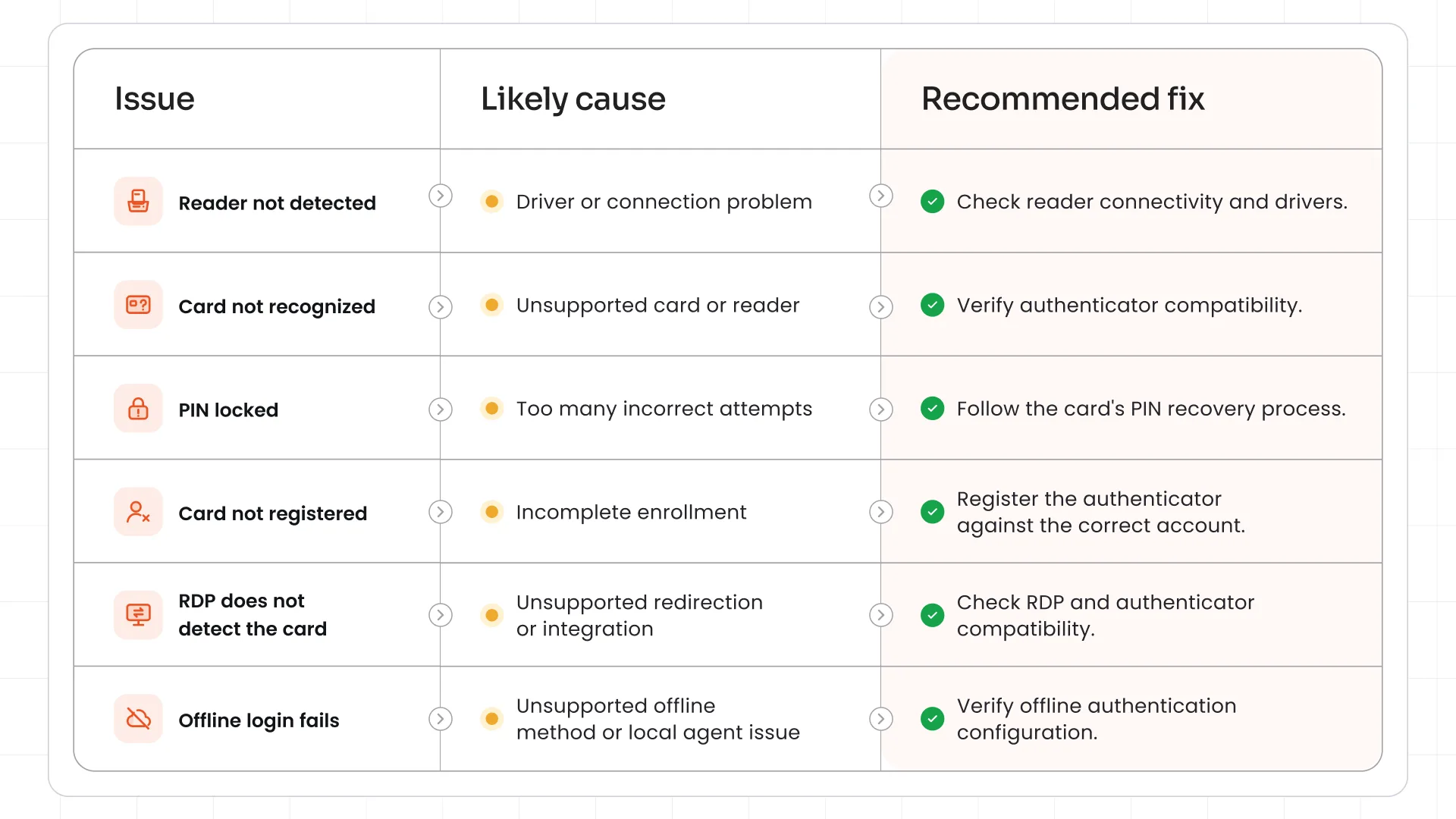
Troubleshooting Common Windows Smart Card Login Issues
How miniOrange Strengthens FIDO2 Authentication for Windows
miniOrange extends hardware-backed authentication to Windows workstations through its Windows MFA agent and Credential Provider integration.
Its Windows Agent 5.2.0 release introduces YubiKey FIDO2 authentication for passwordless and second-factor Windows sign-in. The Windows MFA solution also supports Remote Desktop authentication and offline MFA through separately supported authentication methods.
Organizations can combine Windows authentication with Active Directory or LDAP integration, user-based MFA policies, and other supported authentication methods.
An important distinction is that miniOrange also supports CAC/PIV card authentication, smart card authentication, which use PKI-based certificates. This is a separate method from FIDO2 authentication and should be evaluated according to the organization's existing card infrastructure.
Make Every Windows Access Attempt Count
Windows authentication is a critical control point for enterprise security. Passwords alone cannot provide the assurance organizations need when employees and administrators access sensitive workstations and remote systems.
FIDO2 introduces hardware-protected credentials and phishing-resistant verification without the certificate infrastructure associated with conventional smart cards. With compatible authenticators and a properly configured Windows integration, organizations can strengthen sign-in security while keeping the authentication experience practical for employees.
The priority is to select the right authenticator, validate the Windows environment, and establish reliable enrollment and recovery processes before deployment.
FAQs
How is a FIDO2 smart card different from a certificate-based smart card?
A FIDO2 smart card uses FIDO credentials and public-key cryptography, while a conventional smart card typically relies on X.509 certificates. Both provide strong authentication, but certificate-based cards require PKI infrastructure for certificate issuance and lifecycle management.
Do I need PKI to use FIDO2 smart cards?
No. FIDO2 authentication uses registered public-key credentials and does not require a traditional certificate authority. However, the organization still needs an authentication service to register and verify credentials.
Can I use a FIDO2 smart card for Windows logon?
Yes, provided the card, reader, Windows environment, and authentication integration support the required FIDO2 workflow. A compatible Windows credential provider may be necessary.
Does FIDO2 smart card authentication work with Remote Desktop?
It depends on the Windows authentication integration and its support for FIDO2 communication or authenticator redirection. Native Microsoft Entra security-key sign-in has specific RDP limitations, so compatibility must be tested.
Can one card be used for both building access and digital login?
Yes, if the card supports both physical access technology and FIDO2 authentication, and the respective access-control systems are configured to recognize it.
What happens if a user loses their smart card?
The administrator should revoke the registered credential, verify the user's identity, and issue a replacement. An approved backup authentication method helps maintain access during the replacement process.

Leave a Comment