- Home
- Identity Governance, Auditing & Access Control via JSM Guide
- Group Membership Automation Rule

Group Membership Automation Rule
With the Group Membership Automation Rule, you can automatically add a JSM requester to one or more groups in a connected application when their access request is approved. This guide walks you through creating and configuring the rule from start to finish.
 Try it for free
Pre-requisites
- Jira and JSM admin access You need admin permissions in both Jira and Jira Service Management to create automation rules and manage project settings.
- A connected application At least one application must already be connected to the Identity Governance app (via App Connections) before you create a rule. The target application's groups need to load in the rule builder, so confirm this connection is working first.
- A JSM project and request type set up for access requests You need an existing JSM project that already has an access request type configured. One request type can only be used by one automation rule, so make sure the request type you plan to use is not already assigned to another rule.
- Custom fields created and added to the request type form Before building the rule, create the following custom fields in Jira and add them to your request type form. The rule builder only shows fields that are already on the form. If there are none, the admin needs to create them.
Admins can assign any name to these custom fields based on their requirements.
- Access level (single-select list): Use this field if you want to show requesters friendly access option names instead of raw group names.
- Requested Groups (single-select or multi-select list): Use this field if you want to surface live group names directly from the connected application. Use multi-select if requesters may choose more than one group.
- Access Expires On (date, not date-time): Required only if you want to enforce time-limited access. If access expiration is not needed, this field can be left unconfigured.
Installation
- Log in to your Jira instance and go to Apps in the left sidebar.
- Select Explore more apps and search for Identity Governance, Auditing and Access Control via JSM.
- Click Try it free to start a trial, then follow the prompts to install the app.
- Once installed, open the app from Apps in the top navigation bar. You will see the app's sidebar with Dashboard, App Connections, Automation, Role Catalog, and Audit Logs.
1: Connect your application
Before creating a rule, confirm your target application is connected.
- In the app sidebar, click App Connections.
- Verify your application is listed and its status shows as connected.
- If it is not connected yet, add it here before continuing.
2: Create a Group Membership rule
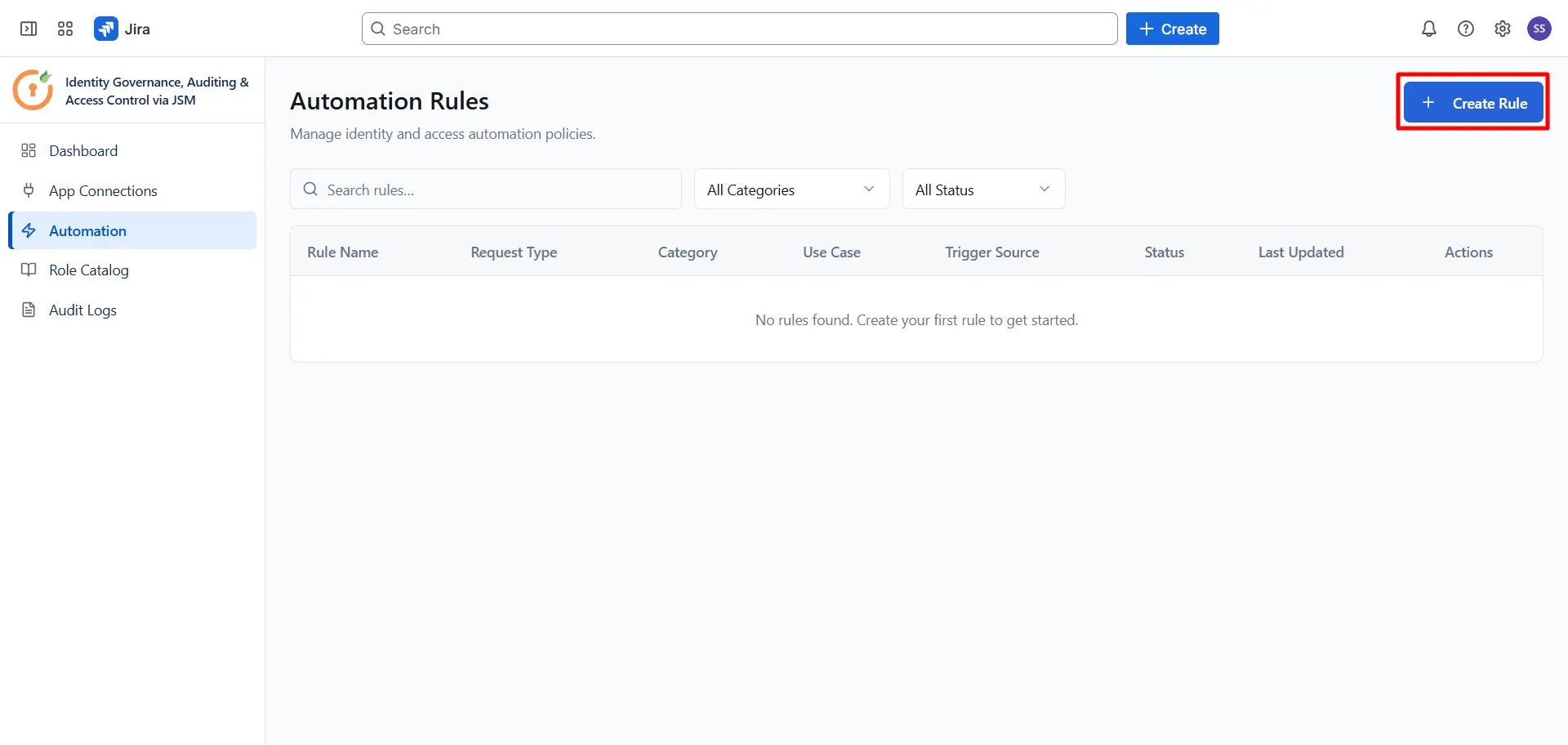
- Click Create rule.
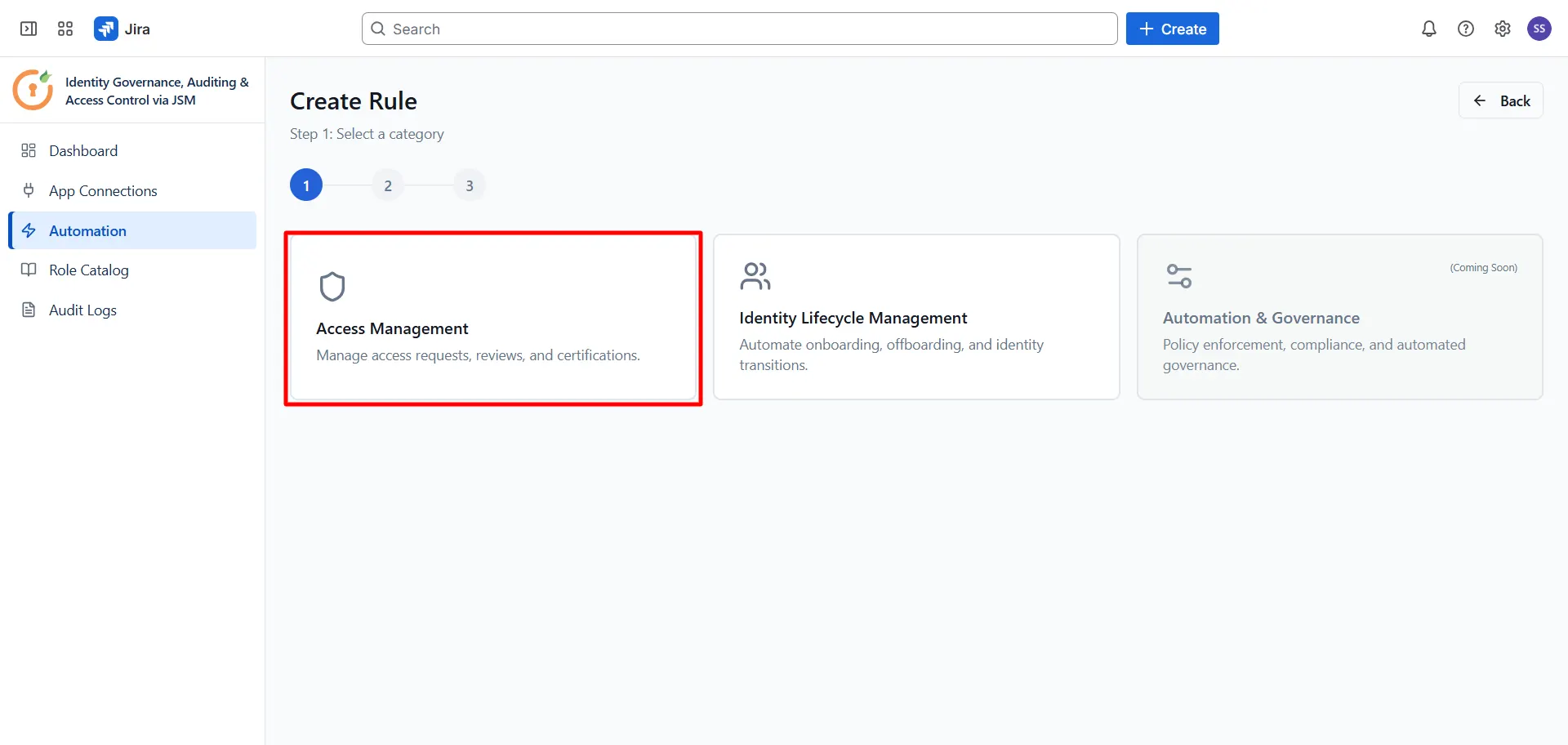
- In the app sidebar, click Automation → Access Management.
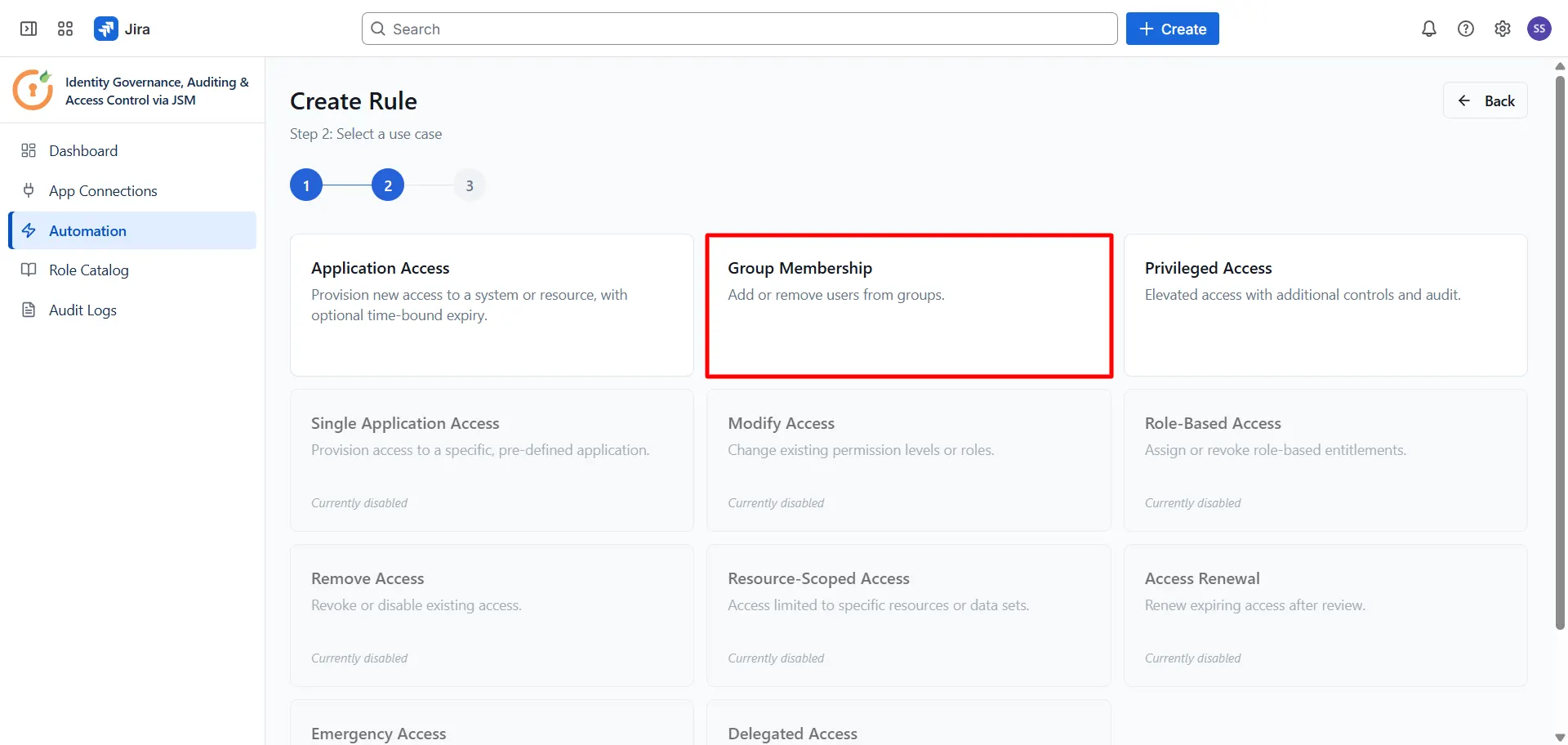
- You will see a rule type selection screen. Click Group Membership.
3: Configure the Project block
The Project block is the trigger for your rule. It tells the app which JSM project and request type to watch.
- In the rule builder, click the Project block to open its settings panel on the right.
- Under Project, select your JSM project from the dropdown.
- Under Request type, select the request type designated for access requests.
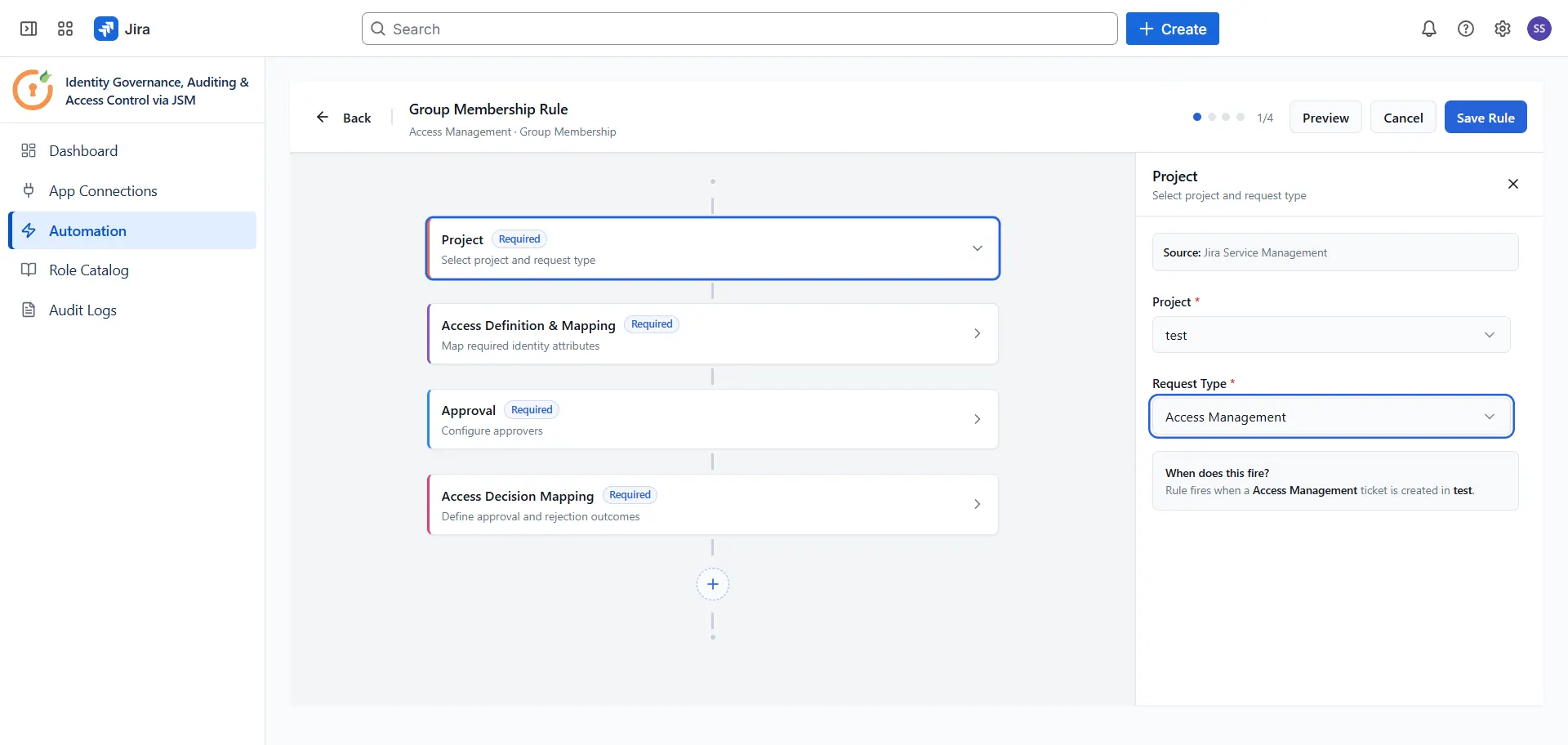
Once both are selected, the field mapping options in the next block will become available.
4: Configure Access Definition and Mapping
This block defines how the target user should be identified from the JSM request, how long access lasts, and which application the requester is asking to access.
- Click the Access Definition and Mapping block to open its settings panel.
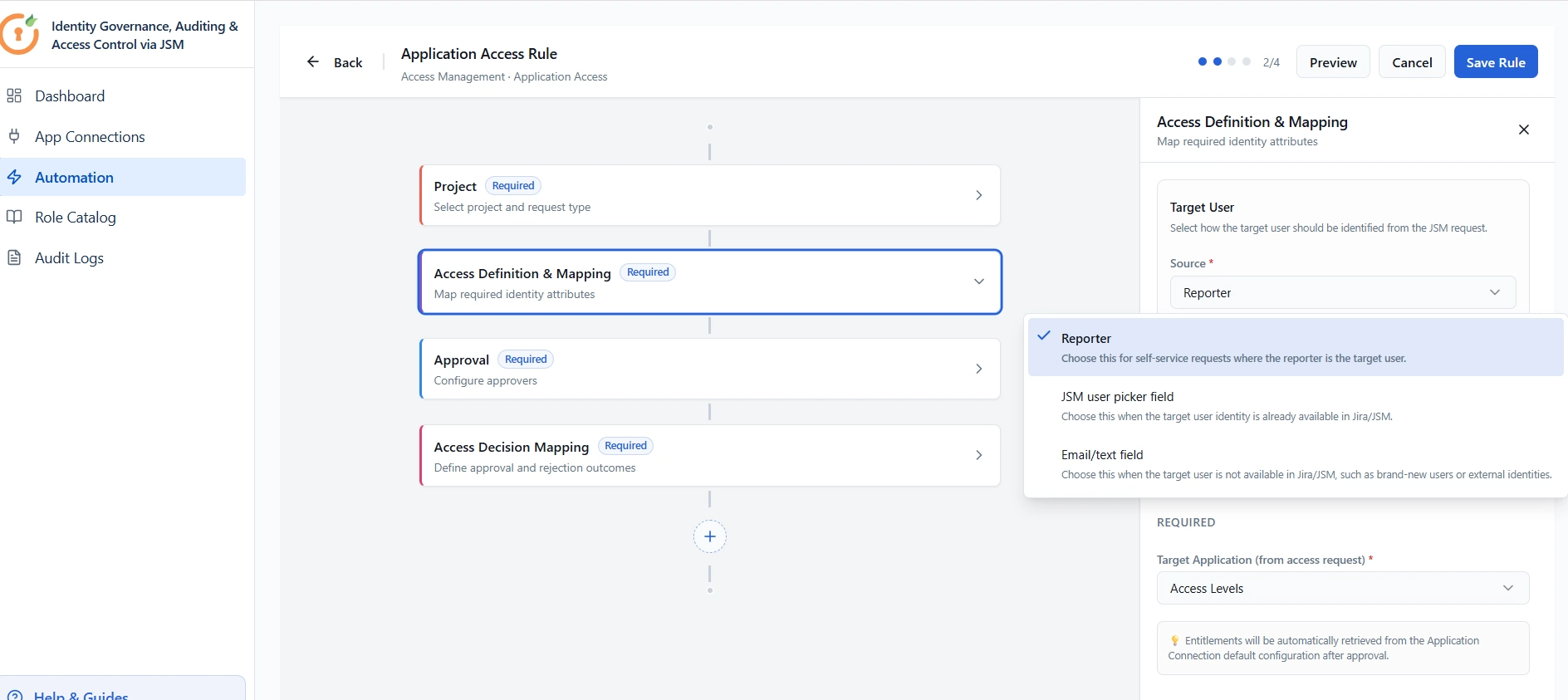
Target User
- Select the JSM field from which the user (that is to be used for provisioning/deprovisioning actions) should be identified.
You can select among the following:
- Reporter: Choose this for self-service requests where the reporter is the target user.
- JSM user picker field: Choose this when the target user identity is already available in Jira/JSM.
- Email/Text field: Choose this when the target user is not available in Jira/JSM, such as brand-new users or external identities.
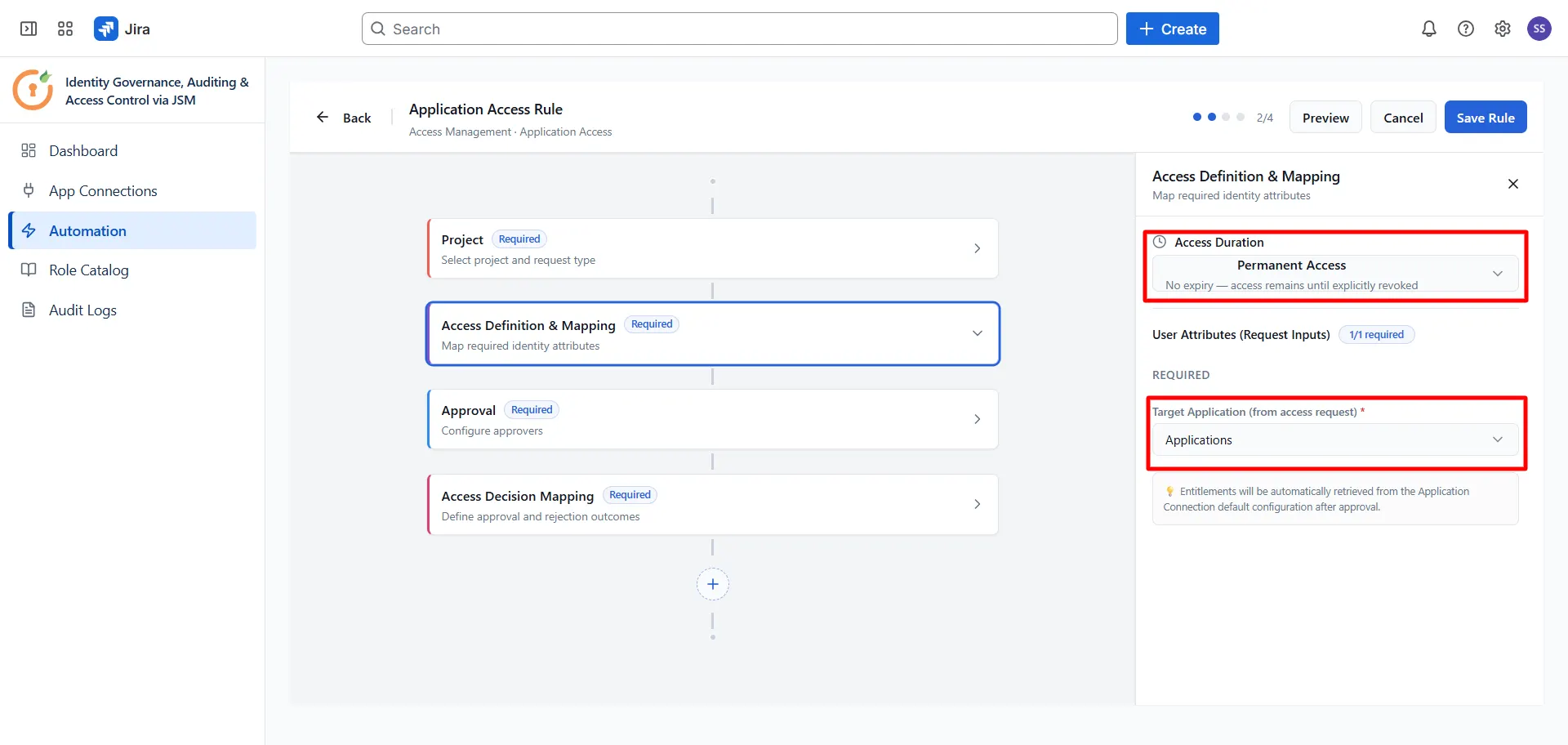
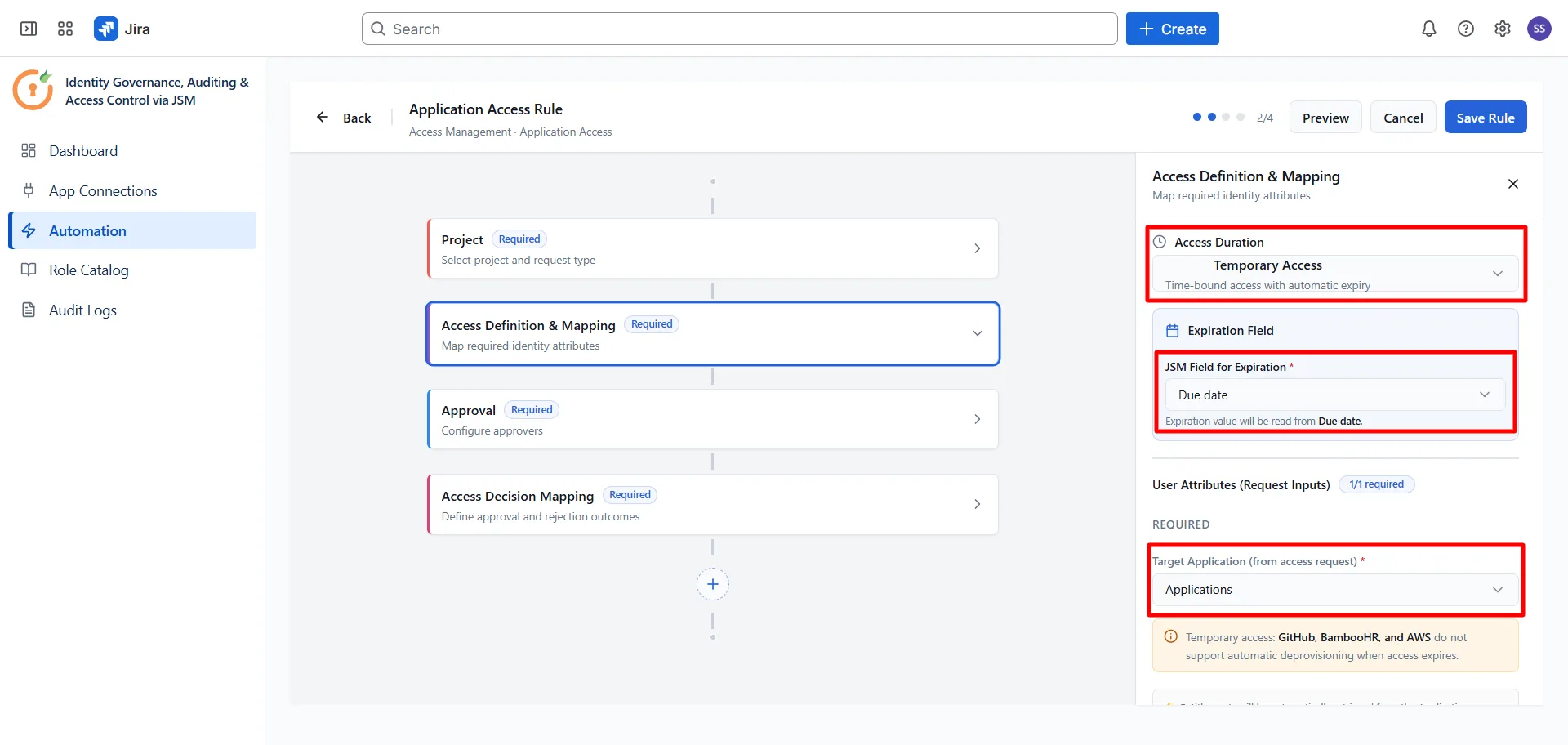
Access Duration
- Select Permanent if access should not expire.
- Select Temporary if access should expire on a set date. A date field will appear, map it to the expiry date field on your JSM request form. The requester will need to fill in a date on every request; this field is never pre-filled automatically.
Target Application
- Under Target Application (from access request), select the JSM field where the requester specifies which application they want access to.
Once approved, the app will automatically retrieve the entitlements for that application from your App Connection configuration and provision access accordingly.
5: Configure the Approval block
- Click the Approval block to open its settings panel.
- Configure who should approve access requests for this rule.
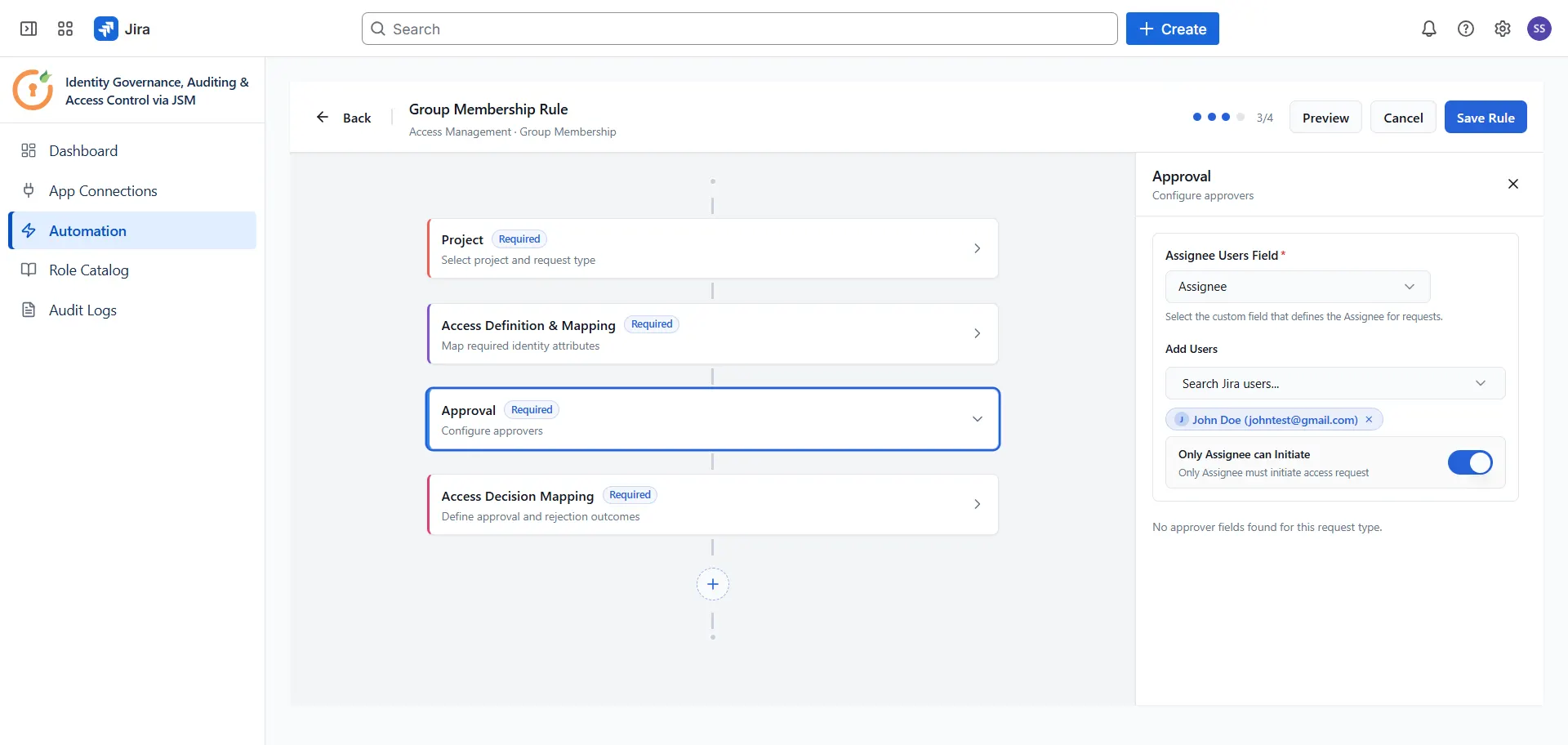
6: Configure Access Decision Mapping
This block tells the app what to do when a request is approved or rejected.
- Click the Access Decision Mapping block to open its settings panel.
- Under Approval Status (JSM), select the JSM workflow status that means a request has been approved. When a ticket moves to this status, the app will add the requester to the group.
- Under Rejection Status (JSM), select the JSM workflow status that means a request has been rejected. When a ticket moves to this status, no group access is granted.
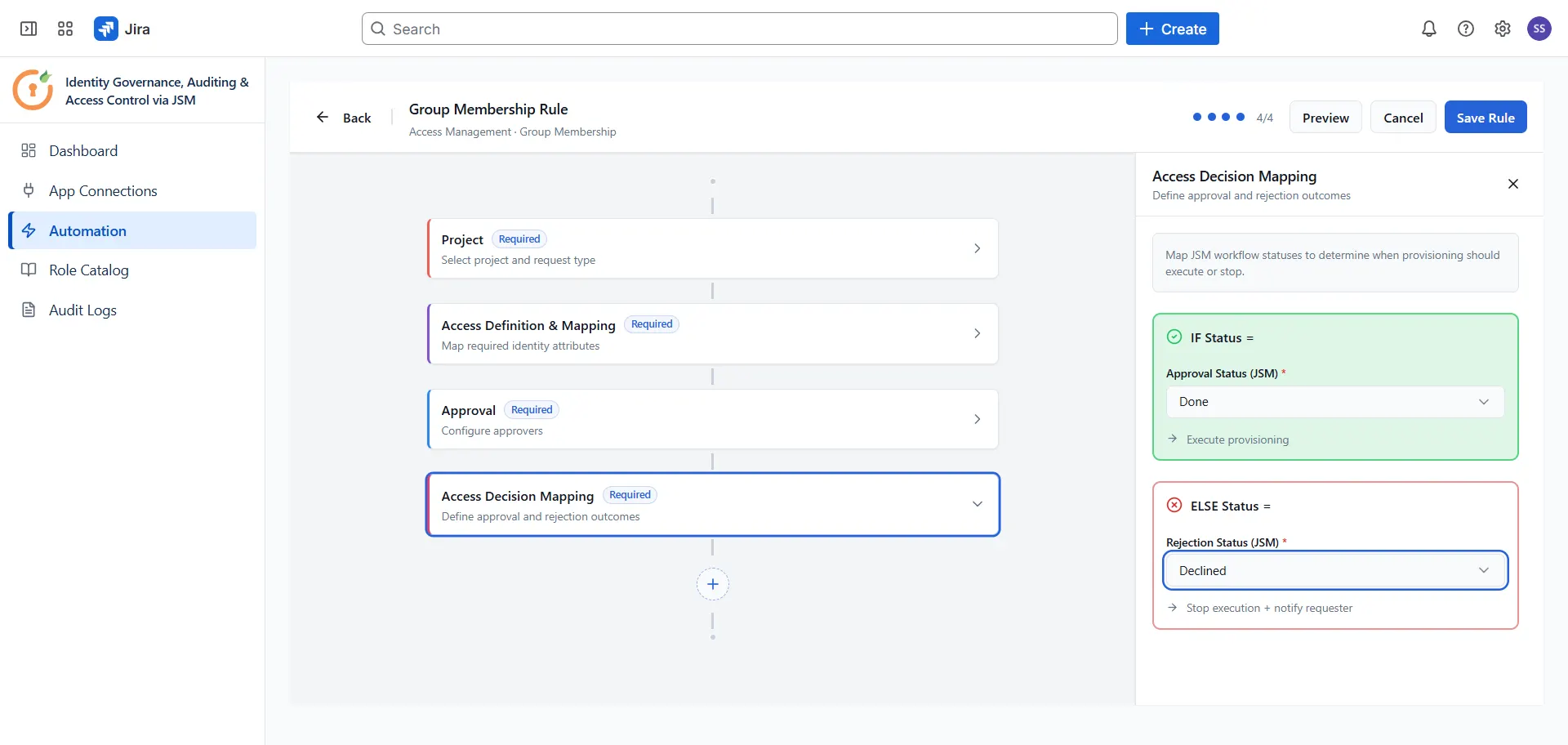
The app automatically posts a comment on the ticket when either outcome is reached, so requesters and approvers have a clear record of what happened.
7: Save the rule
- Click Save Rule in the top-right corner.
- After saving, open the JSM request type form and check that the mapped dropdown field is showing the expected options. For Access Options mode, you should see the friendly names you defined. For Dynamic Mapping mode, you should see the live group names from the connected application.
- If the options have not appeared yet, save the rule a second time to trigger the sync.
Test the rule
Before going live, run a quick test.
- Submit a test access request through the JSM portal.
- Move the ticket to your approved status.
- Confirm the requester has been added to the expected group in the target application.
- Check that a comment was posted on the ticket confirming the outcome.
Did this page help you?