- Home
- SCIM Provisioning
- SCIM Provisioning Documentation
- Jira Cloud Users & Groups Provisioning: Google Workspace Sync Guide

Jira Cloud Users & Groups Provisioning: Google Workspace Sync Guide
Users & Groups Provisioning for Jira synchronizes users, groups, and attributes from various identity providers (IdPs) with the Jira Cloud directory. You can manage users directly within your IdP, saving time and effort spent on manual provisioning while ensuring an up-to-date Atlassian directory.
 Try it for free
Before you begin
- You need admin access to both your Jira Cloud site and Identity Provider Admin Console (e.g., Google Cloud).
Download and Installation
- Log in to your Jira instance as an admin.
- Under the Apps section, click on Explore more apps.
- Search for miniOrange SCIM.
- Click Try it free to begin a new trial of the app.
- After installation, locate the miniOrange Users & Groups Provisioning For Jira app and click to open it.
Step 1: Admin Setup Configuration
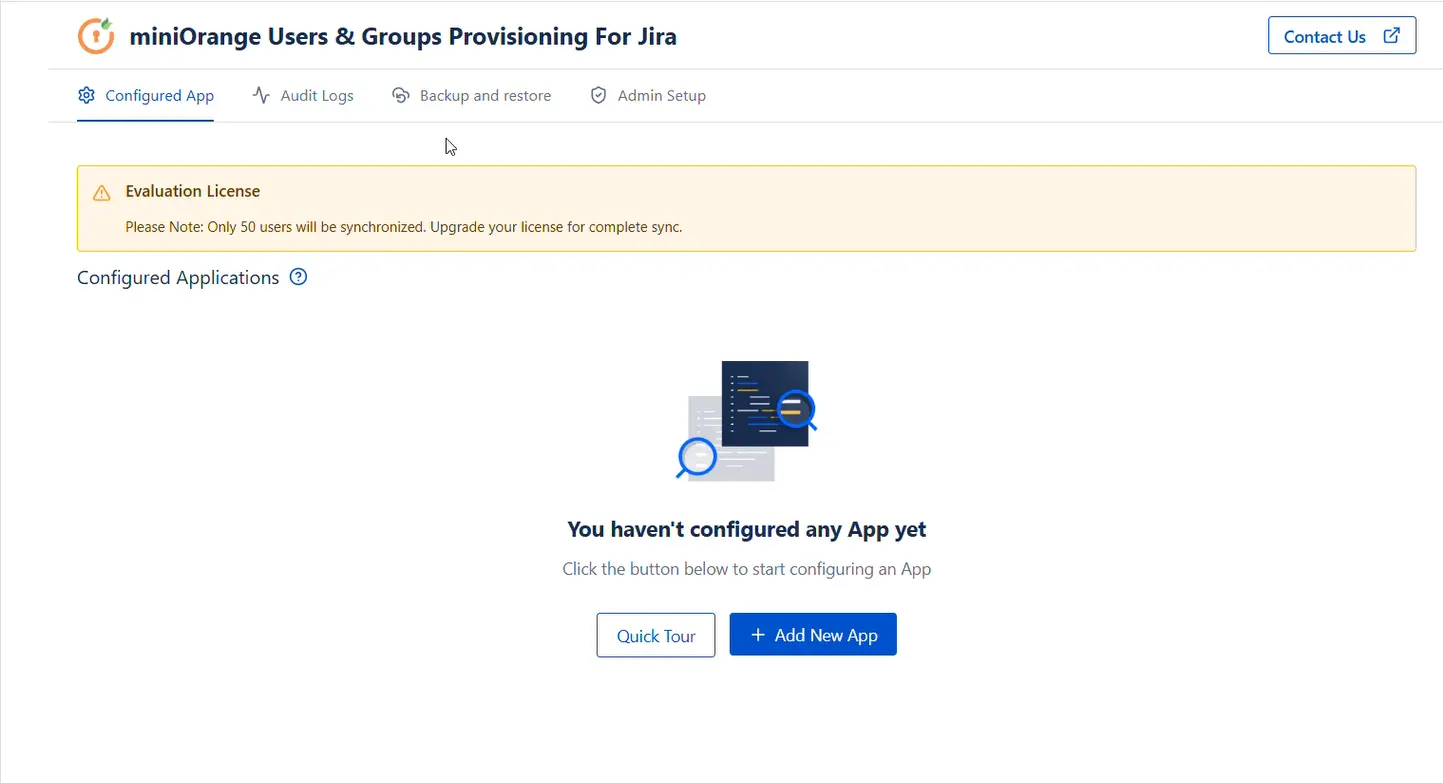
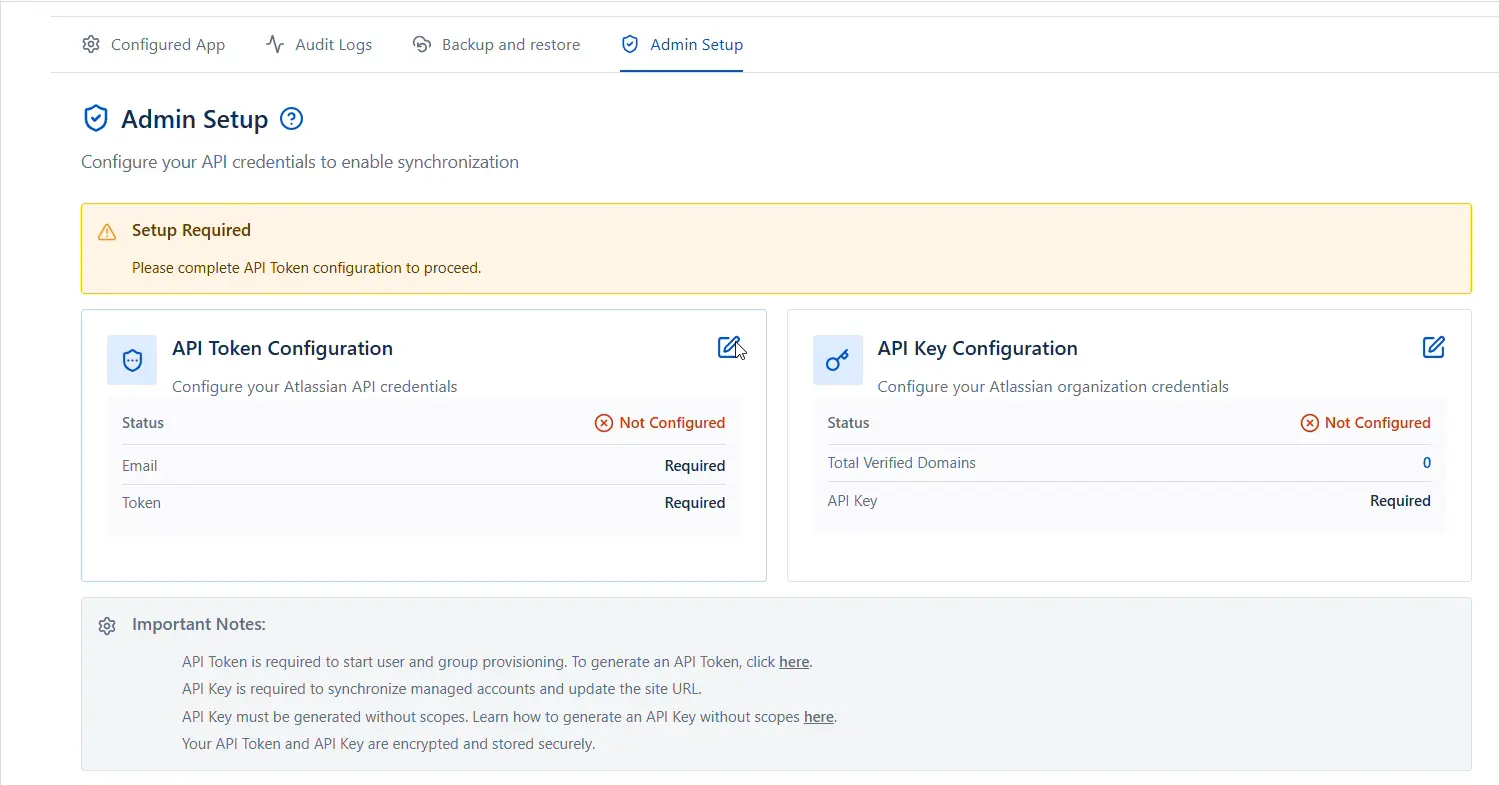
Upon installation of miniOrange Users & Groups Provisioning For Jira app, admin needs to configure Admin token and API key in order to complete admin setup and start the provisioning process.
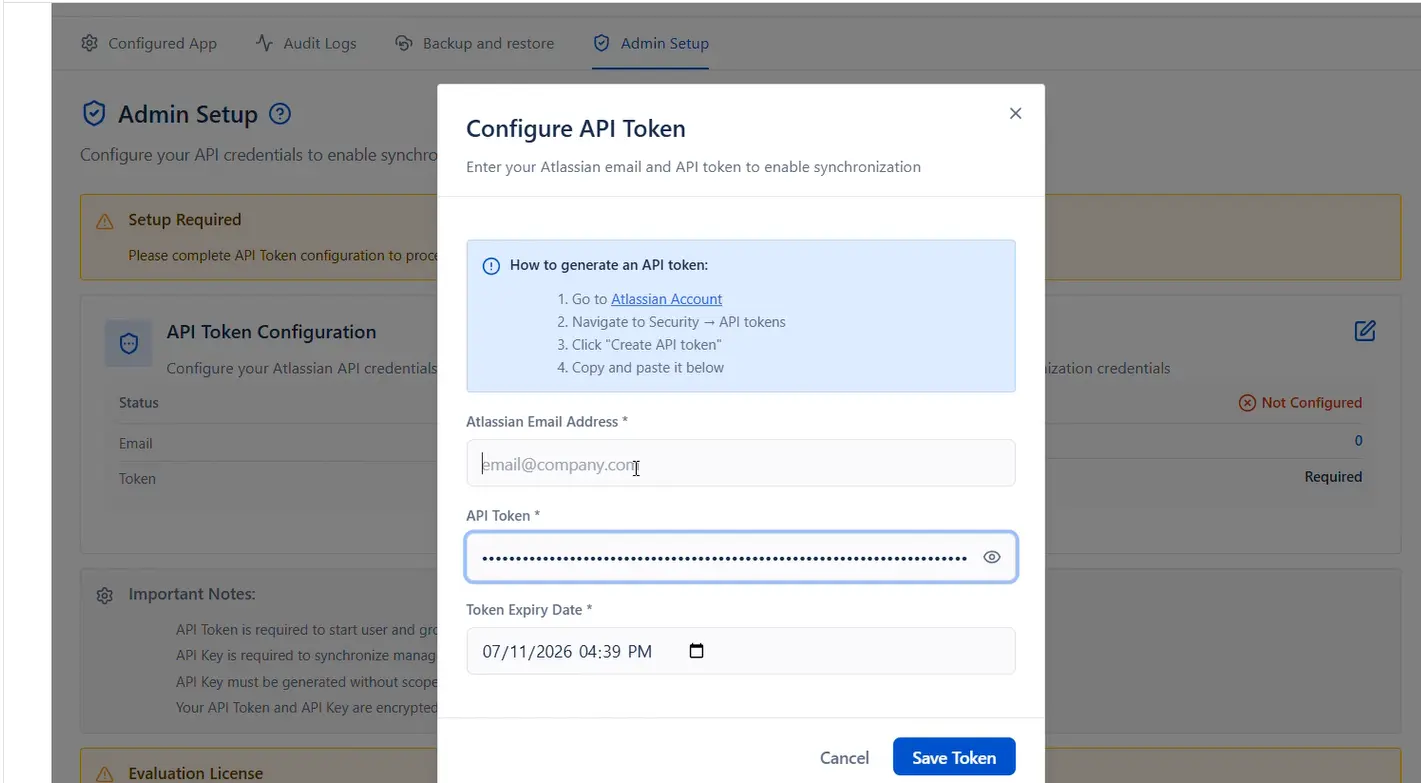
Part A: Configure Atlassian API Token
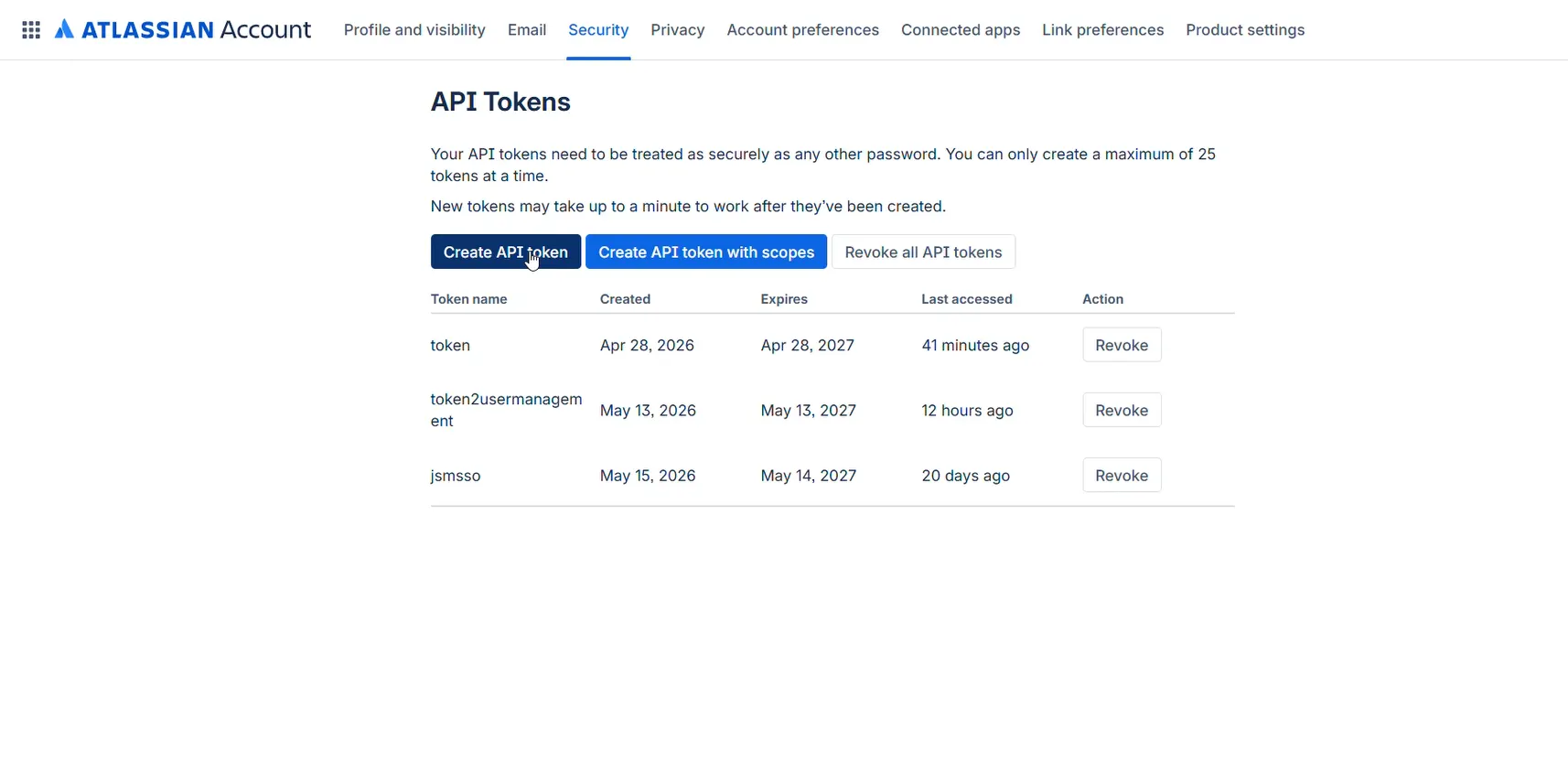
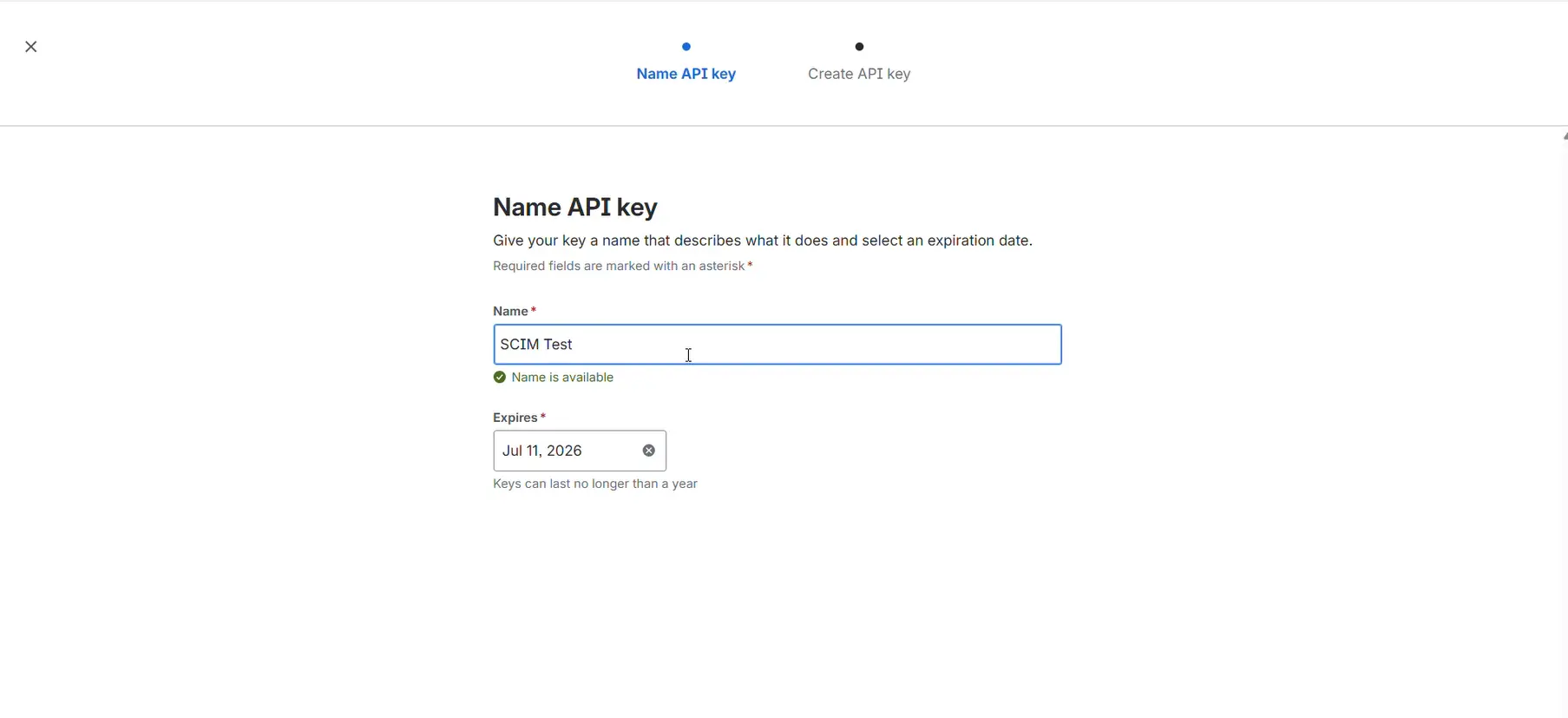
- Go to Atlassian Account and login with your admin account.
- Create API Token without scope and save at a safe place.
- Go to Admin Setup page inside plugin and edit API Token Configuration (using pencil button).
- Enter your Atlassian admin Email Address, API Token, and expiry date of API Token.
- Click on Save Token.
- Go to Atlassian Administration.
- Select your organization if you have more than one.
- Navigate to Organization settings → API Keys.
- Click Create API Key and select API keys without scopes.
- Go to Admin Setup page inside plugin and edit API Key Configuration (using pencil button).
- Enter API Key and click on Save API Key button.
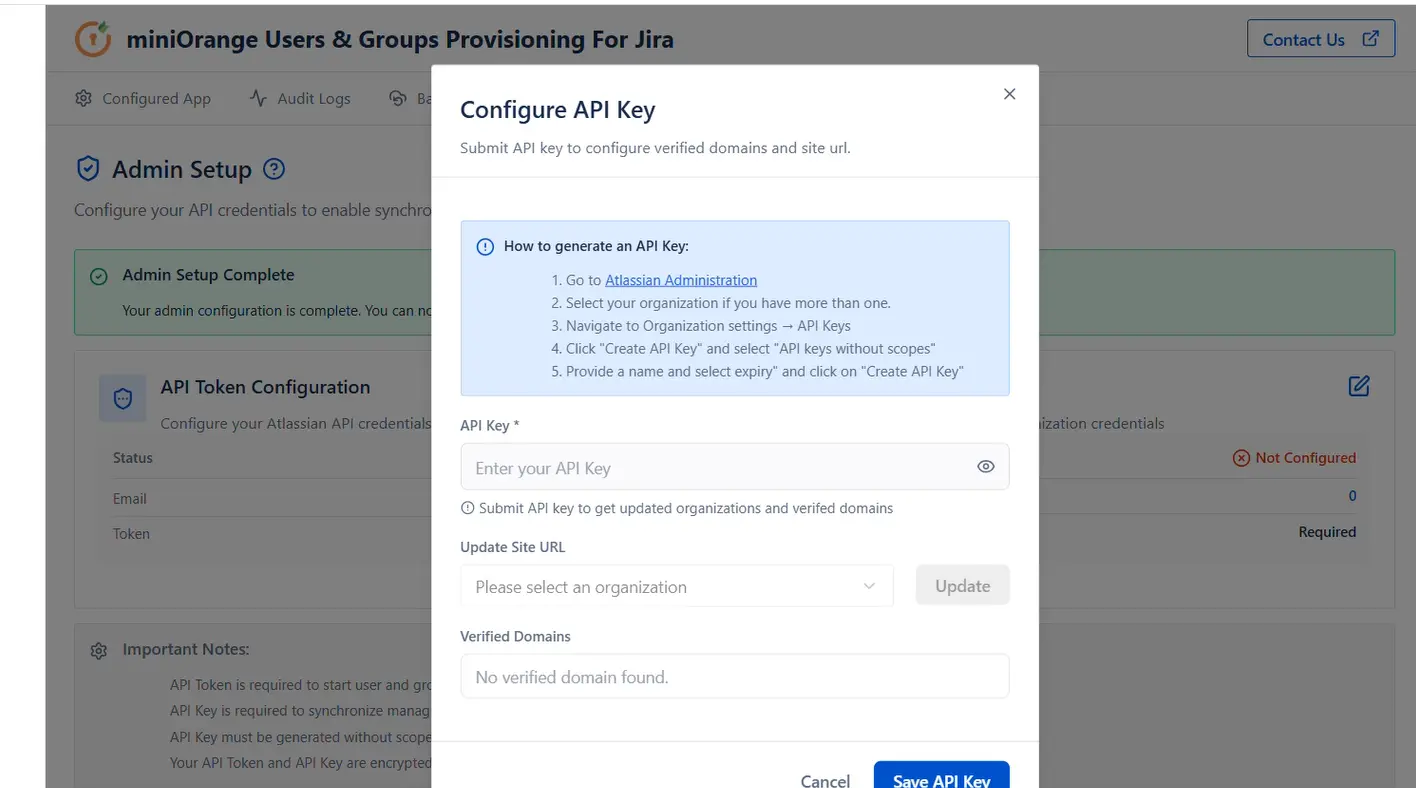
Once these configurations are fully processed, your core administrative setup is complete and ready for application configuration.
Step 2: Set up Google Workspace IdP
Now you can proceed to establish a connection with Google Workspace.
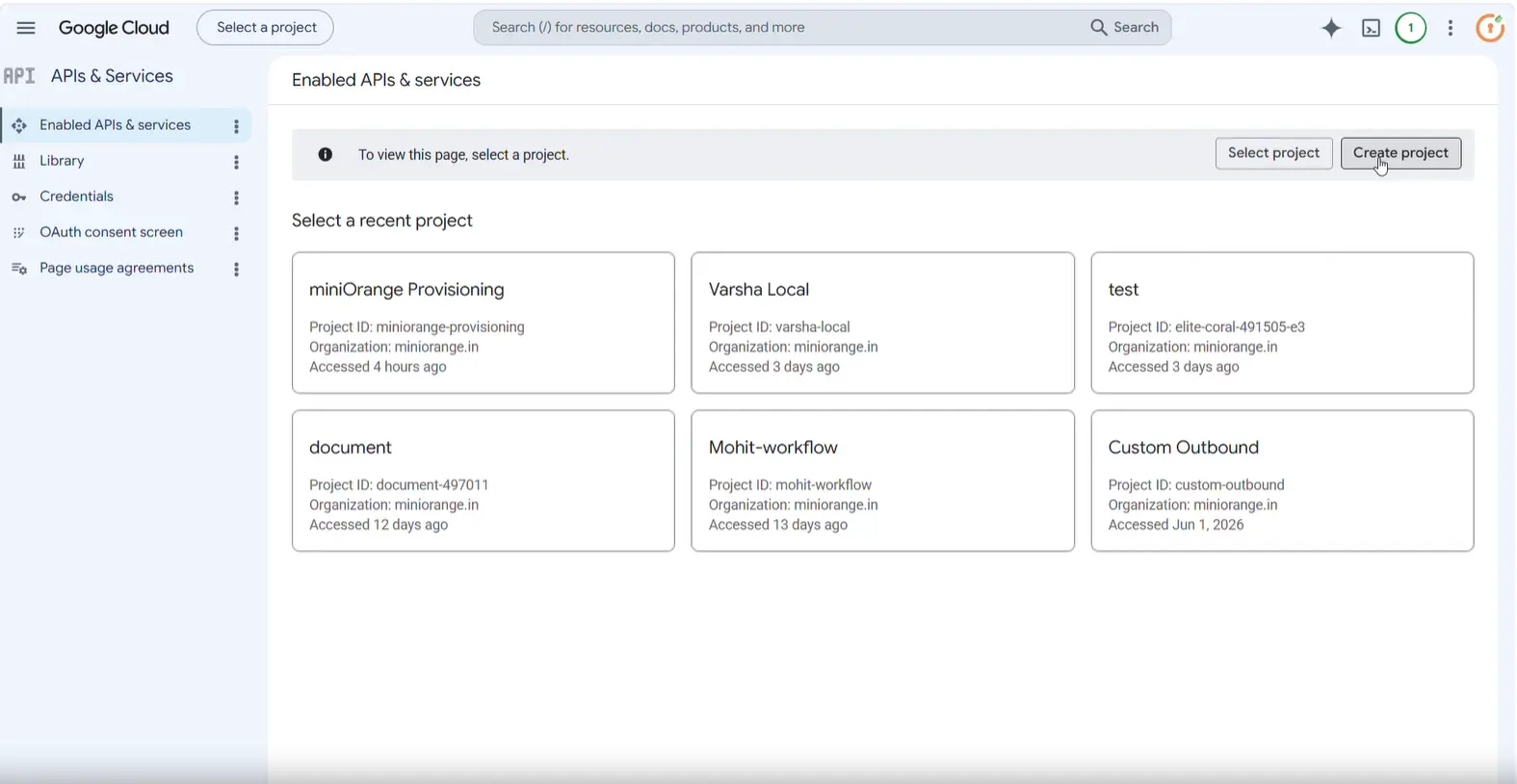
 2.1 Create a New Google Cloud Project
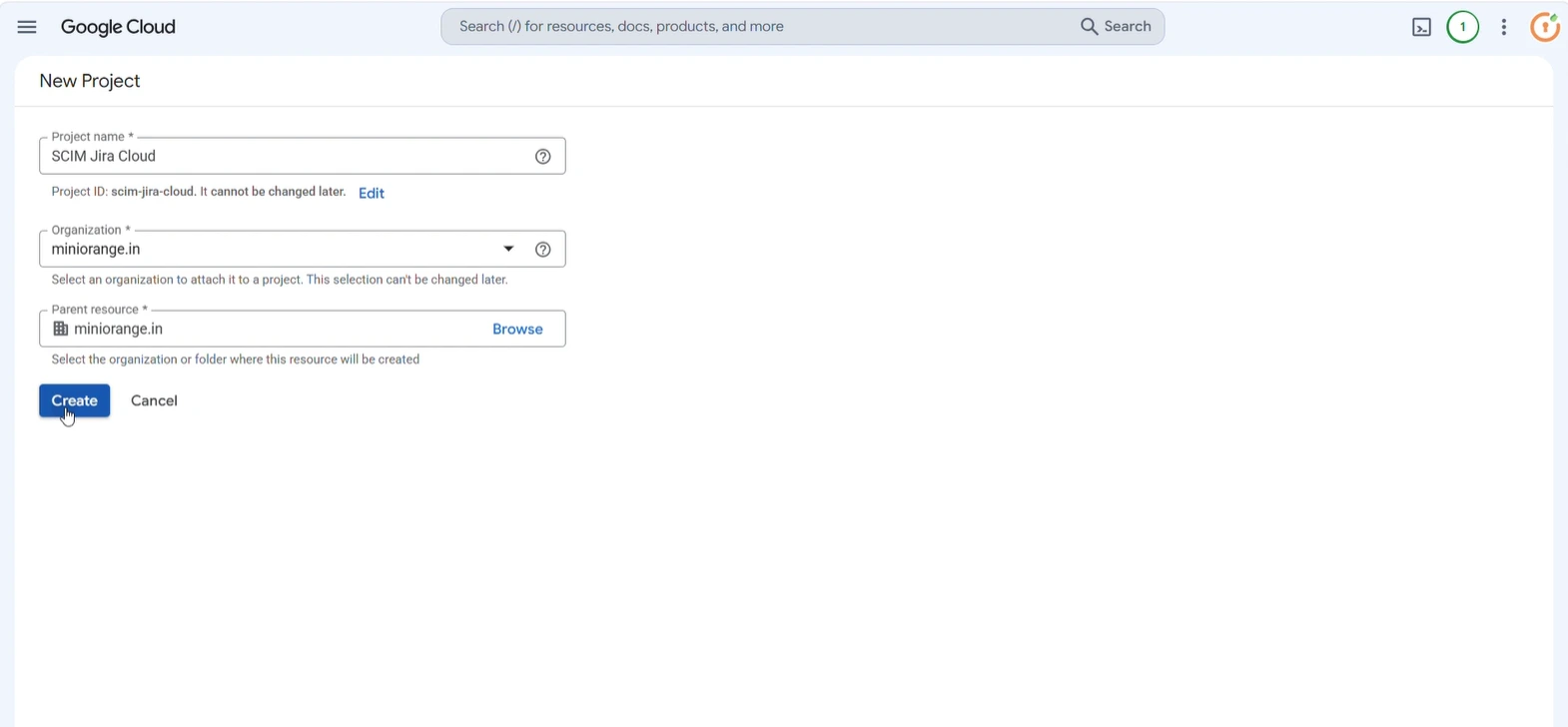
- Open a new browser tab and log in to the Google Cloud Console (console.cloud.google.com), and click on the project dropdown selector on the top menu bar.
- Click on the Create Project button in the upper right corner.
- Provide a name in the Project Name field, confirm your organization details, and click Create.
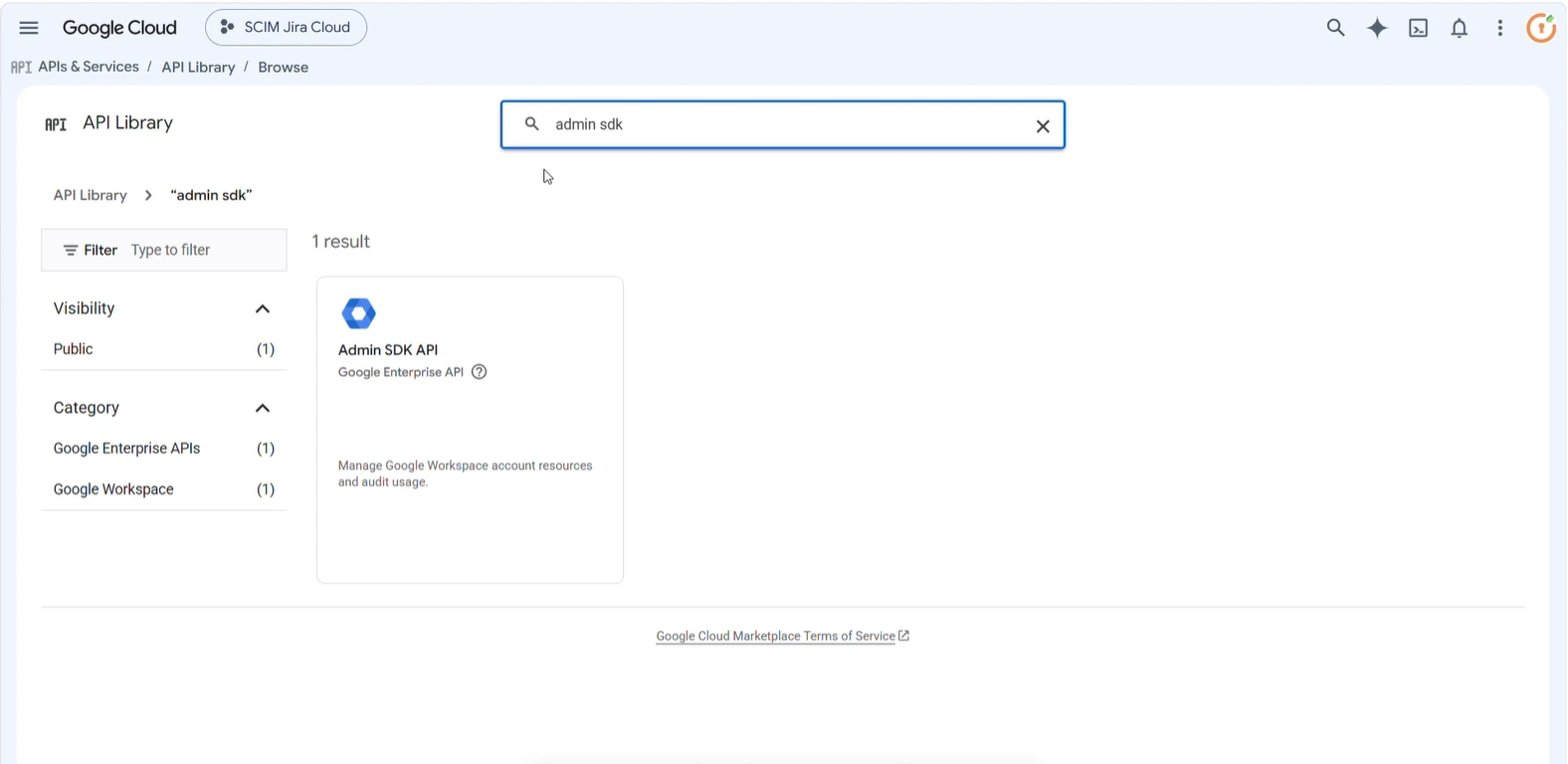
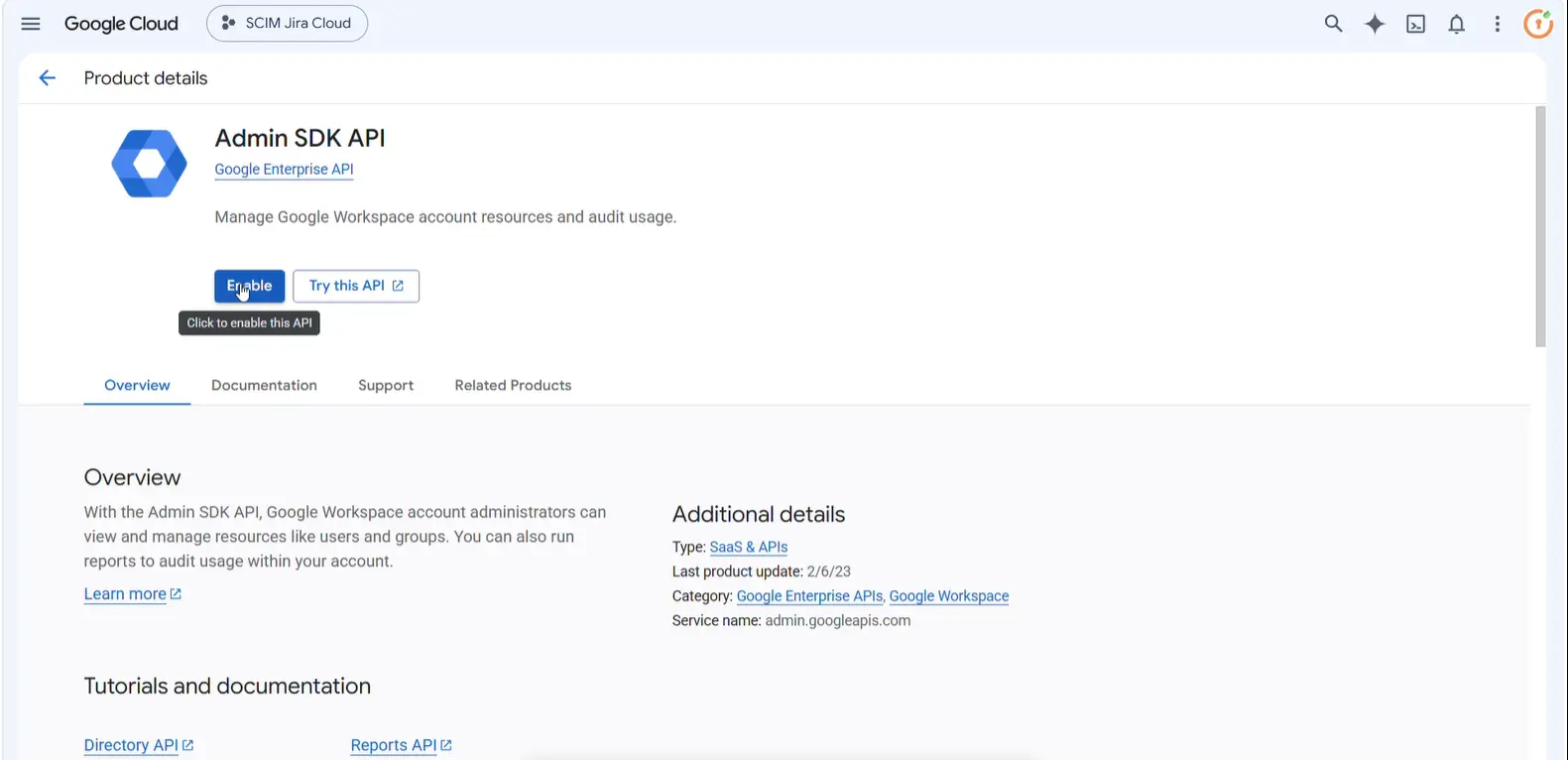
- Back in your project dashboard, search for Admin SDK API and enable it.
2.2 Configure the OAuth Consent Screen
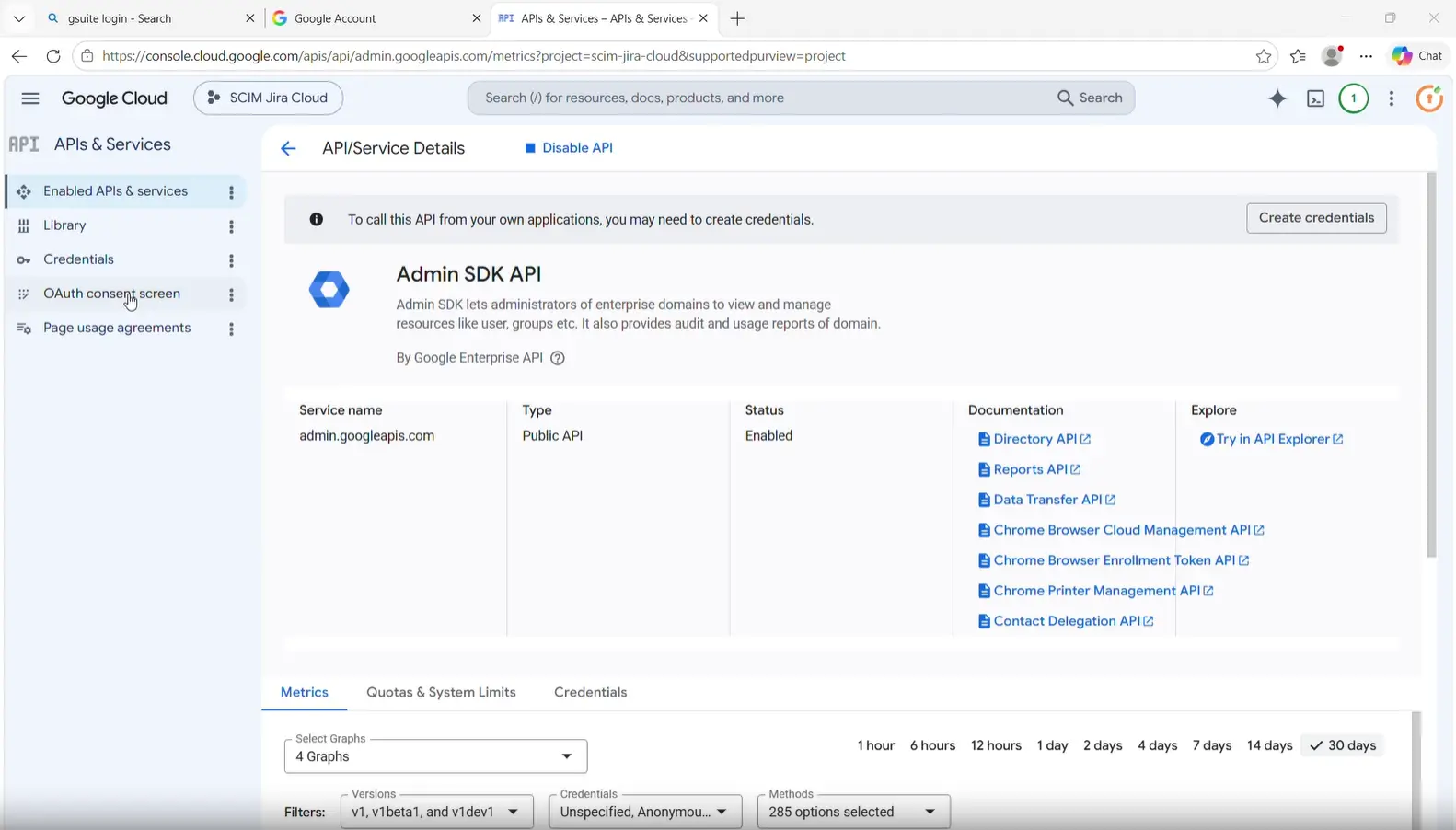
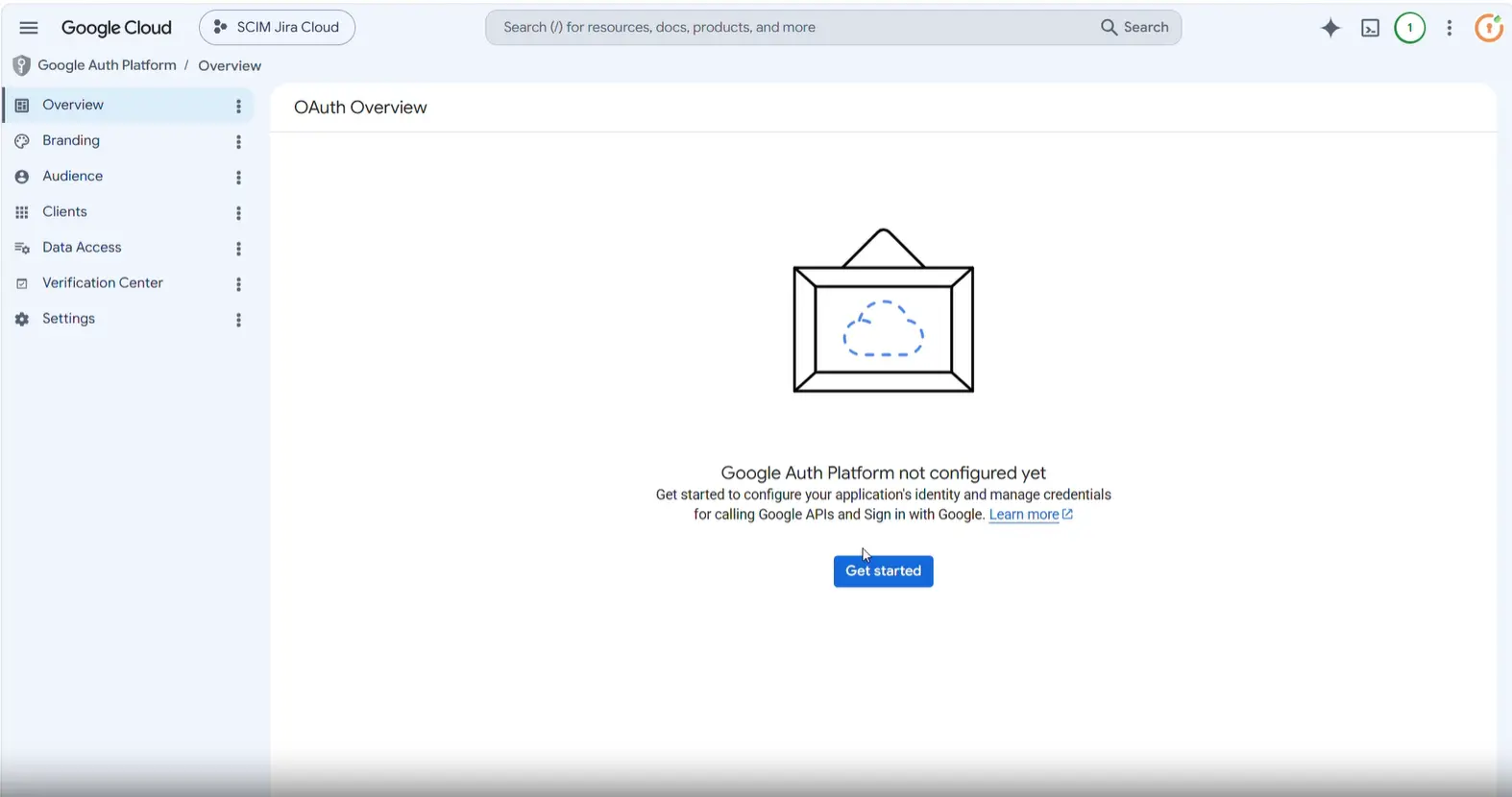
- Find and click on the OAuth consent screen tab on the left sidebar menu.
- On the initial setup welcome screen, click the Get started button to open the project configuration wizard.
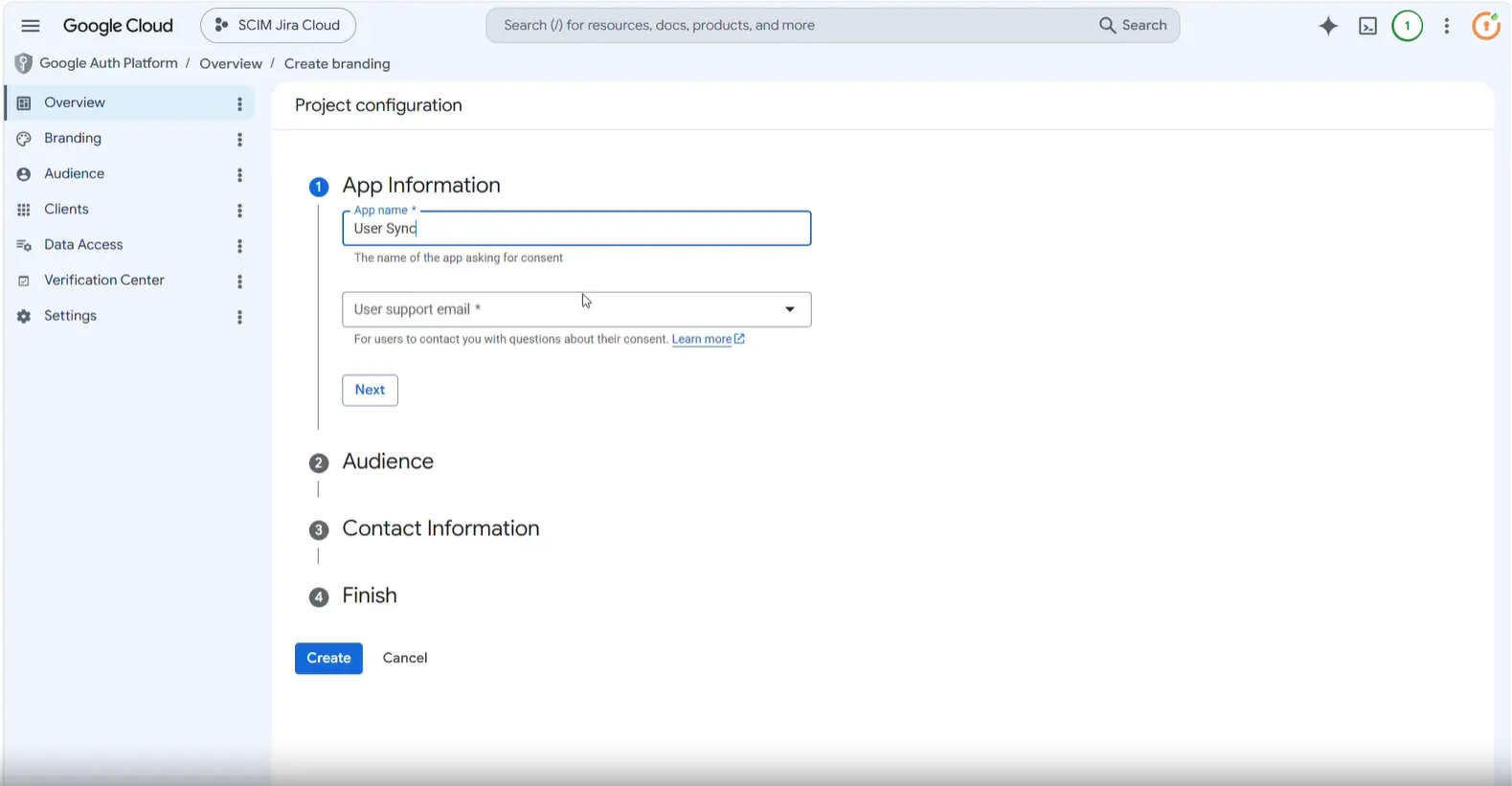
- In the App information section, enter an appropriate name and pick your target admin email address from the User Support Email dropdown selection list. Click Next.
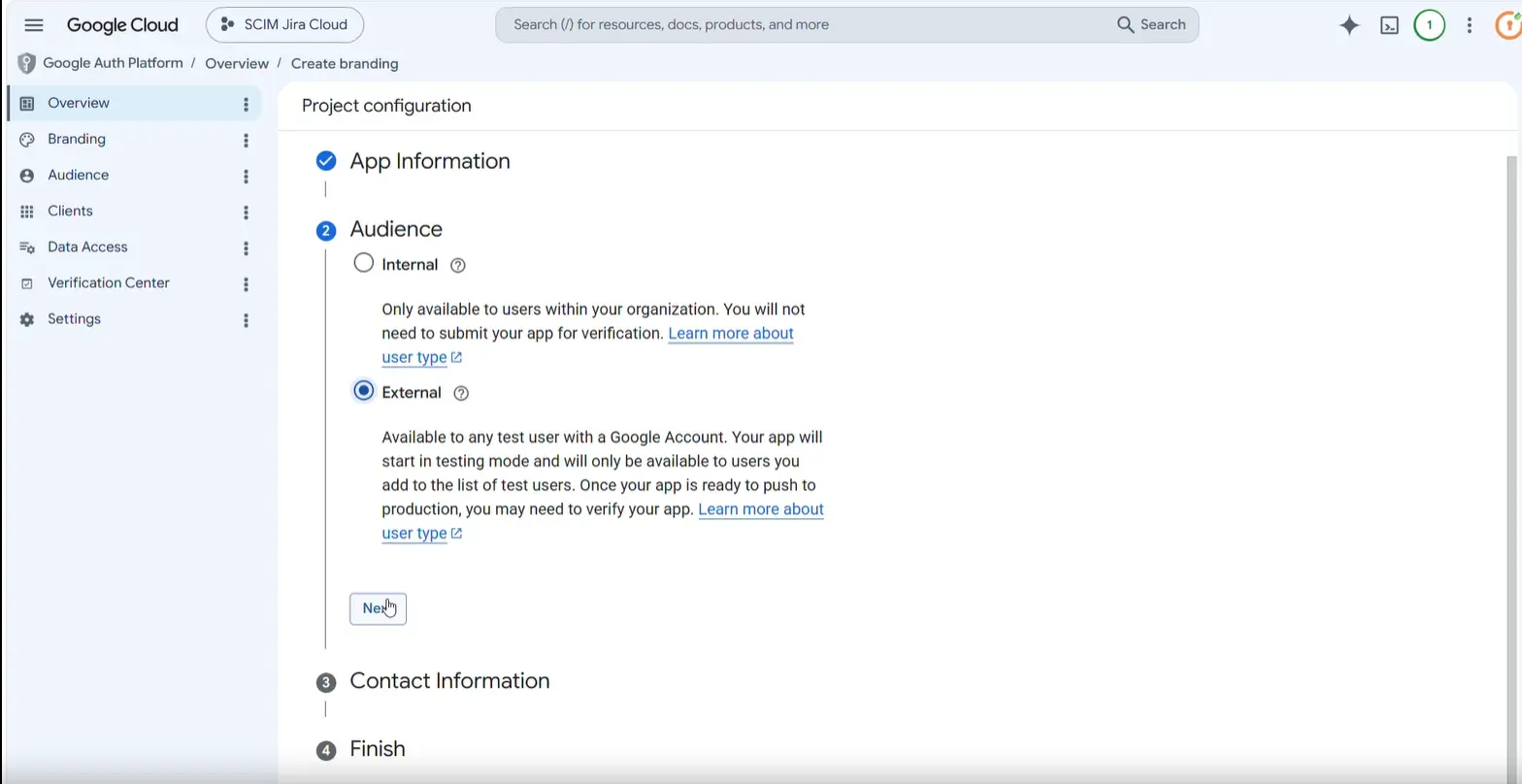
- Under the Audience selector settings, set your verification layout scope to External and click Next.
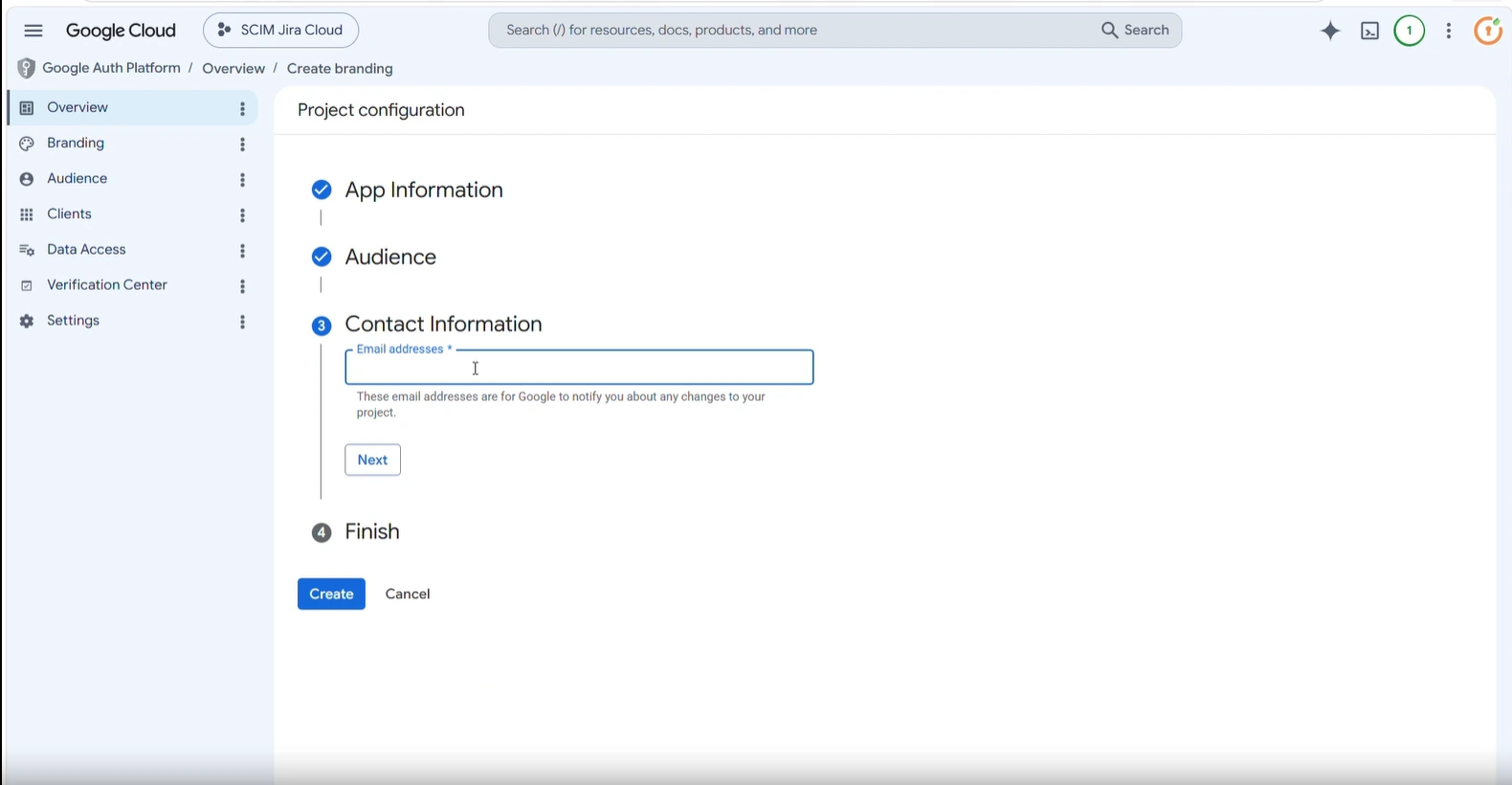
- In the Contact Information interface, add your administrator email address to the Developer Contact Information field and click Next.
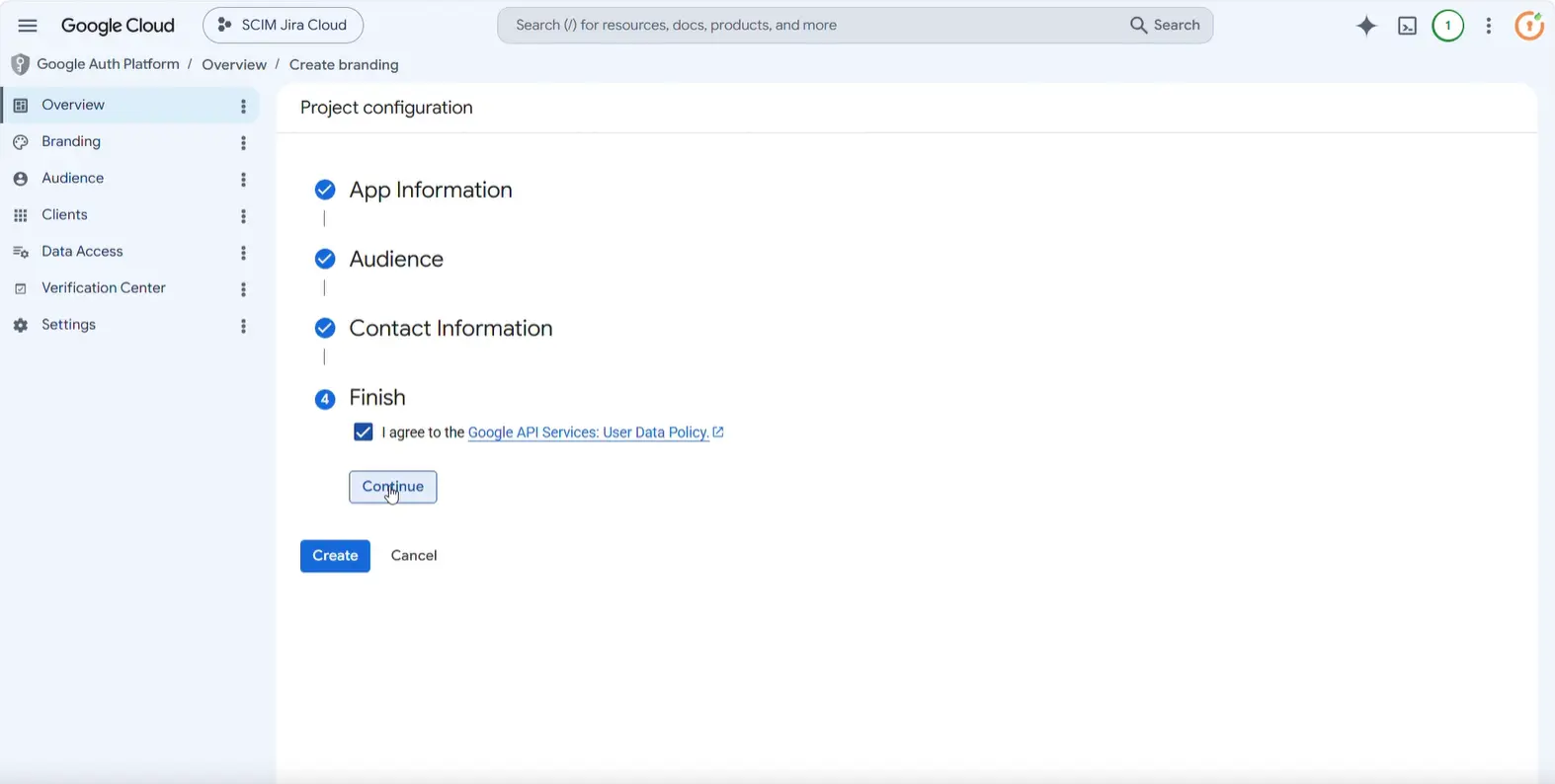
- Advance to the Finish confirmation tab, select the check box to verify you agree to the Google API Services: User Data Policy, and click Continue to finalize the authentication layout.
2.3 Generate OAuth 2.0 Web Client Credentials
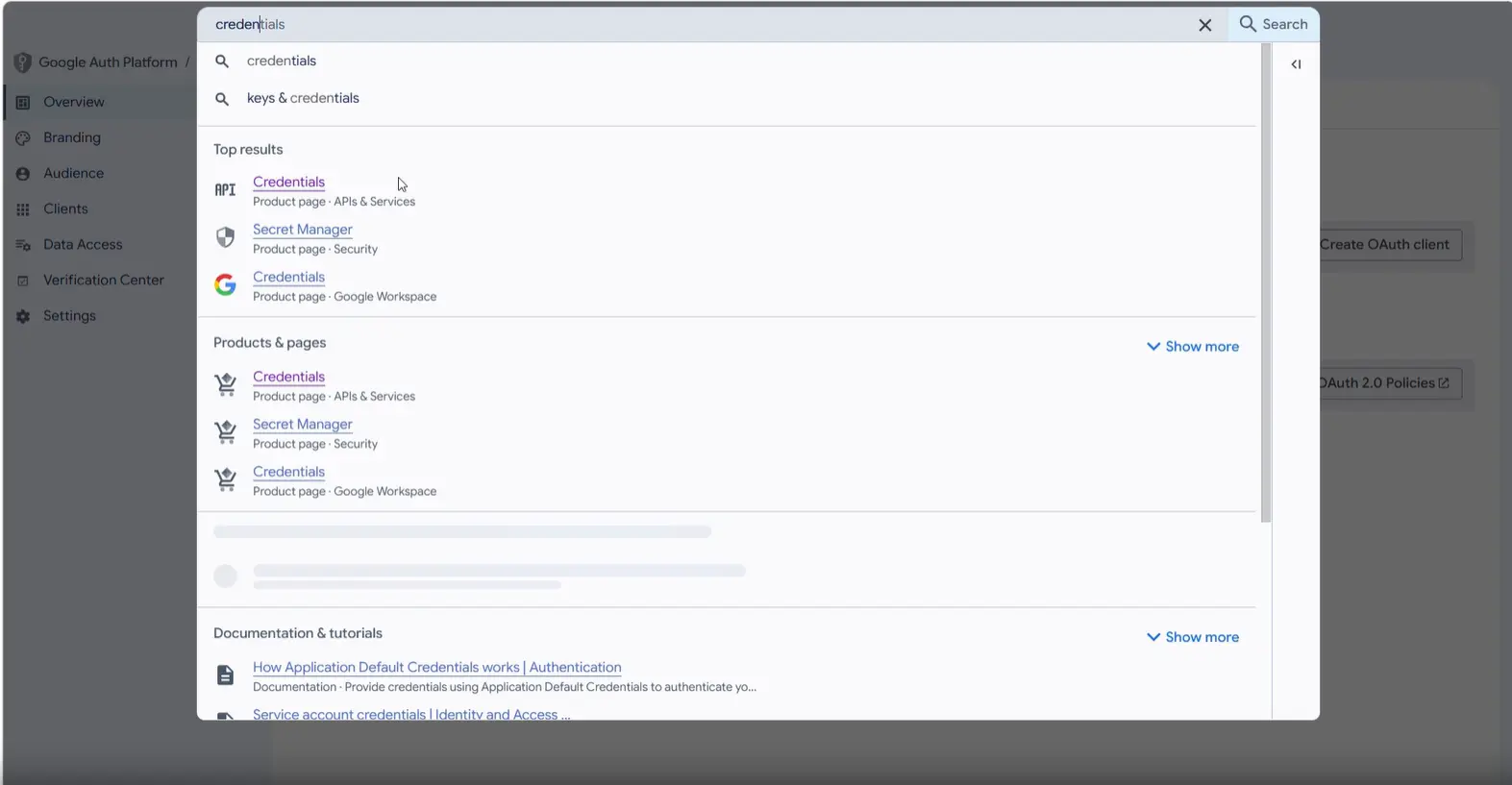
- From the top search bar, search Credentials under APIs & Services.
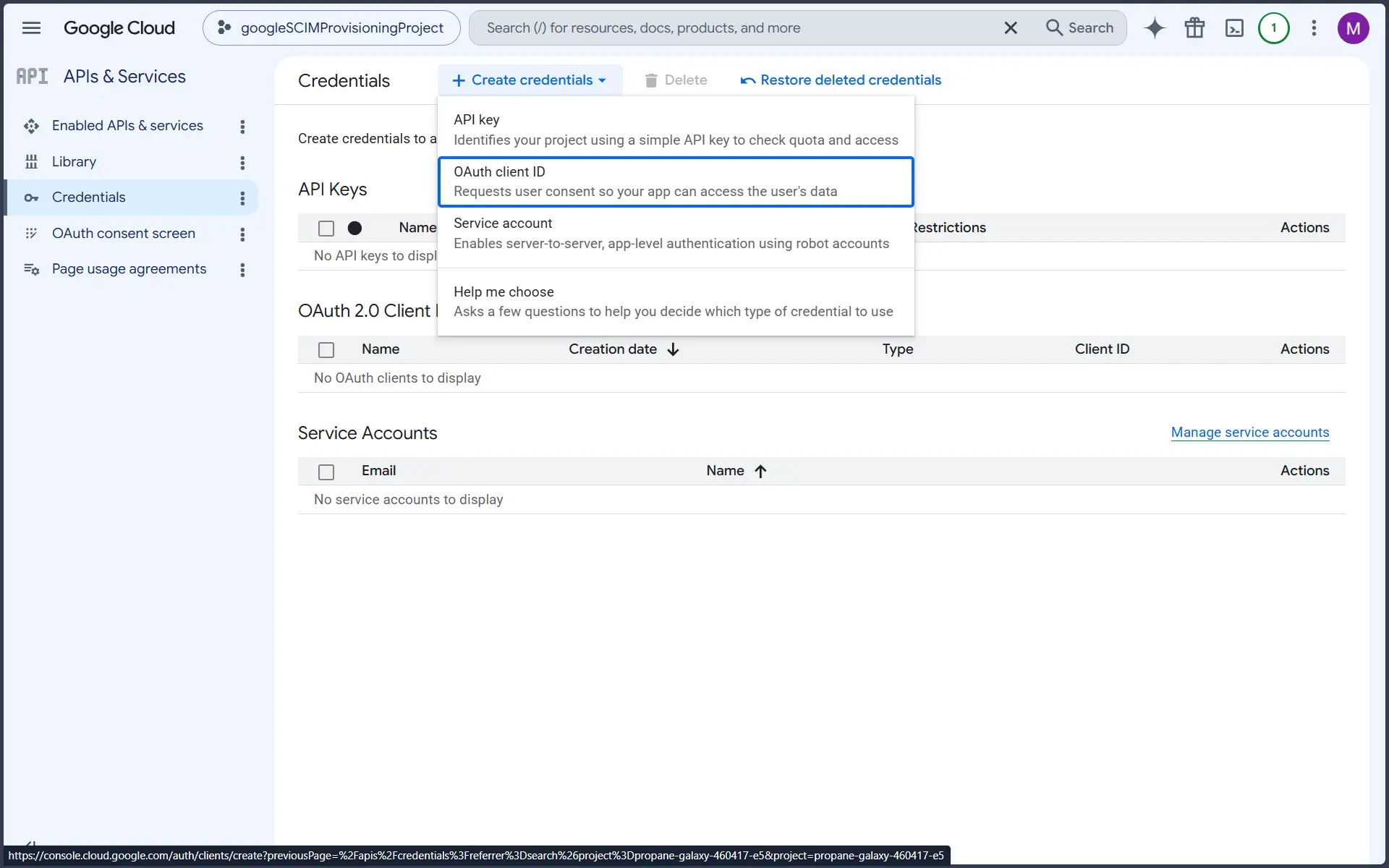
- Click on the + Create Credentials button, and choose OAuth client ID from the dropdown menu.
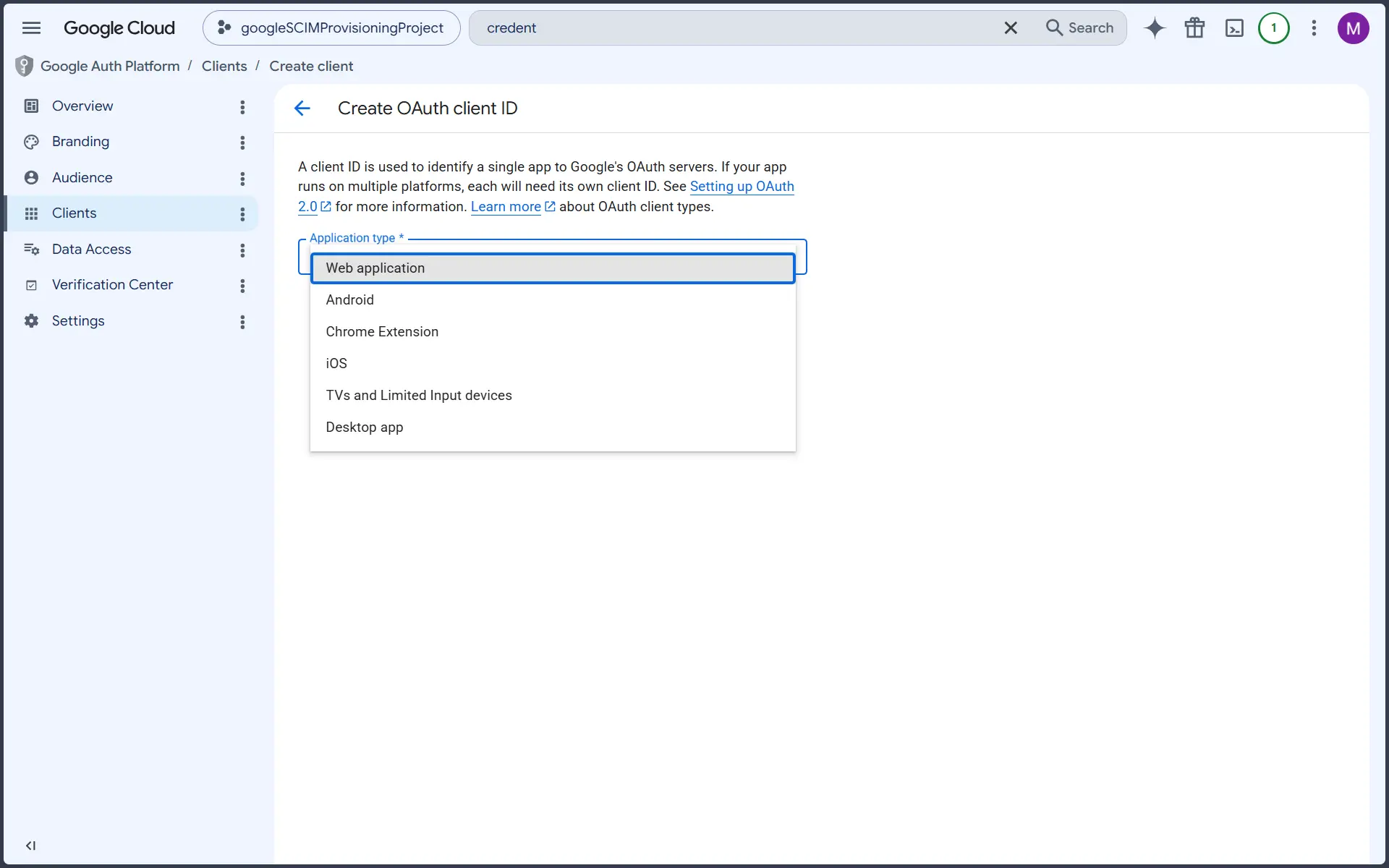
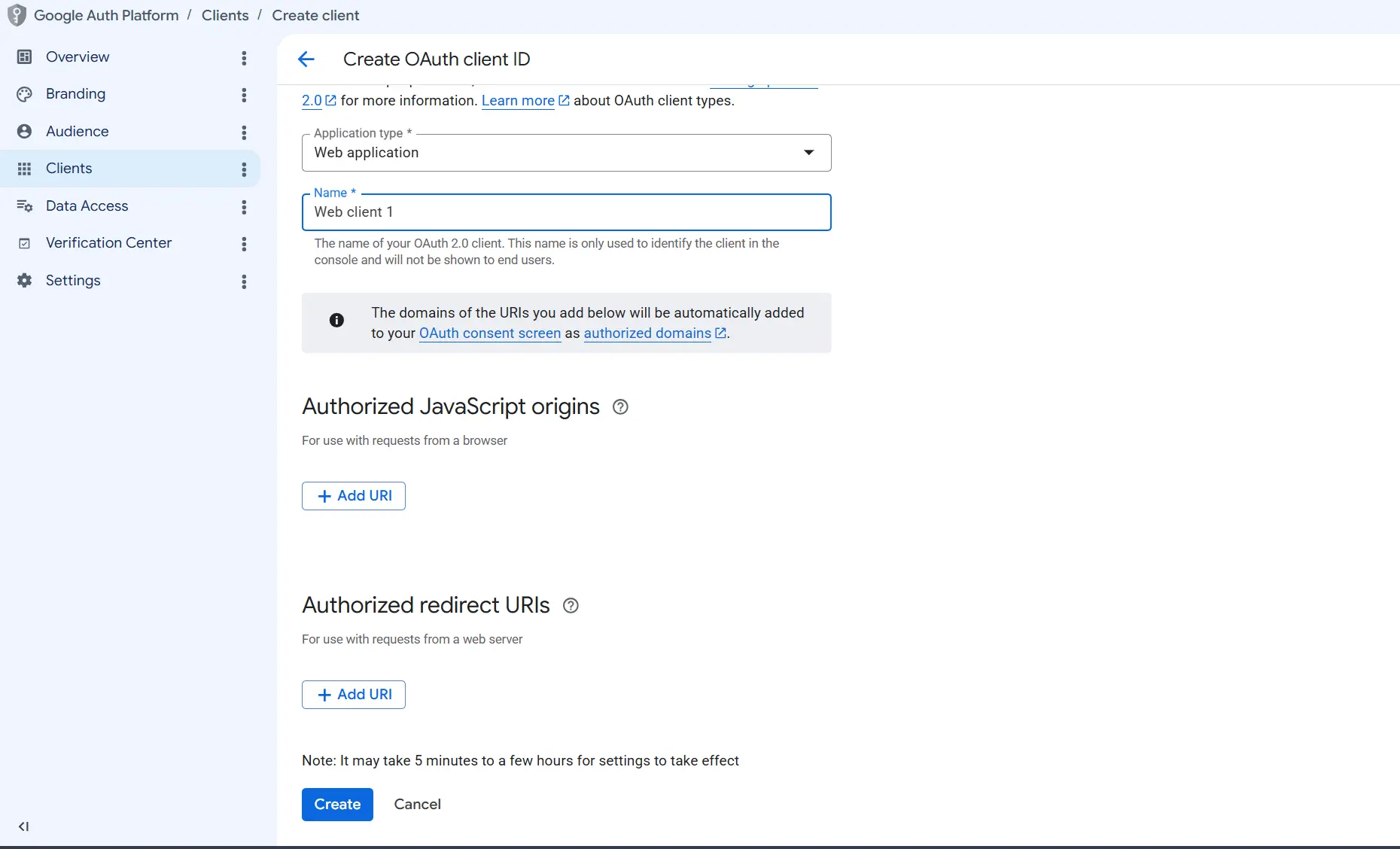
- While creating a new client, select the Web application under the Application type dropdown menu block.
- Provide a meaningful name to your client and click Create.
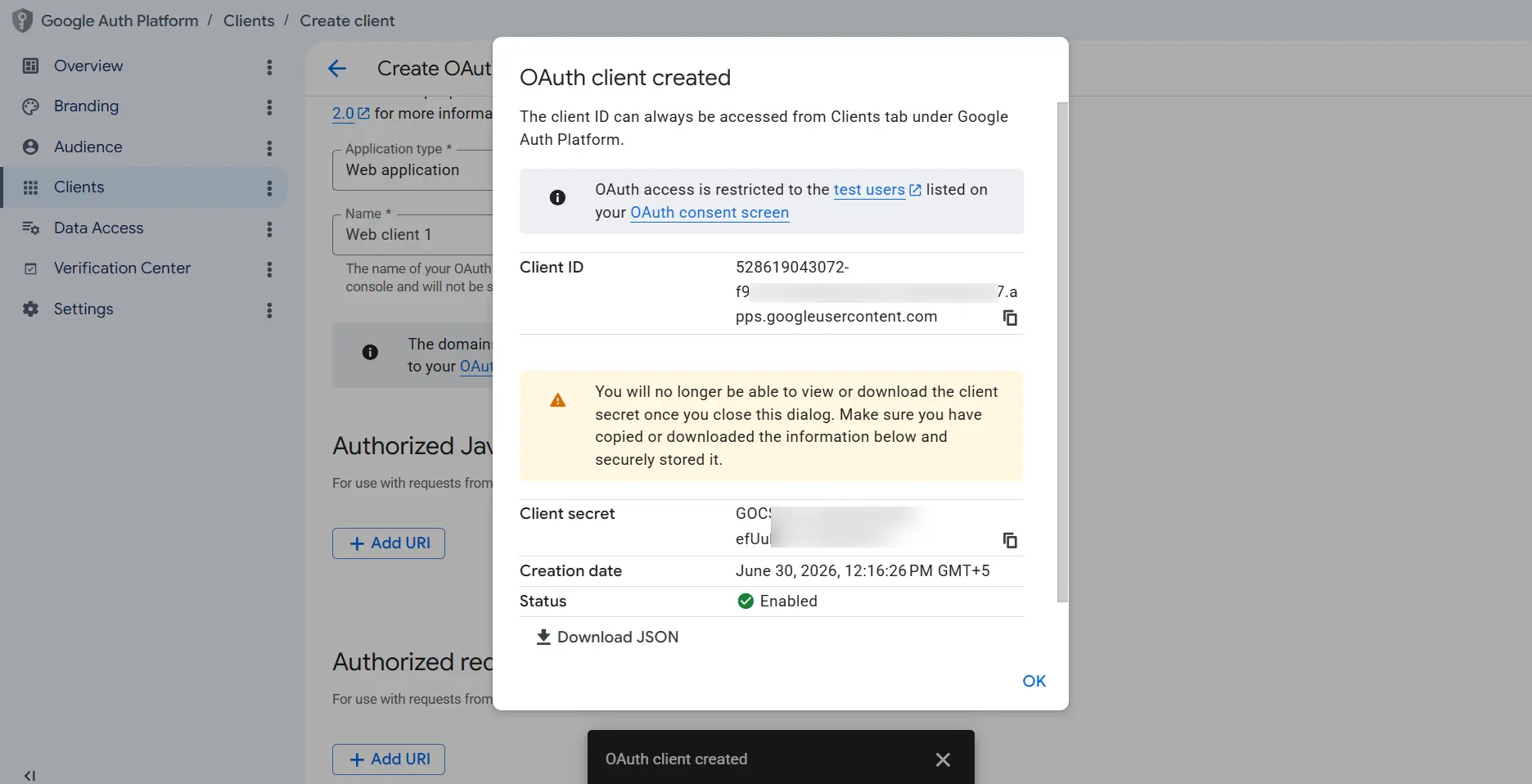
- An OAuth client-created pop-up confirmation screen will appear. Copy both the Client ID and the Client Secret strings to your secure clipboard and keep them handy.
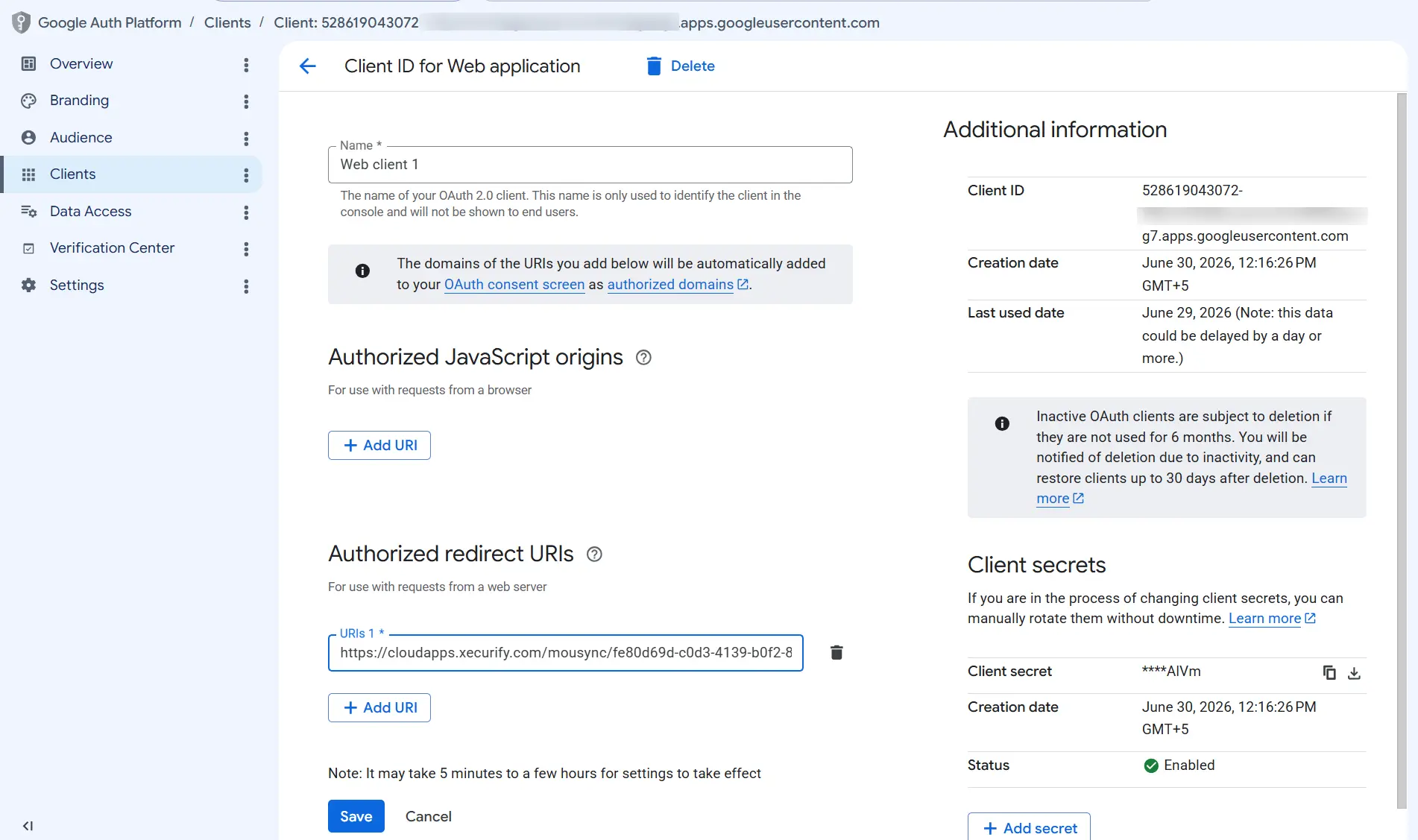
- Later, after completing the service provider configuration (Step 3), click the + Add URI button under Authorized Redirect URIs and enter the redirect URL obtained in Step 3.1: Application Configuration.
Step 3: Service Provider Configuration (Jira)
Now switch back to your Jira tab.
3.1 Application Configuration (Continued)
- Navigate back to the Configured Application tab on the main dashboard and click the + Add New App button.
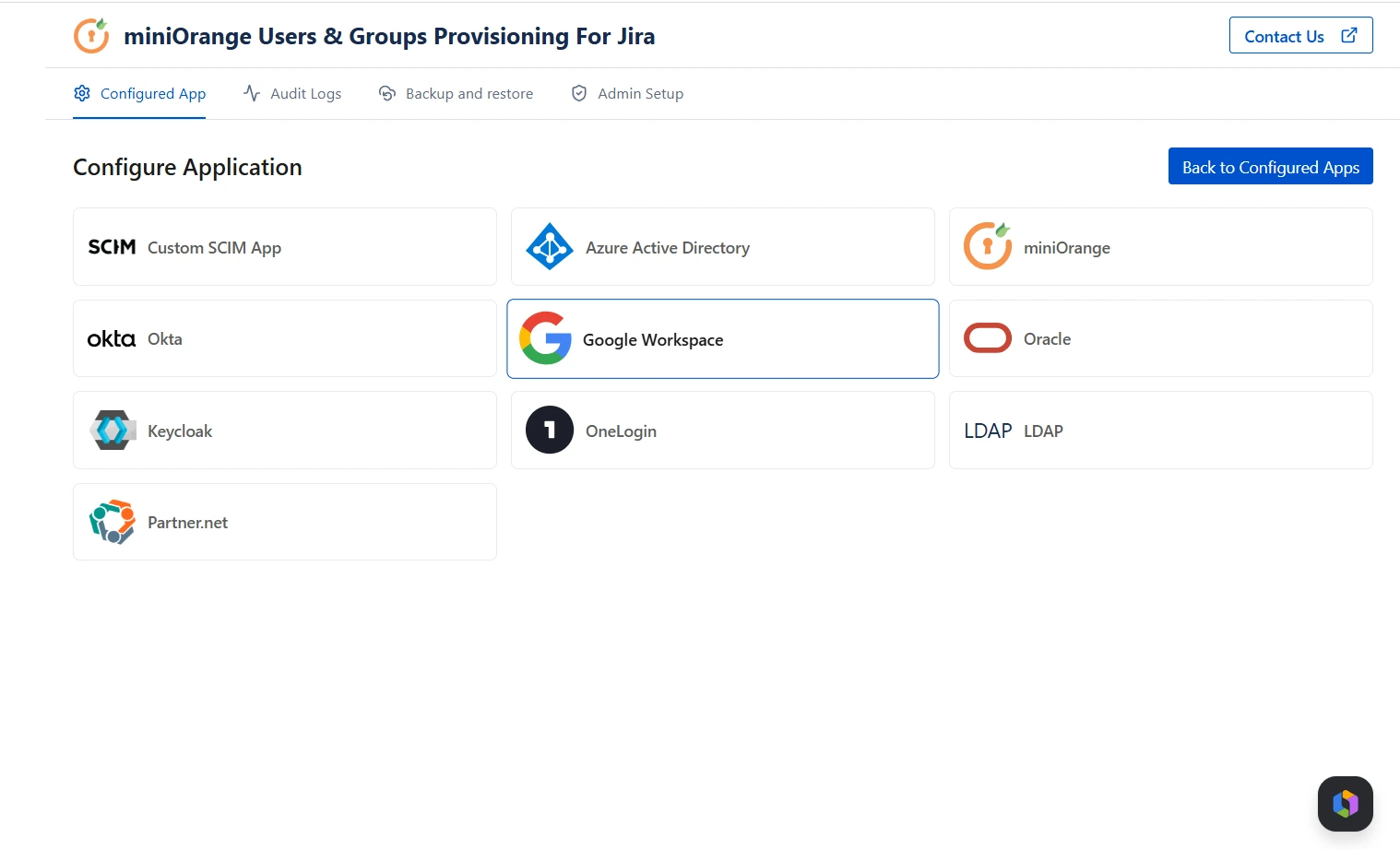
- From the Configure Application directory screen, locate and select Google Workspace as your chosen provider.
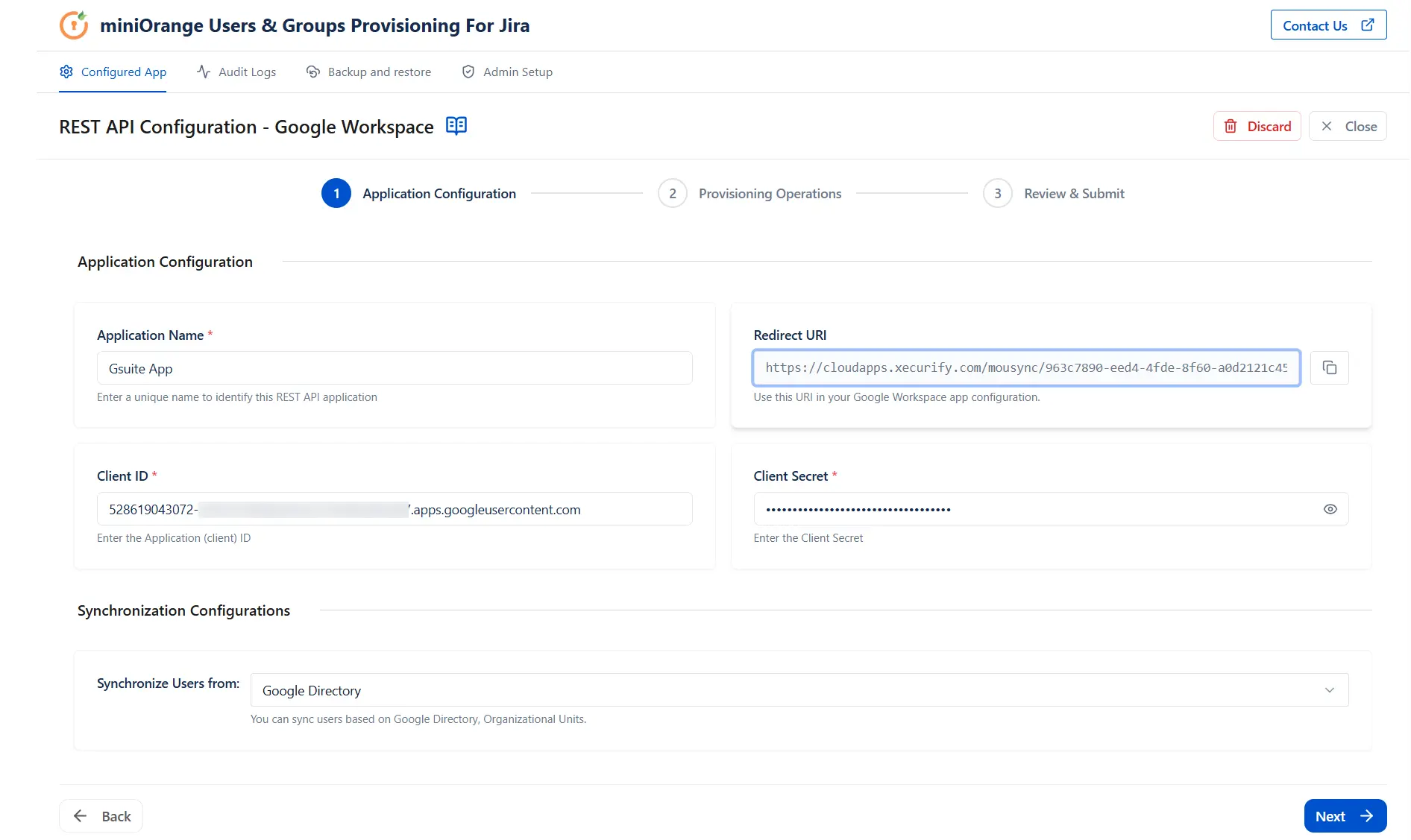
- In the App Configuration wizard > Application Configuration section, enter a unique name in the Application Name field.
- Paste the Client ID and Client Secret you copied in the previous step in their respective fields.
- Click Next to proceed.
3.2 Provisioning Operations
In the Provisioning Operations section, define your synchronization settings:
Organizational Unit:
- Under Synchronization Configuration, you can select option to sync data either via entire workspace or by selecting Organizational unit, limit the sync to added entries. This supports entries with sub-organizational Units as well. Just enter org1 for direct org unit or parentOrg/childOrg to sync users from childOrg Organizational Unit.
User Operations:
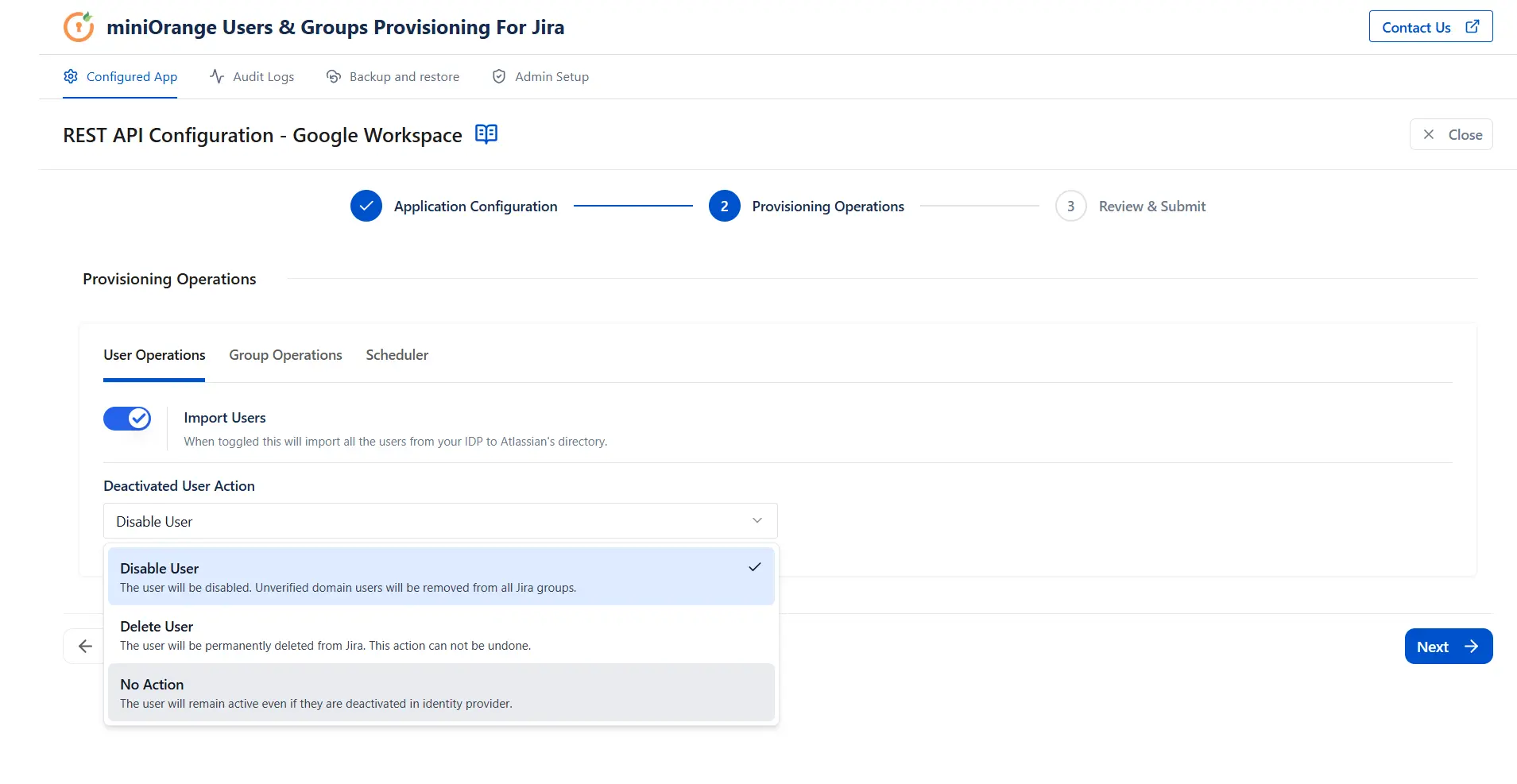
- Ensure the Import Users toggle is switched ON. In the Deactivated User Action dropdown, select the action that should be taken when a user is unassigned or deactivated in Google Workspace.
Group Operations:
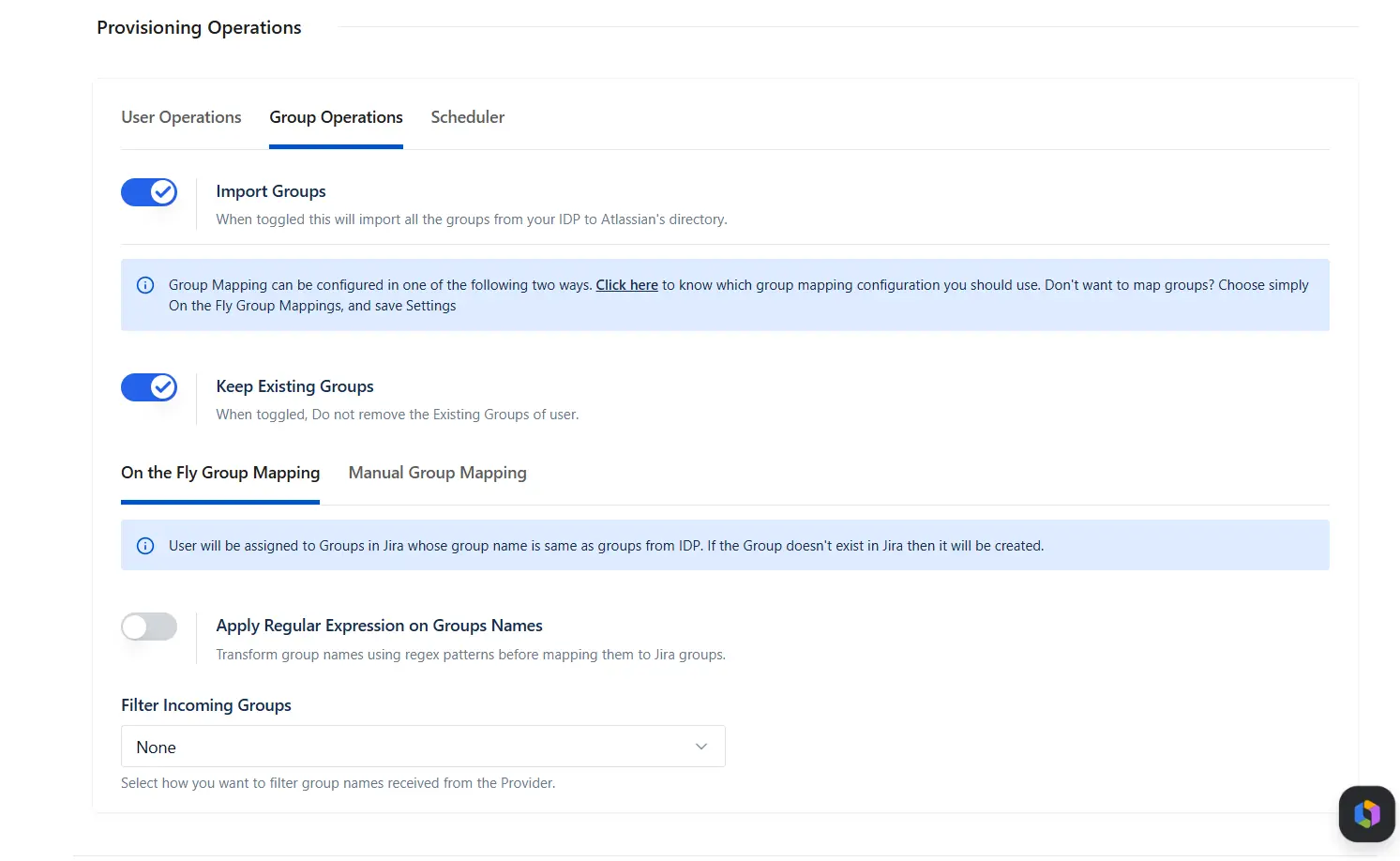
- Switch to Group Operations and enable Import Groups.
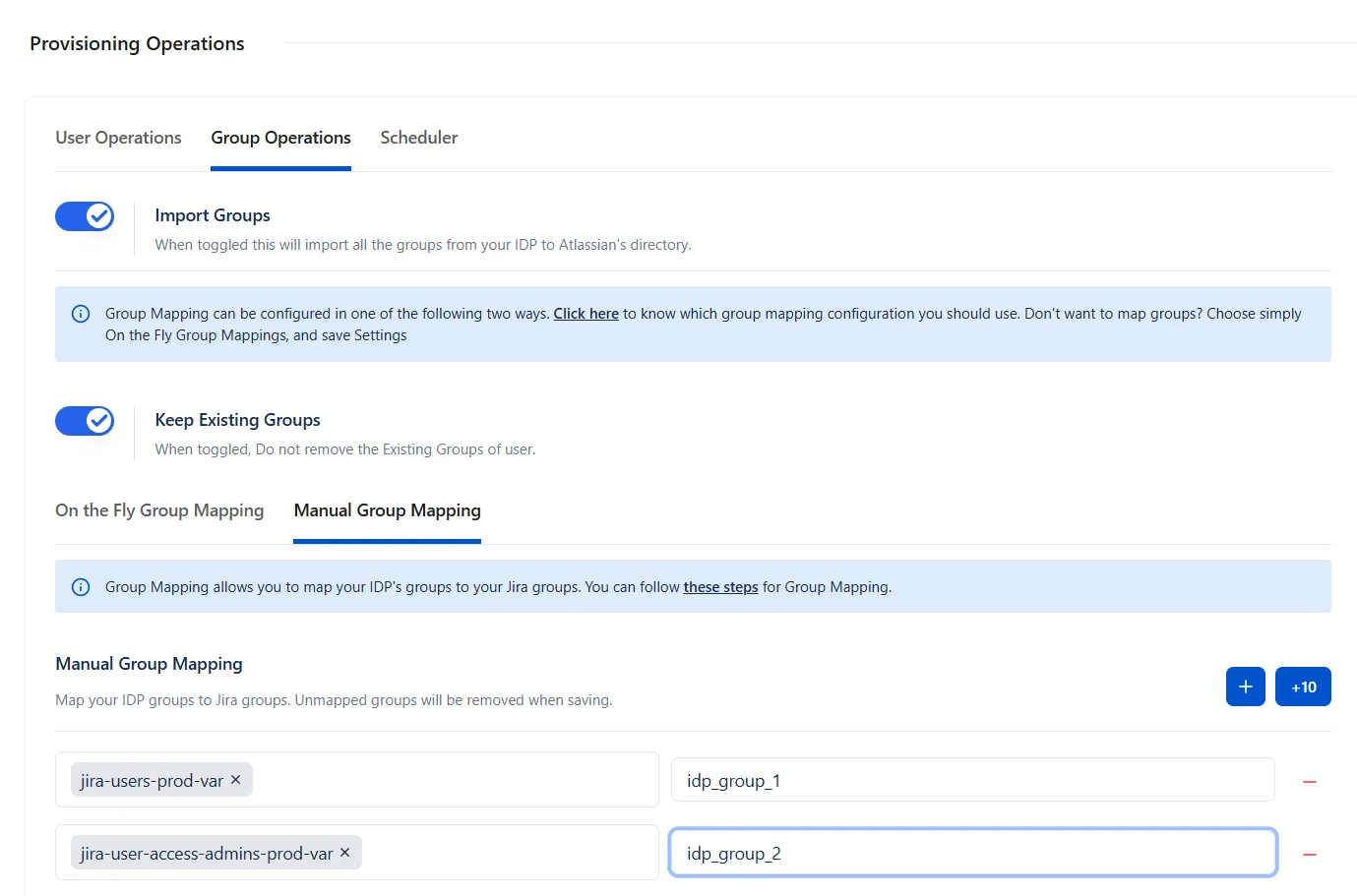
- Group operations can be performed either with On-the-Fly Group Mapping or Manual Group Mapping.
- Select this tab to create groups dynamically as it is from IdP to Jira Cloud if they do not exist in Jira and map the users accordingly.
- You can enable the Apply Regular Expressions on Group Names option to transform group names using Regex patterns before mapping them to Jira groups.
- Under Filter Incoming Groups, you can configure how you want to filter group names received from the provider.
- To map groups from your IdP to Jira's native groups, select this tab. When the sync executes, the users from respective groups of the IdP will be mapped to Jira groups as per configuration.
Keep Existing Groups
This setting controls how a user's Jira group memberships are managed during user provisioning and deprovisioning operations performed by the Identity Provider (IdP).

Enabled
For any new user added to IdP groups, it will be added to Jira groups. But if users are removed from IdP groups, Jira group memberships are preserved in the Jira directory.
Example:
-
Current Jira groups:
jira-software-users,jira-administrators -
Groups received from IdP:
developers,employees -
Resulting Jira groups:
jira-software-users,jira-administrators,developers,employees
No existing Jira group memberships are removed.
Disabled
During provisioning, deprovisioning, or user unassignment, all existing Jira group memberships are removed except those specified in the Exclude Groups list. During provisioning, the user is subsequently assigned only to the groups received from the Identity Provider (IdP).
Example:
-
Current Jira groups:
jira-software-users,jira-administrators,support-team -
Groups received from IdP:
developers,employees -
Excluded groups:
jira-administrators -
Resulting Jira groups after provisioning:
jira-administrators,developers,employees
After provisioning, the groups jira-software-users and
support-team are removed because they are not received
from the IdP and are not included in the exclusion list.
Exclude Groups: Use the Exclude Groups option to
specify Jira groups that should never be removed during provisioning
or deprovisioning operations, such as
jira-administrators or org-admins. These
groups will always be retained regardless of the user's group
assignments in the IdP.
Scheduler Option:
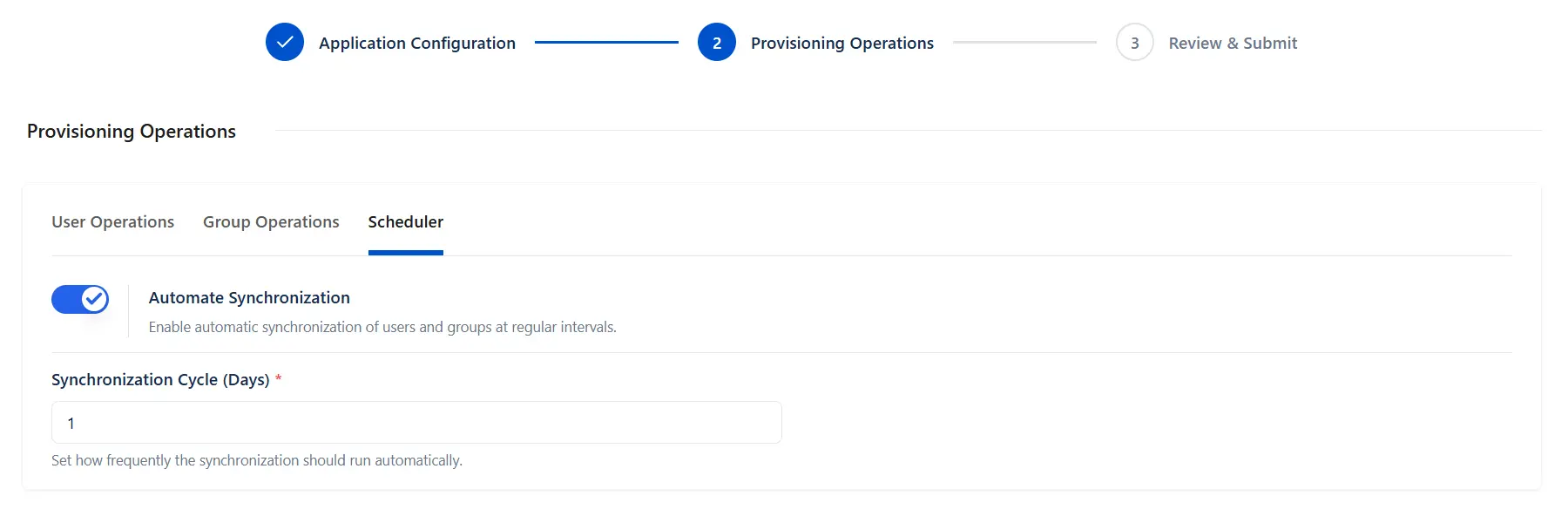
To enable dynamic data synchronization at scheduled intervals, set Automate Synchronization to ON and define the processing interval by entering the desired number of days in the Synchronization Cycle (Days) field.
3.3 Review and Save Configuration
- On the Review & Submit summary page, review your mapping details across the Application Configuration and Provisioning Operations summary tables to make sure everything looks right.
- Click the Save Configuration button in the bottom right corner.
3.4. Verify Credentials
- The app profile will appear on your main dashboard with a status reading Verification Pending.
- Under the actions column for your new entry, click the Verify Credentials icon.
- Click Continue on the external authorization warning pop-up window.
- Sign in to your Google Workspace account if prompted.
- You'll get the "Your account has been verified" message.
- You can close the tab.
3.5 Run the Synchronization
- Return to the Configured App Tab.
- Click Synchronize on your Google app.
- When the sync completes,verify the new and updated users under Jira’s user management section.
- If you set a scheduler in step 3.2, no manual action is needed for future syncs.
3.6 Verification
- The app profile will appear on your main dashboard.
- Under the actions column for your new entry, run a sync (or wait for the scheduled cycle if the Scheduler is enabled).
- In Jira, navigate to User Management and confirm that users and groups from Google Workspace appear in the directory. You can also review sync activity under the Audit Logs tab of the Plugin app.
The miniOrange Users & Groups Provisioning For Jira app is now successfully set up.
Did this page help you?