- Home
- Automate Access Request & Review For AWS, Entra & Okta
- Automate Access Request & Review For AWS, Entra & Okta App

Integrate Atlassian Confluence Cloud with the Automate Access Request & Review For AWS, Entra & Okta App
The Atlassian Confluence Cloud integration connects your Confluence site to the Identity Governance, Auditing & Access Control App, enabling automated access provisioning, group assignments, and employee onboarding, via Jira Service Management (JSM).
 Try it for free
Video Setup Guide
Pre-requisites
- Confluence Cloud installed on the same Atlassian Cloud site as your Jira instance (shared user directory).
Step 1: Add the Confluence Integration
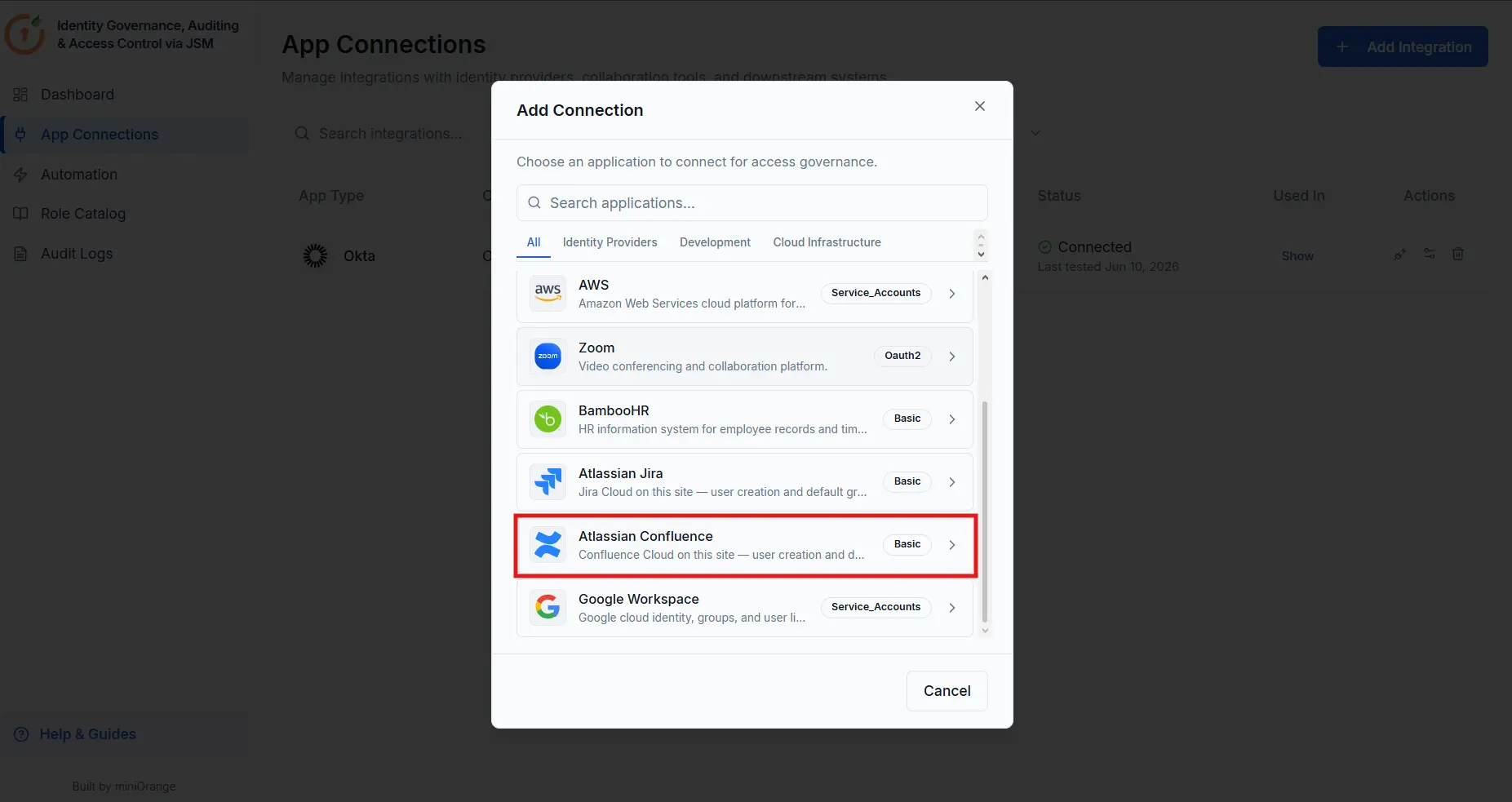
- Open the Automate Access Request & Review For AWS, Entra & Okta App.
- Navigate to App Connections from the sidebar.
- Click + Add Integration and select Atlassian Confluence from the list.
Step 2: Enter the Connection Details
Enter the following details in the Connect Atlassian Confluence panel:
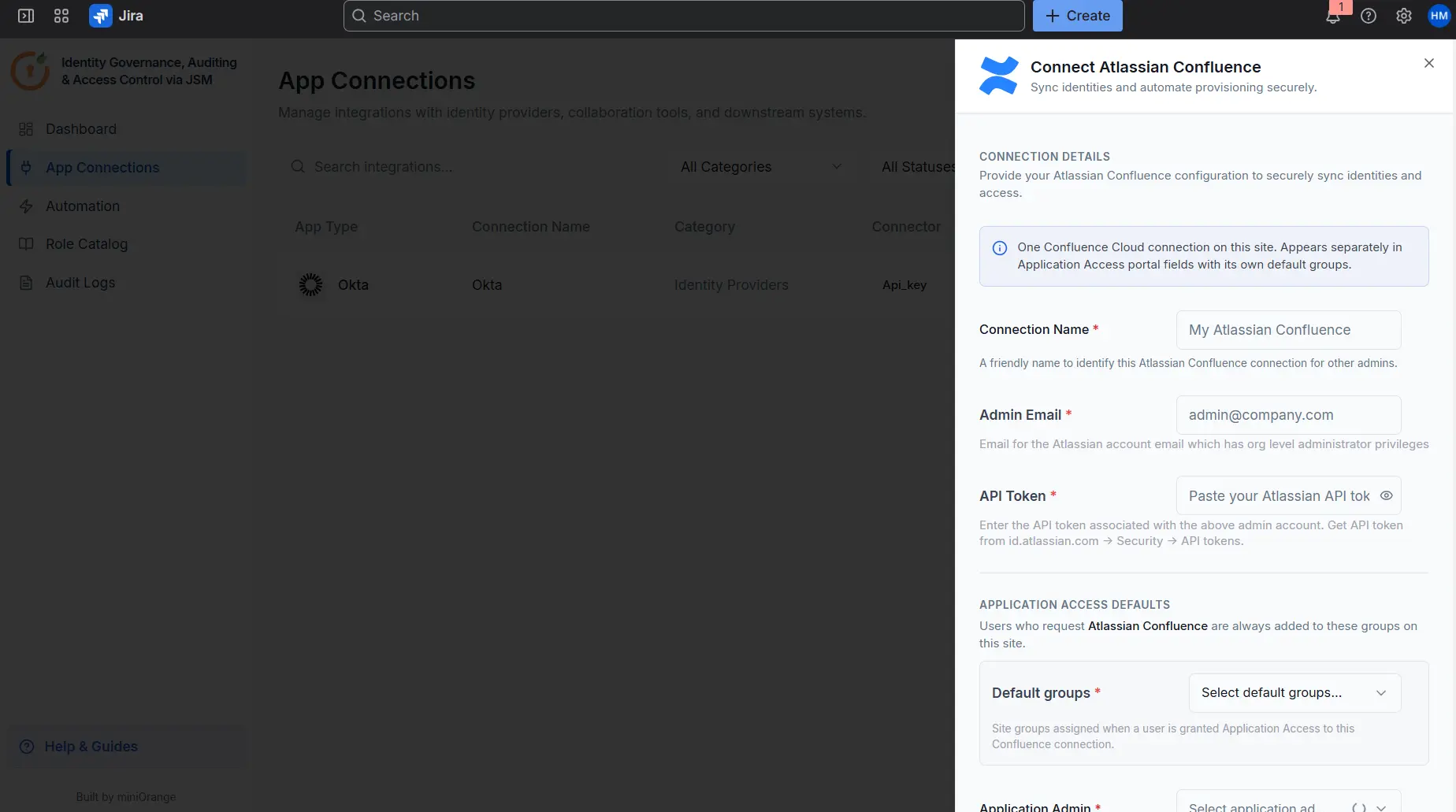
- Connection Name: Enter a label so that this connection can be identified by other admins (e.g., "Corporate Confluence").
- Admin Email: Email address of the Atlassian account used for provisioning. Must belong to the org-admins group.
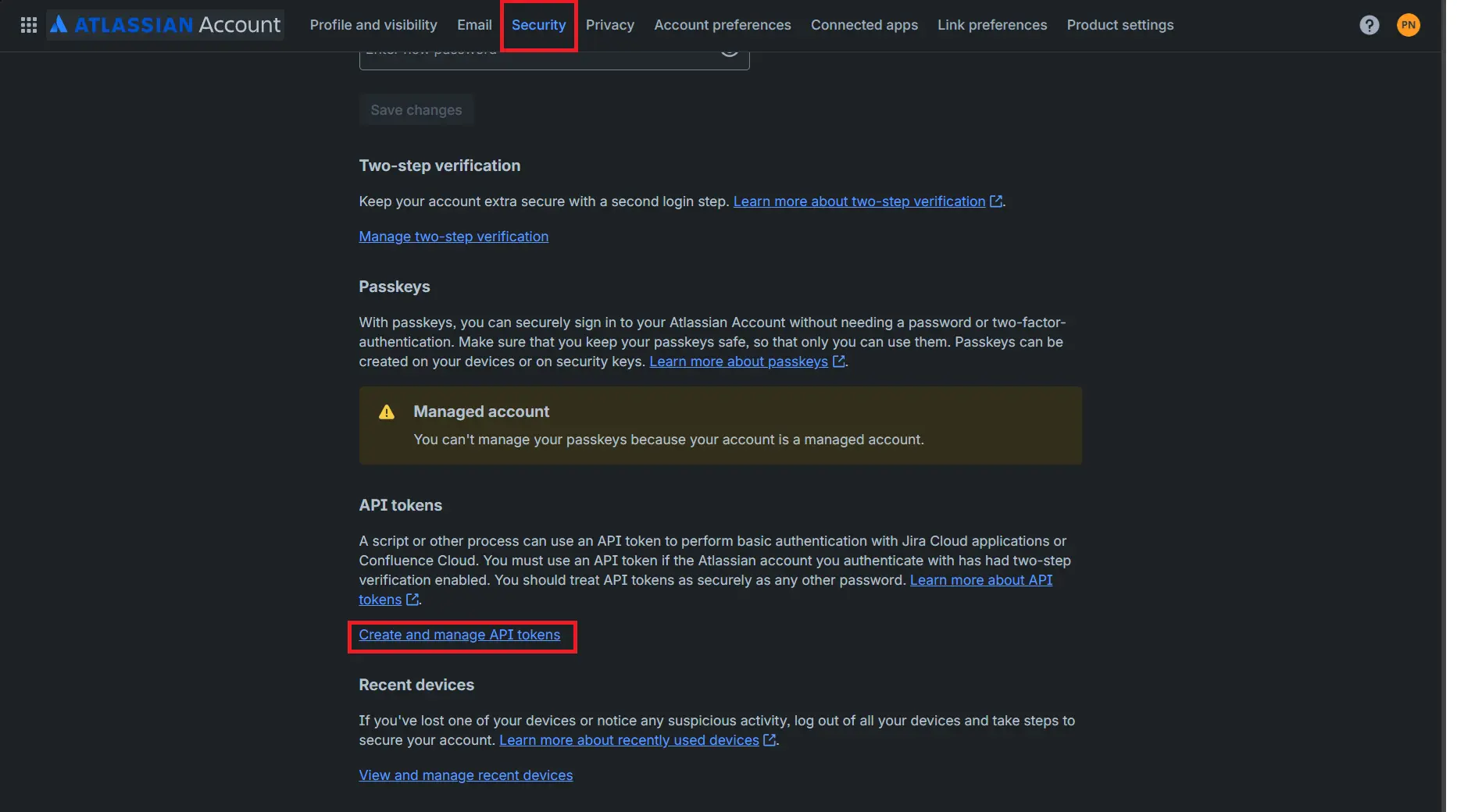
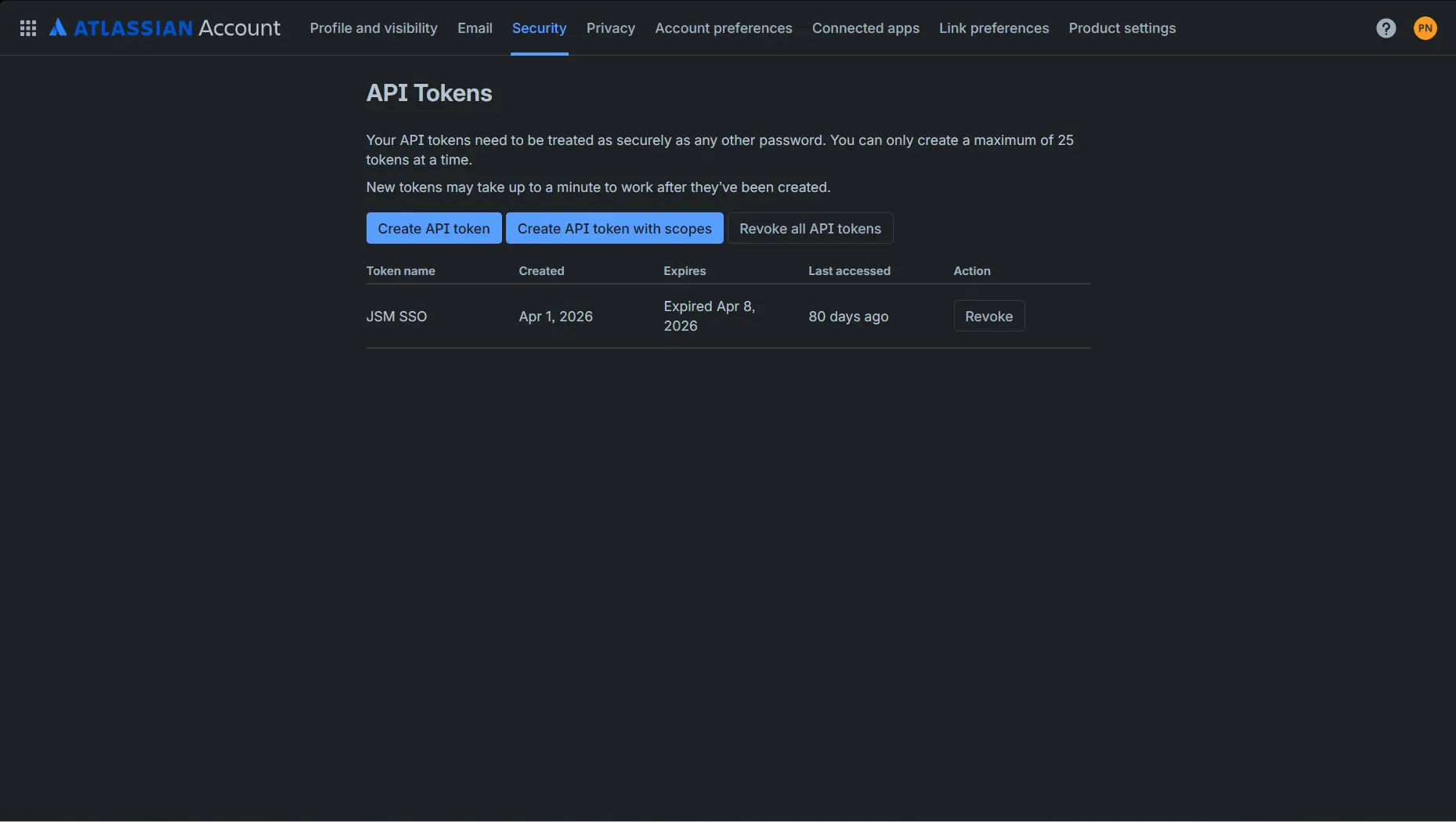
- API Token: The API token for the admin account selected above. Generate one at id.atlassian.com → Security → API tokens → Create
- Application Admin: Select a licensed Confluence user who will manage this connection.
- Default Groups: Select the groups from the site group list (e.g., confluence-users-yoursite) that new Confluence users will be added to upon provisioning. To find the available groups:
- Navigate to https://admin.atlassian.com.
- Select the appropriate organization.
- Go to Directory → Groups.
- Apply the Application filter and select Confluence (ensure the site matches the one where the app is installed).
- Select and add the default group.
Note: Credentials are stored in Forge encrypted storage and are
used solely for sync and provisioning operations.
Once all fields are filled in, click Connect Atlassian Confluence to save the integration.
Next Steps:Configure Automation Rule
With the connection saved, configure automation rules to define how access requests are routed, approved, and provisioned:
Did this page help you?
×
![]()


