Test Configuration Failed
- If the test configuration has been performed in the plugin's IDP configuration tab and results Test Failed, the possible causes are listed below.
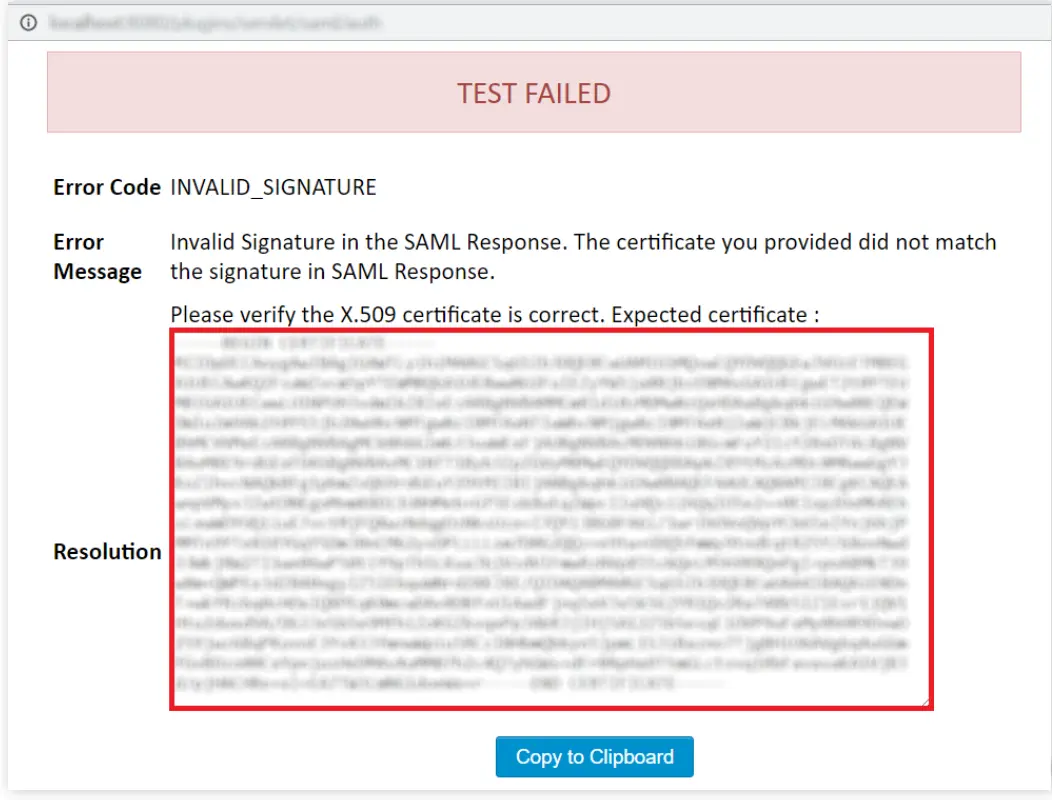
- Description: This issue comes when the configured certificate in the plugin's configure IDP tab did not match the Certificate in SAML Response.
- Copy Expected Certificate from Test window.
- Paste it in IDP Signing Certificate text box in Configure IDP Tab.
- Save settings.
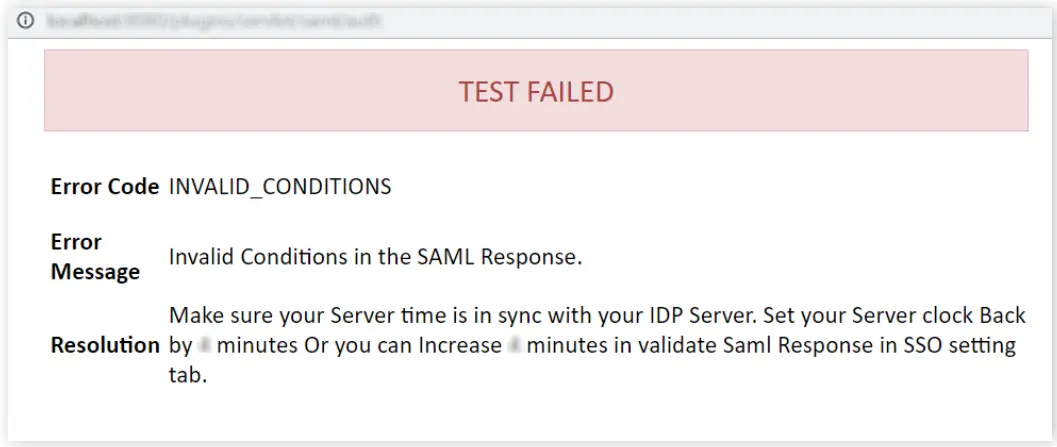
- Description: This issue generally comes up when the Application(Jira,Confluence,Bitbucket,Bamboo and fisheye) server's time is not within the time interval specified by IDP in SAML Response. Hence, the SAML Response gets invalidated and SAML app is unable to proceed it even if the difference is in milliseconds.
- Read Resolution in the Test window and note the value of the minutes which you need to set in Validate SAML Response.
- Go to the SSO settings tab in the plugin scroll down to Advanced SSO settings and change the value of Validate IDP's SAML Response to minutes mentioed in Test window and save it.
- Go to Configure IDP tab in the plugin try Test configuration again.
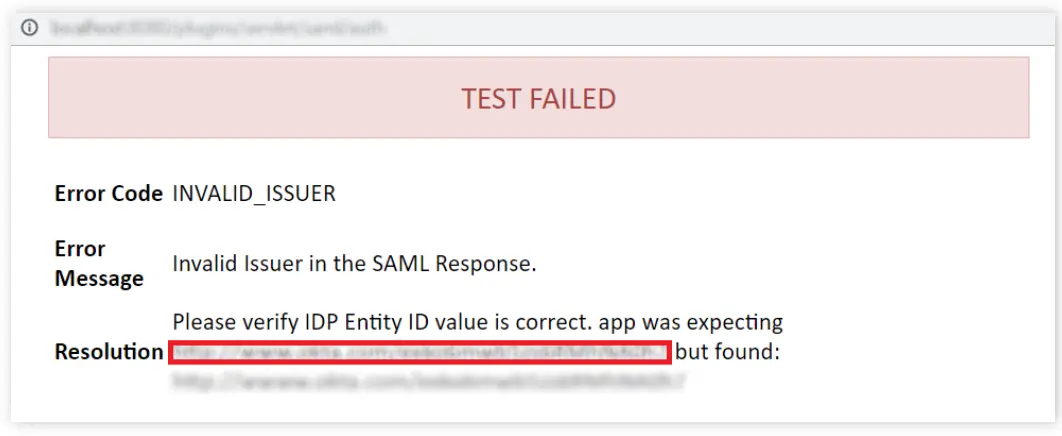
- Description: This problem will come when the IDP entity ID / Issuer configured in the plugin does not match with the IDP Issuer.
- Copy the value of the Issuer from the Test window. For the reference shown in the picture below.
- Paste it in the IDP Entity/Issuer text field in the configure IDP tab of the plugin.
- Save settings.
A. Error Code: INVALID_SIGNATURE
B. Error Code: INVALID_CONDITIONS
C. Error Code: INVALID_ISSUER
How can it be fixed?:
SAML SSO Failed
- If the Test Configuration Results Success and SAML SSO Failed, the possible causes are listed below. Please check URL and find below mentioned parameter in URL.
- Description: This problem will come when user try to login in Atlassian application and user has no permission to Login.
- Add user to a application group which gives login permission.
- Follow this knowledgeBase to assign a group to user which gives access to the application.
- Description: No license exists. Single Sign-On will not work unless app license is applied.
- Update license in manage apps sections.
- Description: This issue is caused by multiple reasons and all are listed below.
- Please check configuration in the User's Group tab of plugin.
- Please ensure email for all user should be unique if you have enabled Login with email in the Users profile tab of the plugin.
- Navigate to Configure IDP tab in plugin.
- Click on Test Configuration button.
- Copy attribute name to Username.
- Now, Navigate to the User's profile tab in the plugin.
- Paste copied attribute name Username text field.
- Save Settings.
A. Error Code: samlerror=cant_signin_no_access
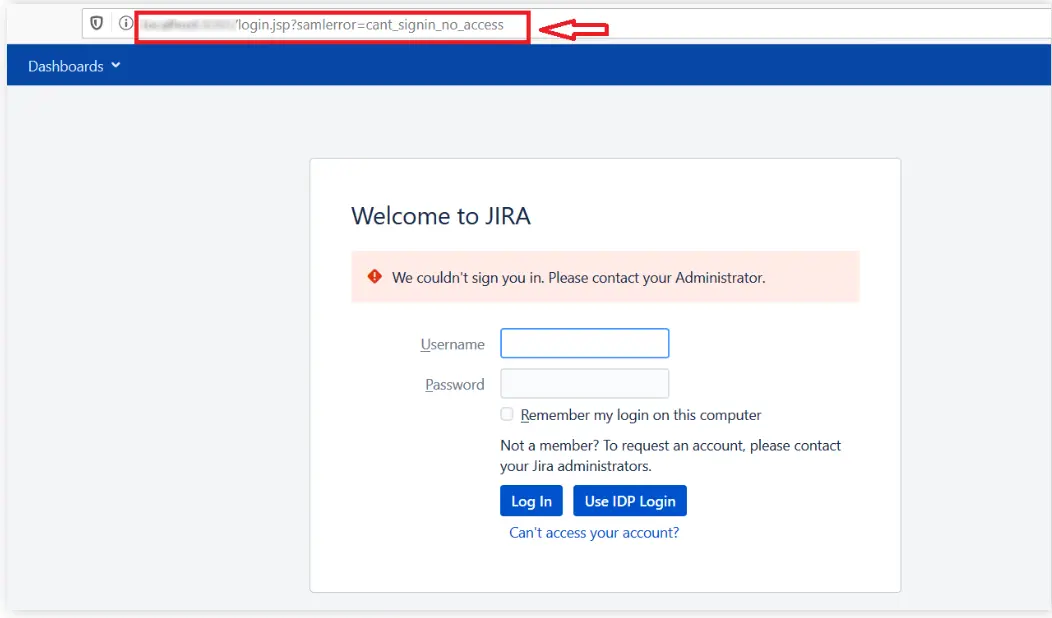
How can it be fixed?:
B. Error Code: samlerror=cant_signin_no_license
How can it be fixed?:
C. Error Code: samlerror=cant_signin_check_configuration
How can it be fixed?:
2. It seems multiple user exits with same email address.
How can it be fixed?:
3. Username not received in the SAML Response.
How can it be fixed?:


