Jenkins SAML Single Sign On (SSO) app gives you the ability to enable Single Sign-On (SSO or SAML SSO) through SAML 2.0 for Jenkins. With help of our Jenkins SAML SSO plugin one can easily authenticate the users into Jenkins.
(Click here to Download Jenkins Single Sign On app)
Jenkins SSO app is compatible with all SAML 2.0 Identity Providers like:- Azure AD, Keycloak, ADFS, Okta, Salesforce, Shibboleth 2, GSuite / Google Apps, miniOrange, OneLogin, Centrify, SimpleSAMLphp, OpenAM , PingOne, RSA, Oracle, Bitium , WSO2, Auth0, AuthAnvil and practically any SAML compliant Identity Provider.
Click here to know more about Jenkins Single Sign on.
If you don't find your IDP listed and your application supports SAML 2.0 as an Identity Provider, you can follow the guide given below to enable SSO into Jenkins using your application.
Pre-requisites
To integrate your Identity Provider (IDP) with Jenkins, you need the following items:
- Jenkins should be installed and configured.
- Jenkins Server is https enabled (optional).
- Admin credentials are set up in Jenkins.
Download And Installation
- Login to your Jenkins Admin Account.
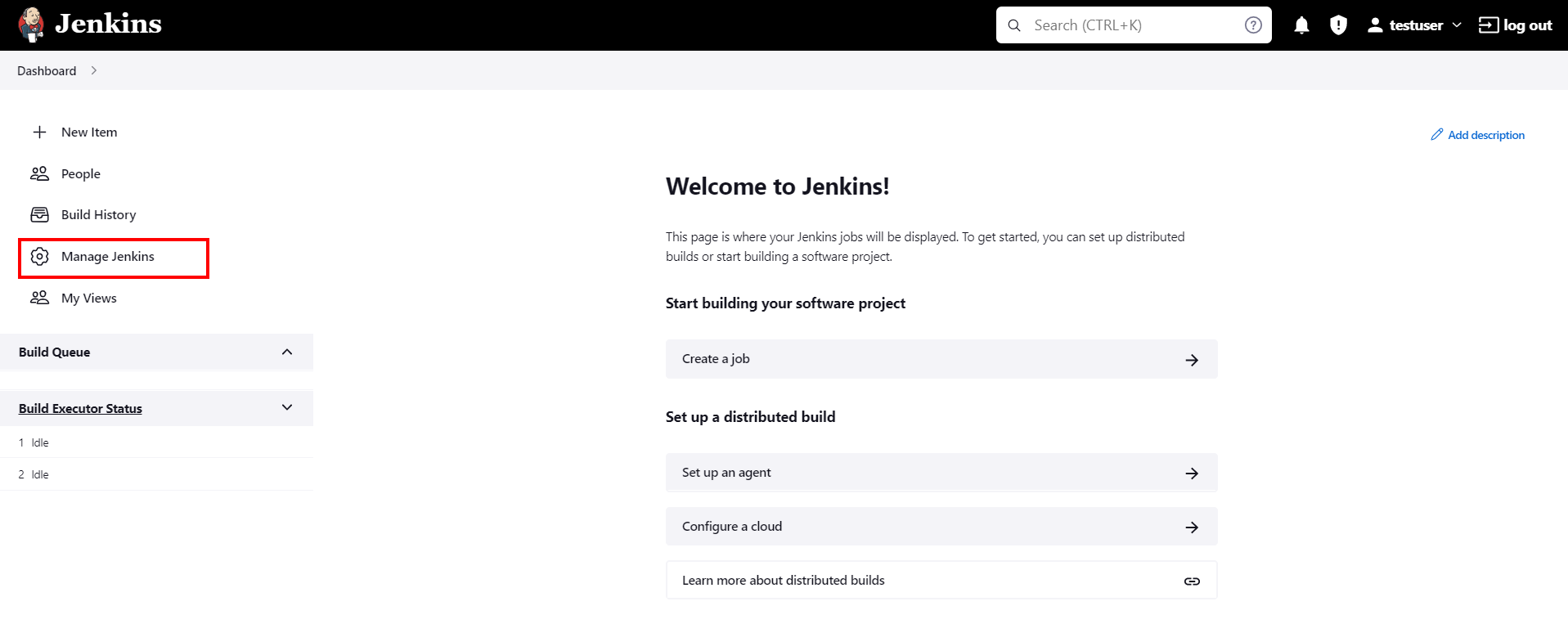
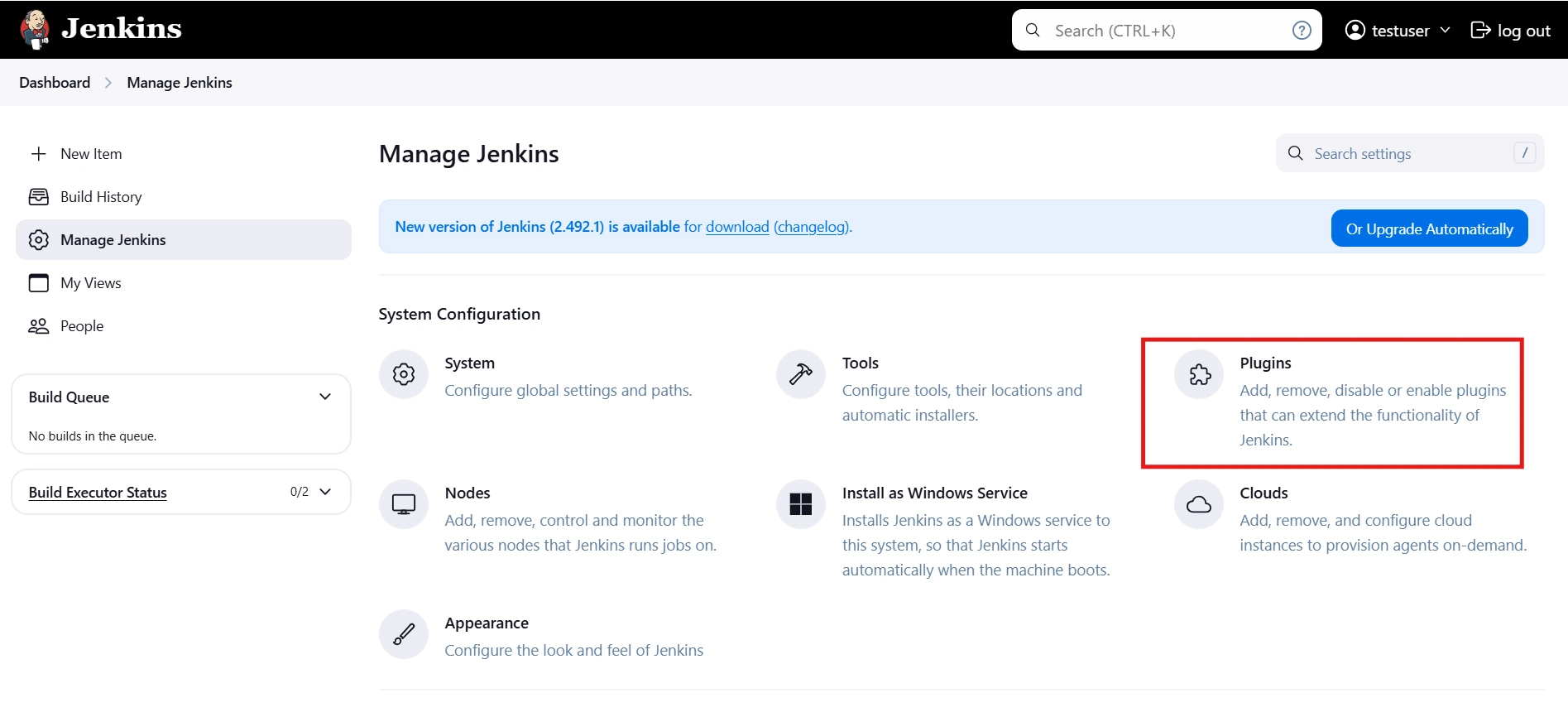
- Go to Manage Jenkins option from the left pane, and open Plugins tab.
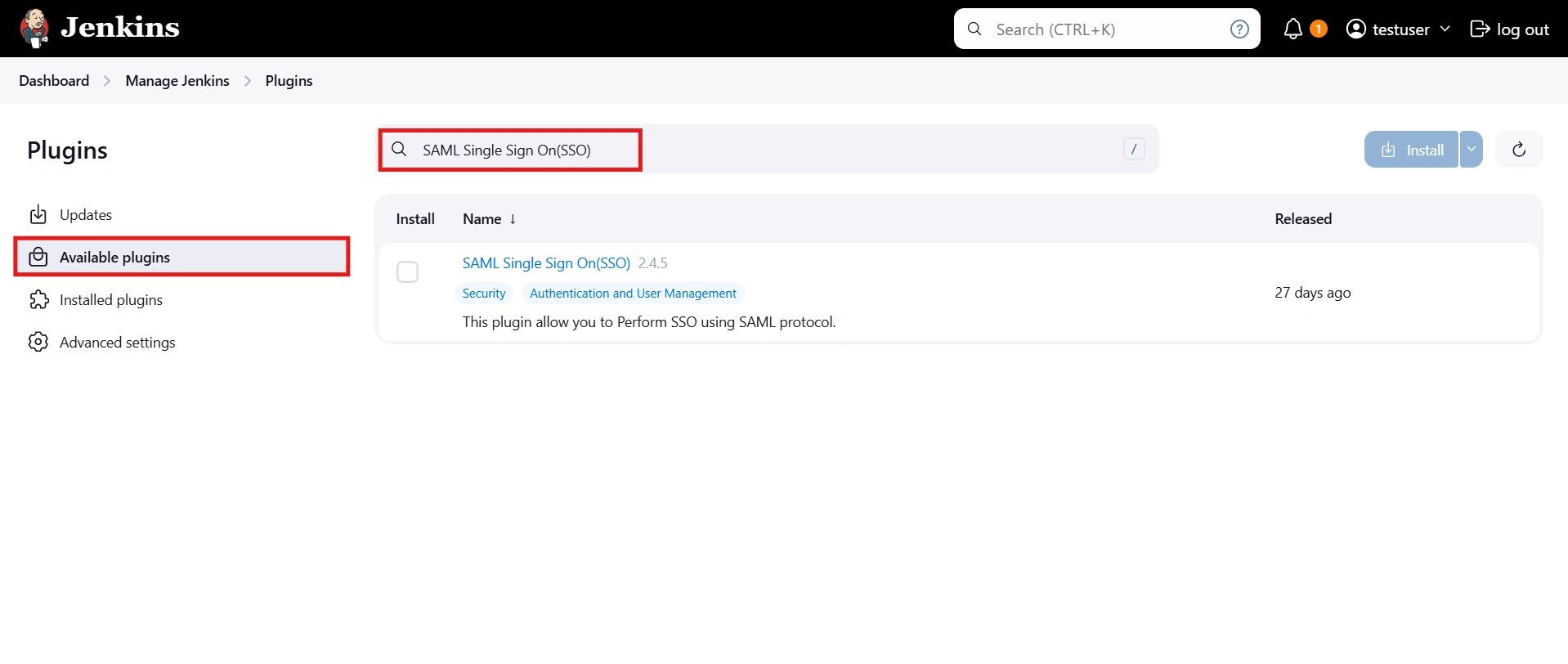
- Search for SAML Single Sign On (SSO) in the available plugins tab.
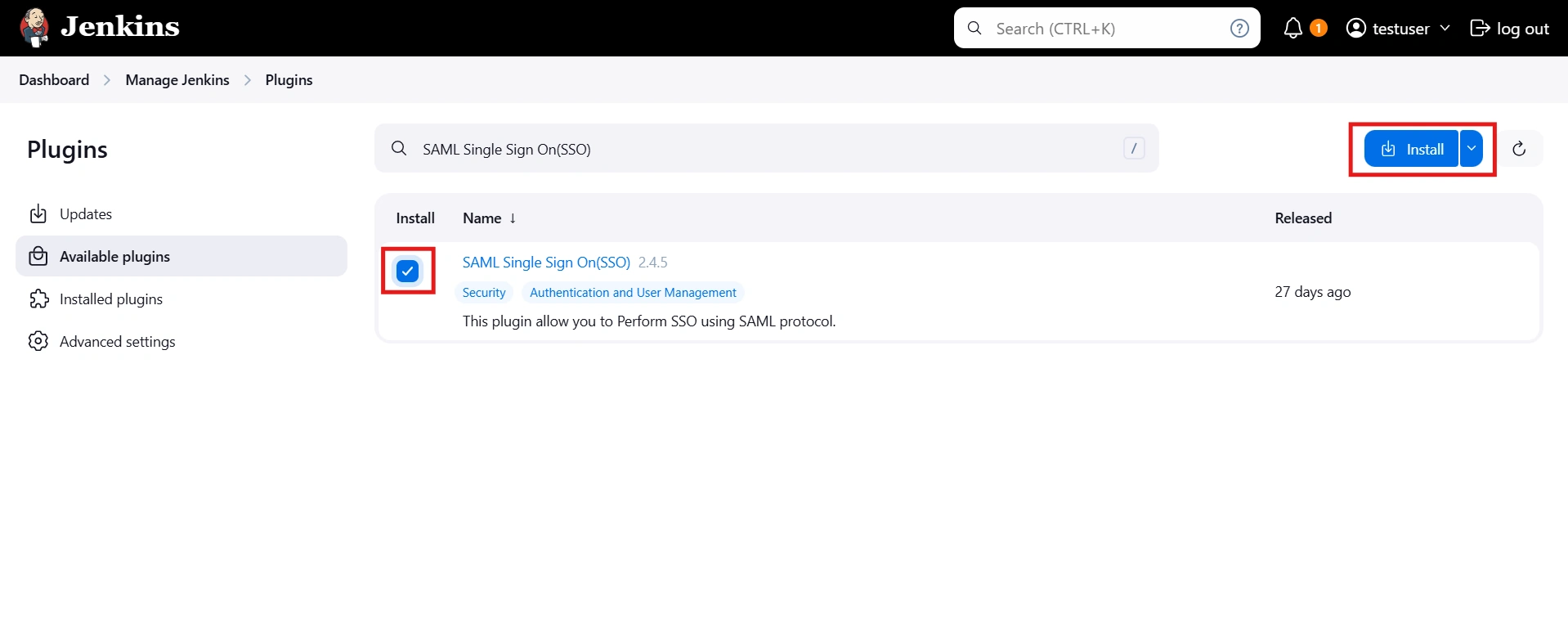
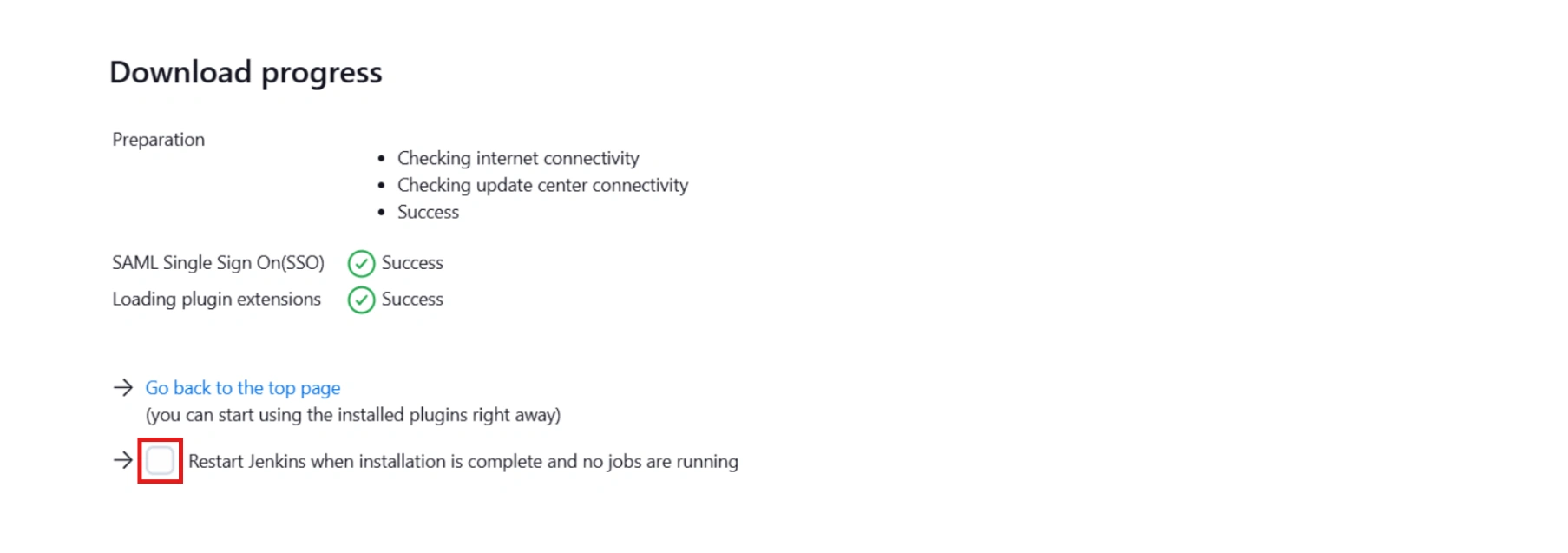
- Download and install with a restart.
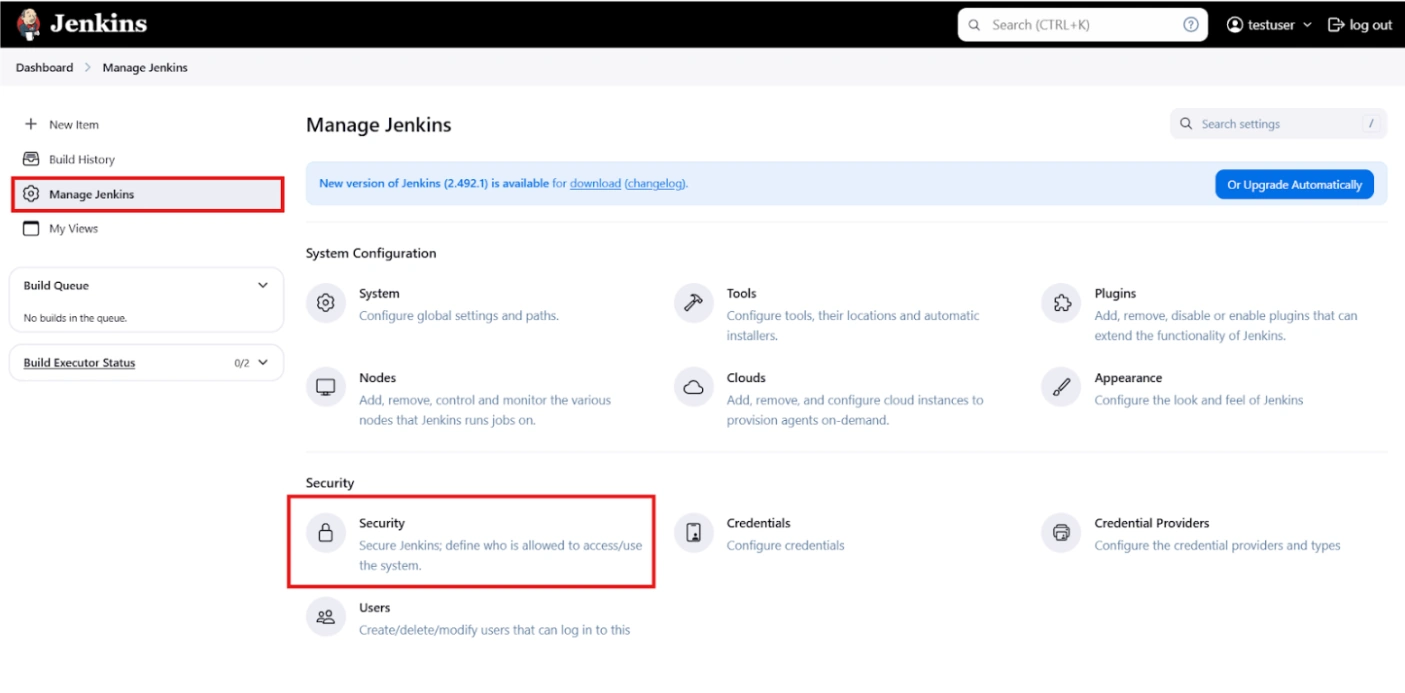
- After restarting Jenkins, navigate to Manage Jenkins and select Security.
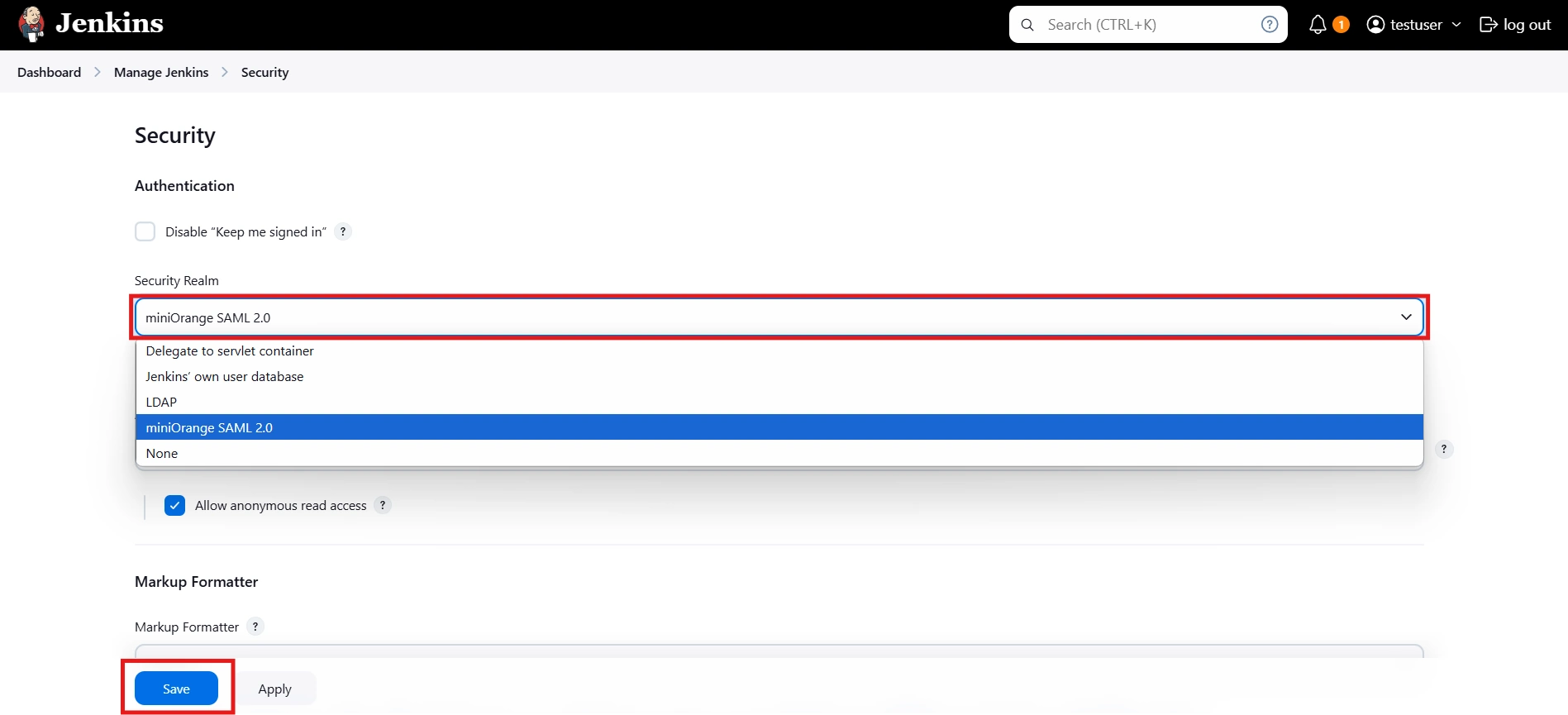
- Under the Security Realm dropdown, choose miniOrange SAML 2.0, then click the Save button.
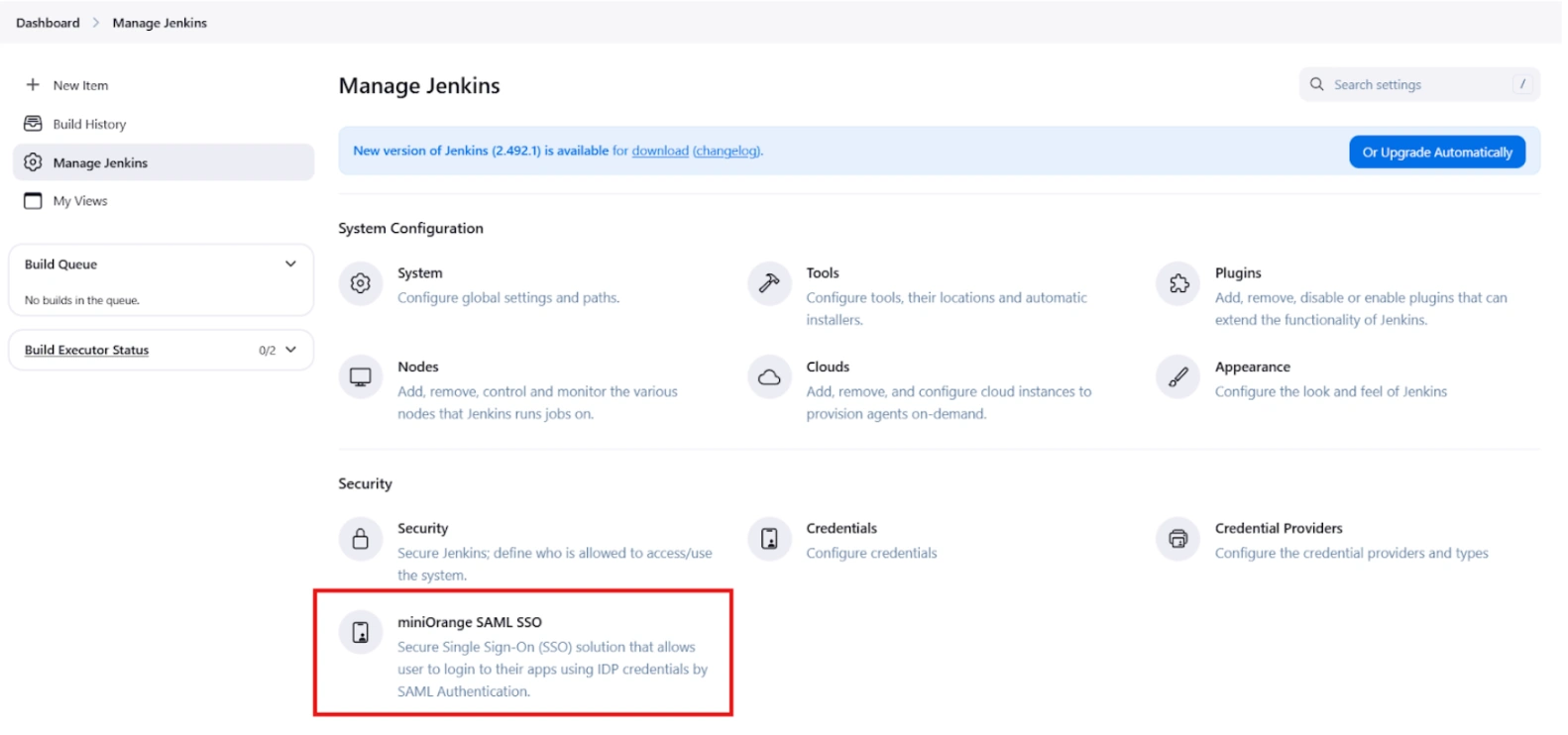
- Once saved, click on miniOrange SAML SSO under the Security section and go to the Plugin settings.
Step 1: Setup Identity Provider to enable saml for your module.
Pre-requisite: You will need SAML information from your IDP to configure this app. Please get SAML metadata from your Identity Provider. If your IDP does not have a metadata URL or XML, please ask for the following information:
- Issuer/ Entity ID.
- SAML Login URL.
- SAML Logout URL (only if you want users to logout from IDP when they logout from atlassian application. eg.Jira).
- X.509 Certificate.
- NameID format (optional).
- SAML Login binding type (optional).
- SAML Logout binding type (optional).
- Provide setup information to your Identity Provider so that they can configure atlassian application as a SAML Service Provider for your account. You can provide them the SAML metadata URL or SAML related information. We have given more information on how you can get each one of them below.
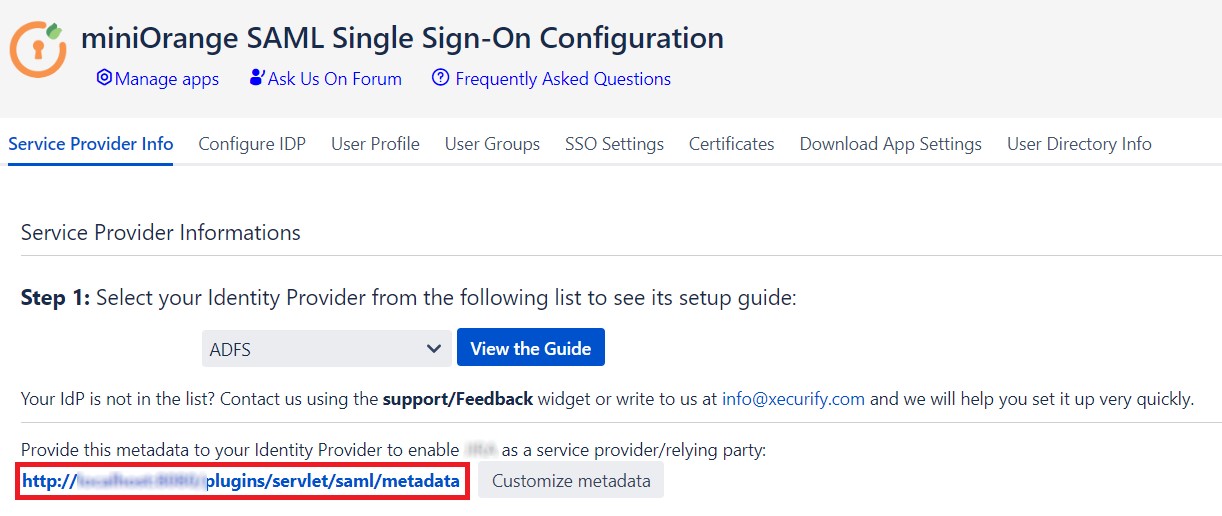
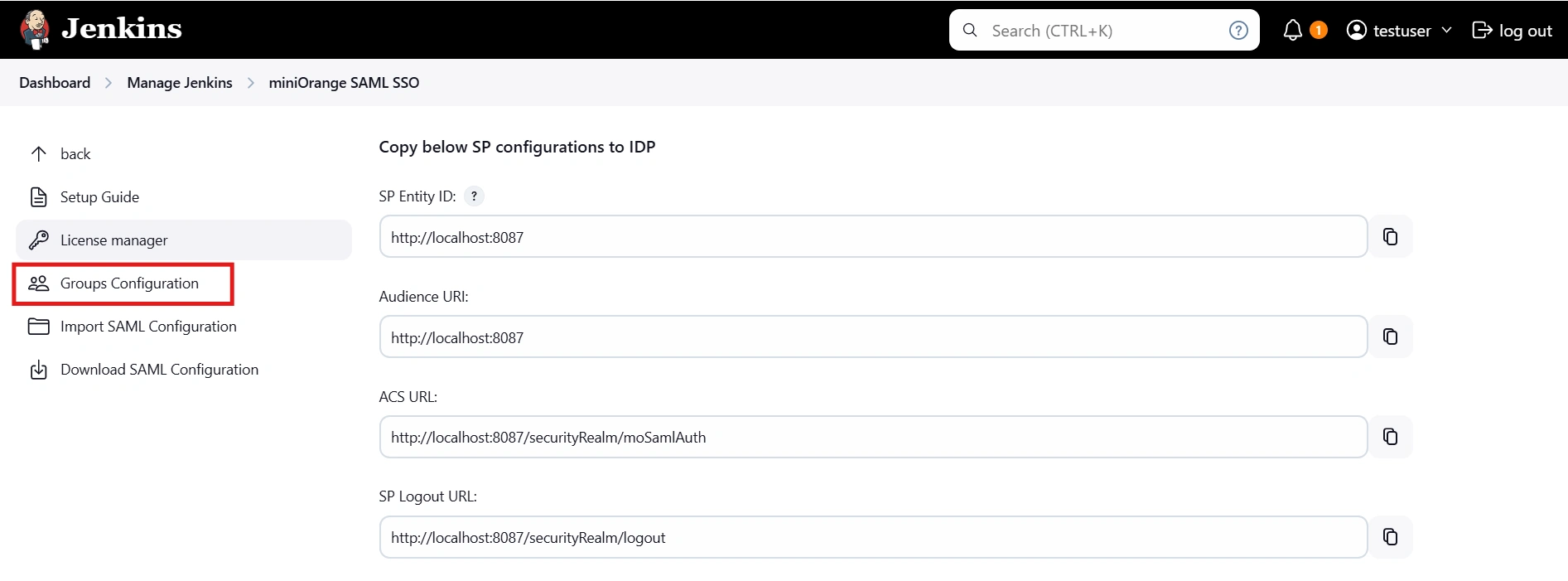
- Go to Service Provider Info and give the link shown below to your Identity Provider. When you click on the link, you will be able to view the metadata for the SAML Single Sign On app.
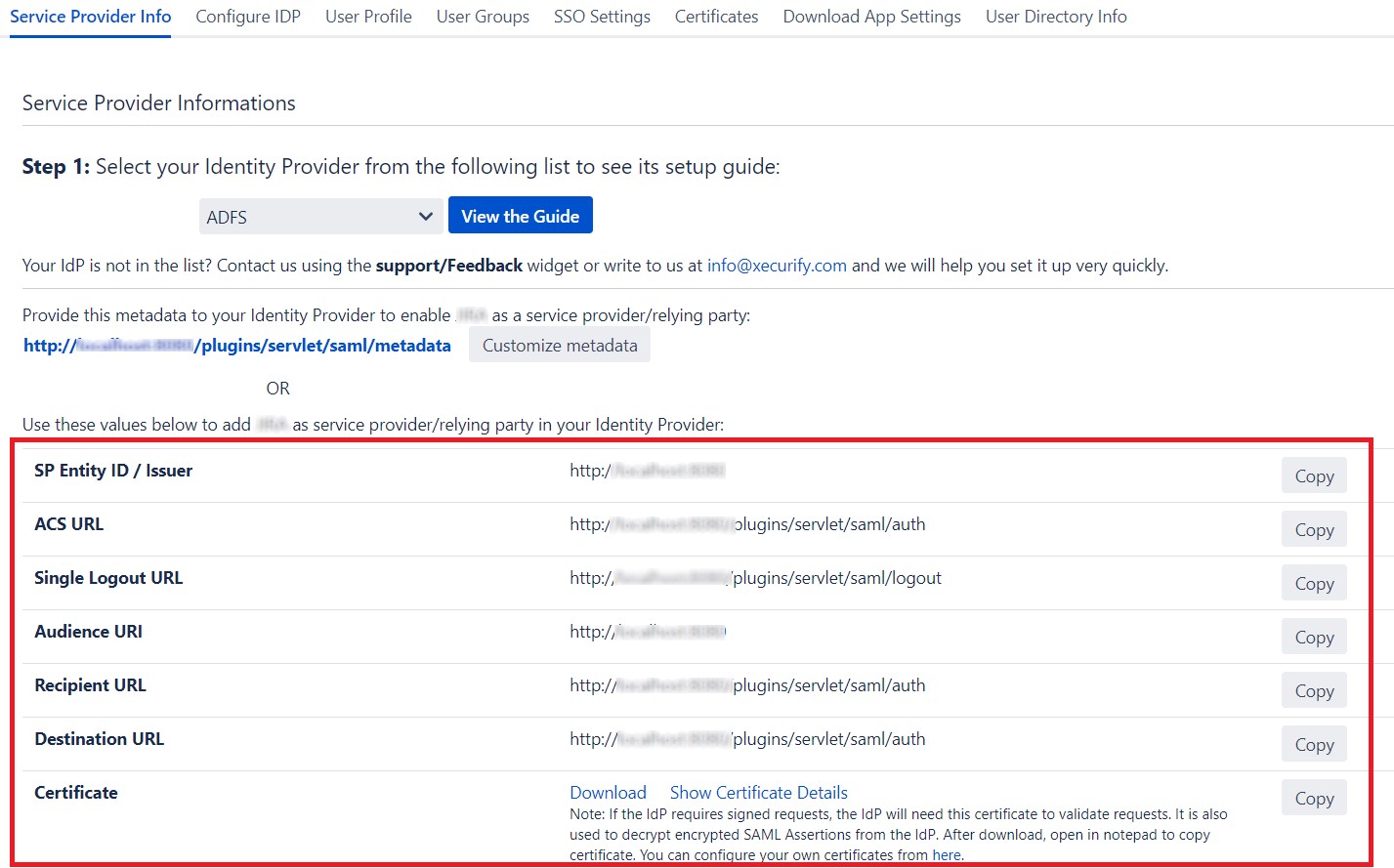
- If the Identity Provider does not accept metadata, you can give them SAML information manually. Go to Service Provider Info tab and get the following information.
| SP Entity ID / Issuer | This value contains unique identifier for your Atlassian application. |
| ACS URL | This is the URL the IdP will return SAML authentication requests to. |
| Single Logout URL | This will terminate all server sessions established via SAML SSO. |
| Audience URI | IdP will prepare SAML authentication requests for. |
| Recipient URL | IdP will return SAML authentication requests to. |
| Destination URL | IdP will return SAML authentication requests to. |
| Certificate | This Certificate is used validate SAML request and used to decrypt encrypted SAML assertions from the IDP. |
Step 2: Setup Jenkins as Service Provider
- Open Manage Jenkins and select Security.
- Under the Security Realm dropdown, choose miniOrange SAML 2.0, then click the Save button.
- Make sure that Enable Security checkbox is checked.
- Choose miniOrange SAML SSO from the manage Jenkins tab.
You can configure SP settings in IDP in 2 ways:
A. By uploading Metadata XML file
- Click on Service Provider Metadata in SP Configuration section.
- Metadata xml file will be downloaded.
- Use this file to setup IDP.
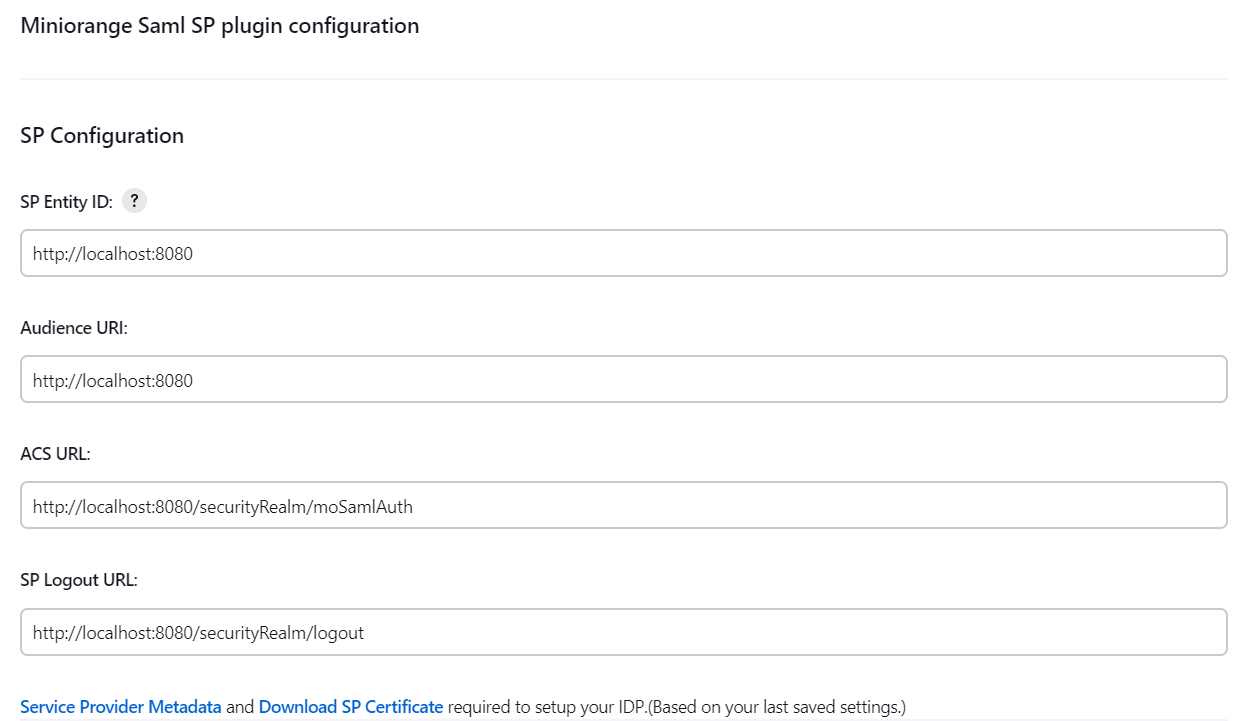
- To Configure SP Settings at IDP copy below URL and paste in respective fields at IDP end.
- SP Entity ID: https://your-jenkins-domain
- Audience URI: https://your-jenkins-domain
- ACS URL: https://your-jenkins-domain/securityRealm/moSamlAuth
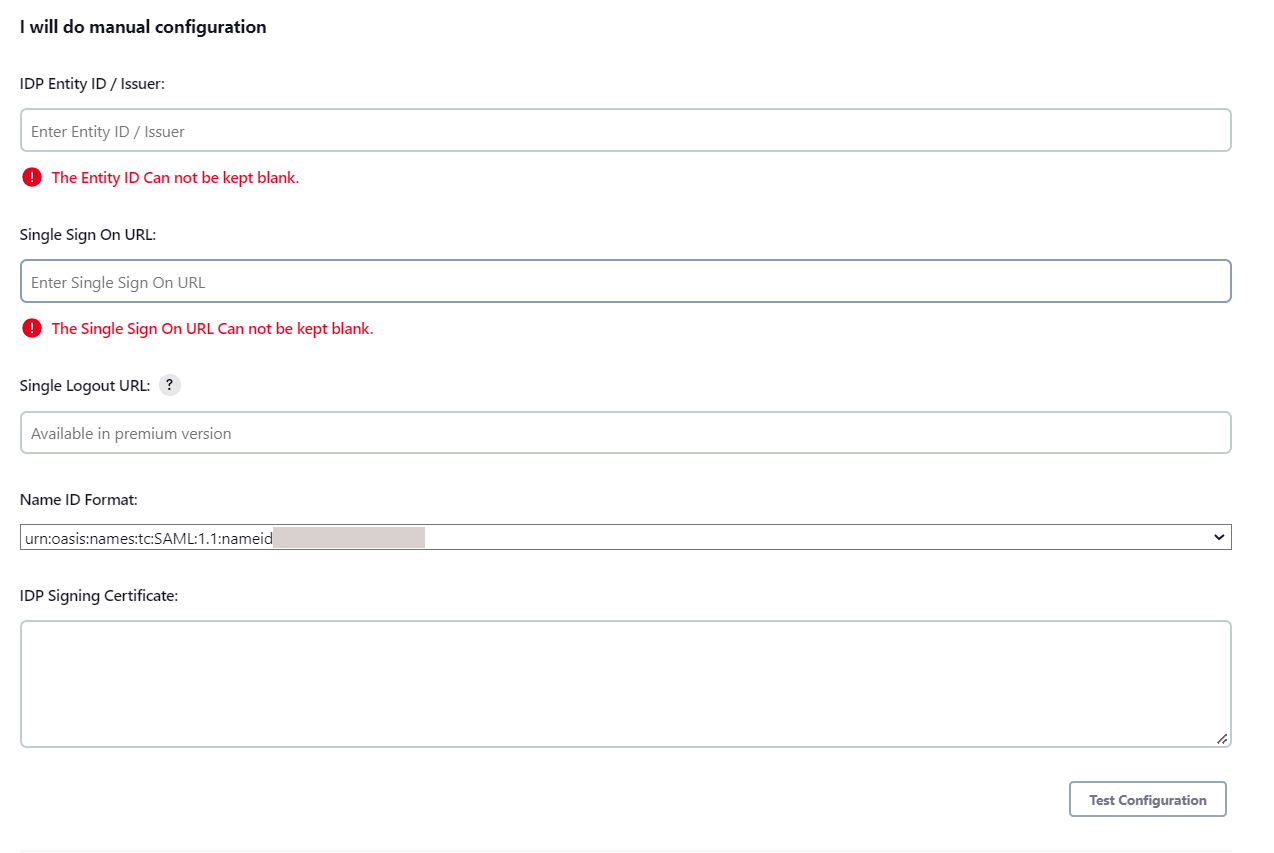
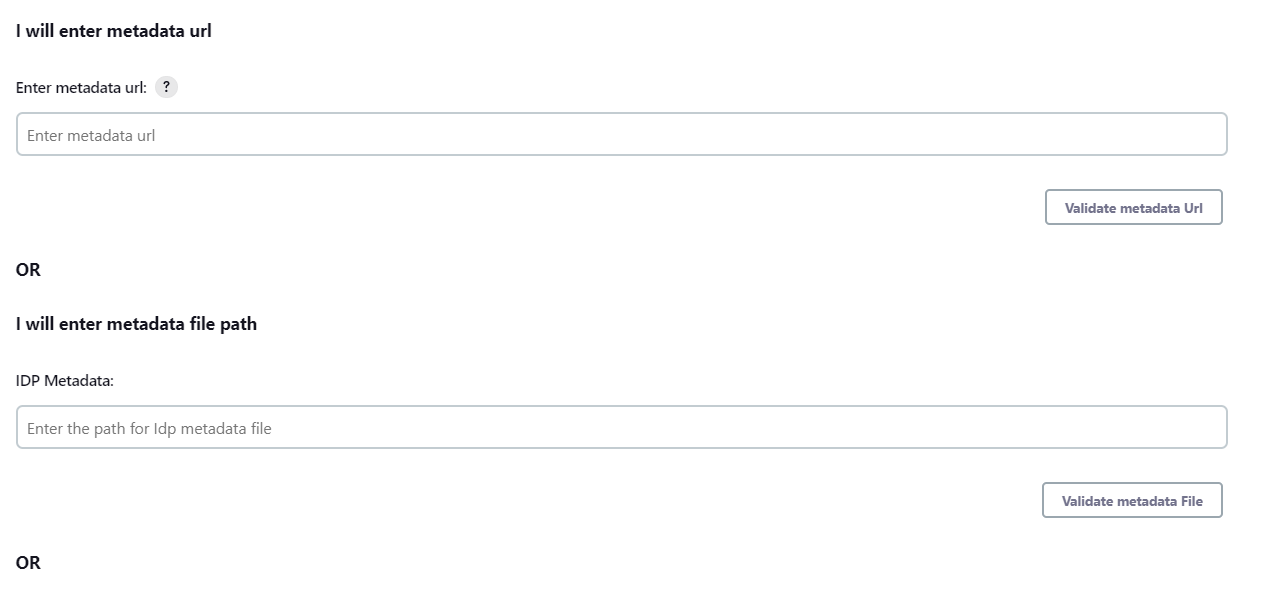
To Configure IDP enter the following details and press
- IDP Entity ID
- Single Sign On URL
- Name ID Format
- X.509 Certificate
- You can either enter the metadata URL or the metadata file path.
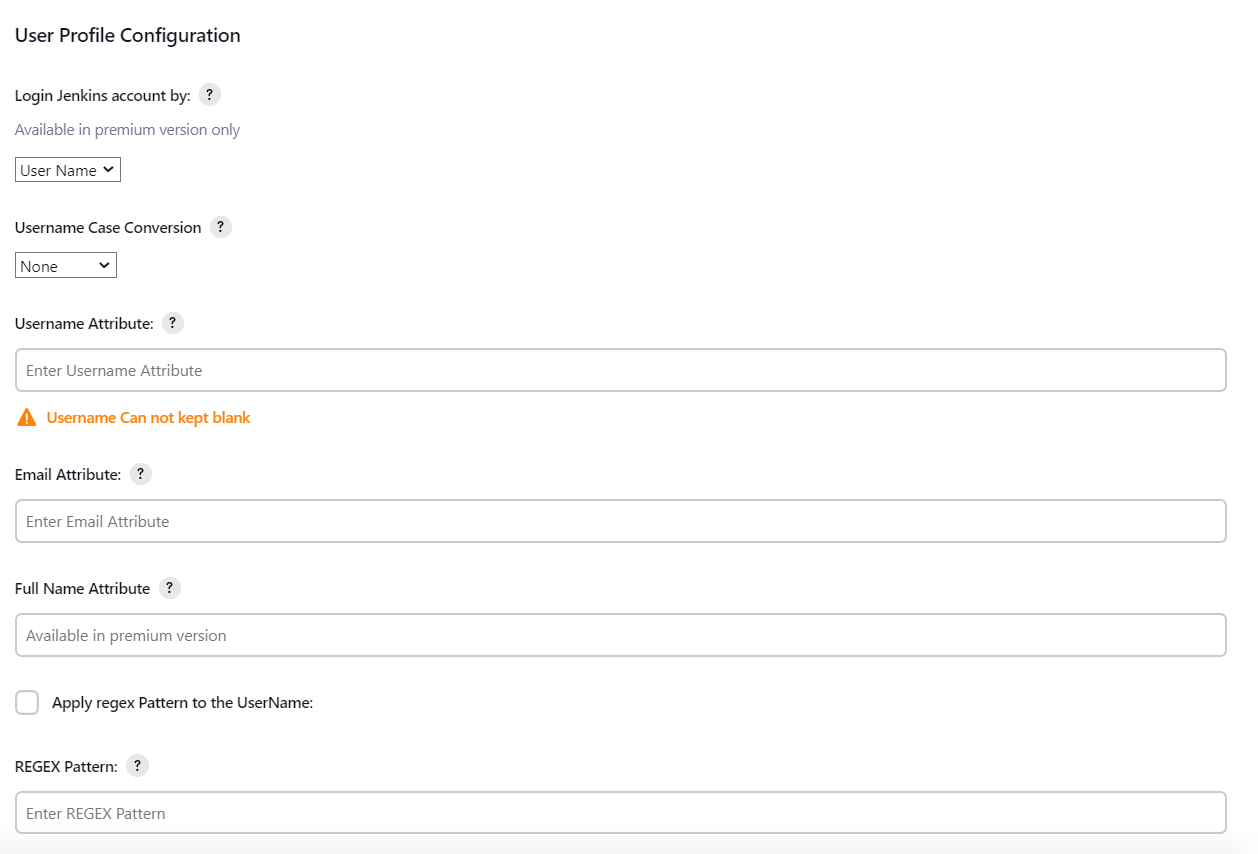
User Profile Configuration
- Select Username Case Conversion.
- Enter the attribute name from IDP which corresponds to Username in Username Attribute textbox.
- Enter the attribute name from IDP which corresponds to Email in Email Attribute textbox.
- Select the checkbox Apply regex Pattern to the UserNameif the userID returned from SAML is not same as username of Jenkins.
- Enter the regular expression in REGEX Pattern textbox. It will be applied on user ID from SAML Response and will convert it into the username same as Jenkins. For example, you can use regular expression ^.*?(?=@) to extract demo from username demo@example.com
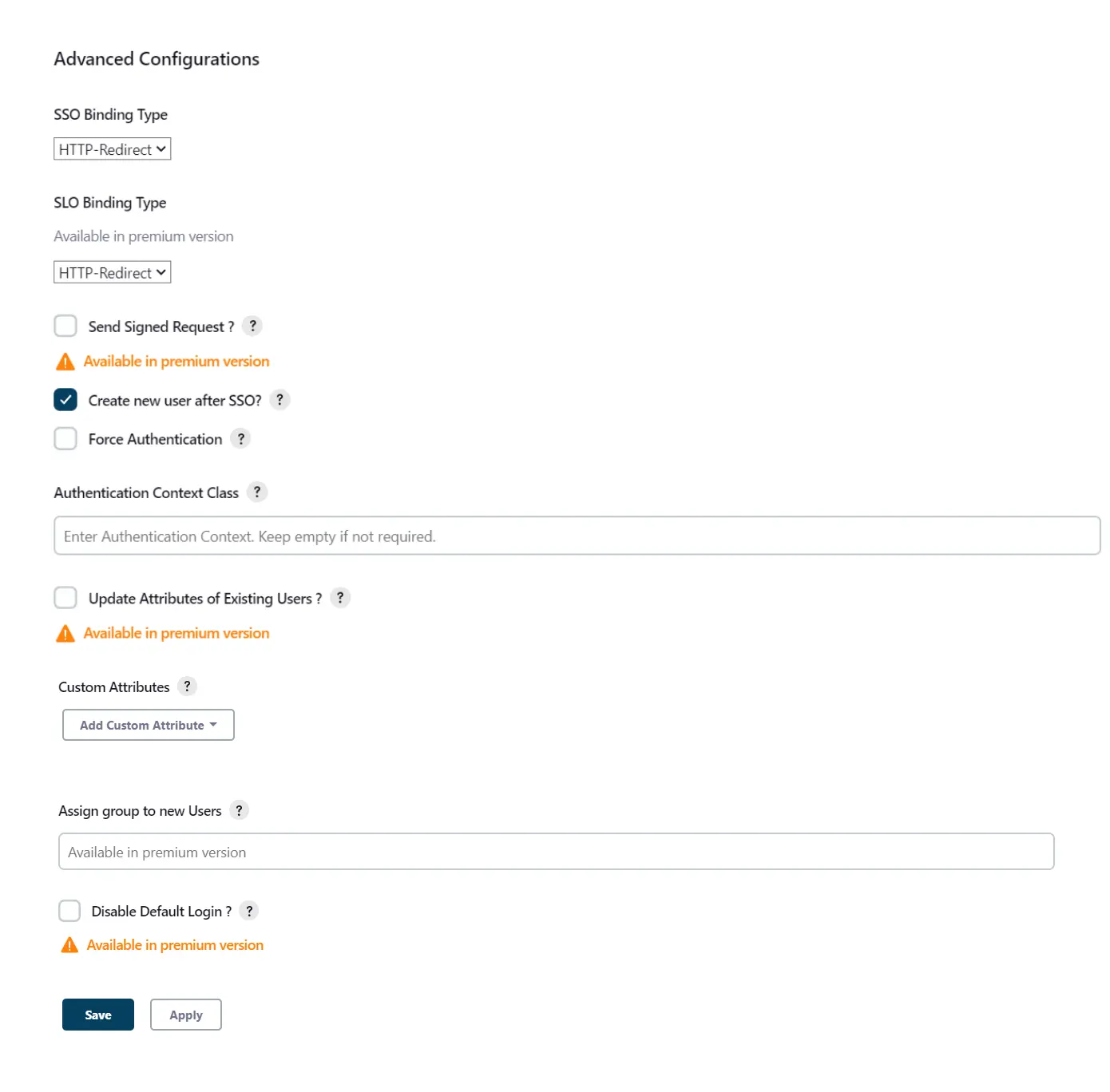
Advanced Configurations
- Select the SSO Binding Type.
- Select the Create new user after SSO? to allow user creation through SAML.
- Select Force Authentication.
- To Add custom Attributes select Add option.
- Set Attribute Name as the one set in IDP eg. lname
- Set display name in user proprties as one you want it appear in jenkins user's config.xml file and in user's configure tab.
You can configure SP settings in IDP in 2 ways:
A. By uploading Metadata XML file
- Click on Service Provider Metadata in SP Configuration section.
- Metadata xml file will be downloaded.
- Use this file to setup IDP.
- To Configure SP Settings at IDP copy below URL and paste in respective fields at IDP end.
- SP Entity ID: https://your-jenkins-domain
- Audience URI: https://your-jenkins-domain
- ACS URL: https://your-jenkins-domain/securityRealm/moSamlAuth
To Configure IDP enter the following details and press
- IDP Entity ID
- Single Sign On URL
- Single Logout URL
- Name ID Format
- X.509 Certificate
- You can either enter the metadata URL or the metadata file path.
User Profile Configuration
- Select Username or Email for Login Jenkins account by:
- Select Username Case Conversion.
- Enter the attribute name from IDP which corresponds to Username in Username Attribute textbox.
- Enter the attribute name from IDP which corresponds to Email in Email Attribute textbox.
- Enter the attribute name from IDP which corresponds to full name in Full Name Attribute.
- Select the checkbox Apply regex Pattern to the UserNameif the userID returned from SAML is not same as username of Jenkins.
- Enter the regular expression in REGEX Pattern textbox. It will be applied on user ID from SAML Response and will convert it into the username same as Jenkins. For example, you can use regular expression ^.*?(?=@) to extract demo from username demo@example.com
Advanced Configurations
- Select the SSO Binding Type.
- Select the SLO Binding Type.
- Select the Send Signed Request ? to send signed login and logout requests. Requests will be signed using public certificate from option Download SP Certificate in SP Configuration section.
- Select the Create new user after SSO? to allow user creation through SAML.
- Select Force Authentication.
- Select the Update Attributes of Existing Users ? to update attributes of existing user's each time they sign in Jenkins through SSO.
- To Add custom Attributes select Add option.
- Set Attribute Name as the one set in IDP eg. lname
- Set display name in user proprties as one you want it appear in jenkins user's config.xml file and in user's configure tab.
- If Disable Default login option is enabled, any unauthenticated user trying to access the default Jenkins login page will get redirected to the IDP login page for authentication. After successful authentication, they will be redirected back to the Jenkins base URL.
- Copy backdoor URL and save it for emergency.
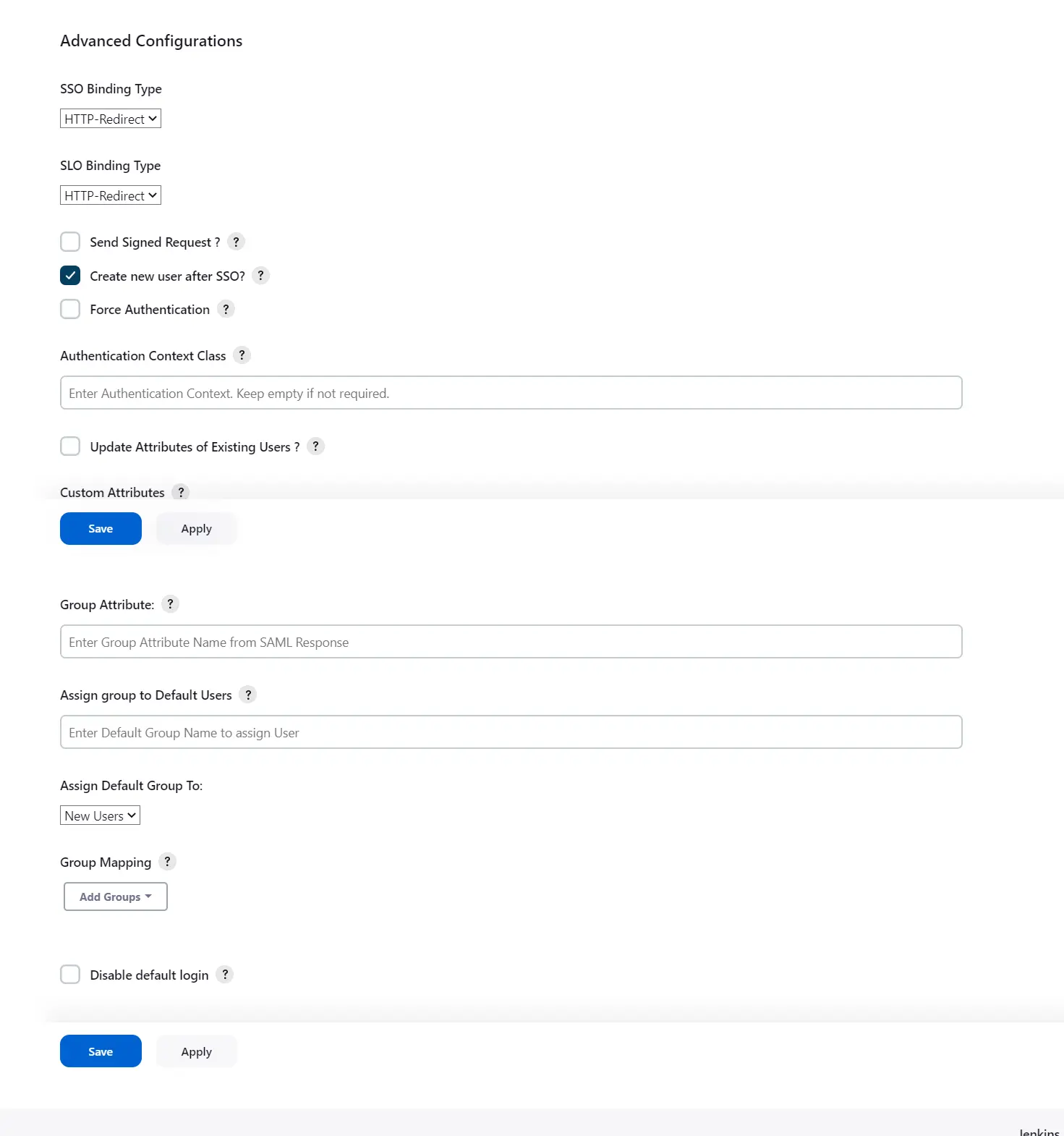
Step 3: Manage permissions/Groups
- Click on the Group Configuration tab from the left panel.
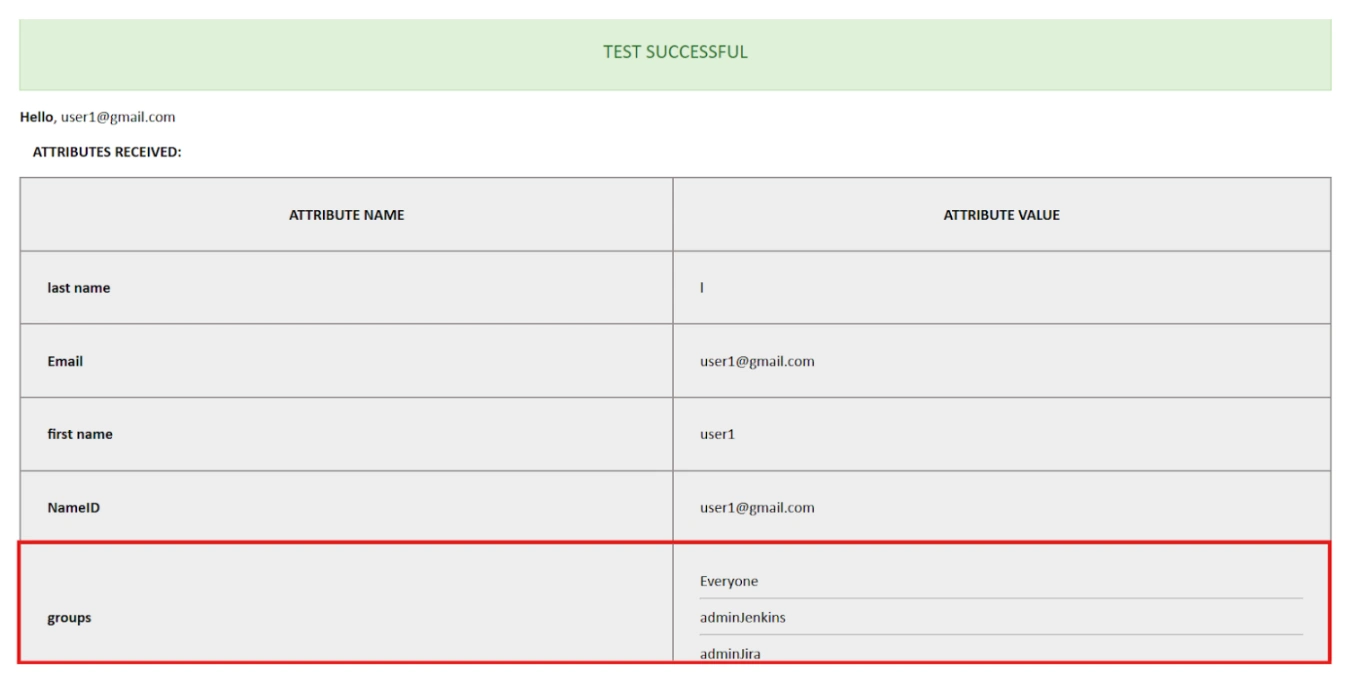
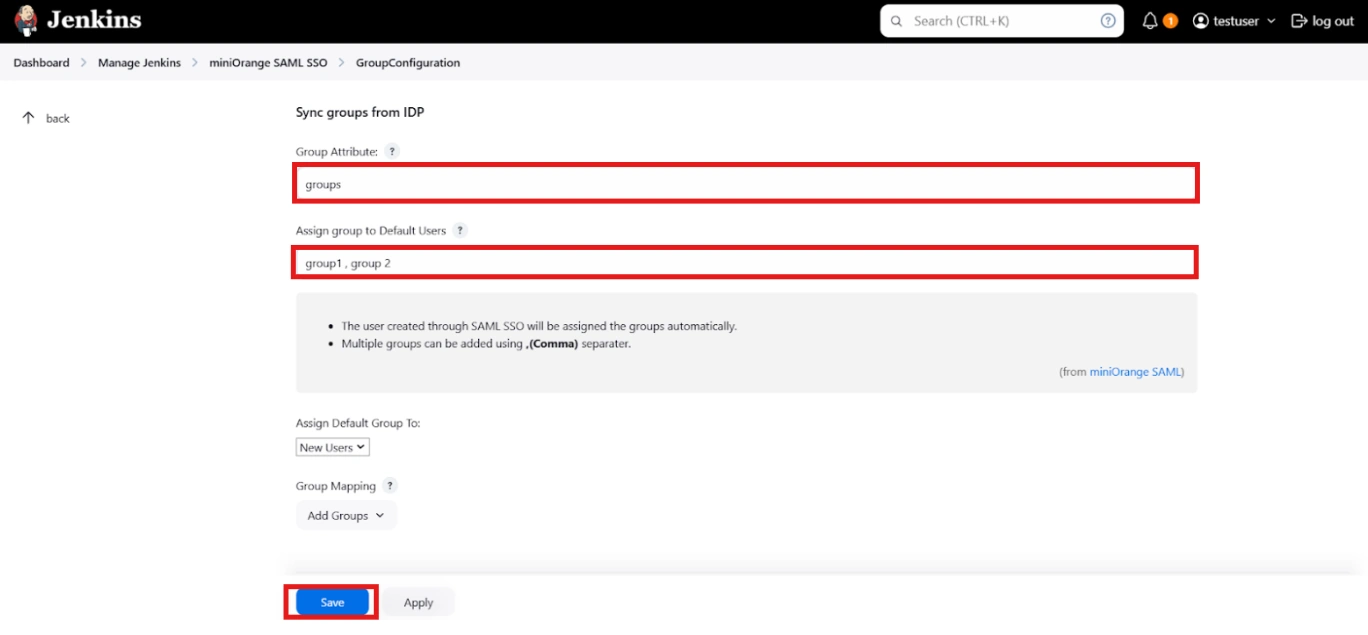
- You can assign groups from IDP to users created through SSO by adding the name of the group attribute that contains the IDP groups in the SAML response in the Group Attribute field in the plugin configuration. You can find out the group attribute name by performing the test configuration from the test configuration button under the I will do manual configuration tab.
- To assign a default group to users created through SSO add the group name in the Assign group to new Users option. Multiple groups can be added using a comma (,) separator.
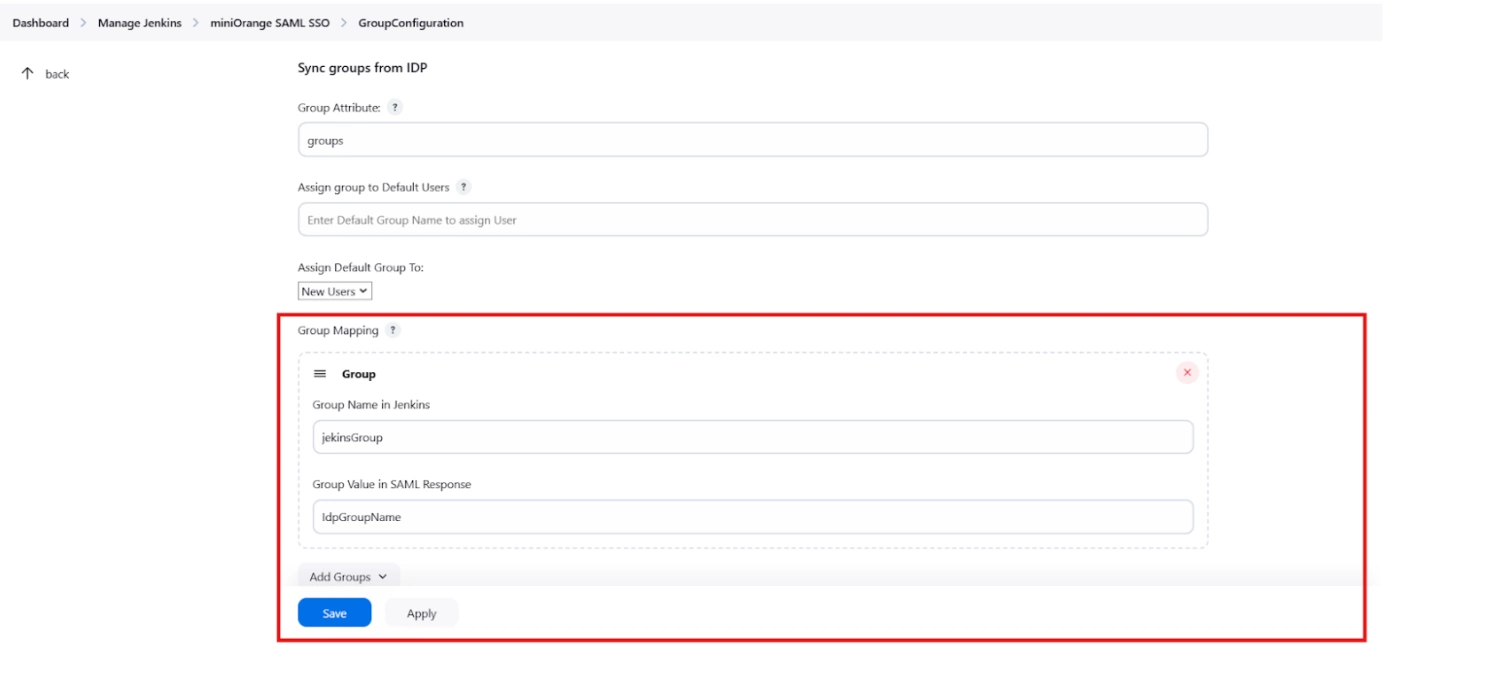
- Group Mapping allows you to align user groups from your identity provider (IdP) with the corresponding groups in Jenkins. This is especially useful when the group names in your IDP differ from those in Jenkins. By configuring group mappings, you can ensure that users are assigned the correct roles and permissions within Jenkins based on their IdP group membership.
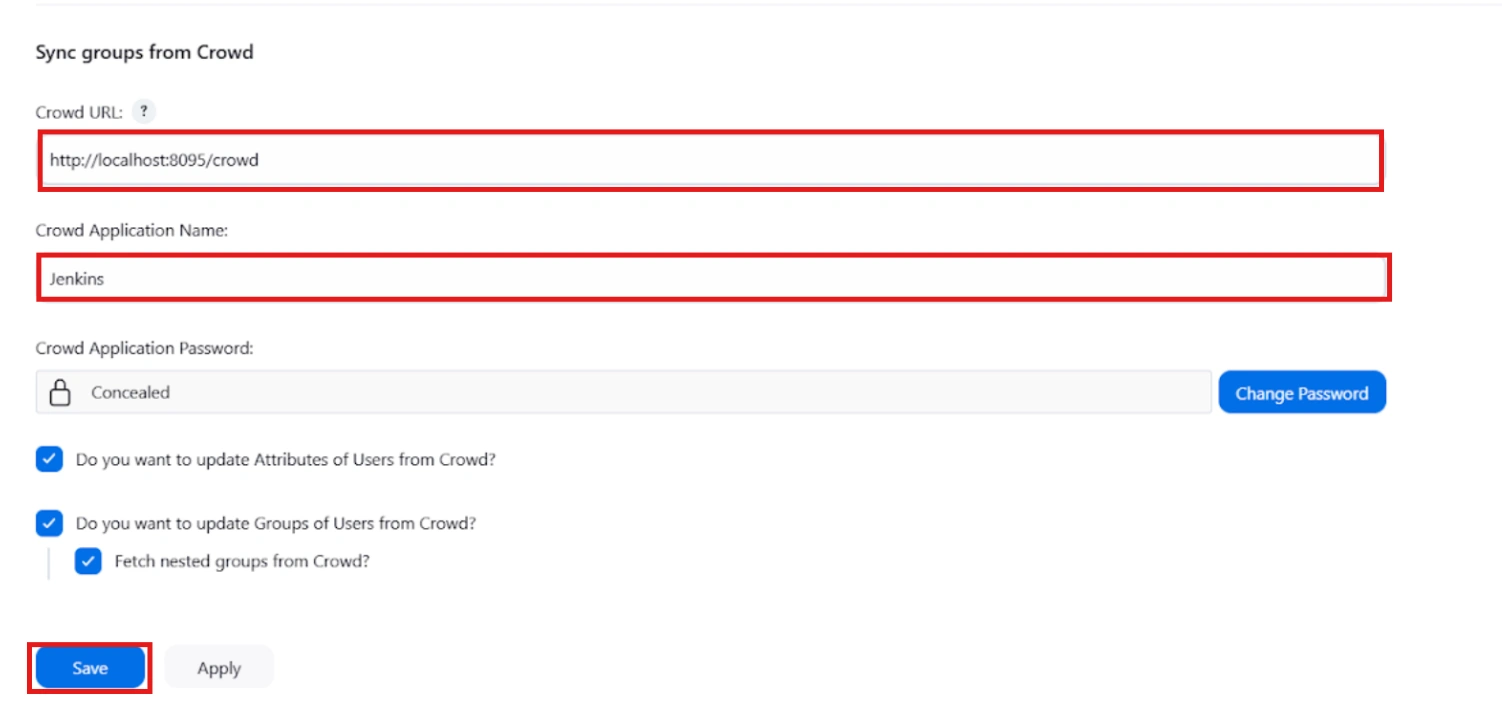
For example, if your IdP group is named "idpGroupName" but the corresponding group in Jenkins is "jenkinsGroup", you can map idpGroupName to jenkinsGroup to maintain consistent access control. - To Assign groups from the crowd just enter your crowd instance url and crowd application name and password as shown below.
- You can refer to this guide to add a jenkins application to your crowd instance.
- If you want to update user details or want to fetch groups or nested groups check the options accordingly.
 Sync groups from IDP
Sync groups from crowd
Bitbucket Git Authentication App | Kerberos/NTLM Apps | Word/PDF Exporter | WebAuthn | SonarQube SSO | Jenkins SSO
If you don't find what you are looking for, please contact us at support-atlassian@miniorange.atlassian.net or raise a support ticket here.


