- Home
- OAuth Cloud SSO
- OAuth SSO Documentation
- Atlassian Cloud OAuth Single Sign-On (SSO) with miniOrange

Atlassian Cloud OAuth Single Sign-On (SSO) with miniOrange
With Jira OAuth Single Sign-On (SSO) for Atlassian Cloud, you can securely log in to Atlassian Cloud using your miniOrange credentials. This app allows you to perform seamless Single Sign-On (SSO) into your Atlassian Cloud accounts using your existing miniOrange credentials.
 Try it for free
Pre-requisites
-
Atlassian Guard (Atlassian Access) Subscription:
Atlassian Guard is an additional subscription applied across the Atlassian Cloud products, like Jira Software, Jira Service Management, Jira Work Management, Confluence, and Bitbucket. It is needed for Single Sign-On (SSO) or any Cloud Service across Atlassian Cloud products. -
Domain Verification:
Atlassian Guard requires the Domain Verification process to enforce SSO on the managed user accounts. This process verifies that you own a valid domain for managing the user accounts and use the same domain name for the email addresses.
References:
https://www.atlassian.com/software/guard/guide/getting-startedhttps://www.atlassian.com/licensing/atlassian-guard
Download and Installation
- Log in to your Atlassian Admin Console and select your site.
- Now, in the left sidebar, scroll down to the Apps section. Under Apps, select Site, which will open the site settings page.
- In the Site Settings, navigate to Connected Apps → Explore apps. (Alternatively, you can go to the Atlassian Marketplace and search for the app.)
- Search for miniOrange OAuth/OpenID SSO.
- Click “Try it free” to begin a new trial of the app.
- On the top menu bar, go to Apps.
- Locate the “mO Jira OAuth/OpenID SSO” app and click to open it.
In this guide, we will demonstrate the setup in three parts:
- Configure the OAuth SSO connection between the miniOrange app (as OAuth Client) and miniOrange (as OAuth Provider).
- Configure SAML SSO connection between Atlassian Guard (as SP) and miniOrange App (as IDP).
- Add users to the SSO Authentication policy, and enforce the SSO.
Step 1. Configure SSO connection between miniOrange App and miniOrange
- Once the plugin is installed, select the Apps section from the sidebar menu and click on mO Jira OAuth/OIDC SSO option.
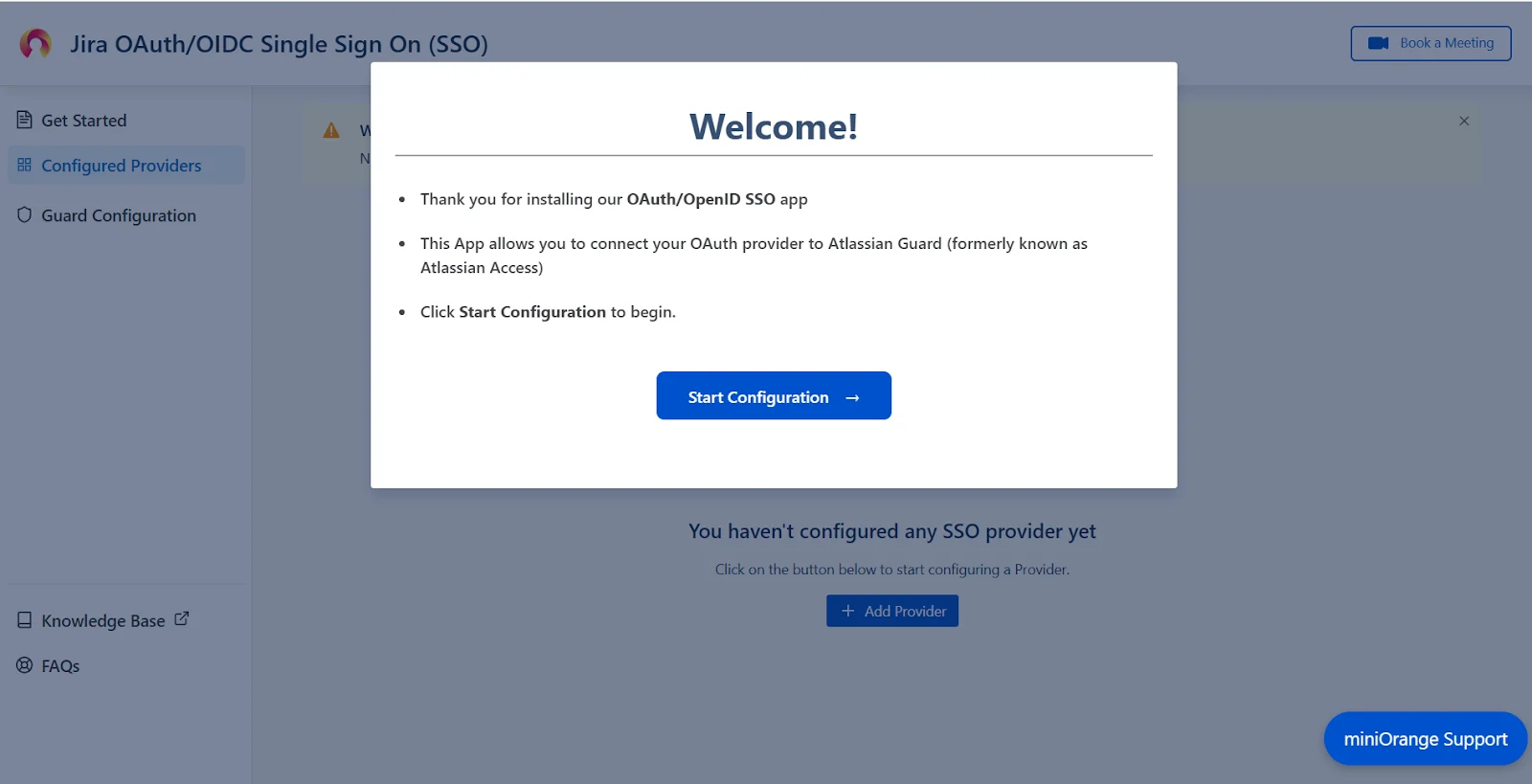
- Next, you will be prompted with a welcome pop-up window. Click Start Configuration.
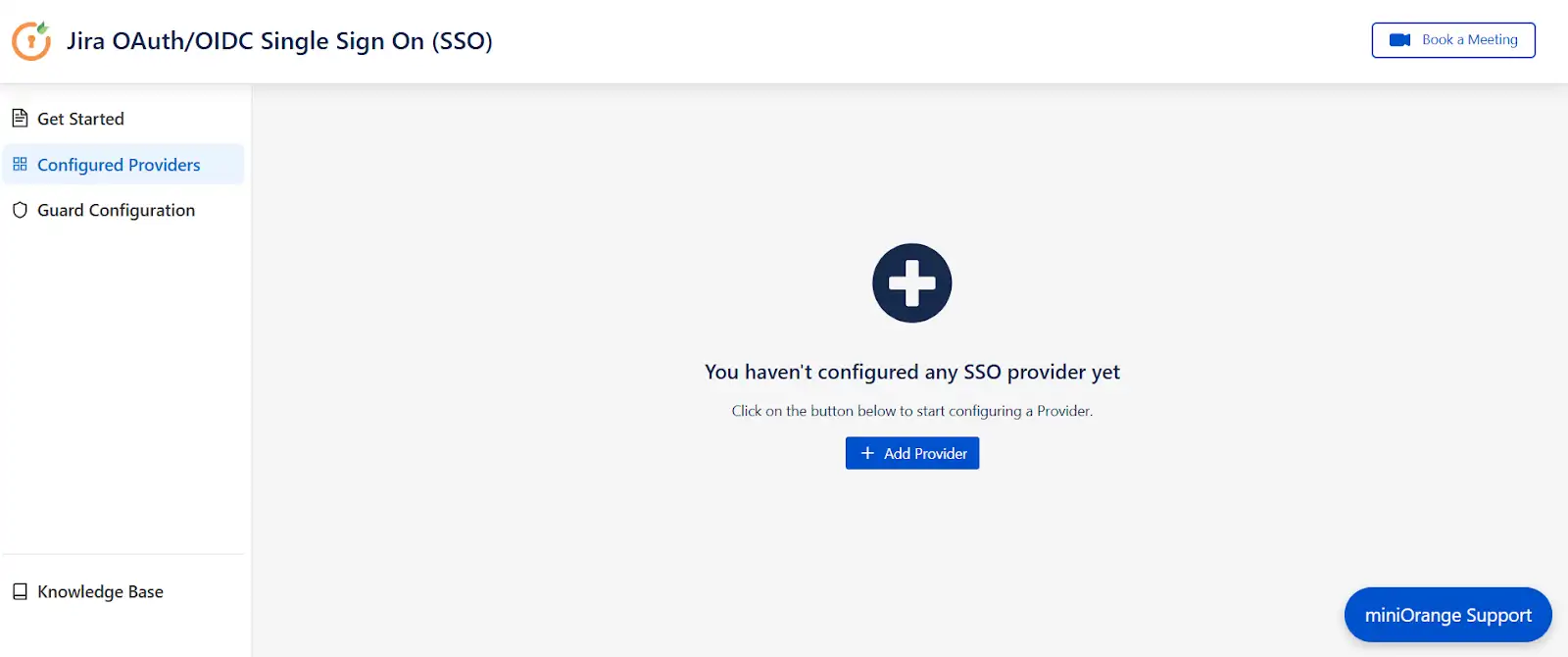
- Now, in the Configured Providers section, click the "Add Provider" button.
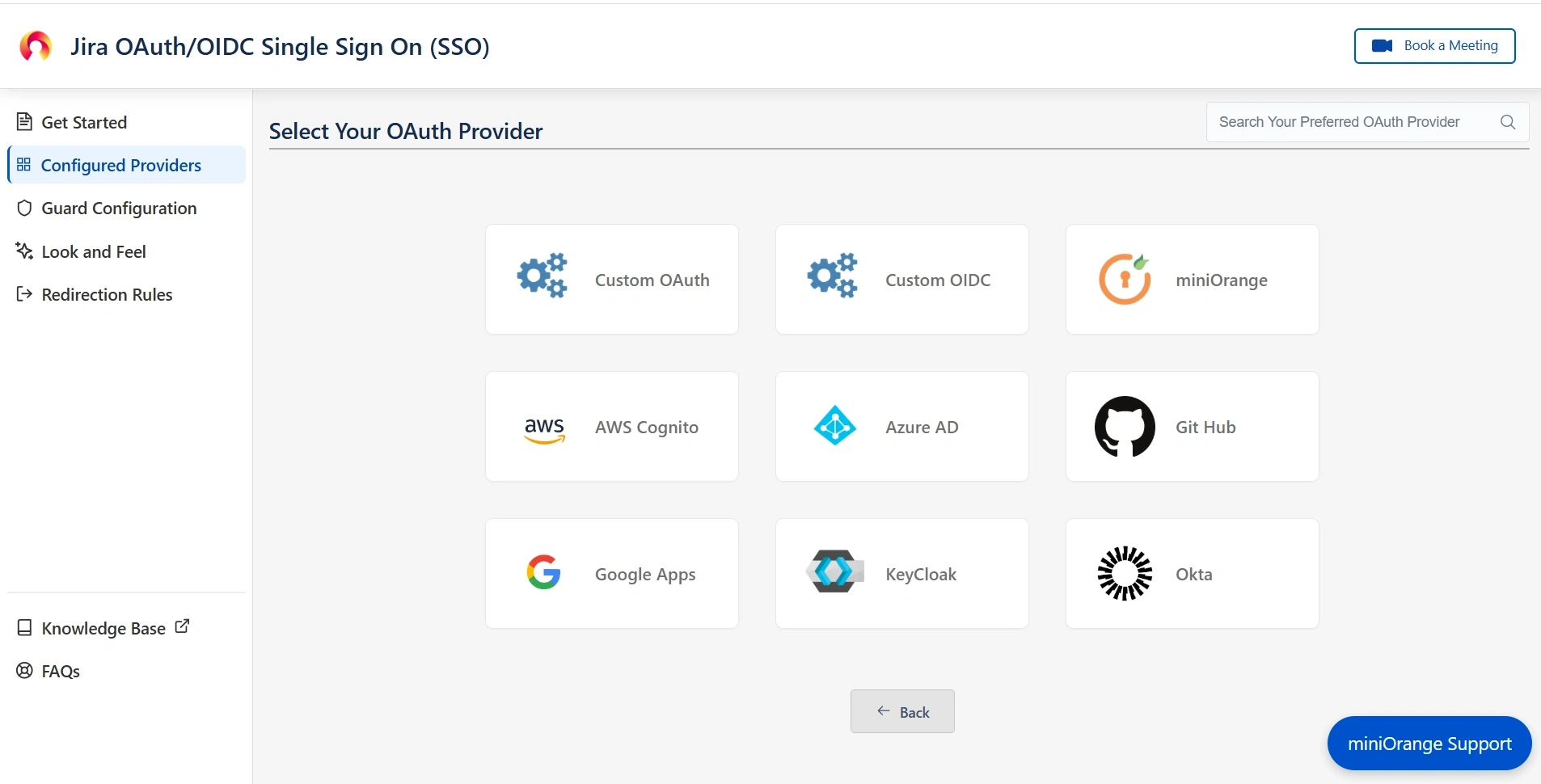
- Select miniOrange as the application.
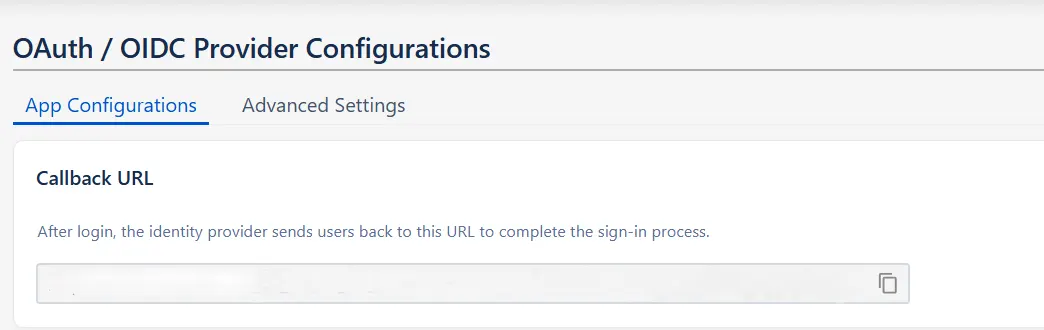
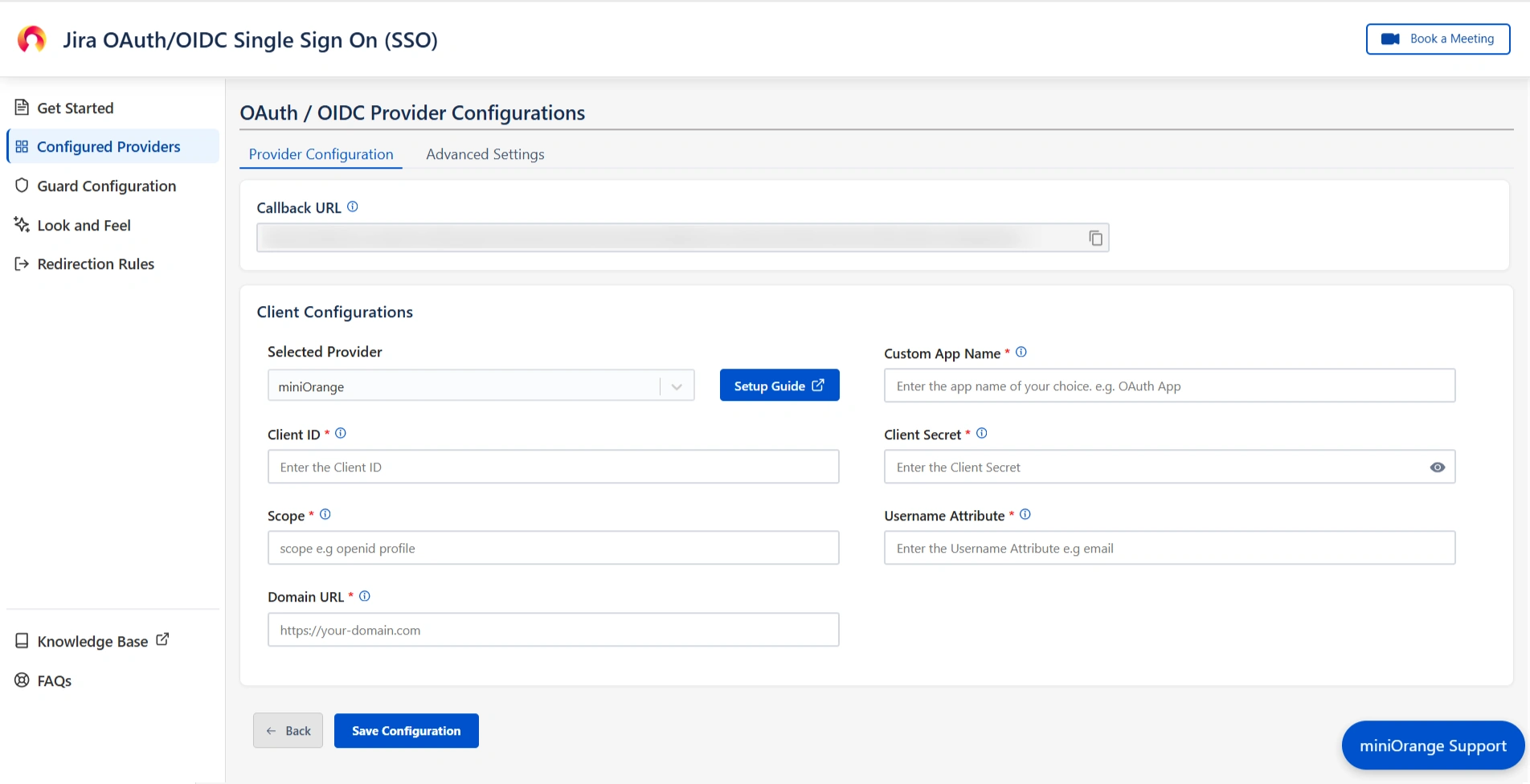
- And copy the callback URL from the OAuth / OIDC Provider Configurations page and keep it handy, as you'll need it to configure miniOrange as the OAuth provider.
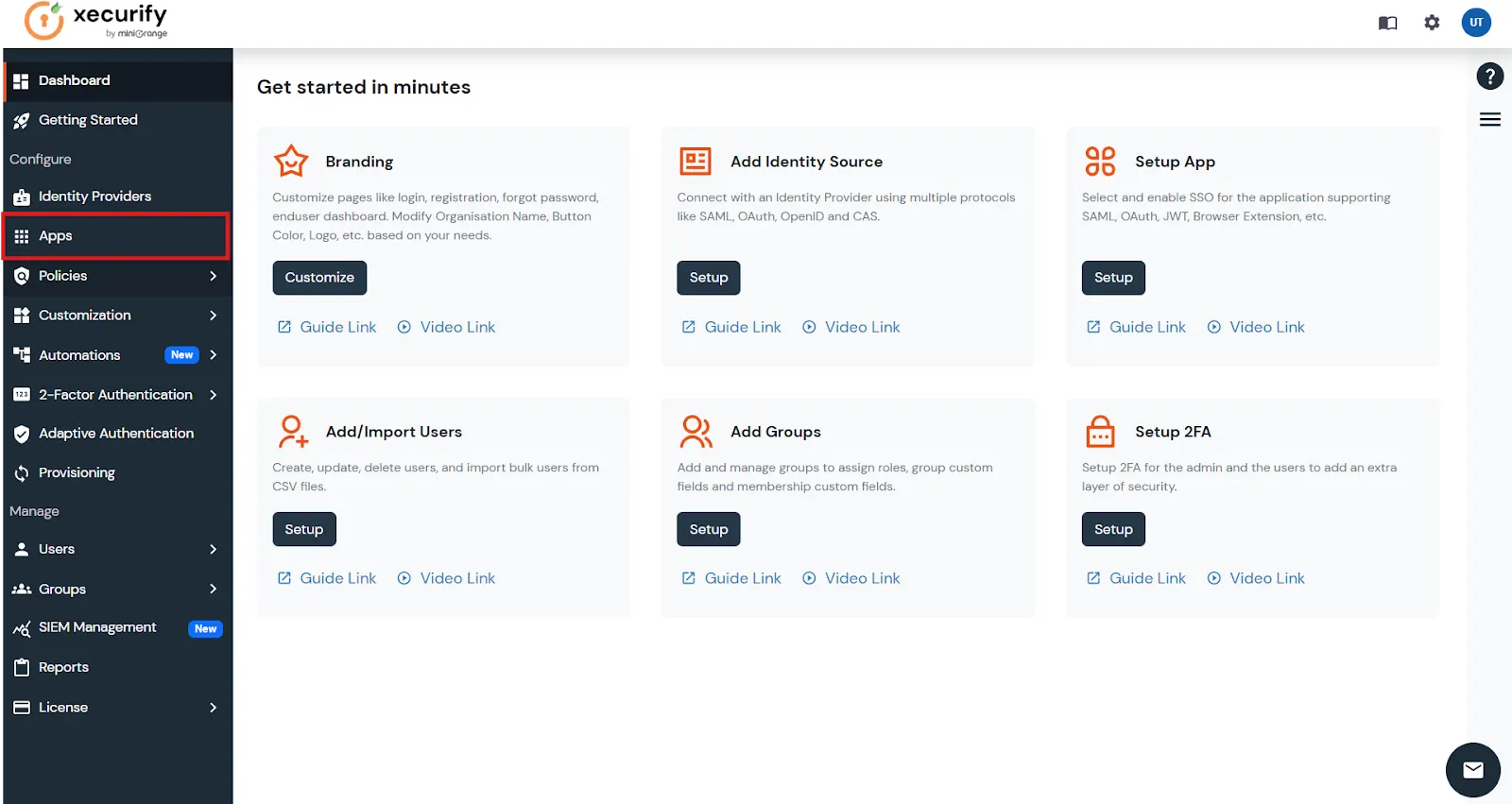
- Sign up on miniOrange. After that, go to miniOrange Admin console and login with your miniOrange credentials.
- From the left menu, go to Apps.
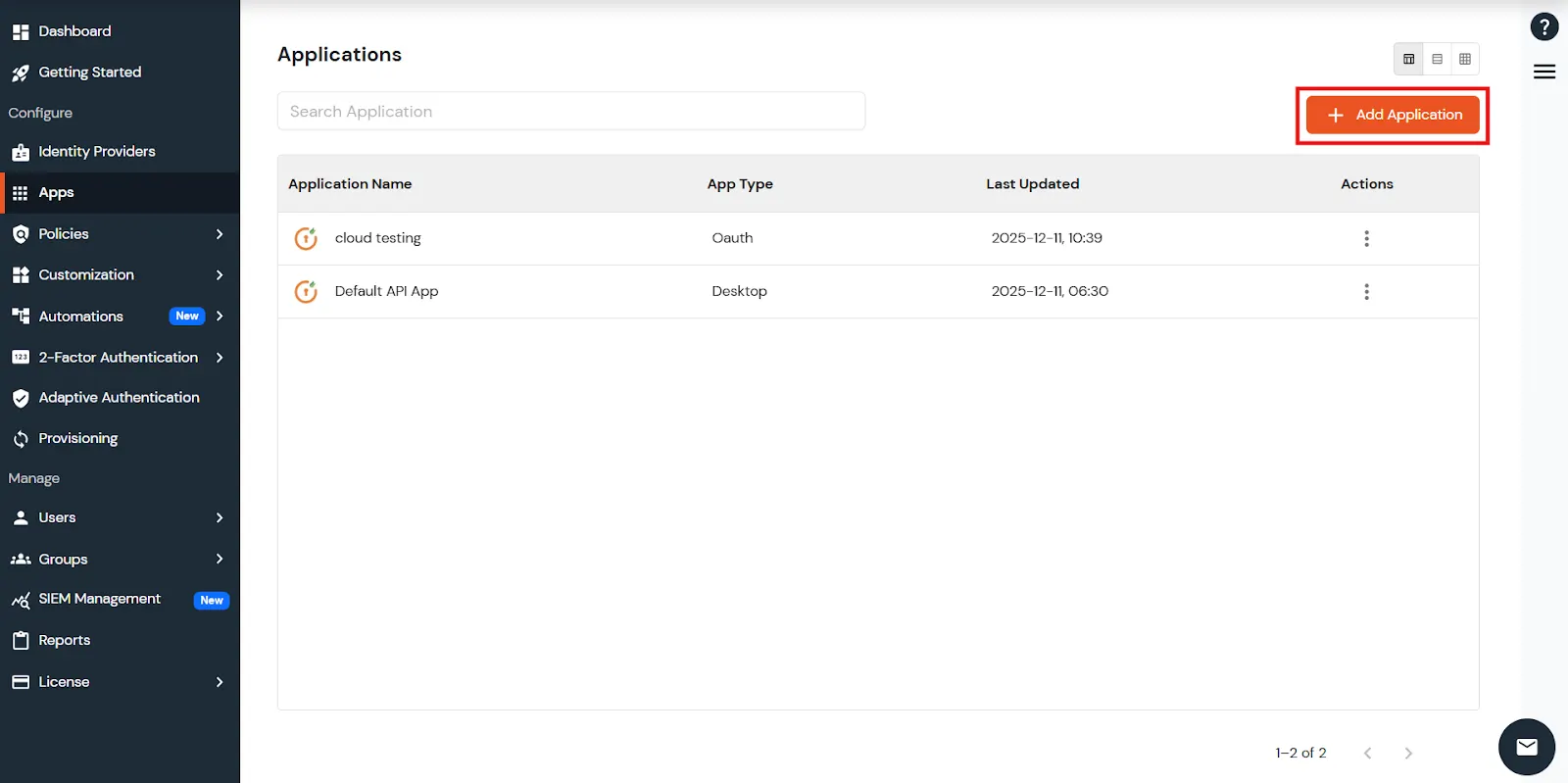
- In the right upper corner, select Add Application.
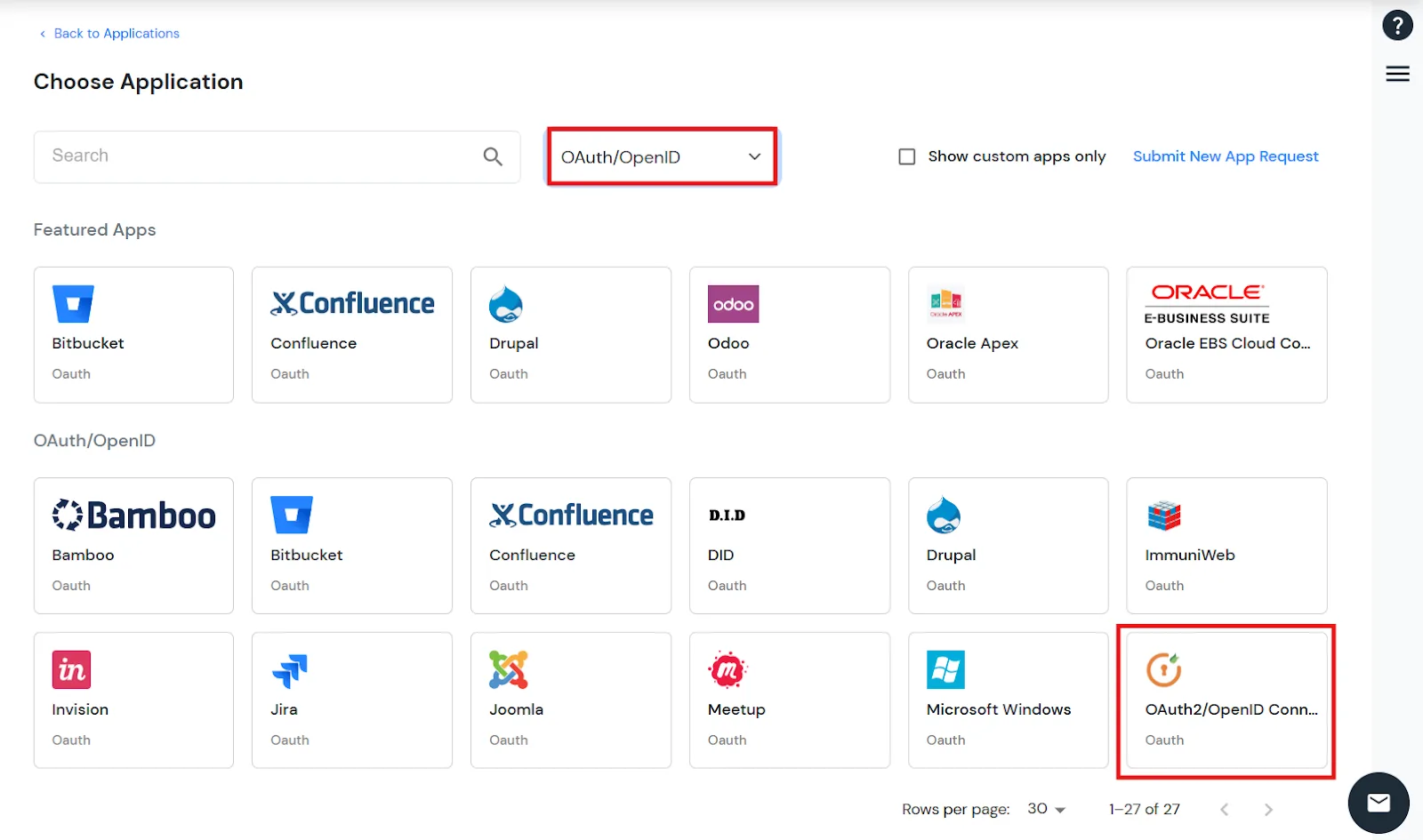
- Select OAuth/OpenID from the drop-down and select the OAuth2/OpenID Connect card.
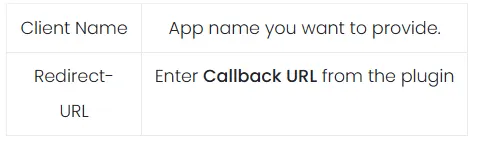
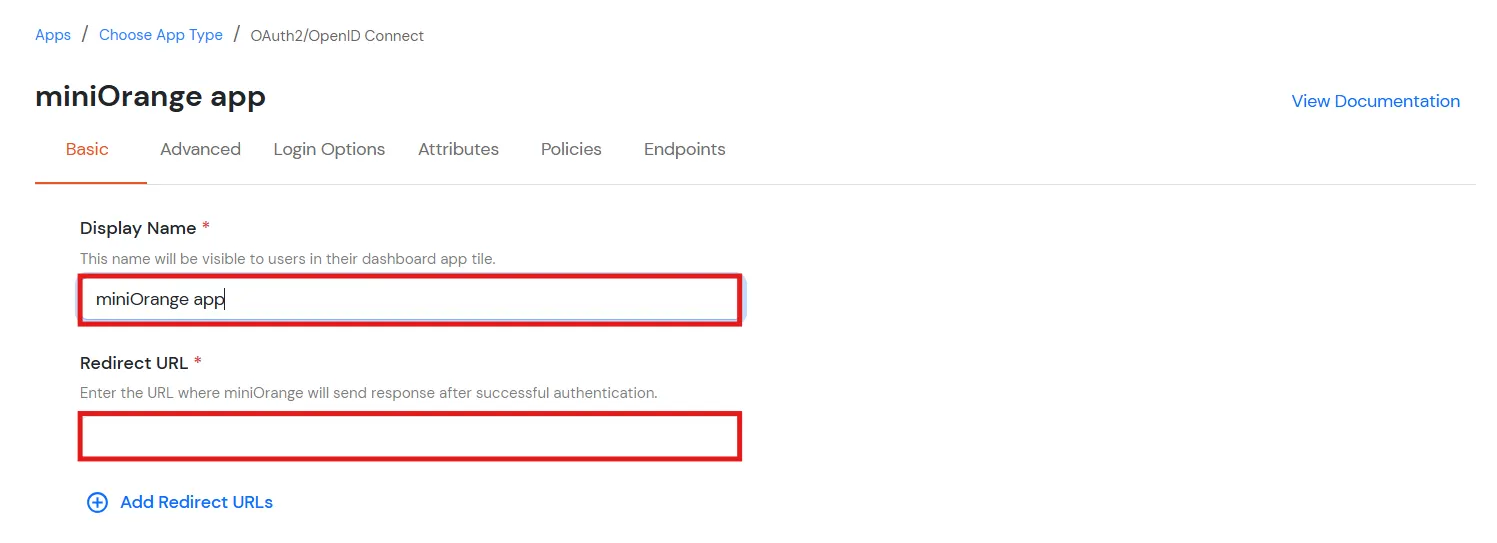
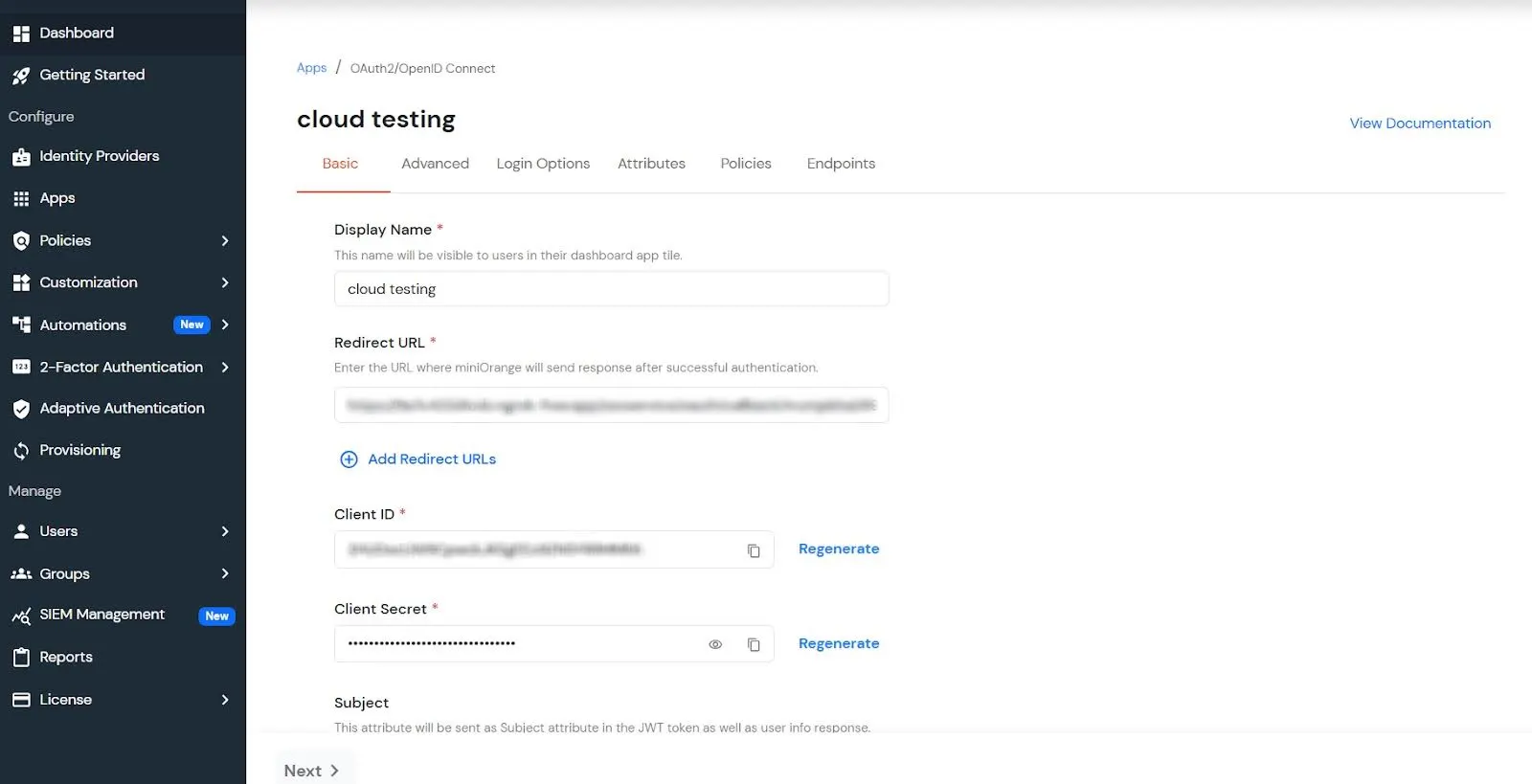
- Now enter the following information as shown below:
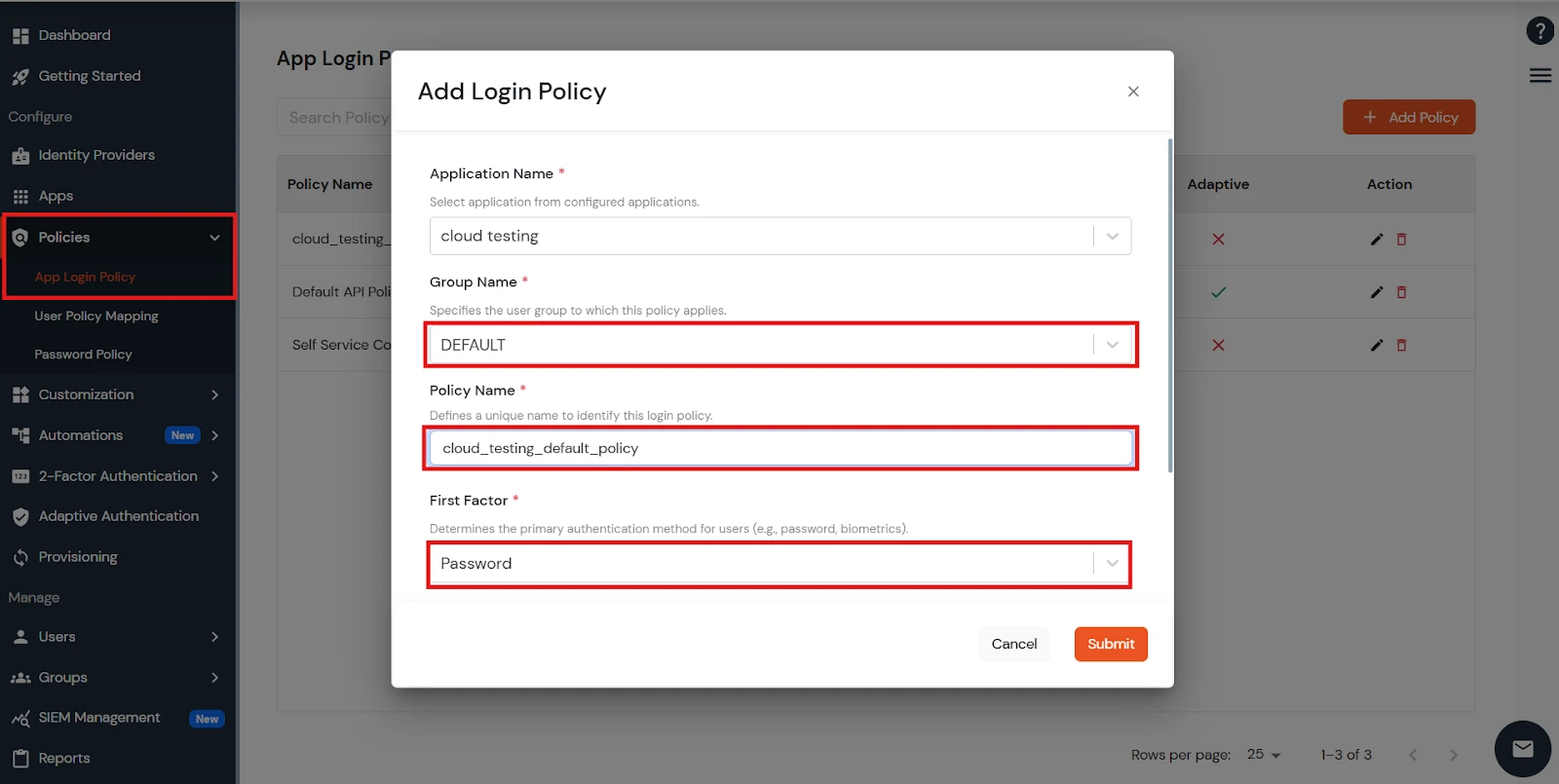
- To add the policy for OAuth App, go to the Policies tab in the left side bar menu, click Add Login Policy, and then select Group Name as Default, enter the Policy Name of your choice, and select Login Method as Password.
- Click on the save button. Your app has been successfully created.
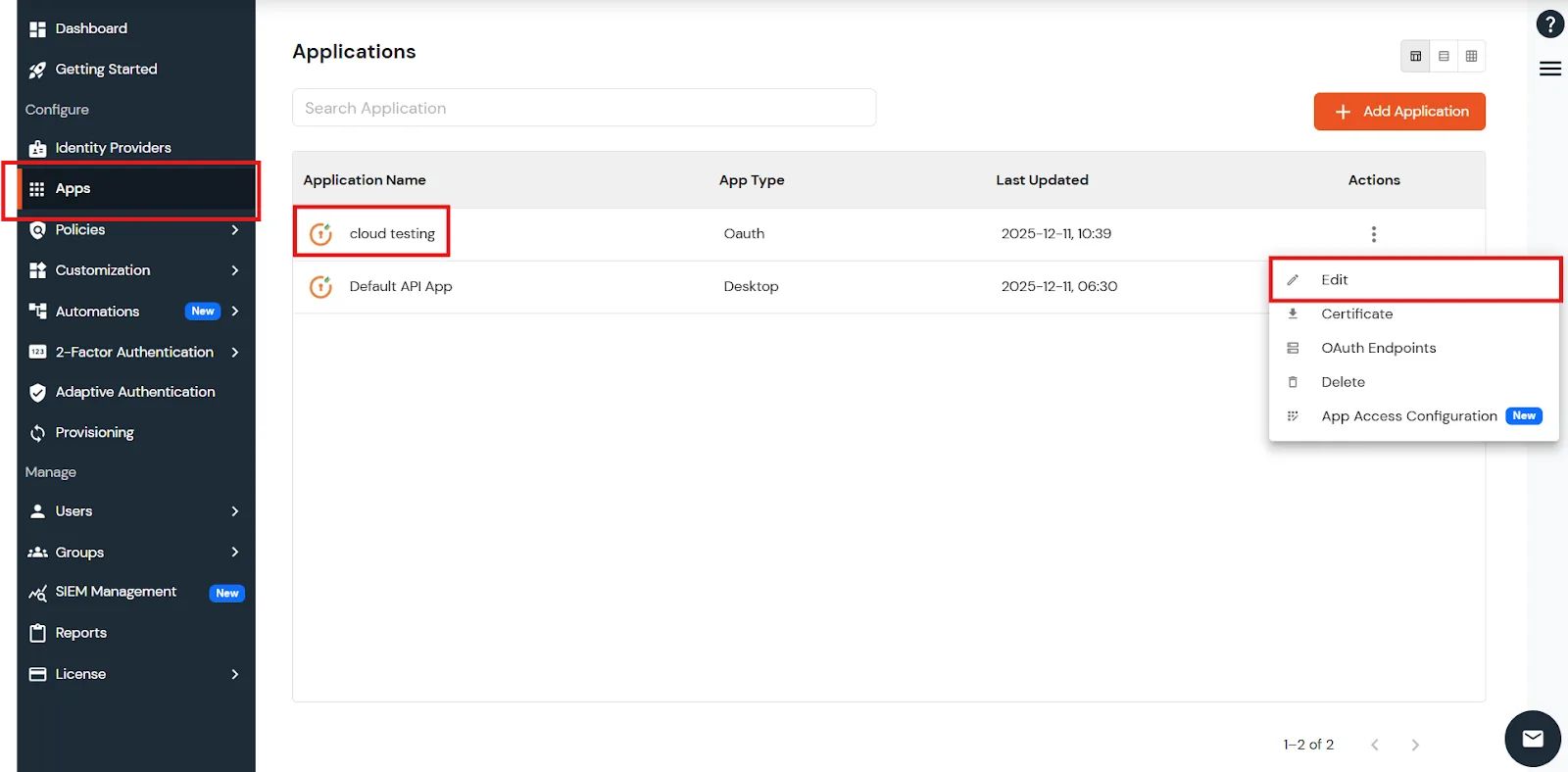
- Your application is configured. Now, go to Apps > Your app > Select > Edit.
- You can see all the information for the app, like Client ID and Client Secret, and OAuth Endpoints.
- Next, return to the miniOrange App configuration page. (OAuth / OIDC Provider Configurations )
- Enter all the details — Client ID, Client Secret, and Domain Name as noted in the steps above.
- For example, if your auth endpoint is this - https://login.xecurify.com/moas/idp/openidsso, then your domain name is login.xecurify.com.
- You can use scope as profile and email.
- Once done, click Save Configuration.

Step 2. Set up SSO between Atlassian Guard and miniOrange App
After saving the OAuth Configuration, you’ll be required to configure Atlassian Guard and the miniOrange OAuth/OIDC SSO App.
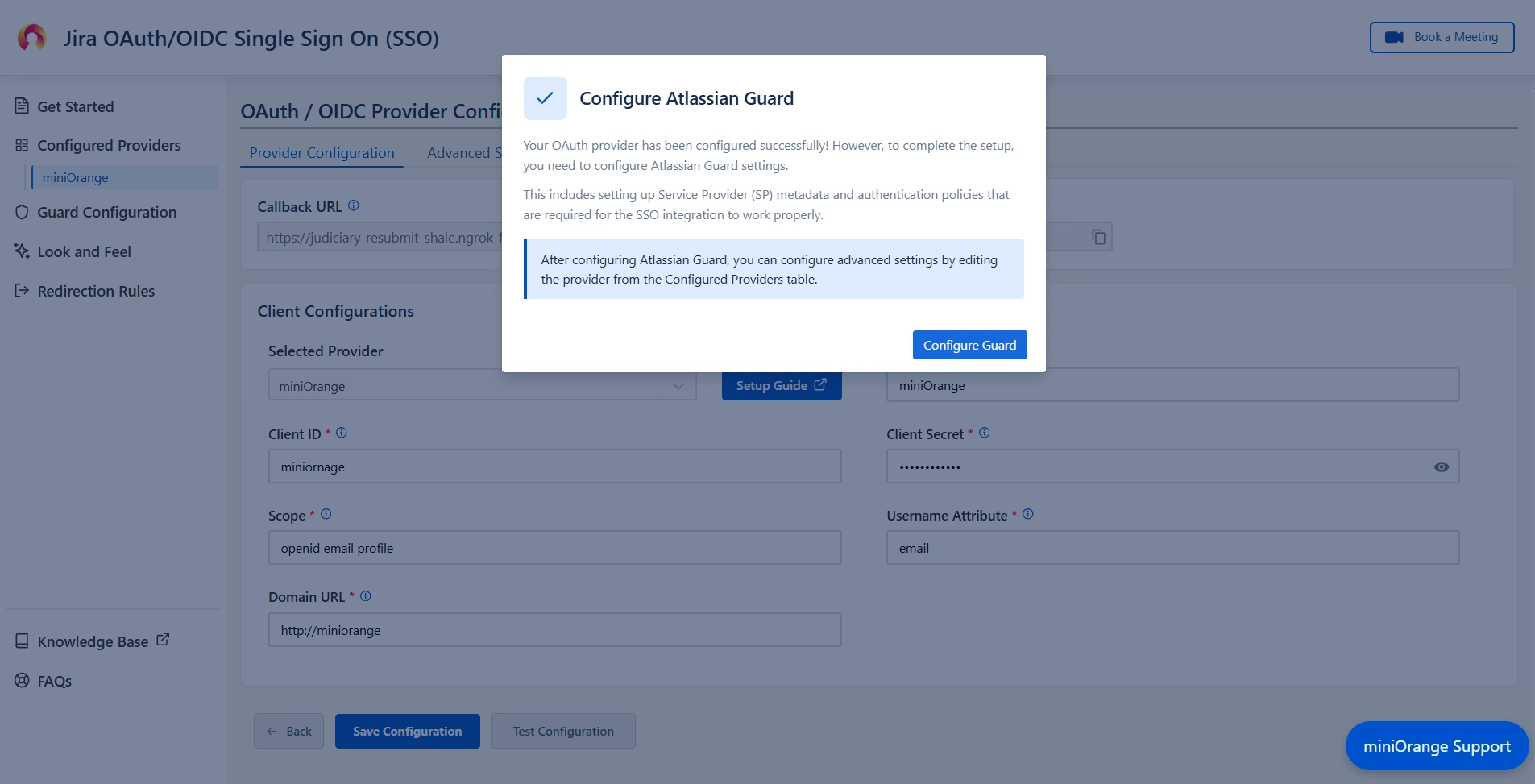
- A pop-up notification will appear, asking you to complete the Atlassian Guard configuration.
- Click on Configure Guard, and you will be navigated to the Guard Configurations section.
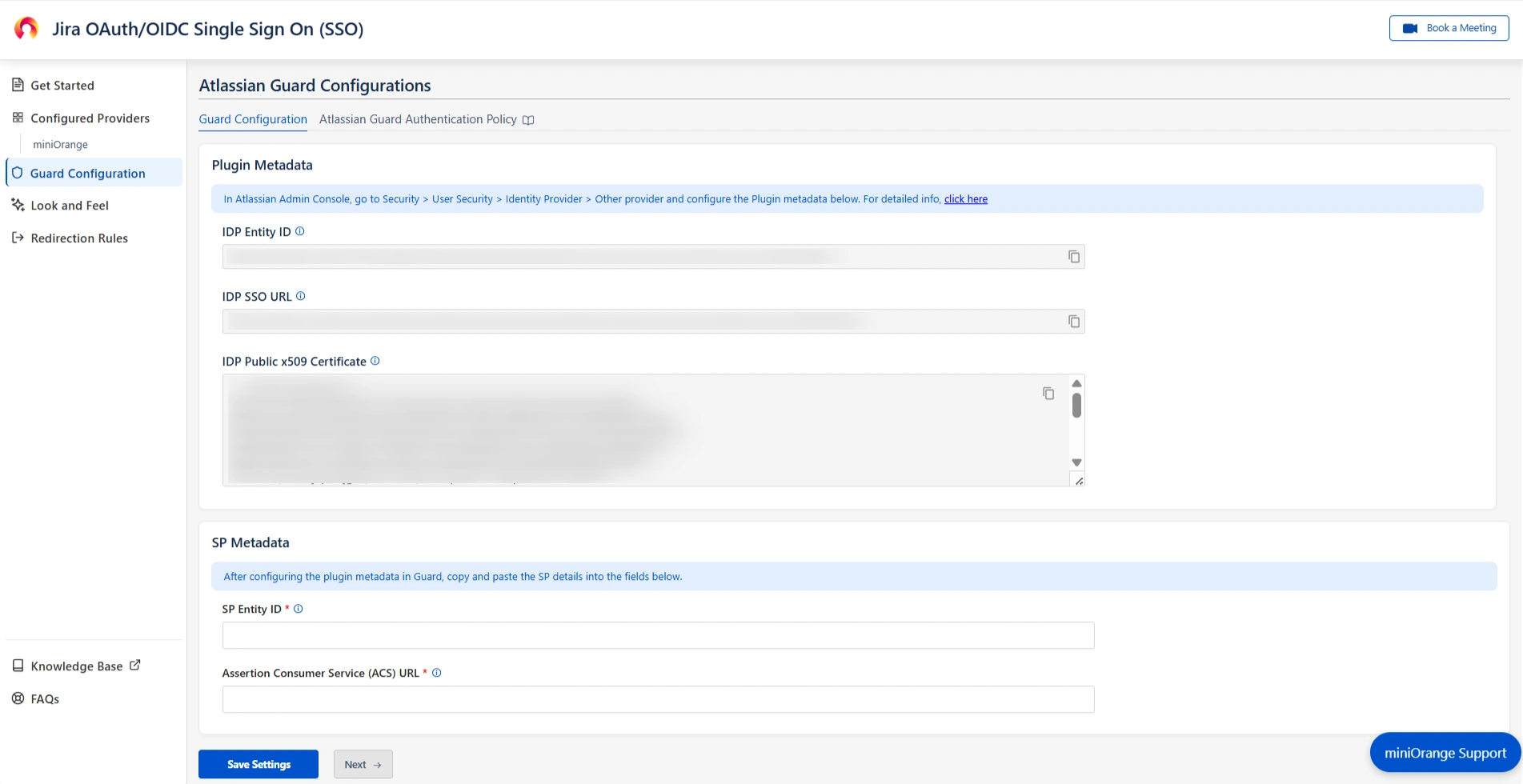
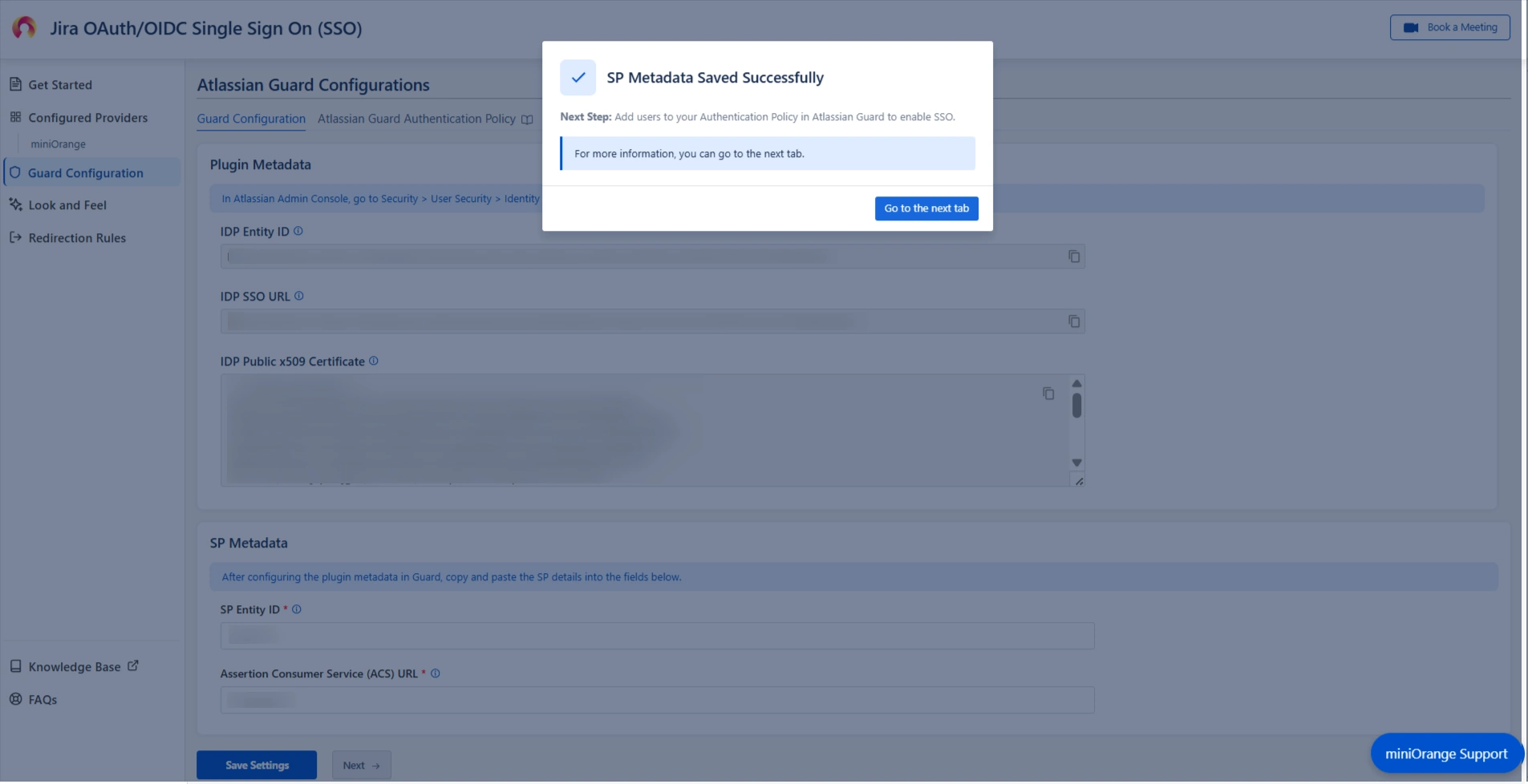
- In this section, you will find the Plugin Metadata details.
- Copy and keep the following values handy. You’ll need them while setting up your Identity Provider in Atlassian Guard:
- IDP Entity ID
- IDP SSO URL
- IDP Public X.509 Certificate
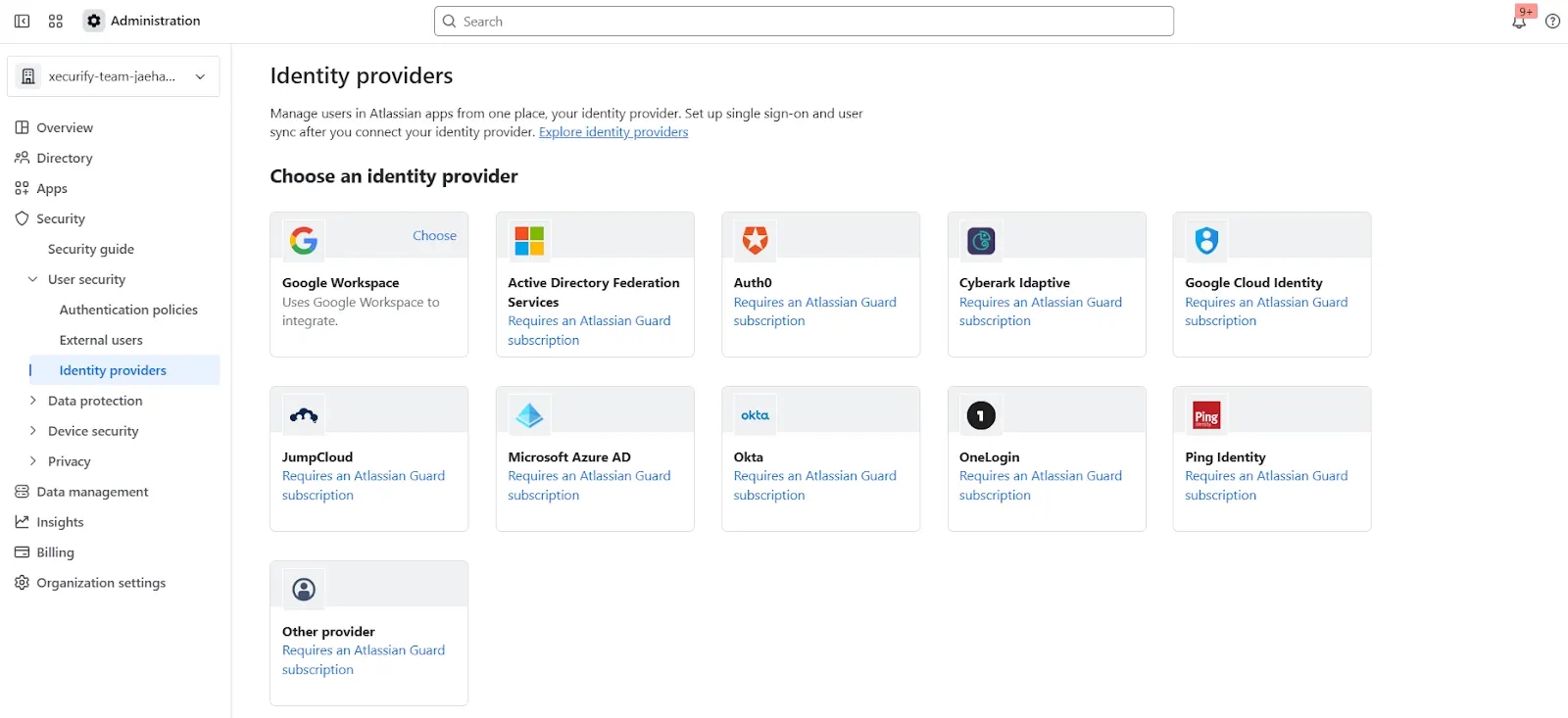
- Open the Atlassian Admin Console and navigate to the Security tab.
- Under User Security, click Identity Providers.
- Select Other to begin configuring a custom Identity Provider.
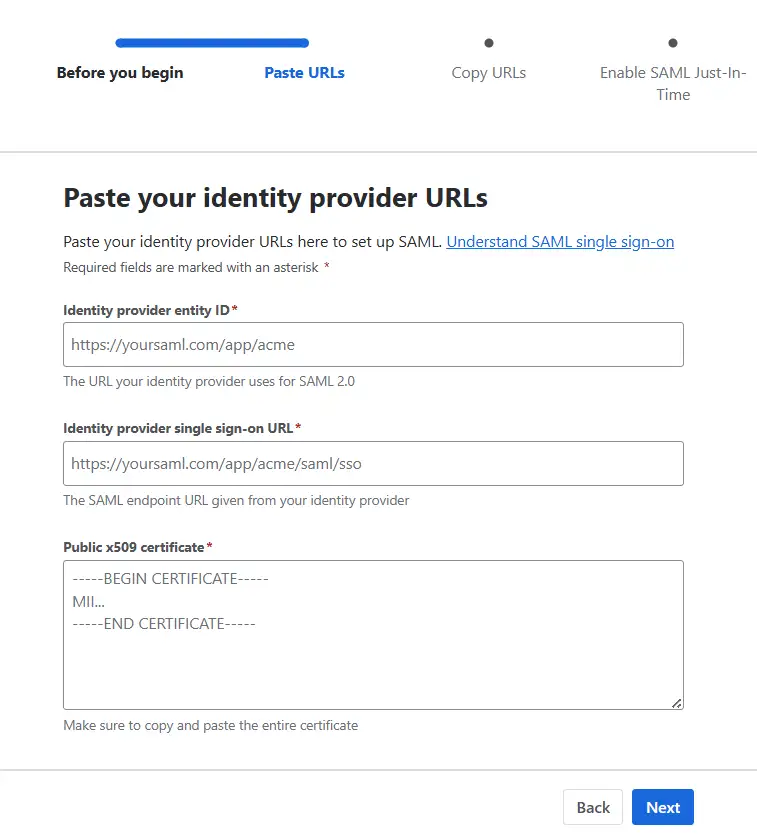
- Provide an appropriate name, select Set up SAML Single Sign-On, and click Next.
- Now, paste the IDP Entity ID, IDP SSO URL, and Public X.509 Certificate that you copied from the plugin configuration.
- Click Next and copy the Service Provider Entity ID and Service Provider Assertion Consumer Service URL. Keep these handy as they’re required to complete the plugin configuration.
- Complete the rest of the Atlassian Guard configuration.
- Once you’re done, return to the plugin, go to the SP Metadata tab in the Guard Configurations section, and click Next.
- Enter the SP Entity ID and Assertion Consumer Service (ACS) URL that you copied, and click Save Settings.
Step 3. Configure SSO Authentication Policy
After completing your SSO configuration, you must assign users to the Authentication Policy and enforce Single Sign-On (SSO).
- Go to your Atlassian Cloud Admin Console.
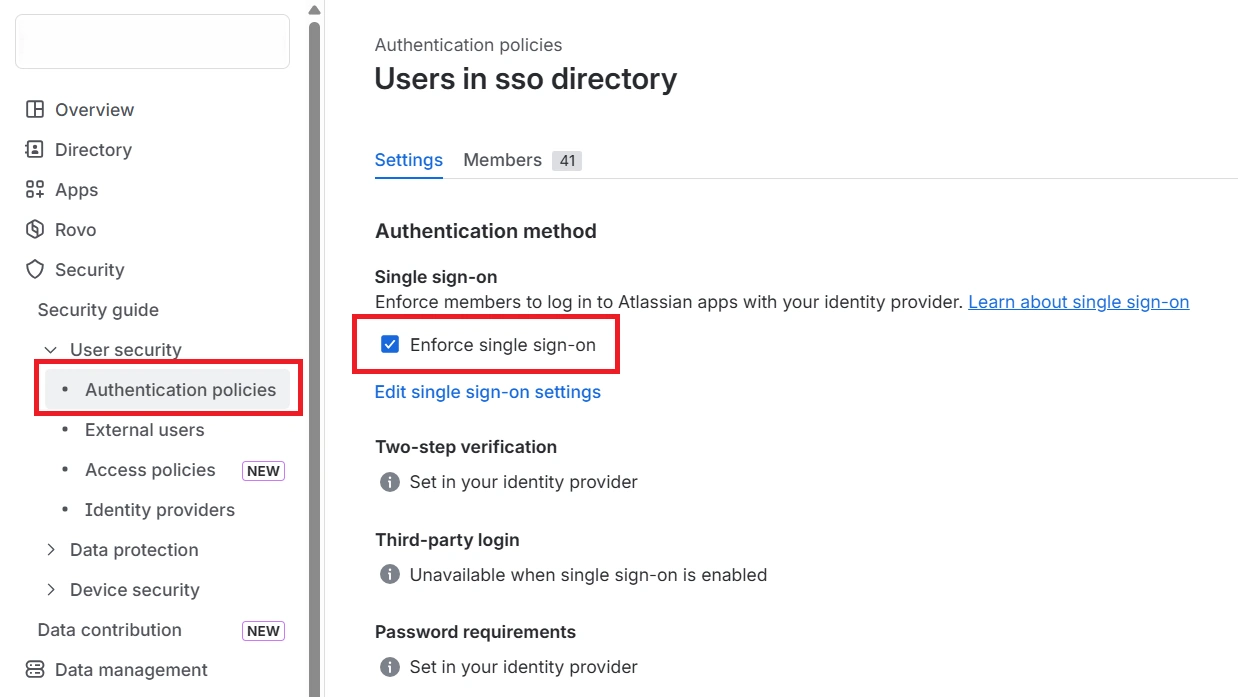
- Navigate to Security → Authentication Policies.
- Open the Authentication Policy you configured for SSO.
- Enable the Enforce Single Sign-On (SSO) option and save the changes.
- Now go to the Members section and add the users or groups who should authenticate using this policy.
- Save your changes.
Once these steps are complete, return to the app and Mark as Complete to complete the setup.

Additional Resources
Did this page help you?