
Overview
The miniOrange Data Cleanup & Migration Assistant is a comprehensive, purpose-built solution designed to bridge the gap between Atlassian Data Center and Cloud. Migrating is more than a simple data transfer; it is an opportunity to sanitize your environment.
This tool serves as an all-in-one pre-migration powerhouse for Jira and Confluence, ensuring that your instance is lean, secure, and compliant before you move to Cloud.
Benefits
Implementing the miniOrange Migration Assistant provides immediate advantages to both your IT infrastructure and your bottom line:
- Significant Cost Savings: Lower Cloud licensing fees by eliminating inactive, duplicate, or unlicensed users before they are provisioned in the Cloud.
- Enhanced Security & Compliance: Mitigate the risk of sensitive data exposure (PII, credentials, financial data) during and after migration.
- Reduced Migration Failures: By cleaning up "technical debt", such as empty groups and redundant permissions, you minimize the complexity and potential points of failure in the migration process.
- Improved Performance: A smaller data footprint leads to faster transfer times and snappier post-migration performance in your new Cloud environment.
Key Features
The tool is built on three core pillars designed to address the most common migration hurdles:
1. User & Group Cleanup
- Dormant User Detection: Automatically identify users who haven't logged in for 60, 90, or more days.
- Identity De-duplication: Locate duplicate accounts sharing the same email IDs to streamline identity management.
- Permission Optimization: Detect empty or unused groups and audit "privileged" admin accounts to ensure the principle of least privilege is maintained.
- Bulk Actions: Deactivate, delete, or exclude users and groups in bulk to prepare a clean slate for the Cloud.
2. Sensitive Data Scanner (DLP)
- 100+ Built-in Patterns: Scans Jira issues, Confluence pages, comments, and history for PII, credit card numbers, API tokens, and secrets.
- Contextual Visibility: View violations in real-time with "Show More" functionality to see exact matches and severity levels (Critical/Medium).
- Remediation Tools: One-click actions to redact, remove, or encrypt sensitive data, ensuring that even if a third-party vendor assists in your migration, your data remains protected.
Additional Capabilities
Beyond the core cleanup, the assistant offers enterprise-grade governance features:
- Automated Scheduling: Set regular user and group scans recommendations to maintain hygiene during the long lead-up to migration day.
- Tamper-Proof Audit Logs: Every action such as a manual encryption event, is recorded with a timestamp for compliance audits.
- Cloud Decryption Bridge: Securely encrypt data in the Data Center and use the companion miniOrange Cloud add-on to automatically decrypt it once the migration is complete.
- Expert Regex Customization: Access to 24/7 global support for help crafting custom regex patterns specific to your organization’s unique data types.
Pre-requisites
To ensure a smooth deployment of the Migration Assistant, verify the following requirements:
- Deployment Type: An active Jira Data Center or Confluence Data Center instance.
- Administrative Privileges: The user installing the app must have System Administrator permissions to perform bulk user actions and cross-project/space scans.
- Network Access: Outbound access to the miniOrange support portal or licensing servers (if applicable in your firewall configuration).
Dashboard Tab
The Migration Dashboard provides a real-time, high-level summary of your instance's hygiene, security posture, and overall migration risk.
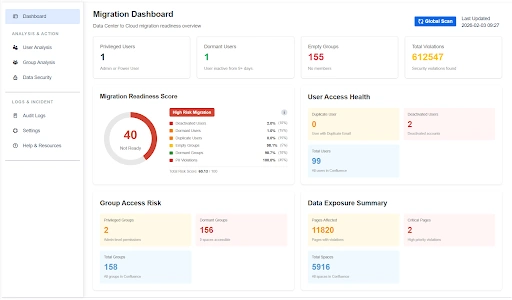
Dashboard Navigation & Metrics
The dashboard is divided into specialized widgets that categorize risks across users, groups, and data security.
- Global Scan: A primary action button used to trigger a comprehensive re-assessment of the entire instance to update these metrics.
Overview Metrics
- Total Violations: The cumulative number of security violations found across the instance (e.g., 612,547 found).
- Empty Groups: A specific counter for groups with no members, which should be removed to simplify the Cloud permission scheme.
- Privileged Users: This metric identifies the number of accounts with administrative permissions.
- Dormant Users: This identifies users who have not logged into the system for a configurable period, such as 90+ days.
1. Core Readiness Indicators
- Migration Readiness Score: A numerical value that visually indicates if your instance is "Not Ready" or "Ready" for migration based on weighted risk factors.
- High-Risk Migration Breakdown: A detailed list showing the percentage impact of deactivated users, dormant accounts, empty groups, and data violations on your total risk score.
2. User & Group Health
- User Access Health: Displays total user counts alongside critical cleanup targets, such as Duplicate Users (users with duplicate emails), and Deactivated Users.
- Group Access Risk: Highlights structural weaknesses by identifying Privileged Groups (admin-level permissions), Dormant Groups that have zero space access and Total Groups.
3. Data Exposure Summary
- Critical Pages: Identifies high-priority violations that require immediate encryption or deletion before migration.
- Data Impact: Shows the total number of Pages Affected and Total Spaces scanned, providing a clear scope of the required sanitization effort.
Sidebar Modules (Analysis & Action)
The left-hand navigation menu allows you to drill down into specific cleanup workflows:
- User Analysis: Gain visibility into overall user account health, activity trends, licensing distribution, and lifecycle status to support informed account management decisions.
- Group Analysis: Understand group structures, membership distribution, and access alignment across spaces to maintain streamlined and scalable permission governance.
- Data Security: Monitor sensitive data exposure, review detected policy violations, and oversee remediation efforts to ensure organizational data protection standards are upheld.
- Audit Logs: Access a comprehensive, tamper-resistant record of administrative and system activities to support transparency, oversight, and compliance requirements.
- Settings: Manage global application configurations, including scan rules (Regex), system preferences, and other administrative controls that define how the platform operates.
Use Case
Scenario: A Migration Lead starts their morning by checking the Migration Readiness Score.
They notice the score is at 30 (Not Ready) and quickly identify via the High-Risk Migration Breakdown that data Violations are the primary reason. They use the Global Scan button to ensure they are looking at the latest data before assigning remediation tasks to the security team.
User Analysis Tab
The User Analysis tab provides a comprehensive audit interface to ensure only essential, secure, and valid users are transitioned to Atlassian Cloud. By refining your user base before migration, you directly reduce Cloud licensing costs, minimize security risks, and prevent identity-related migration failures.
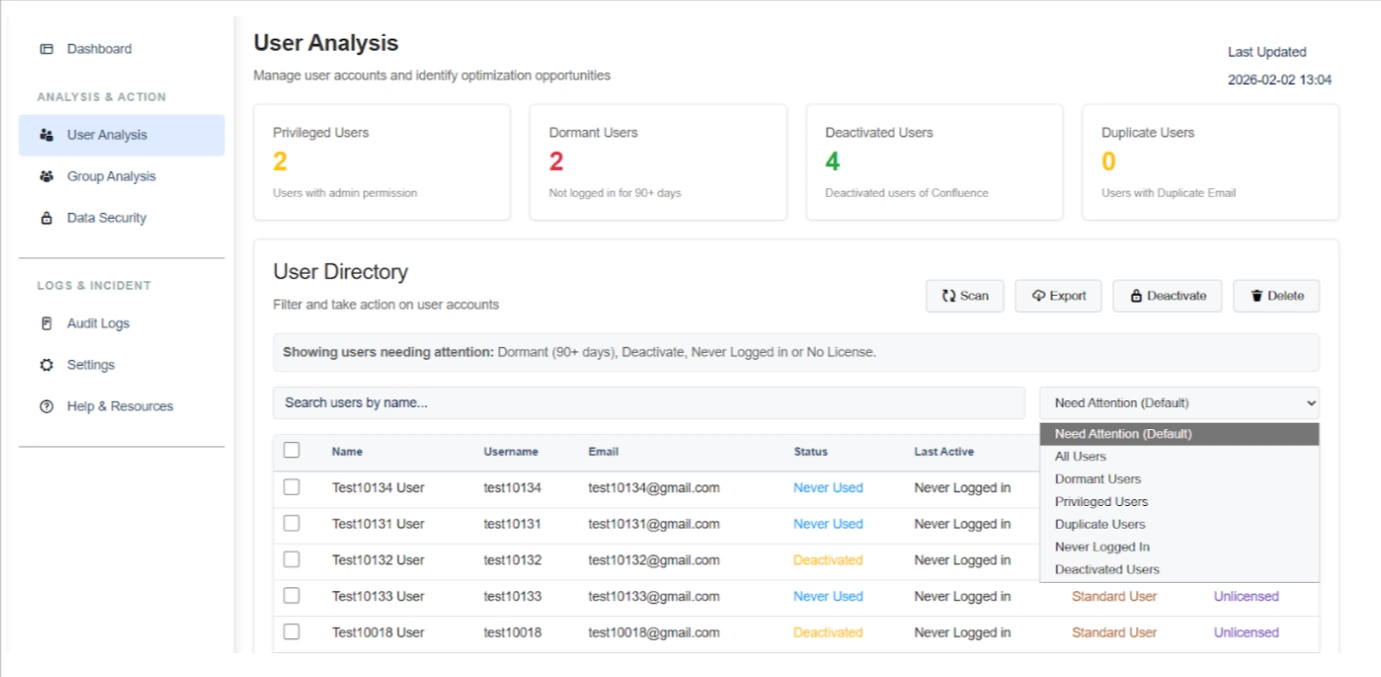
Listed below are the steps and settings required to optimize your user directory:
1. User Health & Categorization
The top dashboard widgets provide a real-time summary of accounts that require administrative intervention:
- Privileged Users: Identifies users with administrative or elevated permissions to ensure only required roles are mapped to the Cloud.
- Dormant Users: Highlights accounts that have not logged in for a configurable period (e.g., 90+ days) and are unlikely to require a Cloud license.
- Deactivated Users: Tracks accounts already deactivated in the system to exclude them from unnecessary data transfer.
- Duplicate Users: Flags multiple users sharing the same email address, which is critical since Atlassian Cloud enforces unique email-based identity.
2. Targeted Identification
The User Directory enables administrators to quickly locate specific users using the search bar and filtering controls. By entering any relevant parameter, such as name, username, or email, the system dynamically displays matching results.
In addition to keyword search, administrators can refine results using the dropdown filter. By default, the directory displays users categorized under “Needs Attention.” This view can be adjusted to focus on specific user segments, including:
- Dormant users
- Privileged users
- Deactivated users
- Never logged-in users
- Duplicate users
- All users
These flexible search and filtering capabilities provide streamlined visibility into user populations and support efficient account review and management.
3. Cleanup & Management Actions
Once users are identified, the interface provides several primary operations to clean the environment:
- Scan: Trigger a fresh analysis of the user directory to capture the latest login activity and identity changes.
- Deactivate: Disable access for dormant or unnecessary users in bulk to instantly lower migration risk.
- Delete: Permanently remove unwanted accounts to keep the final Cloud user base as lean as possible.
- Export: Download a comprehensive CSV report for stakeholder audits and precise license planning.
Benefits
By following these optimization steps, you achieve three primary outcomes:
- Cost Reduction: Lowering Cloud license costs by migrating only active, valid users.
- Conflict Prevention: Resolving duplicate email IDs before they cause migration failures.
- Security Posture: Ensuring that privileged access is verified and external domain access is strictly controlled before the cutover.
Use Case
Scenario: An admin discovers 500 Dormant Users who haven't logged in for over six months. To save on Atlassian Cloud licensing costs, they use the "Never Logged-in" filter to isolate these users and perform a Bulk Deactivation. They then Export the list to provide documentation to the finance department showing the projected cost savings for the Cloud migration.
Group Analysis Tab
The Group Analysis tab provides admins with a centralized view of all Confluence groups and their permission footprint. It helps identify unused, over-privileged, empty, and risky groups so that access can be optimized before Cloud migration or during regular governance. By auditing these structures, organizations can reduce permission sprawl and ensure a safer access mapping strategy.
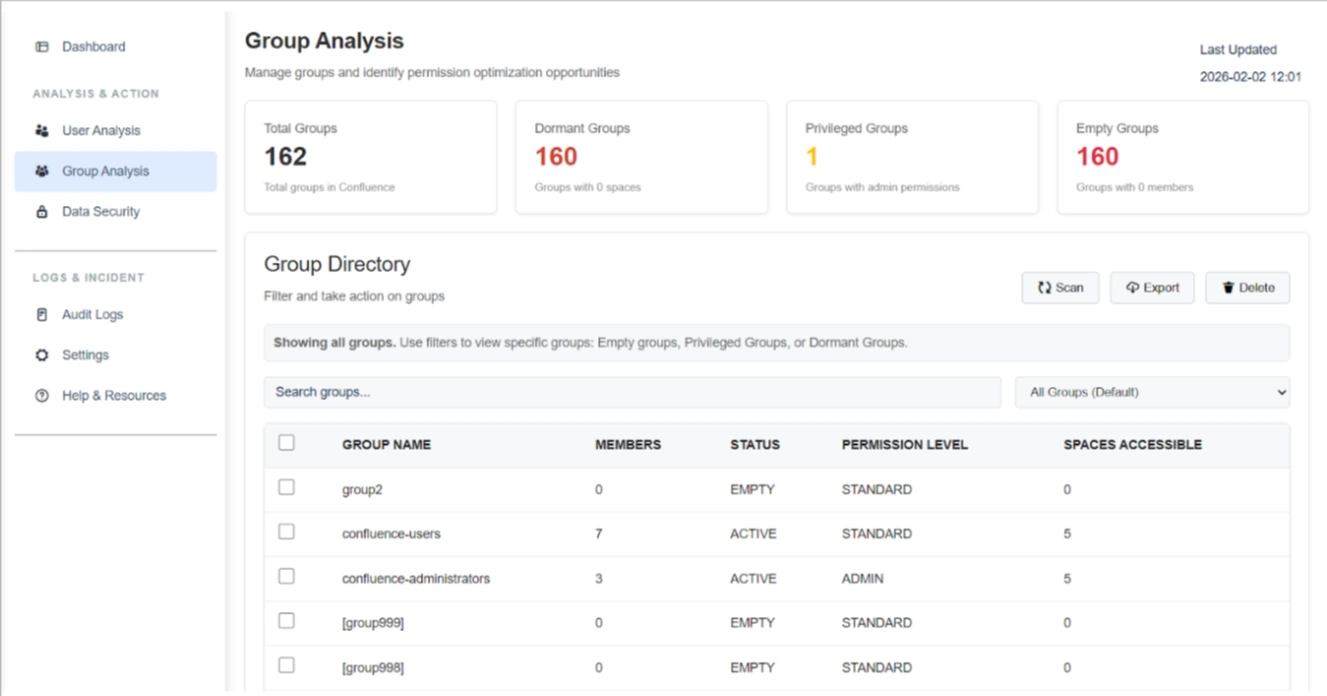
Listed below are the steps and settings required to optimize your group structures:
1. Group Risk & Health Metrics
The top dashboard widgets summarize structural weaknesses within your group directory:
- Total Groups: Displays the cumulative count of all groups currently in the instance (e.g., 162 groups).
- Dormant Groups: Identifies groups that have zero space-level permissions assigned. These are effectively unused but increase clutter and future misconfiguration risk.
- Privileged Groups: Highlights groups with admin-level permissions. These represent high-risk access points that require close monitoring to ensure proper role mapping.
- Empty Groups: Detects groups with zero members. These provide no functional value and are primary candidates for cleanup to reduce group sprawl.
2. Group Directory Attributes
The Group Directory table provides a granular breakdown of each group's attributes to assist in quick risk assessment:
- Member Count: Shows the number of users in a group to assess its actual usage.
- Status: Flags groups as "ACTIVE_GROUP", “PROVILEGED_GROUP”, "EMPTY_GROUP", etc., for immediate identification.
- Permission Level: Detects elevated access by labeling groups as "STANDARD_GROUP", “VIEW_SPACE”, "SYSTEM_ADMIN", etc.
- Spaces Accessible: Indicates the exact number of spaces a group can access to help you understand the potential data exposure impact.
3. Filters & Management Actions
Use the following tools to manage and execute cleanup workflows:
- Targeted Filters: Use the dropdown to search Empty, Privileged, or Dormant groups for immediate attention.
- Search Functionality: Quickly locate specific groups by name within large environments.
- Scan: Trigger a fresh audit to update group attributes and permission levels.
- Export: Generate a detailed report of group permissions for internal governance and compliance reviews.
- Delete: Permanently remove selected empty or redundant groups to simplify the Cloud permission scheme.
Benefits
Optimizing groups through this tab ensures:
- Reduced Permission Sprawl: A cleaner, more manageable group structure.
- Safer Access Mapping: Verified admin roles and reduced exposure risks.
Use Case
Scenario: During a pre-migration audit, an admin finds 150 Empty Groups. Instead of migrating these unnecessary structures and complicating the Cloud permission scheme, they filter for Empty Groups and Delete them in bulk. This ensures the Cloud instance starts with a clean, optimized group directory.
Space Data Security Tab
The Space Data Security tab serves as a critical checkpoint for identifying, reviewing, and remediating sensitive data across Confluence spaces before transitioning to the Cloud. By utilizing over 100+ predefined and configurable regex patterns, administrators can perform deep scans of pages, page content, and historical versions to ensure confidential and regulated information is secured.
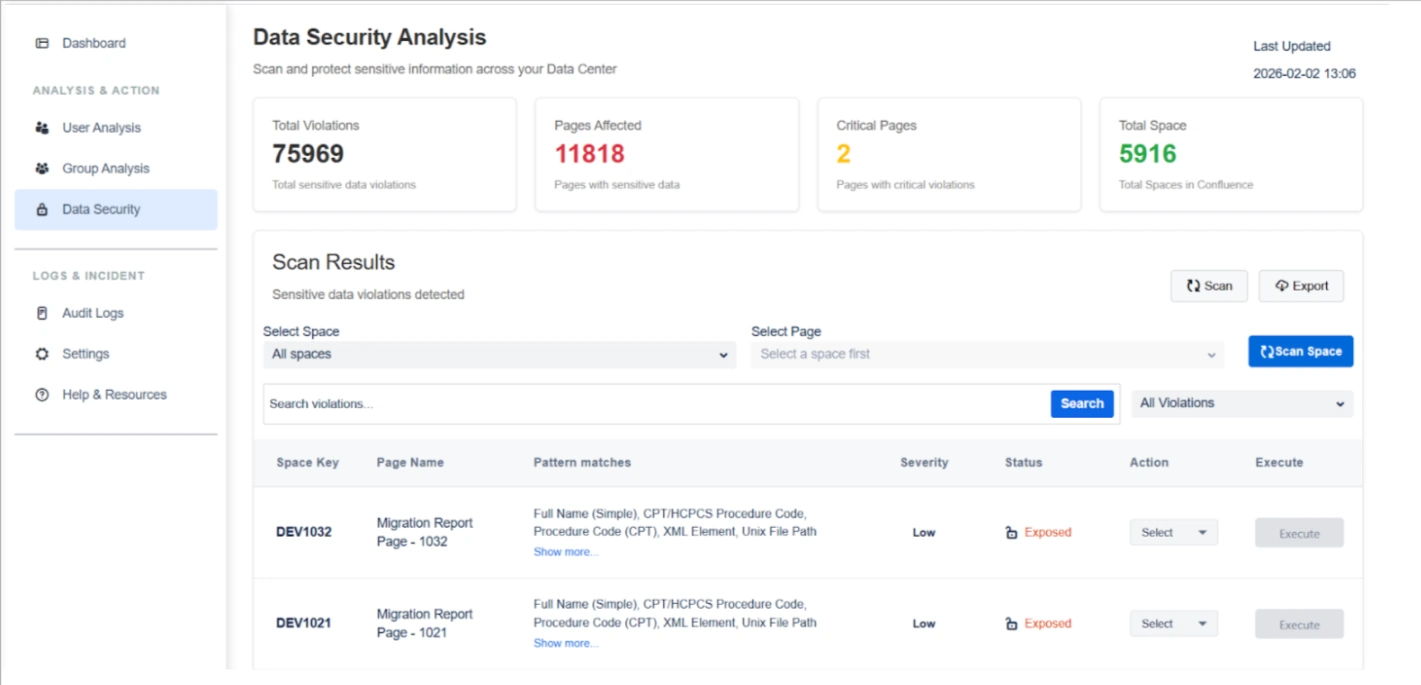
Core Scanning Capability
The scanner uses 100+ predefined and configurable regex patterns to detect sensitive data across:
- All spaces
- Page content and page comment
- Page history (older versions)
- Structured and unstructured text
Violations are detected per space and per page, giving complete visibility into data exposure.
Listed below are the steps and settings required to secure your space data:
1. Scan Insights & Analysis
The top dashboard widgets provide an immediate assessment of your data risk footprint:
- Total Violations: Displays the cumulative count of sensitive data matches detected across the entire system.
- Pages Affected: Shows the number of individual pages containing at least one sensitive data violation to help prioritize remediation.
- Critical Pages: Highlights pages containing high-severity violations, such as passports or health identifiers, requiring immediate attention.
- Total Spaces: Indicates the total number of spaces scanned to validate full coverage of your Confluence instance.
2. Violation Review & Visibility
Before taking action, you can investigate specific findings to ensure accuracy:
Pattern Match Identification: View the specific types of sensitive data detected on each page, such as:
- Personal identifiers
- Financial data
- Government IDs
- Health-related information
- Network or infrastructure data
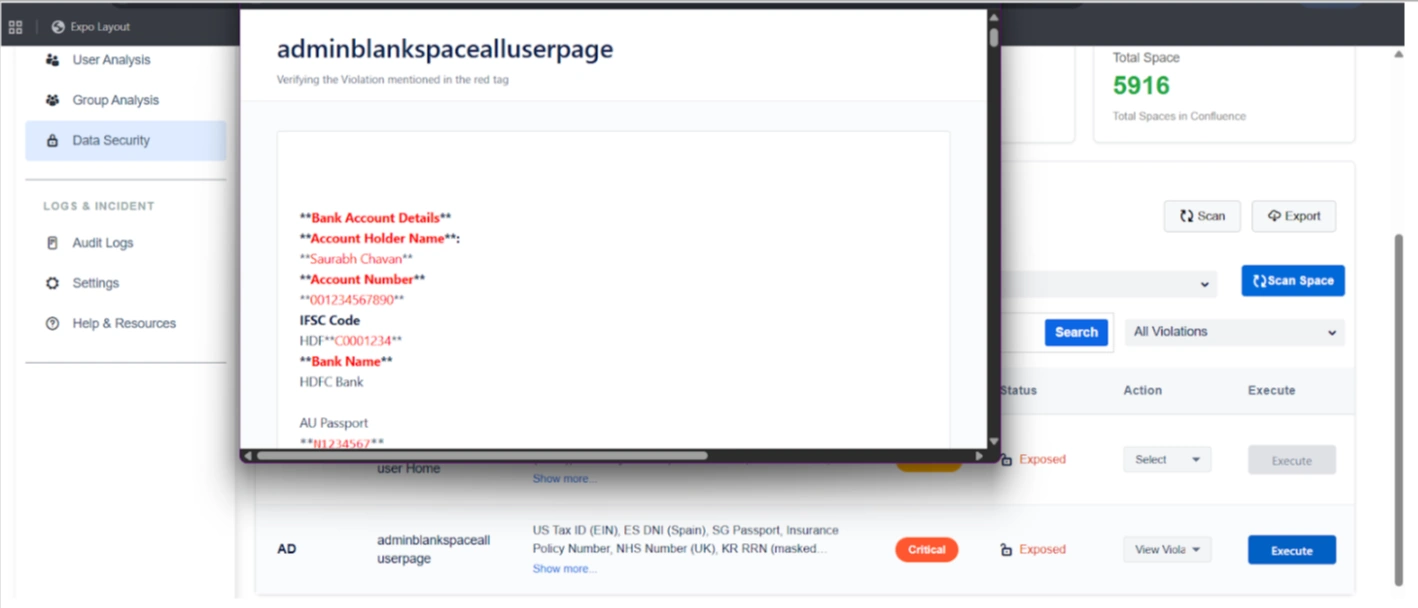
"Show More" Detailed View: Clicking "Show more" opens a detailed popup listing every detected violation pattern on a page for full transparency.
Actions: For each page, admins can choose an action:
- View Violation
- Delete sensitive data
- Encrypt sensitive data
The selected action determines the operation executed on the page.
View Violation Action: Utilize the "View Violation" action to see sensitive data in its original context, which helps validate findings and prevents accidental data loss.
Execute Action: Once an action is selected, clicking Execute triggers the operation on:
- The current page comment
- Page history (older versions), if applicable
This ensures sensitive data is fully remediated and not retained in historical versions.
3. Remediation Actions
Once violations are confirmed, you can execute targeted operations on page content, page comment, and page history:
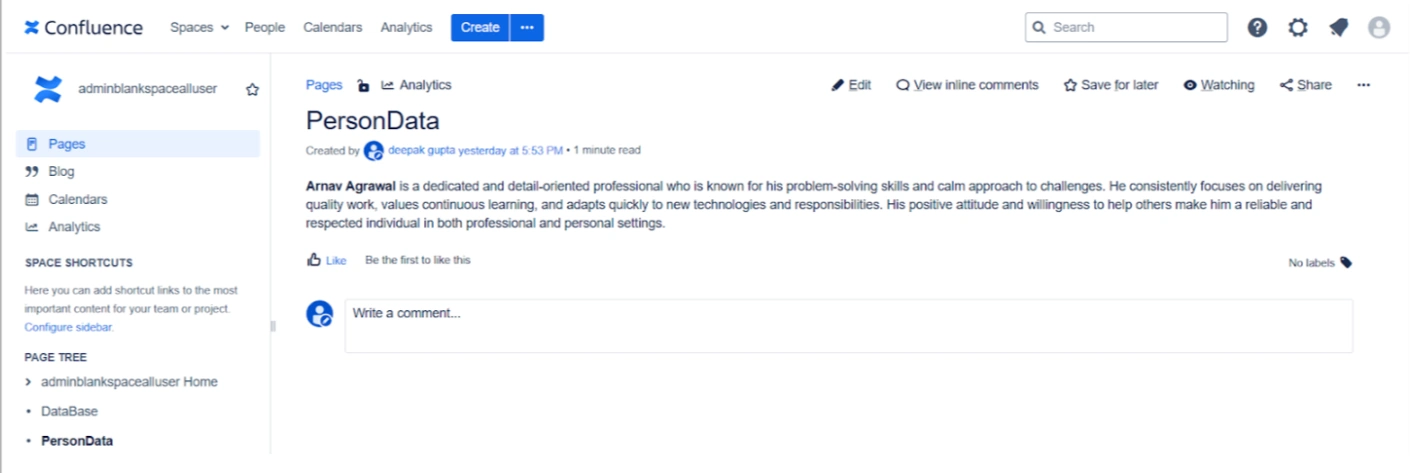
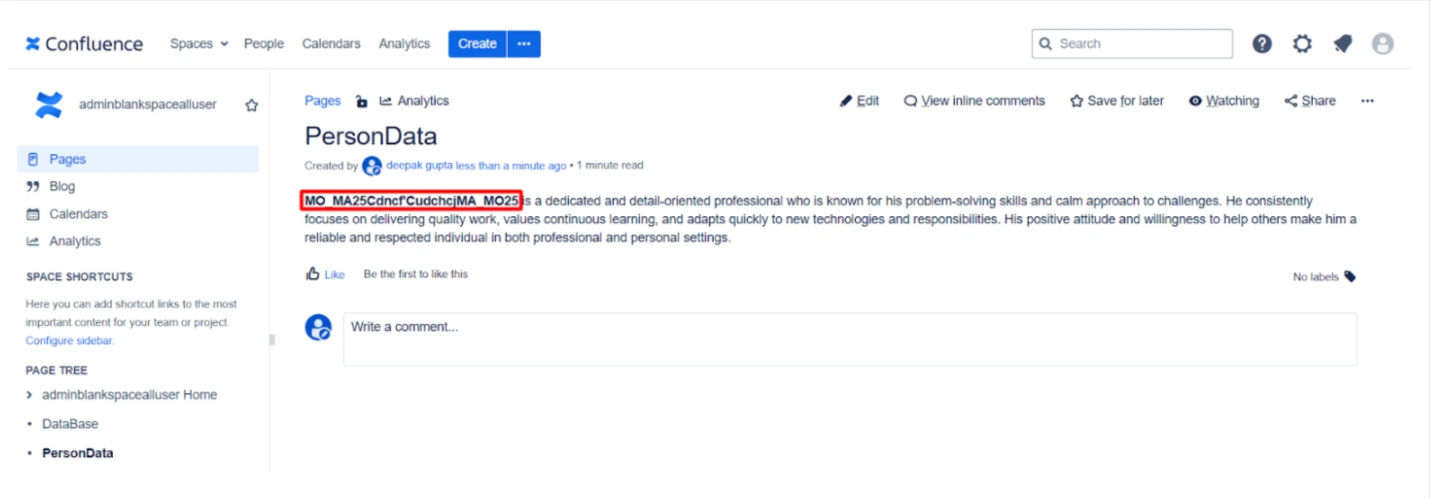
Encrypt Sensitive Data: Securely encrypts data based on your enabled regex rules. This is ideal for hiding confidential information from migration vendors while allowing for later decryption in the Cloud.
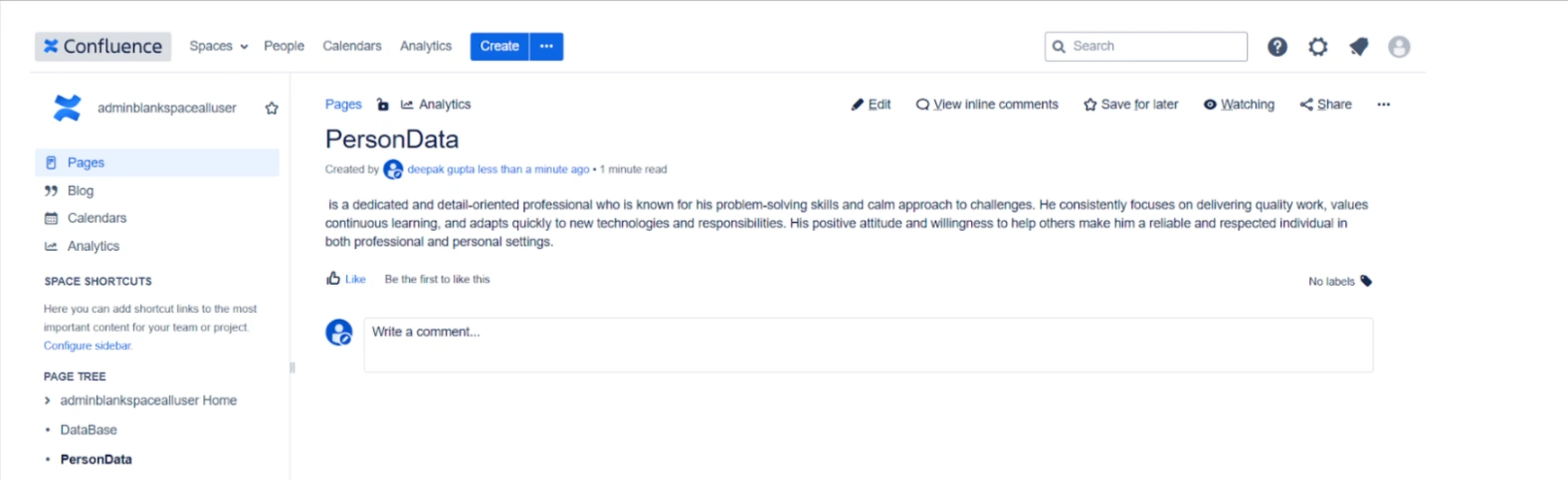
Delete Sensitive Data: Permanently removes identified sensitive strings from pages and historical versions to eliminate risk entirely.
Encryption for Secure Migration & Third-Party Access
Encrypt Sensitive Data
Sensitive information can be encrypted before migration or before granting third-party access.
Key use cases:
- Hide confidential data from migration vendors
- Protect sensitive content during migration execution
- Maintain compliance during audits or external reviews
After migration, the Cloud add-on can decrypt the data, restoring original content securely.
Key Migration Use Cases
Pre-Migration Cleanup
Remove unnecessary or risky content such as:
- Product details
- Internal notes
- Personal user data
- Legacy or outdated sensitive information
Secure Third-Party Assistance
Allow migration partners to work on data without exposing sensitive information, using encryption as a safety layer.
Use Case
Scenario: A company is hiring an external vendor to assist with their migration. To protect their intellectual property and employee PII, the admin runs a scan and identifies Critical Pages containing sensitive data. They use the Encrypt Sensitive Data action to mask this information. The vendor can now move the data securely without seeing private content, and the company will decrypt it once the migration is finished using the Cloud add-on.
Settings Tab
The Settings module allows administrators to configure security behavior, detection logic, notifications, and automation for migration and data security workflows. It ensures that the system aligns with organizational policies, compliance needs, and operational schedules.
Listed below are the configuration categories and their specific capabilities:
1. Admin Settings
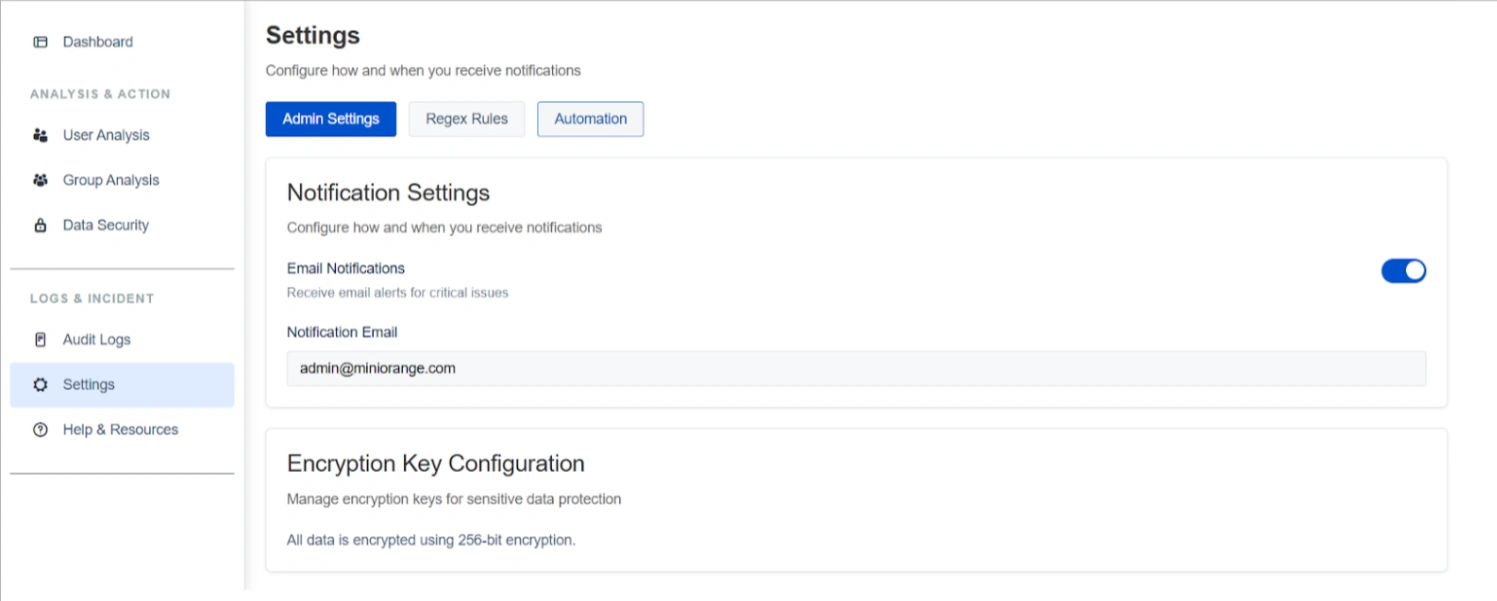
The Admin Settings sub-tab focuses on communication and data protection standards:
Notification Settings: Administrators can enable or disable email alerts for critical security issues and important scan events. You can specify a recipient email address (e.g., admin@miniorange.com) to ensure high-risk findings are promptly addressed without manual monitoring.
Encryption Key Configuration: This section manages the protection of sensitive data detected during scans. All data is secured using industry-standard 256-bit encryption. This ensures data remains protected during migration or third-party access and supports secure decryption post-migration via the Cloud add-on.
2. Regex Rules
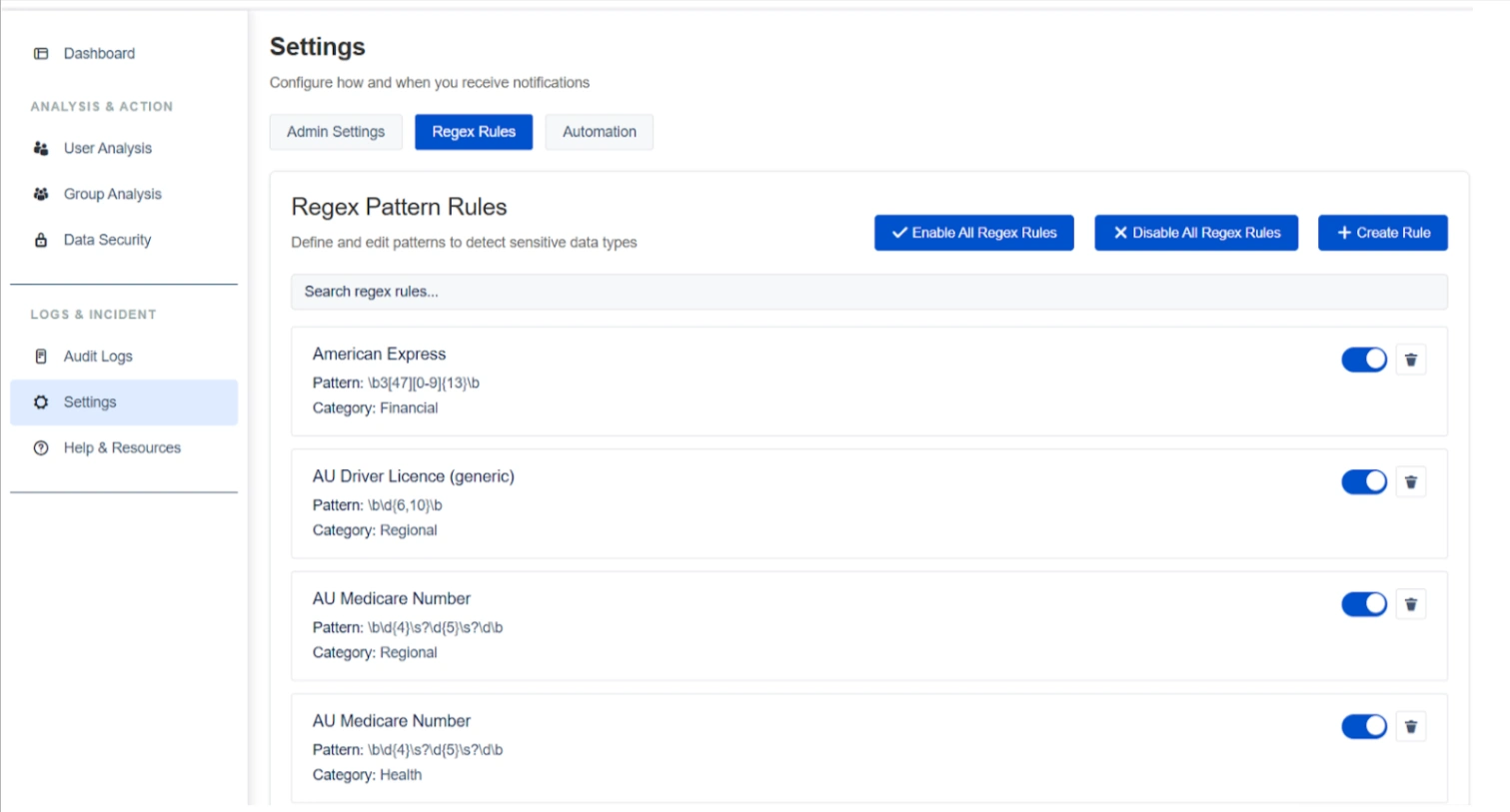
The Regex Rules sub-tab defines the detection logic used across Confluence spaces and pages:
Regex Pattern Rules
The system supports over 100+ built-in patterns covering categories such as financial (e.g., American Express), regional (e.g., AU Driver License), and health data.
Capabilities:
- Covers multiple categories such as financial, personal, regional, and compliance-related data
- Supports bulk enable/disable of all regex rules
Customization and Management
Administrators can create custom rules, search existing patterns, and utilize bulk actions to enable or disable all rules simultaneously.
Rule Toggles
Individual rules can be toggled on or off to fine-tune scanning accuracy and reduce false positives based on specific organizational requirements.
3. Automation
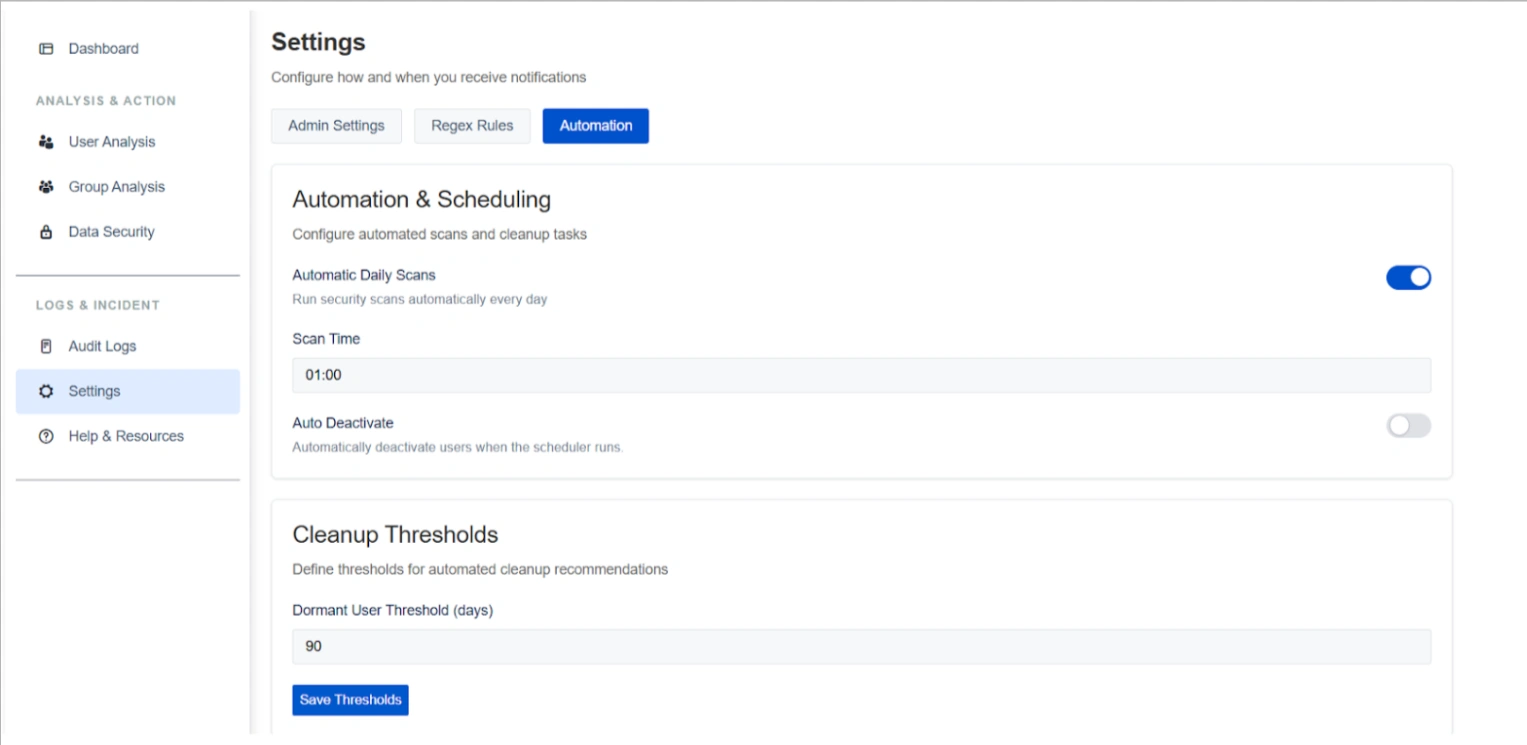
The Automation sub-tab streamlines continuous data hygiene and administrative maintenance:
Automation & Scheduling
You can enable Automatic Daily Scans and configure a specific scan execution time (e.g., 01:00) to ensure sensitive data is monitored as new content is added.
Capabilities:
- Enable automatic daily scans
- Configure scan execution time
- Run scans without manual intervention
Cleanup Thresholds
This setting defines the parameters for detection of dormant users. For example, a Dormant User Threshold can be set to 90 days to align cleanup behavior with corporate access policies.
Capabilities:
- Configure dormant user thresholds (e.g., 90 days)
- Apply consistent inactivity rules across the system
- Save and update thresholds as policies change
Use Case
Scenario: To maintain a clean environment during the three-month lead-up to migration, an admin sets an Automatic Daily Scan at 2:00 AM. This ensures that any new sensitive data is detected immediately.
Audit Logs Tab
The Audit Logs tab provides administrators with a complete, tamper-proof record of all actions performed within the migration preparation tool. It enables operational transparency, accountability, and compliance across all user, group, and data security activities.
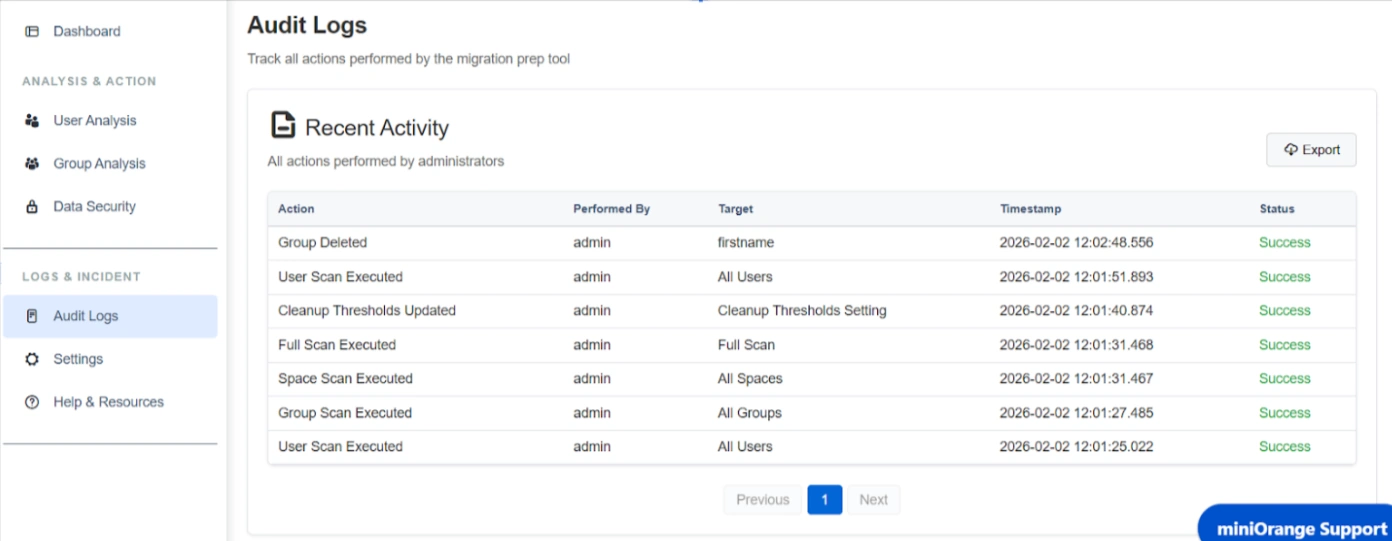
Listed below are the categories tracked and the specific capabilities of the audit system:
1. Recent Activity Interface
The Recent Activity table allows for real-time monitoring of historical actions with granular details:
-
Action Description: Displays a clear summary of
the performed task, such as:
- User scans and cleanups
- Group scans and deletions
- Data security scans
- Encryption and deletion actions
- Automated scheduler executions
- Admin-initiated actions
- Performed By: Identifies the administrator responsible for the action (e.g., "admin").
- Target Information: Specifies the scope of the action, whether it targeted "All Users," "All Spaces," or a specific group name.
- Precise Timestamps: Every action is recorded with the exact date and time, (e.g., 2026-02-02 12:02), which is essential for detailed timeline analysis during investigations.
- Status Tracking: Confirms the outcome of each task, marked as "Success" for completed operations.
2. Compliance and Audit Governance
Key technical capabilities support organizational accountability and forensic analysis:
Export Functionality: Administrators can use the Export button to download the audit trail for off-system storage or for sharing during compliance reviews.
Use Case
Scenario: An admin needs to determine who encrypted a specific set of sensitive data within the system. By navigating to the Audit Logs tab, the admin can review recorded activities and filter for encryption-related actions. The logs display detailed information including the action performed, the admin who executed it, the target data, timestamps, and status.
This enables the admin to quickly identify who performed the encryption, when it occurred, and confirm that the action was completed successfully, providing clear accountability and operational transparency.


