
SAML SSO
miniOrange SAML Single Sign-on Plugin allows seamless login into the JIRA, Confluence and other Atlassian applications through any SAML 2.0 Identity Provider.
We support all SAML 2.0 capable Identity Providers (IdPs) like ADFS, AuthAnvil, Auth0, AWS Cognito, Azure Active Directory, Bitium, CA technologies, Centrify, Google Apps, Keycloak, Okta, OneLogin, Salesforce, PingOne, RSA SecurID, Shoibboleth 2, Shibboleth 3, WSO2, SimpleSAMLphp, OpenAM, Oracle Pingfederate and many more.
The plugin also allows users to sign into and update their existing accounts and in addition to that, lets users create new accounts via Single Sign On (SSO). You will also be able to manage the application’s user permissions by mapping your user’s IdP group to the equivalent local Atlassian application groups.
The plugin is compatible with user directories like Crowd, LDAP, etc.
Here are some of the key features of the miniOrange SAML SSO plugin:
- Support SSO into both Atlassian Server and Data Center installation
- Supports SSO on the service desk customer portal
- Just In Time (JIT) new user creation, update existing user profile and groups
- SAML Single Logout
- Support for signed and encrypted assertion
- Force SSO for all the unauthenticated traffic
- Forcing SSO on anonymous pages
- Fallback/Emergency login option in case IdP is inaccessible
- Customize and secure Fallback/Emergency URL so that only administrators can use it
- Allowing users to SSO and access your site without creating new users and hence decreasing user cost.
- Customizable login page, logout page, and error messages
- Enable SSO from Multiple SAML Identity Providers
- Redirection Rules so you can allow different users to use different IdPs based on their email, groups, and directory.
- Header based authentication for seamless SSO while using VPN and Reverse proxy
- World-class support
Installation
There are two methods to install the app and use it on your Atlassian applications for Single Sign-On (SSO). The two methods are explained below.
1. Directly from Atlassian Marketplace
You can install the plugin directly from the Atlassian application’s admin console.
- Log in to the application with an admin account.
- Navigate to the administration section. You may need to log in again.
- Choose Manage apps and on the left navigation menu bar and click on Find new apps (Find new add-ons on the older versions)
- Search for “miniOrange SAML” and click on Free Trial for the miniOrange SAML SSO App for eg. SAML Single Sign On (SSO), JIRA SSO.
- Click on Accept & Install.
- Once the installation is complete, click on Get License. You will be redirected to MyAtlassian for generating a license.
2. Installing by file upload
1. Download app
- Navigate to the Atlassian Marketplace.
- Search for miniOrange SAML SSO for your Atlassian application.
- Select the app (for eg. JIRA SAML Single Sign On (SSO), JIRA SSO) from the search result.
- Click on Try it free button.
- You will be asked to select your application’s hosting type(Server or Datacenter) and then click on the start free trial link.
- Enter your organization name and click on the Generate License button.
- You will see the license key along with the link to download the add-on.
2. Install add-on
- Log in to the application with an admin account.
- Navigate to the administration section. You may need to log in again.
- Choose to Manage apps and on the left navigation menu bar.
- Click on the Upload app link and upload the jar file downloaded in the last step.
3. Apply license key
- Keep your generated license copied from MyAtlassian.
- Navigate to the “Manage Apps” page of your instance (the “Install” section in older versions).
- Locate your installed SAML Single Sign On (SSO) add-on in the list.
- Click the app entry and paste the license into the license box for your add-on. All done!
Service Provider Info
To perform the SAML SSO you need to configure both the Identity Provider and the Service Provider. First, you have to create an SSO application on your Identity Provider and provide the details about your Service Provider there. Then you will get the metadata for Identity Provider which will be given to the Service Provider by configuring the IdP on the SSO add-on. Once these 2 steps are over, the connection between your IdP and SP will be complete.
Service Provider Metadata
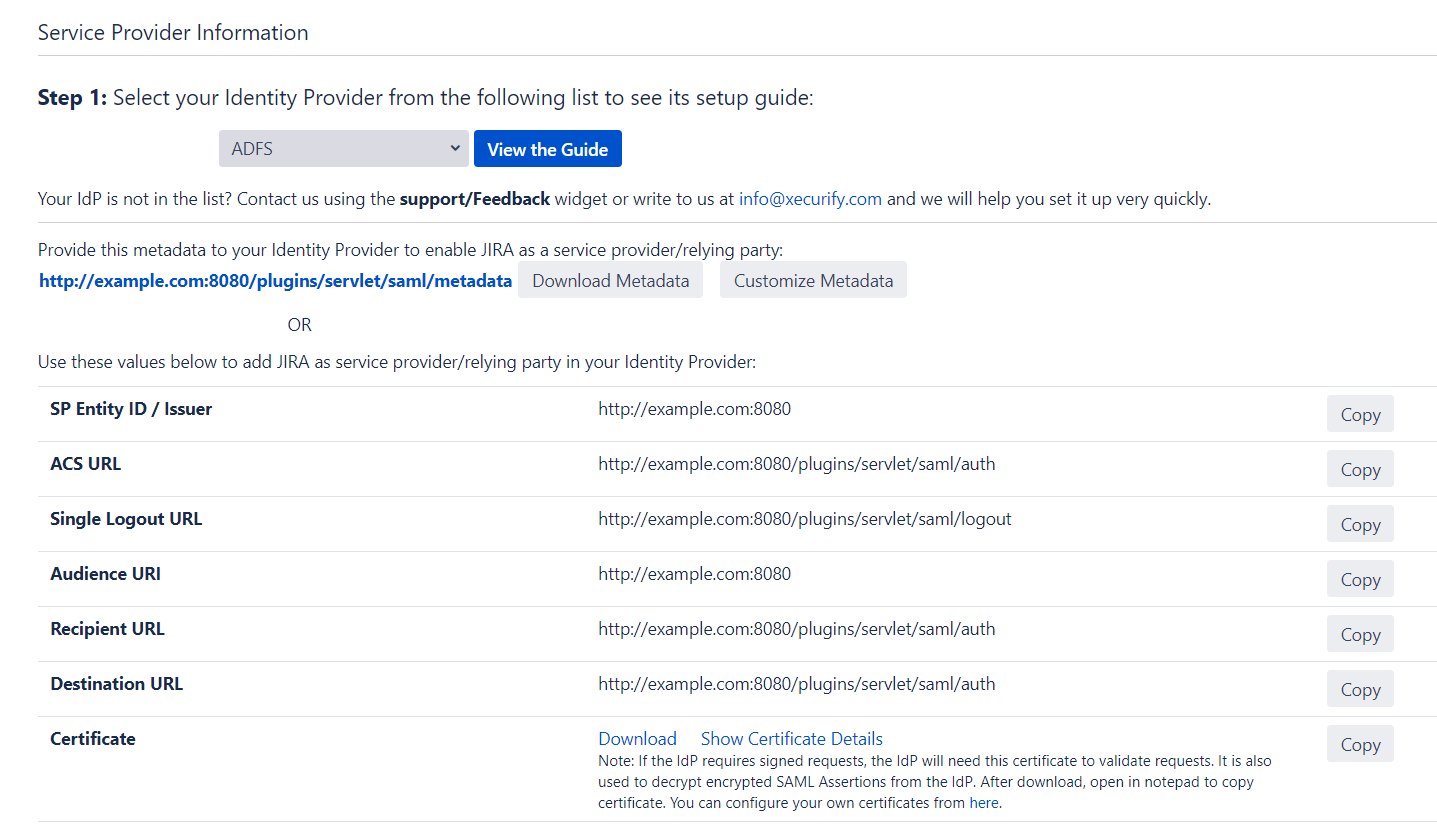
To configure the Service Provider(SP) as an application on the Identity Provider(IdP) some details about the Service Provider are needed. You can find all these details on this Service Provider Info tab of the add-on. You can provide the SP information to your IdP in 3 ways – using Metadata URL, using Metadata XML file or by manually configuring the URLs on IdP.
Metadata URL:
The Metadata URL provides the application’s SAML Metadata information that can be used to configure the application in the IdP as a SP in one go. The provided metadata URL will be in this format : <Application Base URL>/plugins/servlet/saml/metadata
Metadata XML:
This file contains all the information about the SP in an XML format. If the IdP supports importing the metadata from a file, then you can configure the application on your IdP in minutes by just uploading this metadata file.
Configure IdP manually:
You have the option of configuring your IdP manually using the SP URLs displayed this Service Provider Info tab. You will need to copy and paste the required URLs from the table into your IdP SAML Configuration to add the application as a SAML SP. Most SAML 2.0 Identity Providers will require the following URLs to configure an application
- SP Entity ID/Issuer: This URL will be used to uniquely identify your Service Provider. It basically identifies the Service Provider for which the SAML assertions or responses are intended. Some IdPs also refer to this URL as Audience URL.
- ACS URL: This URL is often referred to as the Service Provider (SP) sign-in URL. This is the URL to which the IdP will send the SAML response or SAML assertion after successful authentication. Some IdPs also refer to this URL as Recipient URL or Destination URL.
- Single Logout URL: If your IdP supports it, this URL can be used to configure Single Logout. This feature allows the user to be logged out from both IdP and Service Provider if the user logs out from either the IdP or the Service Provider. When a user initiates a logout>, the identity provider logs the user out of all applications in the current identity provider login session.
- Certificate: This certificate is used by the IdPs to validate the requests and to encrypt the responses. Some IdPs mandate the SPs to send signed requests so that they can verify that the requests are coming from the expected SPs. So whenever an IdP receives a SAML request, they use this certificate to validate the sender of that signed request. This certificate is also used by IdPs to send the SAML response in the encrypted format so that only SP can decrypt it using the private key and no one else gets access to the sensitive user information sent in the response/assertion. You can configure and use your own certificates to increase the security from the ‘Certificates Tab’ of the add-on.
Customize SP Metadata (Optional)
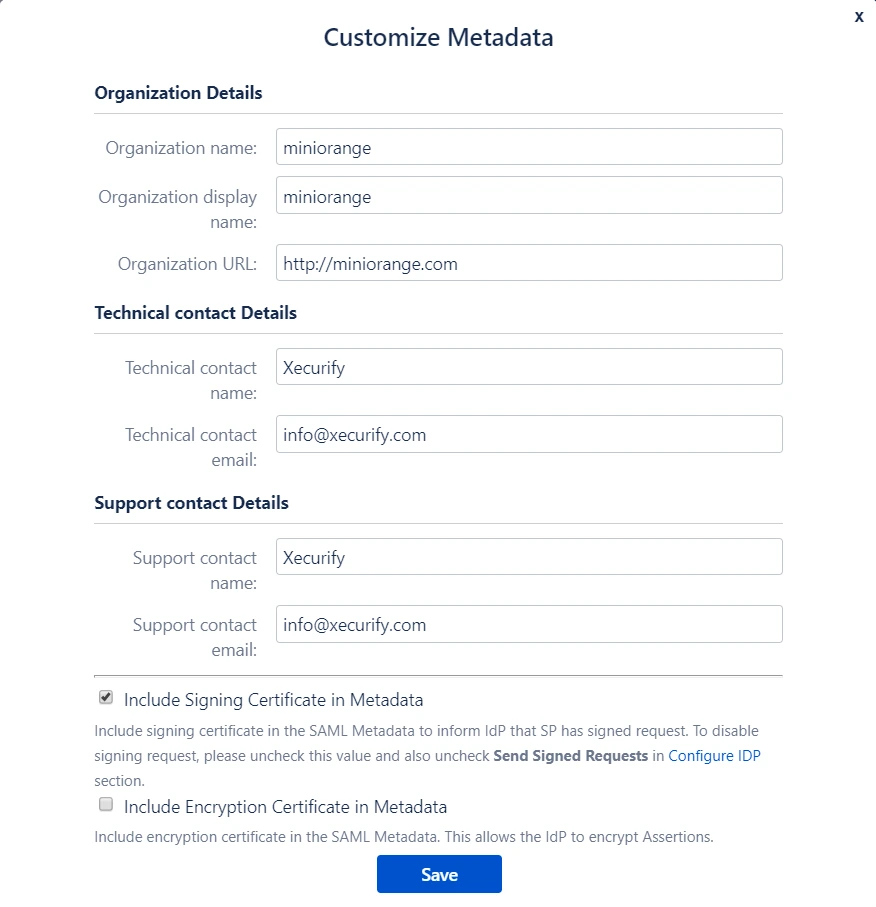
You can customize the SP metadata according to you using the Customize Metadata feature. When you click on this button you will see a popup showing all the fields in the metadata that can be customized. In the pop-up form you will find fields to add your organization details along with technical and support contact details. Along with these fields, there are options to choose which certificates will be sent in the metadata. Depending on the features supported by the IdP, the plugin can sign the request and decrypt authentication responses for better security and stronger validation. The options provided are :
- Include Signing Certificate in Metadata: If enabled, public certificate of the plugin will be added in the Service Provider Metadata and it will be used by the IdP to verify the Signature in the SAML Request from the application.
- Include Encryption Certificate in Metadata: If enabled, public encryption certificate of the plugin will be added in the Service Provider Metadata that will be used by the IdP to encrypt the SAML Response.
Change SP Base URLs (Optional)
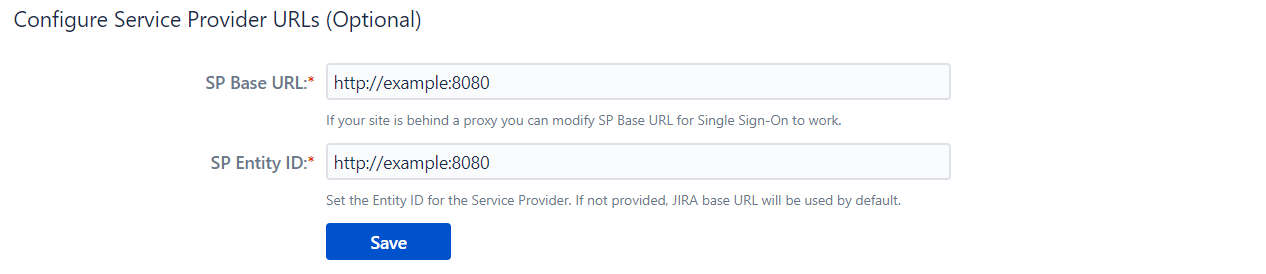
The add-on allows you to change the SP BASE URL and SP ENTITY ID to values other than the set defaults.
- SP Base URL: Typically all the Service Provider SAML endpoints are generated based on the Service Provider’s Base URL. If your Atlassian application is running behind a proxy, then your base URL will be different from the present value. You can update the SP(Service Provider) Base URL according to your proxy using this option. Updating this will also update URLs in the metadata so SP information has to be re-configured in IdP again.
- SP Entity ID: It also referred to as Issuer. It is used by the Identity Provider to uniquely identify your Atlassian application.
Configure IdP
Import From Metadata
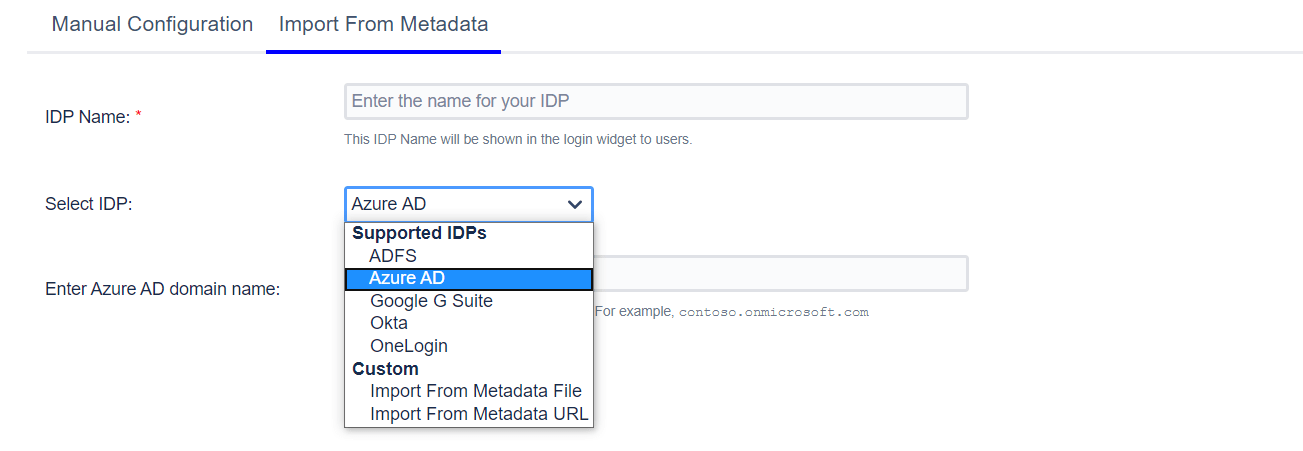
If your IdP provides a SAML Metadata file/URL, you can configure the plugin SSO settings by uploading the metadata file or configuring the metadata URL.
The Select IdP dropdown has a few pre-configured IdPs like ADFS and Azure AD. Each IdP has a unique method of making the metadata available – some can be configured to fetch the metadata URL and some only have the option of uploading a file. For example, if ADFS is your IdP, you will be asked for the hostname of your AD server. The metadata URL will then be generated based on the hostname and the plugin will retrieve IdP metadata from this URL. For IdPs like Okta, G Suite or One Login, the process for getting metadata is standard. For example, if you choose G-Suite, you will be asked to upload a metadata file.
For IdPs other than the ones mentioned in the drop-down, you may choose whether to upload a metadata file or to give a metadata URL depending on what your IdP supports. Custom options will be relevant here.
Metadata Rollover / Certificate Rollover
This option is useful if your IDP changes the certificates at intervals (Eg. Azure AD, ADFS, etc). The IDP sends signed responses and the plugin uses the configured certificate to validate that response. So whenever the certificates are changed on IDP you need to update the certificate on the plugin as well otherwise SSO will break as the plugin won't be able to validate the response. The metadata rollover feature is useful in this case. If it is enabled then plugin will fetch the IDP metadata periodically and will get the latest certificate so, you don't have to manually change the certificate on the plugin whenever it is changed on the IDP side.
Manual Configuration
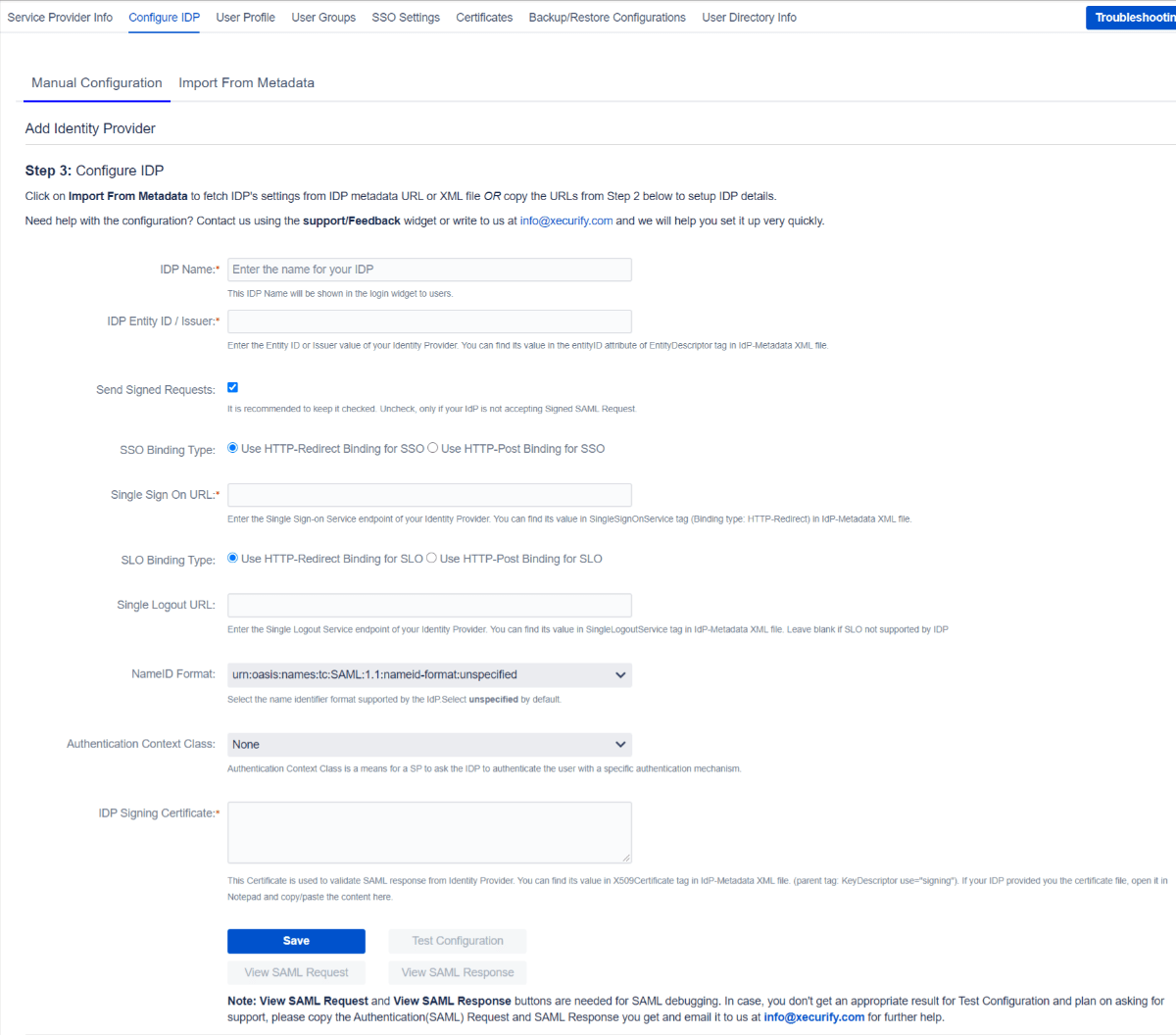
If you have the following information from your IdP, you can configure the plugin by manually adding this information in the respective field. Here are the required fields:
IdP Name
You can enter a name for your IdP in this field. This field will be useful if you have configured multiple SAML IdPs.

For example, if you configure 2 IdPs namely IdP1 and IdP2, you manage them easily from the list as shown in the image below

The IdP name that is entered in this field will be the name that will be displayed on the login button for this IdP. This login button will be used by end-users to initiate SSO for this IdP.
IdP Entity ID/Issuer
A unique URI/name used to identify the Identity Provider. This ID is provided by all SAML 2.0 compliant IdPs. Also, this is required for SAML SSO to work properly. The app uses IdP Entity ID to validate SAML Response.
Single Sign-on URL
An endpoint from IdP responsible for parsing the SAML Authentication request. The plugin sends SAML Request to this endpoint after initiating SSO. The SAML SSO URL might change according to the binding type selected in the app. Refer to the binding type section to know how to determine the binding type and SSO URL.
SSO & SLO Binding Type
The app sends XML Messages to IdP to perform Single Sign On and Single Logout. These SAML Messages are called SAML Request and Logout Request respectively. The Binding Type defines how the app will send these messages.
-
HTTP Redirect: The SAML Request message is sent
as a GET request to IdP when HTTP redirect is selected. This means
that the app will send SAML Request in URL parameters. This
increases the length of the URL significantly. The URL length is
even larger if a signed request is sent.
Some IdPs have a limit on the length of the URL, hence we recommend not using this method if your IdP supports HTTP-POST. - HTTP Post: The SAML Request message is sent as a POST request to IdP when HTTP Post is selected. This allows you to send SAML Request to IdP without increasing the length of the URL and hence it is recommended to use this binding type.
NameID Format
NameID is considered as a unique identifier of the user performing SSO. Some IdPs require SP to request a specific NameID format for SSO to work properly. Keep the value of this field Unspecified if your IdP doesn’t require any specific NameID format.
IdP Signing Certificate
This is the public signing certificate provided by the IdP. IdP signs the SAML Response before sending it to the app. The app uses this public certificate to verify the signature in the SAML Response.
Single Logout URL (optional)
If you want the user to be logged out from the IdP as soon as they logout from the Atlassian application and vice versa, you can set this URL. A Single Logout URL is provided by most of the SAML 2.0 Compliant IdPs. The plugin sends SAML Logout Request to this endpoint after the user logs out from the application and this endpoint is responsible for parsing the SAML logout request.
The SAML SLO URL might change according to the binding type selected in the app. Refer to the binding type section know how to determine the binding type and SLO URL.
This is an optional field. Configure it only when you want to logout users from IdP after they log out from the application.
How to know which Binding Type your IdP supports?
You can find this information in IdP’s metadata file.
- Open IdP’s metadata
- Search for SingleSignOnService.
- Check the value of Binding attribute. You can see in the image below that this sample IdP supports both Binding Types
- The value of Location attribute is the Single Sign-On URL for that binding type.

Authentication Context Class (optional)
The authentication context indicates how a user authenticated at an Identity Provider. The Identity Provider includes the authentication context in an assertion at the request of a Service Provider or based on configuration at the Identity Provider.
Manual Configuration Fields image
Other Features/ Troubleshooting Options
Test Configuration
You can use this button to verify your configurations. Once you click on this button,
- A popup window will open.
- This will initiate an SSO flow and you’ll need to log in to the IdP. (If you’re already logged into the IdP, this step will be skipped.)
- Once you log in, you’ll see a test status window.
If,
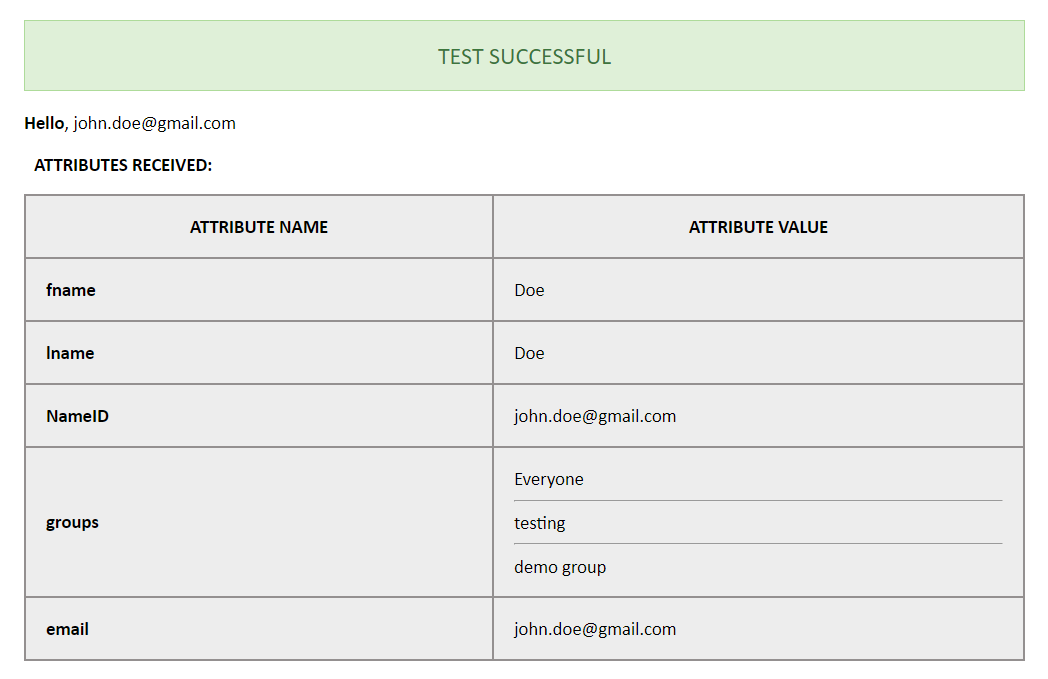
- Configurations are correct: You’ll see a Test Successful message with a list of attributes from the IdP as shown below.
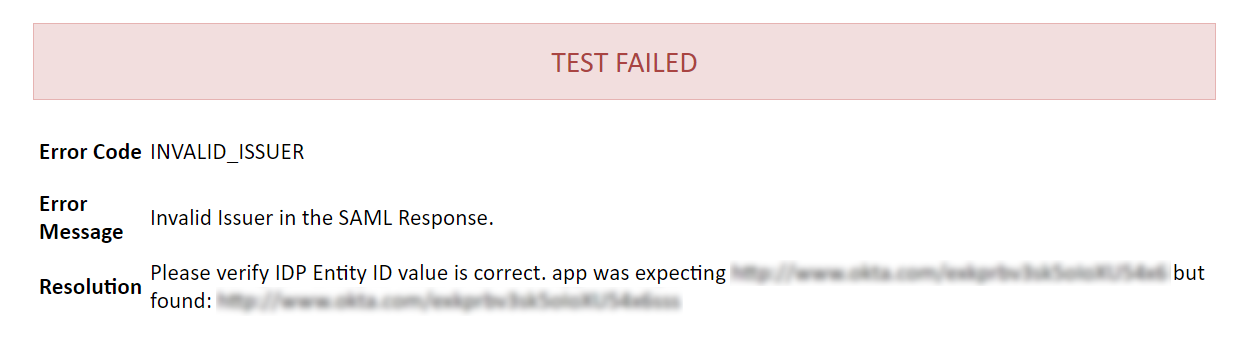
- Configurations are incorrect: you’ll see a Test Failed message with the cause of the error and resolution as shown below.
- Test Failed: You can refer miniOrange SAML App troubleshooting page to fix it.
User Profile
Overview
The options in this tab are used to map user attributes from an Identity Provider to their local profile in the application. The plugin keeps the user’s application in sync with his IdP profile during SSO.
How it works?
The Identity Provider sends user attributes like email, username, first name, and last name in a SAML Response. The default attribute sent in a SAML response is the NameID attribute. Most Identity Providers allow users to choose additional attributes to be sent in the SAML response. This can be configured in the Identity Provider’s admin console. The attribute names received from Identity Provider are mapped to attributes in the user’s profile.
Example Scenario
Let us consider a scenario in which we use Okta as an Identity Provider. A SAML response that is not configured will only contain the default NameID attribute. The value of NameID is typically the email with which the user accesses their account on Identity Provider. The Attribute Statements section of the Configure SAML tab can be configured to send more attributes in response. A basic configuration of the Attribute Statements section looks like this :
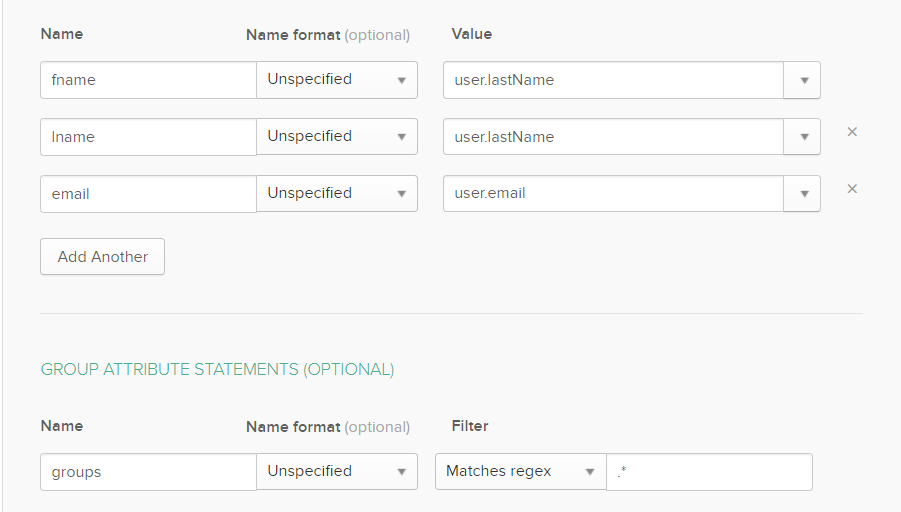
When a user attempts SSO the SAML response from Okta will contain the user’s first name, last name and email address. These are sent in addition to the default NameID attribute. The content of the response is viewed by clicking the Test Config button in the IdP Configuration tab :

The attribute names displayed in the test configuration window can be mapped to attributes in the application. The detailed procedure to do the same is explained in a later section.
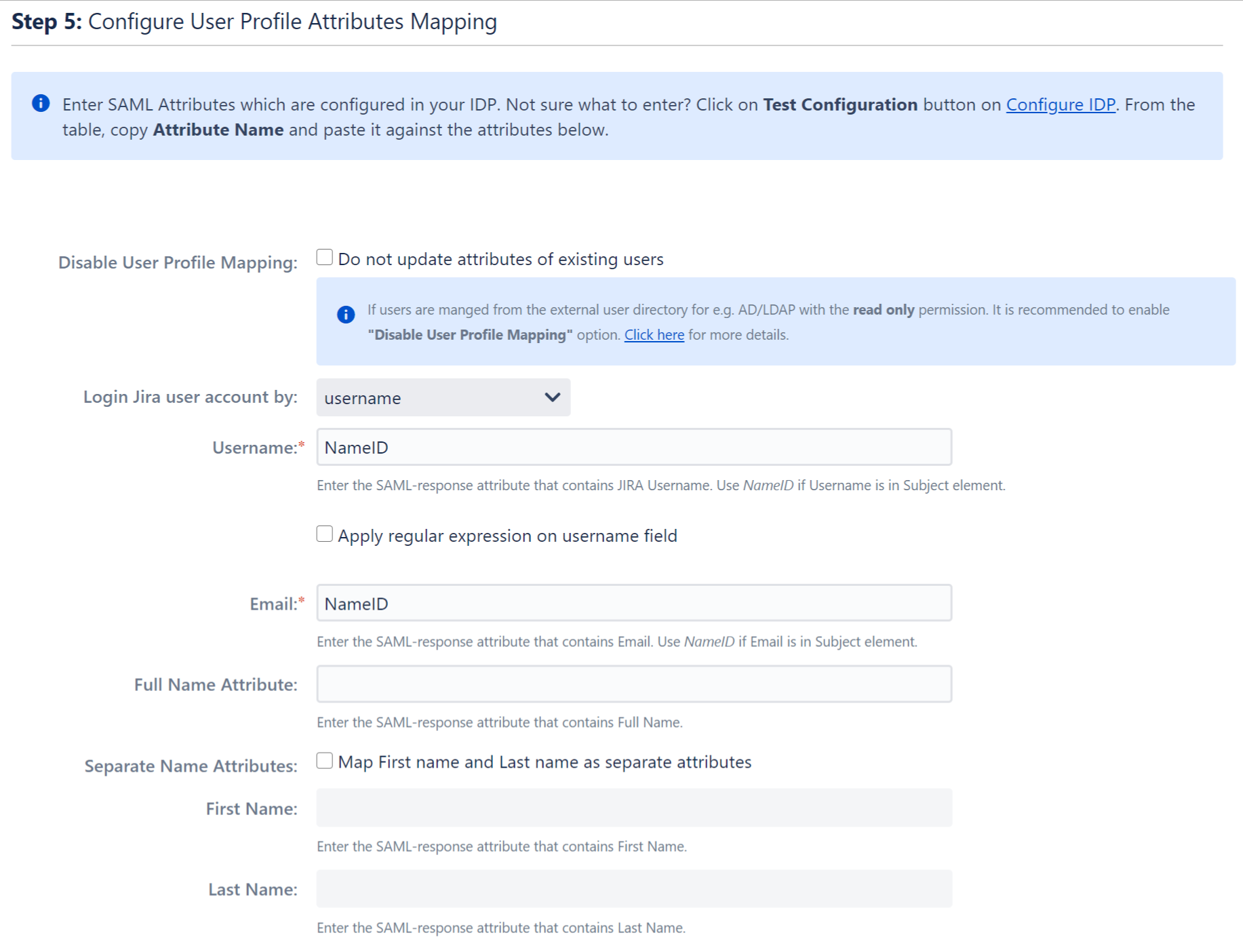
Disable user profile mapping
Checking this option will ensure that the profile attributes of existing users will not be updated whenever they attempt SSO. This will not affect new users. The plugin creates a new user’s profile in the application based on the attributes received in the SAML response.
If this option is set then the user’s profile will only be updated once, after the first successful SSO attempt. The profile of existing users will not be updated, irrespective of the attributes received in a SAML response.
In case a directory is being used to as a user store, this option may need to be checked based on the type of directory permission provided to the application. The recommended setting for each permission :
- Read Only or Read Only With Local Groups: With either of these permissions the user’s profile in the directory cannot be updated, so the option should be checked.
- Read/Write: This permission allows the user’s profile to be updated. Here there is no restriction for this option. If left unchecked, then the user’s profile in the directory will be updated whenever SSO is performed successfully. If checked, then the user’s profile will be updated only after the first time SSO is performed successfully.
Login via user email/username
This option is used to identify the users in Atlassian application(Jira/Confluence) based on users attribute received in the SAML response.
For example, you can use the user's username or email or any other attribute for authentication. While this allows user authentication through email, it is recommended that the option be set to username (or any other attribute which is unique for all users) as there is no restriction on the creation of multiple user profiles having the same email attribute.
Attribute Mapping
The plugin allows the updating of the user’s profile in the application with attribute values in the Identity Provider. This is done by mapping the attribute names received in the SAML response to the attributes of the user’s profile.
In order to map attributes from the Identity Provider to the application, the attribute names received in the SAML response need to be entered in their corresponding fields. These attribute names can be viewed by clicking the Test Configuration button in the Configure Identity Provider tab. The plugin will assign the attribute values received in the SAML response to user profile attributes according to the attribute mappings configured.
The user profile attributes that can be configured via attribute mapping are :
- Username: The attribute name that corresponds to the username of the user is entered in this field. This is a required field and cannot be left empty. The default attribute name in the field is NameID. There is an option to extract the username from the attribute value of any other attribute name returned in the SAML response. The working of this option is explained in the next section.
- Email ID: The attribute name with the user’s email as attribute value is entered in this field. This is a required field and cannot be empty. The default attribute name in this field is NameID.
- Full Name Attribute: The attribute name that has the user’s full name as value is entered in this field. This field is left blank by default and is not a required field. If the SAML response contains attribute names for the user’s first name and last name separately then there is an option to switch from Full Name Attribute to First Name and Last Name. This option is explained in a later section.
- First Name: If the Identity Provider returns the user’s first name in the SAML response, the attribute name that contains the first name value is entered in this field.
- Last Name: If the Identity Provider returns the user’s last name in the SAML response, the attribute name that contains the last name value is entered in this field.
Apply regex on username
This option is used if the username value needs to be extracted from any one of the attribute values returned in the SAML response. This option takes a regular expression (or regex) pattern as input. The username value is extracted by applying the regular expression to the value corresponding to the attribute name entered in the Username field.
Let’s consider a case where the username needs to extracted from the user’s email. The attribute name containing the user’s email as value is entered in the Username field and the Apply Regular expression on username field option is checked. The regex **^.*?(?=@)** is entered in the regex field. If the email attribute value received in the SAML response is abc@domain.com, then the plugin will apply the entered regex on this value and extract abc and this will be set as the username in the user’s profile.
Separate Name Attributes
This option is used to switch between using the Full Name Attribute field or using the First Name and Last Name fields to set the user’s full name in the user profile. This can depend on how the Identity Provider being used returns the user’s full name in the SAML response.
Let’s suppose the response contains one attribute that contains the user’s full name. In this case this option need not be checked and the Full Name Attribute field can be used. But if the response contains two attribute names, one each for first name and last name then the fields First Name and Last Name need to be used. To do this the Separate Name Attributes option needs to be checked. After the option is checked the First Name and Last Name fields will get enabled and the Full Name Attribute field will get disabled.
Configure User Properties (Custom Attributes)
This option is used to add custom user profile attributes in the application and map these to attribute values received in the SAML response. The custom user attribute can be Phone number, Address, Department etc. The Identity Provider should send custom attributes in a SAML response.
The custom attribute name will be entered in the User Property key field and the attribute name from the SAML response that corresponds to the value of the custom attribute is entered in the Custom Identity Provider Attribute Name field.
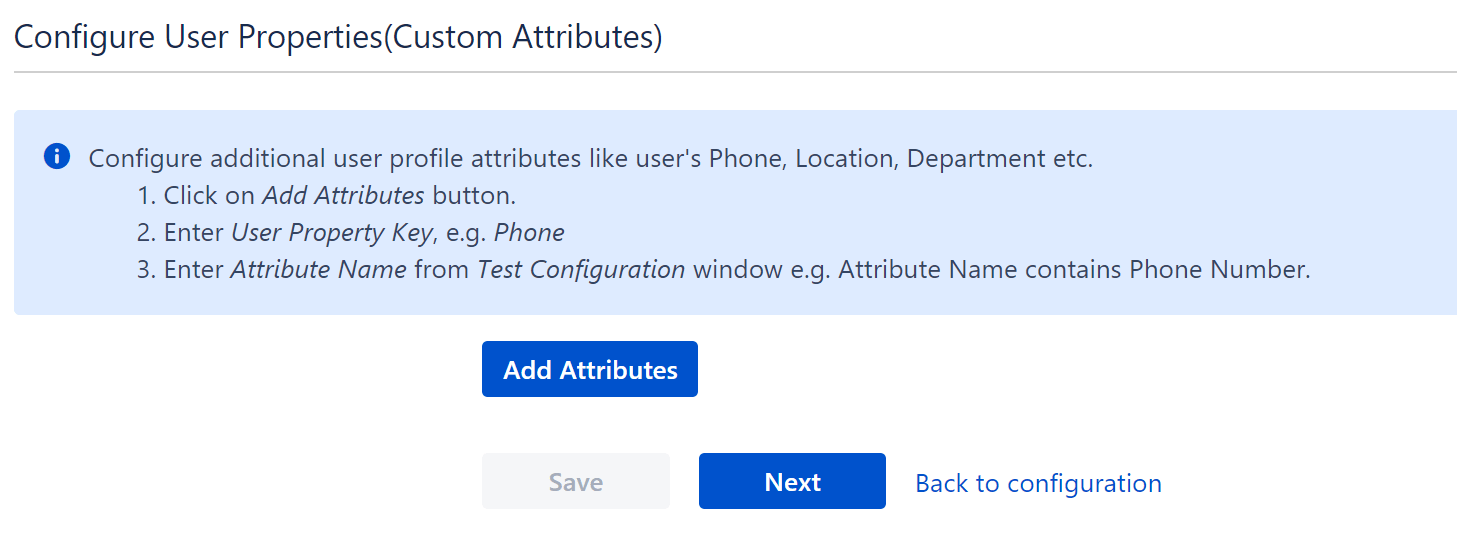
** This feature is available in JIRA and Confluence SAML SSO plugin only.
User groups
Overview
The user groups settings allow you to keep the application groups of your users in sync with IdP groups and manage permissions and access from the IdP. To do this, you’ll need an attribute in the SAML assertion which has the names or IDs of user groups on the IdP. You can map these groups against the local groups in your Atlassian application.
For example, If you map the groups in the app like this:
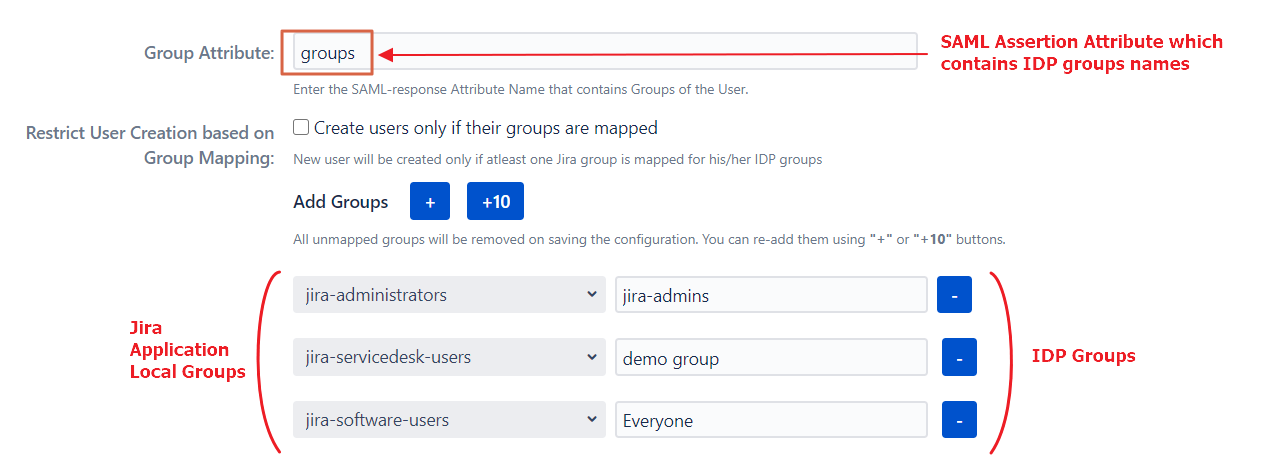
The users belonging to the IdP group IdP_admins will be added to the group jira-administrators after SSO, IdP_users to the jira-software-users group, and so on.
This can also be used to revoke access. for example, if an employee leaves the company and removed from the IdP_users group on the IdP, he’ll be removed from the jira-software-users group during SSO and will lose access to Jira.
User Group Mapping is useful when:
- Managing groups and permissions related to those groups at IdP only.
- Removing user access from the application as soon as it’s removed from the IdP.
- You have project access based on the groups and want to change the project of an employee by simply changing his group on the IdP.
How to configure group mapping
Follow these steps to reach these settings:
- Click on the Configure button present below the app name on the Manage Apps page.
- Click on Edit dropdown under the Actions column.
- Select User Groups.
Here are the options available to manage user groups:
Default Group Configurations
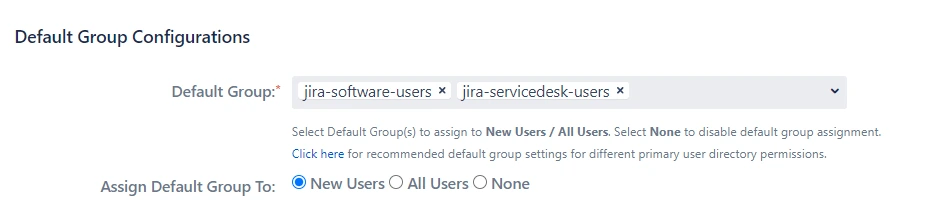
Default group configuration gives you an option to choose a set of groups all users should be assigned while performing SSO.
1. Default Group
A set of groups that will be assigned after SSO to the type of users selected in Assign Default Group To option. This is useful when you want to assign application access to all the users.
2. Assign Default Group To
You can select the type of users to whom the default groups will be assigned after SSO:
- New Users: The default groups will be assigned only to users performing SSO for the first time.
- All Users: The default groups will be assigned to each user after SSO every time. This means even if the user is removed from all the groups, the default groups will be assigned to them after SSO. This is useful if you start using SSO after you have some existing users in the system.
- None: The default groups won’t be assigned after SSO.
Group Mapping
Mapping IdP groups to application groups allows you to assign and update user groups and permissions whenever their groups change on the IdP. For example, if a user is part of the administrators group on IdP, he can be assigned admin permission after SSO through mapping. If the user is removed from the administrators group on IdP in the future, he’ll be automatically removed from the application admin group after SSO.
Groups can be mapped in two ways, Manually or On-The-Fly
Manual Group Mapping is useful when your IdP group names and local application group names are different. In this case, you have to map each IdP group to the application group manually.
On-The-Fly Group Mapping can be used when your IdP group names and local application group names are an exact match. In this case, the app detects the groups and add users to those groups automatically.
1. Manual Group Mapping
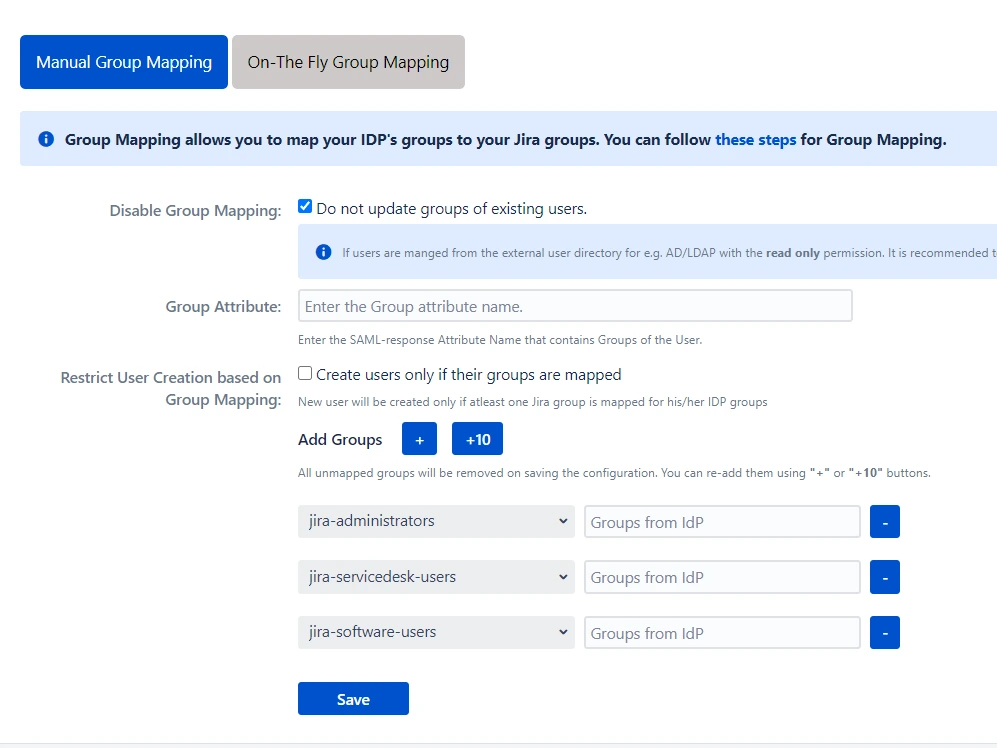
Manual Group Mapping is useful when you want to manage groups from the IdP but the names of application groups and IdP groups are different. For example, if the name of the group in IdP is IdP_users but the name of a similar group in the application is jira-software-users. In such cases, you have to manually map each IdP group to the application group.
1. Disable Group Mapping
Selecting this option will disable group mapping for existing users, which means the existing application users won’t be added or removed from any groups during SSO. This option is enabled by default. It is useful when you just want to perform SSO for your users and not update their groups. This option should be kept checked if your users are part of the Read-Only internal directory.
2. Group Attribute
This is the name of the attribute in SAML assertion which has names of all the groups returned by IdP during SSO. To get this attribute, go to the SSO Endpoints menu and perform Test Configuration. On the resulting window, look for the attribute name against your groups.
Note: The group attribute is case sensitive.
3. Restrict User Creation on Group Mapping
If this option is checked, the app will create new users after SSO only if one of their IdP groups are mapped to an application group in the app. Otherwise, the user won’t be created.
4. Group Mapping
Here, you can map IdP’s groups to the Atlassian application’s local groups. The IdP group names are case sensitive and should exactly match the group names received from the IdP. To check the group names, go to the SSO Endpoints menu and perform Test Configuration. On the resulting window, look for the values against your group attribute name.
2. On-The-Fly Group Mapping
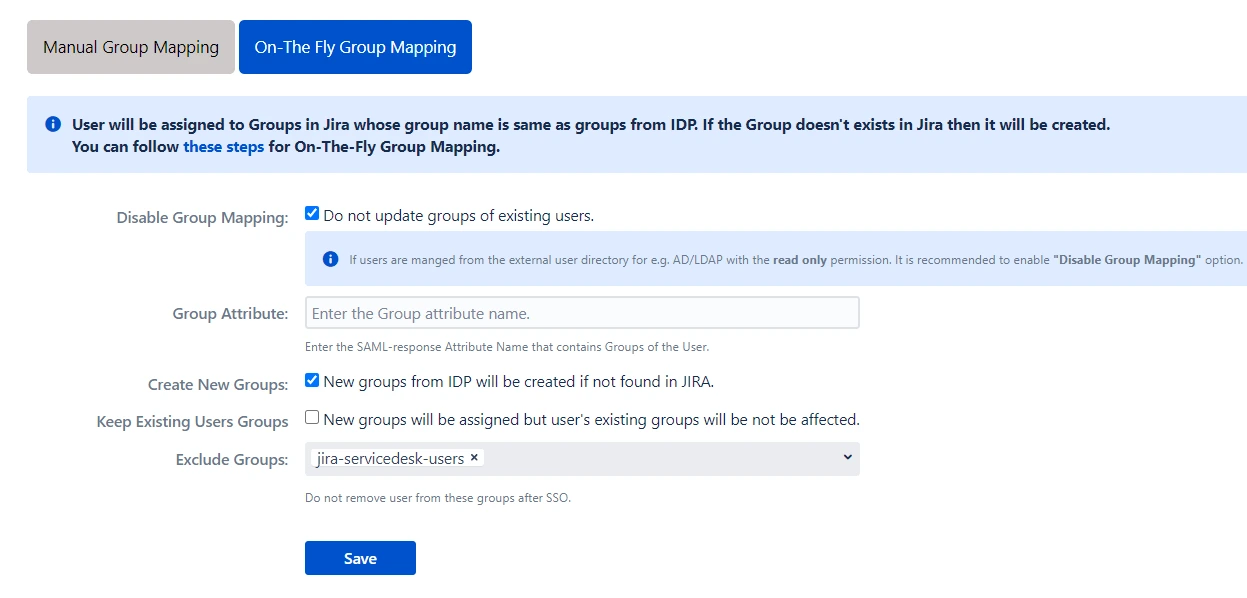
On-The-Fly Group Mapping is used when the name of groups on your IdP and SP are the same. In such cases, you don’t need to map each IdP group to the Atlassian application’s group individually. The app finds the group matching the IdP group in the application and assigns users to that group.
1. Create New Groups
If this option is enabled, the app will create new groups with the name of IdP groups in case no such group exists in the application. This is useful when you have added a new group in the IdP and want to provision users to that group just in time.
2. Keep Existing User Groups
This option makes sure that the user is added to new groups during SSO but is not removed from his existing groups if those groups are not found in the SAML assertion returned by the IdP.
3. Exclude Groups
Sometimes the application users are part of IdP groups as well as some internal groups like jira-software-users/confluence-users to maintain application access. Now, if these groups are not present in IdP’s assertion the user will be removed from these core groups. Enabling Keep Existing Groups option will mean that users won’t be removed from the IdP groups as well. This is where the Exclude Groups option comes in. Using this option, you can keep removing the user from IdP groups on the application while preserving selected local groups.
SSO Settings
SSO Setting tab Control how your users and administrators login using SSO. The settings in SSO Settings tab define the user experience for Single Sign On.
You can Perform following operations on SSO setting tab:
- Sign In Settings
- Service Desk SSO Settings
- Custom Login template
- Sign Out Settings
- SSO Error Settings
- Advanced SSO Settings
Sign In Setting
Enable SSO

Enabling this option will allow all your Jira software users to perform SSO. If this option is disabled, then the SSO for all the users is disabled. You can use this feature to test SSO on your environment without affecting the end users by disabling the SSO for all. Enabling/disabling this feature will override your IdP specific Enable SSO for Jira Software settings you have configured in the IdP menu.
Enable Header Based Authentication
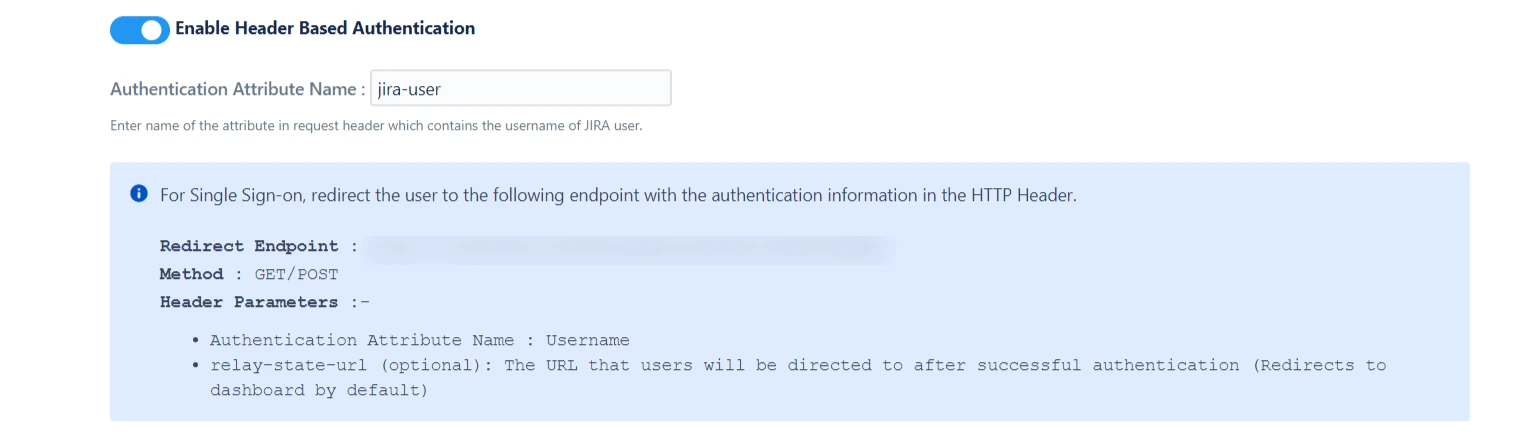
Authenticate users based on the user’s information (username) received in the HTTP headers.This feature is commonly used in settings where a reverse proxy/vpn is used and it requires user authentication.
Enabling header based authentication allows users to log in automatically based on the request header. If you or your company uses a reverse proxy or VPN, but you still require user authentication, then this setting should be enables.
When header authentication is enabled, the plugin will authenticate the user into the application without prompting for the credentials again.
Login Button Text

Customize SSO button text as per requirement using this option ( This text is visible only in case of Single IdP).
Relay State URL

Enter the absolute URL where you want to redirect the user after SSO. Keep empty to redirect user to the same URL they started with.
Auto Redirect to IdP
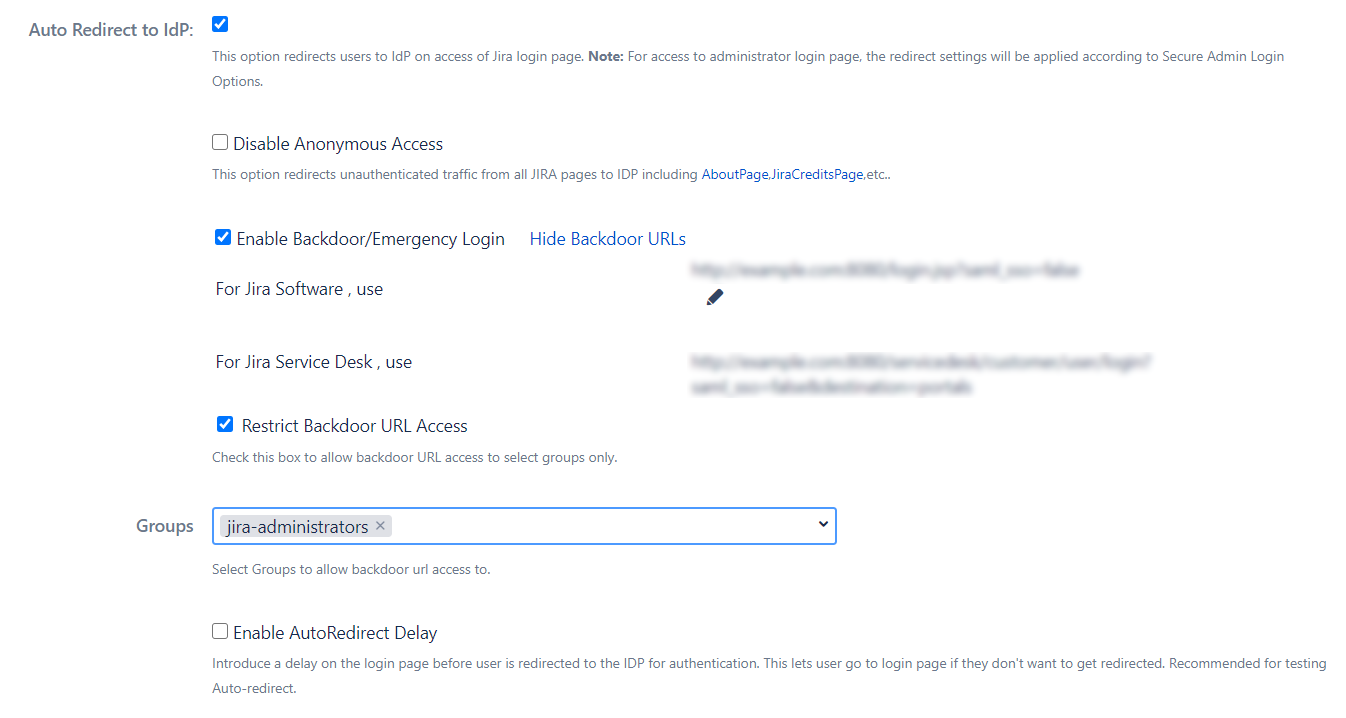
On enabling this option, all unauthenticated users are automatically redirected to the SSO login page. Enable this option if you want to force the authentication of all the users to be done through SSO and not allow the users to use the login functionality provided by the application.
Let us consider Okta as IdP, when the user triers to access the login page of the application he will be redirected to the Okta login page, and after successful login he will be redirected to the page he started of.
Disable Anonymous Access
Some pages in the Atlassian applications can be accessed by unauthenticated traffic like public filters, public spaces, About pages, etc. Also, there are some pages that are not available to unauthenticated users but don’t prompt login and just show an error message.
Disabling Allow Access to Anonymous Pages without SSO switch makes sure that all unauthenticated traffic on your application is prompted for login before being able to view such pages.
Restrict Backdoor URL Access
You can Restrict the Backdoor URL to certain groups in the application. When you enable this option, you’ll be asked to enter the groups to whom backdoor access should be provided. Now, when a user tries to access the backdoor URL, he’ll be asked for his username first and if that username belongs to the configured group, only then will he be able to use the login page.
Enable Backdoor/Emergency Login
Backdoor/Emergency URL can be used by local administrators to access the login page when SSO is enabled. This is useful when you’ve Redirection Rules set or when the Default Rule doesn’t have the login page selected.
You can customize the Backdoor URL by clicking on the edit button beside it and entering new parameter values.
Enable backdoor using REST API
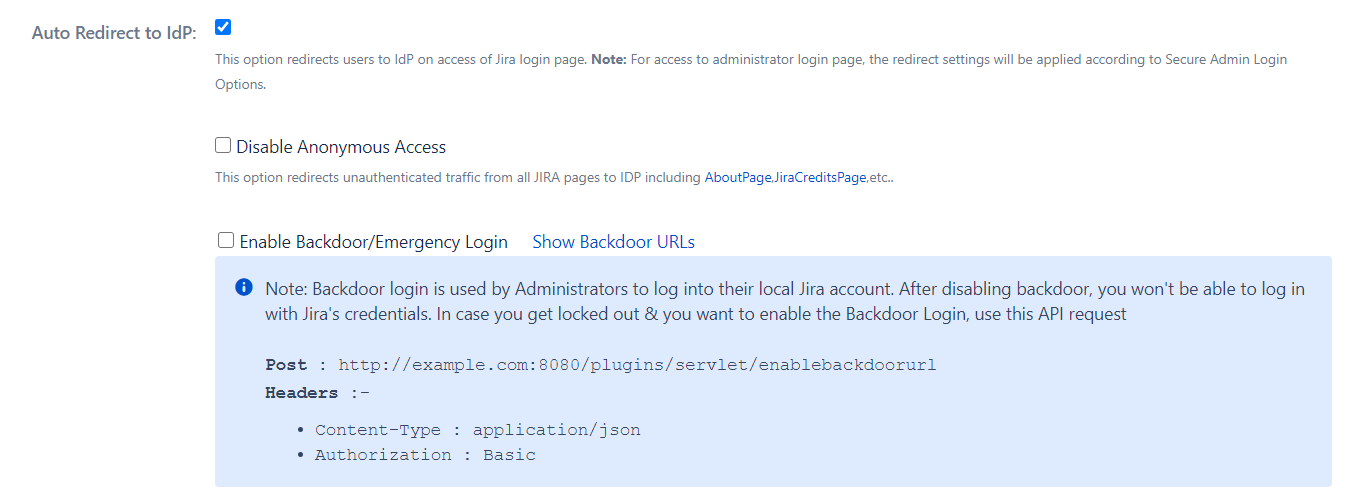
Backdoor login is used by Administrators to log into their local Jira account. After disabling backdoor, you won't be able to log in with Jira's credentials. In case you get locked out & you want to enable the Backdoor Login, use this API request.
Enable AutoRedirect Delay
If you have just one IdP set as default IdP in the Redirection Rules, the user is redirected for SSO as soon as he accesses the application. To add a delay here, you can enable this option. In this case, a progress bar will be shown on the login page which will allow users to cancel redirection and use application credentials to log in.
Secure Admin Login Options
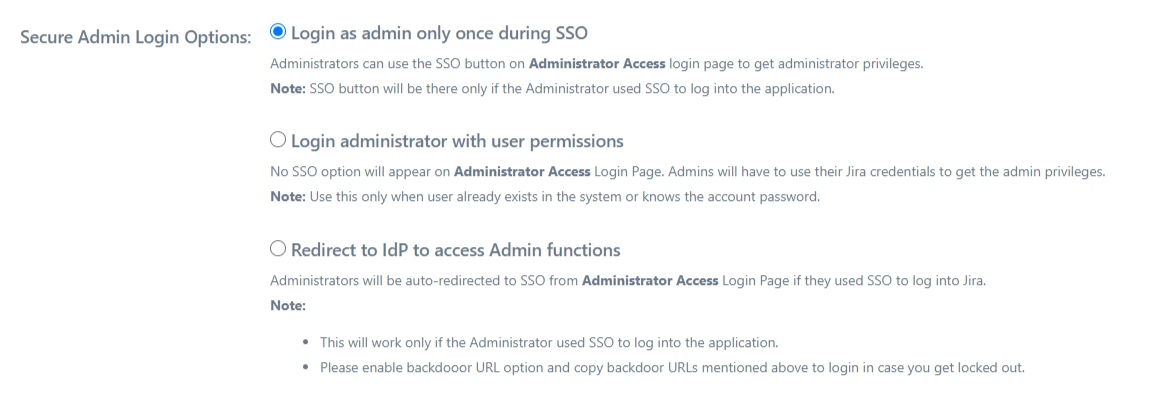
Login as admin only once during SSO
User’s admin session will be created on the first login. When the admin session expires, the administrator won’t be redirected to IdP. Instead, the admin login page will be shown.
Login administrator with user permissions
User’s admin session will not be created on the first login. Additionally, the administrator will not be redirected to IdP on access to the administration console.
Note: Use this only when the user already exists in the system or knows their account’s password.
Redirect to IdP to access Admin functions
User’s admin session will be created on the first login. Also, the user will always be redirected to provider on the access of the admin console.
Note: Please enable backdoor URL option and copy backdoor URLs mentioned above to login just in case a lock out situation occurs.
Service Desk SSO Settings
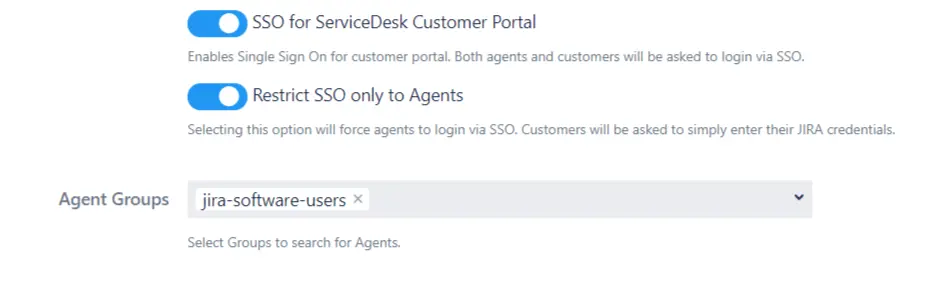
Enabling SSO for Jira Service Desk will allow all the users from the service desk to perform SSO. Enable this only when all the users from the service desk are able to perform SSO. If your application is used only by customers, disable this feature so they can log in with their default application credentials.
1. SSO for ServiceDesk Customer Portal
This option enables Single Sign On for customer portals. If it is enabled then all the users accessing any customer portal will be redirected to IDP to login via SSO. Both the Service Desk agents and the customers will be forced to login via SSO.
2. Restrict SSO only to Agents
This option can be used to restrict the Single sign on to ServiceDesk Agents only. If this option is enabled then all the agents will be forced to login via SSO i.e. using their IDP credentials and all the customers who are accessing the ServiceDesk will be able to login using their local Jira credentials.
3. Agent Groups
You can use this option to limit the agents who aill be forced to login via SSO. Here you can configure the groups of agents. The agents belonging to the configured groups will login through SSO and all the other users will use Jira crdentials to login.
Custom Login template
Custom Login Template For Jira Software

This is default template for Single IdP setup but you can customize it according to your need or you can design your own SSO login tempate.
Default Jira Software login page URL

Use this option to access Jira default login page when custom login template is turned on.
Custom Login Template For Customer Portal (Jira Service Desk)

This is default template for Single IdP setup but you can customize it according to your need or you can design your own SSO login tempate.
Default Customer Portal login page URL
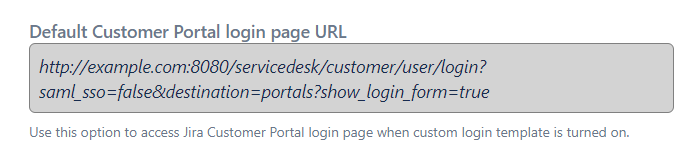
Use this option to access Jira Customer Portal login page when custom login template is turned on.
Use the below code to add new SSO button in login template

To get the IdP ID, edit the SAML configuration from Configure IdP tab, you will find it in the ACS URL for IdP-Initiated SSO. If you have configured only one IdP, this is optional.
Custom Login Template
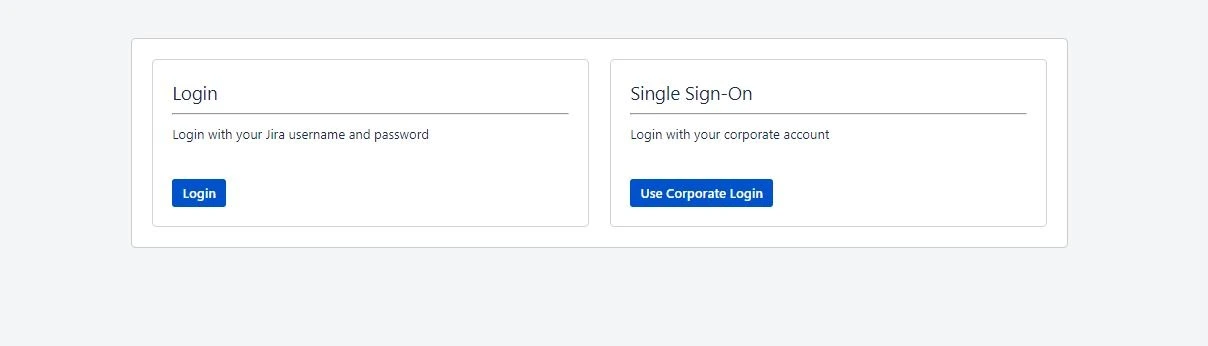
This template defines the UI of the dashboard and login page. The template is written in HTML. You can add more SSO buttons( In case of multiple IdP configuration) using IdPID.
Sign Out Settings
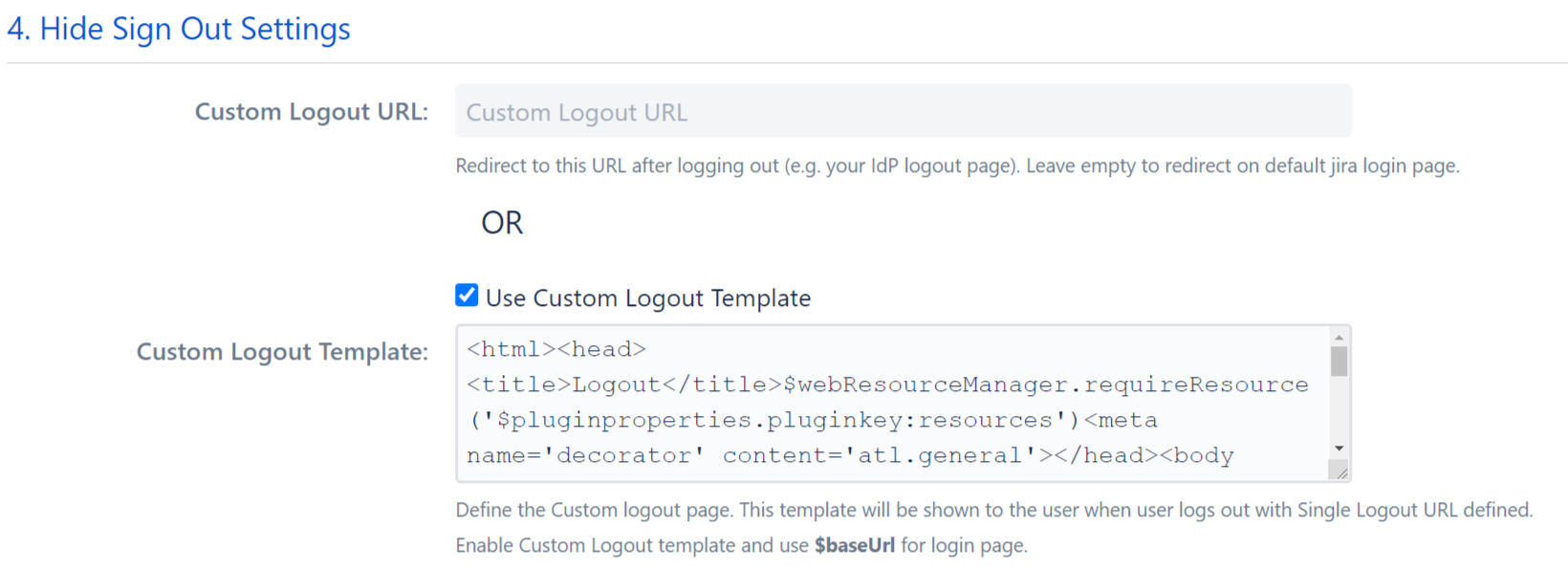
Custom Logout URL
The user will be redirected to this URL after logout. This can be any existing URL in the application or outside the application.
Custom Logout Template
The user will be redirected to this template after signing out. You can show custom message or action items after the user logs out.
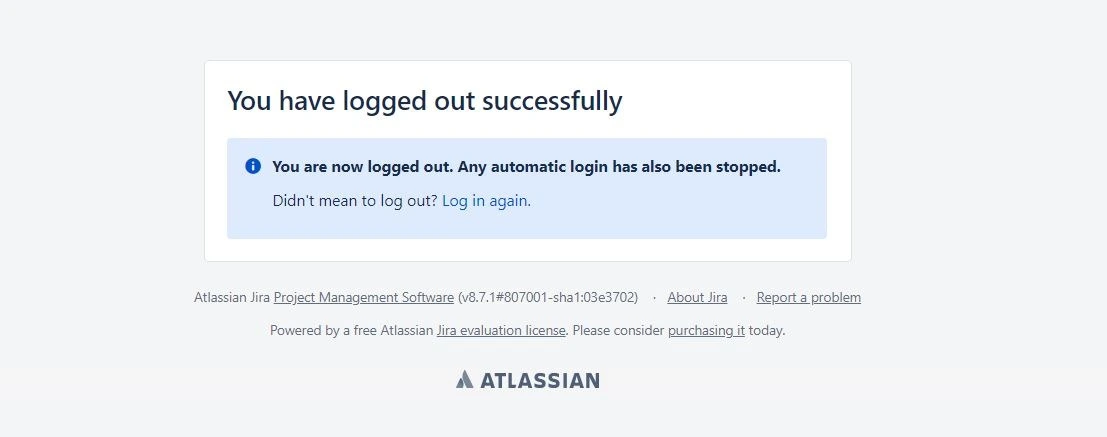
- The template is written in HTML so it’s easy to understand and change. You can edit the logout template as per your requirement.
- If you add $baseurl in the template, it’ll be replaced by the base URL of your application which allows you to easily add links.
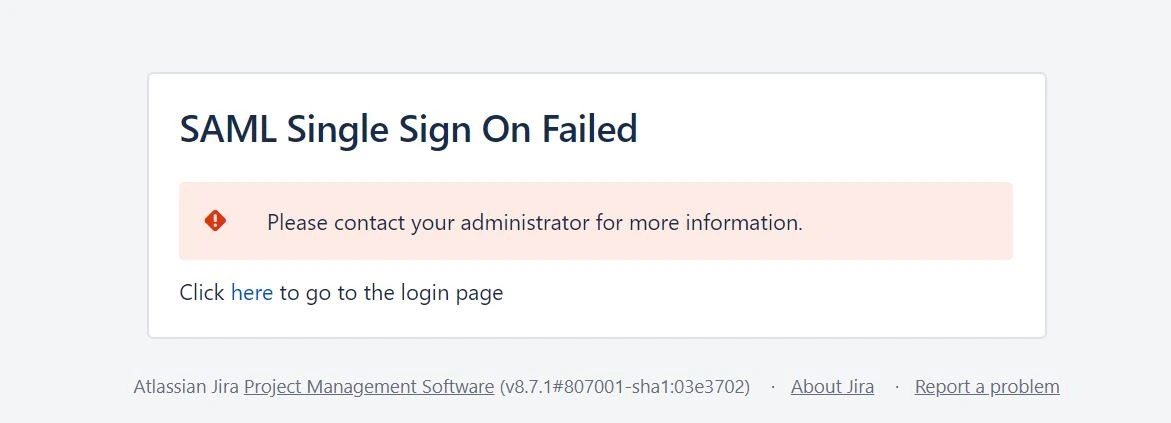
SSO Error Settings
This template can be customized to change the page which appears when SSO fails. You can add a link to the support portal or add support contact on the page if anyone wants to raise an issue from the error page. Use $baseURL in the template to redirect to the login page.
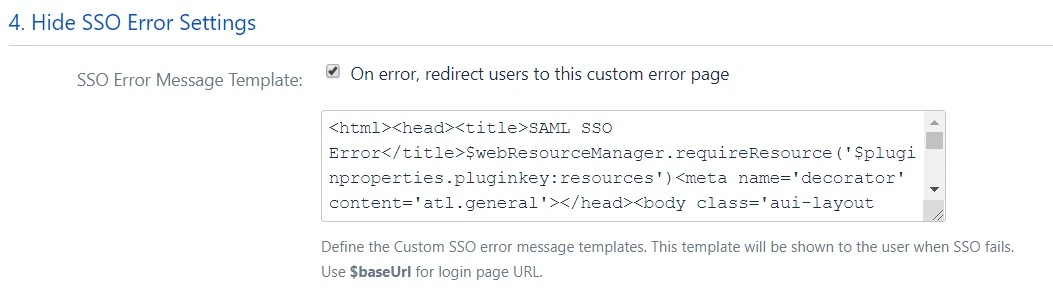
SSO Error Message Template
Advanced SSO Settings
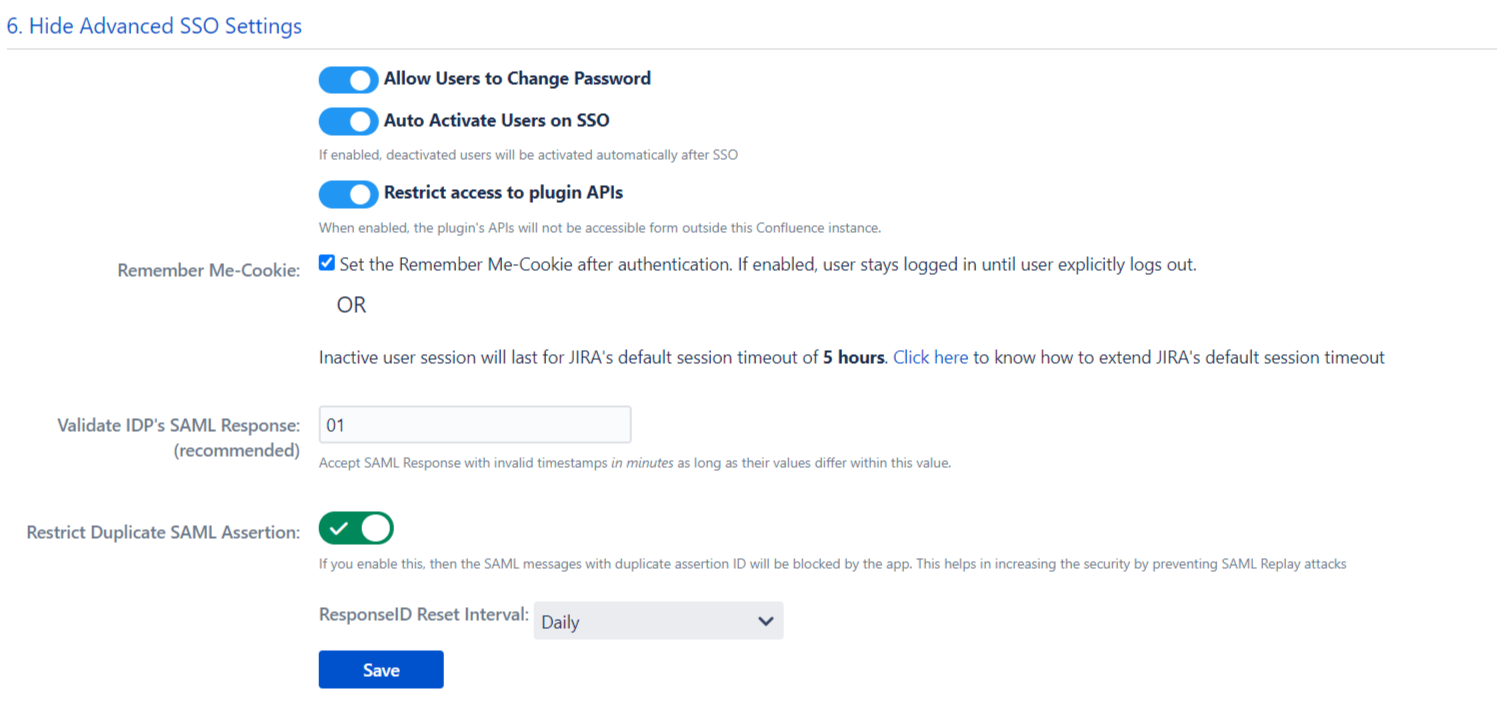
Allow Users to Change Password
This feature allows end-users to change their local application password. If disabled, end-users won’t be able to reset their local application password as they won’t be able to access change password, forget password link and only system admin can reset their password.
Auto Activate Users on SSO
Enabling Auto Activate Users on SSO, will activate the deactivated users who perform SSO in the application. This will ease the admin’s work as he wont have to enable the deactivated users to allow them to perform SSO.
Restrict access to plugin APIs
When enabled, the plugin’s APIs will not be accessible from outside of the application. This feature allows you to restrict access of the plugin’s API’s in the scope of the application instance.
Remember Me-Cookie
This section allows you to set the Remember-Me cookie. When this option is enabled, a cookie is set in the browser when the user performs SSO. This cookie will allow the user’s session to remain valid until the user explicitly logs out from the application.
The user can switch applications, close the browser or exit the application without logging out. In all these cases the user’s session will remain active, until and unless logout action is performed.
Validate IdP's SAML Response (recommended)
Accept SAML Response with invalid timestamps in minutes as long as their values differ within this value.
Restrict Duplicate SAML Assertion
This feature allows you to restrict duplicate SAML assertion. If you enable this, then the SAML messages with duplicate assertion ID will be blocked by the app. This helps in increasing the security by preventing SAML Replay attacks.
Certificates
In SAML SSO, the Service Provider and the Identity Provider exchange data using SAML requests and responses. To secure these transactions you can sign your requests and enable encryption for responses received from the Identity Provider. A Keypair of the public and private X.509 certificate is used to sign SAML Single Sign-On/ Logout Request and to decrypt SAML Assertion/Response from the Identity Provider(IdP).
The public key provided in the add-on(SP) is used by the IdP to correctly identify the SP sending the request. The SP sends SAML requests by signing them. This makes sure that a third party system can’t forge the SAML request and makes it impossible to change data in the SAML request through attacks like the man in the middle attack.
The public key of SP is also used by the IdP to encrypt the assertion data which can be decrypted by the add-on only. This encryption ensures that no one else gets access to sensitive information about users sent in the SAML response.
We have pre-configured the public and private certificates for you to get started quickly, but you also can use your own custom certificates to increase the security of the SAML configuration. You just simply need to copy and paste your own Public key and Private key in this section.
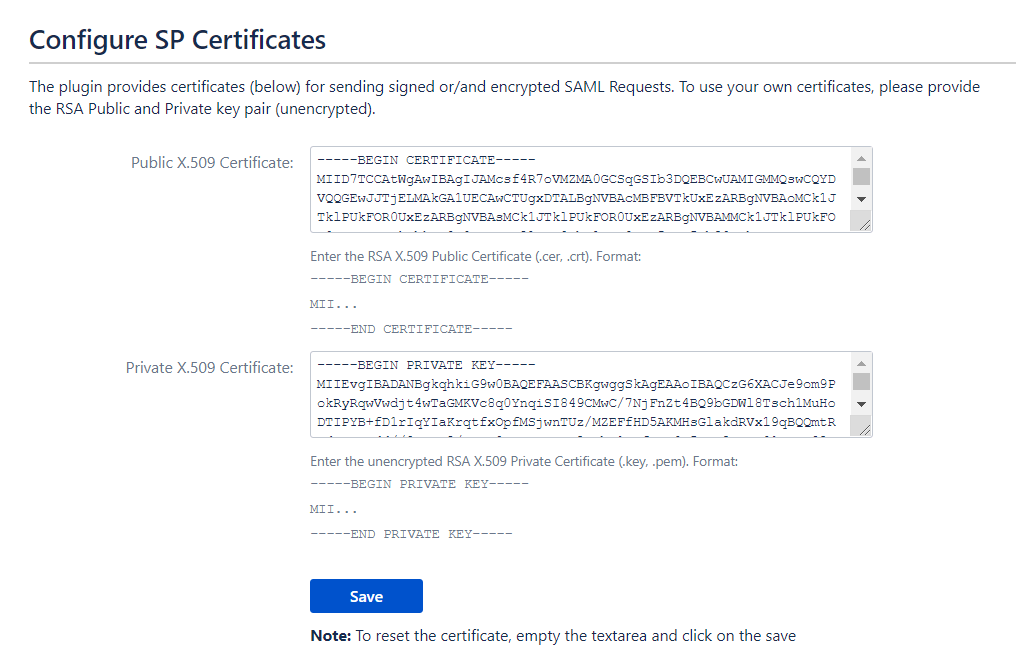
Steps to Configure Custom Public and Private Certificates
- Generate Custom Certificates. Refer to this document to generate your own certificates.
- After generating the certificates, go to your IdP and update the X.509 certificate that you have set up on your IdP with the newly created public certificate, or contact your IdP team to change the certificate.
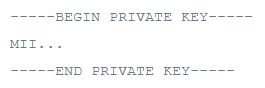
- Paste the Public and Private Certificates on this page. Make sure that the certificates are entered in the proper format as given below.
1. Format for Public Certificate :
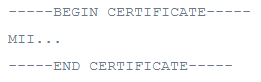
2. Format for Private Key :
Important Note: The certificates must be updated simultaneously in both the IdP and the add-on or it will break the SSO.
Backup and Restore
This tab provides an option to download or upload the SAML SSO plugin’s configurations. This is very useful as it helps to:
- Transfer configuration file: If you are moving from Test instance to Production instance, there is no need for re-configuring plugin again on the production instance.You can simply download the configurations from the test instance and upload them to the production. Also, if you want to move your settings from one instance to another, this feature will help.
- Backup: You can take backups of the working configurations for future use for disaster recovery.
- Troubleshoot: If the user faces problems during SSO, the configuration file can be sent to support team for debugging and fixing.
This tab has the following options:
Download /Upload App configuration manually
- Download App Configuration: Downloads all the app configurations in a JSON file.
- Import App Configuration: You can upload the previously downloaded file to restore the app configurations.
Configure / Fetch App configuration via REST API
Fetch App Configuration:
| Request Method | HTTP GET |
|---|---|
| URL | <application_base_URL>/plugins/servlet/configureplugin |
| Content Type | application/json |
| Authorization | Basic <base64 encoded admin_username:password> |
Update App Configuration:
| Request Method | HTTP POST |
|---|---|
| URL | <application_base_URL>/plugins/servlet/configureplugin |
| Content Type | application/json |
| Authorization | Basic <base64 encoded admin_username:password> |
| Body | Raw format(application/json). Below given an example |
Example Raw format data to be send/receive in body
{
  "PLUGIN_NAME": "JIRA SSO / Single Sign On, JIRA SAML SSO",
  "PLUGIN_VERSION": "2.0.0",
  "Identity Providers": [
    {
      "ID": "7aaefbb6-cf0a-49a7-a17a-22b98ba159e6",
      "Name": "IdP_1",

      "Configure SP": {

        /*This allows software users to perform SSO*/
        "Send Signed Requests": true,

        /*SSO binding Type decides how request message should be send to IdP*/
        "SSO Binding Type": "HttpRedirect",

        /*Binding Type decides how request message should be send to IdP.*/
        "SLO Binding Type": "HttpRedirect",

        /*NameID is considered as a unique identifier of the user performing SSO.*/
        "NameID Format": "urn:oasis:names:tc:SAML:1.1:nameid-format:unspecified",

        /*The authentication context indicates how a user authenticated at an Identity Provider*/
        "Authn Context Class": "None",

        /*This allows software users to perform SSO*/
        "Other Authn Context Class": "",

        /*This is the public signing certificate provided by the IdP.*/
        "IdP Signing Certificates": ["-----BEGIN CERTIFICATE-----\r\n...\r\n-----END CERTIFICATE-----"],

        /*This allows software users to perform SSO.*/
        "Enable SSO for Software": true,

        /*This allows service desk users to perform SSO.*/
        "Enable SSO for ServiceDesk": true
      },

      /*This section will cover User Profile mapping configuration, like linking of IdP user attribute to their local Atlassian application profile.*/
      "Attribute Mapping": {
        "Username": "NameID",
        "Email": "NameID",
        "Fullname": "",
        "First Name": "",
        "Last Name": "",
        "Disable Attribute Mapping": true,
        "Separate Name Attributes": false,
        "Regex Enabled": false,
        "Login/Create Jira user account by": "username",
        "Custom Attribute Mapping": {}
      },

      /*This section will cover User Group mapping configuration, like linking of IdP group to local Atlassian application group, default group assignment. */
      "Group Mapping": {
        "Disable Group Mapping": true,
        "Group Attribute": "",
        "On The Fly Group Mapping": false,
        "Create New Groups": true,
        "Keep users in existing groups": true,
        "Restrict User Creation based on Group Mapping": false,
        "Default Groups": [
          "jira-software-users"
        ],
        "Enable Default Group For": "newUsers",
        "Mapping": {}
      },

      /*This section provide some configurable option like new user creation in local application, certificate rollover if IdP update, IdP specific relay state.*/
      "Advanced SSO Options": {
        "Allow User Creation": true,
        "Refresh Metadata": false,
        "Refresh Interval": "hourly",
        "Custom Refresh Interval": 60,
        "Custom Refresh Interval Unit": "minutes",
        "Relay State URL": "",
        "Time delay": "01"
      }
    }
  ],

  /*This section provide you Service Provider(SP) info to configure as an application on the Identity Provider(IdP). You can add your own organization details.*/
  "Configure IdP": {
    "SP Entity ID": "http://localhost:8080/prakash",
    "SP Base URL": "http://localhost:8080/prakash",
    "Include Signing Certificate in Metadata": true,
    "Include Encryption Certificate in Metadata": false,
    "Organization Name": "miniorange",
    "Organizaton Display name": "miniorange",
    "Organization URL": "http://www.miniorange.com",
    "Technical Contact Name": "Xecurify",
    "Technical Contact Email": "info@xecurify.com",
    "Support Contact Name": "Xecurify",
    "Support Contact Email": "info@xecurify.com"
  },

  /*A Keypair of the public and private X.509 certificate is used to sign SAML Single Sign-On/ Logout Request and to decrypt SAML Assertion/Response from the Identity Provider(IdP).*/
  "Certificates": {
    "Public SP Certificate": "-----BEGIN CERTIFICATE-----\r\n..\r\n-----END CERTIFICATE-----",

    "Private SP Certificate": "-----BEGIN PRIVATE KEY-----\r\n..\r\n-----END PRIVATE KEY-----"
  },

  /*Redirection Rules allow you to specify conditions like which users should be allowed SSO and which user should see the login page based on different factors such as users’ email address domain, group, or the user directory they belong to. */
  "redirectionRules": {
    "jira": [],
    "jsd": [],
    "Default Jira IdP": "loginPage",
    "Default JSD IdP": "loginPage"
  },

  /*The Global SSO Settings tab provides the options to enable/disable the configurations for how your users and administrators will login using SSO.*/
  "Global SSO Settings": {
    "Enable SSO For Jira Software": true,
    "Enable SSO For Service Desk": true,
    "Enable Password Change": true,
    "Auto-Activate User": false,
    "Restrict Plugin’s API": false,
    "Restrict Duplicate Assertion": false,
    "AssertionID Reset Interval": "daily",
    "AssertionID Custom Reset Interval": 24
  },

  /*This section provides the user an option to design the login, logout, error page for Atlassian instances as per his requirements.*/
  "Look and Feel Settings": {
    "Login Button Text": "Use IdP Login",
    "Use Custom Login Template for Jira": false,
    "Enable Custom Error Message Template": false,
    "Use Custom Login Template For ServiceDesk": false,
    "show Login Buttons": true
  },

  /*This section will allows the admin to define what should be done after the user logs out from the application.*/
  "Post Logout Settings": {
    "Jira Custom Logout URL": "",
    "Use Custom Jira Logout Template": false,
    "JSD Custom Logout URL": "",
    "Use Custom JSD Logout Template": false,
    "Use configurations same as for Jira Software": false
  }
}
Troubleshooting
Troubleshooting tab provides steps to download the necessary information like application log file, Saml Request and Response required to troubleshoot any issue.
You can follow the instructions given here to enable debug logs for the plugin and download the logs and other files required to debug and fix your issue. You can also send all this information to the miniOrange support team.
Steps are given here to:
- Enable debug logs for the miniOrange plugin.
- Download Application’s log file (for eg. atlassian-jira.log, atlassian-confluence.log file)
- Download SAML Request and SAML Response in a XML file.
- Download plugin configuration file.
Troubleshooting steps
Steps to enable debug logs
- Go to Logging and Profiling.
- Click on Configure in Default Loggers section.
- Enter com.miniorange.sso.saml in package field and select Debug in logging level. Click on Add.
- After these steps, perform single sign-on again in the incognito/private window and record logs.
Steps for download support zip
- Go to Troubleshooting and support tools.
- Proceed to Create Support Zip tab.
- Click on Customize Zip button.
- Keep only Jira Application Logs option selected and save it.
- Click on Create zip and then Download zip.
Download SAML Request
If you don’t find the SAML Request below, follow these steps.
- Go to Configure IdP tab.
- Select the required IdP (In case of multiple IdP). Click on Test option.
- Click on Download SAML Request button from Panel Authentication(SAML) Request.
Download SAML Response
If you don’t find the SAML Request below, follow these steps.
- Go to Configure IdP tab.
- Select the required IdP (In case of multiple IdP). Click on Test configuration option.
- Click on Download SAML Response button from Panel Authentication(SAML) Response.
Test Configuration
For Test configuration refer above steps Download SAML Request/Response.
Capture the Test Configuration results and send it to us.
App Configuration
Download App Configuration file and send it to us for debugging.
In case of any query, you can reach out to us using our customer portal or Support Widget from the plugin or write an email at info@xecurify.com.


