- Home
- Automate Access Request & Review
- Set Up the Automate Access Request & Review With Entra ID (Azure)

How to Automate Access Request & Review With Entra ID (Azure)
Welcome to the setup guide for Automate Access Request & Review, a solution for streamlining and automating access requests using Jira Service Management (JSM) and Microsoft Entra ID (formerly Azure).
This step-by-step guide will help you:
- Integrate Entra ID with the app
- Automate access approvals and provisioning
- Improve visibility, compliance, and control over access management
By the end of this guide, you’ll have a secure, rule-based workflow in place for handling access requests across your organization, directly from your Jira portal.
App Overview
Automate Access Request & Review For Entra ID is an advanced solution built on Jira Service Management (JSM) to simplify and automate access request workflows across your organization.
Instead of relying on manual request and approval steps, the app enables:
- End users to submit access requests through the JSM portal.
- Automated routing of approval workflows based on predefined rules.
- Instant provisioning actions once approvals are complete.
By automating these processes, the Identity Governance, Auditing & Access Control via JSM ensures secure, policy-driven, and audit-ready access management across your tech ecosystem.
 Try it for free
Video Setup Guide
Pre-requisites
Before you begin, make sure you have the following:
- Admin access to Jira Service Management (JSM): Required to configure workflows, custom fields, and automation rules.
- Admin access to Entra ID (Azure) portal: Needed to authorize integrations and manage access provisioning.
1: Register an App in Entra ID(Azure)
To begin the integration, register a new app in Microsoft Entra ID (formerly Azure):
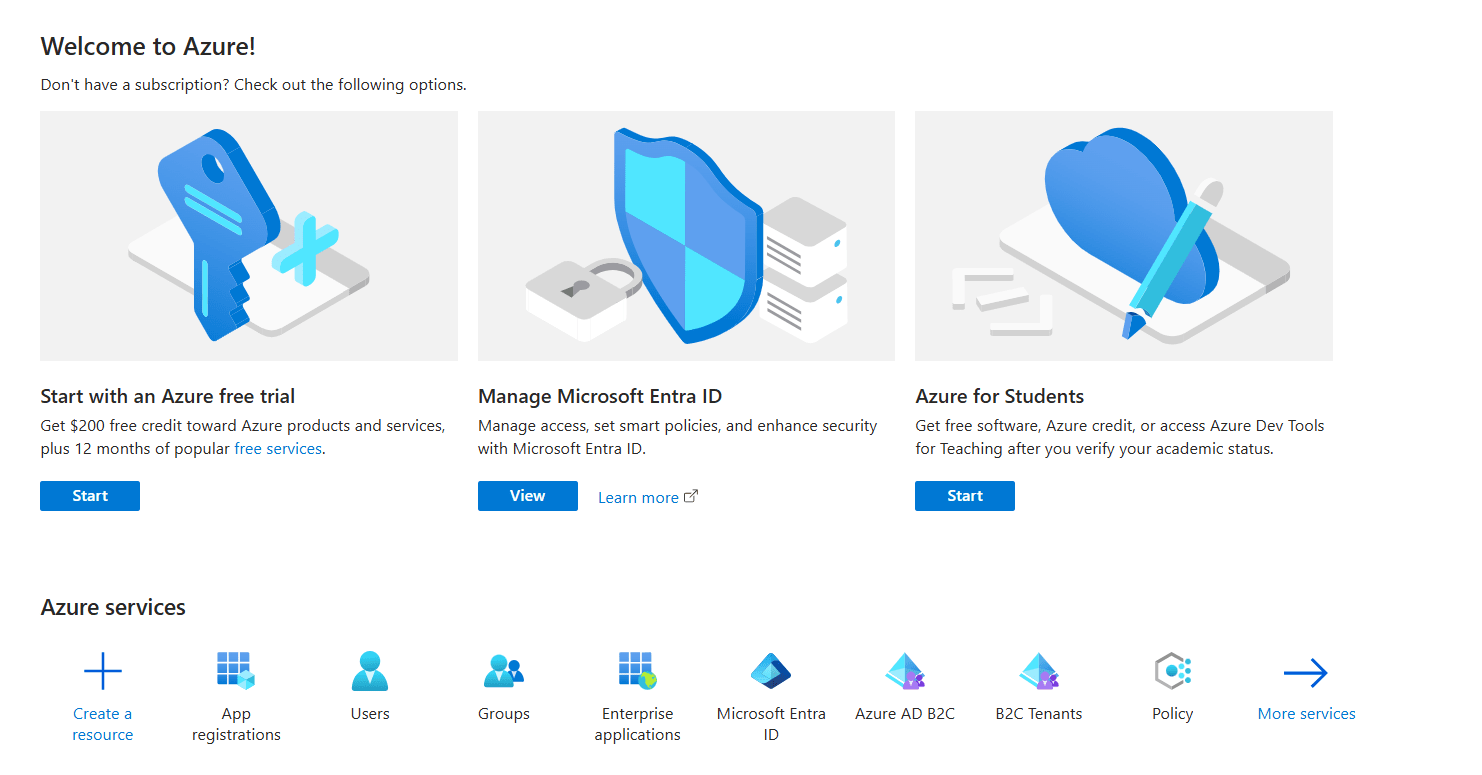
- Log in to your Azure Portal.
- Navigate to Azure Active Directory → App registrations.
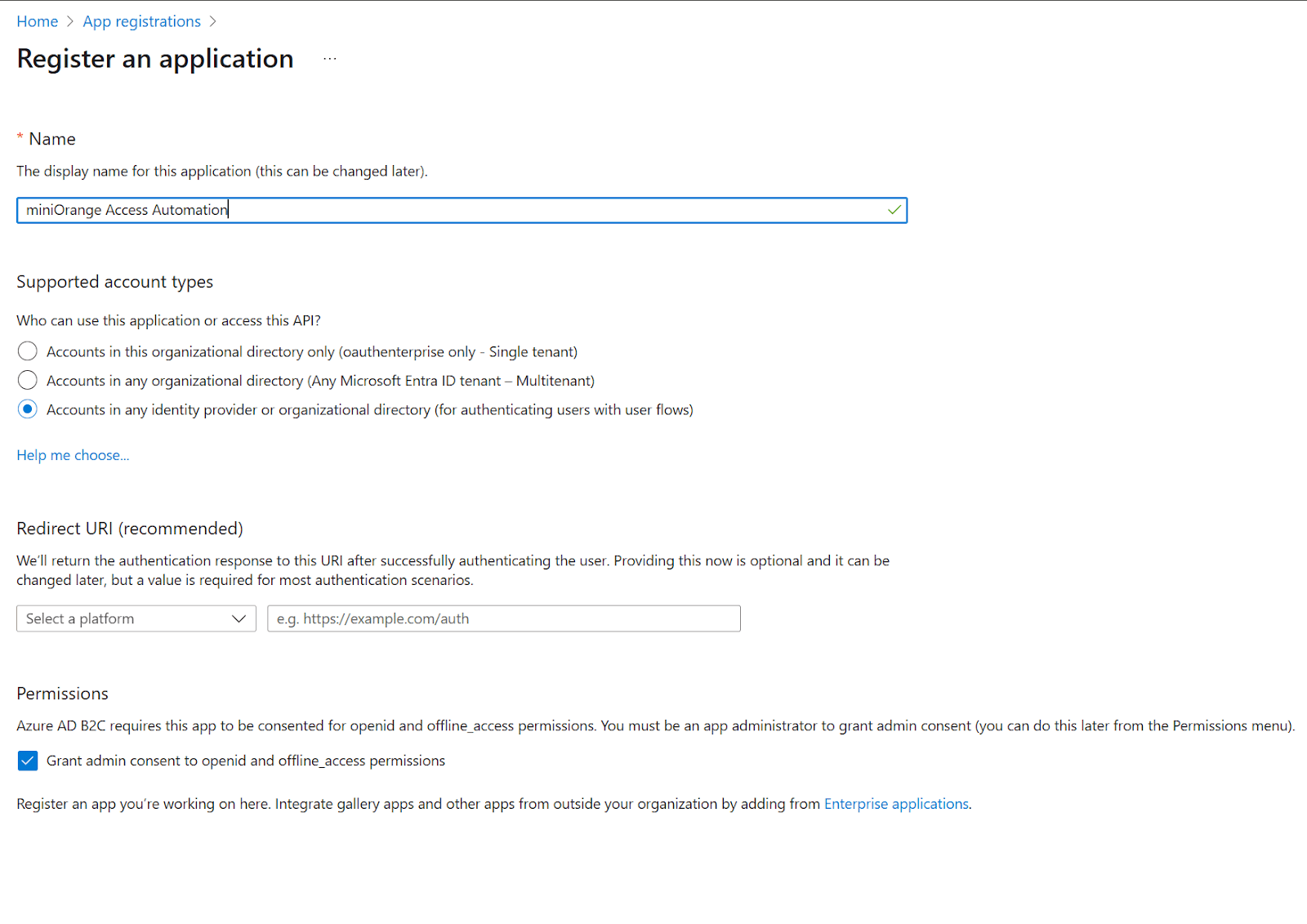
- Click New Registration and fill the following details:
- Name: Provide Name for new application, for eg, miniOrange Access Automation App
- Redirect URL: Leave blank or enter dummy if required
- App registrations form inside the Azure Portal
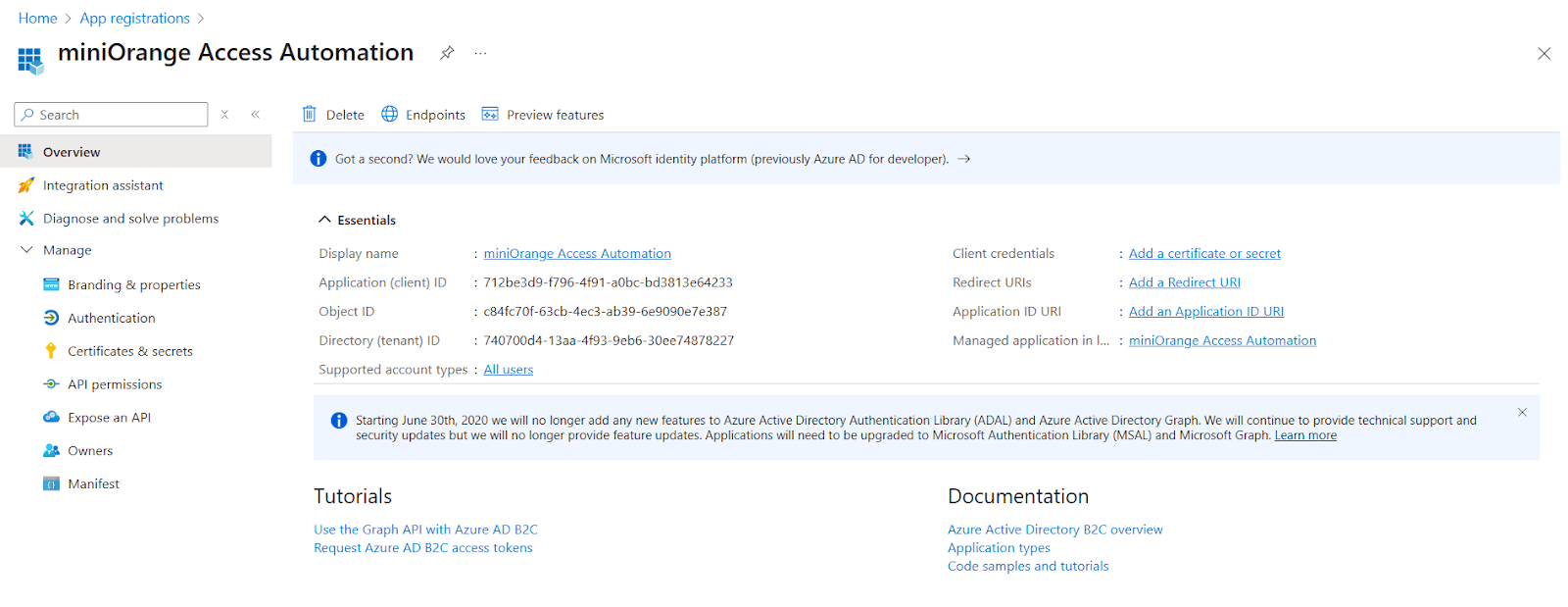
- After registration, go to the App Overview page and copy the Client ID and Tenant ID.
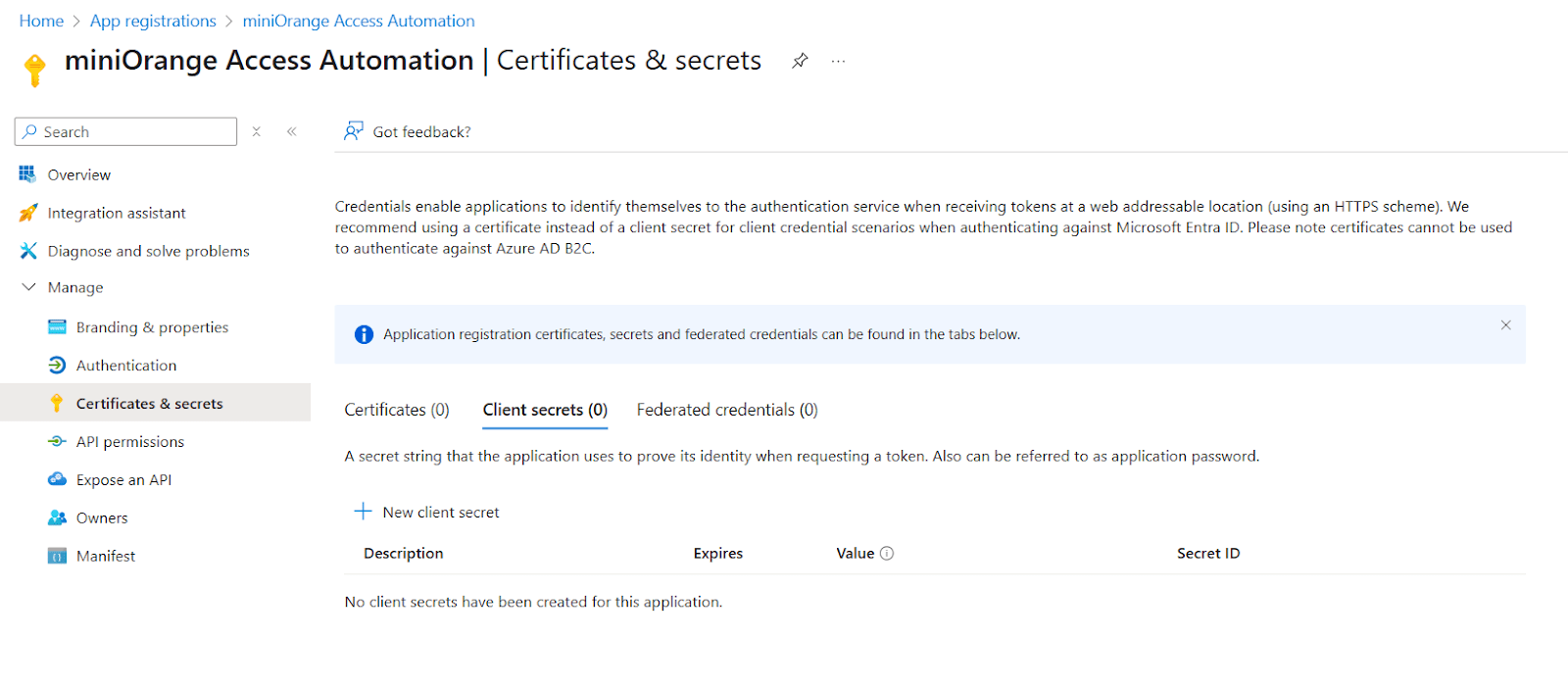
- Under Certificates & Secrets → Client secrets, click New client secret.
- Add a description and expiration period.
- Copy the secret value and keep it on your person (you won’t be able to view it again later).
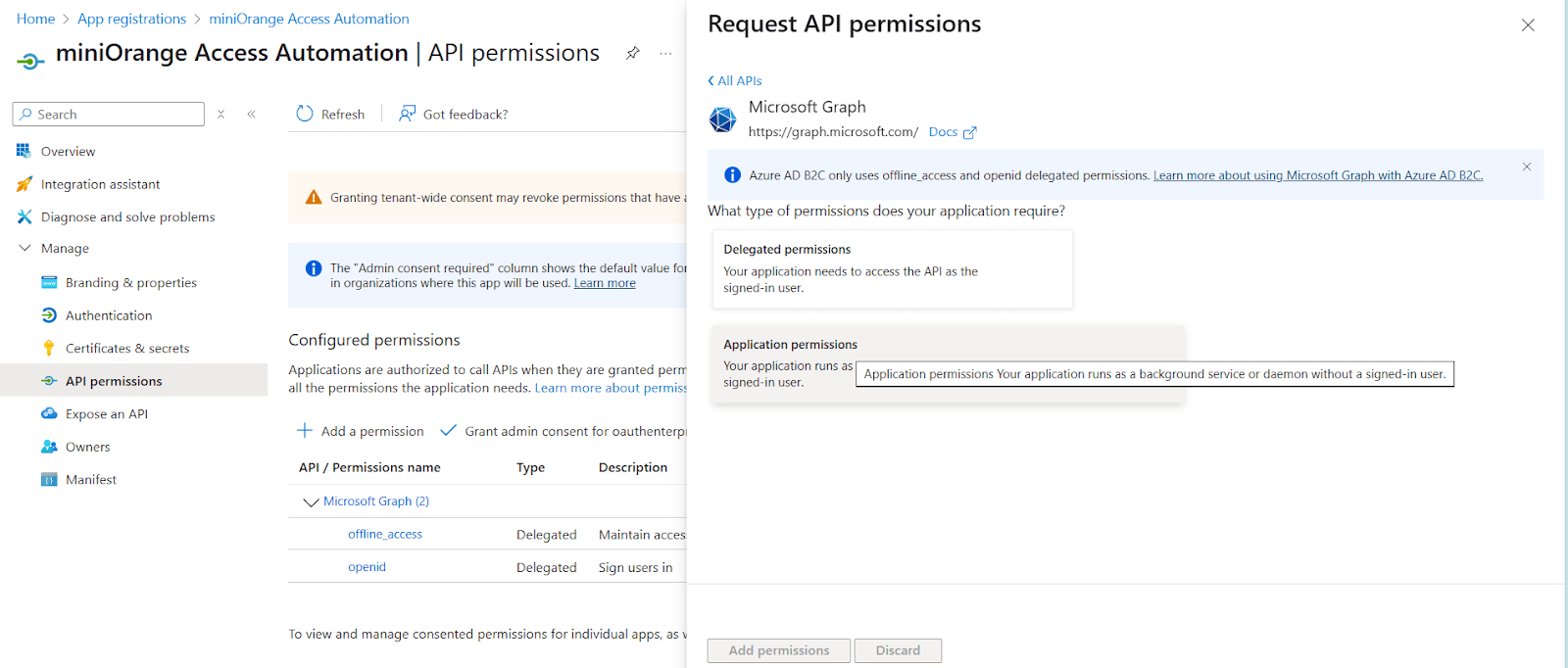
- Navigate to API Permissions and click Add a permission
- Select Microsoft Graph → Application permissions.
- Add:
User.ReadWrite.AllGroup.ReadWrite.All- Click Grant admin consent to apply these permissions.
2: Integrate Entra ID with the Automate Access Request & Review App
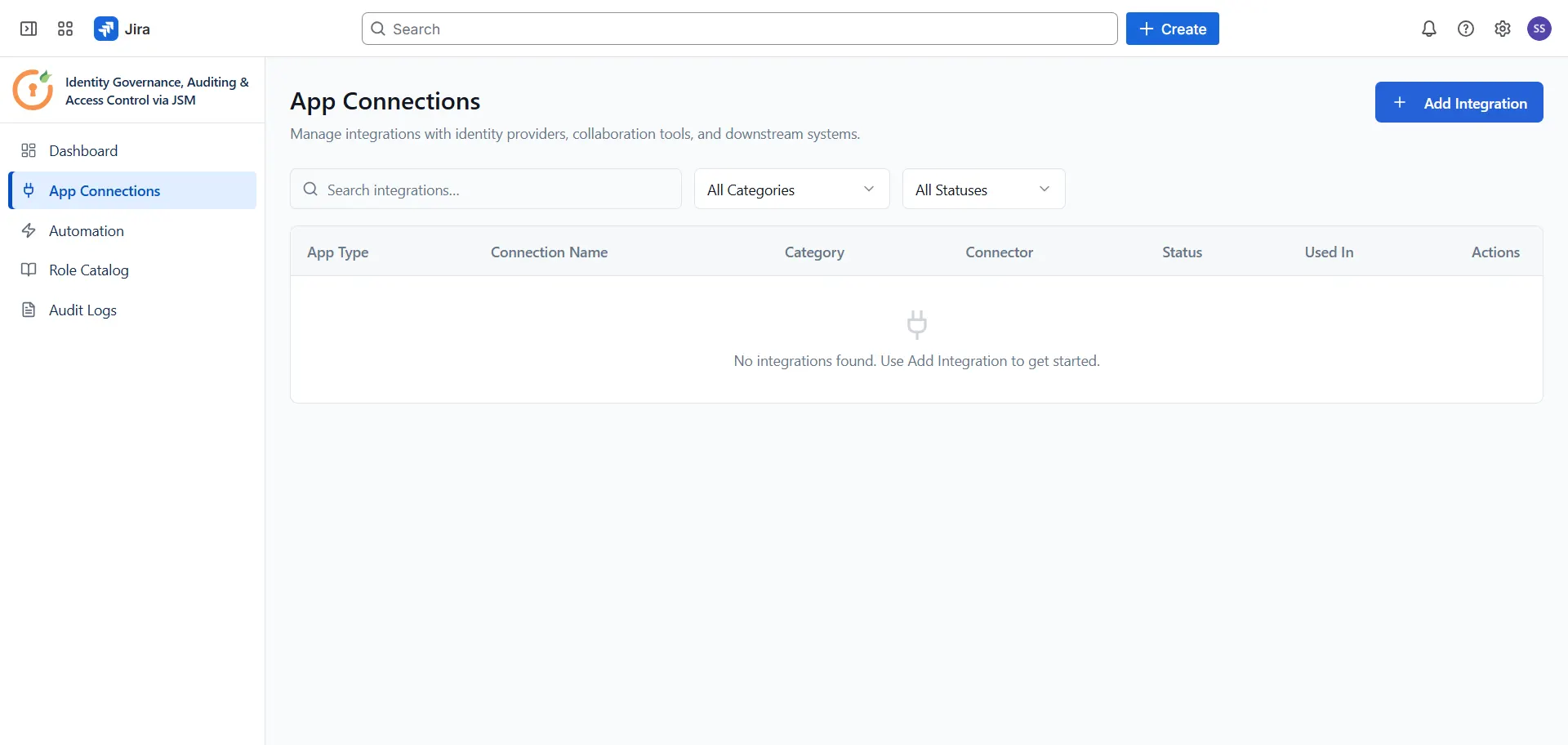
Open the Automate Access Request & Review app and navigate to App Connections from the sidebar. Click + Add Integration and select Entra ID from the list. Enter the following details in the Connect Entra ID panel:
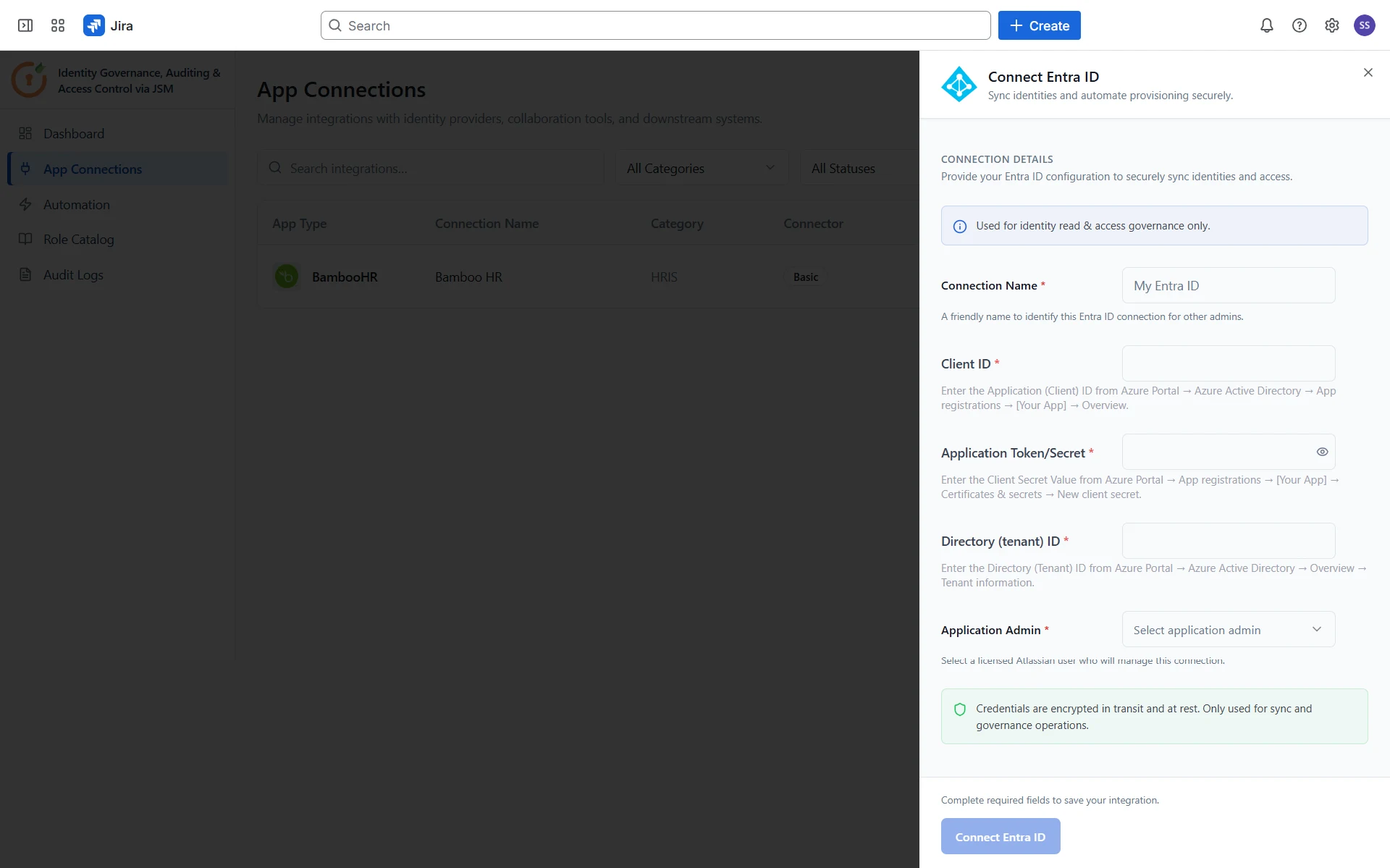
- Connection Name: A friendly name to identify this Entra ID connection for other admins (e.g., "My Entra ID").
- Client ID: The Application (Client) ID from Azure Portal → Azure Active Directory → App registrations → [Your App] → Overview.
- Application Token/Secret: The Client Secret Value from Azure Portal → App registrations → [Your App] → Certificates & secrets → New client secret.
- Directory (tenant) ID: The Directory (Tenant) ID from Azure Portal → Azure Active Directory → Overview → Tenant information.
- Default Password for New Users: The initial password assigned when the app creates a new Entra ID user during provisioning (for example, HR onboarding or identity lifecycle workflows).
- Used only when a new user account is created — not when updating, suspending, or deleting users, and not when only adding someone to a group.
- New users are prompted to change this password at first login.
- Application Admin: Select a licensed Atlassian user who will manage this connection.
Once all fields are filled in, click Connect Entra ID to save the integration.
Configure Automation Rules for Entra ID
Now that Entra ID is connected, configure automation rules to define how access requests are routed, approved, and provisioned in Entra ID. Follow the guides below to set up each rule type:
Did this page help you?