AI Code Reviewer for Bitbucket
The miniOrange AI Code Reviewer is an advanced solution built to automate and streamline code review workflows across your organization's Bitbucket repositories. It integrates with leading AI providers, including OpenAI, Google Gemini, Anthropic, Microsoft Copilot, and AWS Bedrock, to deliver automated, context-aware pull request analysis, customizable coding guidelines, and instant inline feedback.
Pre-requisites
To configure the AI Code Reviewer for Bitbucket, you need the following:
- Bitbucket should be installed and configured.
- Admin credentials are set up in Bitbucket.
- A valid API Key from your chosen AI provider (e.g., OpenAI, Google Gemini, Anthropic).
1: AI Model Configuration (Global Setup)
Before processing any code reviews, the application requires a connection to an active LLM provider.
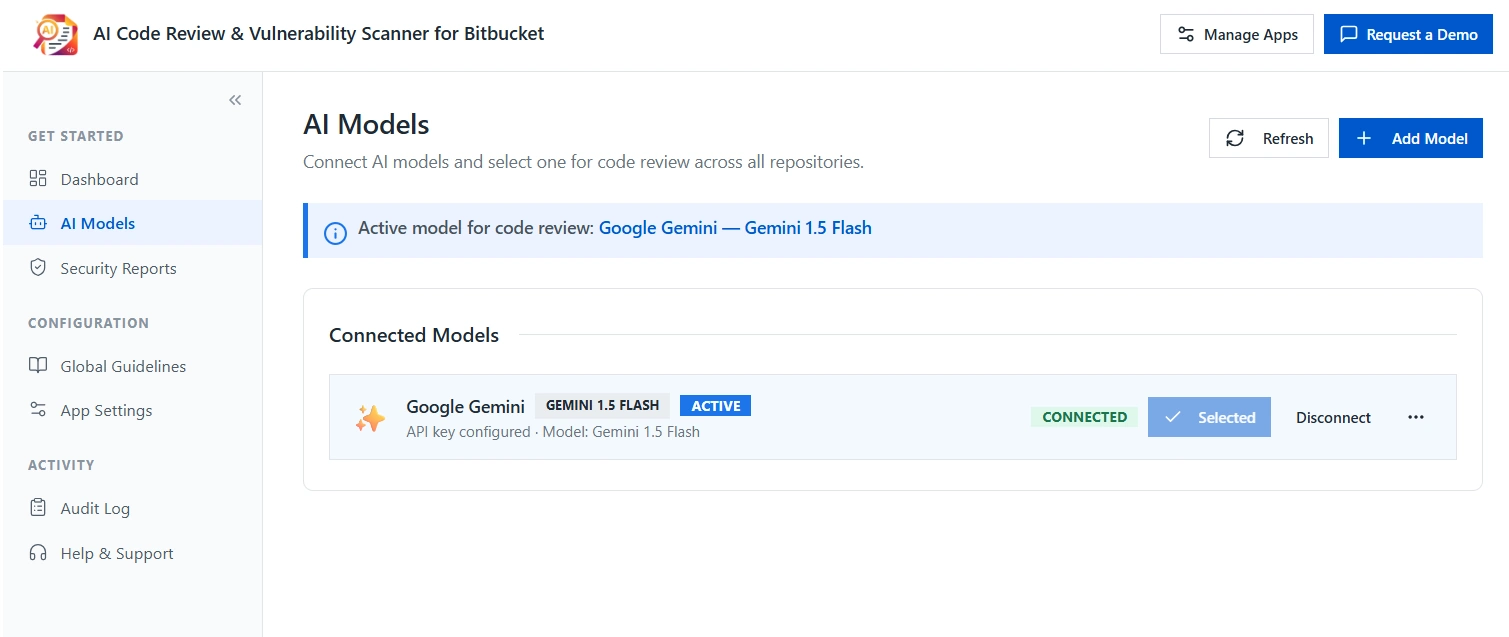
- From the left sidebar, navigate to AI Models under the Get Started section.
- Click the + Add Model button in the top-right corner of the page.
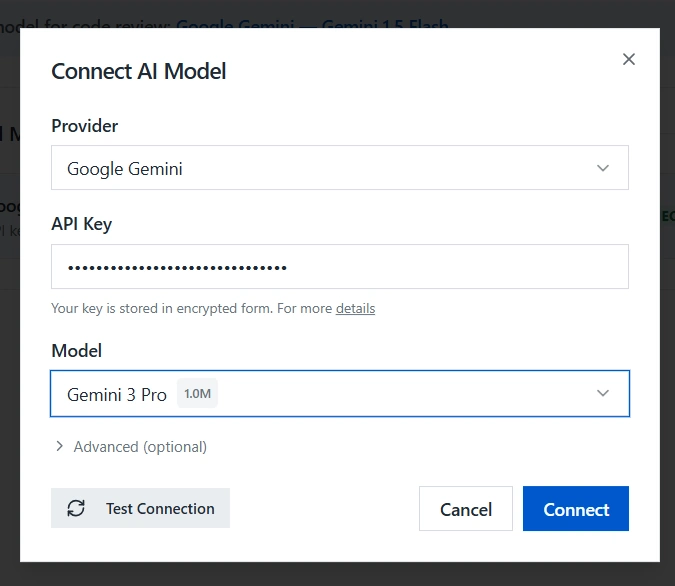
- A Connect AI Model dialog box will appear. Fill in the following fields:
- Provider: Select your preferred LLM provider from the dropdown (e.g., Google Gemini, OpenAI, Anthropic, Microsoft Copilot, AWS Bedrock).
- API Key: Enter the API Key provisioned from your provider's developer console. Your key is stored in encrypted form. Click details for more information on key storage and security.
- Model: Select the specific model version you wish to use from the dropdown (e.g., Gemini 3 Pro – 1.0M).
- Advanced (optional): Expand this section to configure any additional advanced settings if required.
- Click Test Connection to verify that the API Key and model selection are valid.
- Once successful, click Connect to finalize the setup.
- The model will appear under Connected Models with a Connected and Active status, confirming the app is ready to process code reviews.
2: Global Guidelines Configuration
Global Guidelines define the coding standards applied across all repositories and must be configured before repository-specific settings become available.
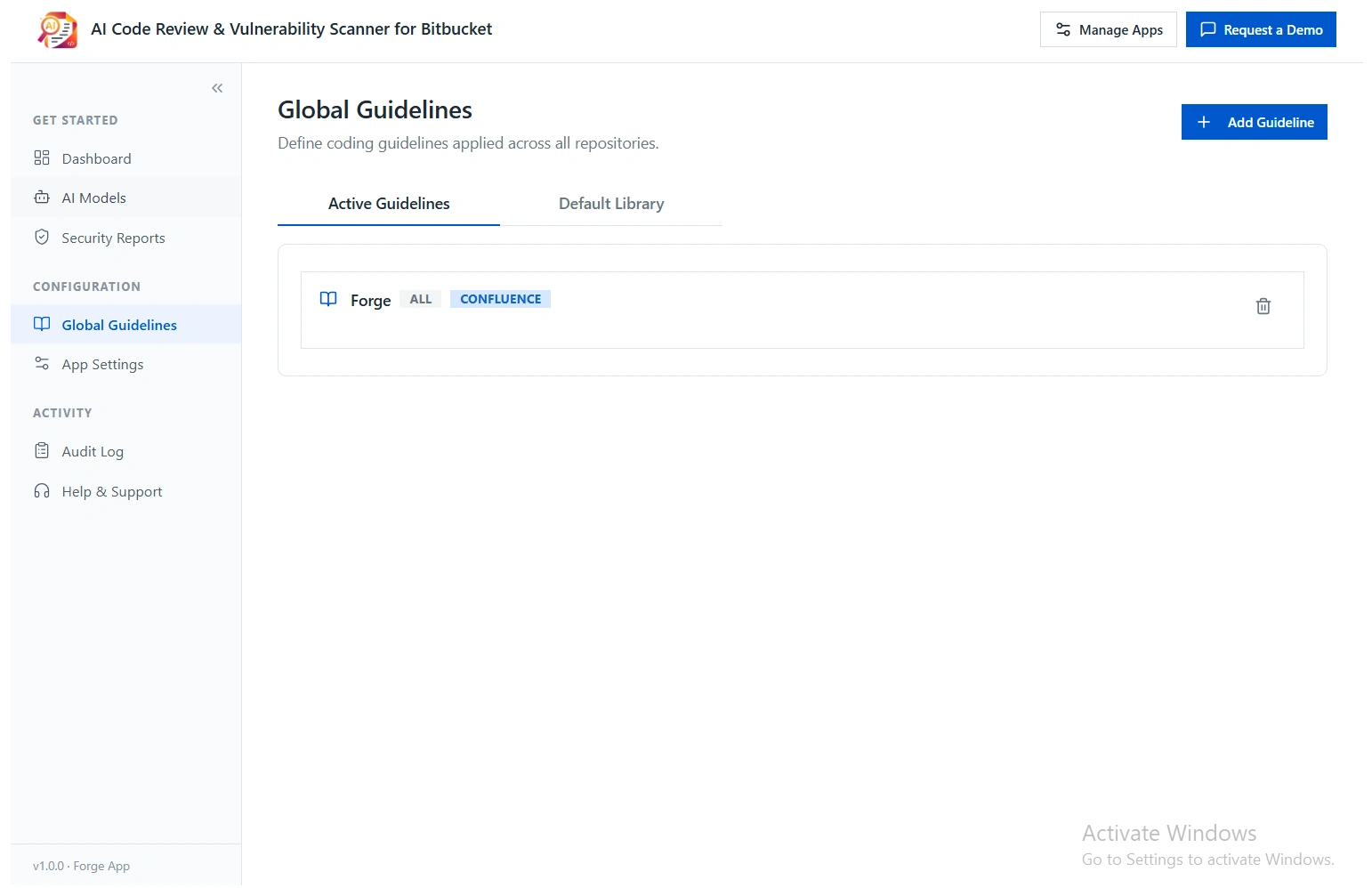
- From the left sidebar, navigate to Global Guidelines under the Configuration section.
- Click the + Add Guideline button in the top-right corner of the page.
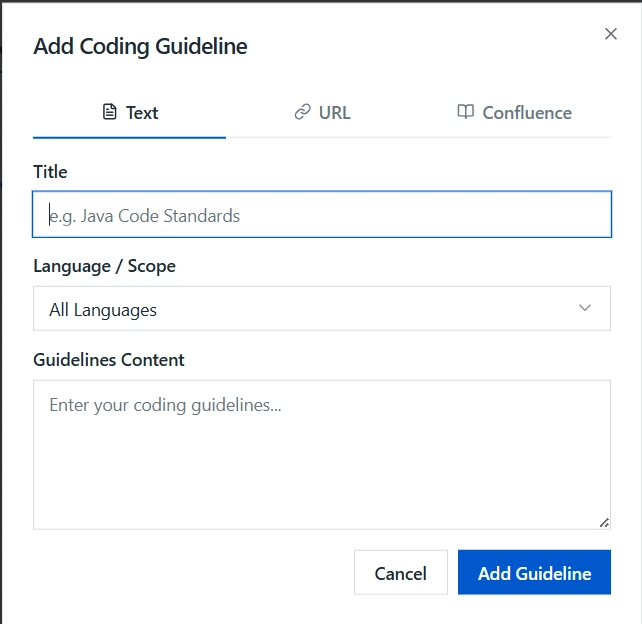
- An Add Coding Guideline dialog box will appear. Choose how you want to define your guideline using one of the three input methods:
- Text: Manually enter your guideline by filling in the following fields:
- Title: Enter a descriptive name for the guideline (e.g., "Java Code Standards").
- Language / Scope: Select the programming language this guideline applies to, or choose All Languages to apply it universally.
- Guidelines Content: Enter the coding guidelines in the text area (e.g., "All code must adhere to strict OWASP security checks.").
- URL: Provide a URL linking to an externally hosted guidelines document.
- Confluence: Link directly to a Confluence page containing your coding standards.
- Click Add Guideline to save, or Cancel to discard and close the dialog.
- The newly added guideline will appear under the Active Guidelines tab, confirming it is live and applied across all repositories.
3: Repository Configuration & Overrides
Once Global Guidelines are set, code review behaviour can be fine-tuned on a per-repository basis directly within Bitbucket.
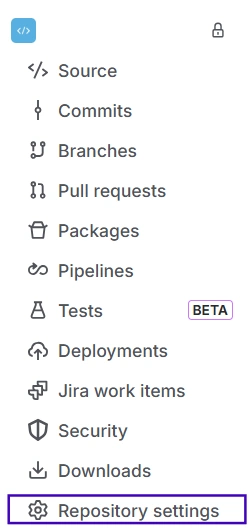
- Navigate to your repository in Bitbucket and click Repository Settings at the bottom of the left sidebar.
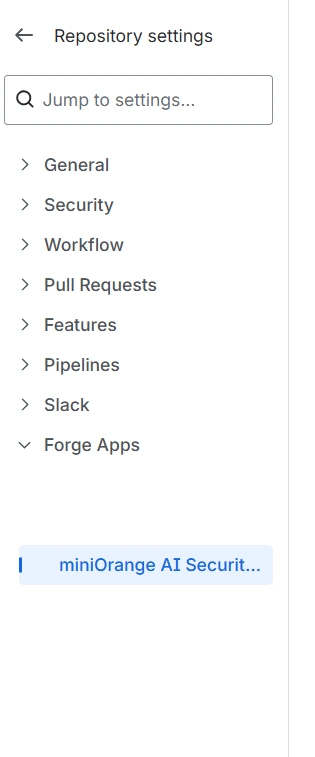
- In the Repository Settings panel, scroll down to Forge Apps and click miniOrange AI Code Reviewer to open the app's configuration page.
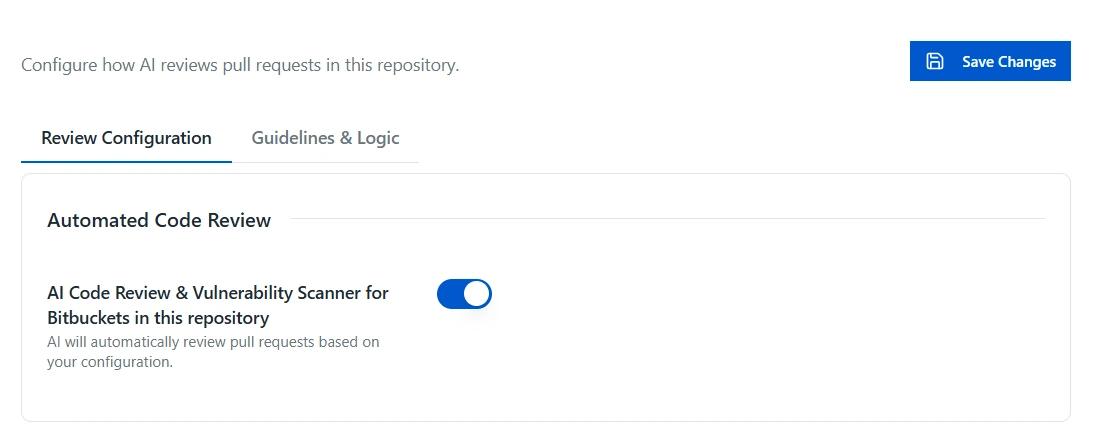
- Under the Review Configuration tab, locate the Automated Code Review section and enable the AI Code Review & Vulnerability Scanner for Bitbucket in this repository toggle. Once enabled, the AI will automatically review pull requests based on your configuration.
- Click the Guidelines & Logic tab to configure review standards for this repository:
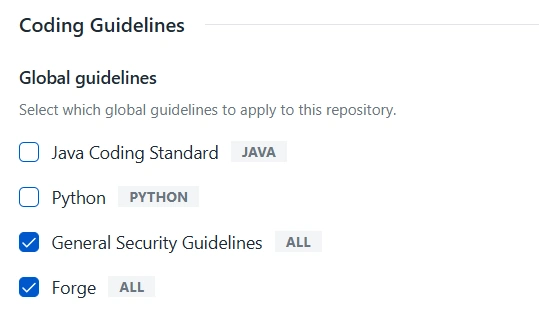
- Coding Guidelines: Under the Global Guidelines section, select which global guidelines should apply to this repository by checking the relevant checkboxes (e.g., General Security Guidelines, Forge). Unselected guidelines will not be applied to this repository's reviews.
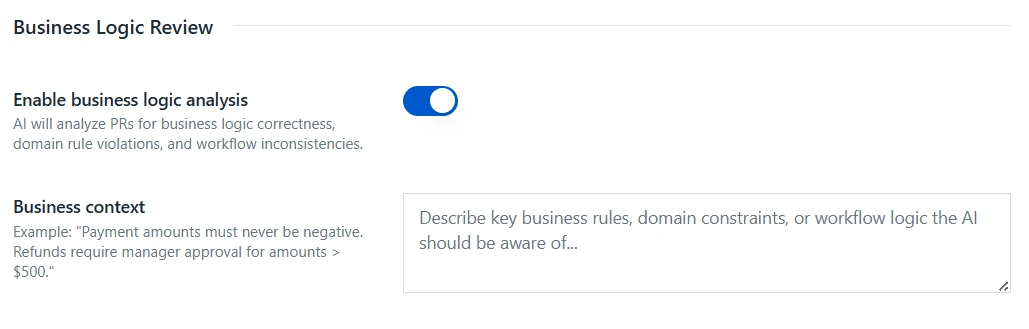
- Business Logic Review: Enable the Enable business logic analysis toggle to allow the AI to analyze pull requests for business logic correctness, domain rule violations, and workflow inconsistencies. In the Business context field, describe the key business rules, domain constraints, or workflow logic the AI should be aware of (e.g., "Payment amounts must never be negative. Refunds require manager approval for amounts > $500.").
- Click Save Changes in the top-right corner to apply the configuration to all subsequent reviews for this repository.
4: Executing a Code Review
Code reviews can be triggered directly from the Pull Request view within Bitbucket.
- Open any active Pull Request in a configured repository.
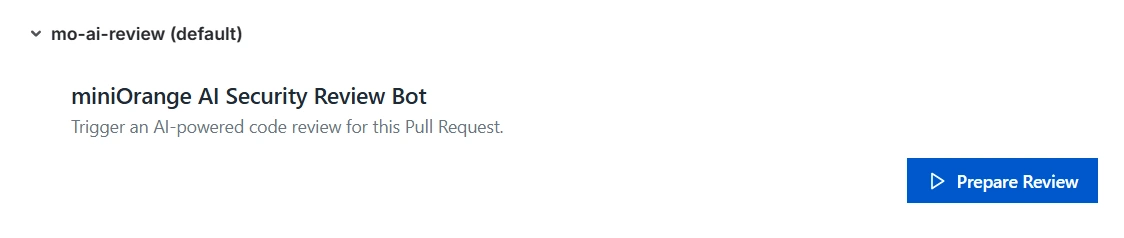
- Locate the miniOrange AI Code Reviewer Panel embedded on the right side of the PR view.
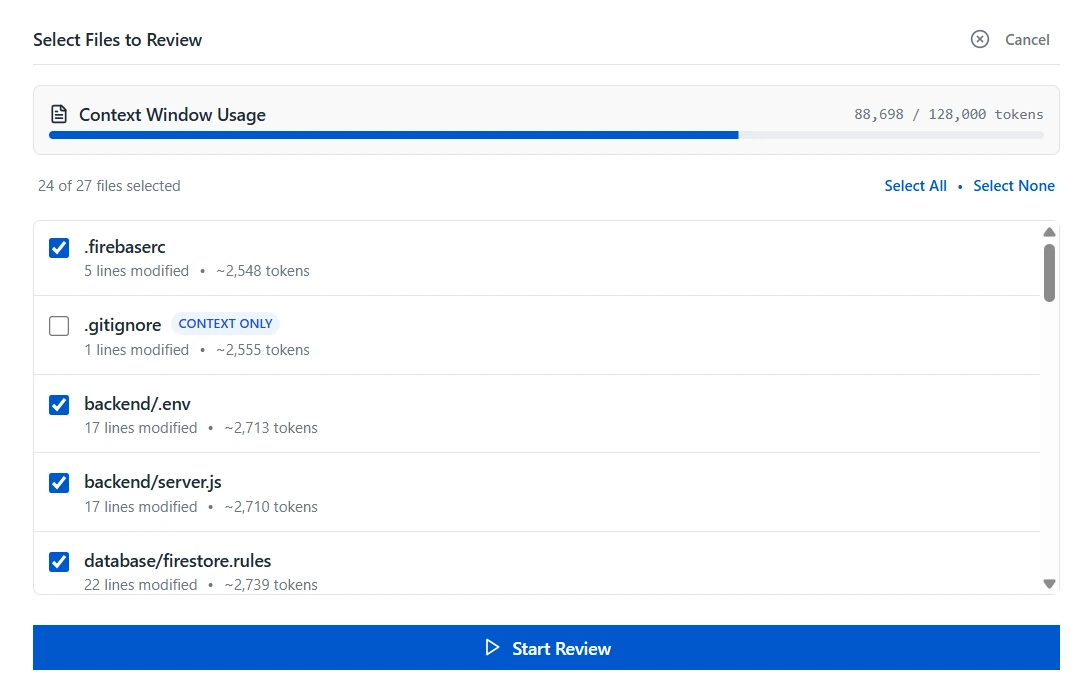
- Click Prepare Review. The system will execute a pre-flight check, analyzing the diff to calculate token size and enumerating the changed files.
- You will be presented with a File Selection Interface. By default, context-heavy or irrelevant files (e.g., package-lock.json, auto-generated files) may be flagged or deselected to optimize context window usage.
- Adjust the file selection as necessary.
- Ensure the token count stays within your model's limits.
- Click Start Review to initiate the analysis.
5: Analyzing Results & Metrics
The AI processes the selected diff in batches to preserve context. Real-time status updates are reflected in the PR Panel during processing.
Inline Comments
- Upon completion, the AI posts actionable, inline feedback directly on the PR view, identical to standard peer reviews.
Dashboard Analytics
- Navigate to the Dashboard to review telemetry aggregated across all repositories.
- The dashboard provides insights into:
- Average review execution time across repositories.
- Total issues identified, categorized by severity, Security, Quality, and Performance.
- AI Health scores, reflecting the model's confidence and context-retention during batch processing.
- Use the time-range filters in the Dashboard to analyze team performance and identify recurring vulnerabilities over custom date ranges.
Best Practices
- Define Clear Guidelines: Ensure your reviewer prompt aligns with your organization's internal standards for consistent, accurate feedback.
- Regularly Review Telemetry: Frequently monitor the Dashboard analytics to maintain an overview of code health, execution times, and AI contextual awareness.
Additional Resources
Did this page help you?