Bring your own device Enrollment
Bring your own device (BYOD) on Android uses a secure managed work profile that keeps work apps, data, and policies separate from personal apps and content, ensuring user privacy while enabling enterprise management.
Prerequisite
Step 1: How to enroll an Android device
- To enroll devices, go to Device Inventory → Devices → Android and click Enroll Android Device.
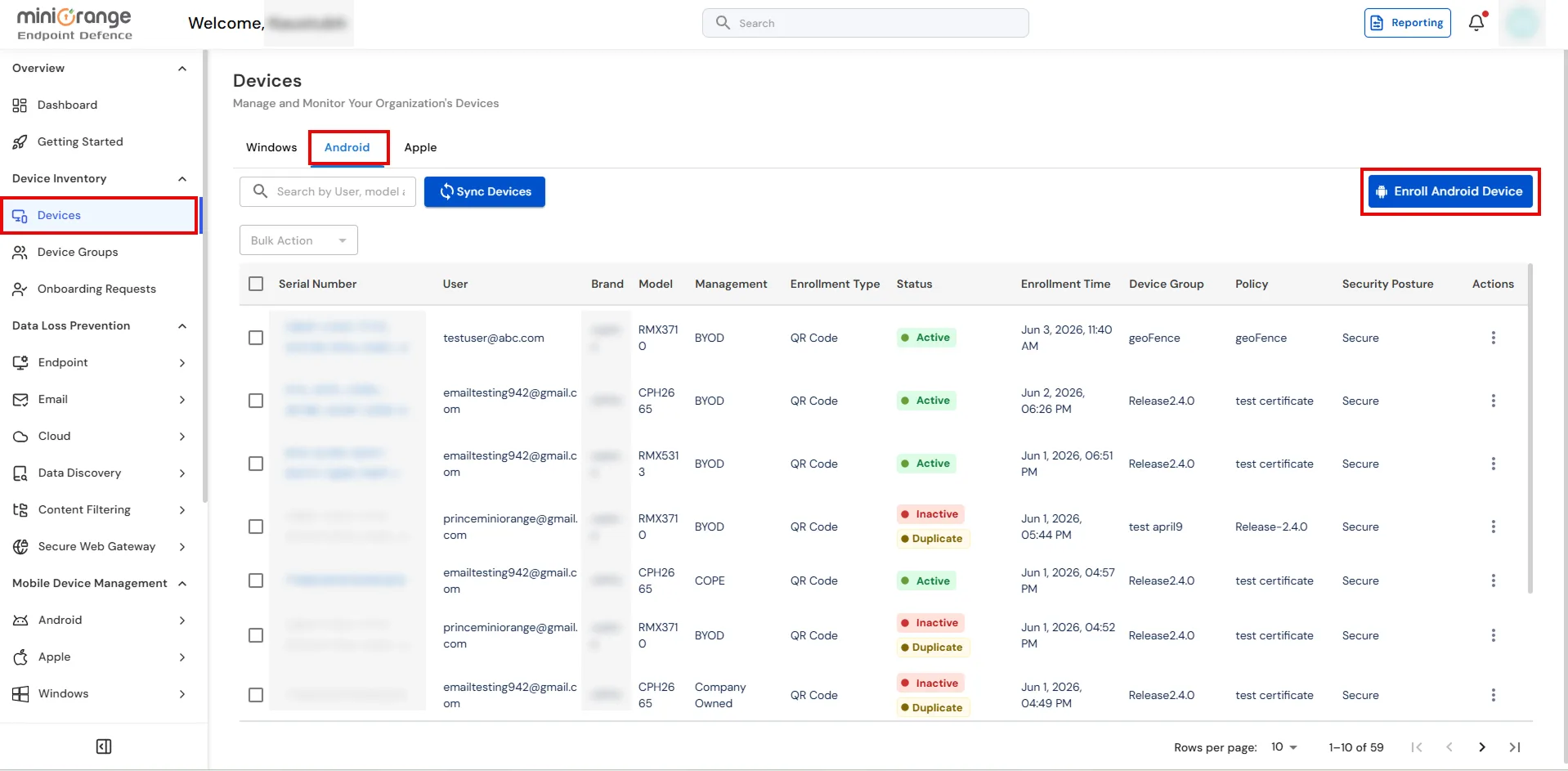
- In the Enroll Android Device panel, configure the following enrollment settings:
- Device Type: Select Personal Device to enroll a BYOD device using a managed work profile, keeping work data separate from personal data.
- Assign to Device Group: Select the device group whose policies, managed Google Play applications, and compliance rules should be assigned after enrollment.
- Admin Device Approval: Enable this option if you want an administrator to approve the device before applying policies.
- Enrollment Token Expiration: Specify how long the enrollment token should remain valid (for example, 20 minutes).
- Click Next to continue.
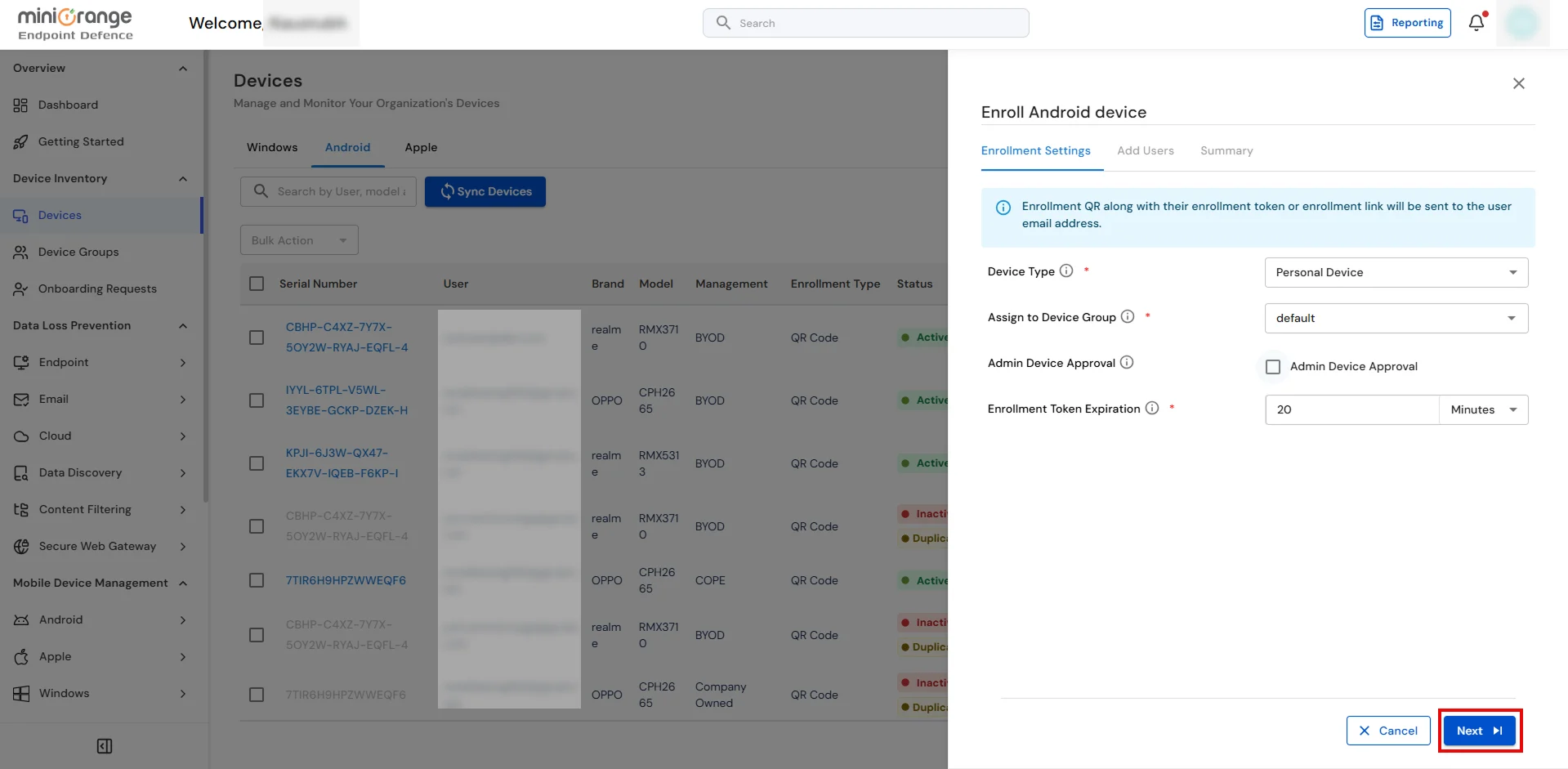
- In the Add Users step, search for and select the user(s) you want to enroll. The selected users will be displayed in the Selected Users panel.
- Click Next to review the enrollment details.
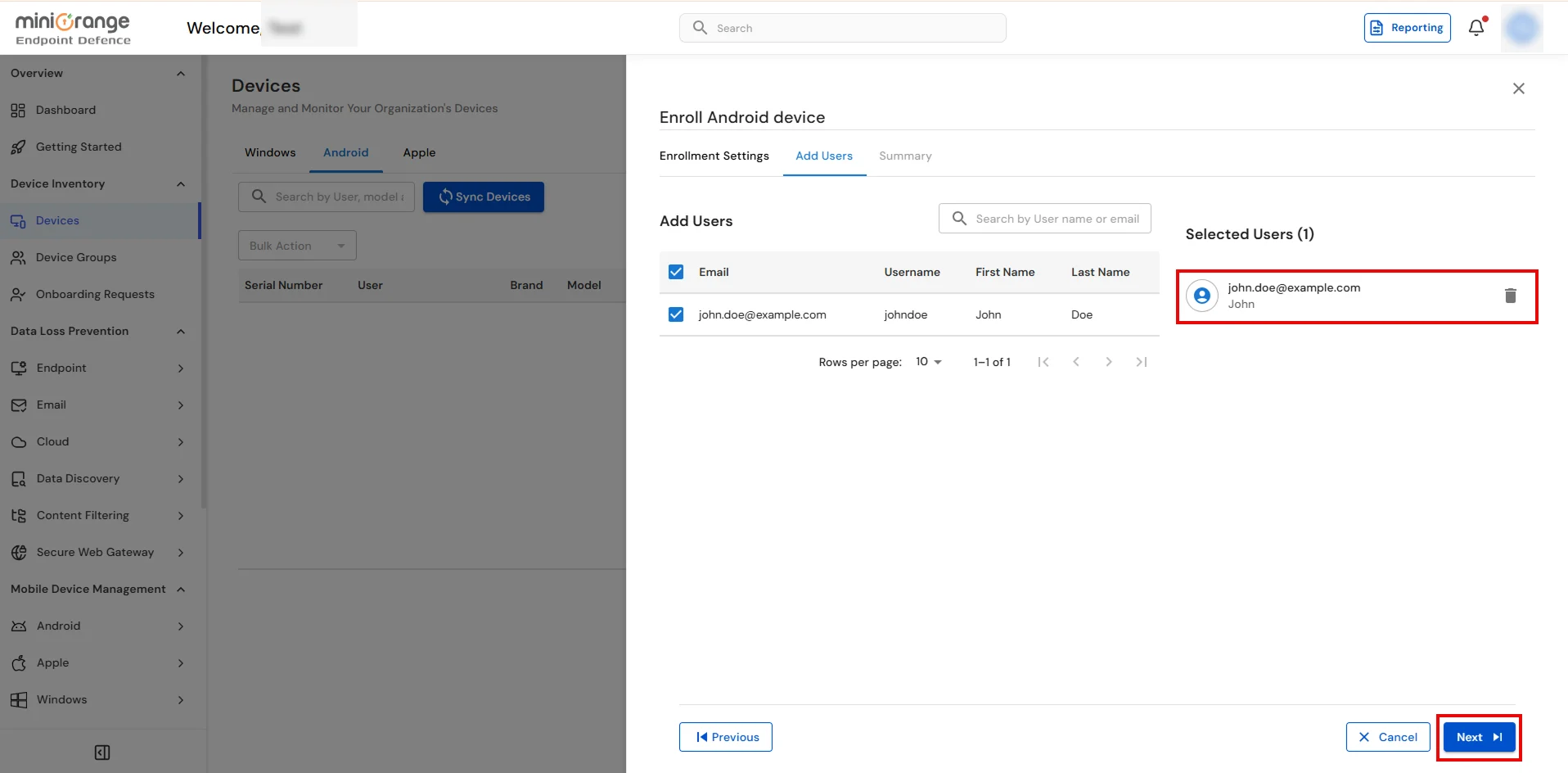
- Review the enrollment summary, verify the selected device settings and user details, then choose one of the following enrollment methods:
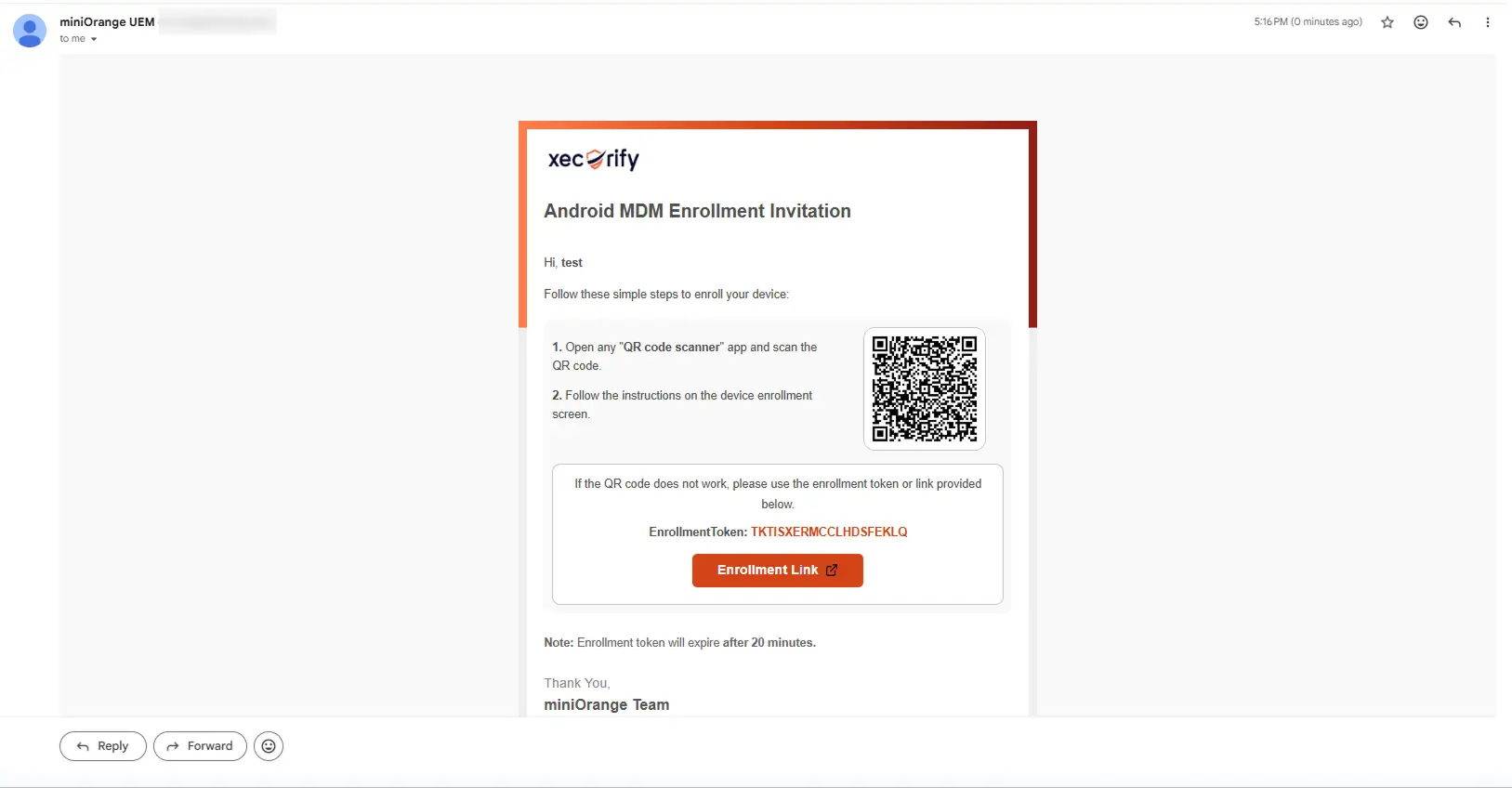
- Send Email – Sends an enrollment email containing a QR code, enrollment token, and enrollment link to the selected user.
- Show Here – Displays the QR code and enrollment details on the screen, allowing the administrator to complete the enrollment directly.
- Click the Submit button to generate the enrollment invitation.
- If Send Email is selected, the user will receive an enrollment email containing the QR code, enrollment token, and enrollment link in the following format.
Step 2: Enroll the Mobile Device
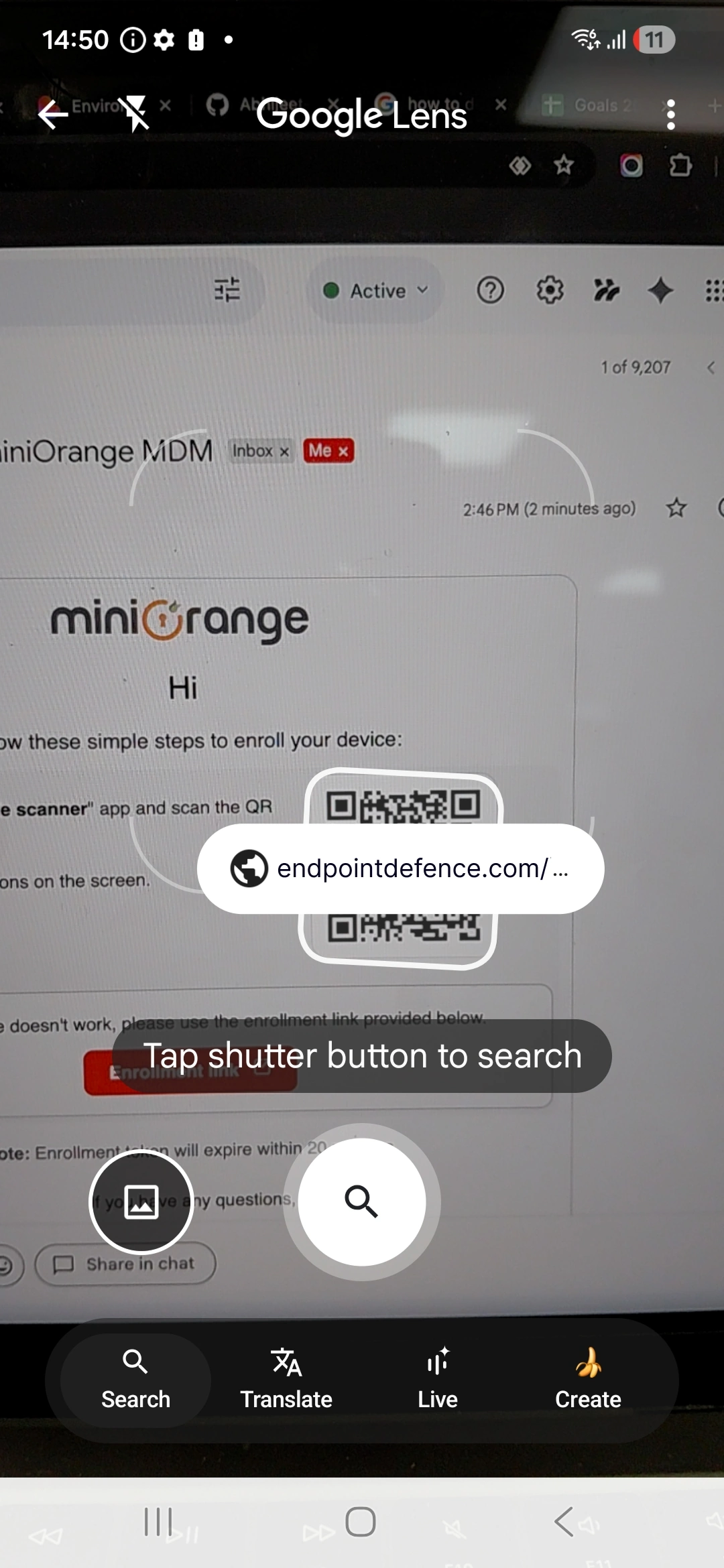
- On your mobile device, open any QR code scanner app and scan the QR code. After scanning, tap the link that appears to proceed. (If the QR code does not work, use the “Enrollment link” provided in the email.)
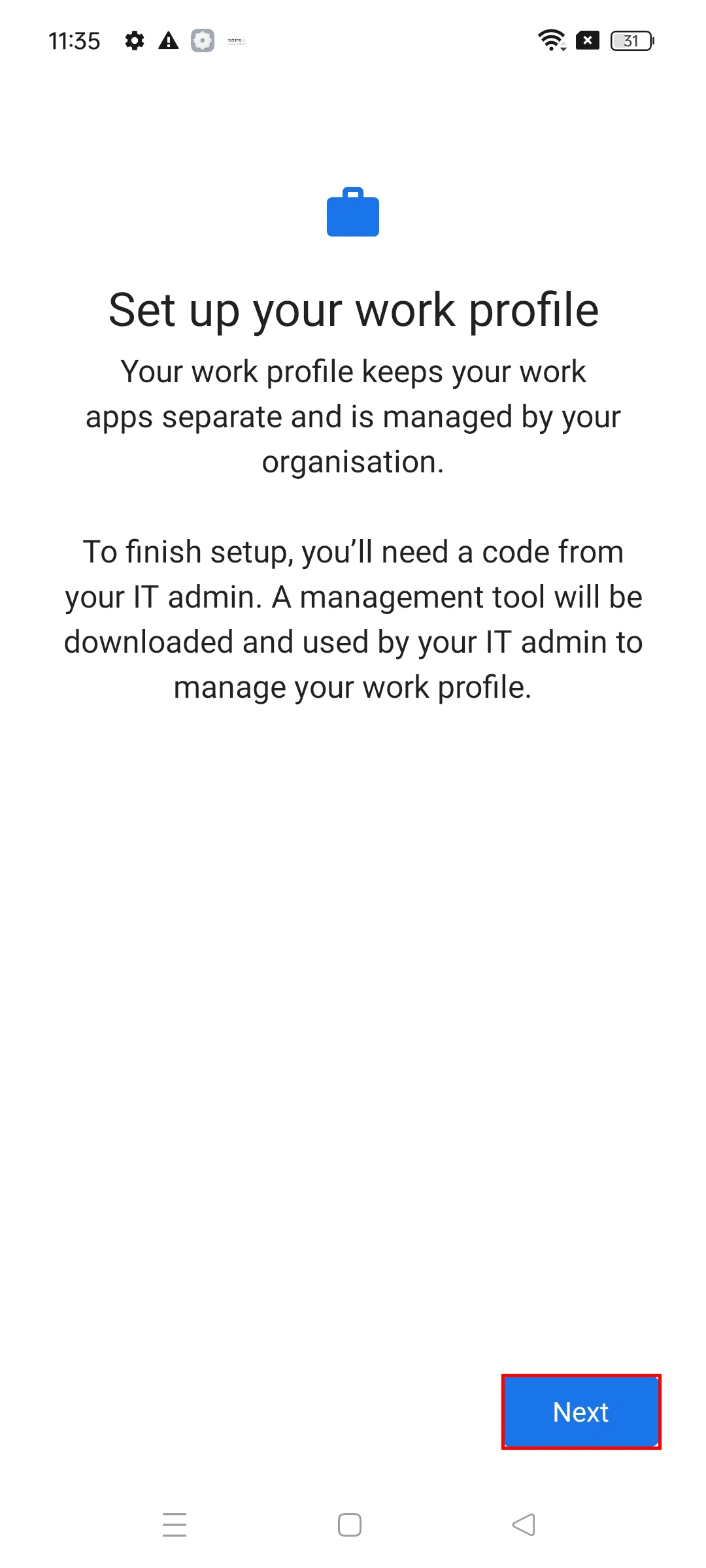
- You will see the screen below. Click Next to continue.
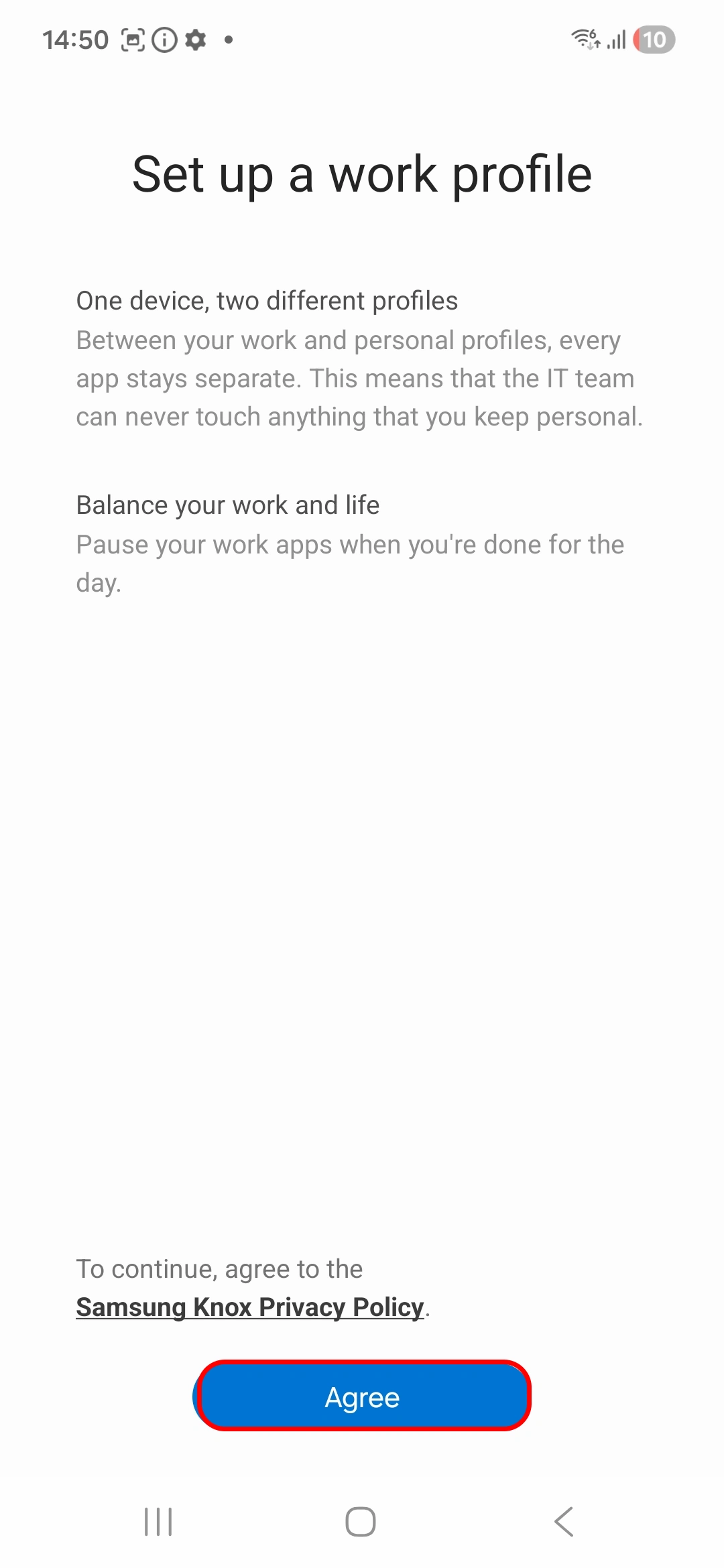
- Click on Agree.
- Click on Accept and continue after scanning the QR code.
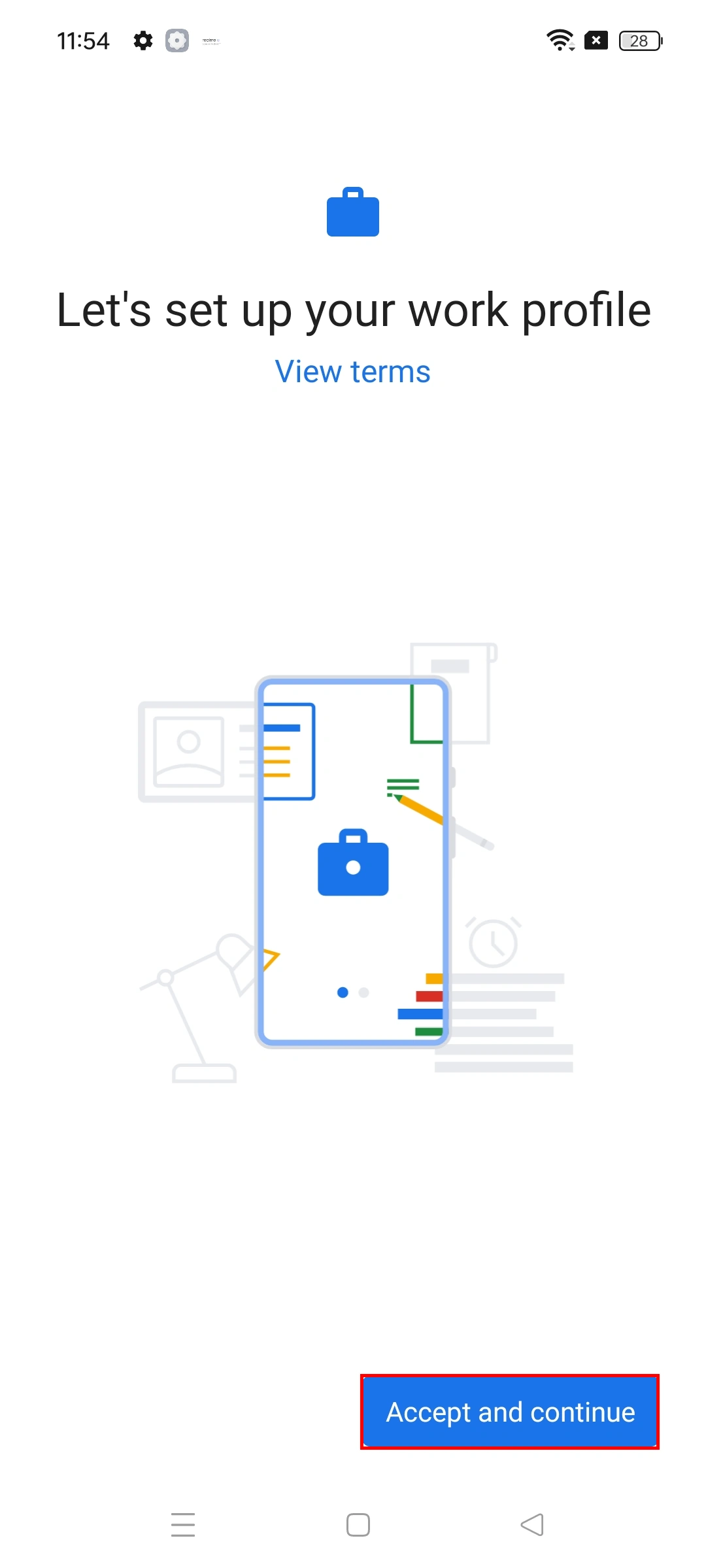
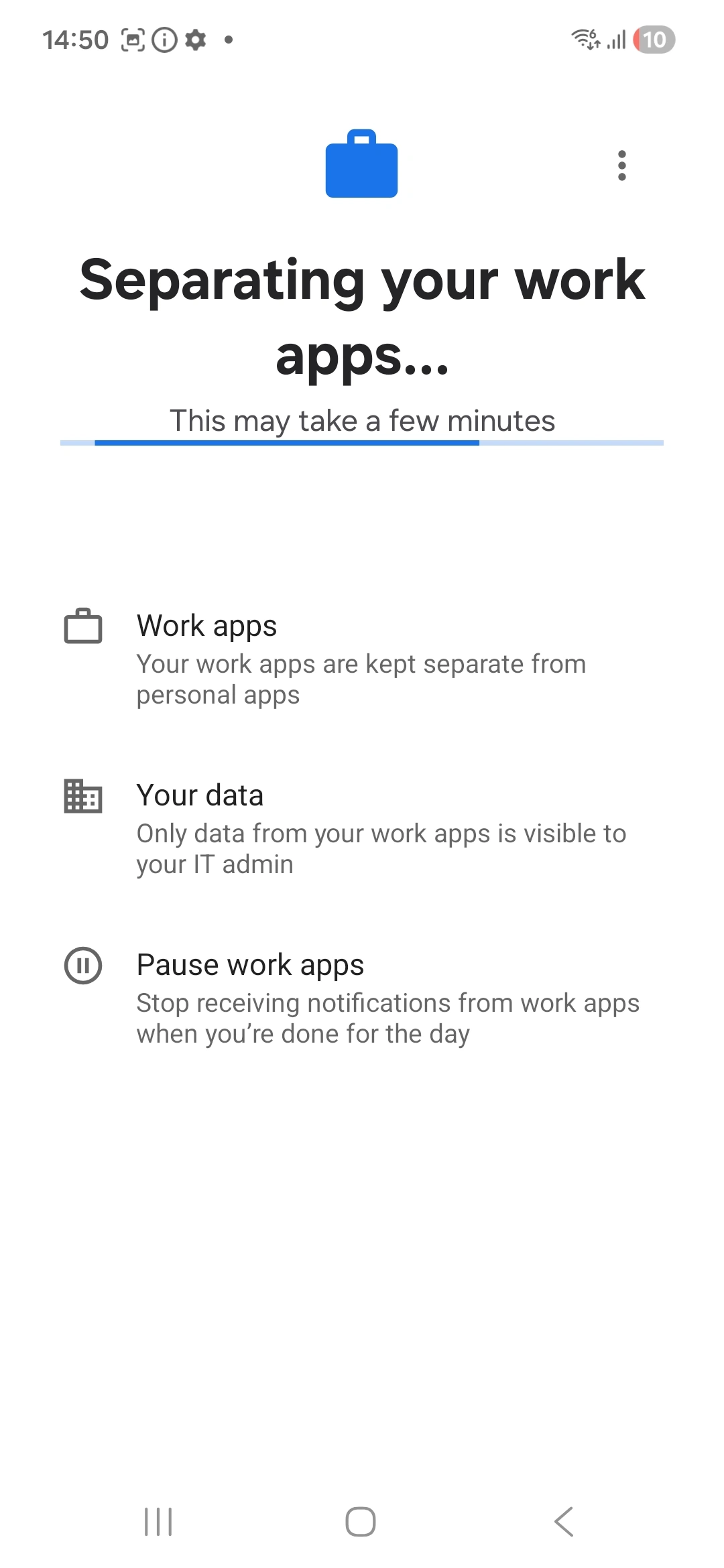
- Once accepted, a work profile will be created on your device, and your work apps will begin installing within the work profile. This process may take a few minutes.
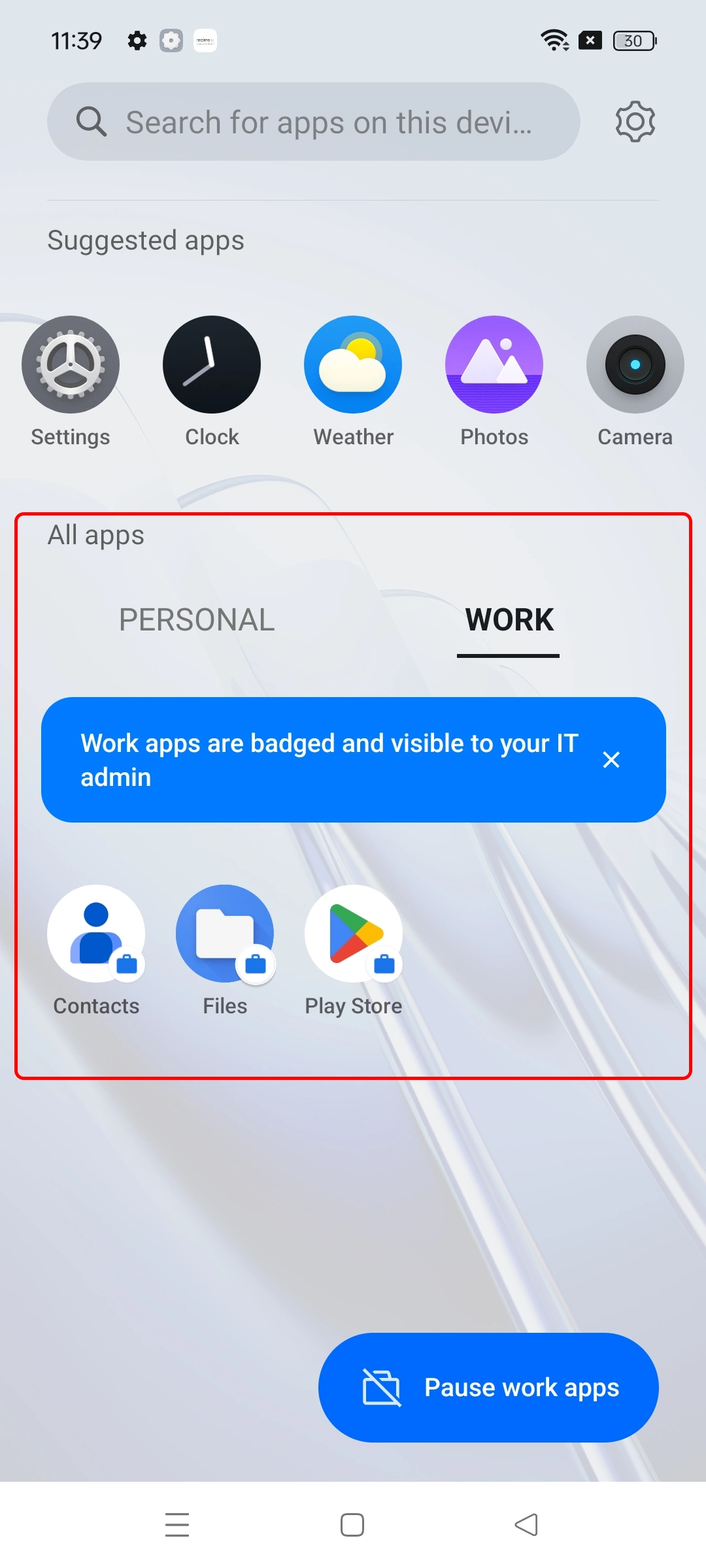
- You will now see a separate work container on your device for your work apps and data.
- Your Android device has been successfully configured with the MDM solution.
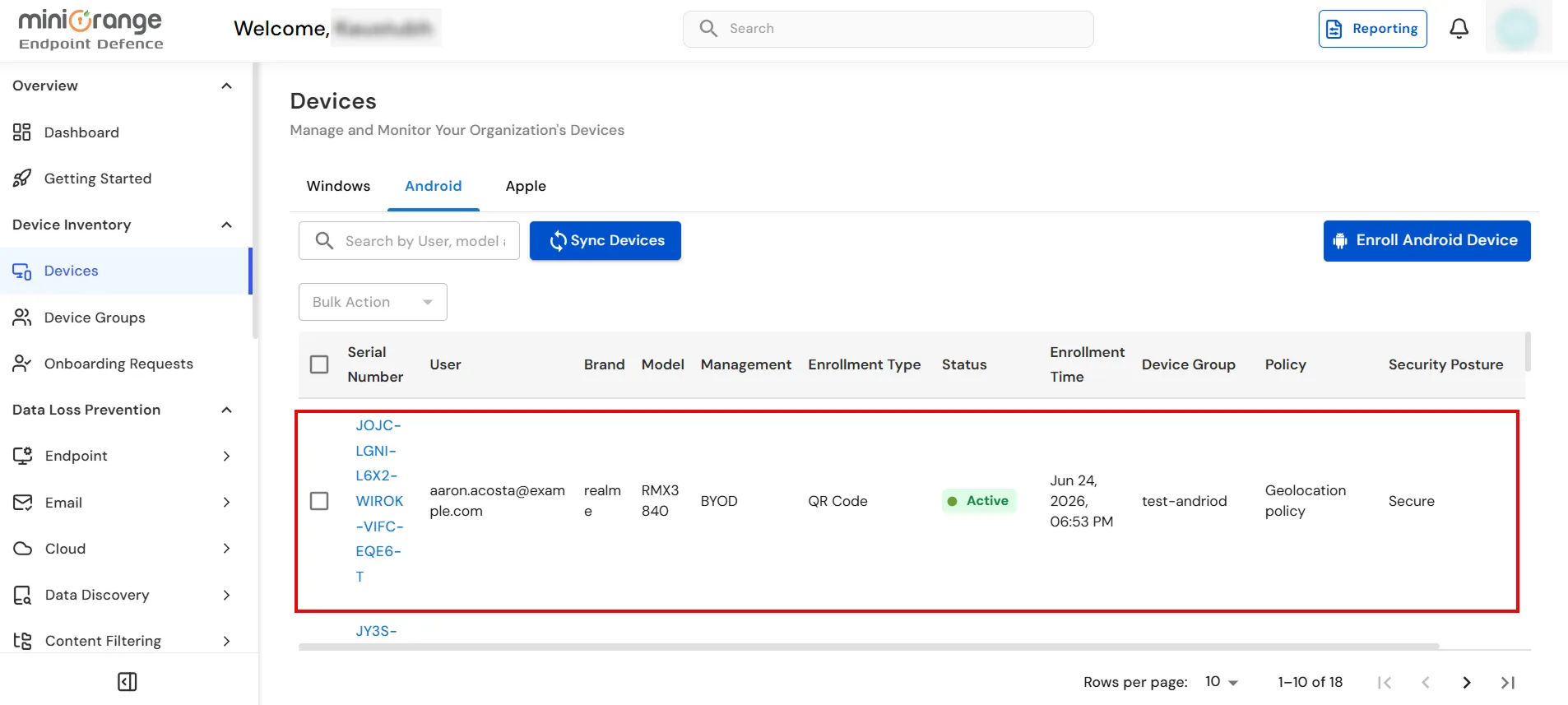
- Go to the Admin Dashboard to view the enrolled device details. If the device does not appear automatically, click Sync Devices to refresh the list.
For corporate-owned deployments (including zero-touch), see Company owned device enrollment. For corporately owned personally enabled (COPE) devices, see COPE.

