Apple Business Manager (ABM)
This document defines how to integrate Apple Business Manager (ABM) with miniOrange UEM to enable
- Automated Device Enrollment (ADE / DEP) — assigned devices enroll through Apple’s program flow at activation.
- Centralized assignment — iPhone, iPad, Mac, and Apple TV to your MDM server from ABM.
- Zero-touch provisioning — users connect to the network; the device pulls enrollment without IT installing a profile by hand.
Prerequisites
1. APNs certificate
Configure APNs before you finish ABM linking. APNs is how the MDM talks to devices; ABM only tells Apple which MDM server a device should use.
- APNs: push channel for commands, queries, and policy updates.
- ABM : where enrollment assignment and the MDM server record live.
2. Apple Business Manager access
- Sign in with an account that can manage MDM linkage typically Administrator or Device Enrollment Manager (or your org’s equivalent).
Step-by-step configuration
Work in the UEM dashboard first, then in Apple Business Manager, then return to UEM to upload the server token.
- Sign in to the miniOrange Unified Endpoint Management (UEM) dashboard.
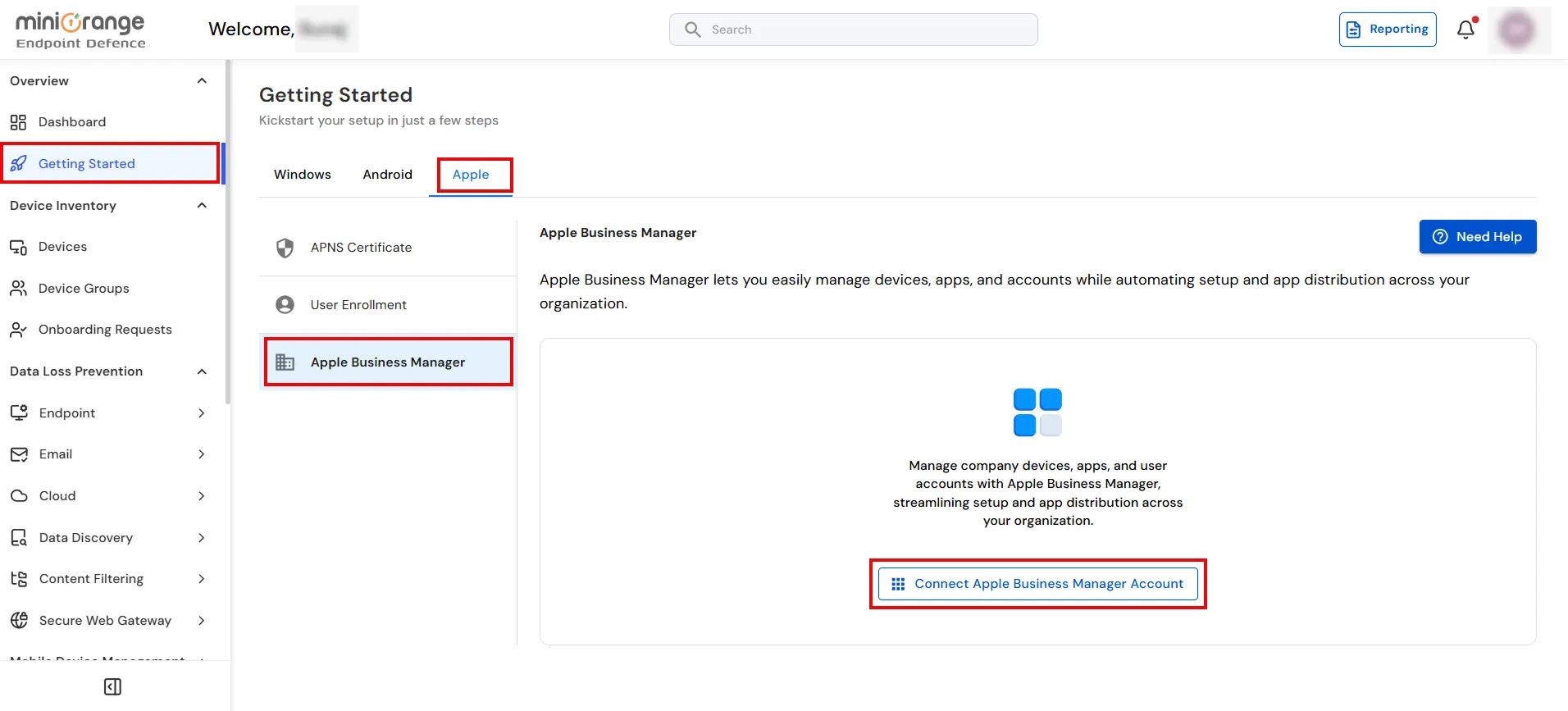
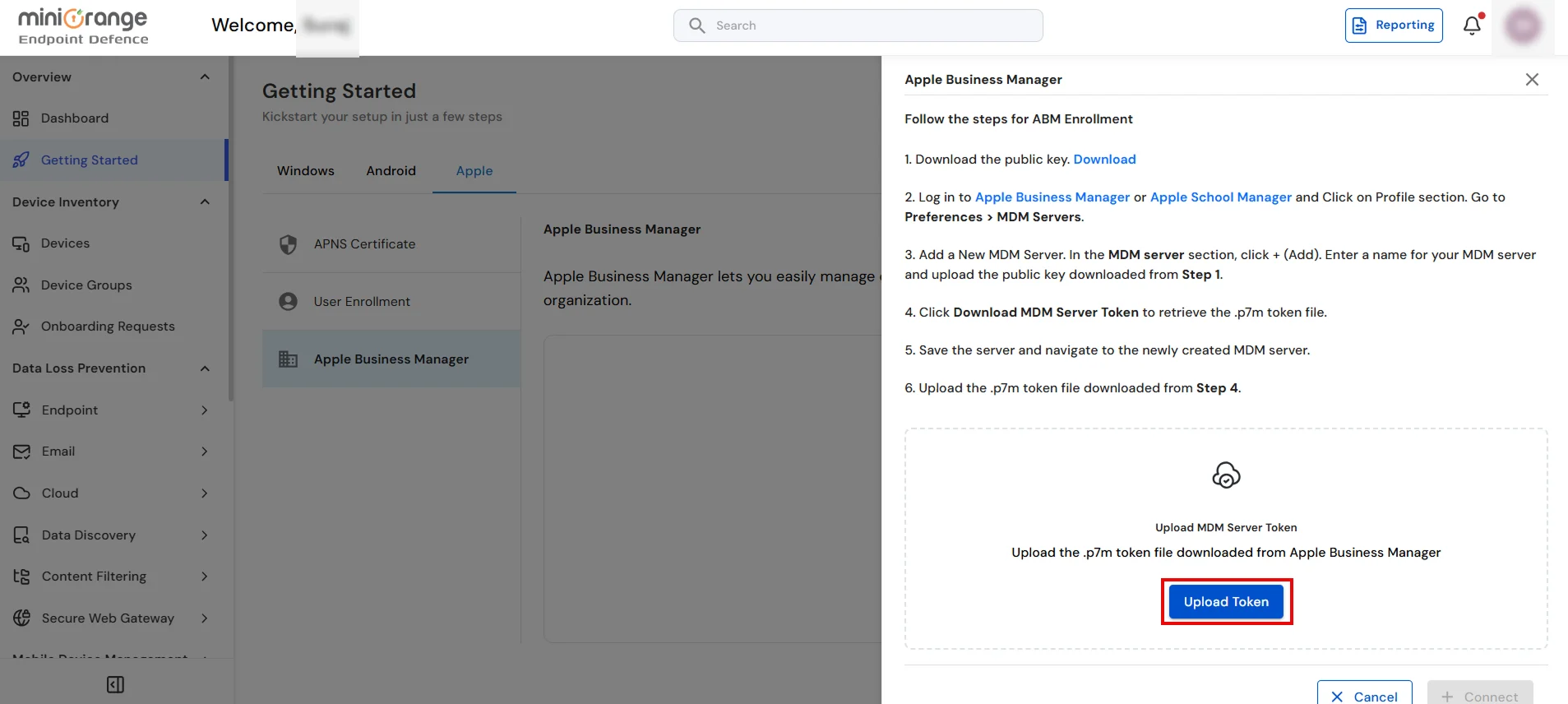
- Go to Getting Started → Apple → Apple Business Manager and click Connect Apple Business Manager Account.
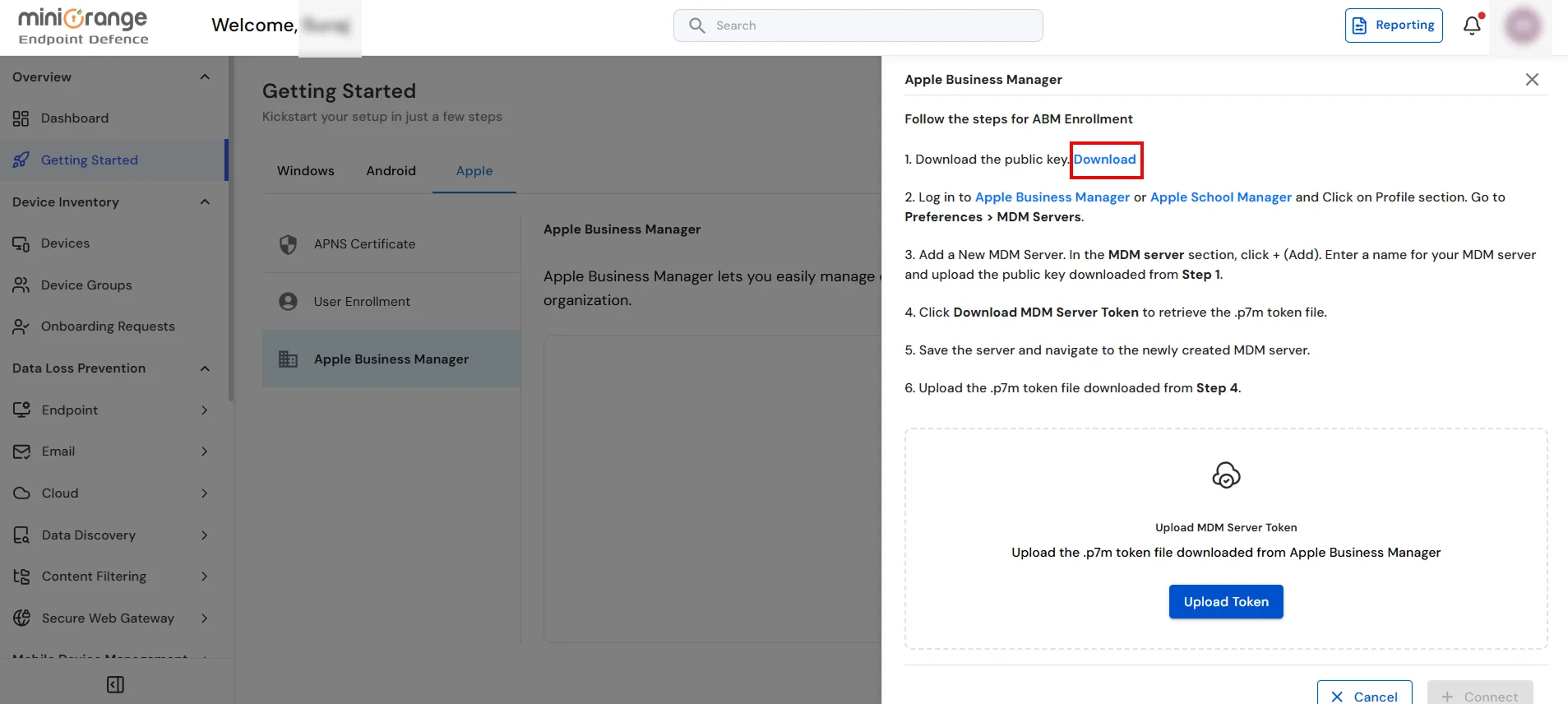
- Click Download Public Key and keep the file safe. Apple uses this public key to trust your MDM server.
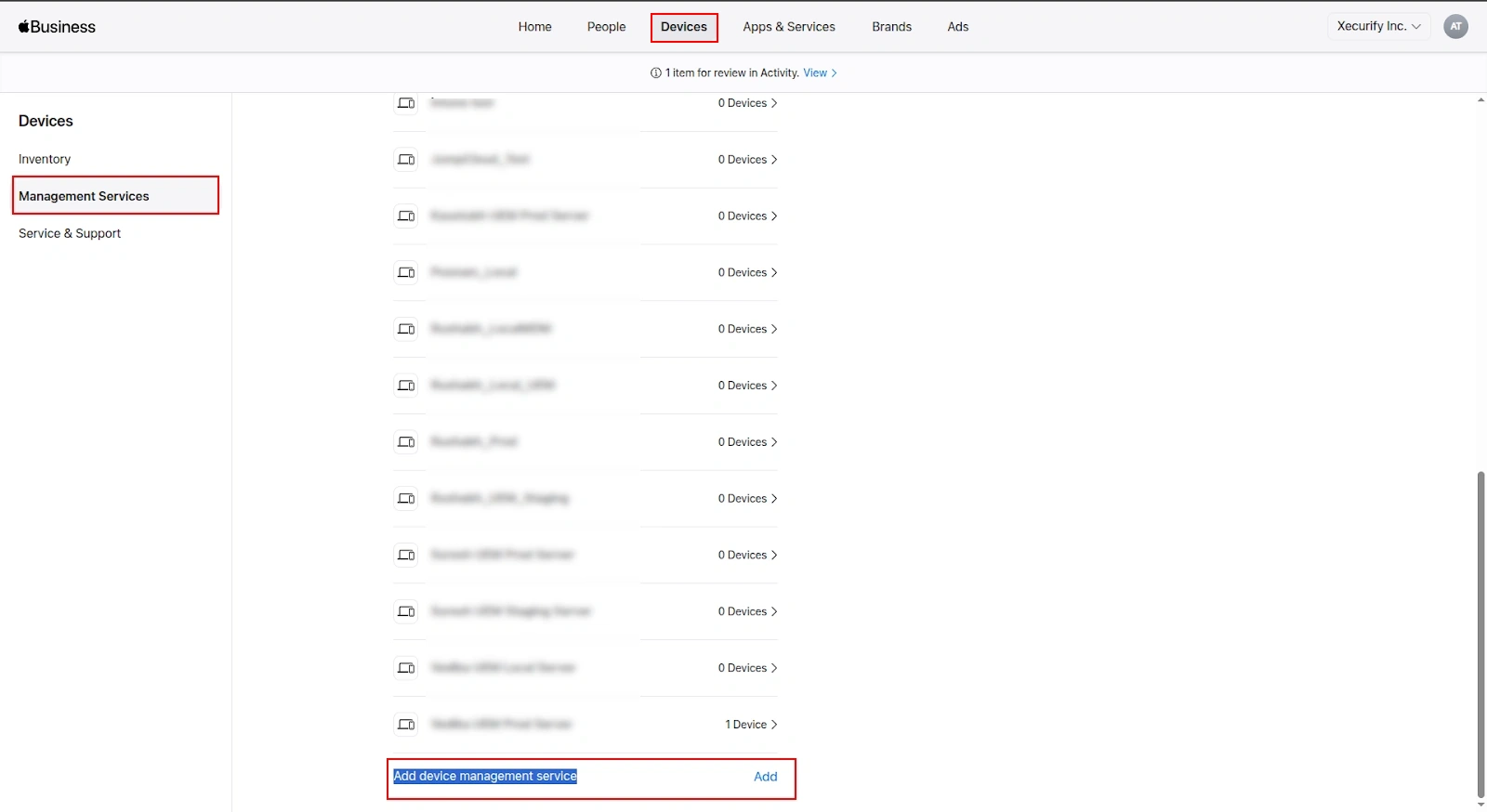
- In a separate browser tab, sign in to Apple Business Manager and navigate to Devices → Management Services.
- Click Add device management service (or Add MDM Server) at the bottom of the list.
- Select add your external device management service when prompted. Enter a Service name (e.g., miniOrange UEM Prod) and upload the Public Key you downloaded from UEM.
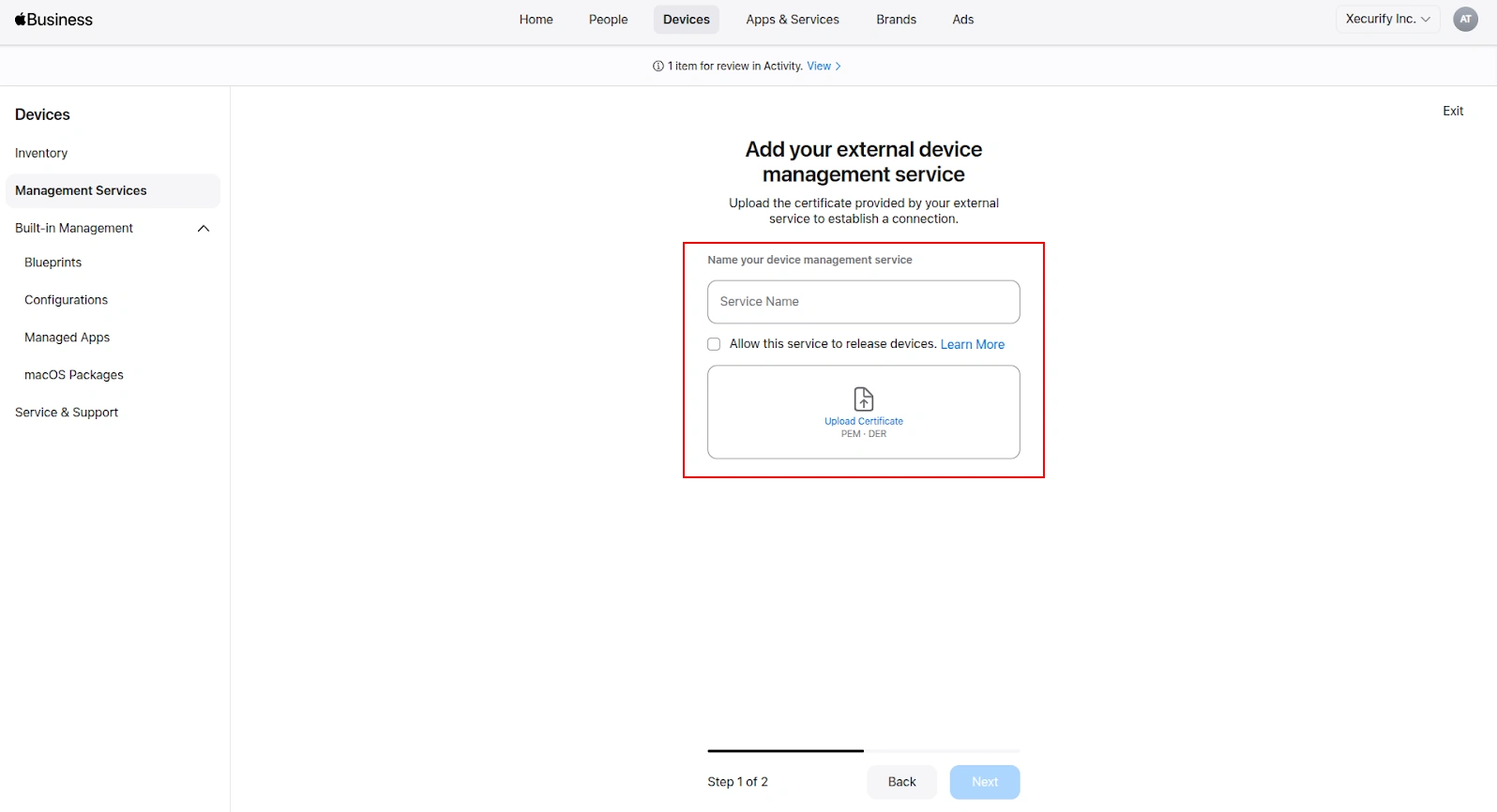
- In Apple’s wizard, click Next, then Download Service Token. Save the .p7m file provided by Apple.
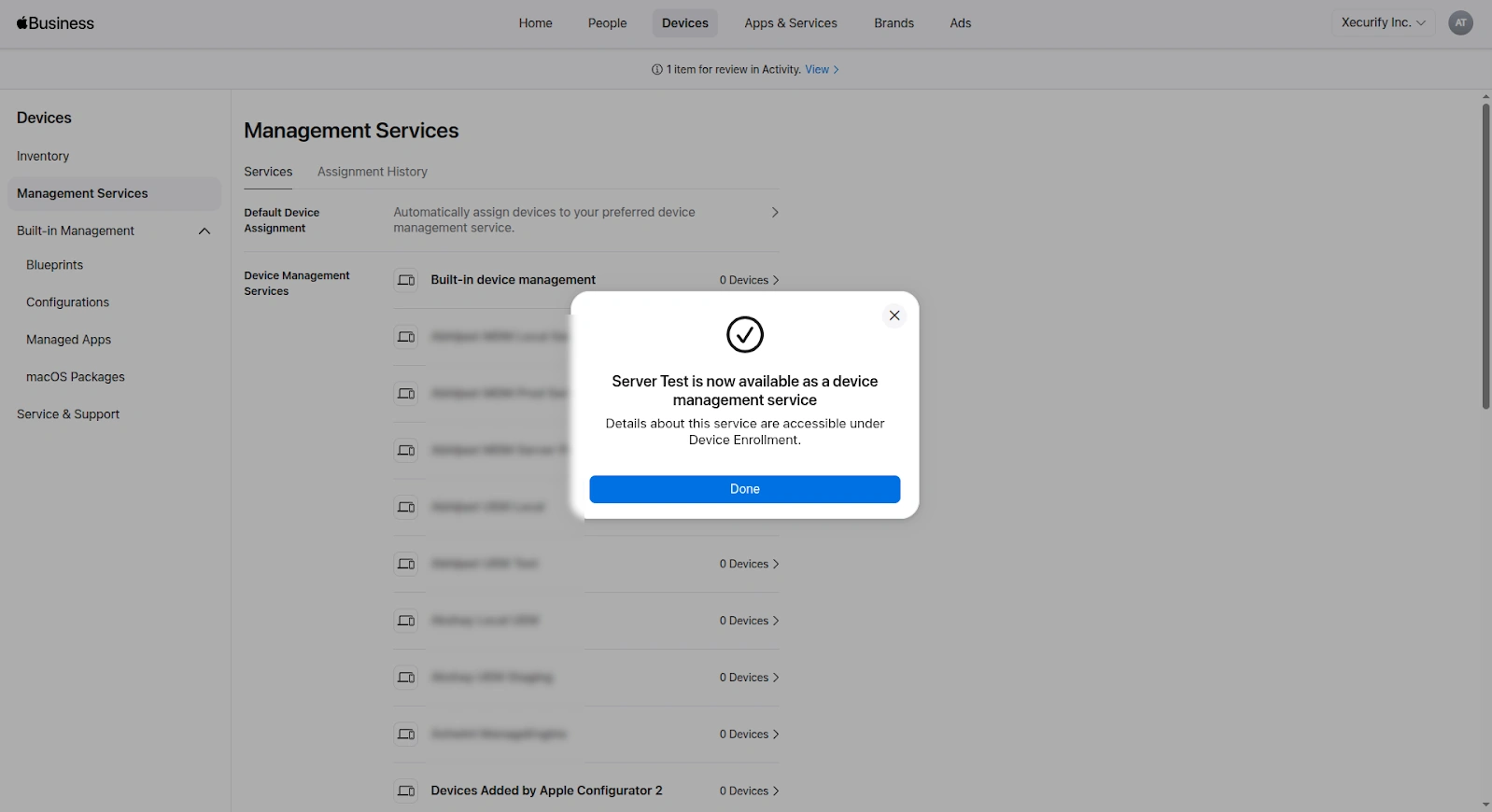
- Return to the UEM dashboard, upload the .p7m file, and click Save to complete the setup.
- Finally, in ABM, assign your devices to this new MDM server to begin management.

