Hello there!

Need Help? We are right here!

miniOrange Support Chat - Get Help and Support
miniOrange Email Support
Success Checkmark - Form Submitted Successfully

Thanks for your Enquiry.

If you don't hear from us within 24 hours, please feel free to send a follow-up email to uemsupport@xecurify.com

Search Results:

×

Bulk Device Enrollment


Bulk device enrollment enables you to invite or provision multiple Android users or devices in a single workflow, eliminating the need to submit enrollment requests individually.
Prerequisite


Steps to Enroll Android Devices in Bulk

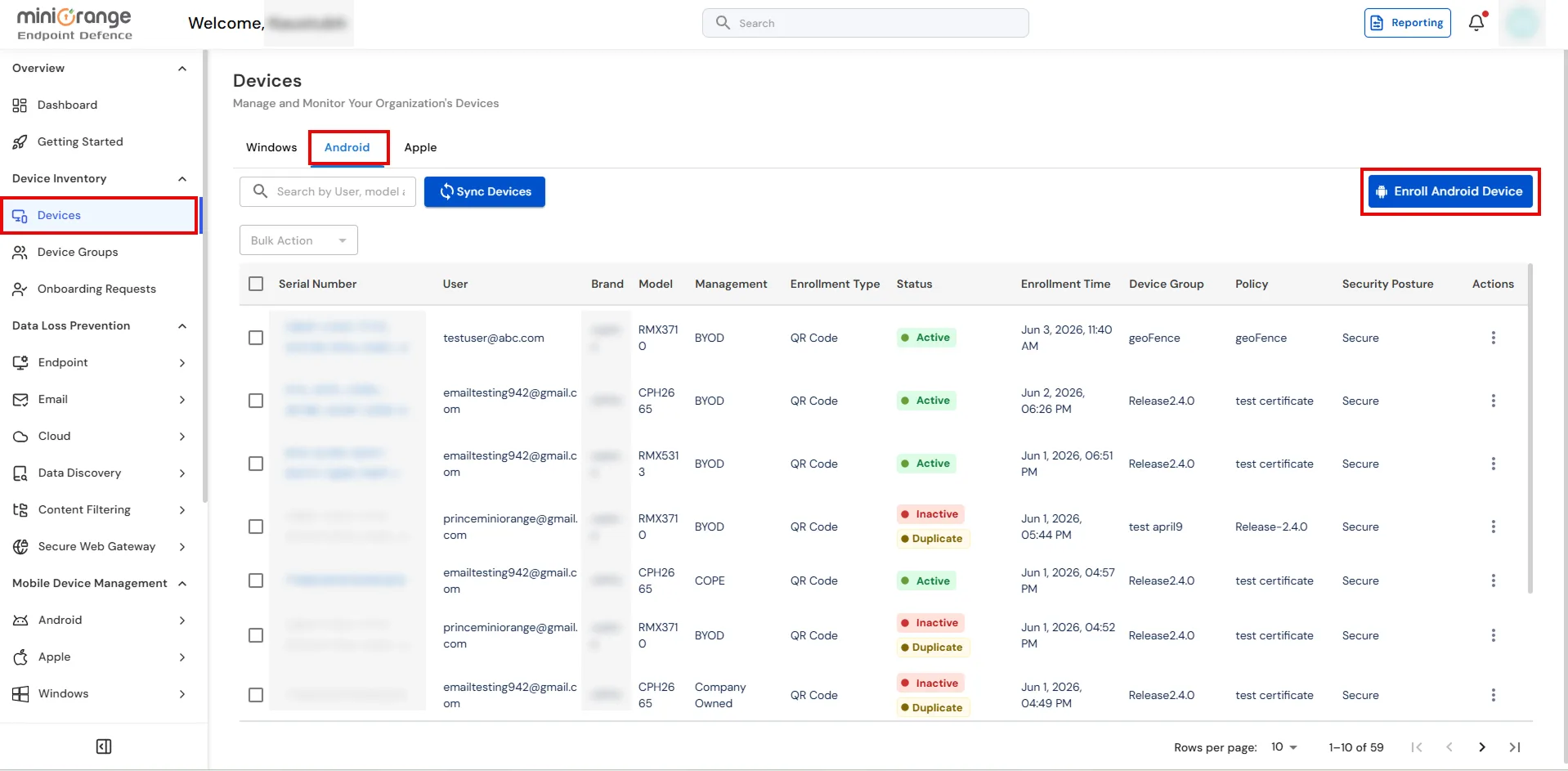
  • Go to Manage Devices → Devices → Android and click Bulk Device Enrollment.
  • miniOrange UEM Android devices list showing Bulk Device Enrollment option

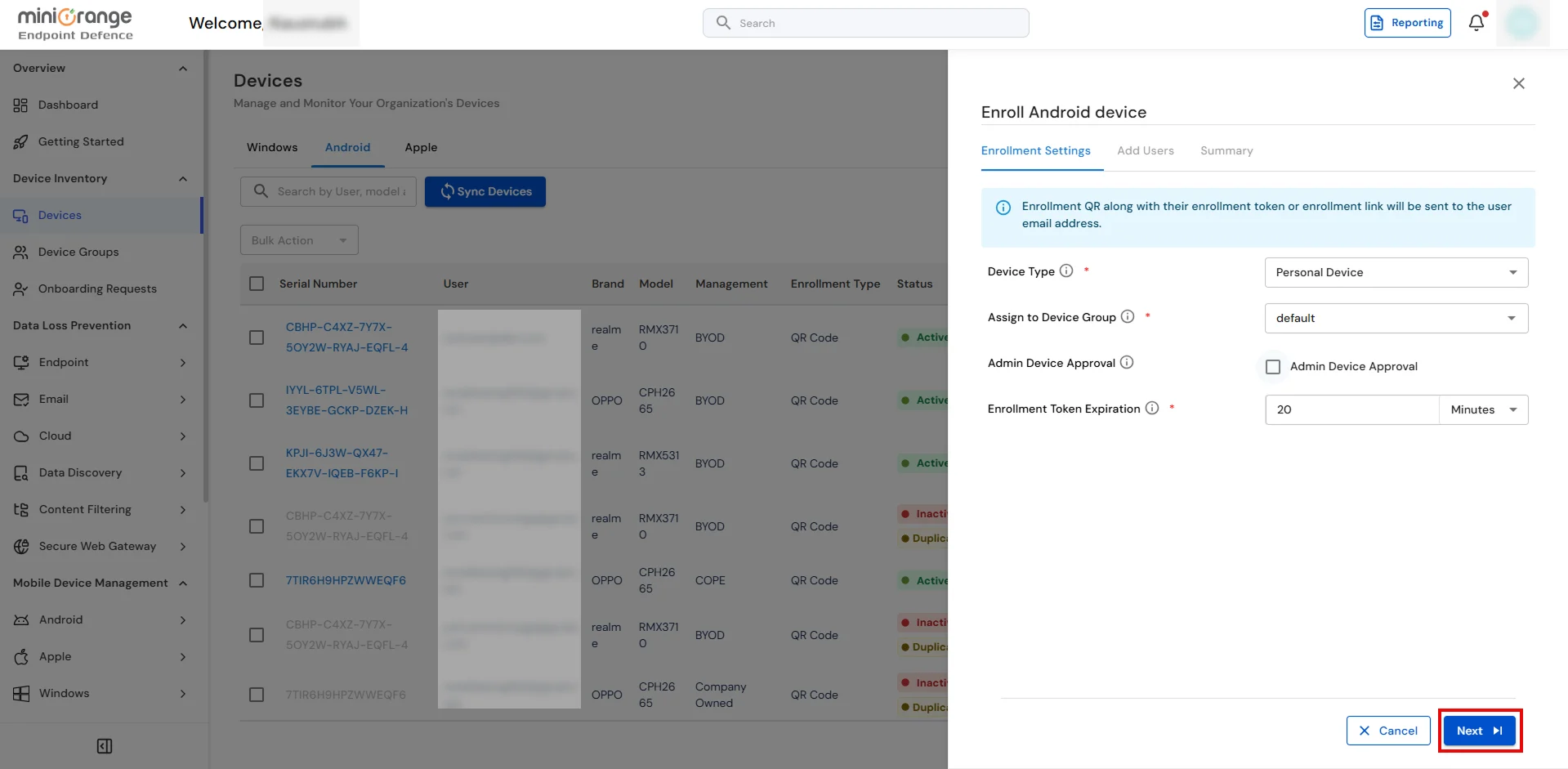
  • In Enrollment Settings, configure the following details:
    • Device Type: Choose whether the device is Personally Owned, Company Owned, or Company Owned with Personal Usage Allowed (COPE).
    • Assign Group: Assign the devices to a group for policy and access management.
    • Admin Device Approval: Enable the checkbox if the admin should approve the device and assign the actual policy after approval.
    • Enrollment Token Expiration: Select the expiration duration for the enrollment token.
  • Configure bulk enrollment settings for Android devices in miniOrange UEM

  • Once the configuration is completed, click Next.
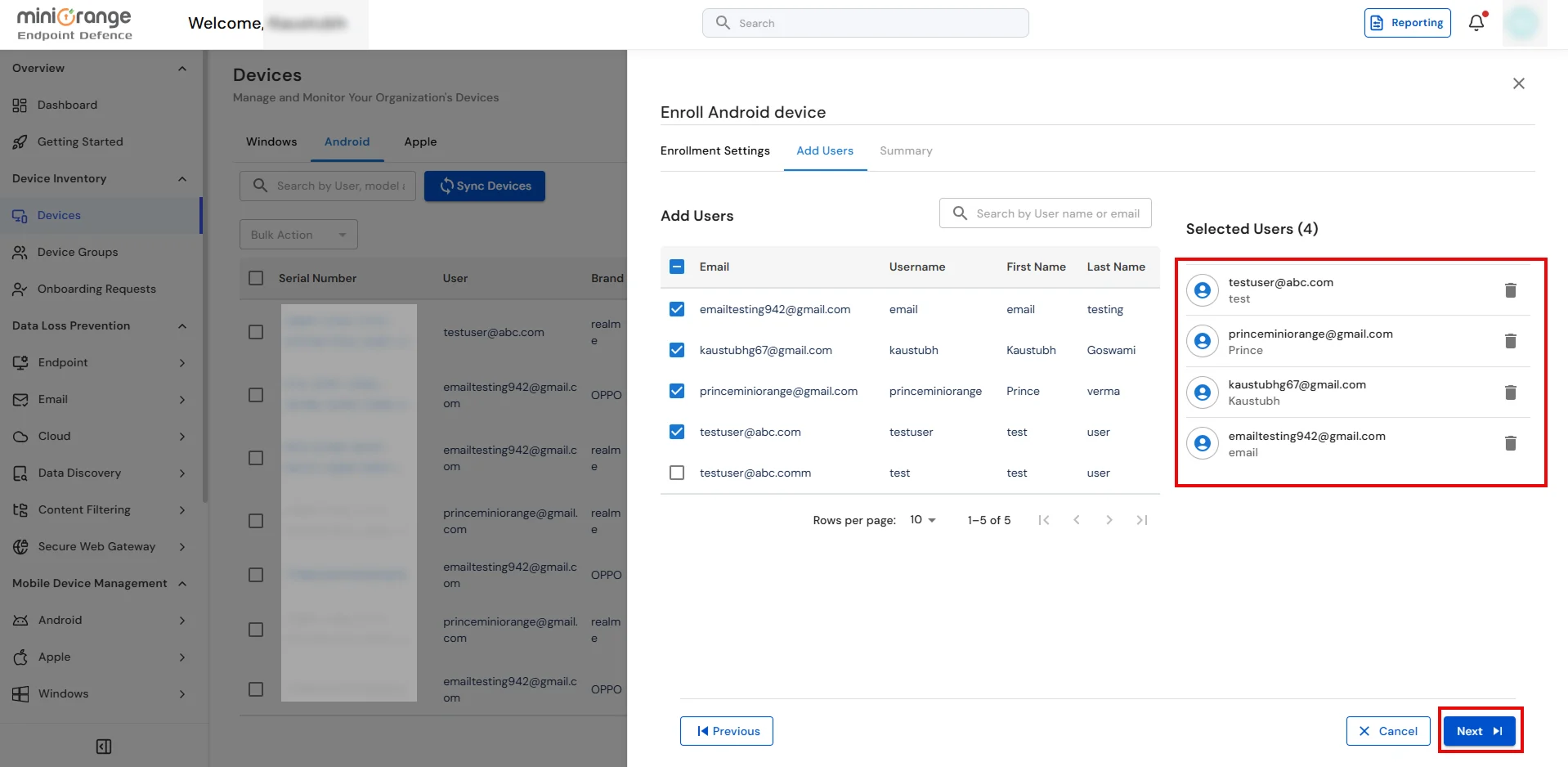
  • Select the users to whom you want to send the enrollment email.
  • Select users for Android bulk device enrollment in miniOrange UEM

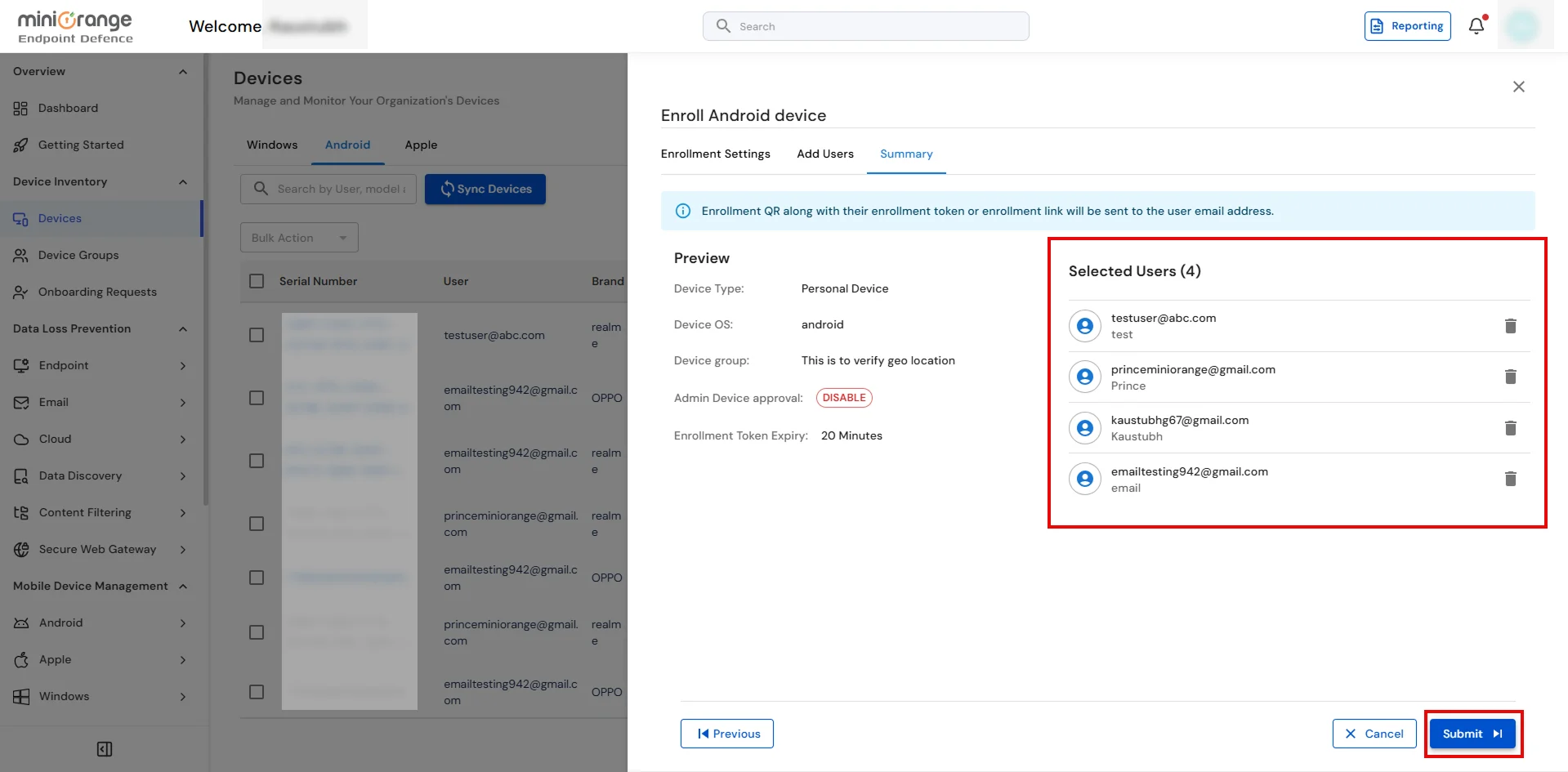
  • A summary page will appear displaying all the bulk enrollment details.
  • Bulk device enrollment summary page in miniOrange UEM

  • Click the Submit button to complete the bulk enrollment process.
  • After submission, the enrollment email will be sent to the selected users on their registered email addresses.