Android Zero-Touch Enrollment
Android zero-touch enrollment is for corporate-owned devices: on first setup, when the device can reach the internet, it can enroll into miniOrange UEM automatically if your Google Zero-Touch configuration points to this MDM. Complete Android Enterprise registration for your tenant before you link a Zero-Touch customer account.
What you are setting up
- A link between your Zero-Touch Customer Account and the miniOrange UEM dashboard.
- An enrollment token (validity window + target device group) for new or factory-reset devices.
- A configuration profile in the Zero-Touch portal so devices enroll into miniOrange automatically.
Prerequisites (summary)
- Devices: Android 9.0+, Zero-Touch capable (confirm with your Google-validated reseller).
- Google account used to link Zero-Touch must have Owner or Admin rights in the portal.
- Devices need Wi-Fi or cellular data during first-boot setup.
1. How to Link Your Zero Touch Account with miniOrange MDM
Before linking, ensure Android Enterprise registration is complete and you have a Google account with Owner rights from your reseller.
- Sign in to the miniOrange Unified Endpoint Management (UEM) dashboard.
- In the left sidebar, open Getting Started.
- Under Base Configuration, select the Android tab.
- Open Enterprise Registrations and confirm Android Enterprise is registered (your console may also show zero-touch readiness on the same screen).
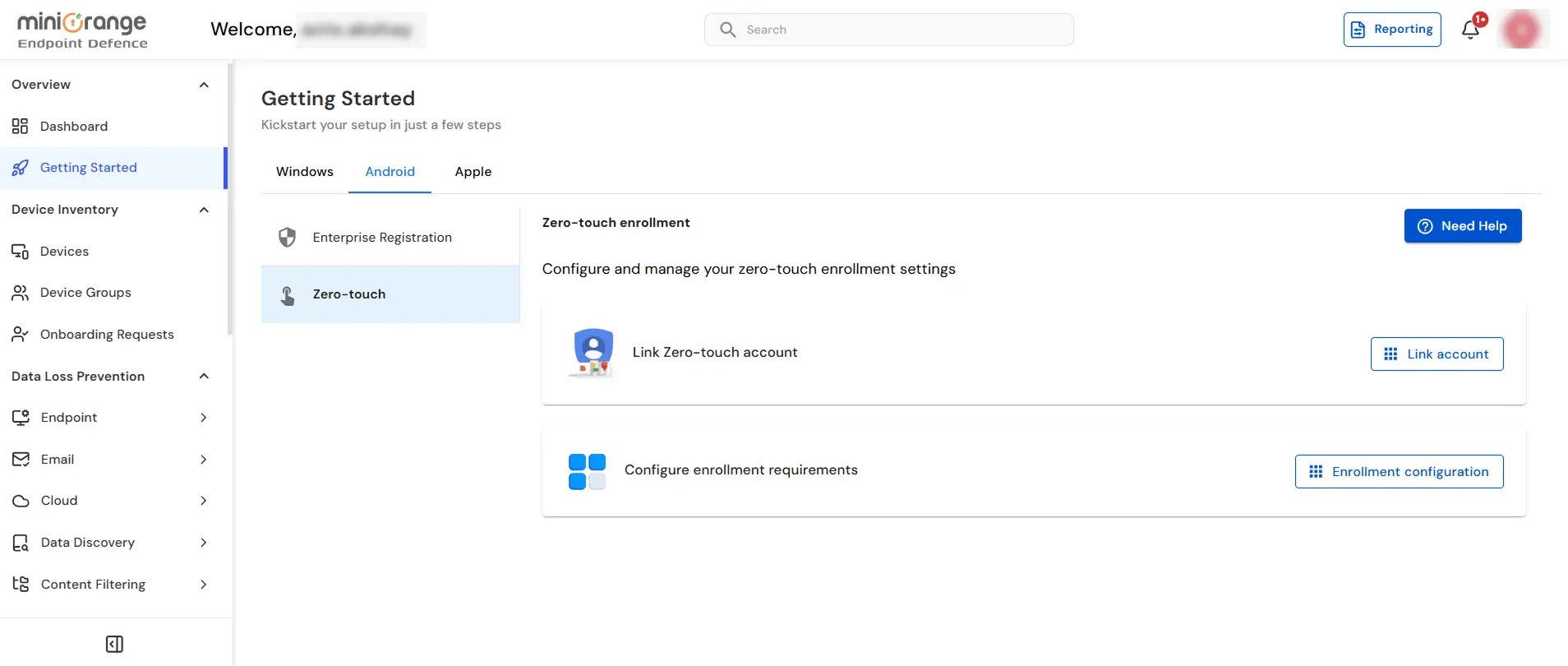
- Stay under Getting Started → Android (or your dashboard’s equivalent path to Android base configuration).
- Open the Zero-Touch tab.
- In Link Zero-Touch Account, click Link Account.
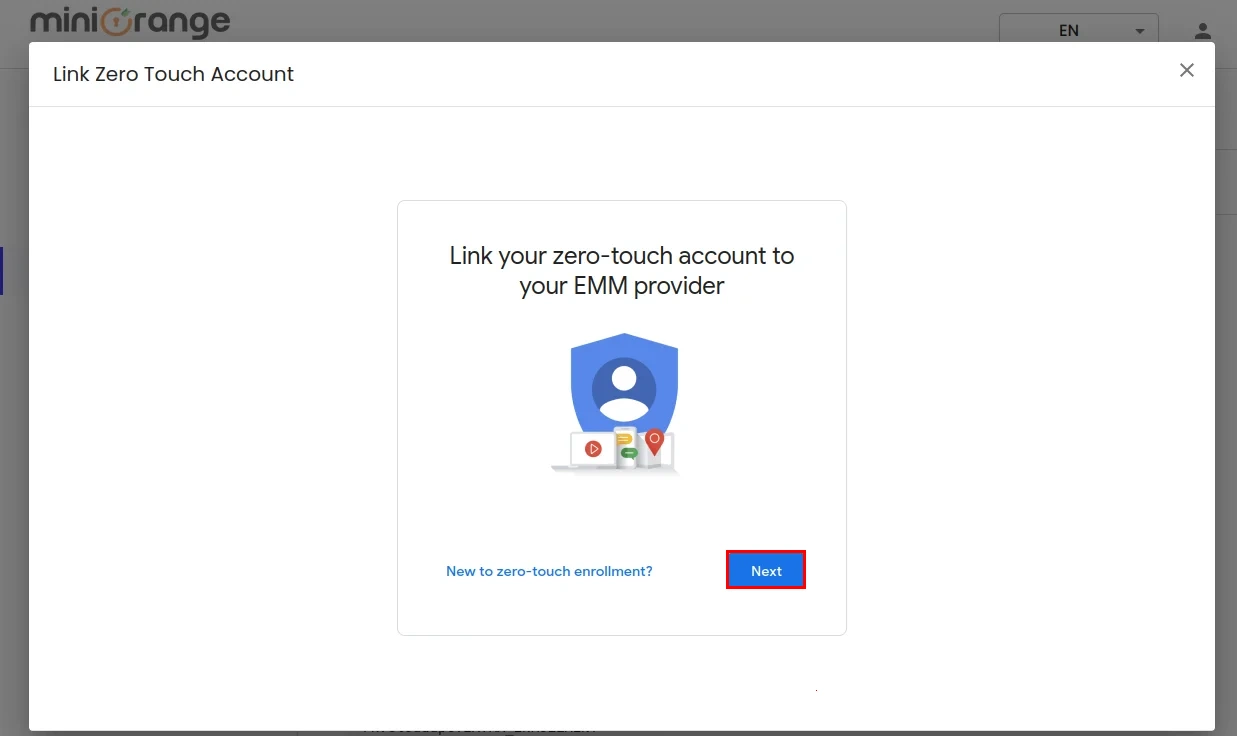
- When prompted, sign in with your zero-touch customer portal account tied to your reseller.
- That account must have Owner (or equivalent admin) rights in the Zero-Touch customer portal.
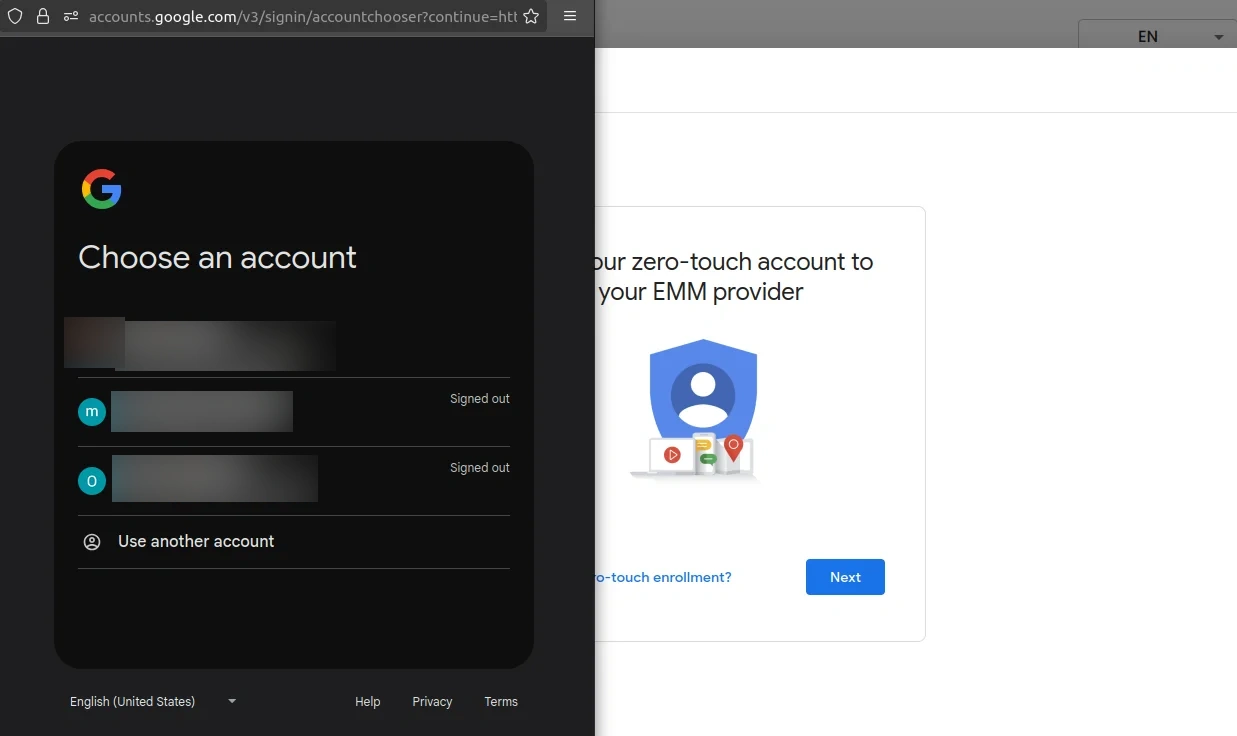
- Select your organization in the Google sign-in flow.
- Click Link so miniOrange can establish a secure connection to your Zero-Touch portal.
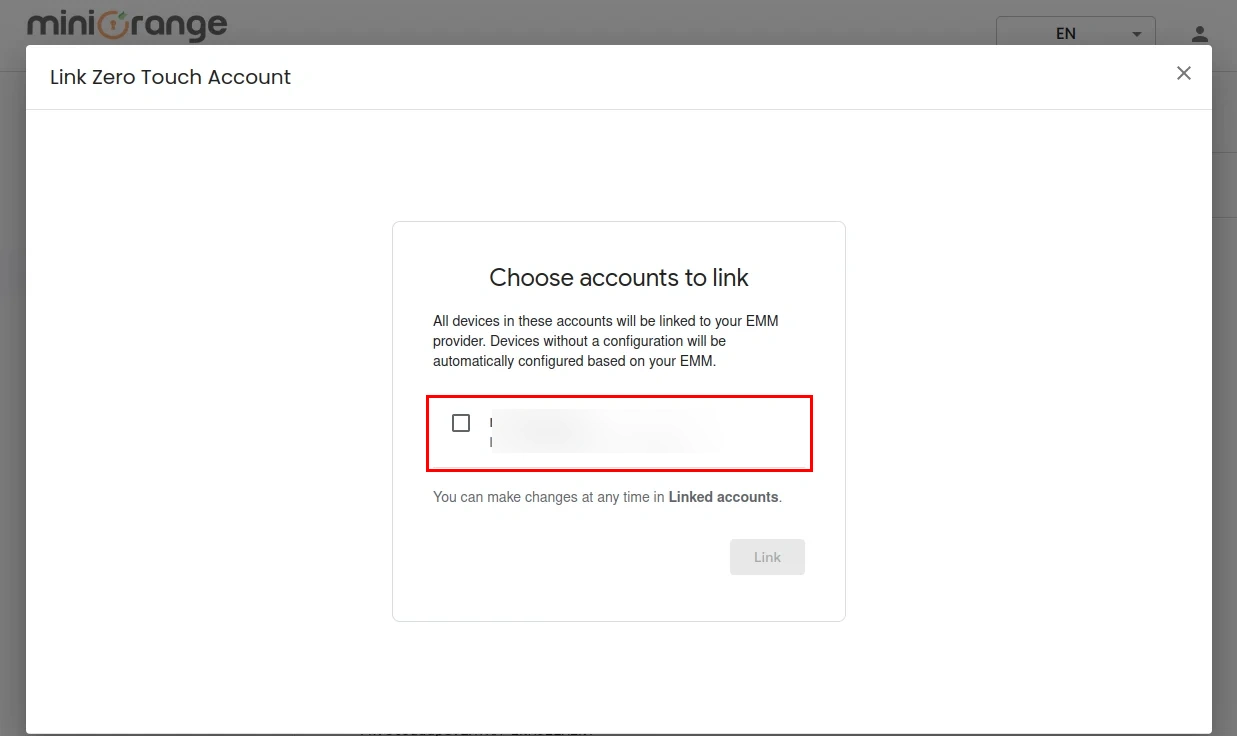
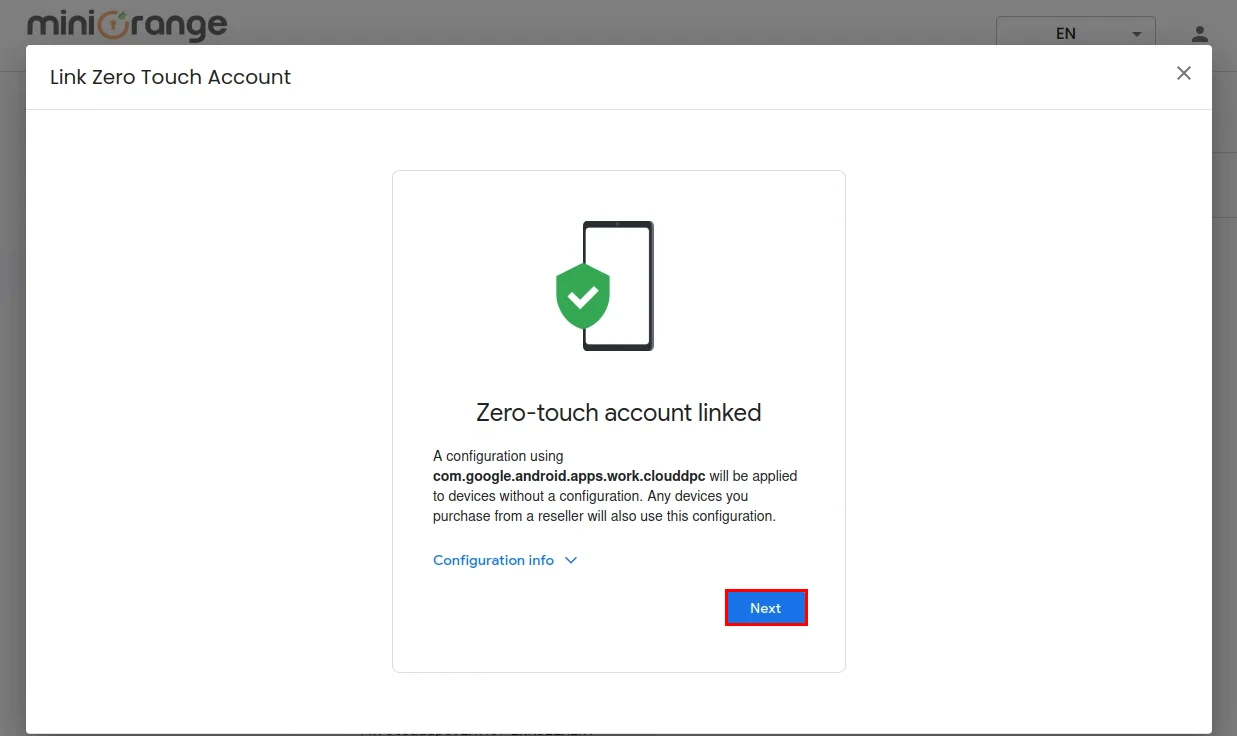
- After the confirmation message, click Next and review the details shown.
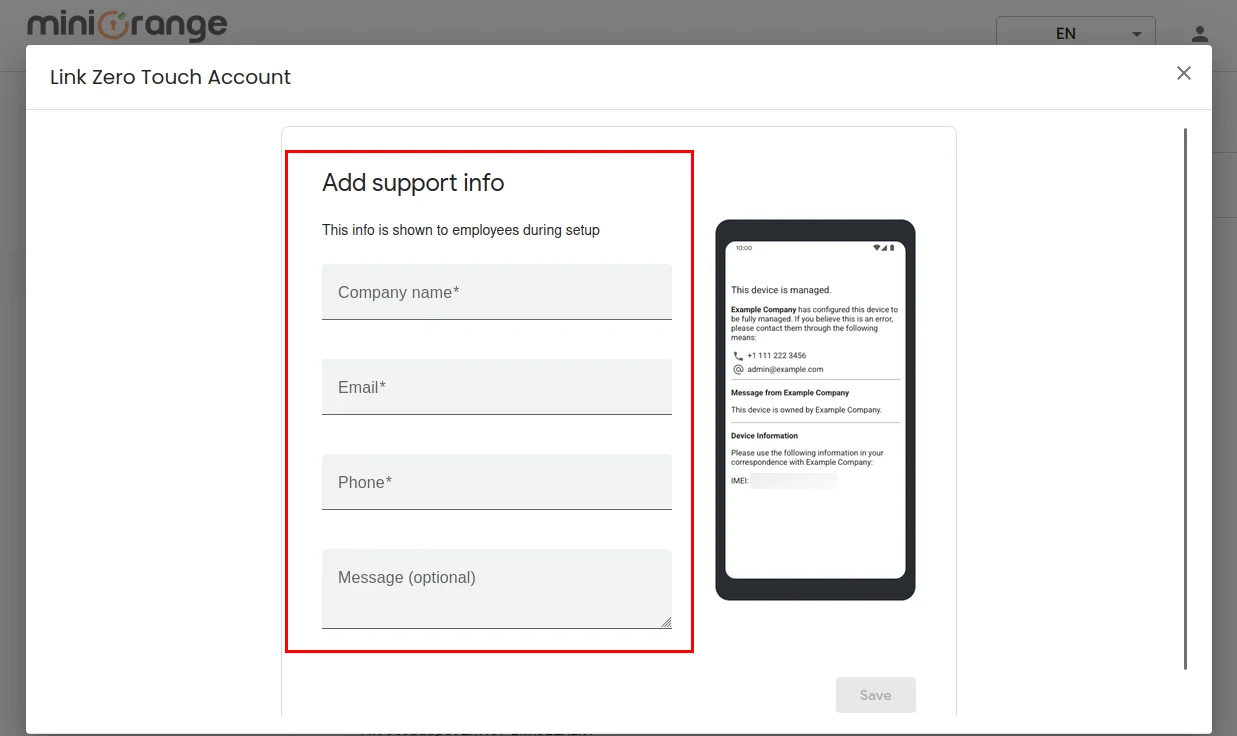
- Add support contact information if the wizard asks for it.
- Click Save to finish linking the Zero-Touch customer account.
2. How to Configure the Zero-Touch Enrollment Token
After the Zero-Touch Customer Account is linked to Android Enterprise in miniOrange, configure the enrollment token for new or factory-reset devices.
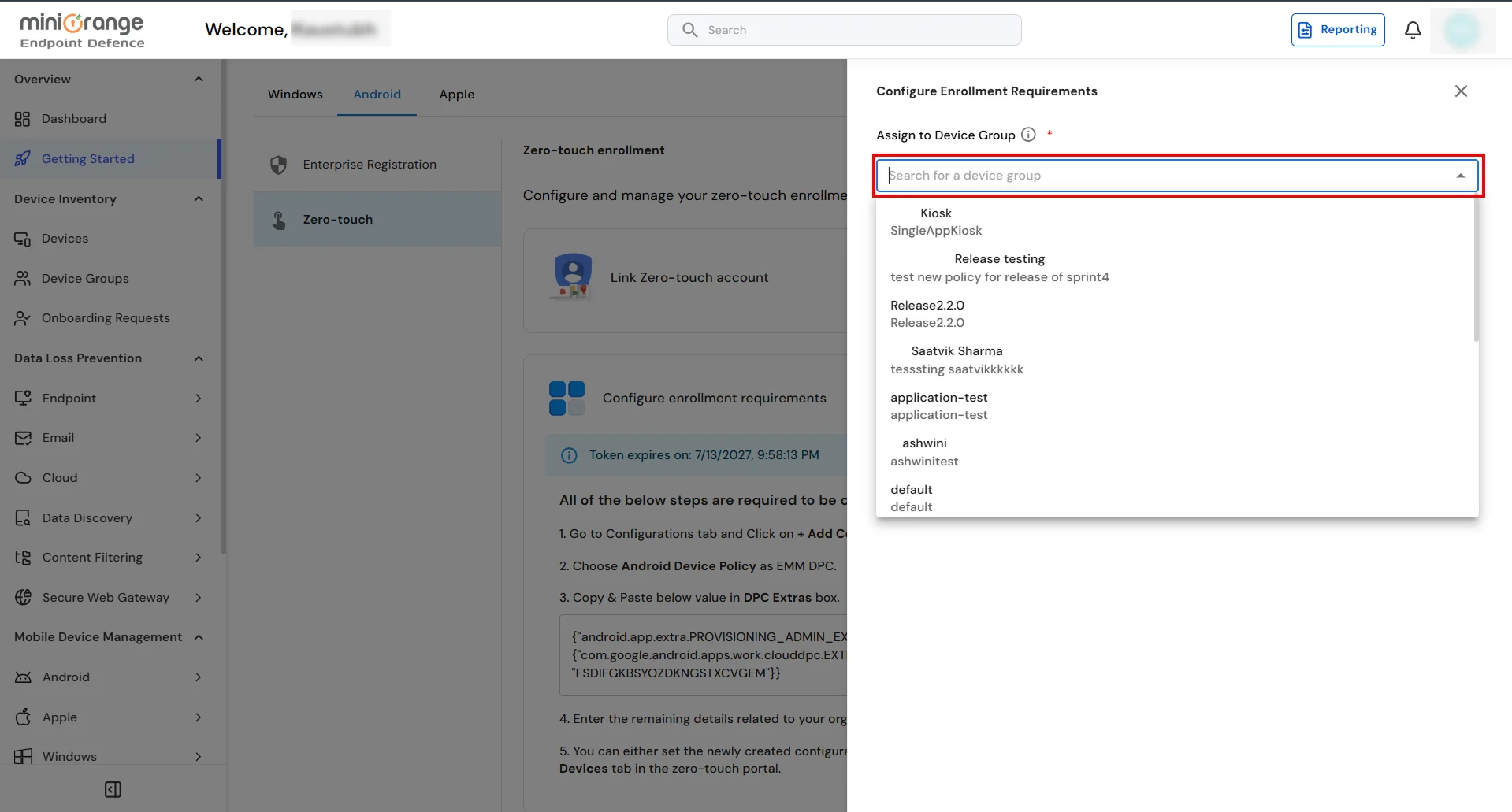
- In the MDM dashboard, open Enrollment Configuration (where first-boot behavior for Zero-Touch devices is defined).
- Select the group whose policy applies immediately after enrollment; the device is added to this group in the MDM.
- Choose how long the enrollment token stays valid.
- Plan to create a new token after expiry so future devices can still enroll.
- Note: This configuration applies to new or factory-reset devices; it does not remove devices already under MDM management.
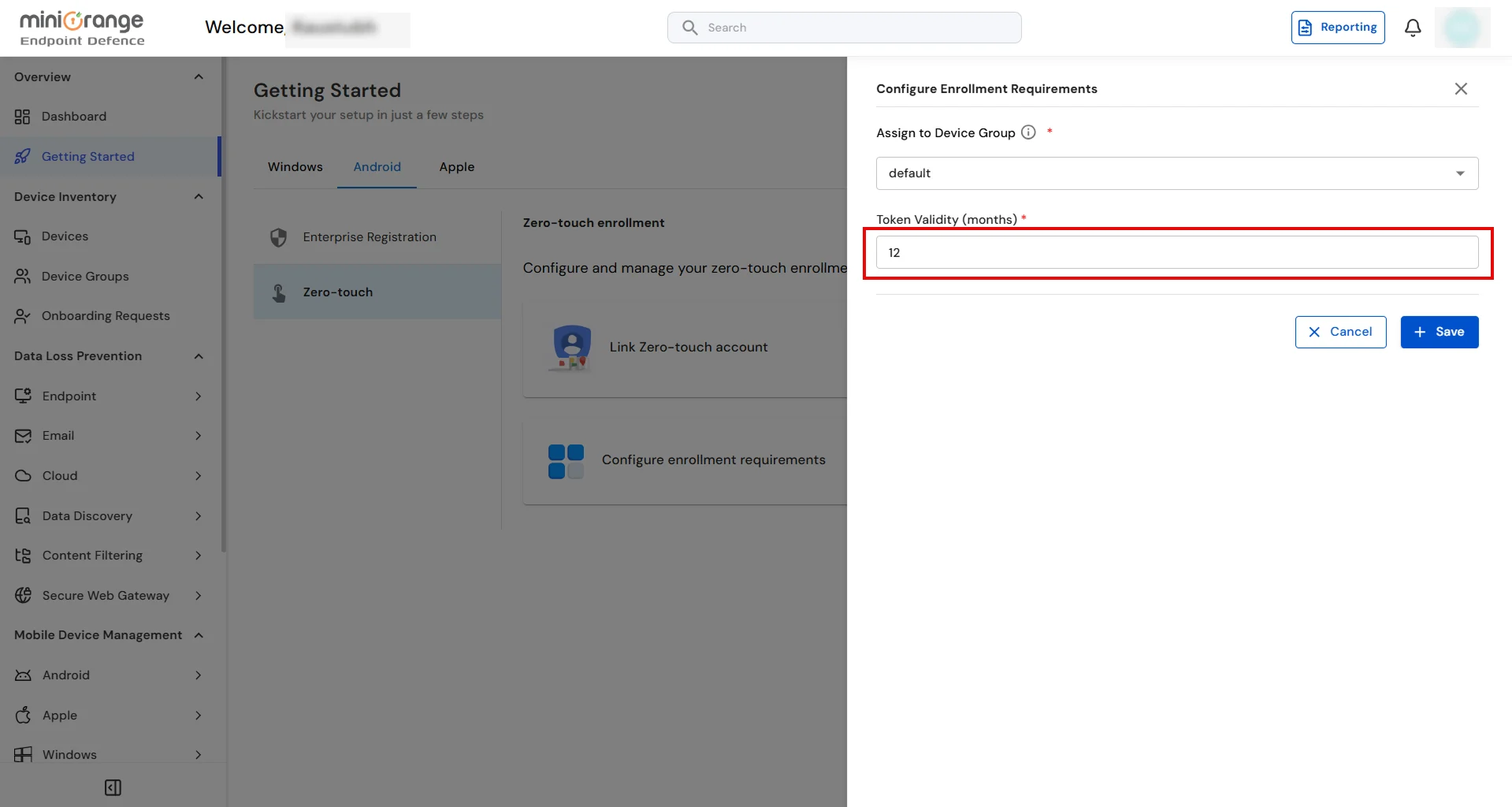
- Click Save (or the equivalent control) and follow any on-screen next steps.
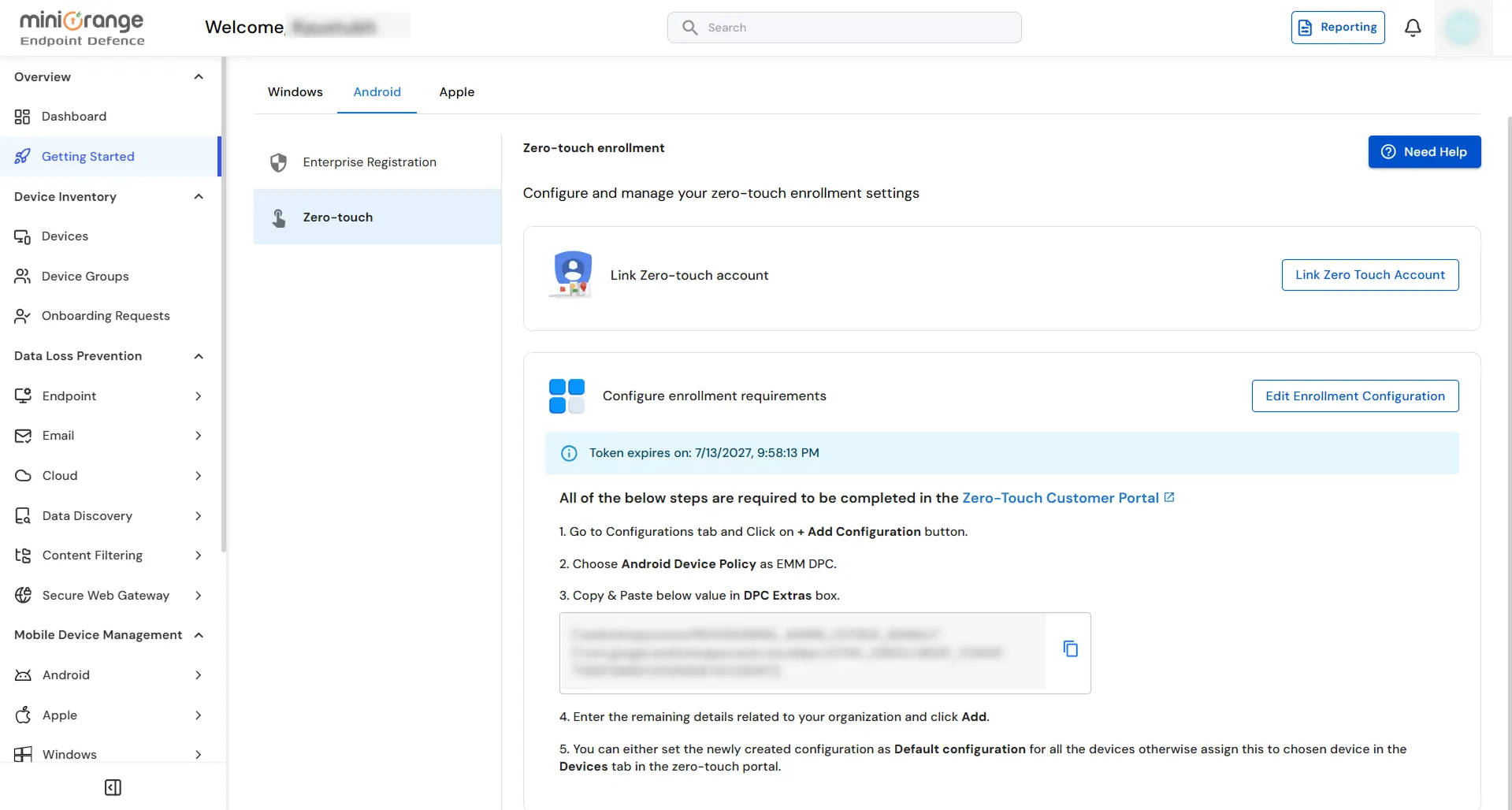
3. How to Configure the ZTE Customer Portal
In the Google Zero-Touch portal, create a configuration that points devices to miniOrange using the DPC extras from UEM.
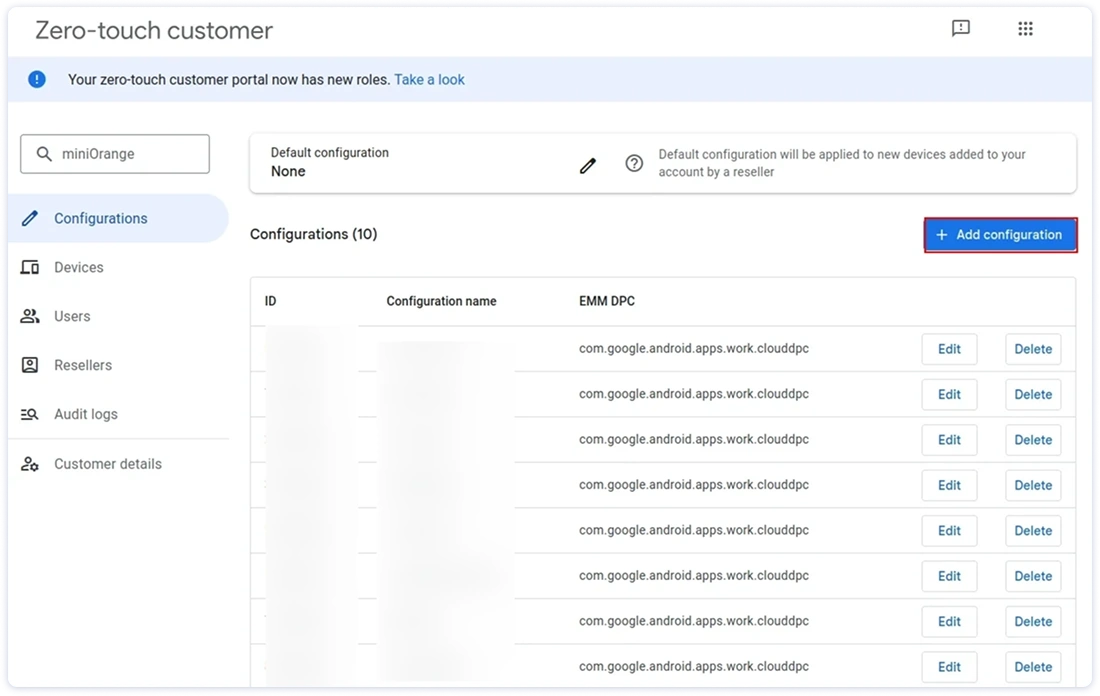
- Click + Add Configuration.
- Choose Android Device Policy as the EMM DPC.
- Copy the JSON value from the MDM dashboard and paste it into the DPC Extras field.
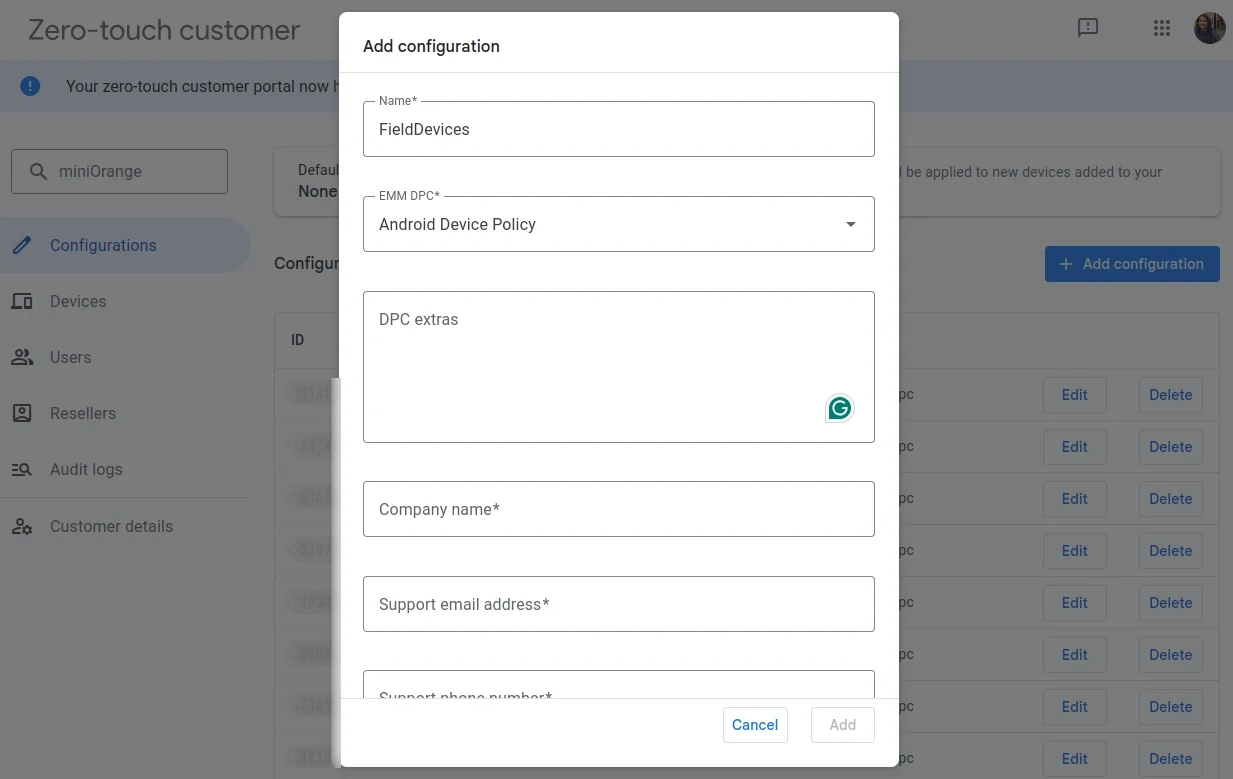
- Click Add to save the profile.
- Either set it as Default for all new devices or assign manually per device under the Devices tab.
4. What You Will See on the Android Device
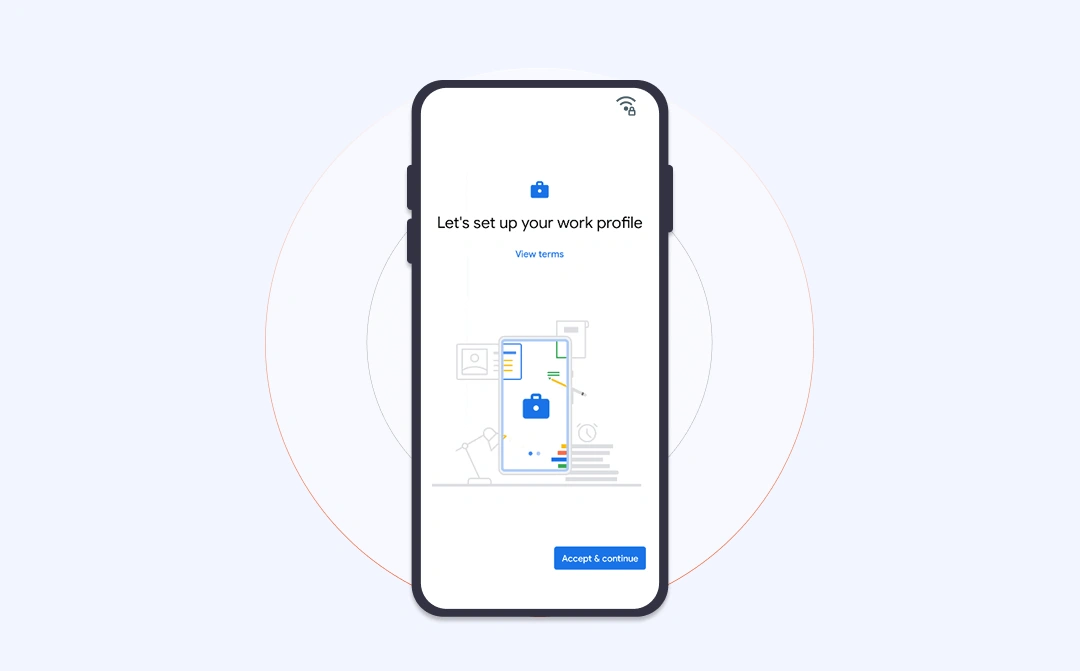
On a Zero-Touch–assigned device, setup walks the user from activation through managed enrollment.
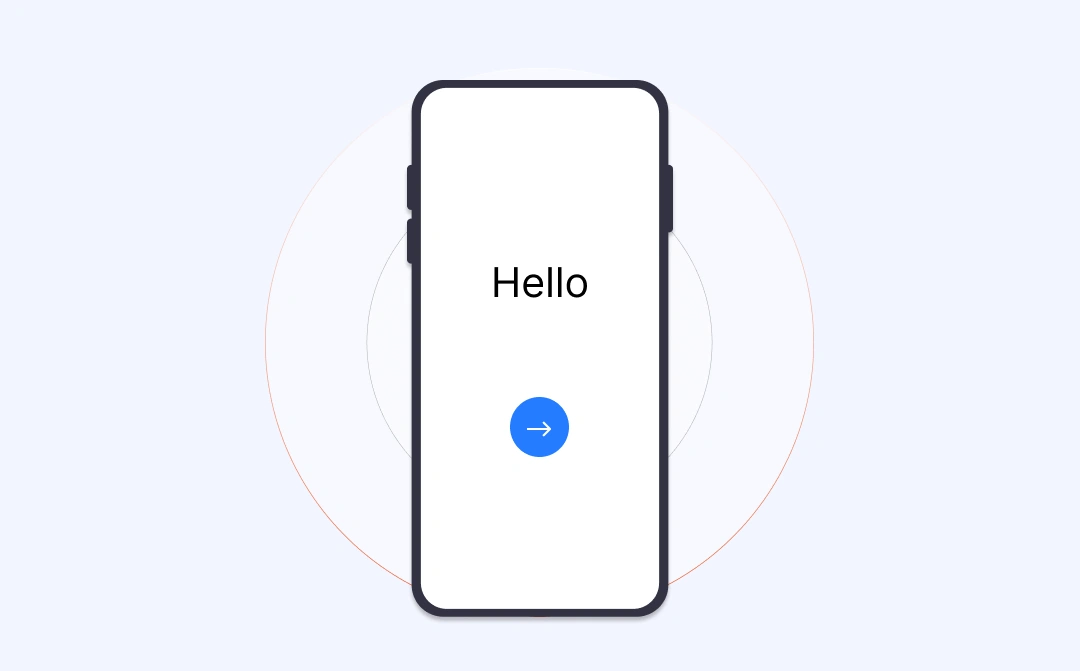
- Power on or factory-reset a device that is registered in the Zero-Touch portal.
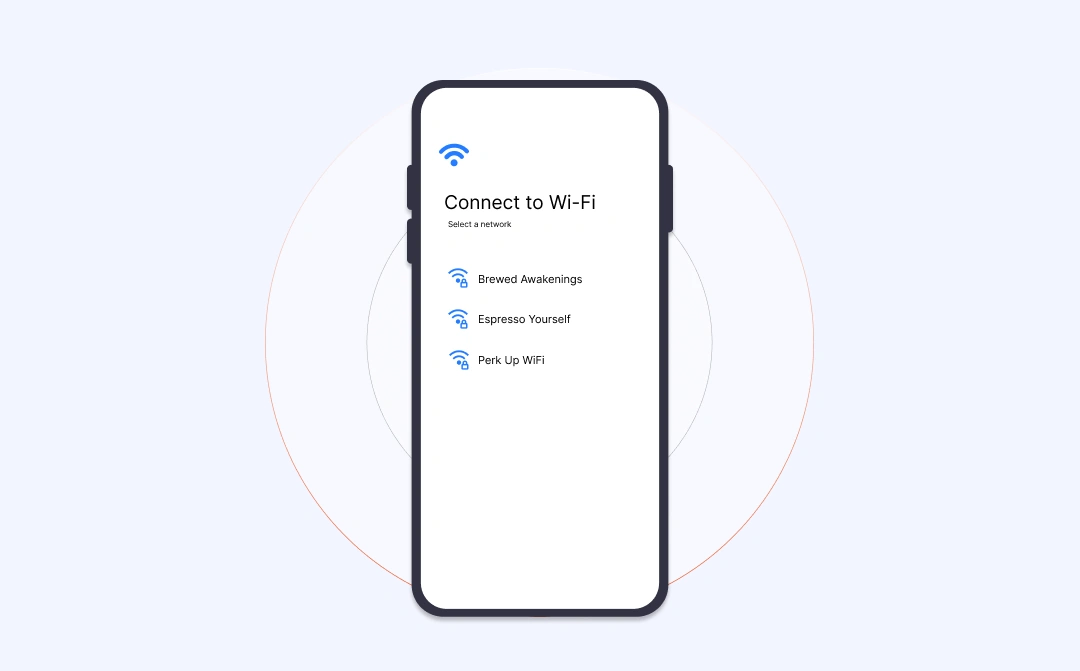
- Connect to Wi-Fi (or cellular data) when the setup wizard prompts for a network.
- The device enrolls into miniOrange MDM according to your Zero-Touch configuration.
- Once this flow starts, the user typically cannot finish setup in a fully unmanaged mode.
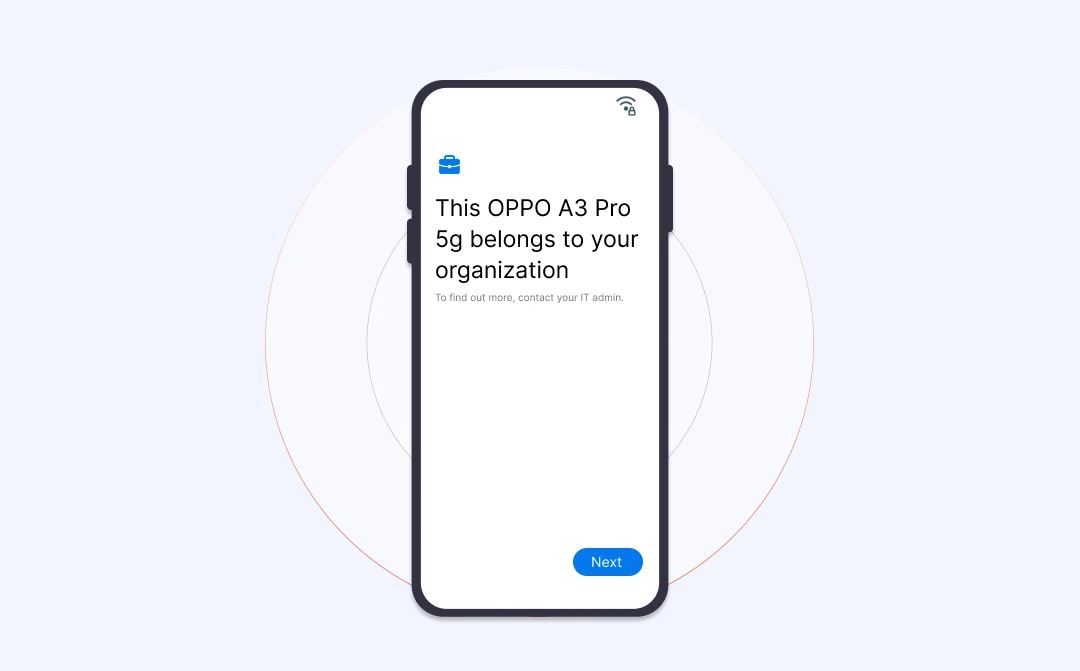
- Tap Accept and Continue through the prompts until setup finishes.
- When the wizard completes, the device is fully managed under your policies.