Hello there!
Need Help? We are right here!

Need Help? We are right here!
Search Results:
×This flow enables User Enrollment (BYOD) using Apple Account-Driven Enrollment. In this flow, users sign in with their corporate identity, which triggers the device to create a managed Apple partition specifically for work. This architectural separation ensures that personal data remains isolated from the managed work volume, maintaining user privacy while allowing secure corporate management.
1. APNs certificate
APNs must already be configured before you rely on this enrollment path.
Complete APNs Certificate in this handbook first.
2. Verified corporate domain
Example: mycompany.com
3. Web server access
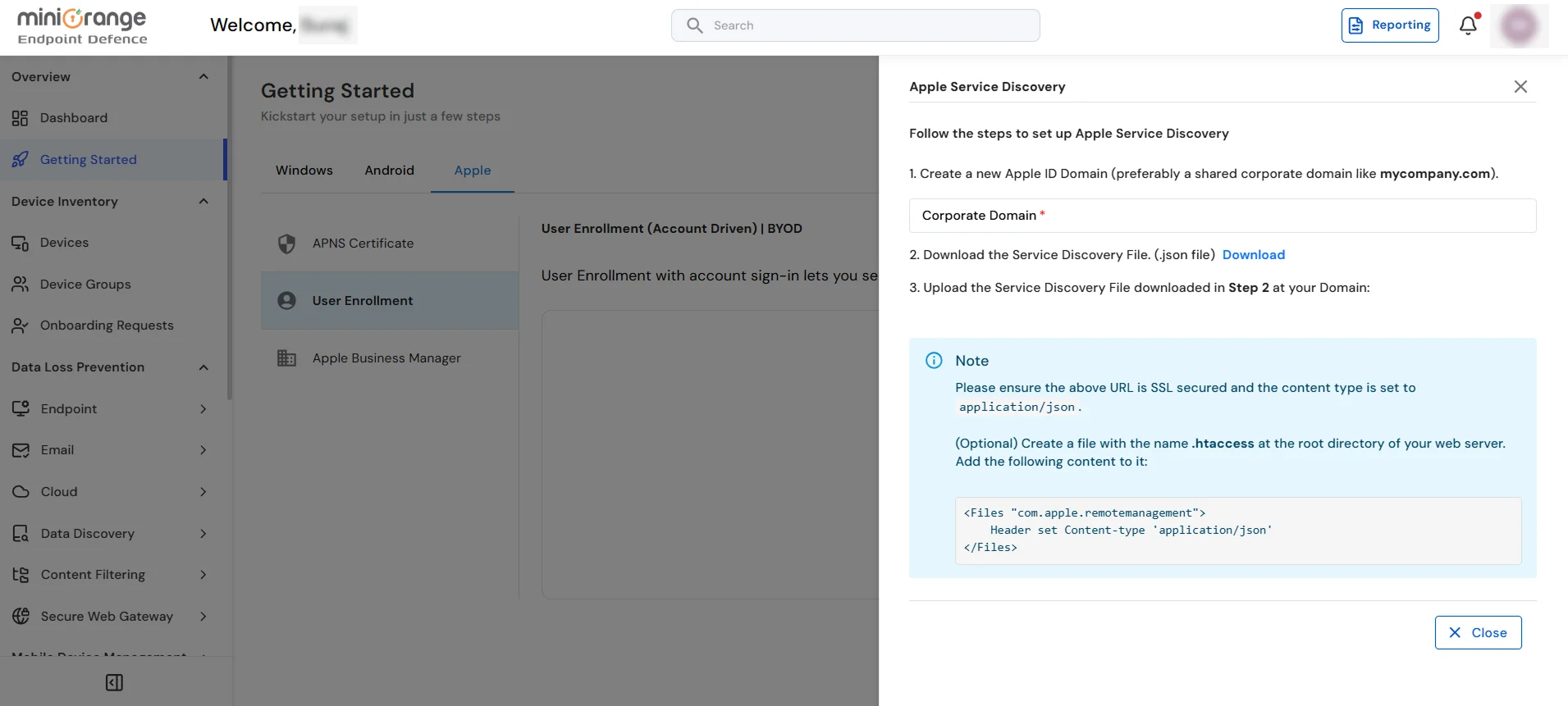
Publish Apple’s service discovery document over HTTPS at the fixed path Apple expects on that domain—for example:
https://yourdomain.com/.well-known/com.apple.remotemanagement
4. OAuth provider
Configure identity for the same corporate domain using one of:
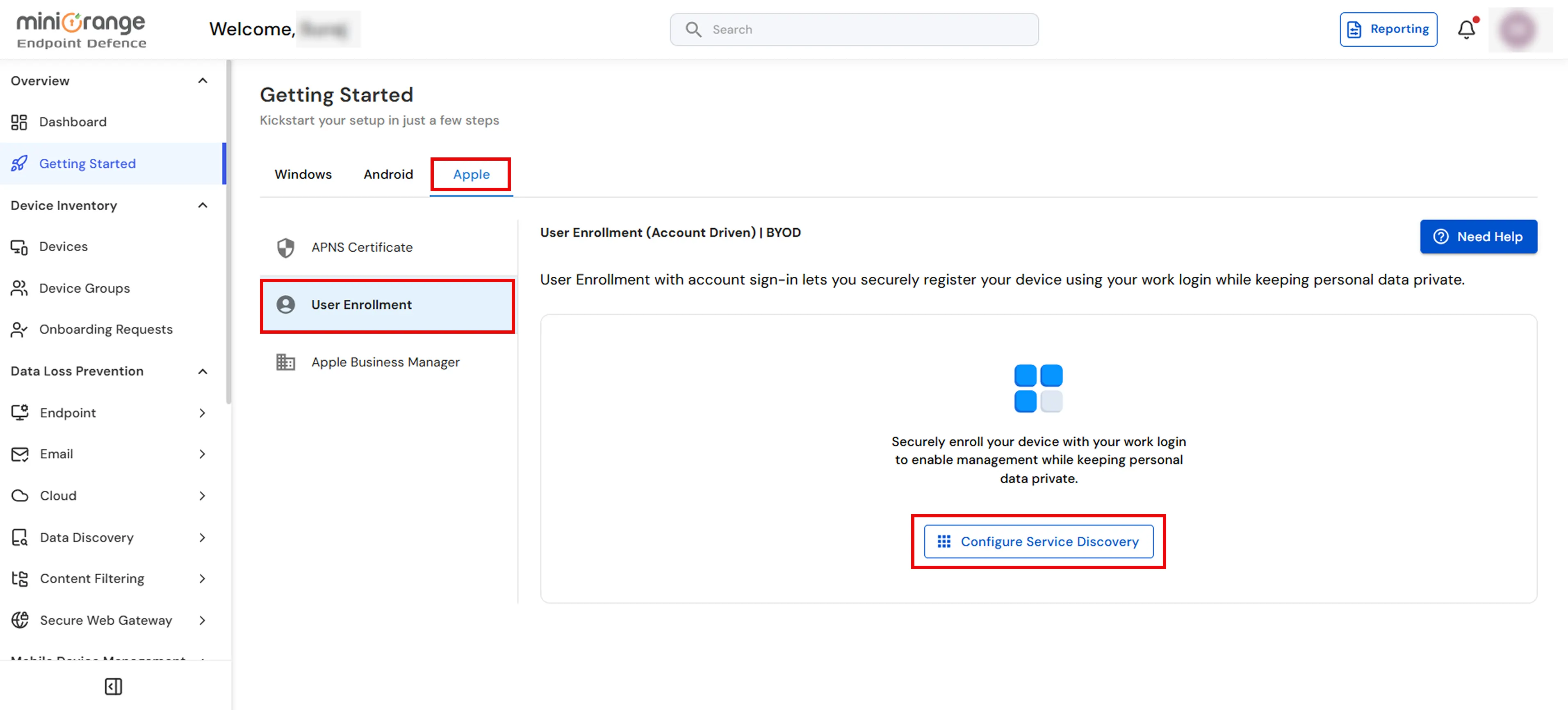
Configure service discovery in the UEM console, publish the JSON on your domain, then confirm from the dashboard.
Correct server setup (critical)
| Requirement | Value |
|---|---|
| Protocol | HTTPS |
| Path | /.well-known/ |
| Filename | com.apple.remotemanagement |
| Content-Type | application/json |
Important: Wrong or missing Content-Type often produces a silent failure on the device—treat correct headers as mandatory in production.
Optional: Apache configuration
If you serve the file from Apache, you can force JSON headers for that file, for example:
<Files "com.apple.remotemanagement">
    Header set Content-type 'application/json'
</Files>
After the file is hosted and headers are correct, return to User Enrollment in the UEM dashboard and use the Reload (↻) control to validate service discovery. Fix any reported errors before inviting users.
