Company-Owned Device Enrollment
Company-owned Android devices are typically enrolled in Fully Managed (Device Owner) mode, allowing the organization to have complete administrative control over the device.
This enrollment method is recommended for corporate devices that are issued to employees for work purposes. With Fully Managed enrollment, IT administrators can enforce security policies, deploy applications, configure Wi-Fi and VPN settings, and manage the entire device lifecycle from the UEM/MDM console.
Prerequisite
Step 1: Configure enrollment in the UEM console
-
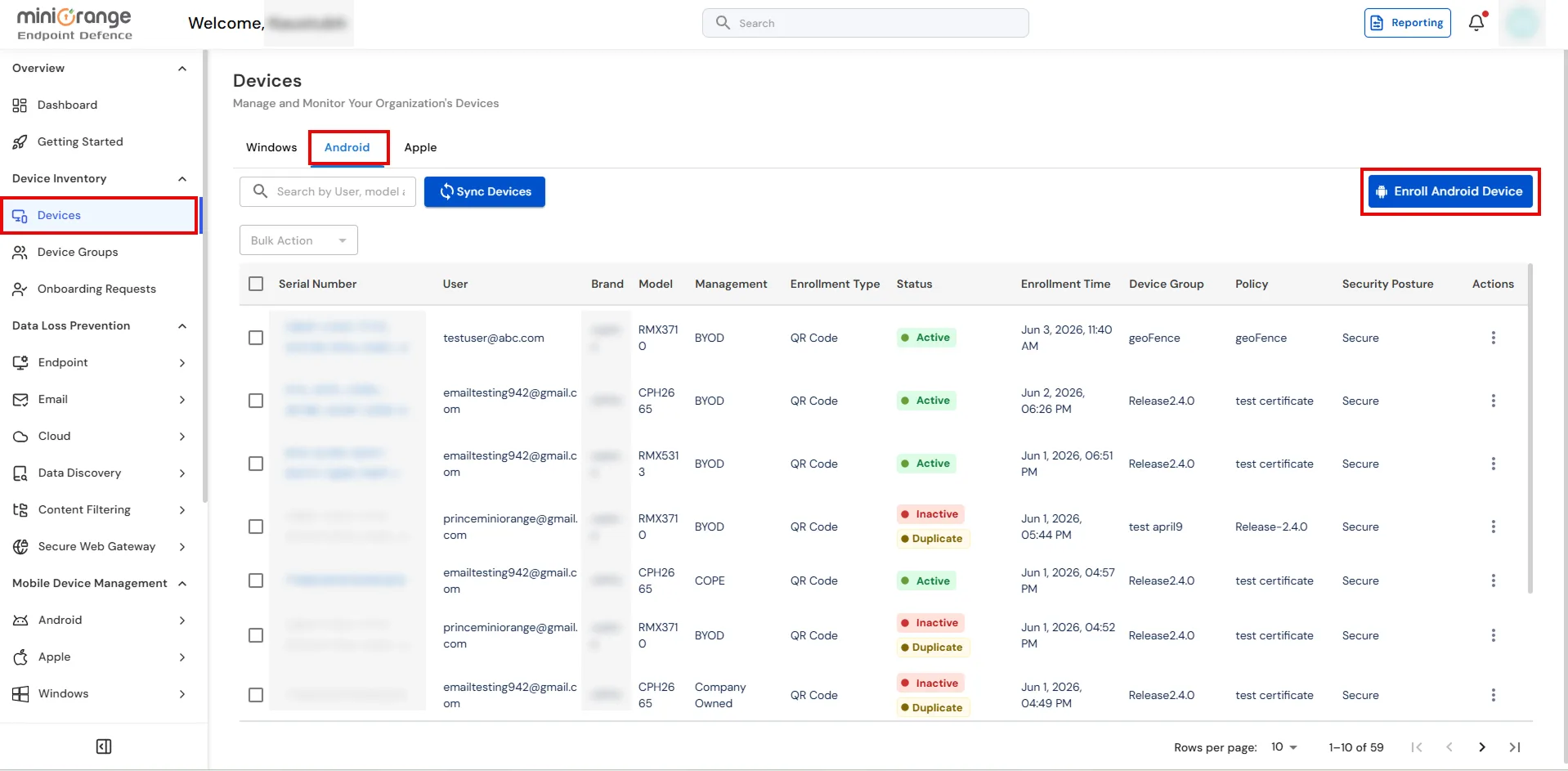
In the UEM admin console, go to Manage Devices → Devices → Android and click Enroll Android Device.
-
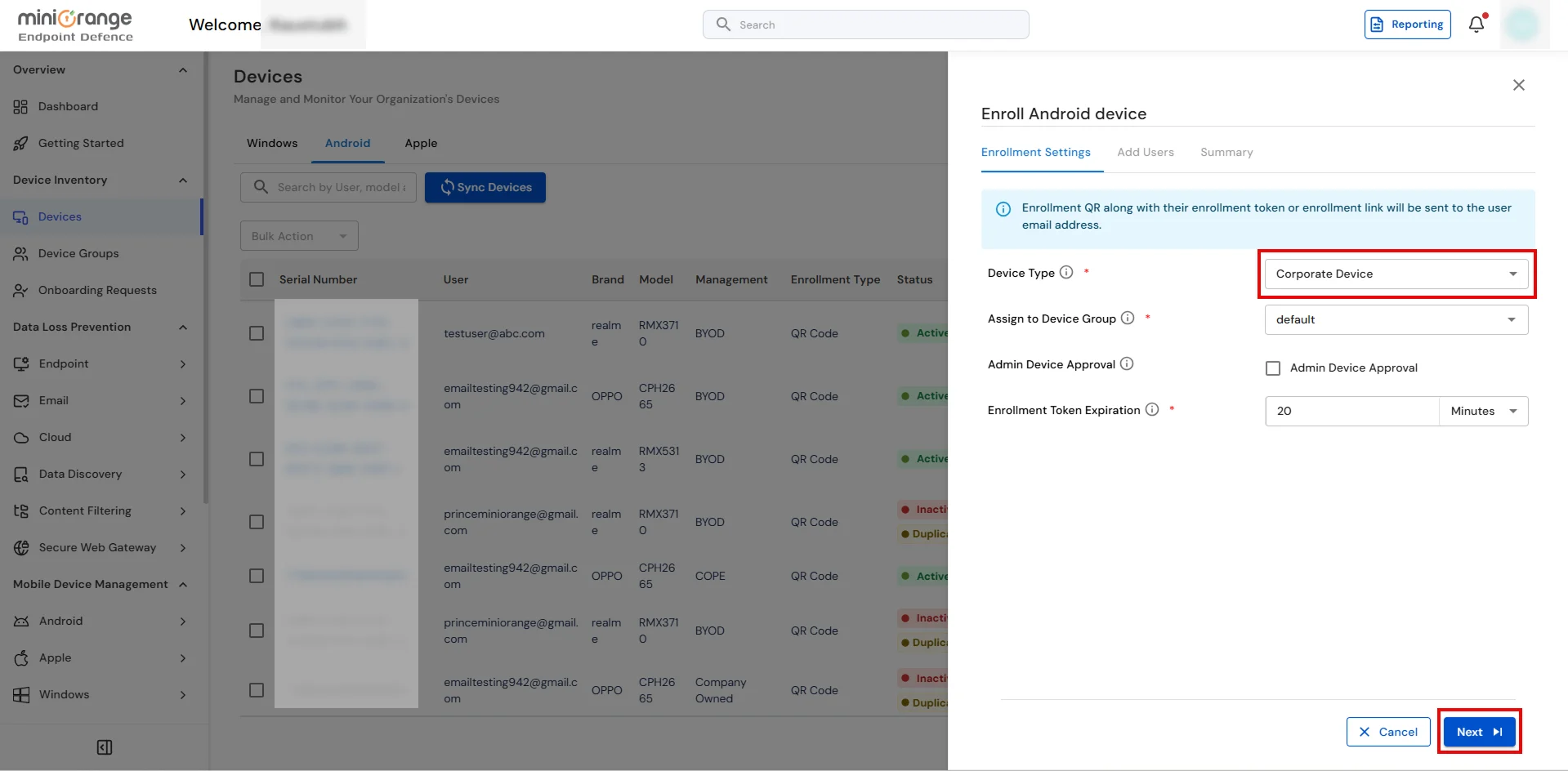
In the Enroll Android Device wizard, configure the following settings under the
Enrollment Settings tab:
- Device Type: Select Corporate Device to enroll the device in Fully Managed (Device Owner) mode.
- Assign to Device Group: Select the device group that will apply the required policies, applications, and compliance rules.
- Admin Device Approval: Enable this option if an administrator should manually approve the device before assigning policies.
- Enrollment Token Expiration: Specify how long the generated enrollment token remains valid (for example, 20 Minutes).
-
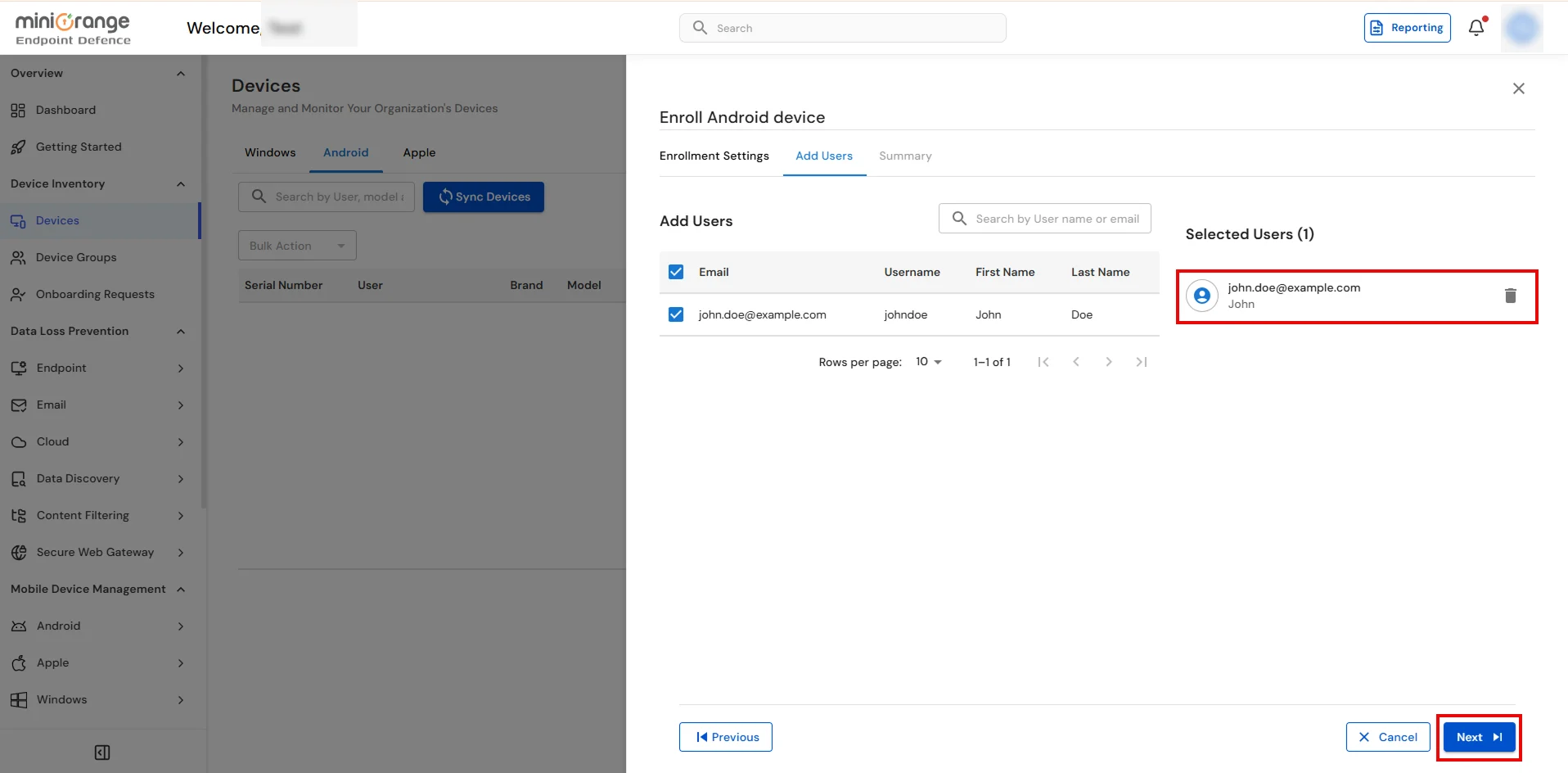
Click Next, search for and select the user who will receive the enrollment invitation under the
Add Users tab, and then click Next.
-
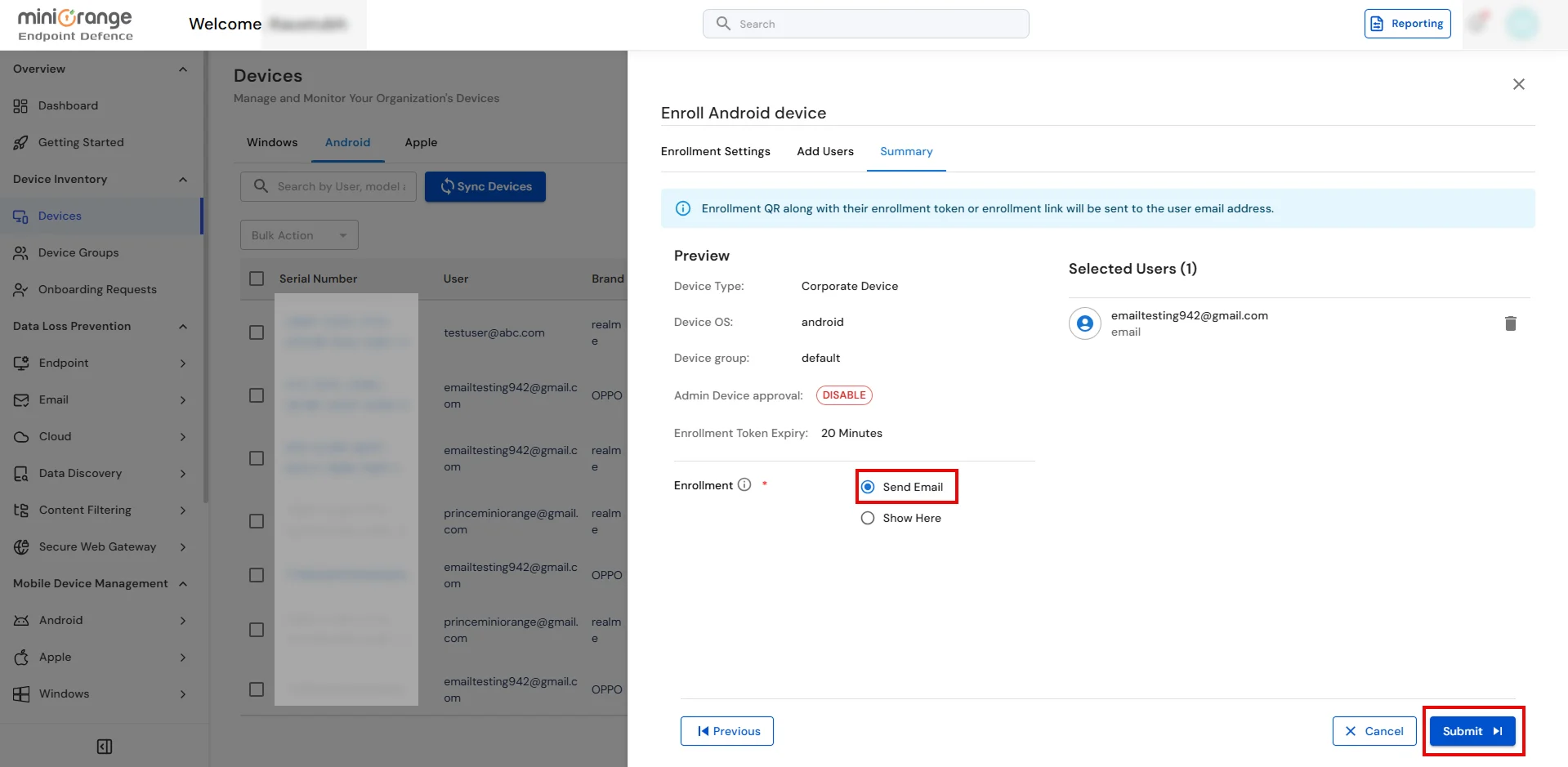
On the Summary page, review the enrollment details and choose the enrollment method:
- Send Email – Sends an enrollment email containing the QR code, enrollment token, and setup instructions to the selected user.
- Show Here – Displays the QR code and enrollment instructions directly on the screen so the IT administrator can complete enrollment immediately.
- Click Submit to generate the enrollment invitation.
-
If Send Email is selected, the user receives an enrollment email containing the
QR code, Enrollment Token, and the setup instructions required to provision the corporate Android device.
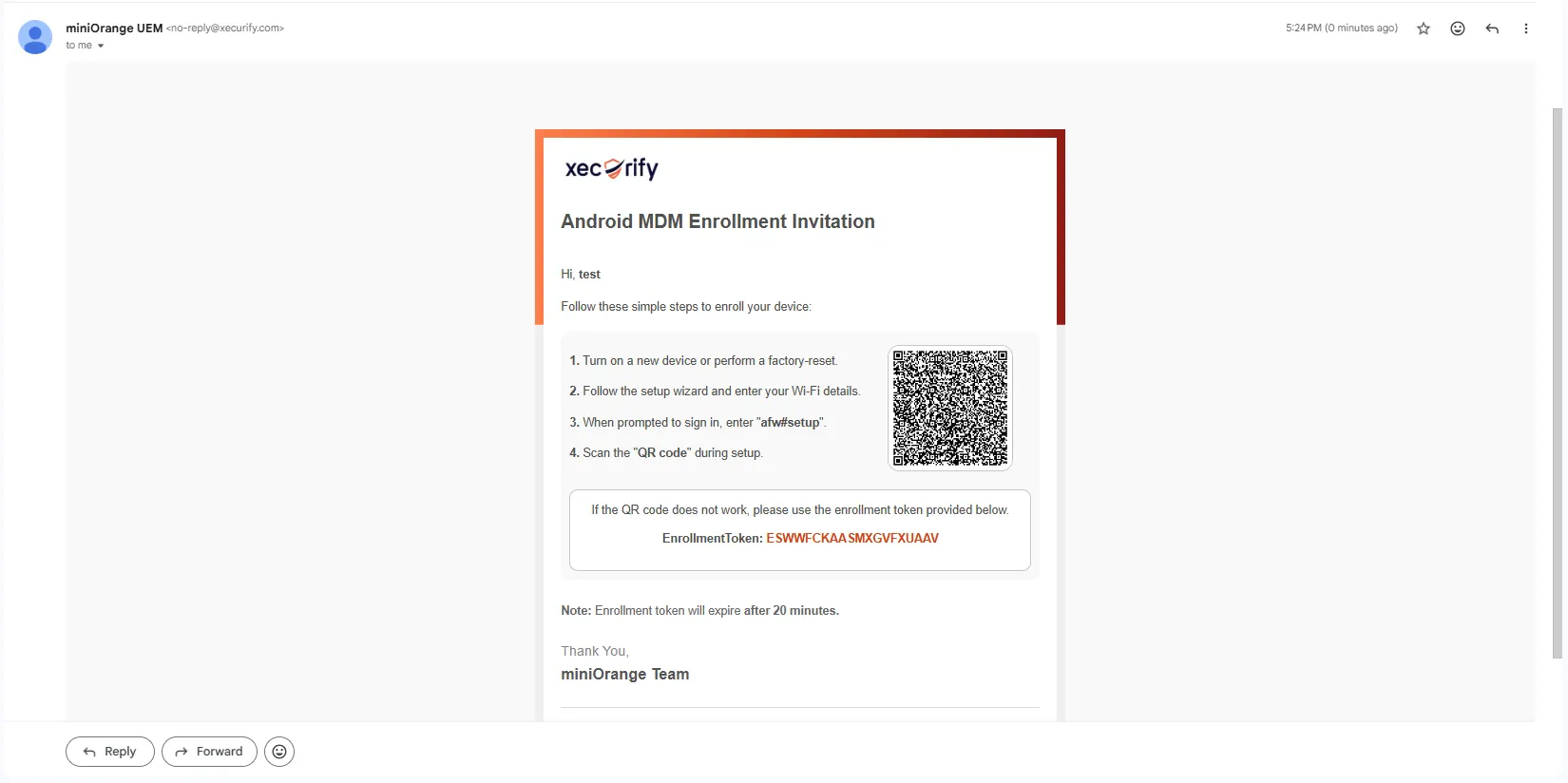
Step 2: Complete fully managed setup on the device
- Reset the device (if it is not already new / out of the box):
- Open Settings on the phone.
- Use the Settings search bar and type reset, or browse manually:
- On many phones: Settings → System → Reset options → Erase all data (factory reset).
- On many Samsung phones: Settings → General management → Reset → Factory data reset.
- Choose Erase all data / Factory data reset, read the warning, confirm with your PIN or password if asked, and tap Erase all data / Delete all. The device will wipe itself and reboot into the welcome / setup wizard (out-of-box experience).
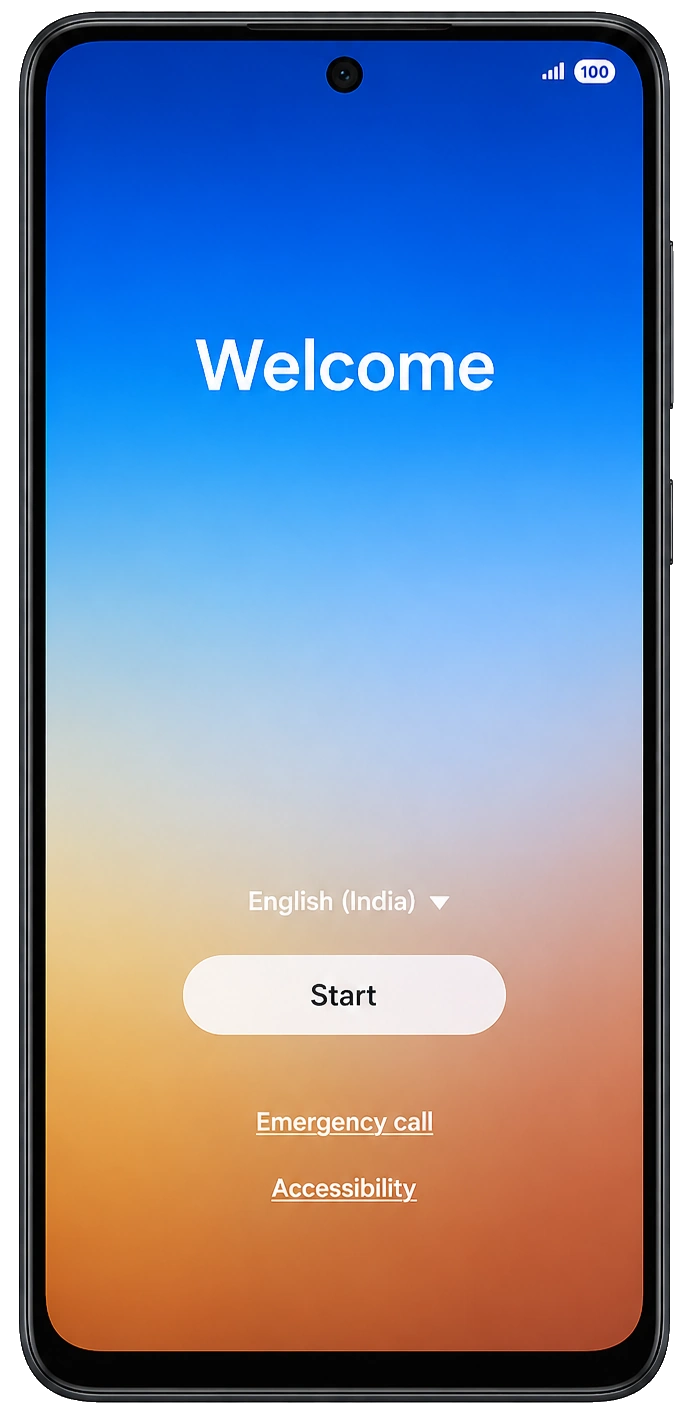
- When the phone finishes rebooting, you will see the Android Welcome screen. Tap Start to begin setup.
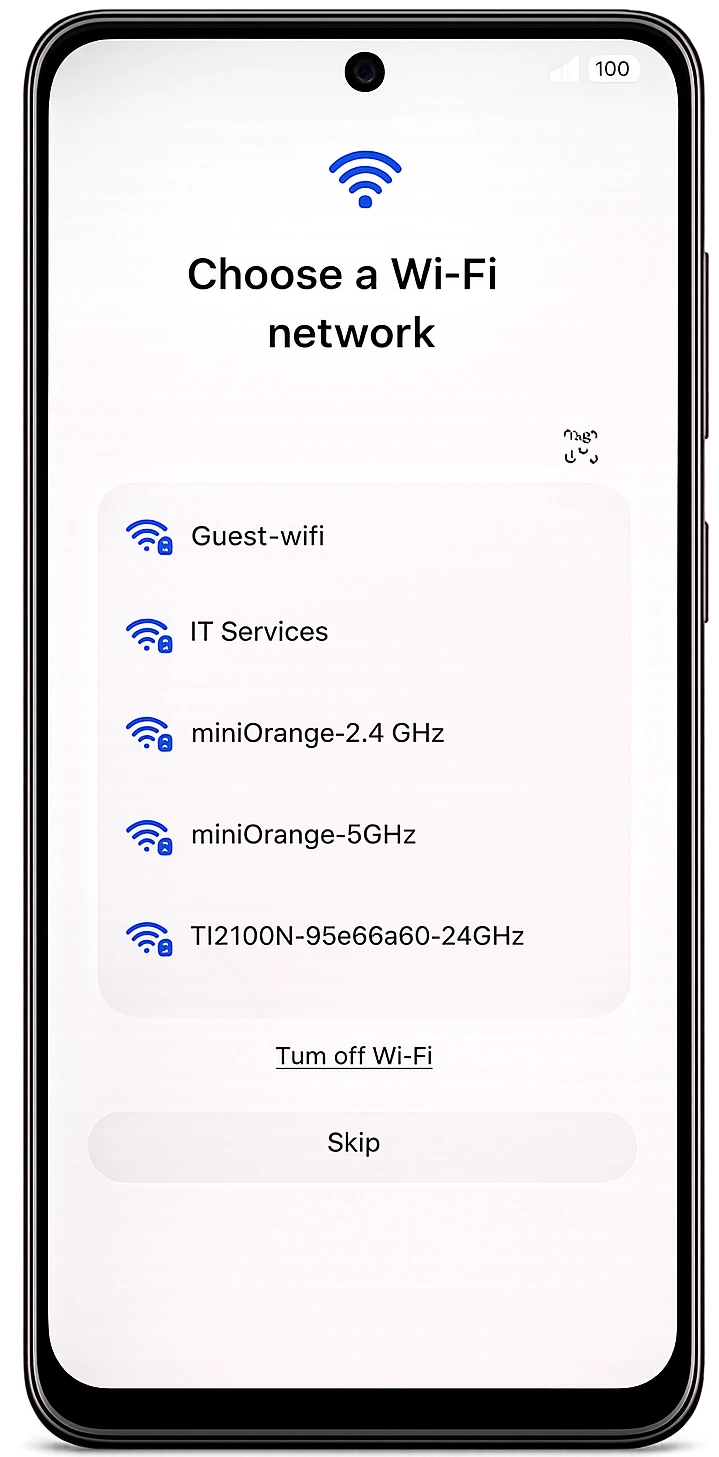
- Connect the device to Wi‑Fi on the Choose a Wi-Fi network screen.
- After Wi‑Fi connects and the device finishes preparing, if you see Copy apps & data tap Don’t copy so setup continues without restoring from another device.
- On the Google Sign in screen, in the Email or phone field, type afw#setup exactly then tap Next. The device should begin installing Android Device Policy.
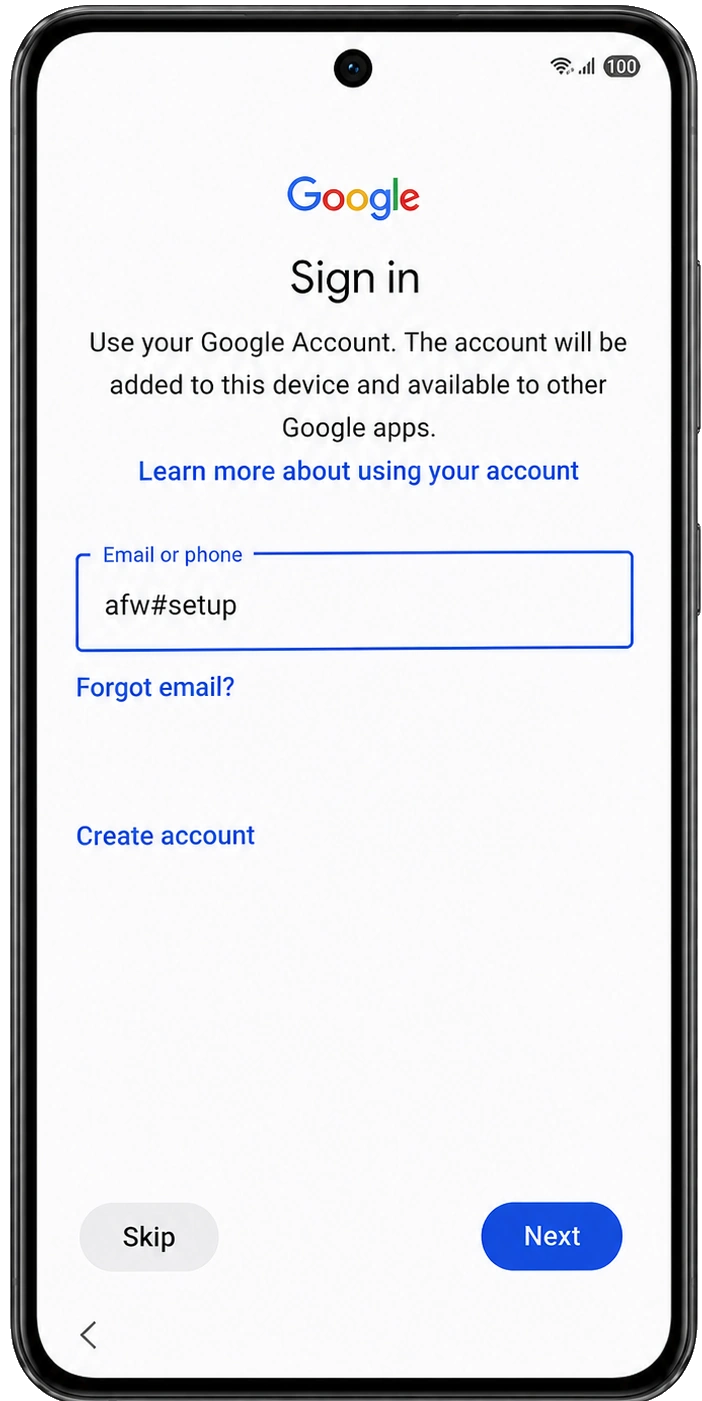
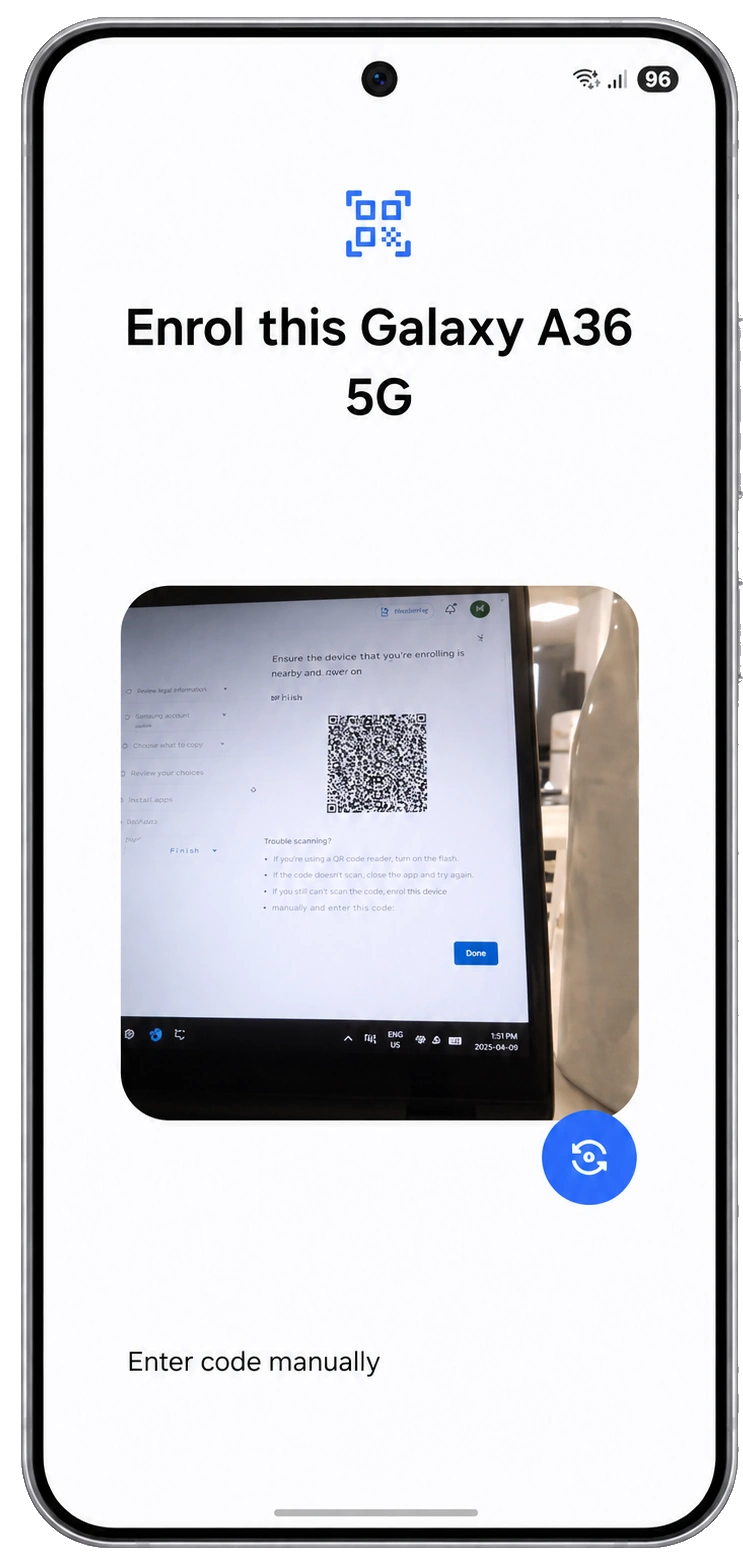
- Now, scan the QR code as shown in the below screen.
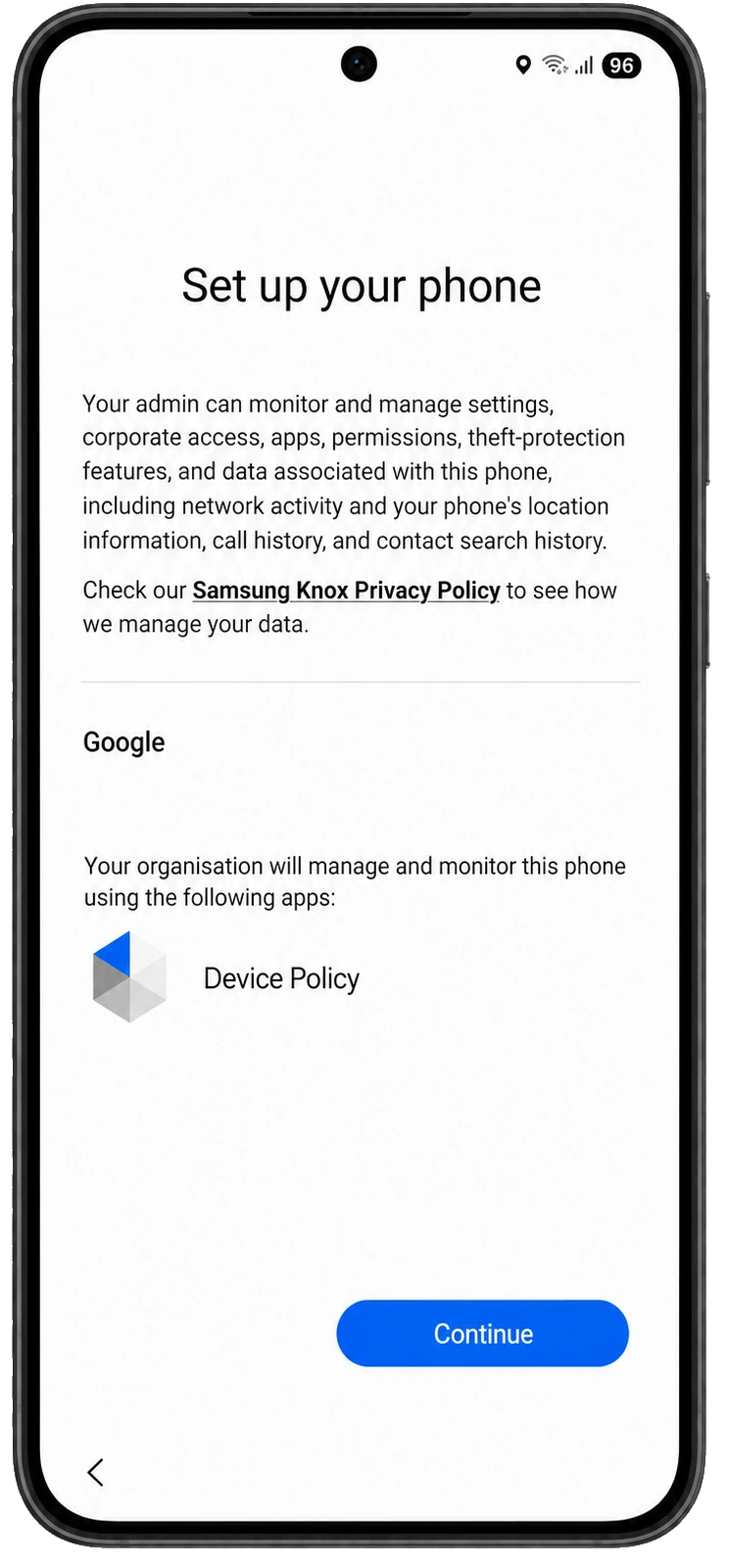
- On the Set up your phone screen, read the notice about your organisation managing the device and the listed apps (including Device Policy), then tap Continue.
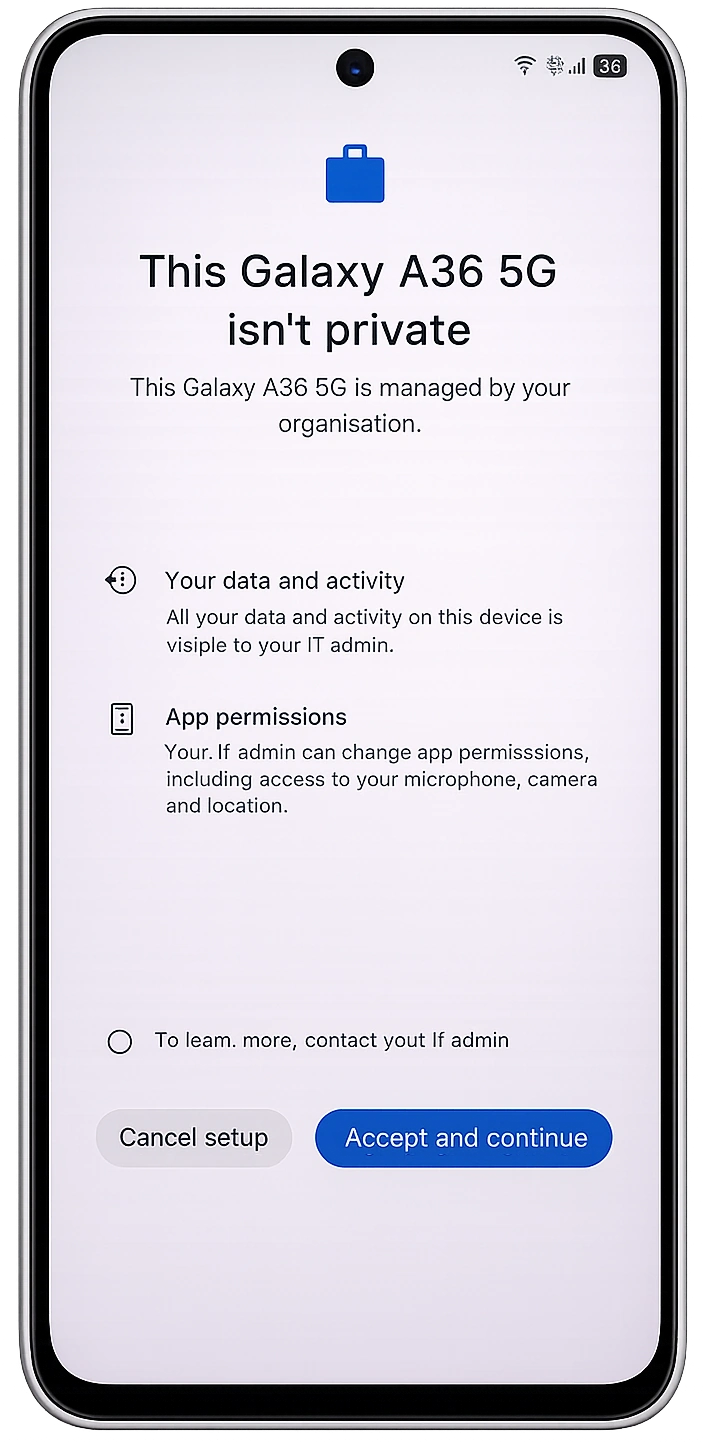
- Review the organisation management prompt and tap Agree or Continue as shown on the screen below.
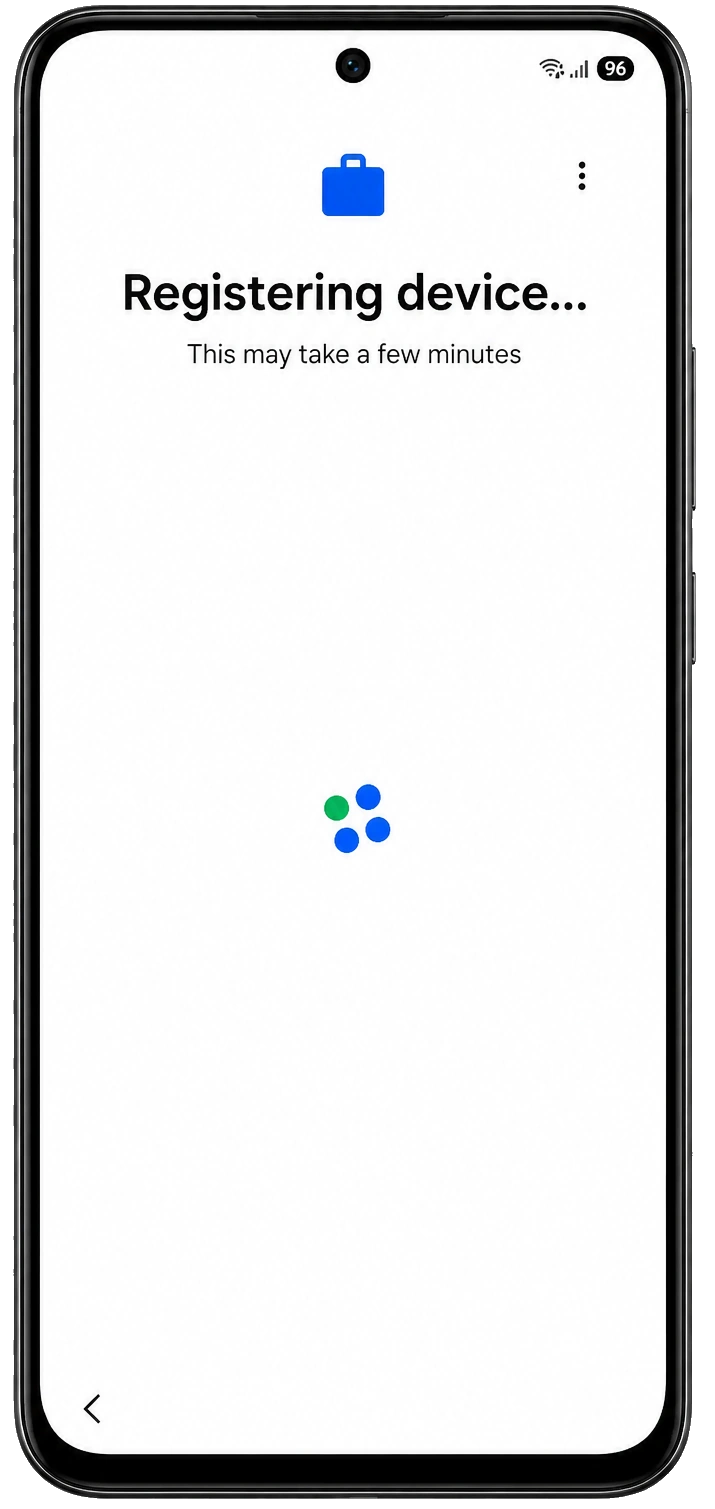
- Wait while the device shows Registering device (or similar) and completes enrollment with your organisation.
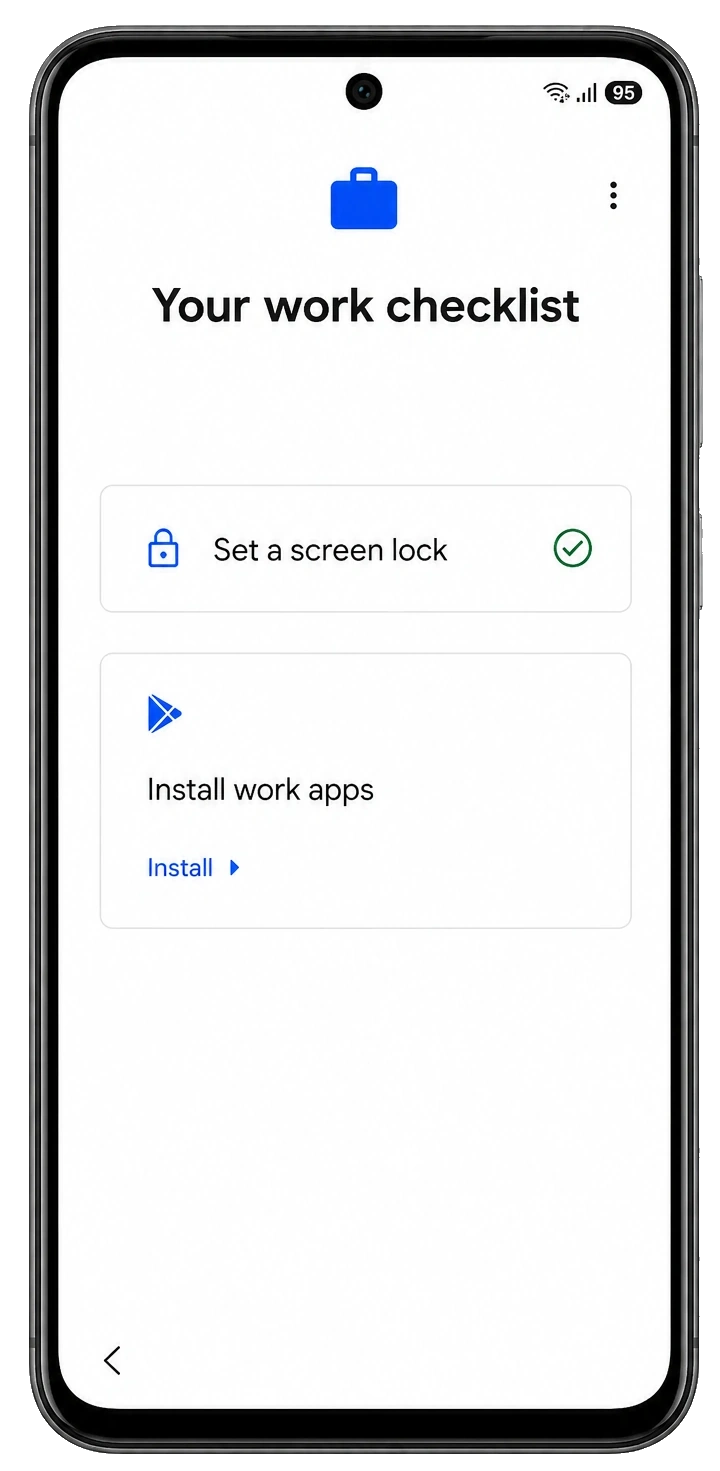
- On the Set up your password (or lock screen) screen, create a device PIN, pattern, or password as required, then confirm and continue.
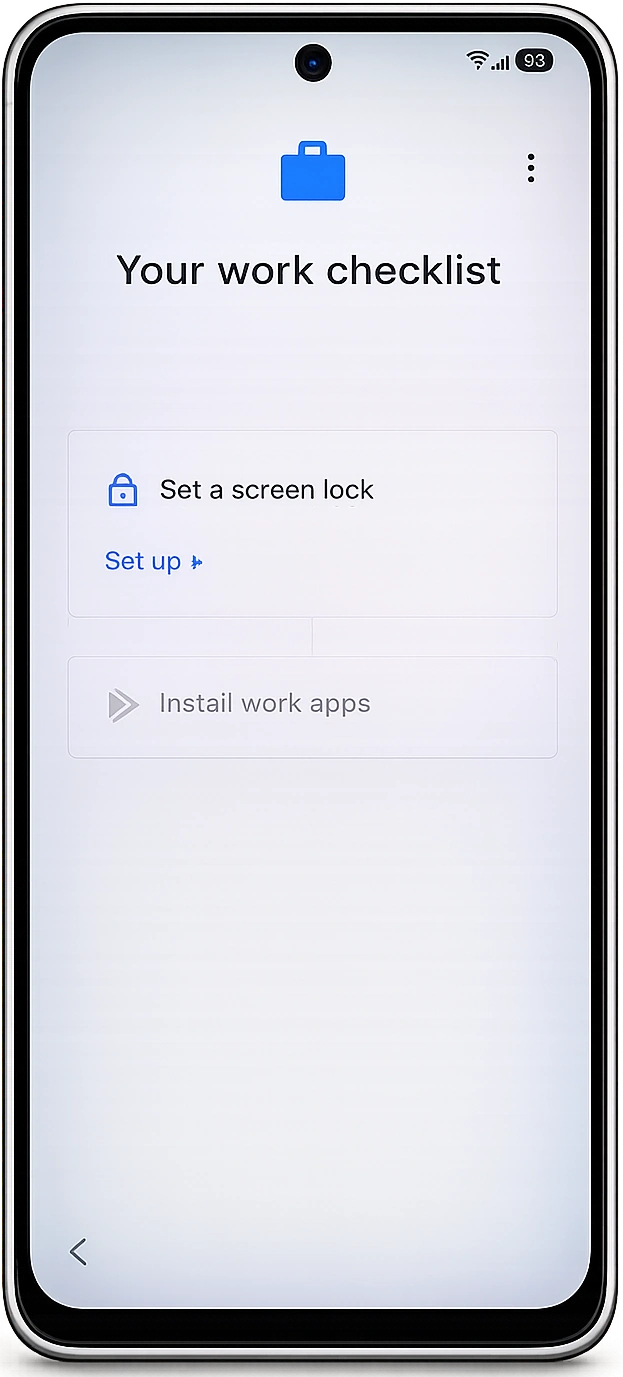
- When you see Install work apps, tap Install so the device can finish installing the managed work apps your organisation requires.
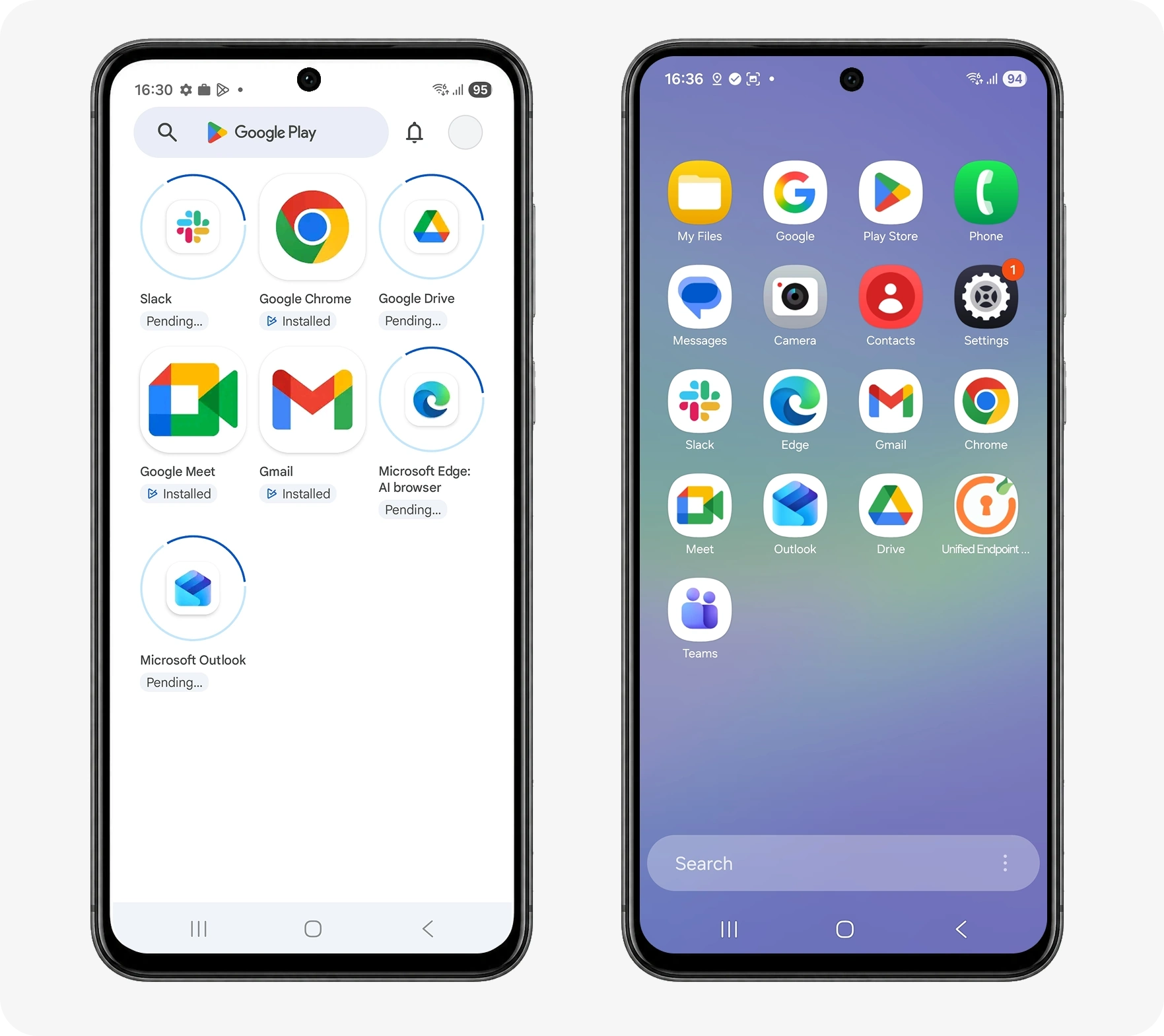
- Once app installation is complete, you will see all your organisation’s work apps on the device. You are now ready to go.
For employee-owned devices with only a work container, see BYOD enrollment. For COPE (work profile on corporate hardware), see COPE.

