Hello there!

Need Help? We are right here!

miniOrange Support Chat - Get Help and Support
miniOrange Email Support
Success Checkmark - Form Submitted Successfully

Thanks for your Enquiry.

If you don't hear from us within 24 hours, please feel free to send a follow-up email to uemsupport@xecurify.com

Search Results:

×

Android Enterprise Registration


Android Enterprise links your tenant to managed Google Play so you can distribute apps silently, use work profiles on BYOD devices, and deploy dedicated or fully managed devices.


What you are setting up

  • A managed enterprise binding between miniOrange UEM, Google and your organization.
  • Enrollment paths such as QR code, zero-touch , or user-driven enrollment.

How to Register Android Enterprise?

  • Sign in to the miniOrange Unified Endpoint Management (UEM) dashboard.
  • Navigate to Getting Started → Android and click the Enterprise Registration button. This is a one-time setup process to register your organization with Android Enterprise.
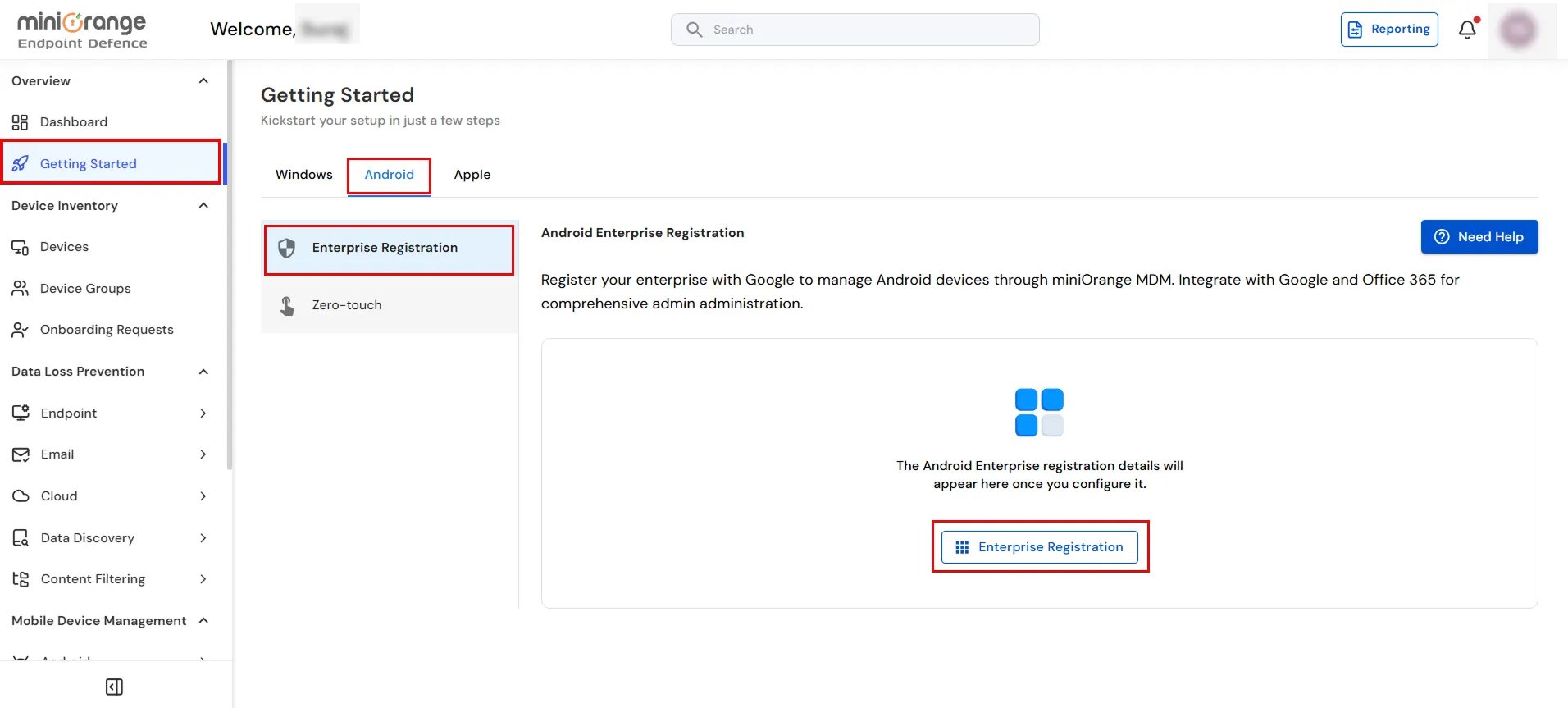
  • Android Enterprise registration button

  • A new window will open for Google Enterprise registration. Choose the email type you want to use:

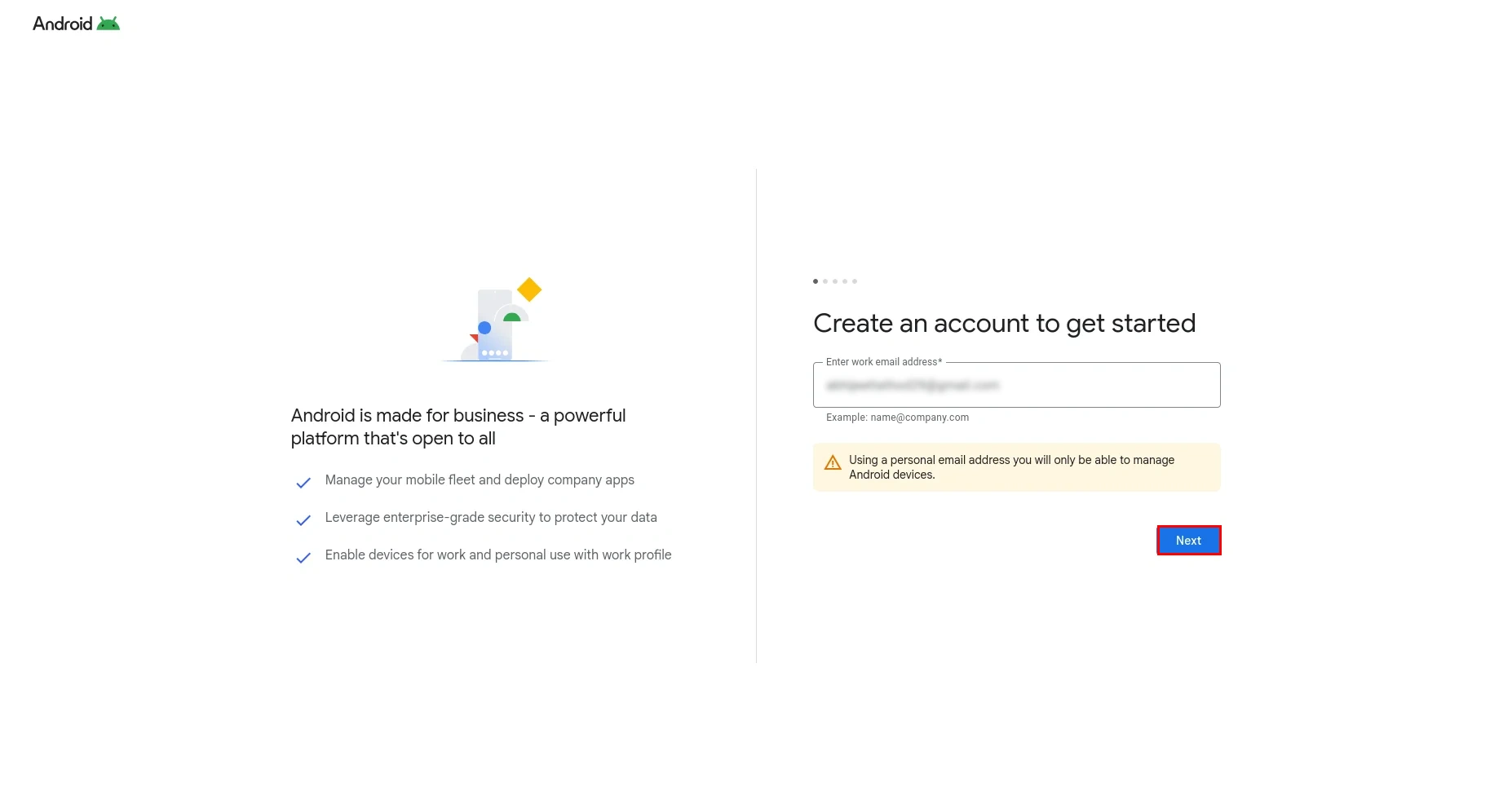
  • Enter your personal email address and click Next.
  • Enter personal email

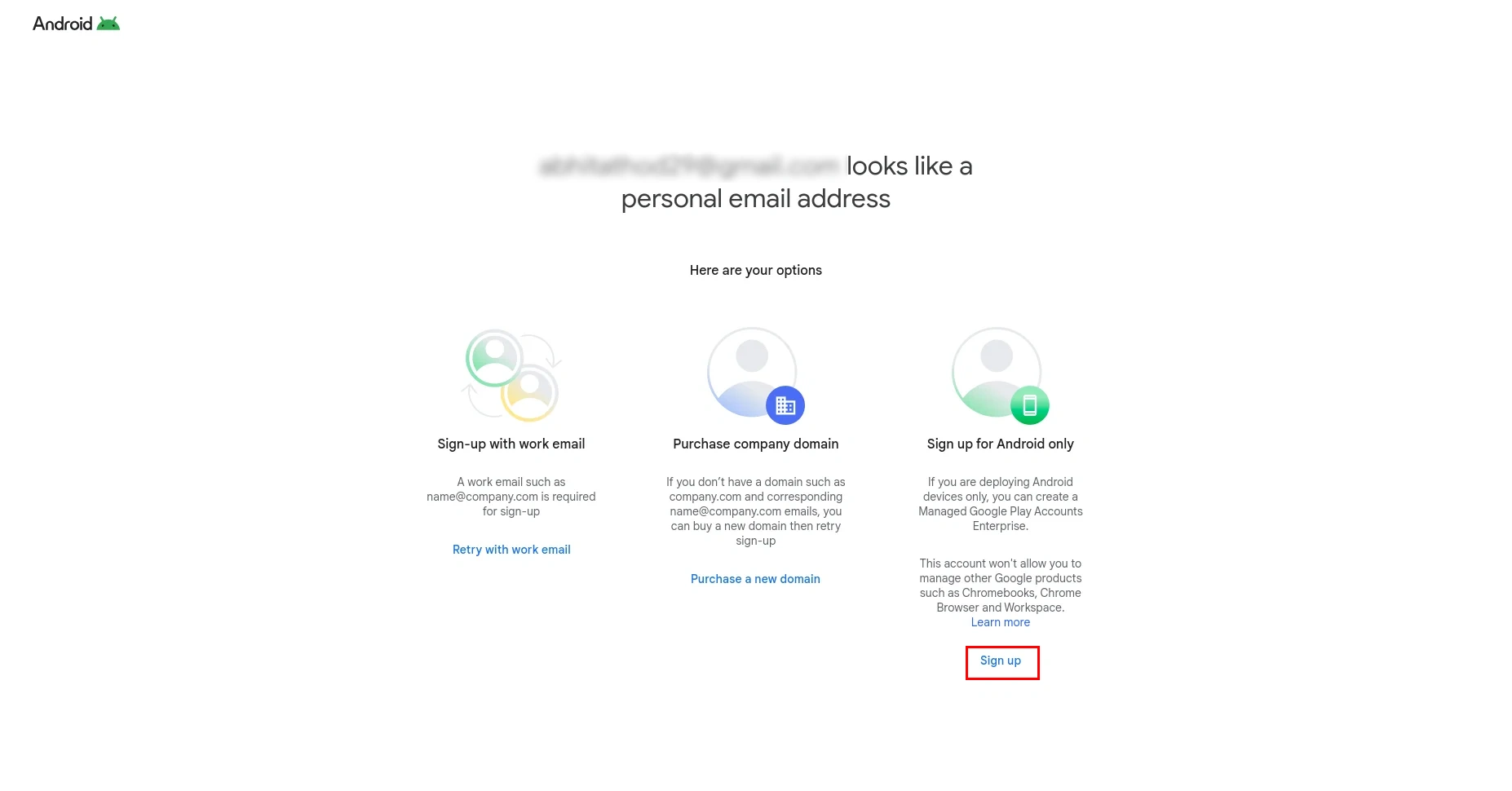
  • Click on Sign Up on the redirected page.
  • Click Sign Up

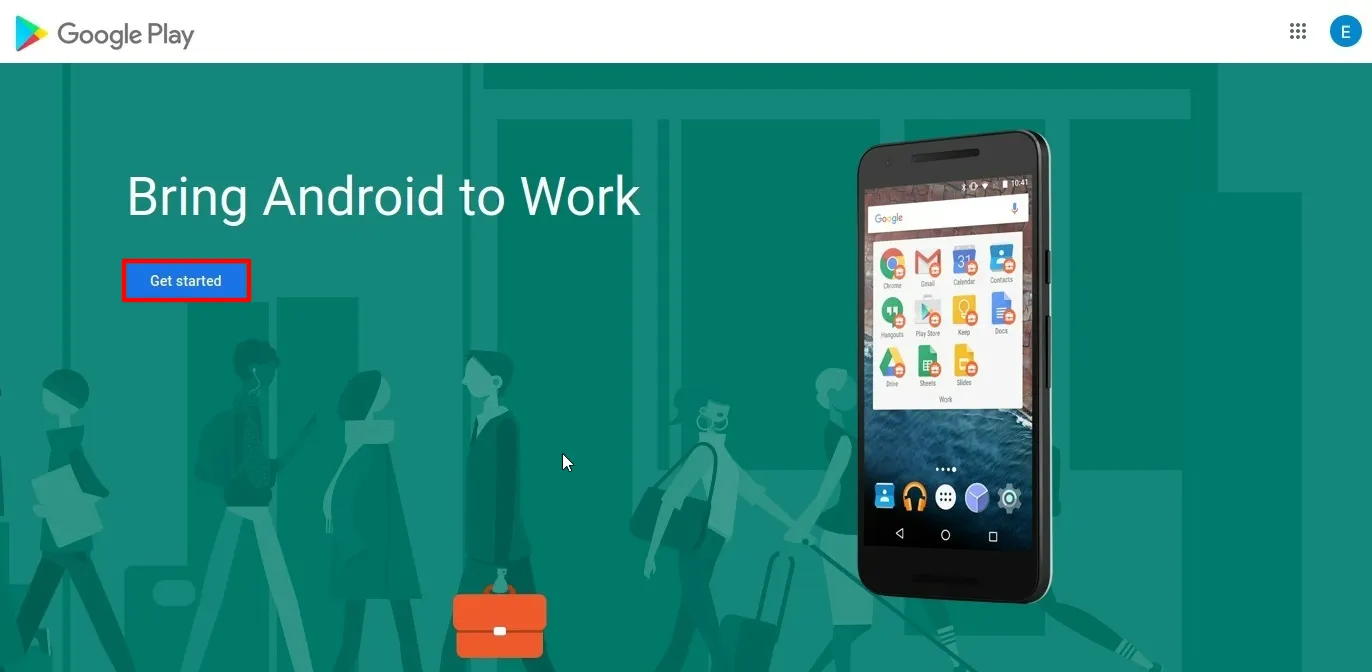
  • On the Google Play Admin sign-up page, click Get Started.
  • Google Play Admin Get Started

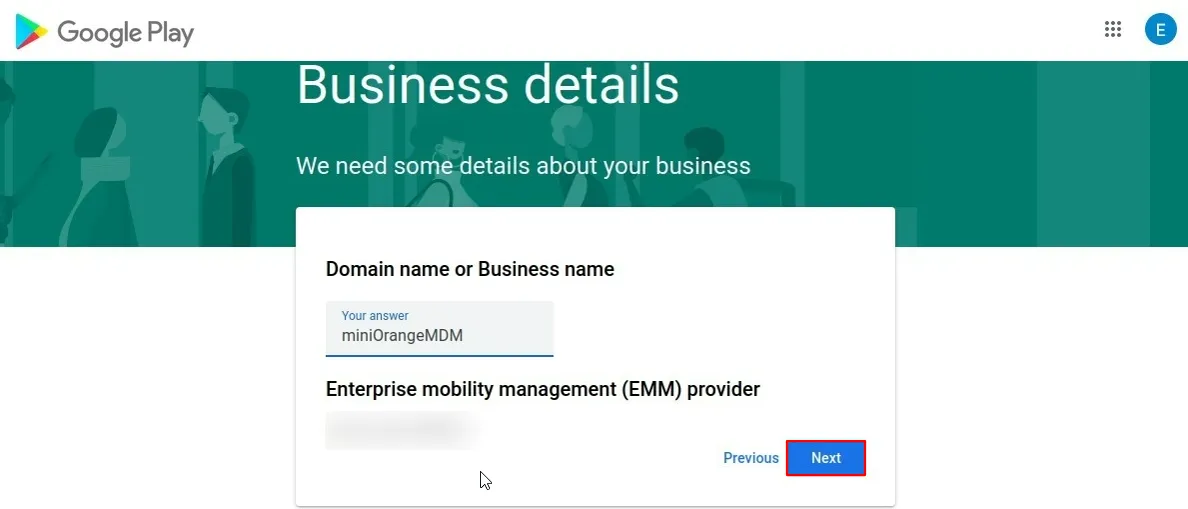
  • Enter your Business Name.
  • Enter business details

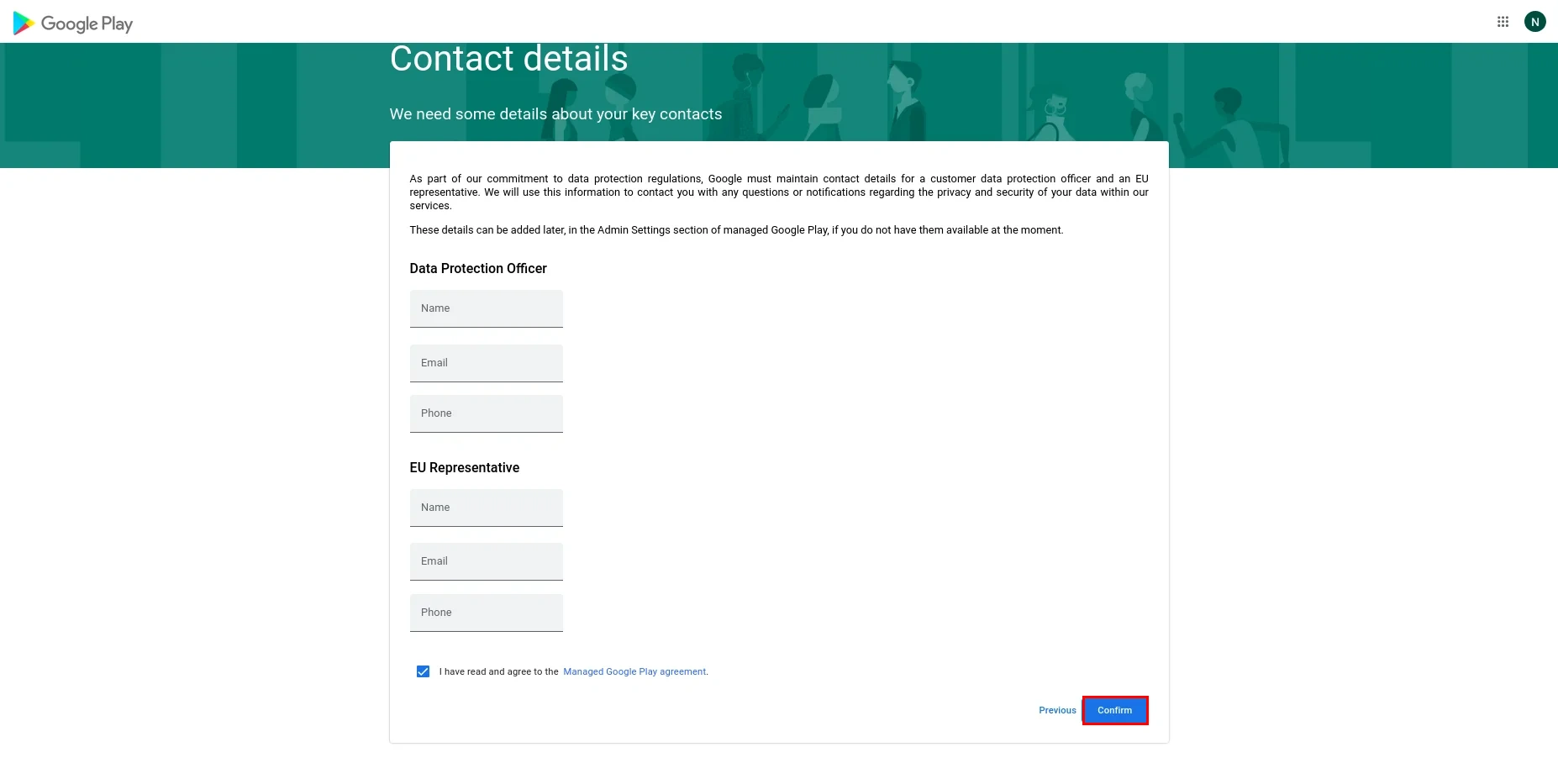
  • Optionally fill in Contact Details and click Confirm.
  • Optional contact details form with Confirm in Android Enterprise registration

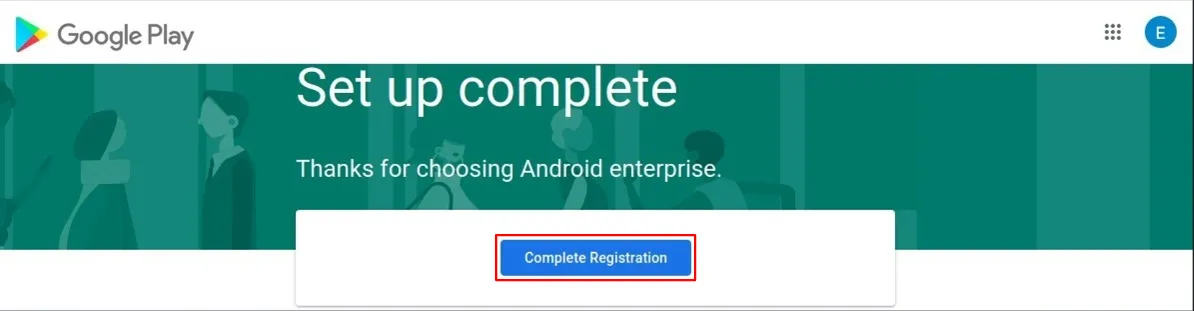
  • Click the Complete Registration button to finish the binding process.
  • Complete Registration button to finish Android Enterprise binding

  • Once redirected back to the miniOrange UEM dashboard, your enterprise details (Organization Name and Enterprise ID) will be displayed, confirming a successful registration.
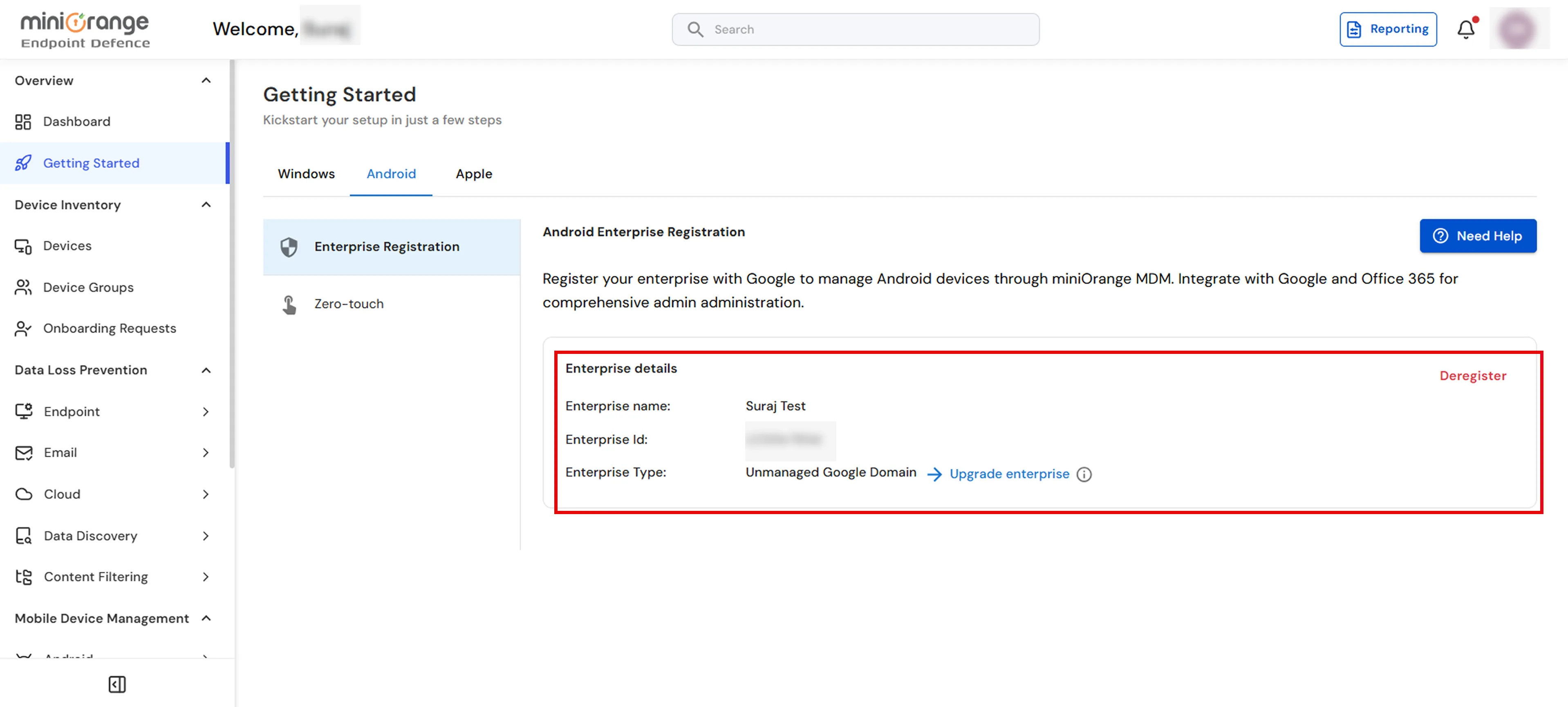
  • Registration successful