

Overview
Introduction to miniOrange Two Factor Authentication (2FA) Add-on
The miniOrange Two-Factor Authentication (2FA) App provides an extra layer of security for Jira Software and Jira Service Management. By implementing 2FA, organizations can ensure that users not only need their passwords but also a second authentication factor to access their accounts.
This additional step significantly enhances security, protecting against unauthorized access even if login credentials are compromised.
Benefits
- Enhanced Security: Adds an extra layer of protection by requiring a second form of verification.
- Reduced Risk of Unauthorized Access: Protects against compromised passwords and potential brute force attacks.
- Flexibility: Supports a variety of 2FA methods including OTP, security questions, hardware tokens, and more.
- User Convenience: Offers options for backup methods and remember device features to streamline user access while maintaining security.
- Compliance: Helps meet security requirements and standards for organizations needing robust authentication practices.
Key Features
1. Multiple Authentication Methods: To ensure robust security, our add-on supports various authentication methods:
- TOTP via Mobile Authenticator App: Generate secure, time-based one-time passwords (OTPs) using your mobile device.
- Yubikey Hardware Token (U2F): Use a physical Yubikey for a quick and secure authentication process.
- OTP via Email: Receive a one-time password sent directly to your registered email address.
- OTP via SMS: Obtain a one-time password sent to your mobile phone via SMS.
- Security Question and Backup Method: Answer security questions or use alternative backup methods for additional security.
2. Enforcement Flexibility: Administrators can configure 2FA settings to meet their security needs:
- User-Specific: Enforce 2FA on a per-user basis.
- Group-Based: Apply 2FA requirements to specific user groups.
- IP-Based: Implement 2FA based on users' IP addresses.
Additional Security Features
Our 2FA add-on offers several advanced features to enhance your security:
- IP-Based Restriction: Limit access based on IP addresses to ensure only authorized users can authenticate.
- Multiple Backup Methods: Utilize various backup options to recover access if needed.
- Audit Logs: Track and review authentication attempts and activities for increased transparency.
- Protection Against Brute Force Attacks: Safeguard against repeated login attempts and unauthorized access.
- Customizable End-User Templates: Personalize templates for end-user communication and instructions.
- Remember My Device: Allows users to skip the 2FA check when logging in from the same device for a specified duration, enhancing user convenience.
- One-Time 2FA Validation in Crowd Applications: Lets users skip 2FA in other Crowd-connected applications after successful validation in one, streamlining the authentication process.
- 24/7 Support: Receive dedicated support from our expert team anytime.
Pre-requisites
Before setting up the miniOrange 2FA App, ensure the following requirements are met:
Atlassian Tools Installation:
- Jira: Ensure Jira is installed and properly configured.
- Confluence: Ensure Confluence is installed and properly configured.
- Bamboo: Ensure Bamboo is installed and properly configured.
- Bitbucket: Ensure Bitbucket is installed and properly configured.
- Crowd: Ensure Crowd is installed and properly configured.
Supported Versions:
- Jira Server/Data Center: 7.0.0 or higher.
- Confluence Server/Data Center: 7.0.0 or higher.
- Bamboo Server/Data Center: 7.0.0 or higher.
- Bitbucket Server/Data Center: 7.0.0 or higher.
- Crowd Server/Data Center: 3.0.0 or higher.
Admin Credentials: Ensure you have administrative credentials for the respective Atlassian tool(s) to configure and apply 2FA settings.
Licensing:
- A valid license for the respective Atlassian tool(s).
- A license for the miniOrange 2FA App.
SSL Configuration: Ensure SSL is configured for secure communication, especially for methods like Yubikey and Web Authentication.
SMS Gateway Configuration: Ensure a configured gateway to send end-users the OTP required for 2FA if their method is OTP over SMS.
Email Server Configuration: Ensure a configured server to send end-users emails with the OTP required for 2FA if their method is OTP over Email.
Connectivity:
- Internet Access: Required for accessing and configuring the miniOrange 2FA App and for any external 2FA methods like SMS or email.
- Integration Access: Required for integrating with third-party services like Duo for push notifications.
Basic Configurations Tab
The Basic Configurations Tab allows administrators to manage and configure Two Factor Authentication (2FA) settings for users. It provides a variety of options to enable, customize, and control 2FA methods, ensuring a secure and flexible authentication process across your Atlassian applications.
Below is a detailed overview of the available settings and features.
Available 2FA Methods and Backup Methods for User
The plugin supports a variety of 2FA methods to suit different security needs and preferences.
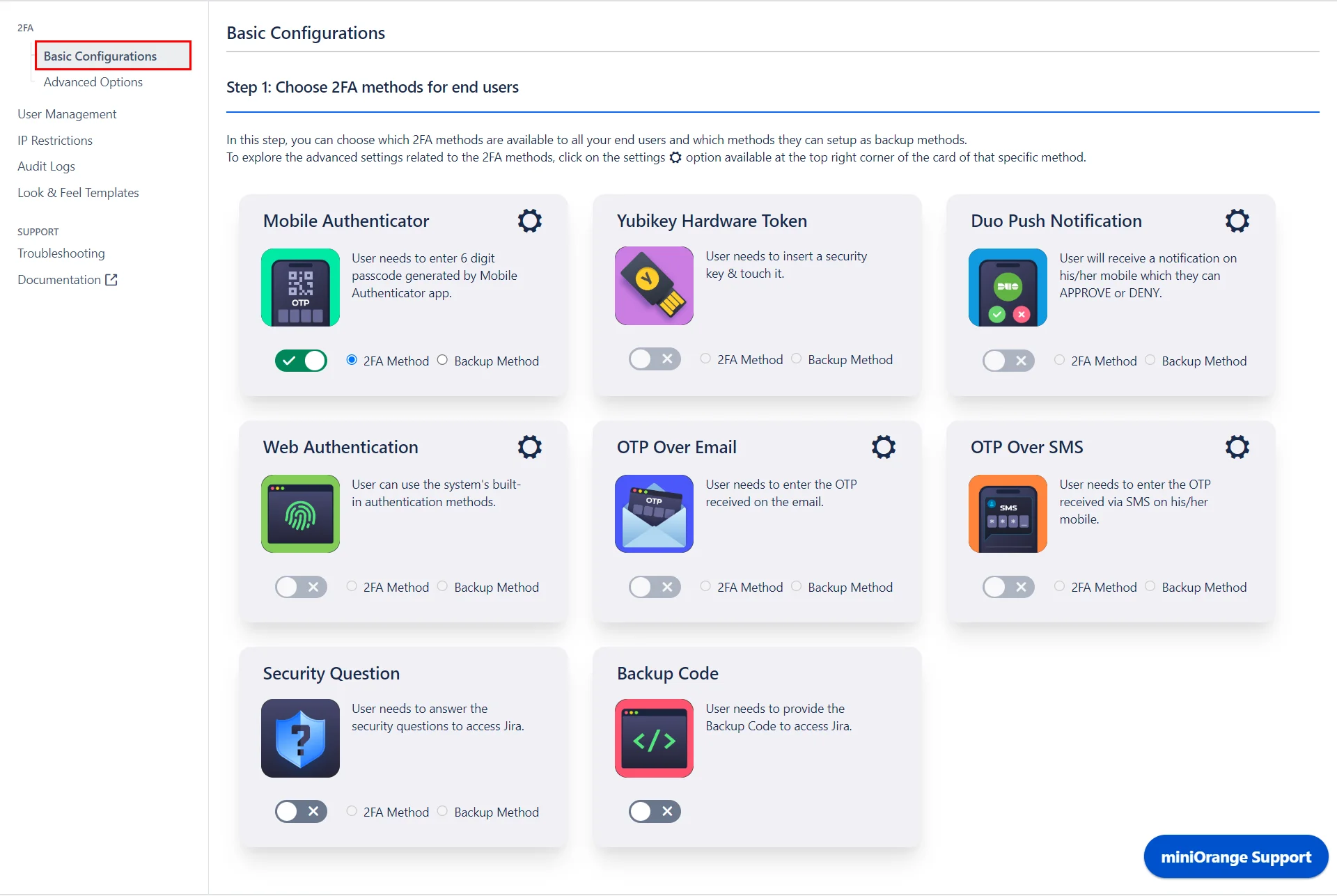
1. Primary Authentication Methods:
These methods are used for the initial 2FA process and are the main methods by which users will authenticate.
- Mobile Authenticator (TOTP): Users can generate time-based one-time passwords using a mobile authenticator app (e.g., Google Authenticator, Authy).
- Yubikey Hardware Token (U2F/WebAuthn): A physical device that users insert into their USB port to complete the authentication process.
- OTP Over Email: A one-time password is sent to the user’s registered email address.
- OTP Over SMS: A one-time password is sent via SMS to the user’s mobile phone.
- Security Questions (KBA): Users answer pre-set security questions as a form of authentication.
- Backup Codes: Users receive a set of one-time-use codes that can be used if they lose access to their primary authentication method.
2. Backup Authentication Methods:
These methods act as fallback options if the primary method is unavailable or the user is unable to authenticate using their primary method. This ensures continuous access while maintaining security.
- Security Questions
- OTP Over Email
- Backup Codes
Enforcing 2FA for Users
This feature allows you to enforce 2FA for users, ensuring they verify their identity after logging in.
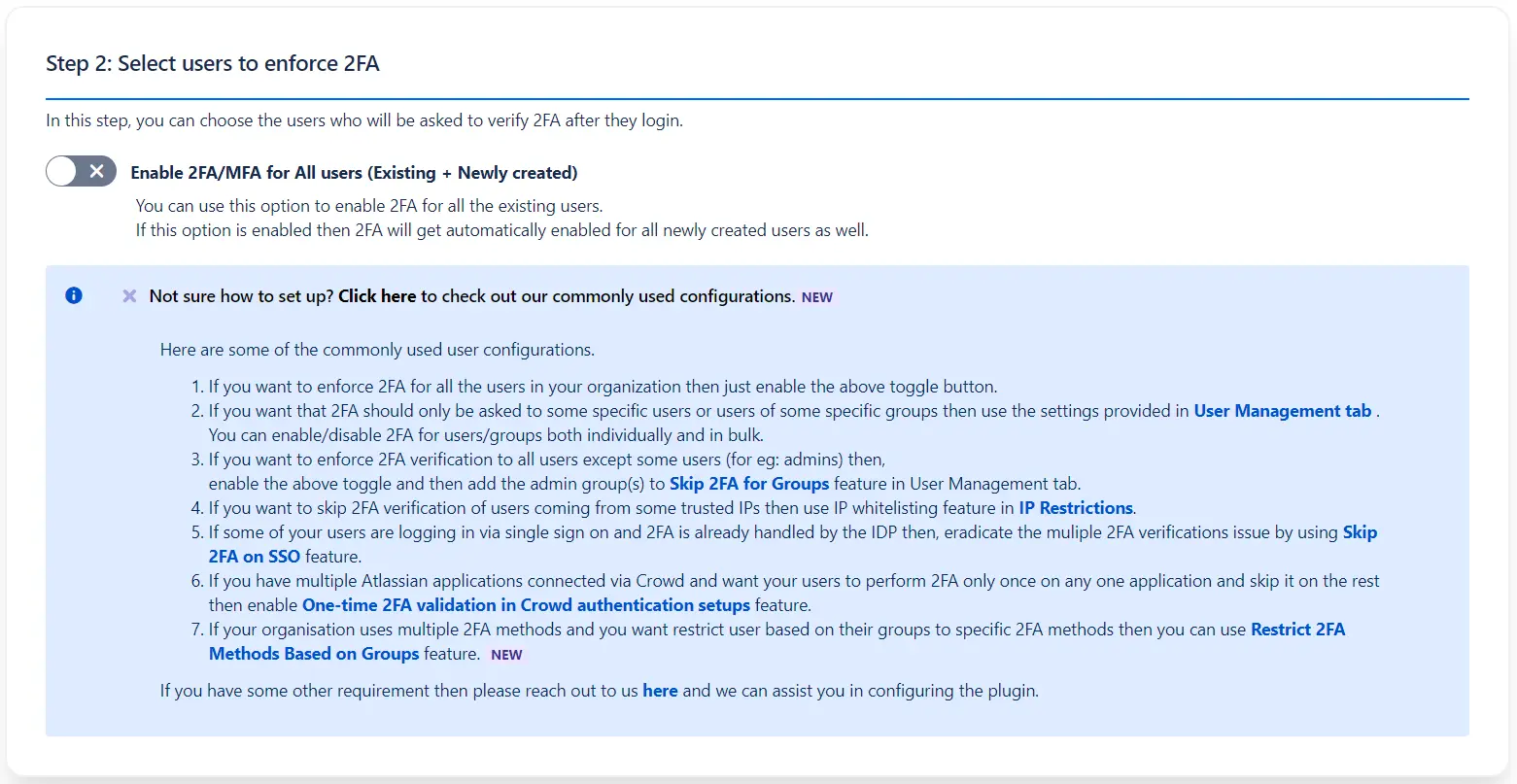
The section includes a master control for 2FA labeled Enforce 2FA for All Users (Existing + Newly Created). When enabled, this will enforce 2FA for both existing users and any newly created accounts.
If you intend to enforce 2FA on select users or customize the configuration, the section provides a mini guide with instructions and directs you to the appropriate feature or option.
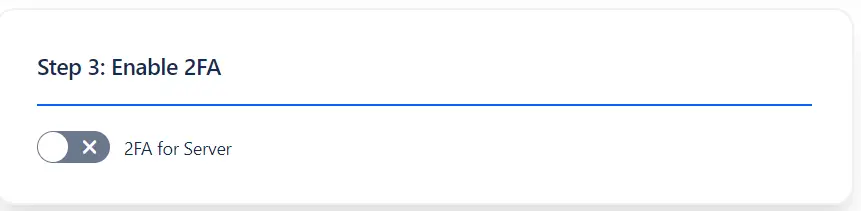
Enabling 2FA for the Server
This option allows you to enable 2FA for your entire server instance, ensuring that all users must verify their identity through 2FA upon login.
Advanced Options
User Flow Configurations
As you fine-tune your 2FA setup, it's essential to consider how users interact with these configurations to ensure both security and usability. The following user flow configurations allow administrators to manage and optimize how users engage with their 2FA settings, providing a balance between security enforcement and user flexibility.
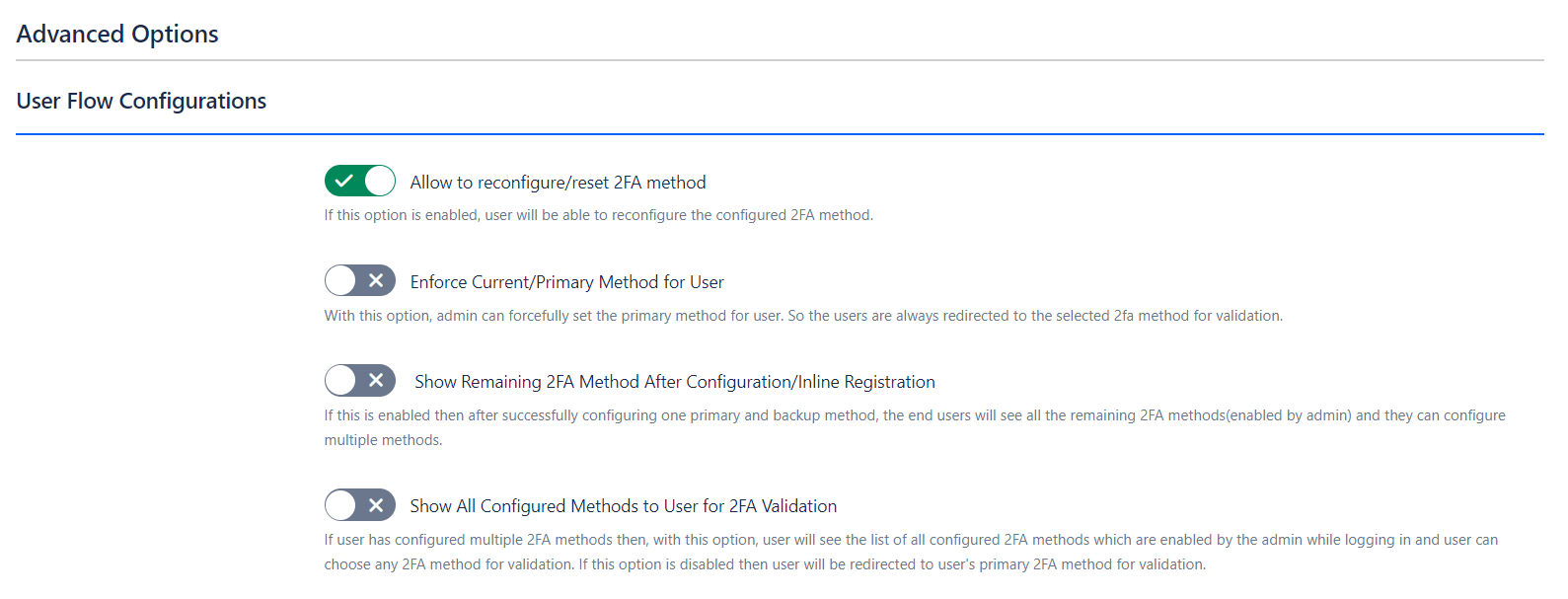
1. Allow Reconfigure/Reset 2FA:
- Functionality: Enabling this option allows users to reset and reconfigure their 2FA settings through the Two Factor Configurations page in their user profile. Users can manage all available 2FA methods and update their settings, including backup codes.
- Benefit: Offers users flexibility to update their 2FA settings as needed, maintaining effective account security.
2. Enforce Primary Method for Users:
- Functionality: This setting is crucial when the admin needs to enforce a specific primary authentication method for users.
- Benefit: Ensures a standardized and secure authentication experience, with backup options available if the primary method is not viable.
For example, Suppose the admin has enabled both the Mobile Authenticator and Yubikey Hardware Token methods. Users will configure both methods and, typically, choose one for primary authentication. With this feature enabled, the admin can mandate which 2FA method users must use for verification.
3. Show Remaining 2FA Methods After Configuration:
- Functionality: When multiple methods are allowed by the admin and this option is enabled, users will be able to configure additional authentication methods after setting up their primary and backup methods.
- Benefit: Encourages users to set up multiple authentication methods, enhancing security with additional layers of protection.
4. Show All Configured Methods to Users for Validation:
- Functionality: This option displays all configured authentication methods to users during login, allowing them to select their preferred method for validation.
- Benefit: Provides flexibility for users to authenticate using any configured method, ensuring access even if one method is unavailable.
Brute Force Protection
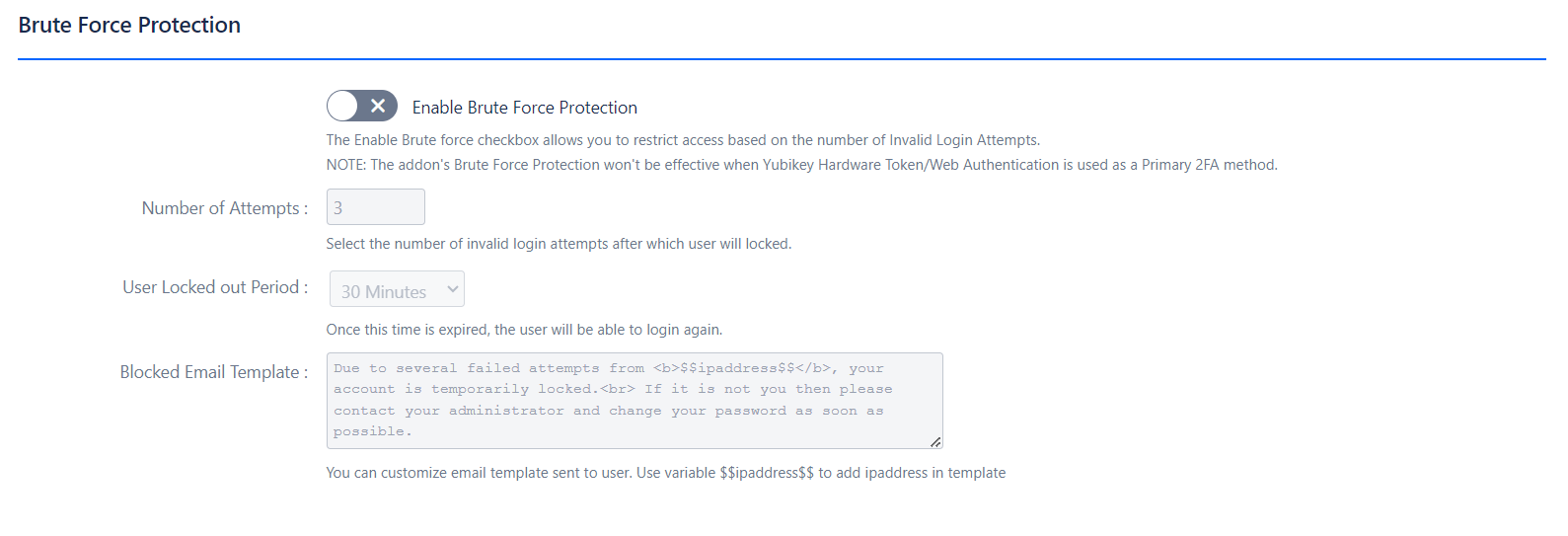
- Functionality: Brute Force Protection restricts access to Confluence after a specified number of invalid login attempts, enhancing security by locking out users who fail to authenticate repeatedly.
-
Benefits:
- Prevents Unauthorized Access: Helps protect against brute force attacks by limiting login attempts.
- Customizable Lockout Period: Allows setting a lockout period to control how long a user is prevented from logging in.
Multilingual Support

- Functionality: Enables users to select their preferred language on all 2FA plugin pages, accommodating diverse user bases with different language preferences.
- Benefits: Enhanced User Experience: Provides a personalized experience for users from various linguistic backgrounds.
Remember My Device

- Functionality: Allows users to bypass the 2FA check when logging in from the same device, improving user convenience and reducing the frequency of 2FA prompts.
-
Benefits:
- Convenience: Users can avoid repetitive 2FA requests when using the same device.
- Customizable Expiry: Set the duration for which the device will be remembered, or allow users to adjust this setting.
Skip 2FA for APIs

- Functionality: Enables skipping 2FA for specific backend APIs, streamlining interactions for internal systems.
-
Benefits:
- Operational Efficiency: Facilitates smoother internal processes by excluding certain API calls from 2FA requirements.
Force 2FA on REST API Calls

- Functionality: Enforces 2FA on REST API calls to ensure additional security for API interactions.
-
Benefits:
- Increased Security: Adds an extra layer of protection for REST API interactions, reducing the risk of unauthorized access.
One-Time 2FA Validation in Crowd Authentication Setups
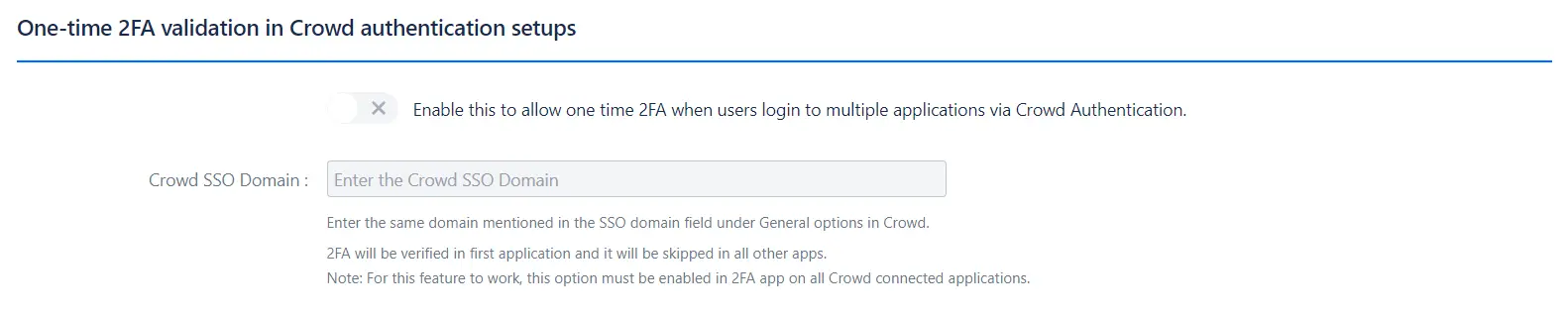
- Functionality: Allows one-time 2FA validation when users log into multiple applications via Crowd Authentication, simplifying the login process across applications.
-
Benefits:
- Streamlined Authentication: Reduces the need for repeated 2FA prompts across multiple applications.
Skip 2FA on SSO
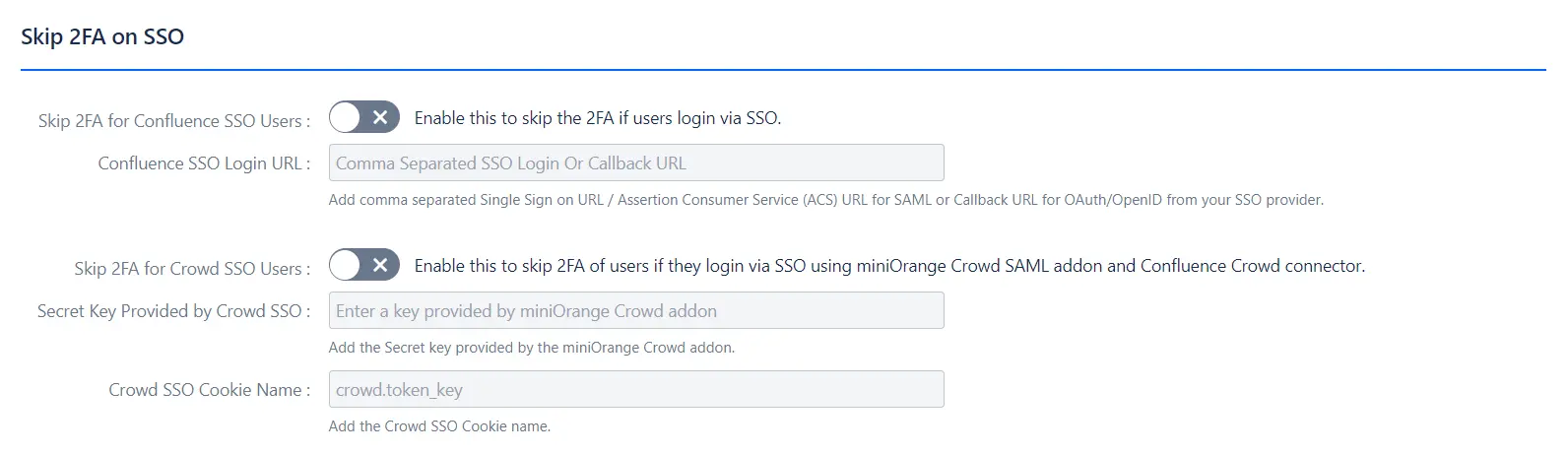
- Functionality: Allows skipping 2FA for users logging in via Single Sign-On (SSO), enhancing convenience while using SSO.
-
Benefits:
- User Convenience: Reduces the frequency of 2FA prompts for users authenticated through SSO.
Access to Plugin Pages

- Functionality: Controls access to the 2FA plugin configuration pages for non-admin users, allowing selective access based on user groups.
-
Benefits:
- Controlled Access: Provides the ability to manage who can view or edit the 2FA plugin settings.
Restrict 2FA Methods Based on Groups
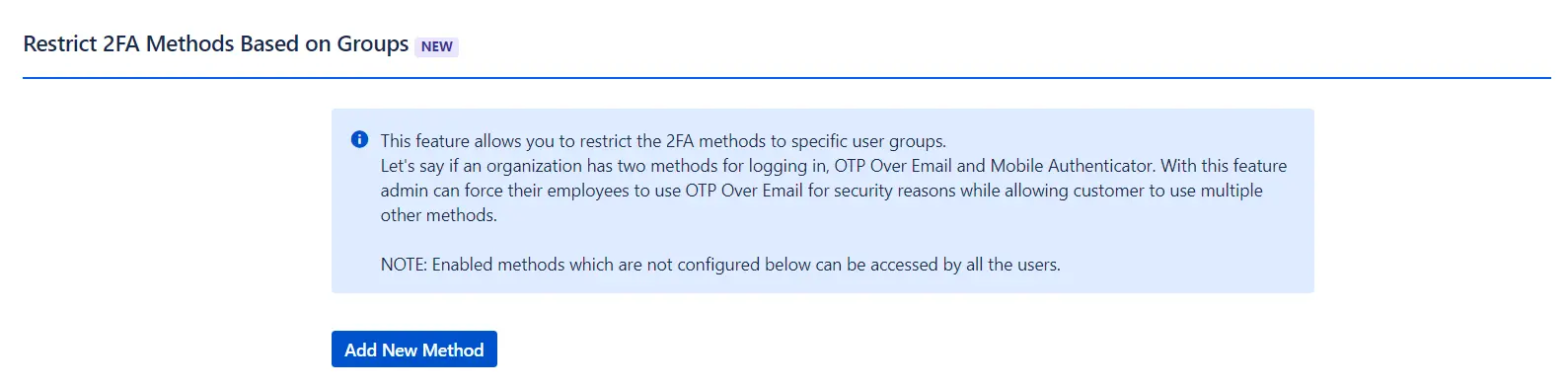
- Functionality: Allows restriction of 2FA methods to specific user groups, ensuring that different groups use designated methods according to security policies.
-
Benefits:
- Policy Enforcement: Ensures compliance with organizational security policies by mandating specific 2FA methods for different user groups.
Mobile Authenticator
The Mobile Authenticator method utilizes the principle of Time-based One-Time Passwords (TOTP). It is the most widely used 2FA authentication method.
1. How TOTP Works
Time-based One-Time Passwords (TOTP) generate passcodes that are based on the current time rather than a sequential counter.
Here’s how it works:
- Time Dependency: Unlike other OTP methods that rely on a counter that increases with each login attempt, TOTP uses the current time to generate passcodes. This time-based approach ensures that each passcode is valid only for a short period.
- Validity Period: Each TOTP passcode is valid for a specific time window, called a timestep, which is typically set to 30 or 60 seconds. During this time, the passcode can be used to authenticate the user. After the timestep expires, the passcode becomes invalid, and a new passcode must be generated.
- Passcode Generation: When a user requests an OTP, the authenticator app and the 2FA add-on use the current time and a secret key to generate the passcode. Since both the app and the add-on use the same secret key and time-based algorithm, they produce matching passcodes as long as their clocks are synchronized.
- Usage Window: To access the application, users must enter the passcode within the validity period. If they enter the passcode after the timestep has expired, they will receive an invalid OTP error message and need to generate a new one.
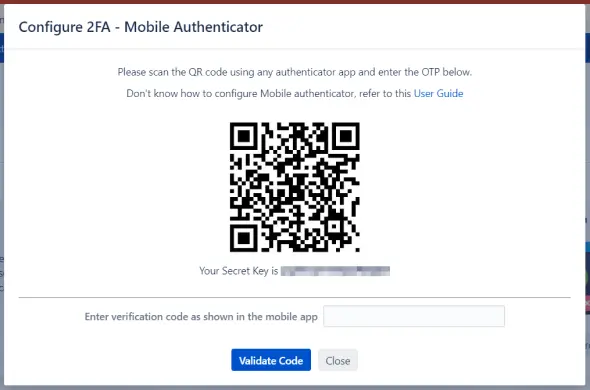
2. Registration Process
- Unique QR Code: During registration, each user receives a unique QR code representing a randomly generated secret key.
- Scanning the QR Code: Users scan this QR code using any mobile authenticator app, such as Google Authenticator, Microsoft Authenticator, Authy, Duo, etc.
- Generating OTPs: Based on the current time and the secret key, the authenticator app and the add-on generate an OTP/passcode valid for a short duration.
3. Important Considerations
Time Synchronization:
- The OTP is generated separately in the mobile app and the 2FA App based on the current time. Therefore, it is crucial that the time on both the Atlassian application and the mobile device is synchronized (i.e., set to Automatic time/Network time). If the times are not in sync, the OTP/passcode will not match during validation.
- For detailed instructions on configuring the Mobile Authenticator, please refer to our 2FA setup guide.
Yubikey Hardware Token(U2F/WebAuthn)
Universal Second Factor (U2F) is a highly secure 2FA method recognized by cybersecurity experts as one of the most effective mechanisms for protecting accounts. It relies on public-key cryptography and offers robust resistance against phishing attacks. This method is also user-friendly, making it a popular choice for enhancing security.
1. How U2F Works
- Public-Key Cryptography: U2F uses a pair of cryptographic keys—a private key stored securely on the hardware token and a public key registered with the server. During authentication, the hardware token uses the private key to sign a challenge from the server, proving the user’s identity.
- Hardware Token Use: To authenticate, users simply insert the U2F key into a USB port and press a button on the token. This action generates a cryptographic response that the server verifies against the registered public key.
2. Configuration Process
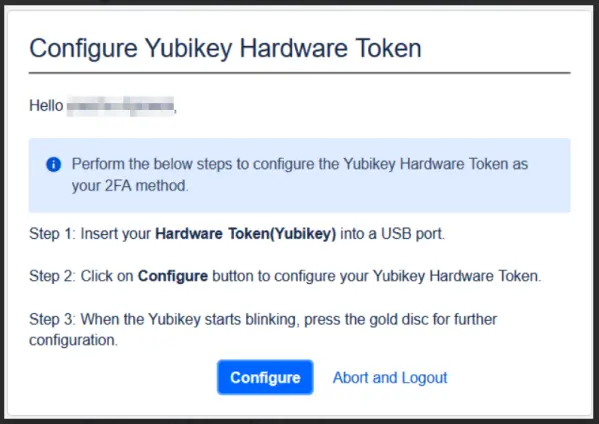
-
Registration:
- Private Key Generation: When a user registers their U2F hardware token, a private key is generated for encryption.
- Token Confirmation: During the registration process, users confirm the request by pressing a button on the hardware token. This step binds the hardware token to the user’s account by associating the generated private key with their account.
-
Authentication:
- Token Insertion and Verification: To log in, users insert the hardware token into the USB port. The token then generates a response using the stored private key.
- Button Press: Users must press the button on the token to complete the authentication process. This action provides the server with a cryptographic proof of the user’s identity.
3. Security Benefits
- Phishing Resistance: Unlike software-based 2FA methods, U2F hardware tokens are highly resistant to phishing attacks because the token itself must be physically present to authenticate. An attacker cannot access the account without the actual hardware token.
- Hardware Token Security: U2F relies on physical security keys, which are less susceptible to hacking attempts compared to software-based solutions. These keys generate a unique pair of keys for each service, enhancing the security posture by preventing the sharing of secrets among service providers.
For detailed instructions on configuring a Yubikey hardware token, please refer to our 2FA setup guide.
OTP Over Email
The OTP Over Email authentication method enhances security using Time-based One-Time Passwords (TOTP). This method involves sending a one-time passcode to the user’s registered email address, which they must enter to log into the application.
How OTP Over Email Works
-
OTP Generation and Delivery:
- Requesting an OTP: When a user attempts to log in, an OTP is generated and sent to their registered email address.
- Entering the OTP: The user retrieves the OTP from their email and enters it into the application within the validity period to authenticate.
-
Time-Based Validity:
- Passcode Duration: The OTP is valid only for a specific time window, typically between 30 and 60 seconds. After expiration, the OTP cannot be used, and a new one must be requested.
Configuration Requirements
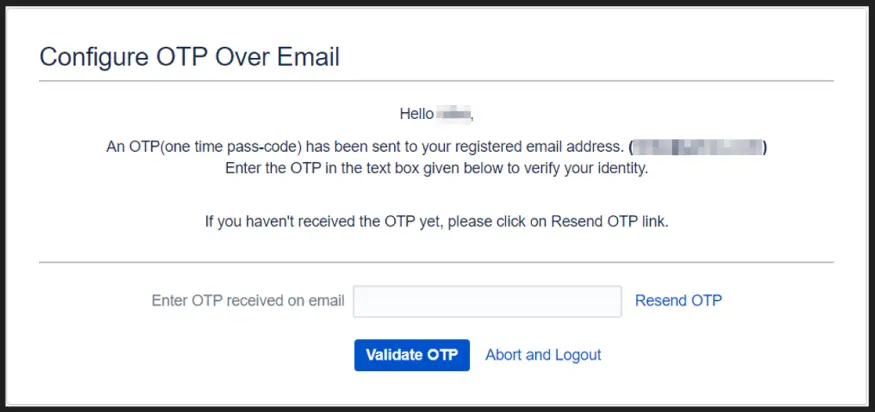
- Outgoing Mail Server: To use OTP Over Email, configure the outgoing mail server on your Atlassian instance. Ensure that email settings such as SMTP server address, port, and authentication details are correctly set up to enable successful OTP delivery.
Security Considerations
- Email Account Security: To enhance security, users should ensure their email account is protected with a strong password and, ideally, a separate 2FA method.
- Spam Filters: Check that OTP emails are not being mistakenly filtered into spam or junk folders.
For detailed instructions on configuring the outgoing mail server, please refer to the 2FA setup guide.
OTP Over SMS
The OTP Over SMS authentication method uses Time-based One-Time Passwords (TOTP) to secure user access. This method involves sending a one-time passcode to the user's registered mobile number, which must be entered to log into the application.
How OTP Over SMS Works
1. OTP Generation and Delivery:
- Requesting an OTP: When a user initiates a login attempt, a one-time passcode is generated and sent to their registered mobile number.
- Entering the OTP: The user receives the OTP via SMS and inputs it into the application to authenticate their identity.
2. Time-Based Validity:
- Passcode Duration: The OTP is valid for a limited time, typically between 30 and 60 seconds. After this period, the OTP expires and cannot be used. The user will need to request a new OTP if needed.
Configuration Requirements
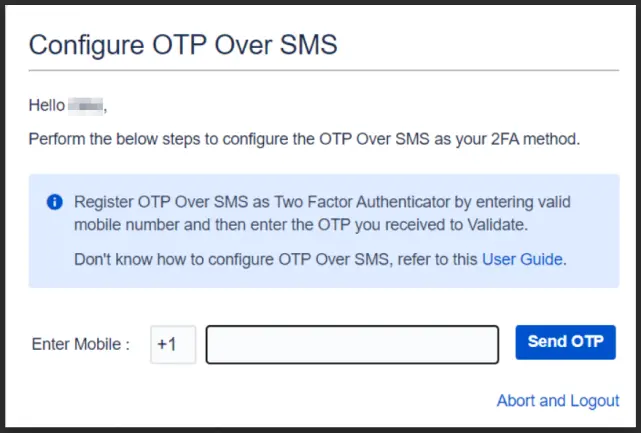
SMS Gateway Setup: To use OTP Over SMS, you must configure an SMS gateway within the plugin. An SMS gateway is a system that manages the sending of SMS messages to mobile numbers.
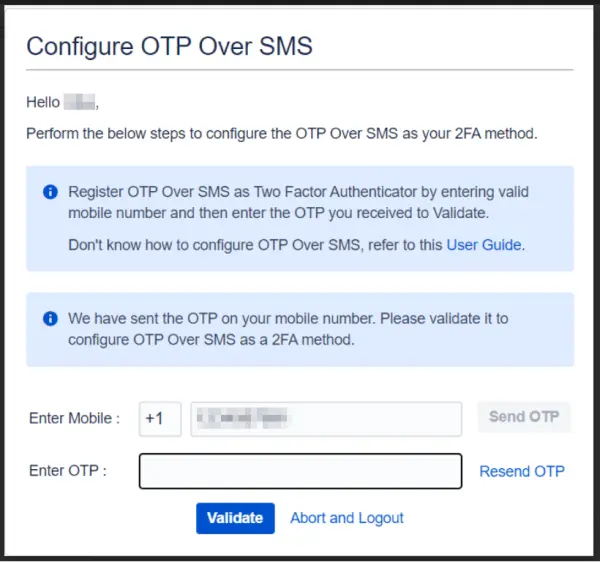
There are two options for configuring the SMS gateway:
- miniOrange Gateway: Utilizes miniOrange's own SMS gateway service for sending OTPs.
- Custom Gateway: Allows integration with a third-party SMS gateway service of your choice.
For more details on setting up and choosing between these gateways, refer to the gateway configuration guide.
Security Considerations
- Mobile Number Security: Ensure that the mobile number associated with the account is secure and not easily accessible to others.
- SIM Swapping Protection: Consider additional security measures to protect against SIM swapping attacks, which can compromise OTP-based authentication.
Duo Push Notification
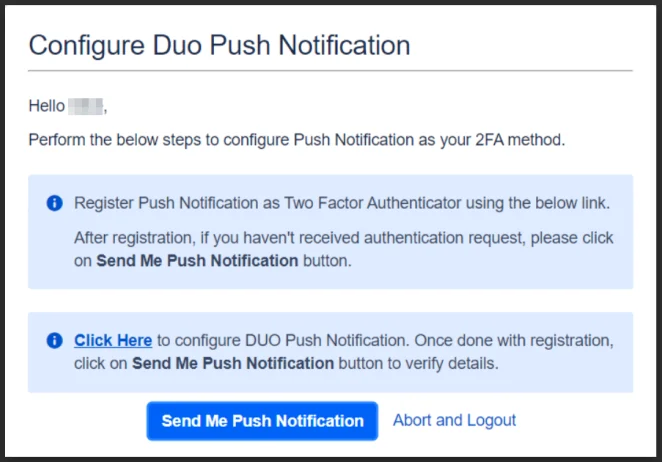
Duo Push Notification is a 2FA method that enhances security by requiring users to approve authentication requests through a mobile device. This method simplifies the login process while adding an extra layer of protection against unauthorized access.
How Duo Push Works
- Push Notification: When a user attempts to log in, a push notification is sent to their registered device through the Duo mobile app. The user then taps "Approve" to verify their identity.
- Real-Time Authentication: The approval request is processed in real-time, providing instant authentication without the need for manually entering codes.
Configuration Process
-
Integration:
- Create Application: Set up an application in Duo to enable push notifications for your Atlassian instance.
- Obtain Keys: Copy the Integration Key, Secret Key, and API hostname from Duo.
- Configure Settings: Paste these details into the Duo Push Notification Settings in your Atlassian 2FA app.
-
User Registration:
- Mobile App Installation: Users need to install the Duo mobile app on their device.
- Device Enrollment: Users register their device by following the prompts in the Duo app and approving the test authentication request.
Security Benefits
- Ease of Use: Duo Push eliminates the need to manually enter codes, simplifying the authentication process for users.
- Real-Time Verification: The push notification provides instant verification, reducing the risk of delayed or intercepted authentication codes.
- Strong Security: Push notifications require physical access to the registered device, adding a robust layer of security.
Web Authentication
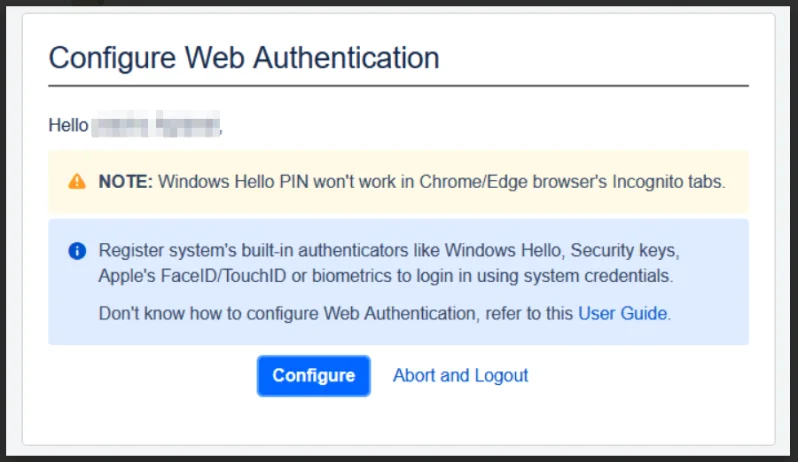
Web Authentication leverages built-in security features on user devices, such as biometric authentication (e.g., Face ID, Touch ID) or device PINs, to provide a secure and user-friendly 2FA method.
How Web Authentication Works
- Biometric and PIN Authentication: Web Authentication uses device-specific features like biometric sensors (e.g., fingerprint readers) or device PINs to authenticate users. During login, users verify their identity using these built-in security methods.
- Secure Context: This method requires that your Atlassian instance is configured with Secure Context (HTTPS) to ensure encrypted communication.
Configuration Process
-
Device Registration:
- Enable Web Authentication: Ensure that Web Authentication is enabled in your 2FA settings.
- Device Enrollment: Users need to register their device authenticators by following the setup prompts in their Atlassian account.
-
Authentication:
- Biometric Verification: During login, users will use biometric features or PINs to authenticate.
- Secure Context: Ensure that the Atlassian instance is accessed over HTTPS for secure communications.
Security Benefits
- Enhanced Security: Utilizes device-level security features that are difficult to replicate or bypass, providing strong protection against unauthorized access.
- Convenience: Users benefit from a seamless authentication experience without needing to remember or enter additional codes.
Security Questions(KBA)
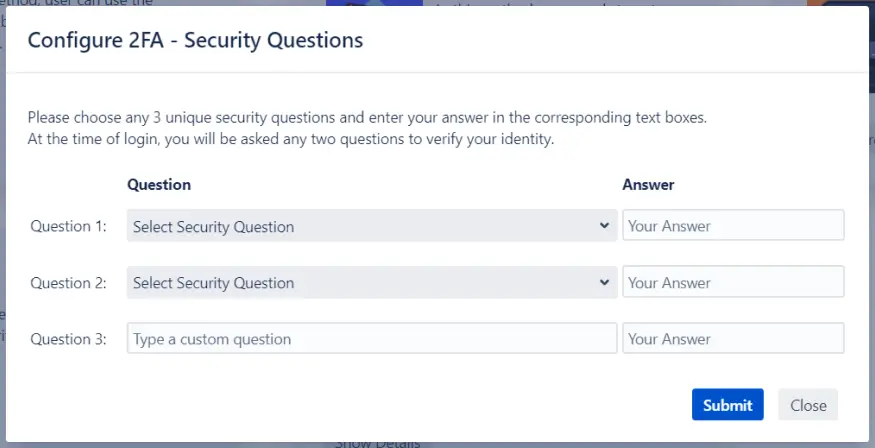
The Security Questions (Knowledge-Based Authentication or KBA) method enhances security by requiring users to provide answers to personal questions that are known only to them. This authentication method adds a layer of protection by leveraging personal knowledge.
How Security Questions Work
1. Configuration
- Set Up Questions: Users configure three unique security questions during registration. These questions should be personal and known only to the user.
- Provide Answers: Users input answers to these questions, which are securely stored for later verification.
2. Authentication Process
- Question Selection: Upon logging in, users are prompted to answer any two of the three security questions they previously configured.
- Correct Answers Required: Users must answer the selected questions correctly to gain access. If the answers do not match the stored responses, access is denied.
Security Considerations
- Question Selection: Choose questions that are difficult for others to guess but easy for you to remember. Avoid questions with answers that can be found through social media or public records.
- Answer Security: Ensure that answers are not easily guessable or predictable. Consider using a combination of random characters or personal information that is not publicly available.
For detailed instructions on setting up and configuring Security Questions, please refer to the 2FA setup guide.
Backup Codes
The Backup Codes method serves as a fallback authentication option in case the primary 2FA method is unavailable. This ensures that users can still access their accounts even if they encounter issues with their primary authentication method.
How Backup Codes Work
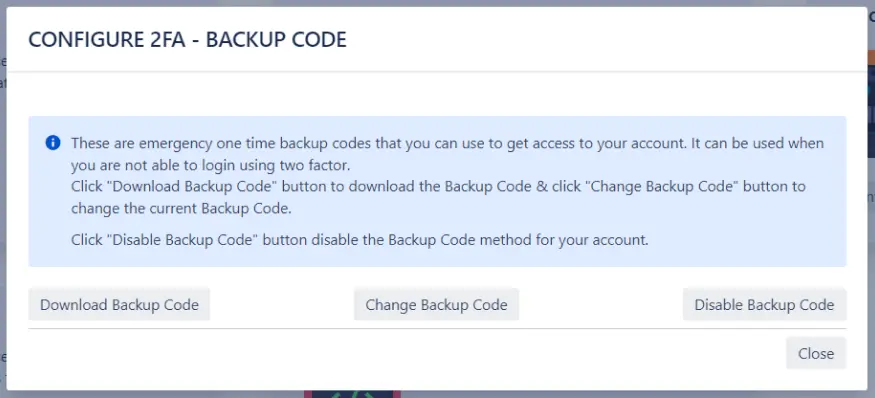
1. Provisioning
- Code Generation: During 2FA registration, users receive a set of 15 unique alphanumeric backup codes. These codes are designed for use if the primary 2FA method is inaccessible, such as losing a mobile device.
- Single Use: Each backup code can be used only once. After use, the code becomes invalid and cannot be reused.
2. Usage
- Accessing Accounts: If the primary 2FA method (e.g., a mobile authenticator app) is unavailable, users can enter one of their backup codes during login to gain access to their Atlassian application.
Management of Backup Codes
- Resetting and Reconfiguration: If the “Allow to Reset/Reconfigure 2FA” option is enabled in the admin panel, users can manage their backup codes. This includes enabling or disabling backup codes, generating a new set, or downloading additional codes as needed.
Security Best Practices
- Safe Storage: Backup codes should be stored securely to prevent unauthorized access. Recommended storage solutions include password managers or secure offline methods, such as writing the codes down and keeping them in a safe place, away from easily accessible areas or potential threats. Avoid storing backup codes in digital notes or emails that could be compromised.
- Handling Compromised Codes: If you suspect your backup codes are compromised or you lose access to them, update your codes immediately.
Troubleshooting Tips
- Common Issues: If you encounter issues with backup codes, such as receiving an invalid code error, verify that the code is entered correctly and check that it has not been used previously.
User Management Tab
The User Management Tab provides comprehensive tools for managing Two-Factor Authentication (2FA) across users and groups, allowing administrators to efficiently control 2FA settings and monitor compliance.
This section is divided into three key areas:
2FA for Users
The "2FA for Users" section allows administrators to manage Two-Factor Authentication (2FA) settings for individual users. This includes enabling, disabling, and resetting 2FA configurations.
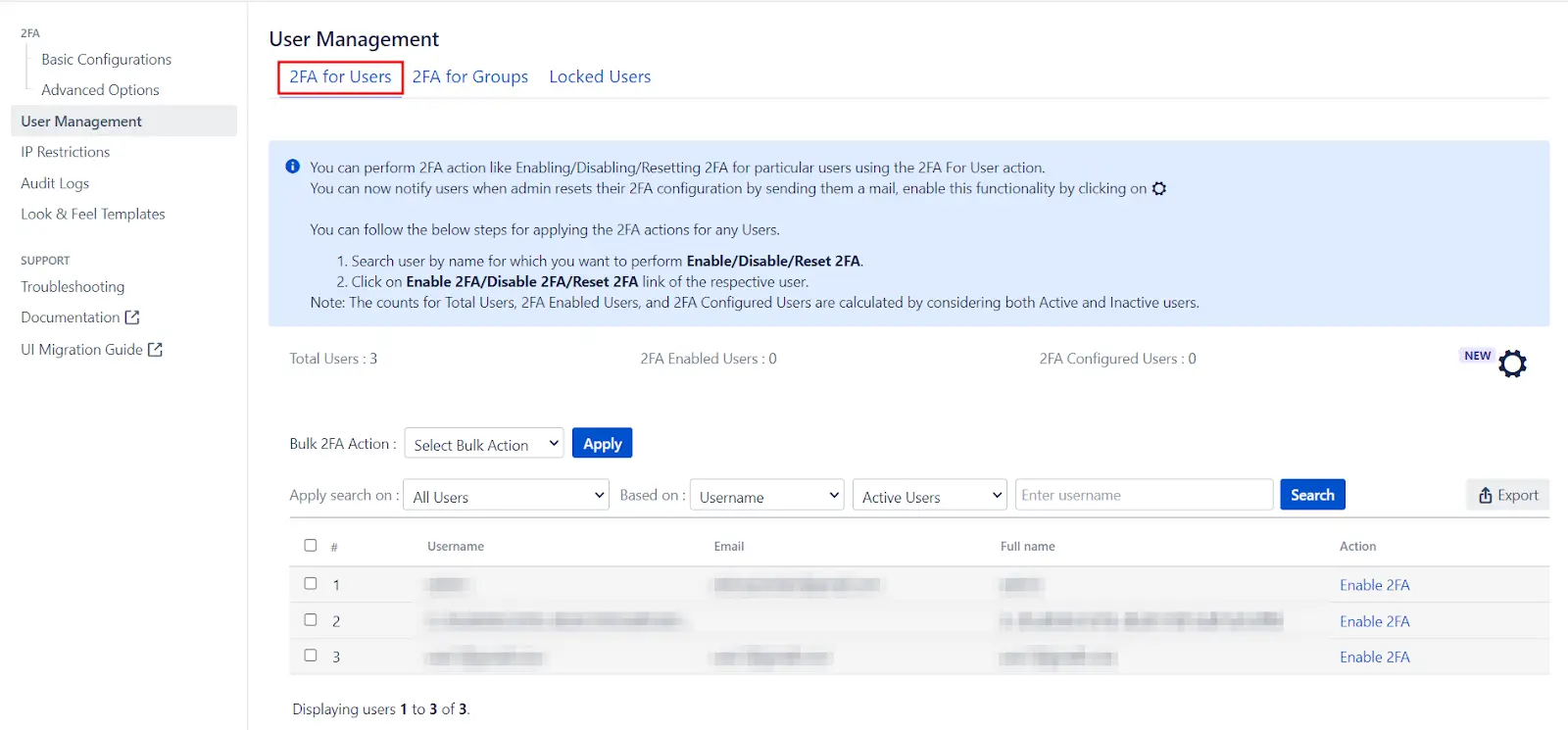
Let’s look at the features the 2FA for Users tab provides:
- User List: Displays a table with all users, including their usernames, email addresses, full names, and current 2FA settings. This overview helps administrators track and manage user configurations effectively.
-
Filtering Options: Admins can filter users based
on their 2FA status, including:
- 2FA Enabled: Users who have 2FA activated.
- 2FA Configured: Users who have set up 2FA.
- 2FA Disabled: Users who do not have 2FA enabled.
- All Users: Displays all users irrespective of their 2FA status.
-
Actions Available:
- Enable 2FA: Activates 2FA for selected users, prompting them to register and validate their 2FA settings upon their next login.
- Disable 2FA: Deactivates 2FA for selected users, removing the need for 2FA validation during login. Users' 2FA configurations are saved and can be reactivated later without reconfiguration.
- Reset 2FA: Clears 2FA settings for selected users, requiring them to reconfigure their 2FA methods upon their next login.
-
Total 2FA Counts:
- Total 2FA Enabled Users: Displays the number of users with 2FA activated.
- Total 2FA Configured Users: Displays the number of users who have configured 2FA.
- Search for Username: Allows admins to search for users by their usernames. This is especially useful in large user bases. The search function can be combined with filters like All Users, 2FA Enabled Users, 2FA Disabled Users, and 2FA Configured Users for more precise results.
- Export Users: Exports a list of users to a .csv file, including details such as 2FA status, configuration status, account activity, group memberships, and application access (Jira software and JSM).
Bulk 2FA Actions
- Selected Users: Admins can enable, disable, or reset 2FA for selected users by checking the appropriate boxes in the user table.
- All Users: Admins can perform bulk 2FA actions (enable, disable, or reset) for all users at once.
2FA for Groups
The 2FA for Groups section allows administrators to manage Two-Factor Authentication (2FA) settings for groups within the Atlassian application.
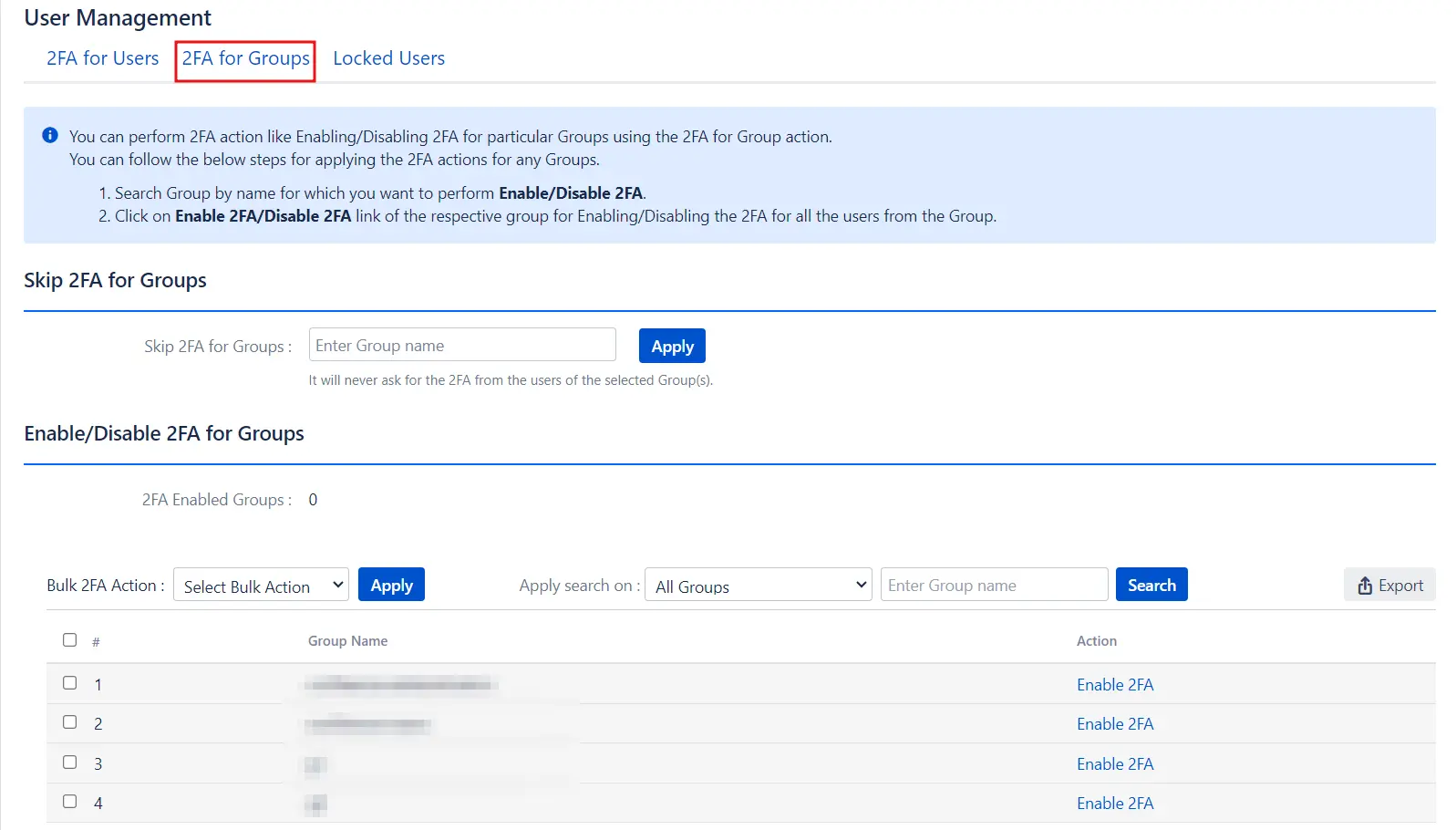
- Group List: Displays a table with all groups in the Atlassian application, making it easy to view and manage group-level 2FA settings.
- Total 2FA Enabled Groups: Shows the number of groups for which 2FA is currently enabled.
- Search for Group: This feature helps administrators locate specific groups by name, which is particularly useful in large environments. You can also filter search results by options such as All Groups or 2FA Enabled Groups, allowing for targeted searches.
- Export Groups: Allows administrators to export a list of groups to a .csv file. Depending on the selected filter, you can export all groups or just those with 2FA enabled. The exported file includes details about each group and their 2FA status.
Bulk 2FA Actions
- Enable 2FA: Enables 2FA for selected groups. Once activated, 2FA is automatically applied to all users within those groups. Users will be prompted to register and validate their 2FA settings upon their next login.
- Disable 2FA: Disables 2FA for selected groups. Users in these groups will no longer be required to complete 2FA validation during login. However, their 2FA configurations are saved and can be reactivated later without needing to reconfigure.
Bulk 2FA Action Options
- Selected Groups: Admins can enable or disable 2FA for specific groups by selecting them from the group table.
- All Groups: Admins can perform bulk actions to enable or disable 2FA for all groups simultaneously.
Locked Users
The Locked Users tab provides oversight and resolution for users who are experiencing issues with their 2FA access. This section is essential for managing users who are locked out of their accounts due to 2FA problems.
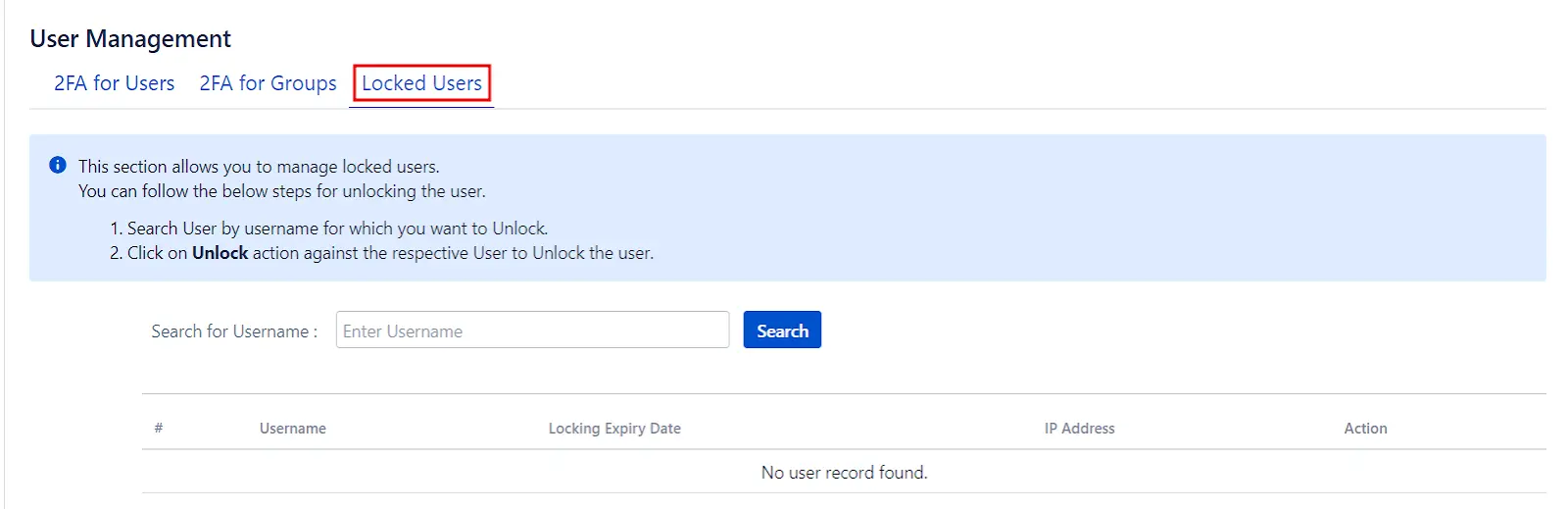
Managing Locked Users
- Search for User: Use the search functionality to find the specific user by their username. This feature is particularly useful when dealing with a large number of users.
- Unlock User: Once the user is located, click on the Unlock action button next to their name to resolve the issue and restore their access.
IP Restrictions
IP Whitelisting
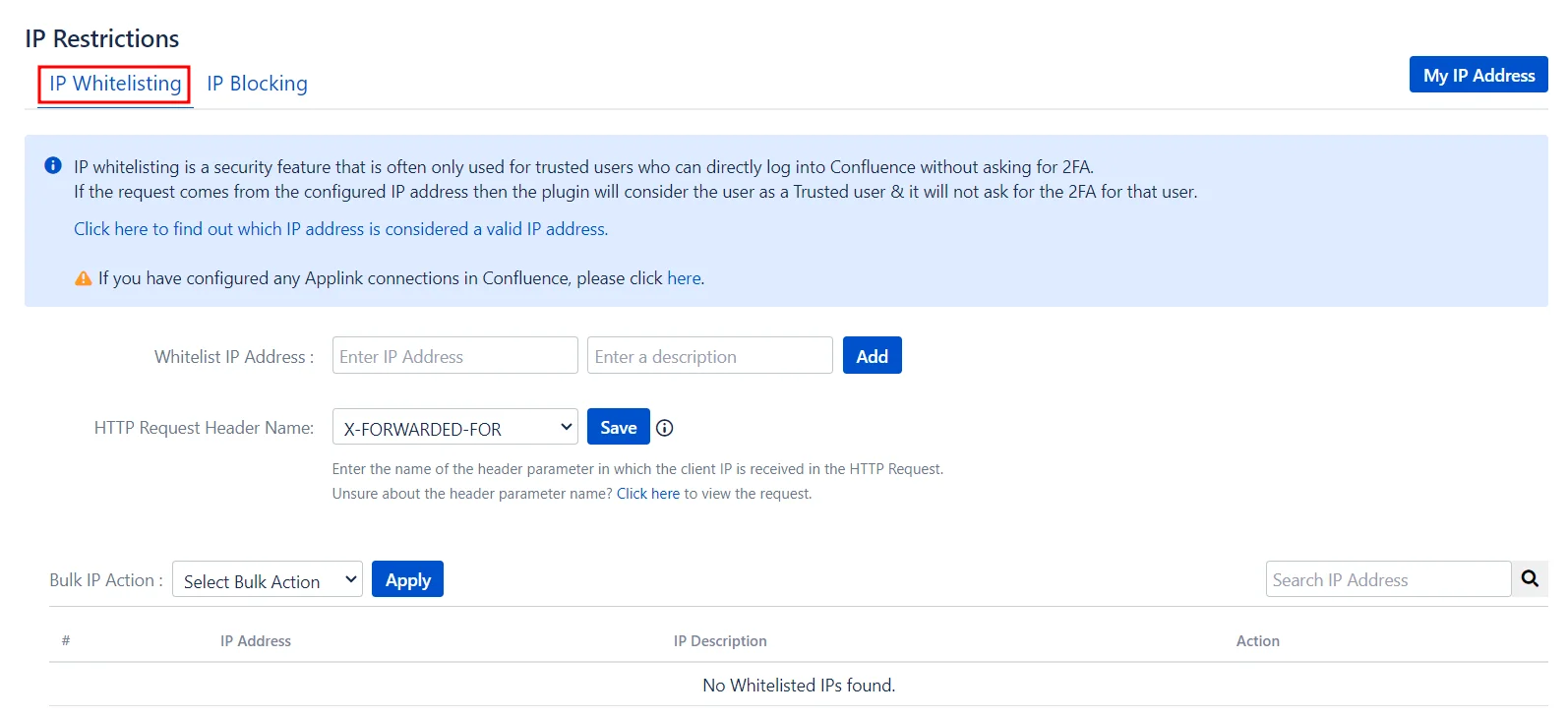
IP whitelisting allows trusted users to bypass 2FA when logging into an Atlassian application from a specified IP address. If a login attempt comes from a configured IP address, the plugin considers the user trusted and does not prompt for 2FA.
Key Features
- Whitelist IP Address: Allows you to add specific IP addresses to the whitelist, enabling trusted access without 2FA.
- HTTP Request Header Name: Lets you specify which parameter contains the actual IP address of the system to be whitelisted.
- User List Management: Displays all whitelisted IPs, with options to individually delete them, selectively bulk-delete, or remove all entries from the whitelist.
IP Blocking
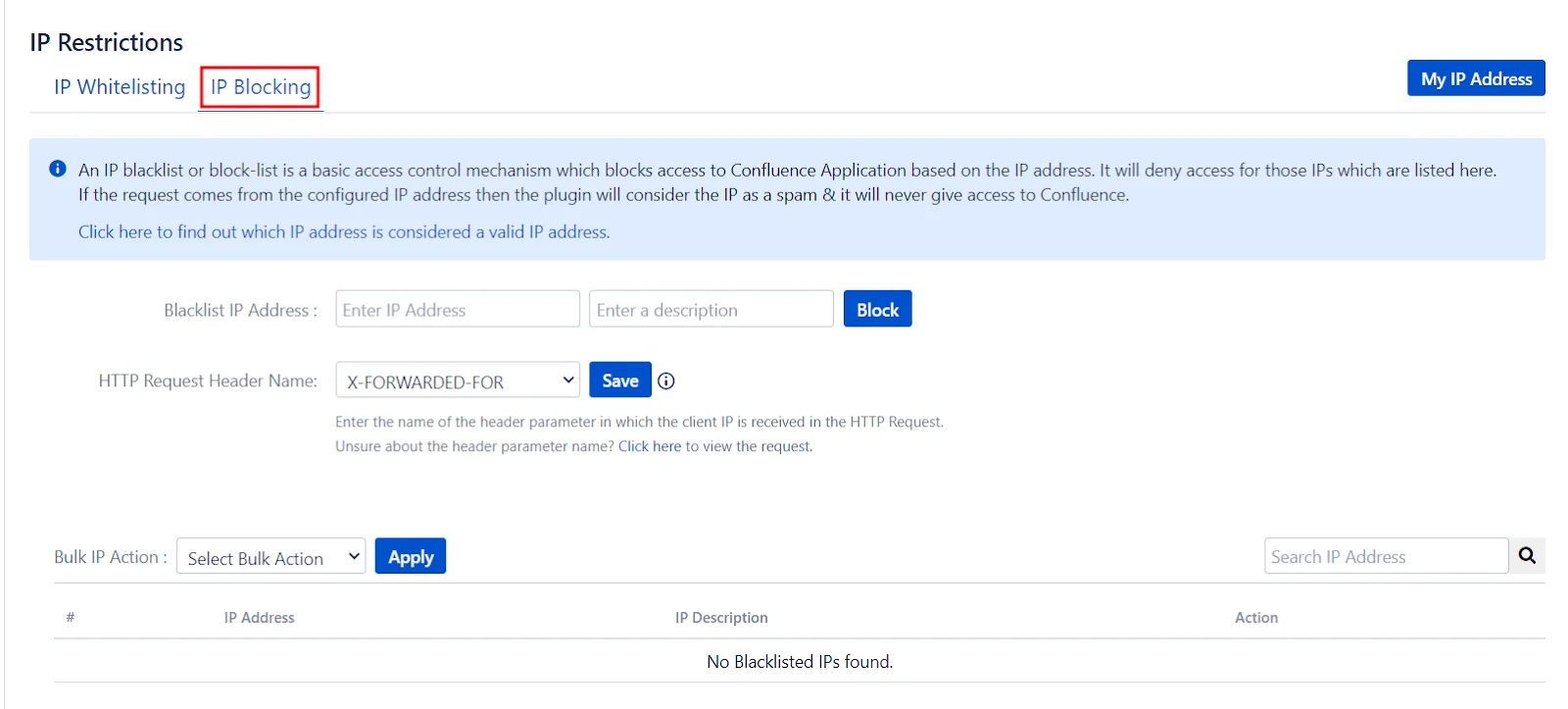
IP blocking prevents access to an Atlassian application based on specified IP addresses. If a login attempt comes from a configured IP address, the plugin considers it as spam and denies access.
Key Features
- Blacklist IP Address: Enables you to add specific IP addresses to the blacklist, preventing any access attempts from these addresses.
- HTTP Request Header Name: Allows you to specify which parameter contains the actual IP address of the system to be blacklisted.
- User List Management: Displays all blacklisted IPs, with options to individually delete them, selectively bulk-delete, or remove all entries from the blacklist.
Audit Logs
The Audit Logs section is an essential feature for monitoring and maintaining the security and integrity of your Atlassian applications. It provides comprehensive logging capabilities to track both authentication activities and configuration changes.
This section is divided into two tabs:
Authentication Logs
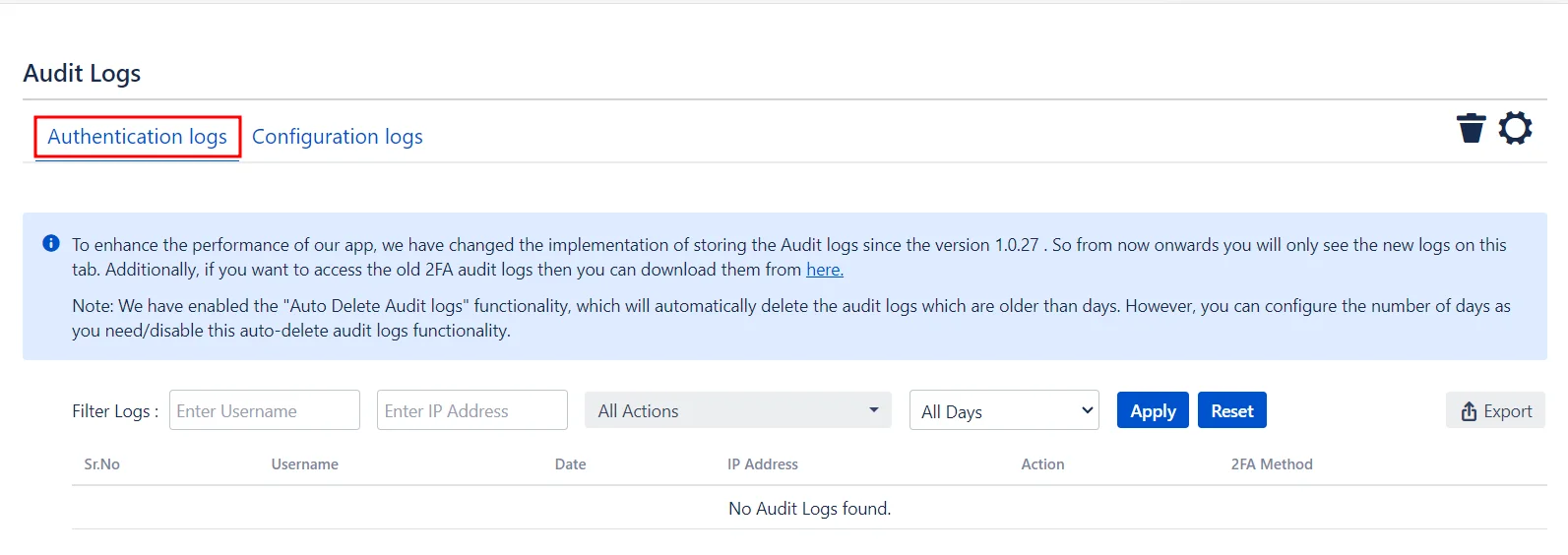
The Authentication Logs tab records all authentication-related activities within your Atlassian applications. This includes successful logins, failed login attempts, and any instances of two-factor authentication (2FA) being bypassed or failed.
Key Features
- Detailed Logs: Capture detailed information about each authentication attempt, including timestamps, user details, IP addresses, and the outcome of the attempt.
- Search and Filter: Easily search and filter logs based on various criteria such as date, user, or IP address to quickly locate specific events.
- Export Capability: Export logs in various formats for further analysis or for compliance and audit purposes.
Configuration Logs
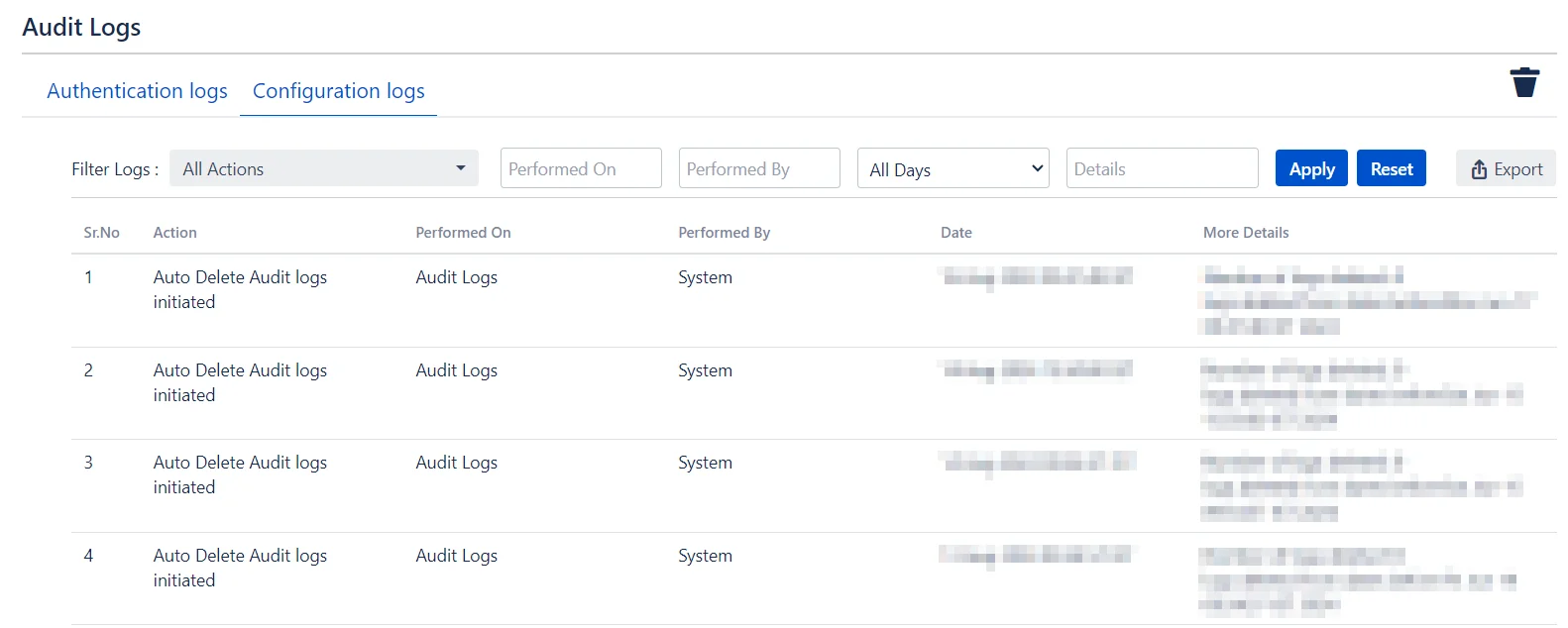
The Configuration Logs tab tracks all changes made to the configuration settings within your Atlassian applications. This includes changes to security settings, user management configurations, IP whitelisting, and blacklisting adjustments.
Key Features
- Change Tracking: Record every configuration change with details on who made the change, what changes were made, and when they were made.
- Search and Filter: Easily search and filter configuration logs based on various criteria to quickly locate specific changes.
- Audit Trail: Maintain a complete audit trail of all configuration changes to ensure accountability and traceability.
Looks & Feel Templates
The Looks & Feel Templates section allows administrators to customize the appearance and user experience of the configuration and validation screens for various 2FA methods.
This ensures a consistent and branded look and feel for end-users when they interact with the 2FA processes.
Customization Options
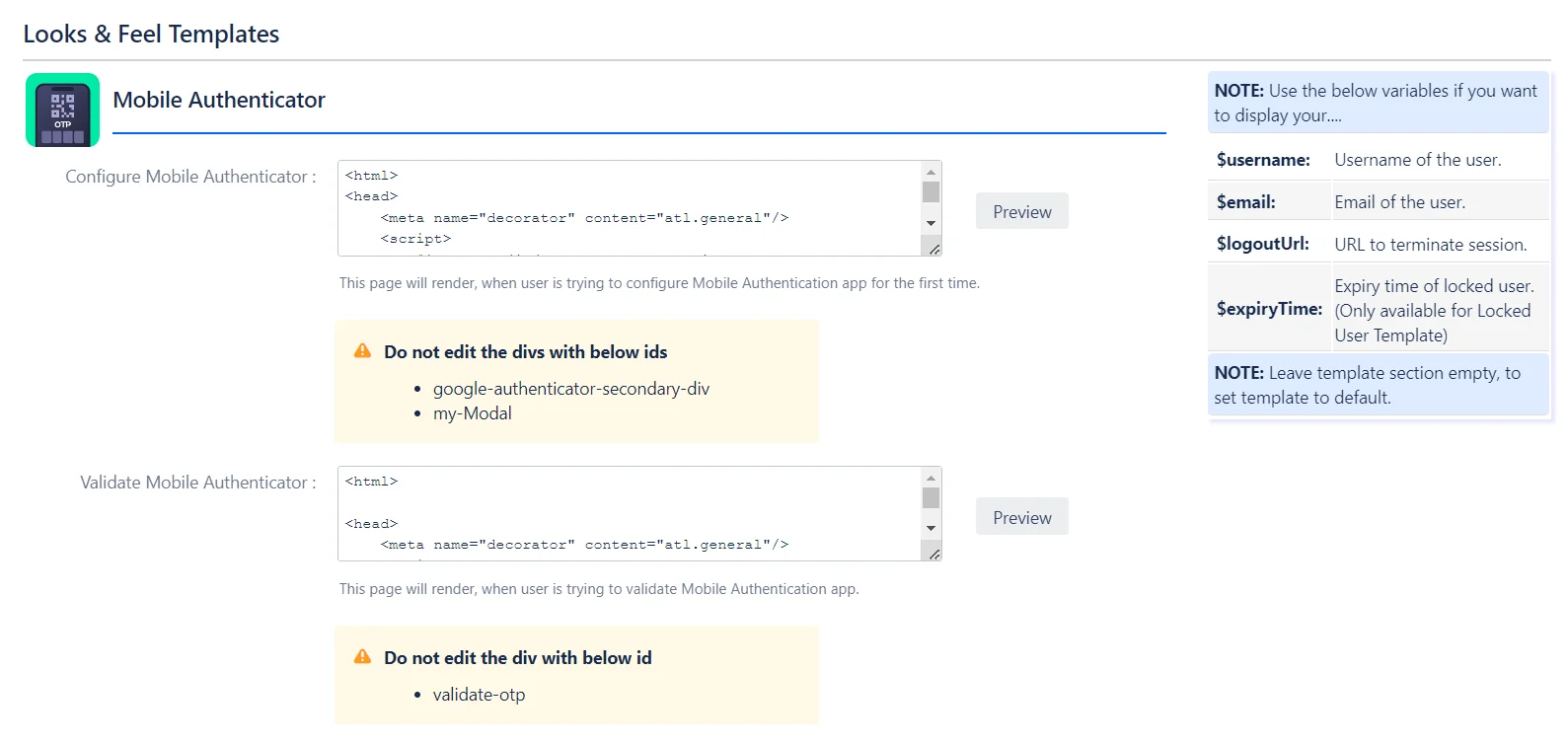
- Configuration Screen: This screen is displayed to end-users when they are prompted to configure a 2FA method for the first time or when they need to re-configure their 2FA after it has been reset.
- Validation Screen: This screen is shown to end-users whenever they need to perform 2FA to access the application.
Additional Customization Features
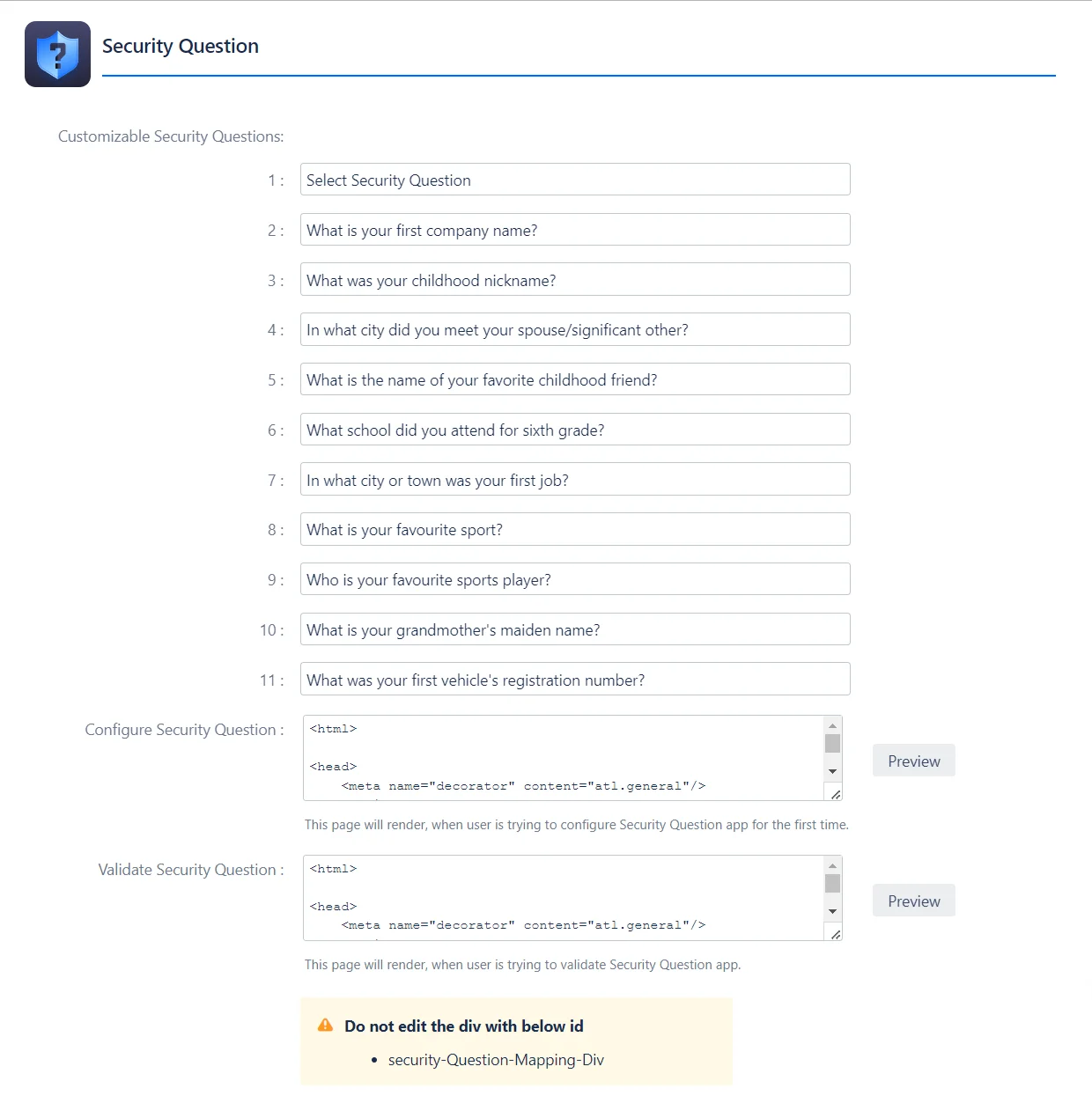
- Security Questions: Administrators can customize the security questions used for the Security Questions-based validation method, ensuring relevance and appropriateness for their users.
Specific Customization Areas
Apart from customizing the 2FA method screens, this section also enables you to tailor other essential components of the 2FA application.
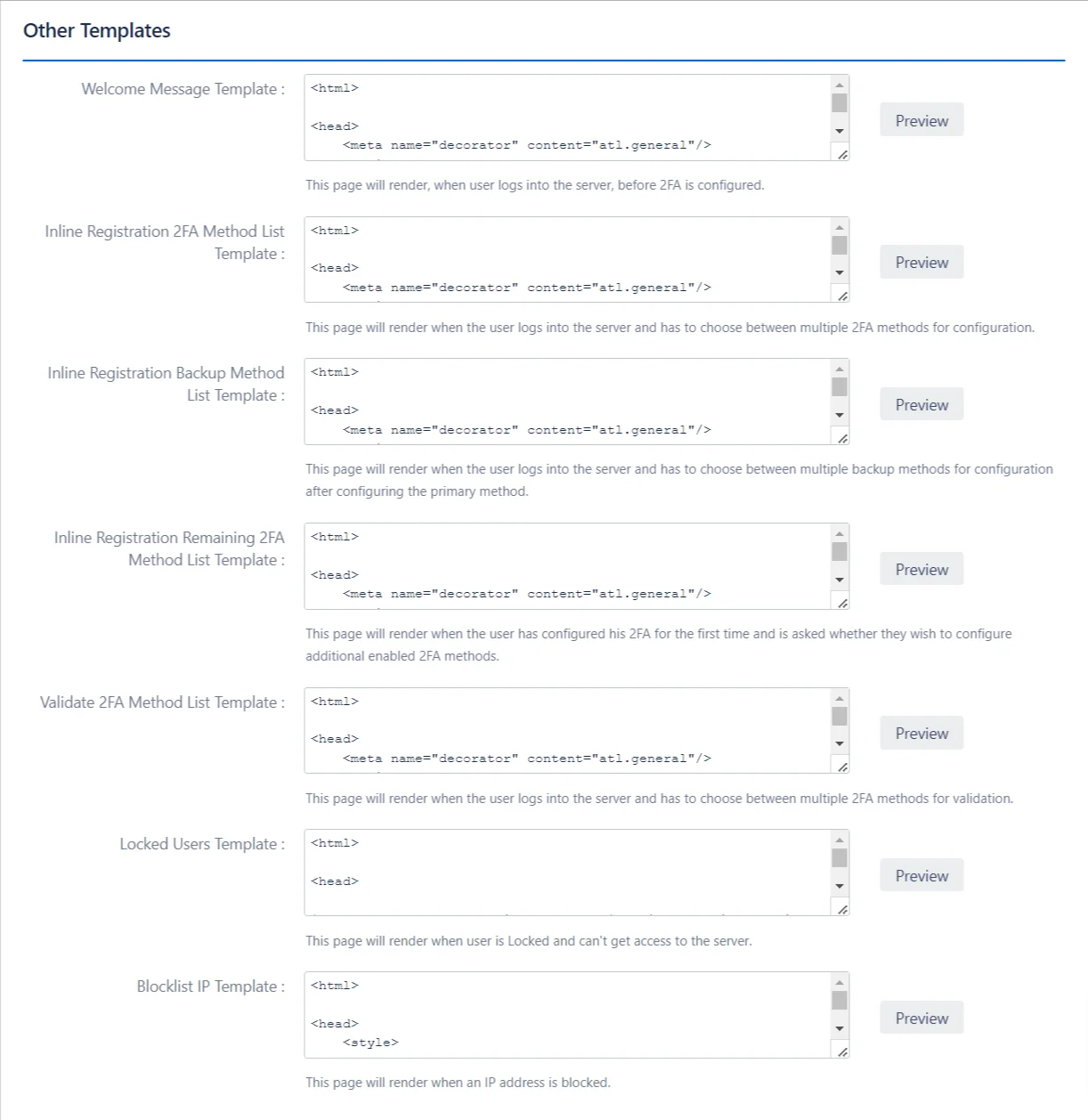
- Welcome Message: This message is displayed when the user logs into the server for the first time before 2FA is configured, providing a friendly introduction.
- Inline Registration 2FA Method List: This page appears when the user logs in and must choose between multiple 2FA methods for initial configuration, allowing them to select the most suitable option.
- Inline Registration Backup Method: This page is shown when the user needs to select from multiple backup 2FA methods after configuring their primary 2FA method.
- Inline Registration Remaining 2FA Method List: After the user has configured their primary 2FA method, this page asks if they wish to configure any additional enabled 2FA methods for added security.
- Validate 2FA Method List: This page is displayed when the user logs in and must choose between multiple 2FA methods for validating their identity.
- Locked Users: This page is rendered when a user is locked out and cannot access the server, providing them with the necessary information to resolve the issue.
- Blocklist IP: This page is shown when an IP address is blocked, informing the user of the access restriction.