Hello there!
Need Help? We are right here!

Need Help? We are right here!
Search Results:
×
Printers remain one of the most overlooked entry points for data loss, even as hybrid work and cloud printing expand the attack surface. Recent industry research shows why IT and security teams can no longer treat print as an afterthought.
Individuals faced a data breach after a printing vendor's systems were hacked.
An average print-related data breach cost with standardised fleets, but rises to £937,000 for multi-vendor fleets.
Organizations reported at least one print-related data loss, which is up from 56% in 2025.
Said it is important that print manufacturers make use of AI/ML to protect devices from breaches.
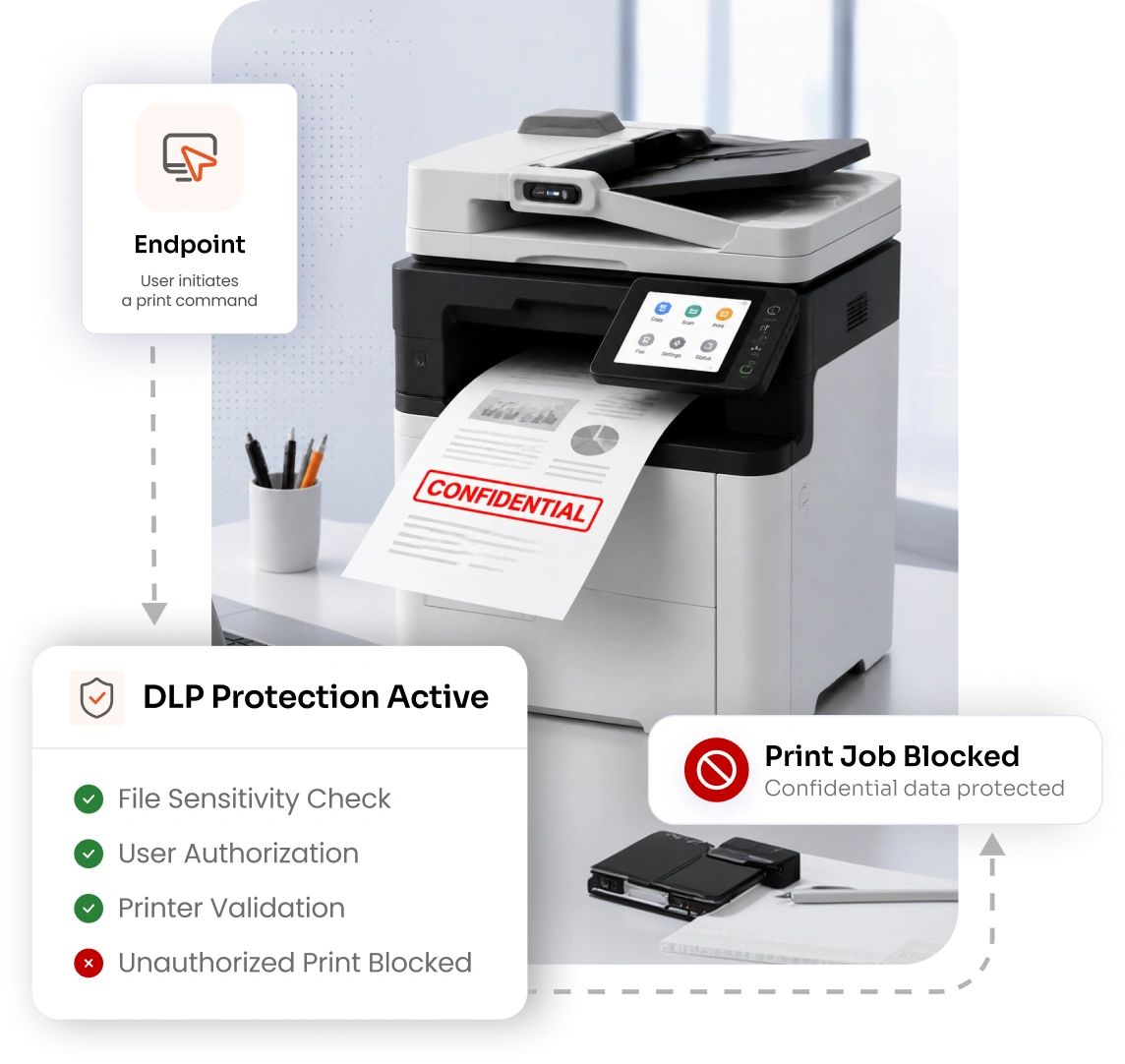
Data doesn't need a hacker to leak it just needs an unwatched printer. DLP for printers closes these gaps
by controlling who can print what, where, and when.
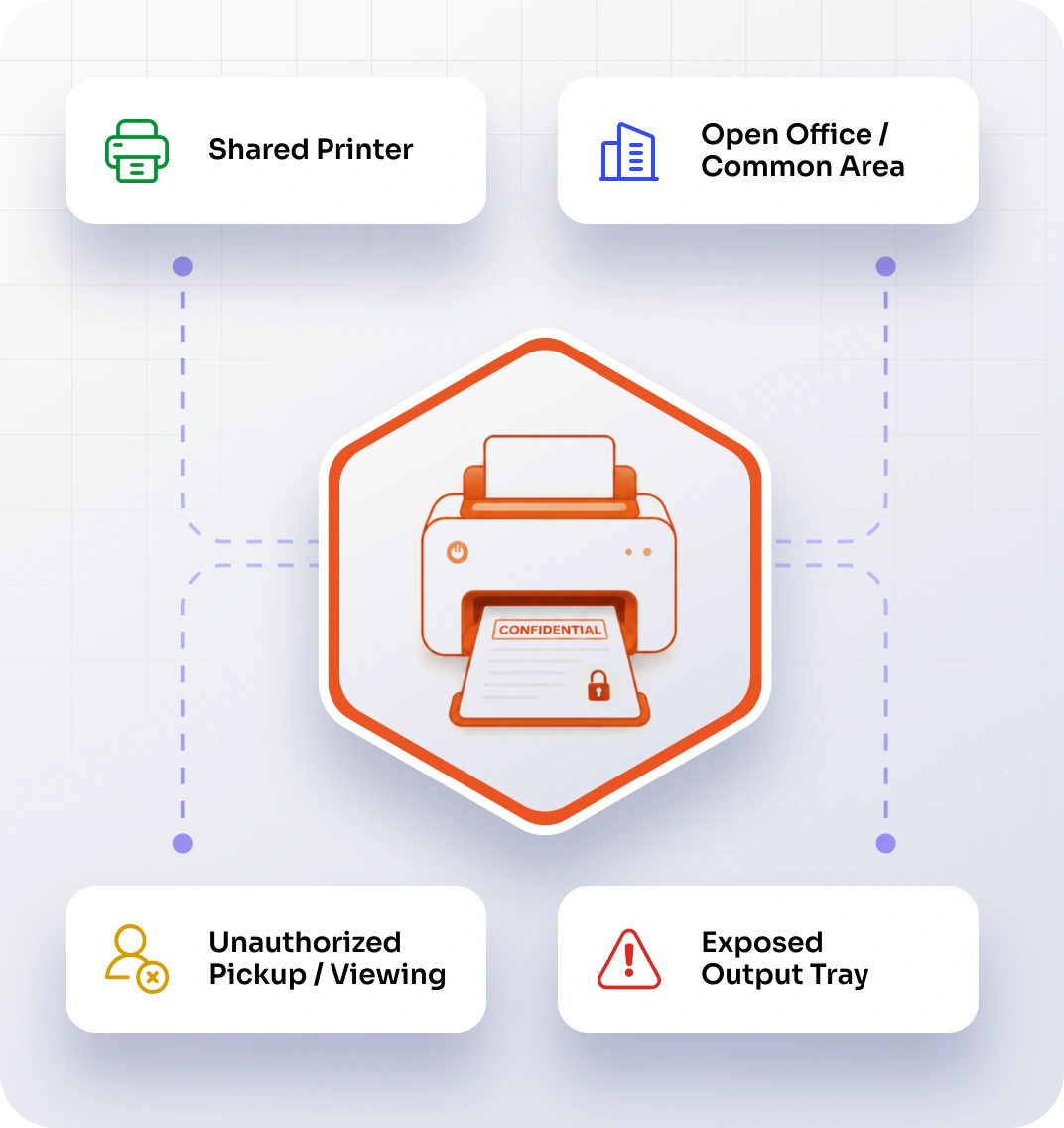
Shared printers in open offices, hallways, or common floors let anyone walk up and collect a document that isn't theirs. Without controls on what data endpoints are allowed to send to print, sensitive files sit exposed in output trays for anyone to see or take. This remains one of the simplest, yet most common, ways confidential data walks out the door.
Legacy printers and multifunction devices often run unpatched firmware, making them easy targets for attackers. Many organizations overlook printers when auditing their security stack, leaving these devices as blind spots in an otherwise hardened network. Endpoint-level controls reduce this risk by stopping sensitive data before it ever reaches a vulnerable device.
Print jobs sent without classification or oversight can carry confidential information straight from a laptop to any printer on the network. Without policies that inspect data before it's sent to print, sensitive files, from financial records to customer data, move through the print process unchecked. Classifying data at the endpoint stops the leak at its source.
Not every data loss incident is malicious, but the outcome is the same. Employees printing confidential files without oversight, whether by accident or intent, can expose regulated data. This triggers compliance violations. Without visibility into who is printing what, organizations have no way to catch these leaks before the damage is done.
Home and remote offices often rely on personal printers with little or no security oversight, creating new avenues for data loss. Confidential documents printed outside the corporate network are harder to track, audit, or protect. As hybrid work becomes more permanent, unmanaged remote printing is quickly becoming one of the biggest loopholes in enterprise print security.
Data loss prevention for printers can't stop at one device or location; it has to follow every endpoint across your organization. miniOrange classifies and controls data at the source, wherever work happens.

Classify sensitive files at the endpoint and block unauthorized print jobs before they ever reach a printer.

Set clear rules for where scanned documents can be sent, stored, or shared, keeping sensitive files from leaving through an unmonitored path.

Restrict copying of confidential documents based on data classification, preventing sensitive files from being duplicated by unauthorized users.

Apply the same endpoint-level DLP policies to print jobs sent through cloud apps and services, closing gaps in hybrid environments.

Enforce identical endpoint DLP policies whether employees are working from the corporate office, a home office, or a co-working space.

Bring branch offices and satellite locations under the same centralized endpoint policy management that your headquarters relies on.
miniOrange combines content-aware data classification with endpoint-level enforcement, so sensitive files are evaluated and controlled before they ever reach a printer.
Automatically classify documents by sensitivity before a print job is ever sent.
Control which users can send data to which printers, enforced at the endpoint.
Add traceable watermarks to every printed page to deter leaks.
Track print activity across every managed endpoint as it happens.
Maintains a complete, searchable record of print activity for every managed endpoint.
Set precise data classification rules and exceptions for every print scenario.
miniOrange enforces data protection at the endpoint, classifying and controlling print jobs before they ever reach a printer.
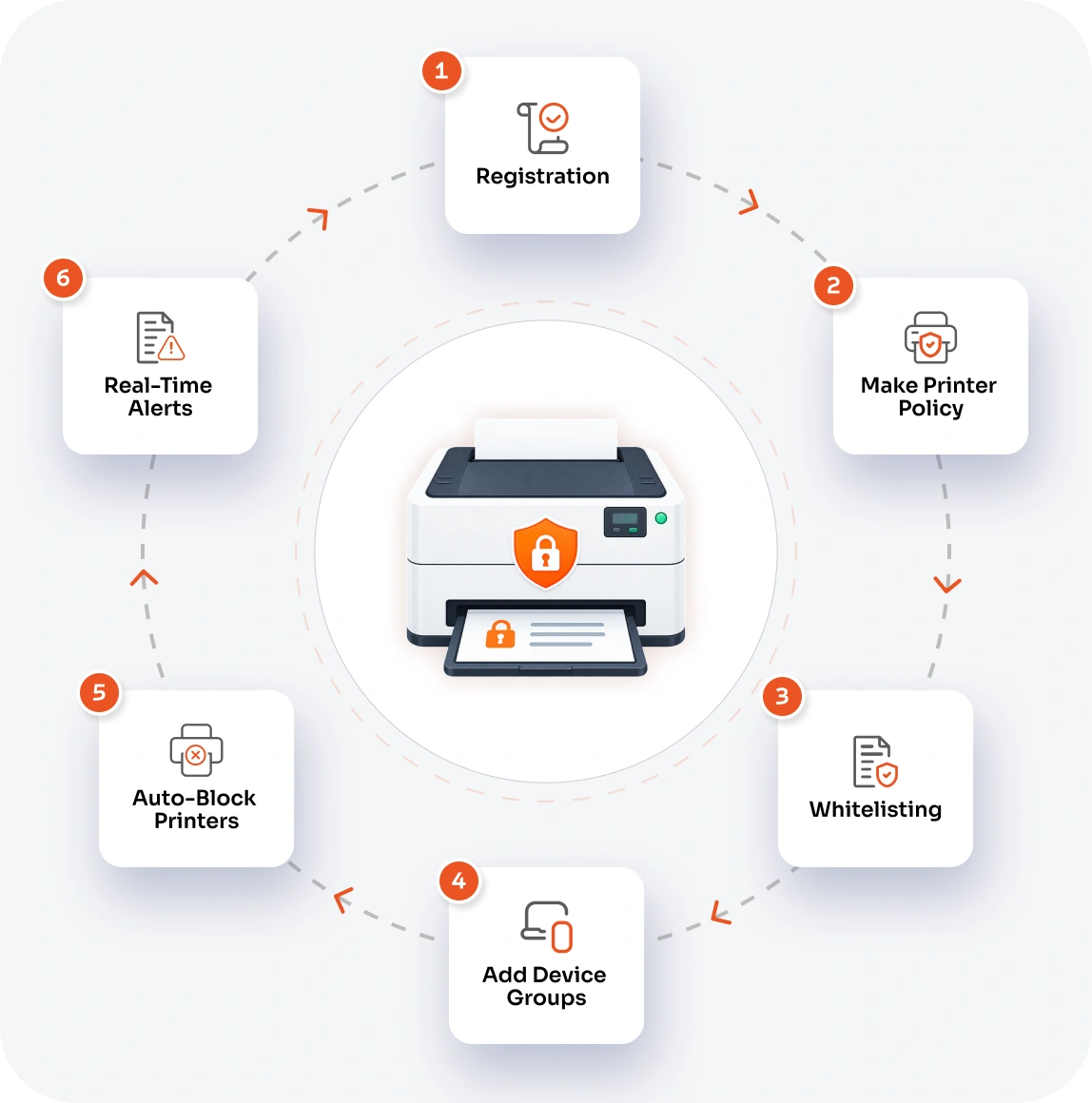
IT admins add each authorized printer's name or vendor ID (VID) and product ID (PID) under the USB Printer tab, building a trusted device list.
Under the Policy tab, admins name the policy, set an action such as Block, and assign a risk level to define how strictly it's enforced.
The policy pulls from the registered printer list, letting admins choose exactly which USB printers are trusted for that policy.
Admins apply the policy to specific device groups, or roll it out organization-wide with Select All.
Any printer not included in the Trusted USBs list is blocked automatically the moment it's connected to a covered endpoint.
With the Create Alert toggle enabled, admins are notified immediately whenever the policy blocks an unauthorized printer.
Backed by proven data classification and continuous monitoring, miniOrange protects sensitive information at the source, across every managed Windows and macOS endpoint.
Roll out endpoint DLP policies across your entire organization from a single dashboard, with minimal setup and no disruption to existing workflows.
Whether you manage 10 printers or 10,000, miniOrange scales alongside your organization without compromising performance or control.
Get dedicated technical support from implementation through ongoing management, so your team is never left troubleshooting alone.
Still have questions? Explore more FAQs.
Data loss prevention for printers classifies files by sensitivity at the endpoint and enforces policies that determine whether a document can be sent to print. Instead of controlling the printer itself, it stops unauthorized or high-risk data from leaving the device in the first place.
miniOrange scans documents at the endpoint for sensitive content, such as PII, PHI, or financial data, and applies pre-configured policies to decide whether the print job is allowed or blocked.
Yes, miniOrange identifies USB-connected printers by their vendor ID (VID) and product ID (PID), and blocks any printer that isn't explicitly added to the approved list.
Yes, administrators receive email alerts when a print attempt is blocked or flagged, and admins can add or manage which email addresses receive these notifications.
x
Your download should start now. If not, please email us at uemsupport@xecurify.com or contact us.
Please enter your work email-id