- Home
- DLP
- How to configure File Activity Tracking with miniOrange DLP
Configure File Activity Tracking with miniOrange DLP Solution
The File Activity Tracking feature in miniOrange DLP (Data Loss Prevention) helps organizations monitor and track file-related activities across managed endpoints. It provides visibility into file actions such as creation, modification, deletion, copying, moving, and access, helping administrators identify suspicious or unauthorized file activity. File activity can be monitored centrally through the DLP dashboard, providing detailed audit visibility for security investigations and compliance requirements.
Prerequisites
There are a couple of things you need to check before you start with the setup:
- You need Administrator access for your DLP dashboard.
Configuration Steps
Step 1: Configuring File Activity Tracking
- Sign in to your DLP Admin dashboard.
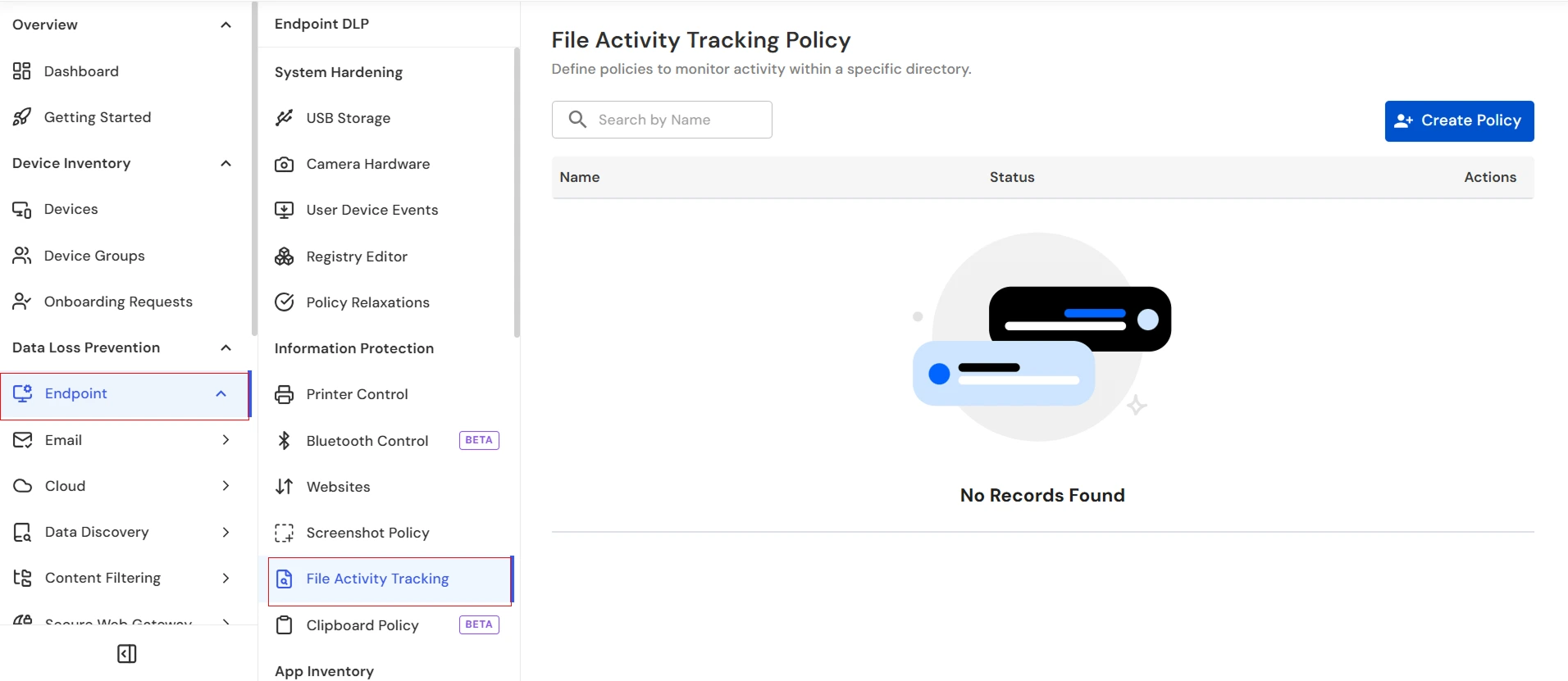
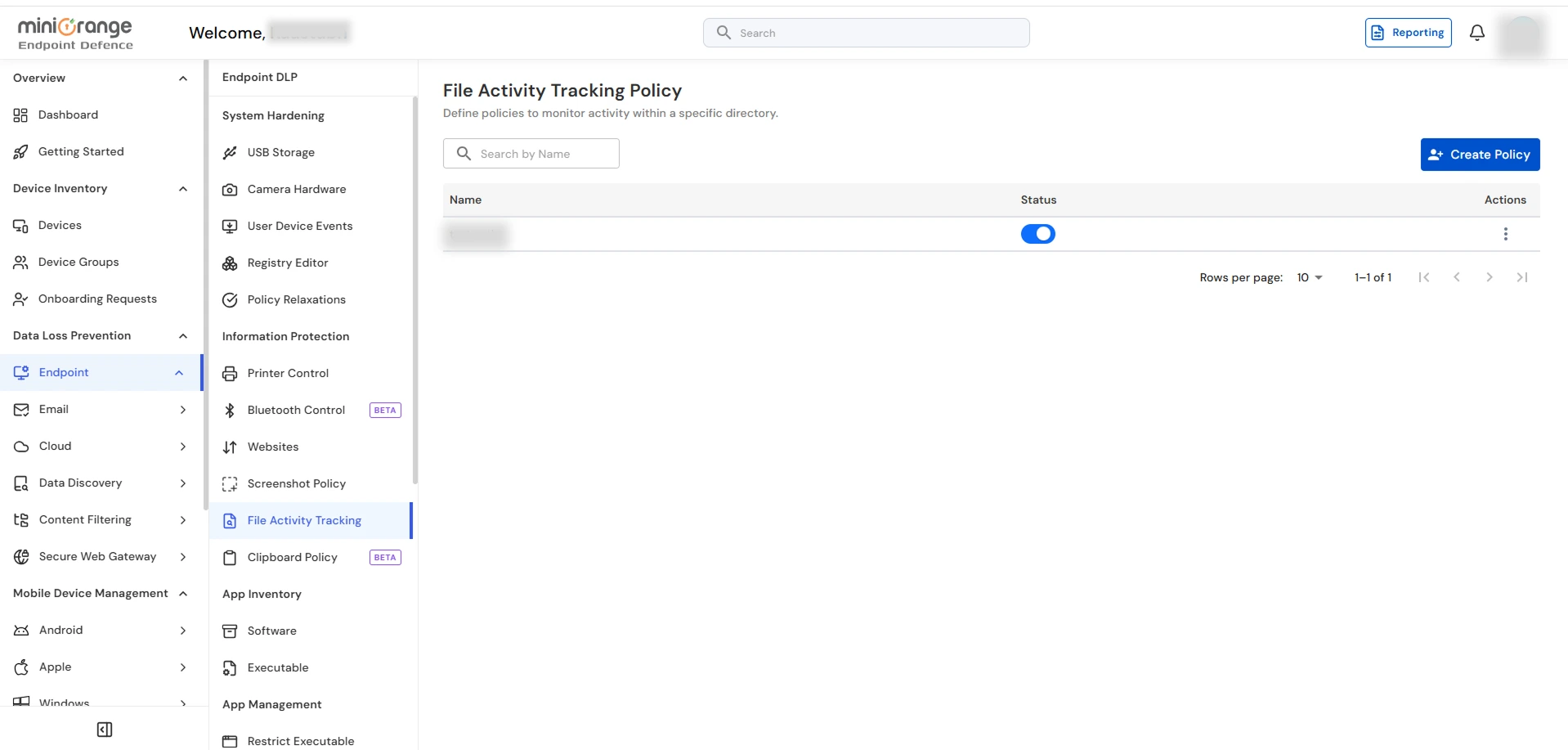
- On the dashboard, navigate to the left menu panel and then click on the Endpoint → File Activity Tracking tab
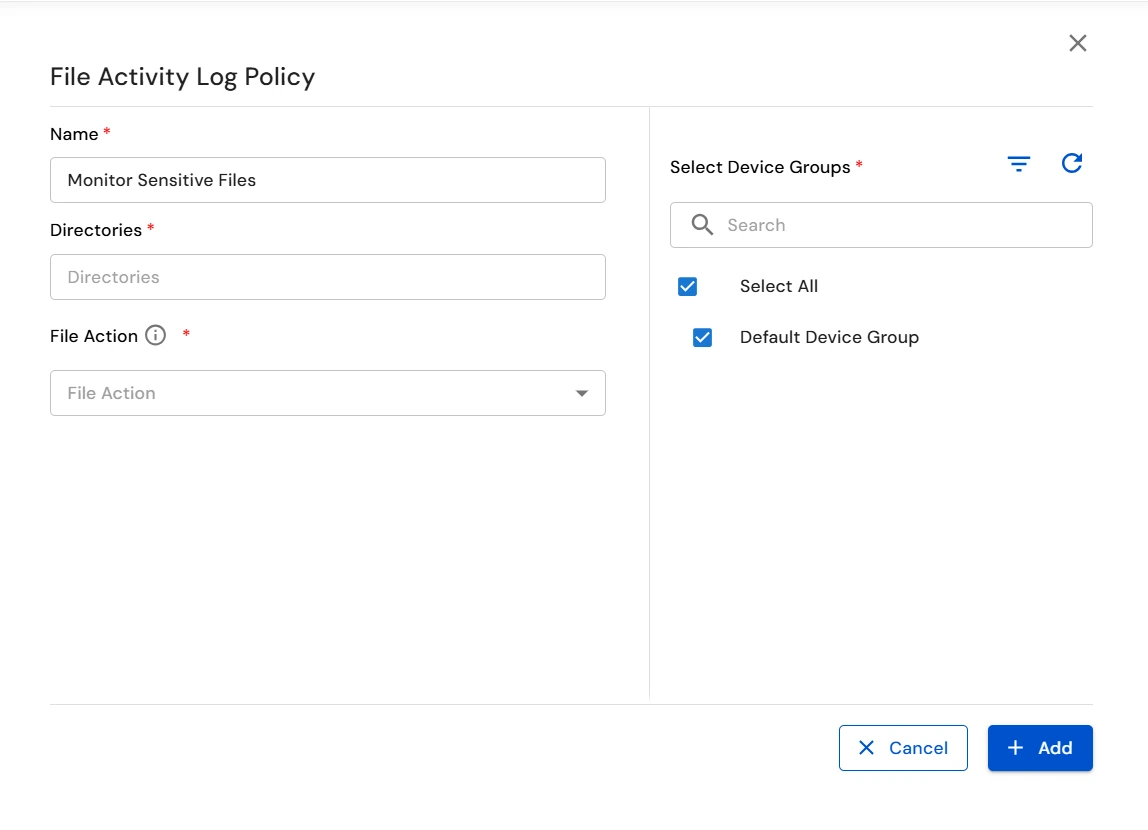
- Click the Create Policy button to create a new File Activity Tracking Policy.

- In the File Activity Log Policy window, enter a unique Name and specify the directory path to monitor in the Directories field.
- Under File Action, select the activities you want to track:
- Created: Logs instances when a new file is added or generated in the specified directory.
- Deleted: Tracks whenever a file is removed or erased from the monitored path.
- Modified: Records any changes, saves, or updates made to an existing file's content or attributes.
- Moved: Monitors when a file is relocated from its original folder to a new destination.
- Under Select Device Groups, select the required Device Group(s) to apply the File Activity Tracking Policy.
- Use the Search option to find a specific device groups, or click Select All to apply the policy to all available device groups.
- Click Add to create and apply the File Activity Tracking Policy.
- Verify that the policy appears in the File Activity Tracking Policy list and that its Status is enabled.
Step 2: Reporting
- Once file activity is generated by a managed device, navigate to Reporting from the dashboard.

- From the left navigation panel, select Monitoring → File Activity Reports to review file activity events recorded across managed devices.
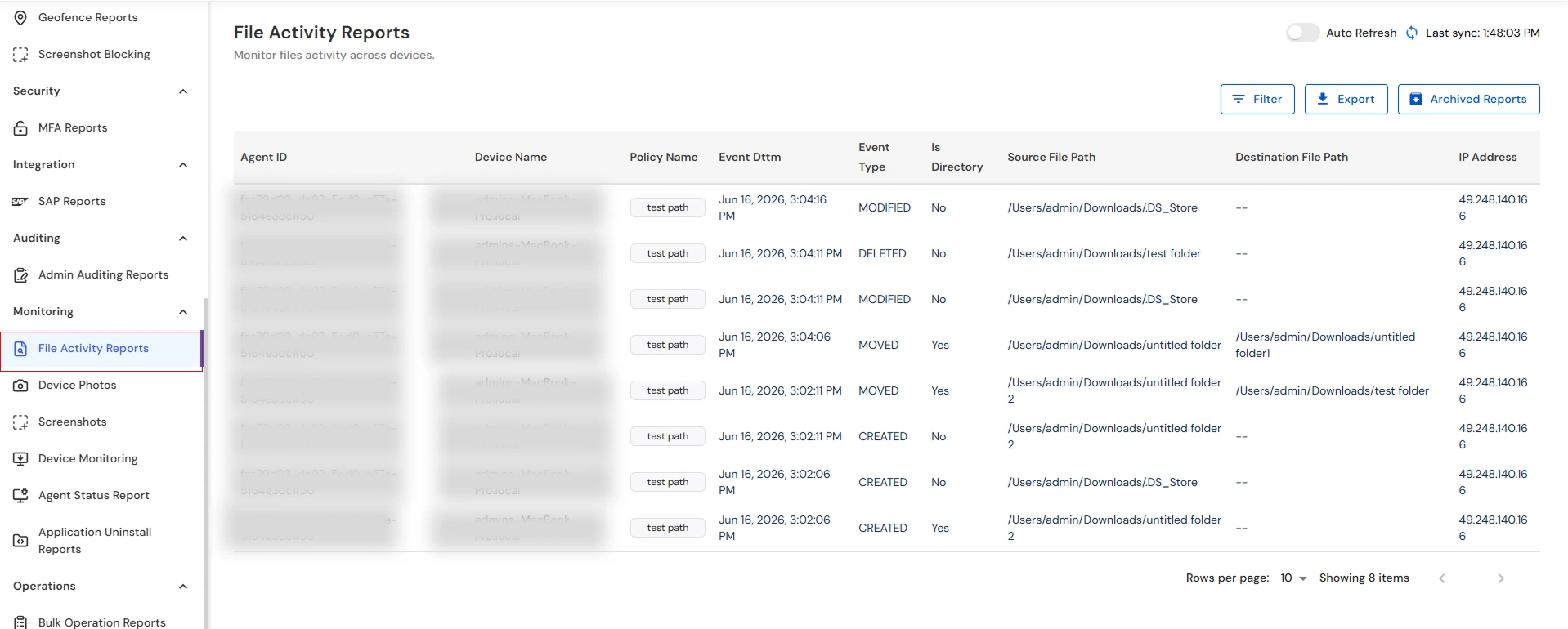
- Review file activity details such as Agent ID, Device Name, Policy Name, Event Dttm, Event Type, Is Directory, Source File Path, Destination File Path, and IP Address.
- Use the Filter option to narrow down file activity events based on your requirements.
- You can also click Export to download the file activity report for auditing, investigation, and compliance purposes.
You have successfully configured the File Activity Tracking Policy using our DLP solution. If you encounter any issues during the configuration, please feel free to contact us at uemsupport@xecurify.com.