- Home
- DLP
- How to configure Bluetooth Policy using miniOrange DLP
Configure Bluetooth Policy with miniOrange DLP Solution
The Bluetooth Policy in miniOrange DLP (Data Loss Prevention) helps organizations control and secure Bluetooth usage across managed endpoints. It enables administrators to restrict or block Bluetooth access on managed Windows devices, reducing the risk of unauthorized device connections and data leakage. The policy can be assigned to Device Groups and monitored through the Reporting dashboard. By centrally managing Bluetooth access, administrators can reduce security risks and improve endpoint protection across the organization.
Prerequisites
There are a couple of things you need to check before you start with the setup:
- You need Administrator access for your DLP dashboard.
Configuration Steps
Step 1: Configuring Bluetooth Policy
- Sign in to your DLP Admin dashboard.
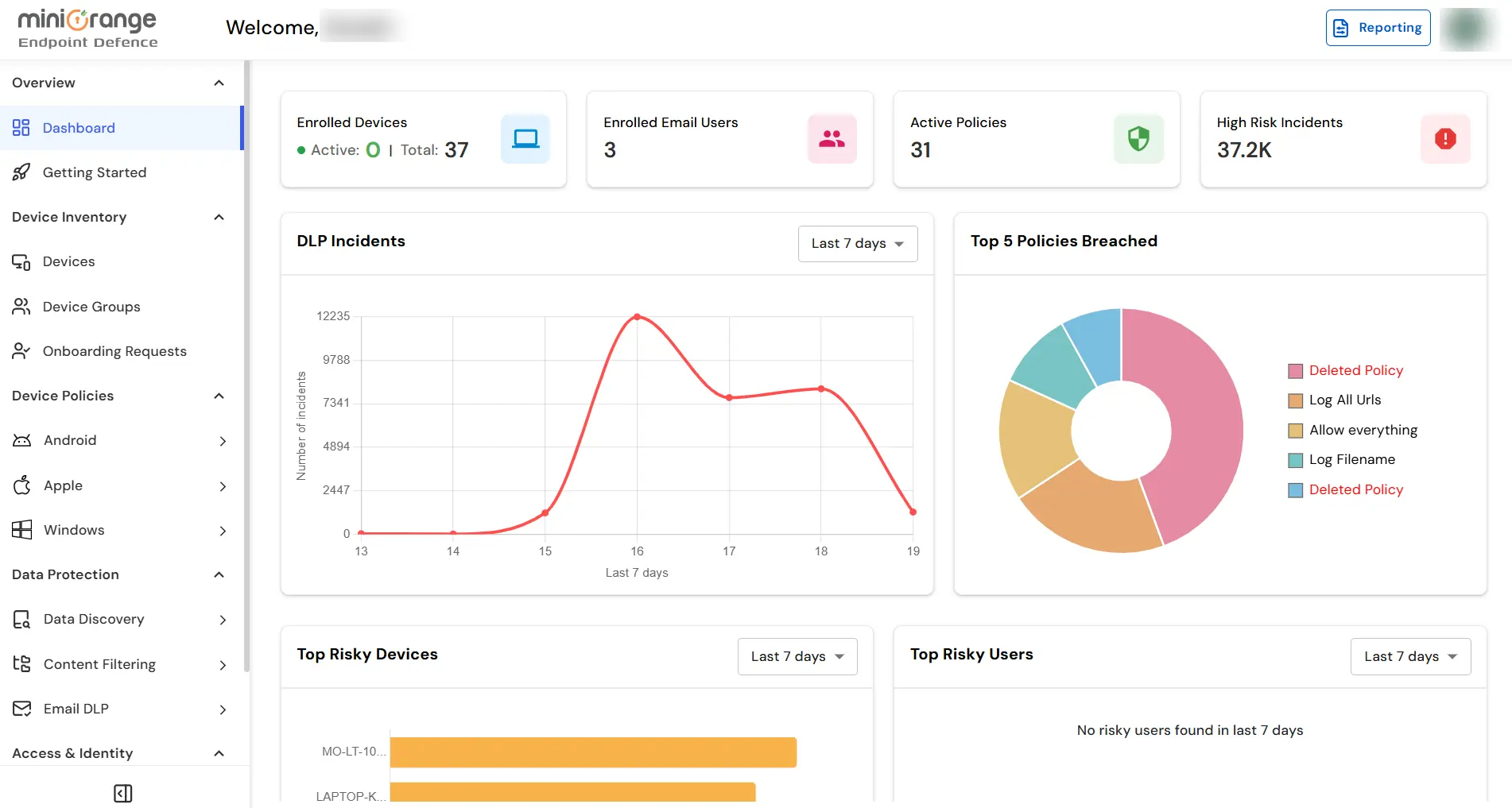
- On the dashboard, navigate to the left menu panel and then click on Endpoint Tab → Bluetooth Control tab.
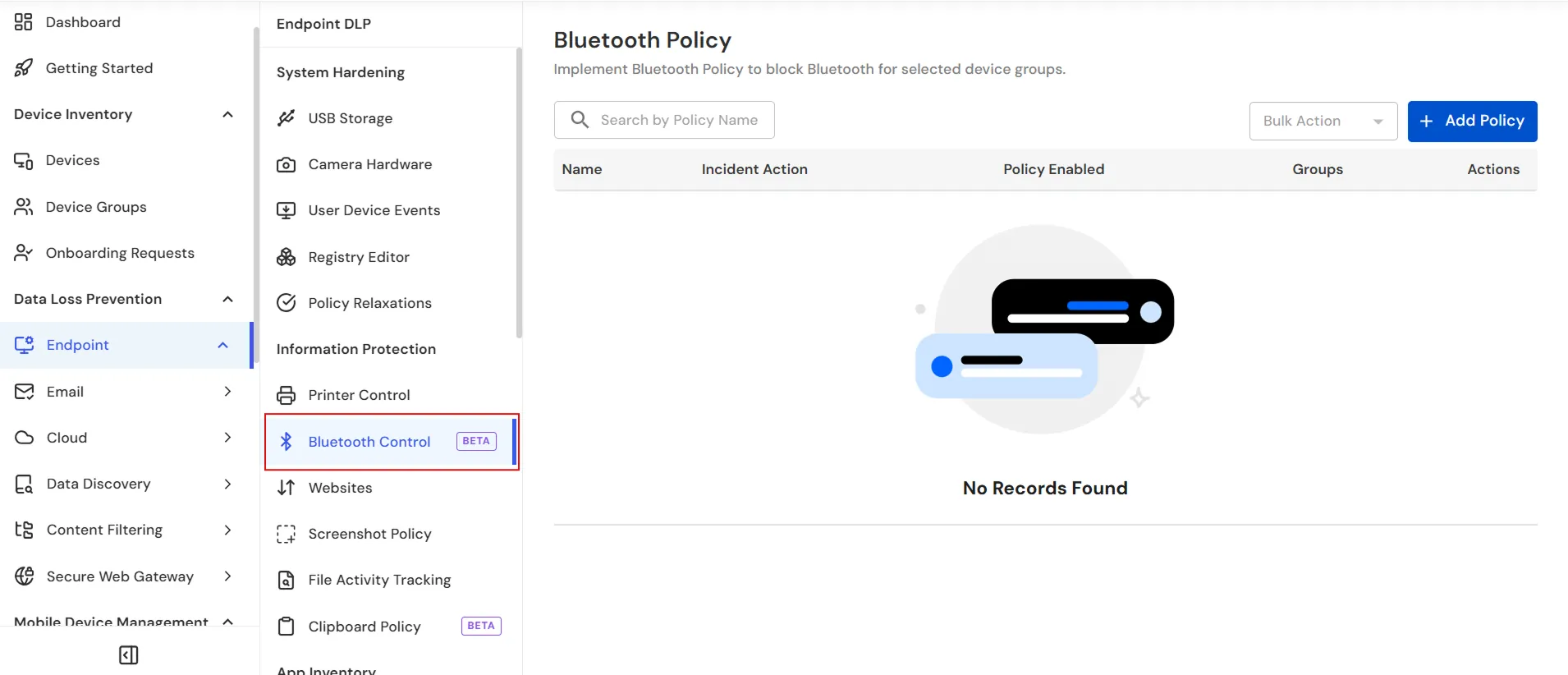
- Click the Add Policy button to create a new Bluetooth Policy by providing a unique policy name.

- After entering the Policy Name, select the appropriate Action from the dropdown.
- Choose Block to prevent Bluetooth file sharing on the selected devices while allowing Bluetooth peripherals, such as headsets, keyboards, and mice, to continue functioning.
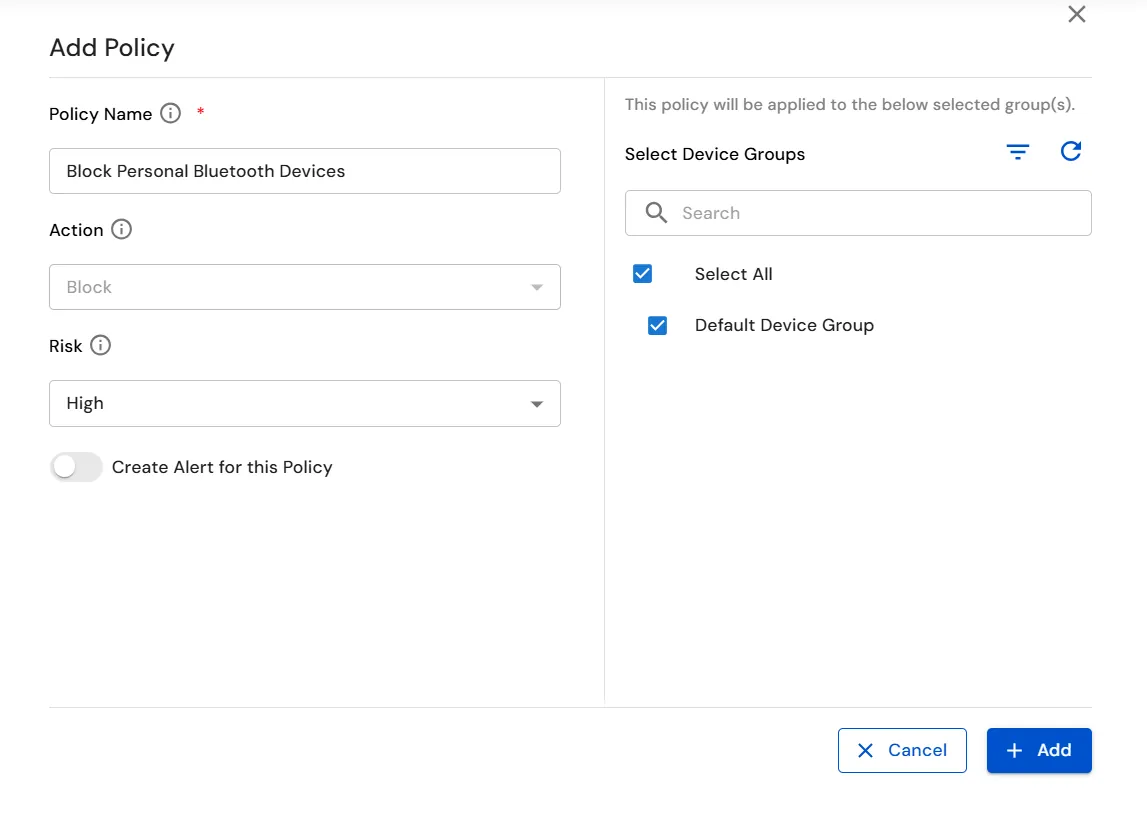
- Select the desired Risk level to define the severity of Bluetooth Policy violations.
- (Optional) Enable Create Alert for this Policy if you want administrators to receive alerts whenever the policy is triggered.
- Select the required Device Group(s) to which the Bluetooth Policy should be applied.
- Click Add to create and apply the Bluetooth Policy.
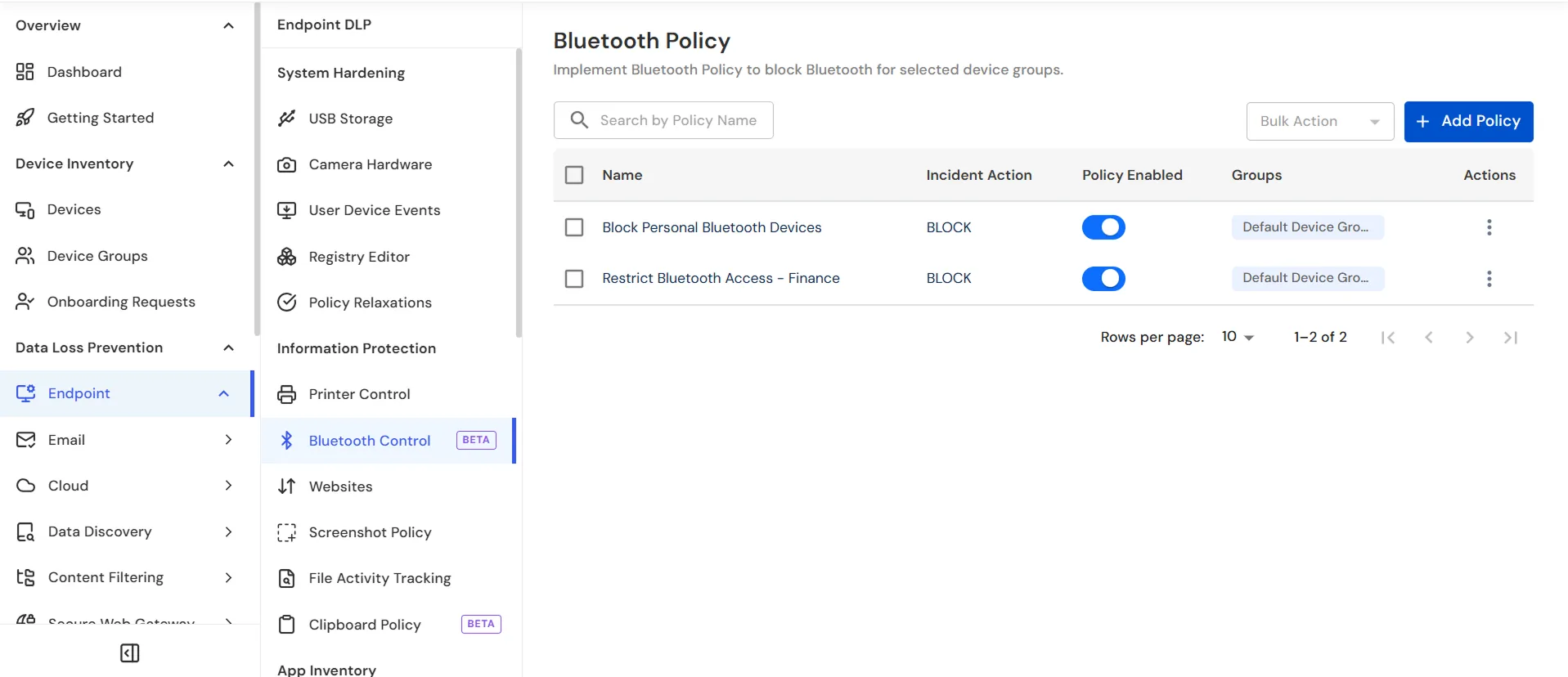
- Verify that the policy appears in the Bluetooth Policy list and the Policy Enabled toggle is turned on.
Step 2: Reporting
- If a Bluetooth Policy is triggered, navigate to the Reporting tab.

- From the left navigation panel, select Bluetooth Reporting to review policy block events across managed devices.
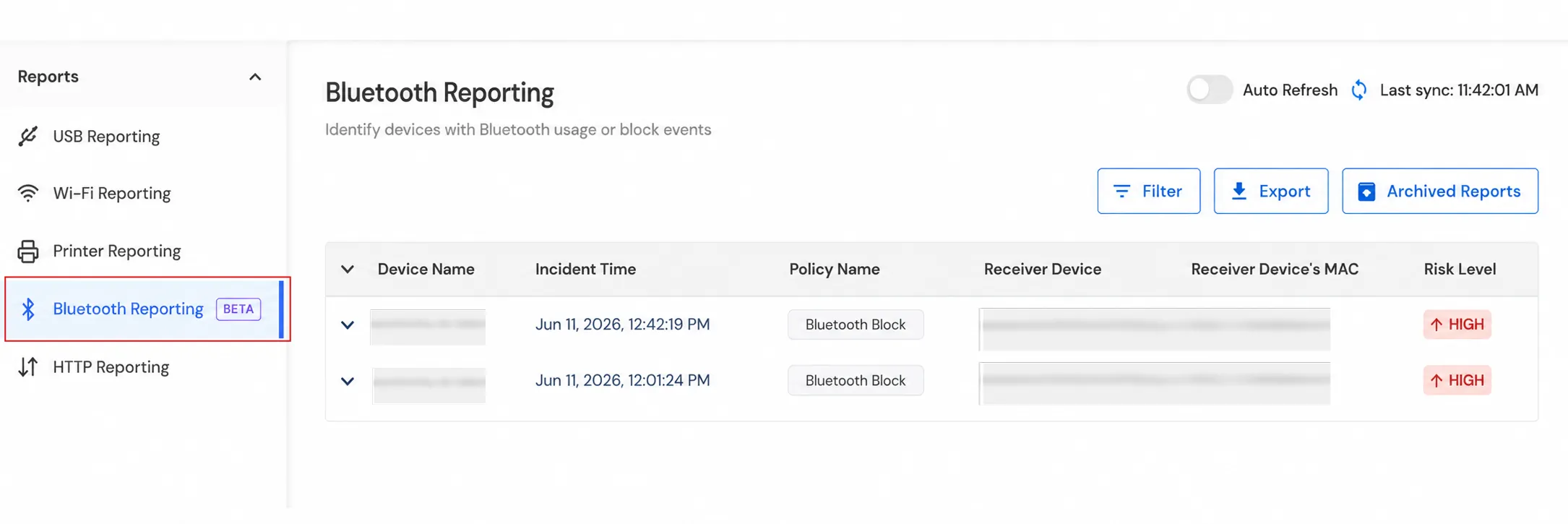
- Review block events recorded on managed devices.
- Use the Filter option to search and narrow down Bluetooth events based on your requirements.
- You can also click Export to download the Bluetooth activity report for auditing and compliance purposes.
- Access Archived Reports to review previously generated Bluetooth reports, if available.
You have successfully configured the Bluetooth Policy using our DLP solution. If you encounter any issues during the configuration, please feel free to contact us at uemsupport@xecurify.com.