Hello there!

Need Help? We are right here!

miniOrange Support Chat - Get Help and Support
miniOrange Email Support
Success Checkmark - Form Submitted Successfully

Thanks for your Enquiry.

If you don't hear from us within 24 hours, please feel free to send a follow-up email to uemsupport@xecurify.com

Search Results:

×

Configure Dictionaries with miniOrange DLP


Dictionaries help identify sensitive data by maintaining reusable lists of sensitive terms that can be referenced across classification rules. By creating and managing dictionaries, administrators can define curated sets of keywords or terms and use them to improve the accuracy and consistency of sensitive data detection across the organization.

Prerequisites

There are a couple of things you need to check before you start with the setup:
  • You must have the required privileges to create and configure Dictionaries in the miniOrange DLP dashboard.

Configuration Steps

Step 1: Configure Dictionaries

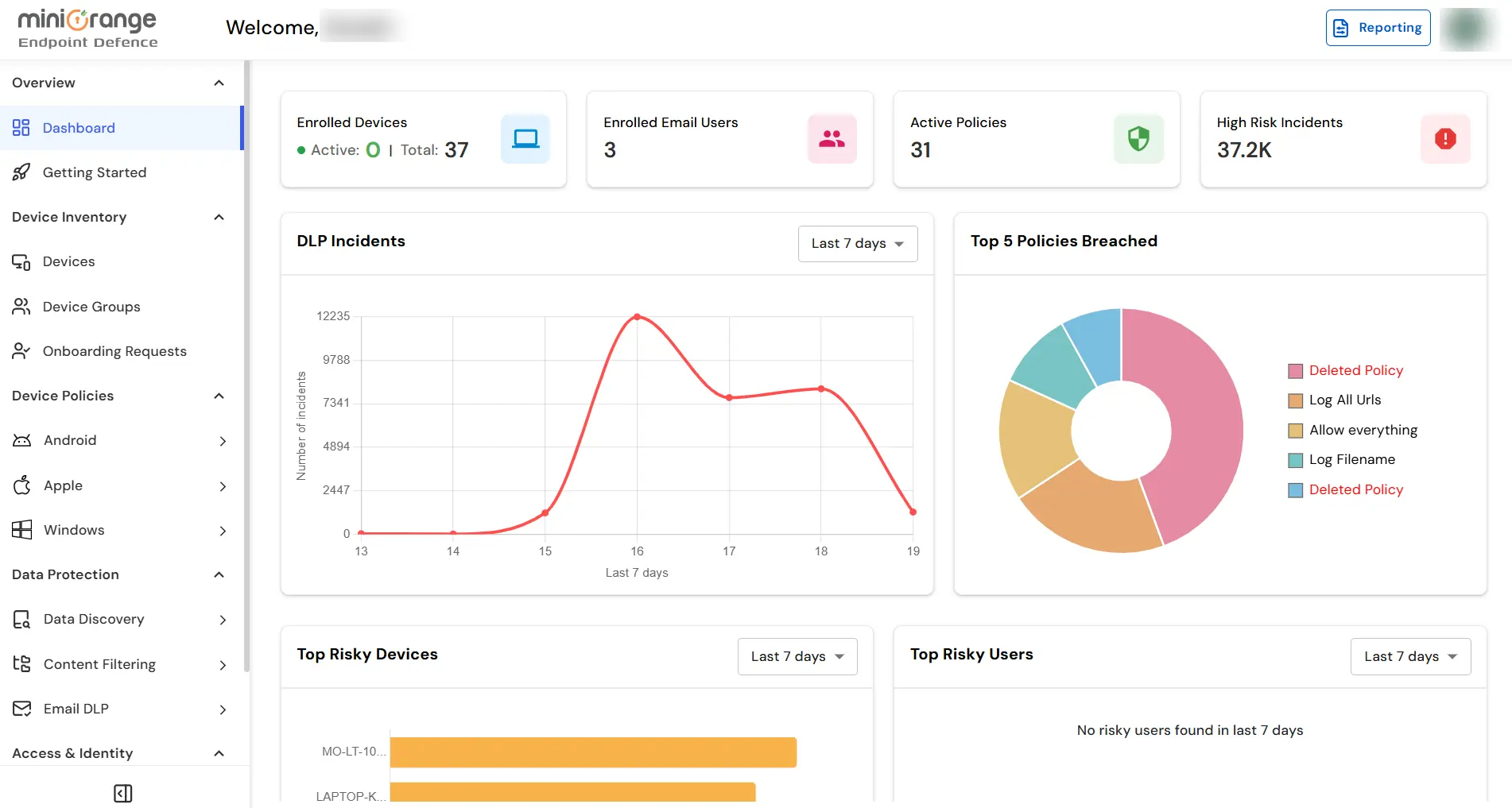
  • Sign in to your DLP Admin dashboard.
  • miniOrange Endpoint DLP Admin Dashboard

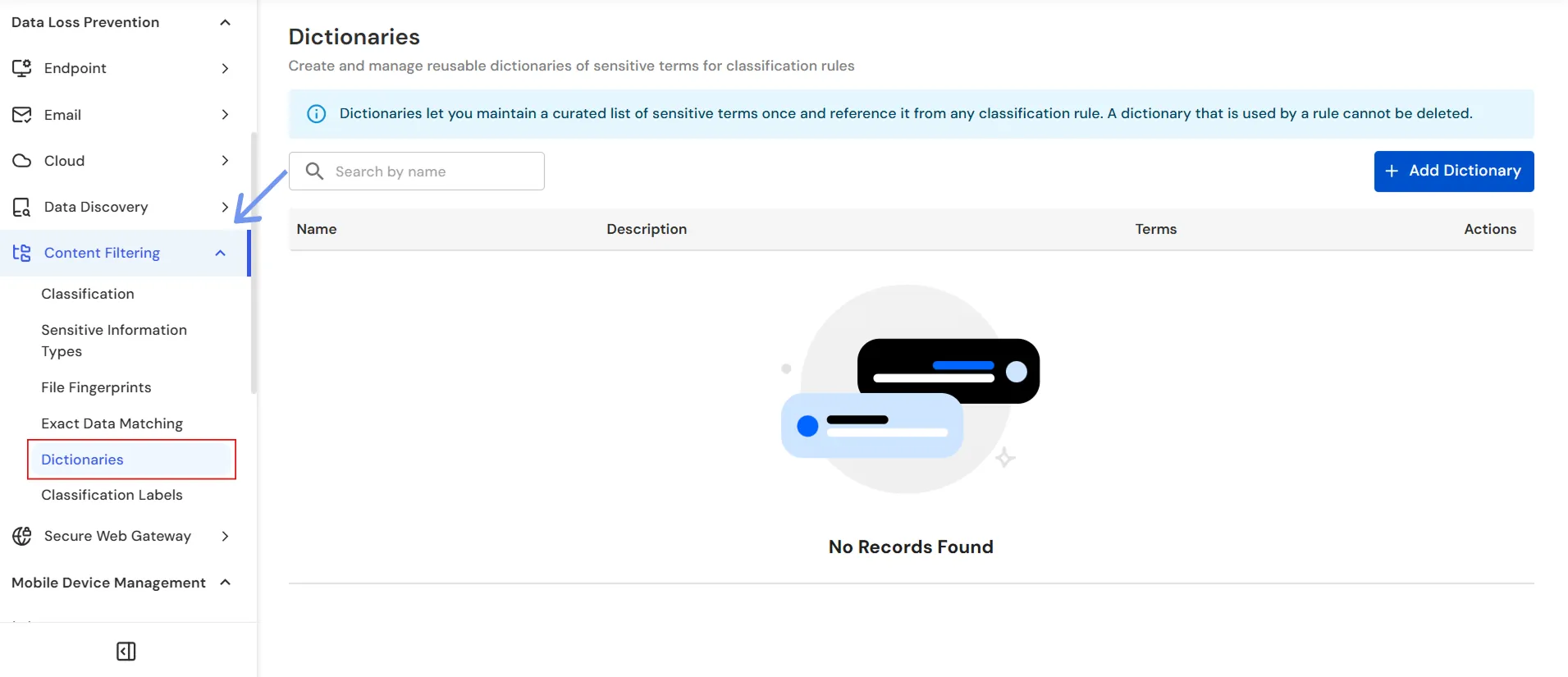
  • On the dashboard, navigate to the left menu panel and click Content Filtering → Dictionaries.
  • miniOrange Endpoint DLP Dictionaries page

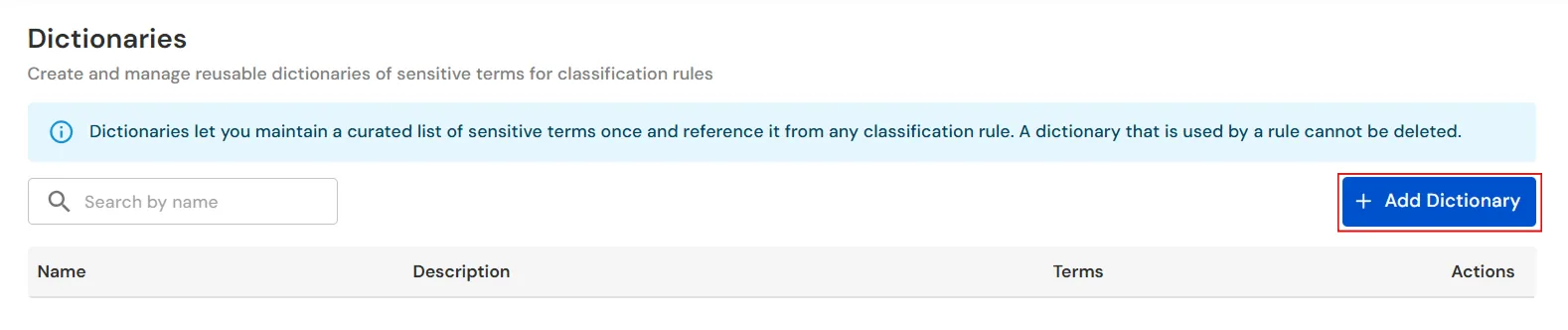
  • Click the Add Dictionary button to create a new dictionary.
  • miniOrange Endpoint DLP Add Dictionary button

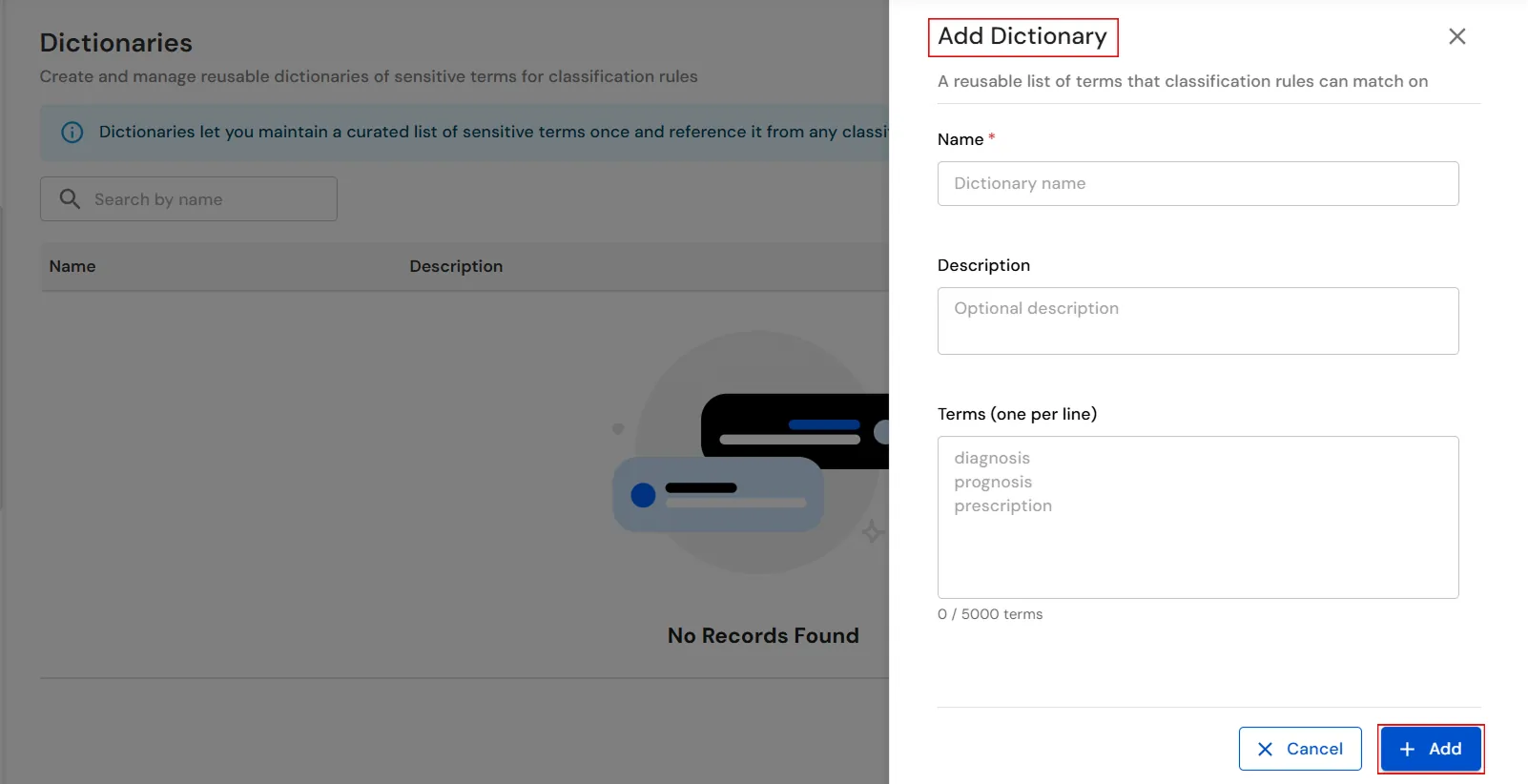
  • In the Add Dictionary window, enter a unique name in the Name field.
  • (Optional) In the Description field, enter a brief description of the dictionary.
  • Under Terms, enter the sensitive terms that you want the dictionary to contain, with one term per line.
  • For example, enter terms such as diagnosis, prognosis, and prescription.
  • miniOrange Endpoint DLP Add Dictionary window for configuring dictionary terms

  • Click Add to create the dictionary.
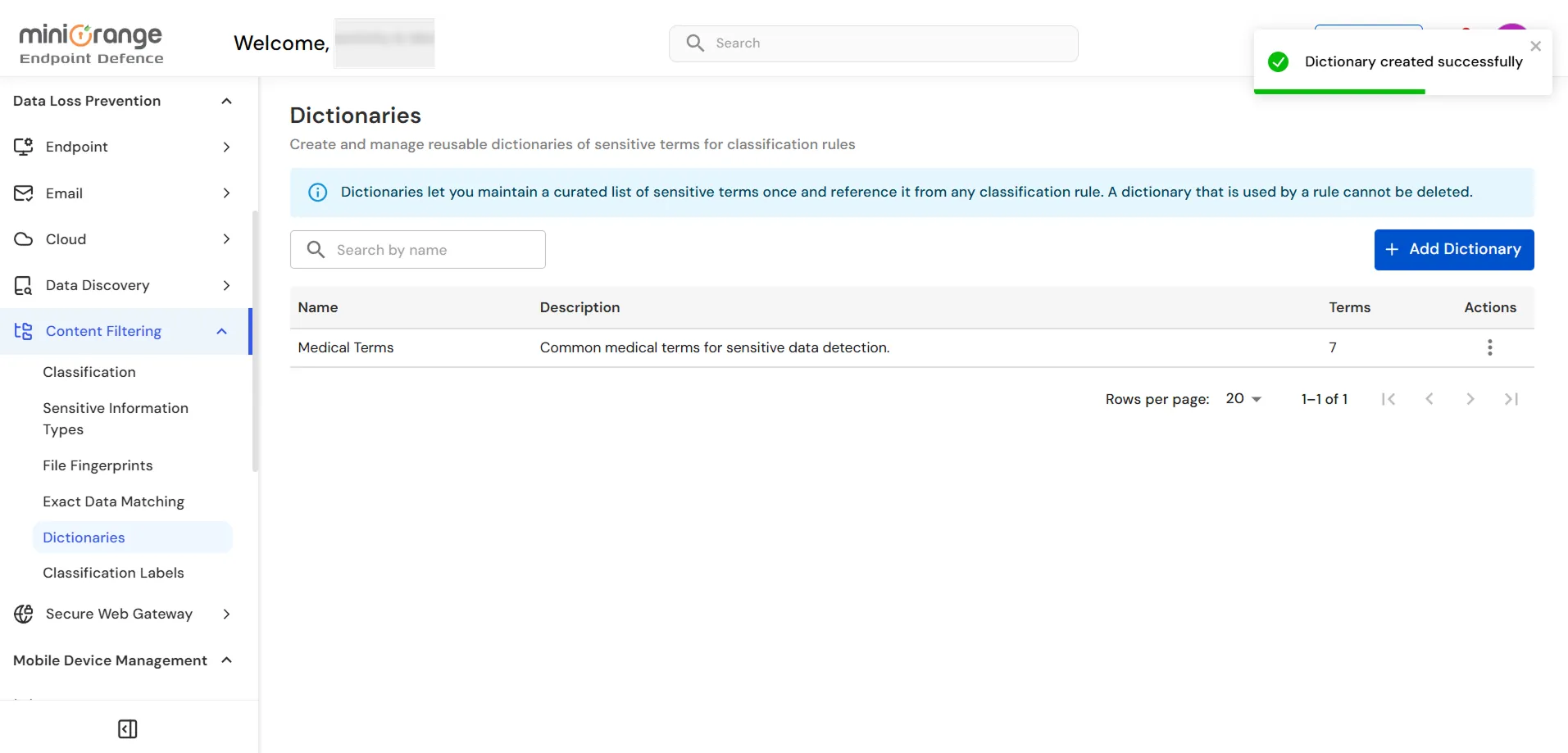
  • Verify that the newly created dictionary appears in the dictionary list with the configured Name, Description, and number of Terms.
  • miniOrange Endpoint DLP Dictionaries page showing the newly created dictionary

You have successfully configured a Dictionary using our DLP solution. If you encounter any issues during the configuration, please feel free to contact us at uemsupport@xecurify.com.

Want To Schedule A Demo?

Request a Demo