Hello there!
Need Help? We are right here!

Need Help? We are right here!
Search Results:
×
Active Directory backup and recovery means keeping restorable copies of your directory objects and the attributes inside them, so a deleted user, a wrong bulk edit or a changed Group Policy can be reversed without rebuilding anything by hand.
Day-to-day mistakes are the common reason to backup Active Directory. The AD Recycle Bin can bring back a deleted object, along with its attributes, while it is still within the configured deleted-object lifetime (180 days by default). It does not keep earlier versions of an object that still exists, so a wrong edit cannot be rolled back with it. That is the gap a scheduled backup closes.
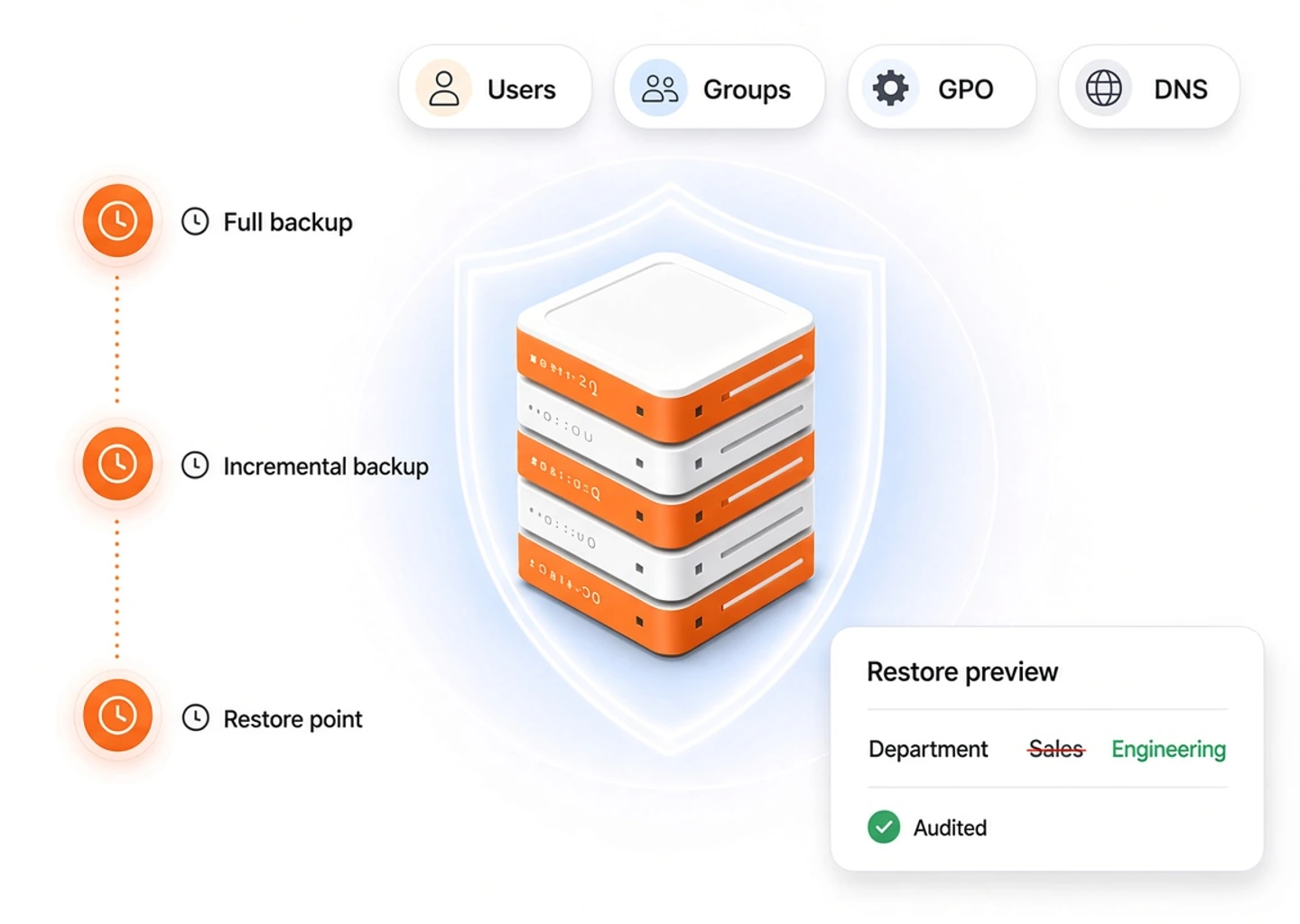
miniOrange takes a full backup as the baseline and then incremental backups that record only what changed, using AD's own change tracking. Every snapshot is a restore point. From any of them you can compare against live AD and restore at the level you need: one attribute, one object, a deleted object, a batch of objects, a Group Policy Object or a DNS zone. Restores are written to the live directory, so you do not need to take domain controllers offline or restart them.
Everything you need to backup Active Directory and get an object back, in one console. A delete, a bad bulk edit or a wrong group change should cost you minutes, not a weekend of scripting.

Pick the schedule for full backups and a separate, more frequent one for incrementals. Only changes since the last run are captured.

Switch Users, Groups, OUs, Computers, Contacts, GPOs and DNS on or off, and set how many backups to keep.

See what was added, removed or modified between a backup and AD today, or between two backups, before you restore anything.

Undelete through the AD Recycle Bin when it is on, so the original GUID and SID come back. Otherwise the object is recreated from its last known snapshot state.

Open an object's version timeline, enter a date and time, and get the backup that was current at that moment.

Back up Group Policy Objects and restore one, with its original links re-applied if you want them.

Restore only the attributes that changed, or only the ones you pick, and leave the rest of the object alone.

Restore all objects of the types you choose from one backup. Run it as a dry run first to list what would be processed.

Back up all your AD-integrated DNS zones and their records. Incremental backups track DNS changes since the last backup. Restore a whole zone or a single record.
Native tools can recover some things, but they leave the searching, comparing and deciding to you.
| Situation | What admins do today | With miniOrange Backup and Recovery |
|---|---|---|
| A user or group was deleted | Search the Deleted Objects container with PowerShell, undelete the object, then check it by hand. | Open Deleted Objects, pick the object, click Restore. Recycle Bin undelete is used when available, with a rebuild from its last known snapshot state as the fallback. |
| Someone changed the wrong attributes | The Recycle Bin does not help with edits. Guess the old values, or restore a whole server backup just to read them. | Open the object's timeline, compare versions, and restore only the attributes that changed. |
| A bulk edit went wrong | Rebuild from a CSV export, if one exists. | Run a dry run against a known-good backup to list what would be processed, then restore in bulk. |
| You need to know what changed since Friday | Compare exports by eye. | Diff Friday's backup against live AD and read the added, removed and modified lists. |
| A GPO was edited or removed | Hope a GPMC backup was taken and remember where it went. | GPOs are part of the scheduled backup. Restore the one you need and re-link it. |
| Auditors ask who restored what | Piece it together from event logs. | Backups, restores and failures are written to the audit log with the admin and the object. |
The same flow whether you are recovering one user or a hundred.
Set the full backup schedule, turn on incrementals, choose object types and how many backups to retain.
A full backup sets the baseline. Incrementals then record only the objects that changed or were deleted.
Browse any backup, diff it against live AD or another backup, and check an object's history.
Restore attributes, an object, a deleted object, a batch, a GPO or DNS. Every action is audited.

See backup, compare and restore on a live domain. Tell us the size of your directory and we will walk through the recovery cases that matter to you.
One illustrative case: a CSV import overwrites the Department and Title of 214 users. Here is what recovery looks like with backups in place. (Sample numbers.)
Set it once. The console registers the jobs, shows the next run on the dashboard and sends an email when a backup succeeds or fails.
Compare a backup with live AD, or compare two backups. Each object is marked added, removed, modified or unchanged, with the attribute-level differences underneath.
Restore writes only what differs between the backup and the current object. Pick specific attributes if you want to go narrower still.
The Deleted Objects page lists what was removed from AD. If the AD Recycle Bin is enabled, the object is undeleted in place and keeps its original GUID and SID. If not, the object is recreated from its last known snapshot state and AD assigns it a new GUID and SID.
With GPMC installed on the server, GPOs join the scheduled backup. Each backup lists its GPOs with their version numbers, and incremental backups mark each GPO as added, modified or deleted.
Every AD-integrated DNS zone and its records are backed up with the rest of your directory. Incremental backups pick up the DNS changes made since the last backup and keep them as separate versions, so a deleted or edited record is no longer a manual rebuild.
The Overview tab compares what is backed up with what is live in AD, shows when the next backup runs, and charts 30 days of backup and restore results so a failing job is easy to spot.
The objects admins create, edit and delete every day, backed up on your schedule and restorable from the same console.
Area
What you get
Backed up on schedule. Restore attributes, or recreate the object if it was deleted.
Backed up with the schedule and restorable, with links re-applied if you choose. Needs the Group Policy Management Console on the server running the product.
Undeleted through the Recycle Bin when it is enabled, which keeps the original GUID and SID. Otherwise recreated from its last known snapshot state, or restored from any snapshot you pick.
All zones and records are included in full backups, and incrementals track DNS changes since the last backup as separate versions. Restore a whole zone or a single record.
Restored on the group, through its member list. Restore the group to bring its members back.
Full and incremental snapshots with retention, a version timeline for every object, and comparison between any two snapshots or with live AD.
Incrementals capture only the changes, so you can back up several times a day without copying the whole directory each time.

Attribute-level restore means a wrong title does not cost you a day of group memberships.

Diffs and bulk dry runs let you review the changes and the objects involved before anything touches production AD.

The same console covers object management, bulk operations, workflows, delegation and reports, so recovery sits next to the tools that cause the change.

View, manage and restore are separate permissions. Give helpdesk view access and keep restore for senior admins.

Backup runs, restores, deletions of backups and schedule changes are recorded in the audit log.

Shift changes and role moves cause constant group and OU edits. When a rotation script removes a nurse team from the wrong group, restore the group's membership attribute from last night's backup instead of rebuilding access ward by ward.

At the start of a term, thousands of student and staff accounts are created or moved. If a bulk import overwrites departments, compare the live directory with the pre-import backup, then restore users from that backup.
Access to sensitive groups must be controlled and explainable. Restore a deleted privileged group from backup, and show auditors who restored it, when, and from which backup.

Shared plant accounts and computer objects are easy to delete during clean-ups. Restore the computer or user from backup, and re-link the GPO that locks down the shop-floor machines.
Engineers move fast, and OU restructures go wrong. Diff the directory against yesterday's backup, find every object that moved or changed, and restore the affected objects from that backup, with a dry run first.
Public bodies need predictable recovery and clear records. Schedule regular backups with defined retention, restrict restore to a small group of admins, and keep the audit log of every recovery.