Hello there!
Need Help? We are right here!

Need Help? We are right here!
Search Results:
×
One admin fills in the department. Another leaves it blank. A third puts the user, or the new laptop, in the wrong OU. Over time the directory fills with users, groups, computers and contacts that look alike but follow no standard, and every report, group rule and audit has to work around it.
Helpdesk needs a short form, not the whole directory. A long form with every attribute invites mistakes, and handing out wider access just so someone can create an object is more than the job needs.
miniOrange Object Templates let you design the form for each task. You choose the fields, set defaults, mark what is required, hide or lock the rest, and assign the template to the roles that should use it. The same builder works for every object type.
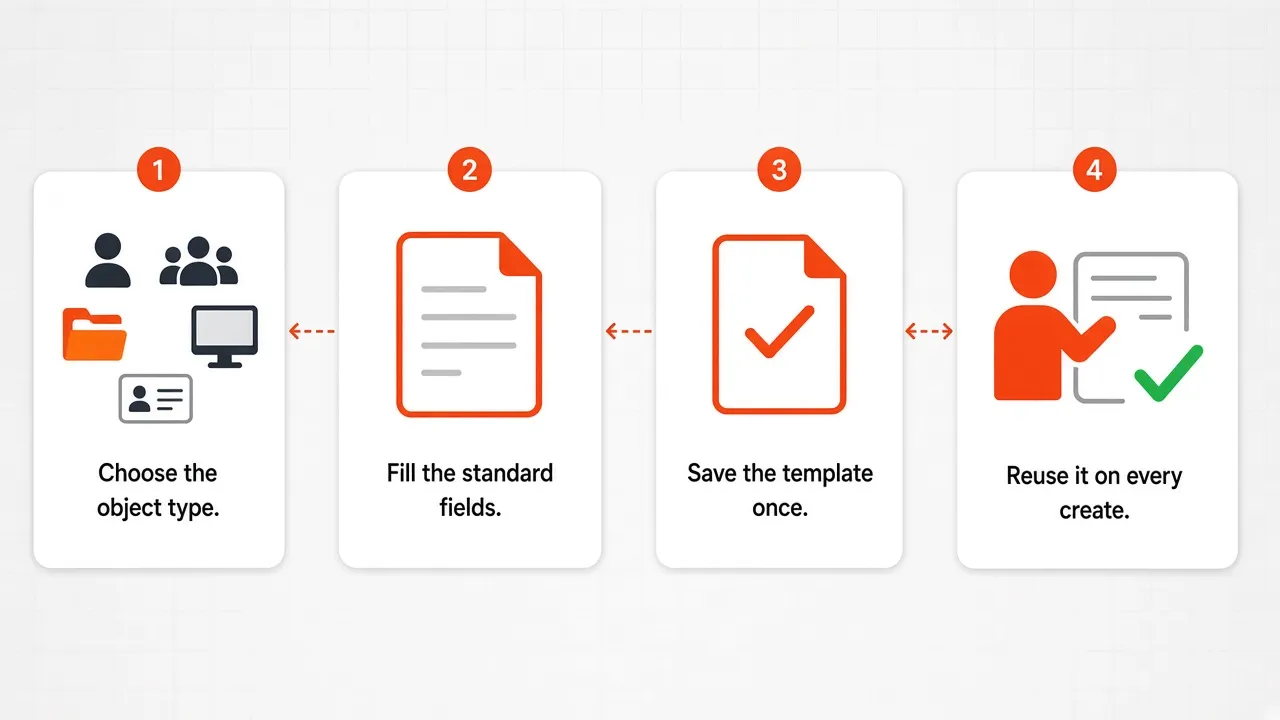
The same four steps for a user, group, OU, computer or contact.
Pick the object and whether the template creates or modifies it. Add steps and sections and drag in the fields you need.
Set a label and default value for each field, and mark it required, editable or hidden. Add any LDAP attribute as a custom field.
Walk through the form in a full-page preview, then assign the template to the roles that should use it.
Those roles see your form when they create or modify the object. Workflows can use the same templates for user actions.
Build a template for a new hire, a laptop or a vendor contact and watch the form change for the role you assign it to. Bring the fields your team fills in today.
One builder for every object type, with the fields, defaults and roles you choose.

Templates for users, groups, organizational units, computers and contacts, so every kind of object you create follows a standard.

Separate templates for creating a new object and for changing an existing one, each managed on its own page.

Add fields from a searchable palette, arrange them in wizard steps and titled sections, and set each field to full or half width.

Change a field's label, set a default value, and mark it required, editable or hidden. Defaults pre-fill the form, so the person only types what is different. The fields AD needs to create the object stay required.

Add any LDAP attribute from your directory as a field, with its own default value.

Walk through the finished form before anyone uses it.

Assign a template to roles, so helpdesk, HR, desktop support and other teams each get the form built for their job.

Create and update user actions in workflows pick a template, so approved requests use the same form.

Separate permissions cover view, create, edit and delete for each object type. Template names are unique per type, a save is refused if someone else changed the template meanwhile, and every template action is written to the audit log.
The builder has a searchable palette of fields on one side and the form on the canvas. Group fields into wizard steps and titled sections, drag them into place, and click a field to change its label, default value and options. It is the same builder for users, groups, OUs, computers and contacts.
When you save a template, give it a name and a description, and choose the roles that should use it. A role you assign a template to uses it whenever its members create or modify that kind of object, so HR sees the new-hire form, desktop support sees the computer form and helpdesk sees the short one. This is how you delegate user creation without handing out wider access.
Viewing, creating, editing and deleting a template are all written to the audit log. Each object type has its own permissions, so the people who design templates can be a small group.
Computer objects and contacts need standard values too. A computer template can predefine the OU, the managed-by owner and the description, so every new machine account is created the same way. A contact template makes it easy to create a contact in Active Directory and keep contact management consistent for partners, vendors and other external people, with the name, email, phone and company filled in from one form.
Three places a template saves time and mistakes.

HR creates accounts for new joiners and the directory should look the same for each one. A new user template makes user provisioning in Active Directory repeatable.

Desktop support adds machine accounts, and they should never end up in the default container.

Contacts for vendors and partners are created by different people and recorded in different ways.