Hello there!
Need Help? We are right here!

Need Help? We are right here!
Search Results:
×
A bulk import overwrites departments. A script blanks the manager field on 200 users. The objects still exist, so nobody calls about a missing account. They call about a user who cannot reach something they used to reach.
The old value is the hard part. AD does not keep previous versions. You search through exports, ask colleagues what the title used to be, or restore a server backup just to read one field.
miniOrange keeps a version of each object in every backup, so you can see what changed between versions, jump to a date and time, and restore only the attributes you choose.
Works for one object, and for a batch when you need it.
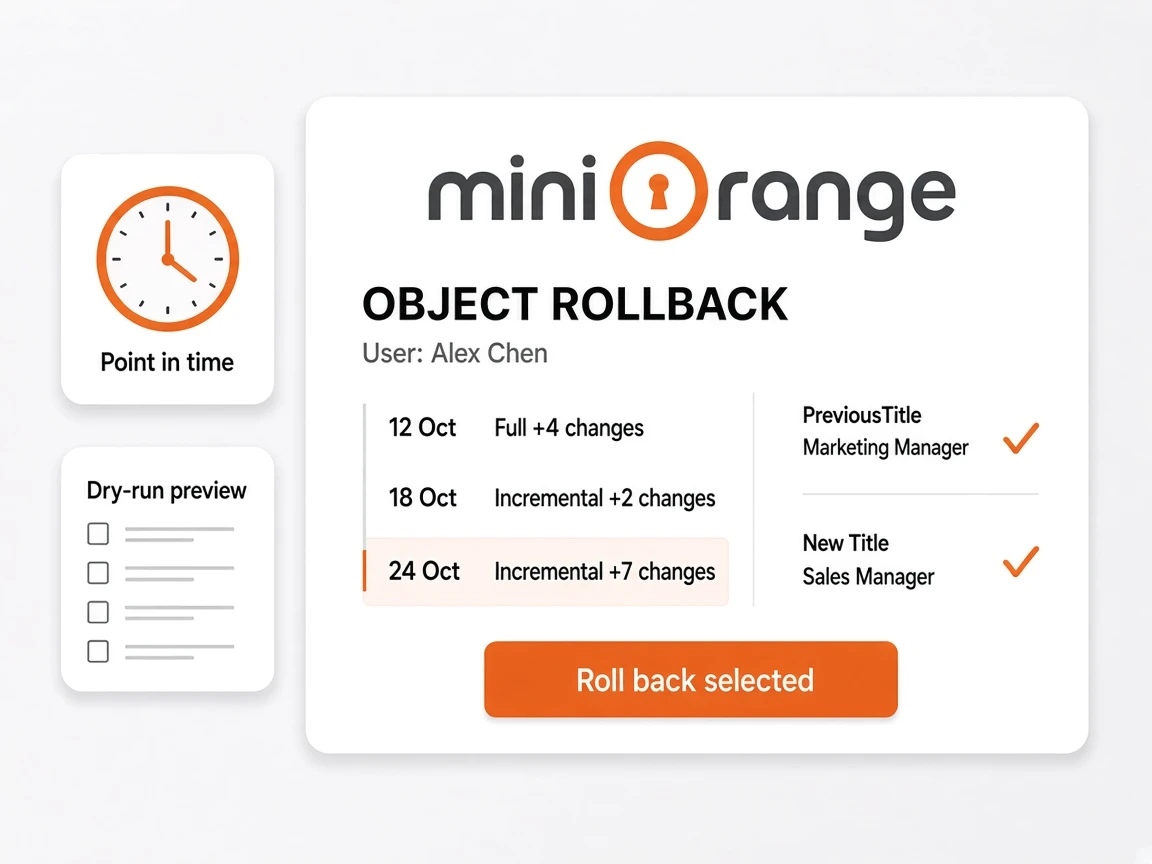
Find the object in the backups and open its timeline. The latest version is listed first, with the number of attributes that changed.
Click a version to see each changed attribute with its previous and new value. Or enter a date and time to find the backup that was current then.
Open Restore Review. Restore the entire object or tick only the attributes you want. Only attributes that differ from the live object are written.
Write the selected attributes back to live AD. The result lists what was rolled back, and the rollback is written to the audit log.

Version history for the attributes that matter.

Every backup that holds the object is listed with its date, its type (full or incremental) and the number of attributes that changed.

Open any version to see each changed attribute with its previous and new value side by side.

Enter a date and time and get the latest backup at or before it, with the number of attributes that differ from the live object.

Compare a backup with the current directory, or two backups with each other. Objects are marked added, removed, modified or unchanged.

Restore the whole object or tick only the attributes you want. Only attributes that differ from the live object are written.

Restore all objects of the types you choose from one backup. The dry run lists what would be processed before anything is written.
Open an object's backups and enter a date and time. The console finds the latest backup at or before it and tells you how many attributes differ from the live object. If the lookup is right, restore to that state from the result.
Choose a backup and compare it with live AD, or compare two backups with each other. Each object is marked added, removed, modified or unchanged, and a modified object shows each changed attribute.
Open Restore Review. Restore the whole object, or tick only the attributes you want. Only attributes that differ from the live object are written.
Restore all objects of the types you choose from one backup. The dry run lists what would be processed before anything is written.
The mistakes that fill a helpdesk queue on Monday morning.
A CSV import replaced the department on 300 users.

A script rewrote a distribution group's membership.

An admin edited the wrong user while updating a profile.
One attribute, one object or a whole batch, from the backup that still has the right values.
Situation
What happens
What you get
Open the timeline, pick the version, tick only those attributes and restore.
Only the attributes you chose are written. The rest of the object is left alone.
Enter that date and time. The console finds the latest backup at or before it.
The lookup shows how many attributes differ, then you restore from that state.
Compare the backup with live AD, then run a bulk restore. Use a dry run first.
All objects of the types you chose are restored from that backup.
Compare a backup with live AD, or two backups with each other.
Objects are marked added, removed, modified or unchanged, with previous and new values.
Object rollback restores earlier attribute values on objects that still exist in AD. Open the version timeline for a user, group, OU, computer or contact, compare previous and new values, and write back the attributes you choose from any backup.
Yes. Restore the whole object or tick only the attributes you want. Only attributes that differ from the live object are written.
Enter a date and time and get the latest backup at or before it, with the number of attributes that differ from the live object. Restore to that state from the result.
Compare a backup with the current directory, or two backups with each other. Objects are marked added, removed, modified or unchanged, and a modified object shows each changed attribute with previous and new values.
Yes. Restore all objects of the types you choose from one backup. The dry run lists what would be processed before anything is written.
Every backup that holds the object is a version on its timeline, for as long as you retain that backup. Retention is set on the same schedule as the rest of your AD backup.