Connect and Configure the miniOrange Self-Service Mobile App
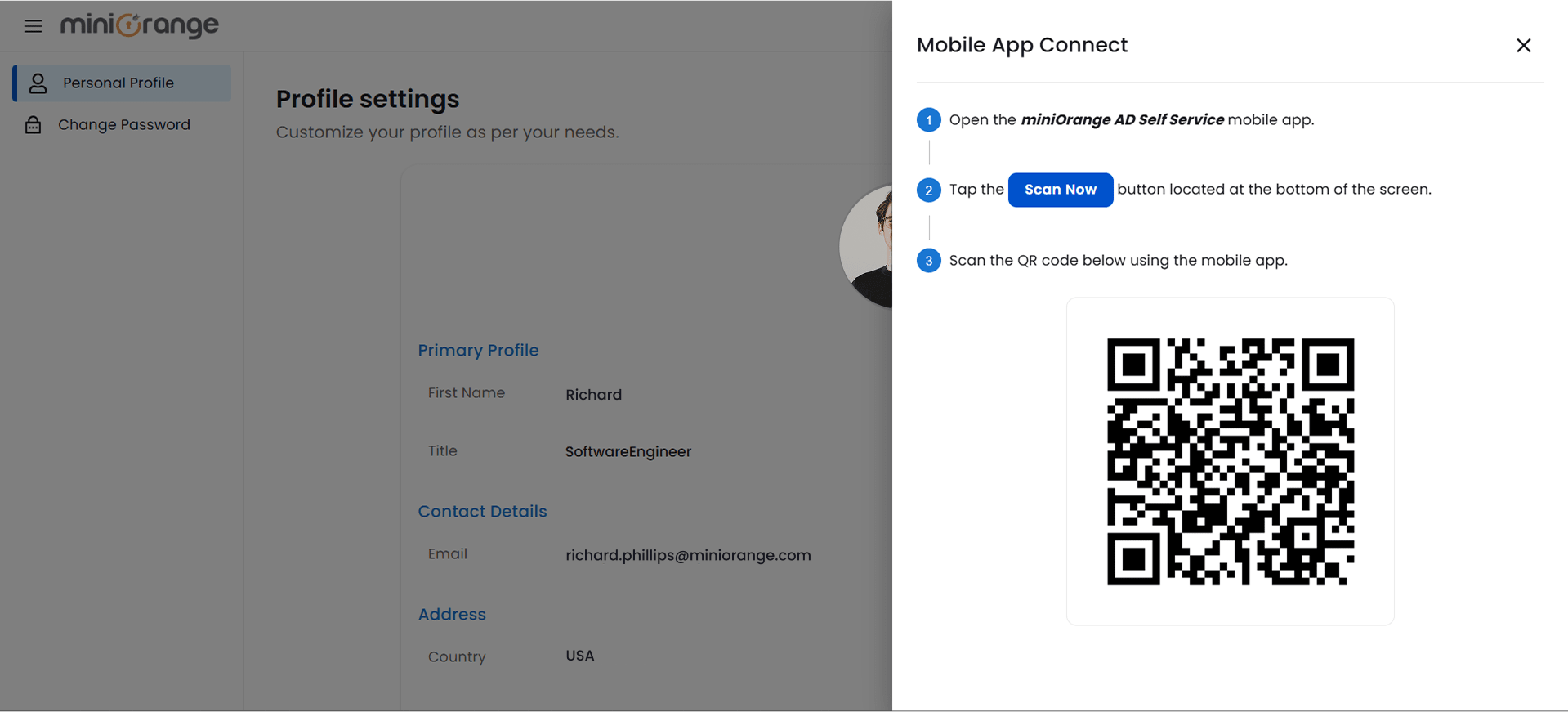
- Open the miniOrange AD Self-Service mobile app.
- Tap the “Scan Now” button at the bottom.
- On the web dashboard, navigate to User Dashboard → Mobile App Connect.
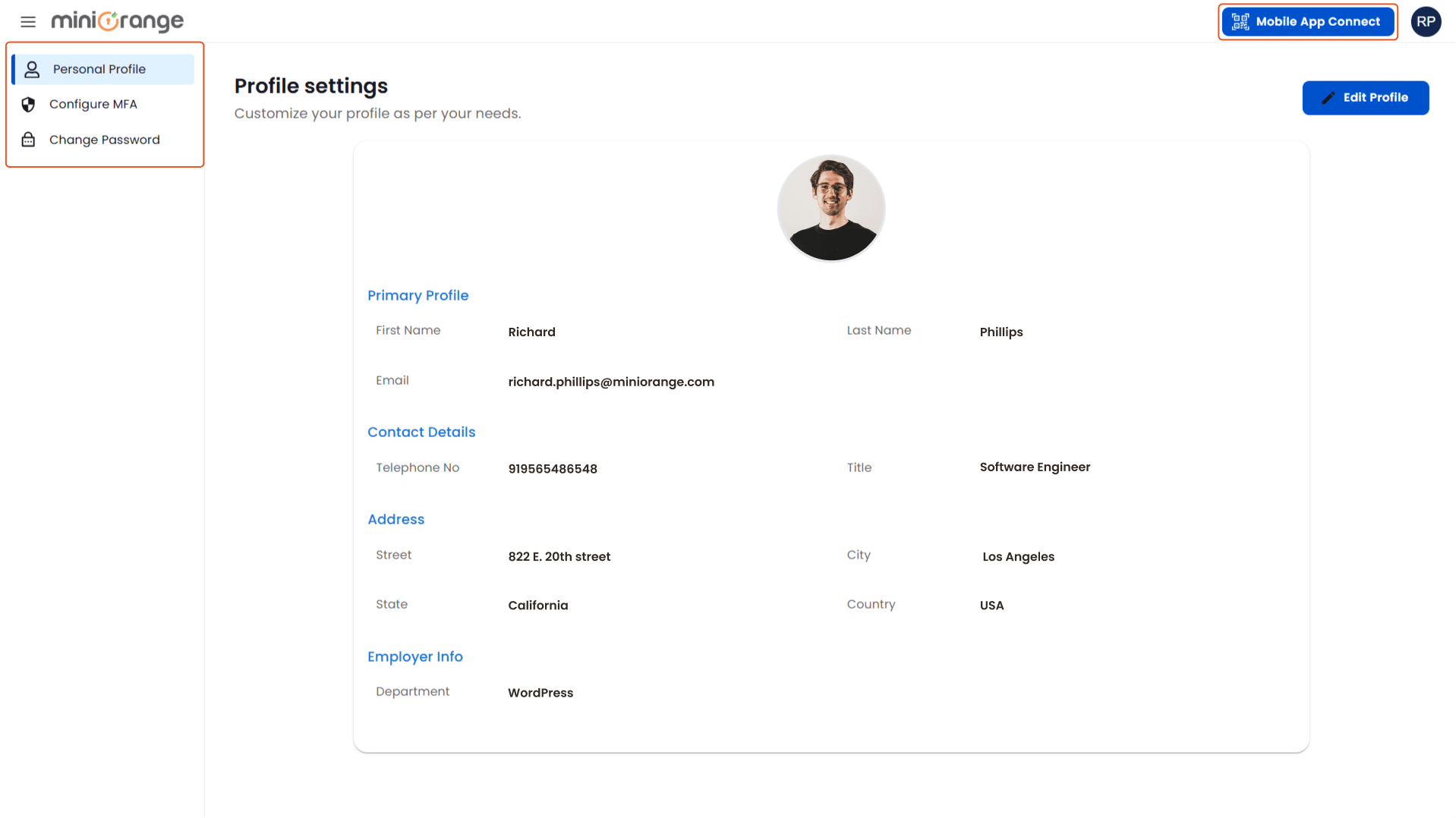
- Scan the QR code displayed to link your account.
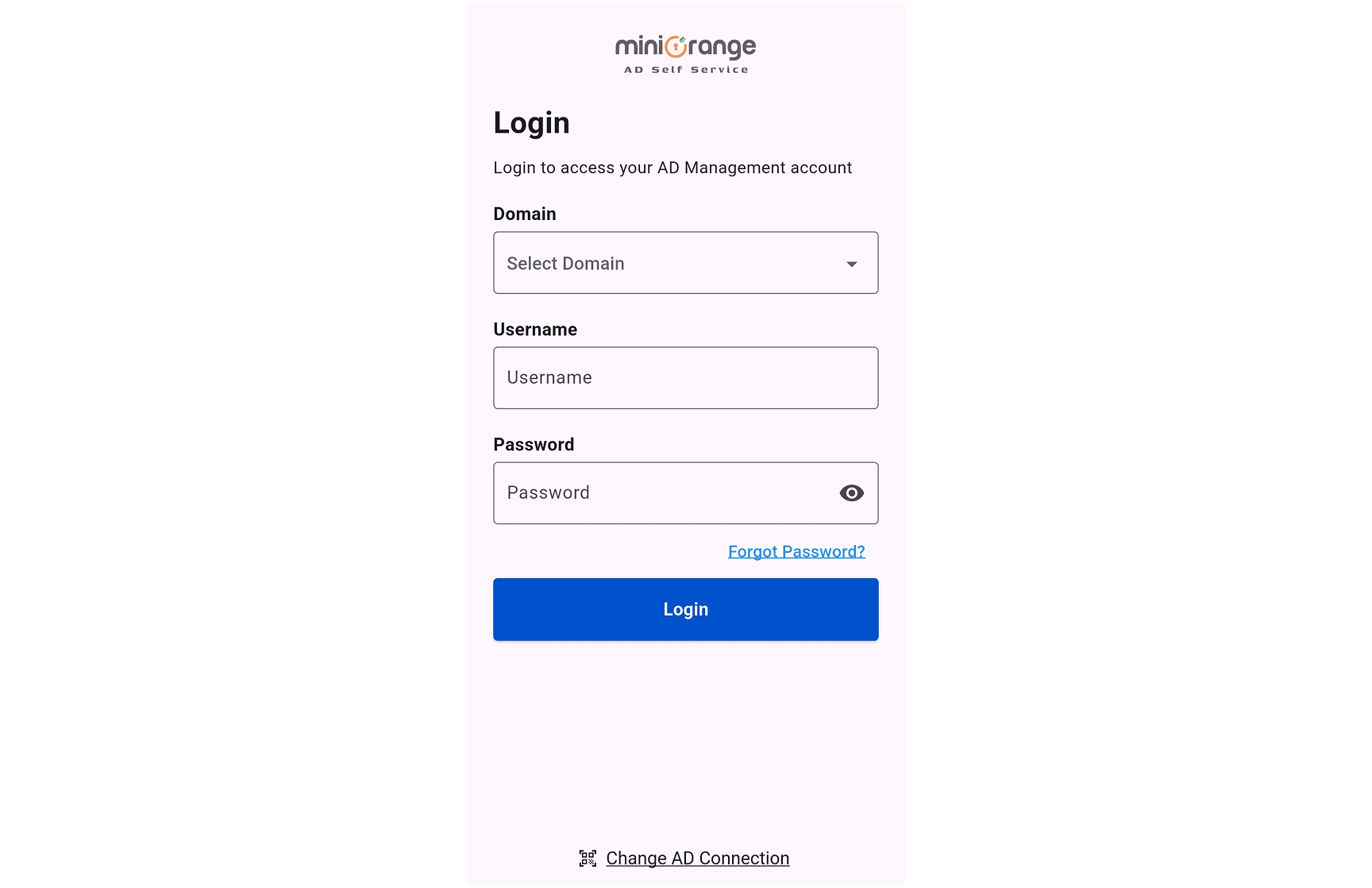
AD Self-Service Mobile App Login:
Once you have scanned the RQ code, you will see a login page.
- Select the Domain name from the dropdown list.
- Enter the username and password and click on the login button.
- Once logged in, you will be redirected to your AD Self-Service User Profile inside the app.
Edit User Profile:
Edit User Profile allows you to update your personal details, manage your profile information, and save changes to keep your account up to date.
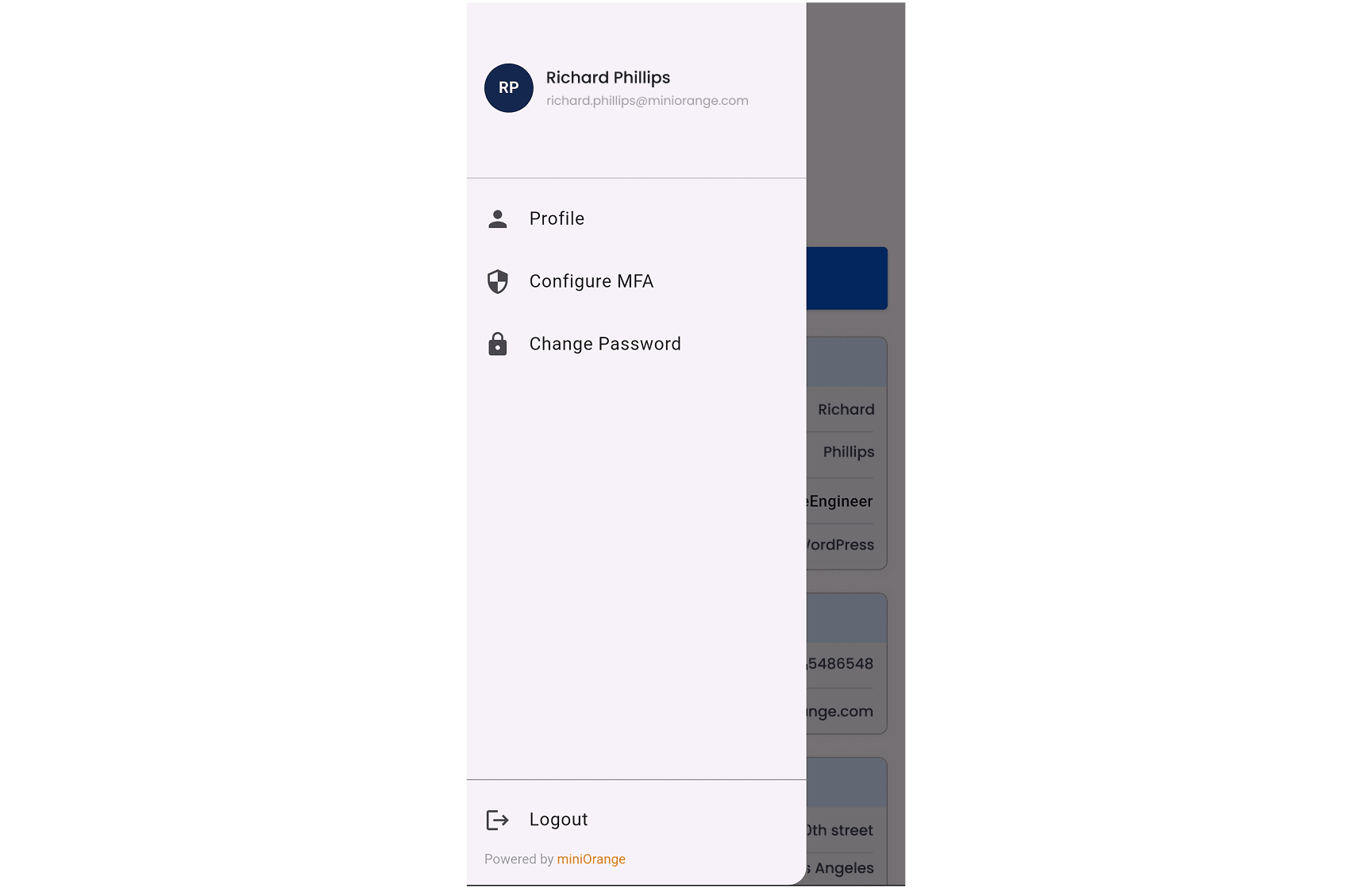
- From the app navigate to Menu >> Profile, click on the Profile tab.
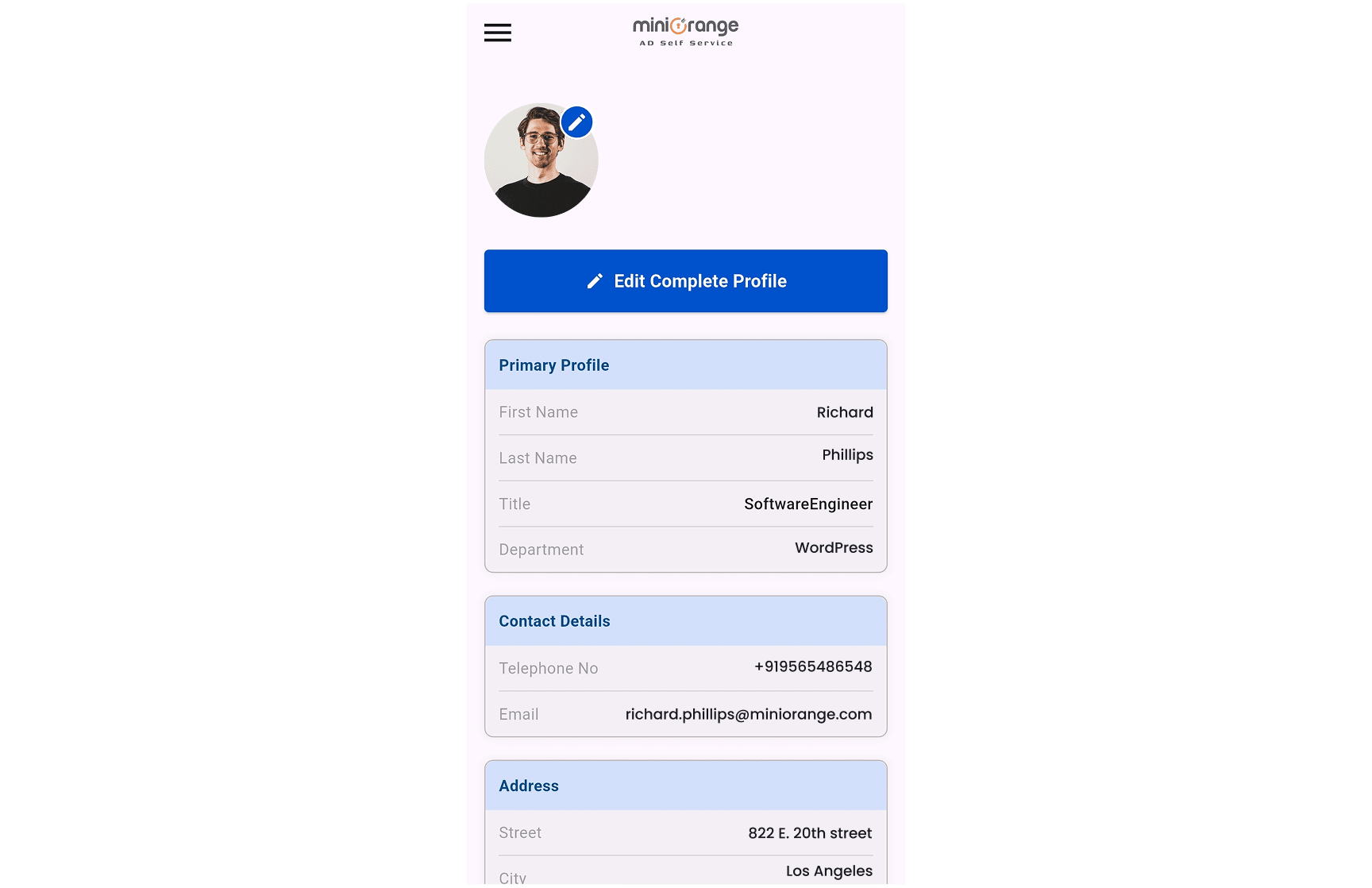
- On the User Profile page, click on Edit Complete Profile.
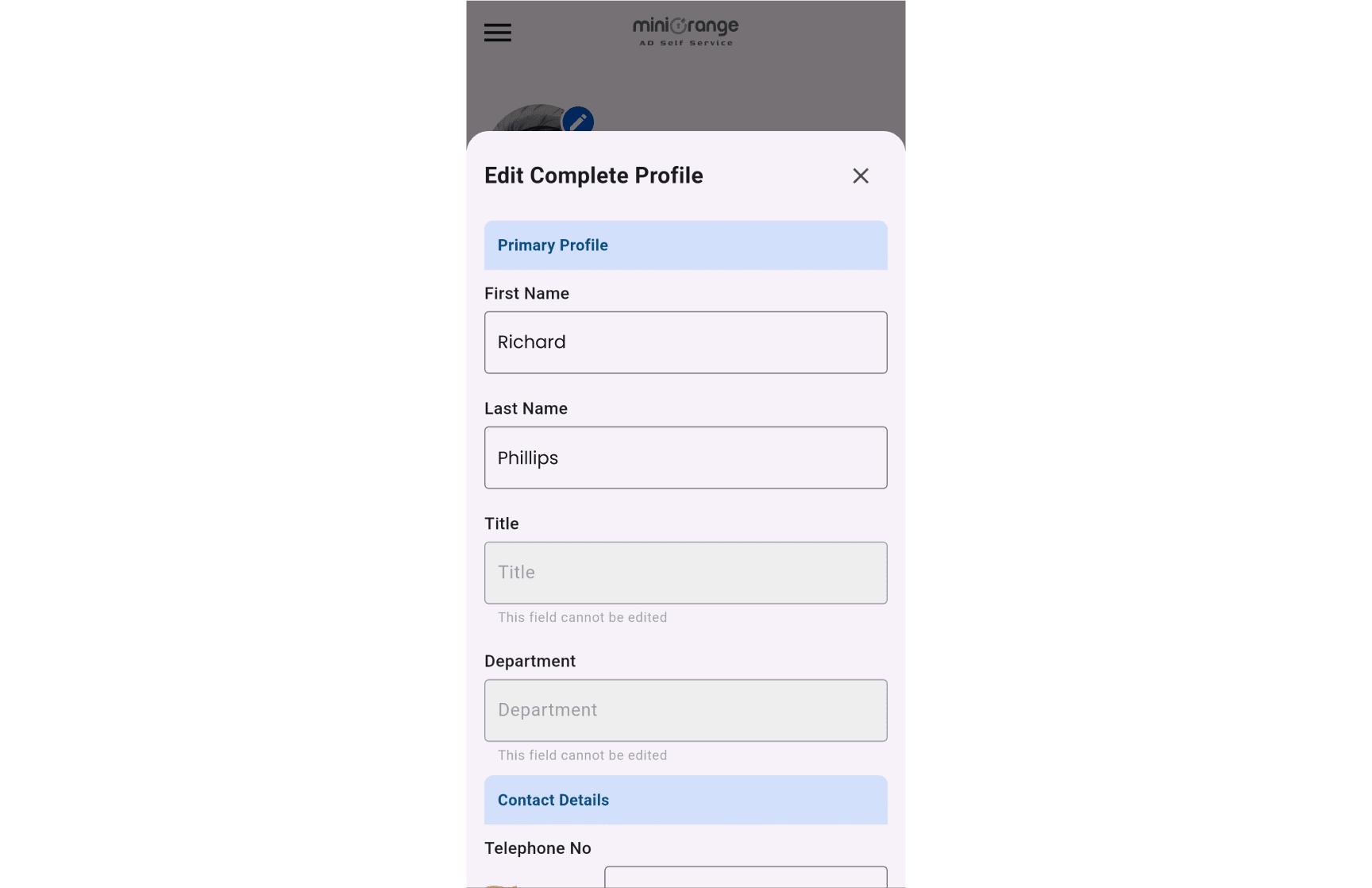
- Update the desired profile fields (e.g., personal details, contact info, profile picture). Click on Save Changes to apply the updates.
Change AD Account Password:
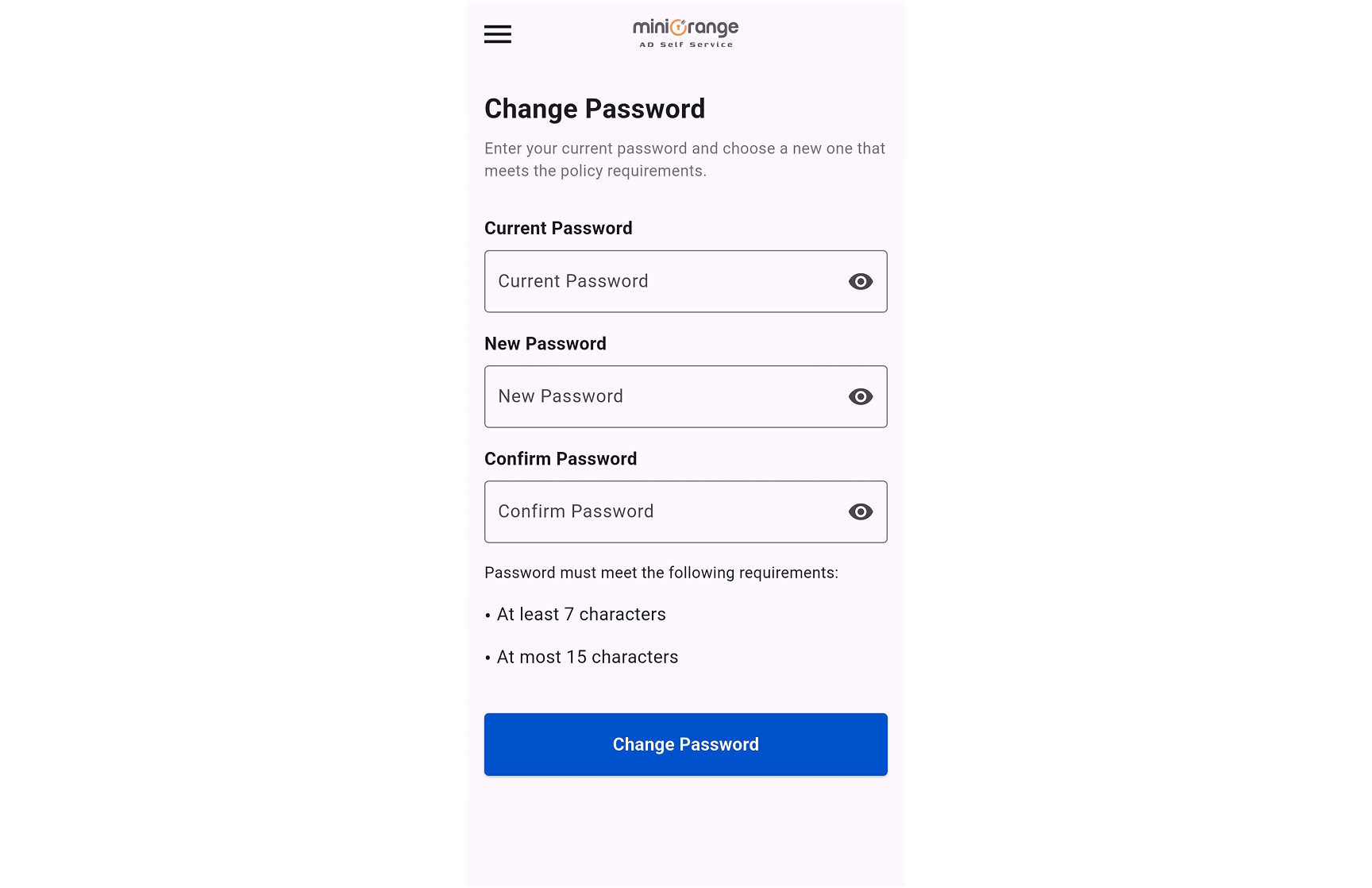
The Change Password option lets you securely update your AD account password in line with the password policy requirements.
- From the app navigate to Menu >> Change Password, click on the Change Password tab.
- In the Change Password page, Enter the current password, Enter the new password and confirm the new password, and once the given password fields are completed, click on the Change Password button to change the current password.