- IAM
- Import Active Directory password policy
How to import an AD password policy into miniOrange IAM
Before proceeding, ensure that Active Directory is configured as an External User Store in miniOrange. If it is not configured yet, follow this guide: Configure AD as External Directory.
Configuration Steps
Step 1: Access Active Directory Machine
- Connect to your AD server using Remote Desktop (RDP).
- Open Active Directory Users and Computers.
- Locate your Domain Name (for example, xecurify.com, miniorange.com).
- Right-click on the domain and go to Properties → Attribute Editor.
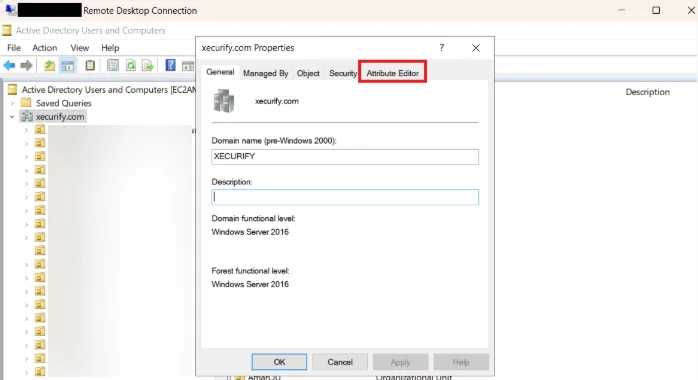
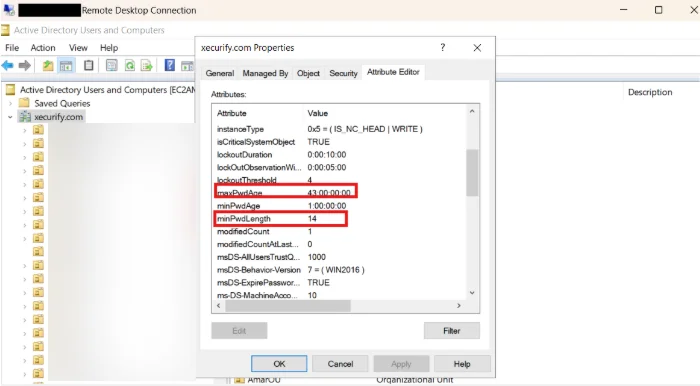
Step 2: Locate Password Policy Attributes
In the Attribute Editor, you will see a list of attributes. Look for the following password policy settings:
| Attribute Name |
Description |
Allowed Values |
minPwdLength |
Minimum password length |
6 – 128 |
maxPwdAge |
Maximum password age |
> 0 (in days) |
pwdHistoryLength |
Password history count |
0 – 10 |
lockoutThreshold |
Failed login attempts limit |
1 – 10 |
lockoutDuration |
Account lockout duration |
5 – 5,256,000 minutes |
Note: Ensure values remain within the allowed limits.
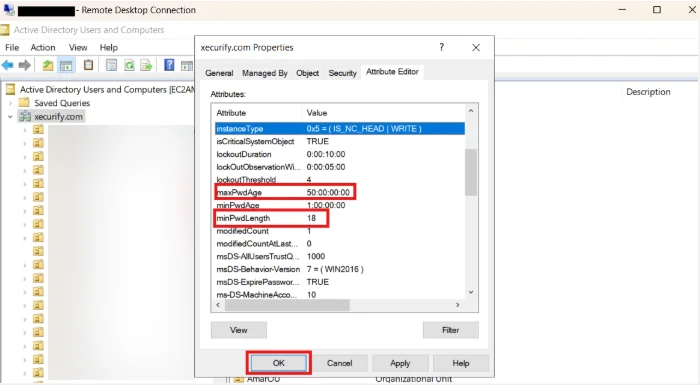
Step 3: Update Password Policy in AD
- Modify the required attribute values as needed.
- Example:
- minPwdLength = 18
- maxPwdAge = 50
- Click OK to save the changes.
Step 4: Import Password Policy into miniOrange IAM
- Log in to the miniOrange IAM dashboard.
- Open your configured Active Directory identity provider / user store.
- Go to the Import tab.
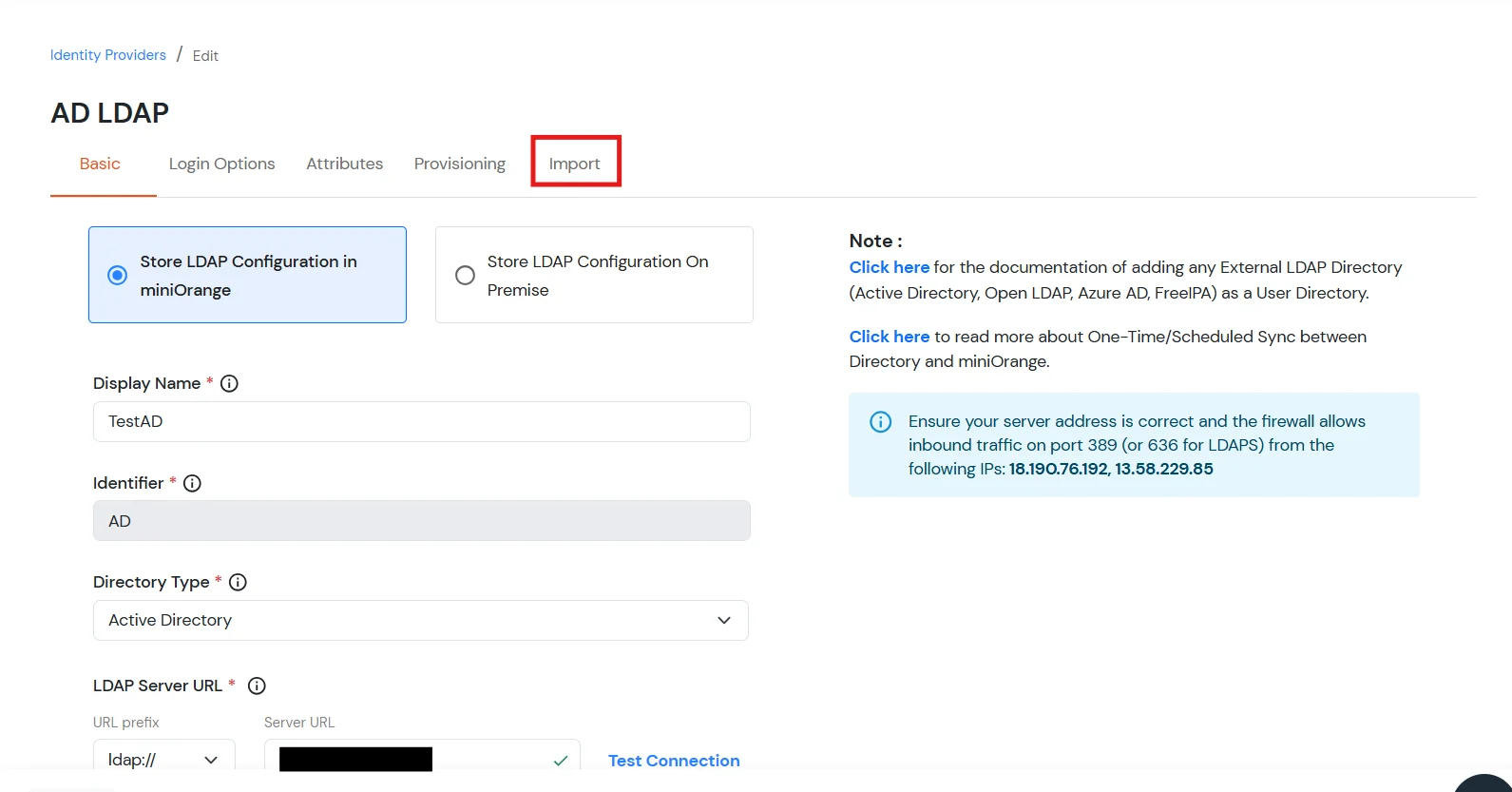
- Scroll down and click Import Password Policy.
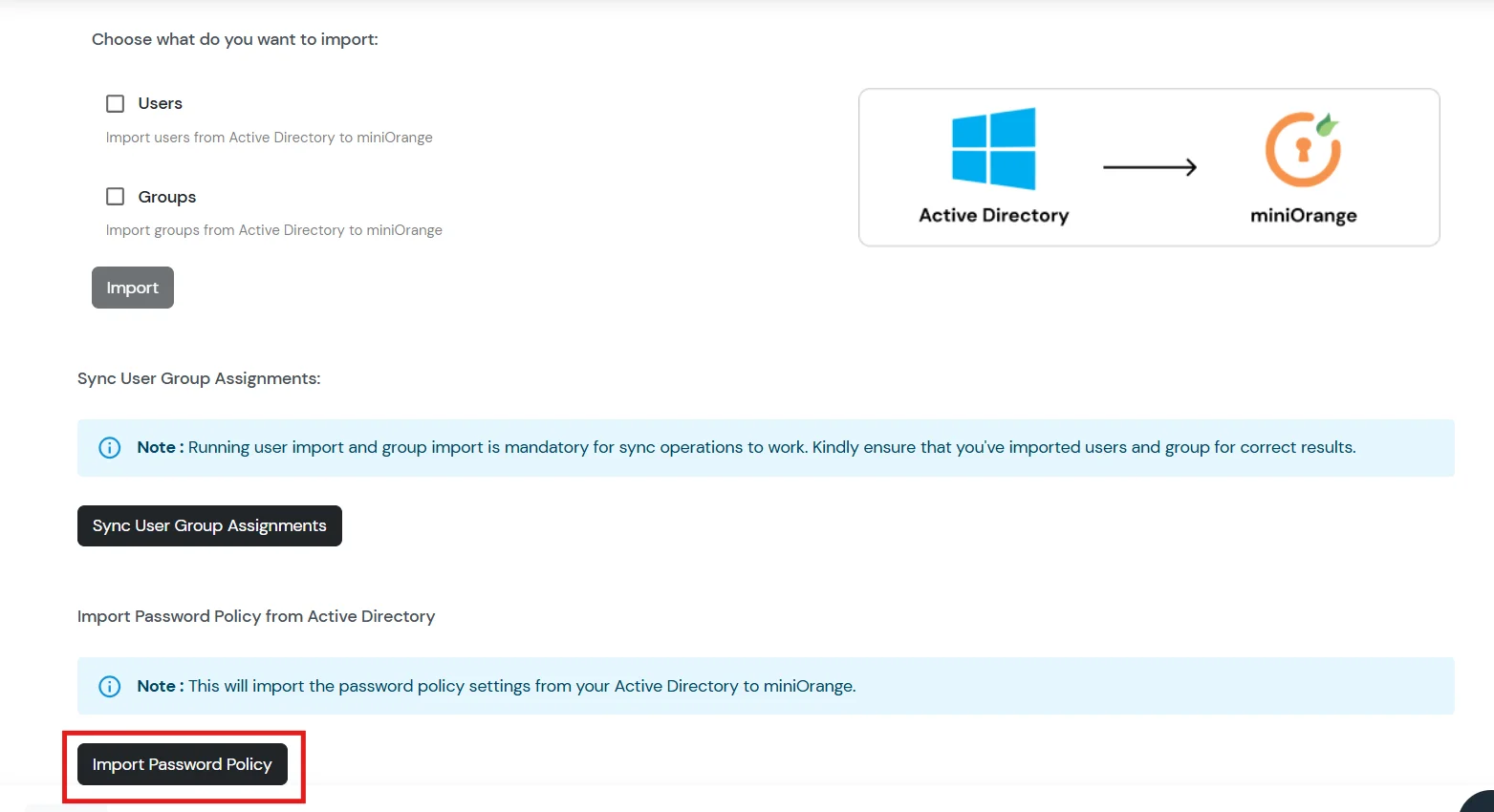
Step 5: Confirm Import
- A confirmation popup appears:
“Are you sure you want to import the password policy from Active Directory? This will overwrite your existing password policy settings.”
- Click Import Password Policy to proceed.
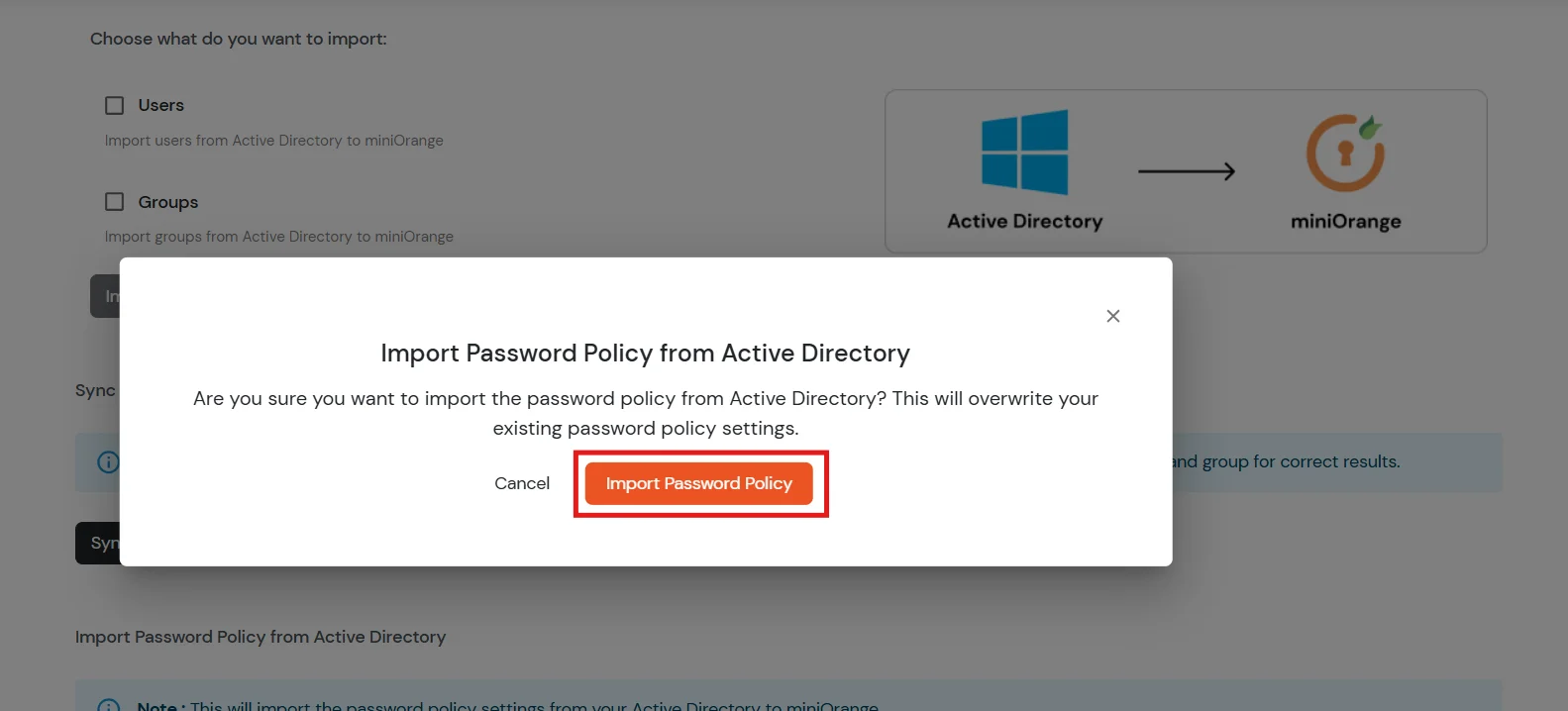
- After the action completes, you should see:
“Password Policy import operation initiated successfully.”
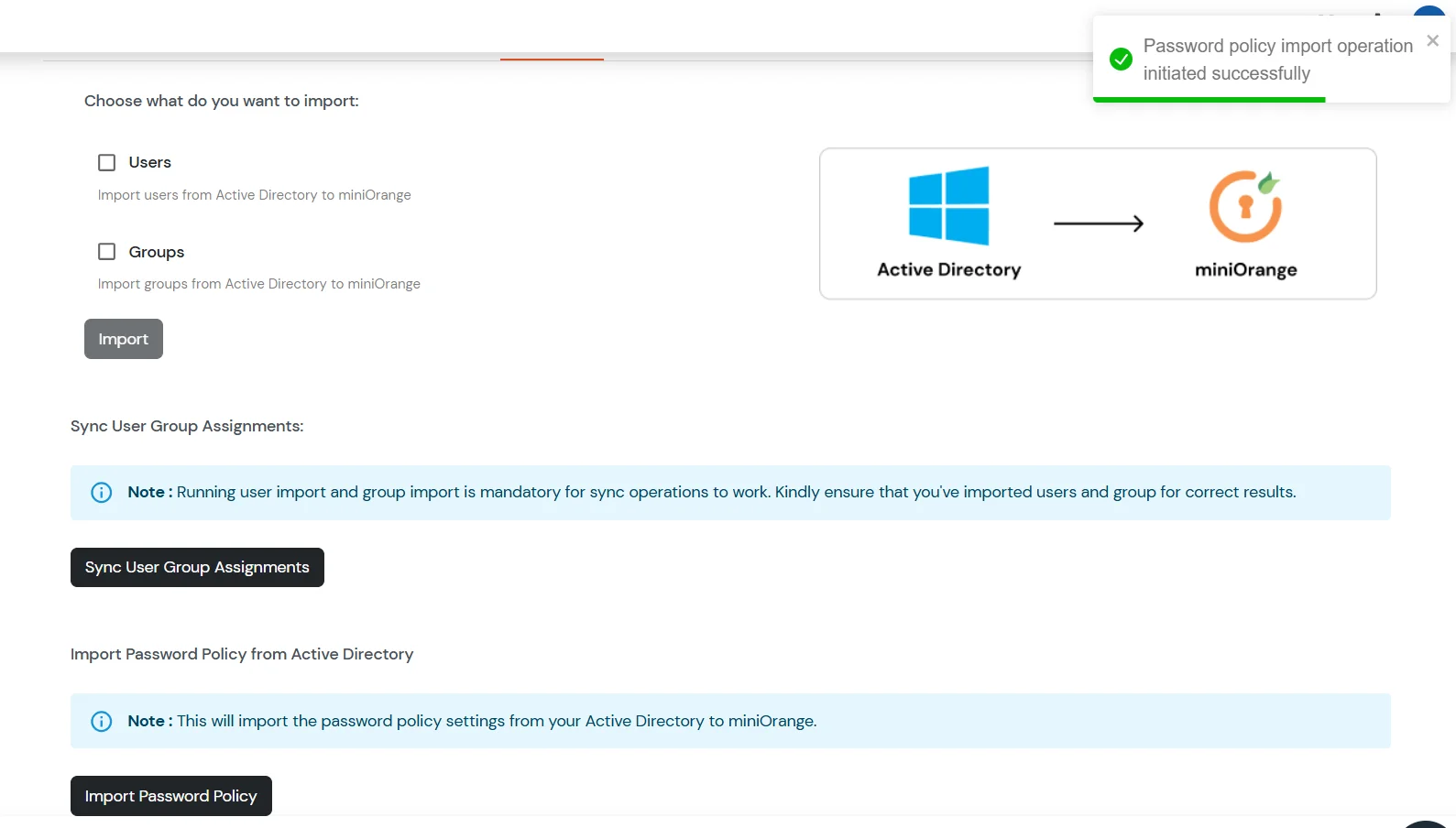
Step 6: Verify Imported Policy in IAM
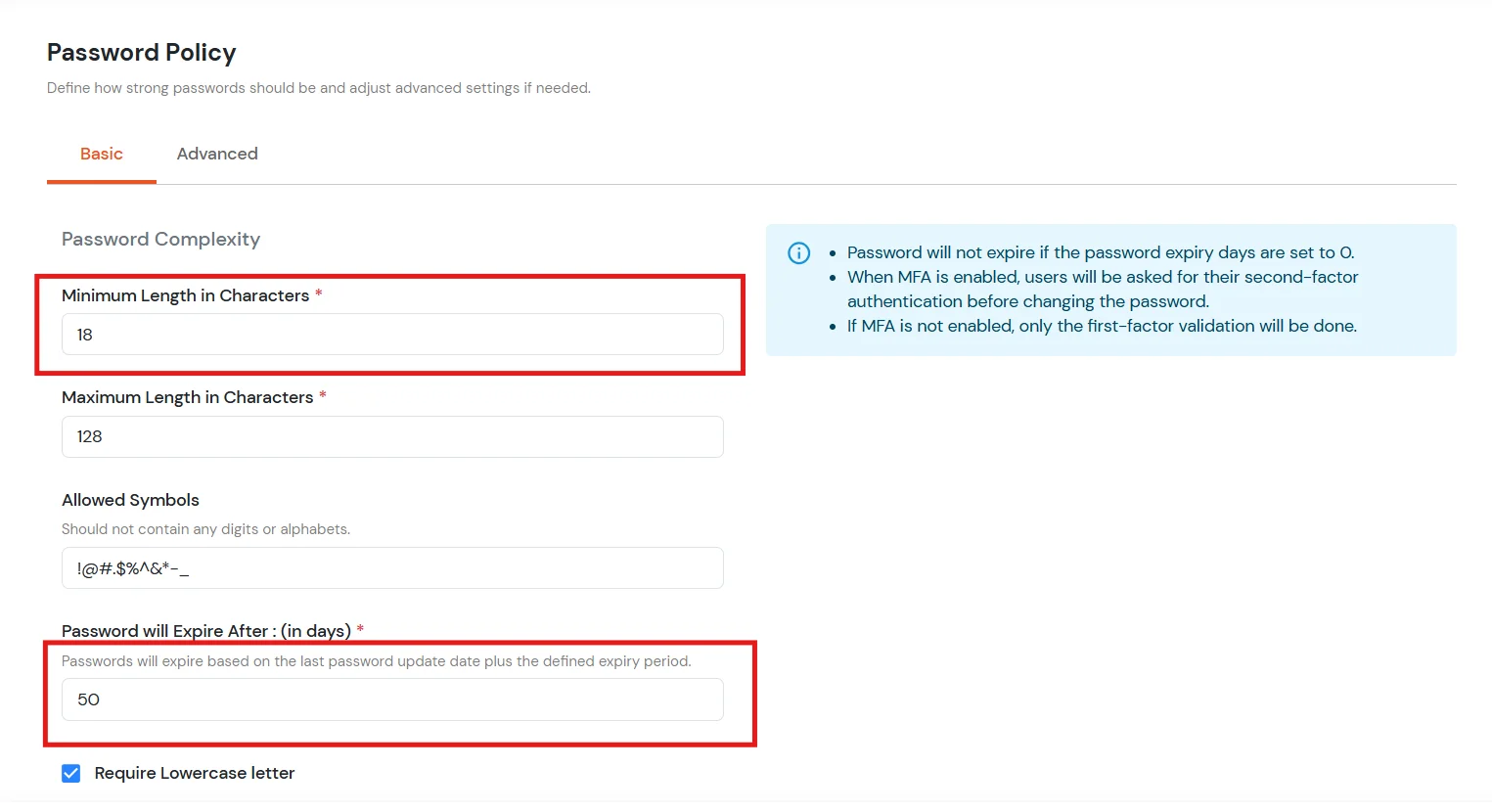
- In the miniOrange IAM dashboard, go to Policies → Password Policy.
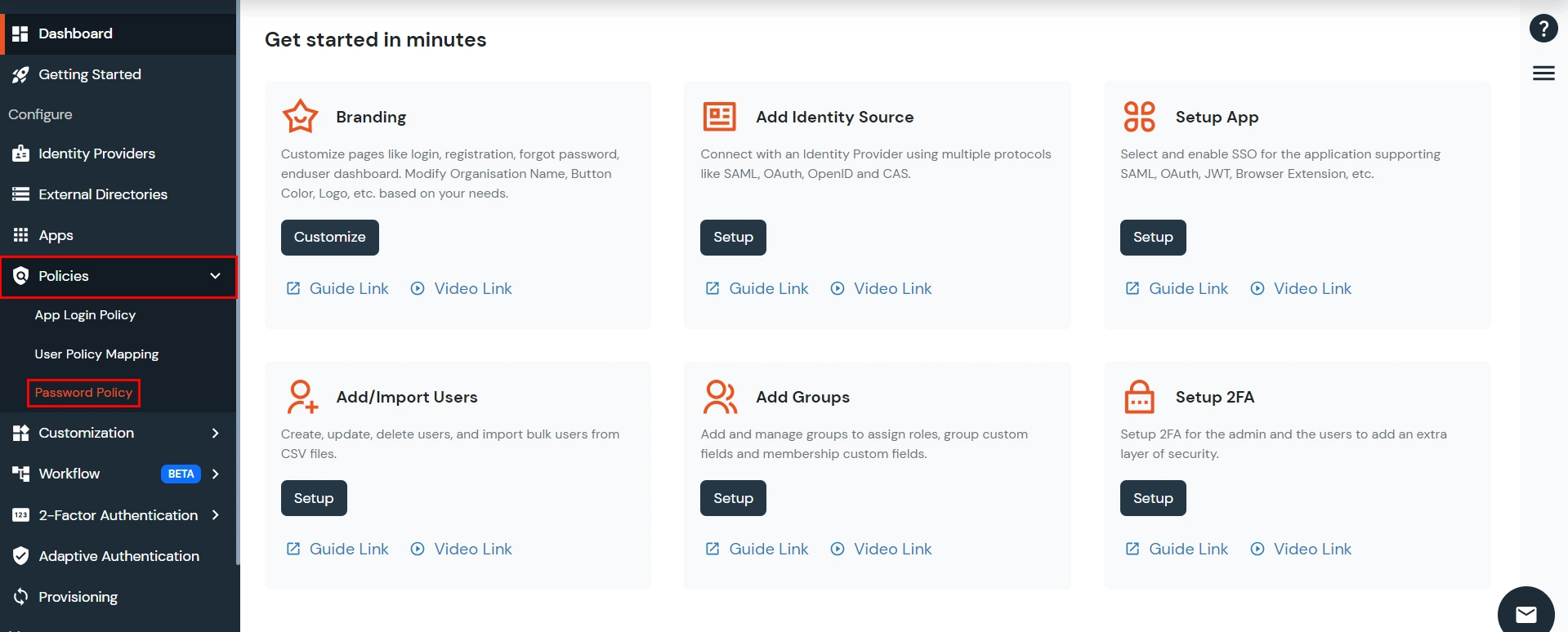
- On the Basic tab, confirm:
- Minimum Length in Characters → minPwdLength
- Password Expiry (in days) → maxPwdAge
- On the Advanced tab, confirm:
- Password History → pwdHistoryLength
- Maximum Login Attempts → lockoutThreshold
- Account Lockout Duration → lockoutDuration
Example: If you set minPwdLength = 18 and maxPwdAge = 50 in AD, those values should appear correctly in miniOrange.
Step 7: Test the Password Policy
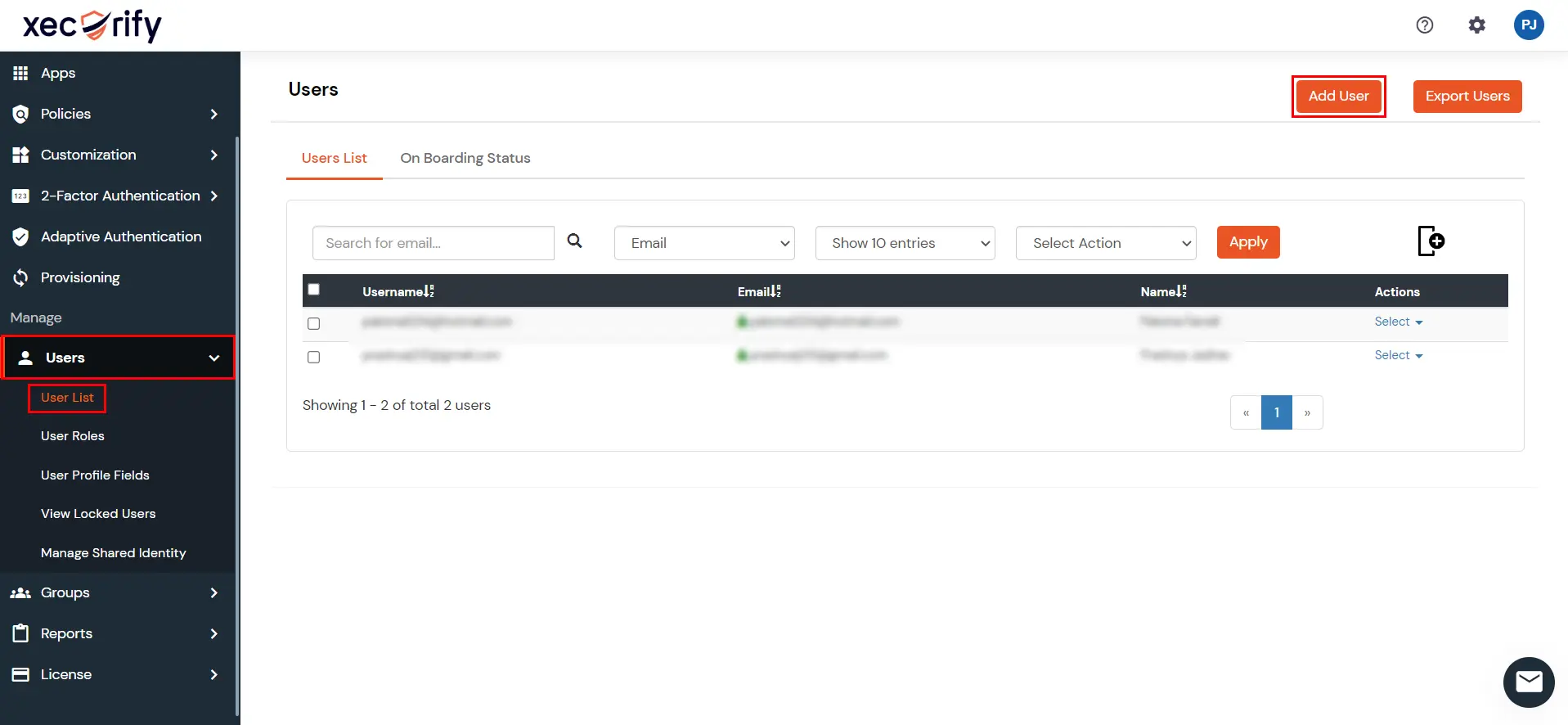
- Go to Users → User List.
- Click Add User.
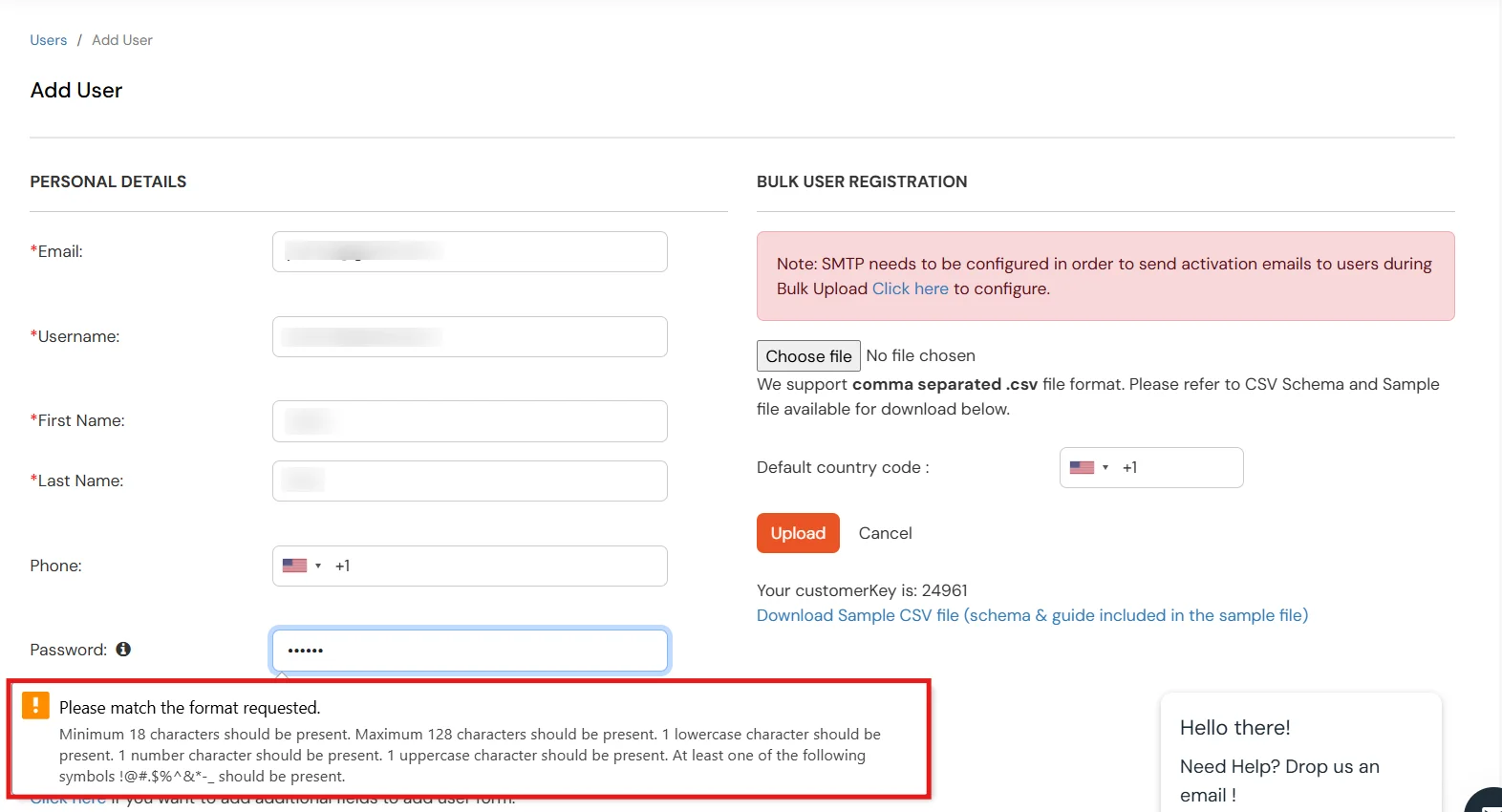
- Try creating a user with a weak password (for example, abc@123).
Expected result: A validation error such as “Please match the format requested.” This indicates the password policy from Active Directory is applied in miniOrange.
Conclusion
By following these steps, you can successfully import password policy from Active Directory into miniOrange IAM, ensuring that your organization's password policies are enforced consistently across both systems.


