Configure Password Recovery
This guide explains how to configure password recovery options in miniOrange using Email, Phone, and Two-Factor Authentication (2FA). It covers enabling multiple recovery methods such as reset links and OTP-based verification, allowing administrators to provide flexible and secure account recovery options. The guide also walks through the end-user password reset experience, including the Email, Phone/SMS, and 2FA-based recovery flows, ensuring users can regain access to their accounts securely.
Additionally, it highlights safeguards such as rate limiting for repeated attempts and enforcement of password policies during reset, helping organizations maintain strong security while delivering a seamless user experience.
1. Enable Password Recovery Settings
- Navigate to Product Settings >> Security >> Reset Password.
- This section allows you to configure how users can recover or reset their passwords.
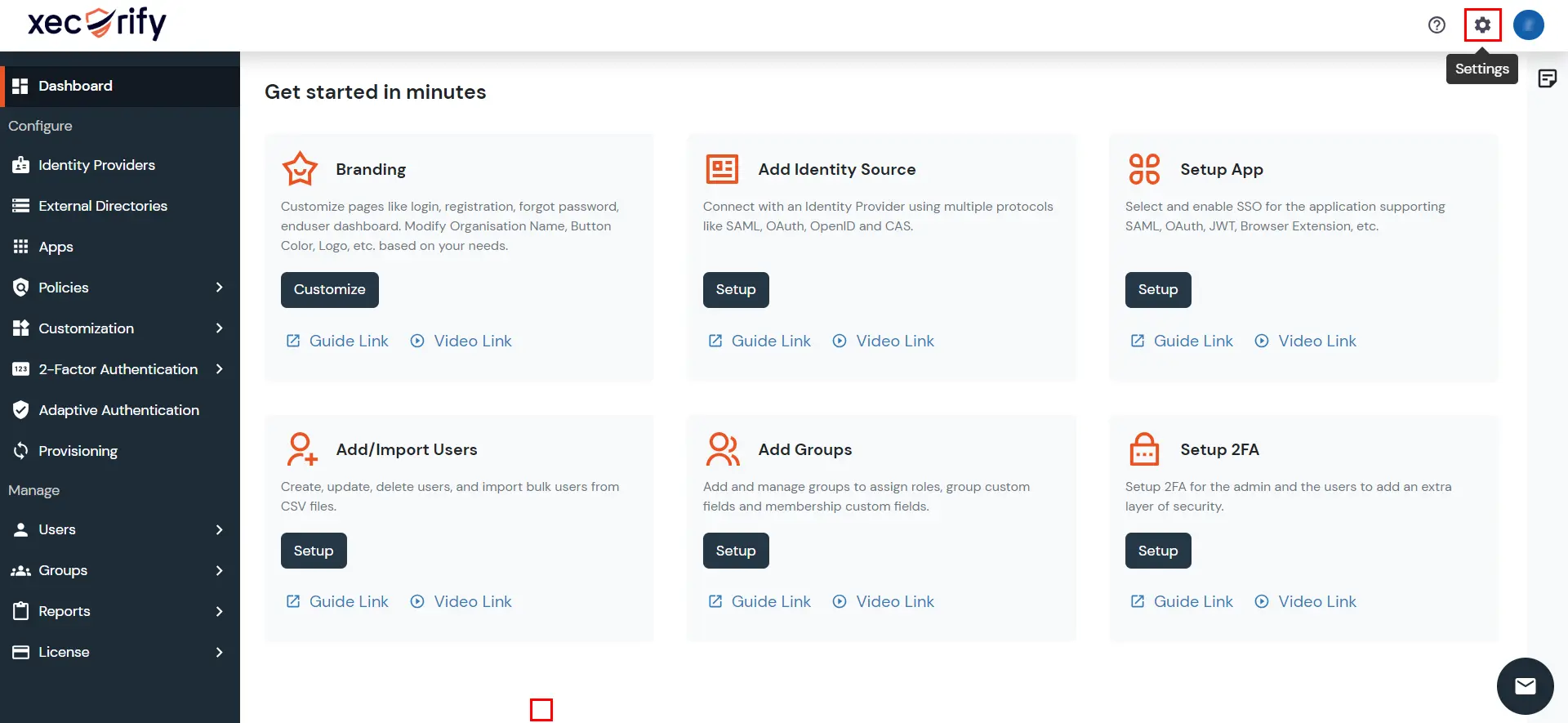
- There are three password recovery methods available:
- Password Recovery via Email
- Password Recovery via Phone
- Password Recovery via 2FA
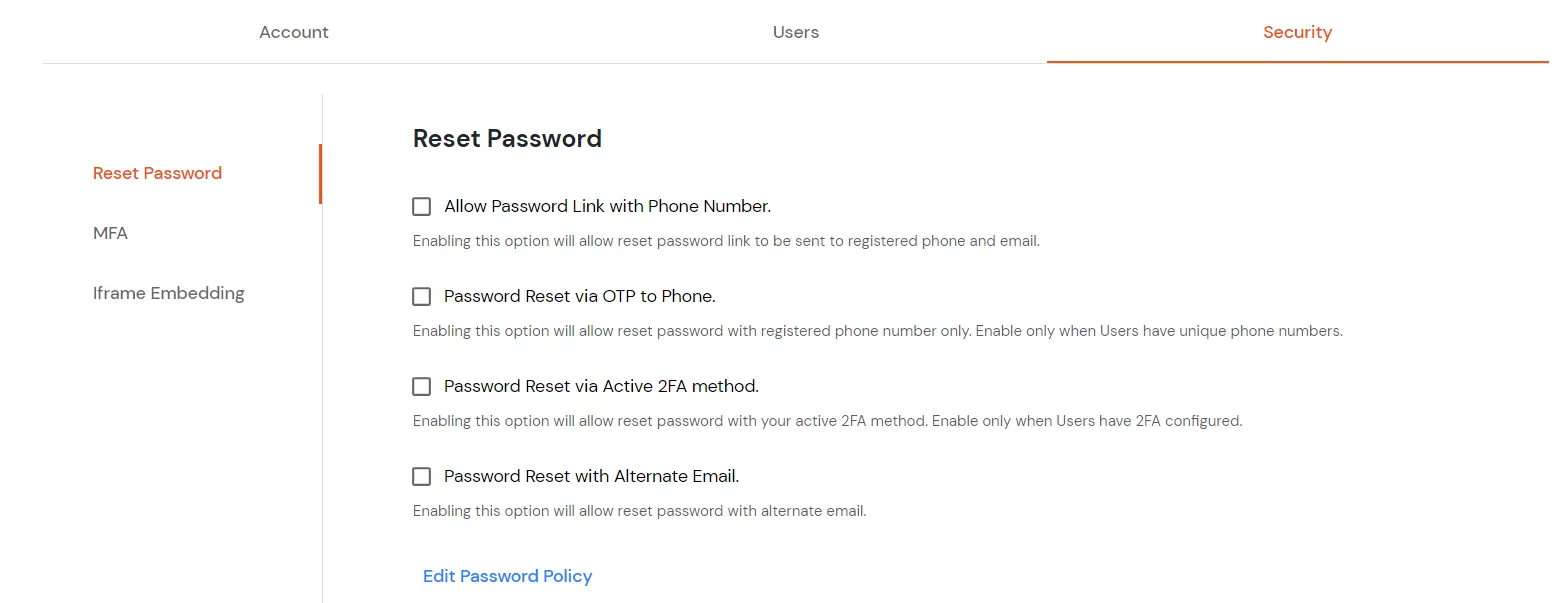
- Select a recovery method to view and configure the available options for that method.
-
Password Recovery via Email
Enable one or more of the following options:
- Send Password Reset Link to Registered Email: Enabling this option will send a password reset link to the email address associated with the account.
- Send Password Reset Link to Alternate Email: Enabling this option will send a password reset link to an alternate email address provided during account setup.
- Send OTP to Registered Email: Enabling this option will send a One-Time Password (OTP) to the email address associated with the account, which can be used to reset the password.
- Send OTP to Alternate Email: Enabling this option will send a One-Time Password (OTP) to the alternate email address, which can be used to reset the password.
-
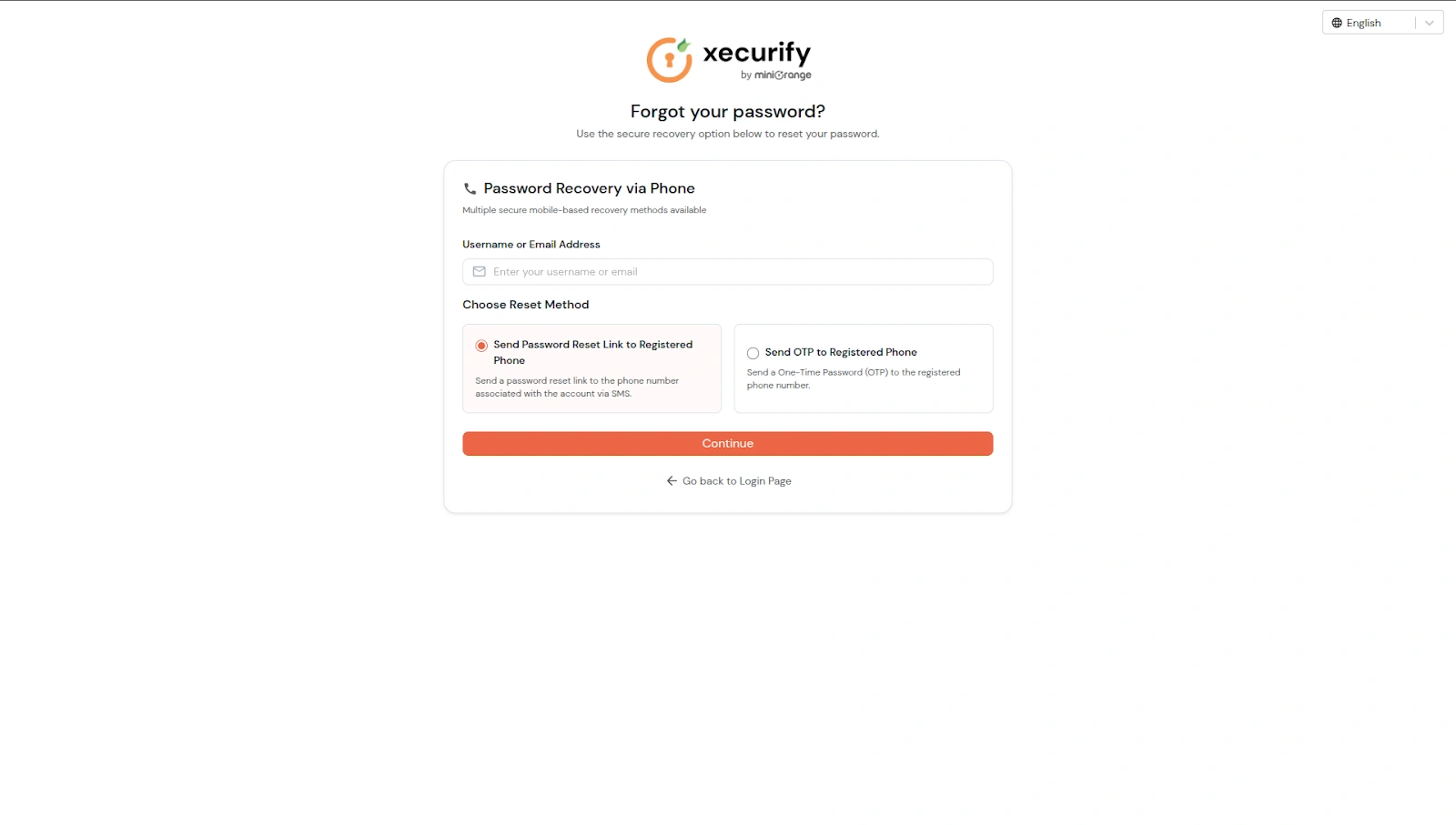
Password Recovery via Phone
Enable one or more of the following options:
- Send OTP to Registered Phone: Enabling this option will send a One-Time Password (OTP) to the registered phone number, which can be used to reset the password.
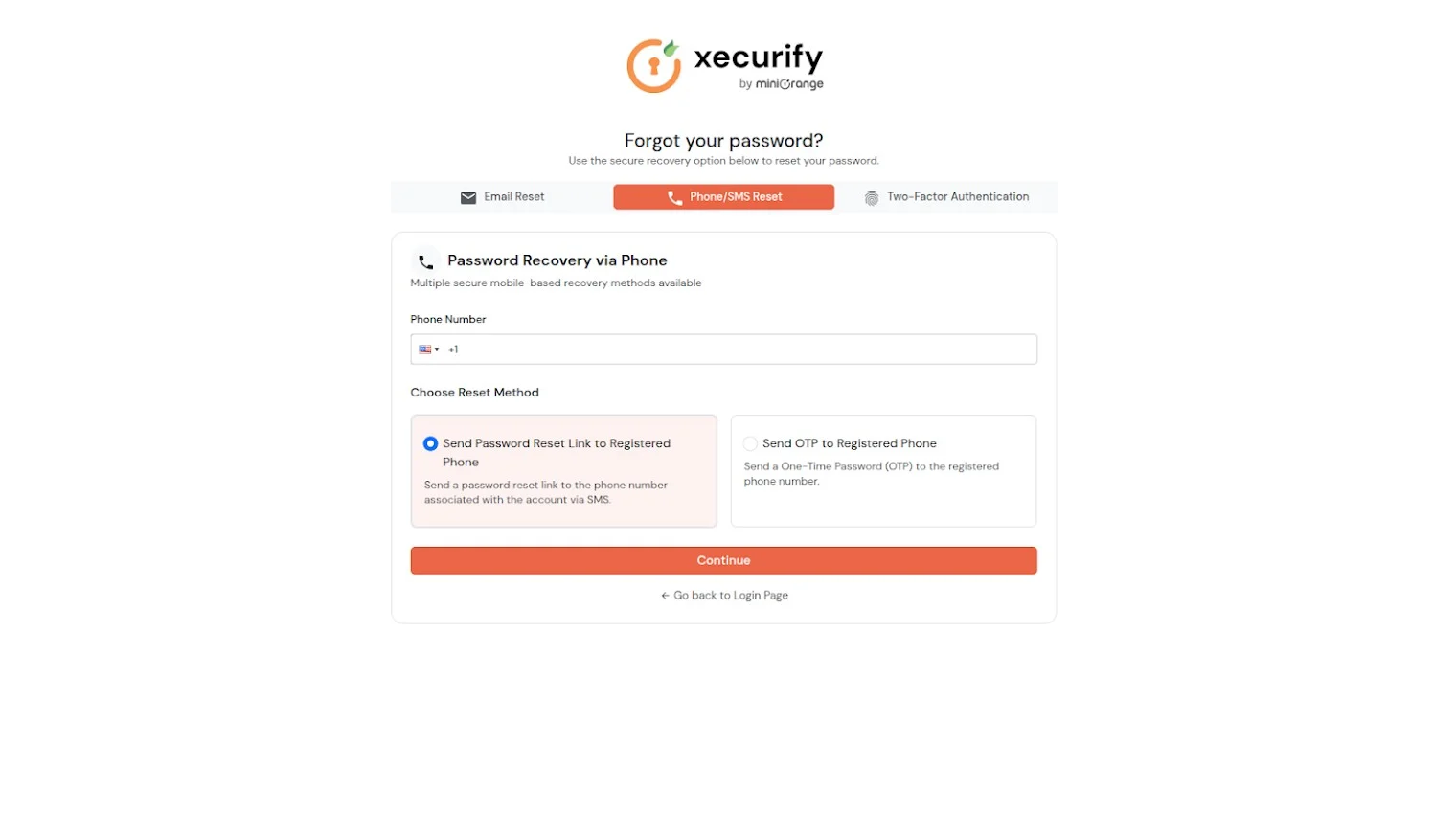
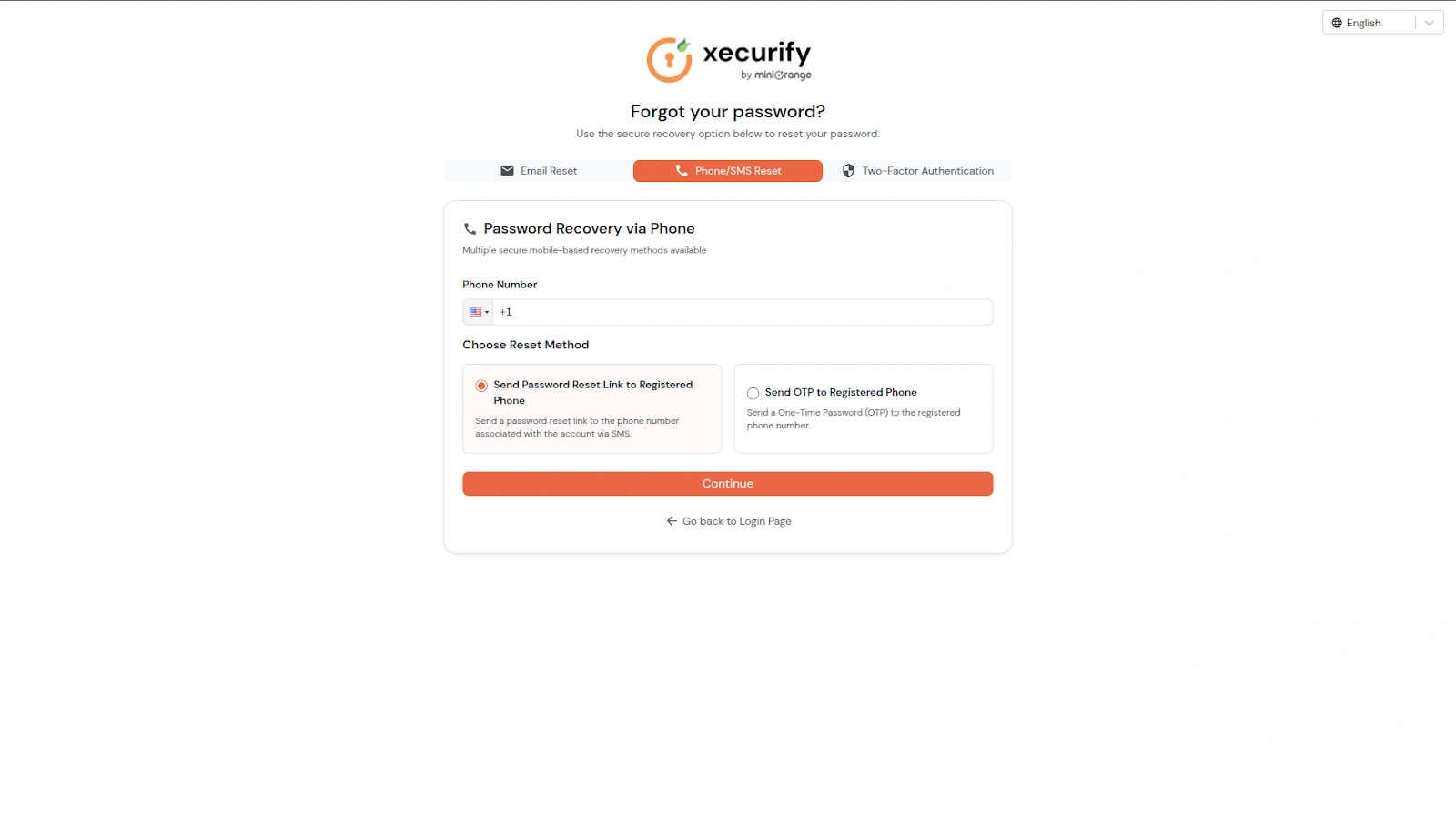
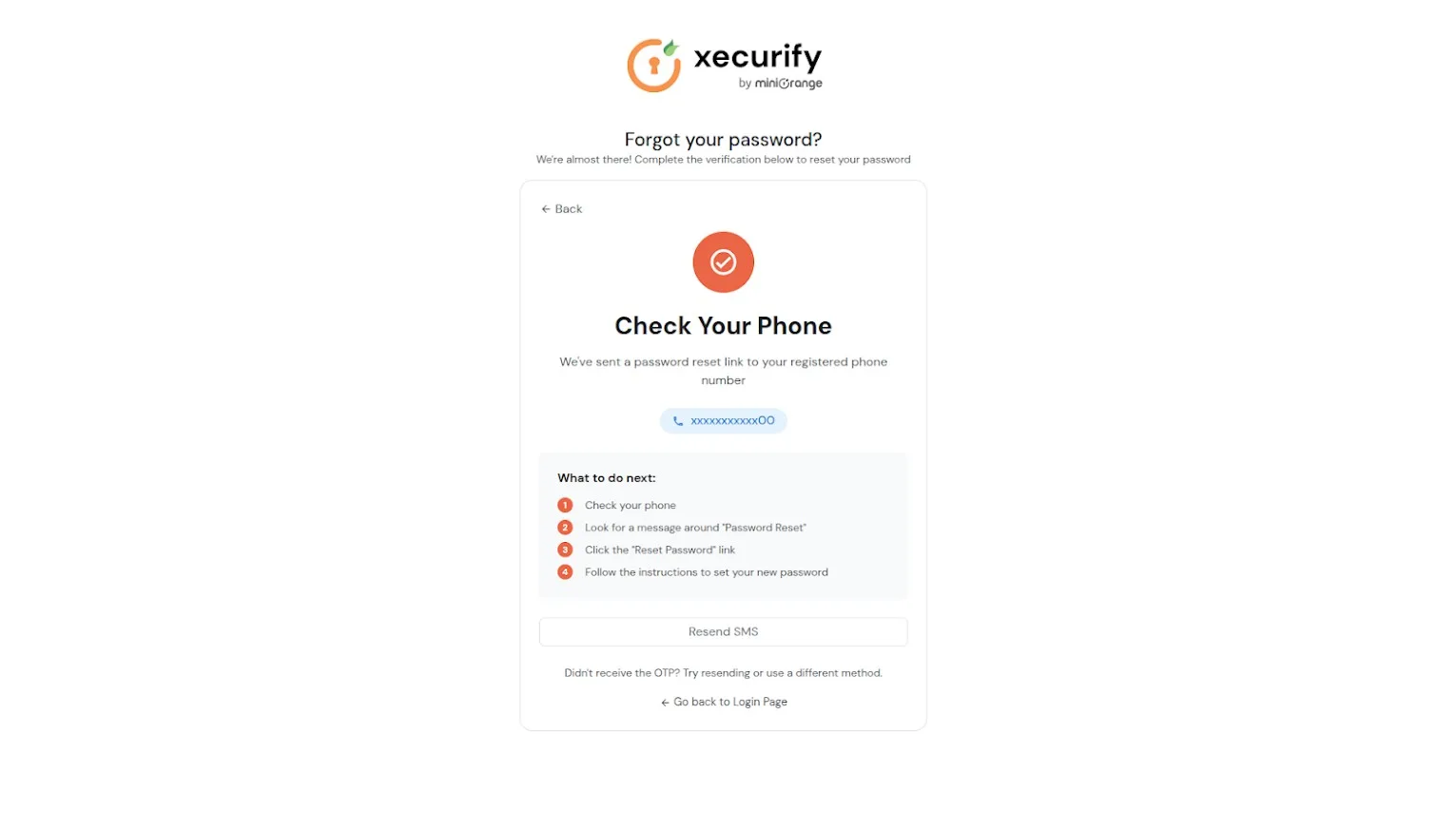
- Send Password Reset Link to Registered Phone: Enabling this option will send a password reset link to the phone number associated with the account via SMS.
-
Password Recovery via 2FA
Enable password reset using multi-factor authentication:
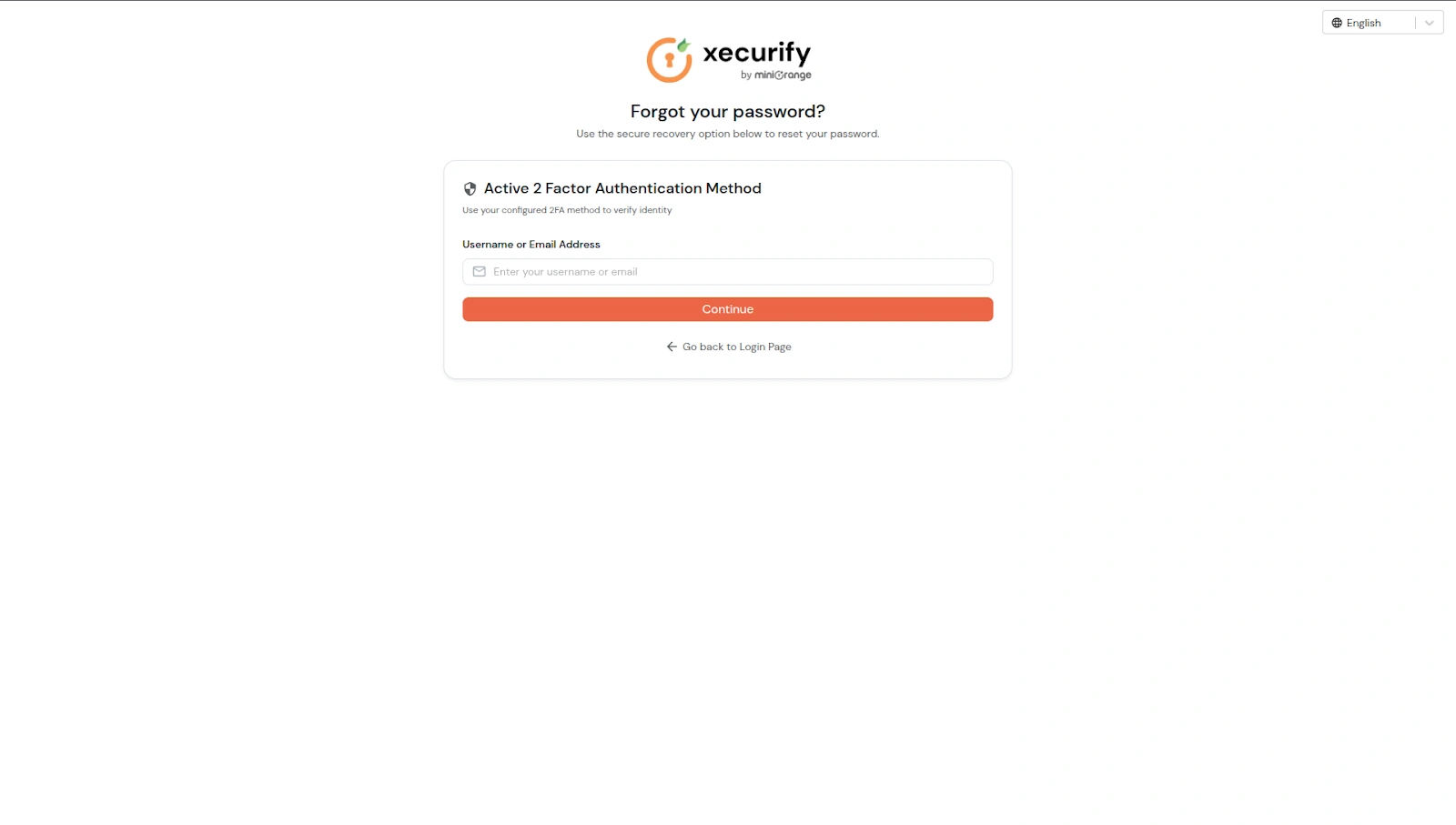
- Reset via Active 2FA: You will need to authenticate using their active 2FA method to reset their password.
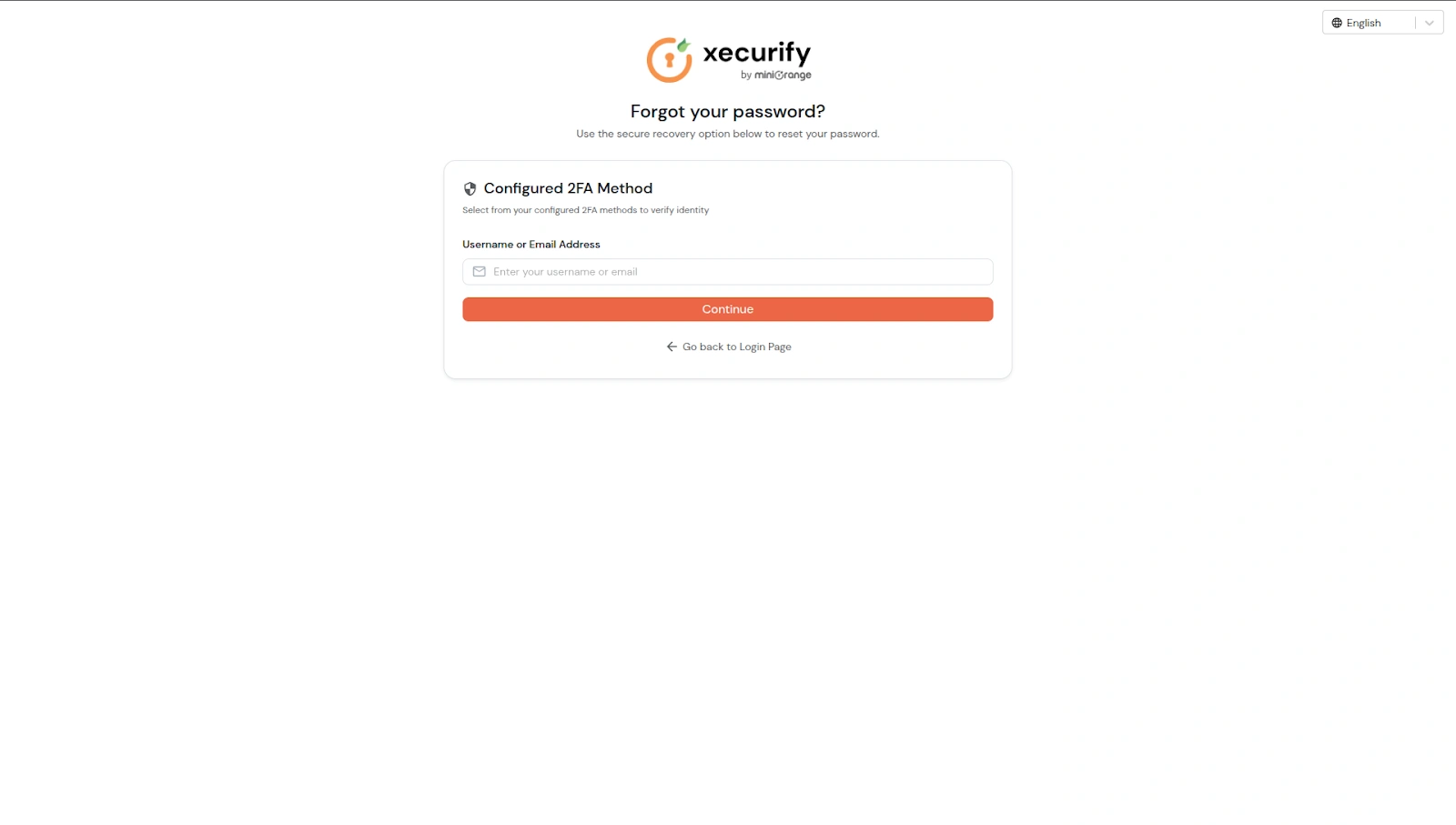
- Reset via Configured 2FA: You will need to authenticate using their configured 2FA method to reset their password.
2. End-user password recovery process
- When all the above password recovery options are enabled, you will see the following reset process:
- When the user visits Login page and clicks Forgot Password, the Forgot Password page will open.
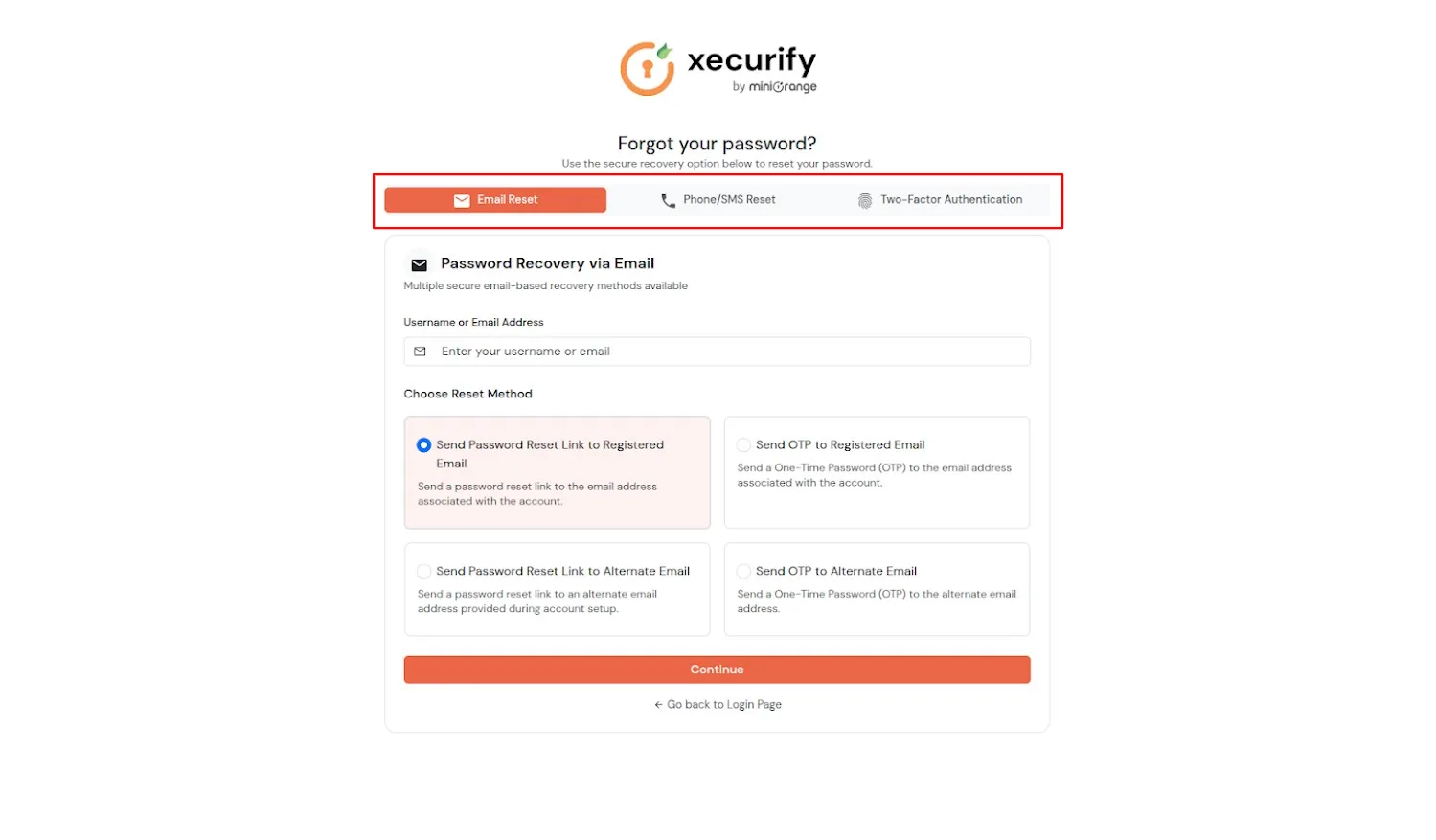
- You will be guided through a unified password reset experience with three recovery tabs:
- Email Reset
- Phone/SMS Reset
- Two-Factor Authentication
- Select the Email Reset tab on the Forgot Password page.
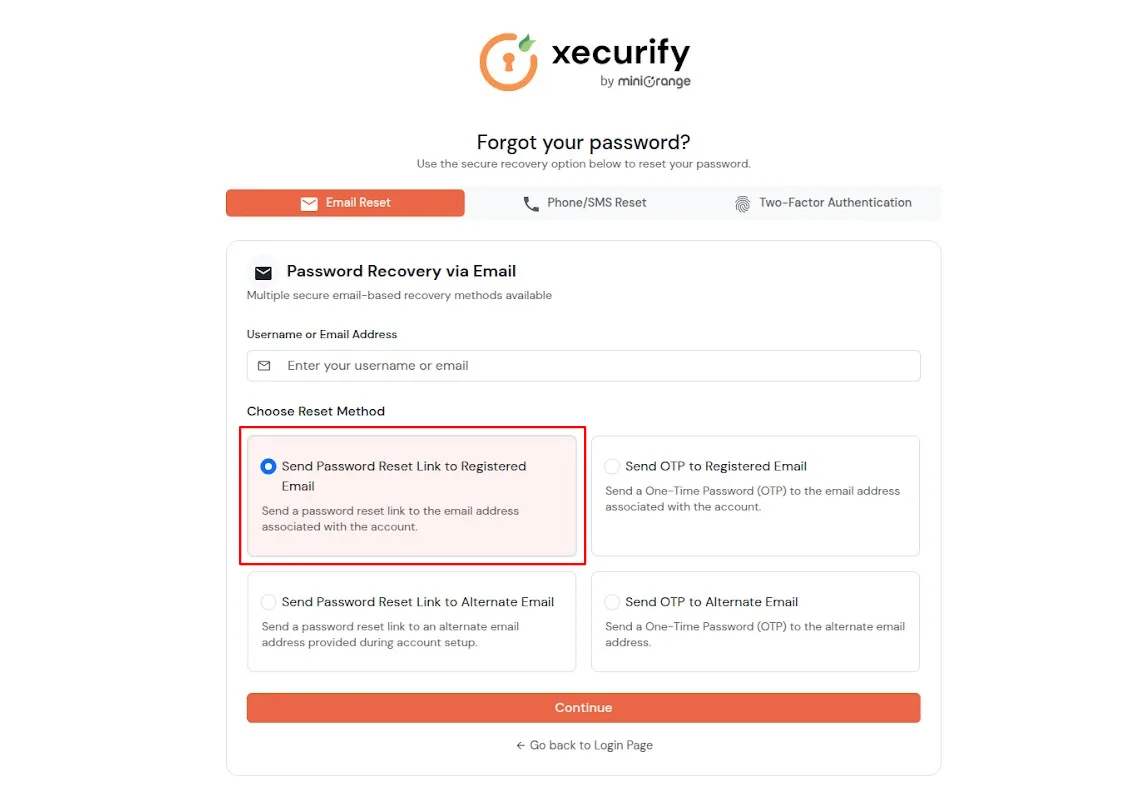
- Choose one of the available email-based recovery options:
- Send Password Reset Link to Registered Email
- Send OTP to Registered Email
- Send Password Reset Link to Alternate Email
- Send OTP to Alternate Email
- Enter the username or email address and click Continue.
- The following screen is shown based on the selected option.
- Based on the selected recovery method:
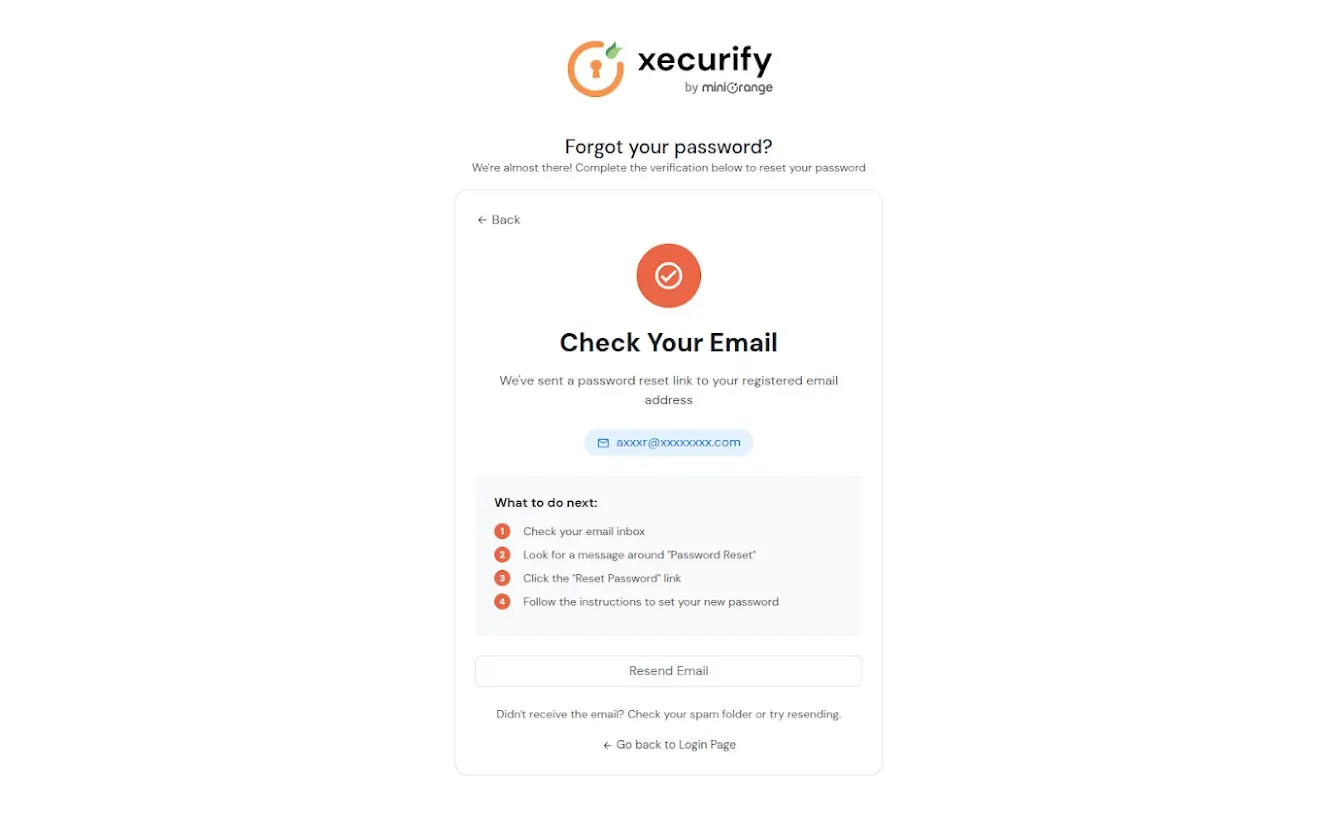
- Send Password Reset Link to Registered/Alternate Email: After clicking Continue, a confirmation screen indicates that a password reset link has been sent to the registered or alternate email address. The user opens the email and clicks the Reset Password link to proceed.
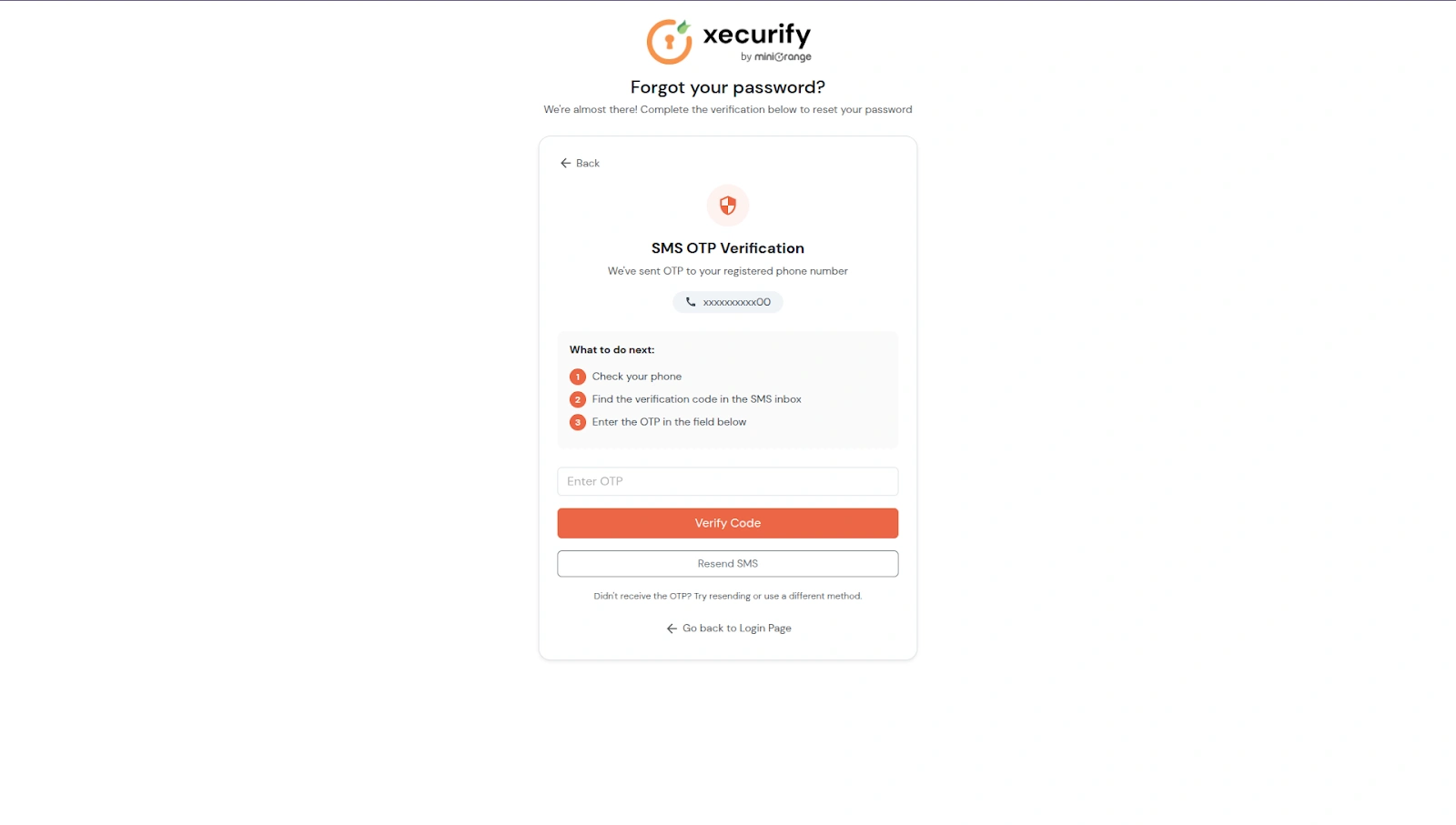
- Send OTP to Registered/Alternate Email: After clicking Continue, the user is redirected to an OTP verification screen where the 6-digit OTP sent to the registered or alternate email must be entered to continue.
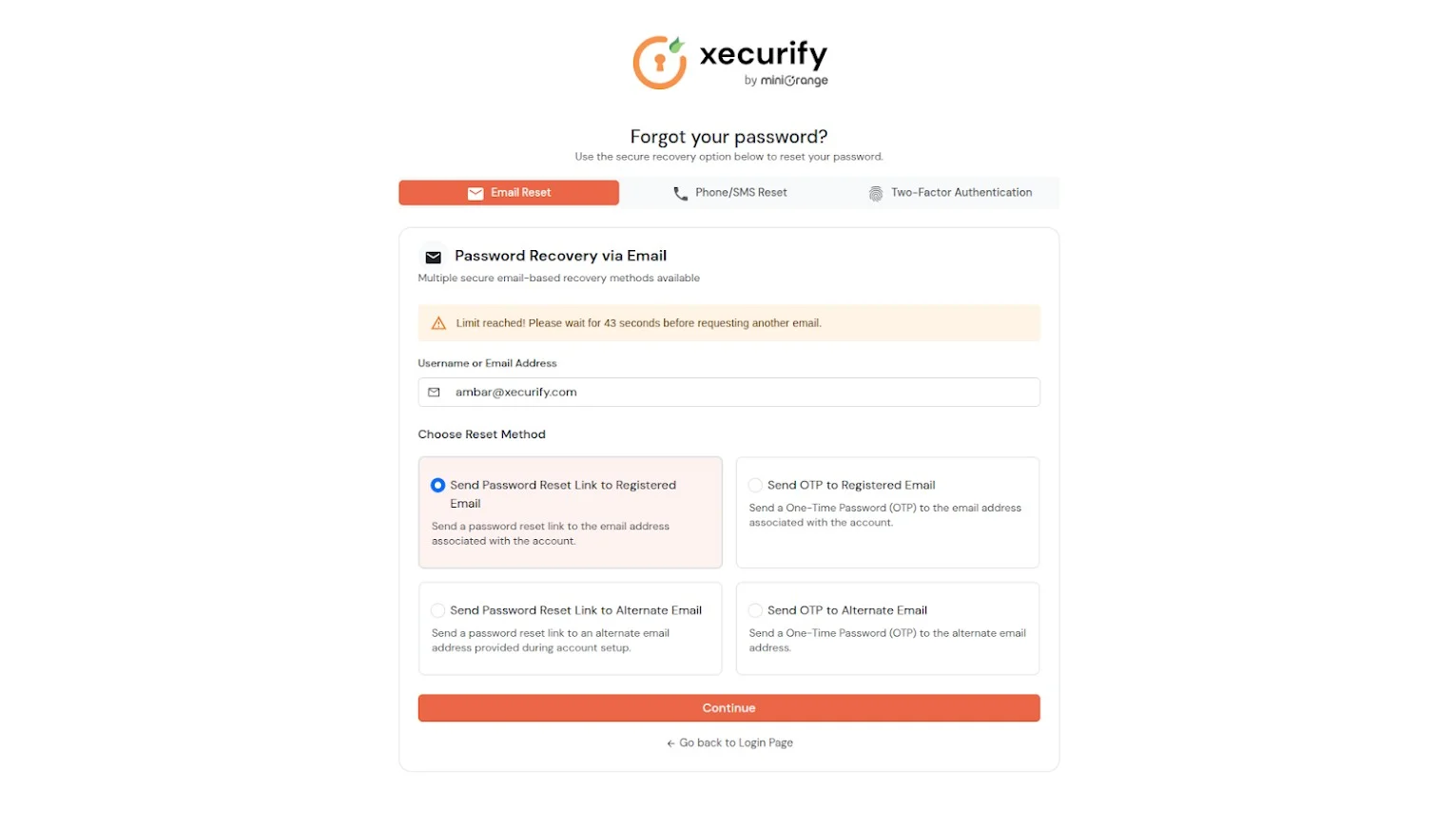
- To prevent misuse, a warning message is displayed if multiple reset attempts are made within a short time.
- Select the Two-Factor Authentication tab on the Forgot Password page.
- When Active 2FA method is selected from product settings:
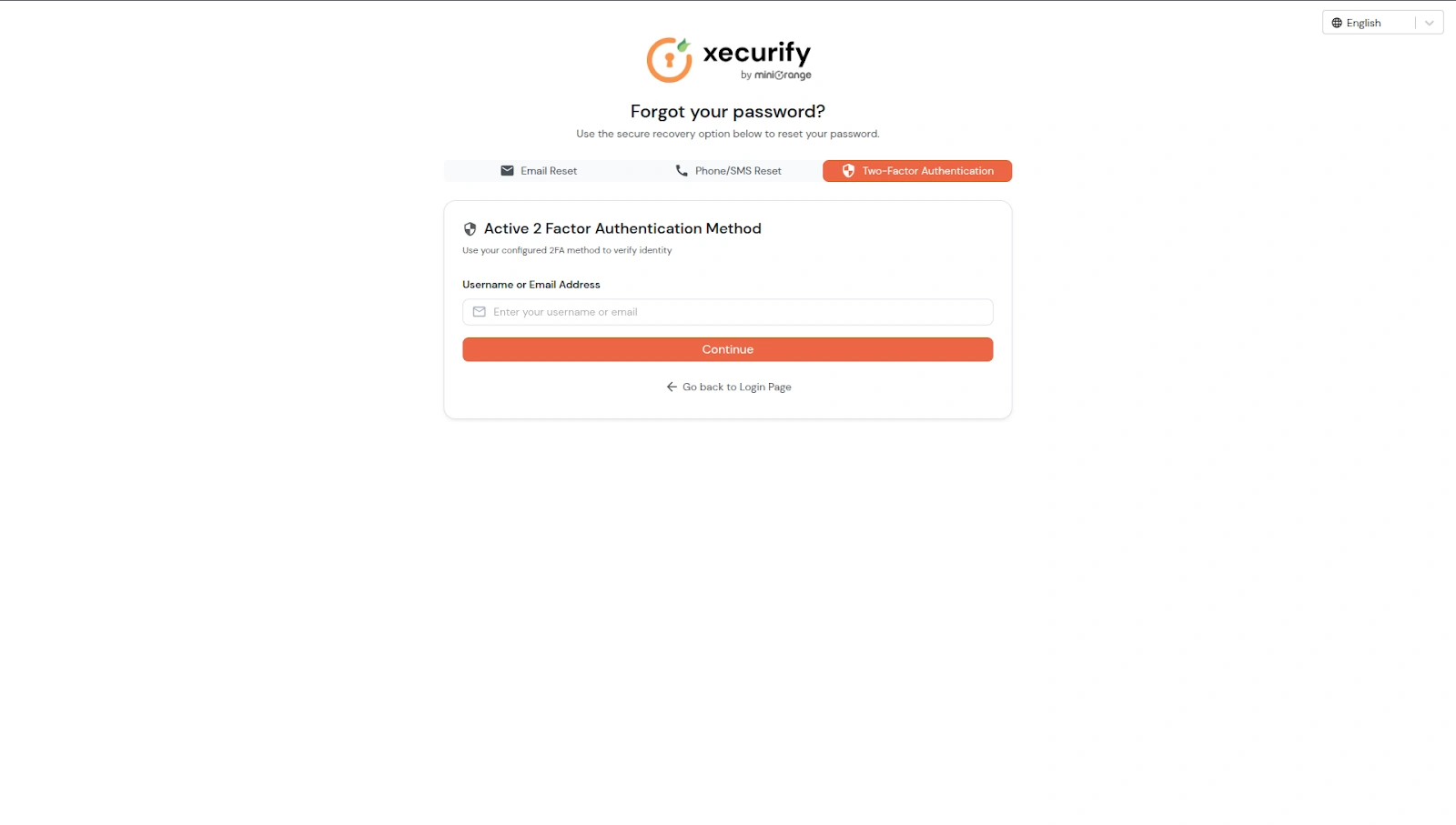
- When Configured 2FA method is selected from product settings:
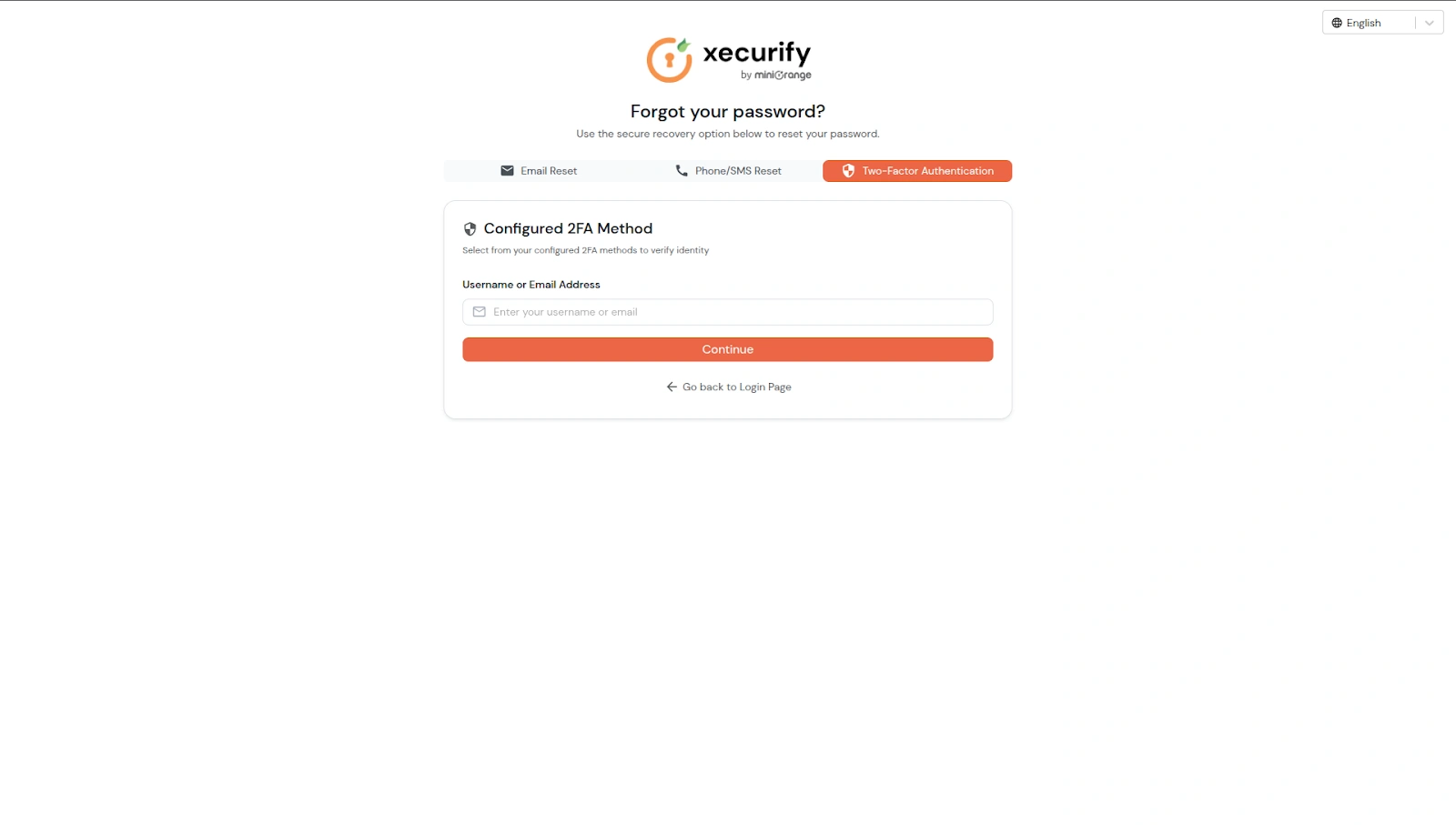
- Enter the username or email address and click Continue.
- Choose from the following 2FA methods to proceed:
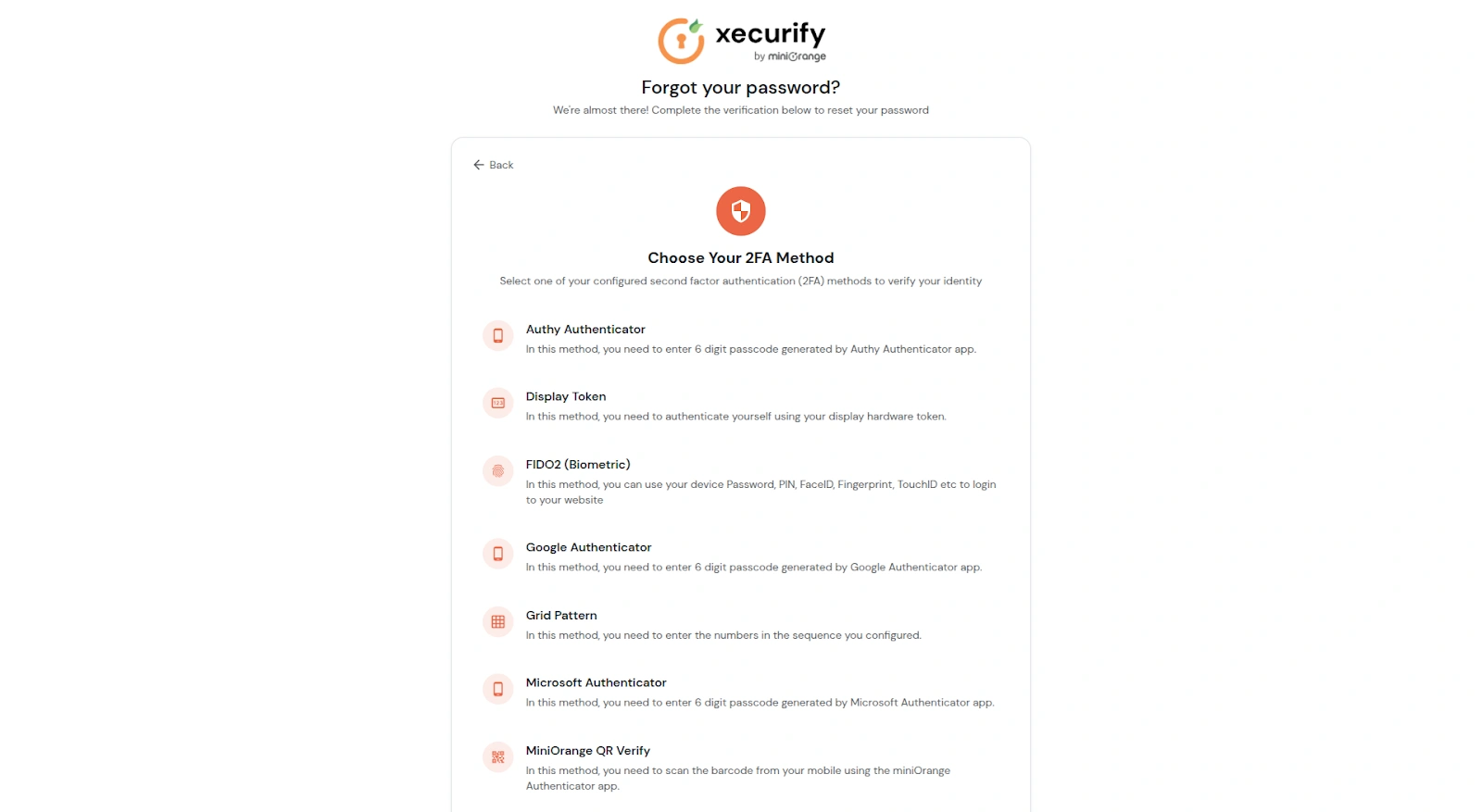
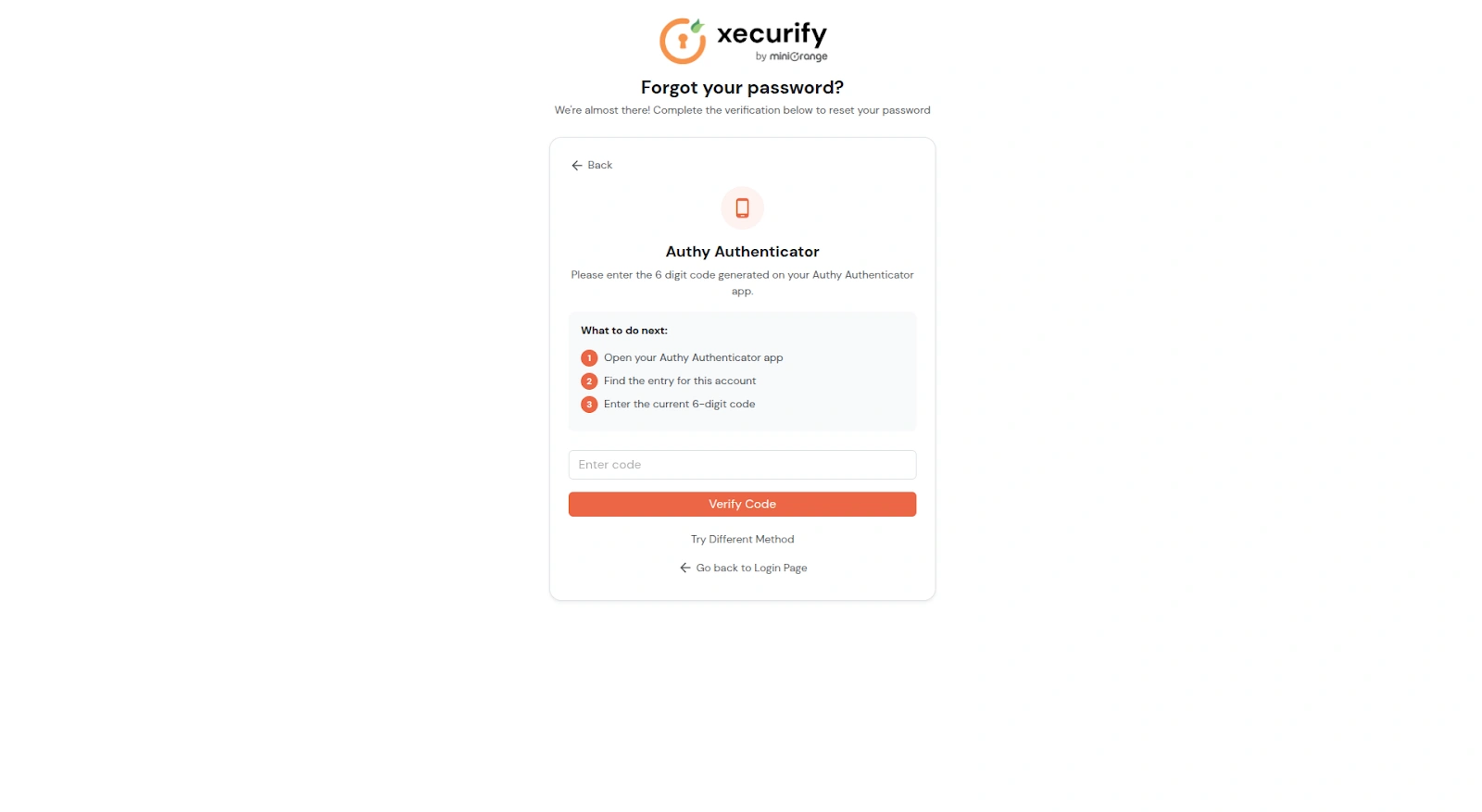
- Authy Authenticator.
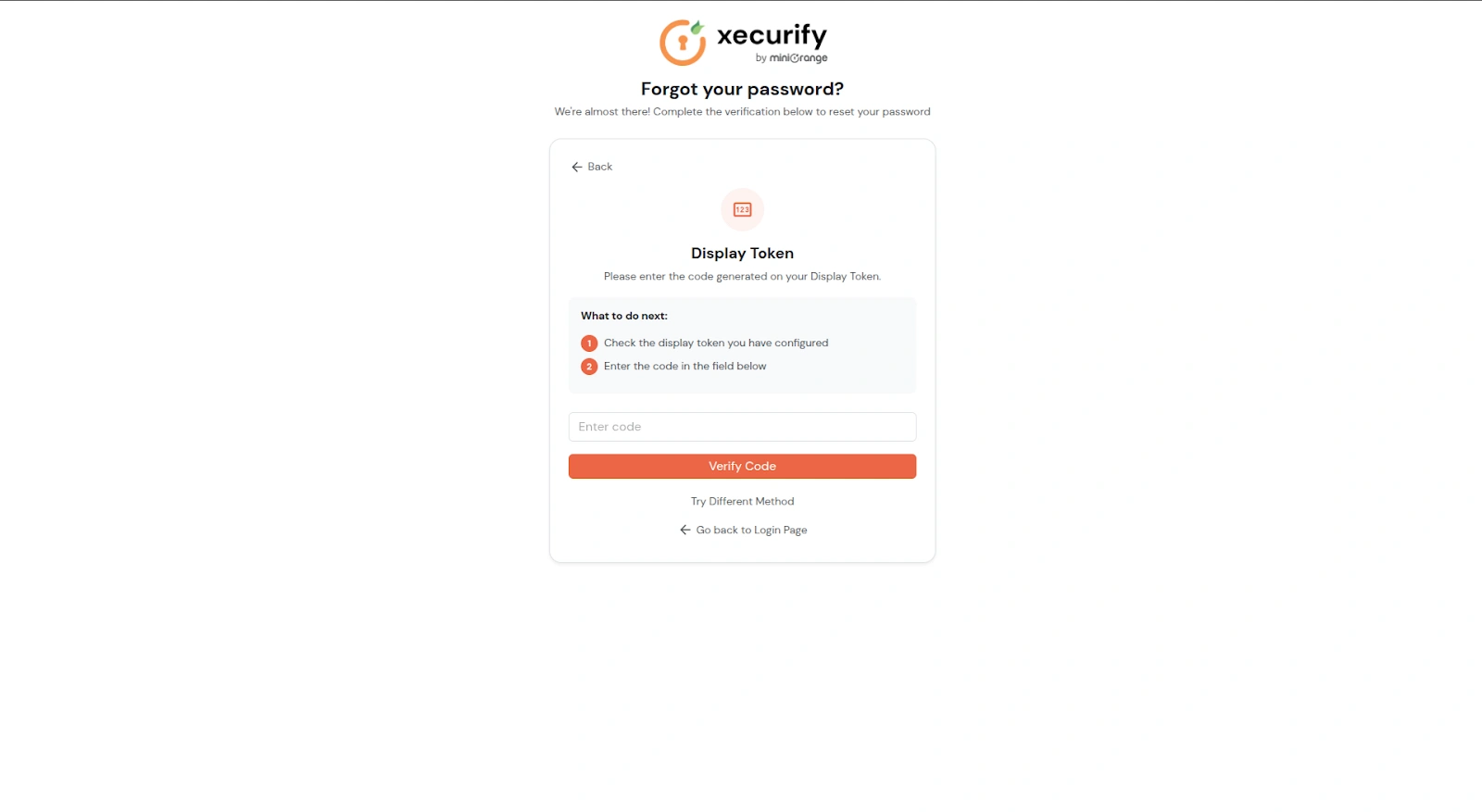
- Display Token.
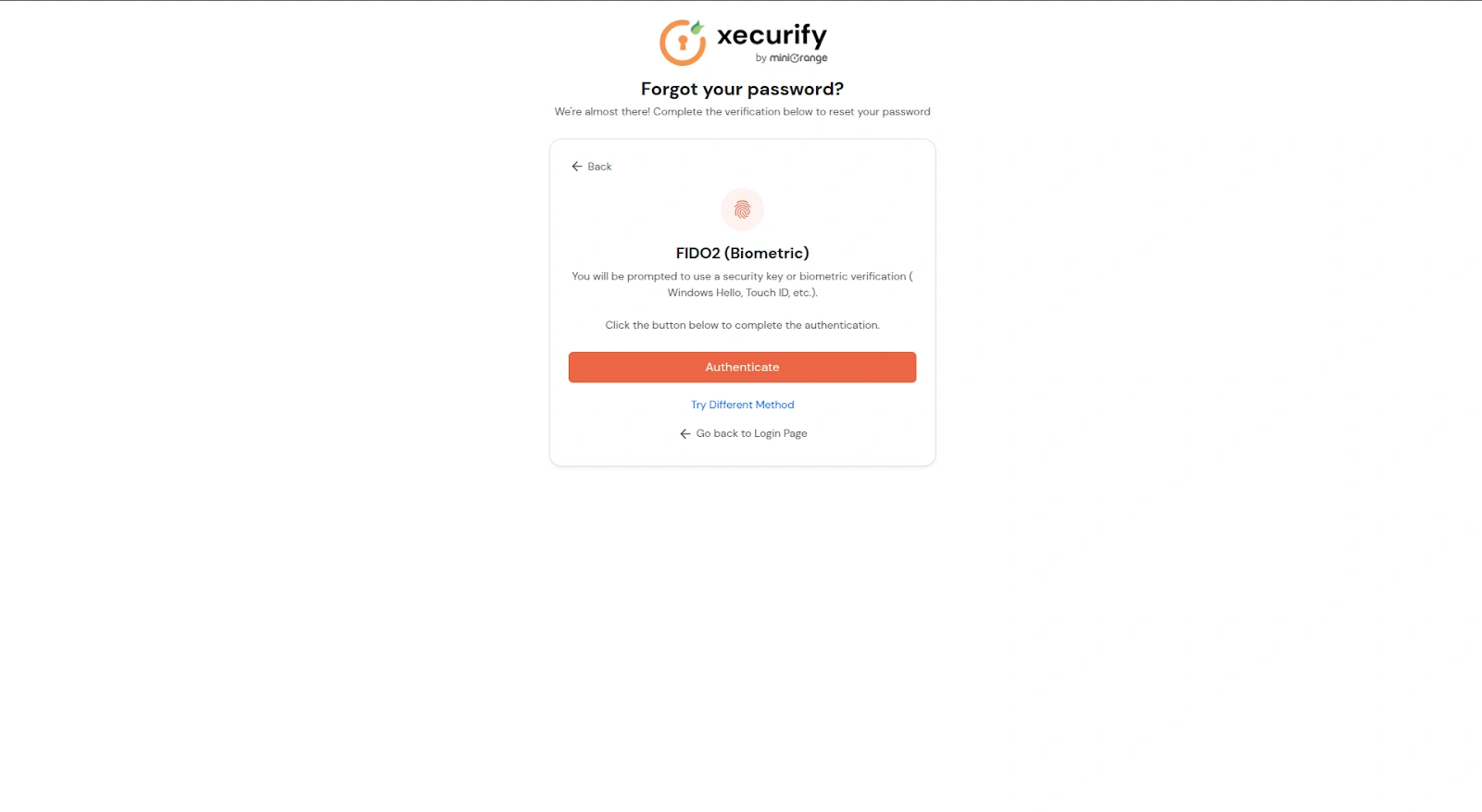
- FIDO2 (Biometric).
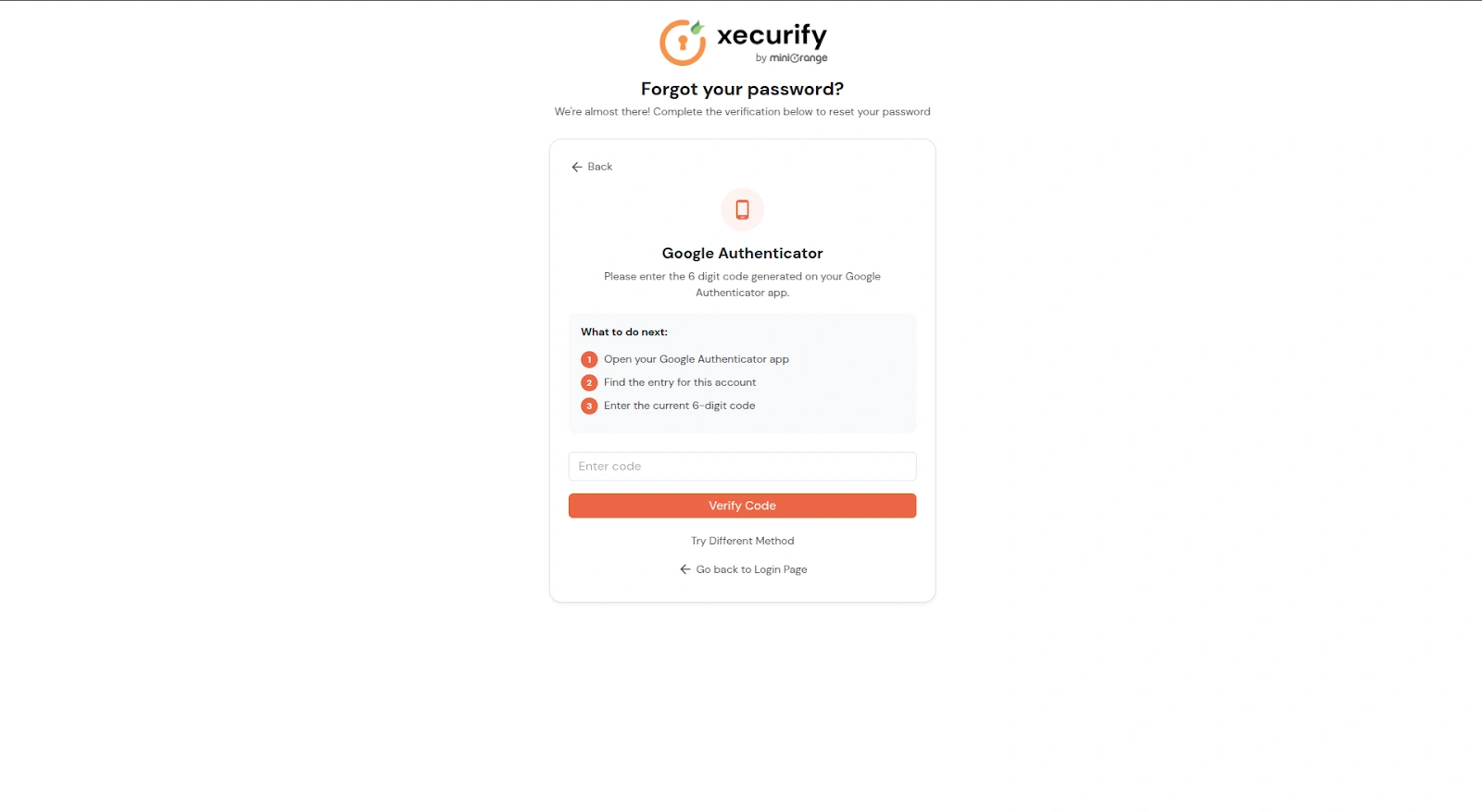
- Google Authenticator.
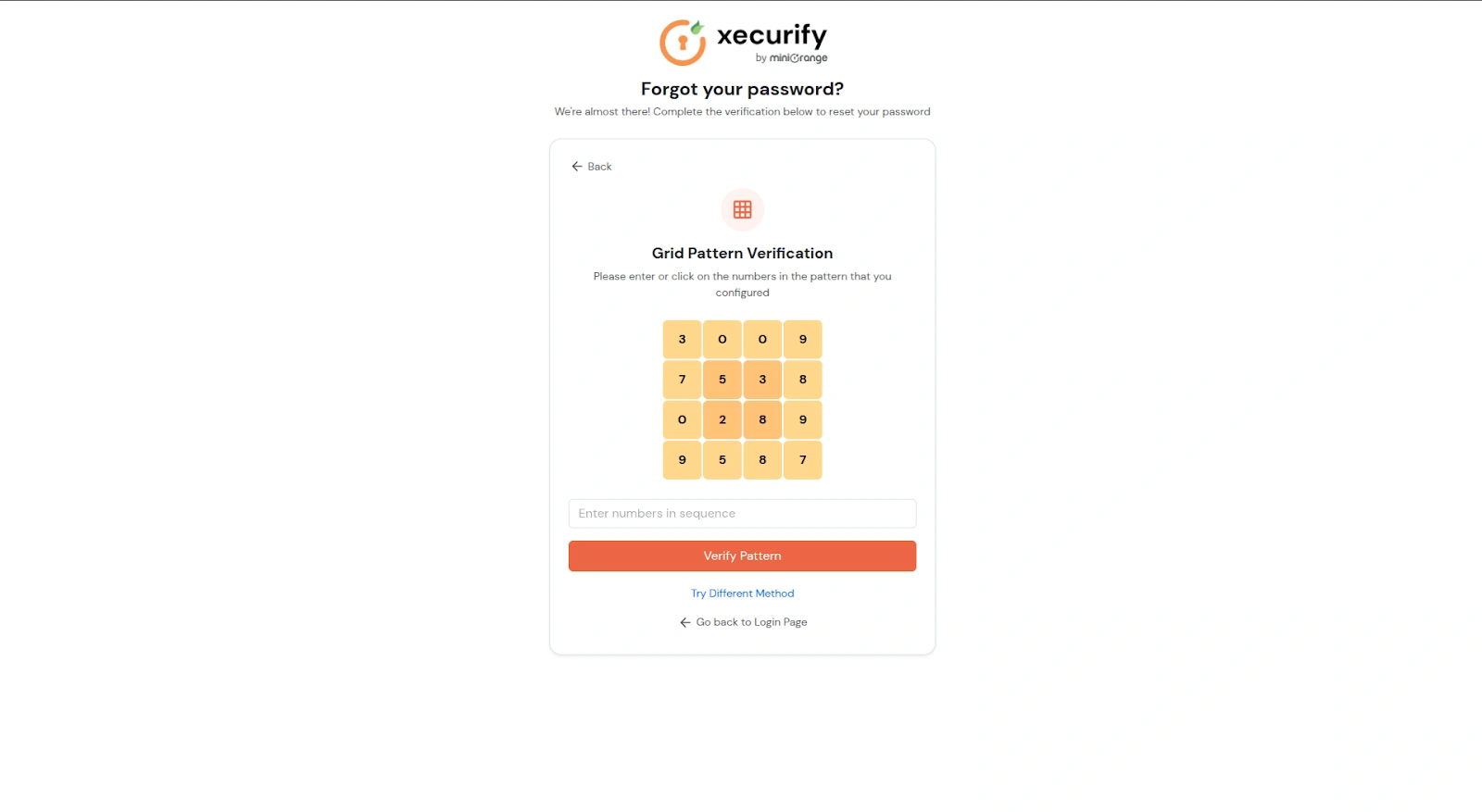
- Grid Pattern.
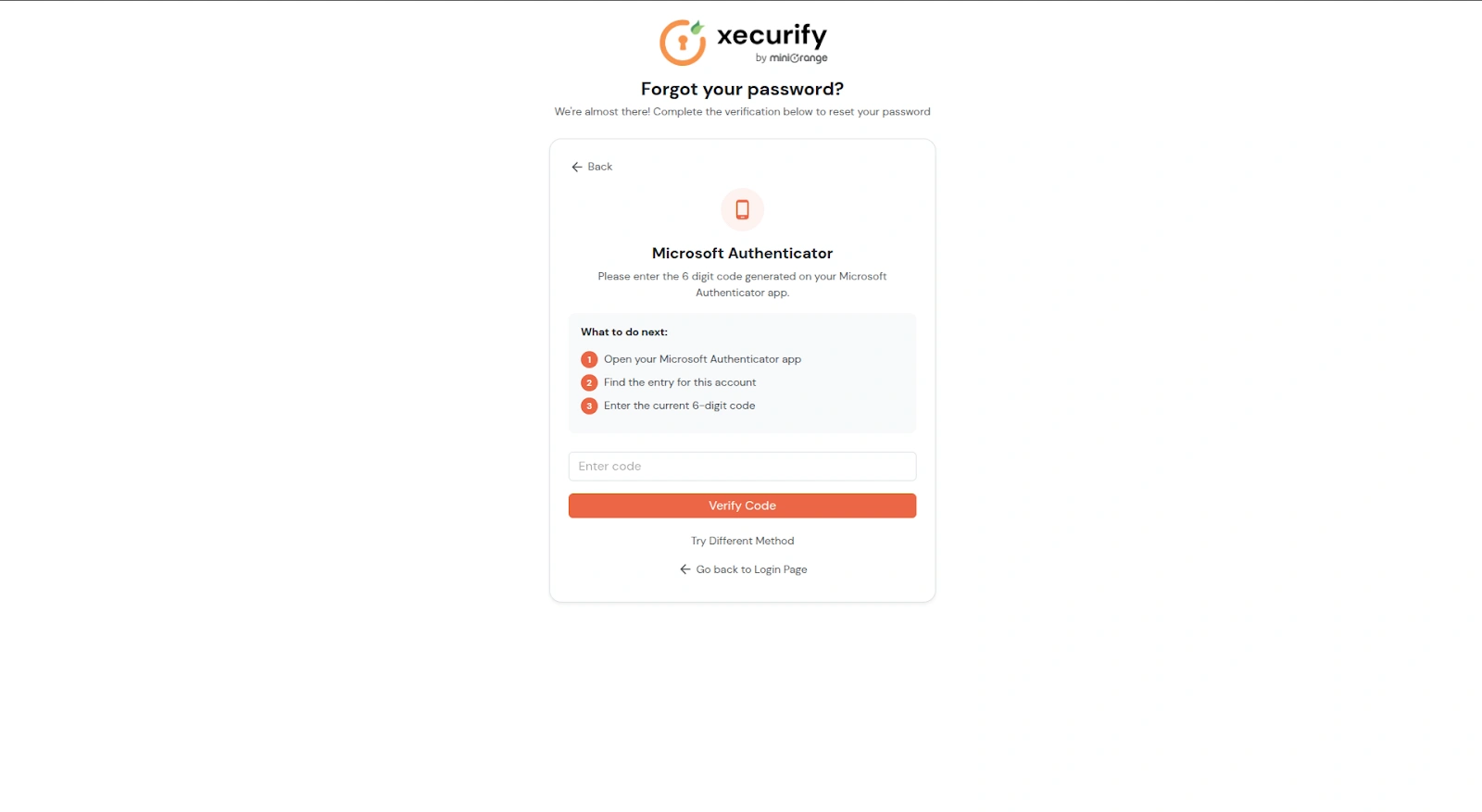
- Microsoft Authenticator.
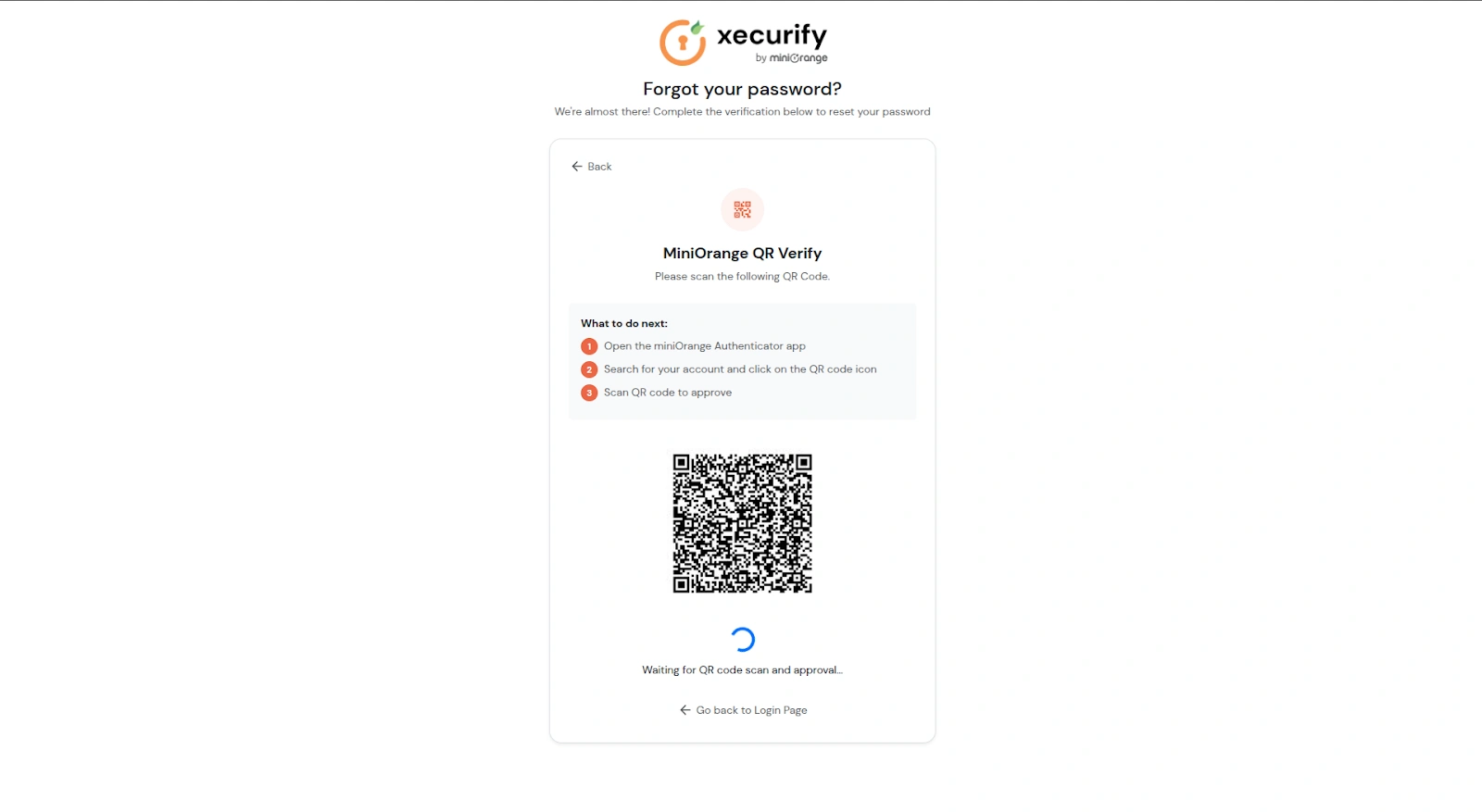
- miniOrange QR Verify.
- miniOrange Push.
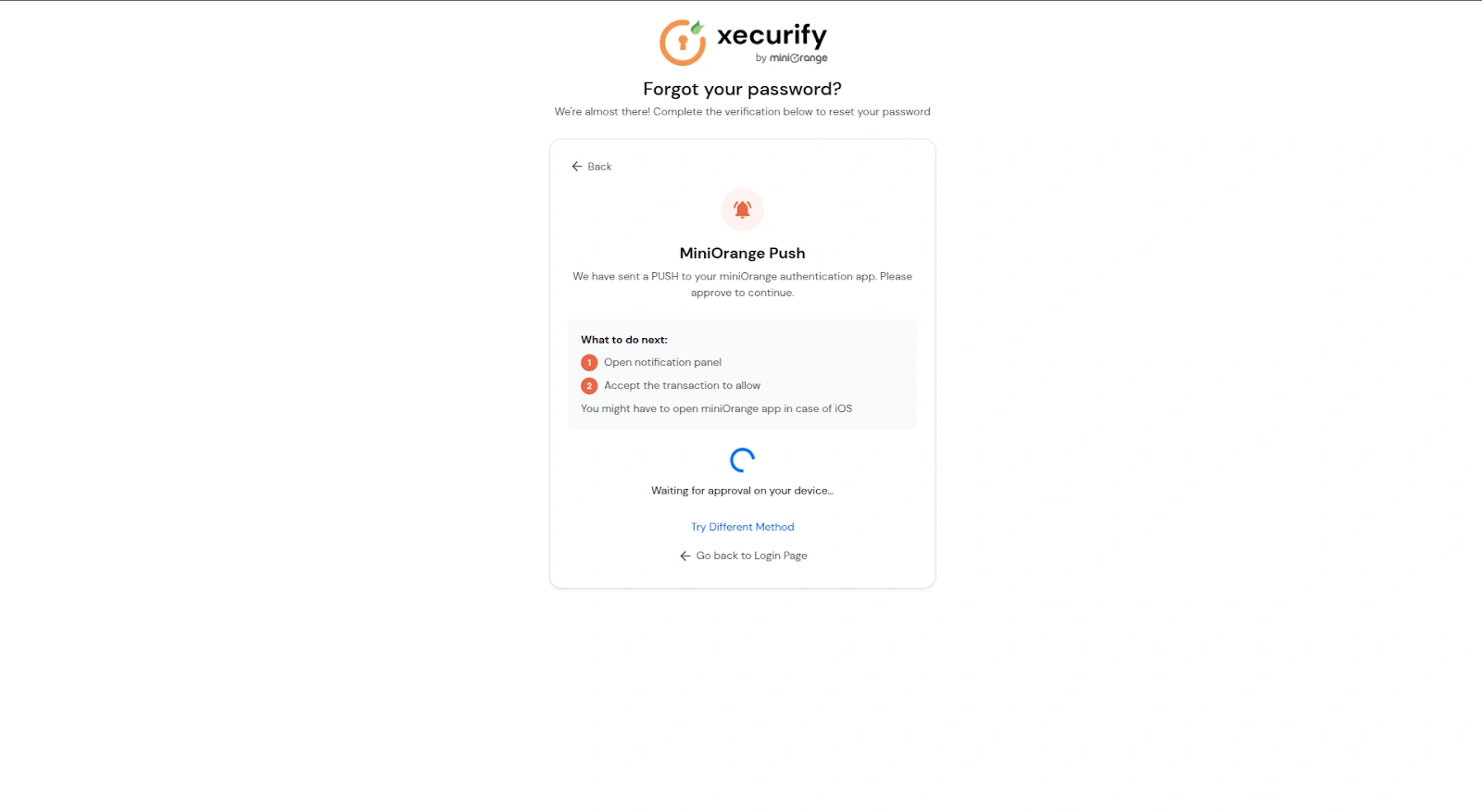
- Security Questions.
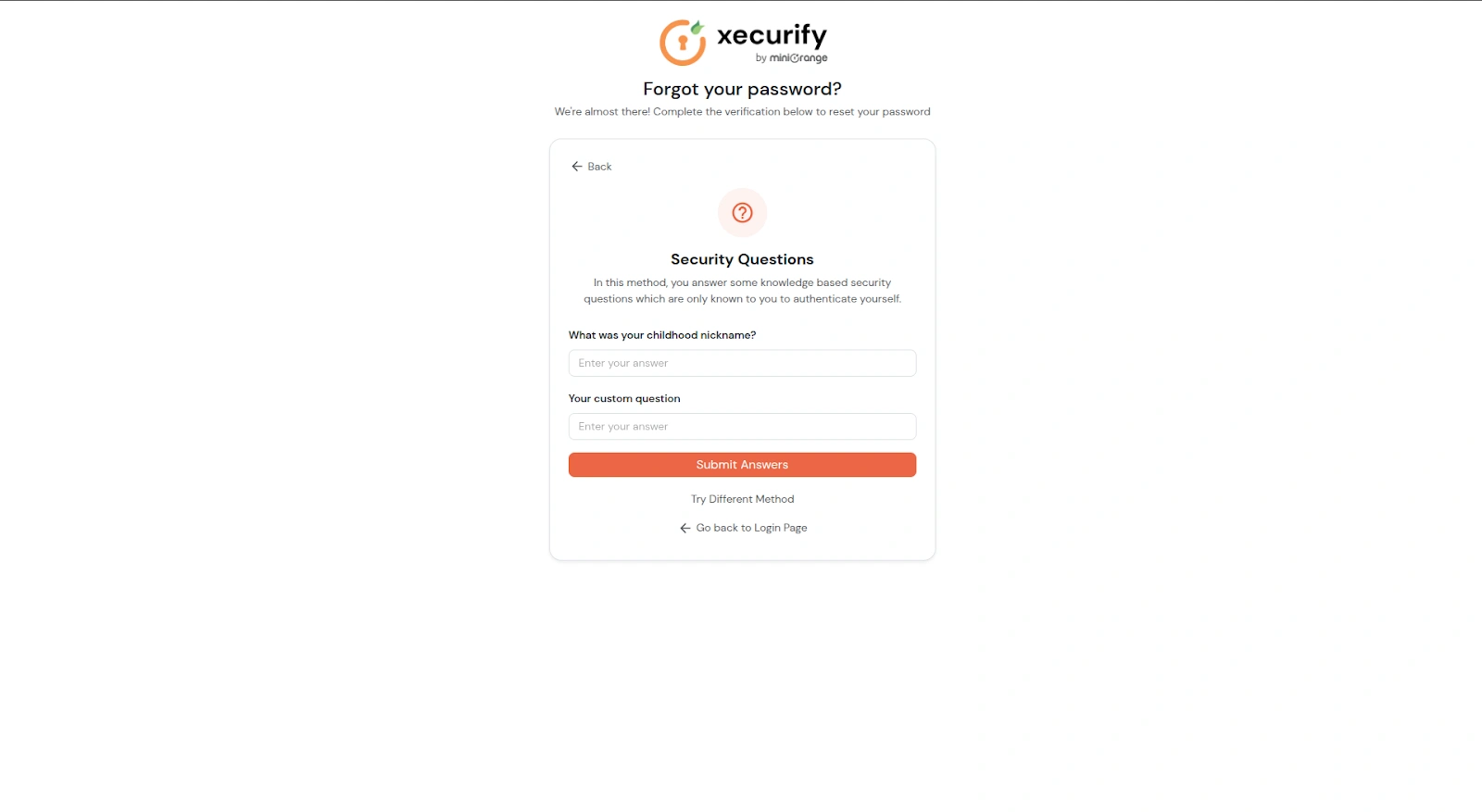
- OTP over SMS or Email.
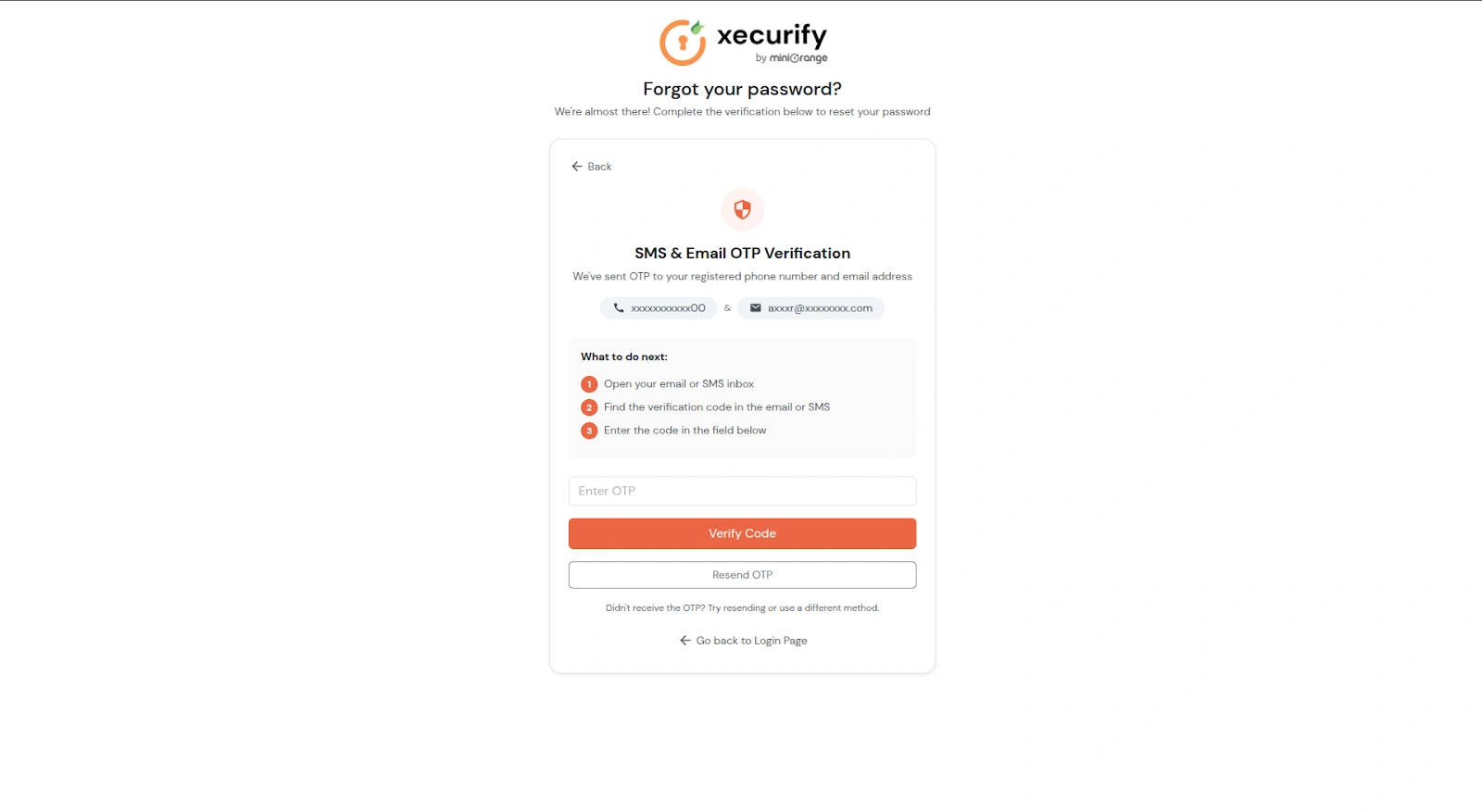
- miniOrange OTP.
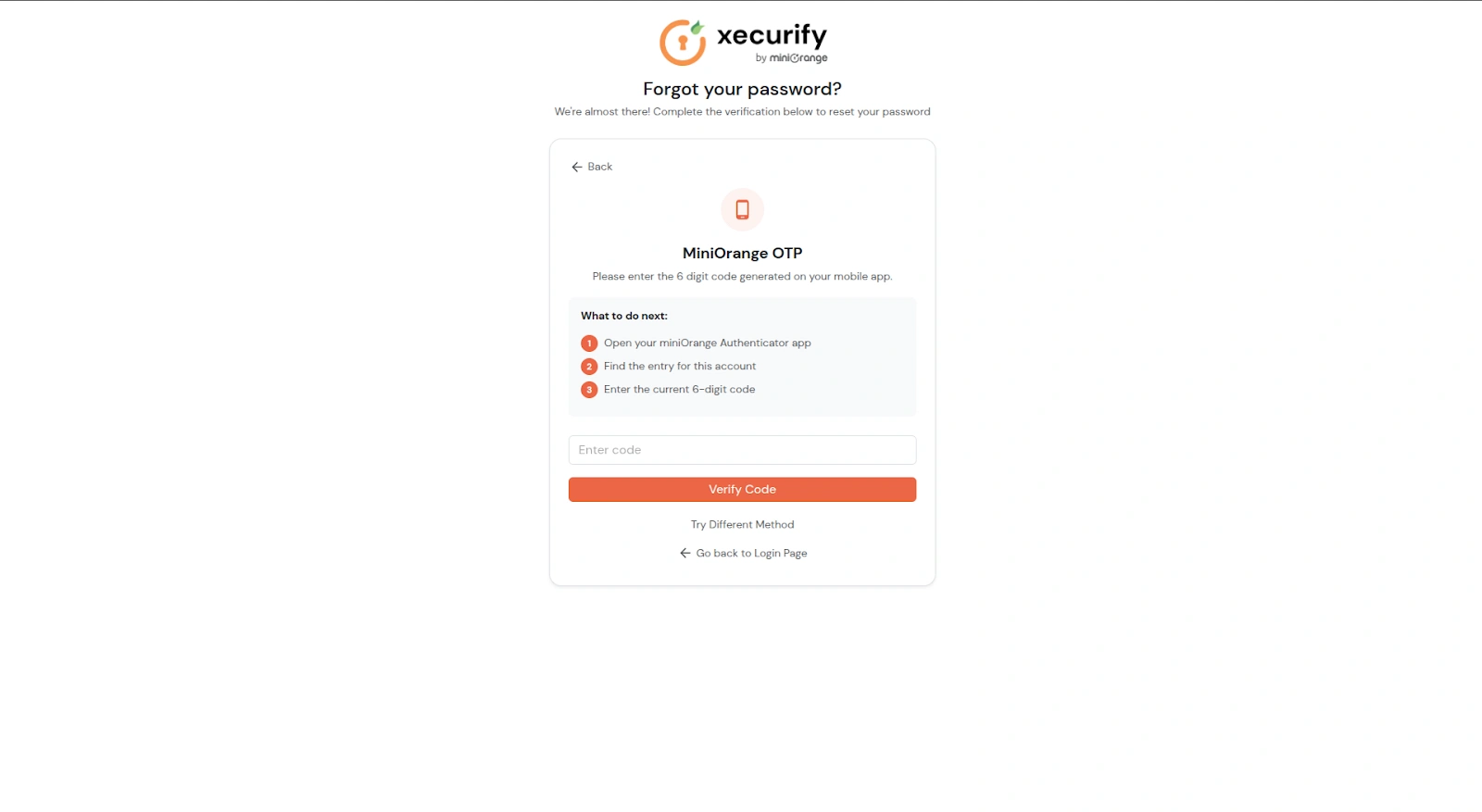
- Follow the on-screen instructions and complete identity verification using the selected 2FA method.
- After successful verification, the Set New Password screen is displayed.
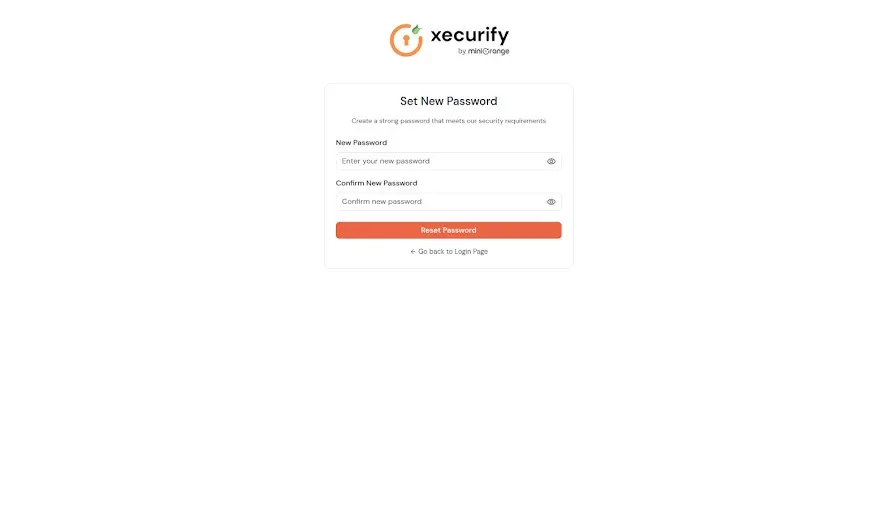
- While entering the new password, the configured password policy requirements are shown and must be met.
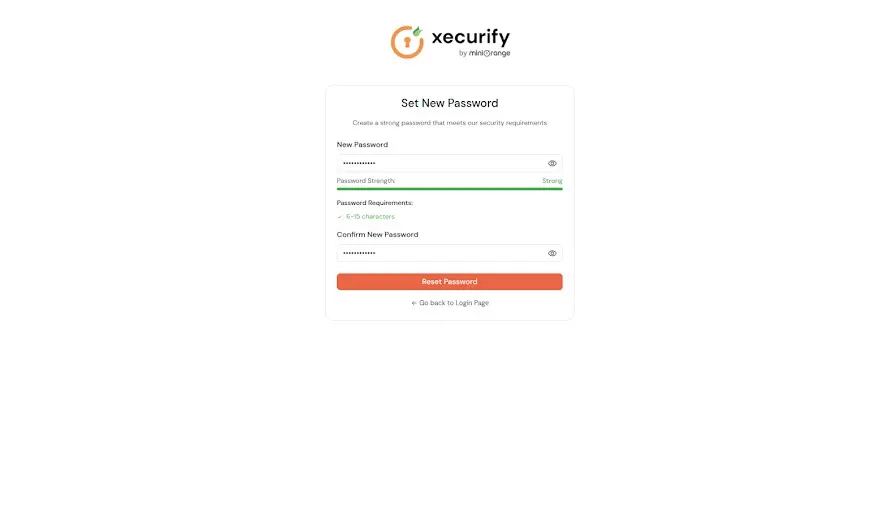
- Click Reset Password to update the password.
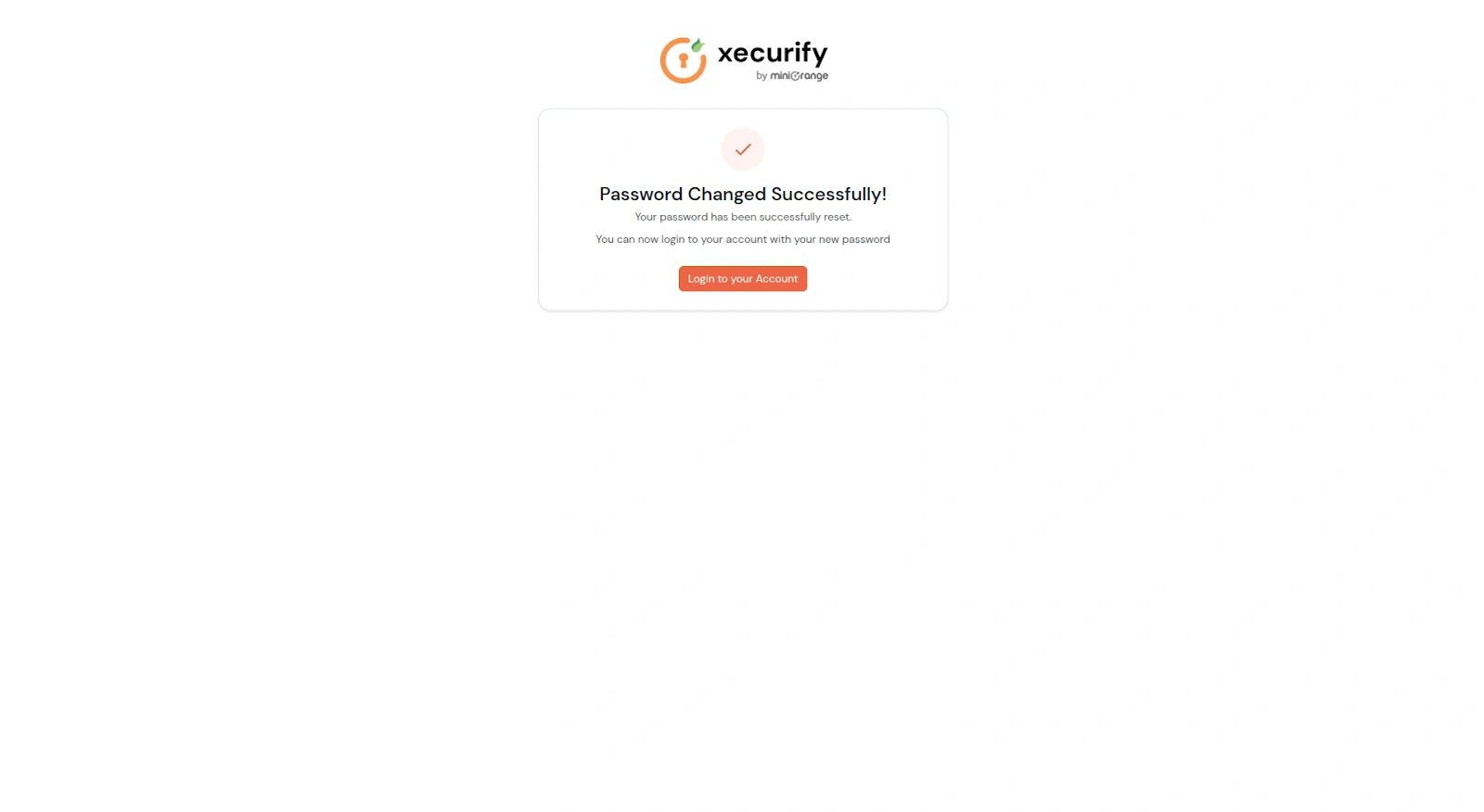
- A confirmation screen indicates that the password has been reset successfully.