Hello there!

Need Help? We are right here!

miniorange Support~
miniOrange Email Support
success

Thanks for your Enquiry.

If you don't hear from us within 24 hours, please feel free to send a follow-up email to info@xecurify.com

Search Results:

×

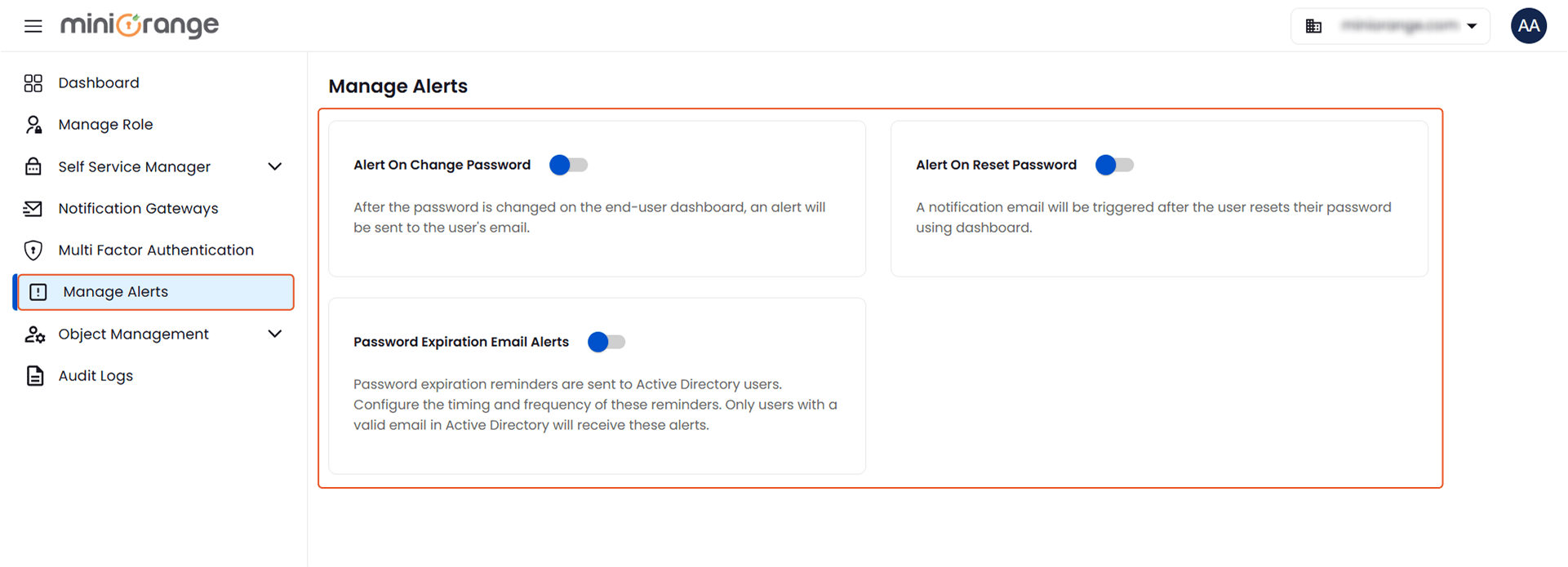
Manage Alerts


To configure and manage system-generated alerts:

  • Navigate to Notification & Alerts > Manage Alerts from the left-hand menu.
  • Under the Event alerts tab, you can enable different types of alerts to notify users about key password-related events.

Available Alert Types:

  • Alert on Change Password:
    Sends an email notification to the user whenever they change their password via the user dashboard.
  • Alert on Reset Password:
    Triggers an email alert when a user resets their password using the self-service reset option on the dashboard.
  • Alert on Locked Account:
    Sends a notification when a user's account gets locked.
  • Password Expiration Email Alerts:
    Sends reminders to users when their Active Directory passwords are about to expire.
    • You can configure the timing and frequency of these reminders.
    • Only users with a valid email address stored in Active Directory will receive these notifications.
Manage Alerts in AD Tools | Manage Alerts

  • Click on the Email & SMS templates tab to configure the email and SMS templates associated with different alerts.
Email and SMS Templates | Manage Alerts | AD Tools

  • Click the Configure button for the alert you want to configure.
  • In the Notification Alerts window, select Email Configuration to configure the email template or SMS Configuration to configure the SMS template.
Email and SMS Configuration | Notification Alerts | Manage Alerts

  • Under Email Configuration, configure the email template by entering the required CC, Subject, and Message details.
  • Use the available macros in the message to include dynamic information in the email notification.
  • Click the Save button to save the email template configuration.
Email Configuration | Notification Alerts | Manage Alerts

  • Under SMS Configuration, configure the SMS message that will be sent for the selected alert.
  • Use the available macros in the message to include dynamic information in the SMS notification.
  • Click the Save button to save the SMS template configuration.
SMS Message Configuration | Notification Alerts | Manage Alerts

These alerts and templates help keep users informed about password-related events and reduce dependency on IT support for password-related issues.