Hello there!

Need Help? We are right here!

Support Icon
miniOrange Email Support
success

Thanks for your Enquiry. Our team will soon reach out to you.

If you don't hear from us within 24 hours, please feel free to send a follow-up email to info@xecurify.com

Search Results:

×

FileZilla Thick Client SSO


FileZilla is a thick client FTP/SFTP application that runs on the user’s desktop and provides a rich graphical interface for managing file transfers to remote servers. As a thick client, it handles connection profiles, encryption settings, and file operations locally while communicating with FTP, FTPS, or SFTP servers over the network.

Let’s now look at how to set up FileZilla thick client SSO.
Follow the step-by-step Guide below to set up Up FileZilla Thick Client SSO.

1. How to Set Up FileZilla Thick Client SSO

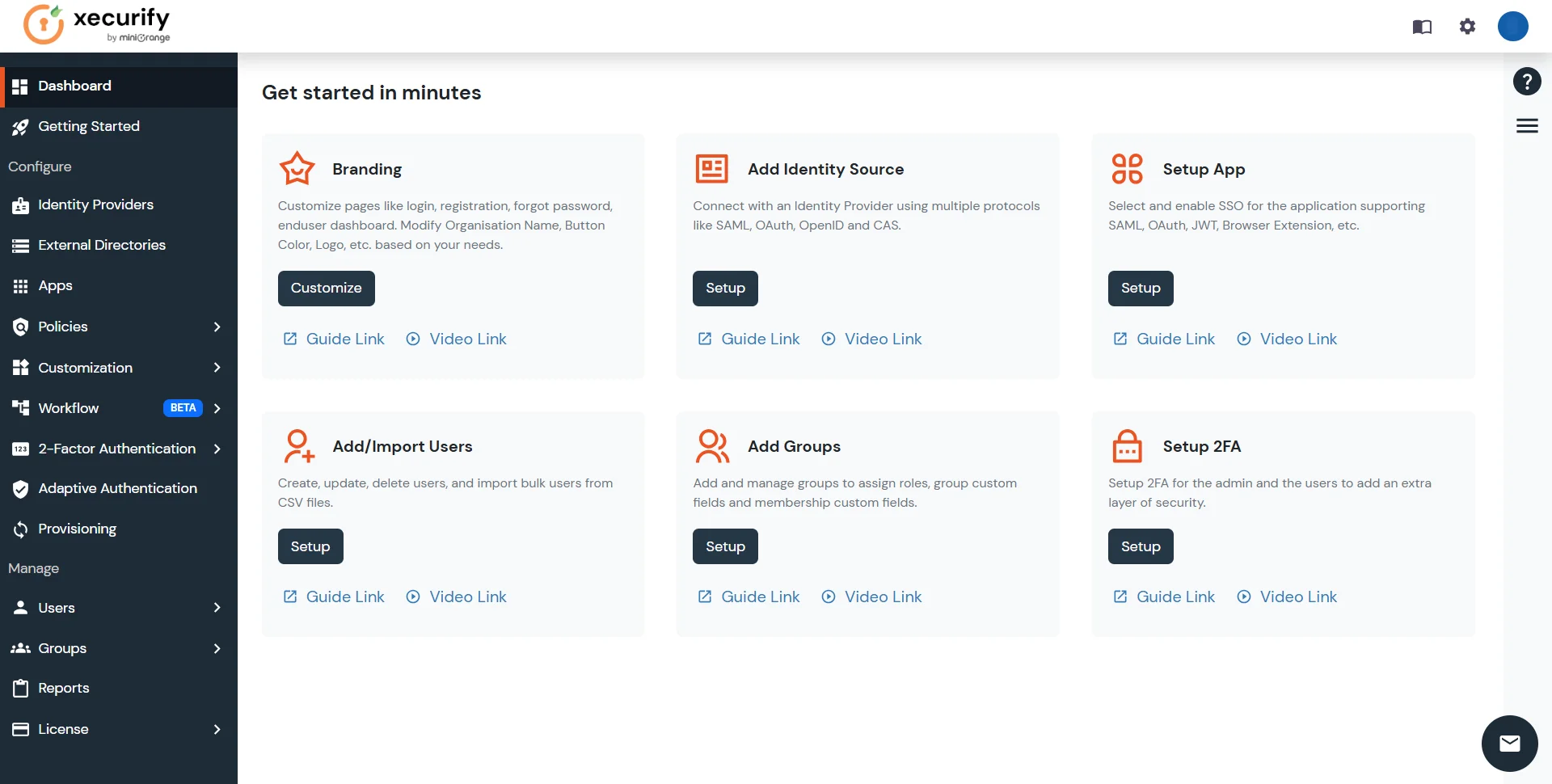
  • Login into miniOrange Admin Console.
  • Filezilla Thick Client SSO: Dashboard applications

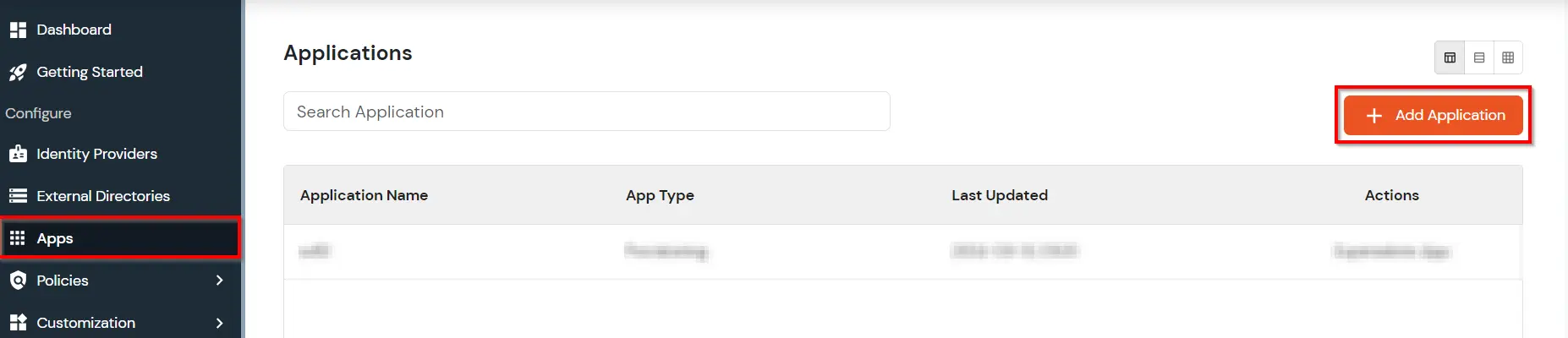
  • Click on Apps. It shows a list of all configured applications and option to modify them. Click on Add Application.
  • Filezilla Thick Client SSO: Add Application

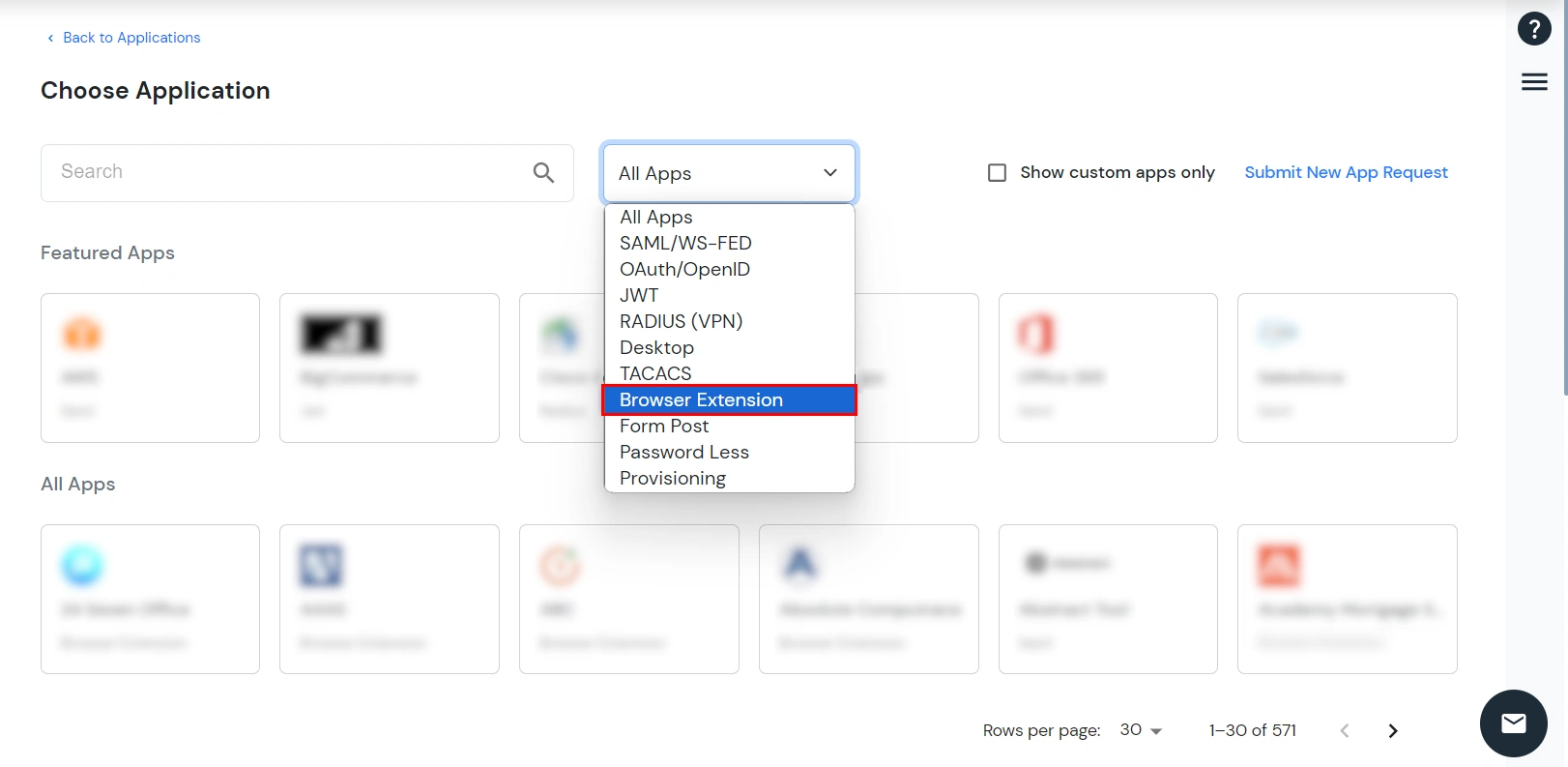
  • Under Choose Application, select Browser Extension from the All Apps dropdown.
  • Filezilla Thick Client SSO: Browser Extension

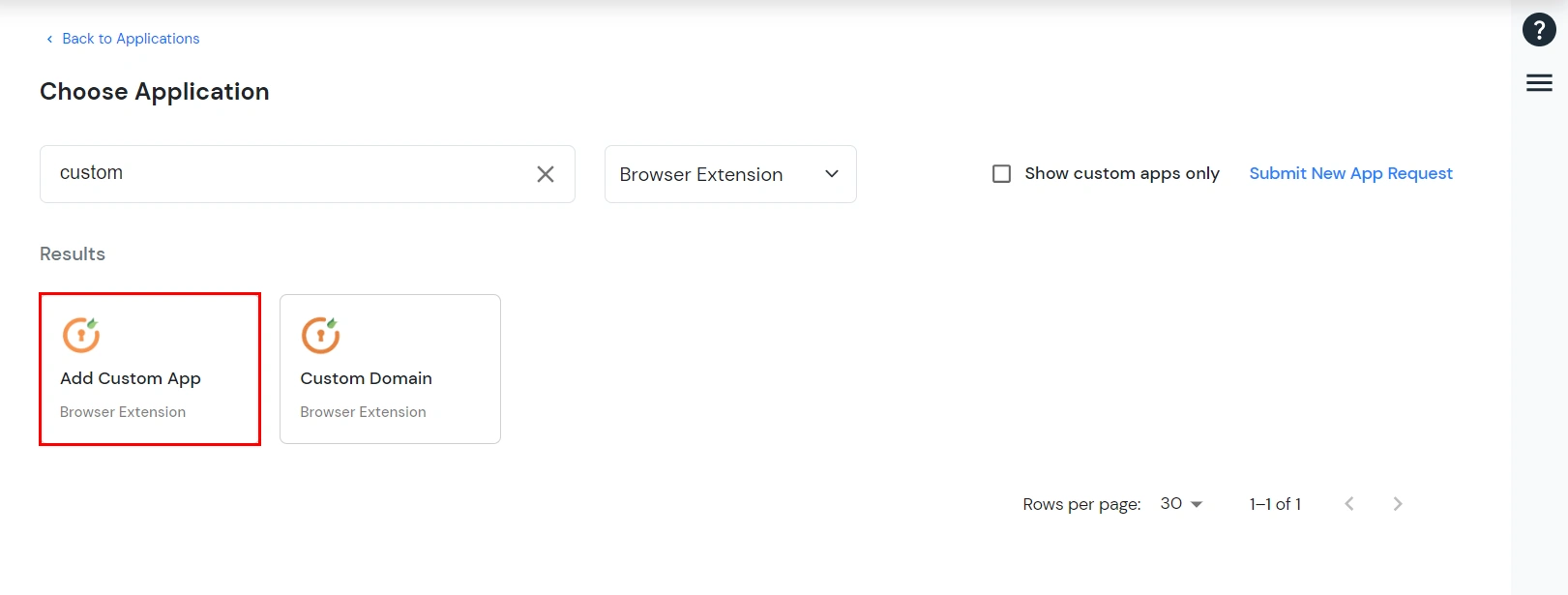
  • Search for custom and click on Add Custom App.
  • Filezilla Thick Client SSO: Add custom app


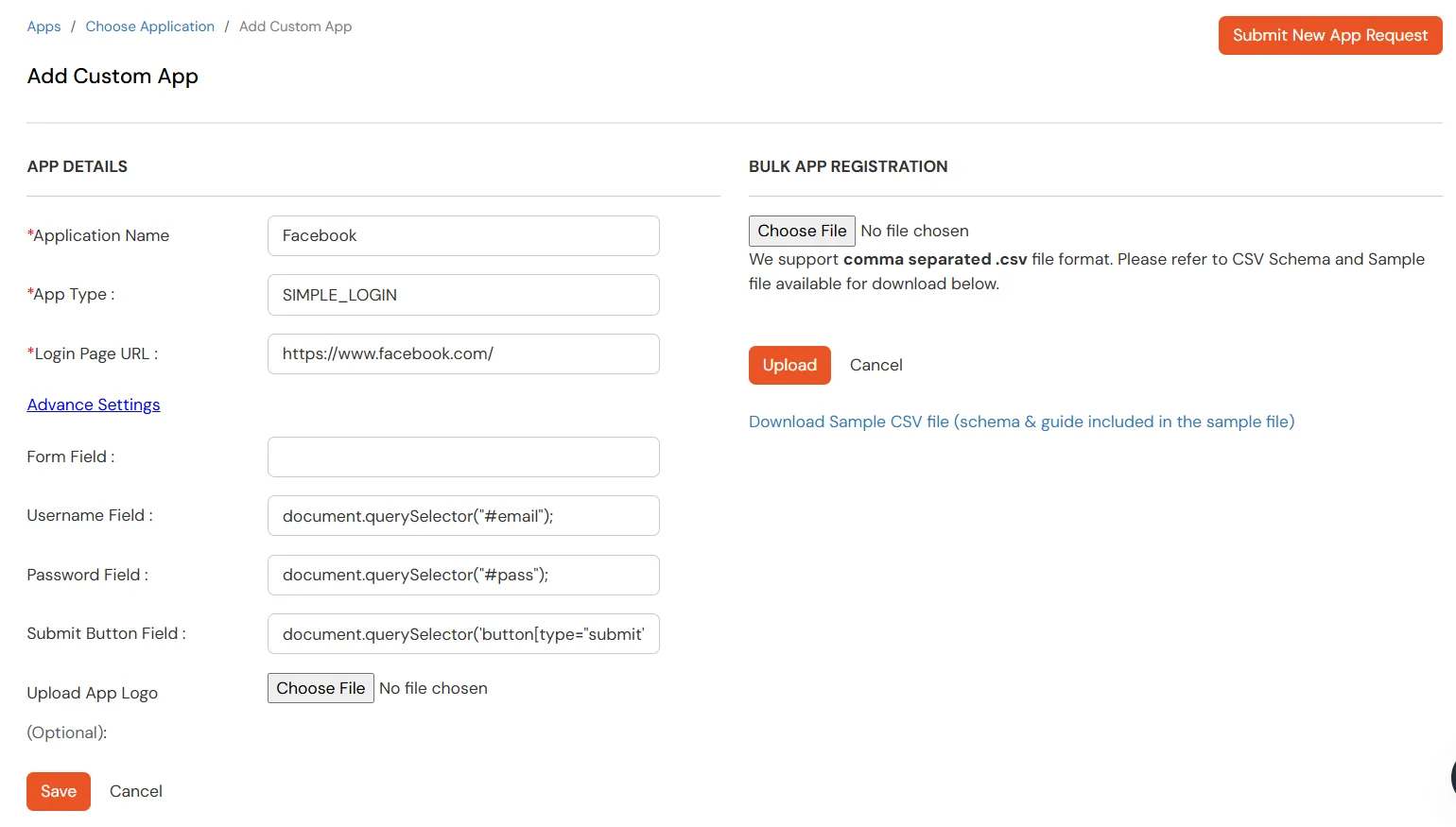
  • Configure your application by filling in the following details:
  • Filezilla Thick Client SSO: App details

    App Field Description
    Application Name Enter your application name
    App Type For this Remote Desktop thick client setup, the application type does not affect the integration. Select SIMPLE_LOGIN (the simple login / default option in the dropdown) and continue.
    Login Page URL mo://filezilla
  • Toggle Auto Click Submit: When this option is enabled, the extension will automatically click the login button after filling in the credentials. If disabled, the extension will only fill in the credentials without clicking the login button. Disabling this is useful in cases where the user needs to manually enter additional information, such as a CAPTCHA or security question.
  • Choose a file to upload app logo.
  • Click on Save.

2. Complete the app configuration

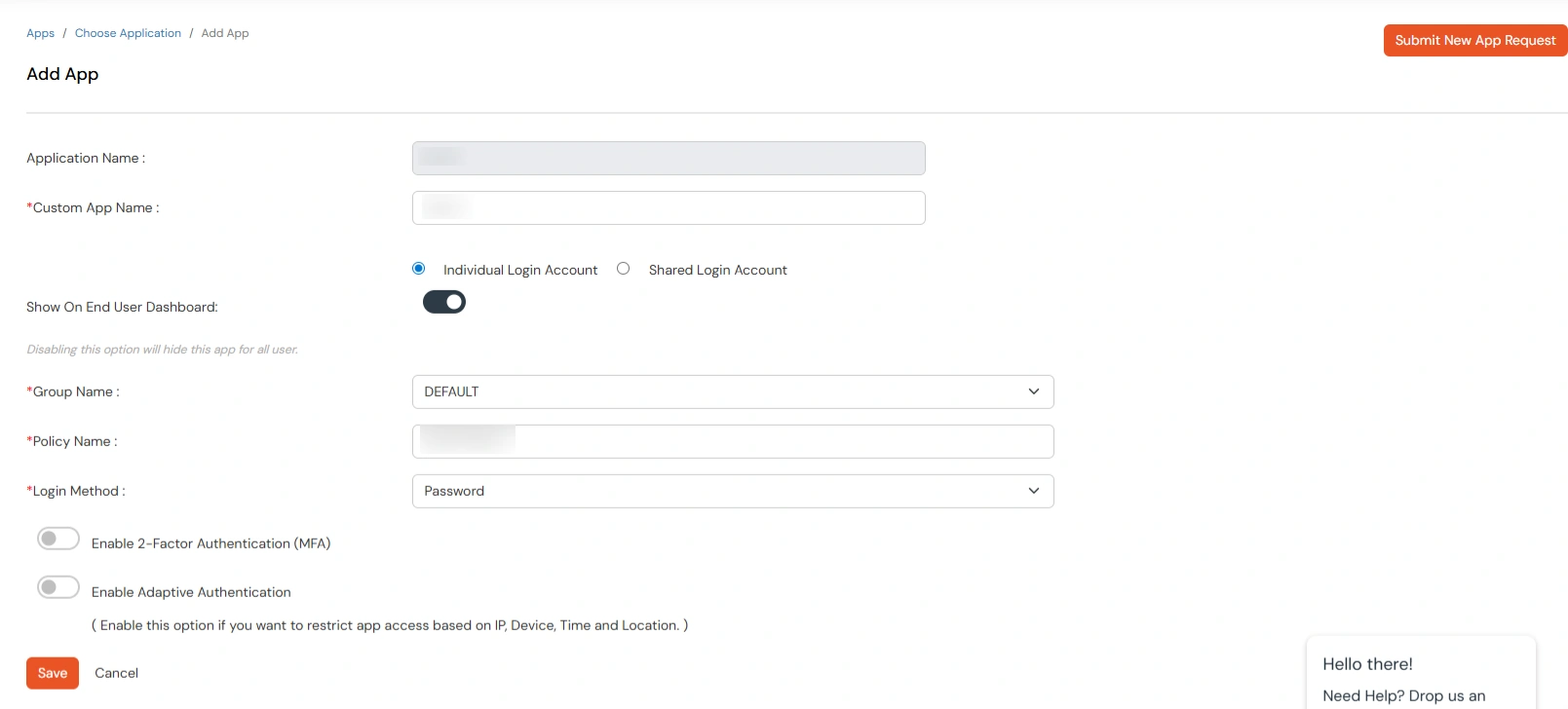
  • After clicking on Save, you will be redirected to the below configuration.
  • Filezilla Thick Client SSO: app configuration details

  • Fill the below details in the fields.
  • App details Description
    Individual Login If each user has a different username and password for the app, admin should choose an Individual Login Account option, so that users can save their username and password from the user portal themselves.
    Shared Login If multiple users are allowed to access the app via the same credentials assigned by admin, admin should choose share Login Account option.
    Group Name Select Group name as default.(This will allow all your added groups to access this service)
    Policy Name Select Policy Name the same as your application name.
    Login Method The authentication method for Users.
    Enable 2-Factor Authentication (MFA) Enable this option if you want to enable MFA on top of the user authentication. Note: Can be only used with Password as the login method.
    Enable Adaptive Authentication Enable this option if you want to enable Adaptive Authentication on top of the user authentication. The type of Adaptive Authentication and the Adaptive Authentication Policy has to be configured in this case. Note. Either MFA or Adaptive Authentication can be enabled in a policy and not both.
  • Click on the Save button.

Note: Extension: install the browser extension and miniOrange Agent MSI on user machines.


3. Configure Login Credentials

Note: Click here to proceed with the configuration steps. Select Individual Login for user-level credentials, or Shared Login for centrally managed credentials.
4. Access your app with SSO from the Dashboard

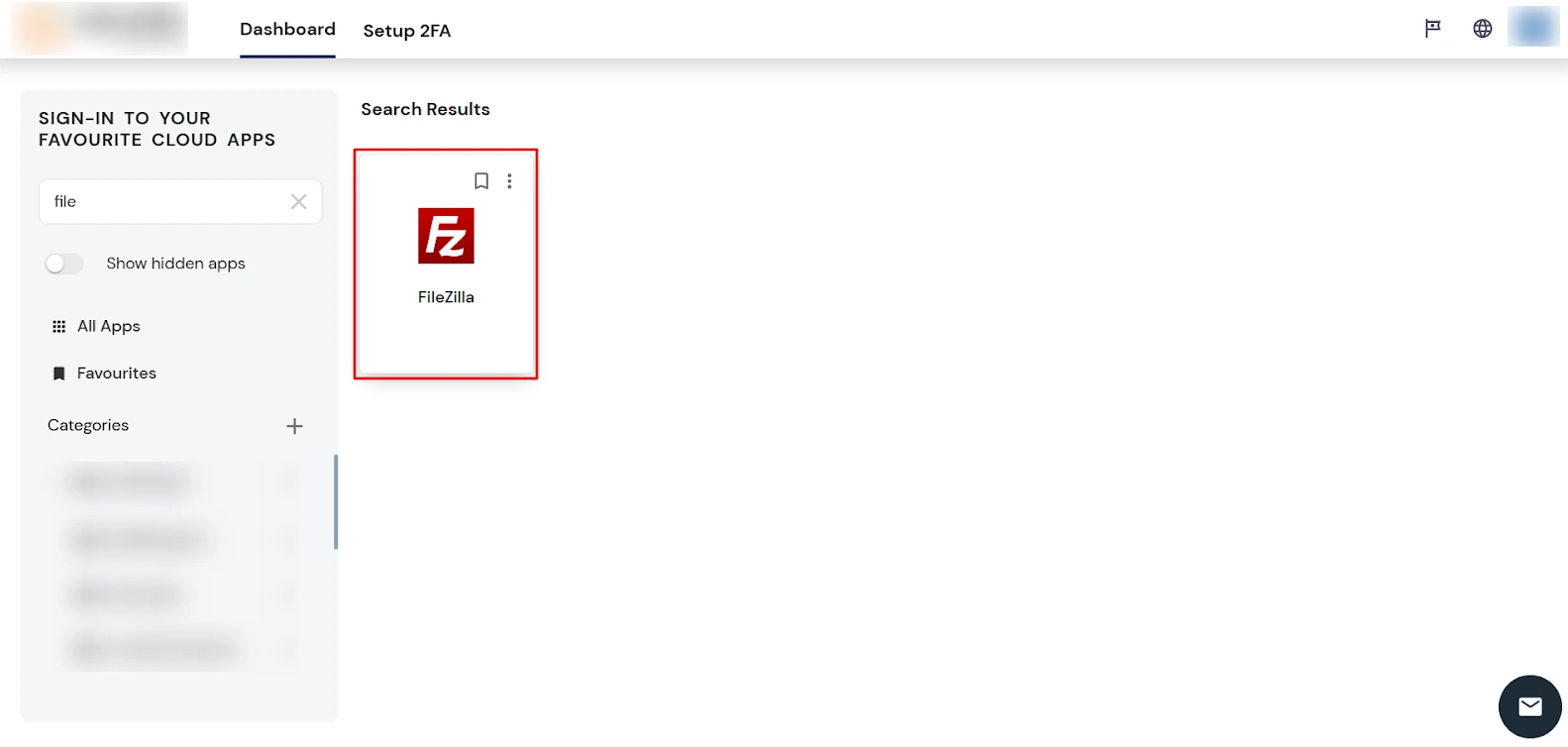
  • On the Dashboard, under SIGN-IN TO YOUR FAVOURITE CLOUD APPS, search for filezilla (or your app name) and confirm FileZilla appears in Search Results.
  • Filezilla Thick Client SSO: Select Filezilla

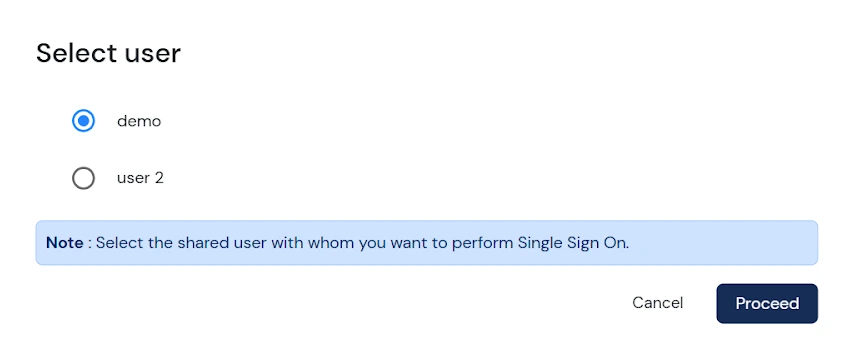
  • Click FileZilla, select User, then click Proceed.
  • Filezilla Thick Client SSO: select user

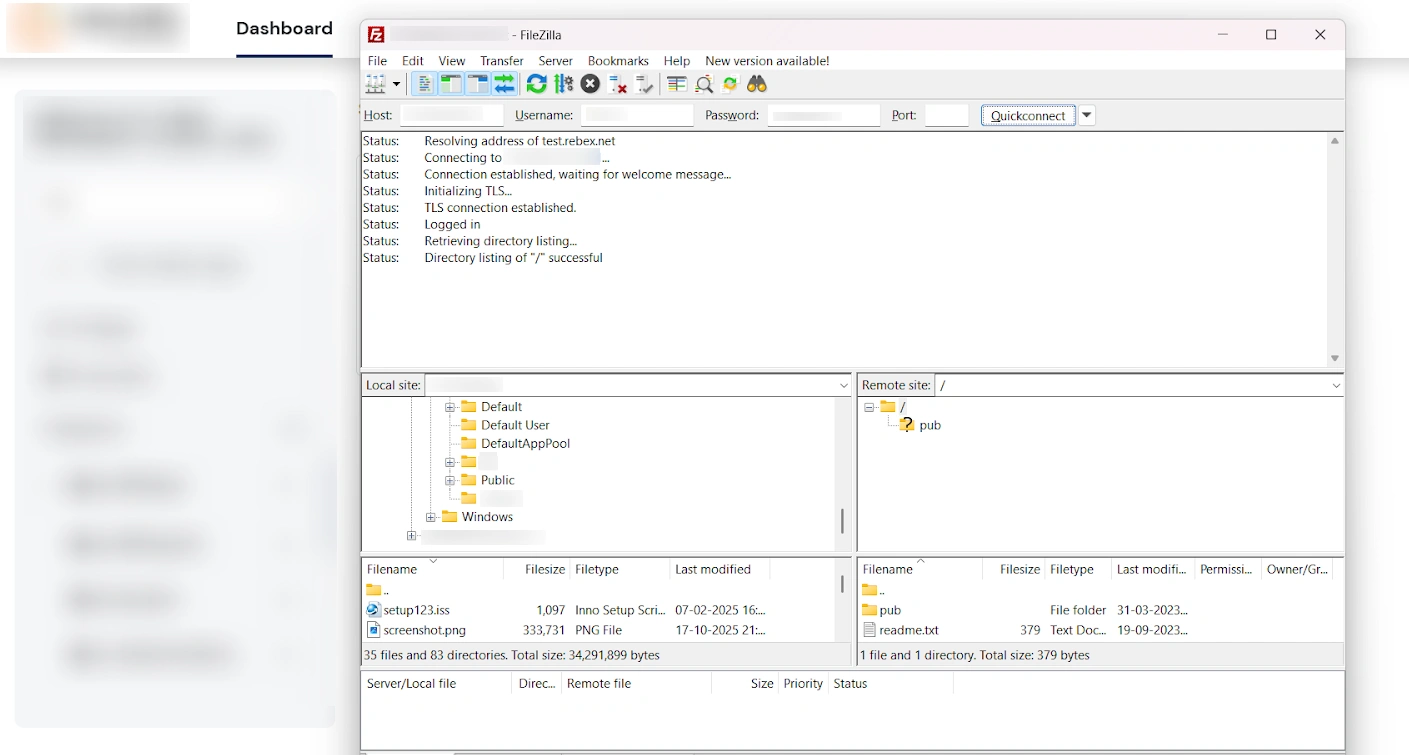
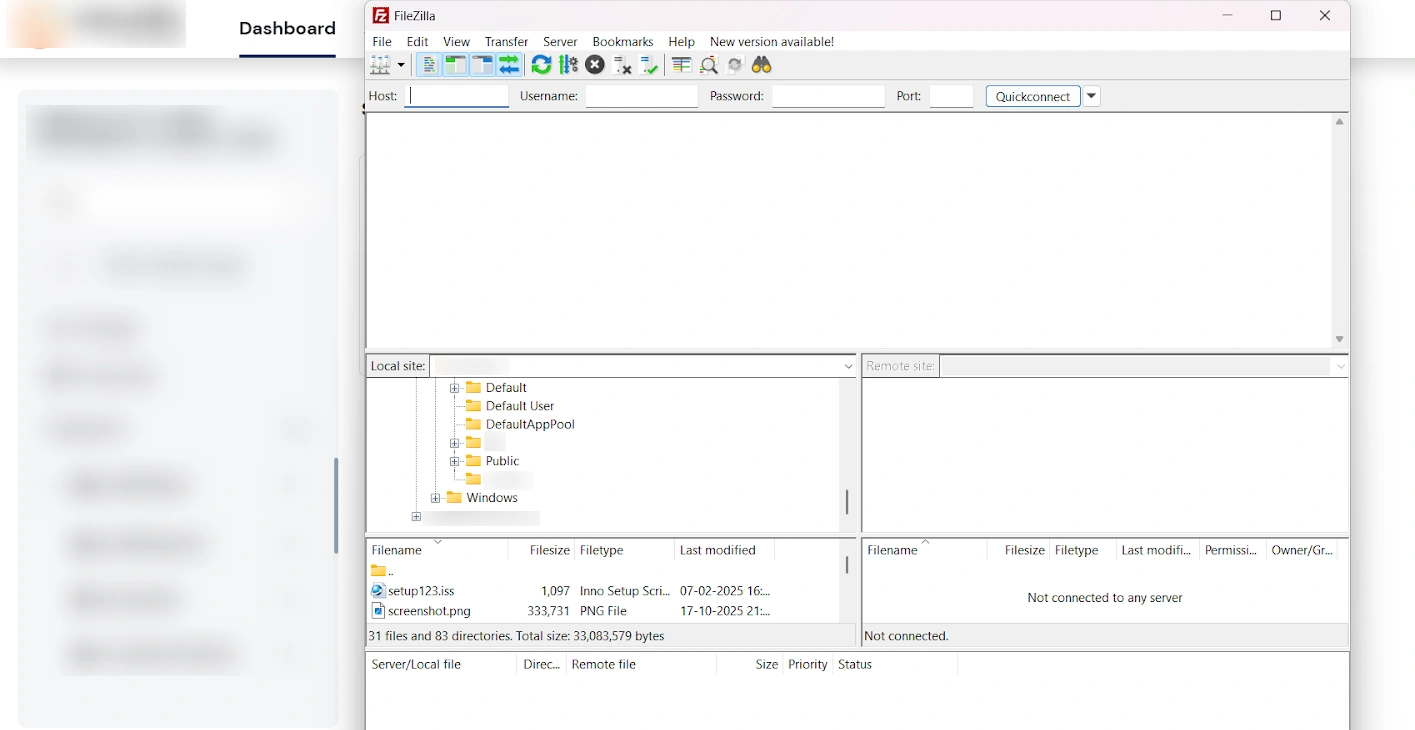
    Filezilla Thick Client SSO: Filezilla connection setup

  • When the connection succeeds, your remote site files and directories appear in the FileZilla window.
  • Filezilla Thick Client SSO: Filezilla login success step


Want To Schedule A Demo?

Request a Demo


Our Other Identity & Access Management Products