Hello there!

Need Help? We are right here!

Support Icon
miniOrange Email Support
success

Thanks for your Enquiry. Our team will soon reach out to you.

If you don't hear from us within 24 hours, please feel free to send a follow-up email to info@xecurify.com

Search Results:

×

Microsoft SSO Partner logo

SharePoint Single Sign-On (SAML SSO)


SharePoint SAML Single Sign-On (SSO) solution by miniOrange provides secure Single Sign-On access into SharePoint using a single set of login credentials. This allows organizations to secure access to their SharePoint team and easily manage user access, while also providing a seamless login experience for users.

With miniOrange SharePoint SSO, you can:

  • Enable your users to automatically login to SharePoint
  • Have centralized and easy access control of the users
  • Connect easily with any external identity source like Azure AD, ADFS, Cognito, etc

Get Free Installation Help


miniOrange offers free help through a consultation call with our System Engineers to Install or Setup SharePoint SSO solution in your environment with 30-day free trial.

For this, you need to just send us an email at idpsupport@xecurify.com to book a slot and we'll help you in no time.


Supported SSO Features

miniOrange SharePoint SAML integration supports the following features:

  • SP Initiated SSO Login: Users can access their SharePoint account via a URL or bookmark. They will automatically be redirected to the miniOrange portal for login. Once they've signed on, they'll be automatically redirected and logged into SharePoint.
  • IdP Initiated SSO Login: Users need to login to the miniOrange first , and then click on the SharePoint icon on the applications dashboard to access SharePoint.(If you have set up any more Identity Sources, you will log in to that platform).

Connect with External Source of Users


miniOrange provides user authentication from various external sources, which can be Directories (like ADFS, Microsoft Active Directory, OpenLDAP, AWS etc), Identity Providers (like Microsoft Entra ID, Okta, AWS), and many more. You can configure your existing directory/user store or add users in miniOrange.


Video Setup Guide


Prerequisites

    1. Sync On-Premise Active Directory with Microsoft Entra ID

      NOTE: If you want to use your On-Premise Active Directory as a user store to Single Sign-On into SharePoint then follow the below steps to sync your AD and Microsoft Entra ID.

    • Download the Microsoft Entra ID Connect
    • Run the Microsoft Entra ID installer on your domain machine and follow the setup.

    2. Verify your UPN Domain in Azure Portal

    Note: If you have set up a custom domain name, skip this step.
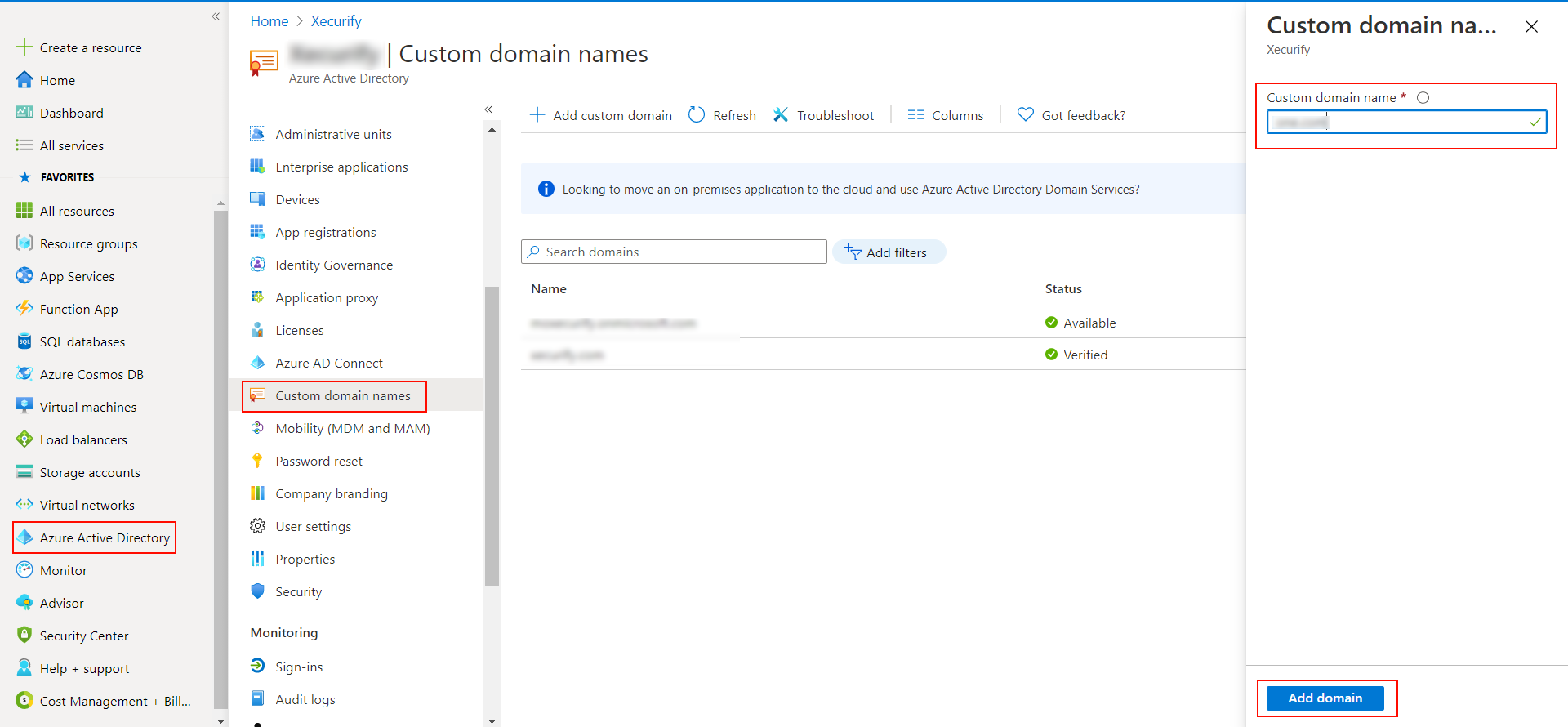
    • In the Azure portal navigate to Microsoft Entra ID >> Custom domain names and click on Add custom domain.
    • Enter the full domain name in the right pane that pops up and click on Add domain.
    • SharePoint Single Sign-On (SSO) Add custom domain

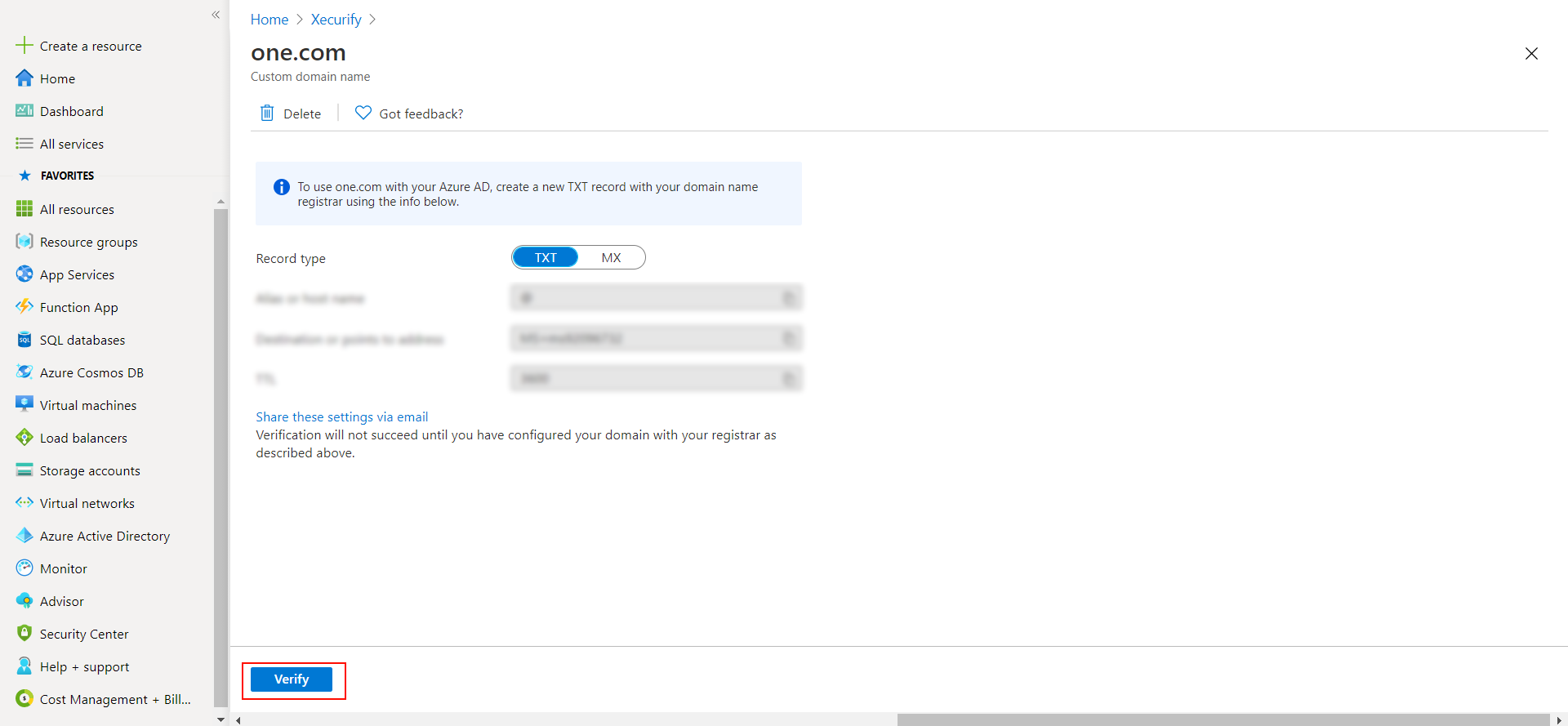
    • A new window will open up with TXT/MX records for the domain. You will have to add the resented entry in your domain name registrar.
    • SharePoint Single Sign-On (SSO) Add domain record

    • Click on verify once you have added the entry

Please make sure your organisation branding is already set under Customization >> Login and Registration Branding in the left menu of the dashboard.
Follow the step-by-step guide given below for SharePoint Single Sign-On (SSO)

1. Configure SharePoint in miniOrange

  • Login into miniOrange Admin Console.
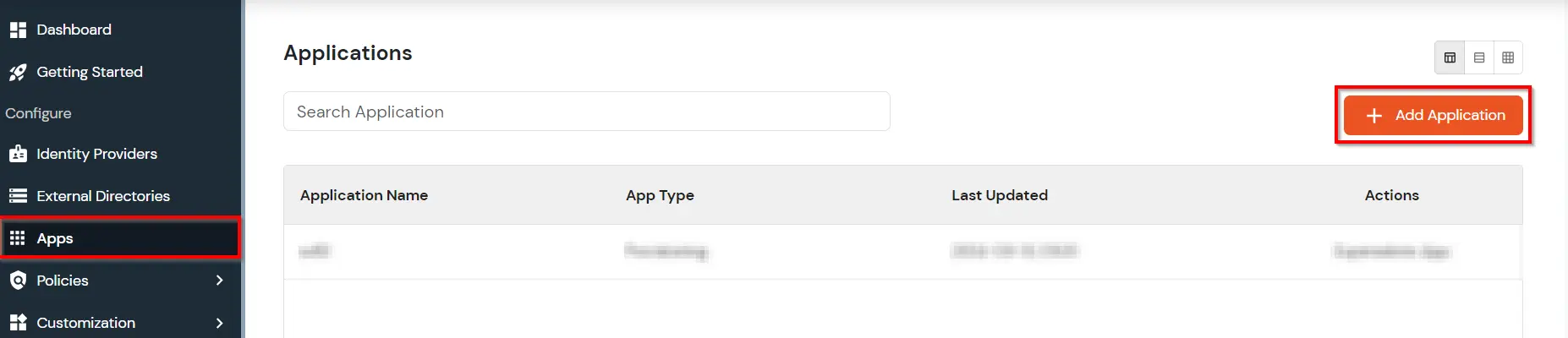
  • Go to Apps and click on Add Application button.
  • SharePoint Single Sign-On (SSO) add app

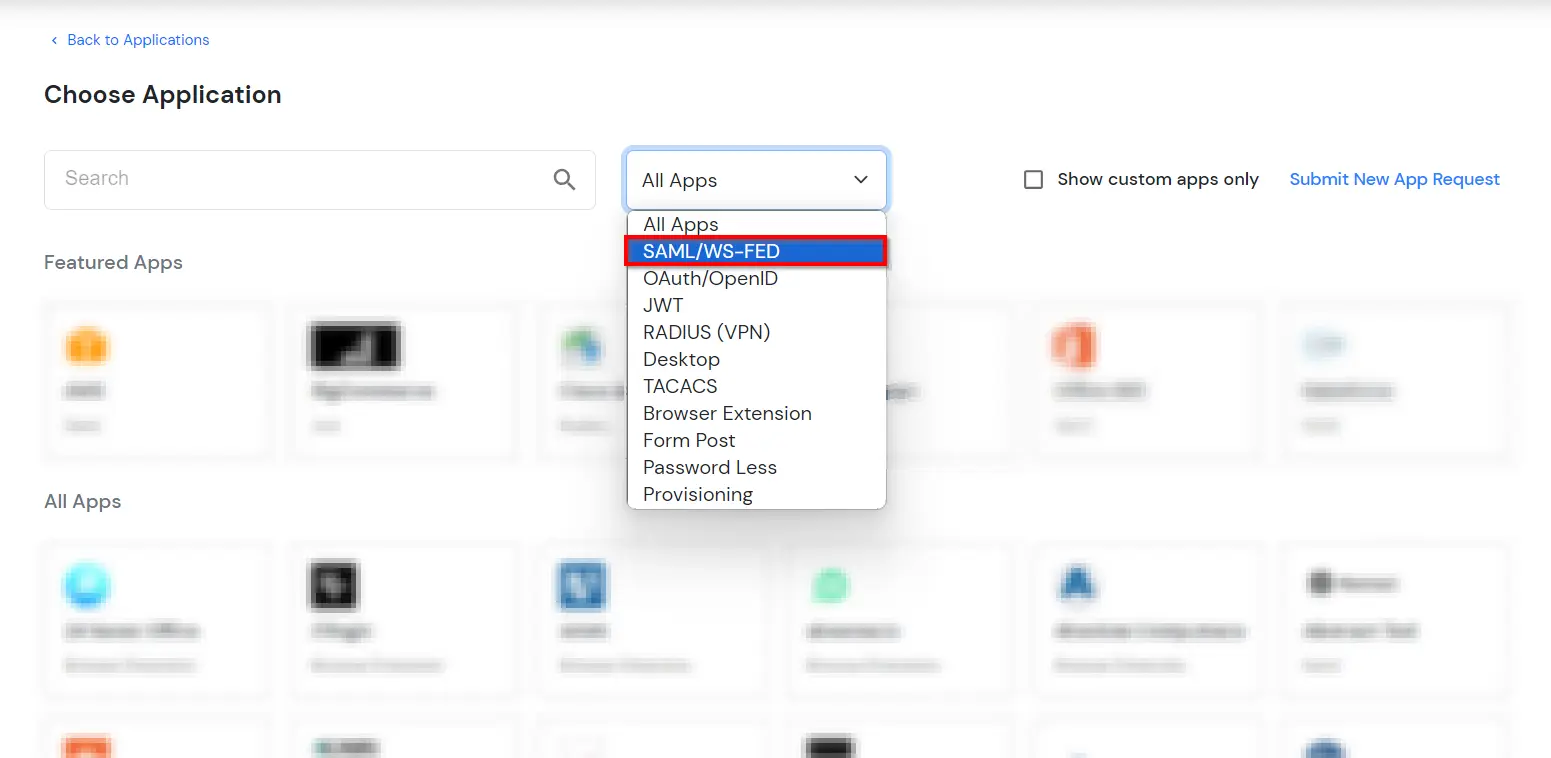
  • In Choose Application Type, select SAML/WS-FED from the All Apps dropdown.
  • Office 365 Single Sign-On (SSO) choose app type

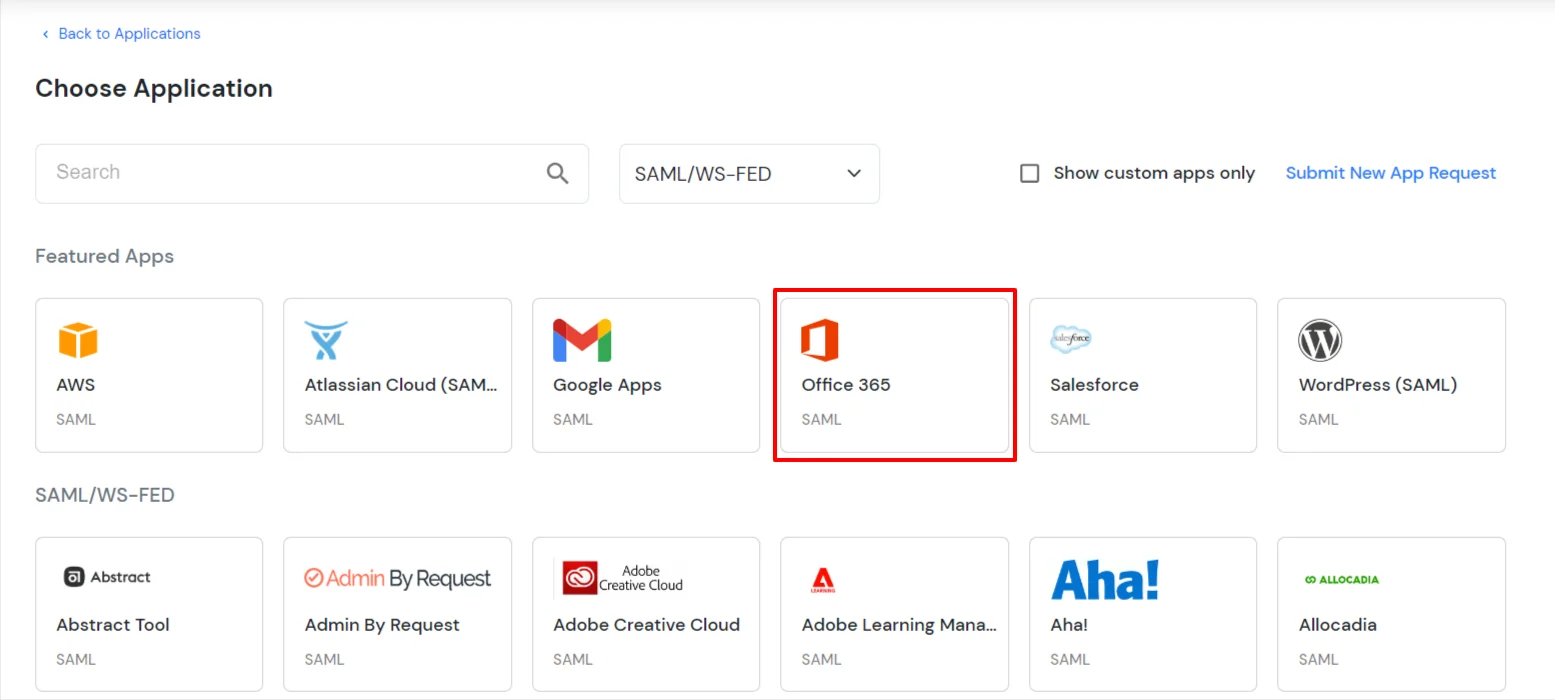
  • In the next step, search for Office 365. Click on Office 365 app.
  • Office 365 Single Sign-On (SSO) add Office 365 app

  • In the Basic settings section, enter the Display Name.
    • Make sure the SP Entity ID or Issuer is: urn:federation:MicrosoftOnline
    • Make sure the ACS URL is: https://login.microsoftonline.com/login.srf
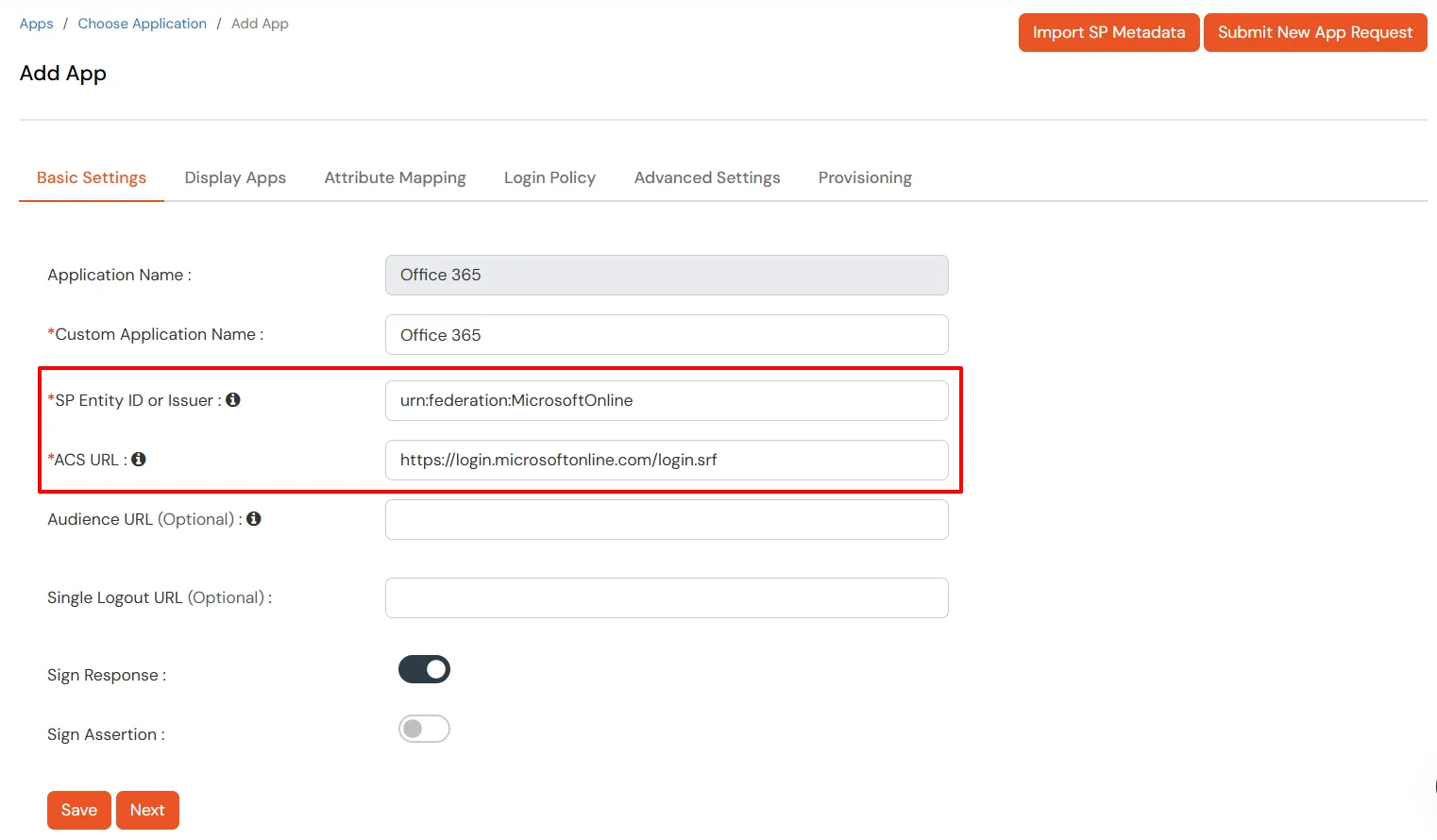
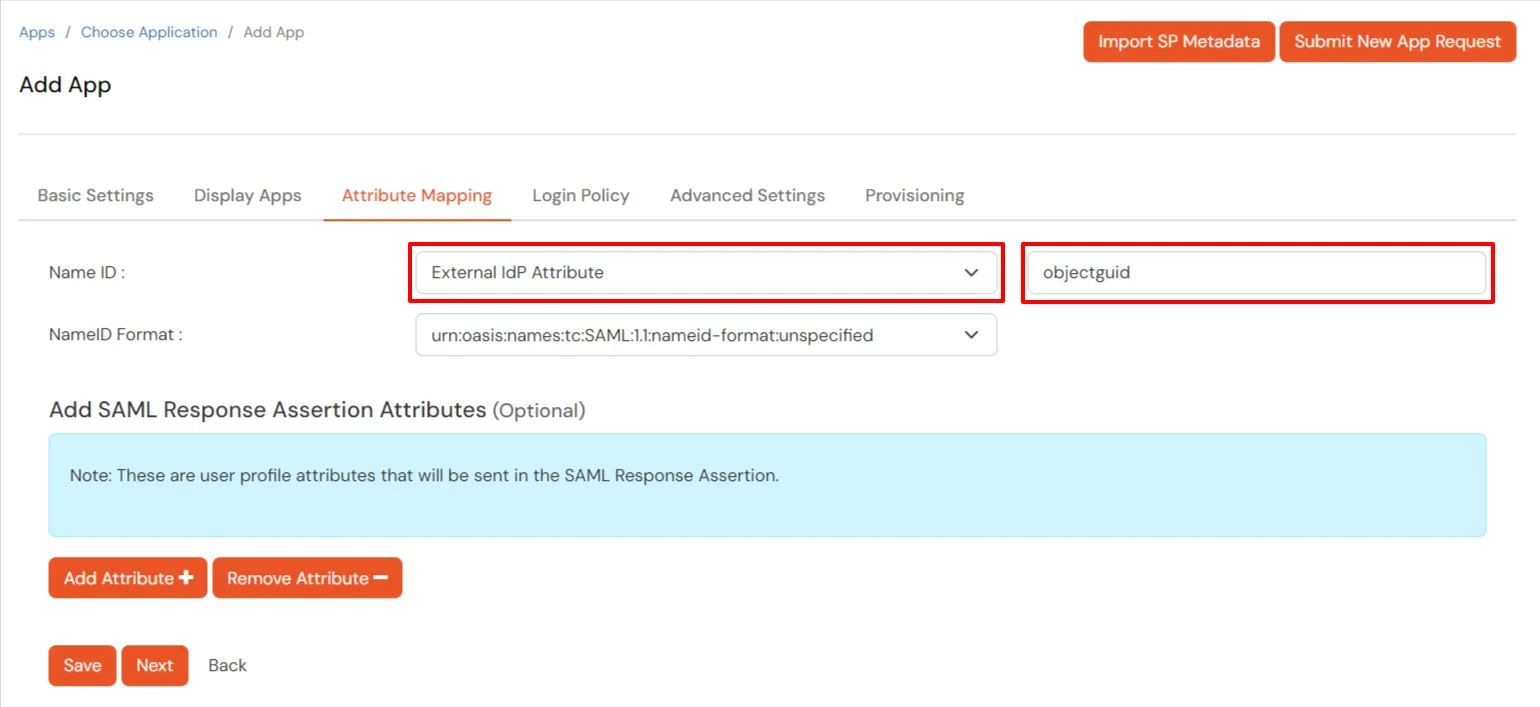
    • Office 365 Single Sign-On (sso) configuration steps

  • Click Next.
  • Now, go to the Attributes tab, and configure Name ID based on the User Store you are using:
    • Using Active Directory / miniOrange brokering service: Select External IDP Attribute from the dropdown and add objectguid in the text-box that appears.
    • Office 365 Single Sign-On (sso) configuration steps

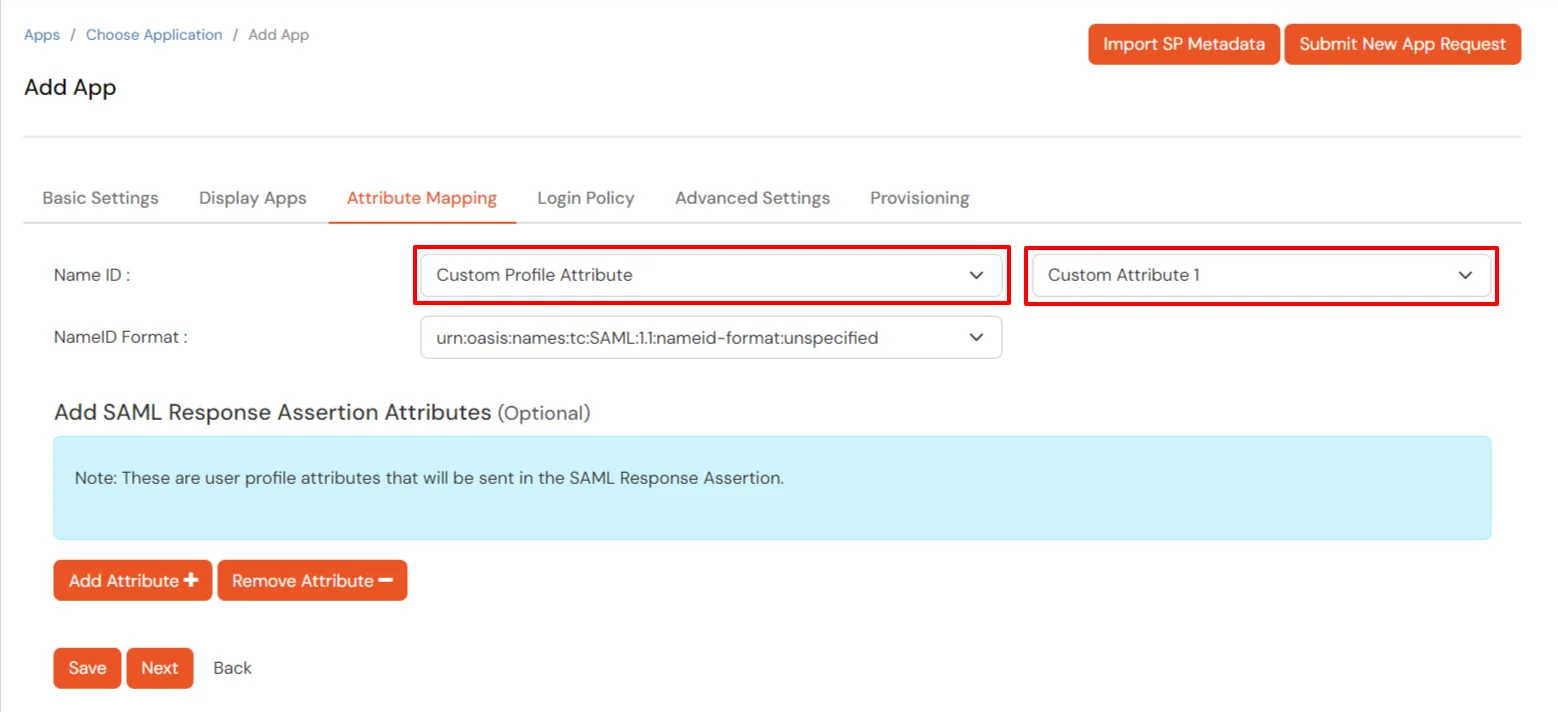
    • Using miniOrange as a User Store: Select Custom Profile Attribute and select a Custom Attribute from the drop-down.
    • Office 365 Single Sign-On (sso) configuration steps

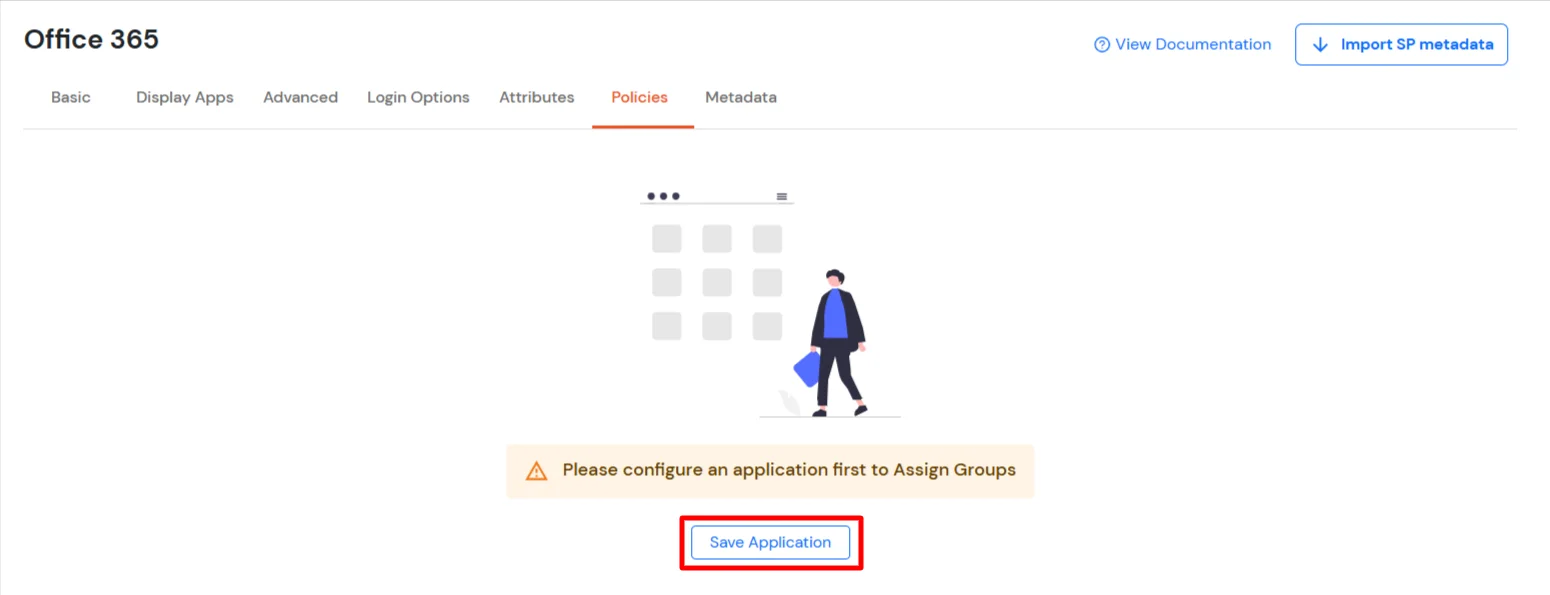
  • Click Next to go to the Policies. Save the application first to configure the policy.
  • Office 365 Single Sign-On (sso) Save the application

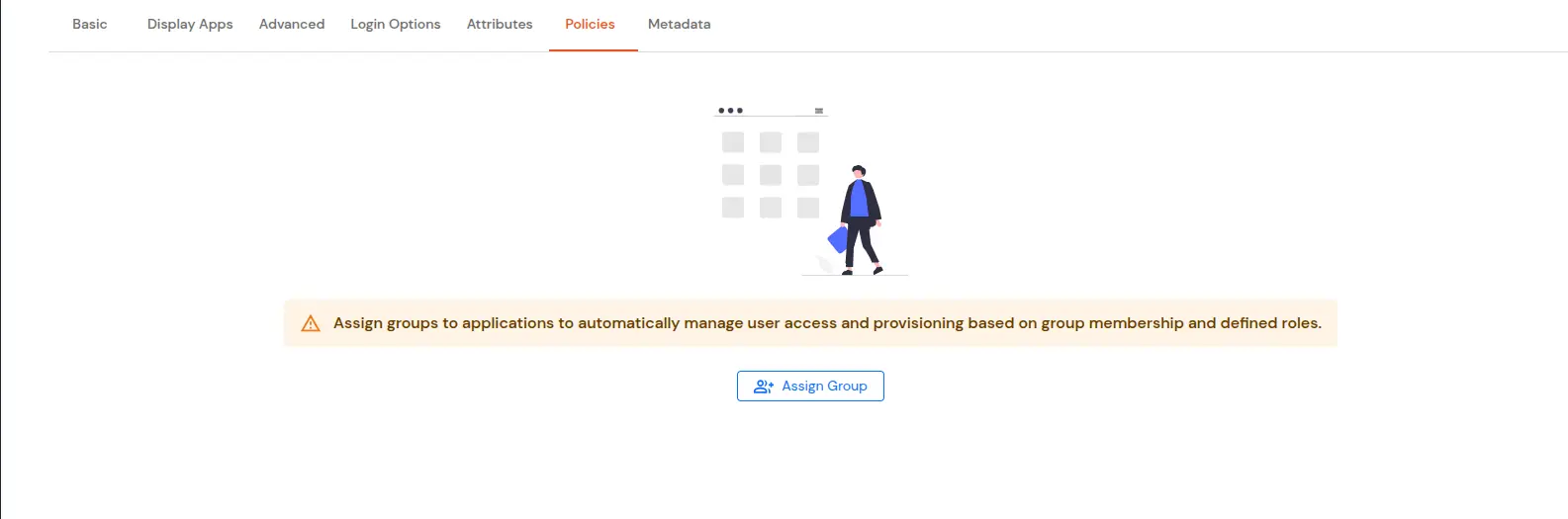
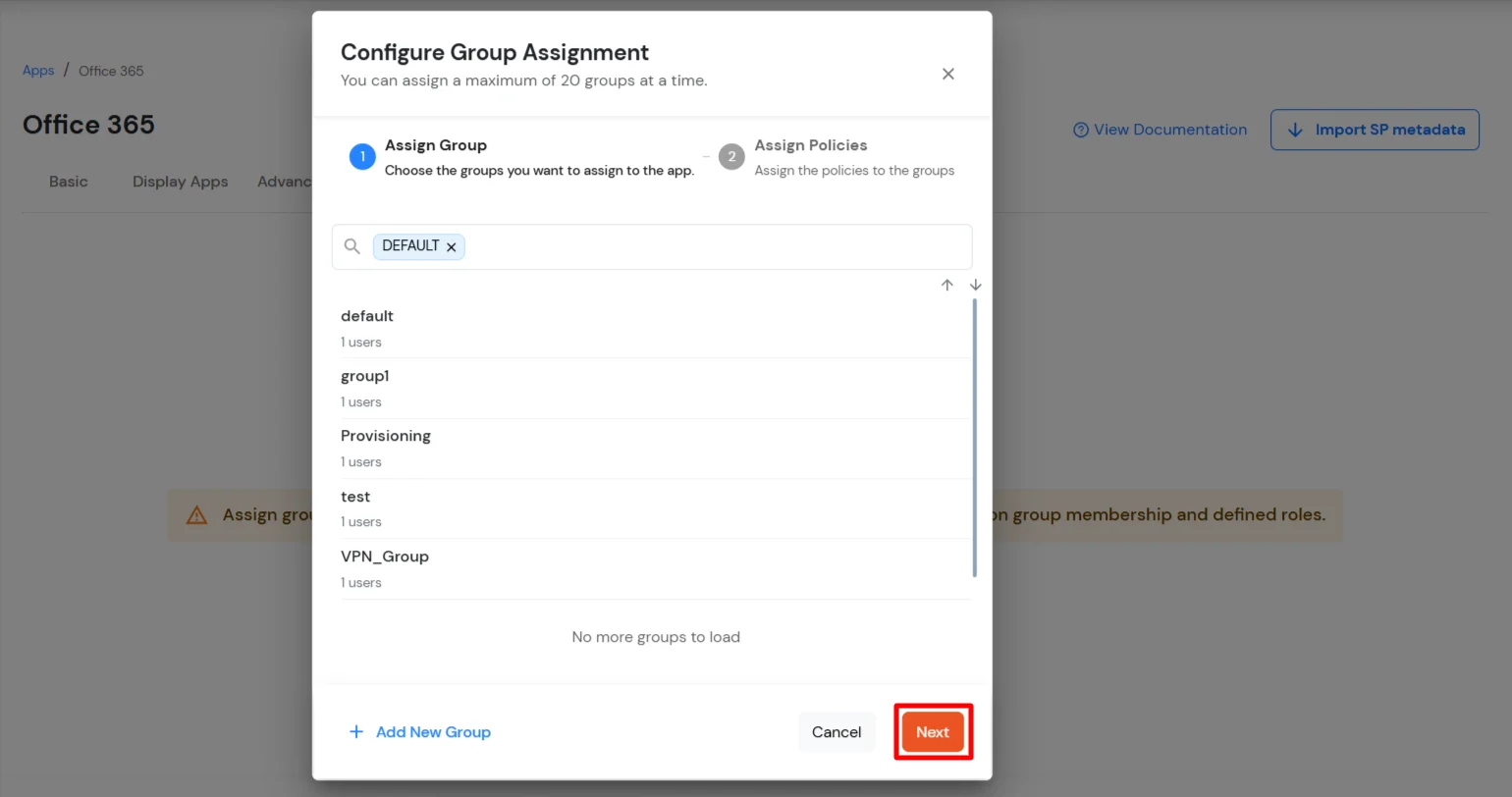
  • Click the Assign Group button. In the Configure Group Assignment dialog box, select DEFAULT as the group.
  • Office 365 Single Sign-On (sso) Click Assign Group

    Office 365 Single Sign-On (sso) Select Default as group

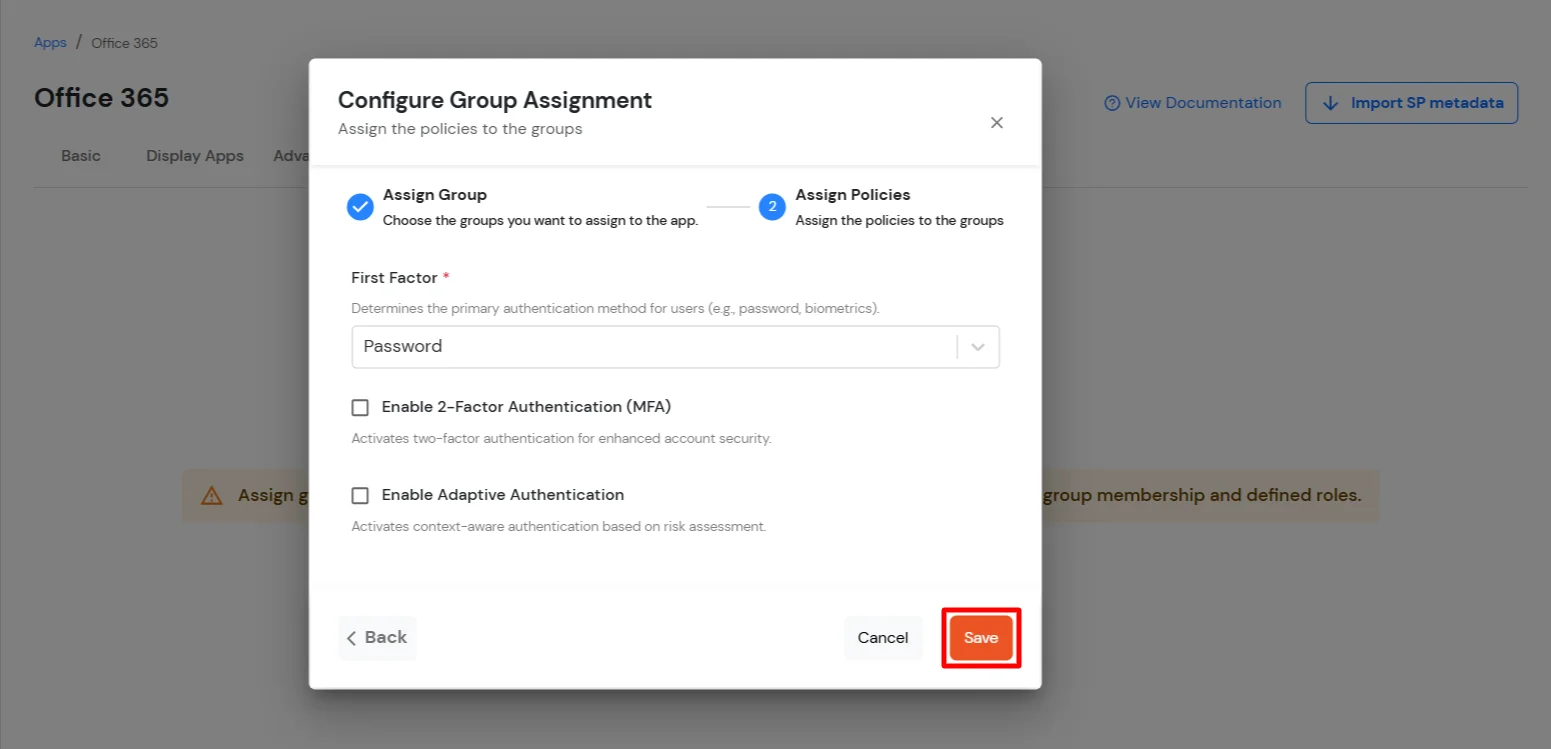
  • Click Next to go to the Assign Policies section. Select First Factor as Password.
  • You can enable 2FA for login or allow users to log in with a standard username and password.
  • Office 365 Single Sign-On (sso) Assign the Policise

  • Click Save.
  • Once done, policies will be created for all the selected groups.

2. Configure Microsoft Graph Services

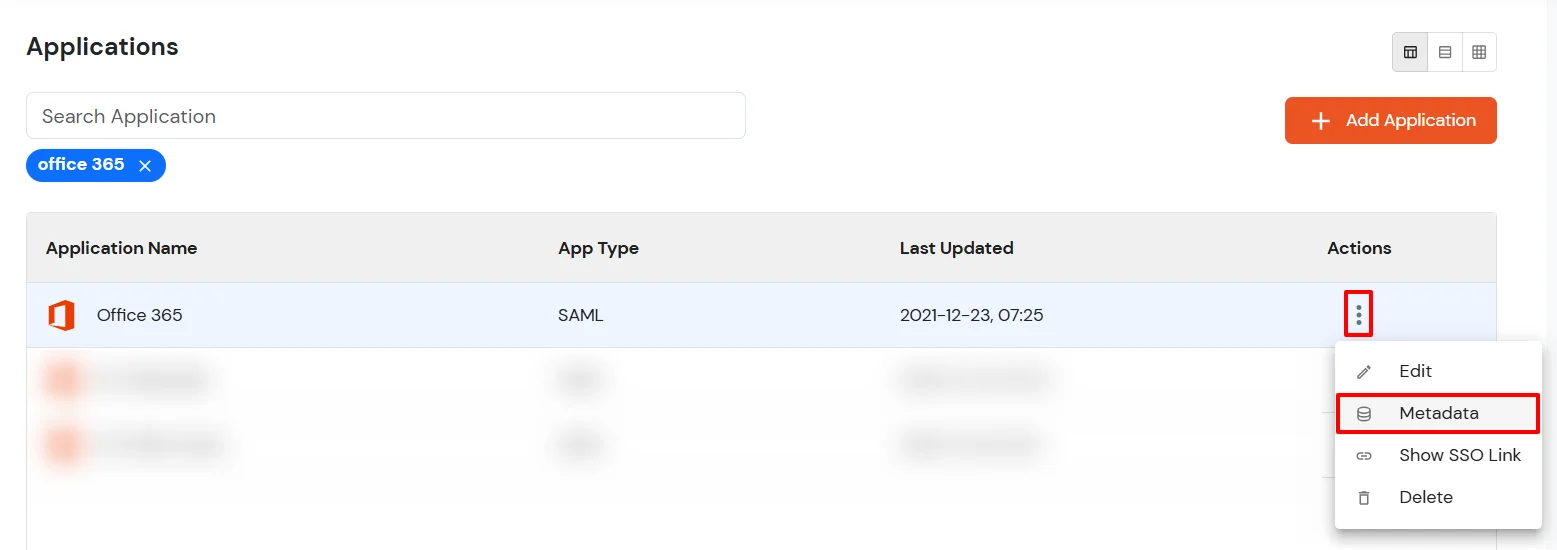
  • Now, go to the Metadata tab.
  • Click on the Download Federate Domain Script button under "External source as IdP".
  • SharePoint Single Sign-On (SSO) Go to Metadata

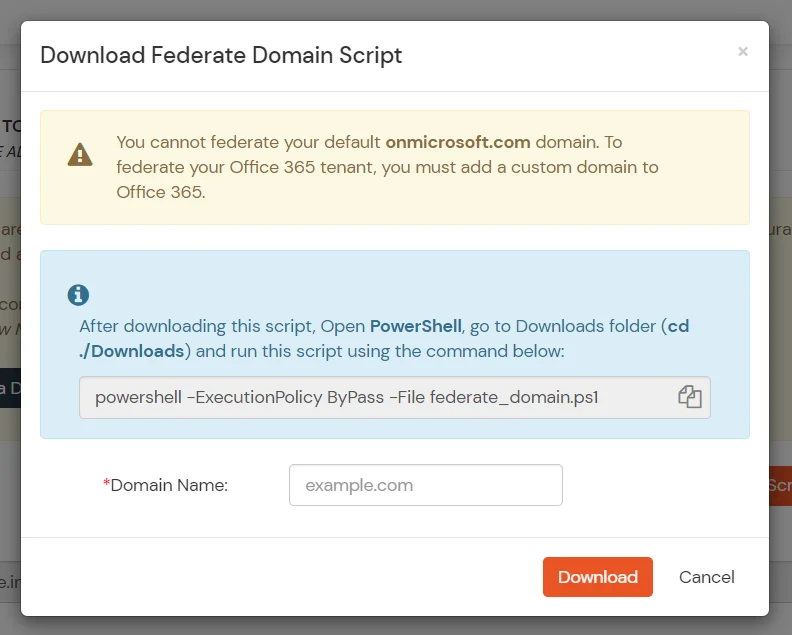
  • Enter the Domain Name that you want to federate and click on Download.
    Note: You cannot federate your default "onmicrosoft.com" domain. To federate your SharePoint tenant, you must add a custom domain to SharePoint.
  • SharePoint Single Sign-On (SSO) Download Federate Domain Script

  • After downloading the script, Open PowerShell run the federate_domain script using:
    cd ./Downloads powershell -ExecutionPolicy ByPass -File federate_domain.ps1
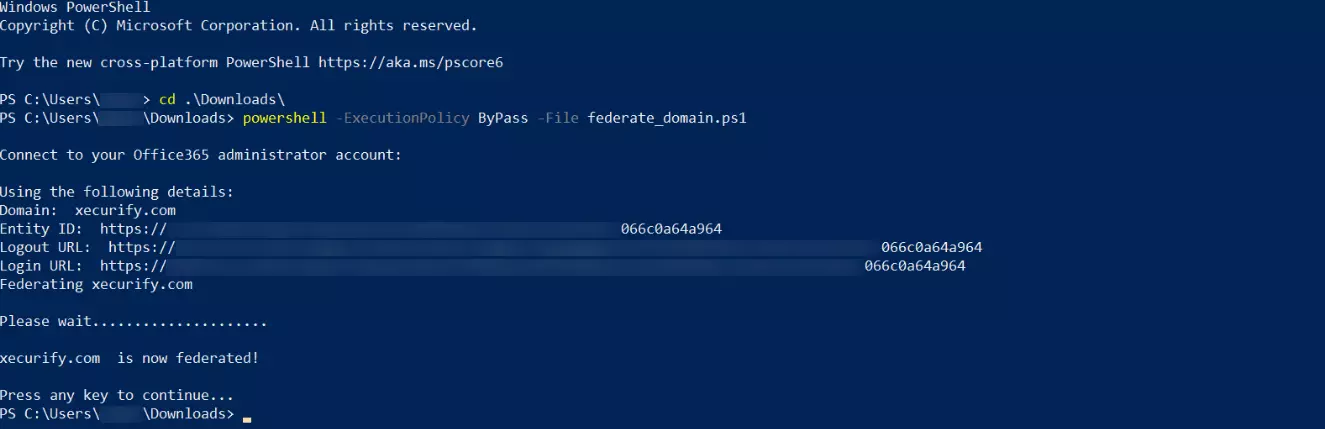
  • SharePoint Single Sign-On (SSO) Run Federate Domain Script

  • Your domain is now federated. Use the commands below to check your federation settings:
    Get-MgDomain -DomainId "<domain>" | Select-Object Id, AuthenticationType

  • SharePoint Single Sign-On (SSO) Verify Federated Domain

3. Now sign in to your Office 365 - SharePoint account with miniOrange IdP by either of the two steps:

    1. Using SP initiated login :-

    1. Go to Office 365 - SharePoint Login and click on sign-in
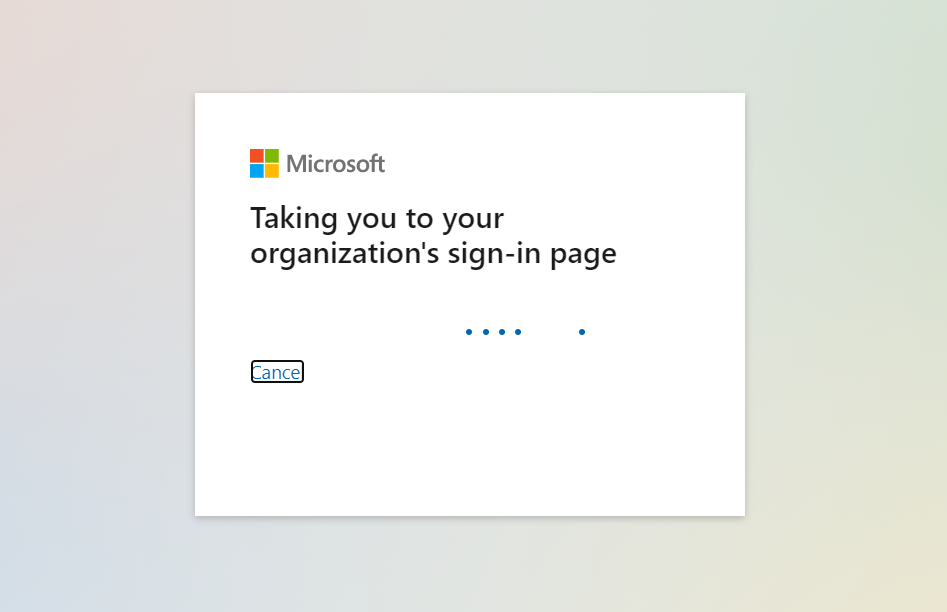
    2. You will be redirected to Microsoft Graph portal. Here you have to enter the UPN of the user.(It should contain the domain that is federated with miniOrange)
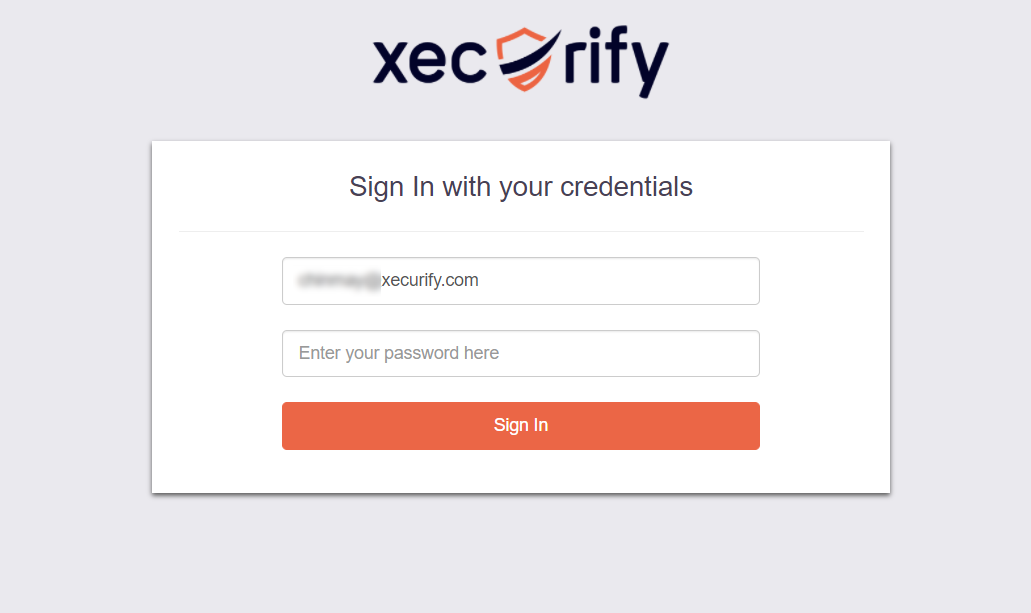
    3. Now you will be redirected to miniOrange IdP Sign On Page.

    4. Enter Microsoft UPN for Single Sign-on SSO integration with Office 365

    5. Enter your login credential and click on Login. You will be automatically logged in to your Office 365 account.
    6. Entering Office 365 Credentials you have successfully loginto Office 365 using Single Sign-On SSO integration

    2. Using IdP initiated login :-

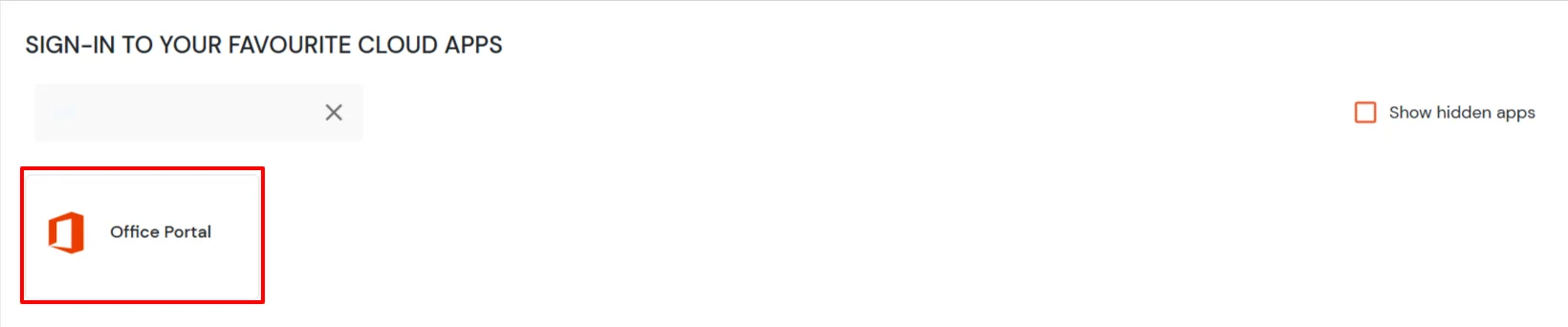
    1. Login to your miniOrange Self Service Console as an End User and click on the Office 365 icon on your Dashboard.
    2. Once you click on Office 365 you don't need to enter credentials again you will be redirected to Office 365 account.
    3. Select office365 to Single Sign-On (sso) to Office 365

Troubleshooting

How can I trace and export the SAML tracer logs?

  • Install SAML Tracer on your preferred browser:

    For Firefox: Add SAML tracer Add-On from the Firefox marketplace.

    For Chrome / Edge or Chromium-based browsers: Install the SAML tracer extension from Chrome Webstore.
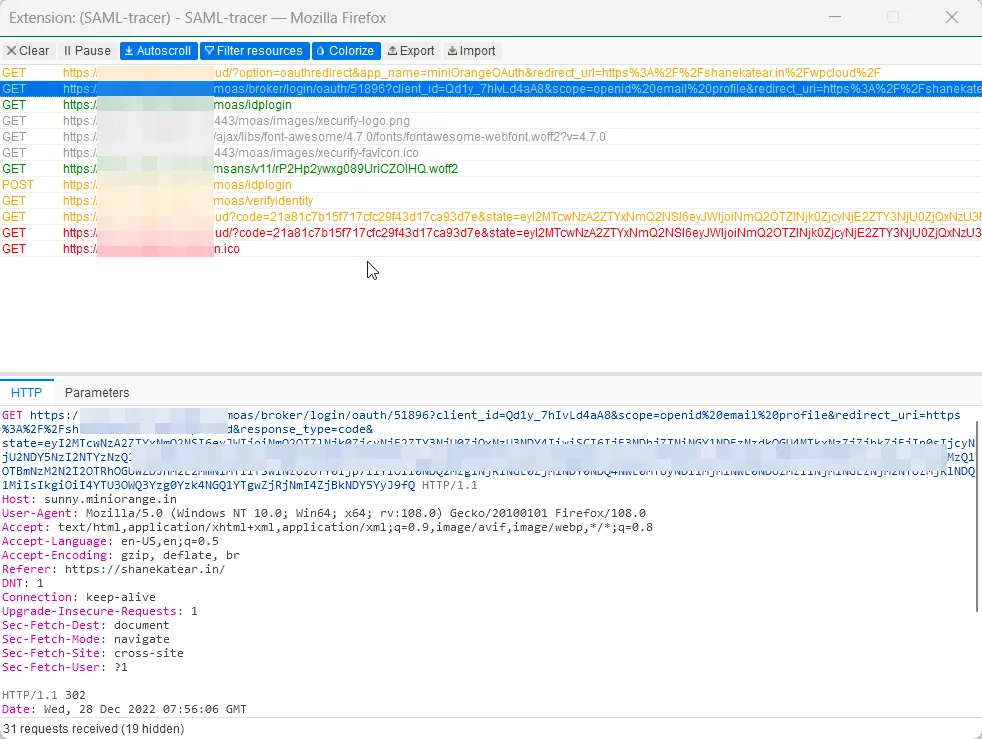
  • Steps to Capture logs:
    • Make sure the SAML Tracer window is opened before you start the SSO flow. (You can open it by clicking the SAML Tracer icon in your extensions list in the browser toolbar.)
    • Run the SSO flow to reproduce the issue. You will see SAML Tracer getting populated with all the URLs.
    • Hit Pause on SAML Tracer, once the issue is reproduced to avoid extra logs.
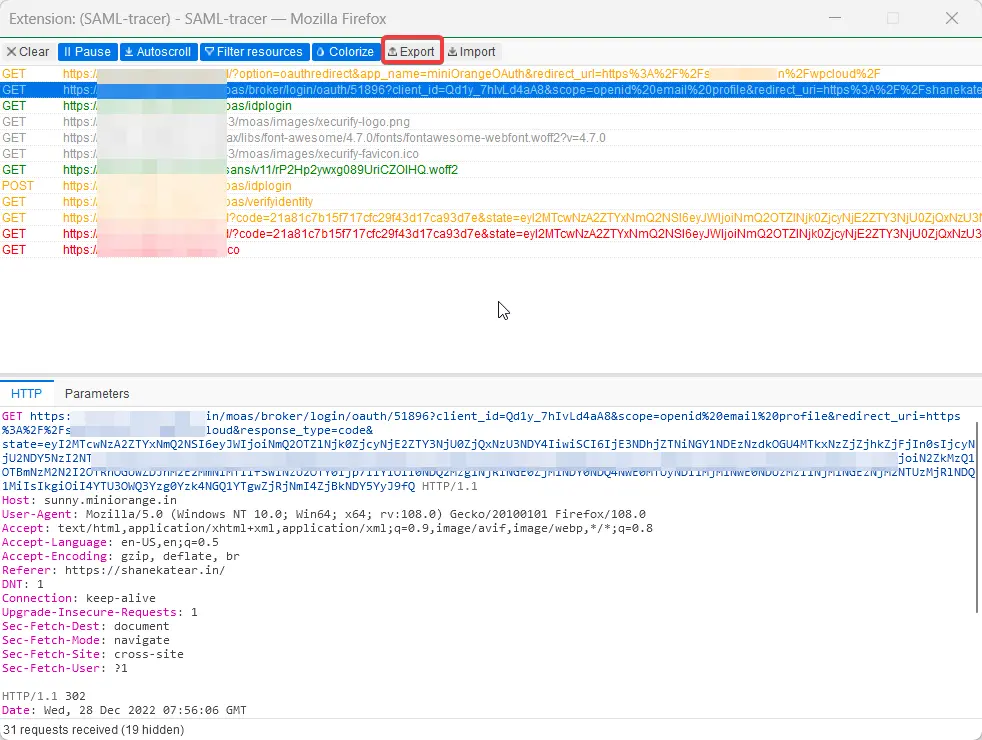
    • You will have something similar to the below pic in the SAML tracer.
    • SharePoint SSO reproduced issue

  • Steps to export logs:
    • To export logs, click the export option on the top of the SAML Tracer. (Refer to screenshot below).
    • SharePoint SSO tracer export option

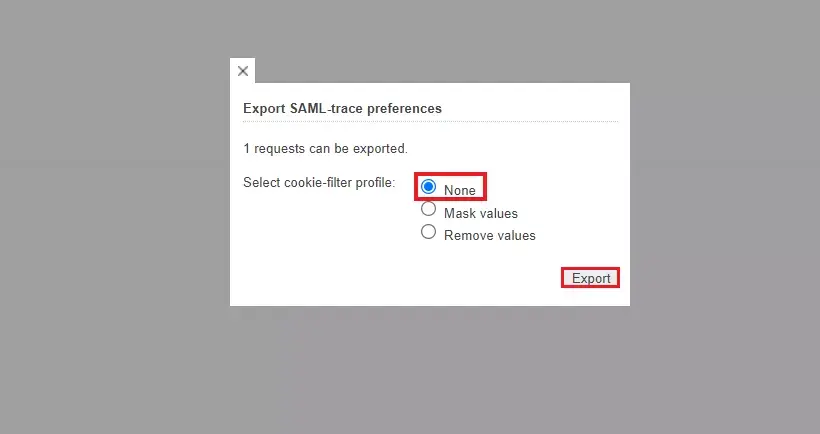
    • You will be prompted with the Export SAML trace preferences window, select the None field, and then click on the Export option. (This option will allow keeping values in the original state which is required to further investigate the issue.)
    • SharePoint SSO preference window

    • Click Export. This will download a JSON file on your system.
    • Send the log file to the developer you are in touch with or at idpsupport@xecurify.com. Also, please attach an error screenshot. This would help us debug the issue.
    • If you are still not able to get the logs, feel free to let us know.


External References

Want To Schedule A Demo?

Request a Demo


Our Other Identity & Access Management Products