Manage Users
In the Manage Users section, you can handle the entire user onboarding process. This section allows you to perform all user-related activities, including creating users, bulk user uploads, setting user device limits, managing user MFA, resetting passwords, and other related tasks. You can also enable or disable users and manage their login access.
How to create a new User:
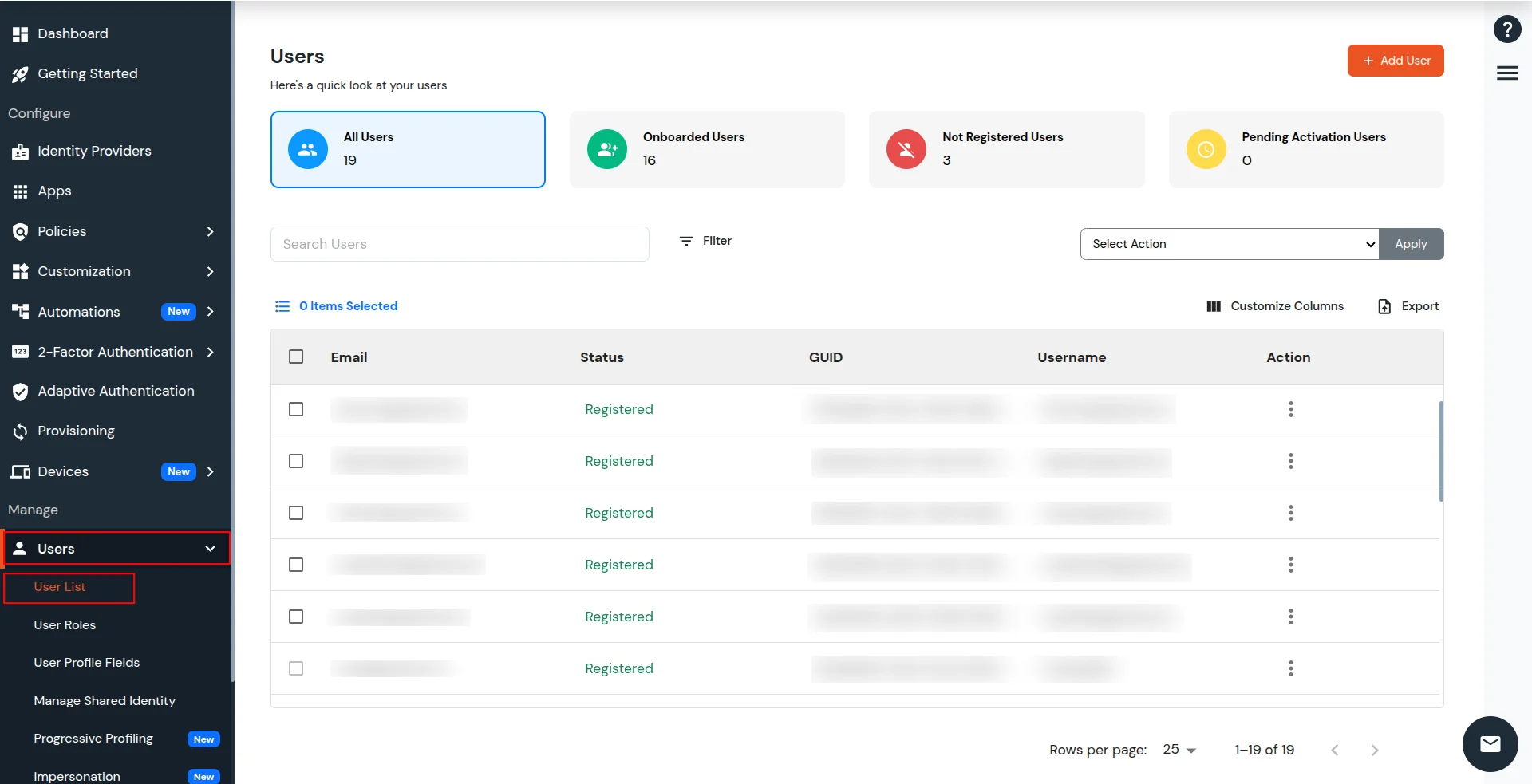
- Go to Users >> User List from the left menu and click on Add User button on the top right corner of the page.
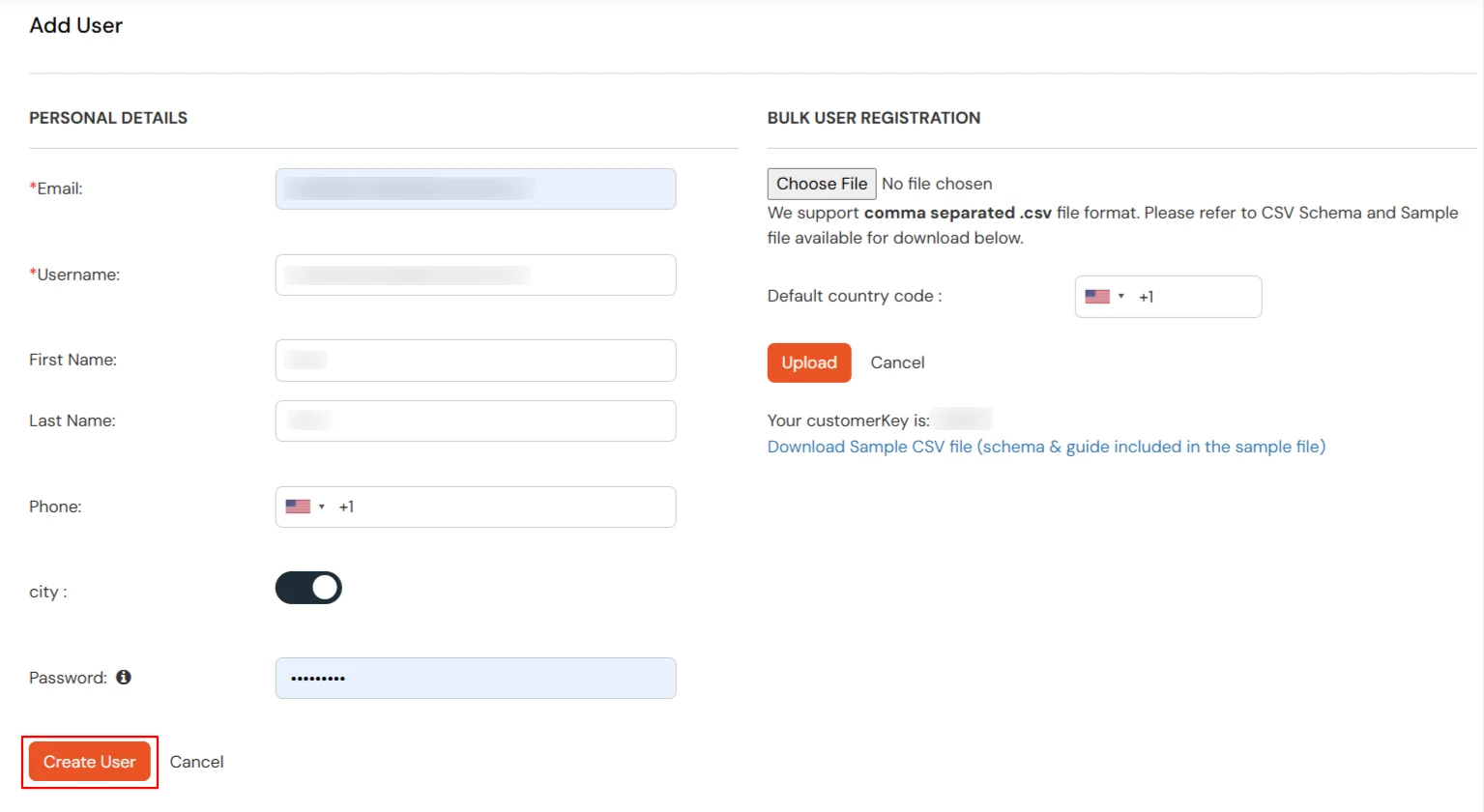
- Update the required user information, such as: Email, Username, First Name, Last Name, Phone Number and Password for that user.
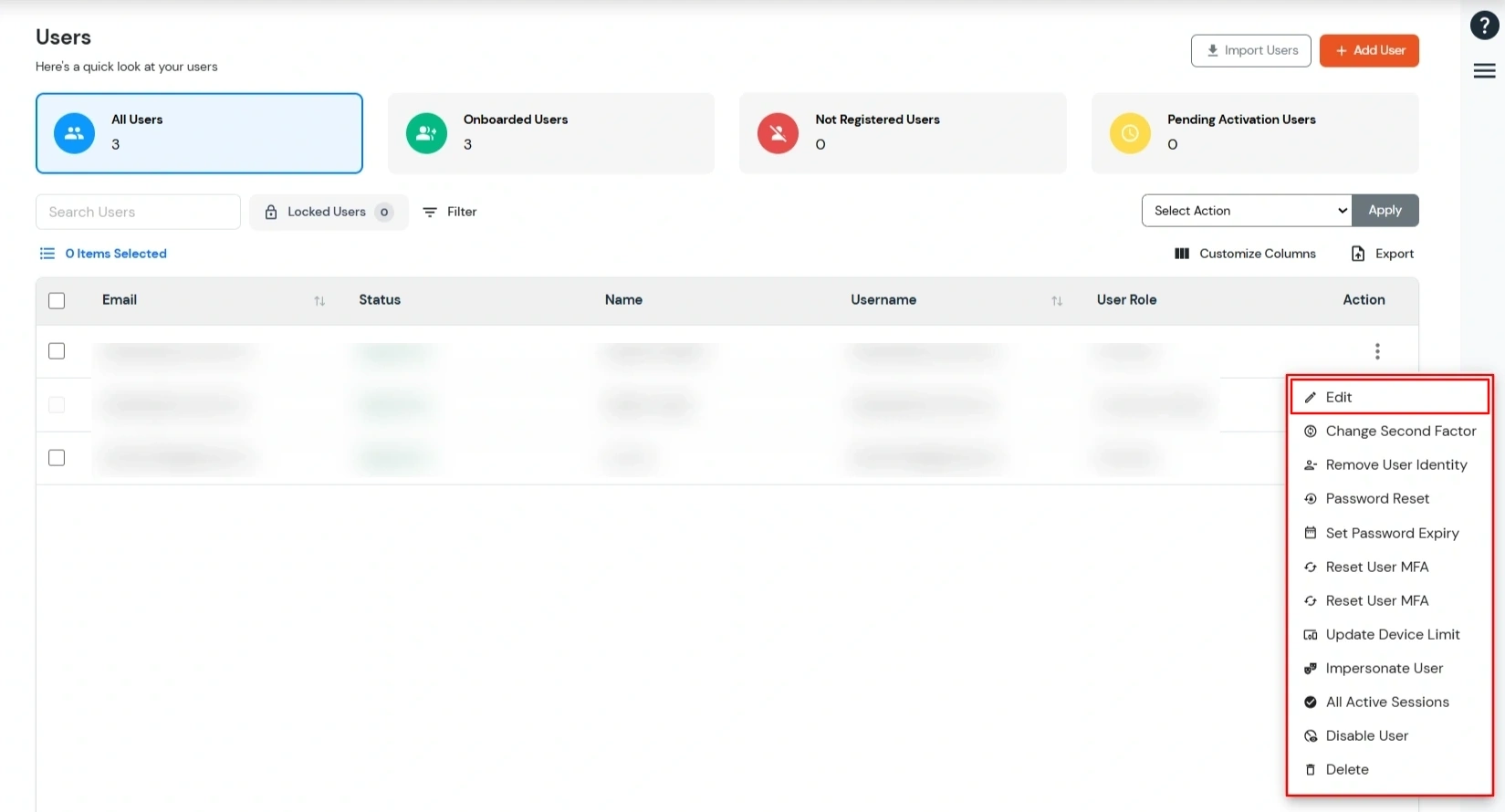
- Users >> User List from the side menu and click on the Three dots under actions columns against a user from the list, you will see options as shown below. The functionality of each of them is explained below in detail.
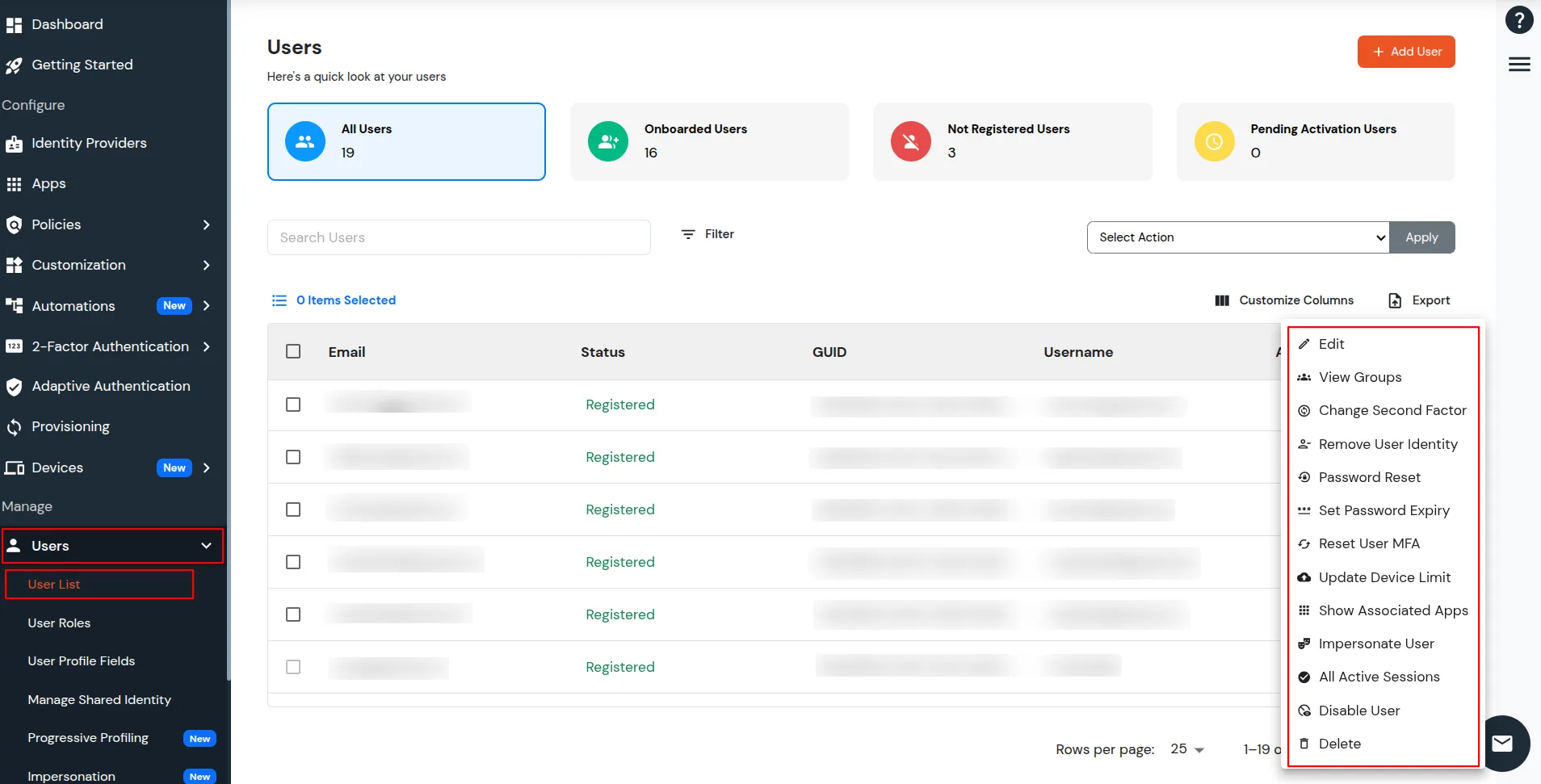
| Edit |
Opens the User Edit window where you can update User profile details such as Email, Name, and Phone No. And if you have configured any custom User attributes, then those can also be updated from the edit page. |
| View Groups |
This option opens the User Group Details screen where you can view all the groups the current user is part of. Additionally, you can perform the following operations from this Screen:
- Remove user from a Group/Groups
- Select the radio button against the group/groups from which you want to remove the user.
- Click on the Select Action dropdown and select the remove option.
- Click on apply to update user group membership details.
- Add User to a Group.
- Click on the Assign Groups button to go to the required screen.
- On the loaded page you will be able to see list of groups the user is not part of.
- Select the radio button against the group/groups you want to add the user to.
- Click on the Select Action dropdown and click on assign to the user.
- Click on apply to update user group membership details.
|
| Change Second Factor |
This option opens a Modal from which you can select the 2FA method that you want to set as default for the User. If MFA is enabled for any application, then the user will be prompted for MFA with the 2FA method set as default for the user. Note : For Few of the 2FA methods, prior configuration from user dashboard is required. |
| Set Password Expiry |
IF you set this, the current user password will expire on the provided date and will not work after that. They will receive an email with steps to set the new Password. |
| Remove User identity |
This option is used to remove the 2FA configuration as well as the Password for user. This is useful when you want the user to reset his password and 2FA methods similar to newly created user. |
| Password Reset |
This option is used to send a Password Reset email to the user using which they can set a new password for their account. |
| Reset User MFA |
This will reset the user MFA method if MFA is enforced for the end users at the time of first login. |
| Update Device limit |
This option opens a popup using which you can set/reset the Device registration Limit for the user. Based on the value set here, the user is allowed to register unique devices. You can also reset the device registration limit to the default value by clicking on the Reset to Default button. |
| Show Associated Apps |
This option opens a view where you can see the applications linked to the user, such as apps the user is assigned to or has accessed, so you can review their application footprint from one place. |
| Impersonate User |
This option lets an administrator open the selected user’s end-user dashboard and applications as that user would see them, for support and troubleshooting. Impersonation is logged for auditing. |
| Generate Backup Code |
This option creates a backup authentication code for the user so they can complete 2FA when their usual second factor is not available. For detailed steps, see Generate backup code. |
| All Active Sessions |
All active sessions of the selected user's devices are monitored and managed using this option. |
| Disable a User |
This option is used when you want to disable the user logins without deleting user. If a user is disabled, he will not be able to login to any of the applications as well as the end-user dashboard To enable a disabled user, click on the select dropdown against it and select the Enable user option. |
| Delete |
To delete a User and remove all details related to it. |
- To apply the same action to multiple users, select the required users by checking the boxes next to their names.
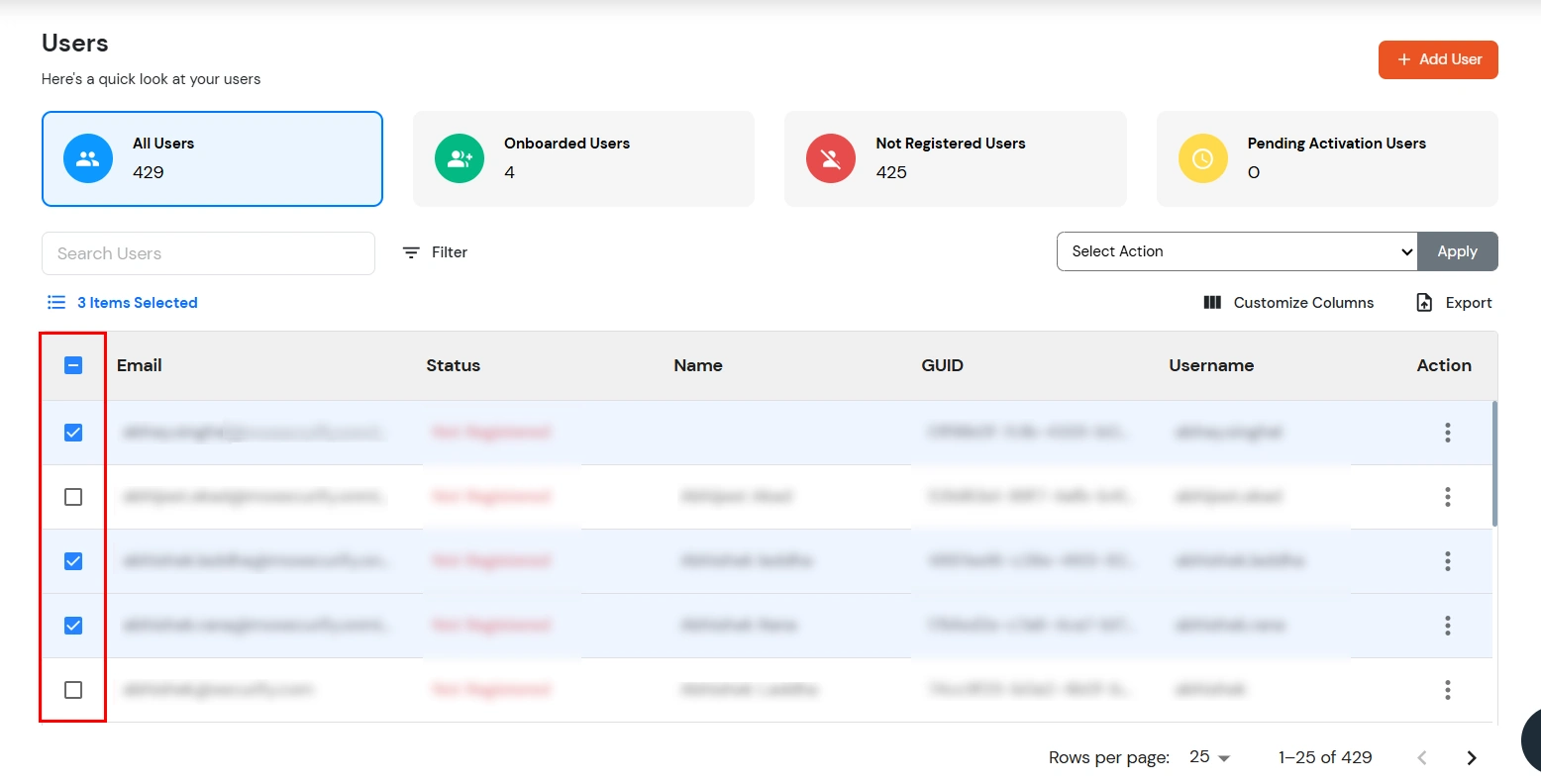
- Click the Select Action dropdown at the top of the user list and choose the required action.
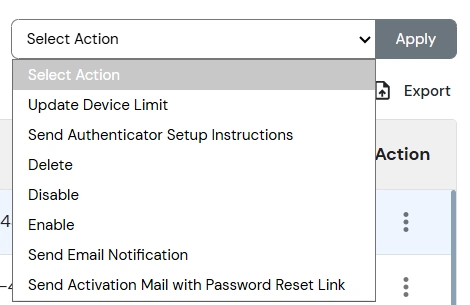
- The functionality of each of them is explained below in detail:
| Update Device Limit |
Modify the maximum number of devices that the selected users are allowed to register for authentication. |
| Send Authenticator Setup Instructions |
Send an email to the selected users with instructions for setting up the configured authenticator. |
| Delete |
Permanently remove the selected users from the system. |
| Disable |
Disable the selected user accounts, preventing them from logging in until they are re-enabled. |
| Enable |
Enable previously disabled user accounts, allowing users to log in again. |
| Reset MFA |
Resets MFA for multiple selected users. |
| Send Email Notification |
Send a notification email to the selected users using the configured email template. |
| Send Activation Mail with Password Reset Link |
Send an activation email containing a password reset link, allowing selected users to activate their accounts and set a new password. |
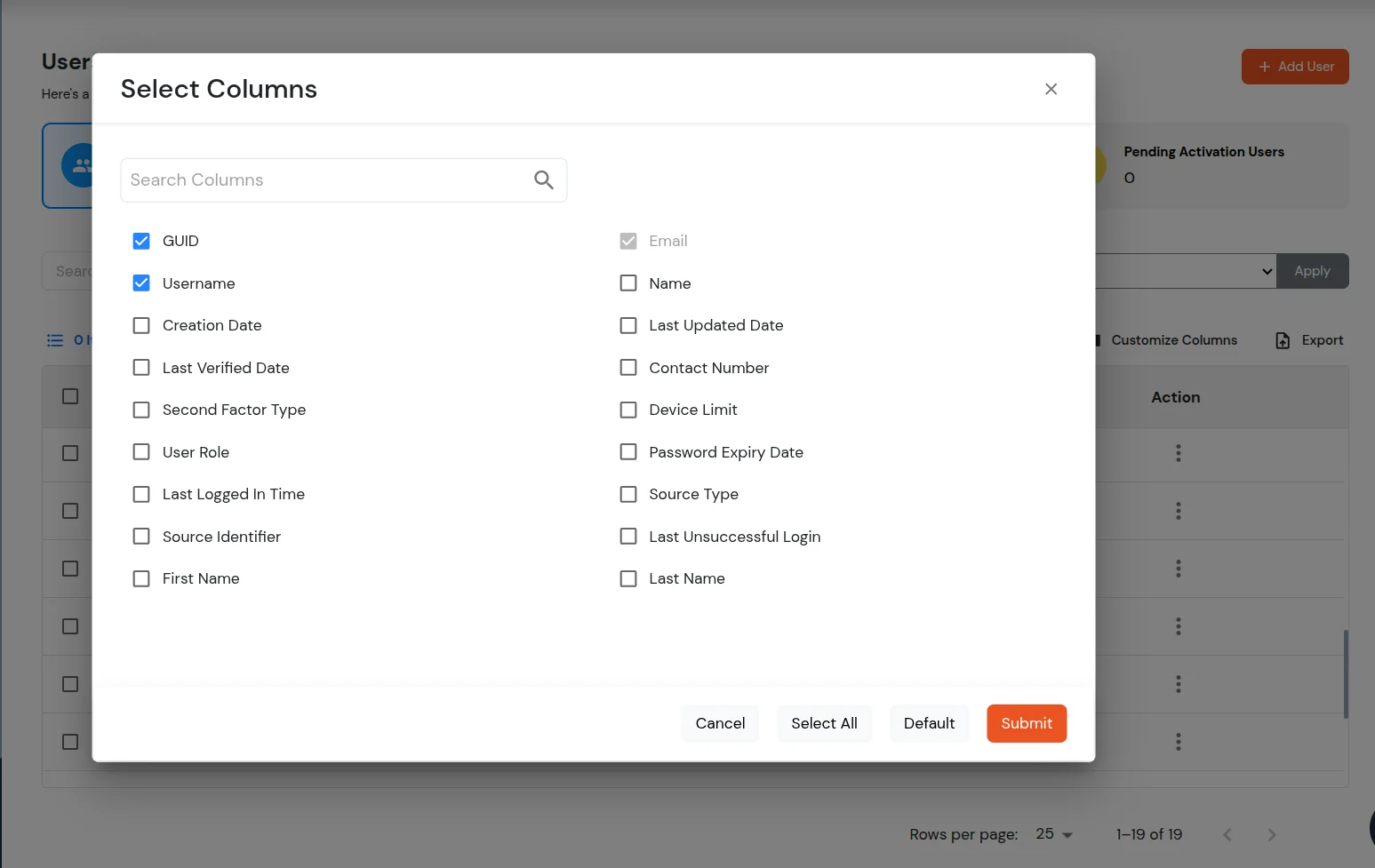
- The user can customize the columns and the view in the table by clicking customize columns modal.
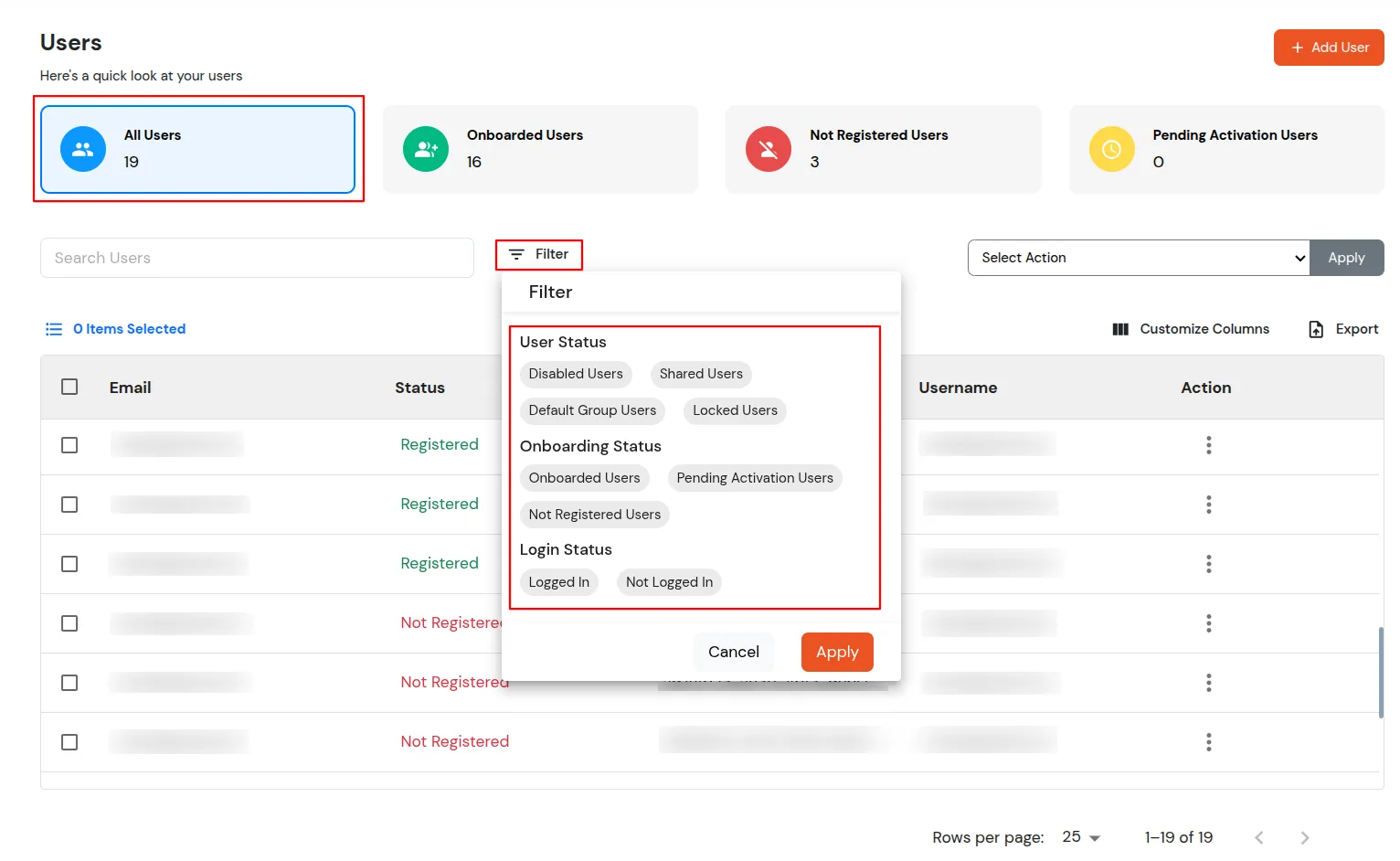
- The user can apply a filter by clicking on the filter button and filter users based on their status.
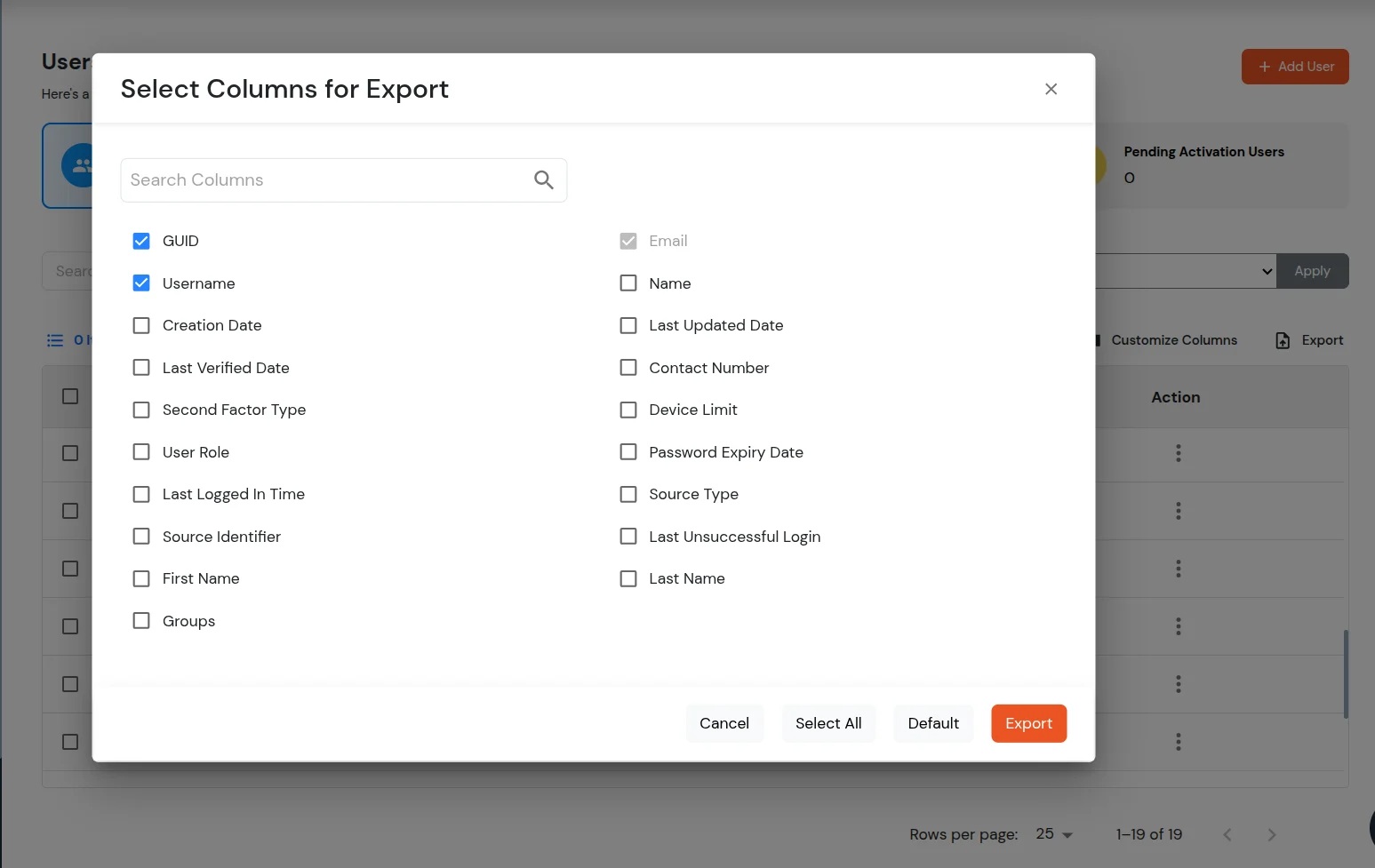
- To download the users list, you have to click on the Export Button in the right corner of the users list table >> A modal will open for column confirmation >> The user can select the columns from the modal that they want to download.
Update User Details
You can update a user's profile information, manage their group memberships, and review the applications assigned to them from a single page.
- Navigate to Users >> User List.
- Click the three-dot (⋮) menu corresponding to the required user and select Edit.
- The User Details tab allows you to view and update the selected user's profile information.
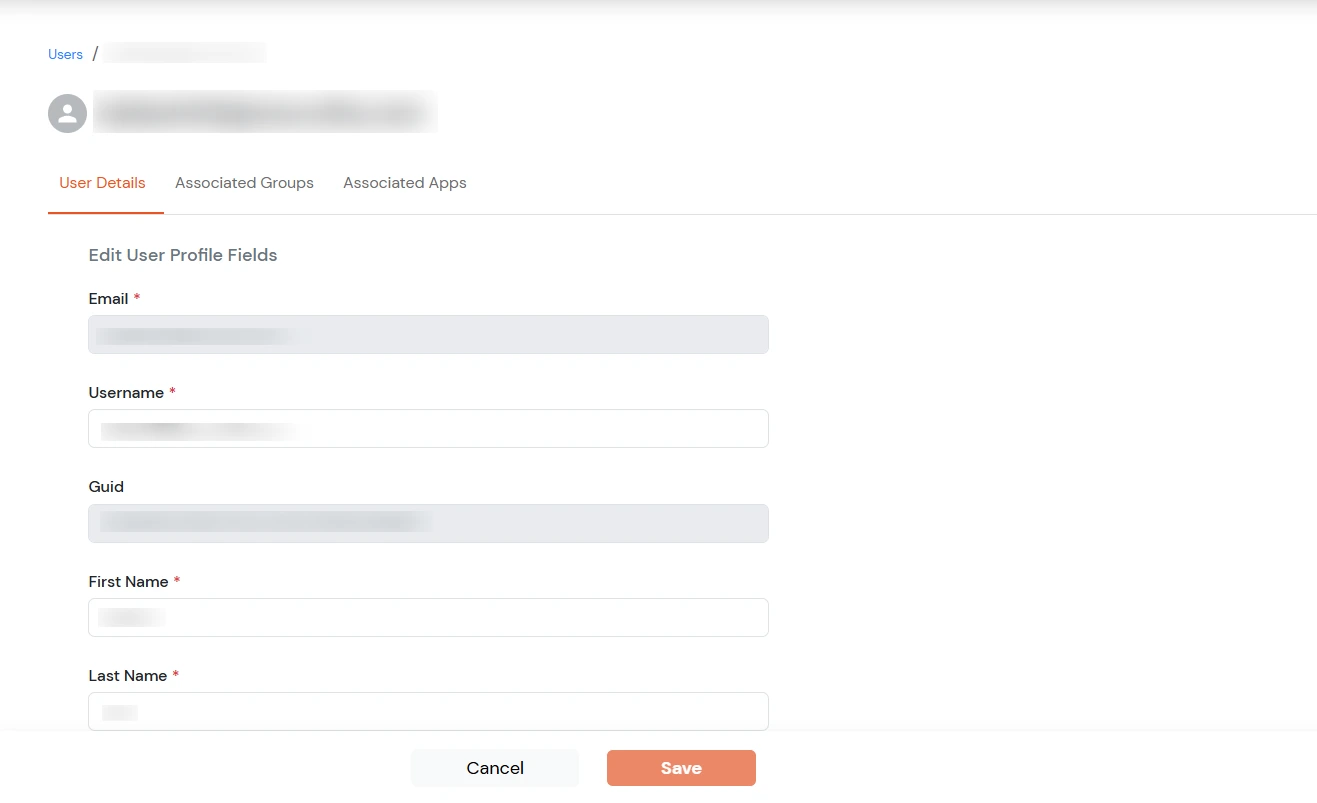
- Update the required user information, such as: Username, First Name, Last Name, Phone Number (optional) and Alternate Email (optional).
- The Email, Username, and GUID fields are displayed for reference and cannot be modified.
- The Associated Groups tab displays all groups currently assigned to the selected user and allows you to manage group memberships.
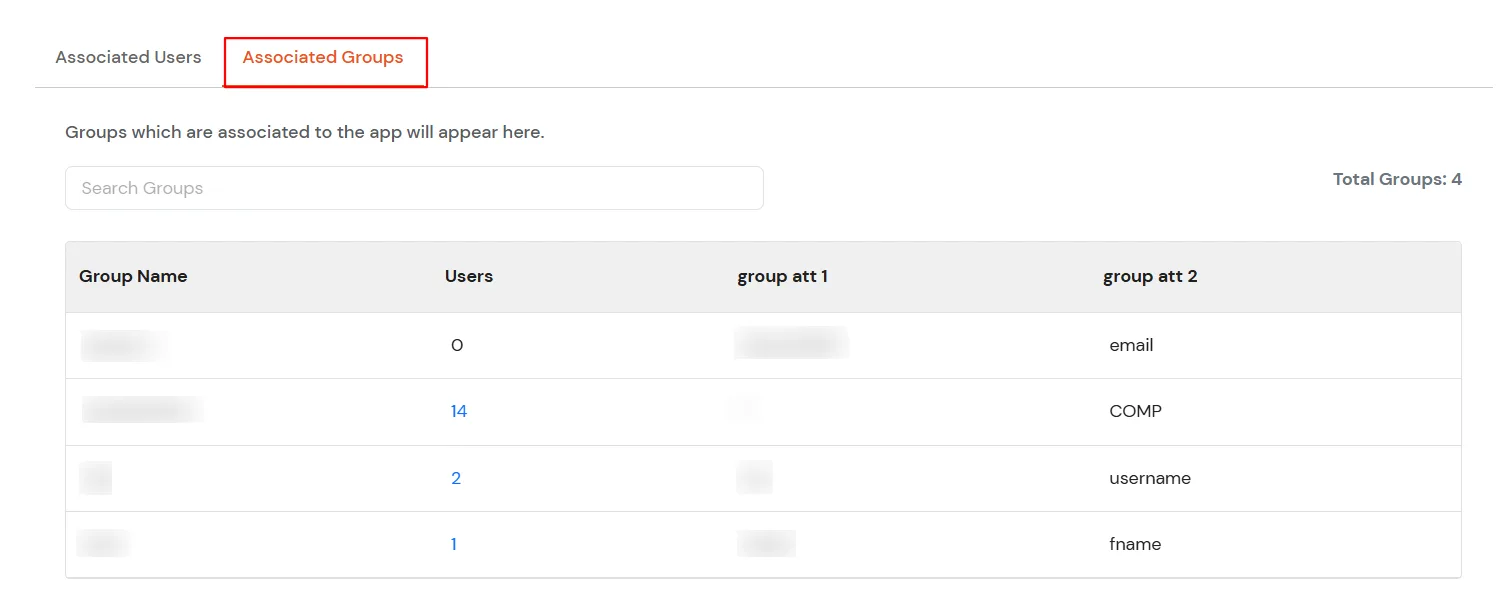
- Click Assign Group to assign a new group to the user.
- Select one or more groups to associate with the user.
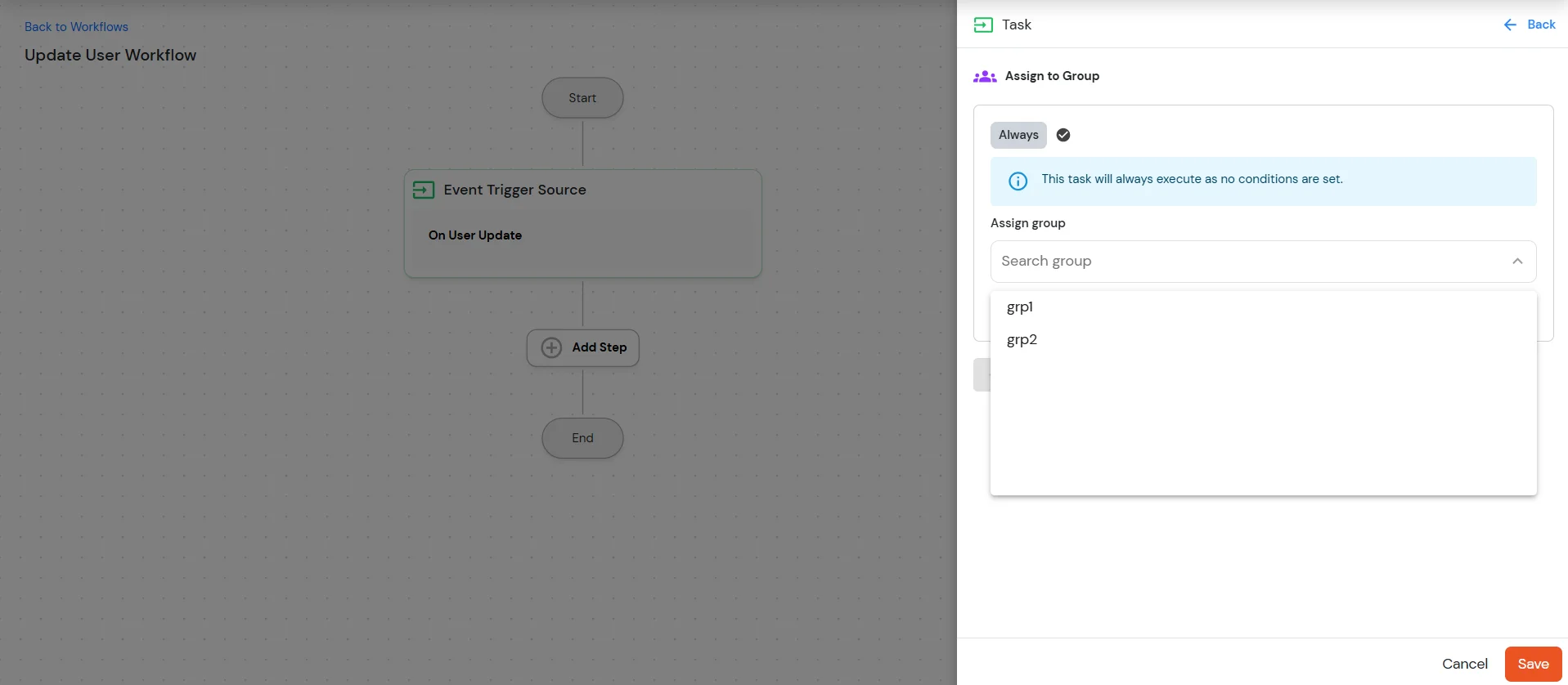
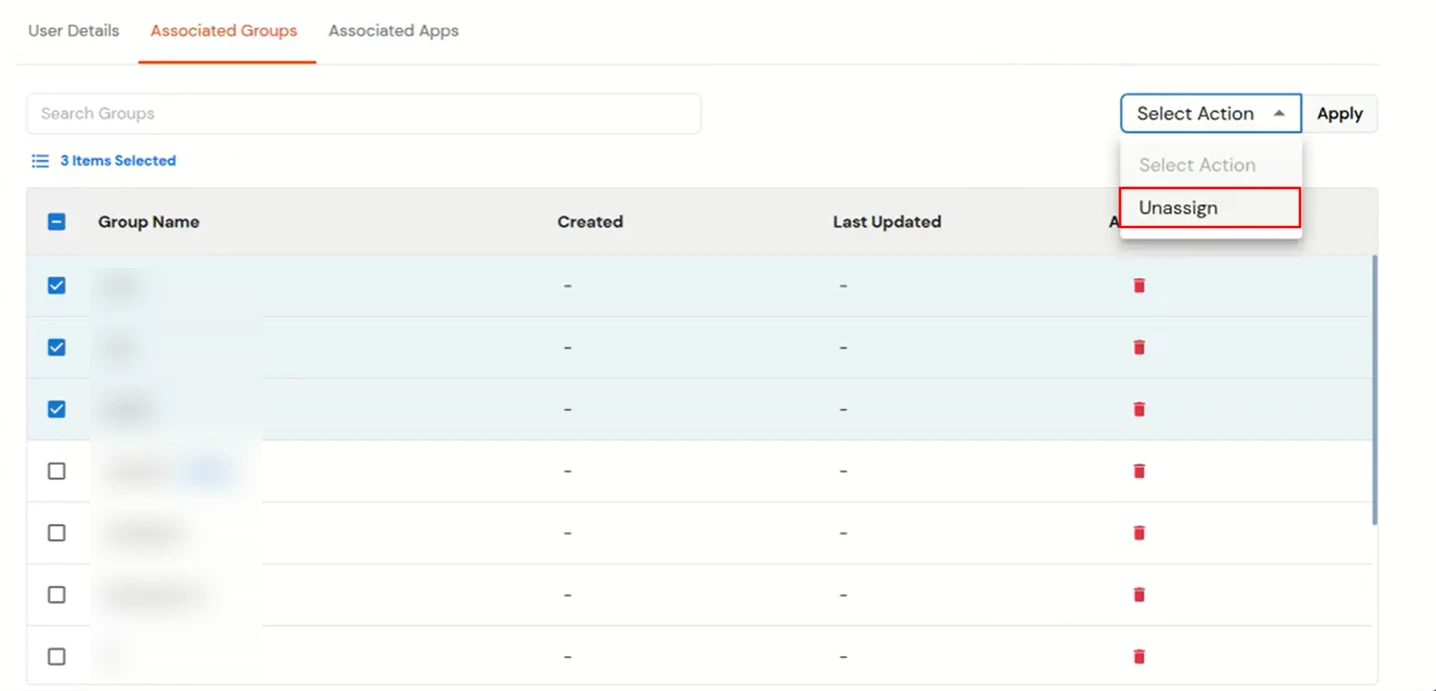
- To remove group assignments, select one or more groups from the list.
- Choose Unassign from the Select Action dropdown.
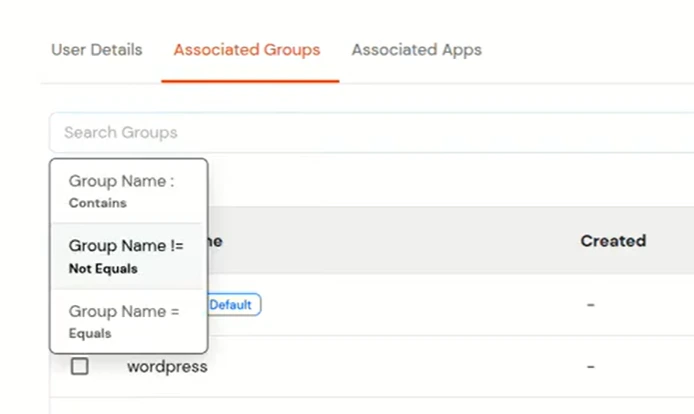
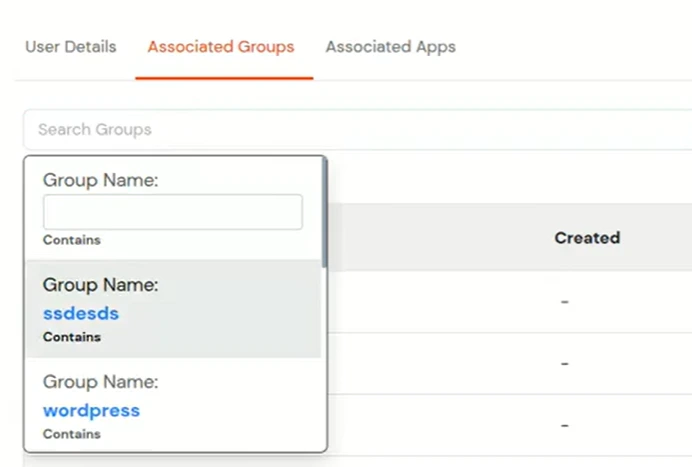
- Use the Search Groups field to quickly locate a group. You can search using the following conditions: Contains, Equals, Not Equals.
- Select the required condition and enter the group name to filter the results.
- The Associated Apps tab displays all applications currently assigned to the selected user.
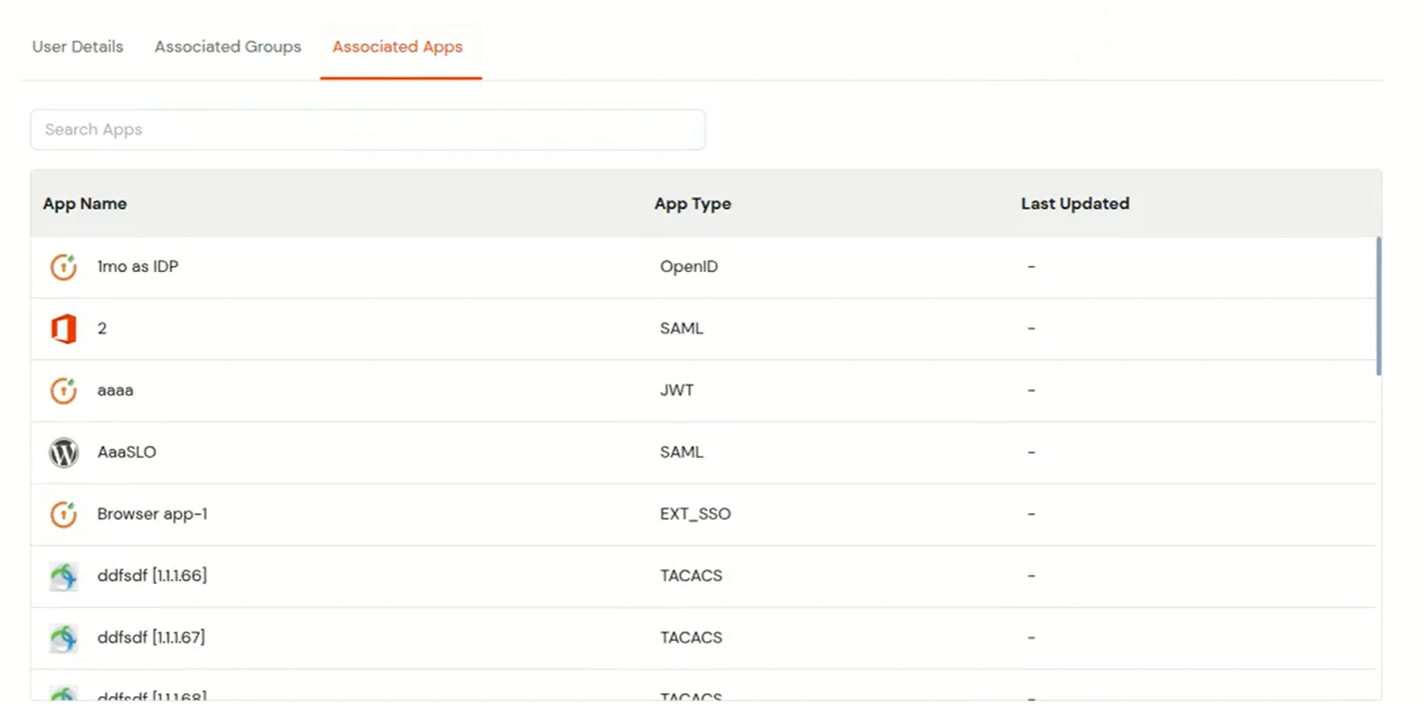
- Review the list of assigned applications, including the Application Name, Application Type, and other available details for the selected user.
User Onboarding:
The User On-boarding section shows details about the users who have not completed their account onboarding process and have not set a password for their account, they will not be able to authenticate.
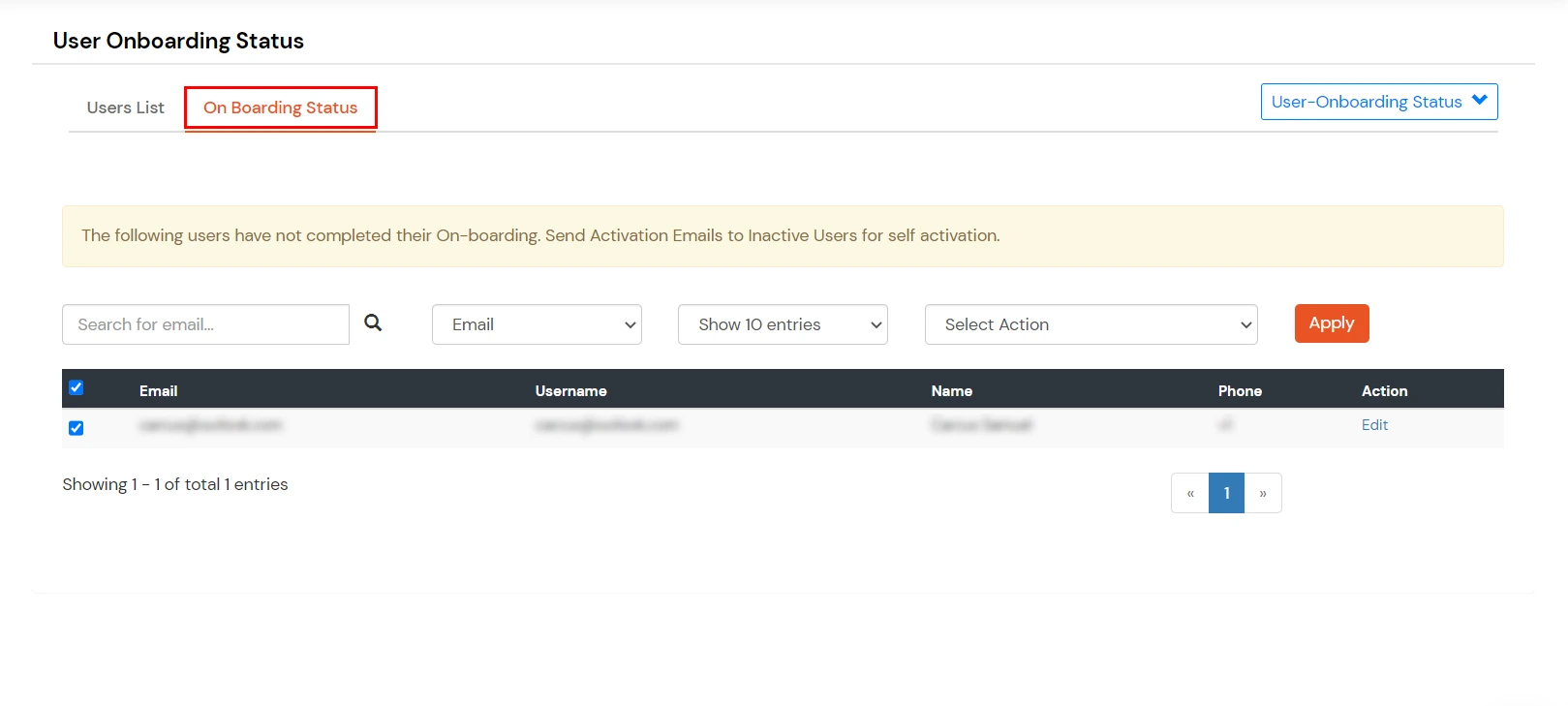
How to View onboarded users:
- Click on the Onboarded Users card at the top of the users list >> you will see the list of onboarded users.
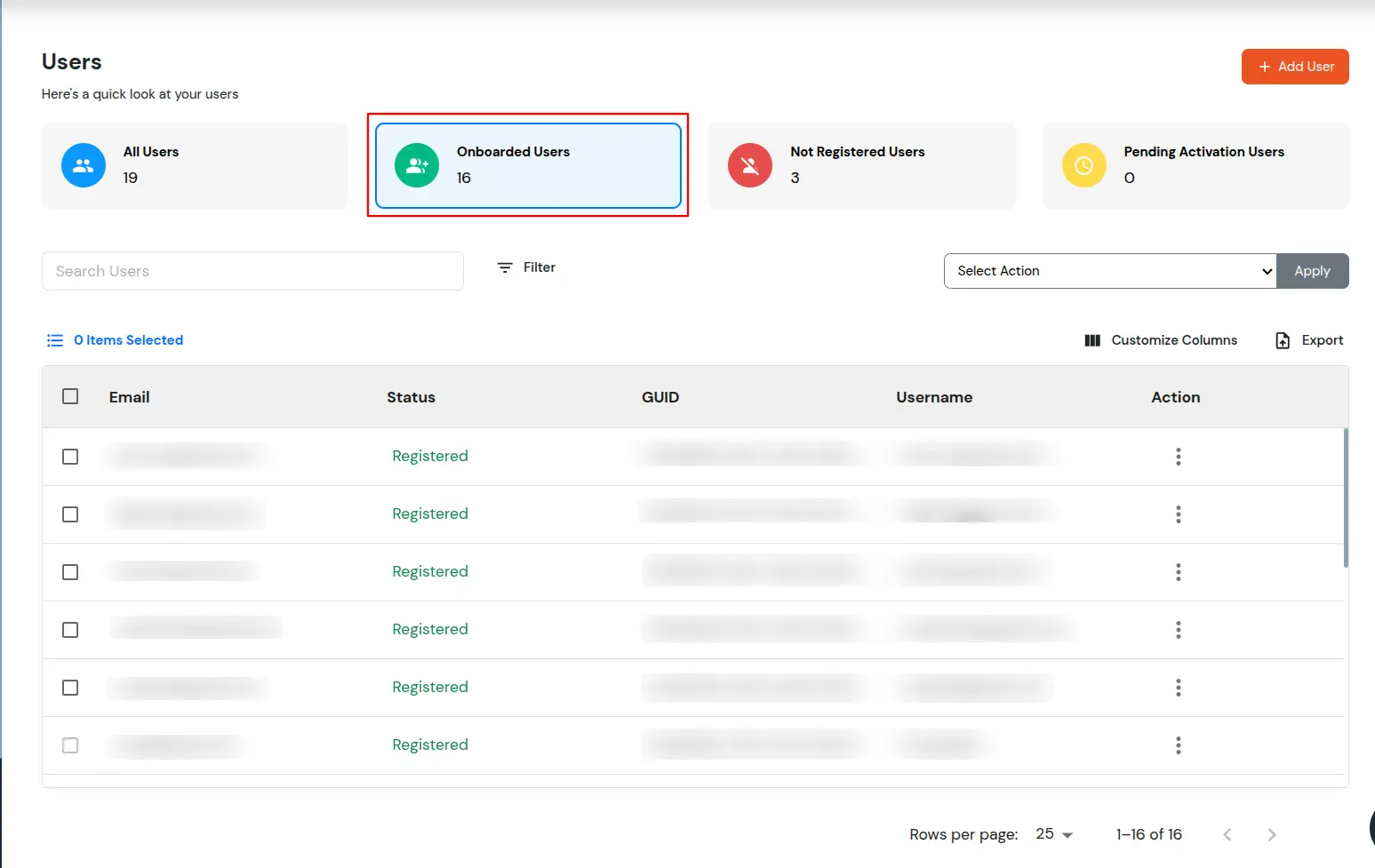
How to View Not Registered users:
- Click on the Not Registered Users card at the top of the users list >> you will see the list of not registered users.
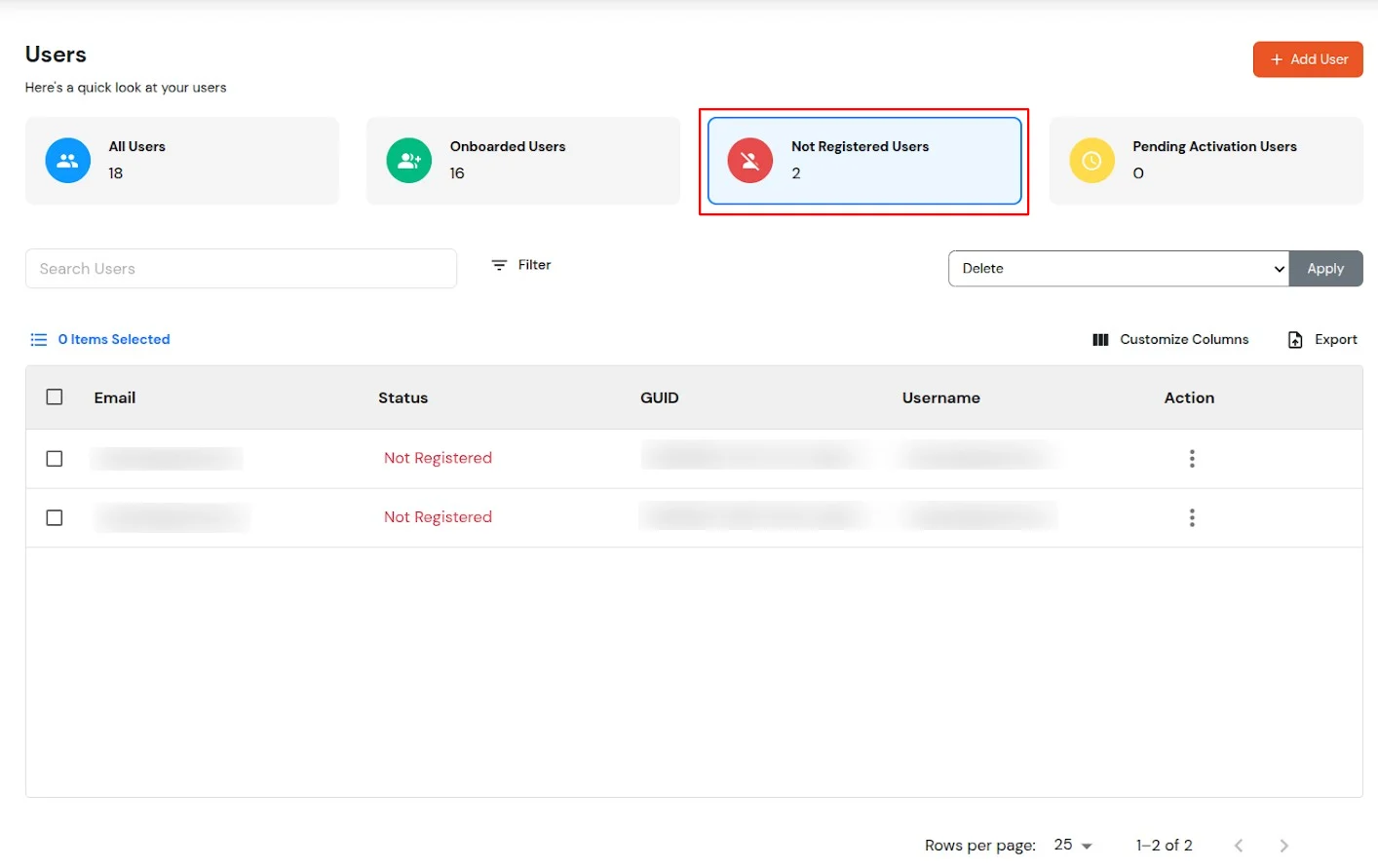
How to Onboard Non-Onboarded Users:
- In the User List, click on the checkbox against the users you want to onboard.
- Once you have selected all the required users, click the Select Action dropdown and choose the Send Activation Mail option.
- Click Apply to send the activation mail to the selected users.
- All selected users from the Not Registered list will receive an email at their registered email address containing a registration link for account activation, which they can use to register for their account. You can also send welcome emails to the users.
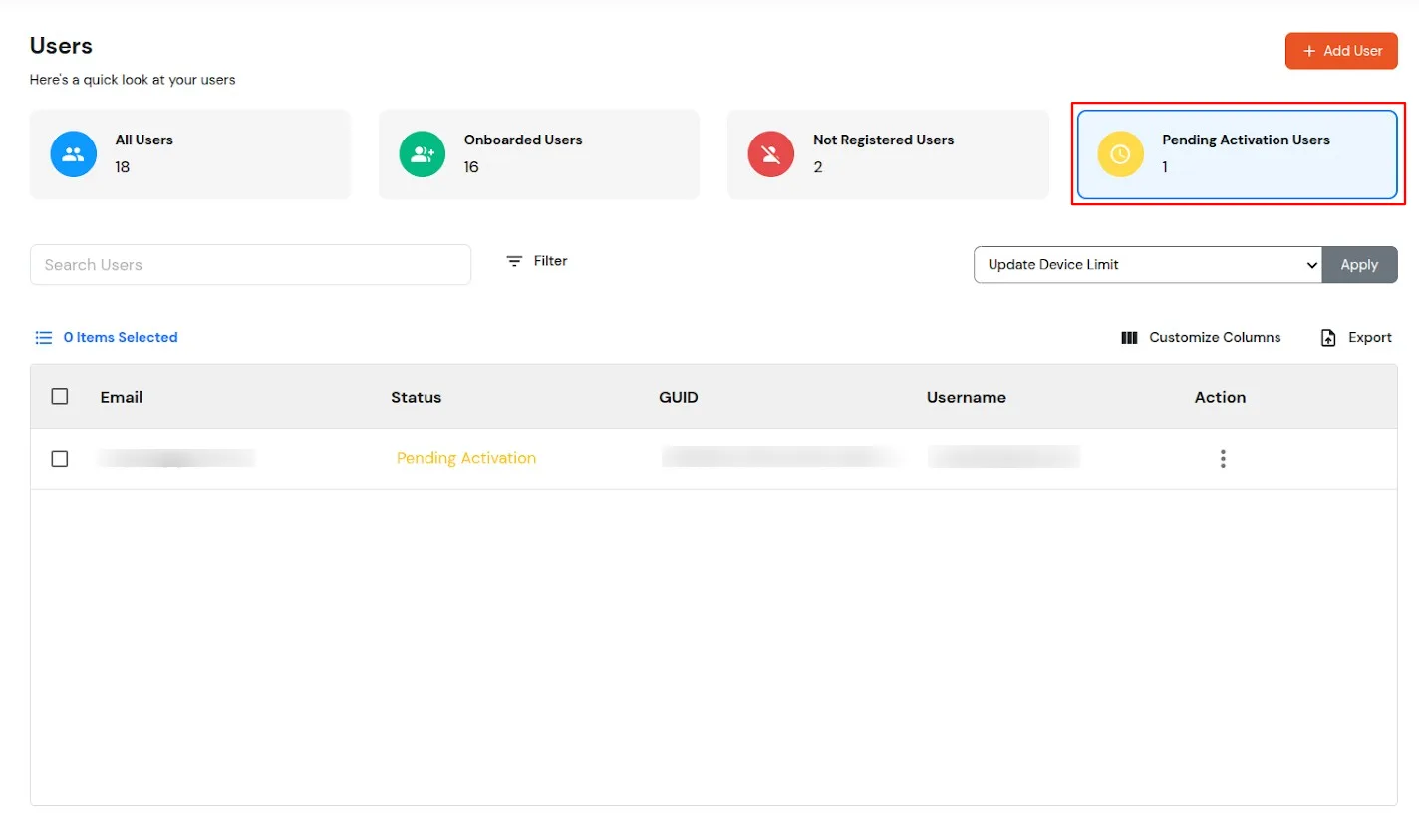
- Click the Pending Activation card to view users who have received an activation email but have not completed onboarding.
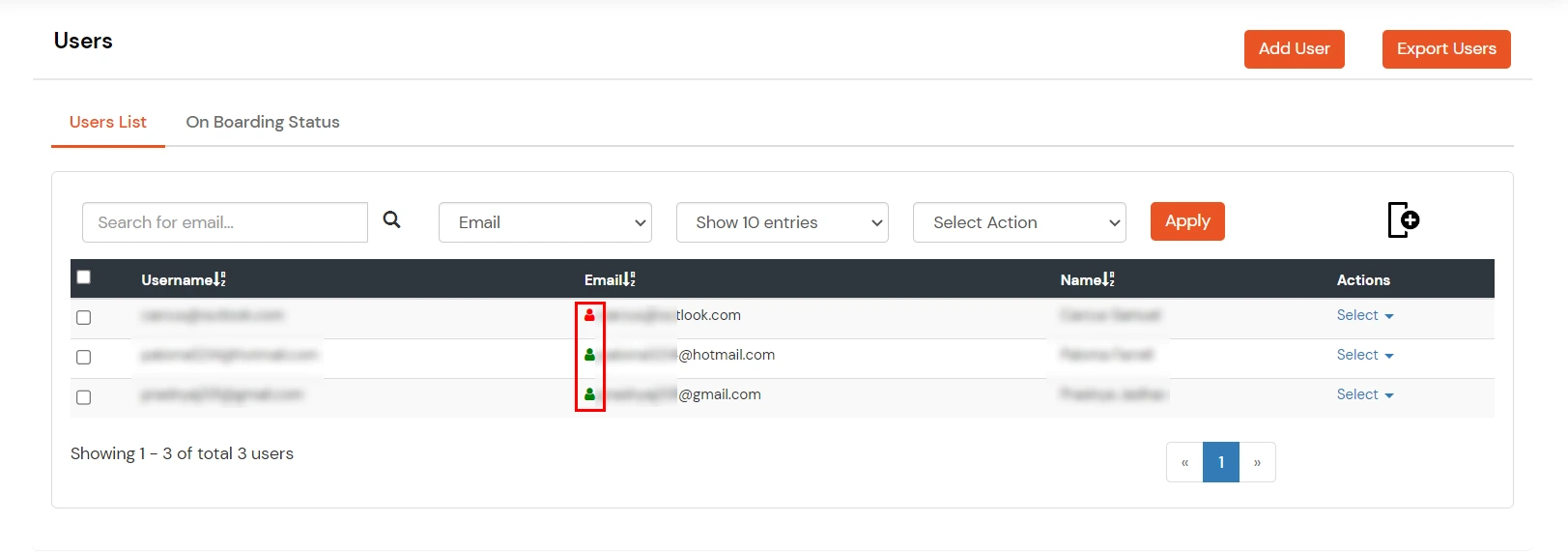
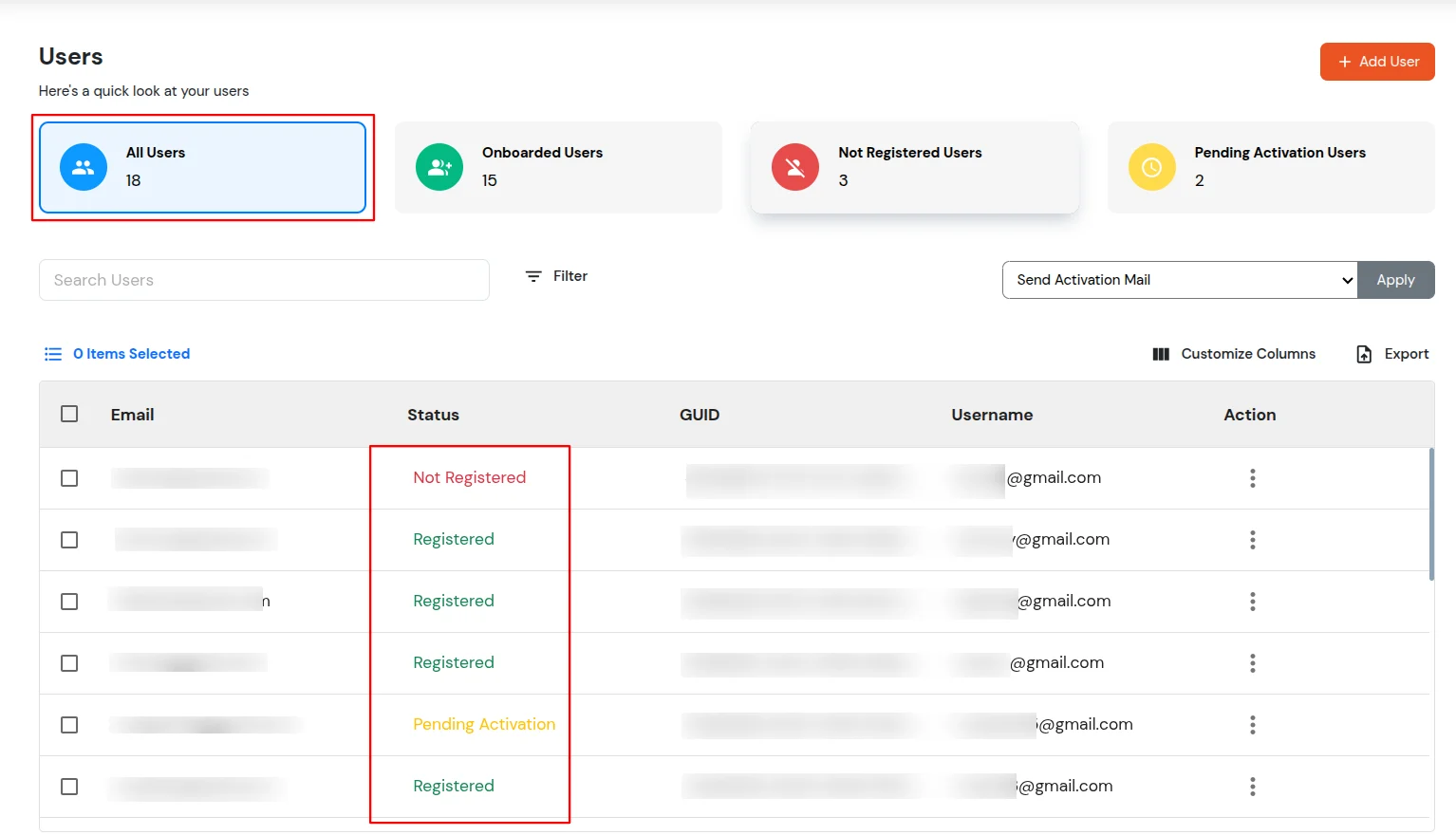
How to Identify Onboarded/Not-Onboarded Users:
- If you go to Users >> User List from the side menu and check the User List, you can distinguish between onboarded and non-onboarded users using the status column.
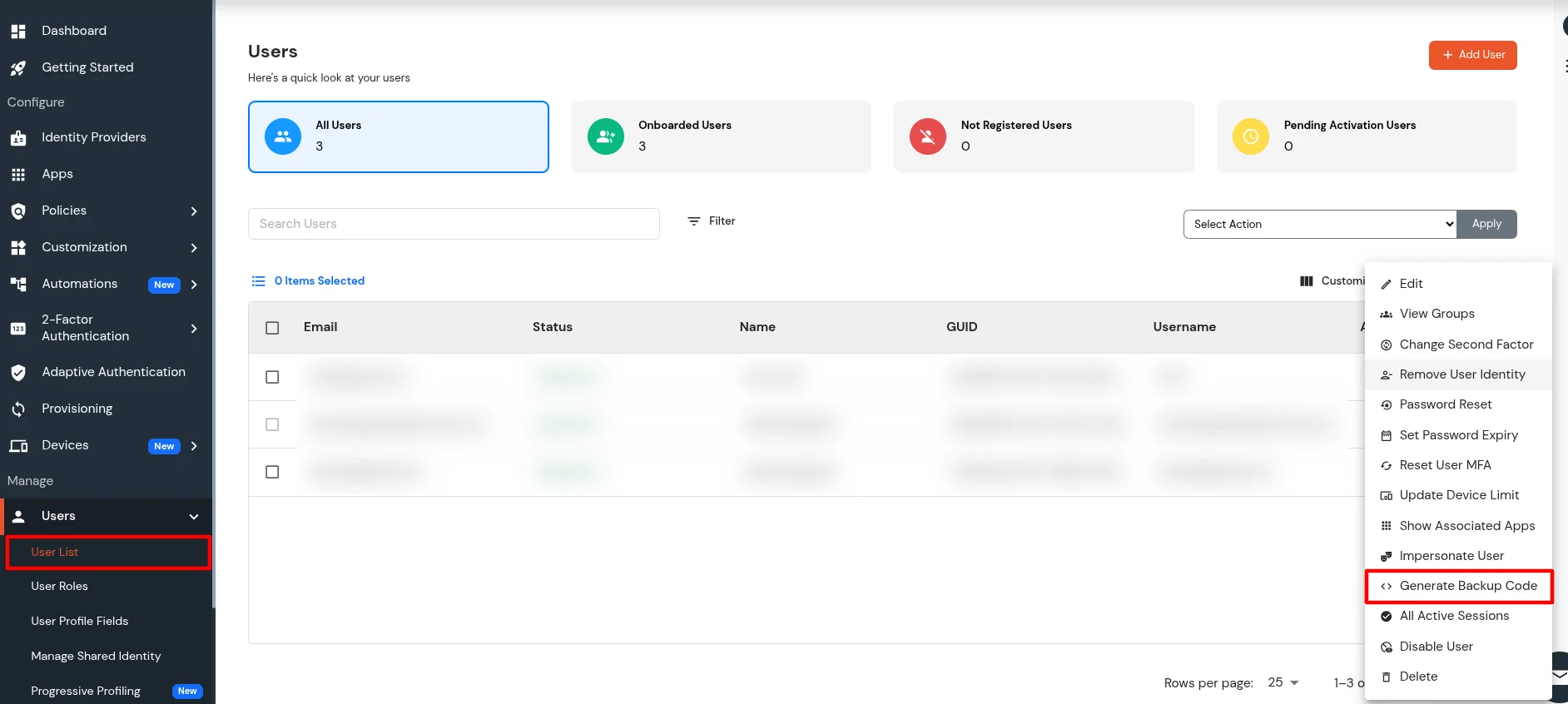
Generate backup code
- In the left sidebar under Manage, open Users >> User List. In the users table, click the Three dots under Actions for that user, then choose Generate Backup Code.
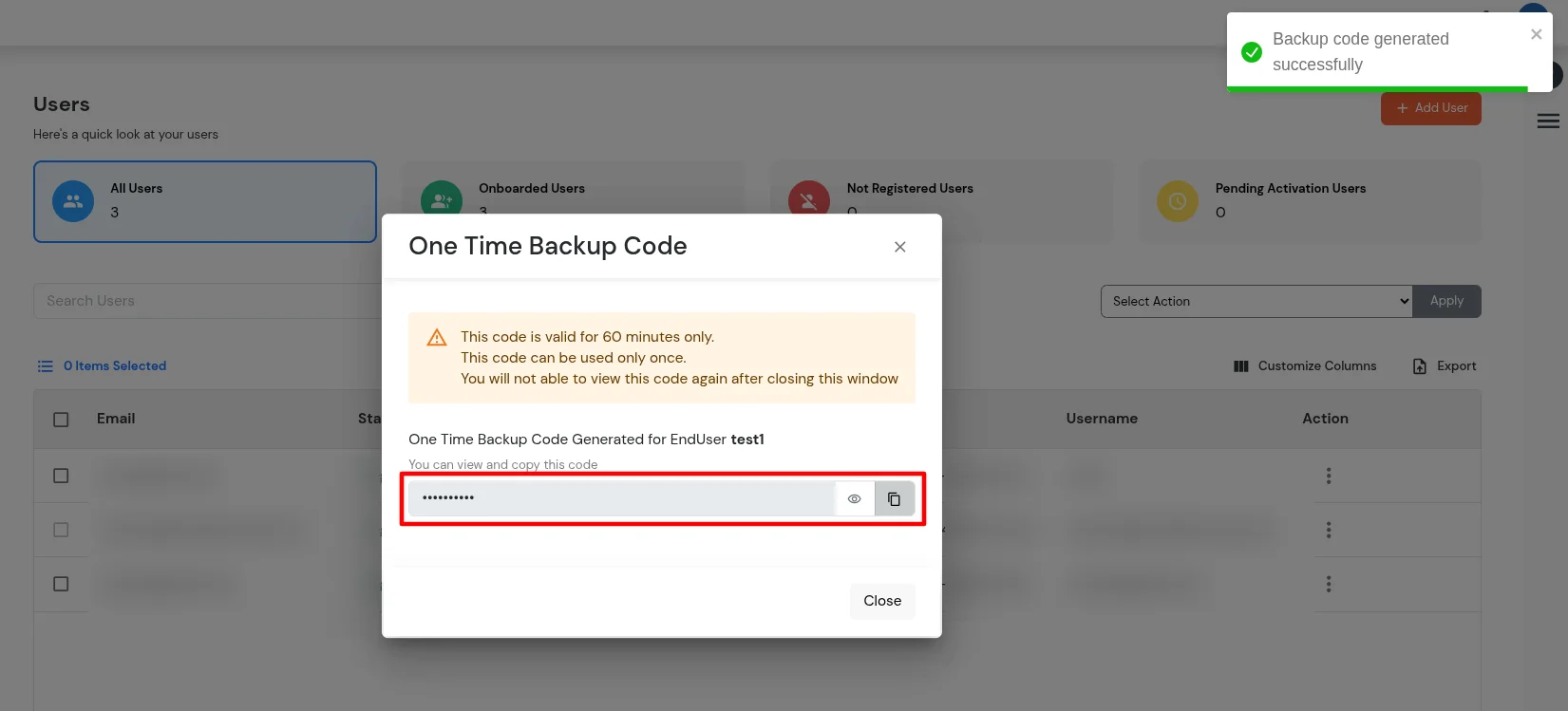
- The One Time Backup Code modal opens with the code. It is valid for 60 minutes, for one login only, and cannot be shown again after you close the modal—copy or share it securely before closing.
For end users: authenticate using a one-time backup code
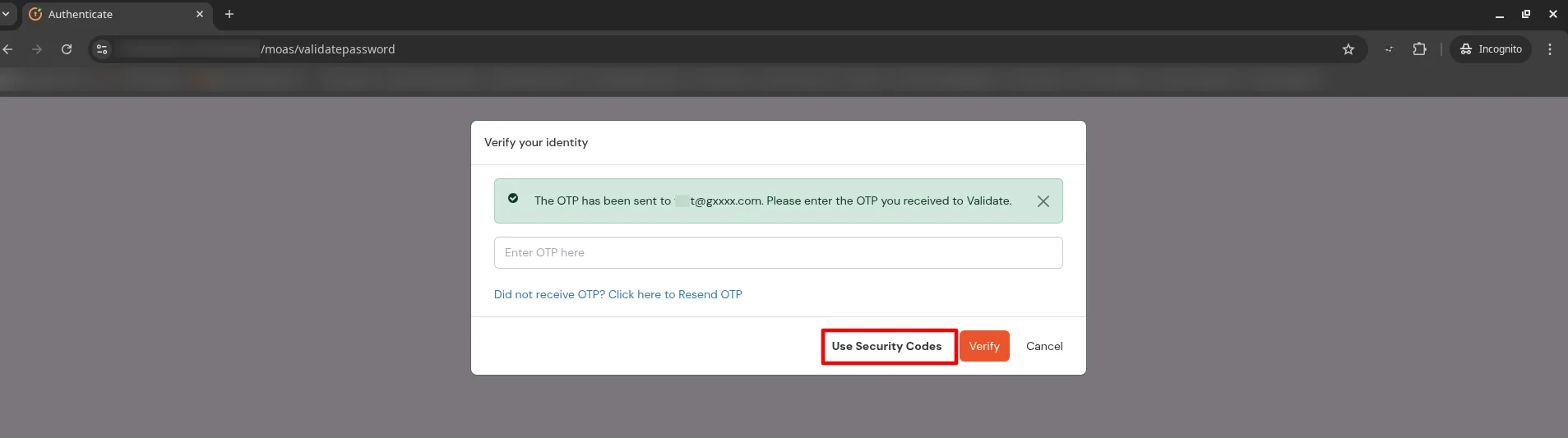
- During the 2FA verification process, click on Use Security Codes.
- Enter the generated one-time backup code in the verification field.
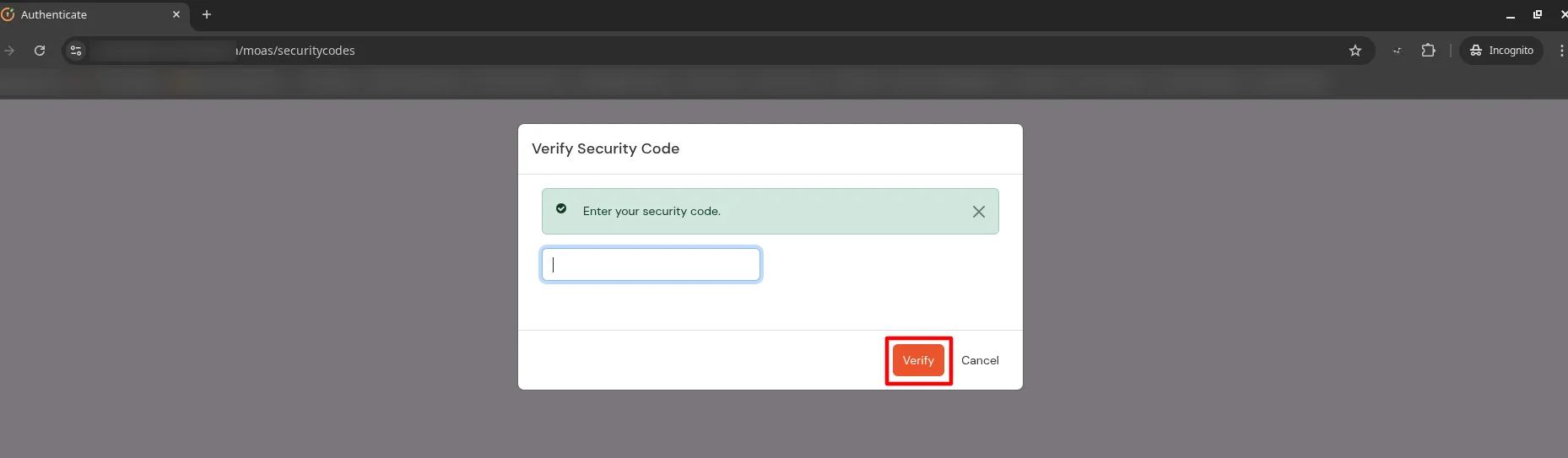
- Click on Verify to complete authentication successfully.
Managing Account Deletion Requests
- Administrators can monitor and manage all deletion requests raised by end users.
Access Account Deletion Requests
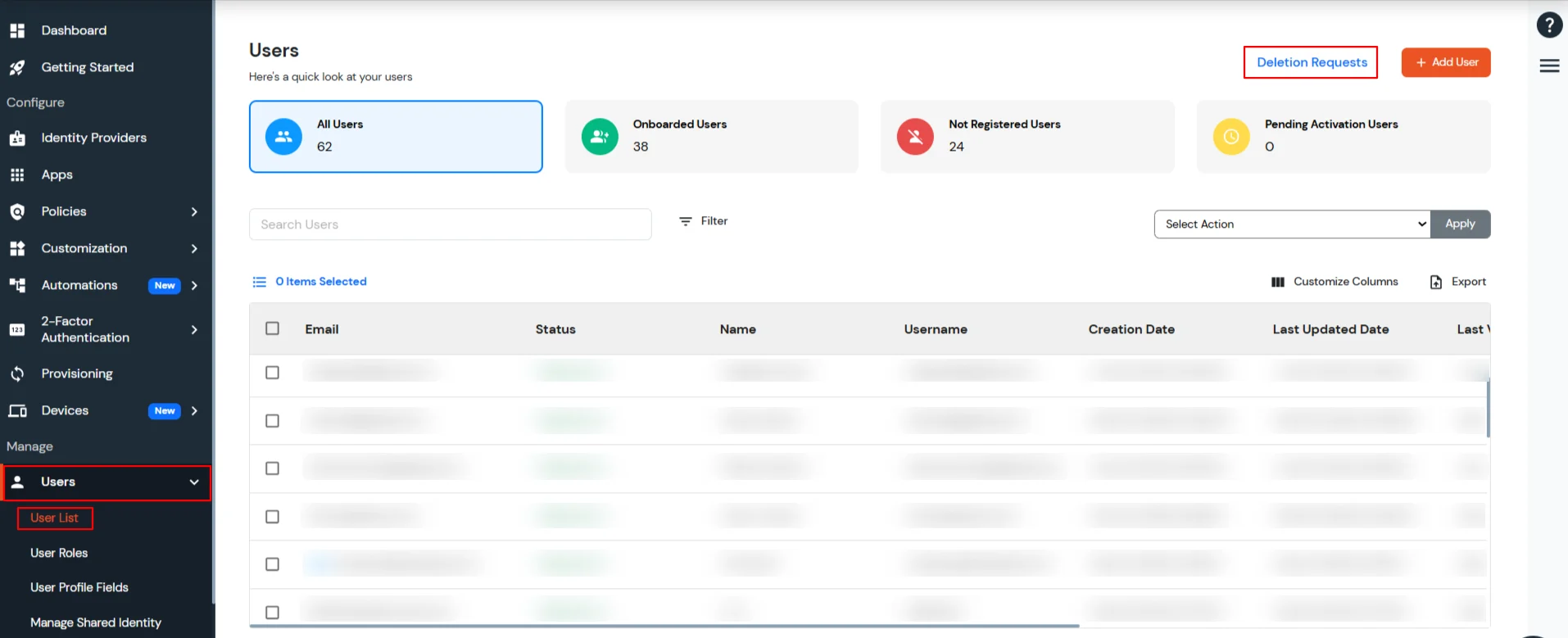
- Navigate to: Users >> Users List.
- Click Deletion Requests from the top-right corner.
- You will be redirected to the Account Deletion Requests page.
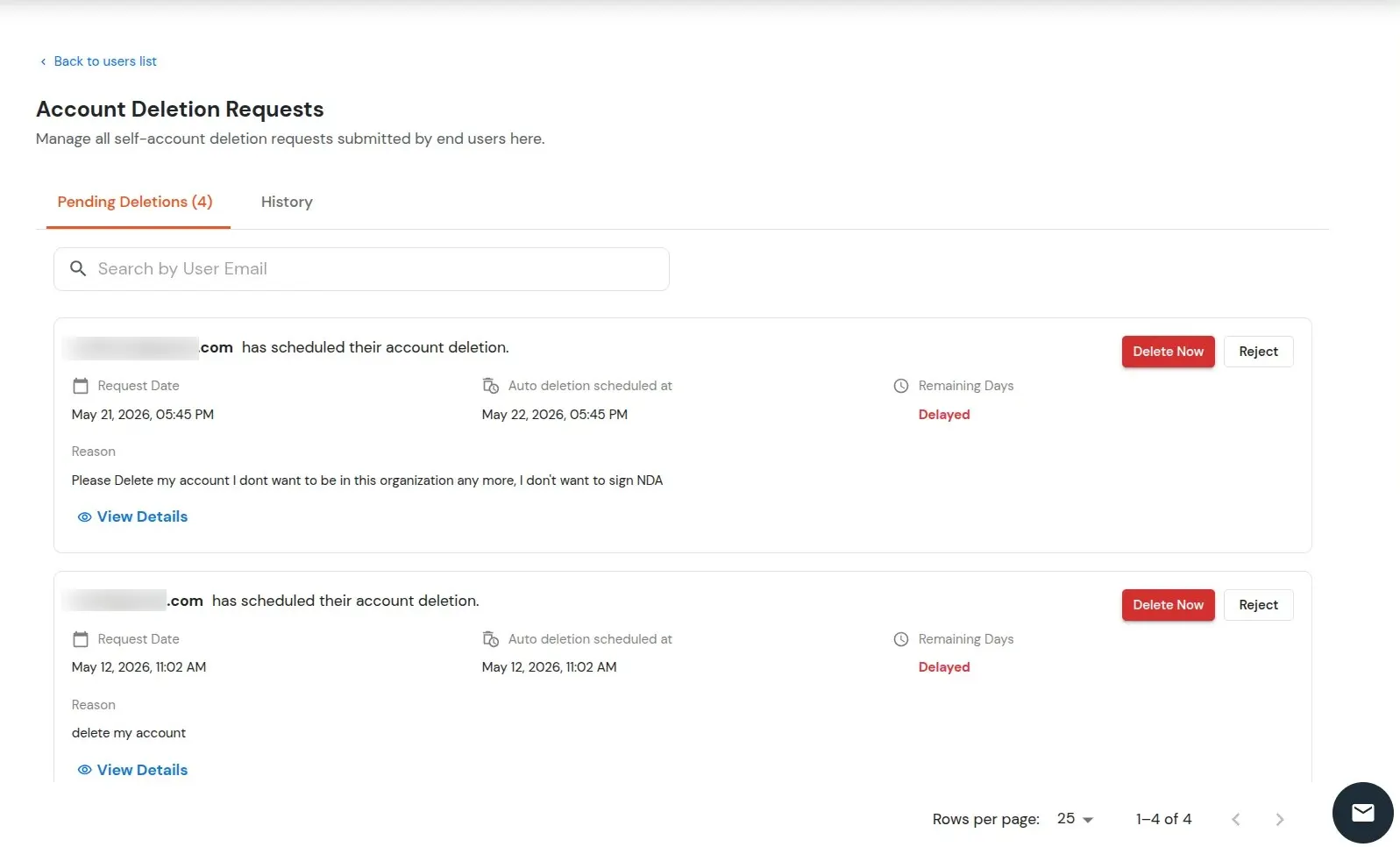
This section allows administrators to manage all self-account deletion requests submitted by end users.
Scheduled Deletion
When a user raises a deletion request:
- The account deletion is automatically scheduled based on the configured deletion duration.
- The account will be permanently deleted once the scheduled timeline is completed.
- No approval workflow is required.
View Details
Use the View Details action to view complete request information, including:
- User details
- Request reason
- Request date
- Scheduled deletion timeline
- Current request status
Reject Request
Use the Reject action to cancel the scheduled deletion request.
- The deletion schedule is removed.
- The user account remains active.
Delete Now
- Use the Delete Now action to immediately delete the user account without waiting for the scheduled timeline to complete.
History Tab
- Navigate to the History tab to view the complete history of account deletion requests and actions performed.

