Hello there!

Need Help? We are right here!

Support Icon
miniOrange Email Support
success

Thanks for your Enquiry. Our team will soon reach out to you.

If you don't hear from us within 24 hours, please feel free to send a follow-up email to info@xecurify.com

Search Results:

×

Adaptive Authentication with Advanced Device Configuration

[This will be release soon.]


Adaptive Authentication with Advanced Device Configuration empowers administrators to precisely control the number of devices a user can register while introducing a next-generation Device Security Agent that delivers stronger device identity, real-time risk scoring, and enhanced protection against spoofing and unauthorized access.

Authentication decisions are driven by continuous device risk evaluation, enabling intelligent enforcement actions such as Allow, Challenge, or Deny based on device trust and behavioral signals.

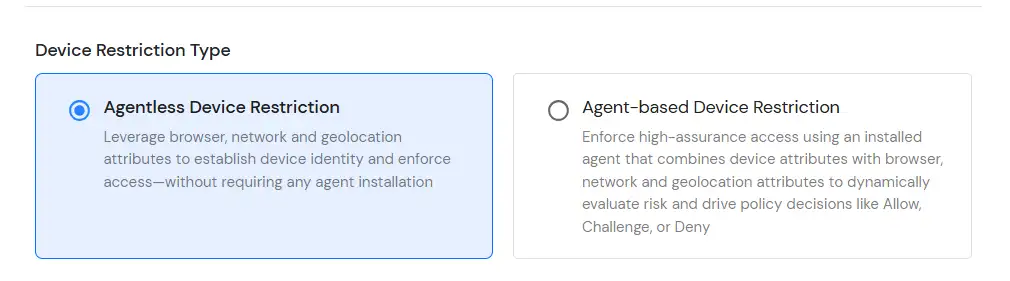
Device Configuration supports the following modes:

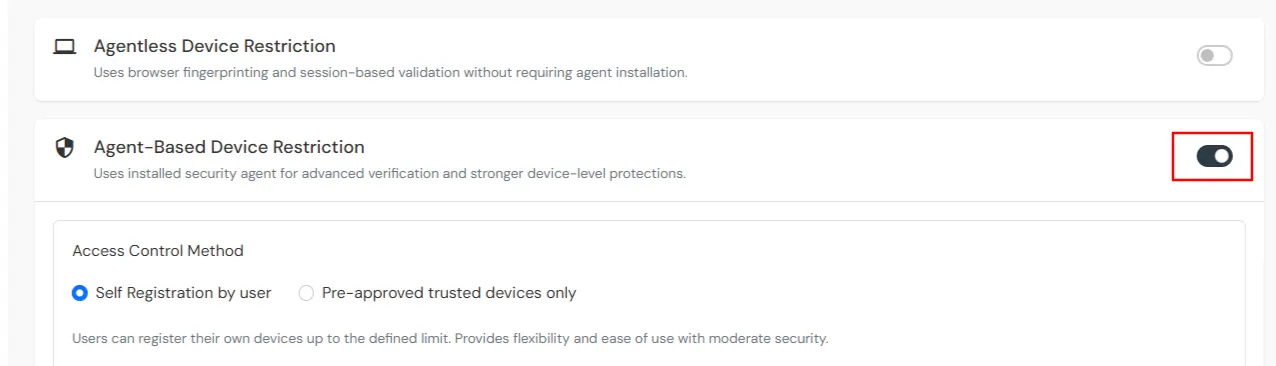
  • Agentless Device Restriction: Uses browser fingerprinting and session-based validation without requiring agent installation.
  • Agent-Based Device Restriction: Uses installed security agent for advanced verification and stronger device-level protections.

Get Free POC - Book a Slot


miniOrange offers free POC and help through a consultation call with our System Engineers to Setup Multi-Factor Authentication for Device Restriction in your environment with 30-day trial.

For this, you need to just send us an email at idpsupport@xecurify.com to get free POC and we'll help you setting up our solution in no time.

Get Free POC


Follow the step-by-step guide to create an Adaptive Policy with Device Configuration.

  • Log in to miniOrange Admin Console.
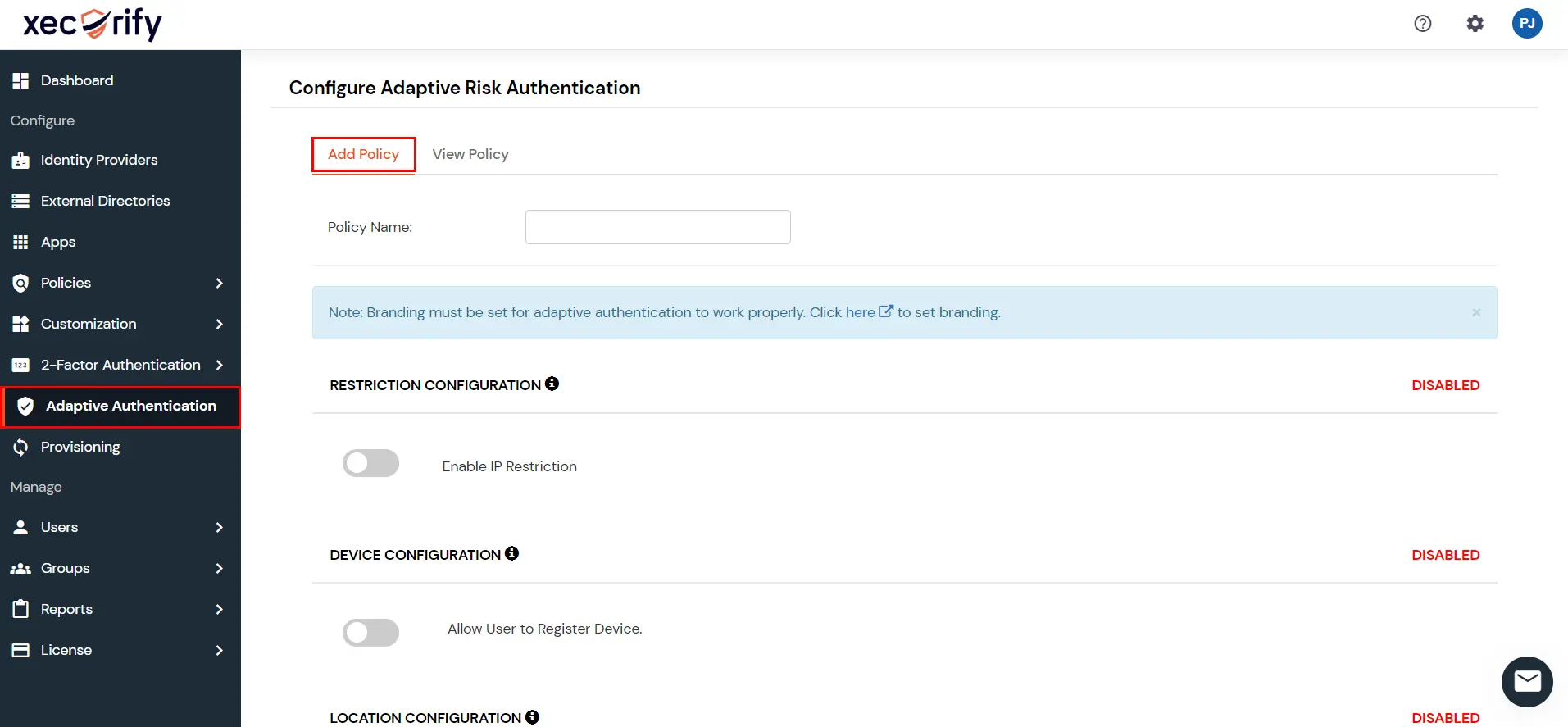
  • Create a new Adaptive Authentication Policy by clicking on Adaptive Authentication from the left navigation.
  • Adaptive Authentication Dashboard

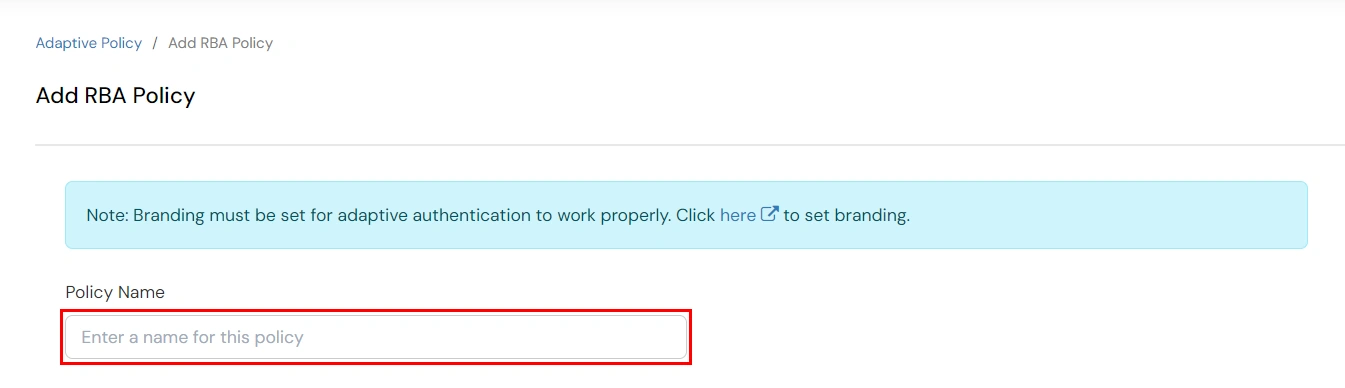
  • Click on Add Policy.
  • Adaptive Authentication: Add policy

  • In the adaptive policy configuration screen, locate the Device Configuration section.
  • Adaptive Authentication: Device Configuration

  • Click Edit in the Device Configuration section.
  • Adaptive Authentication: Agentless

  • You can configure device restriction using either Agentless or Agent-Based methods:

1. Configure Agentless Device Restriction

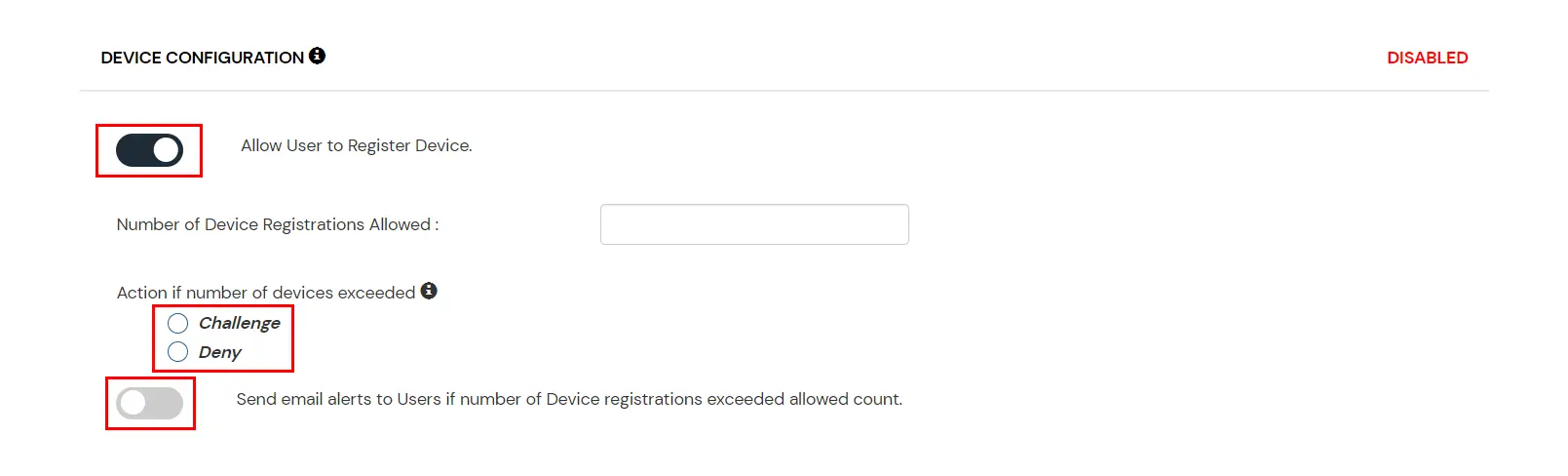
  • Enable the Agentless Device Restriction toggle.
  • Configure the following options:
    • Number of Device Registrations Allowed: Specifies the maximum number of devices a user can register.
    • Enable Mobile Device Restriction: Blocks login attempts from mobile devices.
    • Enable Device Auto-Registration: Allows automatic device registration.
    Adaptive Authentication Dashboard

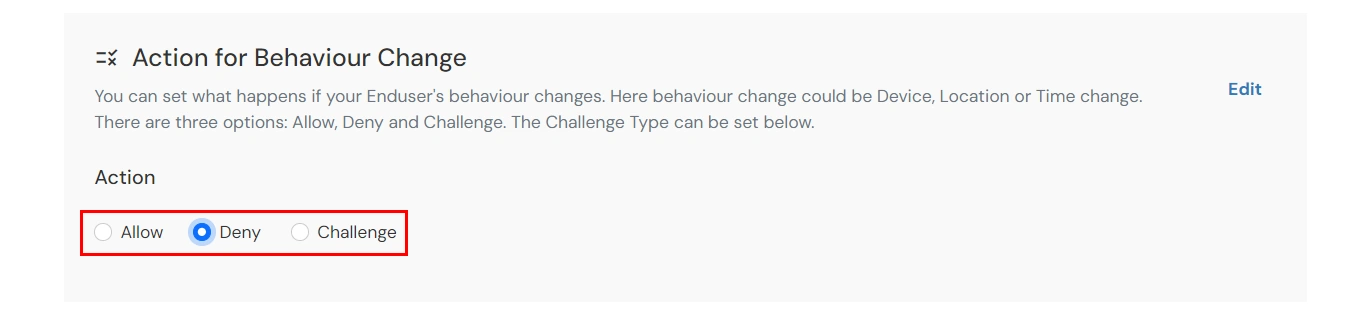
2. Define Action for Behavior Change

  • Under Action for Behaviour Change, click Edit and choose one:
  • Adaptive Authentication: Edit Action Behaviour

    Attribute Description
    Allow Allow user to authenticate without challenge and registration.
    Challenge Allow user authentication with a challenge, e.g., when the device limit is exceeded.
    Deny Deny user authentication, e.g., when the device limit is exceeded.

  • Challenge Type Options: Set the challenge type when the Action for Behaviour is configured as Challenge.
  • Attribute Description
    User second Factor The User needs to authenticate using the second factor he has opted or assigned for such as
  • OTP over SMS
  • PUSH Notification
  • OTP over Email
  • And 12 more methods.
  • KBA (Knowledge-based authentication) The System will ask user for 2 of 3 questions he has configured in his Self Service Console. Only after right answer to the questions user is allowed to proceed further.
    OTP over Alternate Email User will receive a OTP on the alternate email he has configured threw Self Service Console. Once user provides the correct OTP he is allowed to proceed further.

  • Click Save to apply the Adaptive Policy.

3. Assign the Adaptive Policy to an Application

The policy will take effect only after it is associated with a specific application login flow.
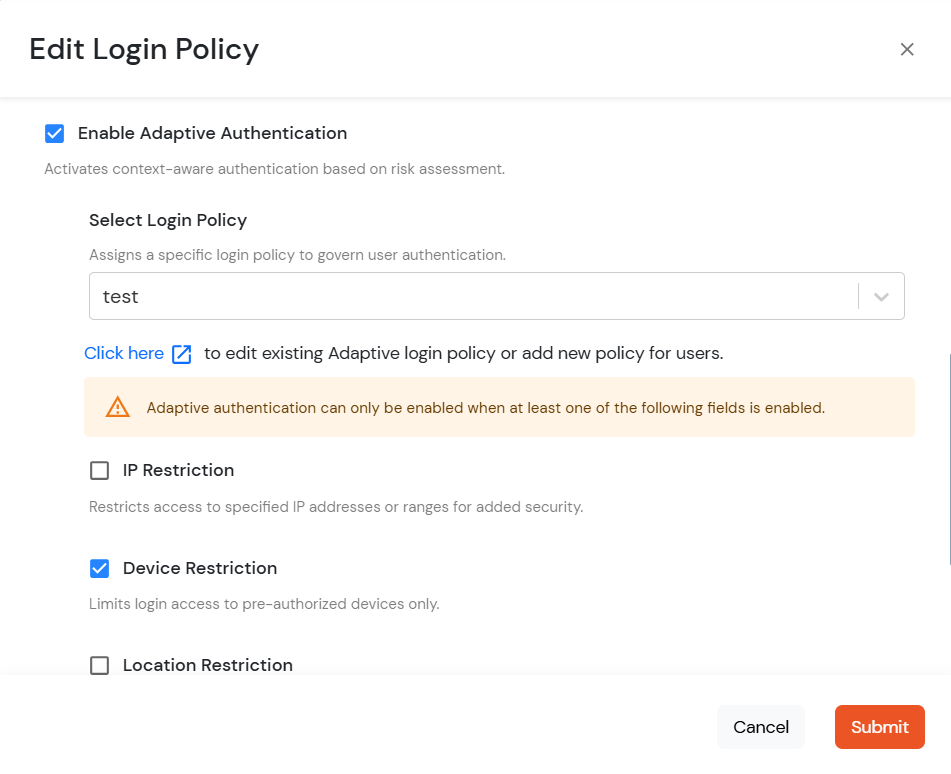
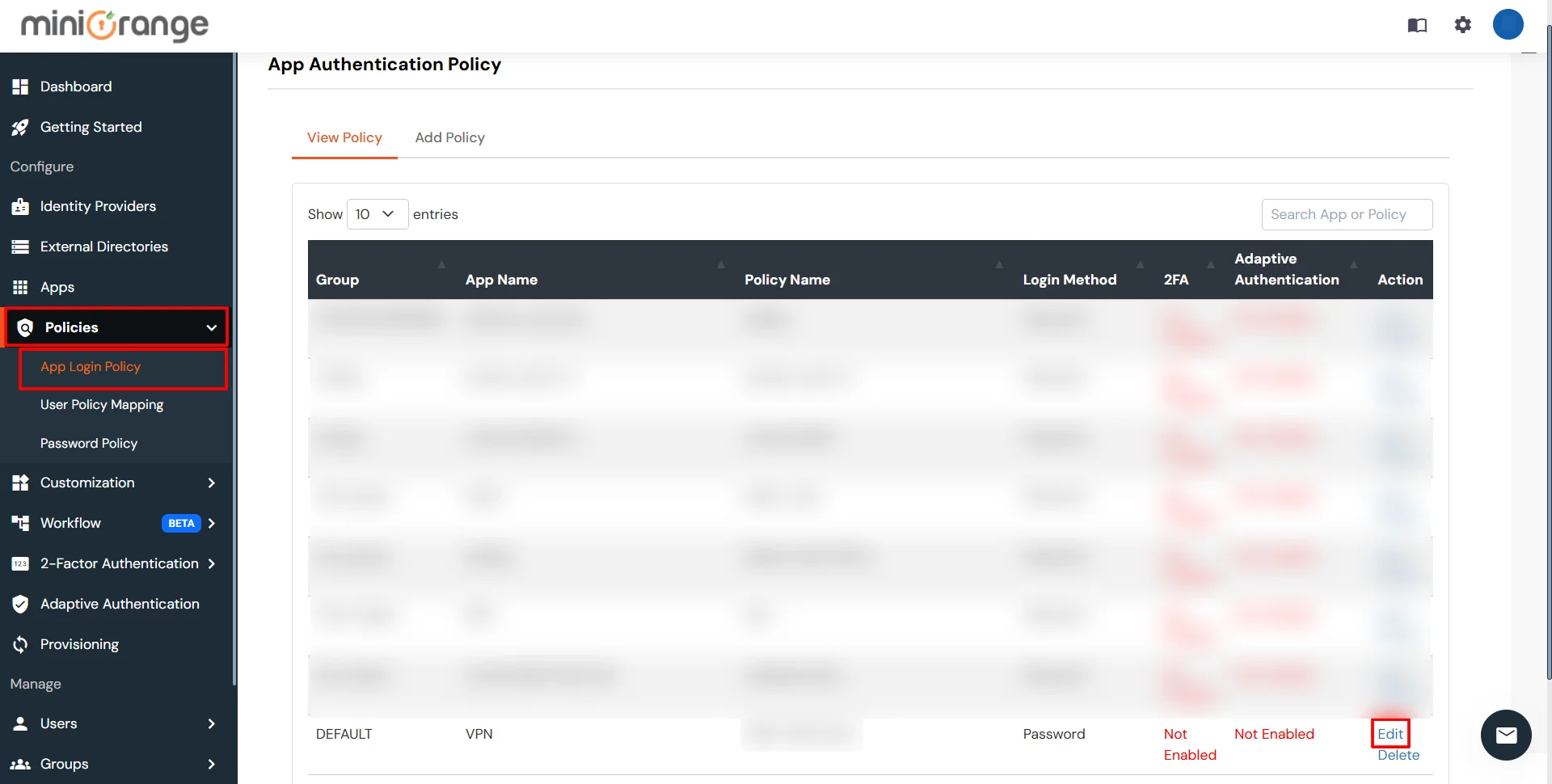
  • Go to Policies >> App Login Policy from the left navigation section.
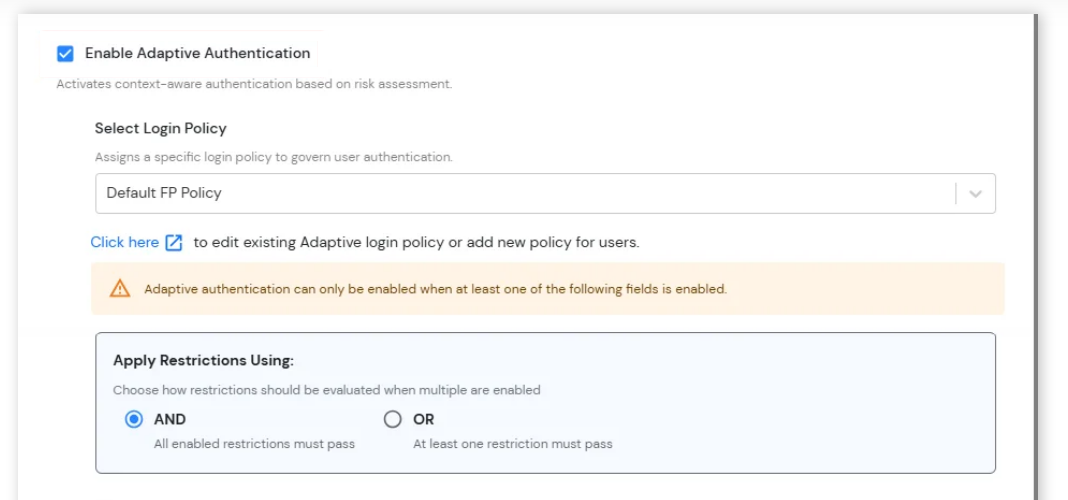
  • Assign the newly created adaptive policy to the Application Login Policy by clicking on the edit icon next to the required listed application.
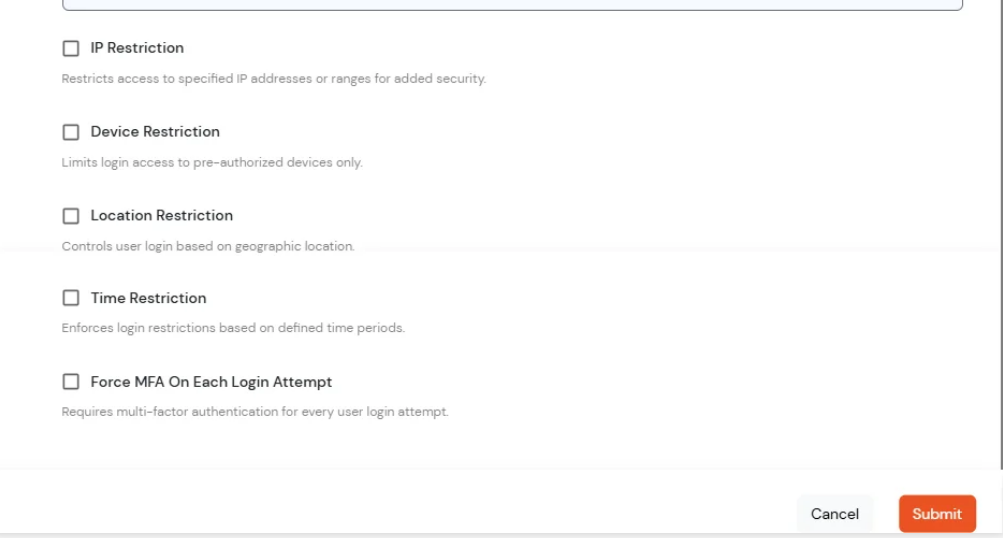
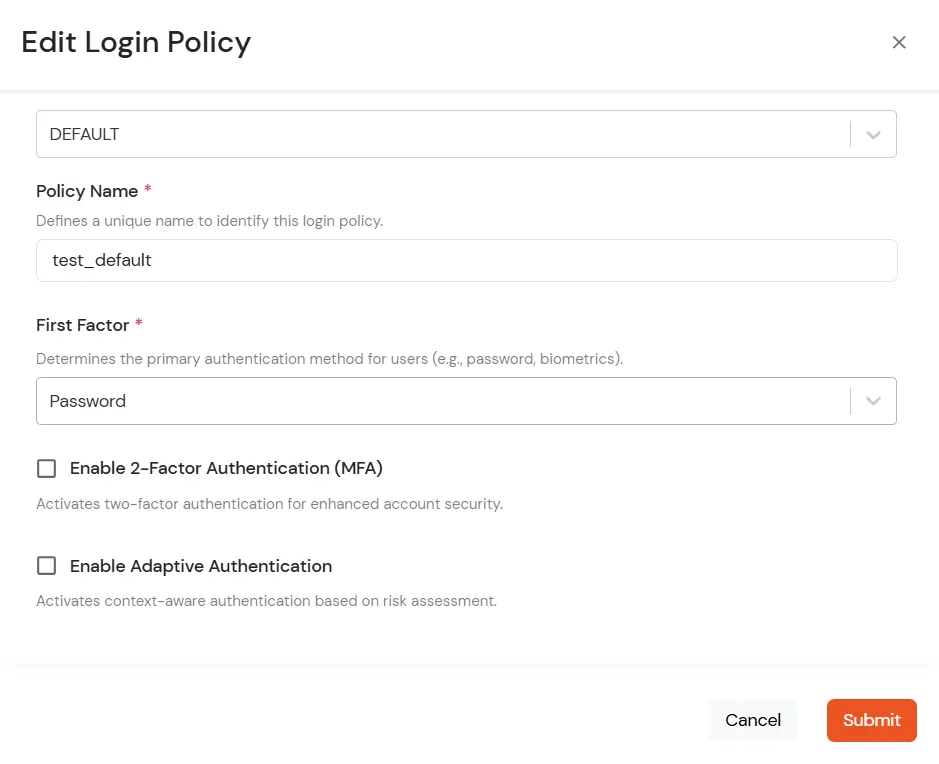
  • Enable Device Restriction under Adaptive Authentication.
  • Adaptive Authentication: Edit Login Policy

  • Click Submit.

4. User Device Registration

Applies when a user is registering a device for the first time.

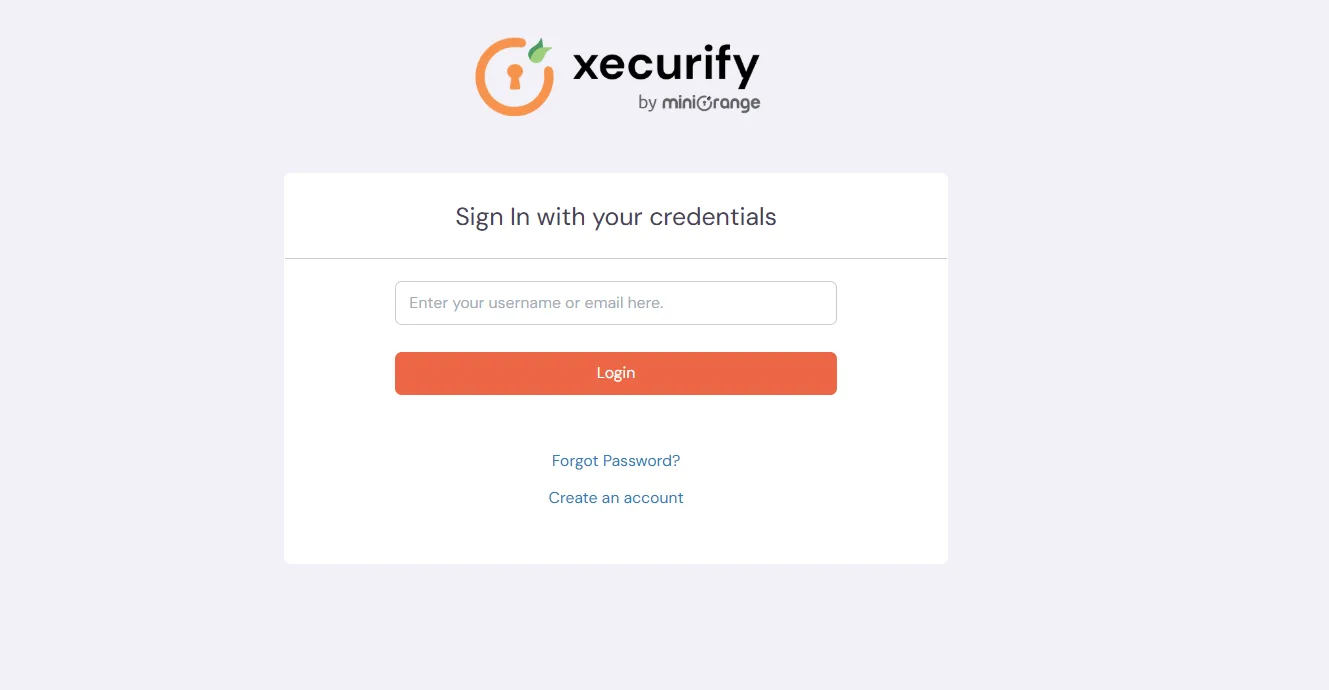
  • Visit your branding Url of miniorange for eg.. (https://abc.miniorange.in/)
  • Enter your Username.
  • Adaptive Authentication: login to Dashboard

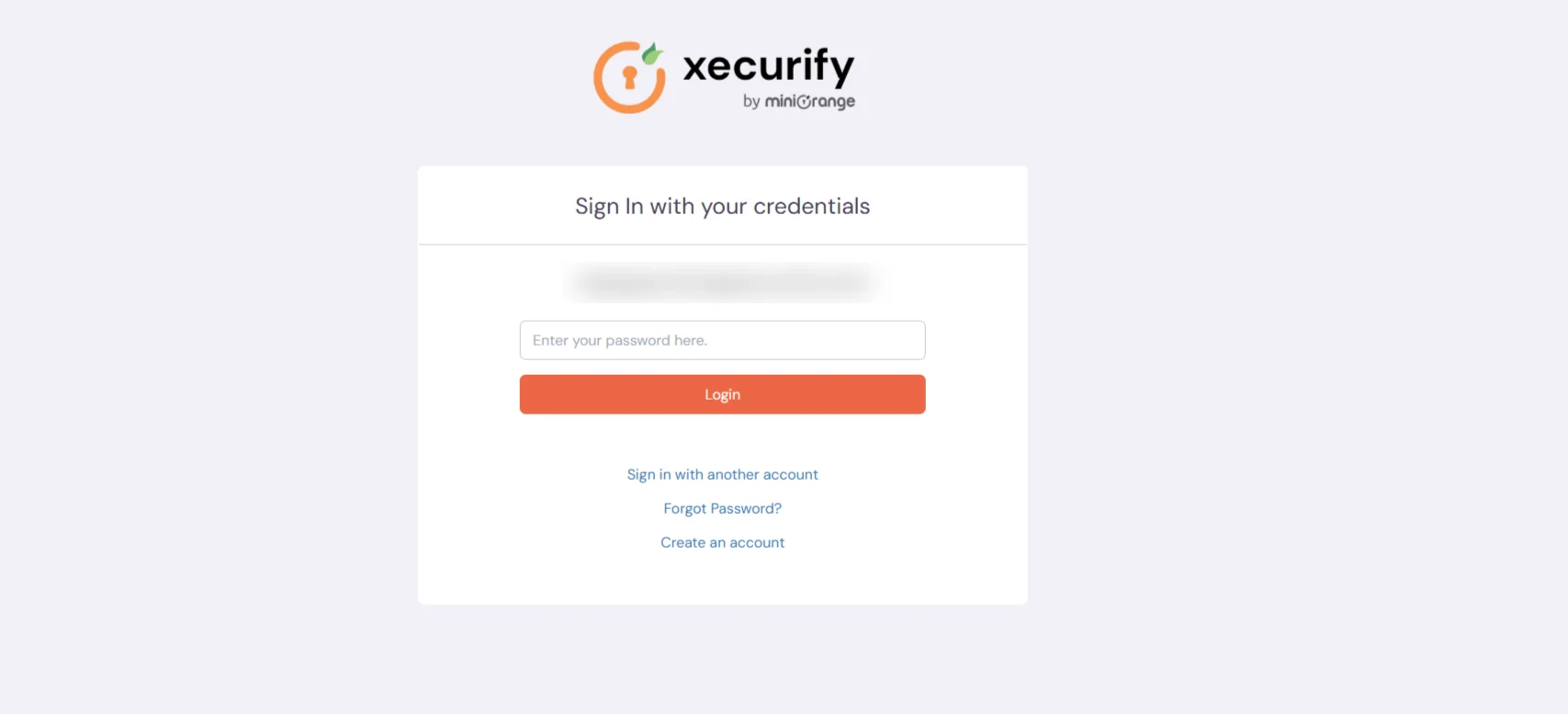
  • Enter Password.
  • Adaptive Authentication: login to Dashboard

  • If the Action for Behaviour is set to Deny or Challenge, the user is prompted with the configured challenge type along with an option to register the user device profile.
  • Note:

    If Auto-Registration is enabled and Action for Behaviour Change is set to Deny or Challenge, the device is registered automatically after successful challenge.
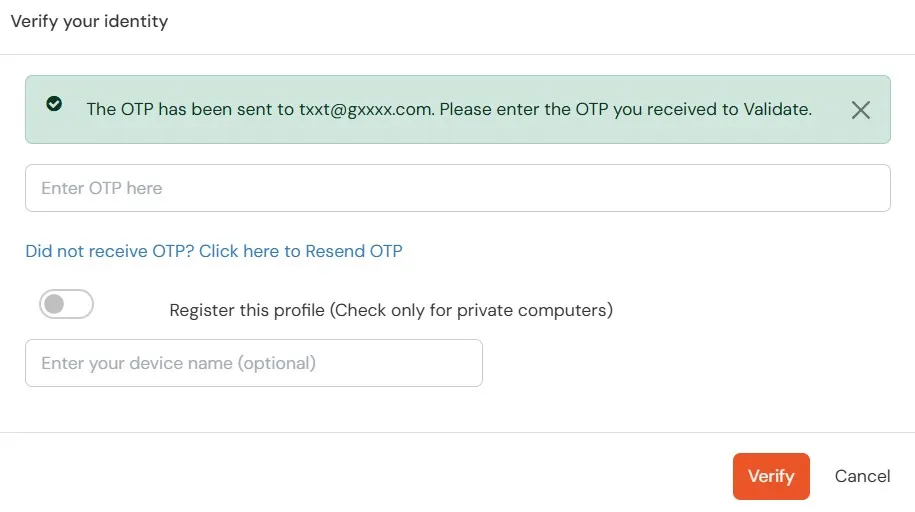
    Adaptive Authentication: Verify Your Identity

  • If the Action for Behaviour is set to Allow, the user is logged in to the user dashboard without any registration or challenge prompt.

5. User Device Report (For Admin)

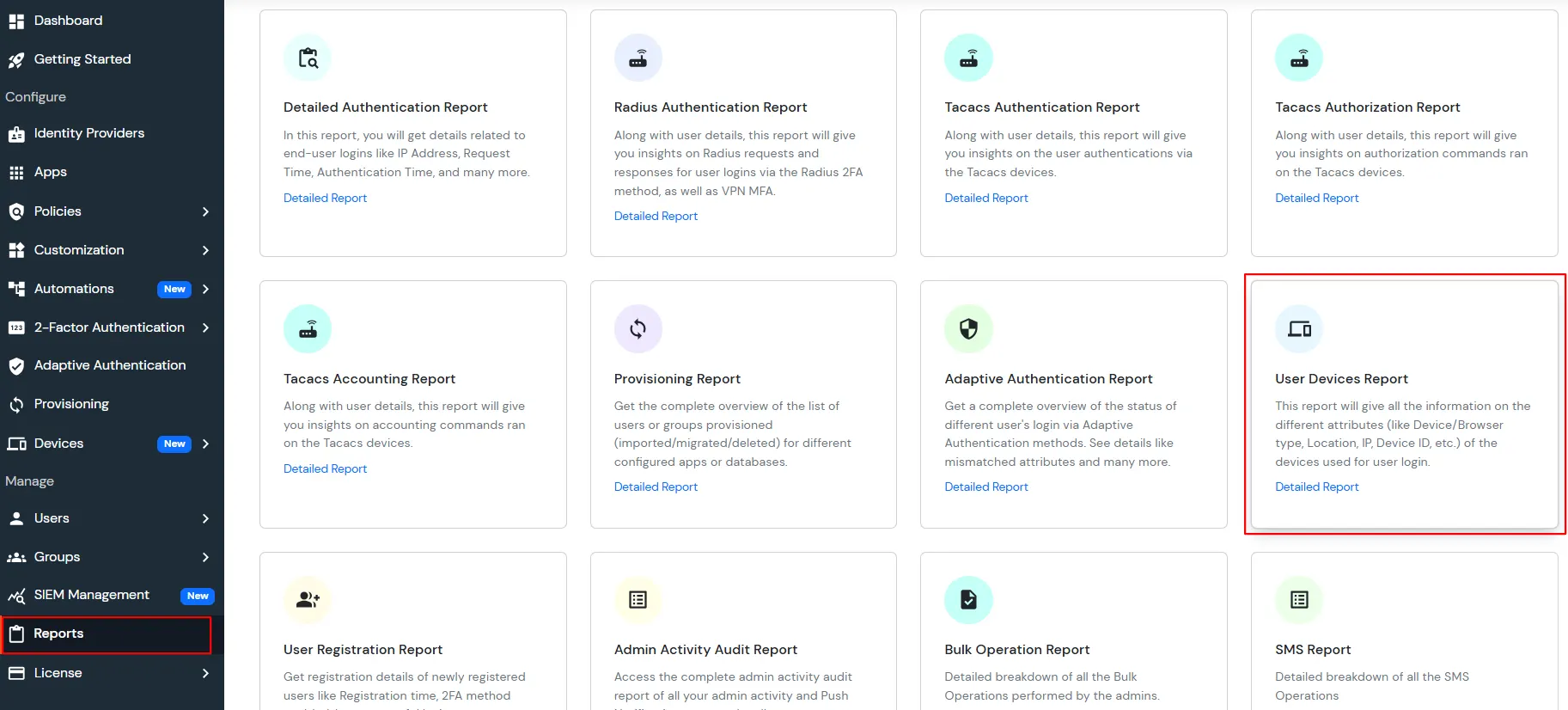
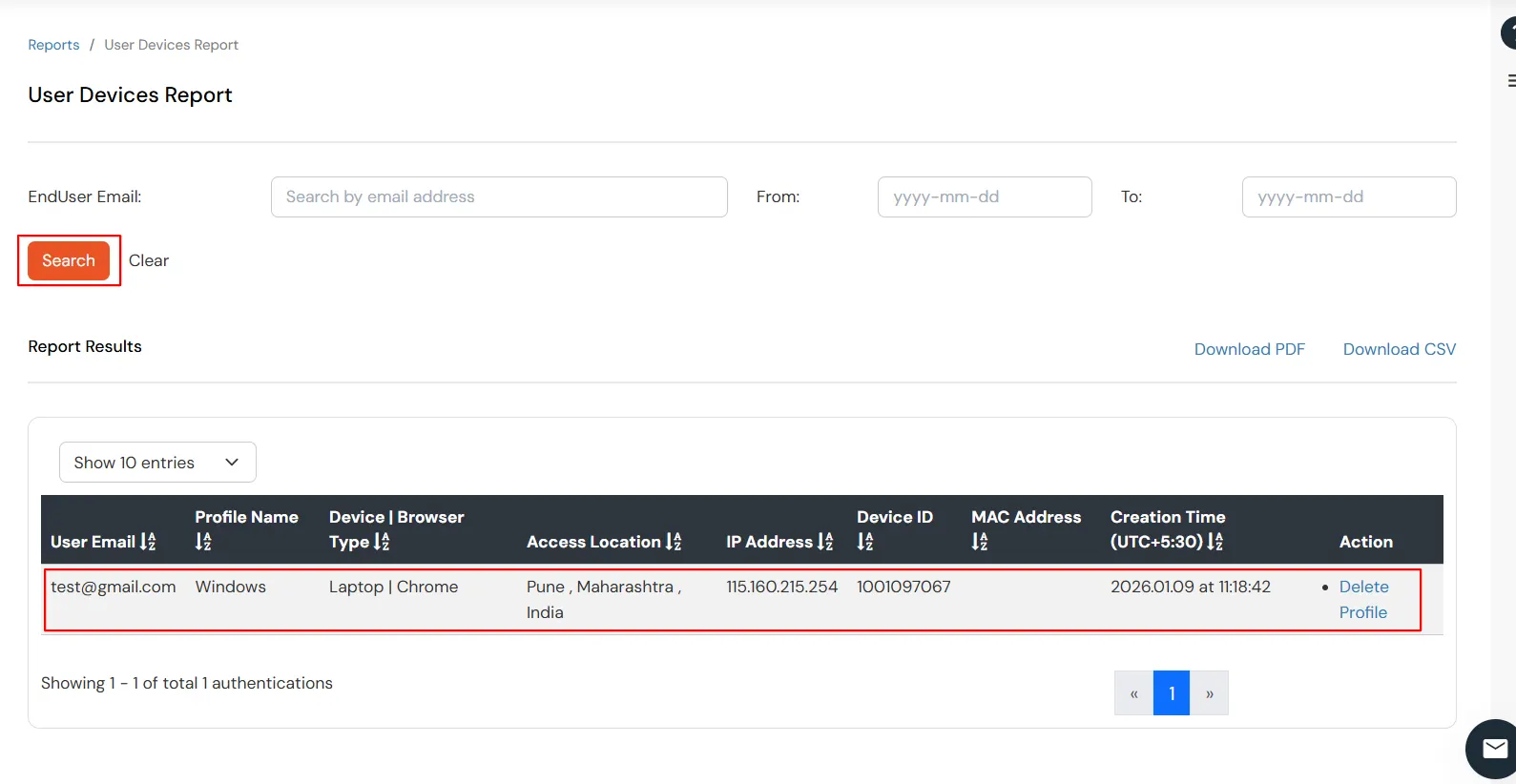
  • After successfully logging in, Navigate to Report >> User Device Report.
  • Adaptive Authentication: Verify Your Identity

  • Click the Select button to display the user registration report.
  • Adaptive Authentication: Verify Your Identity

1. Precondition:

The miniOrange Device Agent must be installed on your device.

Steps to download the Miniorange Agent:

  • Log in to miniOrange customer Admin Console.
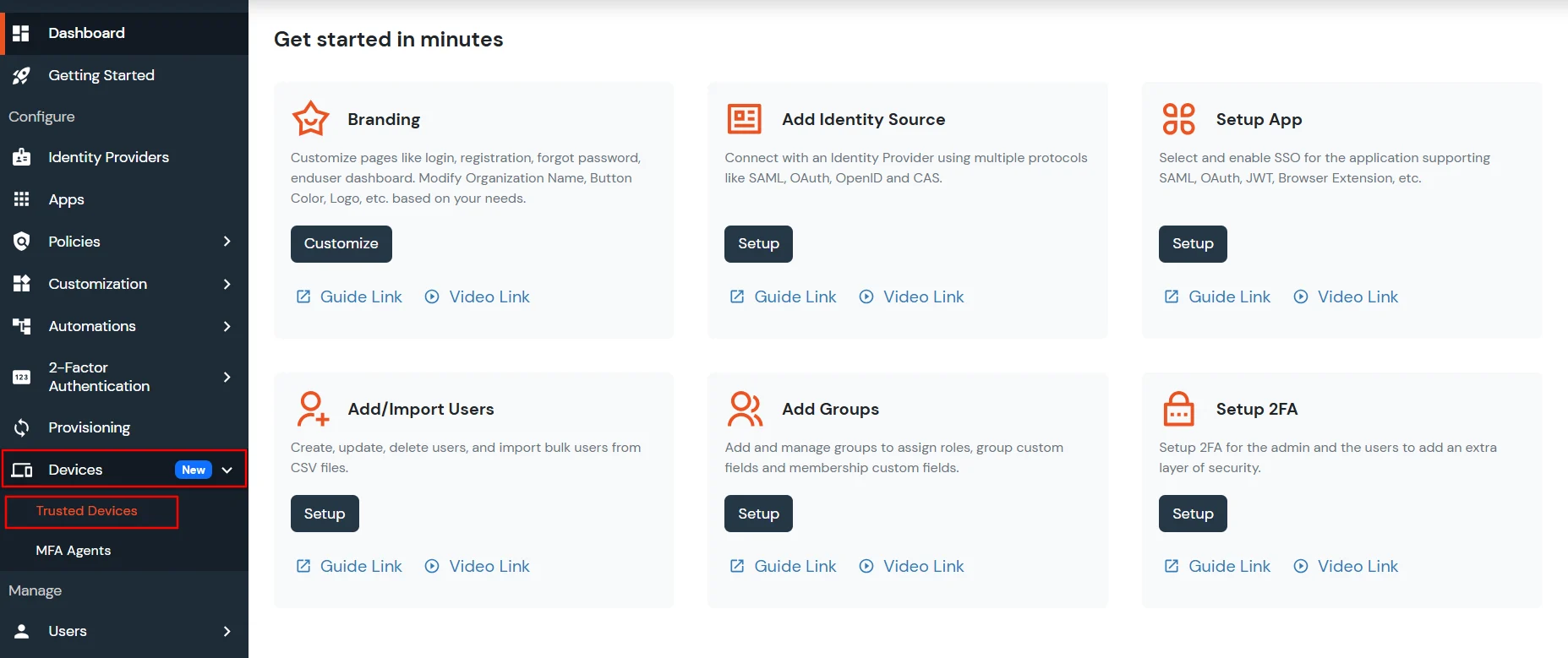
  • Navigate to Devices >> Trusted Devices section.
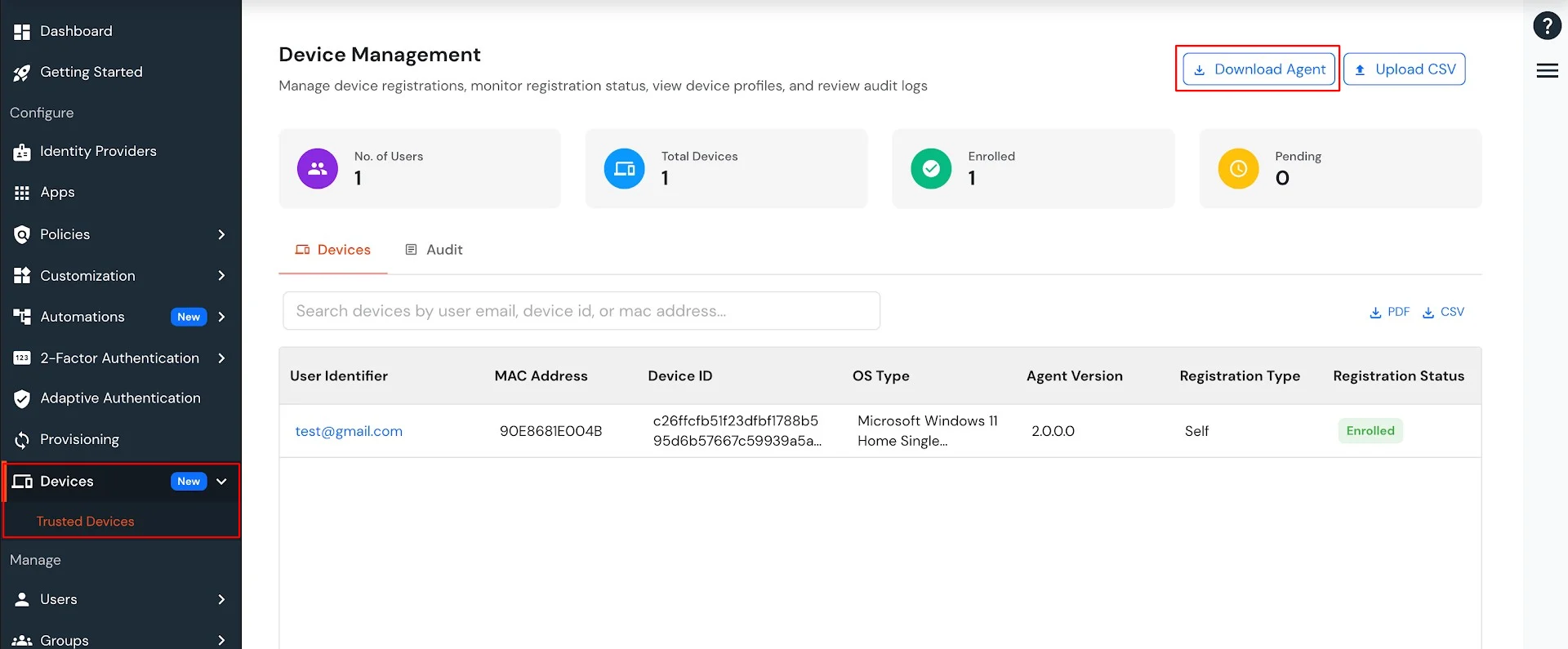
  • Click on the Download Agent button.
  • Adaptive Authentication: Download Agent

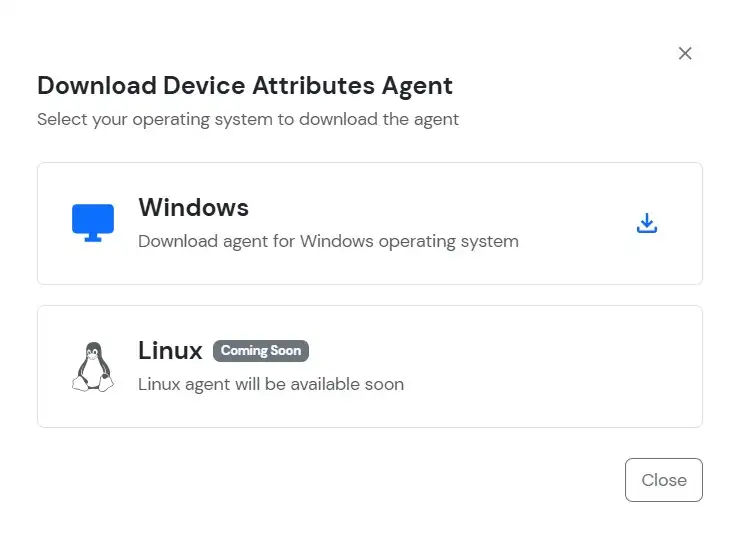
  • Click on the Windows (Download agent for Windows operating system).
  • Adaptive Authentication: Select Windows

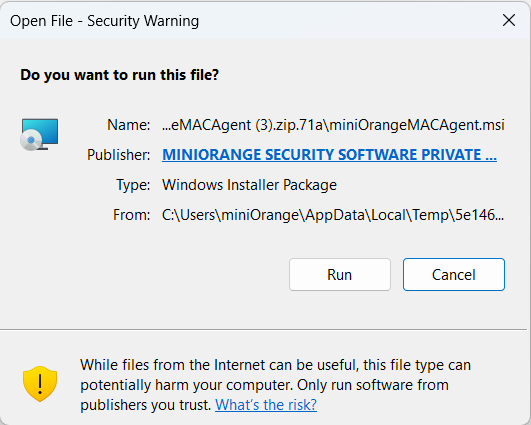
  • The ZIP file is downloaded to your system. Extract the downloaded ZIP file and install the agent.
  • Adaptive Authentication: Click on run

2. Configure Agent-Based Device Restriction

  • Enable the Agent-Based Device Restriction toggle.
  • Select access control methods:
    • Self Registration by User: Users can register their own devices up to the defined limit. Provides flexibility and ease of use with moderate security.
    • Pre-Approved Trusted Devices Only: Higher security but requires more administration. Admin manually manages device information.
    Adaptive Authentication: configuration Section


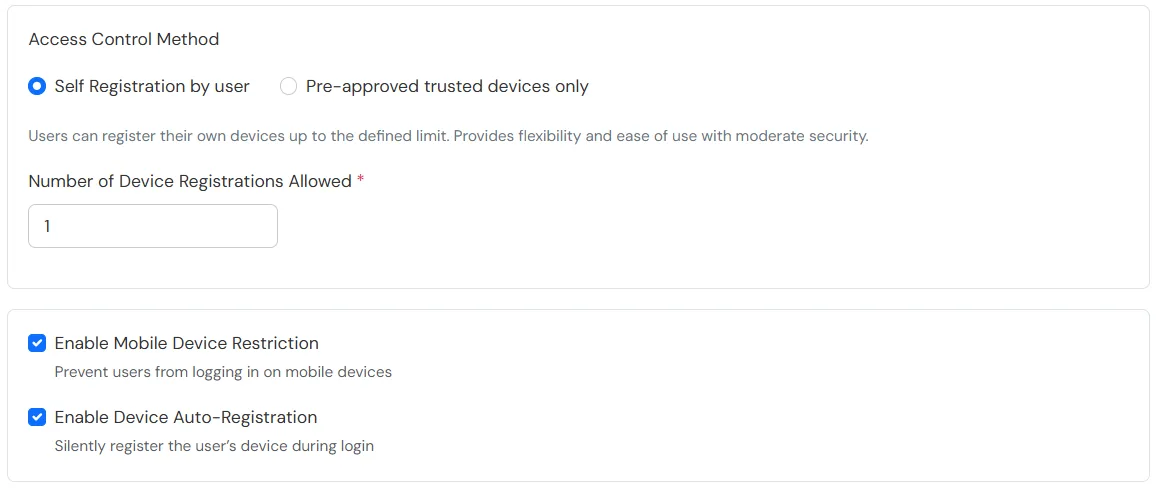
  • Choose Self Registration by User.
  • Adaptive Authentication: Self Registration

  • Configure the following options:
    • Number of Device Registrations Allowed: Specifies the maximum number of devices a user can register.
    • Enable Mobile Device Restriction: Blocks login attempts from mobile devices.
    • Enable Device Auto-Registration: Allows automatic device registration.

Configure Risk Engine for Device Trust Evaluation

The Risk Engine allows you to evaluate device trustworthiness by analyzing multiple device attributes and calculating a risk score. Based on this score, user access is allowed, challenged, or denied during login and device registration.

  • Navigate to the Risk Engine section and click Configure.
  • Adaptive Authentication: configure risk engine

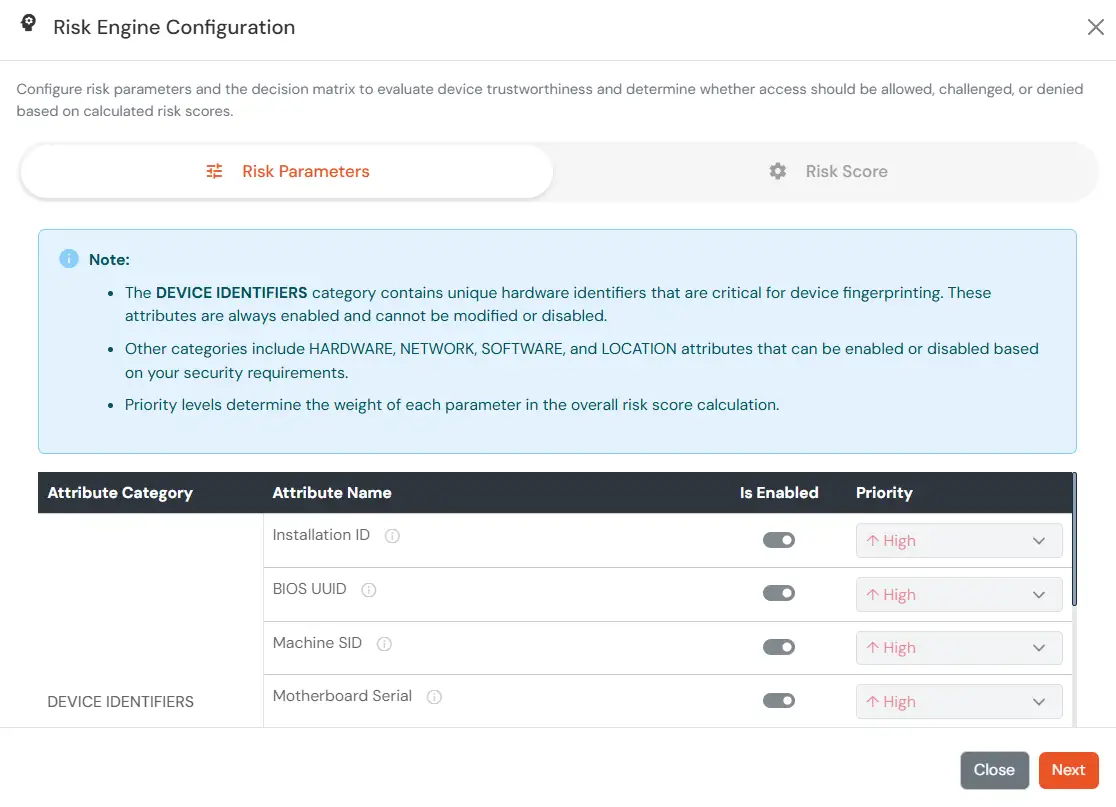
  • The Risk Engine Configuration window opens with two tabs:
    • Risk Parameters
    • Risk Score
  • Configure Risk Parameters:
    • In the Risk Parameters tab, review the list of device attributes grouped by category.
    • The Device Identifiers category contains mandatory attributes (such as Installation ID, BIOS UUID, Machine SID, etc.). These attributes are always enabled and cannot be disabled or reprioritized, as they are critical for device fingerprinting.
    • For other categories (Hardware, Network, Software, Location), enable the attributes you want to use for device trust evaluation.
    • Set a Priority for each enabled attribute:
      • High: Strong impact on risk score
      • Medium: Moderate impact
      • Low: Minimal impact
      Adaptive Authentication: risk parameter

    • Click Next to proceed.
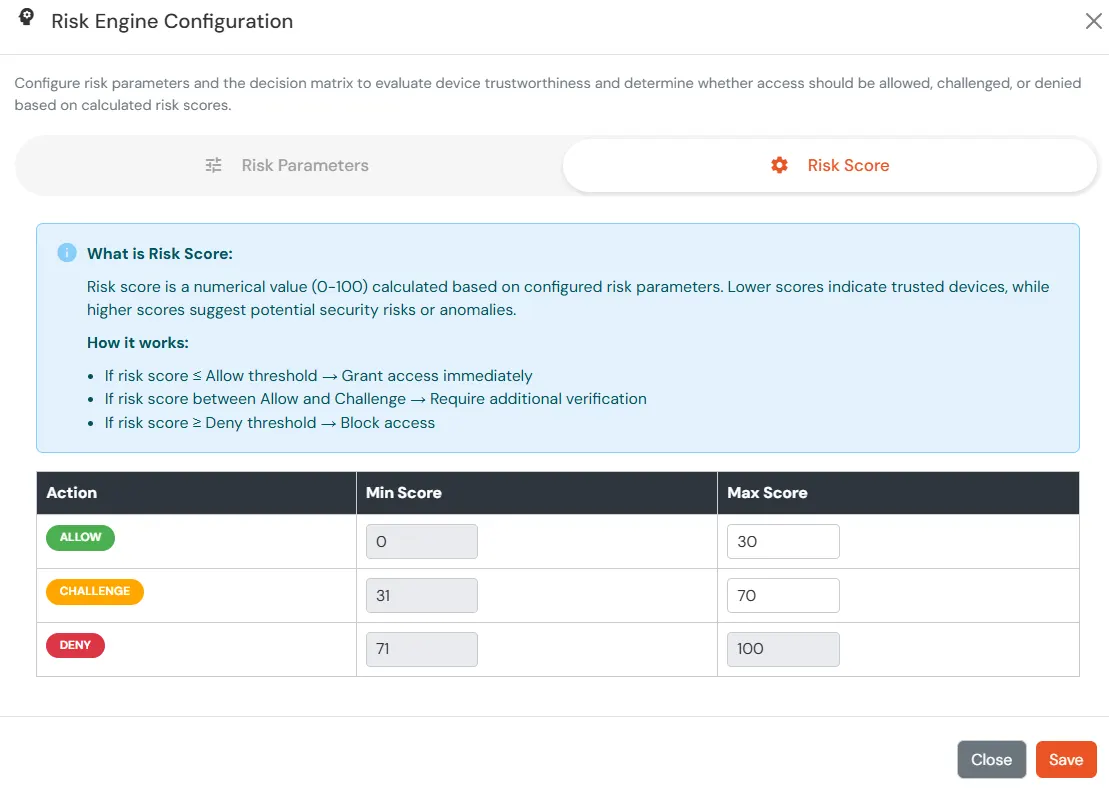
  • Configure Risk Score Thresholds:
    • In the Risk Score tab, define the score ranges (0–100) that determine the authentication outcome during user login.
    • Lower risk scores indicate trusted devices.
    • Higher risk scores indicate potential security risks or anomalies.
    • Configure the thresholds as follows:
      • Allow: Allow user to authenticate without challenge and registration.
      • Challenge: Allow user authentication with a challenge, e.g., when the device limit is exceeded.
      • Deny: Deny user authentication, e.g., when the device limit is exceeded, when device attribute is mismatch.
    Adaptive Authentication: risk store

3. Define Action for Behavior Change

  • Under Action for Behaviour Change, click Edit and choose one:

  • Adaptive Authentication: Edit Action Behaviour

    Attribute Description
    Allow Allow user to authenticate without challenge and registration.
    Challenge Allow user authentication with a challenge, e.g., when the device limit is exceeded.
    Deny Deny user authentication, e.g., when the device limit is exceeded.

  • Challenge Type Options: Set the challenge type when the Action for Behaviour is configured as Challenge.
  • Attribute Description
    User second Factor The User needs to authenticate using the second factor he has opted or assigned for such as
  • OTP over SMS
  • PUSH Notification
  • OTP over Email
  • And 12 more methods.
  • KBA (Knowledge-based authentication) The System will ask user for 2 of 3 questions he has configured in his Self Service Console. Only after right answer to the questions user is allowed to proceed further.
    OTP over Alternate Email User will receive a OTP on the alternate email he has configured threw Self Service Console. Once user provides the correct OTP he is allowed to proceed further.

  • Click Save to apply the Adaptive Policy.

4. Assign the Adaptive Policy to an Application

The policy will take effect only after it is associated with a specific application login flow.

  • Go to Policies >> App Login Policy from the left navigation section.
  • Assign the newly created adaptive policy to the Application Login Policy by clicking on the edit icon next to the required listed application.
  • Enable Device Restriction under Adaptive Authentication.
  • Adaptive Authentication: Edit Login Policy

  • Click Submit.

5. User Device Registration

    Applies when a user is registering a device for the first time.

  • Visit your branding Url of miniorange for eg.. (https://abc.miniorange.in/)
  • Enter your Username.
  • Adaptive Authentication: login to Dashboard

  • Enter Password.
  • Adaptive Authentication: login to Dashboard

  • If the Action for Behaviour is set to Deny or Challenge, the user is prompted with the configured challenge type along with an option to register the user device profile.
  • Note:

    If Auto-Registration is enabled and Action for Behaviour Change is set to Deny or Challenge, the device is registered automatically after successful challenge.

    Adaptive Authentication: Verify Your Identity

  • If the Action for Behaviour is set to Allow, the user is logged in to the user dashboard without any registration or challenge prompt.

6. Device Management

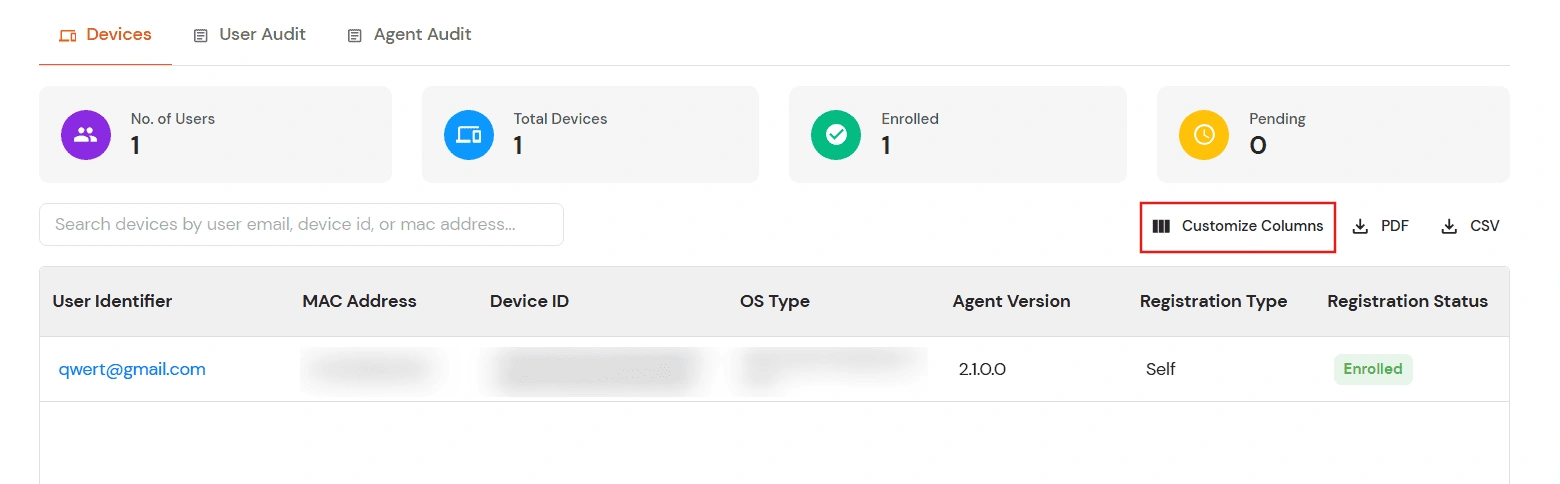
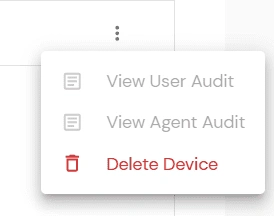
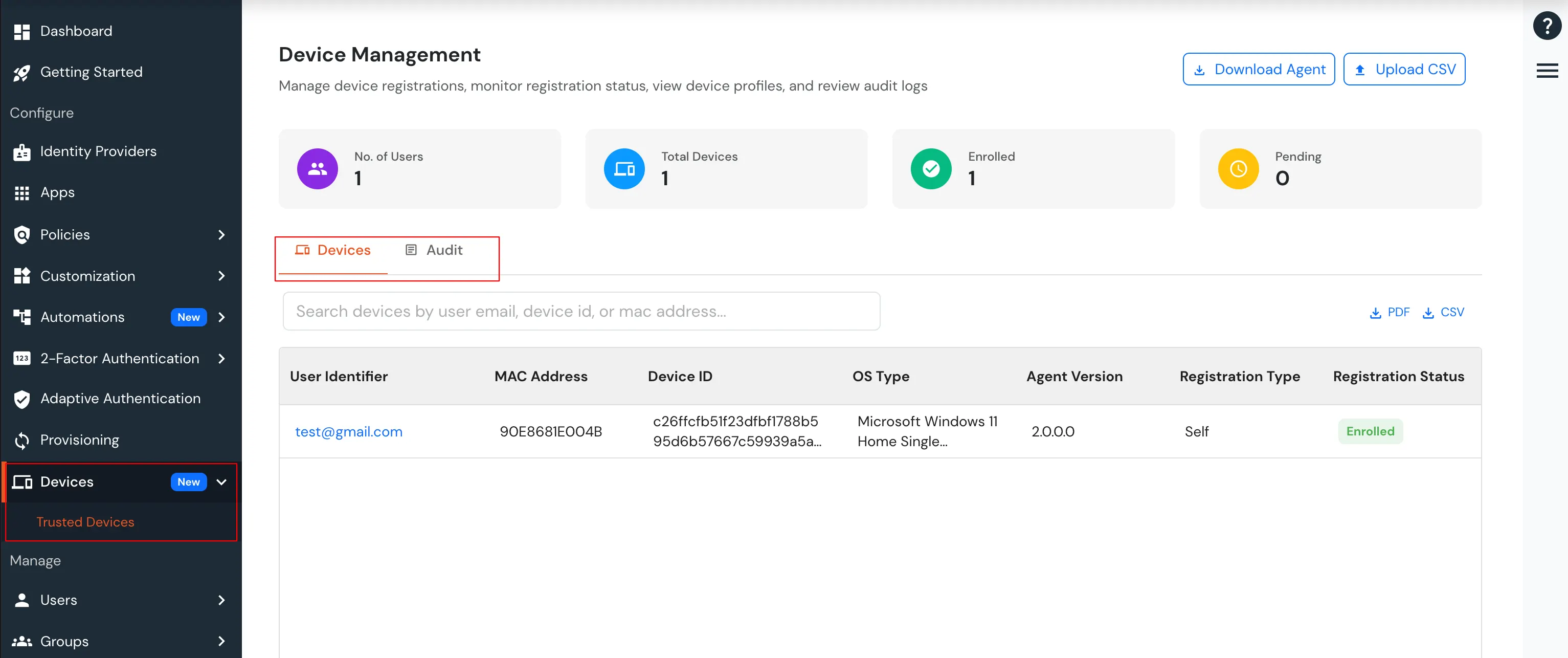
After a user completes the registration flow, their registered devices appear in the Trusted Devices section of the customer admin account.

  • Navigate to Devices >> Trusted Devices from the left navigation.
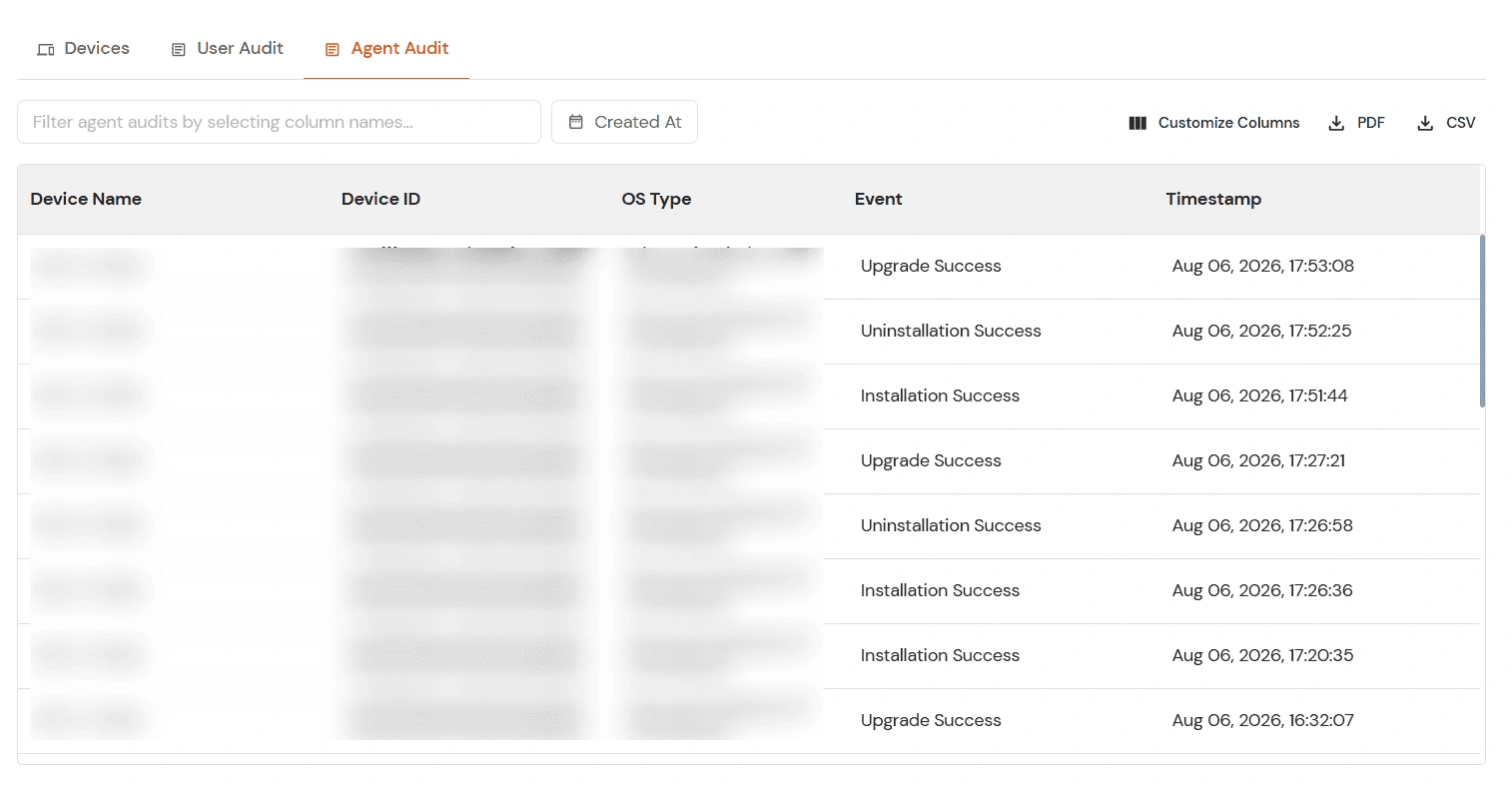
  • The Device Management page contains two tabs: Devices and Audit.
  • Adaptive Authentication: Device Management

  • Device Registration Details.
  • Adaptive Authentication: Device Management

  • Click on User Identifier.

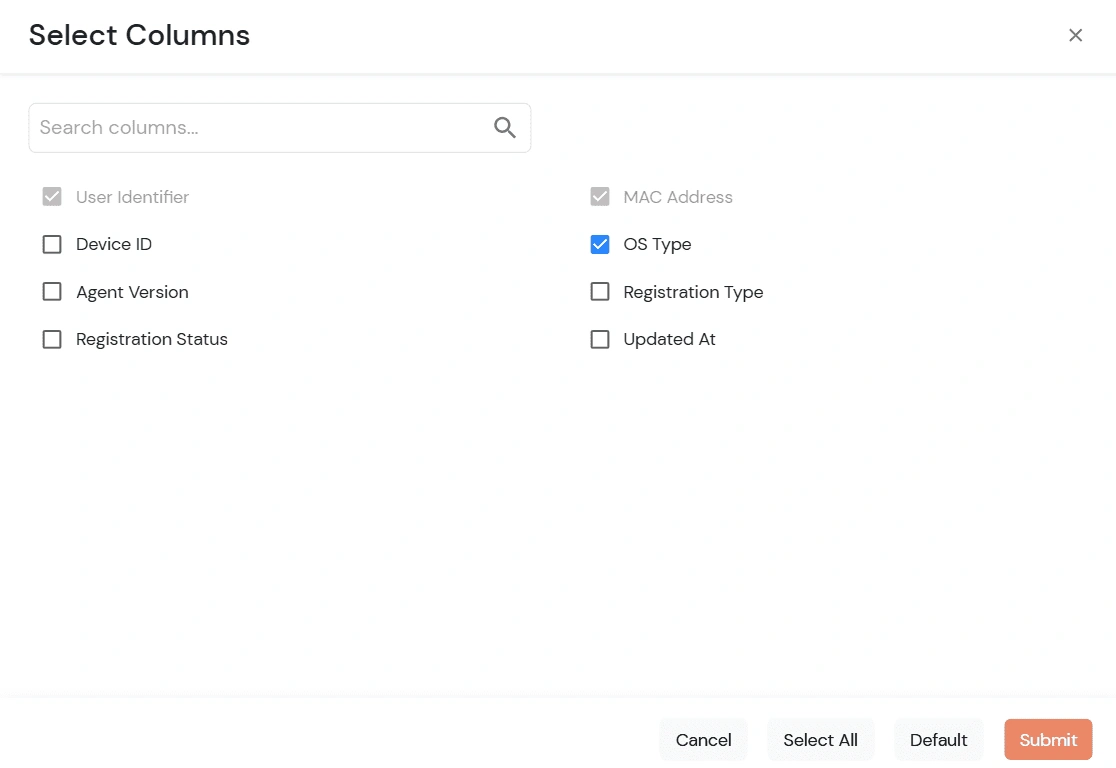
    All configured device attributes associated with the selected user are displayed on this page.

  • Adaptive Authentication: Device Profiles

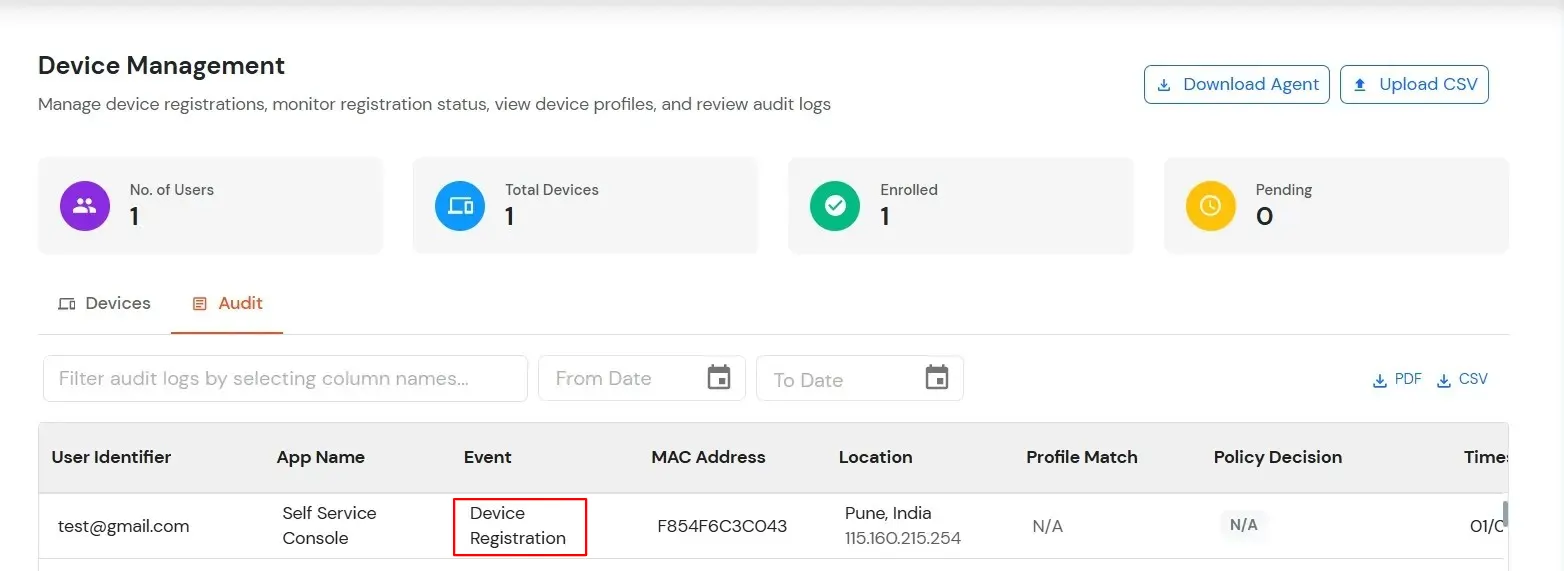
  • Switch to Audit tab.

    User device audit details are displayed here.

  • Adaptive Authentication: Device Profiles

7. User Login Experience

Defines how users are authenticated and what they experience during login.

  • Visit your branding Url of miniorange for eg.. (https://abc.miniorange.in/)
  • Enter your Username.
  • Adaptive Authentication: login to Dashboard

  • Enter Password.
  • Adaptive Authentication: login to Dashboard

  • User is logged in to the user dashboard.
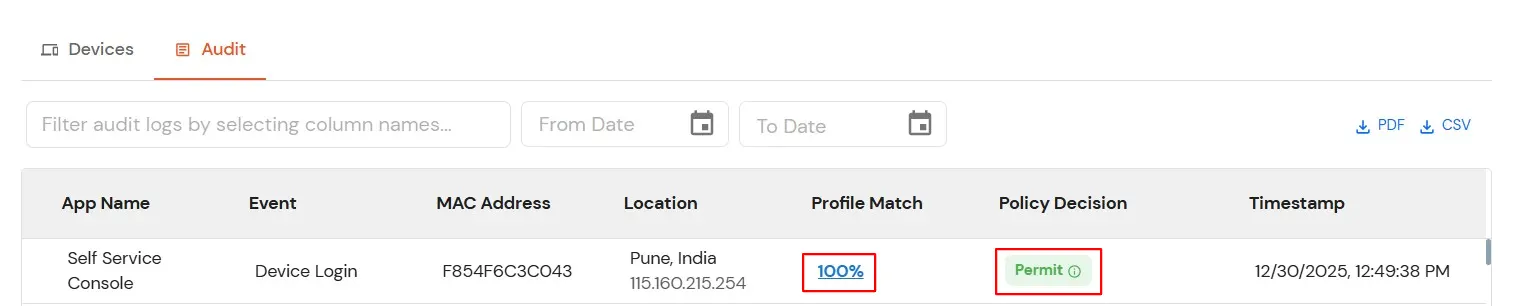
  • Switch to the Audit tab to view device-related audit logs.
  • Adaptive Authentication: Audit List

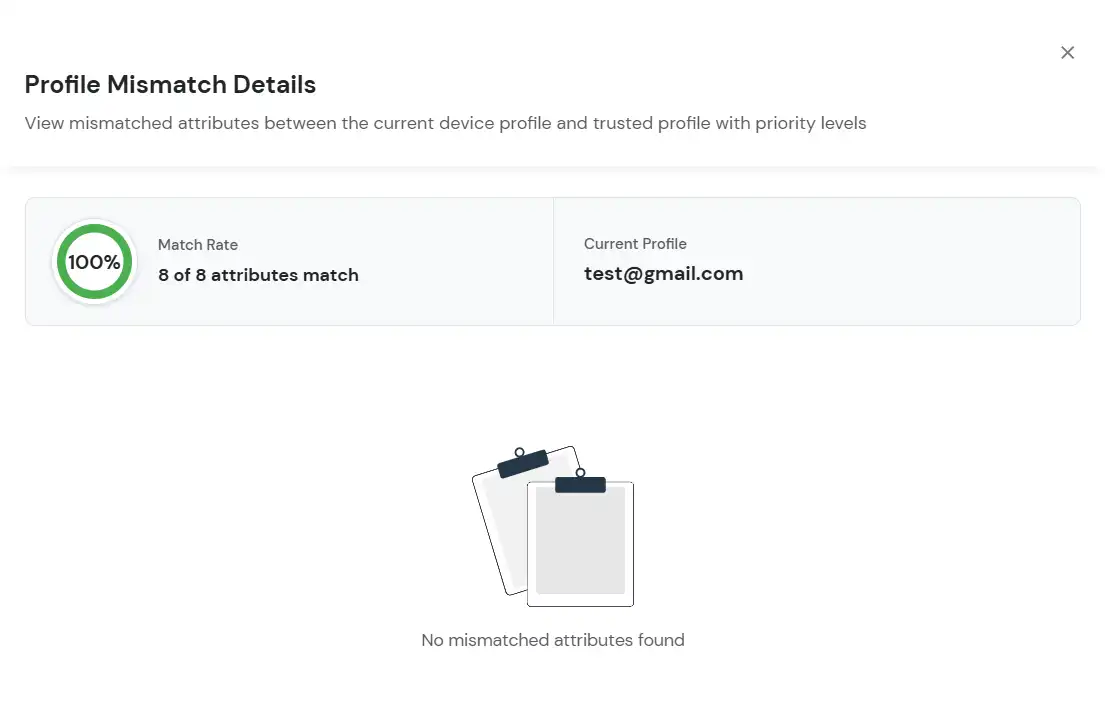
  • Click Profile Match to review the device attribute comparison.
  • If no mismatched attributes are detected, the page indicates that the device profile matches.
  • If mismatched attributes are found, the page displays the list of attributes that do not match.
  • Adaptive Authentication: Profile details

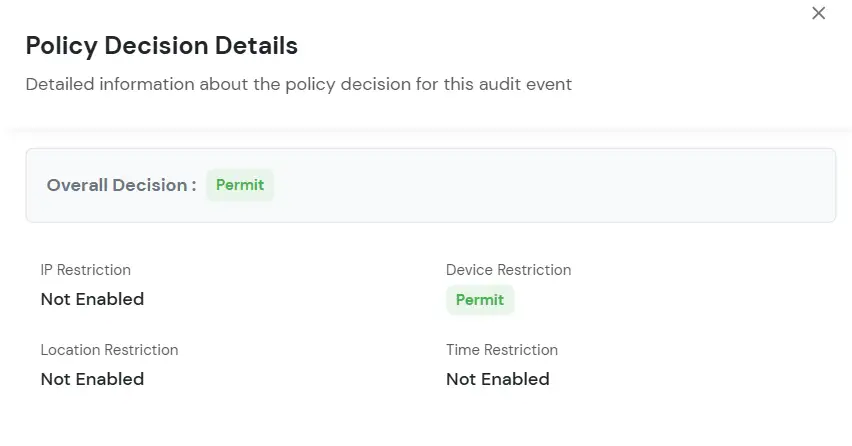
  • Click on Permit to view the overall policy decision.
  • Adaptive Authentication: View Overall Policy


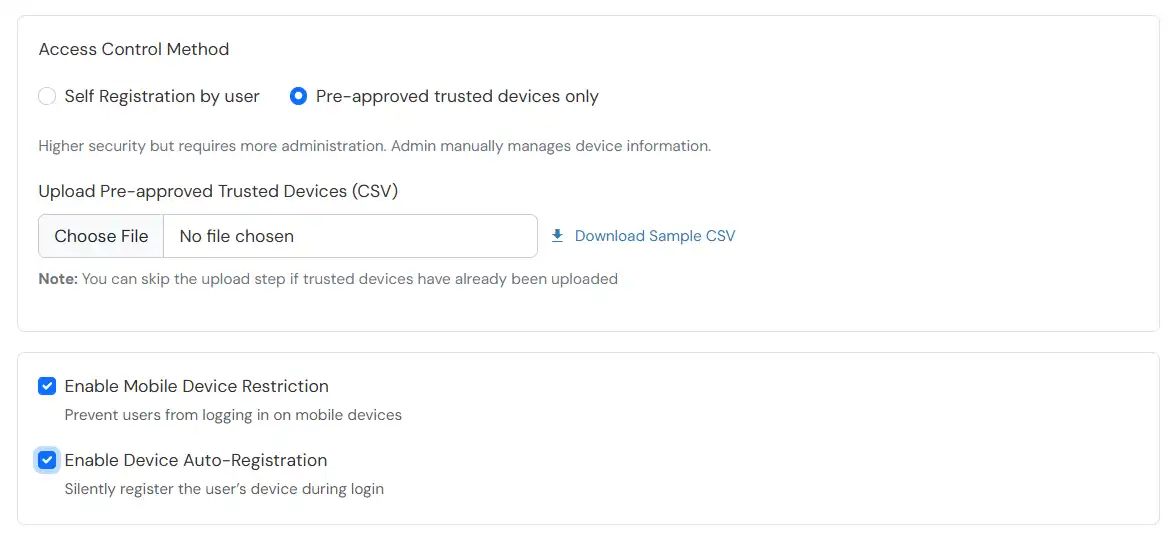
  • Choose Pre-Approved Trusted Devices Only.
  • Adaptive Authentication: Pre-Approved Restriction

  • Upload a CSV file containing pre-approved users and devices (users must already exist in miniOrange). Download Sample CSV for reference.
  • Configure the following options:
    • Enable Mobile Device Restriction: Blocks login attempts from mobile devices.
    • Enable Device Auto-Registration: Allows automatic device registration.

Configure Risk Engine for Device Trust Evaluation

The Risk Engine allows you to evaluate device trustworthiness by analyzing multiple device attributes and calculating a risk score. Based on this score, user access is allowed, challenged, or denied during login and device registration.

  • Navigate to the Risk Engine section and click Configure.
  • Adaptive Authentication: configure risk engine

  • The Risk Engine Configuration window opens with two tabs:
    • Risk Parameters
    • Risk Score
  • Configure Risk Parameters:
    • In the Risk Parameters tab, review the list of device attributes grouped by category.
    • The Device Identifiers category contains mandatory attributes (such as Installation ID, BIOS UUID, Machine SID, etc.). These attributes are always enabled and cannot be disabled or reprioritized, as they are critical for device fingerprinting.
    • For other categories (Hardware, Network, Software, Location), enable the attributes you want to use for device trust evaluation.
    • Set a Priority for each enabled attribute:
      • High: Strong impact on risk score
      • Medium: Moderate impact
      • Low: Minimal impact
      Adaptive Authentication: risk parameter

    • Click Next to proceed.
  • Configure Risk Score Thresholds:
    • In the Risk Score tab, define the score ranges (0–100) that determine the authentication outcome during user login.
    • Lower risk scores indicate trusted devices.
    • Higher risk scores indicate potential security risks or anomalies.
    • Configure the thresholds as follows:
      • Allow: Grant access immediately.
      • Challenge: Require additional verification.
      • Deny: Block access.
    Adaptive Authentication: risk store

  • Click Save to apply the Adaptive Policy.
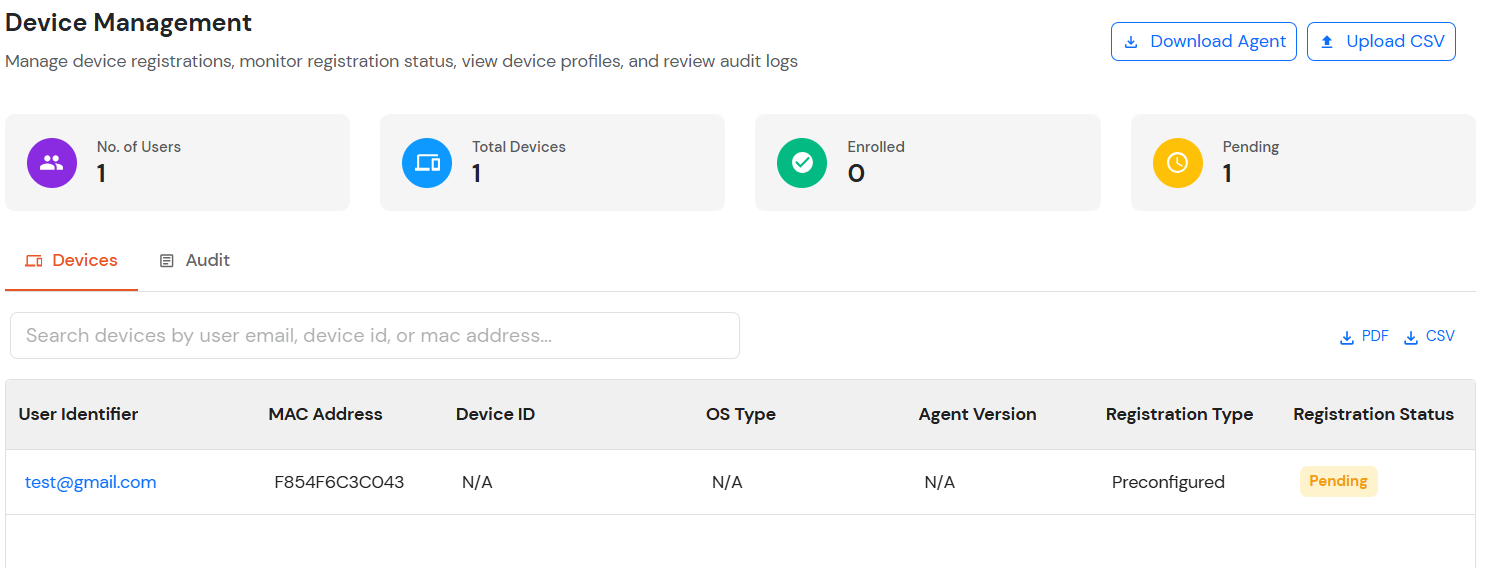
  • Navigate to Devices >> Trusted Devices from the left navigation.
  • Pre-approved user and device details are displayed after the CSV upload.
  • Adaptive Authentication: Device Management

3. Assign the Adaptive Policy to an Application

The policy will take effect only after it is associated with a specific application login flow.

  • Go to Policies >> App Login Policy from the left navigation section.
  • Assign the newly created adaptive policy to the Application Login Policy by clicking on the edit icon next to the required listed application.
  • Enable Device Restriction under Adaptive Authentication.
  • Adaptive Authentication: Edit Login Policy

  • Click Submit.

4. User Device Registration

Applies when a user is registering a device for the first time.

  • Visit your branding Url of miniorange for eg.. (https://abc.miniorange.in/)
  • Enter your Username.
  • Adaptive Authentication: login to Dashboard

  • Enter Password.
  • Adaptive Authentication: login to Dashboard

  • If the Action for Behaviour is set to Deny or Challenge, the user is prompted with the configured challenge type along with an option to register the user device profile.
  • Note:

    If Auto-Registration is enabled and Action for Behaviour Change is set to Deny or Challenge, the device is registered automatically after successful challenge.

    Adaptive Authentication: Verify Your Identity

  • If the Action for Behaviour is set to Allow, the user is logged in to the user dashboard without any registration or challenge prompt.

5. Device Management

After a user completes the registration flow, their registered devices appear in the Trusted Devices section of the customer admin account.
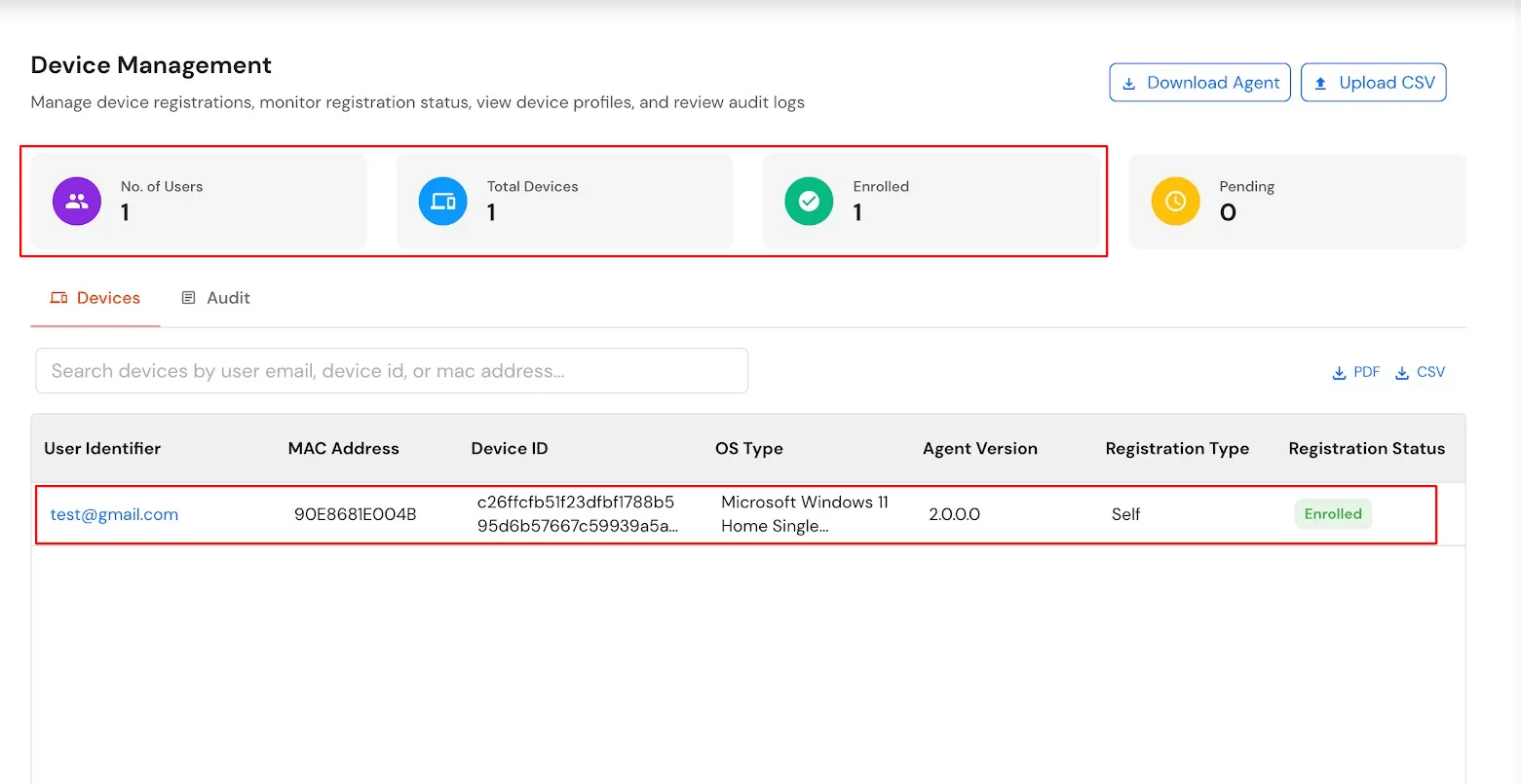
  • Navigate to Devices >> Trusted Devices from the left navigation.
  • The Device Management page contains two tabs: Devices and Audit.
  • Device Registration Details.
  • Adaptive Authentication: Device Management

  • Click on User Identifier.
  • All configured device attributes associated with the selected user are displayed on this page.
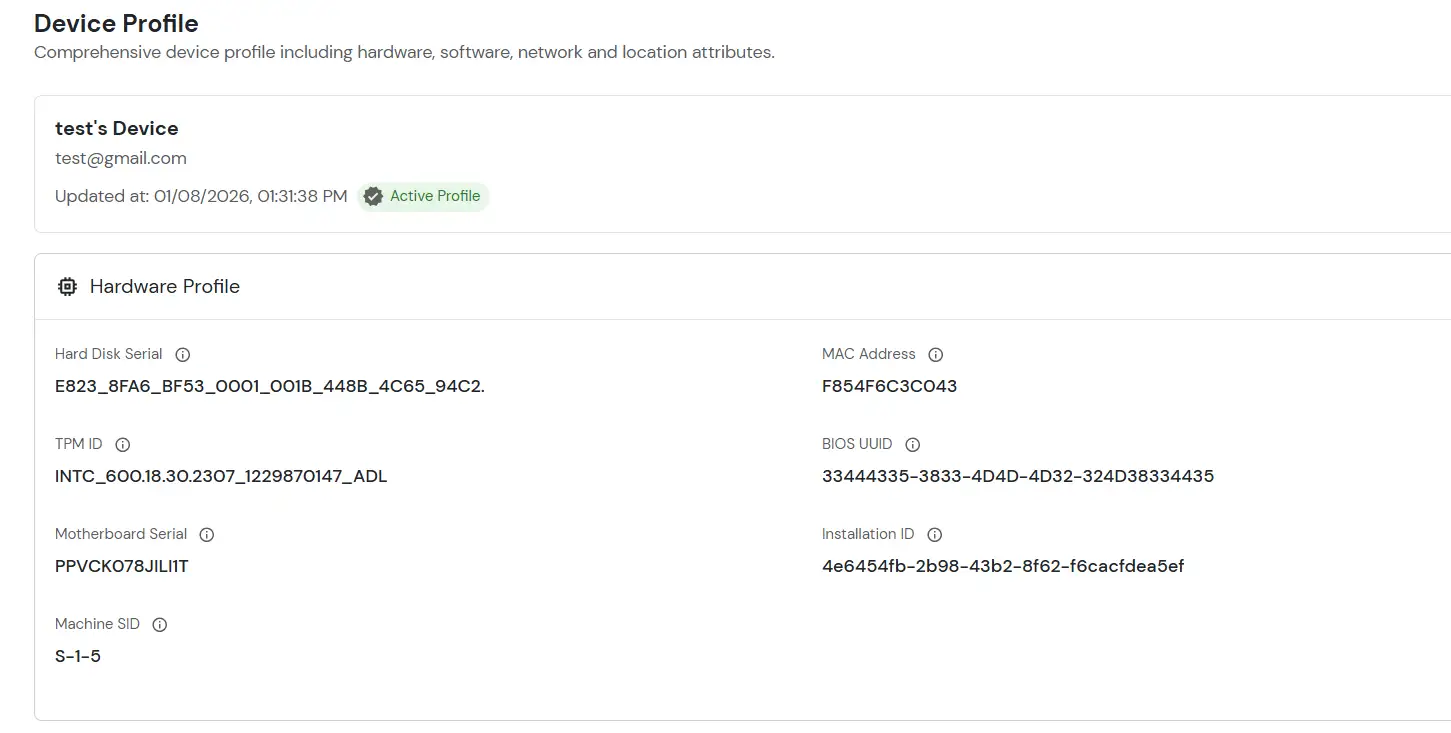
  • Adaptive Authentication: Device Profiles

  • Switch to Audit tab.
  • Adaptive Authentication: Device Profiles

6. User Login Experience

Defines how users are authenticated and what they experience during login.

  • Visit your branding Url of miniorange for eg.. (https://abc.miniorange.in/)
  • Enter your Username.
  • Adaptive Authentication: login to Dashboard

  • Enter Password.
  • Adaptive Authentication: login to Dashboard

  • User is logged in to the user dashboard.
  • Switch to the Audit tab to view device-related audit logs.
  • Adaptive Authentication: Audit List

  • Click Profile Match to review the device attribute comparison.
  • If no mismatched attributes are detected, the page indicates that the device profile matches.
  • If mismatched attributes are found, the page displays the list of attributes that do not match.
  • Adaptive Authentication: Profile details

  • Click on Permit to view the overall policy decision.
  • Adaptive Authentication: View Overall Policy


Want To Schedule A Demo?

Request a Demo


Our Other Identity & Access Management Products