Hello there!

Need Help? We are right here!

Support Icon
miniOrange Email Support
success

Thanks for your Enquiry. Our team will soon reach out to you.

If you don't hear from us within 24 hours, please feel free to send a follow-up email to info@xecurify.com

Search Results:

×

Configure Duo as SAML IDP for SSO


miniOrange Identity Broker service solution enables cross protocol authentication. You can configure Duo as an IDP for Single Sign-On (SSO) into your applications/websites. Here, Duo will act as an Identity Provider (IDP) and miniOrange will act as a broker.

We offer a pre-built solution for integrating with Duo, making it easier and quick to implement. Our team can also help you set up Duo as SAML IDP to login into your applications.

Get Free Installation Help


miniOrange offers free help through a consultation call with our System Engineers to configure SSO for different apps using Duo as IDP in your environment with 30-day free trial.

For this, you need to just send us an email at idpsupport@xecurify.com to book a slot and we'll help you in no time.


Prerequisites

Please make sure your organisation branding is already set under Customization >> Login and Registration Branding in the left menu of the dashboard.
Follow the Step-by-Step Guide given below for Duo Single Sign On

1. Configure miniOrange as Service Provider in Duo

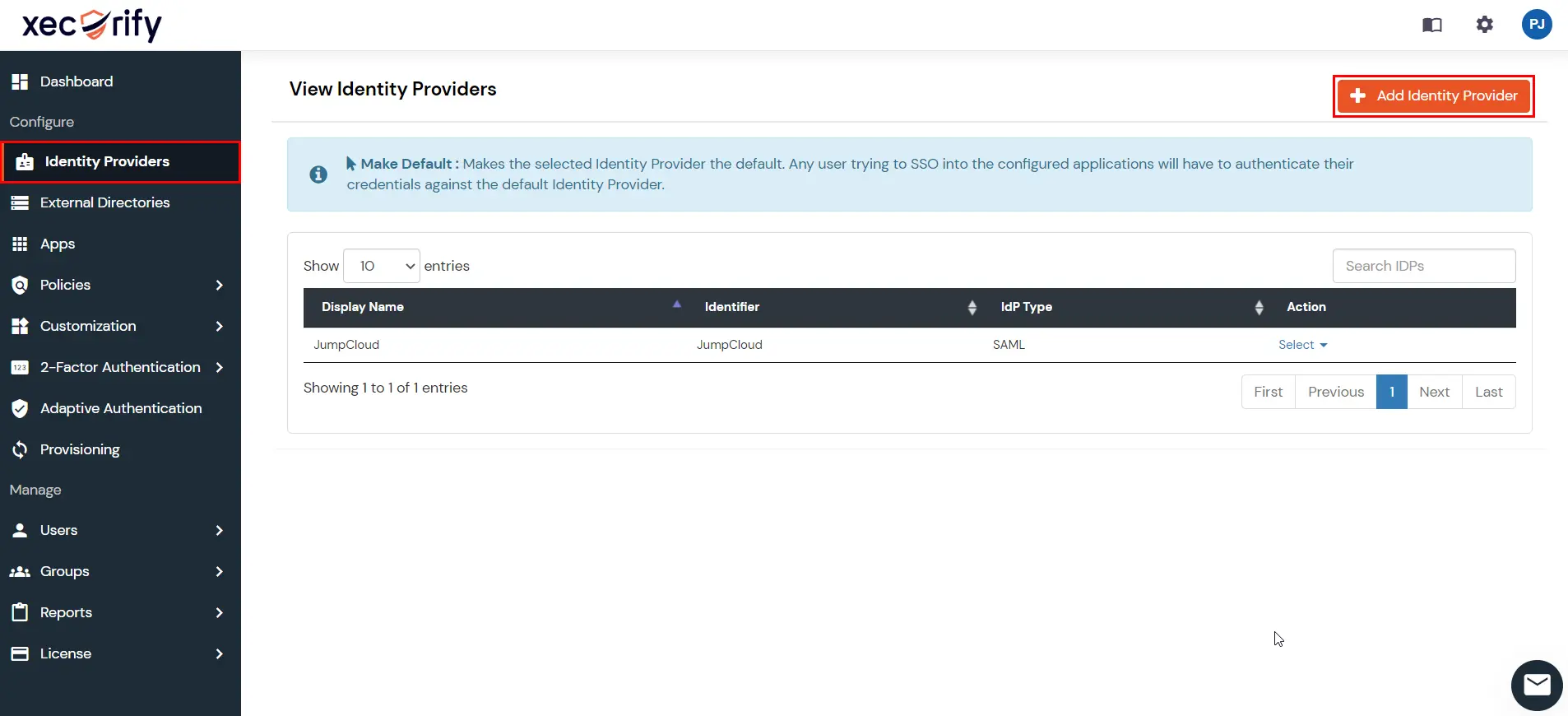
  • Go to miniOrange Admin console and navigate to Identity Providers in the left navigation menu. Then, click on Add Identity Provider button.
  • Duo IDP: Add Identity Provider

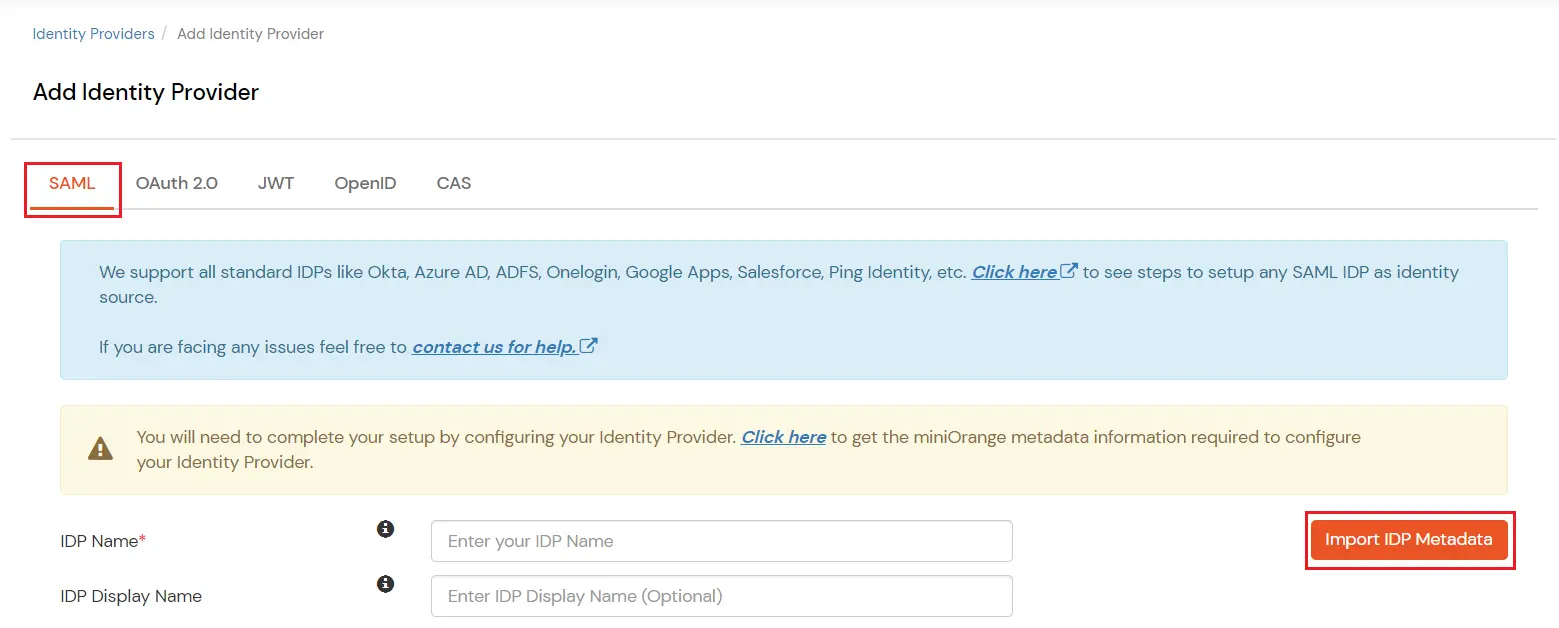
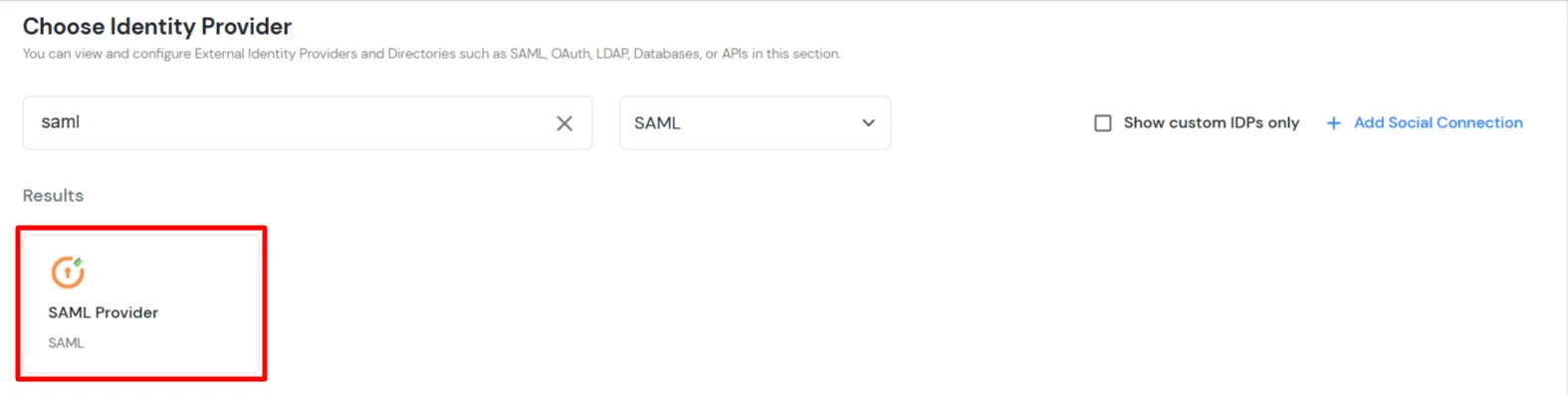
  • In Choose Identity Provider, select SAML from the dropdown.
  • Duo IDP: Select SAML from dropdown

  • Search for Duo in the list. If you don't find it, search for SAML Provider and set up your application there.
  • Duo IDP: Search Duo

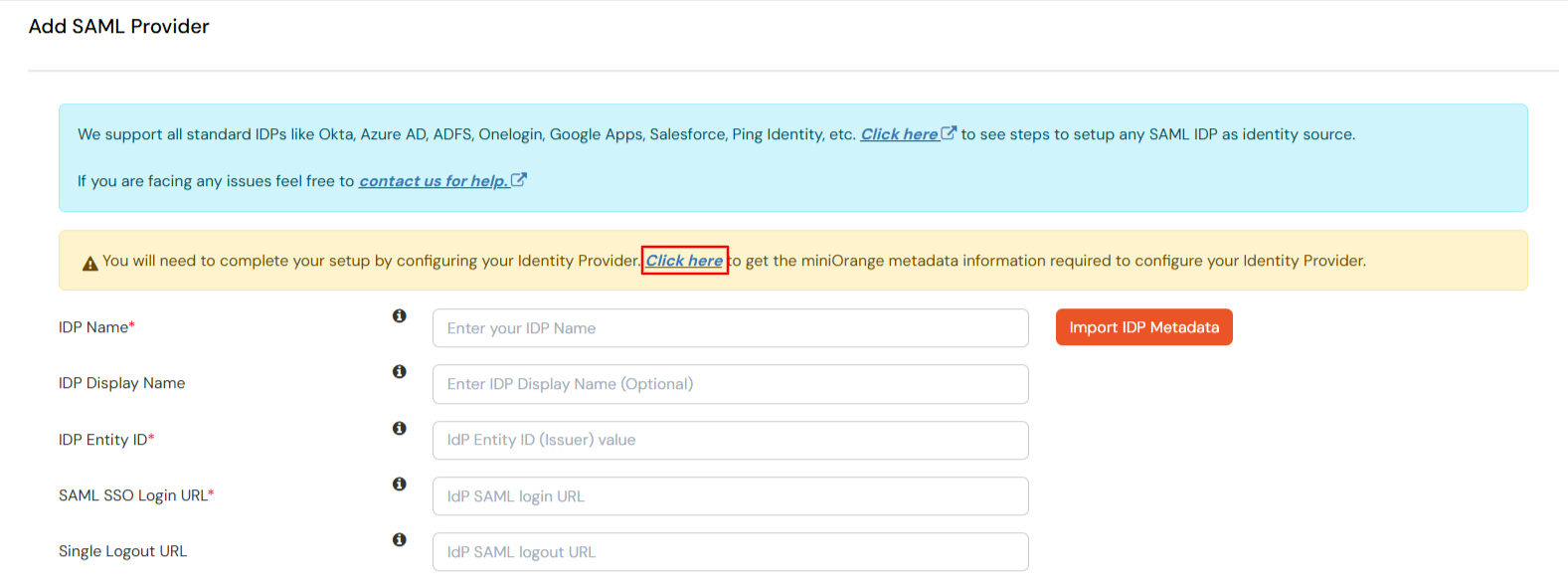
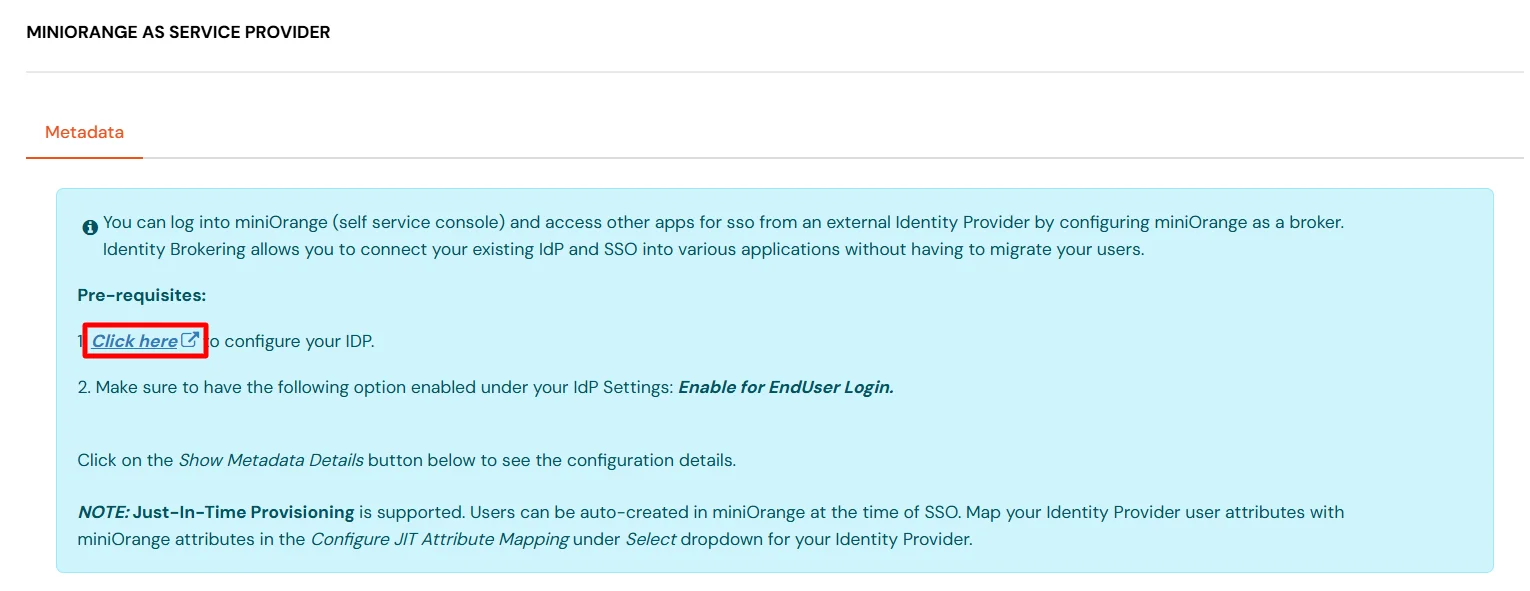
  • Now click on the Click here link to get miniOrange metadata as shown in Screen below.
  • Duo IDP : Get miniorange metadata

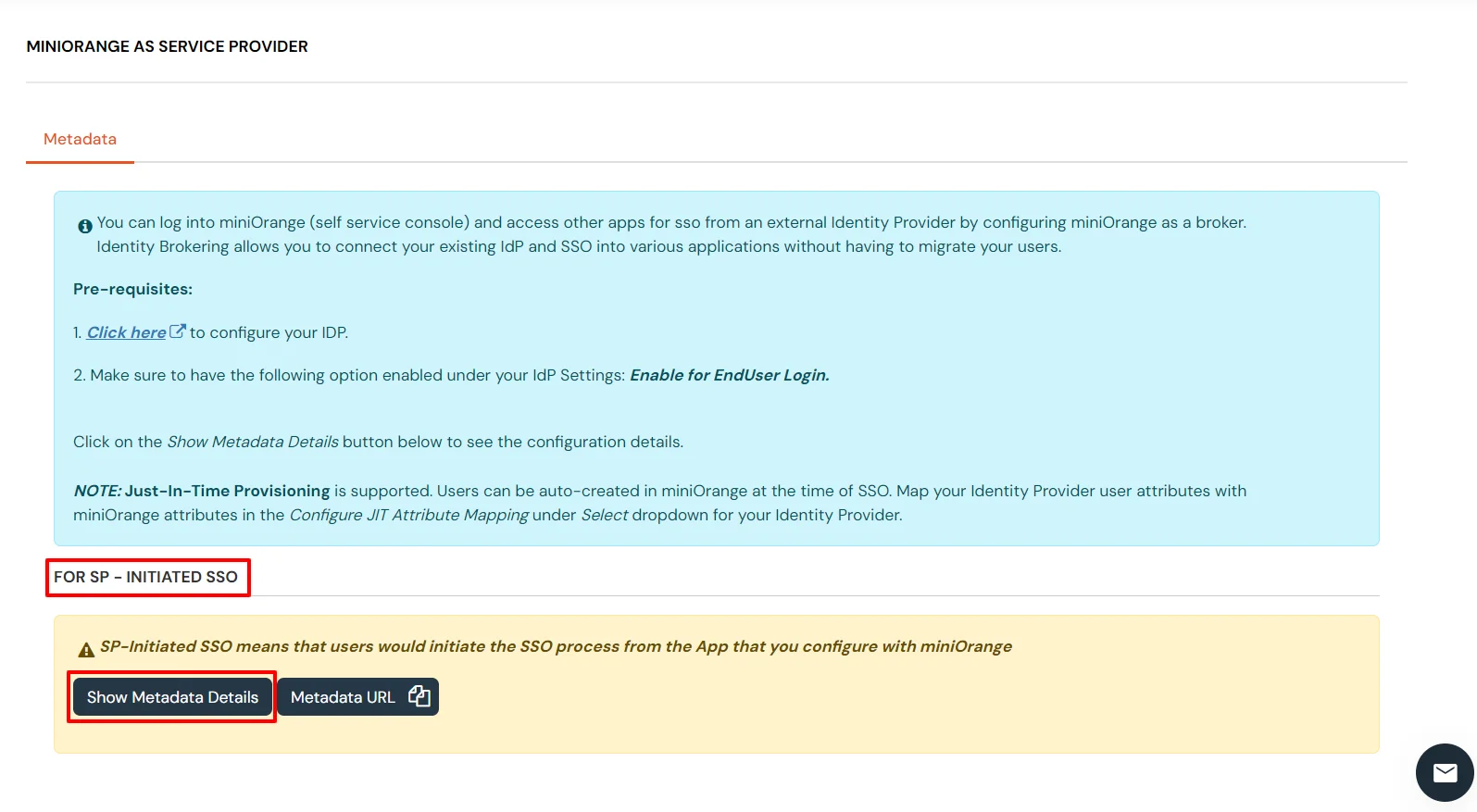
  • For SP - Initiated SSO section, select Show Metadata Details.
  • Duo SAML IDP : SP intiated Metadata

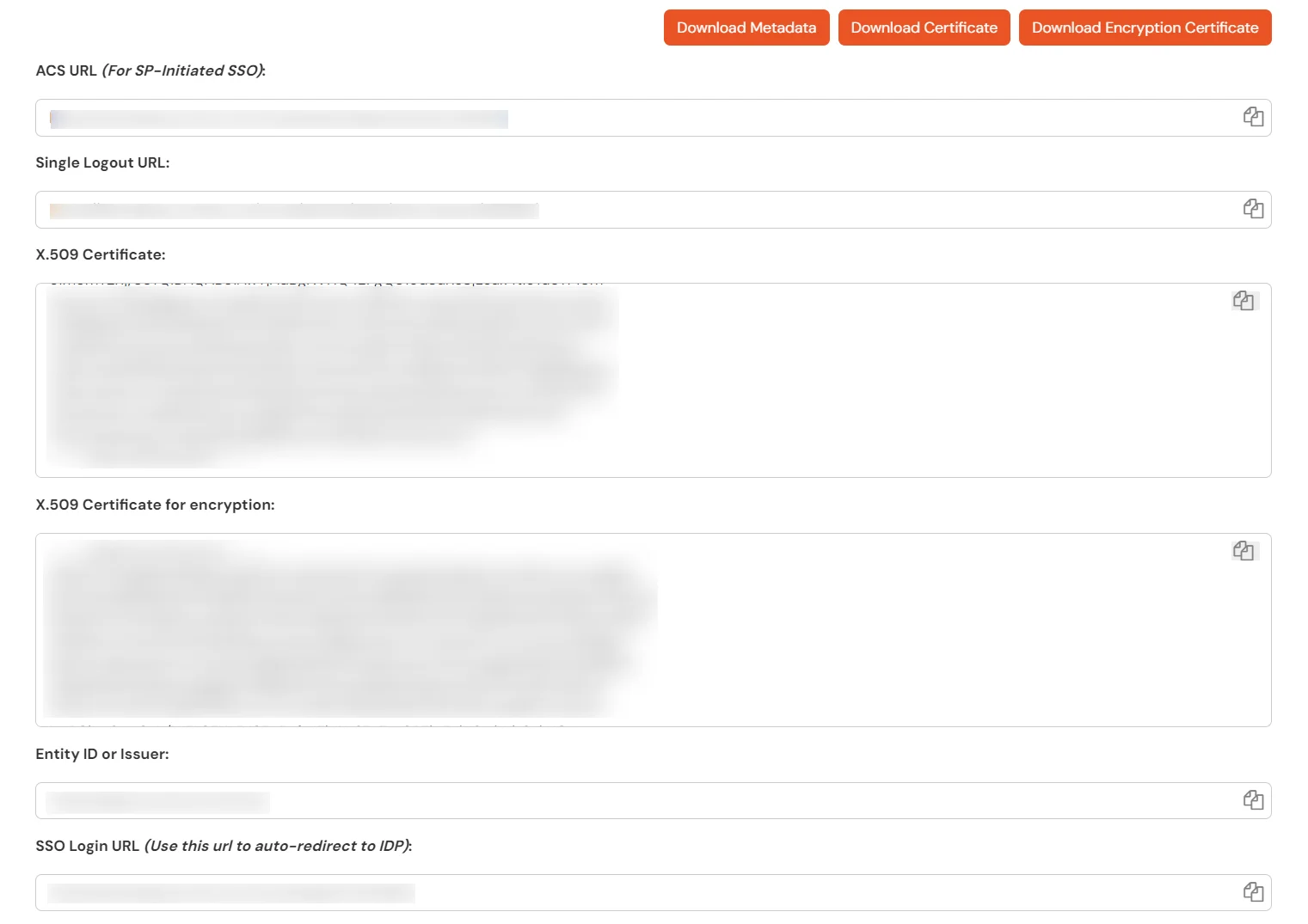
  • Copy Entity ID or Issuer and ACS URL (For SP-Initiated SSO) values and keep them handy. We'll use these to configure miniOrange as a Service Provider in Duo next.
  • Duo SAML IDP : Keep it handy SP Metadata details

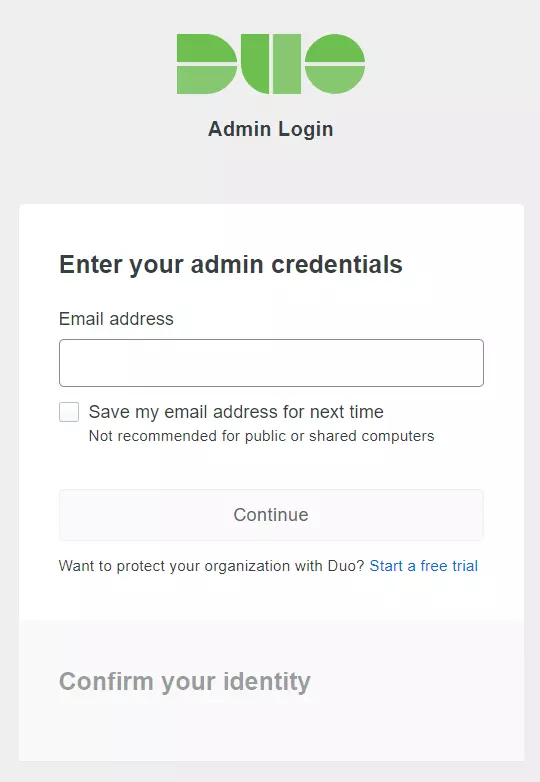
  • Now log in to your Duo Administration Console.
  • Application | Duo SAML SSO Login

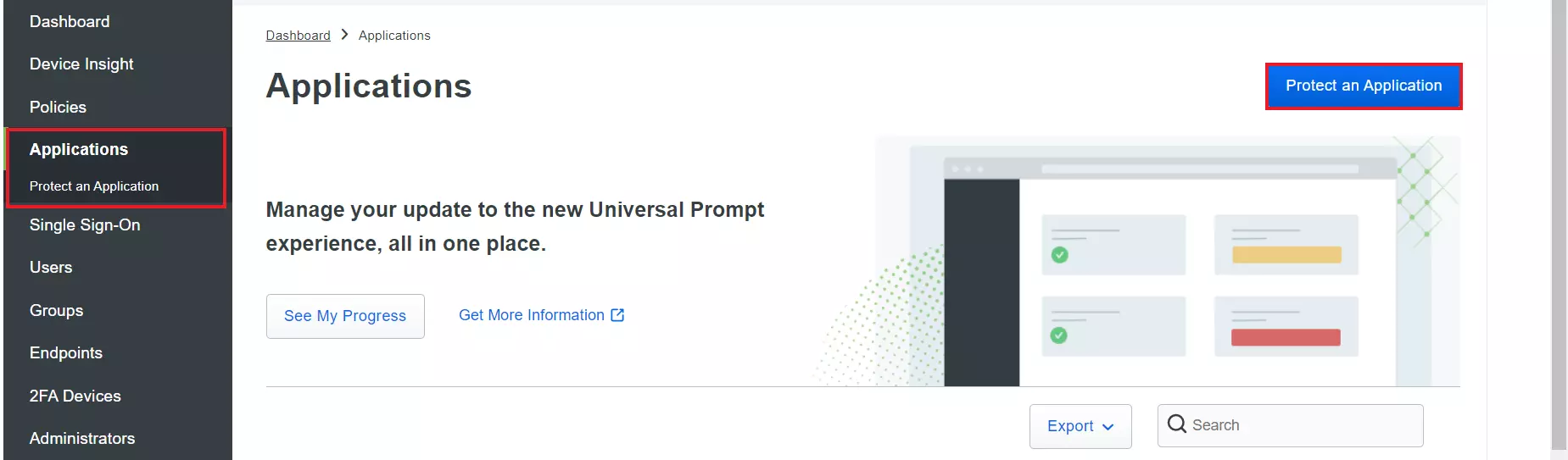
  • Select Applications tab from left menu pane, then click on Protect an Application.
  • Application | Duo SAML SSO Login

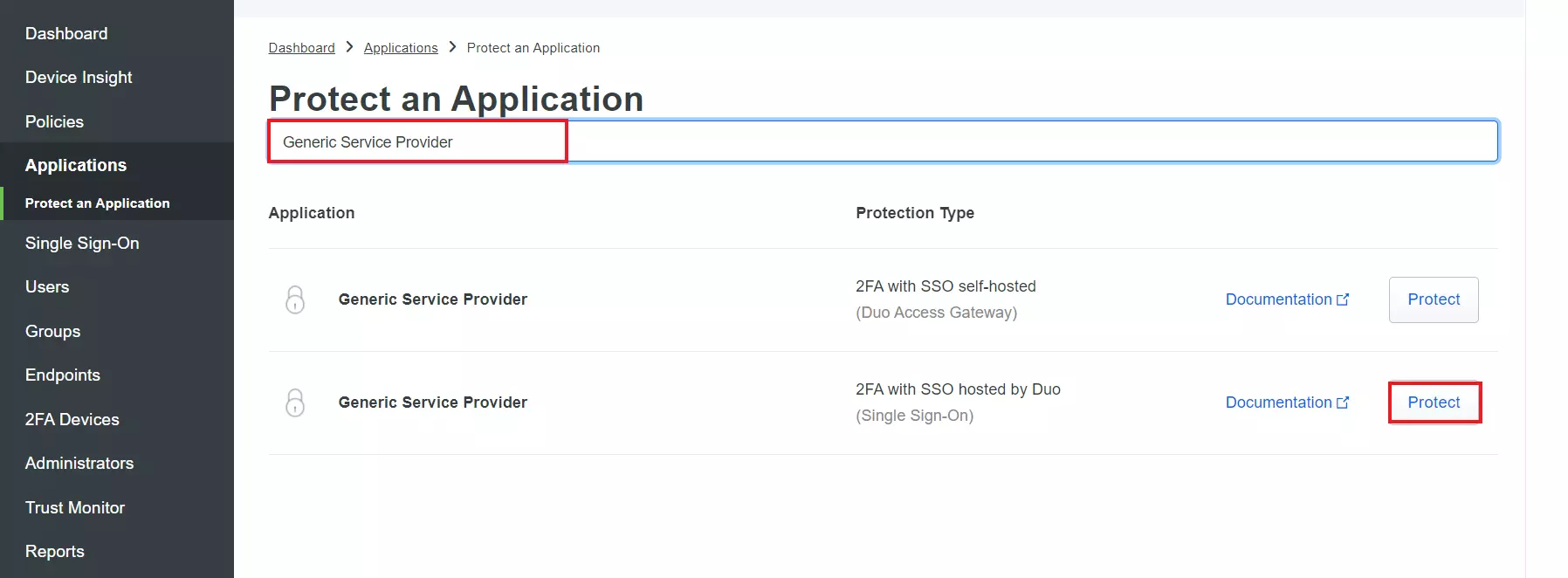
  • Search for Generic Service Provider .
  • Then, select Single Sign-On application and click on Protect button.
  • Protect Application | Duo SAML SSO Login

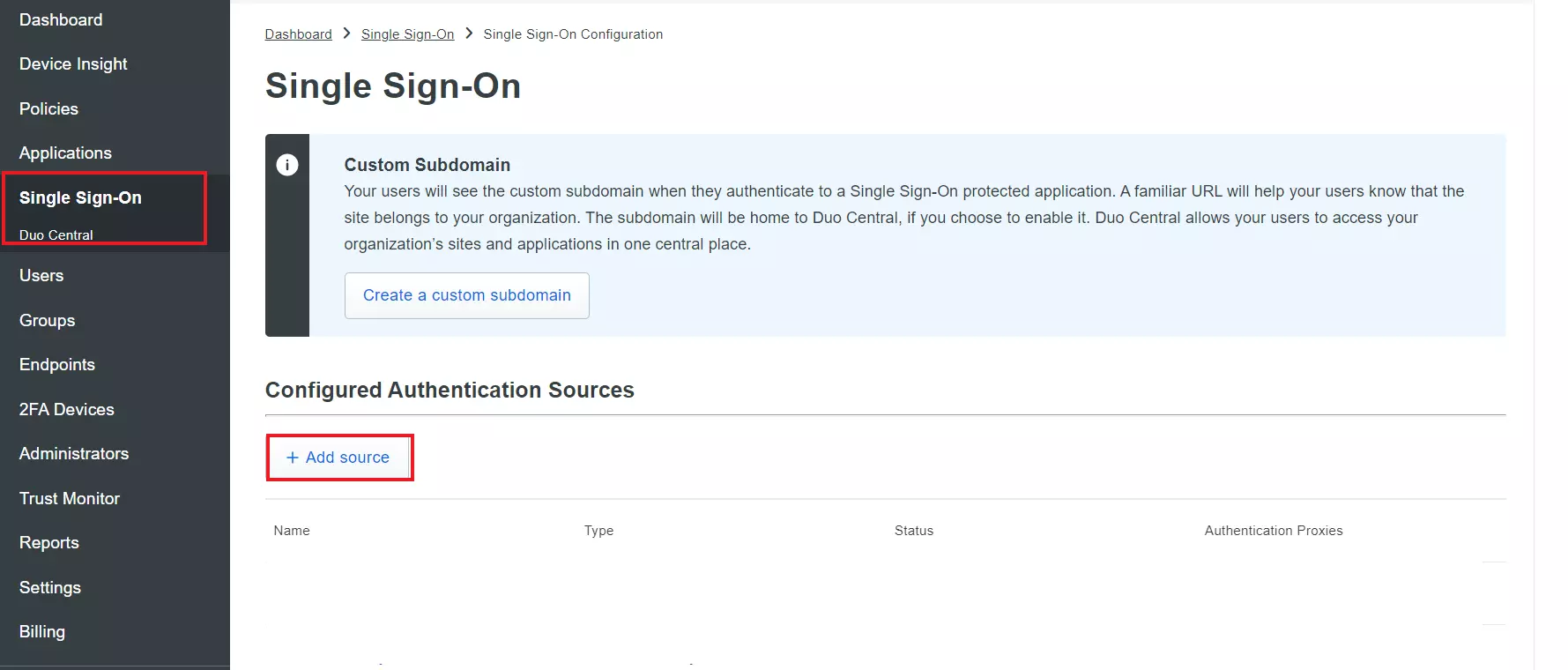
  • Select Single Sign-On tab from the left menu pane and click on Add Source button.
  • Protect Application | Duo SAML SSO Login

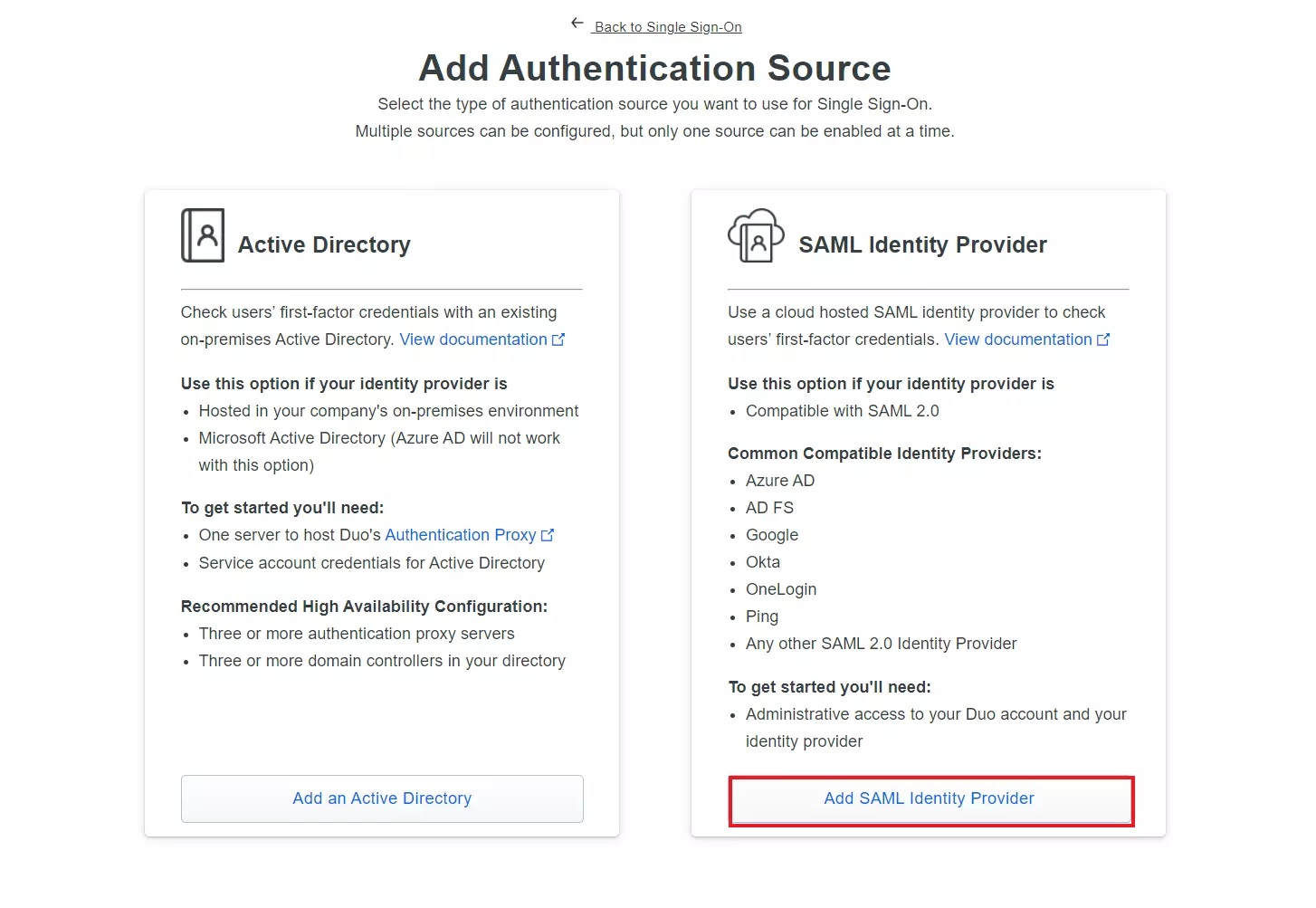
  • Select Authentication Source as SAML Identity Provider and click on Add SAML Identity Provider button.
  • Protect Application | Duo SAML SSO Login

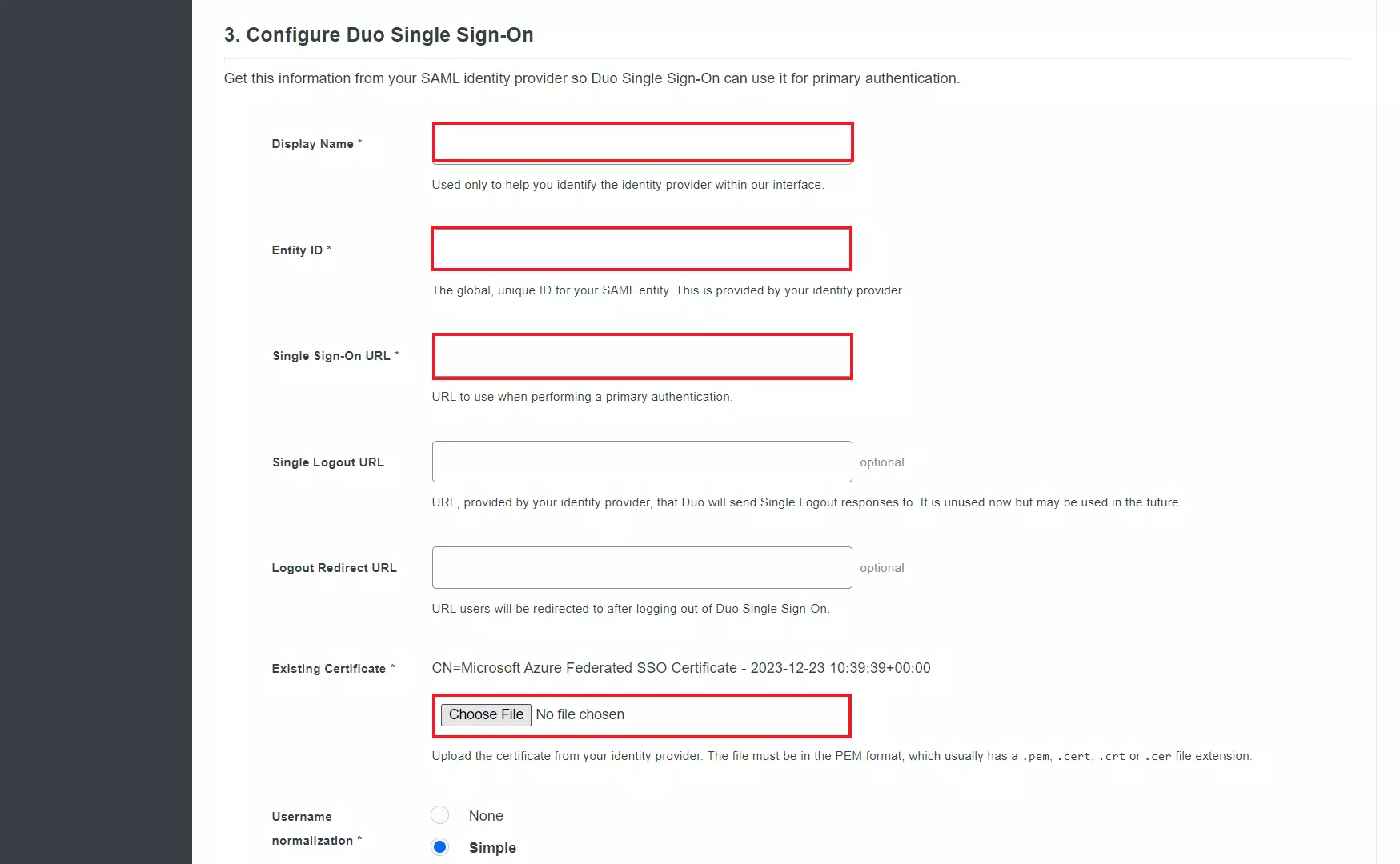
  • To Configure SAML Identity Provider navigate to Configure Single Sign-On tab and provide the following values:
    Display Name Provide a Service Provider name
    Entity ID Enter IDP Entity ID from miniOrange metadata above
    Single Sign-On URL Enter ACS (Assertion Consumer Service) URL from miniOrange metadata above
    Existing Certificate Upload the Certificate from miniOrange metadata
  • Configuration page | Duo SAML SSO Login

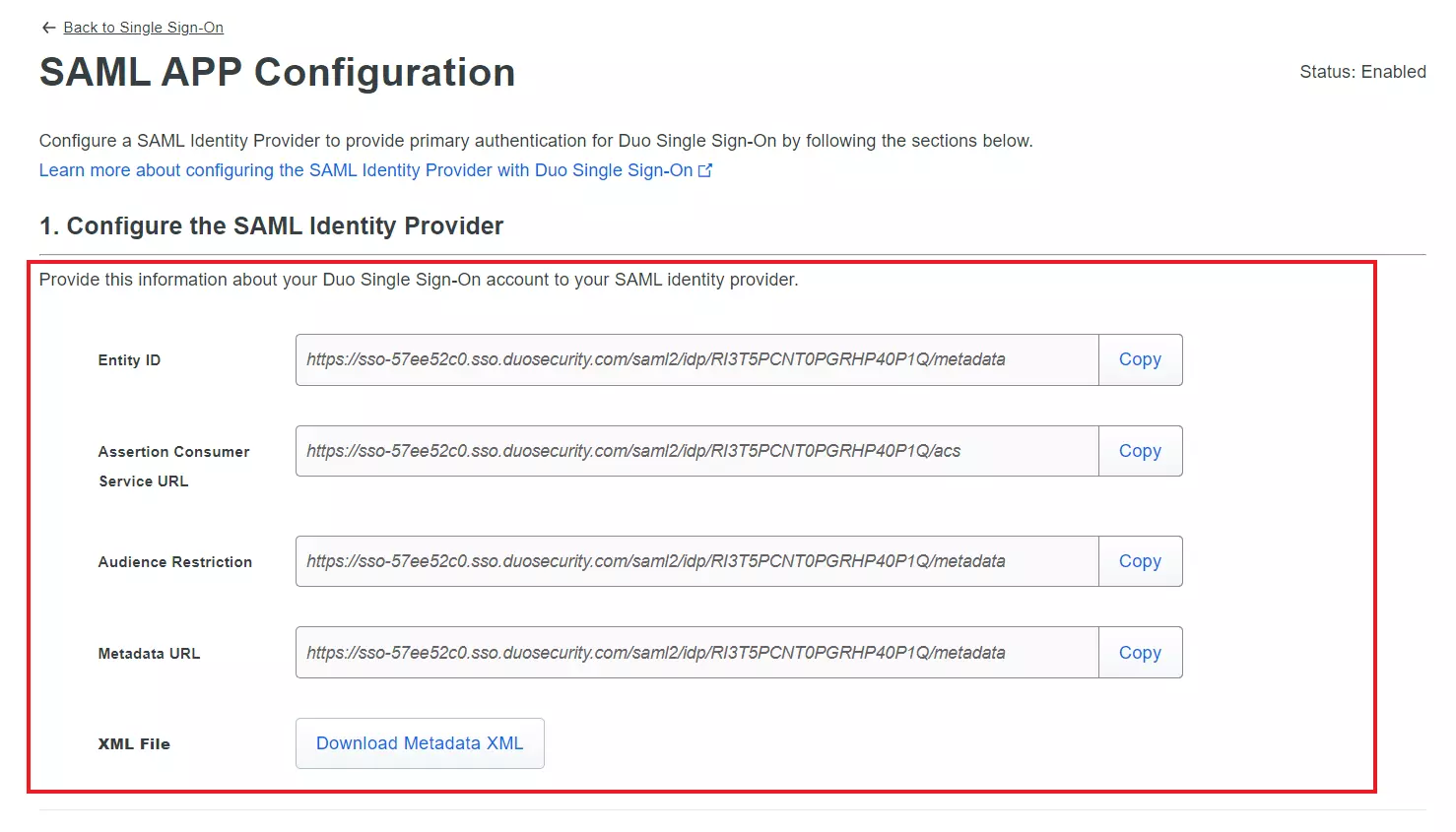
  • Click on Save to save your configuration. Save the SAML IDP details displayed (Entity ID, SSO URL, Certificate). We'll need them to complete the miniOrange setup below.
  • Download Metadata | Duo SAML SSO Login

    You have successfully configured miniOrange as Service Provider in Duo. Now we'll complete the IDP configuration in miniOrange.
2. Configure Duo as Identity Provider in miniOrange

  • Return to the miniOrange Admin Console tab you kept open from Step 1.
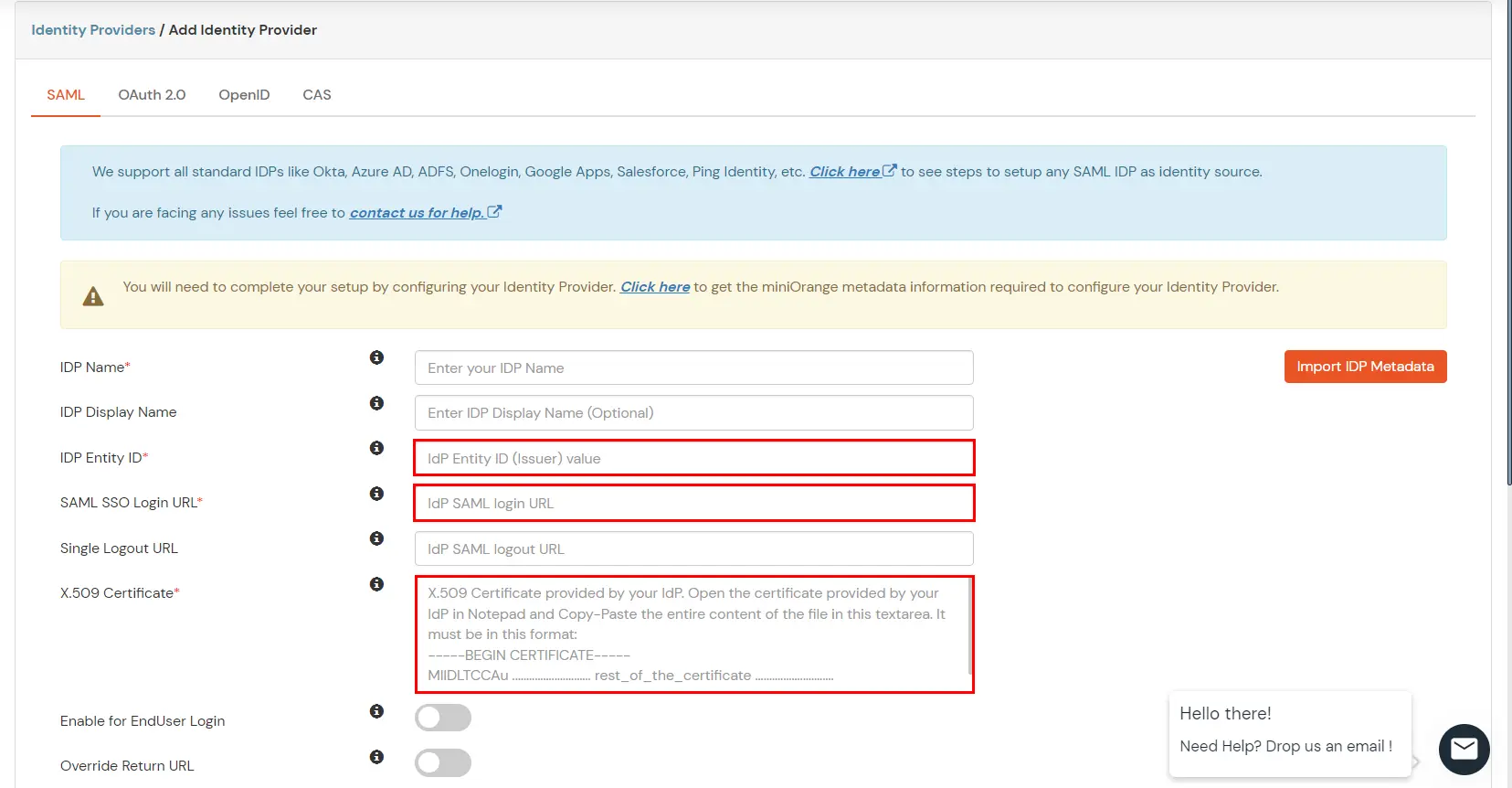
  • Click the Click here link to configure your IDP and provide the following details from the Duo configuration in Step 1:
  • Duo SAML IDP : Click here to configure IDP

    IDP Name Enter appropriate IdP name (e.g., Duo IDP)
    IDP Entity ID Identity Provider Issuer from Duo configuration in Step 1
    SAML SSO Login URL Identity Provider Single Sign-On URL from Duo configuration in Step 1
    Single Logout URL [Optional] Single Logout URL from Duo configuration in Step 1
    X.509 Certificate X.509 Certificate from Duo configuration in Step 1
    Duo SAML IDP : Enter following details

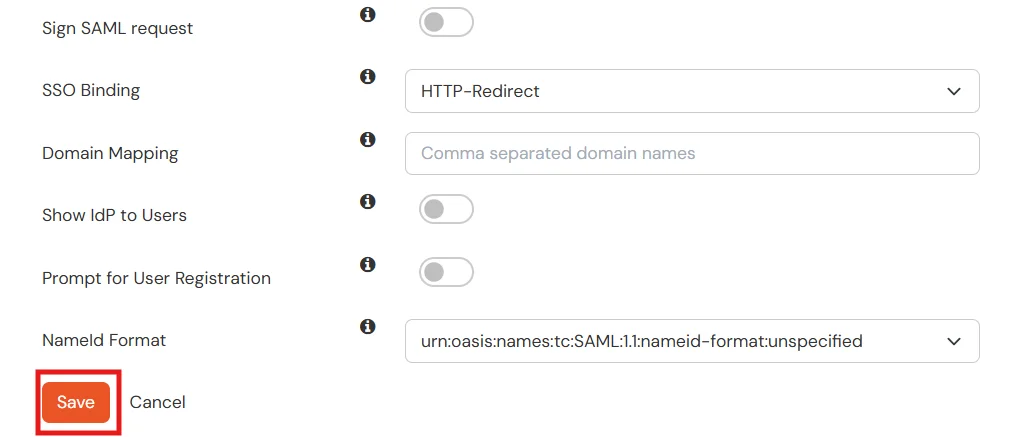
  • Few other optional features that can be added to the Identity Provider(IDP) are listed in the table below:
    Domain Mapping Can be used to redirect specific domain user to specific IDP
    Show IdP to Users Enable this if you want to show this IDP to all users during Login
    Send Configured Attributes Enabling this would allow you to add attributes to be sent from IDP
  • Duo SAML IDP : Click Save

  • Click on Save to complete the Duo IDP configuration.

3. Test Connection

  • Visit your Login Page URL.
  • Go to Identity Providers tab.
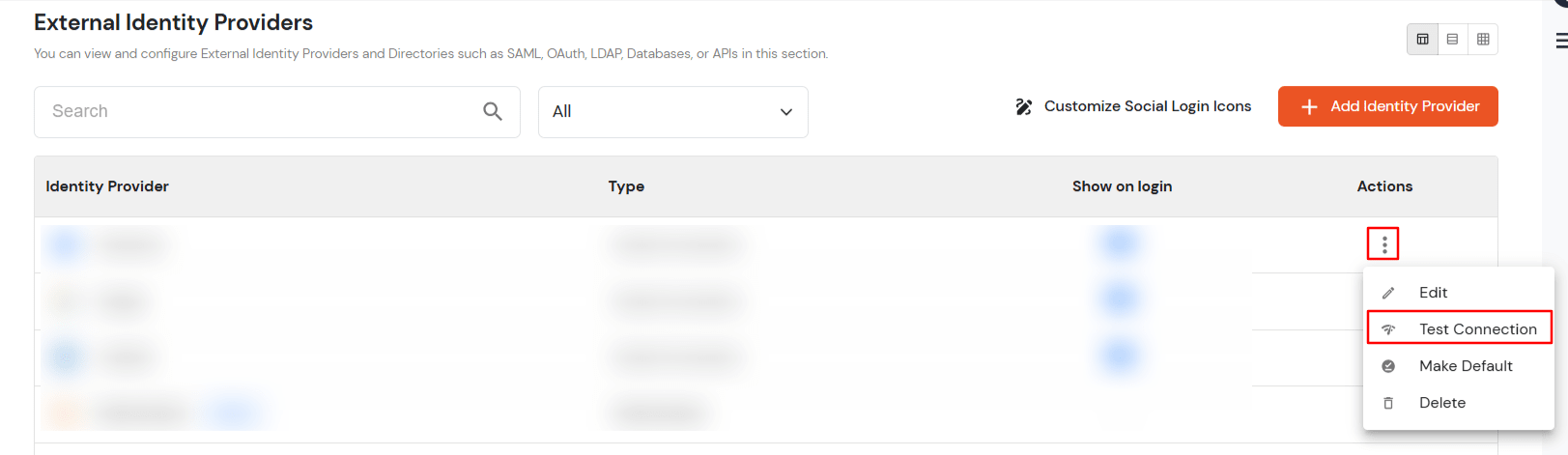
  • Search for your app, click the three dots in the Actions menu, and select Test Connection against the Identity Provider (IDP) you configured.
  • Duo-IDP-TestConnection

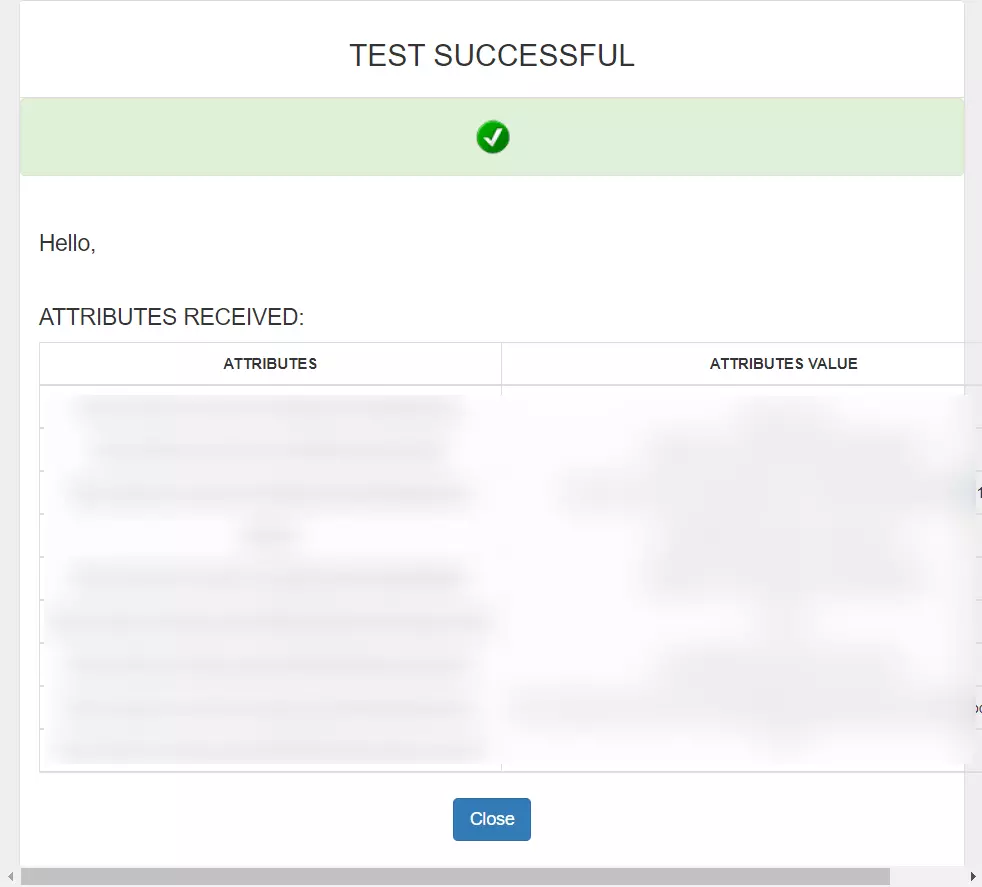
  • On entering valid Duo credentials (credentials of user assigned to app created in Duo), you will see a pop-up window which is shown in the below screen.
  • SucessTestConn-Duo-IDP

  • Hence your configuration of Duo as IDP in miniOrange is successfully completed.

Note:

You can follow this guide, if you want to configure SAML/WS-FED, OAuth/OIDC, JWT, Radius etc

Configure Attribute Mapping

  • Go to Identity Providers.
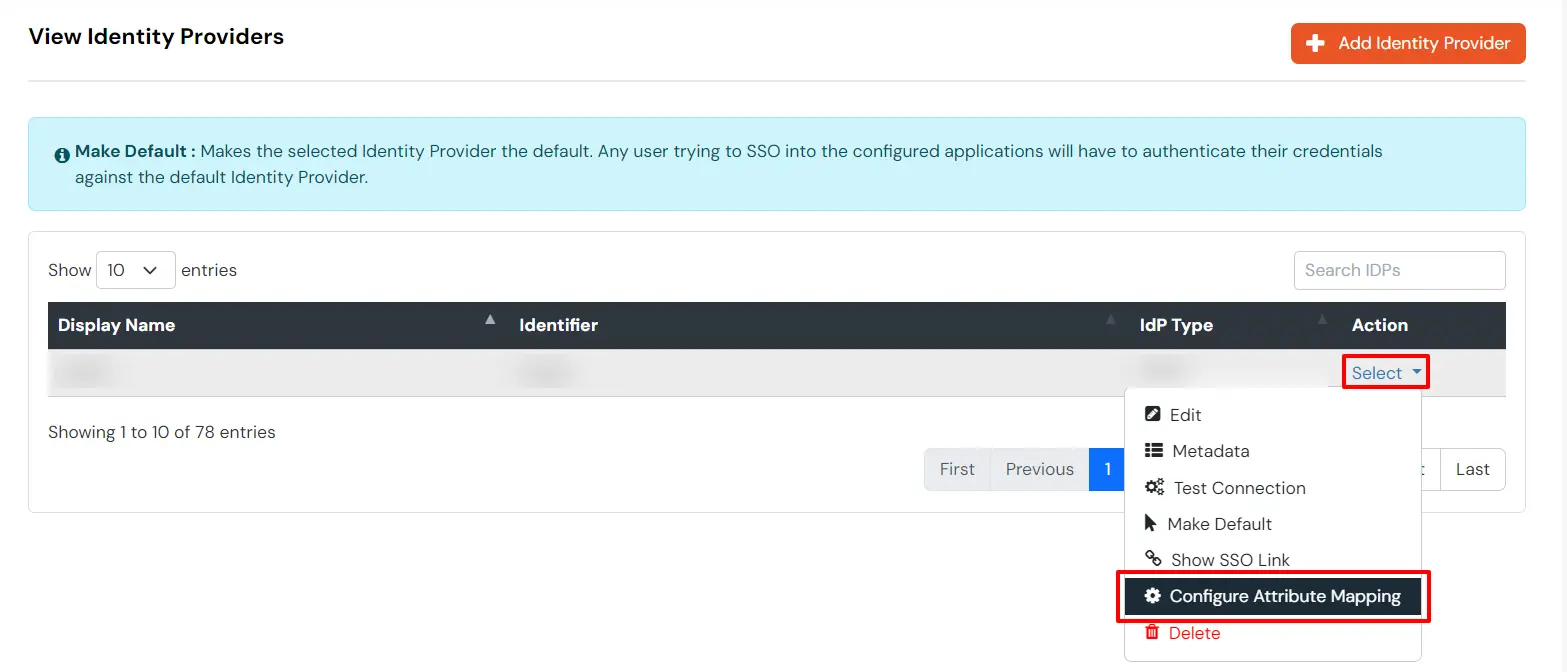
  • Click the three dots in the Actions menu, and select Attribute Mapping against the Identity Provider (IDP) you configured.
  • Duo Single Sign-On SSO Select and Configure Attribute Mapping


Maps information, such as email and username, during Just-In-Time (JIT) user creation. Email and Username attributes are necessary to create the user profile.
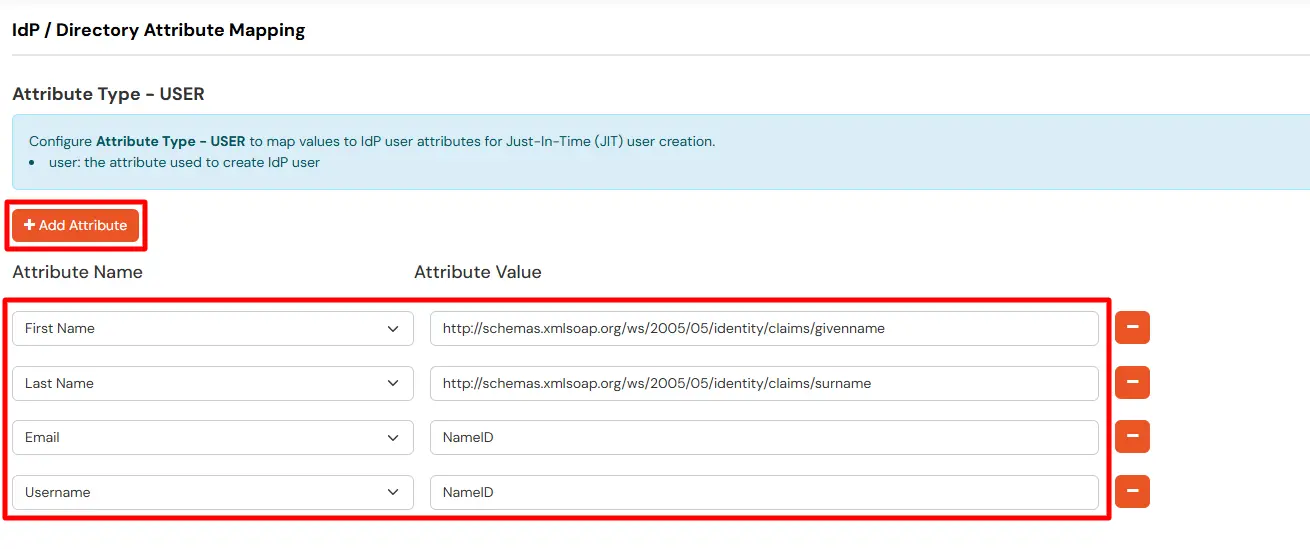
  • Click on the + Add Attribute button to add the attribute fields.
  • Duo Single Sign-On SSO Map USER Attribute

  • Check the attributes in the Test Connection window from the previous step. Choose any attribute names you want to send to your application under Attribute Name sent to SP.
  • Enter the values of the attributes coming from IdP into the Attribute Name from IdP field on the Xecurify side.

EXTERNAL mappings help alter incoming attribute names before sending them to apps, ensuring that the data is in the correct format.
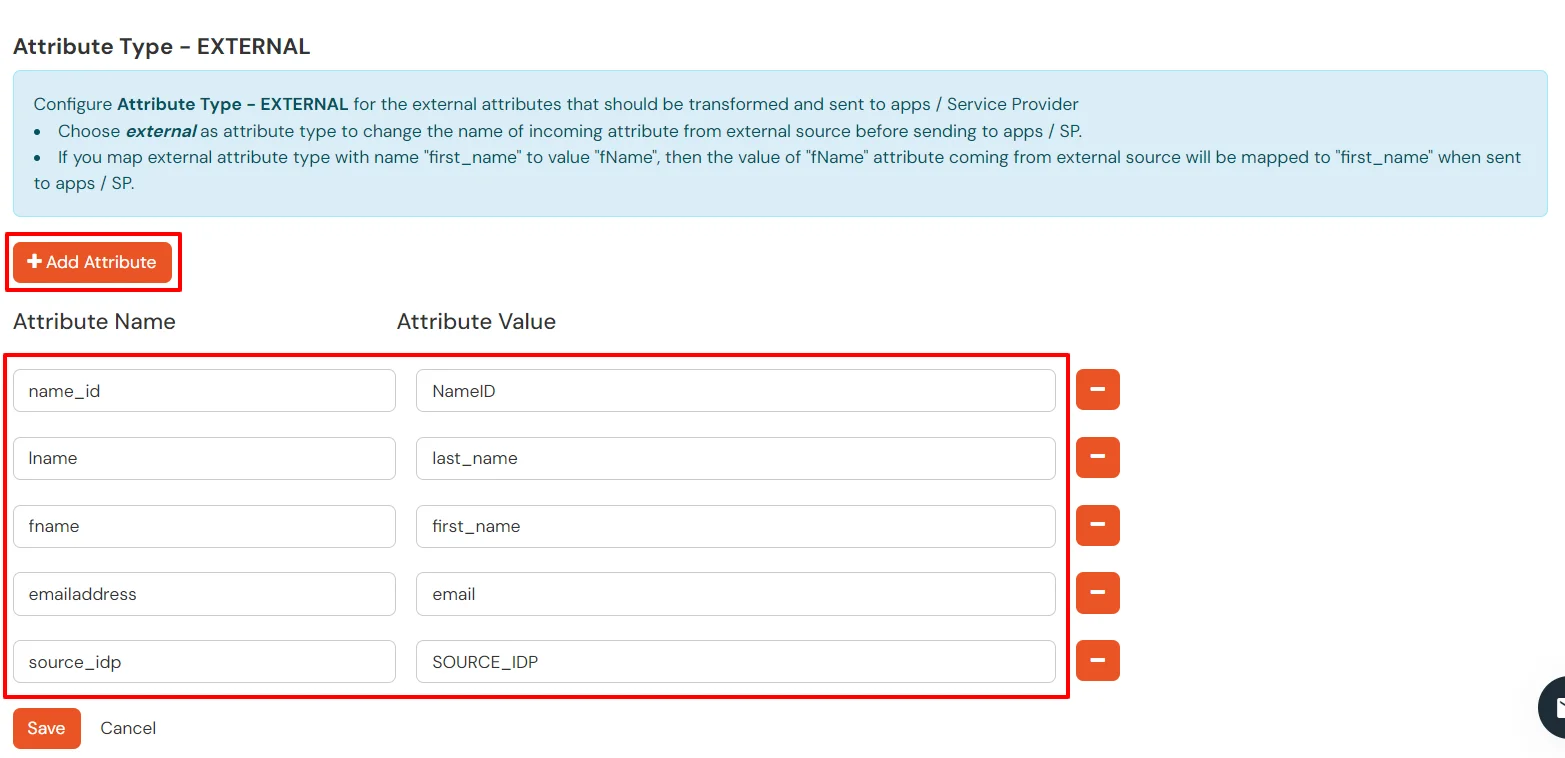
  • Click on the + Add Attribute button to add the attribute fields.
  • Duo Single Sign-On SSO Map EXTERNAL Attribute

  • Check attributes in test connection window from last step. Enter the attribute names (any name) that you want to send to your application under Attribute Name sent to SP.
  • Enter the value of attributes that are coming from IdP into the Attribute Name from IdP field on the Xecurify side.

Configure Multiple IDPs:

You can follow this guide, if you want to configure multiple IDPs (Identity Providers) and give users the option to select the IDP of their choice to authenticate with.



Want To Schedule A Demo?

Request a Demo


Our Other Identity & Access Management Products