Hello there!

Need Help? We are right here!

Support Icon
miniOrange Email Support
success

Thanks for your Enquiry. Our team will soon reach out to you.

If you don't hear from us within 24 hours, please feel free to send a follow-up email to info@xecurify.com

Search Results:

×

SSO for Apps Using FitBit as IDP


FitBit Single Sign On (SSO) for Your Application miniOrange provides a ready to use solution for Your application. This solution ensures that you are ready to roll out secure access to your application using FitBit within minutes.

Get Free Installation Help


miniOrange offers free help through a consultation call with our System Engineers to configure SSO for different apps using FitBit as IDP in your environment with 30-day free trial.

For this, you need to just send us an email at idpsupport@xecurify.com to book a slot and we'll help you in no time.
Follow the Step-by-Step Guide given below for FitBit Single Sign-On (SSO)

1. Configure miniOrange as Service Provider (SP) in FitBit

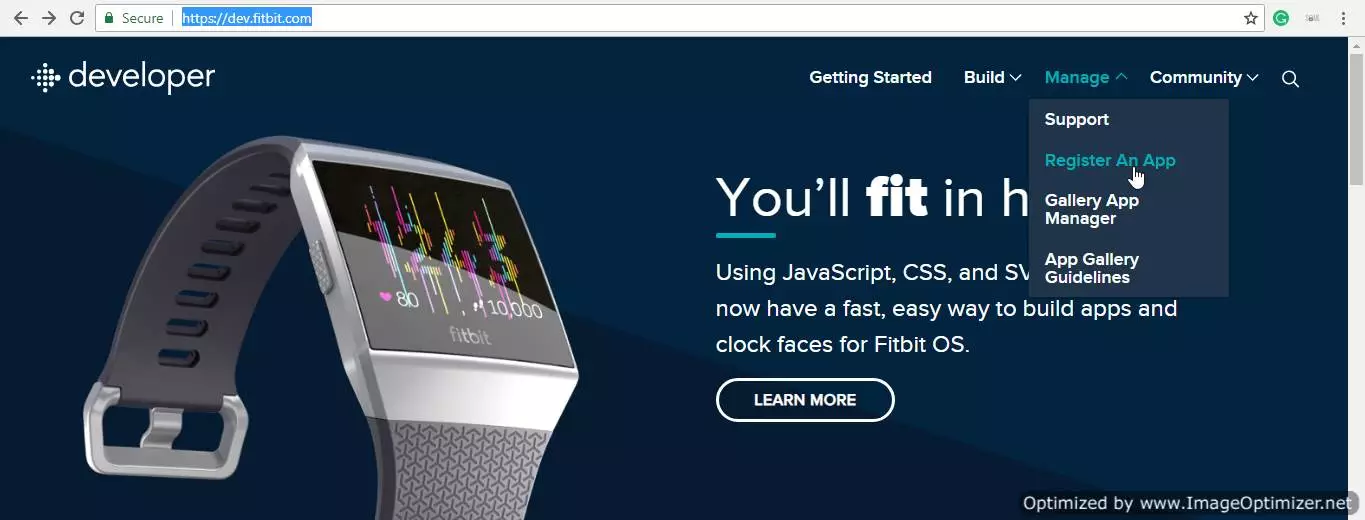
  • Go to https://dev.fitbit.com/ to go to FitBit developer console.
  • Go to Manage -> Register an APP to create an APP.
  • FitBit SSO (Home Page)

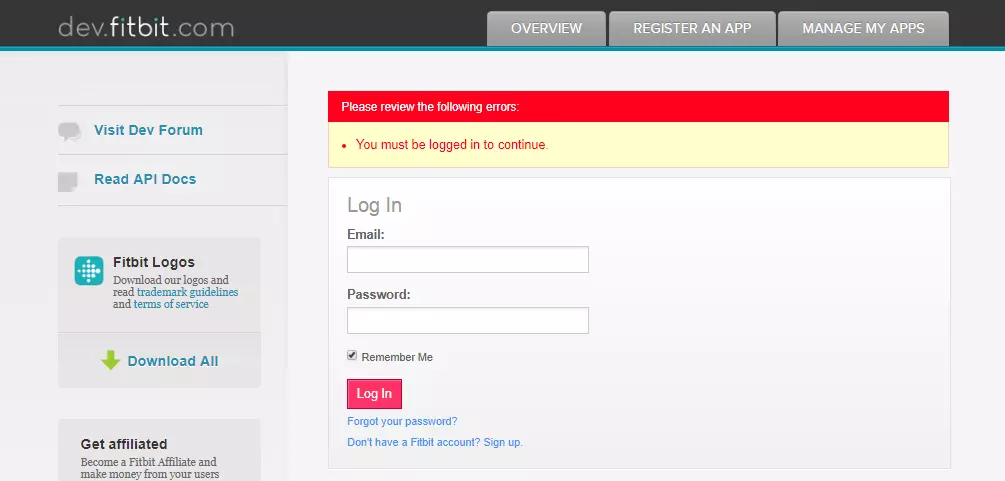
  • Login/ Signup to your FitBit account in case you are not already logged in.
  • FitBit SSO (Login Panel)

  • To get the Redirect URL:
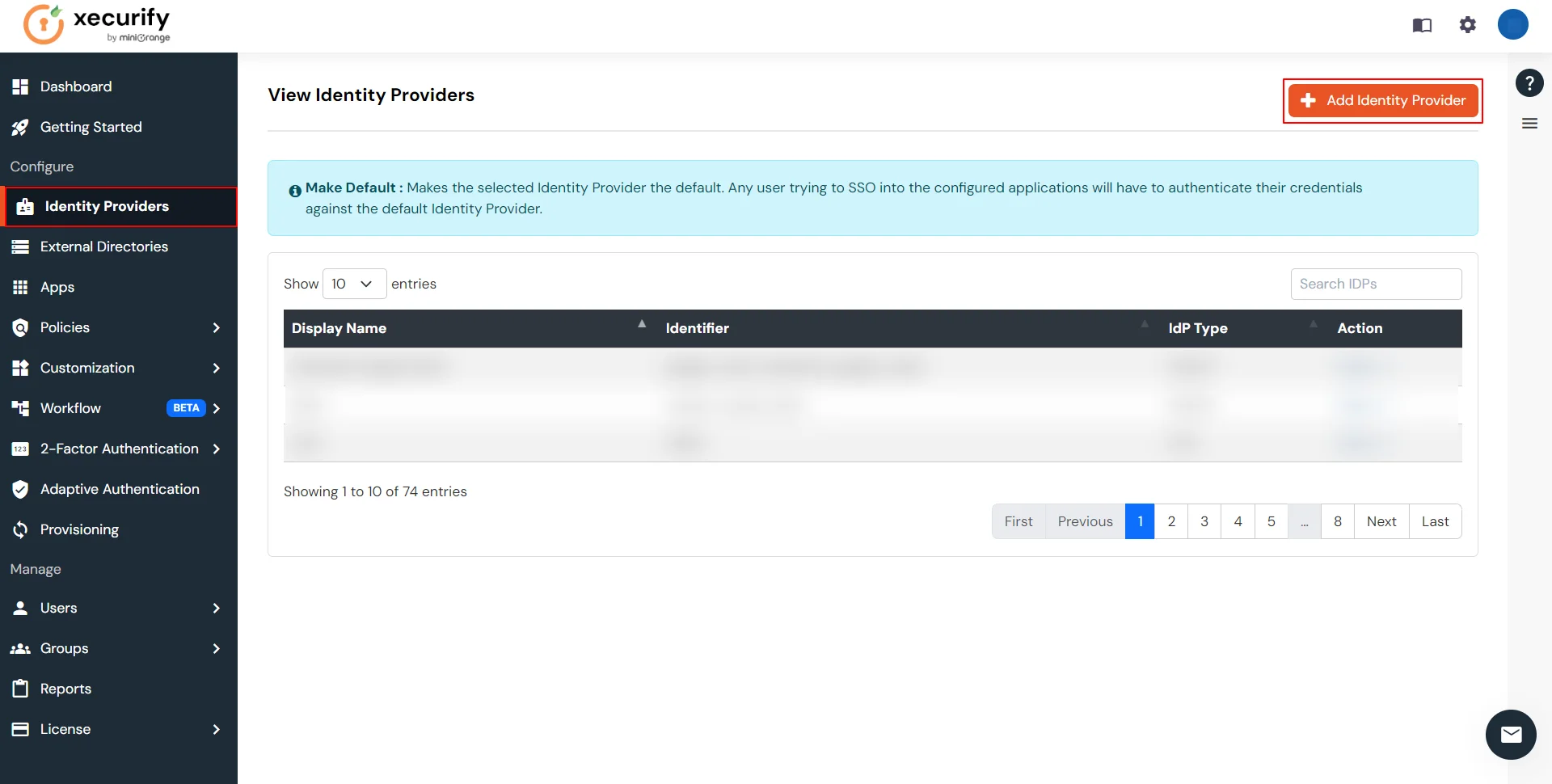
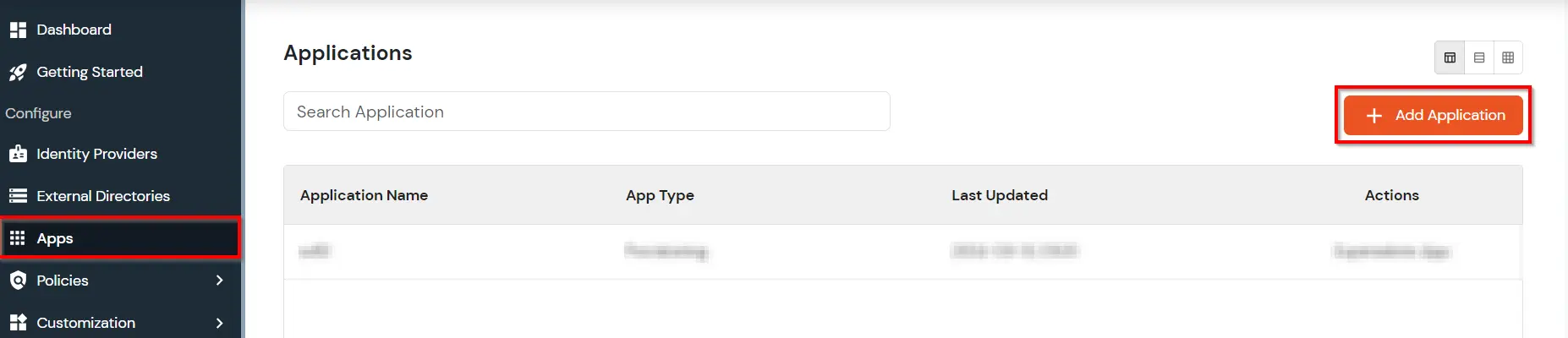
    • Go to miniOrange Admin Console.
    • From the left navigation bar select Identity Provider.
    • FitBit sso

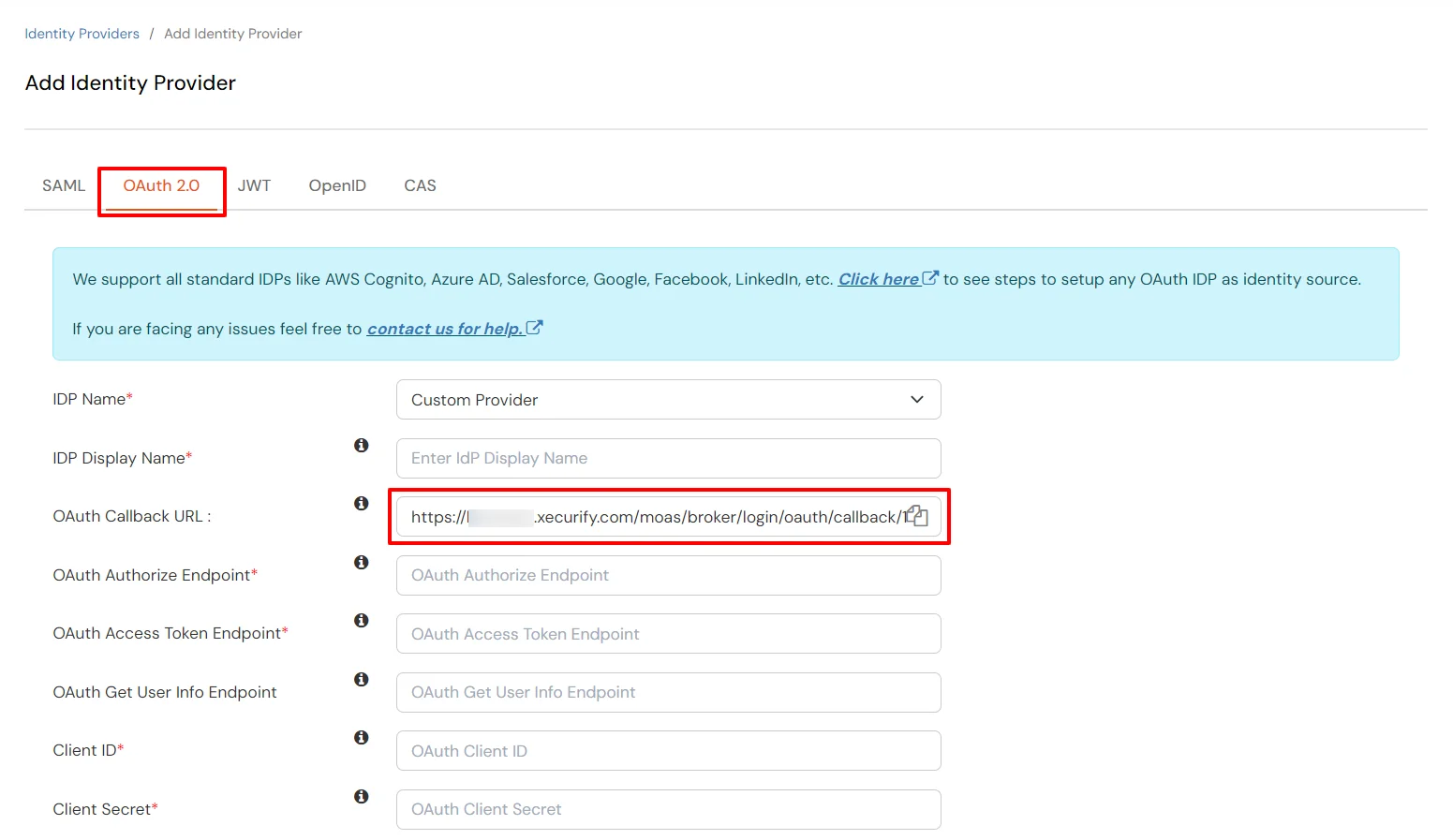
    • Copy the Callback URL as Redirect URL required for next step.
    • FitBit sso

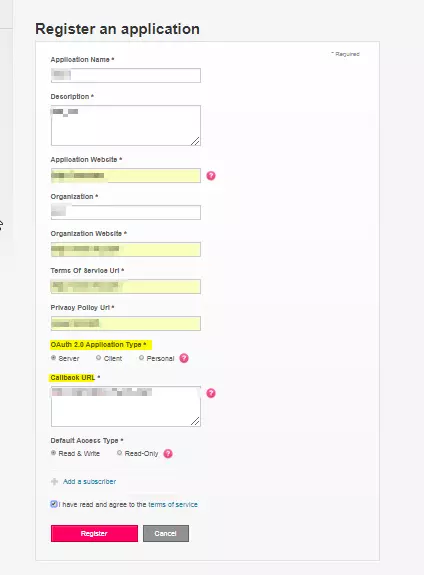
  • Back in FitBit dashboard, in the Callback URL field, enter the Callback/Redirect URL from your miniOrange identity-provider OAuth Configuration page. Fill rest of the fields and click on Register button to save your configurations.
  • FitBit SSO (Register Application)

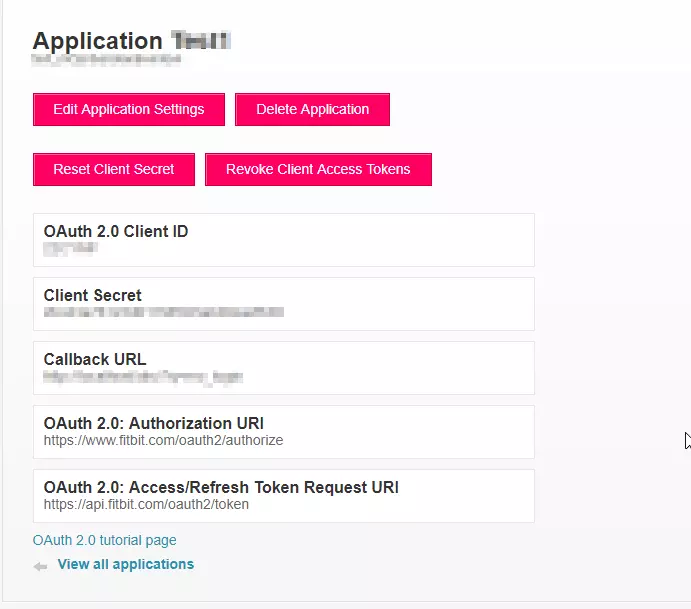
  • Copy your Client ID and Client Secret from Fitbit and save them in your miniOrange OAuth App Configuration page. (refer to image on the next page)
  • FitBit SSO (Application Settings)

2. Configure FitBit as OAuth 2.0 Provider in miniOrange.

  • Go to miniOrange Admin Console.
  • From the left navigation bar select Identity Provider. Select Oauth
  • FitBit sso

    FitBit sso

  • Enter the following values.
  • IdP Name Custom Provider
    IdP Display Name Choose appropriate Name
    OAuth Authorize Endpoint https://www.fitbit.com/oauth2/authorize
    OAuth Access Token Endpoint https://api.fitbit.com/oauth2/token
    OAuth Get User Info Endpoint (optional) https://www.fitbit.com/1/user
    Client ID From step 1
    Client secret From step 1
    Scope profile

3. Configure your application in miniOrange


Note:

If you have already configured your application in miniOrange you can skip the following steps.


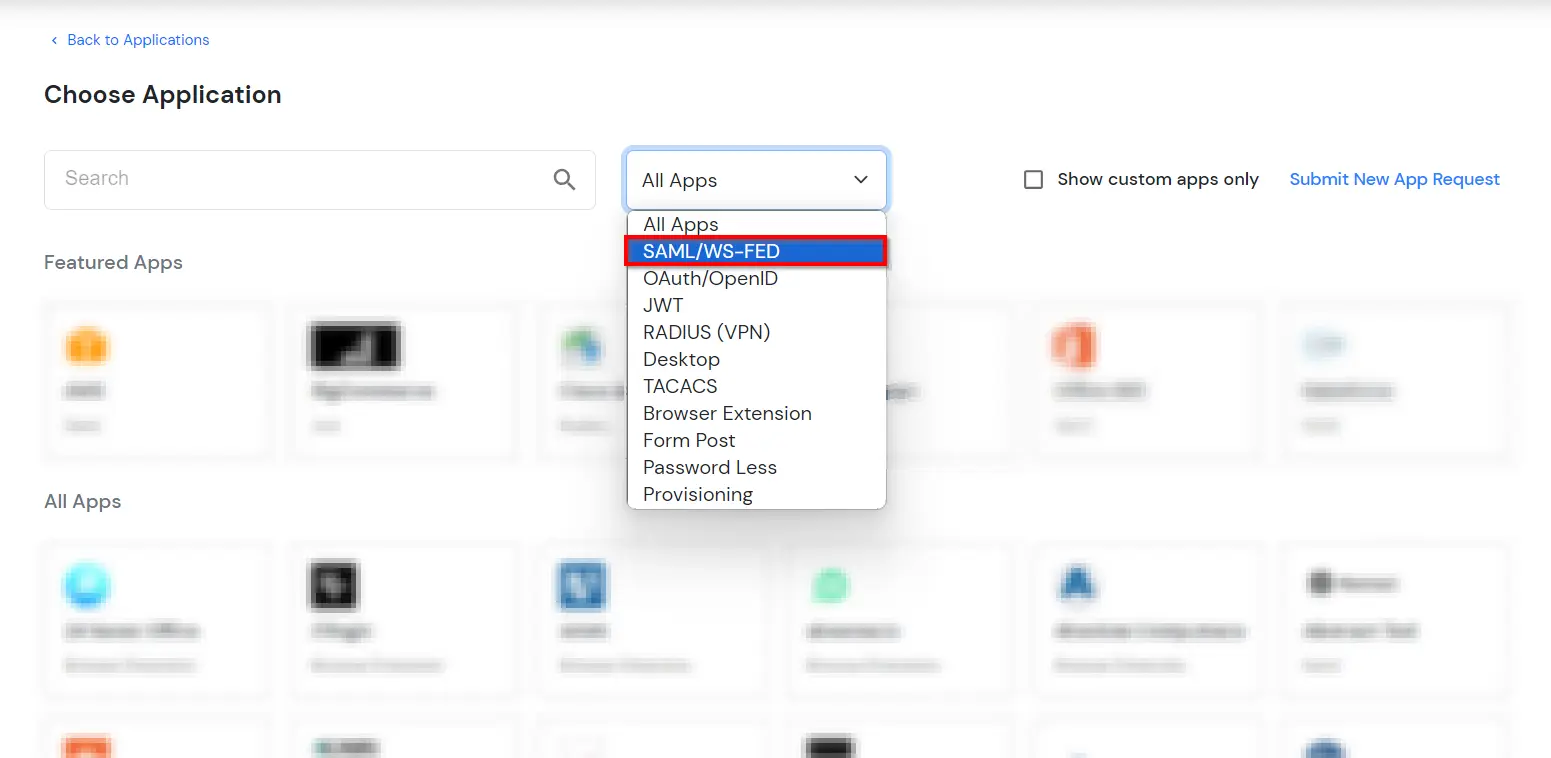
  • Under Choose Application, select SAML/WS-FED from the All Apps dropdown.
  • Select SAML application

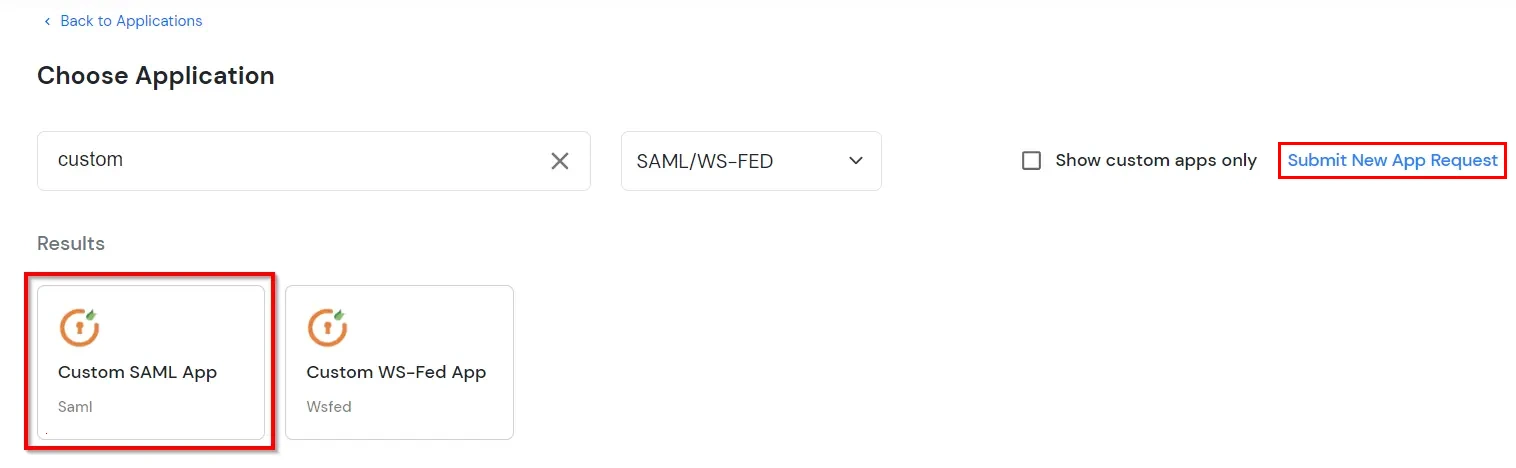
  • In the next step, search for your application from the list. If your application is not found, search for custom and you can set up your app via Custom SAML App. Click on Submit New App Request if you want to submit a new SSO application request.
  • Search custom application

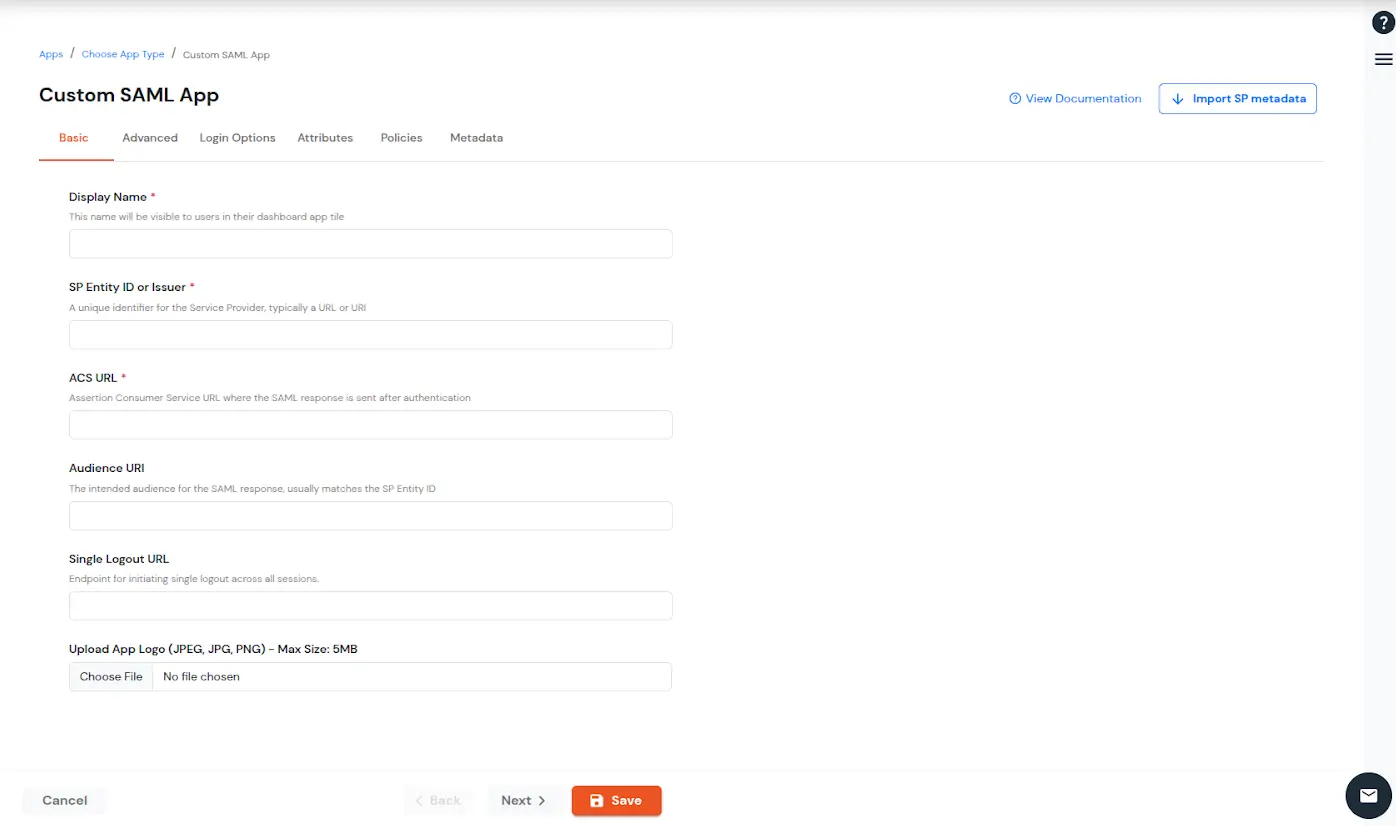
  • Under the Basic tab, you can configure the following settings.
    Display Name (required) Enter the Display name for your app as per your preference.
    SP Entity ID or Issuer (required) Is used to identify your app against the SAML request received from SP. The SP Entity ID or Issuer can be in either URL or in String format.
    ACS URL or Assertion Consumer Service URL (required) Defines where the SAML Assertion should be sent after authentication. Make sure the ACS URL is in the format: https://www.domain-name.com/a/[domain_name]/acs
    Audience URL As the name suggests, specifies the valid audience for SAML Assertion. It is usually the same as SP Entity ID. If Audience URL is not specified separately by SP, leave it blank.
    Single Logout URL The URL where you want the logout request to be consumed and where your users should be redirected after single logout from the applications.
    Upload App Logo Upload a logo for your application.
  • Uner Basic settings, enter the details

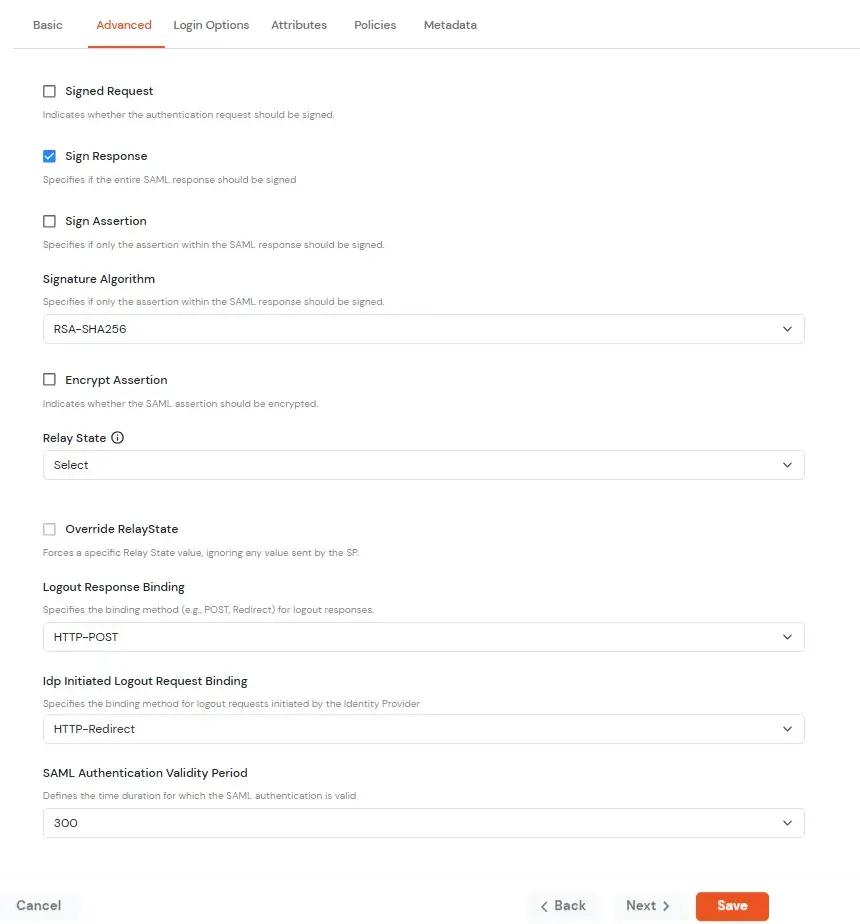
  • Click Next to go to the Advanced settings. Configure the following settings.
    Signed Request Enable this to sign the saml request sent by SP. Provide the X509 certificate or upload the certificate.
    Sign Response Enable this if you want the entire SAML response to be signed.
    Sign Assertion Enable this if you want only the assertion within the SAML response should be signed.
    Signature Algorithm Select the algorithm that will be used to sign the SAML request/response.
    Encrypt Assertion Select this if you want to encrypt the assertion in SAML response and provide the algorithm and certificate for encryption.
    Relay State Enter the URL where you want the user to redirect after sign in to the application.
    Override Relay state Enable this to override the default relay state of the SP.
    Logout Response Binding A Logout Response is sent in reply to a Logout Request from SP. It could be sent by an Identity Provider or Service Provider.
    IdP initiated Logout Request Binding: A Logout Response is sent in reply to a Logout Request from the IdP dashboard. It could be sent by an Identity Provider or Service Provider.
    • HTTP Redirect - A Logout Response with its Signature
    • HTTP POST - A Logout Response with the signature embedded
    SAML Authentication Validity Period The time for which the authentication should be considered valid and the user should be able to perform SSO. After that, the user will have to sign in again.
    Enable Shared Identity This feature lets you control whether a specific application can be accessed by shared user or not.
  • Switch to Advanced settings

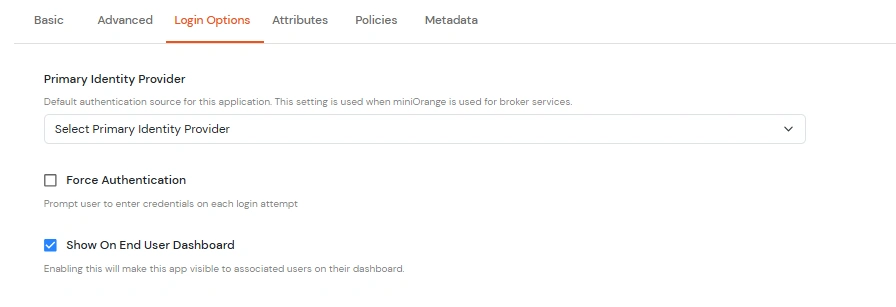
  • Click Next to go to the Login Options tab. Here, you can configure the following settings:
    Primary Identity Provider Select the identity source from where you want the authentication to happen. You will see the list of all configured sources.
    Force Authentication Enable this to enforce authentication on each request to access the application.
    Show On End User Dashboard Disable this if you do not want the app to be visible for all users on end user dashboard.
  • Go to Login Options and click on Next button

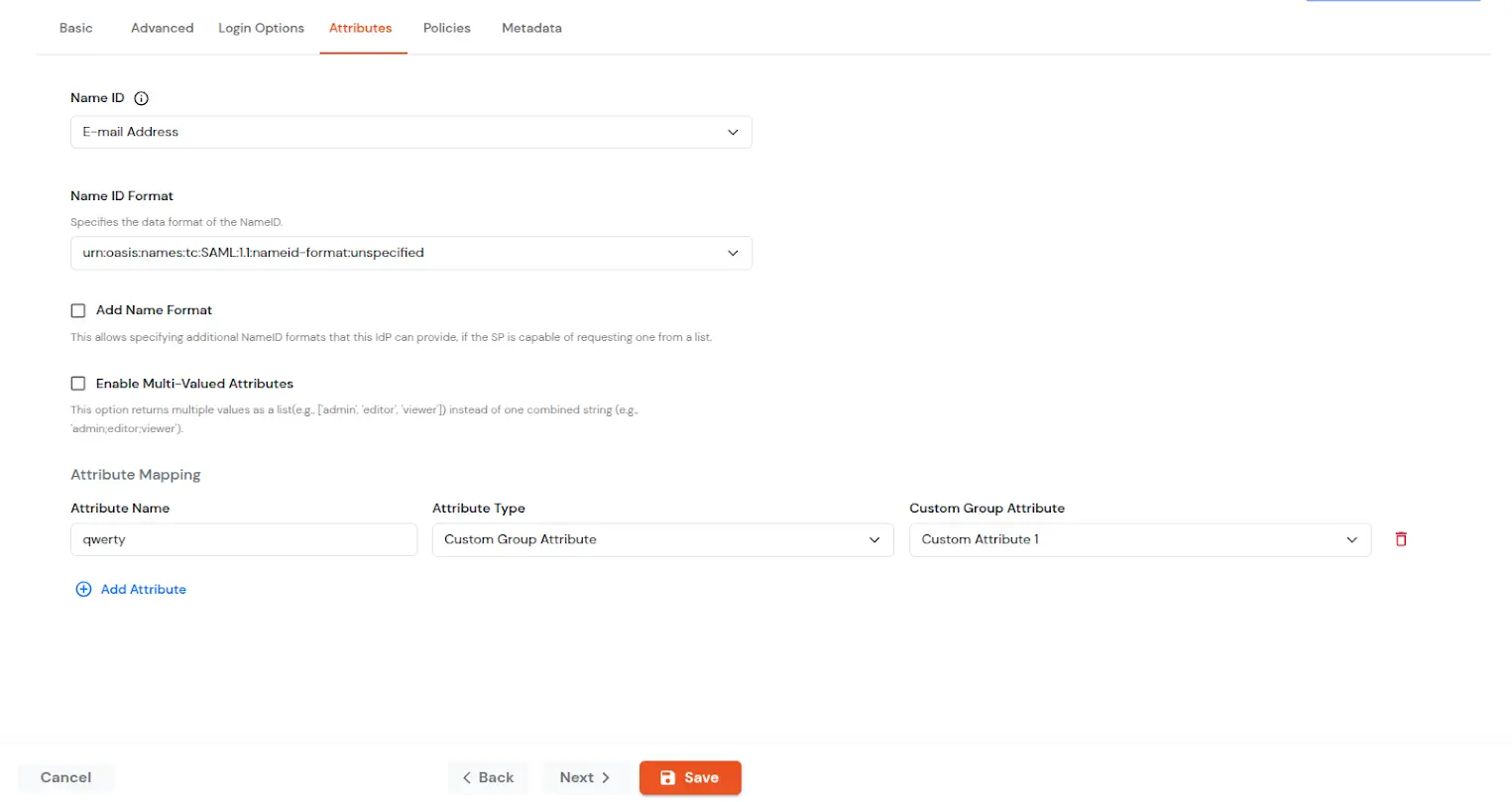
  • Click Next to go to the Attributes tab. Here you can add and configure the attributes to be sent to the app.
    NameID NameID is the unique identifier for the authenticated user included in the SAML assertion. It allows the Service Provider to recognize and map the user to an account. Generally, NameID is a username or Email Address.
    NameID Format Defines what type of identifier is used in the NameID (e.g., email, persistent, transient) so the SP can correctly map the user. If the SP does not request a specific format, the IdP can leave it unspecified and use a default.
    Add Name Format Name Format defines how attribute names are represented in a SAML assertion (e.g., as simple strings or URIs). It helps the SP correctly interpret attribute naming and ensures consistency between IdP and SP.
    Enable Multi-Valued Attributes

    Enabled:Commas (,) and semicolons (;) are treated as separators, so the attribute is split into a clean list. Example: roles = ['admin', 'editor', 'viewer'].

    Disabled:Commas and semicolons are not treated as separators, so the attribute stays as one combined string. Example: roles = "admin;editor;viewer".

    Attribute Mapping You can Add Attributes to be sent in SAML Assertion to SP. The attributes include user’s profile attributes such as first name, last name, full name, username, email, custom profile attributes, and user groups, etc.
  • Navigate to Attributes tab and map the attributes

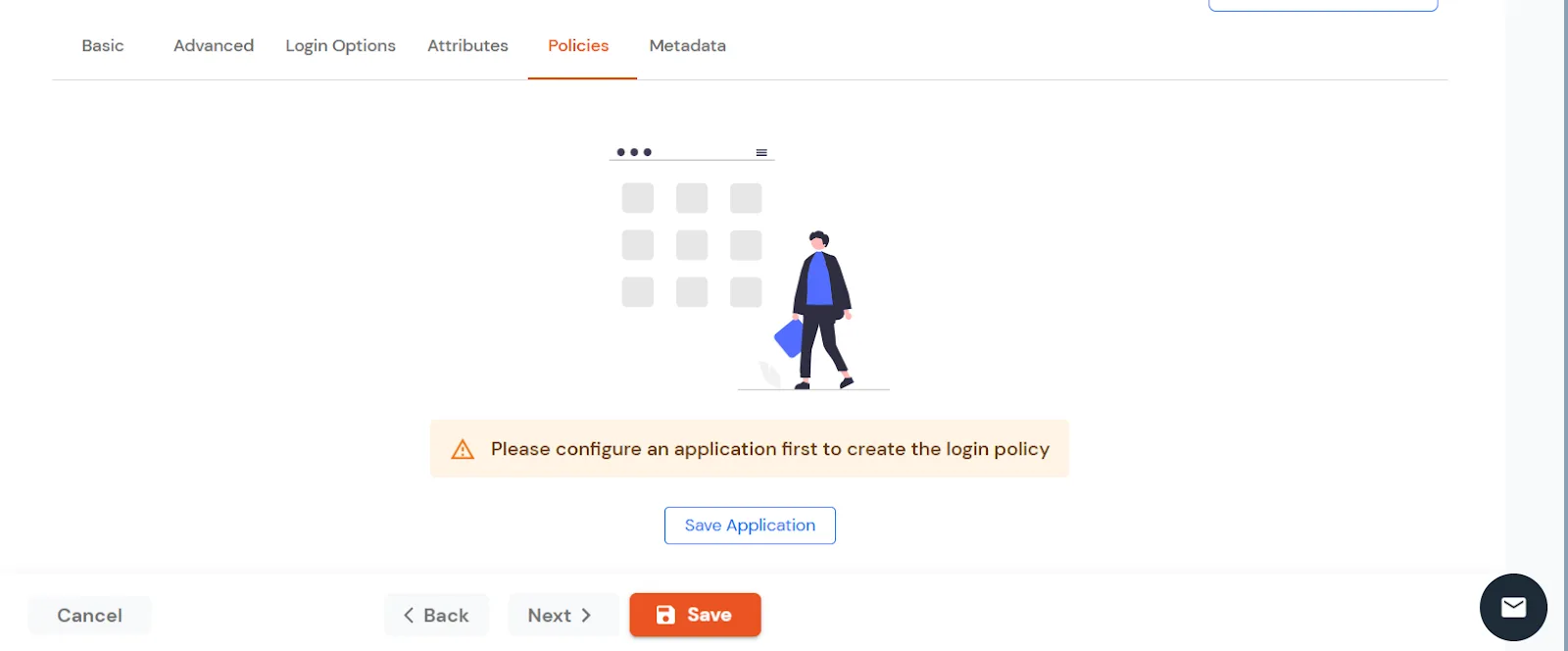
  • Click Next to go to the Policies tab. You need to Save the Application first to configure the policy for the application.
  • Save the application in the Policies section

  • After the application is saved you can configure the policy for that application.
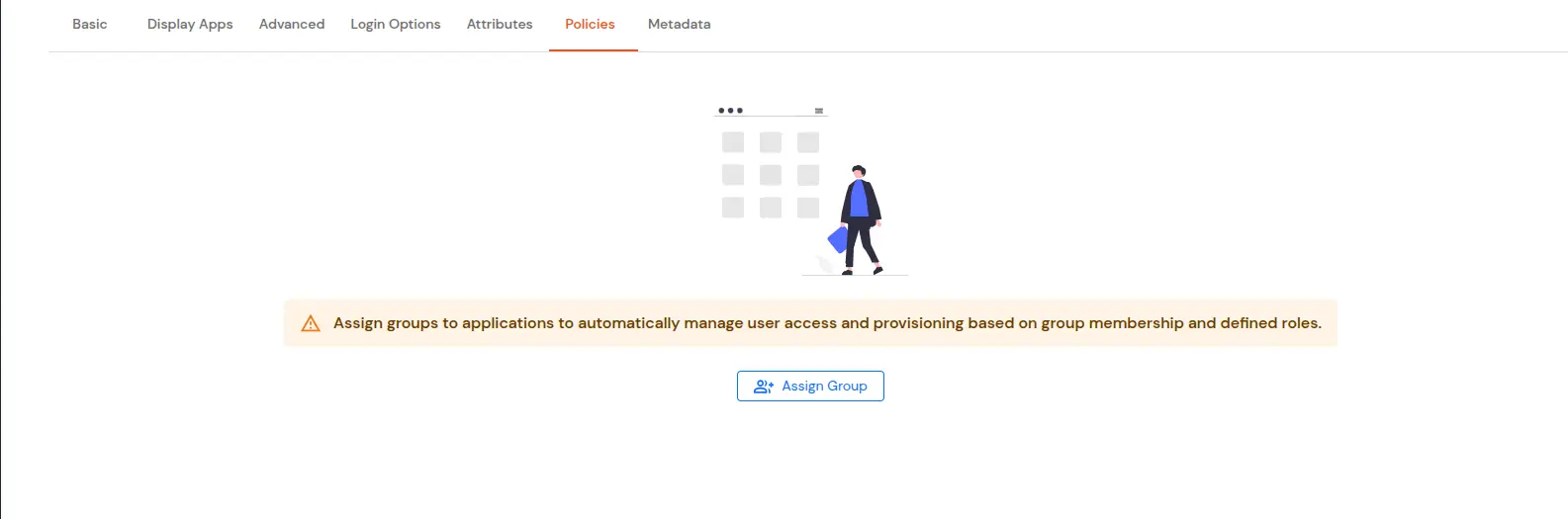
  • Go to Policies and Assign Group

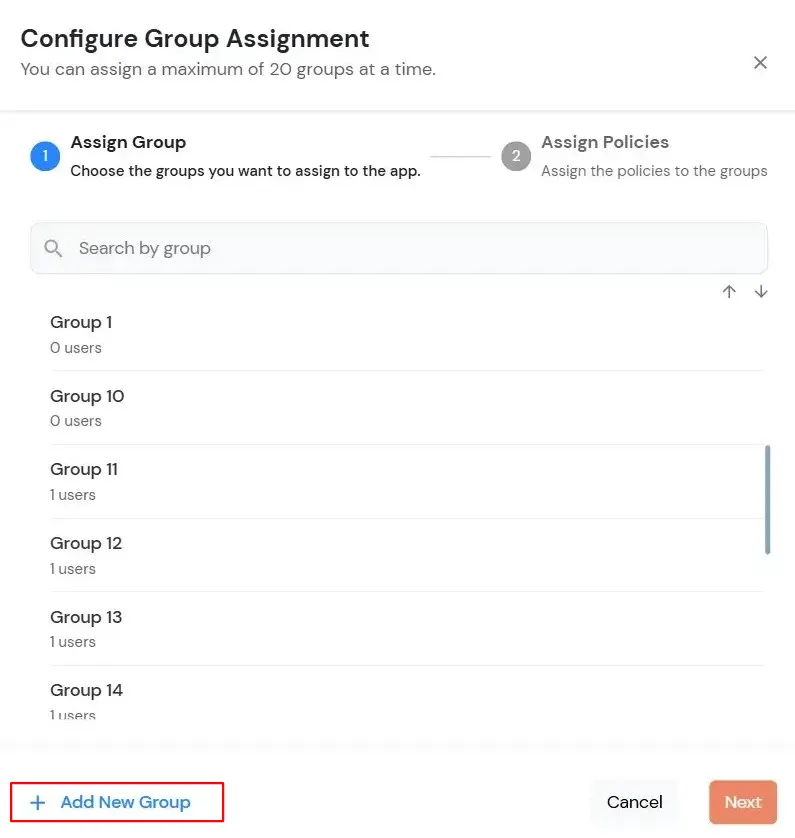
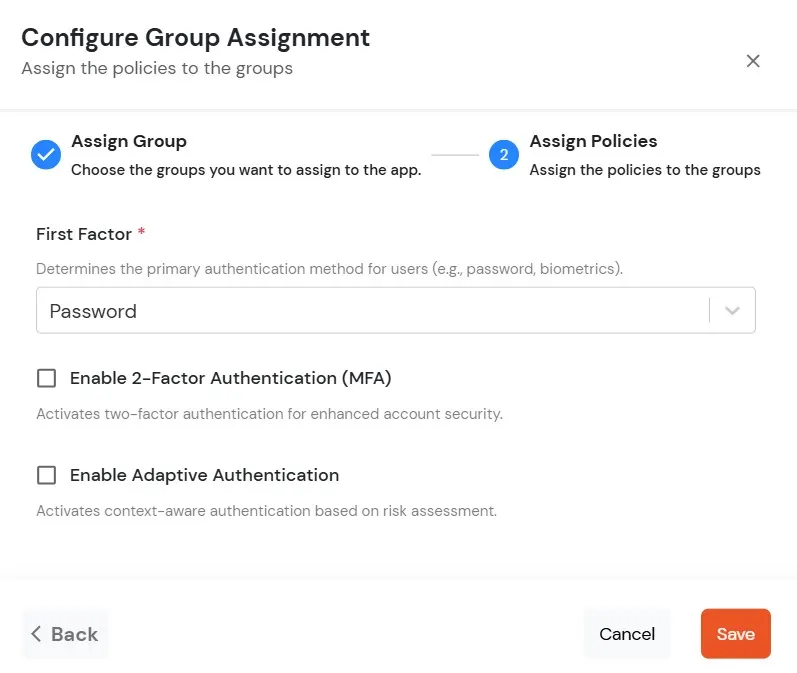
  • Click on the Assign group button. A new Configure Group Assignment modal tab will open.
    • Assign Group: Select the groups you want to link with the application. You can select up to 20 groups at a time.
    • Configure group assignment

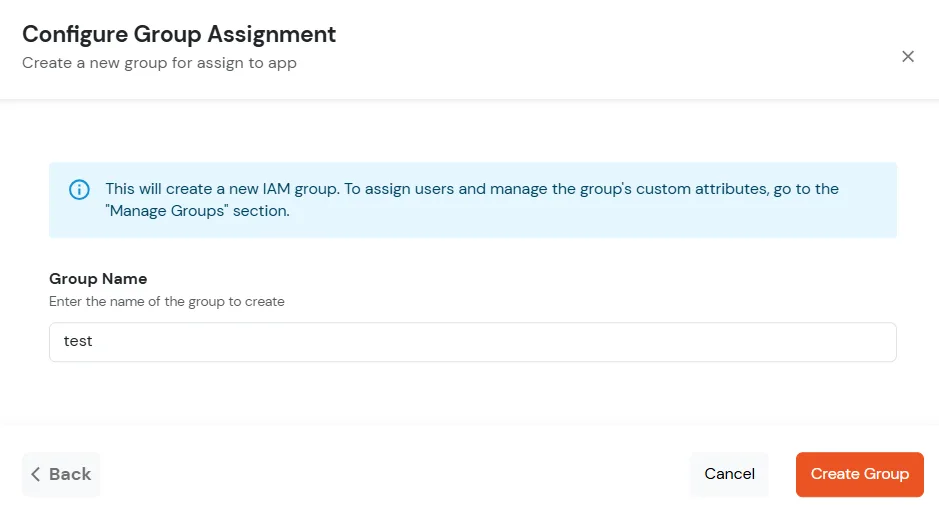
    • If you need to create new group. Click on Add New Group button.
    • Enter the Group Name and click on Create Group.
    • Create new group

    • Click on Next.
    • Assign Policies: Add the required policies to the selected groups. Enter the following details:
    • First Factor: Select the login method from the dropdown.
      • If you select Password as the login method, you can enable 2-Factor Authentication (MFA) and Adaptive Authentication, if needed.
      • If you select Password-less as login method, you can enable 2-Factor Authentication (MFA) if needed.
  • Add login policy details

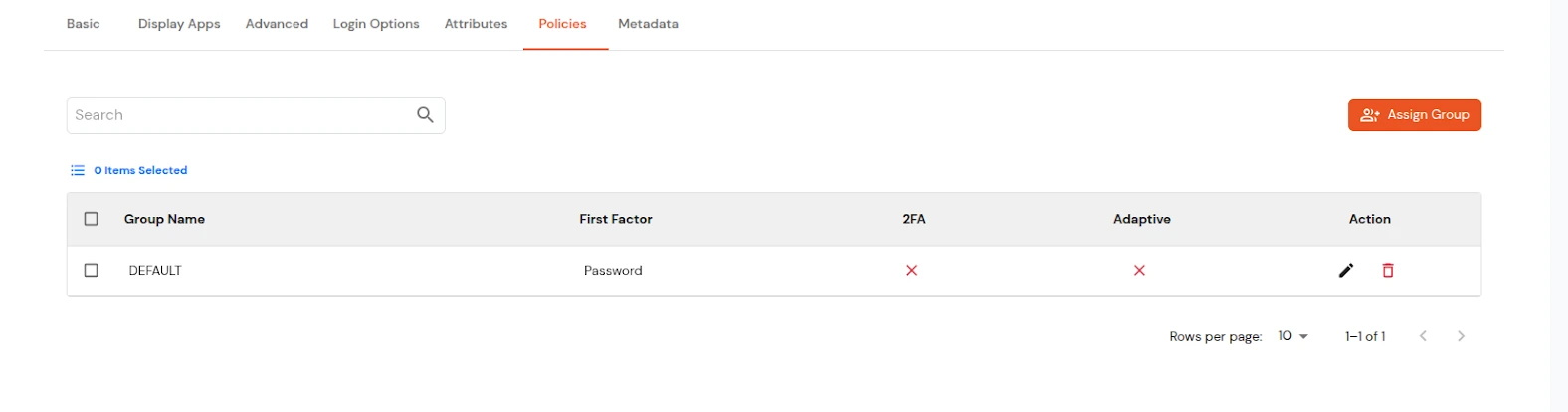
  • Click on Save. Policies will be created for all the selected groups.
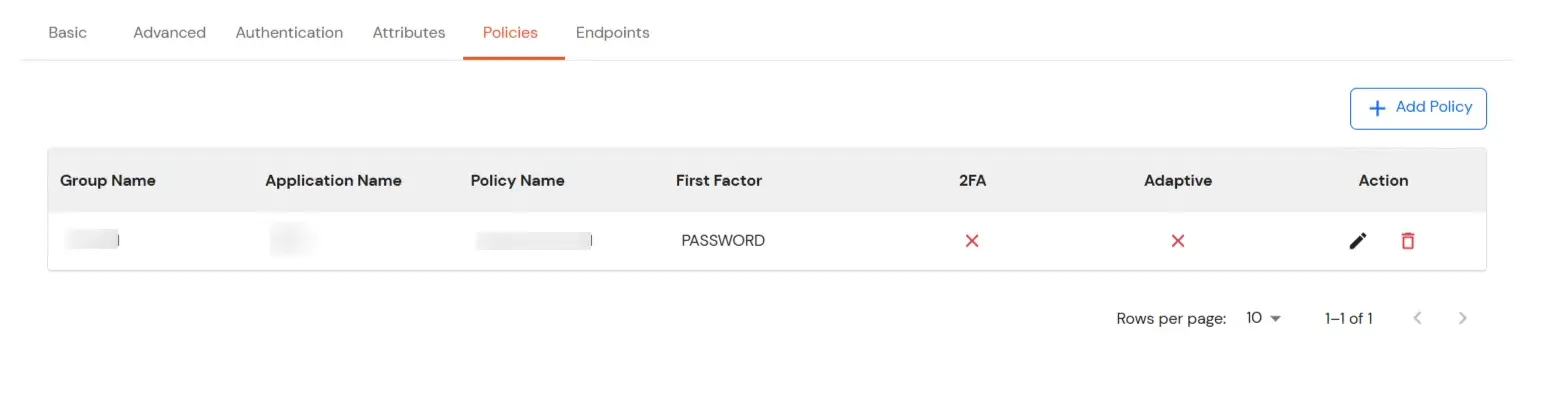
  • You will see the policy listed once it’s successfully added.
  • Add multiple login policies

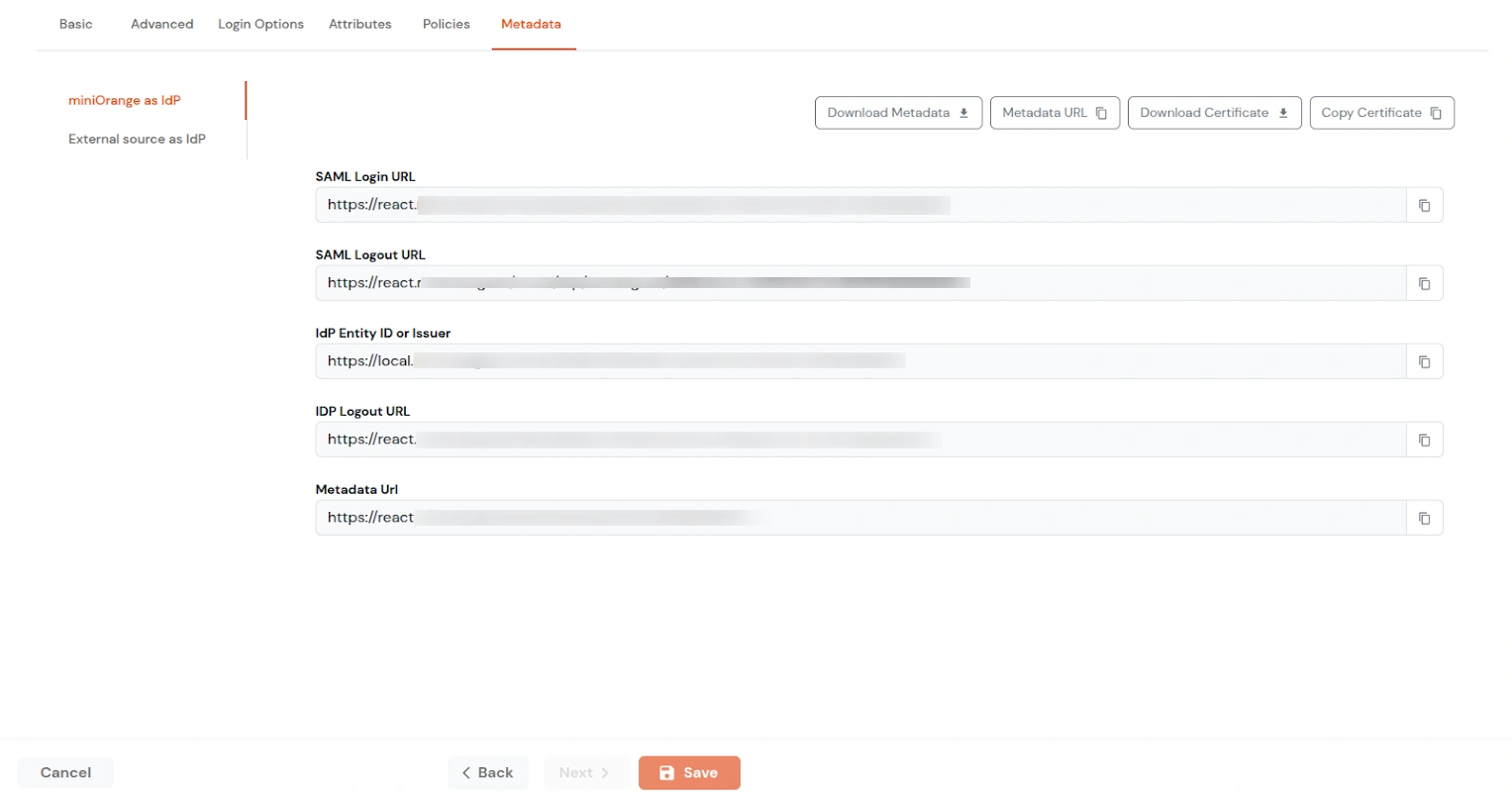
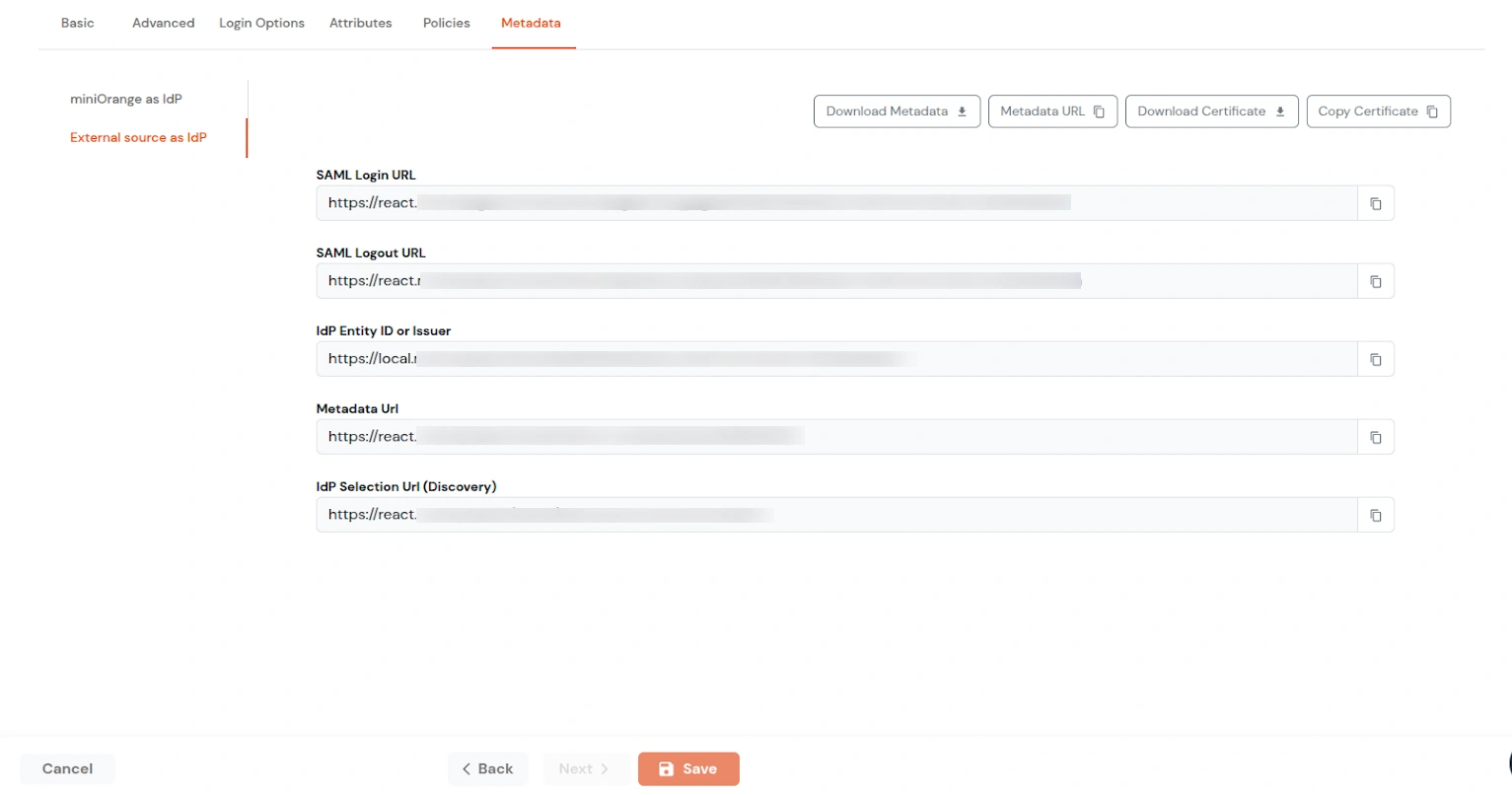
  • In the Metadata tab, click on any of the two tabs:
    • Click on miniOrange as Idp If you want to use miniOrange as a User-Store i.e., your user identities will be stored in miniOrange.
    • Click on External source as IdP If you want to authenticate your users via any external Identity Provider like Active Directory, Okta, OneLogin, etc. or any other custom IDPs.
    • Select miniOrange as IdP

      Select External source as IdP

    • You can Download Metadata, Download Certficate, copy Metadata URL or copy Certificate based on your requirements.
    • Similarly, you can get the values of SAML Login URL, SAML Logout URL, IDP Entity ID or issuer, IDP Logout URL, Metadata URL from here according to your metadata requirements.
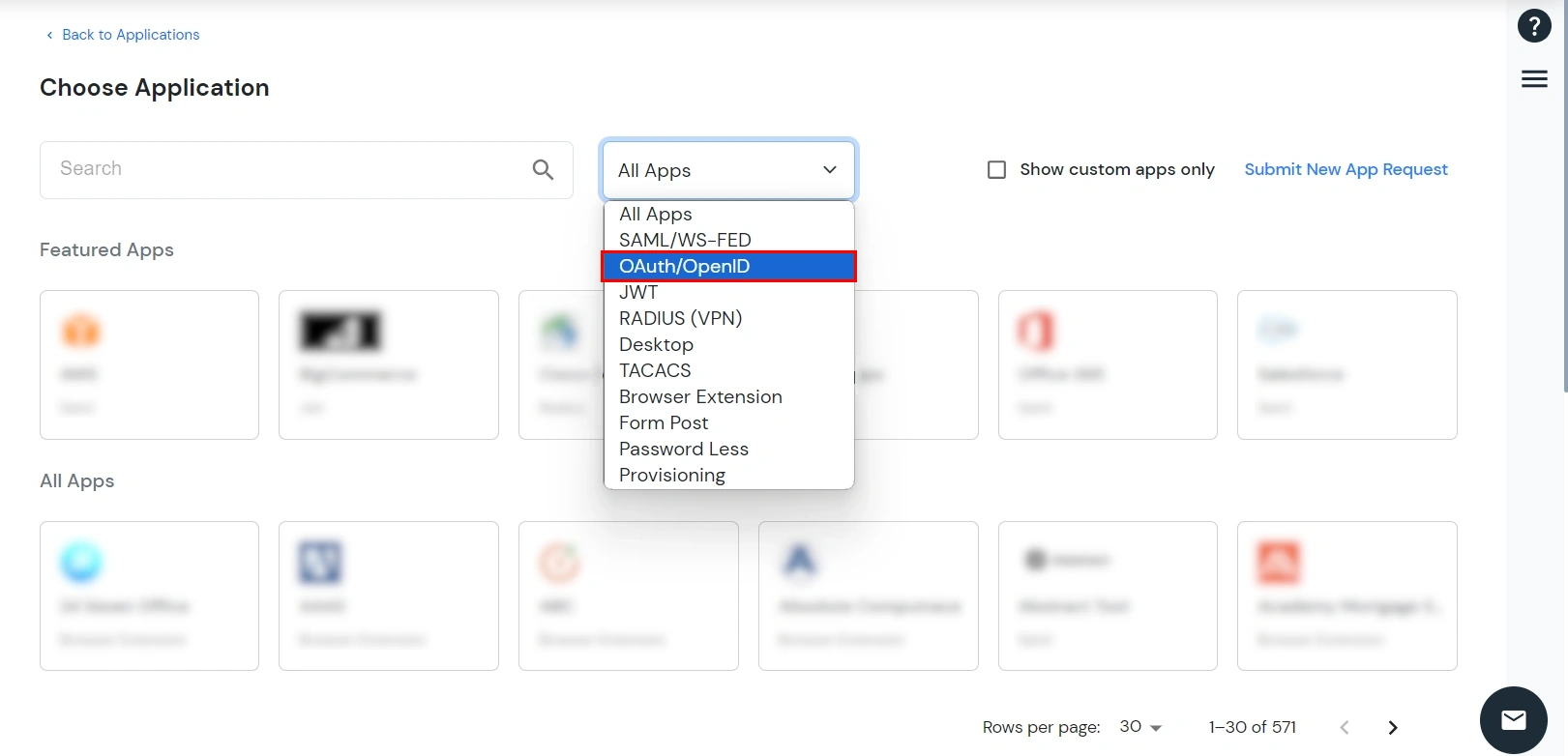
  • Under Choose Application, select OAuth/OpenID from the All Apps dropdown.
  • Select OAuth/OpenID as Apps Type

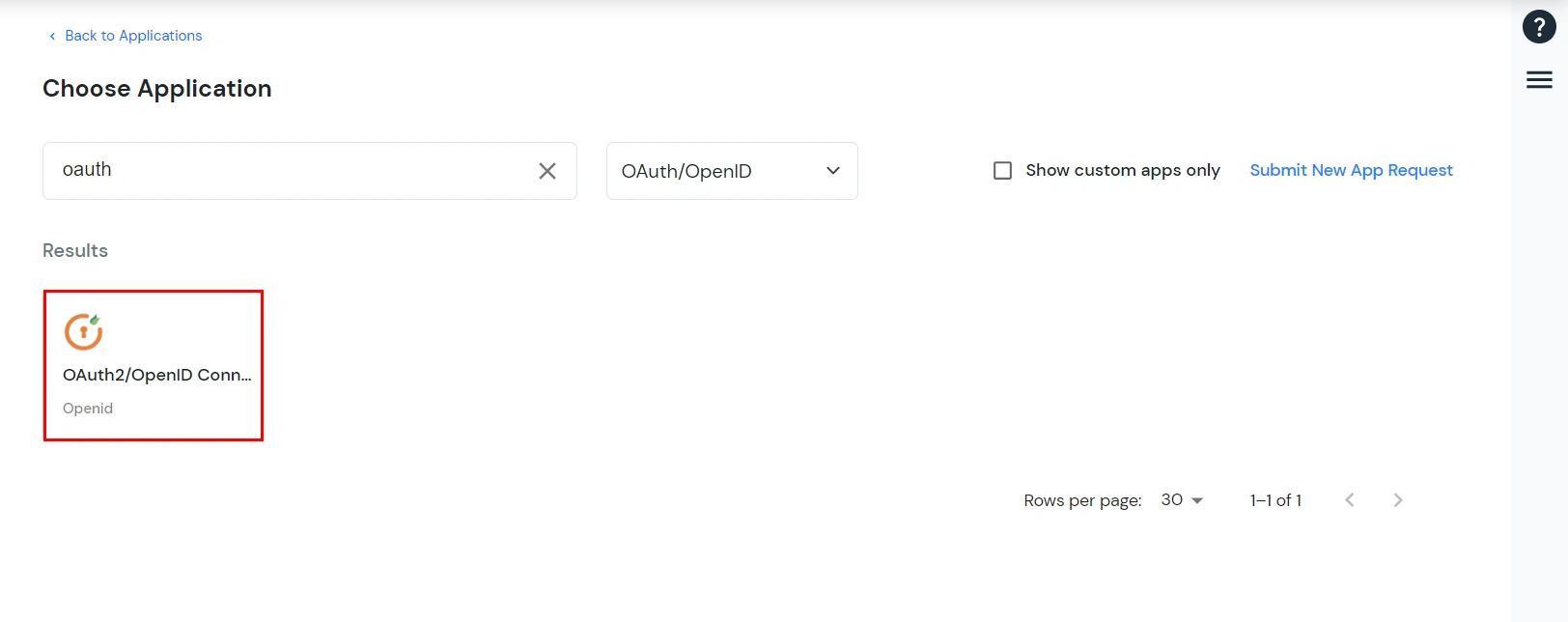
  • Search for your application from the list. If your application is not found, search for oauth and you can set up your app via OAuth2/OpenID Connect.
  • Search for OAuth custom app

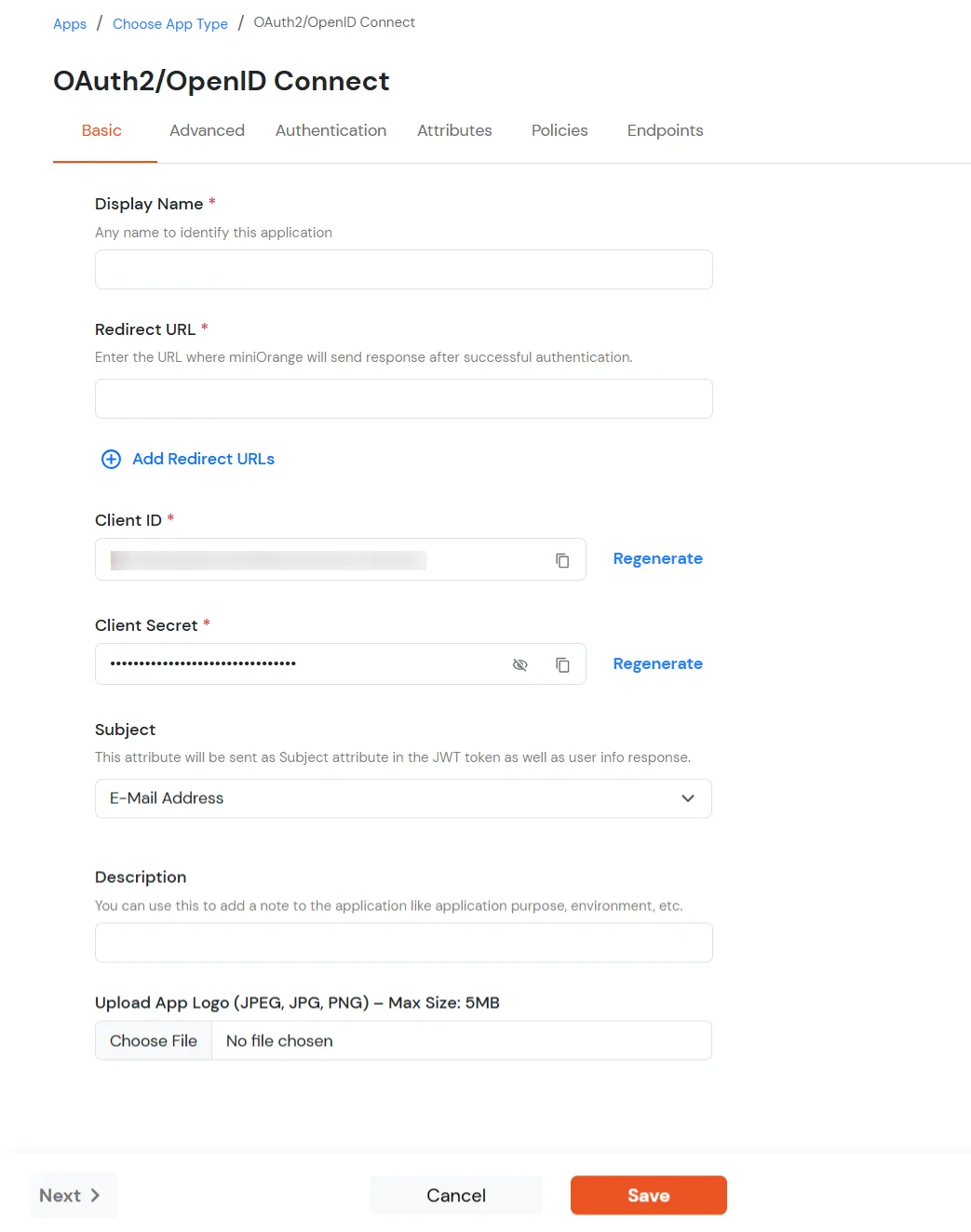
  • In the Basic tab, enter the following details:
    Display Name Enter the Display Name (i.e., the name for this application).
    Redirect URL Enter the Redirect URL. Make sure it follows this format: https://<mycompany.domain-name.com>
    Client ID Auto-generated. Click the copy icon to use it in your application.
    Client Secret Client Secret is hidden by default. Click the eye icon to reveal it and use the clipboard icon to copy it.
    Subject (Optional) Select an attribute from the dropdown list.
    Description (Optional) Add a description if required.
    Upload App Logo (Optional) Upload an app logo (Optional). The app will be shown in the end-user dashboard with the logo that you configure here.
  • Click on Save.
  • Enter the OAuth app details and click on Save button

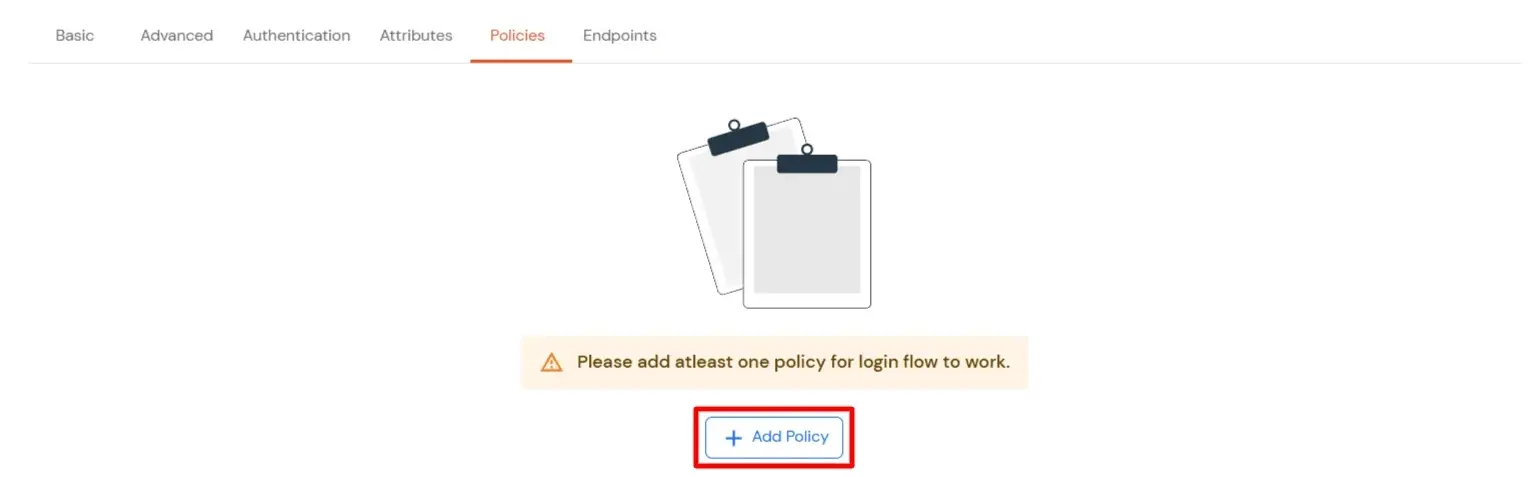
  • You will be redirected to the Policies section.
  • Go to Policies and Add Policy

  • Click on the Assign group button. A new Configure Group Assignment modal tab will open.
    • Assign Group: Select the groups you want to link with the application. You can select up to 20 groups at a time.
    • Configure group assignment

    • If you need to create new group. Click on Add New Group button.
    • Enter the Group Name and click on Create Group.
    • Create new group

    • Click on Next.
    • Assign Policies: Add the required policies to the selected groups. Enter the following details:
    • First Factor: Select the login method from the dropdown.
      • If you select Password as the login method, you can enable 2-Factor Authentication (MFA) and Adaptive Authentication, if needed.
      • If you select Password-less as login method, you can enable 2-Factor Authentication (MFA) if needed.
    Add login policy details

  • Click on Save. Policies will be created for all the selected groups.
  • You will see the policy listed once it's successfully added.
  • Policy successfully added

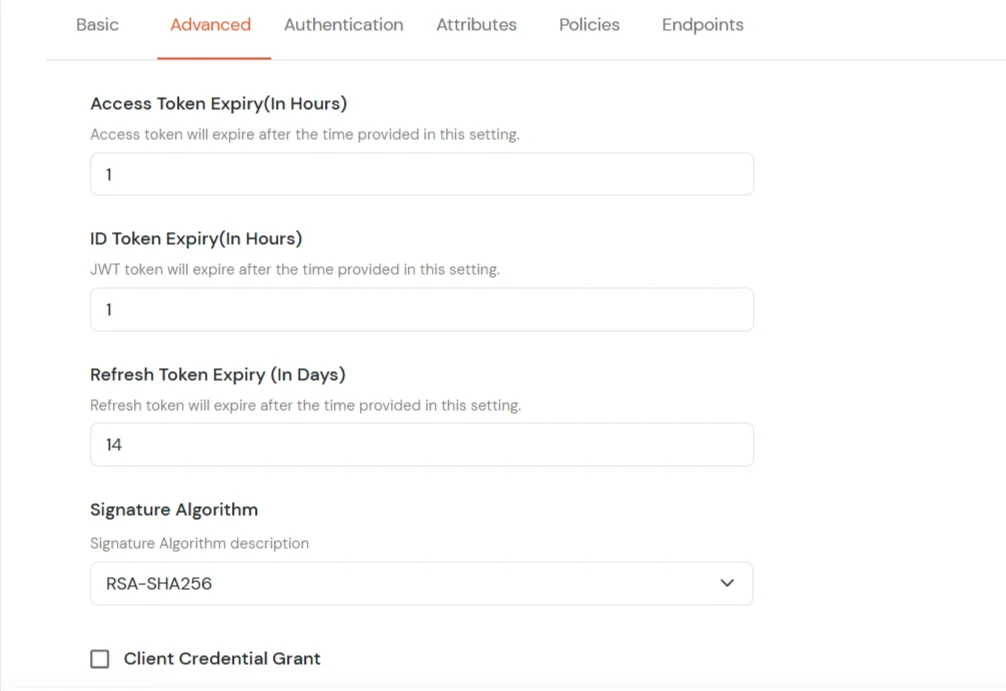
  • You can go to the Advanced tab to change other settings, such as the expiry time for Access, JWT, and Refresh tokens.
    • Access Token Expiry: For how long the provided access token should be valid from creation. [In Hours] A new access token has to be generated after the expiry.
    • JWT Token Expiry: For how long the generated JWT token should be valid. [ In Hours ]
    • Refresh Token Expiry: For how long the generated refresh token should be valid. [In Days] You will have to generate a new refresh token after the mentioned no. of days.
    • Enable Shared Identity: This feature lets you control whether a specific application can be accessed by shared user or not.
    Advanced tab token expiry settings

  • Switch to the Login options tab.
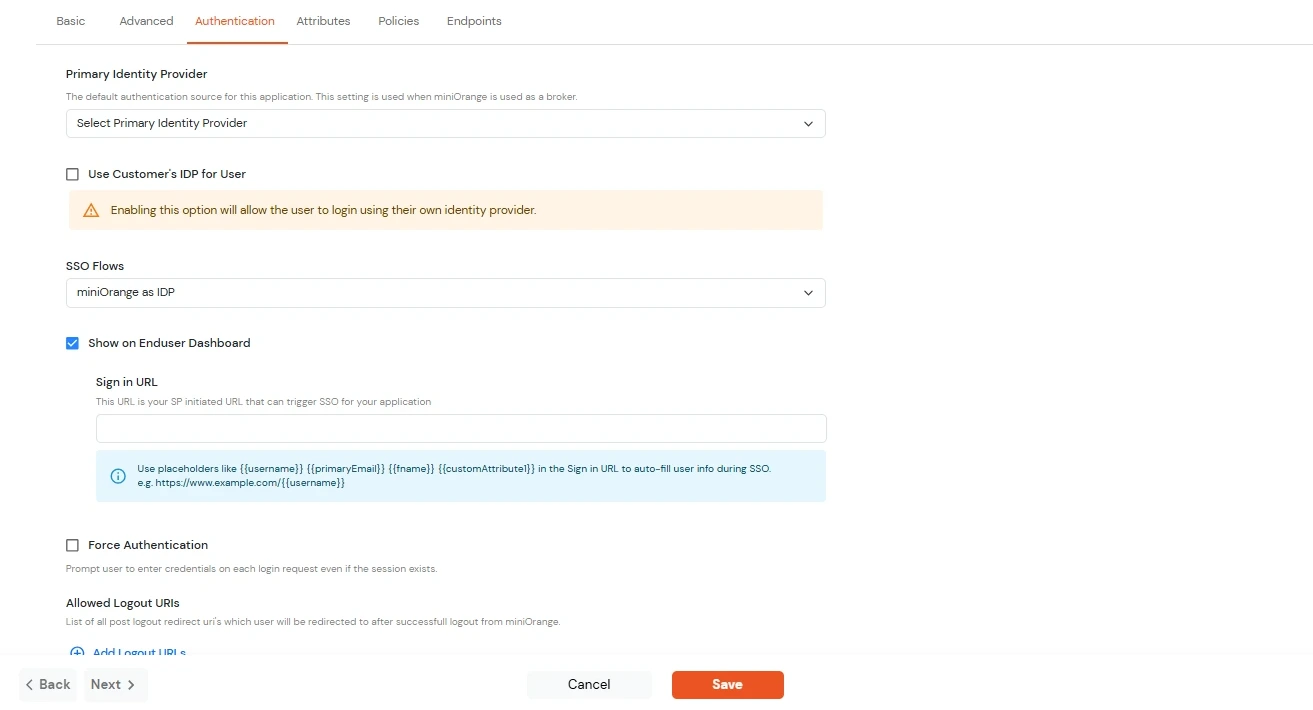
    Primary Identity Provider Select the default ID source from the dropdown for the application. If not selected, users will see the default login screen and can choose their own IDP. [Choose miniOrange in this case.]
    SSO FLows Select the desired SSO flow from the dropdown, such as miniOrange as IDP, miniOrange as Broker, or miniOrange as Broker with Discovery Flow.
    Show on Enduser Dashboard Enable this option if you want to show this app in the end-user dashboard.
    Force Authentication If you enable this option, users will have to log in every time, even if their session already exists.
    Allowed Logout URIs Click the Allowed Logout URIs link to add a list of post-logout redirect URIs. Users will be redirected to one of these URIs after a successful logout from miniOrange.
    Single Logout Enabled Enable this option to send logout requests to other applications when logging out from this app.
    Sign in URL

    You can include user attributes in the sign-in URL using placeholders like {{username}}, {{primaryEmail}}, {{customAttribute1}}, etc. These placeholders will be dynamically replaced with the actual user values during the IdP-initiated SSO flow.

    You can generate url using following attributes: username, primaryEmail, alternateEmail, fname, lname, primaryPhone and customAttribute1.

    The url could be like this login.com/{{username}}/?primaryEmail={{primaryEmail}}

  • Query Parameter Format: https://<sso-url>>?username={{username}} https://<sso-url>>?username={{username}}&email={{primaryEmail}}
  • Path Parameter Format: https://<sso-url>>/{{customAttribute1}}/{{customAttribute2}}/?username={{username}}
  • Navigate to Login options tab

  • Switch to the Attributes tab.
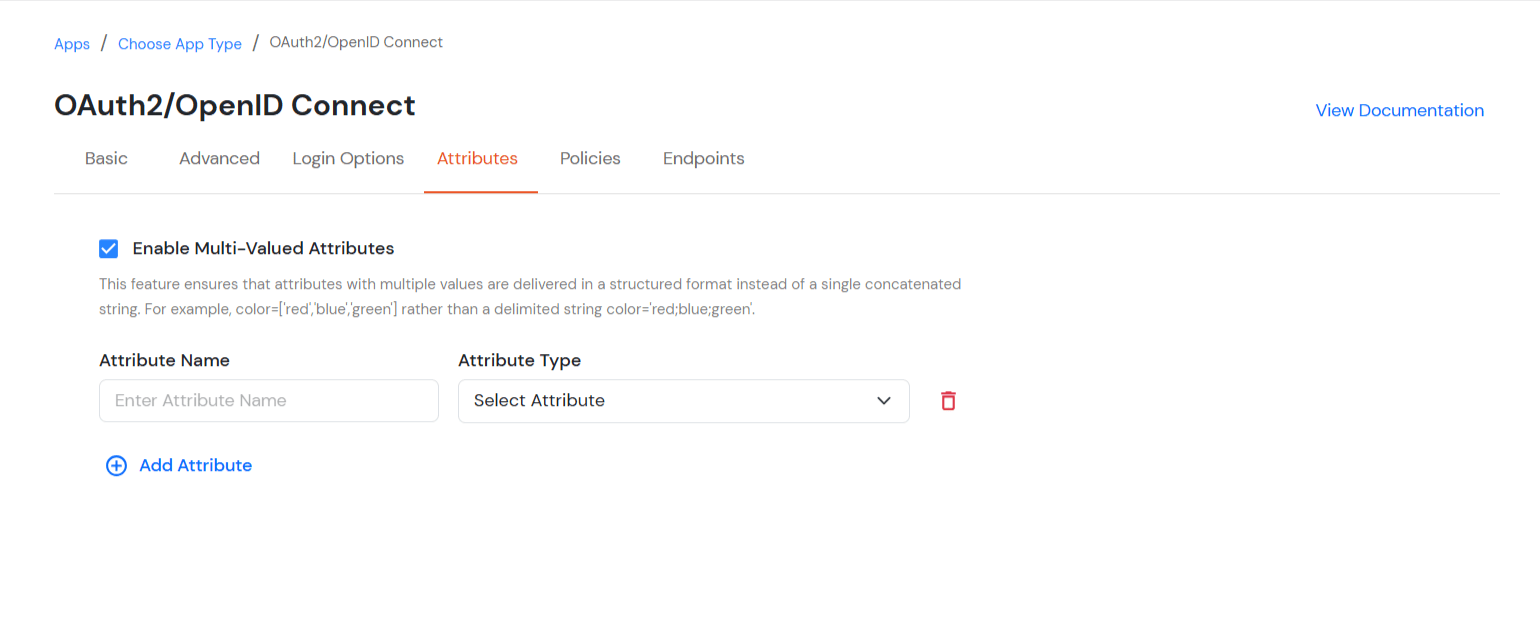
    • Enable Multi-Valued Attributes Option:
    • Enable multi-valued attributes

    • When this option is enabled, both commas (,) and semicolons (;) are treated as delimiters. Any attribute containing these characters will be automatically split and converted into a multi-valued attribute based on their positioning.
    • This feature ensures that attributes with multiple values are delivered in a structured format instead of as a single concatenated string.
    • For example: when this option is enabled, Attributes will be will appear as a list like roles = ['admin', 'editor', 'viewer'] instead of a single string like roles = "admin;editor;viewer".
    • When this option is disabled, attributes stored as a single concatenated string with commas (,) and semicolons (;) are treated in the way they are stored instead of a structured list.
    • In this case, commas (,) and semicolons (;) are not treated as separators, so the values remain combined in one string.
    • Getting Required App Details / Updating App Information:
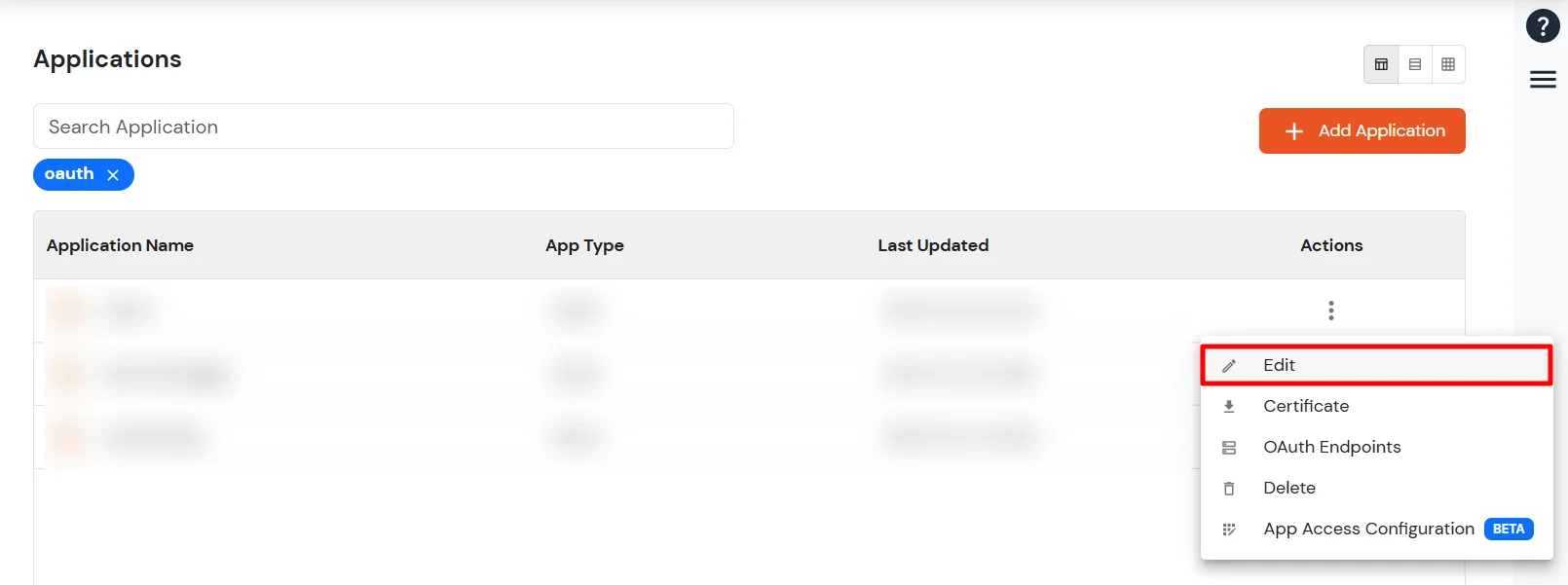
    • Go to the Apps section from the side menu. From the list of configured apps, locate the app you created. Click the three-dot icon next to the app and select the Edit option.
    • Edit application

    • You can edit any of the above-mentioned details in case you want to change them.
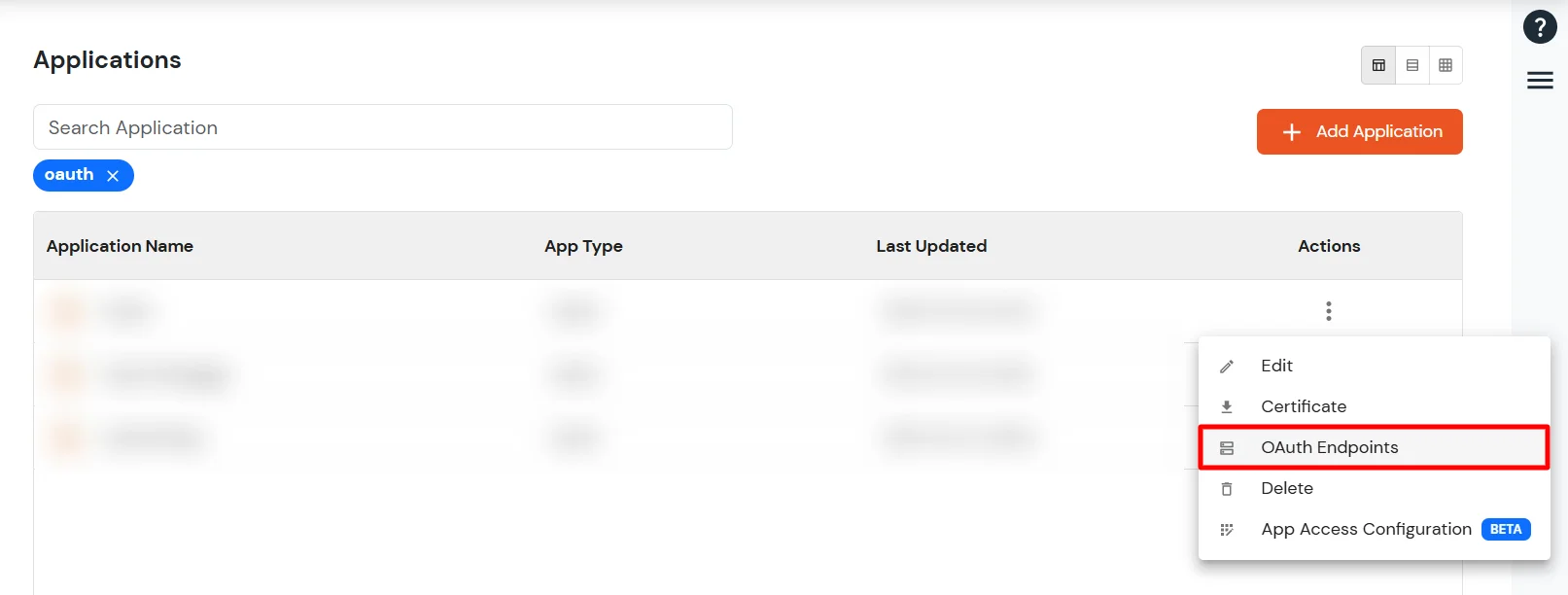
    • OAuth endpoints

    • OAuth Endpoints:
      • Authorization Endpoint [ https://<your-company-name>.xecurify.com/moas/idp/openidsso ]
        • This endpoint is used to authenticate the end user with their miniOrange credentials. This authenticates the users and returns a response back to the redirect_url based on the parameters passed in the request. [Mainly the authorization code]
        • This endpoint takes the following parameters:
          • Client_id: client_id of the application as configured in the previous steps
          • Redirect_uri: The callback URL where you want to return the response
          • scope: scope of authorization or level of access, you can send a single or multiple scopes separated by ‘+’. e.g “email+openid”. We support the following scopes :
            • Email: returns the email address of the user in the response
            • Profile: returns user profile information in the response
            • OpenID: returns the id_token containing user profile details.
        • This returns the authorization code and the state parameters in the response.
      • Token Endpoint [ https://<your-company-name>.xecurify.com/moas/rest/oauth/token ]
        • This endpoint returns the following:
        • Id_token ​Contains user attributes and signatures which you have to validate with provided public certificate.
        • iss https URI that indicates the issuer
          sub identifier of the user at the issuer
          aud client_id of the requesting client
          nonce the nonce parameter value received from the client
          exp expiration time of this token
          iat time when this token was issued
          auth_time time the authentication happened
          at_hash the first half of a hash of the access token
        • Access_token: Valid for 1 hour and can be used to access user info or other endpoints until it is expired.
        • This endpoint takes the following parameters in the request:
          • Client_id: client_id of the application as configured in the previous steps.
          • Client_secret: client_secret of the application as configured in the previous step.
          • Redirect_url: The callback url where the response should be posted.
          • Code: The authorization code received from the authorization endpoint.
          • Grant_type: The OAuth grant you want to use for the request.
      • User Info Endpoint [ https://<your-domain>.xecurify.com/moas/api/oauth/getuserinfo ] Required in case of OAuth Only
        • This API can be used to fetch user profile information with an access token that was assigned to the user. A GET request is sent to the user info endpoint.
        • You need to send the access token in the authorization header to receive the user details.
      • OpenID Single Logout Endpoint [ https://<your-domain>.xecurify.com/moas/idp/oidc/logout?post_logout_redirect_uri ] :
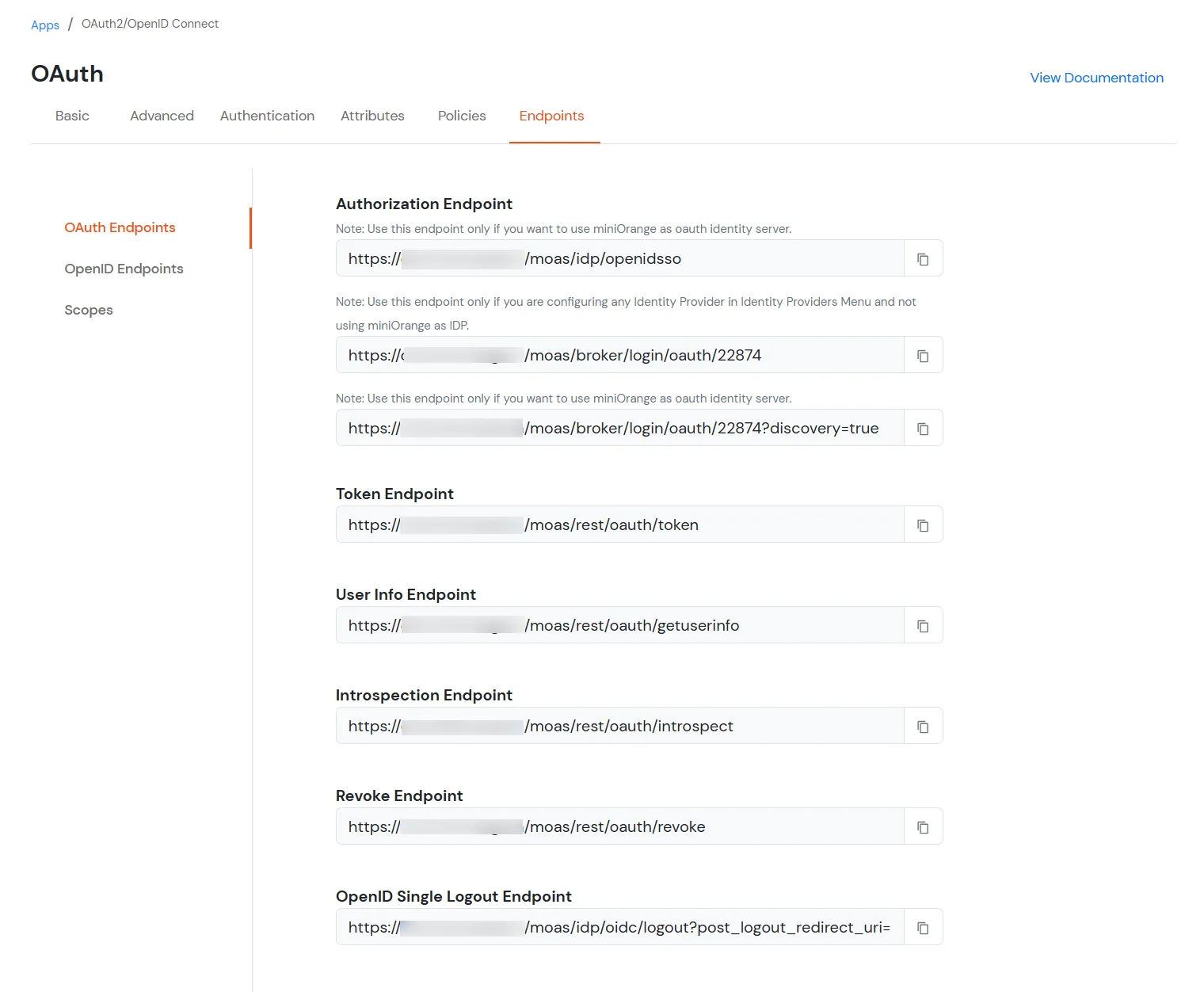
        • This endpoint removes the active user session from the miniOrange IDP and redirects the user to the URL mentioned in the post_logout_url parameter.
      View OAuth endpoints

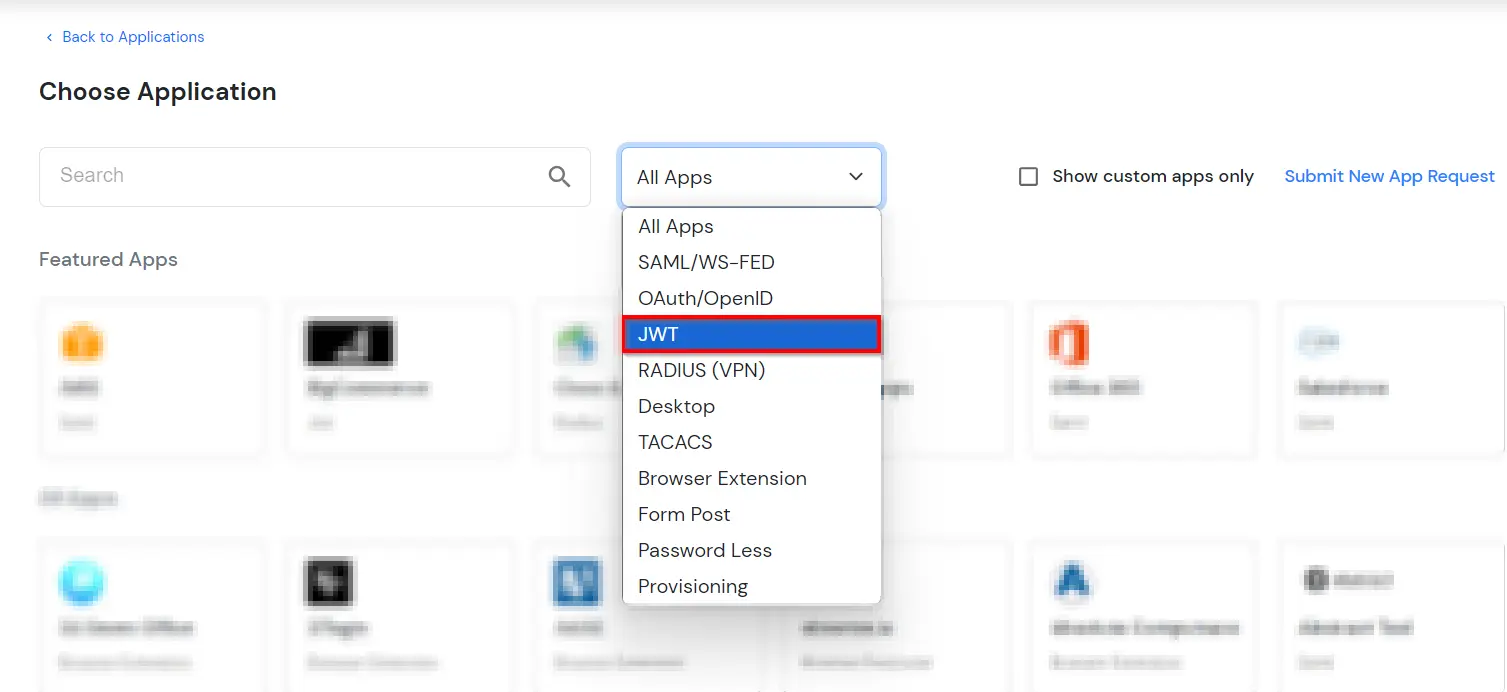
  • Under Choose Application, select JWT from the All Apps dropdown.
  • Select JWT app from dropdown

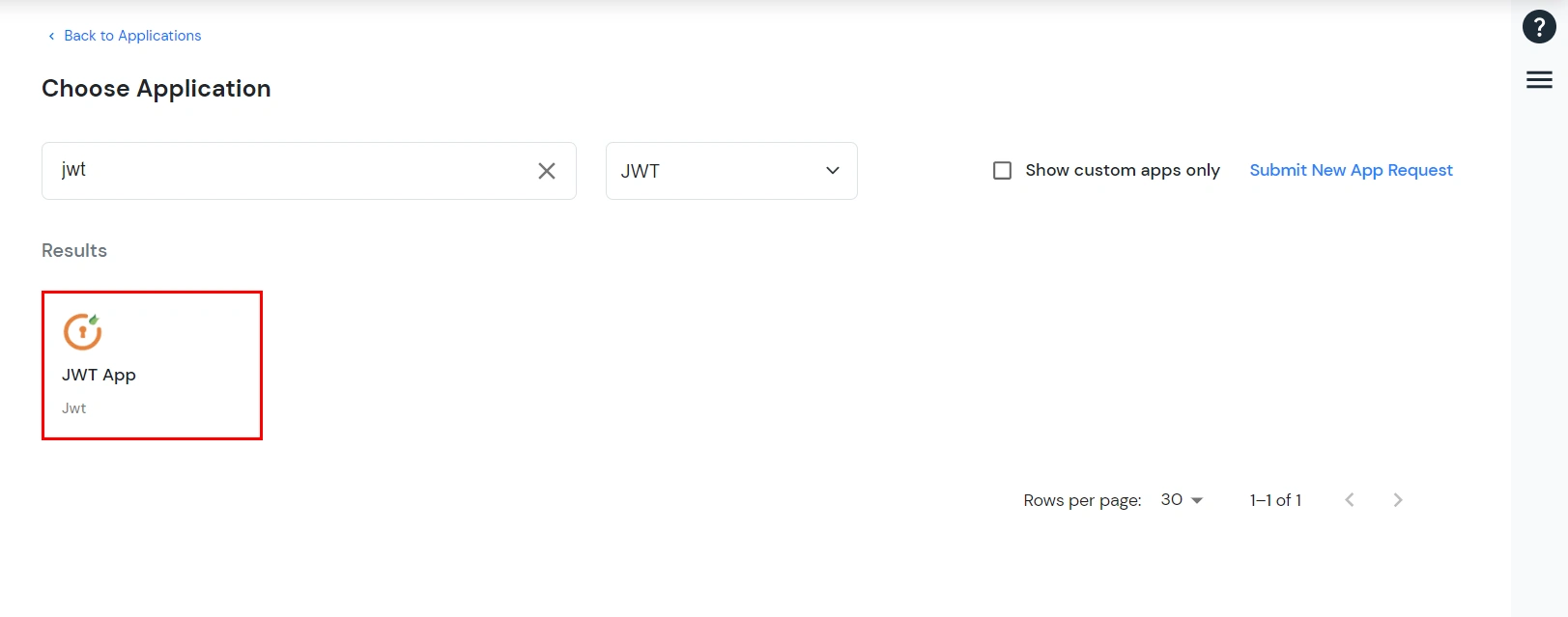
  • Search for your application from the list. If your application is not found, search for jwt and you can set up your app via JWT App.
  • Search JWT application

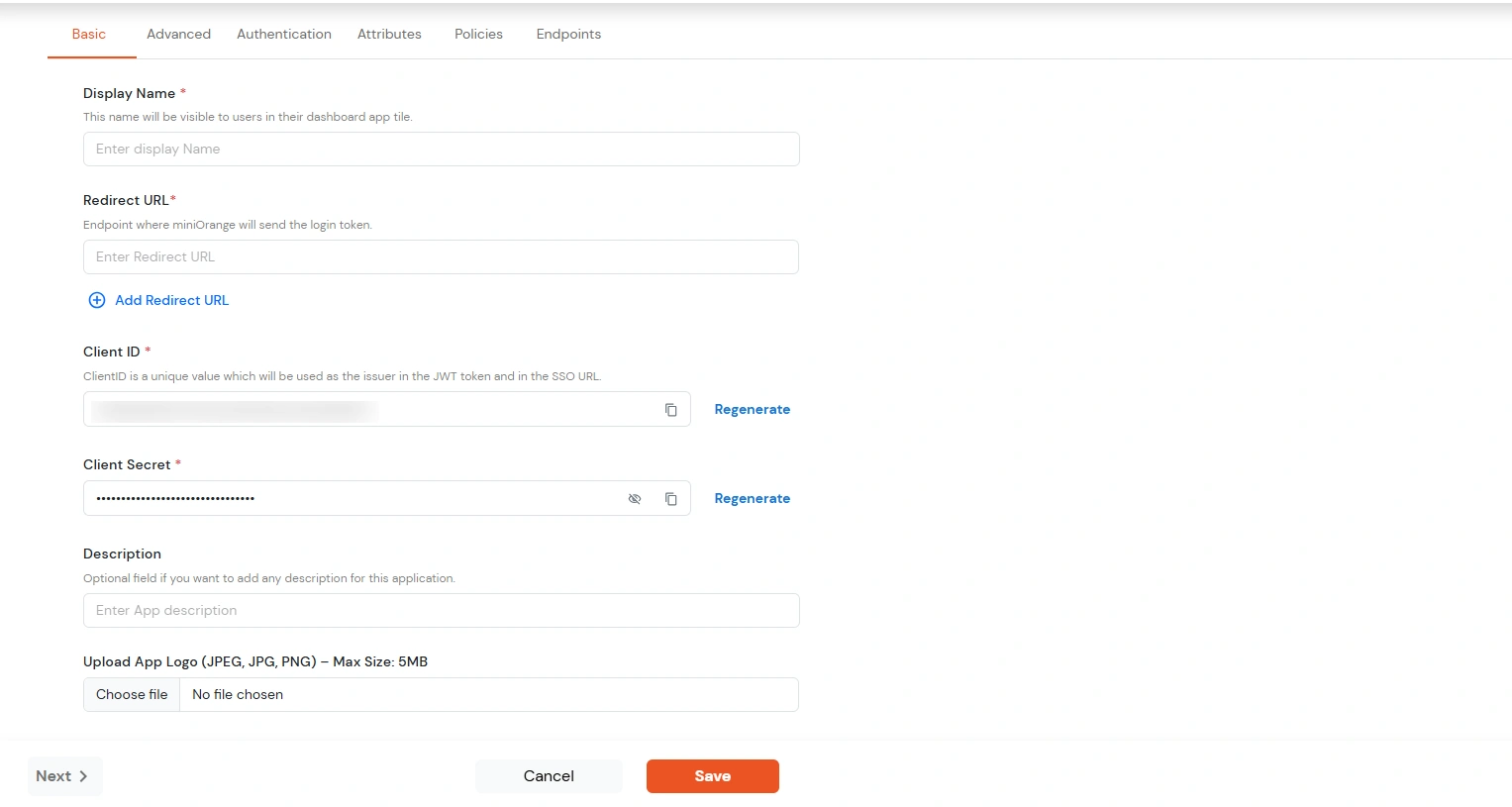
  • You can configure the following details in the application:
    Display Name Enter the Display Name (i.e. the name for this application)
    Redirect URL Enter the Redirect URL (i.e. the endpoint where you want to send/post your JWT token). You can add multiple redirect URLs by separating them with a ‘;’.E.g. abc.com;xyz.com
    Client ID The Client ID is shown in the field below. Click the clipboard icon to copy it.
    Client Secret Client Secret is hidden by default. Click the eye icon to reveal it and use the clipboard icon to copy it. This is used in the HS256 signature algorithm for generating the signature.
    Description (Optional) Add a description if required.
    Upload App Logo (Optional) Upload an app logo (Optional). The app will be shown in the end-user dashboard with the logo that you configure here.
  • Enter JWT app details

  • Click Save.
  • You will be redirected to the Policies section.
  • Go to Policies and Add Policy

  • Click on the Assign group button. A new Configure Group Assignment modal tab will open.
    • Assign Group: Select the groups you want to link with the application. You can select up to 20 groups at a time.
    • Configure group assignment

    • If you need to create new group. Click on Add New Group button.
    • Enter the Group name and click on Create Group.
    • Create new group

    • Click on Next.
    • Assign Policies: Add the required policies to the selected groups. Enter the following details:
    • First Factor: Select the login method from the dropdown.
      • If you select Password as the login method, you can enable 2-Factor Authentication (MFA) and Adaptive Authentication, if needed.
      • If you select Password-less as login method, you can enable 2-Factor Authentication (MFA) if needed.
  • Add login policy details

  • Click on Save. Policies will be created for all the selected groups.
  • You will see the policy listed once it's successfully added.
  • Policy successfully added

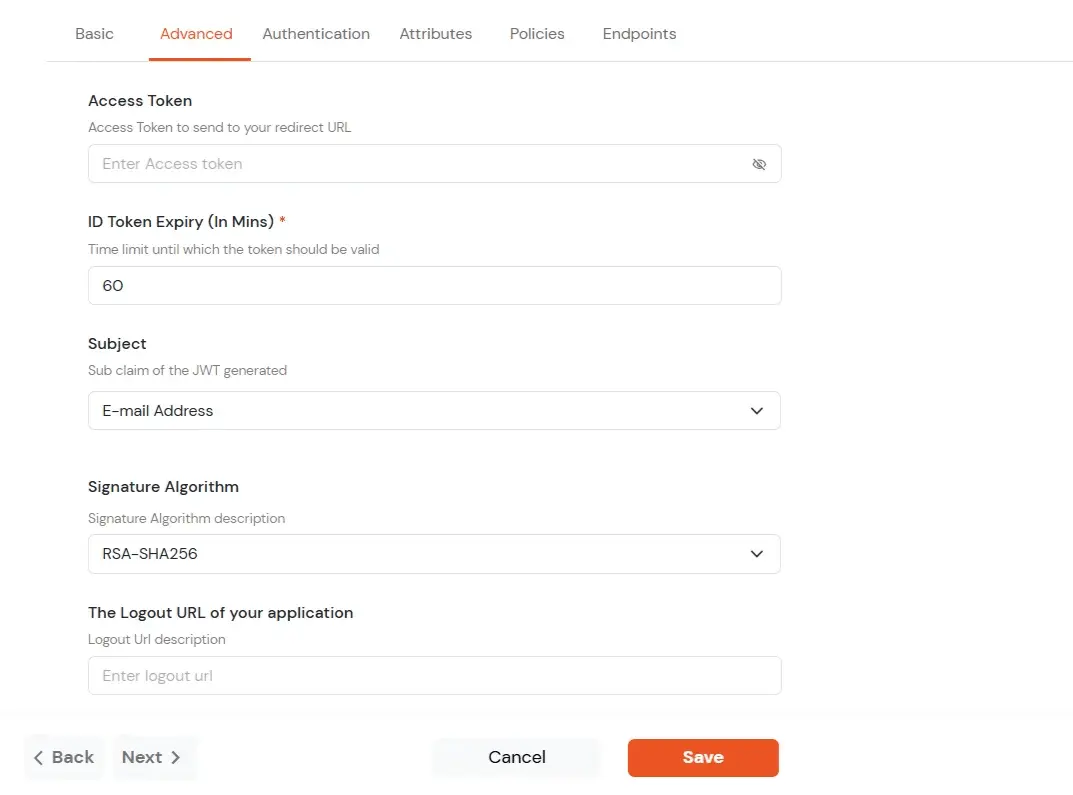
  • Click on Advanced tab.
  • Enter the following details as required:
    Access Token Enter the access token that will be sent to your redirect URL after a user logs in. This token helps your app know the user is allowed to access certain features.
    ID Token Expiry (In Mins) Set how long (in minutes) the ID token will be valid. After this time, the user will need to log in again to get a new token.
    Subject Choose what information, like the user’s email address, will be used to identify them in the token. This helps your app know which user is logged in.
    Signature Algorithm Select your signature algorithm from the dropdown.
    The Logout URL of your application Enter the web address where users should be sent after they log out.
    Enable Shared Identity This feature lets you control whether a specific application can be accessed by shared user or not.
  • Navigate to Advanced tab

  • Signature Algorithms for JWT
    • RSA-SHA256

      • Asymmetric, uses a set of private and public keys to generate and validate the signature which is included in the JWT token.
      • The private key is used to generate the signature on the IDP side.
      • The public key is used to verify the signature on the SP side.
      • We provide the public key for this.

      HS256

      • Symmetric, uses the same secret key to generate and validate the signature
      • The secret key in this case is configurable from the app configuration page.
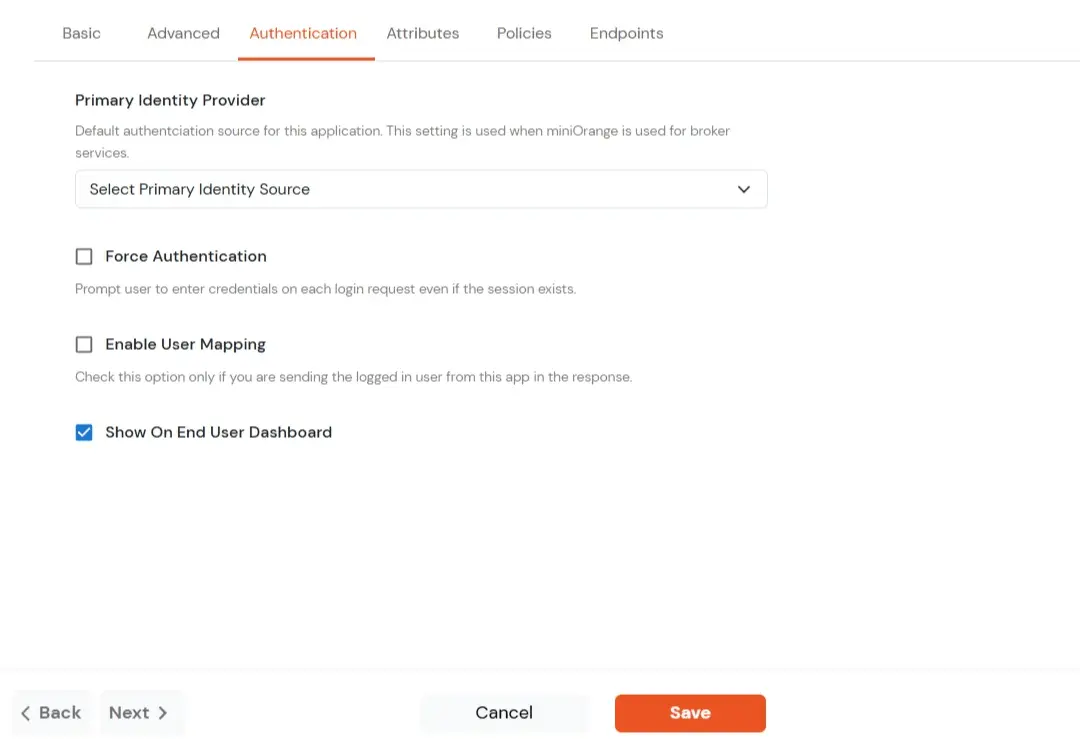
  • Switch to Login options tab.
    Primary Identity Provider Select the default ID source from the dropdown for the application. If not selected, users will see the default login screen and can choose their own IDP. [Choose miniOrange in this case.]
    Force Authentication If you enable this option, users will have to log in every time, even if their session already exists.
    Enable User Mapping Enable this option, if you want the app to show which user is signed in when it responds.
    Show On End User Dashboard Enable this option if you want to show this app in the end-user dashboard.
  • Navigate to Login options tab

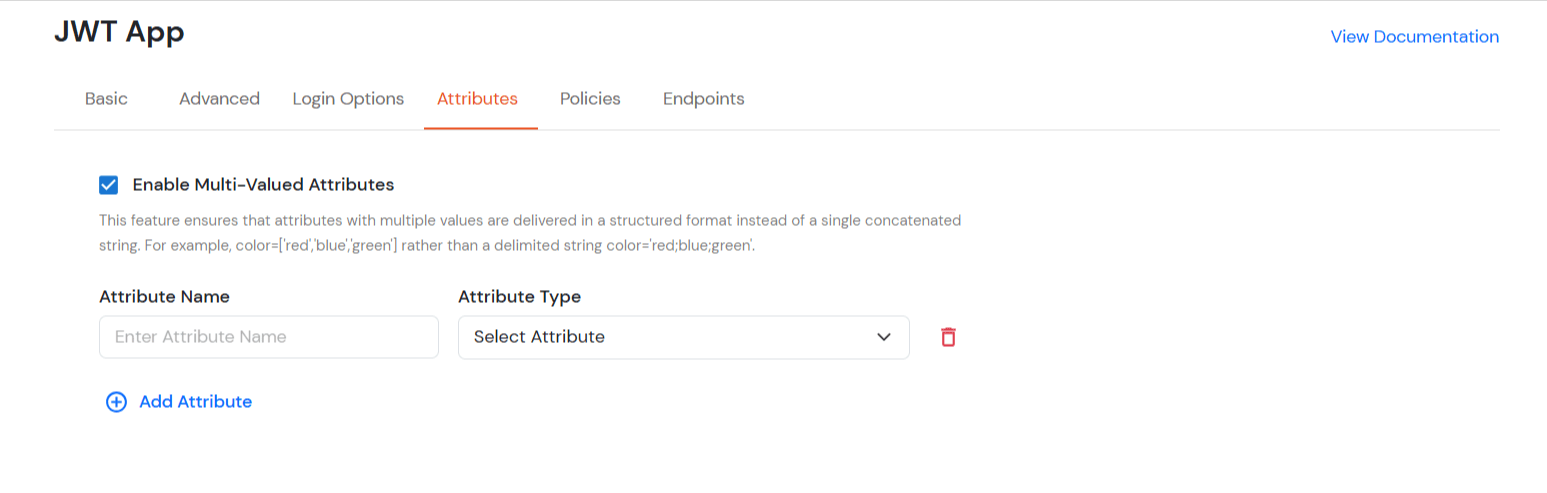
  • Switch to Attributes tab.
    • Enable Multi-Valued Attributes Option:
    • Enable multi-valued attributes

    • When this option is enabled, both commas (,) and semicolons (;) are treated as delimiters. Any attribute containing these characters will be automatically split and converted into a multi-valued attribute based on their positioning.
    • This feature ensures that attributes with multiple values are delivered in a structured format instead of as a single concatenated string.
    • For example: when this option is enabled, Attributes will be will appear as a list like roles = ['admin', 'editor', 'viewer'] instead of a single string like roles = "admin;editor;viewer".
    • When this option is disabled, attributes stored as a single concatenated string with commas (,) and semicolons (;) are treated in the way they are stored instead of a structured list.
    • In this case, commas (,) and semicolons (;) are not treated as separators, so the values remain combined in one string.
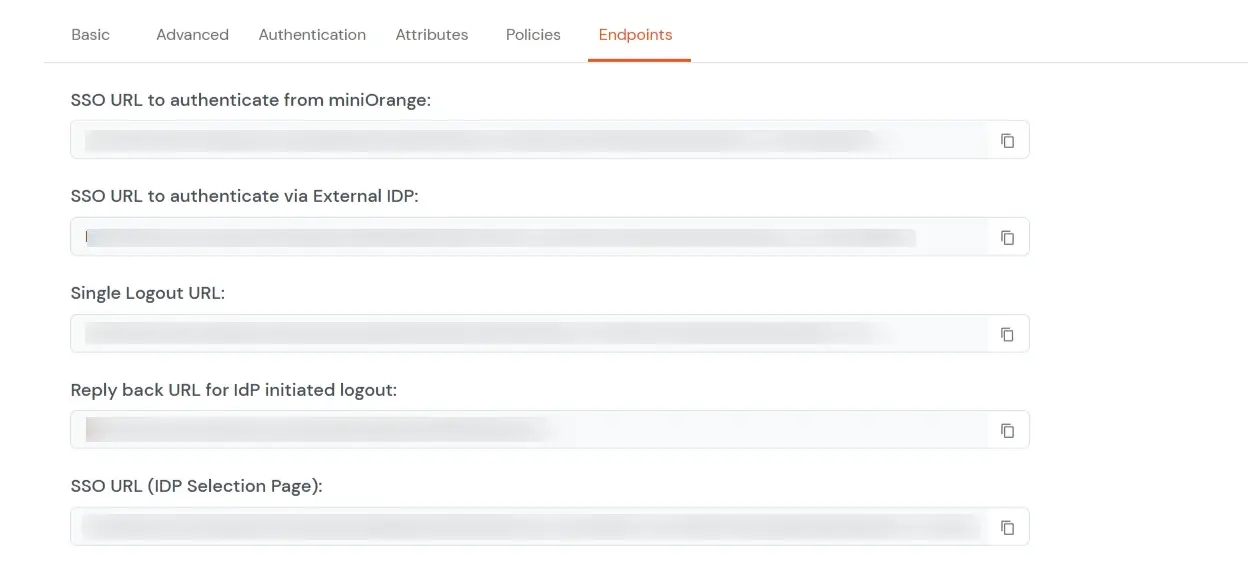
  • Navigate to Endpoints and copy the following details:
  • Navigate to Endpoints and copy URLs

    • Single Sign-On URL:
      • This URL is used to initiate user authentication to obtain the JWT token.
      • Take redirect_uri as one of the query parameters.
      • After successful authentication on the IDP end, an active user session is created in the IDP and the user is redirected to the redirect_uri with the JWT token.
    • Single Logout URL:
      • This URL is used to log out the user from the IDP by removing the active user session.
      • Take redirect_uri as one of the query parameters.
      • After removing the active user session, the IDP redirects the user to the redirect_uri.
    • Reply back URL for IdP initiated logout:
      • This URL is used to initiate the logout in case the JWT user login was IDP Initiated [User logged in to the dashboard
        first and then initiated the login for the app from the dashboard.]
      • After logging out the user from the IDP, the user is redirected to the IDP dashboard login page.

4. Login using IDP selection page (Optional)

  • You can configure multiple IDPs (Identity Providers) and give users the option to select the IDP of their choice to authenticate with.
    For Example - It could be multiple AD domains belonging to different departments or multiple okta organizations.
  • Few usecases where customers configure multiple IDPs -

  • Suppose you have a product which many of your clients use and each client has their own unique IDP so you want them to SSO into your product as well using their existing IDP only. miniOrange provides a centralized way to connect with all IDPs in a very easy manner and integrate SSO into your application.
  • Suppose you are providing a course to many universities, each having a unique SAML, OAuth protocol supported IDP's like Shibboleth, ADFS, CAS, etc. You can provide Single Sign-On (SSO) into your course application to all these universities by integrating with all of them using a single platform provided by miniOrange.
  • This is the endpoint to call from your SAML application -
  • For Cloud IDP - https://login.xecurify.com/moas/discovery?customerId=<customer_id>
    For On-Premise IDP - https://yourdomain.com/discovery?customerId=<customer_id>

  • You should copy the Customer Key from admin console-> Settings -> and replace it with <customer_id> here. Once configured in SP, when you initiate the login from Service Provider, a user will be redirected to IDP Selection Page listing all IDPs configured for that account.
  • You can see the screenshot below of the IDP Selection Page with a list of IDPs.


    Note: To view the IDP in drop-down list, go to Identity Providers tab > against your configured IDP > Select >Edit , here Enable the Show IdP to Users option.
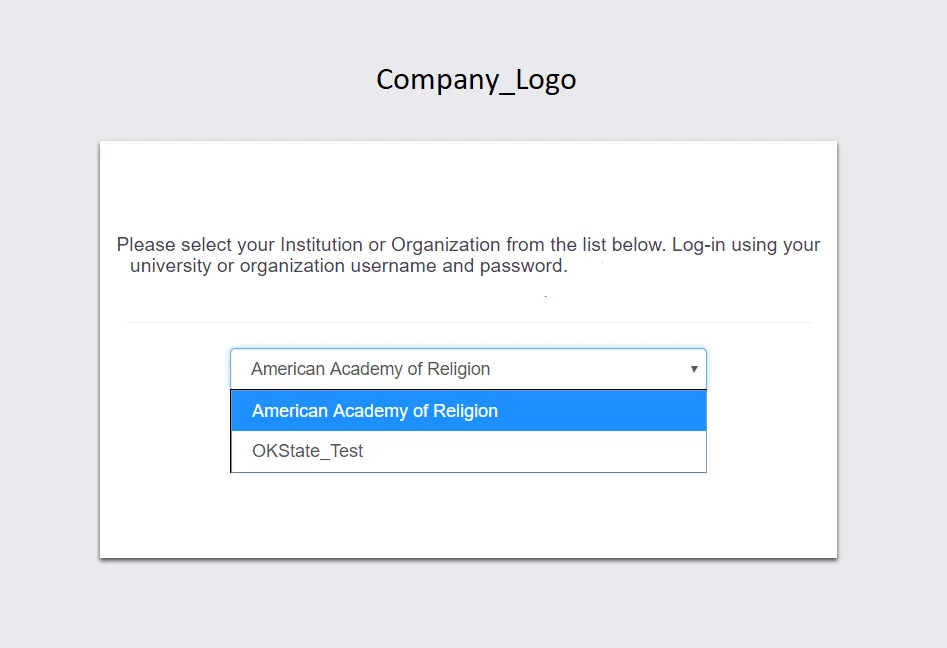
    Select your IDP (Identity Provider) to login

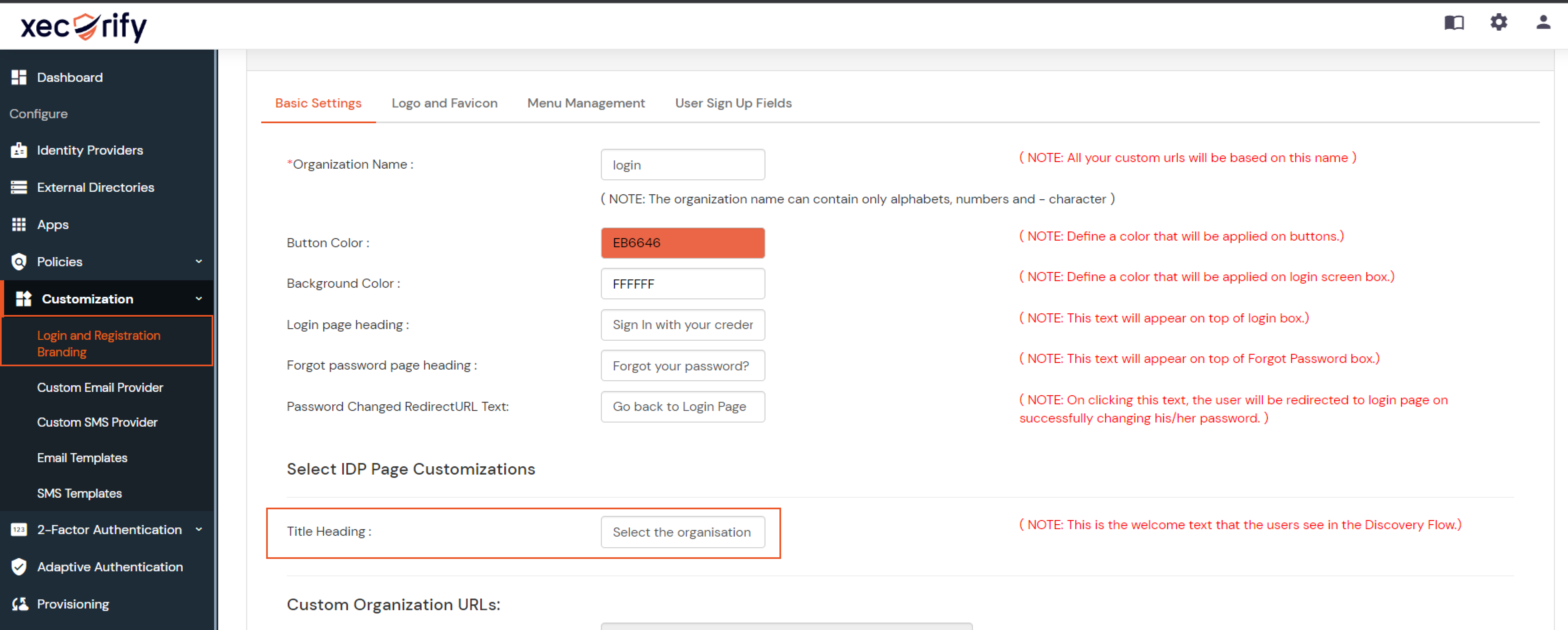
  • You also have the option to modify the appearance and design of this page. Login to miniOrange Admin console. Navigate to Customization -> Branding Configuration. See the below screenshot for reference-

  • Customize IDP selection login page

  • You can customize the title of this page.
  • Change the logo and favicon for this page.
  • Change the background and button color for this page from admin UI.

External References

Want To Schedule A Demo?

Request a Demo


Our Other Identity & Access Management Products