Hello there!

Need Help? We are right here!

miniOrange Support
miniOrange Email Support
success

Thanks for your Enquiry.

If you don't hear from us within 24 hours, please feel free to send a follow-up email to info@xecurify.com

Search Results:

×

Server Integration & Management


Setting up a secure and reliable server environment is a foundational step in implementing an effective PAM strategy. A properly configured infrastructure ensures that privileged credentials, access policies, and audit mechanisms operate seamlessly. Set up the server with the following simple steps.

Add and Manage Server in PAM Dashboard

In this section, we will understand how to integrate a server into the PAM environment.

Linux Server Configuration

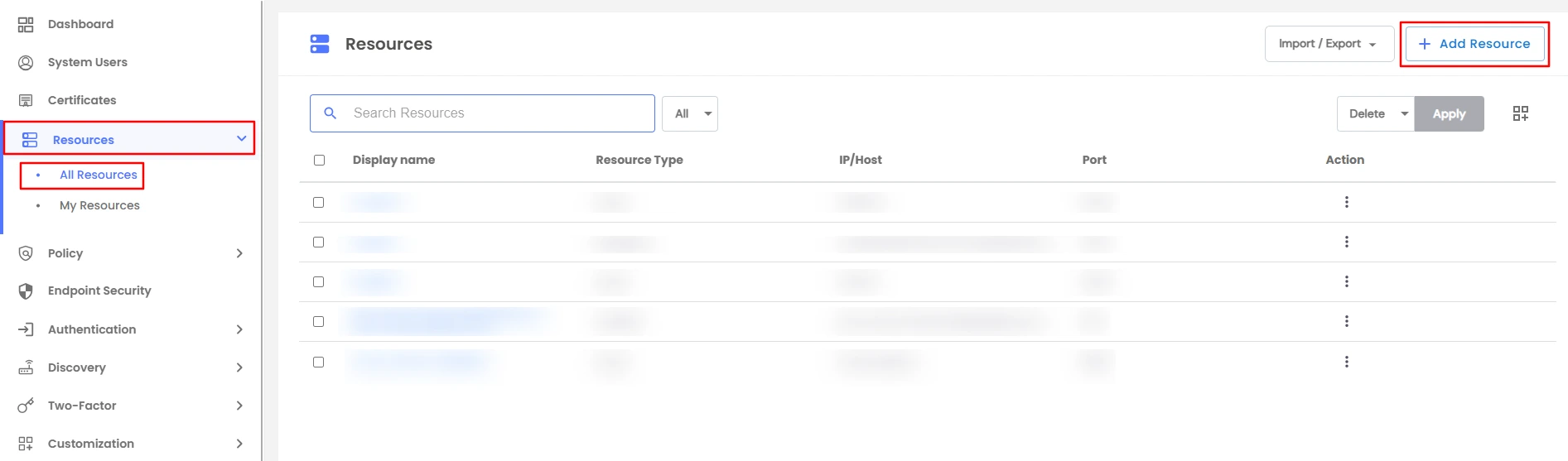
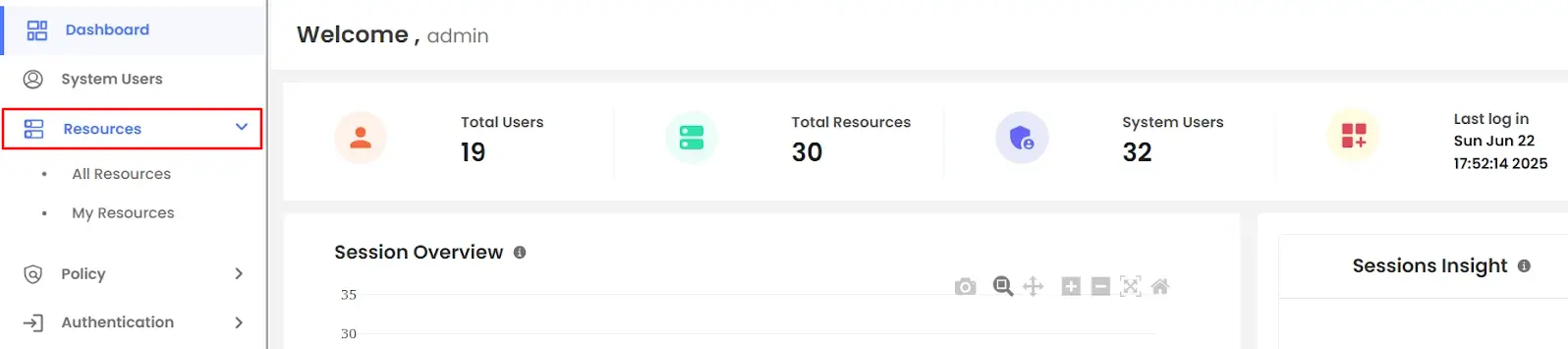
  • Login to your PAM dashboard >> navigate to the Resources section
  • PAM Dashboard Resources Section

  • Click on All Resources and on the top right, click on the Add Resource button.
  • PAM Add Resource Button

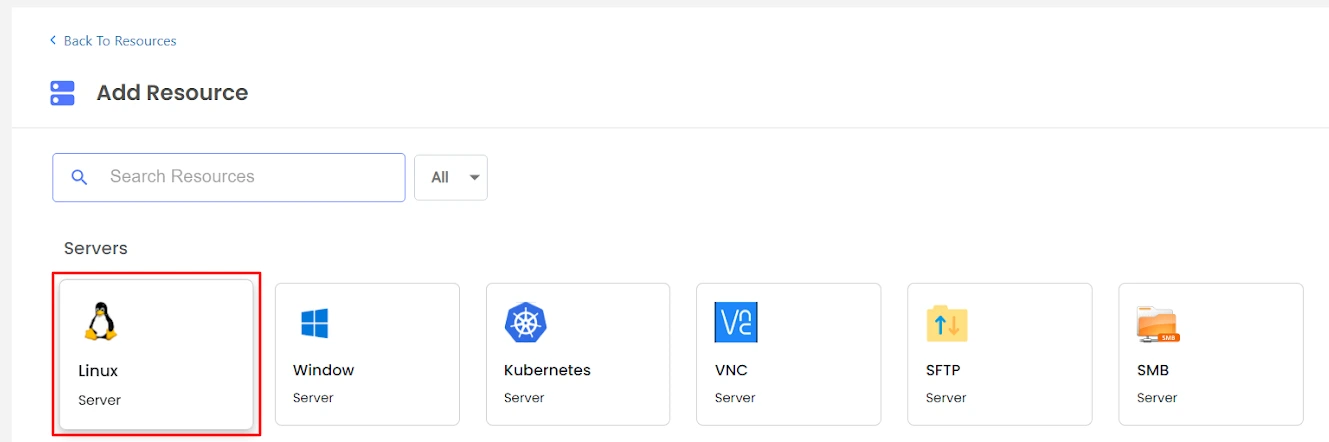
  • Select the Linux Server for configuration.
  • PAM Select Linux Server

    Note: In 3 simple steps, you can configure the Linux Server.

    Step 1 : Add the general details

    This will include the display name, Port, and IP address.
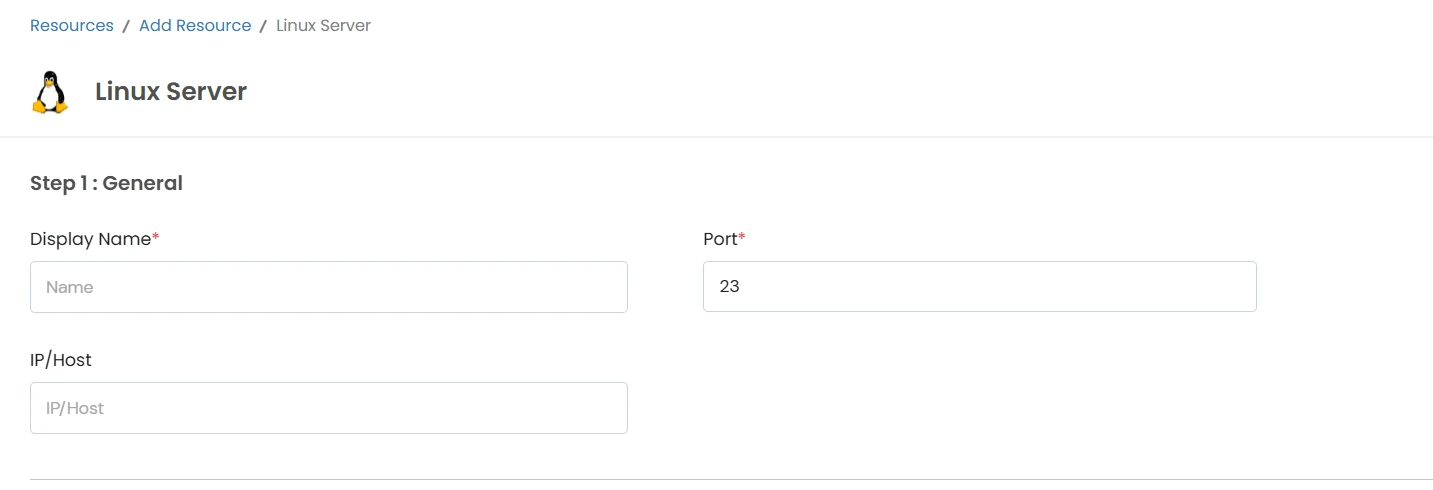
    • Display Name: Provide a descriptive name.
    • Port: Enter the communication port.
    • IP/Host: Specify the IP address or hostname.
    • Enable SFTP: The user can connect through MobaXterm using SSH, and an additional SFTP panel is available for file transfers. Enable this option only if file transfer access is required during MobaXterm sessions.
    PAM Linux Server General Details

    Step 2 : Add Linux credentials

    You will be required to include system users and new credentials details here.
    • System User: Choose an existing system user from the dropdown.
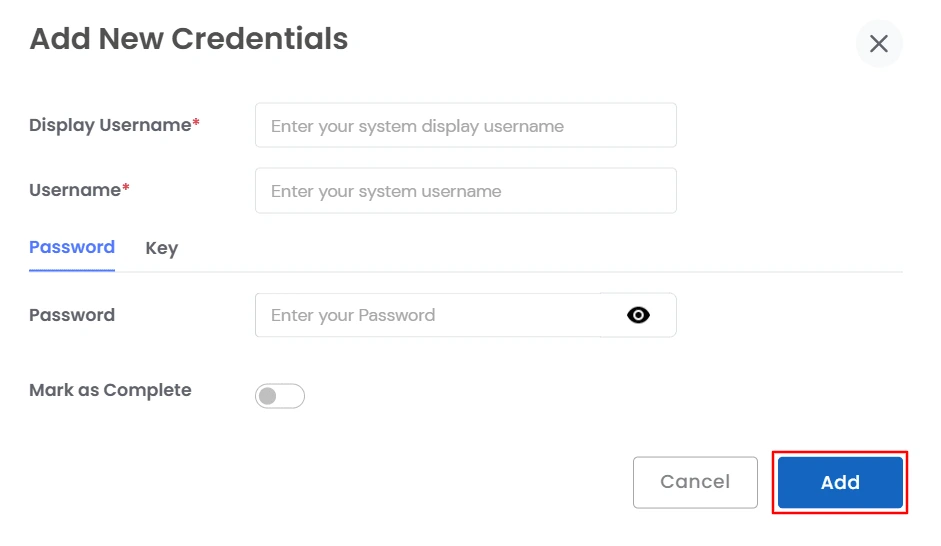
    • To include new credentials, tap on the Add New Credentials button.
    • PAM Linux Add Credentials

    • A pop-up will open where you are asked to fill in crucial details.
      • Add your system display username and system username
      • You have an option to add a password or a key
      • Enter the password and click on add
      • Add the certificate or token in text or upload the certificate. Include the passphrase and click on the add button.

    Step 3 : Add JumpServer Details

    • Select the JumpServer from the drop-down if the Linux server will be accessed through a Jump host. (optional)
    • PAM Linux JumpServer Details

    • After all the relevant details are added, click on the Add button to configure the Server.

Windows Server Configuration

  • Login to your PAM dashboard >> navigate to the Resources section
  • PAM Dashboard Resources Section

  • Click on All Resources and on the top right, click on the Add Resource button.
  • PAM Add Resource Button

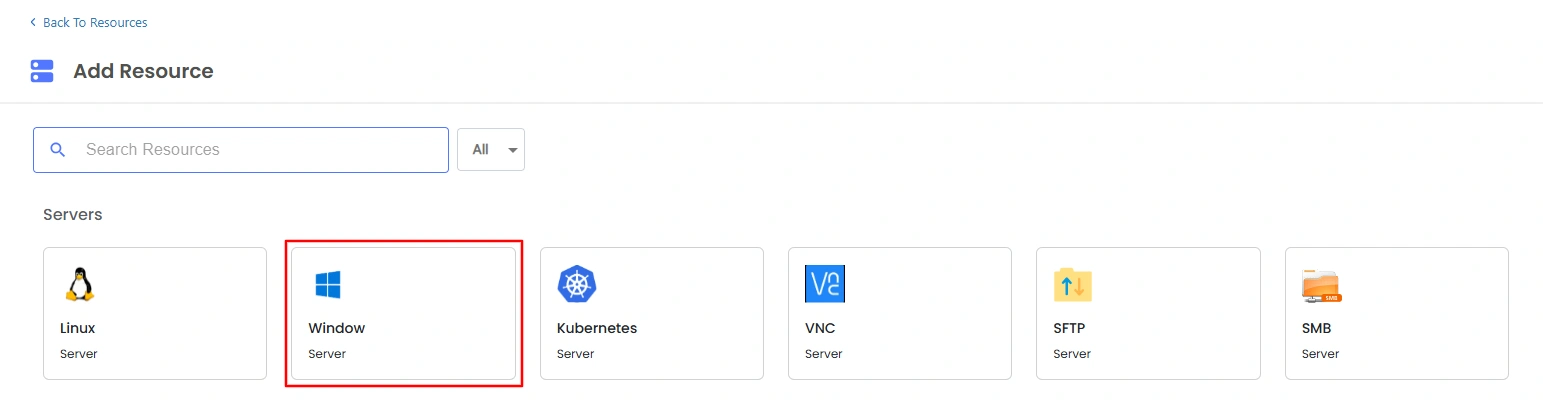
  • Select the Windows Server for configuration.
  • PAM Select Windows Server

    Note: In 3 simple steps, you can configure the Windows Server.

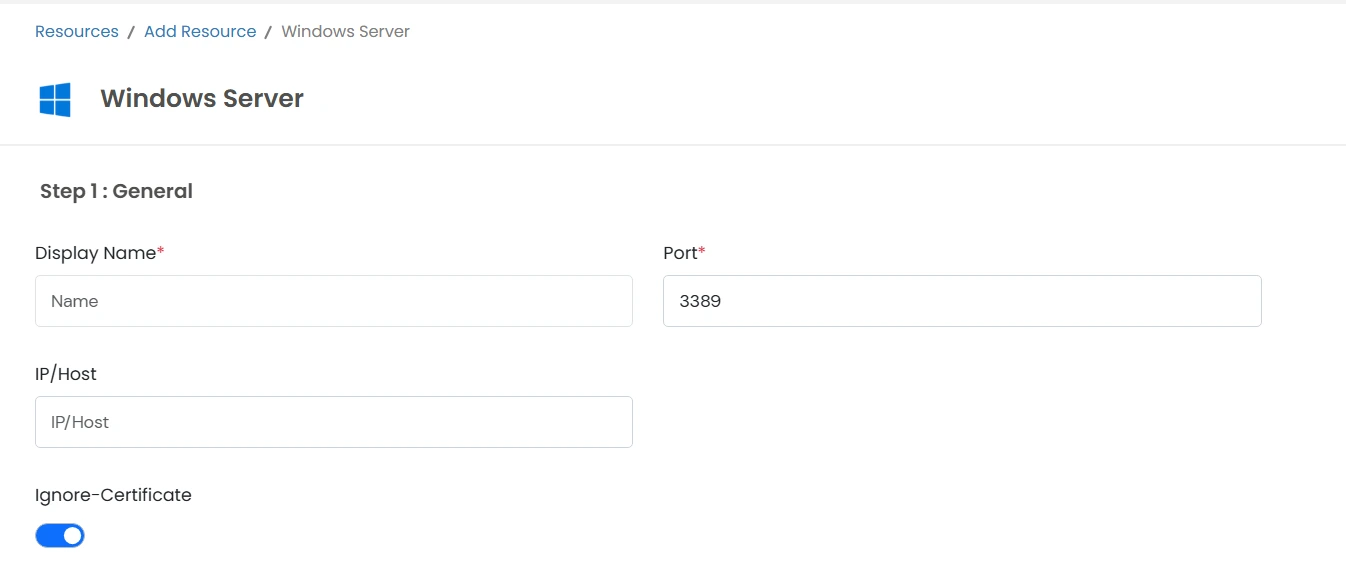
    Step 1 : Add the general details

    This will include the display name, Port, and IP address.

    • Display Name: Provide a descriptive name.
    • Port: Enter the communication port.
    • IP/Host: Specify the IP address or hostname.
    PAM Windows Server General Details

    Step 2 : Add Windows credentials

    You will be required to include system users and new credentials details here.
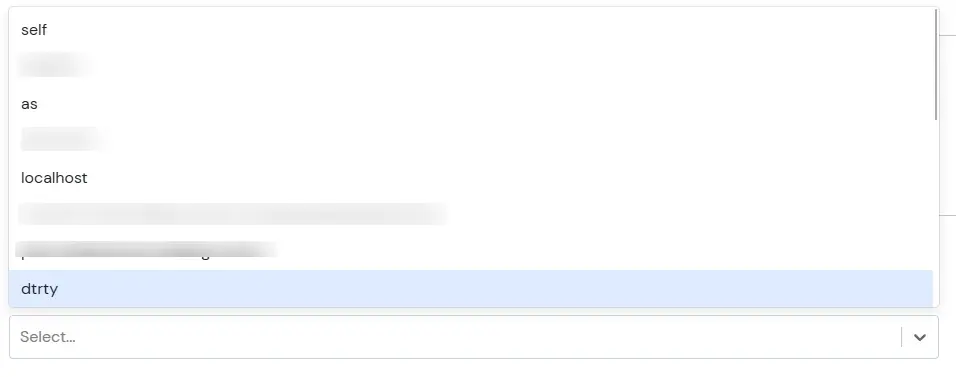
    • System User: Choose an existing system user from the dropdown.
    • To include new credentials, tap on the Add New Credentials button.
    • PAM Windows Add Credentials

    • A pop-up will open where you are asked to fill in crucial details.
      • Add your system display username and system username
      • You have an option to add a password or a key
      • Enter the password and click on add
      • Add the certificate or token in text or upload the certificate. Include the passphrase and click on the add button.

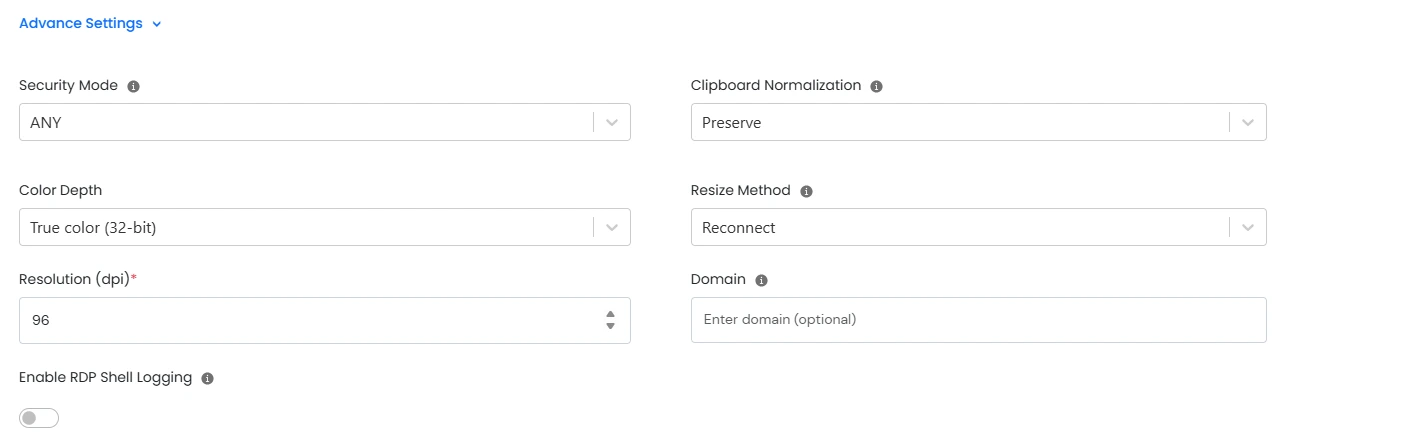
    Step 3 : Add JumpServer Details & Advanced Settings

    • Select the JumpServer from the drop-down if the Windows server will be accessed through a Jump host. (optional)
    • PAM Windows JumpServer Details

    • Along with JumpServer details, add the Advanced Settings:
    • PAM Windows Server Configured

      Setting Name Meaning How it Works
      Security Mode Dictates how data will be encrypted and what type of authentication will be performed. Select from RDP, NLA, TLP, or ANY
      Clipboard Normalization Controls how line endings in clipboard data are normalized between different operating systems. Select from UNIX (LF), Preserve, or Windows (CRLF)
      Color Depth Defines the number of colors displayed in the RDP session. Choose from Low Color (16-bit), True Color (24-bit), True Color (32-bit), or 256 Color
      Resize Method Selects the method used to update the RDP server when the client display size changes. Select "Display Update" for RDP 8.1 or "Reconnect" for older servers
      Resolution (dpi) Sets the display resolution for the RDP session. Add a user-defined DPI value
      Domain Required to enable logging for PowerShell and Command Prompt activity. Add the domain name
      Enable RDP Shell Logging Logs all Command Prompt and PowerShell activity executed on the remote machine. Enable the toggle
    • After all the relevant details are added, click on the Add button to configure the Windows Server.

Kubernetes Server Configuration

  • Login to your PAM dashboard >> navigate to the Resources section
  • PAM Dashboard Resources Section

  • Click on All Resources and on the top right, click on the Add Resource button.
  • PAM Add Resource Button

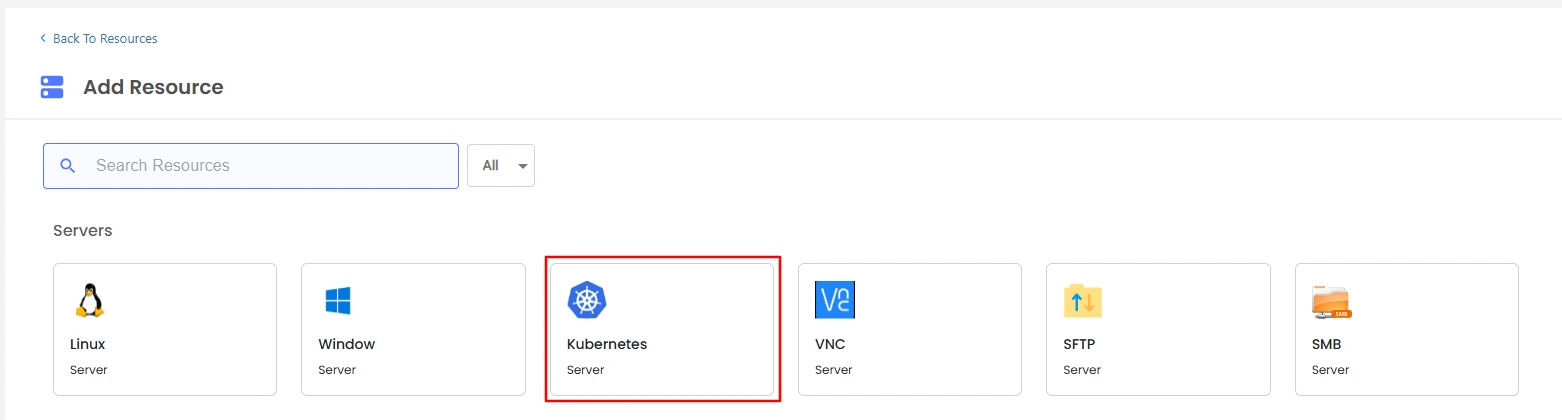
  • Select the Kubernetes Server for configuration.
  • PAM Select Kubernetes Server

    Note: In 3 simple steps, you can configure the Kubernetes Server.

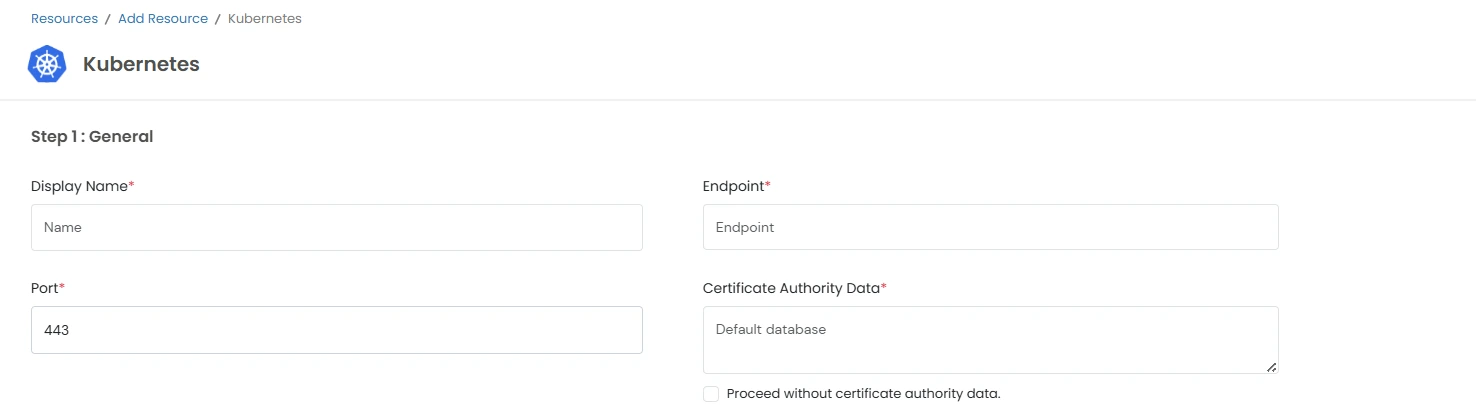
    Step 1 : Add the general details

    This will include the display name, Port, endpoint and more.

    • Display Name: Provide a descriptive name.
    • Port: Enter the communication port.
    • Endpoint: Specify the endpoint.
    • Certificate Authority Data: Enter the required certificate authority information, or select Proceed without Certificate Authority Data to continue without it.
    PAM Kubernetes Server General Details

    Step 2 : Add Kubernetes credentials

    You will be required to include system users and new credentials details here.
    • System User: Choose an existing system user from the dropdown.
    • To include new credentials, tap on the Add New Credentials button.
    • PAM Kubernetes Add Credentials

    • A pop-up will open where you are asked to fill in crucial details.
      • Add your system display username and system username
      • You have an option to add a password or a key
      • Enter the password and click on add
      • Add the certificate or token in text or upload the certificate. Include the passphrase and click on the add button.

    Step 3 : Add JumpServer Details

    • Select the JumpServer from the drop-down if the Kubernetes server will be accessed through a Jump host. (optional)
    • PAM Kubernetes JumpServer Details

    • After all the relevant details are added, click on the Add button to configure the Server.

VNC Server Configuration

  • Login to your PAM dashboard >> navigate to the Resources section
  • PAM Dashboard Resources Section

  • Click on All Resources and on the top right, click on the Add Resource button.
  • PAM Add Resource Button

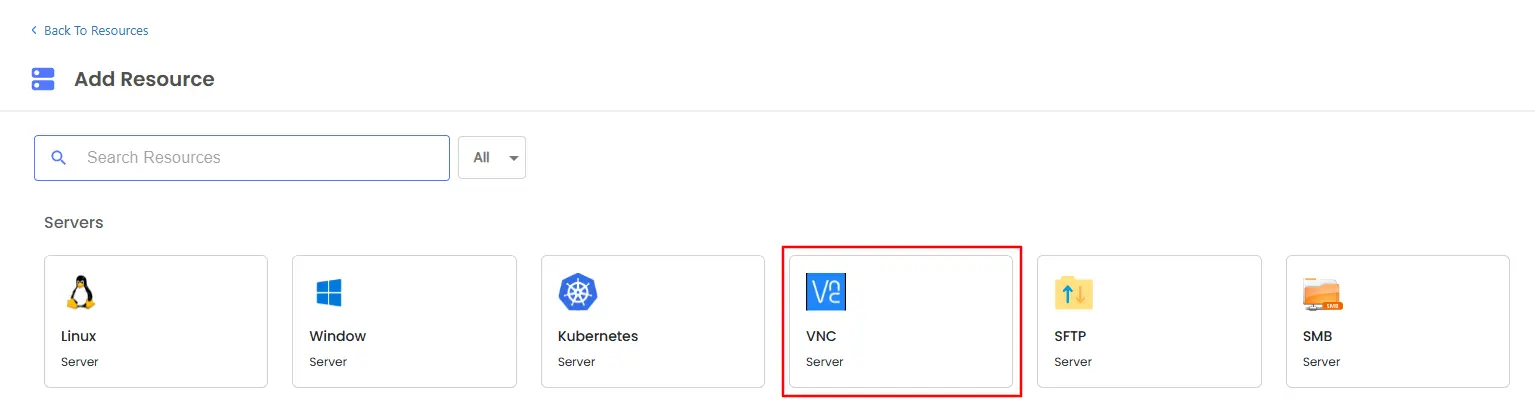
  • Select the VNC Server for configuration.
  • PAM Select VNC Server

    Note: In 3 simple steps, you can configure the VNC Server.

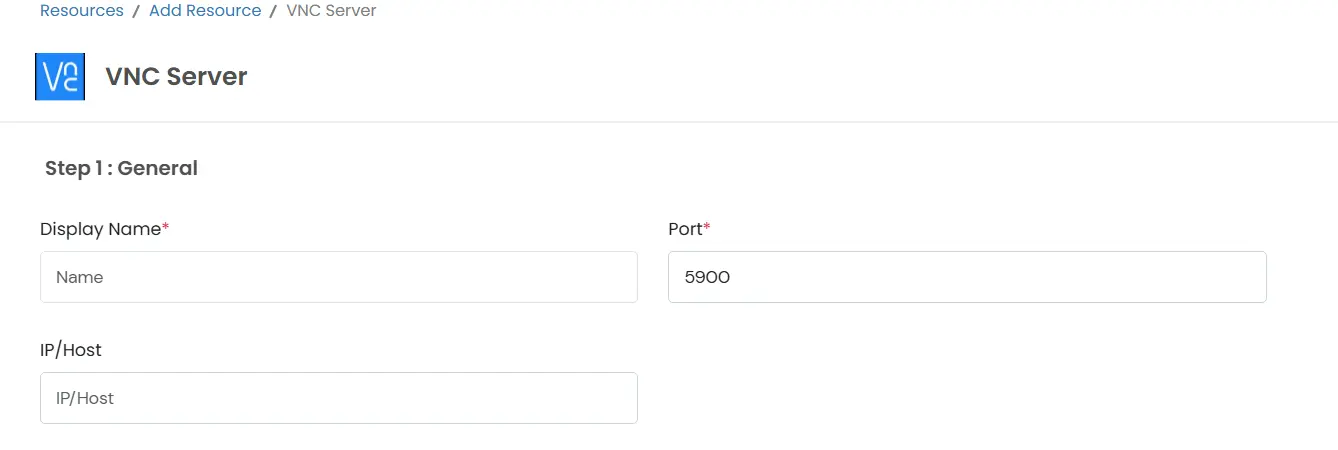
    Step 1 : Add the general details

    This will include the display name, Port, and IP address.
    • Display Name: Provide a descriptive name.
    • Port: Enter the communication port.
    • IP/Host: Specify the IP address or hostname.
    PAM VNC Server General Details

    Step 2 : Add VNC credentials

    You will be required to include system users and new credentials details here.
    • System User: Choose an existing system user from the dropdown.
    • To include new credentials, tap on the Add New Credentials button.
    • PAM VNC Add Credentials

    • A pop-up will open where you are asked to fill in crucial details.
      • Add your system display username and system username
      • You have an option to add a password or a key
      • Enter the password and click on add
      • Add the certificate or token in text or upload the certificate. Include the passphrase and click on the add button.

    Step 3 : Add JumpServer Details

    • Select the JumpServer from the drop-down if the VNC server will be accessed through a Jump host. (optional)
    • PAM VNC JumpServer Details

    • After all the relevant details are added, click on the Add button to configure the Server.

SFTP Server Configuration

  • Login to your PAM dashboard >> navigate to the Resources section
  • PAM Dashboard Resources Section

  • Click on All Resources and on the top right, click on the Add Resource button.
  • PAM Add Resource Button

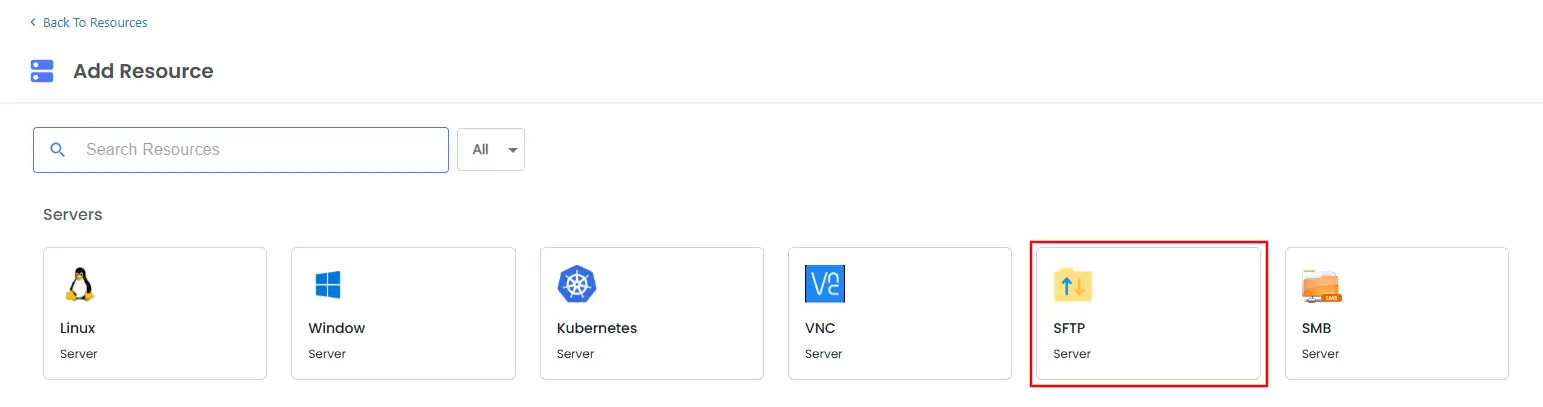
  • Select the SFTP Server for configuration.
  • PAM Select SFTP Server

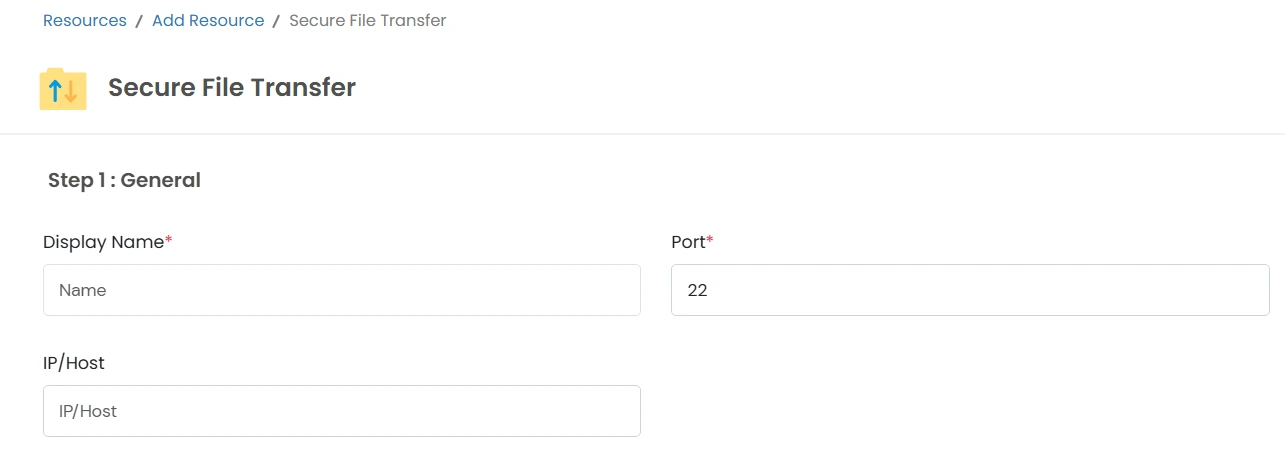
    Note: In 3 simple steps, you can configure the SFTP Server.

    Step 1 : Add the general details

    This will include the display name, Port, and IP address.

    • Display Name: Provide a descriptive name.
    • Port: Enter the communication port.
    • IP/Host: Specify the IP address or hostname.
    PAM SFTP Server General Details

    Step 2 : Add SFTP credentials

    You will be required to include system users and new credentials details here.
    • System User: Choose an existing system user from the dropdown.
    • To include new credentials, tap on the Add New Credentials button.
    • PAM SFTP Add Credentials

    • A pop-up will open where you are asked to fill in crucial details.
      • Add your system display username and system username
      • You have an option to add a password or a key
      • Enter the password and click on add
      • Add the certificate or token in text or upload the certificate. Include the passphrase and click on the add button.

    Step 3 : Add JumpServer Details

    • Select the JumpServer from the drop-down if the SFTP server will be accessed through a Jump host. (optional)
    • PAM SFTP JumpServer Details

    • After all the relevant details are added, click on the Add button to configure the Server.

SMB Server Configuration

  • Login to your PAM dashboard >> navigate to the Resources section
  • PAM Dashboard Resources Section

  • Click on All Resources and on the top right, click on the Add Resource button.
  • PAM Add Resource Button

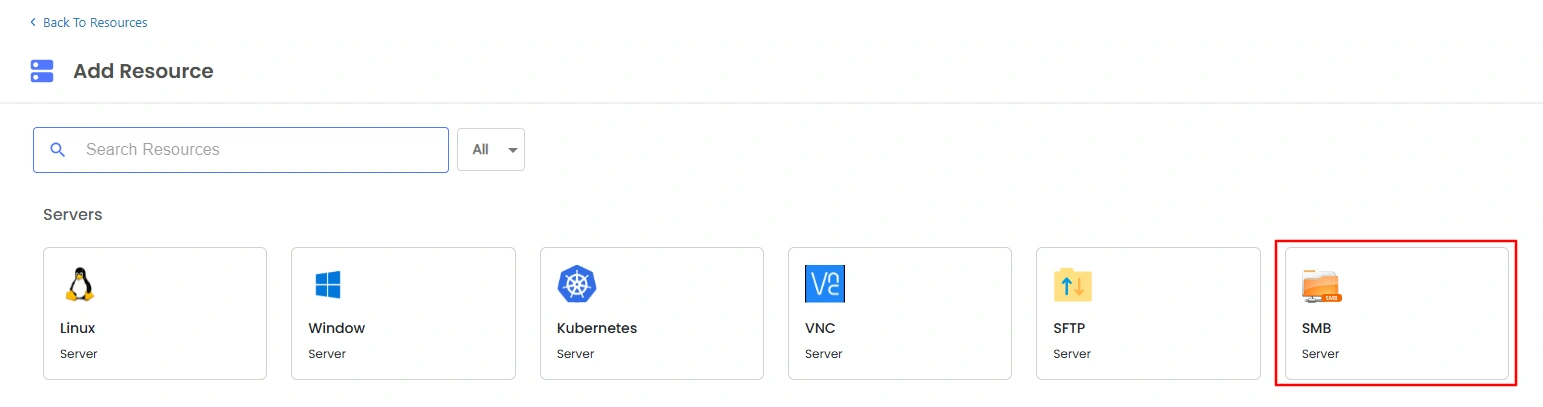
  • Select the SMB Server for configuration.
  • PAM Select SMB Server

    Note: In 3 simple steps, you can configure the SMB Server.

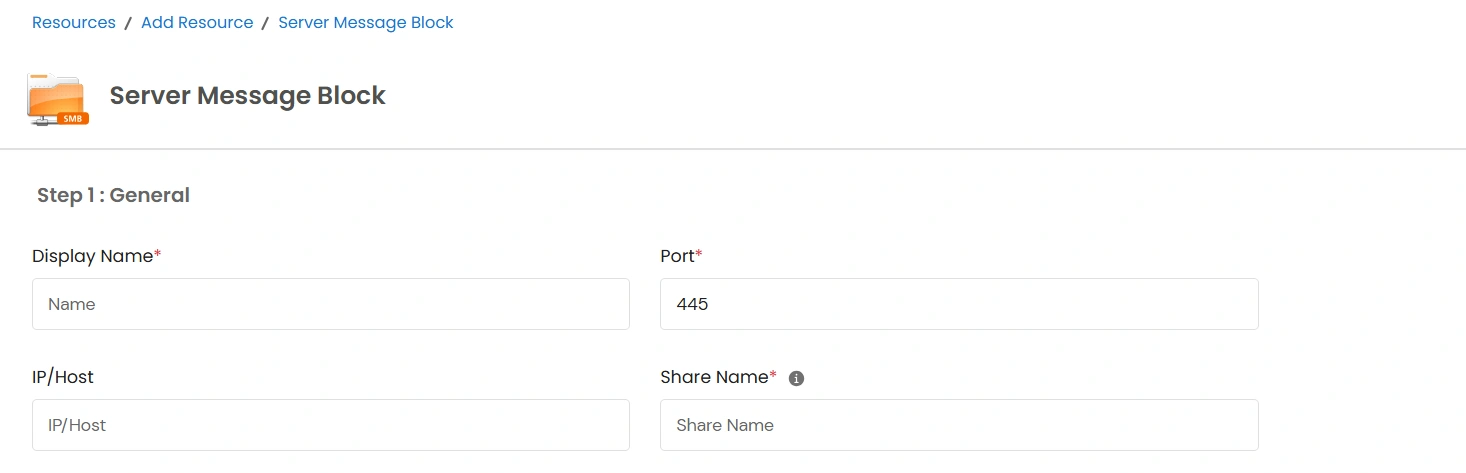
    Step 1 : Add the general details

    This will include the display name, Port, and IP address.
    • Display Name: Provide a descriptive name.
    • Port: Enter the communication port.
    • IP/Host: Specify the IP address or hostname.
    • Share Name: Mention a share name that identifies a specific directory or resource that is made accessible.
    PAM SMB Server General Details

    Step 2 : Add SMB credentials

    You will be required to include system users and new credentials details here.
    • System User: Choose an existing system user from the dropdown.
    • To include new credentials, tap on the Add New Credentials button.
    • PAM SMB Add Credentials

    • A pop-up will open where you are asked to fill in crucial details.
      • Add your system display username and system username
      • You have an option to add a password or a key
      • Enter the password and click on add
      • Add the certificate or token in text or upload the certificate. Include the passphrase and click on the add button.

    Step 3 : Add JumpServer Details

    • Select the JumpServer from the drop-down if the SMB server will be accessed through a Jump host. (optional)
    • PAM SMB JumpServer Details

    • After all the relevant details are added, click on the Add button to configure the Server.