Hello there!

Need Help? We are right here!

miniOrange Support
miniOrange Email Support
success

Thanks for your Enquiry.

If you don't hear from us within 24 hours, please feel free to send a follow-up email to info@xecurify.com

Search Results:

×

Configure MFA Methods for Users


Set which 2FA methods are available across your organization and whether they're required.

What This Page Controls

This is where an admin decides which 2FA methods are available to users, whether 2FA is mandatory for dashboard login, and whether users configure their own method or use the admin's.

Note: This page controls 2FA for dashboard login. If you want two-factor authentication when a user opens a specific resource instead, skip to Requiring MFA on Specific Resources below to enable that option.


Default Methods vs. miniOrange IAM - Powered Methods

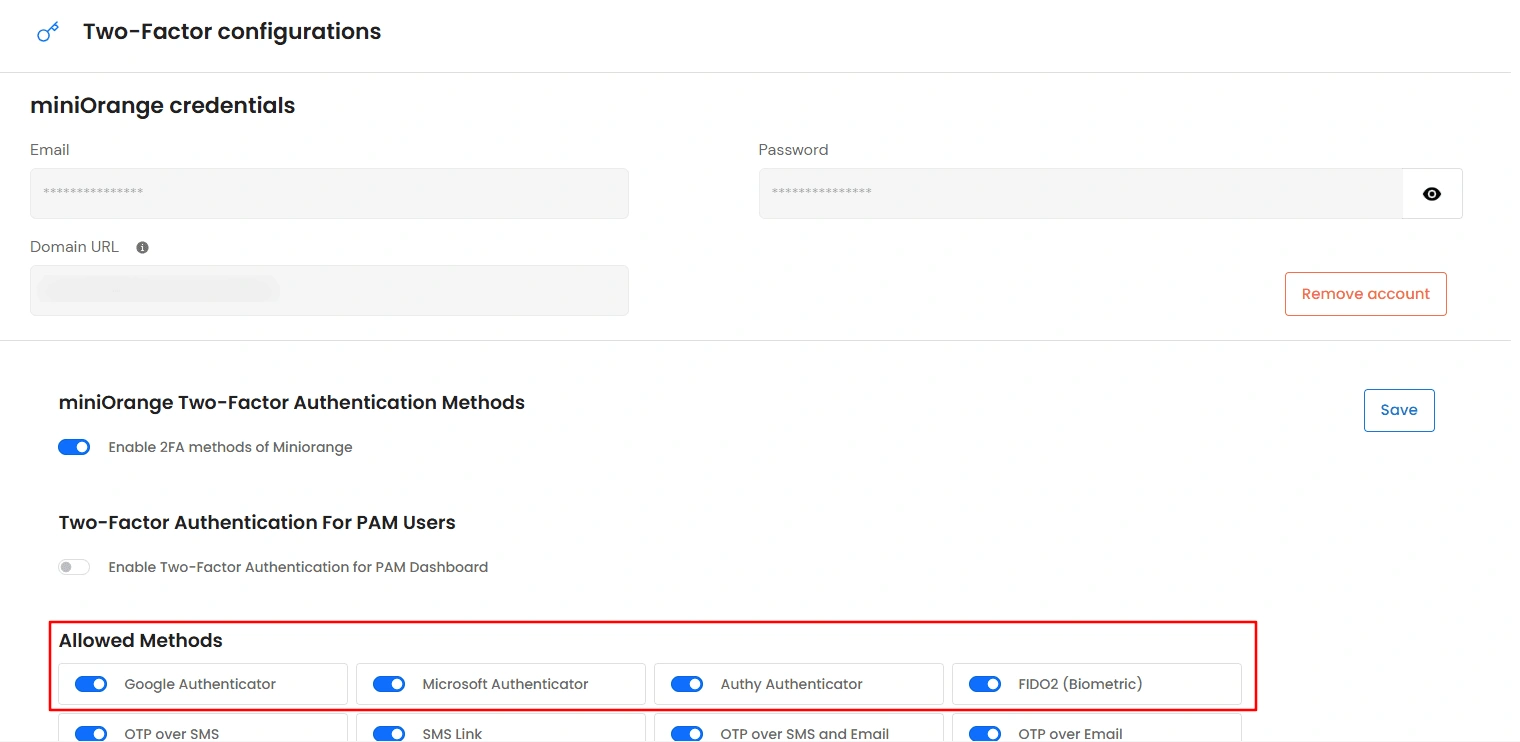
Allowed Methods only shows four methods, already turned on: Google Authenticator, Microsoft Authenticator, Authy Authenticator, and FIDO2 (Biometric). These need no external account or credentials.

Privileged Access Management Admin Handbook: Allowed Methods listing Google Authenticator, Microsoft Authenticator, Authy Authenticator, and FIDO2

Every other method - SMS, Email, Call Verification, Miniorange Authenticator (Push Notification, QR Code, Soft Token), Security Question, and Hardware Token (Yubikey) - stays hidden until you connect a miniOrange IAM account and turn that integration on. See the two-step groups below.
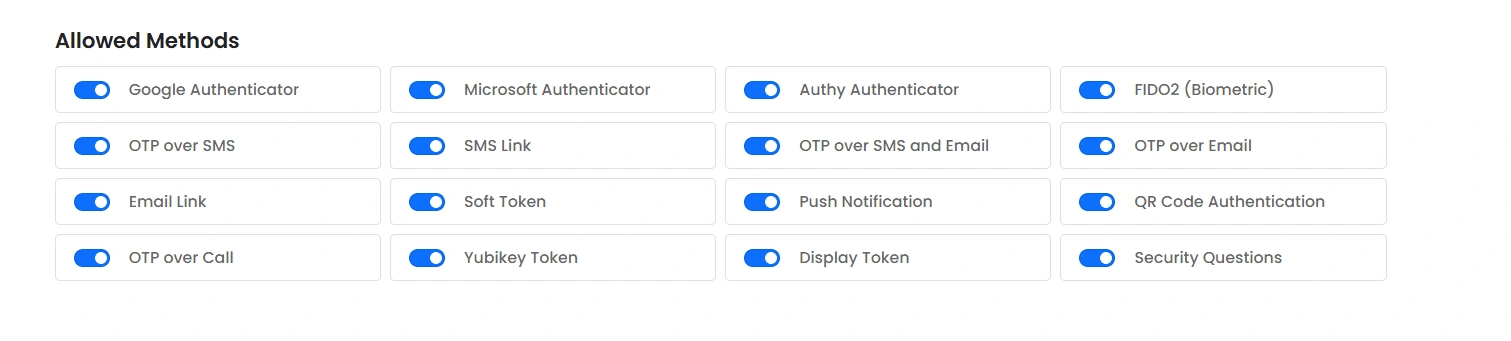
Privileged Access Management Admin Handbook: Additional 2FA methods shown after connecting miniOrange IAM

Using the Default Methods

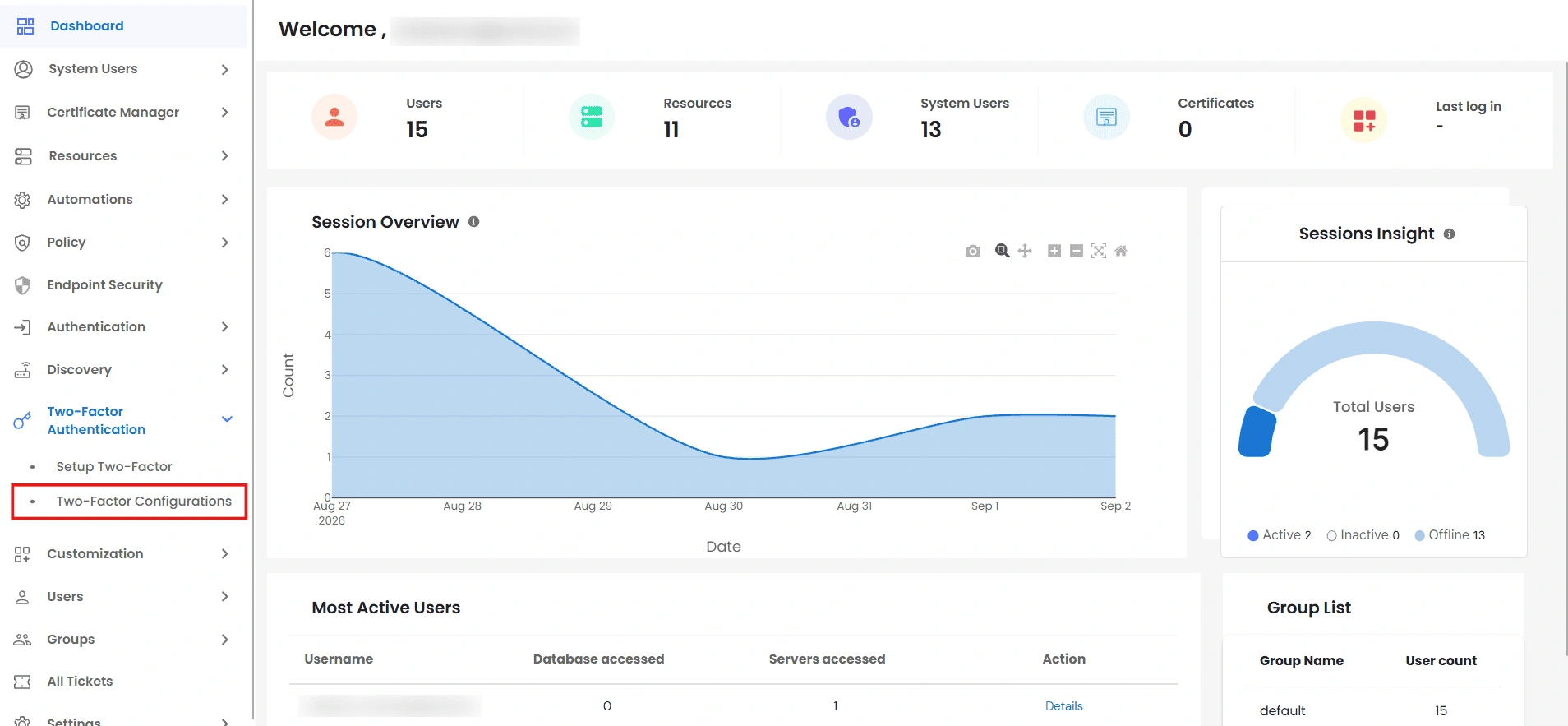
  • From the left sidebar, navigate to Two-Factor Authentication >> Two-Factor Configurations.
  • Privileged Access Management Admin Handbook: Navigate to Two-Factor then Two-Factor Configurations

  • Google Authenticator, Microsoft Authenticator, Authy Authenticator, and FIDO2 (Biometric) are already listed under Allowed Methods and turned on - no further action is needed. Turn any of them off here if you don't want to offer it.
  • Privileged Access Management Admin Handbook: Allowed Methods toggles for Google Authenticator, Microsoft Authenticator, Authy Authenticator, and FIDO2

Enabling miniOrange IAM - Powered 2FA Methods

  • On the same Two-Factor Configurations page, find the miniOrange credentials panel and enter the Email, Password, and Domain URL (e.g. https://branding.xecurify.com/moas) of your miniOrange account, then click Save.


  • Privileged Access Management Admin Handbook: miniOrange credentials panel with Email, Password, and Domain URL fields

  • Under miniOrange Two-Factor Authentication Methods, turn on Enable 2FA methods of Miniorange. This adds SMS, Email, Call Verification, Miniorange Authenticator, Security Question, and Hardware Token to the Allowed Methods list.
  • Privileged Access Management Admin Handbook: Enable MFA methods of Miniorange checkbox with Save button

  • Under Allowed Methods, turn on whichever of these newly added methods you want to offer.
  • Privileged Access Management Admin Handbook: Allowed Methods list after enabling miniOrange IAM methods

Note: These credentials belong to an existing miniOrange IAM account - this panel doesn't create one for you. Once saved, the fields lock and the password is masked. There's no separate Connect or Test Connection step; Save is the only action.

Making 2FA Mandatory (Optional)

  • Turn on Enable Two-Factor Authentication for PAM Dashboard to require 2FA on every login. Leave it off to keep it optional/self-serve.
  • Privileged Access Management Admin Handbook: Enable Two-Factor Authentication for PAM Dashboard toggle

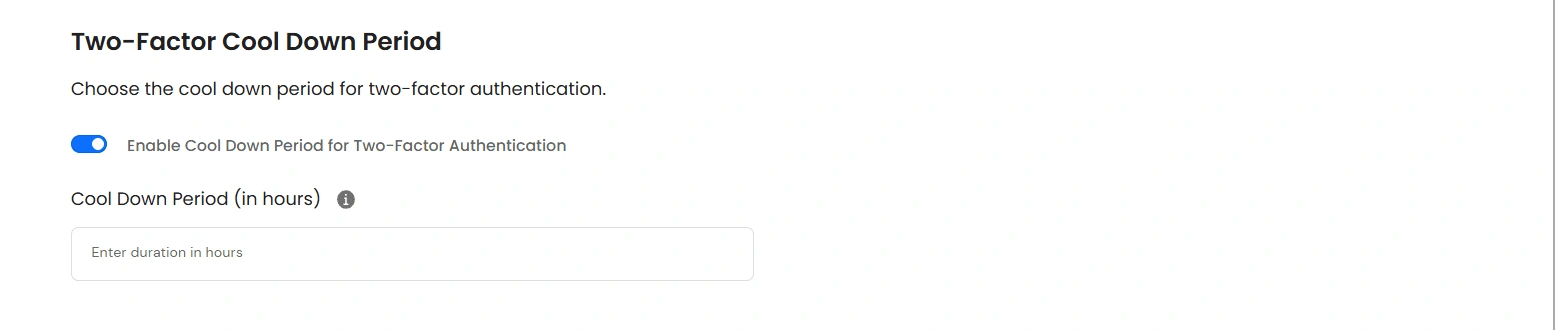
  • Optional: Turn on Enable Cool Down Period for Two-Factor Authentication and set a number of hours in Cool Down Period (in hours). Users who authenticate successfully won't be challenged again until that period passes.
  • Privileged Access Management Admin Handbook: Enable Cool Down Period for Two-Factor Authentication and set hours

Note: The Cool Down Period is an organization-wide setting; there's no per-device remember this device option.


Applying Your Own 2FA to All Users

If you're the primary admin, a switch labeled Apply Admin's Two-Factor Authentication Methods to PAM Users appears. Turning this on enforces your configured method for every user - they'll no longer configure their own method and will authenticate using your credentials/method instead.

Privileged Access Management Admin Handbook: Apply Admin's Two-Factor Authentication Methods to PAM Users switch

Note: This can't be used with QR Code Authentication, Yubikey Token, Security Question, or FIDO2 as your method - configure a compatible method first.
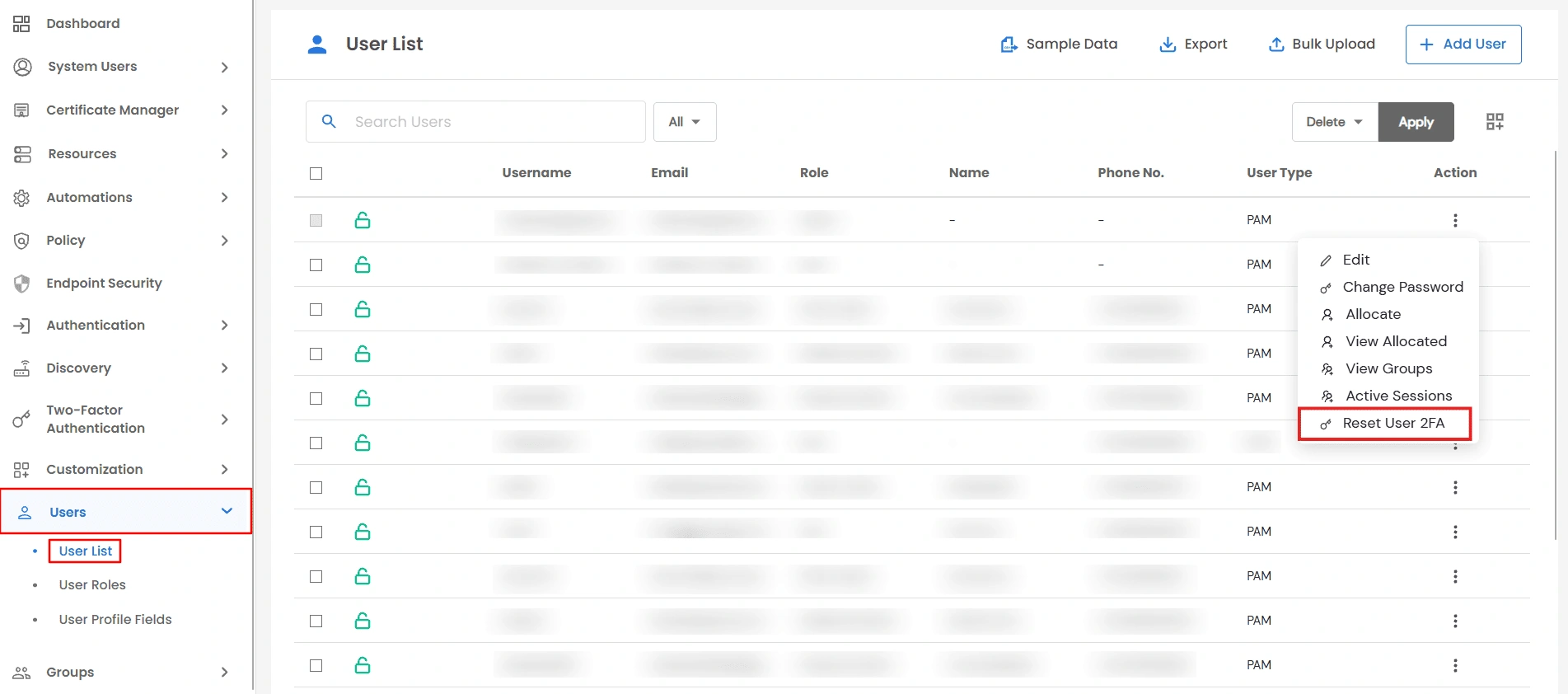

Resetting a User's 2FA

  • From the left sidebar, navigate to Users >> User List, find the user, open their row's action menu, and click Reset User 2FA.
  • Privileged Access Management Admin Handbook: Reset User 2FA option in the User List action menu

  • This clears their configured method and prompts them to re-enroll on their next login. Use this when a user is locked out after losing their device.

Requiring MFA on Specific Resources

2FA on dashboard login is separate from MFA on individual resources. If you want two-factor authentication when a user opens a specific resource instead:
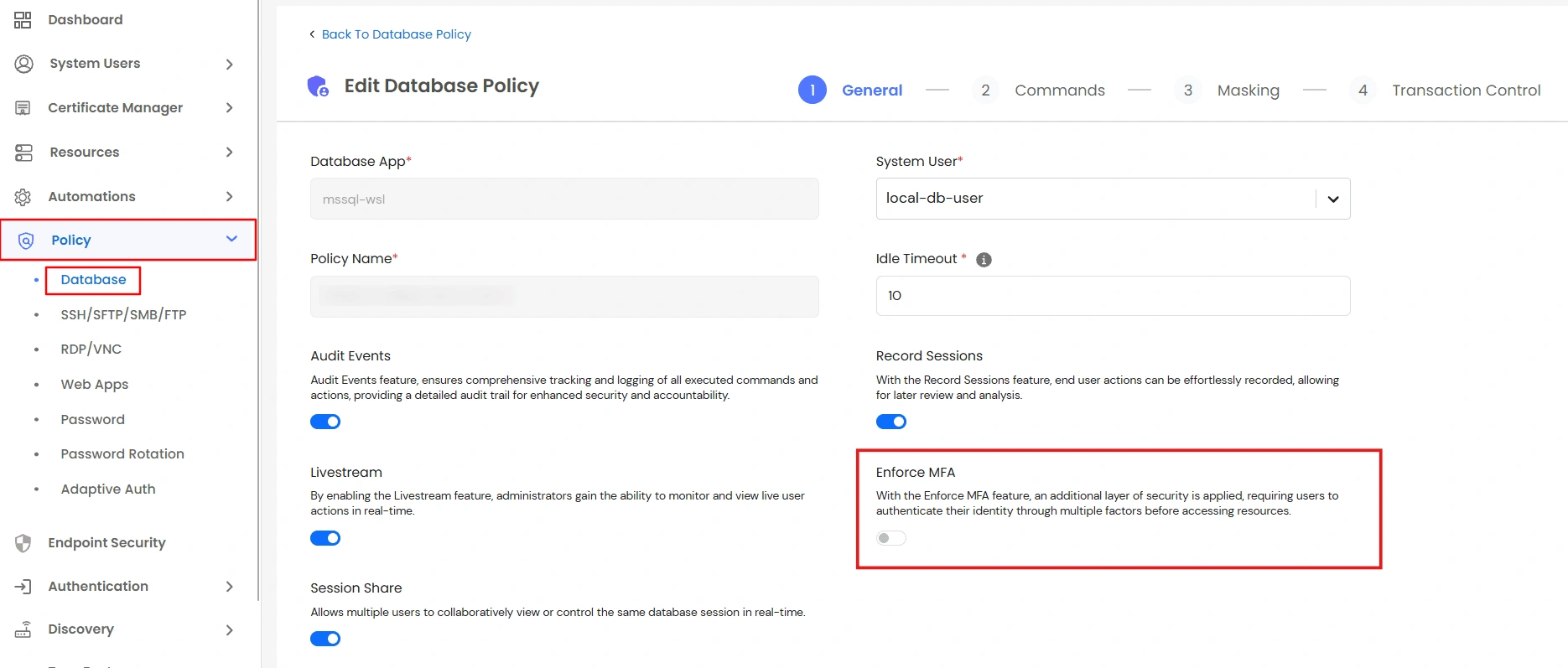
  • From the left sidebar, navigate to Policy >> Database, SSH/SFTP/SMB/FTP, RDP/VNC, or Web Apps, depending on the resource type.
  • Open the policy that covers the resource, group, or users for which you want to require 2FA.
  • On the General tab, turn on Enforce MFA.
  • Privileged Access Management Admin Handbook: Enforce MFA toggle on the policy General tab

Refer to the Policies section of this handbook for full details on creating and assigning policies.