Device Management
All registered devices appear under the Devices section. From here, administrators can manage policies, view device information, track associated users, or uninstall agents.
Steps to Access Devices
- In the Admin Dashboard, go to the sidebar and click End Point Security.
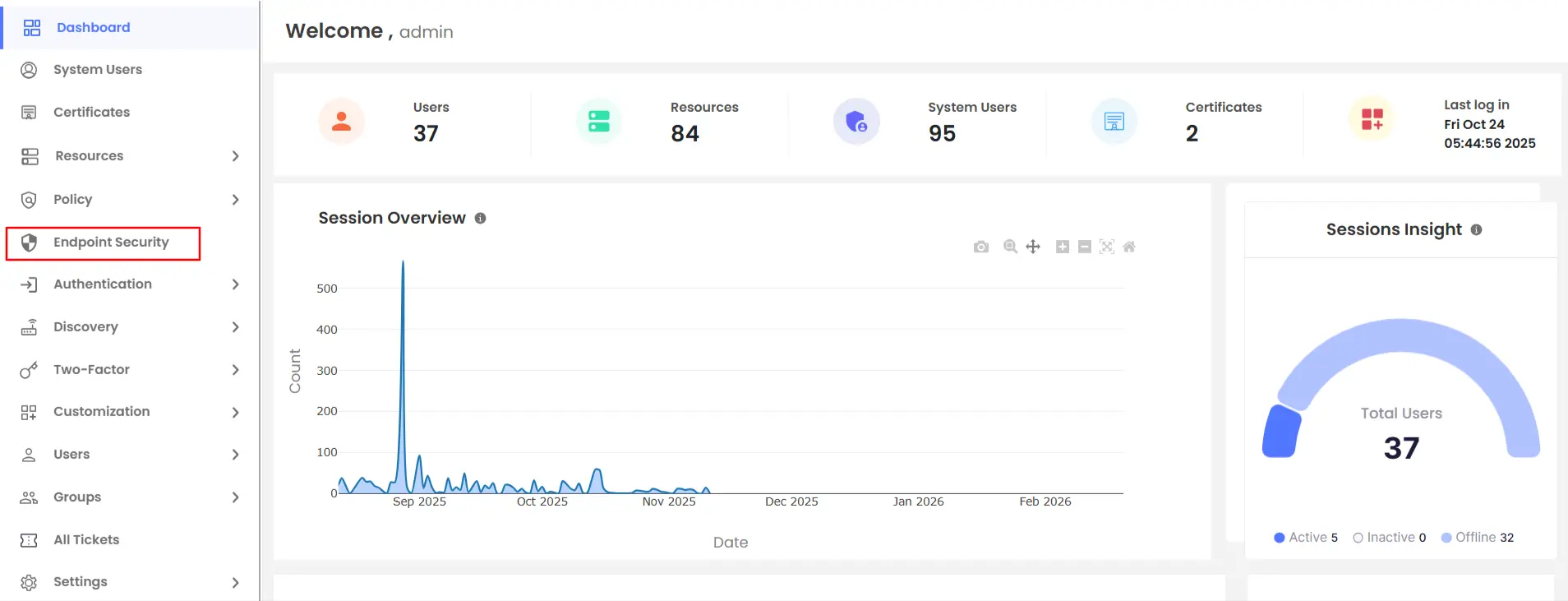
- Select End Point Manager >> Devices.
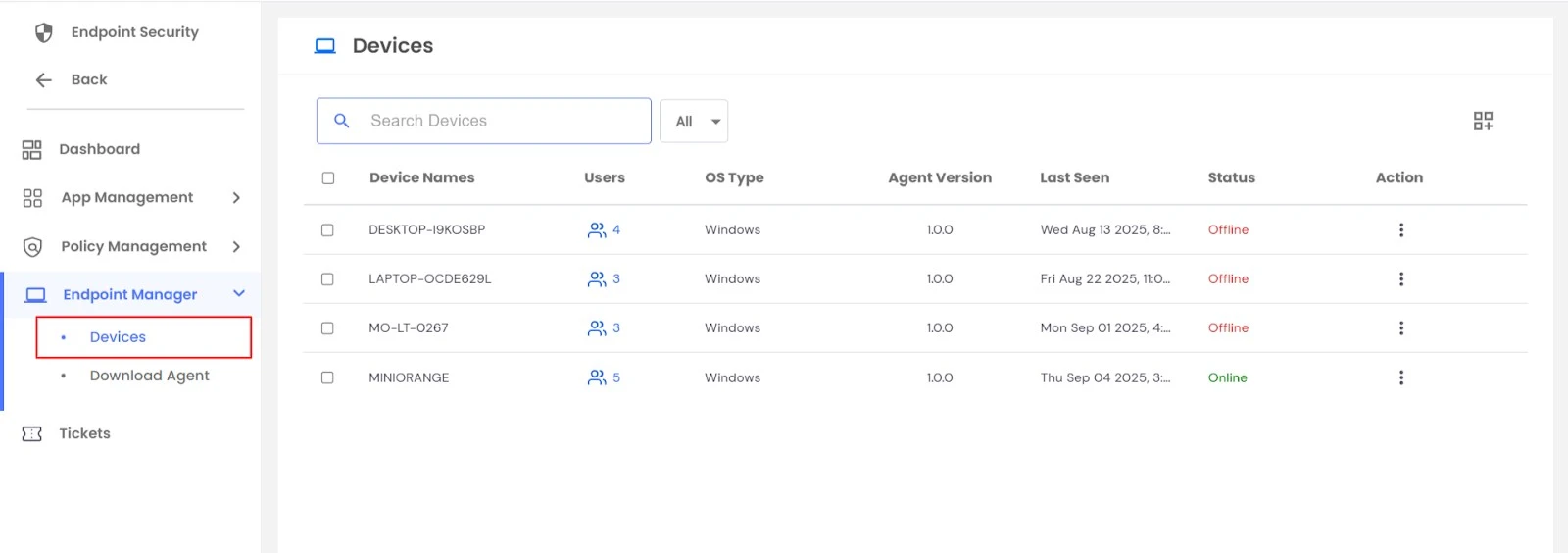
- A list of all devices managed under EPM will be displayed.
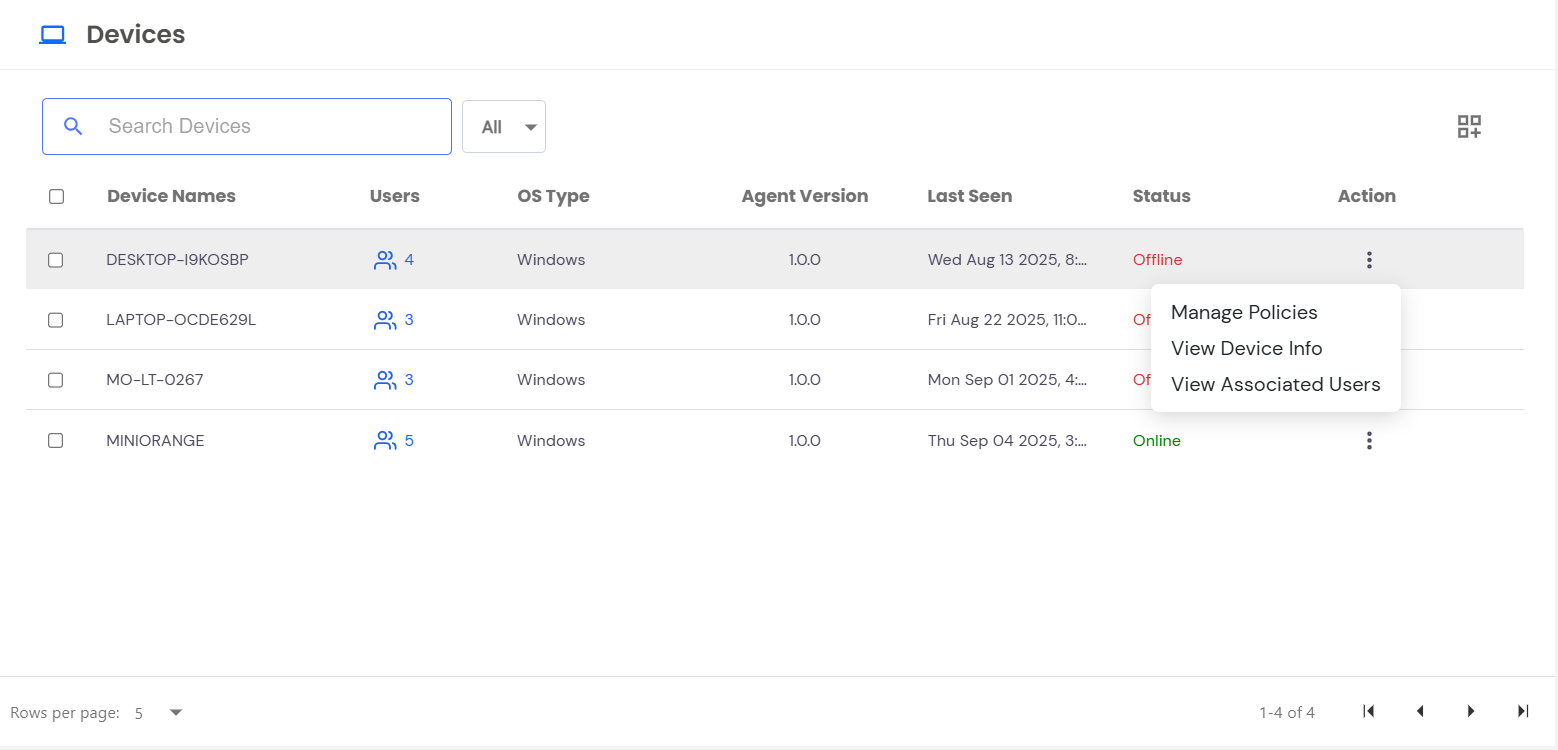
- Under the Action column, click the three dots to see available options:
- Manage Policies
- View Device Info
- View Associated Users
- Uninstall Agent
Manage Policies
Policies control access and security on devices. Administrators can assign or unassign policies at the device level.
- To View Assigned Policies:
- Click Manage Policies for a device
- The page will display all currently assigned policies.
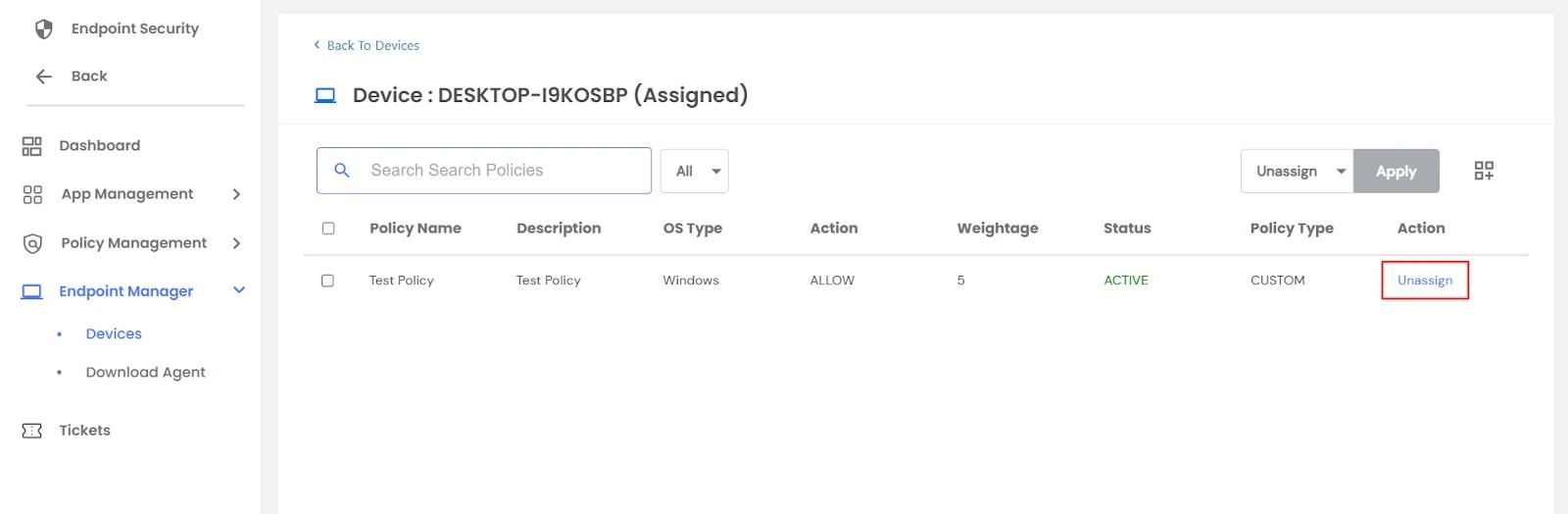
- To unassign, either:
- Use the Unassign option under the Action column, or
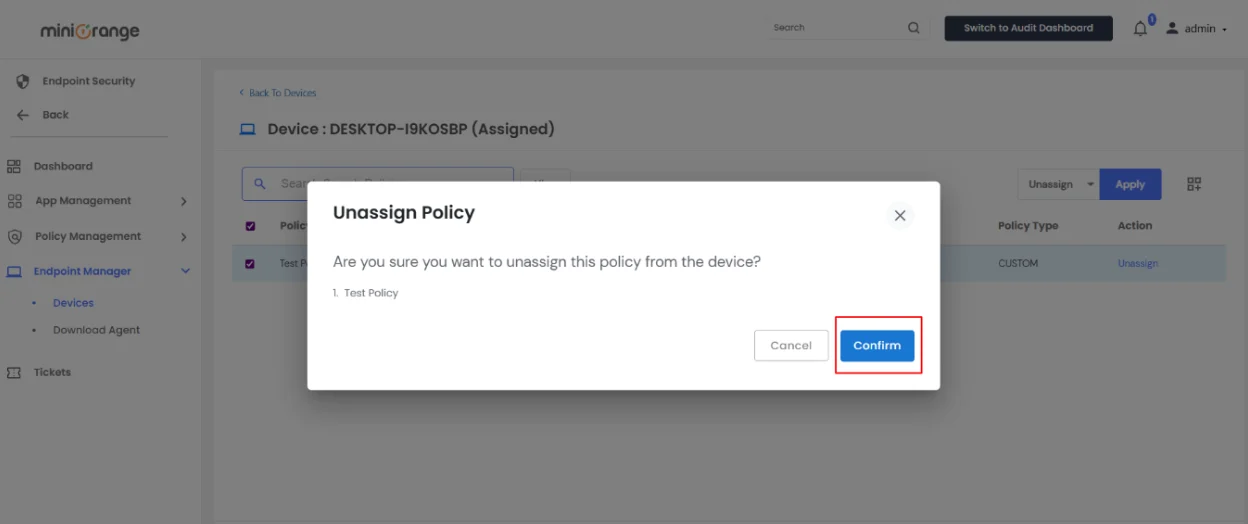
- Select policies using the checkbox and choose Unassign from the dropdown at the top right, then click Apply.
- Click on Confirm to unassign the assigned policies.
- To Assign New Policies:
- Open Manage Policies.
- From the dropdown at the top right, select Assign.
- A list of policies not yet applied to that device is displayed.
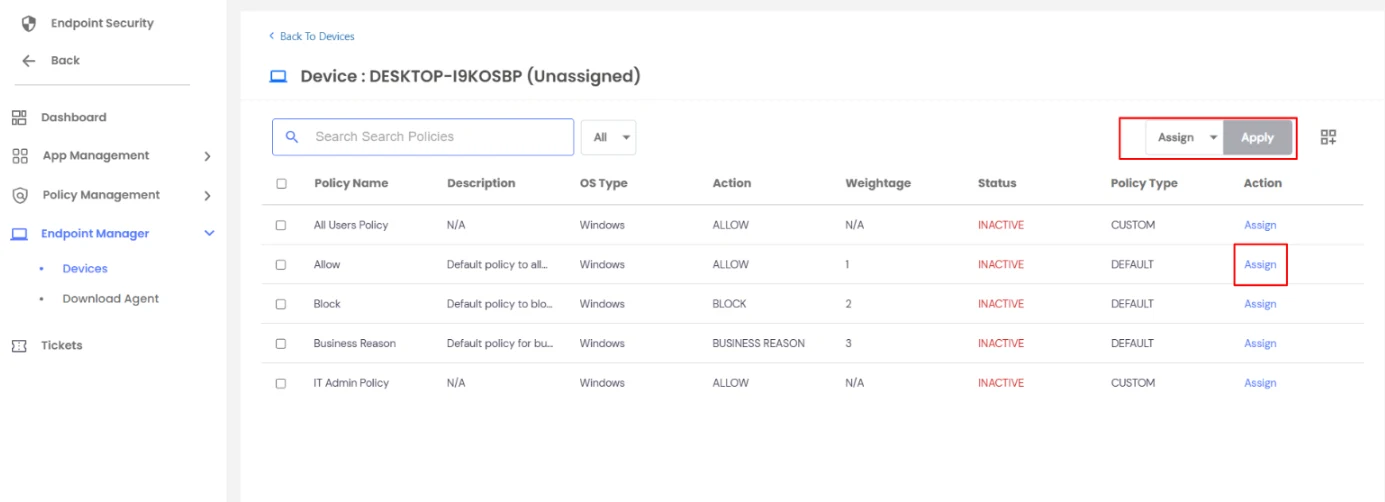
- You can assign policies in two ways:
- Using the dropdown >> Assign.
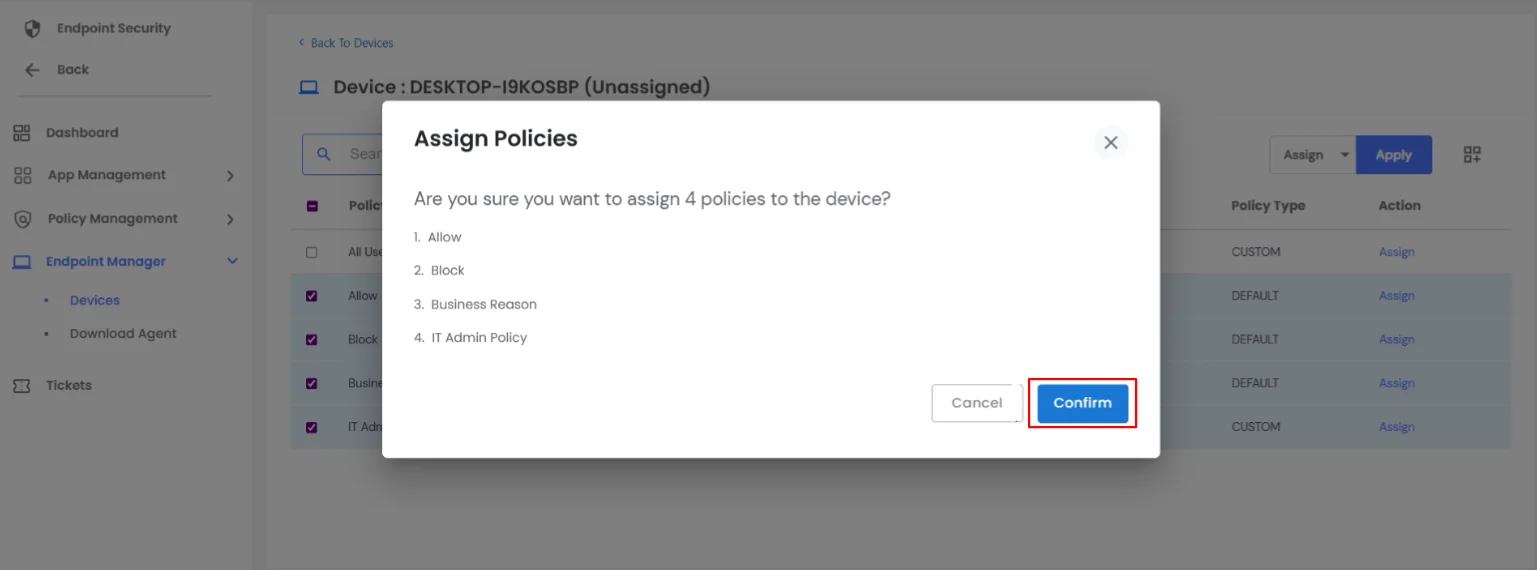
- Use the Assign option under the Action column for each policy. Click Confirm, and all the selected policies will be applied to that device.
View Device Info
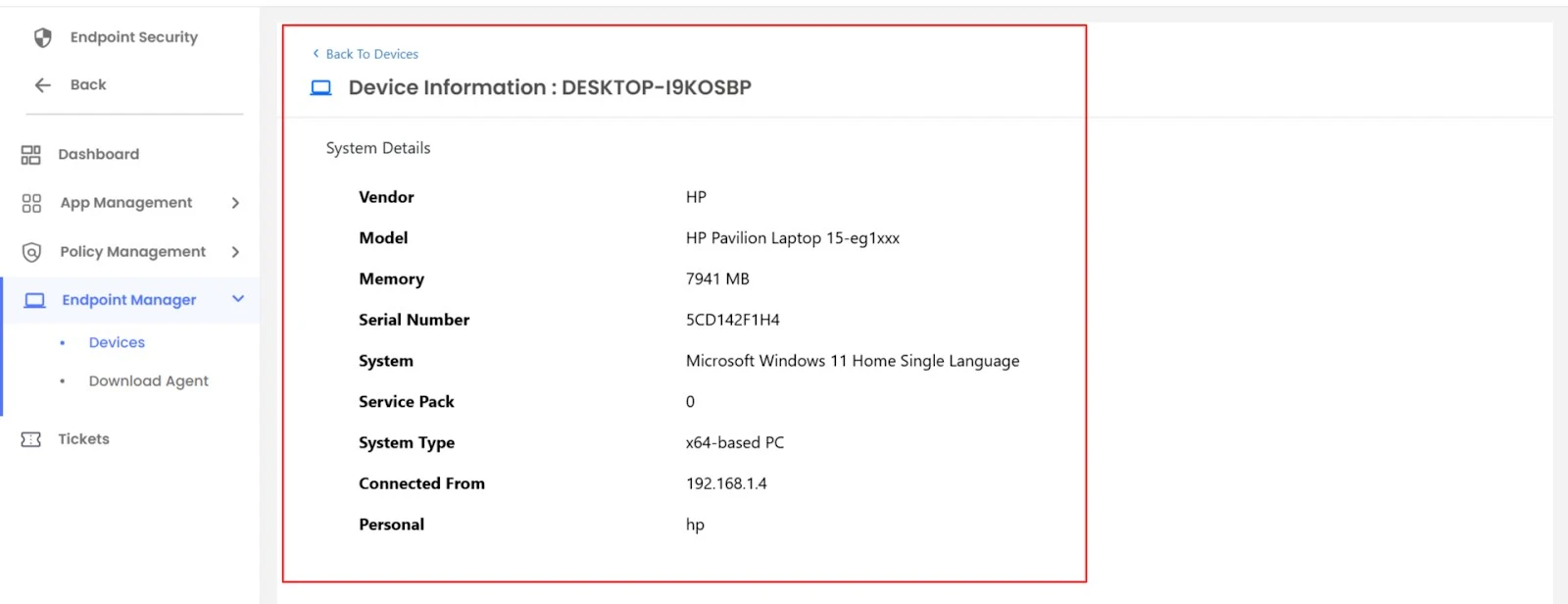
Selecting View Device Info displays detailed information about the selected device, such as:
- Vendor, Model, and Serial Number
- System Type and Service Pack
- Memory and OS details
- Connected From (origin)
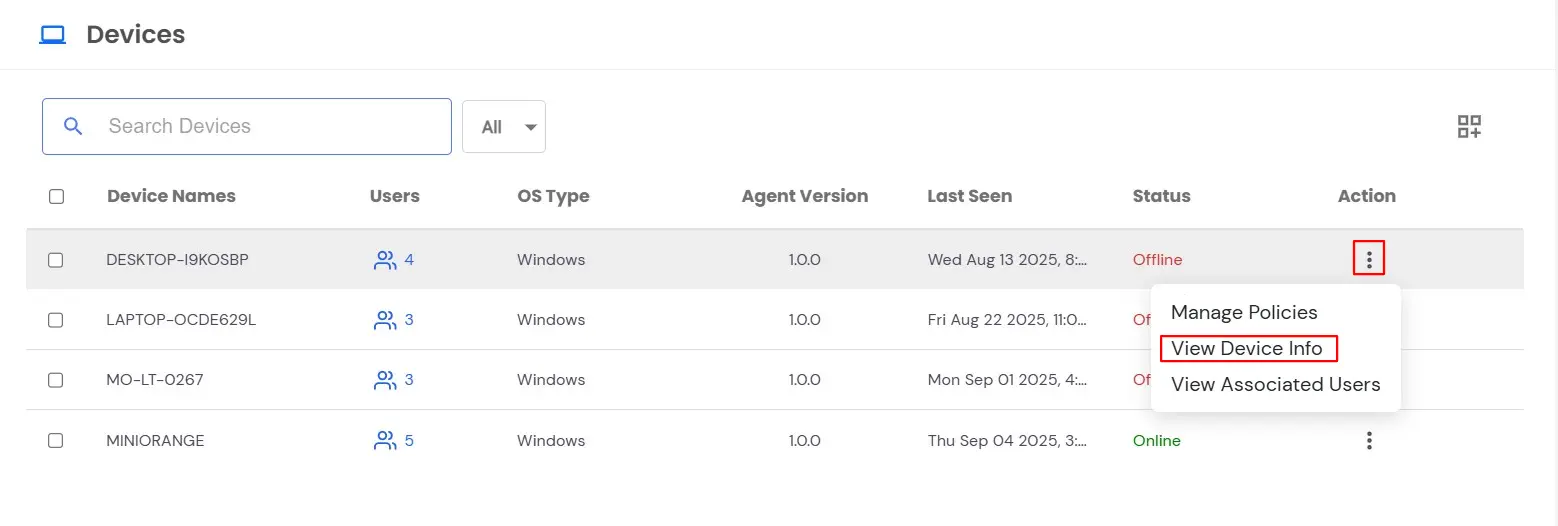
- This helps administrators understand device specifications and troubleshoot issues.
View Associated Users
Each device may have multiple associated users.
- Click View Associated Users from the device row.
- A page will display all users mapped to the selected device.
- Policies can also be managed at the user level.
- Click the Manage policies under the three dots
- A list of policies assigned to that user will be displayed
To View Assigned Policies:
- Click Manage Policies for a user.
- The page will display all currently assigned policies.
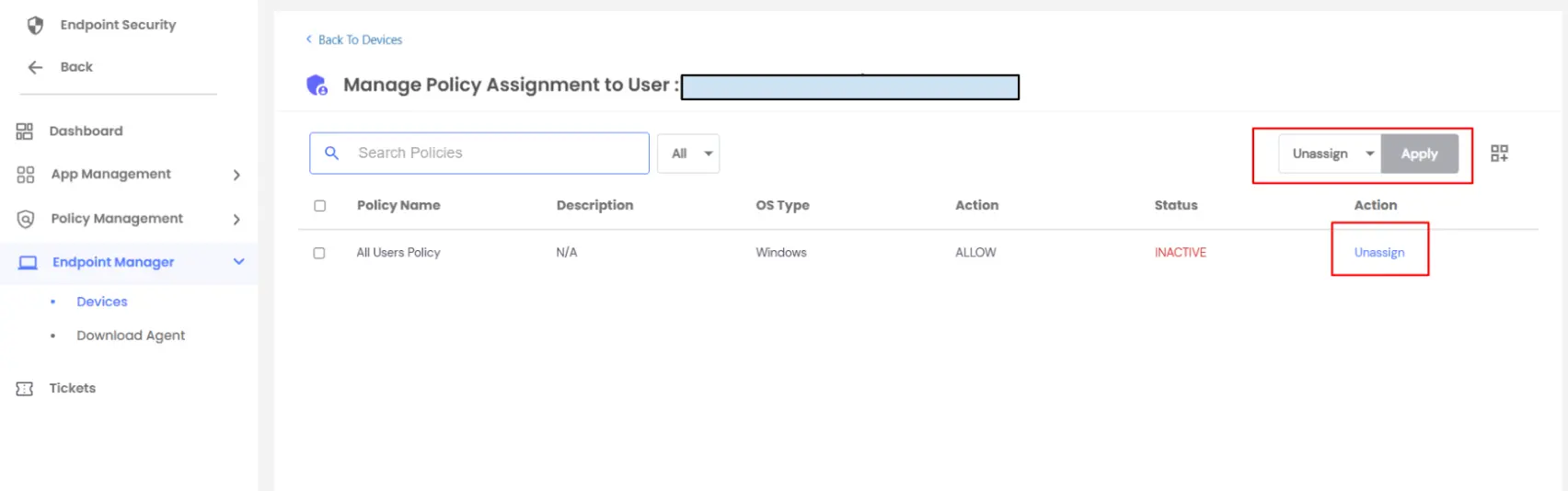
- To unassign, either:
- Use the Unassign option under the Action column, or
- Select policies using the checkbox and choose Unassign from the dropdown at the top right, then click Apply.
To Assign New Policies:
- Open Manage Policies for the user.
- From the dropdown at the top right, select Assign.
- The system will show a list of policies not yet applied to the user.
- You can assign policies in two ways:
- Using the dropdown >> Assign.
- Using the Assign option under the Action column for each policy.
Uninstall Agent
The Uninstall Agent option allows administrators to remotely remove the EPM Agent from a device.
- From the Devices page, click the three dots under Action for the chosen device.
- Select Uninstall Agent.
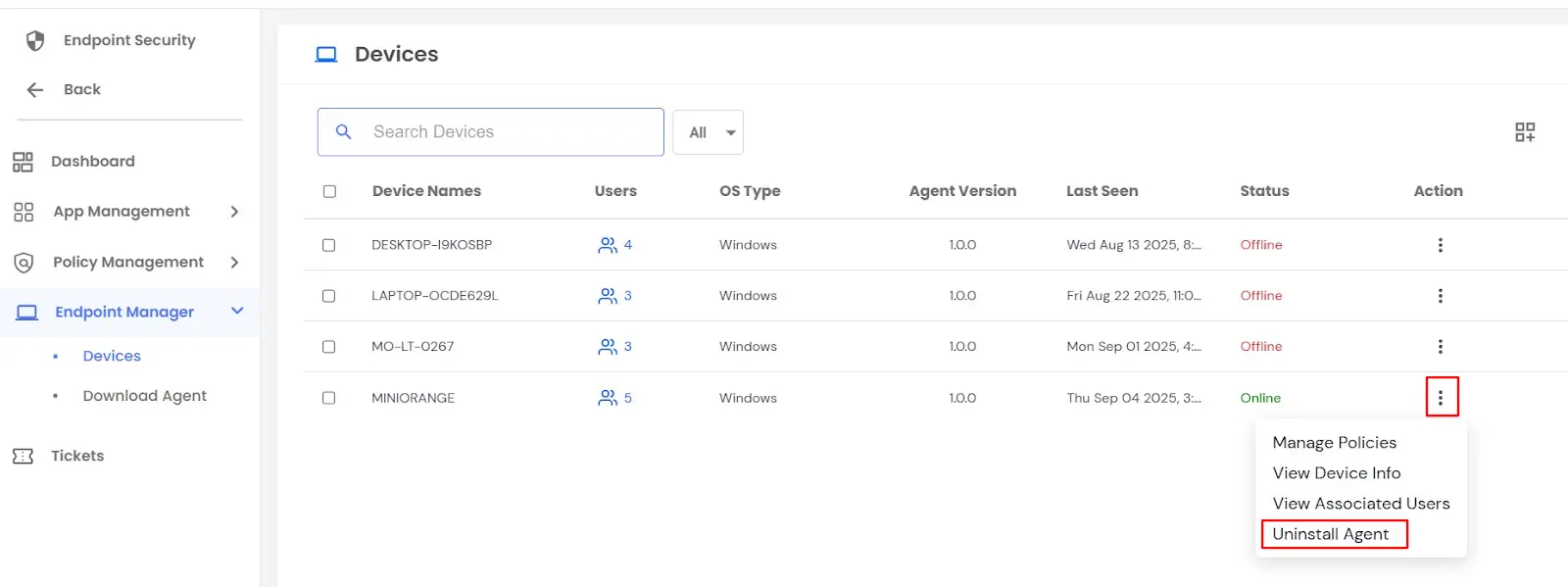
- The agent will be uninstalled from the device, and it will no longer be managed under EPM.
Download Agent
To secure endpoints, the EPM Agent must be installed on each device.
Steps to Download the Agent:
- Navigate to End Point Manager >> Download Agent.
- Click the Download button.
- Copy the API key displayed in the modal.
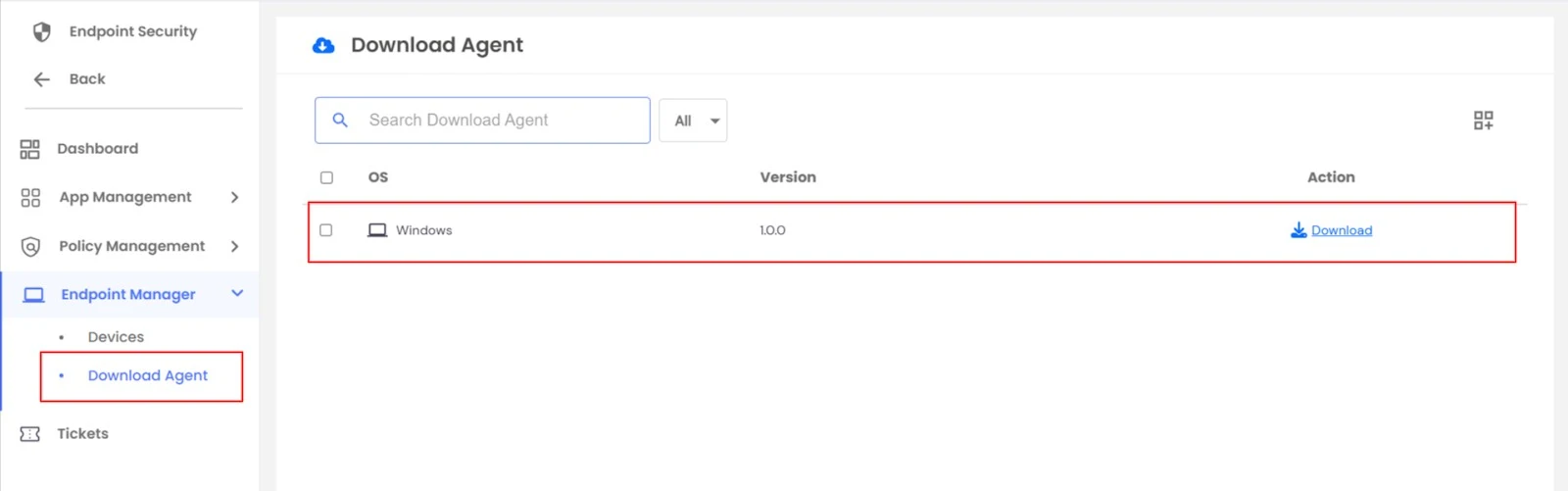
- Click the Download button.
- The agent will be downloaded and can be installed on endpoint devices.

