SIEM Configuration
miniOrange PAM supports integration with SIEM (Security Information and Event Management) tools to centralize and monitor logs. Administrators can configure SIEM integration using three methods: File-Based (Pull), Syslog-Based, or API-Based (Push). This guide explains how to configure each method step by step.
Steps to Access SIEM Configuration
- Log in to the miniOrange PAM Dashboard.
- From the left-hand sidebar, navigate to Settings >> SIEM Configuration.
- The SIEM Configuration page displays the three available integration methods:
- File-Based
- Syslog-Based
- API-Based
1. File-Based SIEM Configuration (Pull-Based)
Use File-Based configuration if your SIEM tool collects logs directly from application log files.
Steps for Configuration:
- Select the log format used in your log files. Supported formats include:
- JSON
- CEF (Common Event Format)
- ELF (Extended Log Format)
- CLF (Common Log Format)
- Save the configuration.
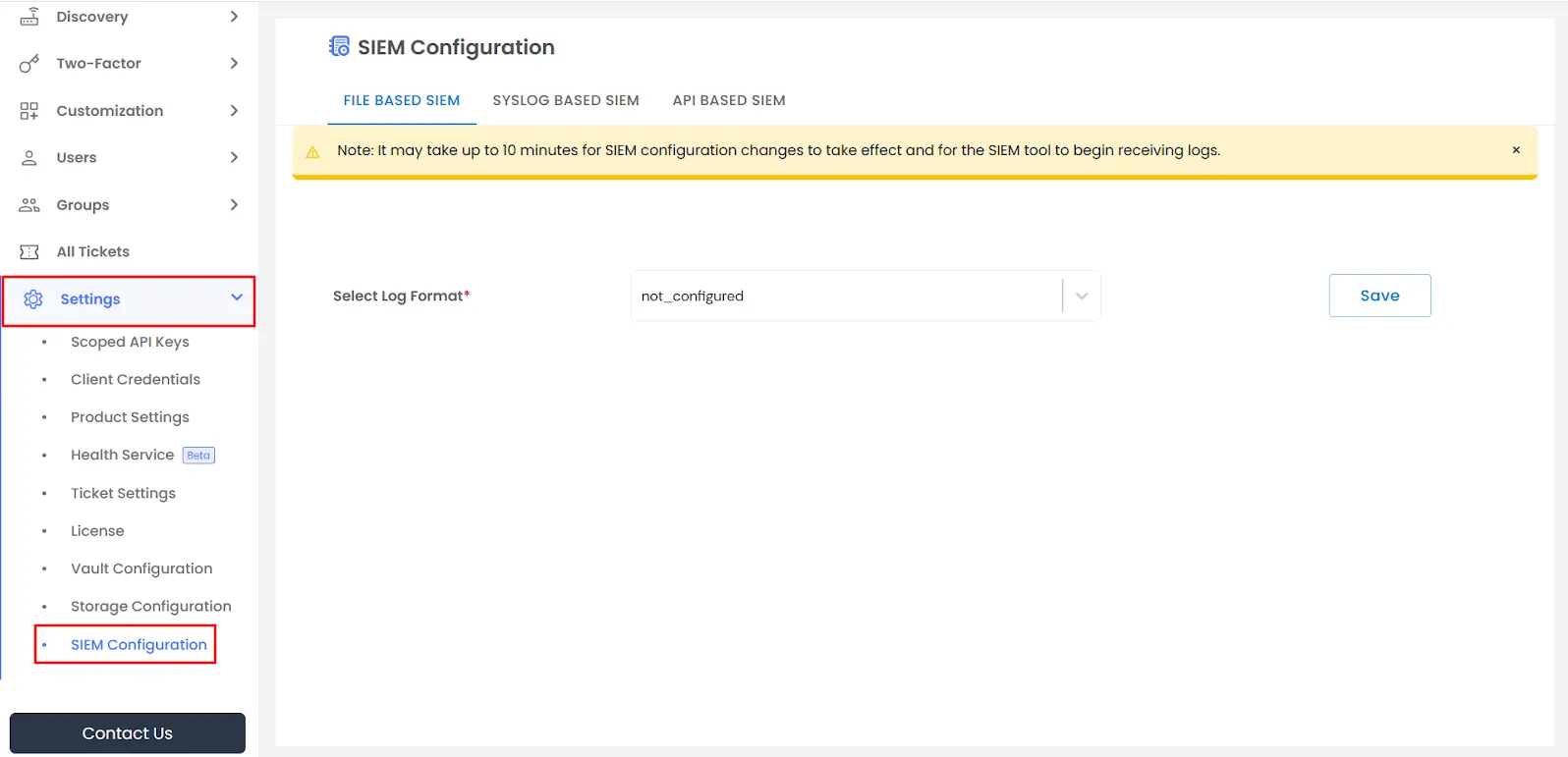
- Once configured, your SIEM tool will pull logs from the application’s log files in the selected format.
Important Note : Ensure your SIEM tool has read access to the directory where PAM logs are stored: <PAM_INSTALLATION_PATH>/pam/logs/syslogs
2. Syslog-Based SIEM Configuration
Use Syslog-based configuration if your SIEM tool accepts logs over the network using the Syslog protocol.
Steps for Configuration:
- Go to the SYSLOG BASED SIEM Configuration section.
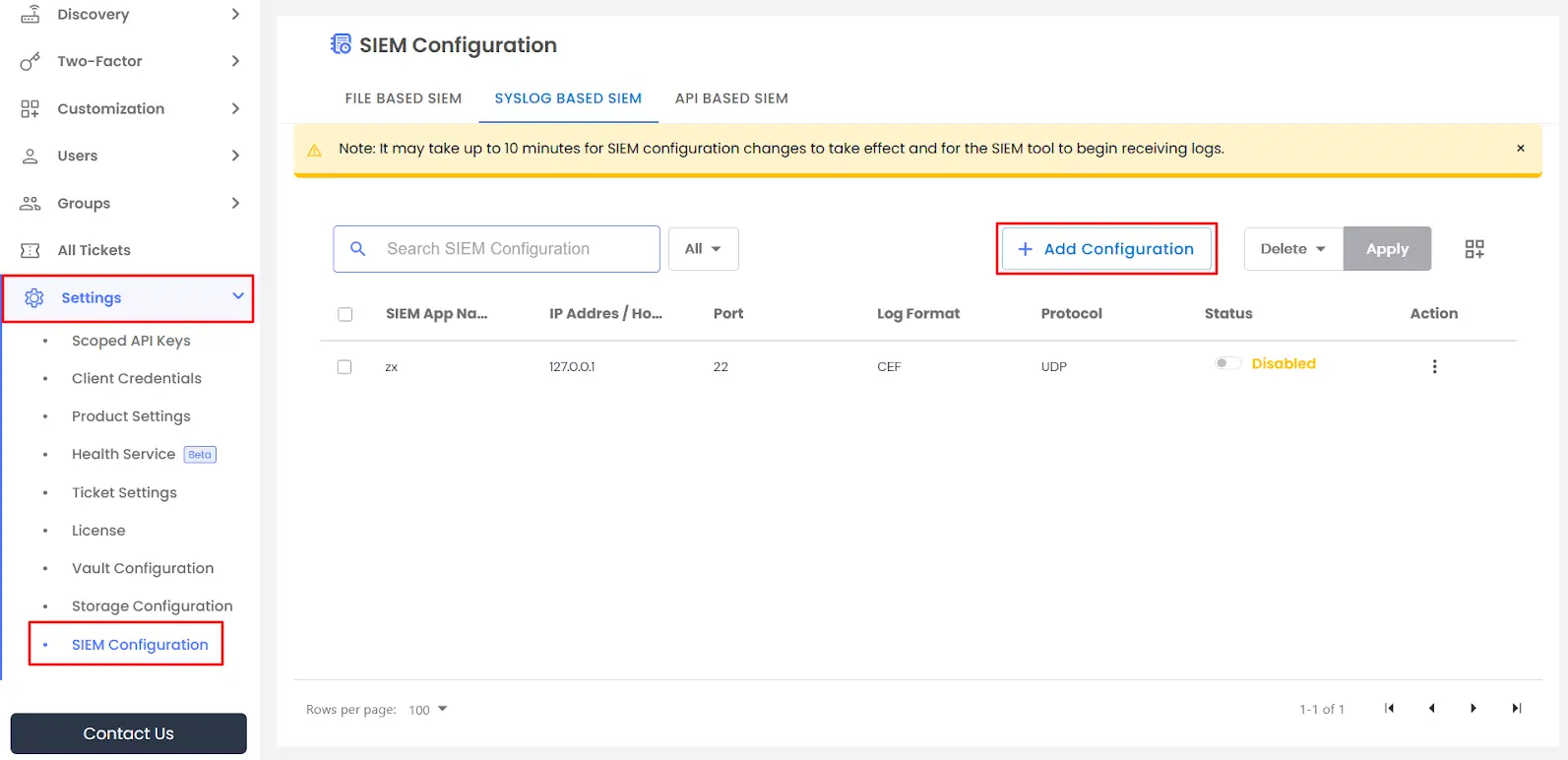
- Click the Add Configuration button. A pop-up window will appear.
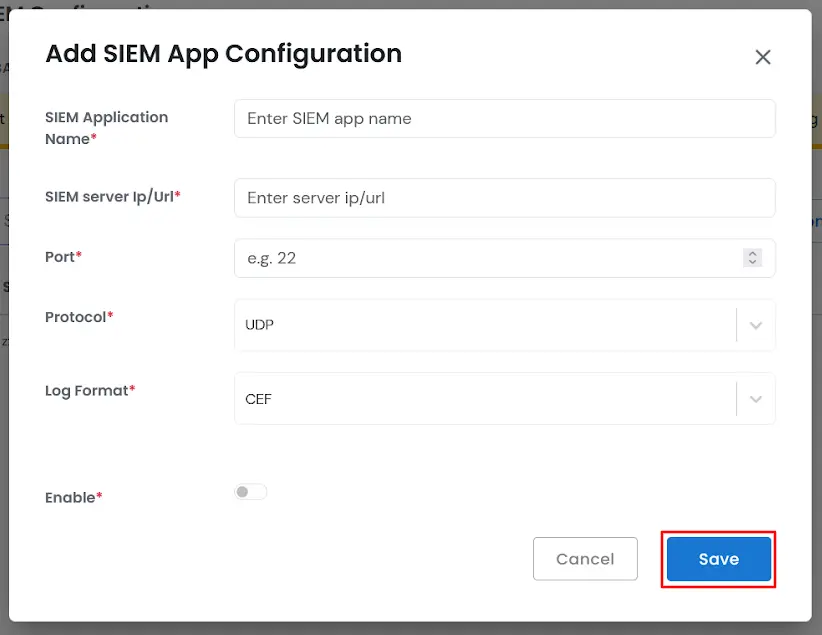
- Enter the following Syslog server details:
- SIEM Application Name
- SIEM Server IP / Url
- Port (default: 514)
- Protocol (UDP / TCP)
- Log Format (JSON, CEF, etc.)
- Enable the toggle to activate the configuration.
- Click Save.
After saving, the application will start forwarding logs to the configured Syslog server automatically.
3. API-Based SIEM Configuration (Push-Based)
Use API-based configuration if your SIEM tool provides an API endpoint for pushing logs.
Steps for Configuration:
- Go to API BASED SIEM Configuration.
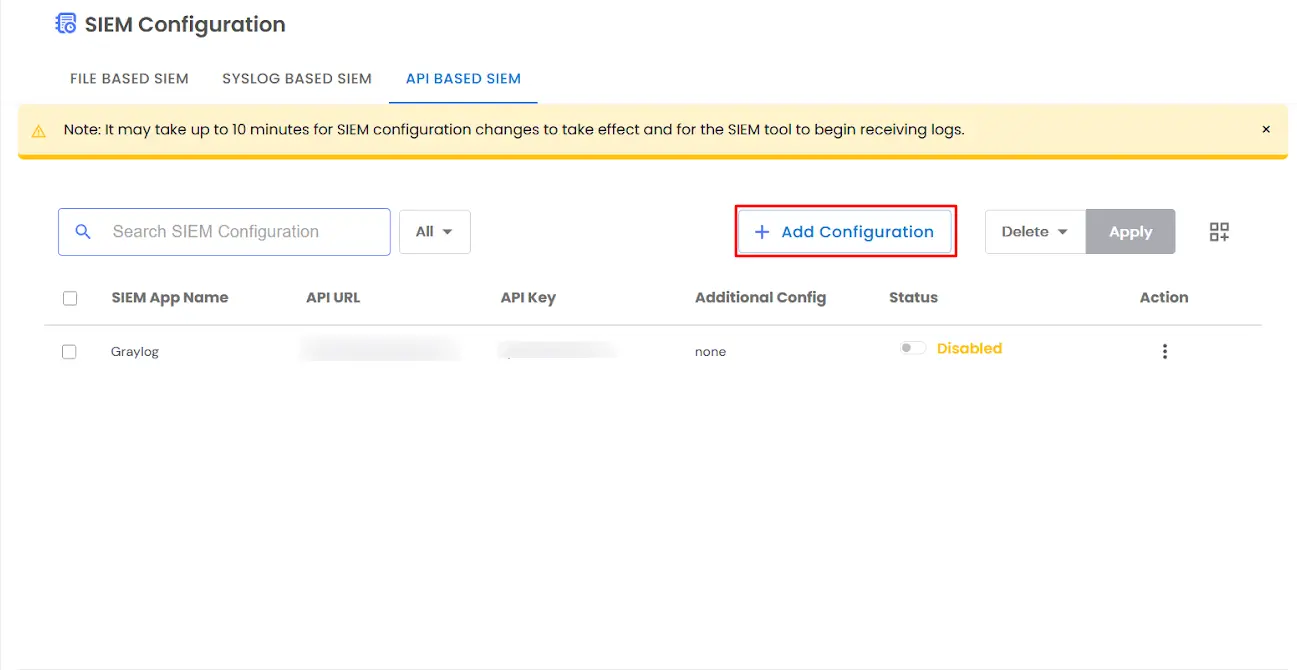
- Click the Add Configuration button to open the popup.
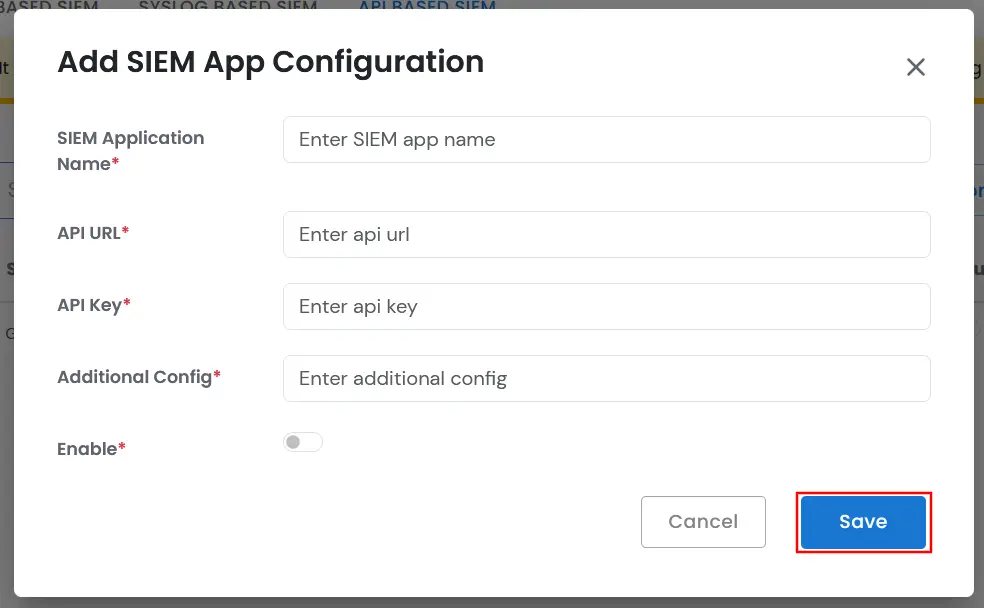
- Enter the following details:
- SIEM Application Name
- API URL
- API Key
- Additional Config (if required by the API)
- Enable the toggle to activate the configuration.
- Click Save.
After saving, the application will push logs to the API endpoint according to the selected format.
Important Note :
- Ensure the API endpoint is accessible from the PAM server.
- Verify that proper authentication credentials are configured for the API.

