Tickets in EPM
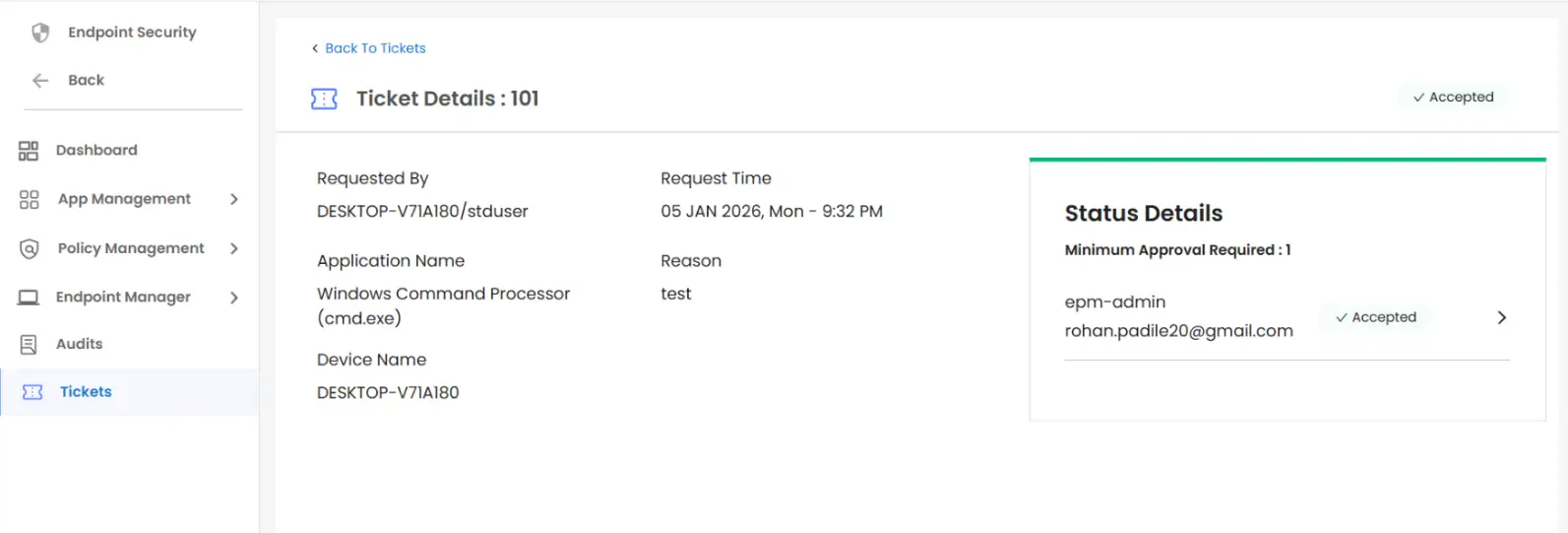
End users may raise tickets to request access to restricted applications on endpoints. These tickets can be tracked here.
Create Ticket
Tickets can be raised by users from their endpoints if the ticketing policy is applied by the admin for privilege escalation.
Steps to Create a Ticket
- In the endpoint, right-click on the required application and click on Run as administrator as shown below.
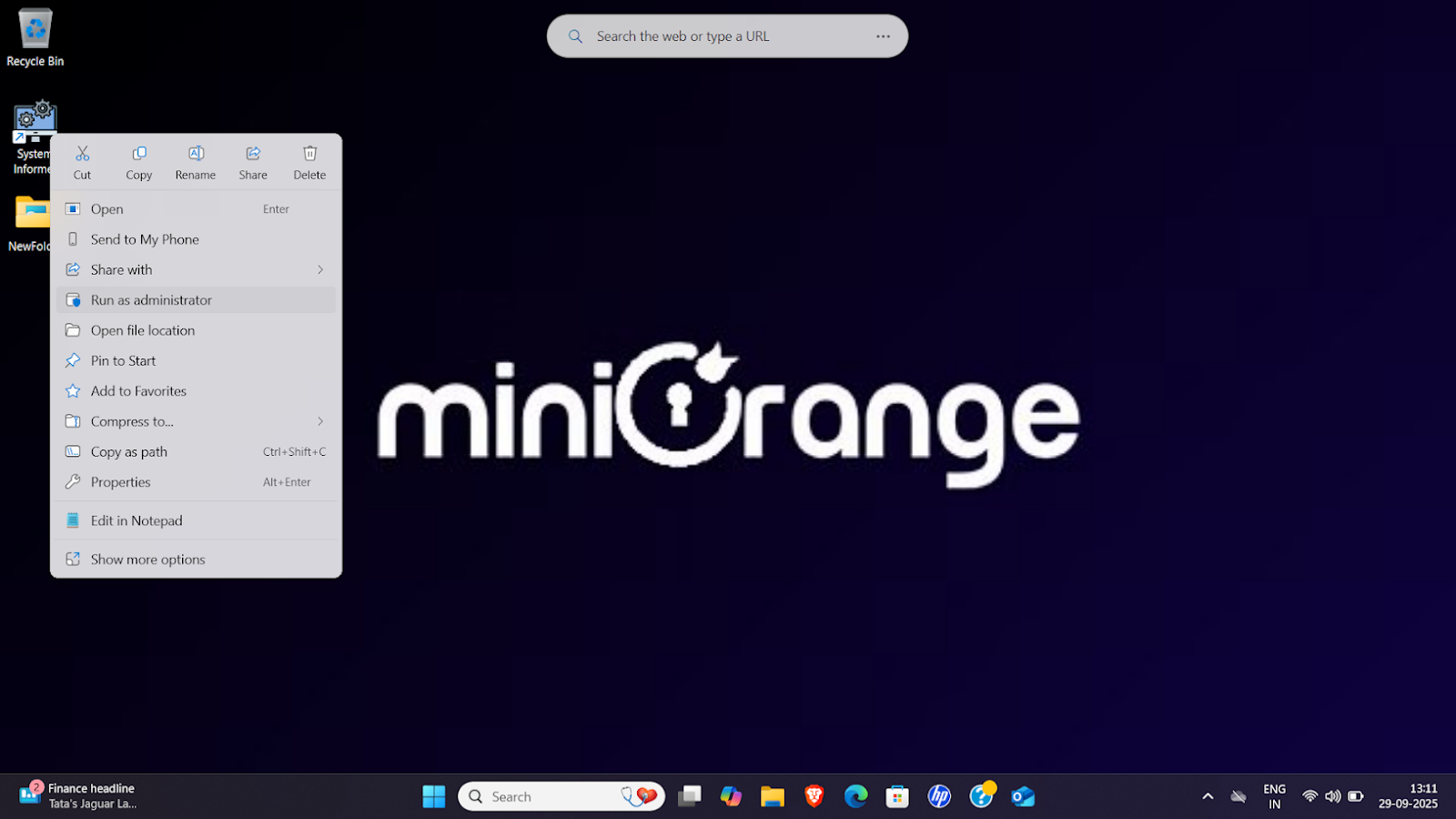
- miniOrange UAC (User Account Center) will appear on the screen, showing the details of the current application and an input box for the ticket reason.
- Input the relevant reason and click on the Raise Ticket button as shown below.
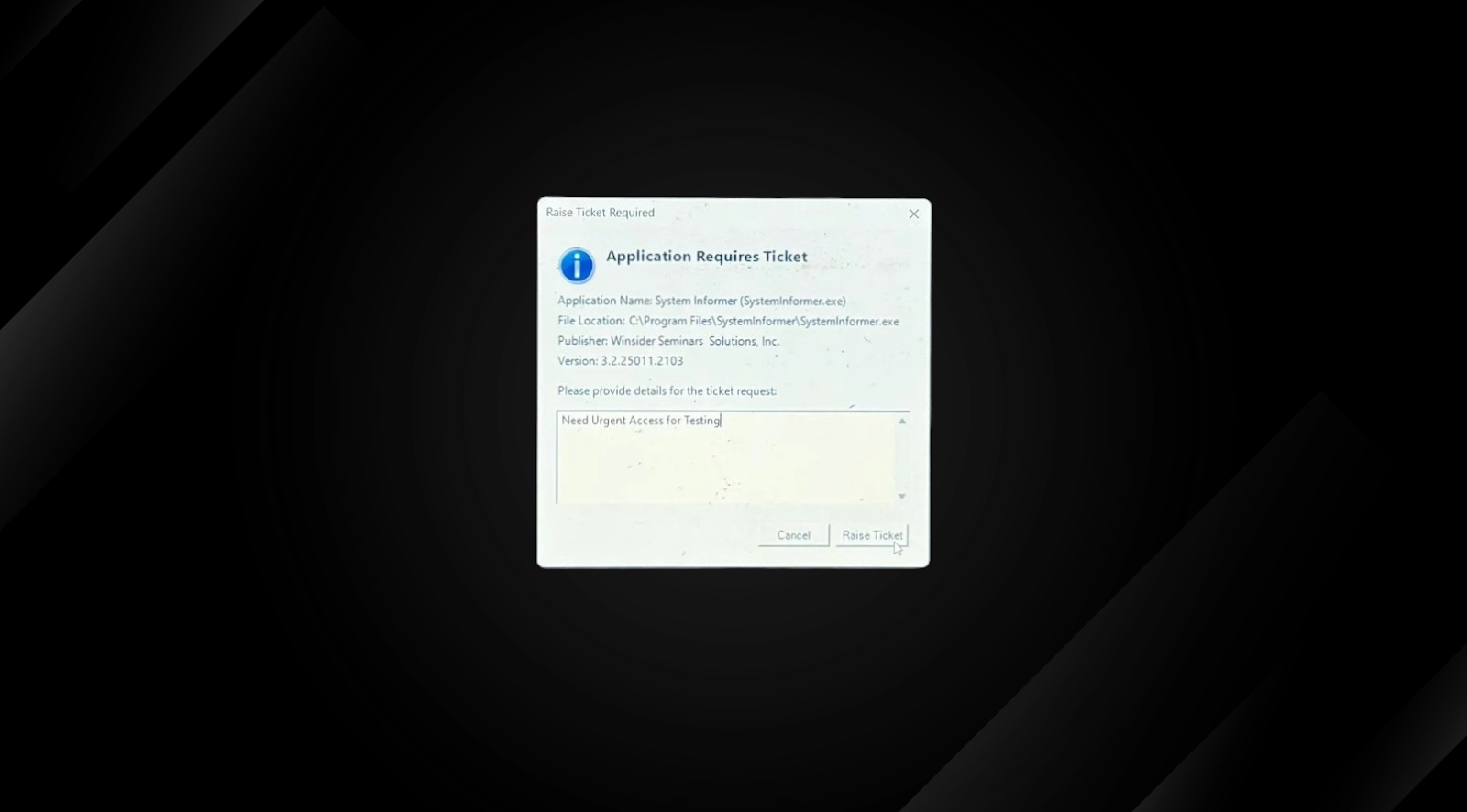
- The Ticket will be raised, and the admin will be notified accordingly.
Steps to Manage Tickets
- In the sidebar, go to Tickets.
- The Tickets page will display all requests raised by users, whether the ticket has been approved or rejected, or is in a pending state.
- Under the Action column, click the three dots >> View.
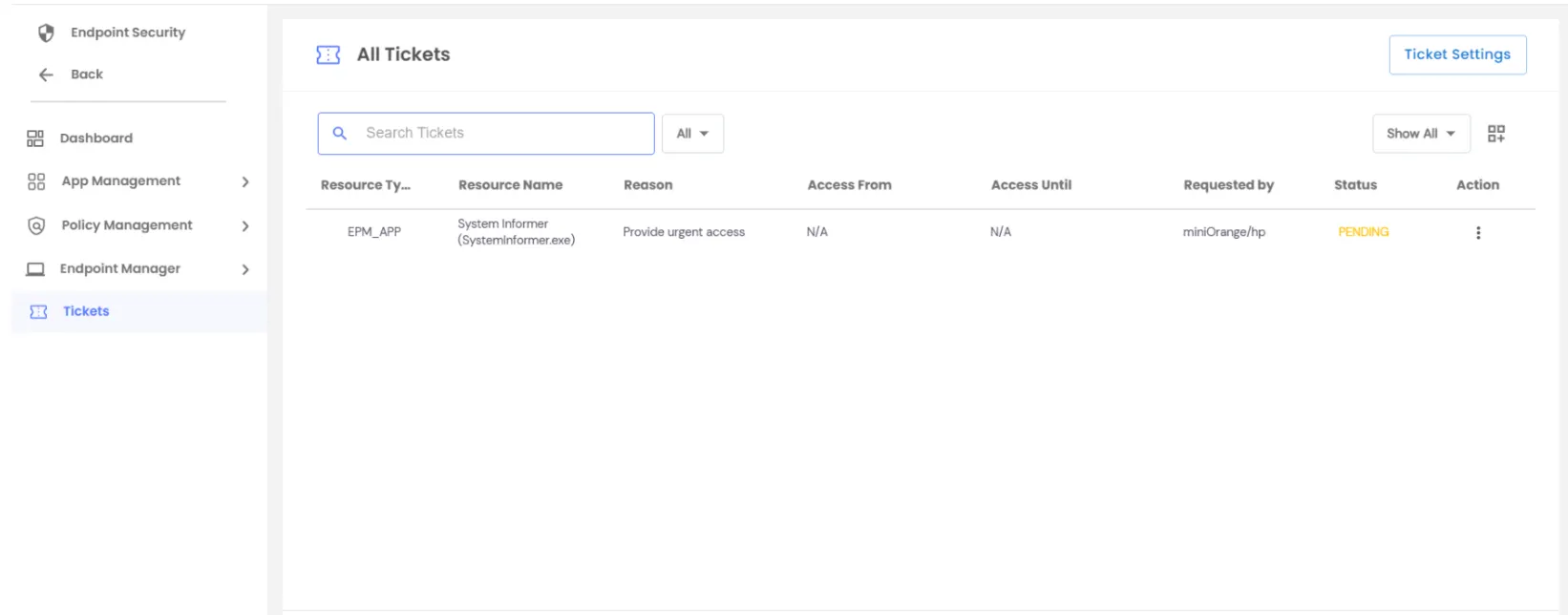
- The ticket details, along with full request information, can be seen here. The admin can either reject it or approve it, as shown below:
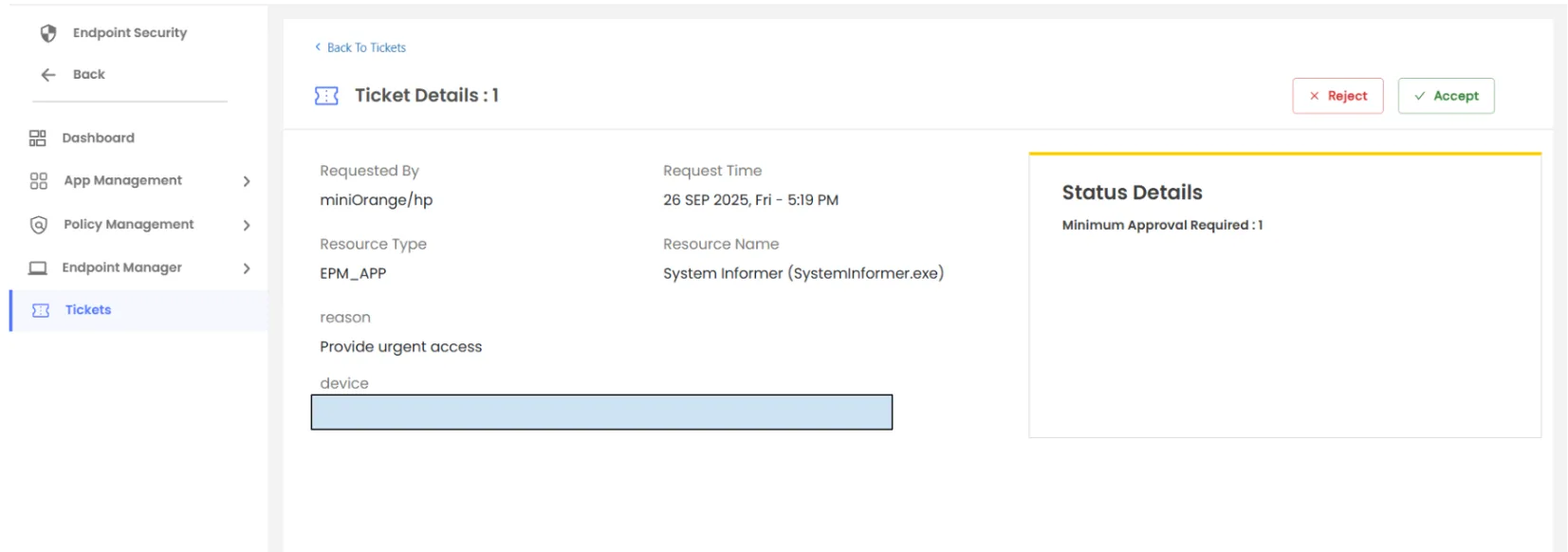
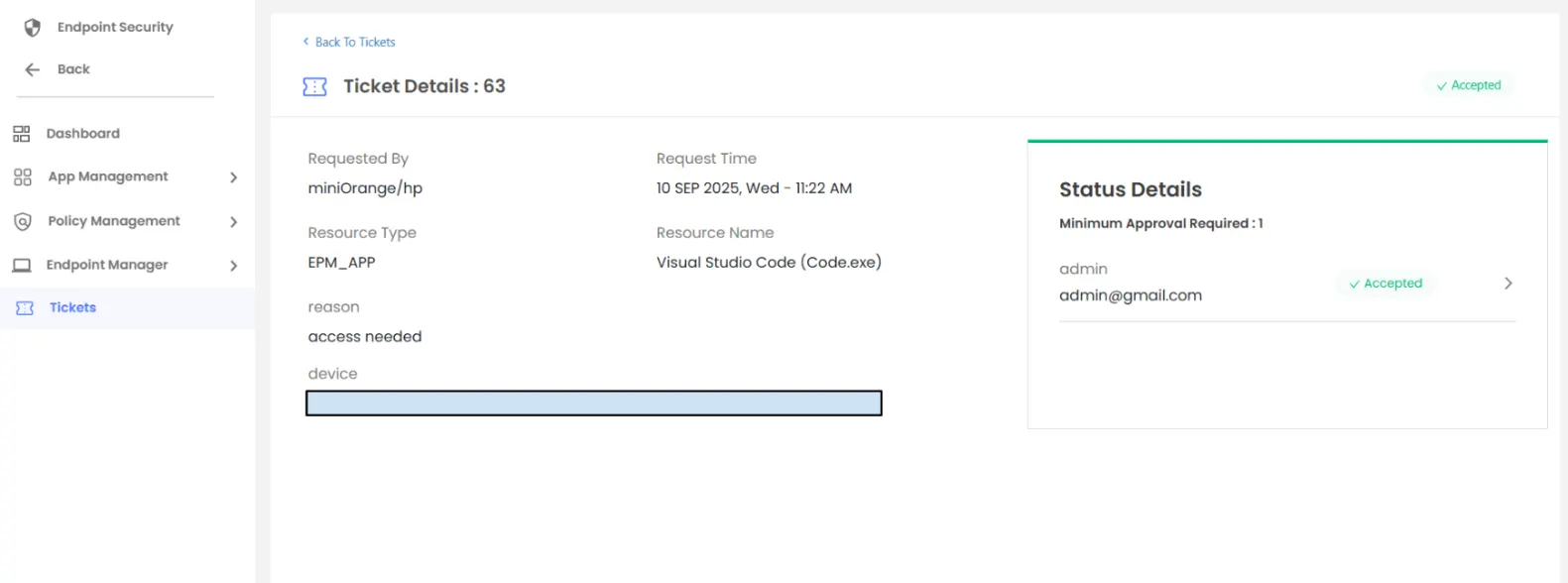
One Time
- Grants a temporary, single-use elevation for the requested application.
- The permission is automatically revoked after one successful execution.
Custom
- Grants elevation for a specific date and time range defined by the admin.
- The application can be elevated multiple times within the approved window.