Hello there!

Need Help? We are right here!

miniorange Support~
miniOrange Email Support
success

Thanks for your Enquiry.

If you don't hear from us within 24 hours, please feel free to send a follow-up email to info@xecurify.com

Search Results:

×


Why migrate from Microsoft Intune
to miniOrange MDM?


Many organizations start with Microsoft Intune for device management, but later switch to a more flexible or cost-effective solution like miniOrange MDM. Migrating between MDM platforms is not just a technical change, it involves careful planning, device un-enrollment, re-enrollment, and policy setup to ensure users do not face disruptions. This guide explains the complete migration process from Microsoft Intune to miniOrange MDM in a simple way.


  Easier multi-OS support (Android, iOS, Windows, macOS)

  Better pricing for large-scale deployments

  Faster onboarding and enrollment experience

  Unified control across BYOD and corporate devices

Replacing existing MDM providers is common when business needs grow beyond the original setup and keeping costs in check.

How Does miniOrange MDM Compare to Intune?

Feature

miniOrange MDM

Microsoft Intune

Supported OS

Android, iOS, macOS, Windows

Android, iOS, macOS, Windows

Rugged / POS Support

Native support included

Not purpose-built

Android Ownership Models

COPE, BYOD, Fully Managed, WPCO

COPE, BYOD, Fully Managed (less granular)

Zero-Touch Enrollment

Built-in (Android Zero-Touch, Apple DEP)

Requires M365 setup

QR Code Enrollment

Instant & simple

Available but less streamlined

Large-Scale Deployment

Fast, self-service rollout

Often requires partner setup

App Whitelisting/Blacklisting

Highly granular

Limited outside Microsoft apps

BYOD Work Profile Separation

Strong Android Work Profile

Limited outside Microsoft ecosystem

Location History & Audit

Full tracking & export

Basic logs only

Remote Lock / Wipe / Reset

Available

Available

Live Troubleshooting

Built-in real-time remote control

Requires Intune Suite add-on

Single-App Kiosk

Android & iOS fully supported

Limited iOS support

Multi-App Kiosk

Fully supported

Windows only

Time & Shift-Based Access

Built-in scheduling

Not available natively

Geolocation-Based Rules

Supported

Not device-level supported

Real-Time Location Tracking

Live tracking + alerts

Basic tracking

Route Tracking

Supported

Not available

Geofencing Alerts

Available

Not available

Wi-Fi / VPN / Email Config

Fully supported

Supported (some via Entra ID)

Policy Rollout

Automated & consistent

More complex setup

Key Challenges in MDM Migration


Before starting, it is important to understand common challenges:


  • Devices cannot be managed by two MDMs at the same time
  • Apps and policies may behave differently after migration
  • User re-enrollment is usually required
  • Temporary loss of compliance tracking during transition
  • Coordination needed with end users

Proper planning reduces downtime and confusion.
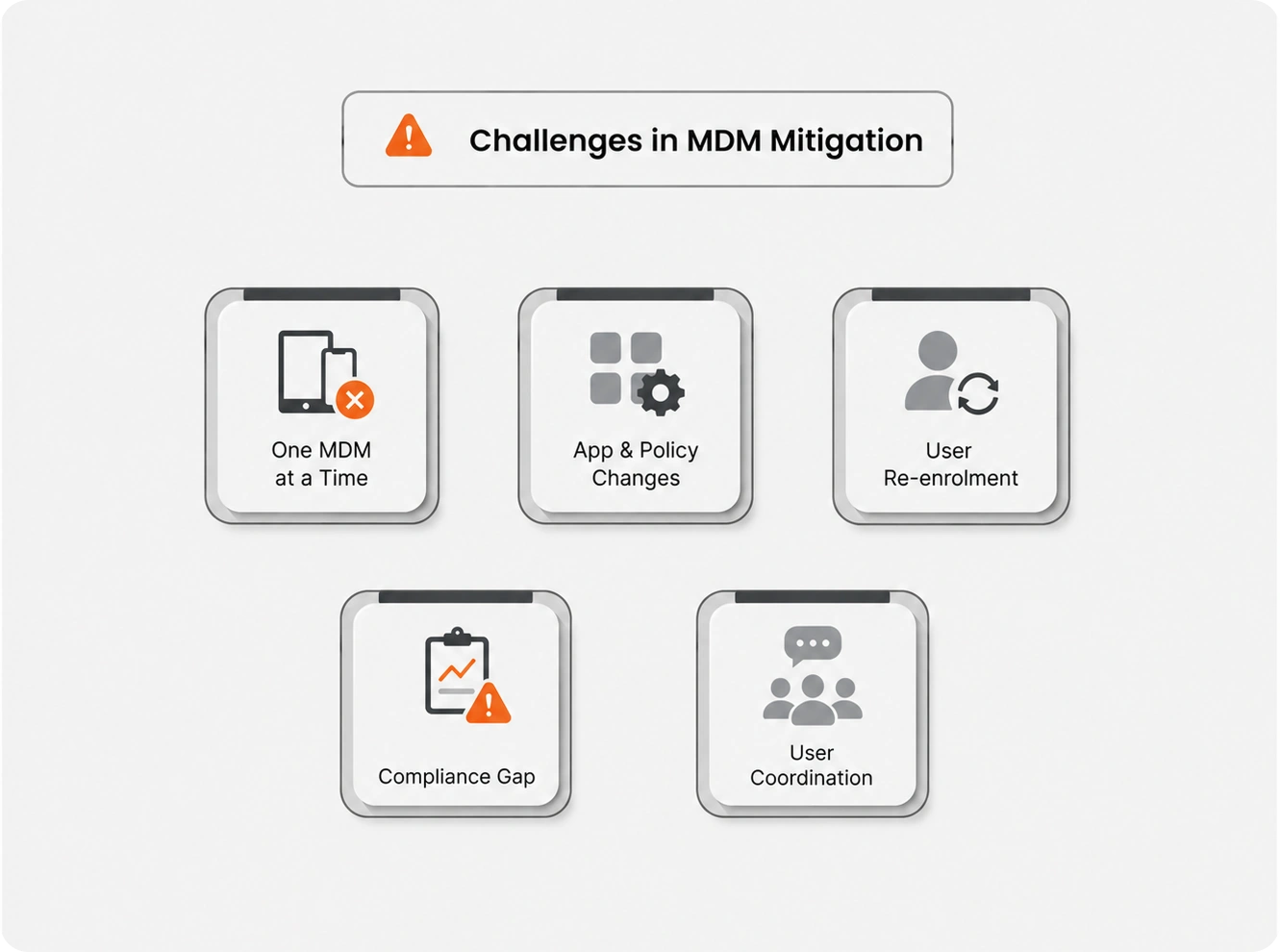
Key challenges in MDM migration


Pre-migration checklist (very important)


1. Inventory all devices
2. Note existing Intune policies
3. Inform users
4. Backup data

Inventory all devices

  • List all enrolled devices
  • Identify OS types (iOS, Android, Windows, macOS)
  • Separate corporate vs BYOD devices

Note existing Intune policies

  • Compliance rules
  • App management policies
  • Device configuration profiles
  • Conditional access rules

Inform users

  • Share migration timeline
  • Provide clear steps for re-enrollment
  • Inform about temporary disruptions

Backup data

  • Ensure user data is backed up (especially mobile devices)
  • Sync important enterprise apps

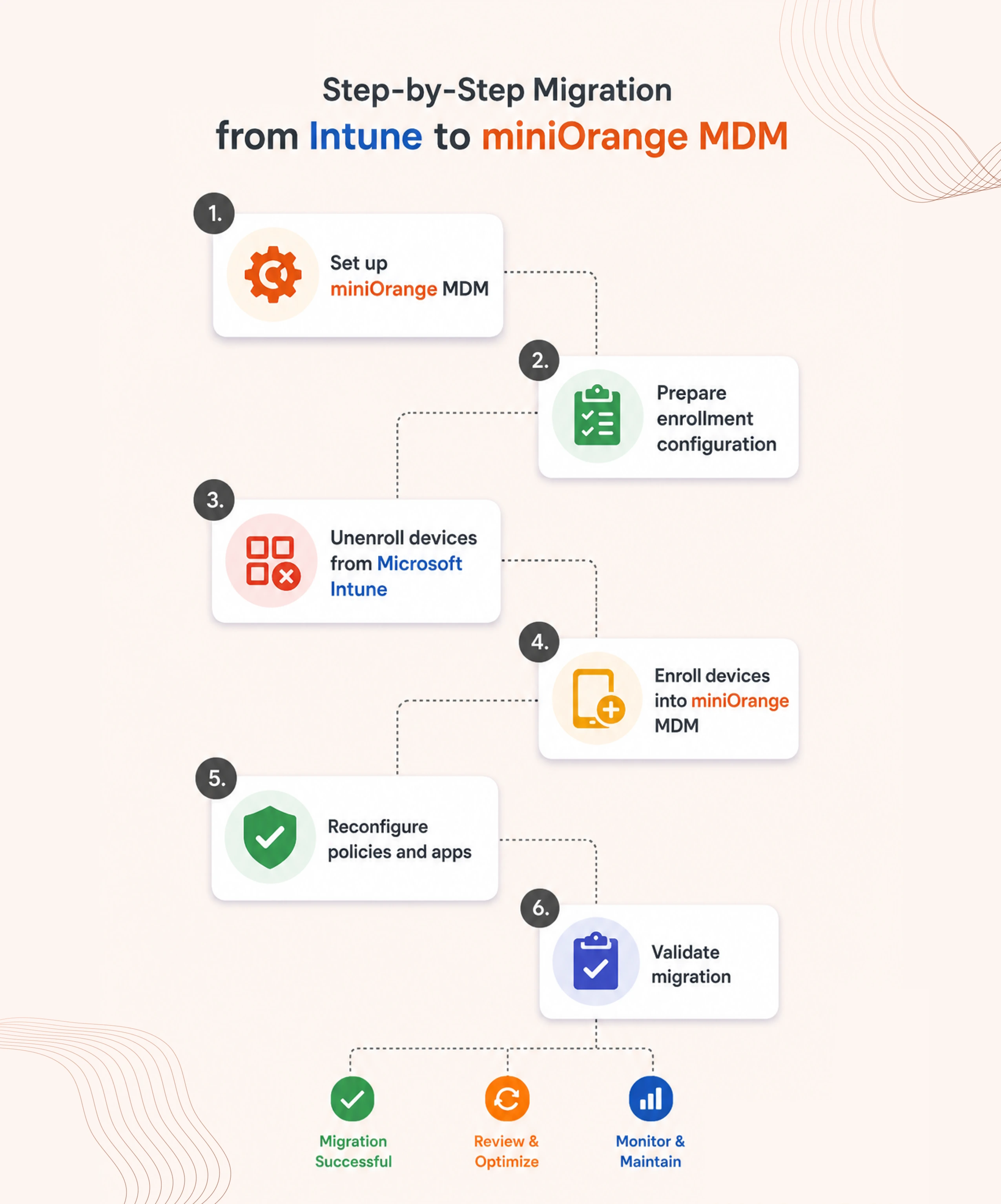
Step-by-step Migration from Intune to miniOrange MDM

Follow these six steps to migrate devices from Microsoft Intune to miniOrange MDM with minimal disruption and ensure policies, apps, and device management are configured correctly.

1
Step 01

Set up miniOrange MDM

  • Create admin account in miniOrange MDM console.
  • Configure organization settings (Android Enterprise/APNS).
  • Define initial device group policies.
2
Step 02

Prepare Enrollment Configuration

  • Set up enrollment methods (QR code, email invite, agent-based enrollment).
  • Configure platform-specific settings (Android, iOS, Windows, macOS).
  • Prepare device groups.
3
Step 03

Unenroll Devices from Microsoft Intune

This is a critical step.

  • Remove devices from Intune management.
  • Factory reset Company Owned devices and delete work-profile on BYOD devices (if needed).
  • Ensure devices are no longer receiving Intune policies.

Note: Devices cannot stay enrolled in both systems simultaneously.

4
Step 04

Enroll Devices into miniOrange MDM

  • Add devices to miniOrange portal using QR code, ZTE or email invitation.
  • Add devices to respective device groups.
  • Once enrolled, devices will start receiving new configurations.
5
Step 05

Reconfigure Policies and Apps

  • Add required apps in the App management policy.
  • Apply security policies.
  • Configure Wi-Fi, VPN, email profiles.
6
Step 06

Validate Migration

Check the following:

  • Device appears in miniOrange dashboard.
  • Policies are applied correctly.
  • Apps are working.
  • Conditional access (if used) is functioning.
Step-by-step Migration from Intune to miniOrange MDM

Best practices for smooth migration

1.

Always run a pilot migration first (5 - 10% devices)

2.

Migrate in batches, not all at once

3.

Avoid overlapping MDM control

4.

Keep rollback plan ready

5.

Monitor helpdesk tickets during migration

Common Mistakes to Avoid


Avoid these common mistakes to ensure a smooth migration from Microsoft Intune to miniOrange MDM.
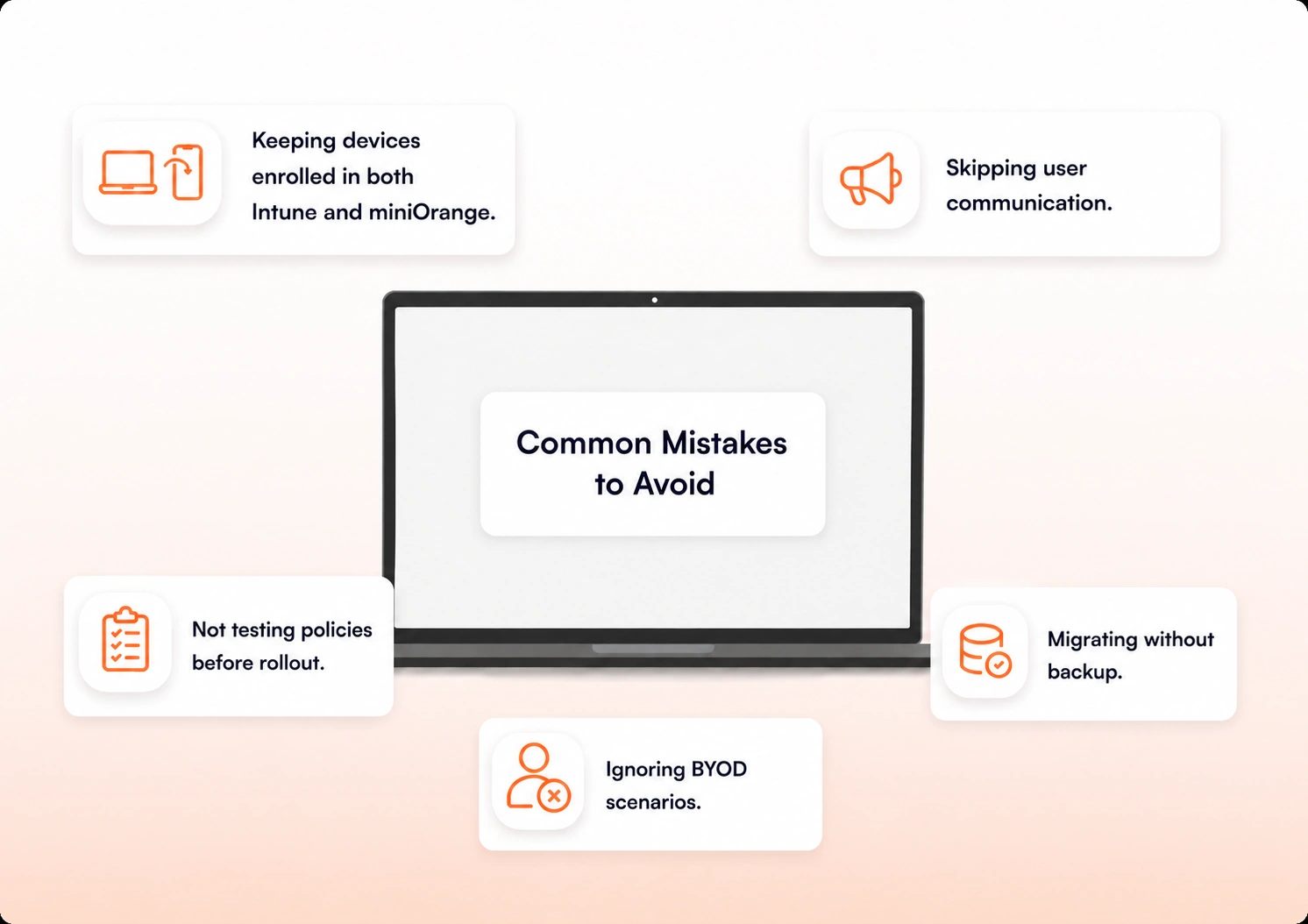
Common mistakes to avoid during Intune to miniOrange MDM migration

Post-Migration Tasks


Finalize your migration by completing these important post-migration tasks:
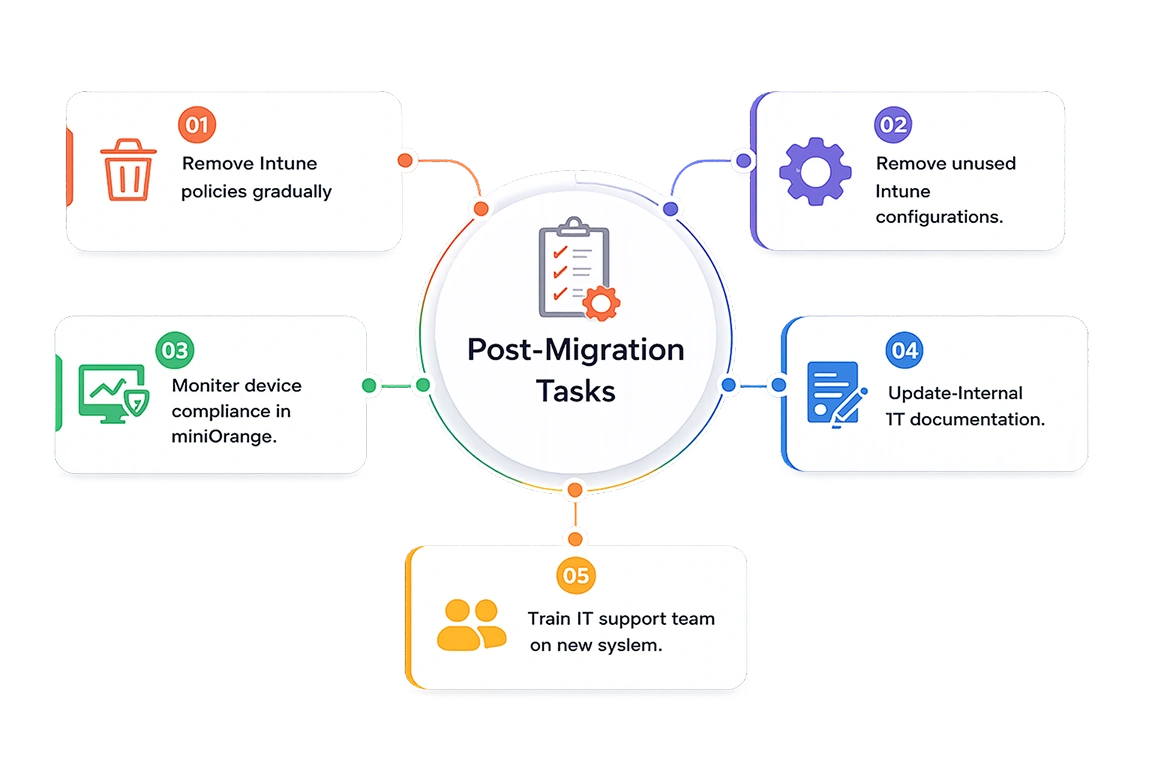
Post-migration tasks for Intune to miniOrange MDM migration

Conclusion

Migrating from Microsoft Intune to miniOrange MDM requires structured planning, phased execution, and careful device handling. Following best practices and completing each migration stage methodically helps ensure a smooth transition without disrupting users, device management, or business operations.

For more information or questions, feel free to contact us at uemsupport@xecurify.com

Effortless Migration to miniOrange


1

Book a Product Demo

Discuss your use case with our security experts to get the correct product recommendation and see how the product works & solves your issue.

2

Claim Your Free Trial with POC

See the product in action by trying it out with a 30-day free trial. Our experts will set it up in your environment and attend to all your queries throughout the POC stage.

3

We Will Help You Migrate

Once you decide to migrate to miniOrange, our engineers will help you migrate from your current Identity Provider or Source seamlessly.

So what are you waiting for?

Speak to our Security experts today, get all your queries answered, and take the first step toward Identity Security for your organization.