Hello there!

Need Help? We are right here!

miniorange Support~
miniOrange Email Support
success

Thanks for your Enquiry.

If you don't hear from us within 24 hours, please feel free to send a follow-up email to info@xecurify.com

Search Results:

×

Account Lockout Delegation (SSP)


To delegate access for managing account lockout-related settings on user objects, follow these steps:
Steps to Delegate Control at OU or Domain Level

  • Open Active Directory Users and Computers (ADUC).
  • Go to the OU (or Domain container) where the user accounts are located.
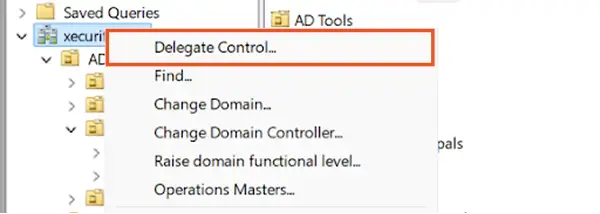
  • Right-click the OU/domain and select Delegate Control.
  • Click Next.
steps to delegate control at domain level

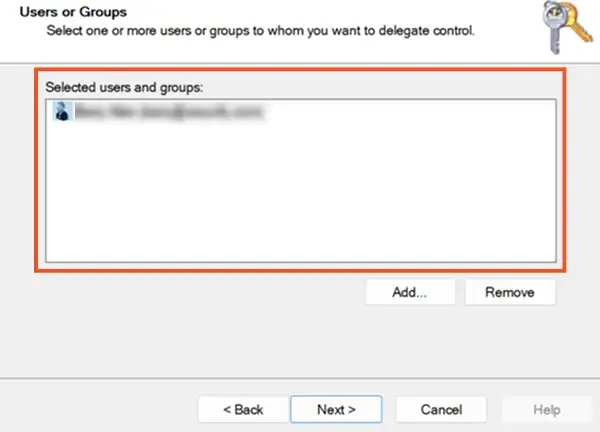
Select the User or Group

  • Select the user or security group to whom you want to delegate lockout permissions.
  • Click Next.
Select Users or Groups

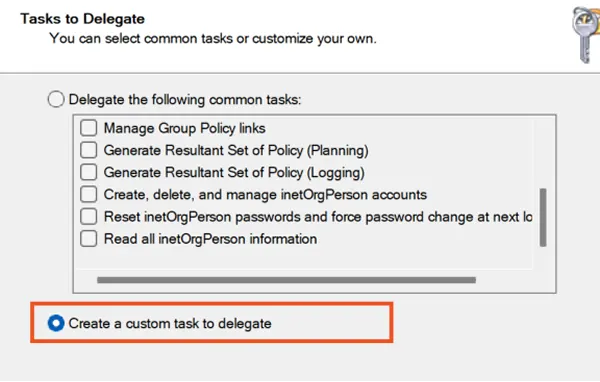
Choose Custom Delegation Task

  • Select Create a custom task to delegate.
  • Click Next.
Choose tasks to delegate

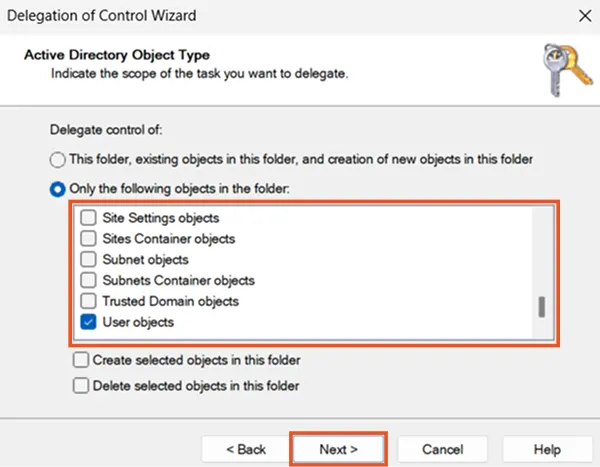
Select User Objects

  • Under Only the following objects in the folder, select:
    • User objects
  • Click Next.
Select User Objects

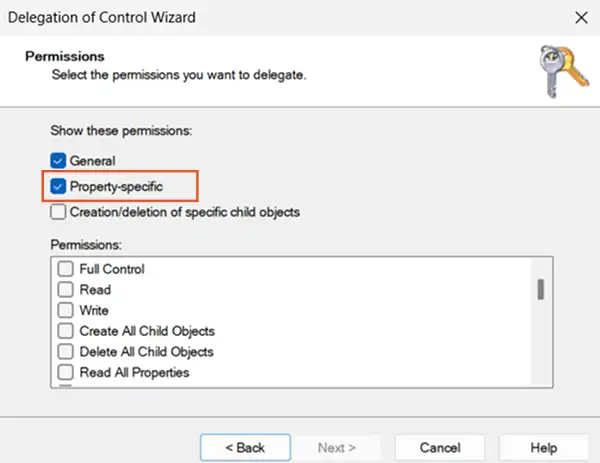
Configure Permissions for Lockout Settings

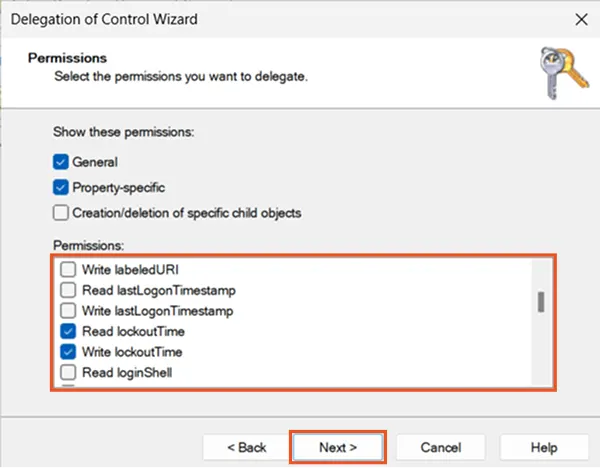
  • On the Permissions page, select:
    • Property-specific
 Configure Permissions for Lockout Settings

Lockout Read and Write Access (Unlock User)

To allow a user/group to both check whether an account is locked and unlock locked user accounts, delegate the following permissions on user objects:
Lockout Read Access

  • Read lockoutTime
    • This allows them to see if the account is currently in a locked state.

Lockout Write Access (Unlock User)

  • Write lockoutTime
    • This allows them to reset the lockout status and unlock the account.
configure permissions for read and write lockoutTime

Finish Delegation

  • Click Next.
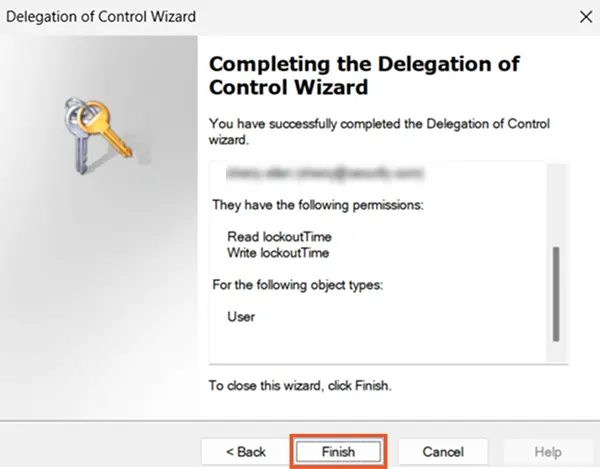
  • Review the selections.
  • Click Finish to complete the delegation setup
Complete Delegation of Control Wizard