Hello there!

Need Help? We are right here!

miniorange Support~
miniOrange Email Support
success

Thanks for your Enquiry.

If you don't hear from us within 24 hours, please feel free to send a follow-up email to info@xecurify.com

Search Results:

×

User Profile Update Delegation (SSP)


To allow a user/group to view and update user profile information for accounts within an OU or domain, delegate read and write permissions on user objects using the Delegation Wizard.
Steps to Delegate Control at OU or Domain Level

  • Open Active Directory Users and Computers (ADUC).
  • Go to the OU (or Domain container) where the user accounts are located.
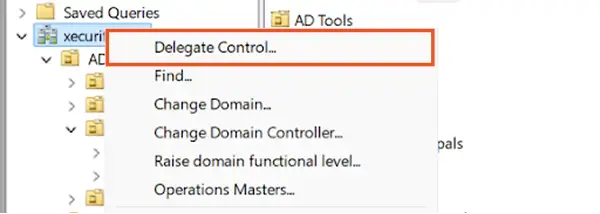
  • Right-click the OU/domain and select Delegate Control.
  • Click Next.
steps to delegate control at domain level

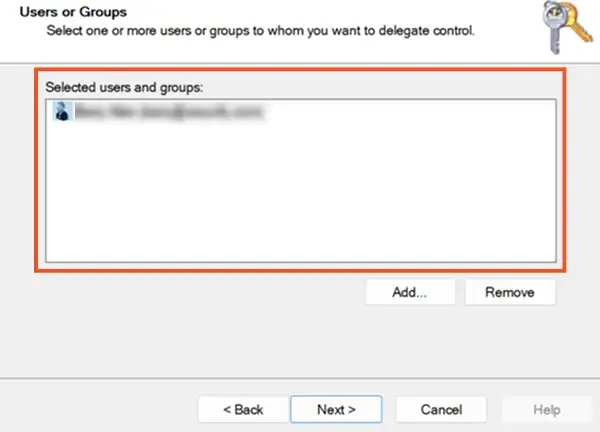
Select the User or Group

  • Select the user or security group to whom you want to delegate profile update permissions.
  • Click Next.
Select Users or Groups

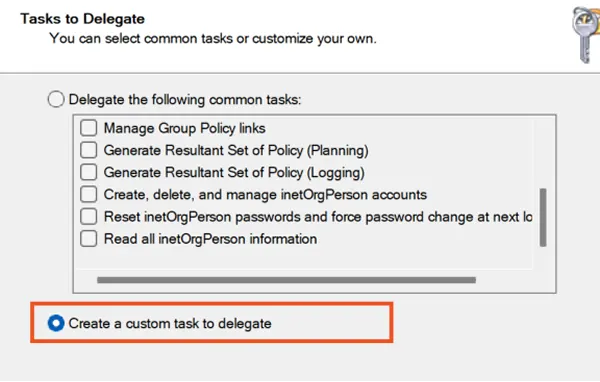
Choose Custom Delegation Task

  • Select Create a custom task to delegate.
  • Click Next.
Choose tasks to delegate

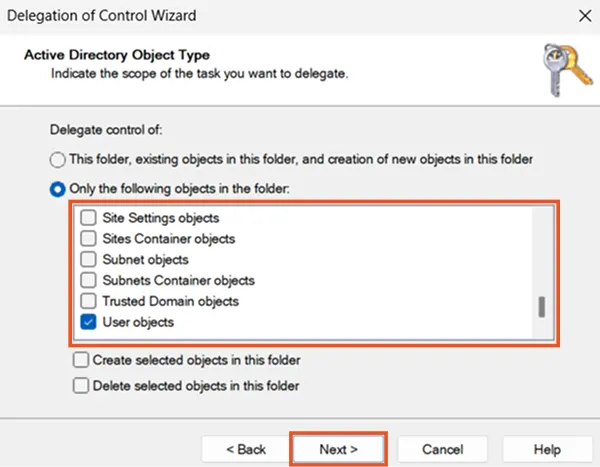
Select User Objects

  • Under Only the following objects in the folder, select:
    • User objects
  • Click Next.
Select User Objects

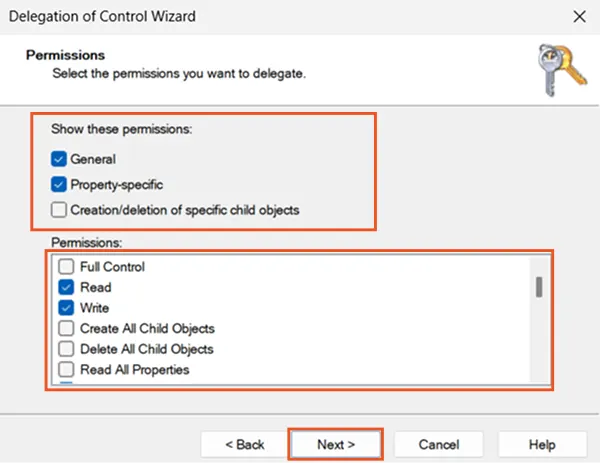
Configure Permissions for Profile Update (Read and Write)

  • On the Permissions page, select:
    • General
    • Property-specific

Profile Read Access

  • Select Read permissions to allow the delegated user/group to view user profile details.

Profile Write Access

  • Select Write permissions to allow the delegated user/group to modify and update user profile attributes.
Configure Permissions for Profile Update

Finish Delegation

  • Click Next.
  • Review the selections.
  • Click Finish to complete the delegation setup.