Configure Office 365 as SMTP Using OAuth 2.0
An SMTP Server is an application that enables your device or server to send and receive electronic mail (emails) using the Simple Mail Transfer Protocol (SMTP), which is the standard protocol for email delivery.
By default, miniOrange provides and uses its own SMTP server to send OTPs and system emails. If you prefer to use Office 365 as your SMTP server, you can configure it within miniOrange to send emails from your Office 365 account. miniOrange supports OAuth 2.0 basic authentication for Office 365 SMTP, ensuring secure and modern authentication aligned with Microsoft's recommended security practices. Check out our list of Supported SMTP Servers.
miniOrange IdP allows you to configure Office 365 as an SMTP email provider using OAuth 2.0, giving you greater control over email delivery while enabling secure authentication, improved monitoring, and easier troubleshooting of email communications.
Note:
You can contact idpsupport@xecurify.com for adding your own SMTP/Email Server or if you need help with any SMTP Server integration.
Prerequisites
- Admin access to the Azure Portal.
- Admin access to the miniOrange Admin Console.
- An Office 365 / Exchange Online account.
- Exchange Online license assigned to the account used for SMTP authentication [Important].
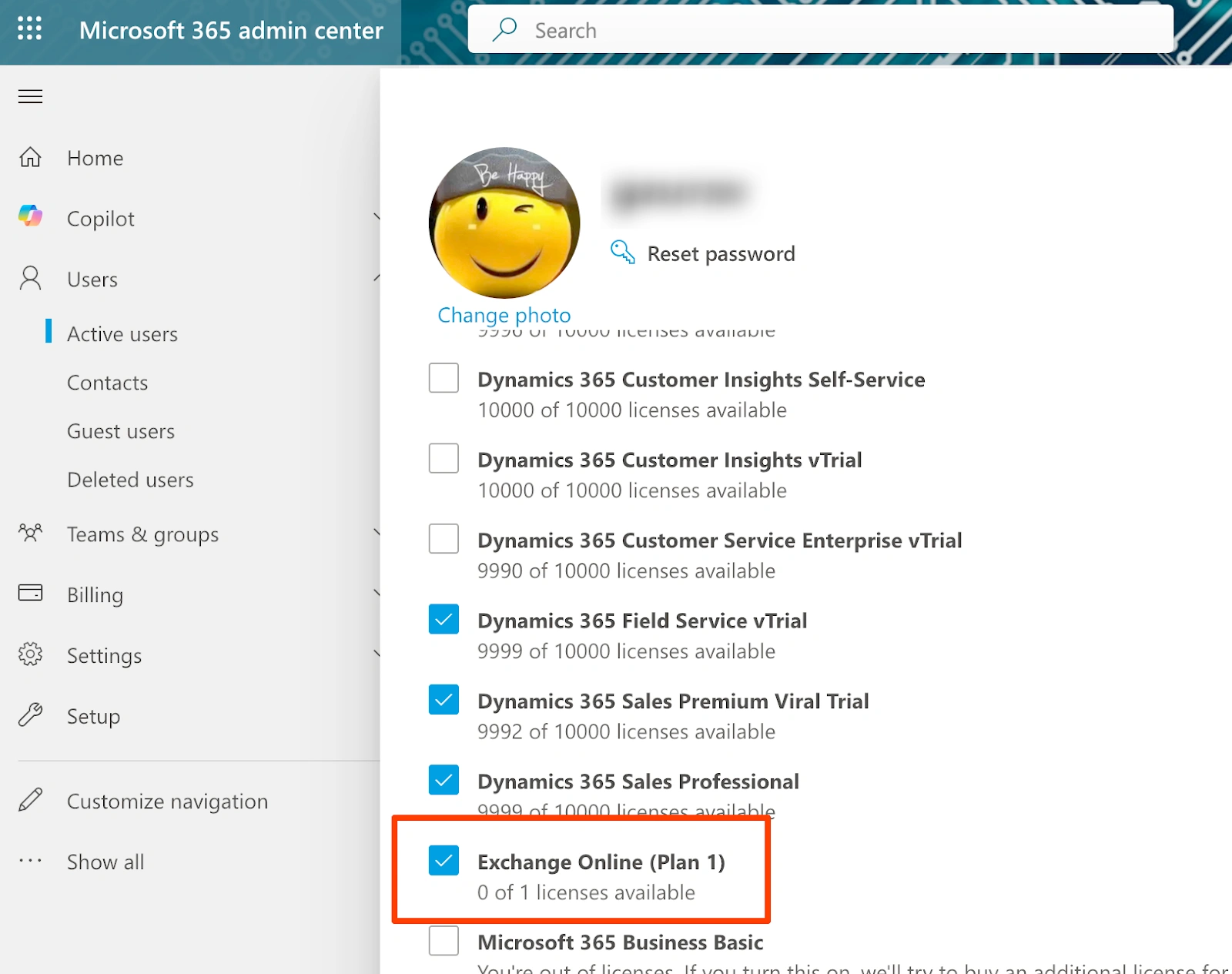
Follow the guide below to Configure Office 365 as SMTP Using OAuth 2.0
1. Register Your Enterprise Application in Azure AD
- Log in to the Azure Portal.
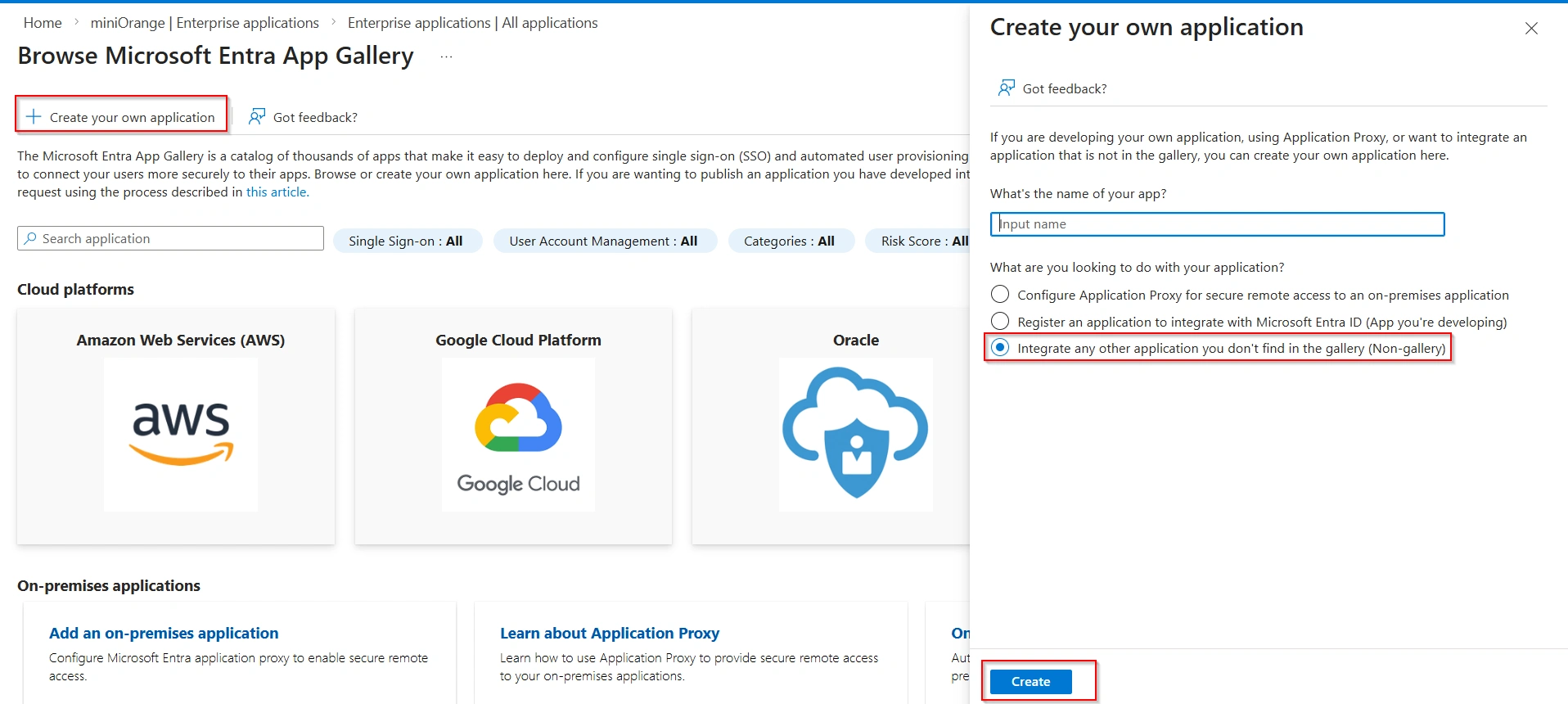
- Go to Enterprise applications.
- Click on New Application.
- Click on Create your own application.
- Enter your App Name and select Non-gallery application.
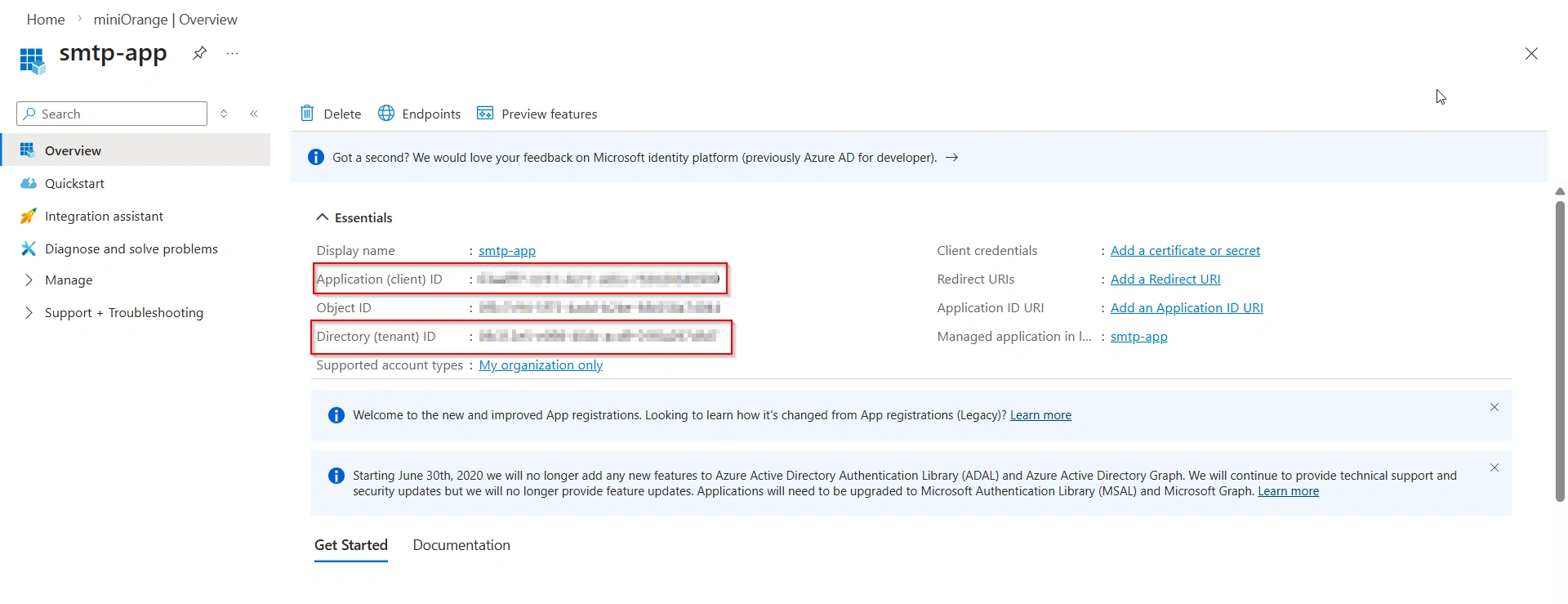
- Copy the Client ID and Directory (tenant) ID. Use these values in the miniOrange configuration.
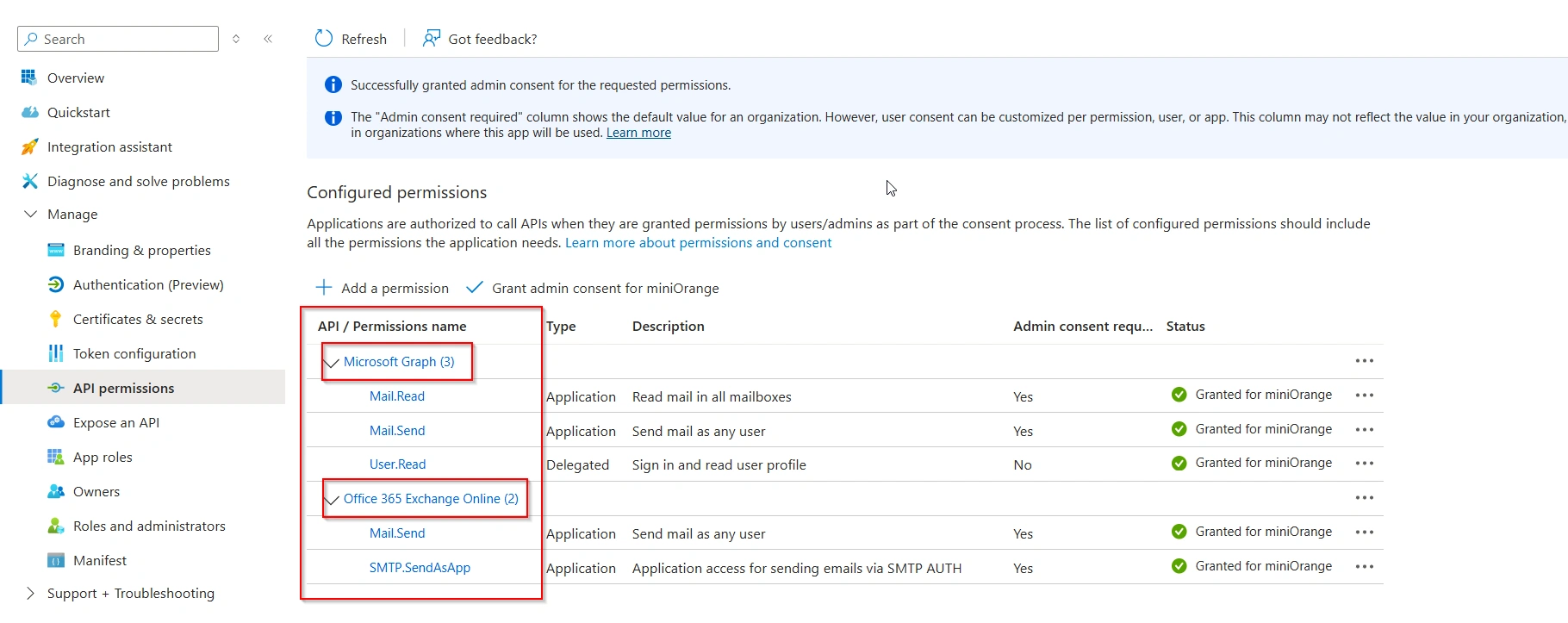
1.1 Configure API Permissions
- In the registered application, navigate to API permissions.
- Click Add a permission.
- Select one of the following based on your setup:
- For Microsoft Graph:
- Select Microsoft Graph.
- Choose Application permissions.
- Add the following permissions:
- Mail.Read
- Mail.Send
- User.Read
- For Office 365 Exchange Online:
- Select Office 365 Exchange Online.
- Add the following permissions:
- Mail.Send
- SMTP.SendAsApp.
- Click Grant admin consent for the configured permissions.
1.2 Create a Client Secret
- Navigate to Certificates & secrets in the app registration.
- Click New client secret.
- Enter a description and select an expiration period.
- Click Add.
- Copy and save the client secret value securely.
2. Configure Office 365 SMTP OAuth 2.0 in miniOrange
- Login to miniOrange Admin Console.
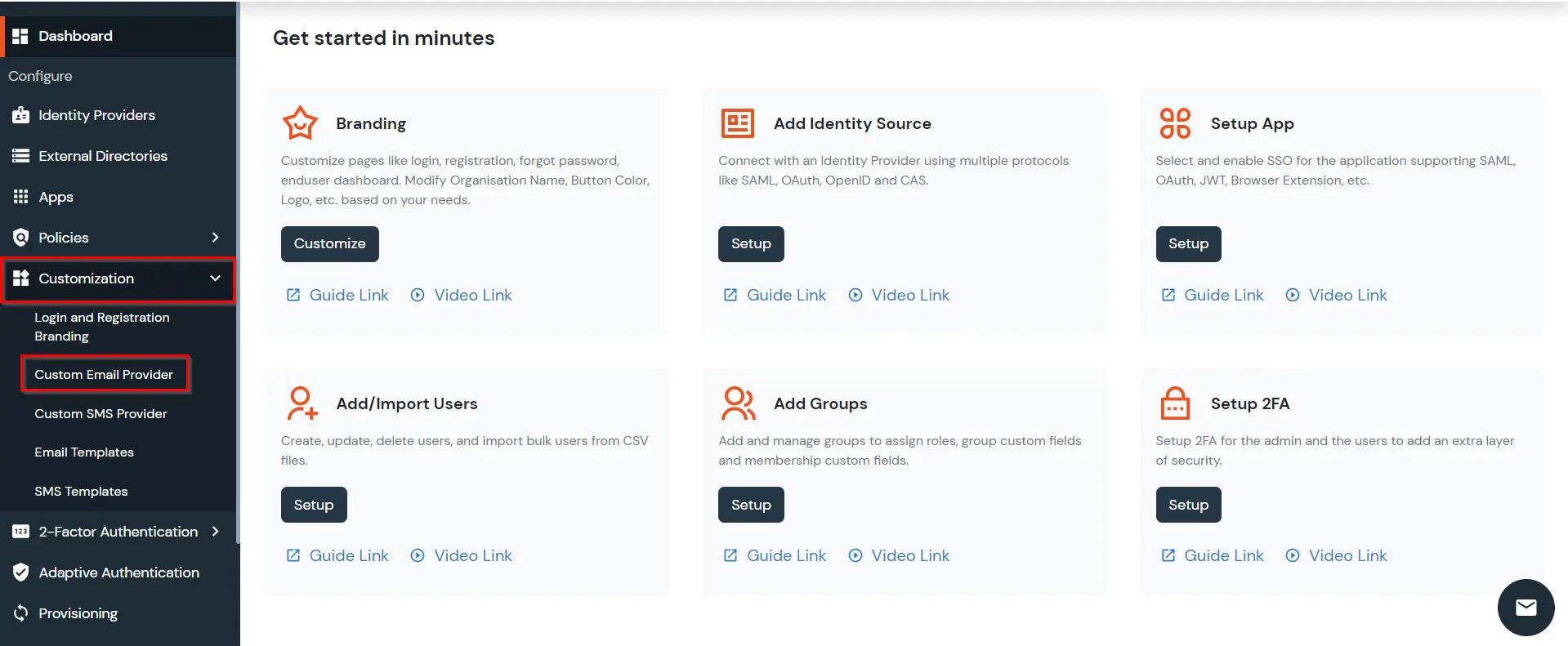
- Go to Customization >> Custom Email Provider.
- Use Custom gateway and select Office 365 (OAuth 2.0) and fill the required fields.
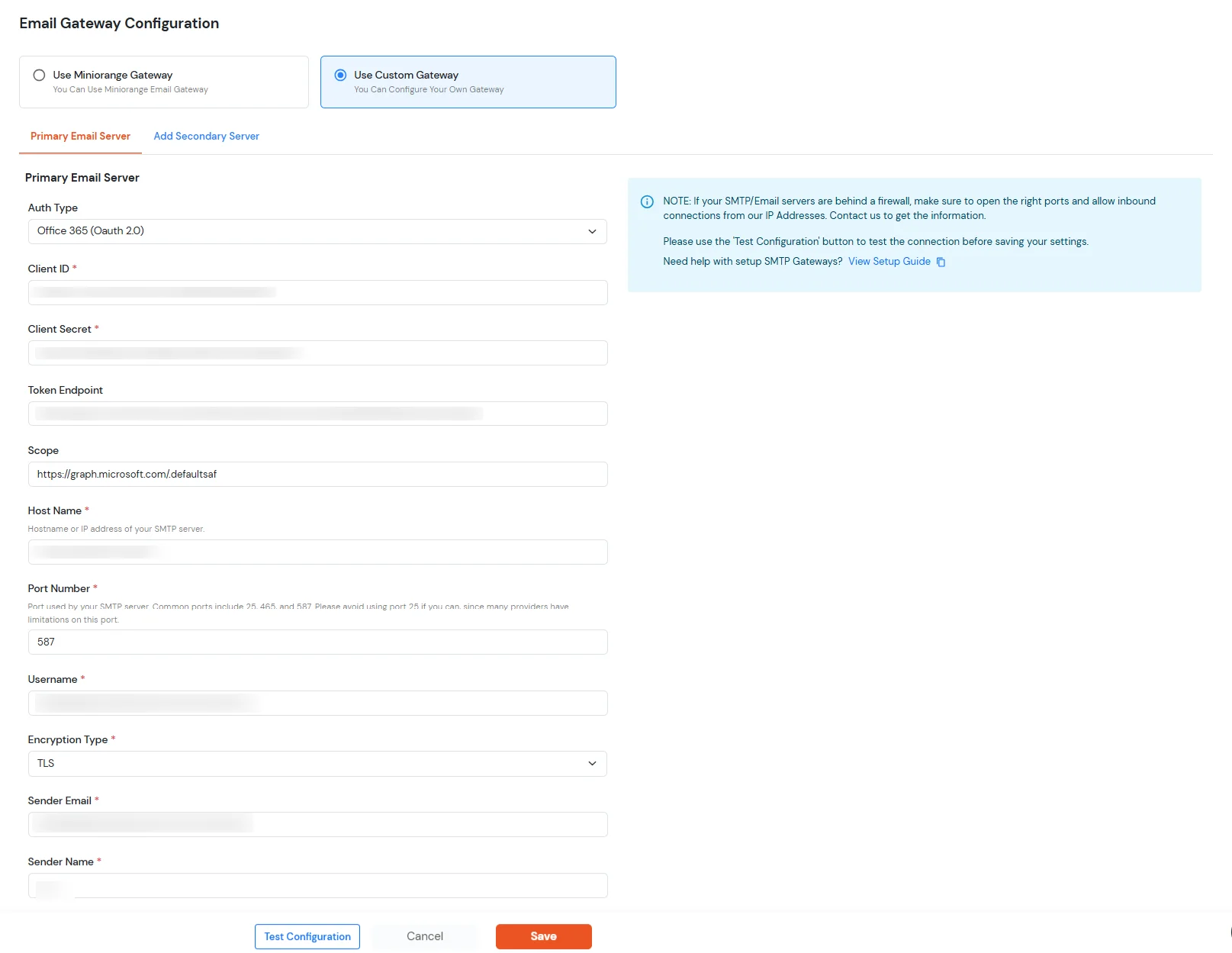
|
Client ID
|
Copy from Step 1 (Azure App registration) |
|
Client Secret
|
Copy from Step 1.2 (Client secret created in Azure) |
|
Token Endpoint
|
https://login.microsoftonline.com/<your_tenant_id>/oauth2/v2.0/token |
|
Scope
|
https://graph.microsoft.com/.default |
|
Host Name
|
smtp.office365.com |
|
Port
|
587 |
|
Username
|
Your Office 365 username |
|
Encryption Type
|
TLS |
|
Email address
|
Your email address where you want to receive the email. |
- Click on Save.
3. Test SMTP
- Click on Test Configuration.
- In the pop-up window, enter your email address and click Test Configuration to verify the SMTP configuration.


