Hello there!

Need Help? We are right here!

Support Icon
miniOrange Email Support
success

Thanks for your Enquiry. Our team will soon reach out to you.

If you don't hear from us within 24 hours, please feel free to send a follow-up email to info@xecurify.com

Search Results:

×

Configure Roles and Permissions API in Custom Provisioning


You can manage the roles and permissions of the external application from the miniOrange dashboard. In the custom provisioning application, roles can be created, updated, deleted, assigned/unassigned with permissions, and assigned/unassigned to users.

Configure the Custom Provisioning application and integrate your external application APIs. Refer to the guide to add the Custom Provisioning application.

This guide will help you configure APIs related to managing Roles and Permissions of the external application.

Get Free Installation Help


miniOrange offers free help through a consultation call with our System Engineers to Install or Setup ADFS SSO solution in your environment with 30-day free trial.

For this, you need to just send us an email at idpsupport@xecurify.com to book a slot and we'll help you in no time.


1. Configure External app to miniOrange

Please refer to this guide: How to add a Custom Provisioning App to configure a custom provisioning application in miniOrange.

    1.1 Configure Import Role API

    This API will be used to import the existing roles on the external application.
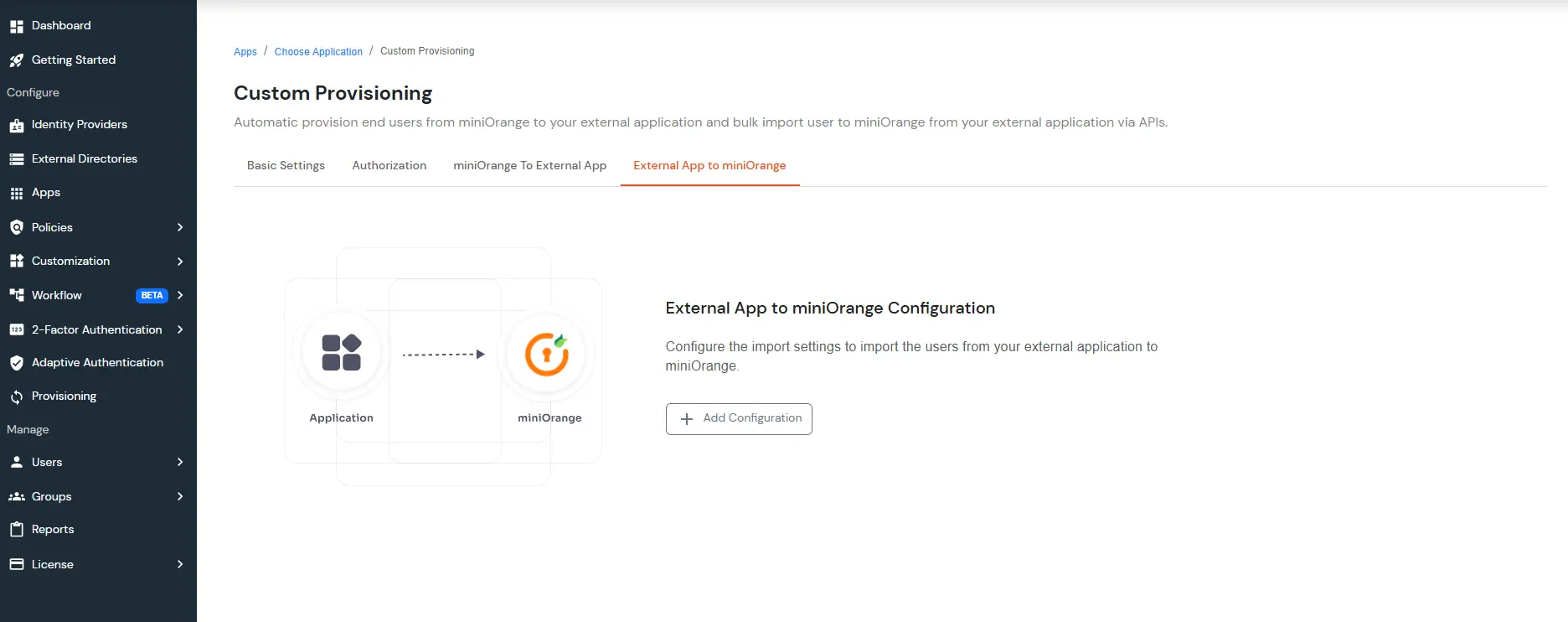
    • In the External app to miniOrange tab, click on Add Configuration.
    • Add Configuration button under External App in miniOrange - import users

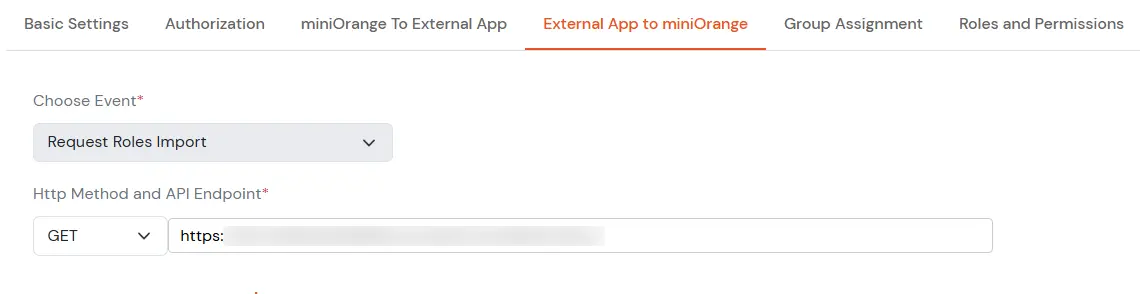
    • Provide an Event Configuration Name. Select Event Type as Import Role Request. Add the GET endpoint to import/fetch roles.
    • Roles and Permissions APIs: Add the GET endpoint to import/fetch roles

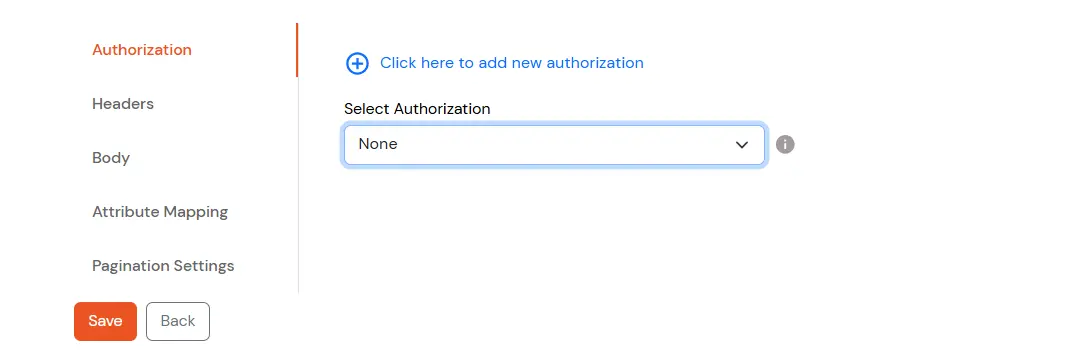
    • Select the Authorization that is configured in the Authorization tab.
    • Roles and Permissions APIs: Select Authorization

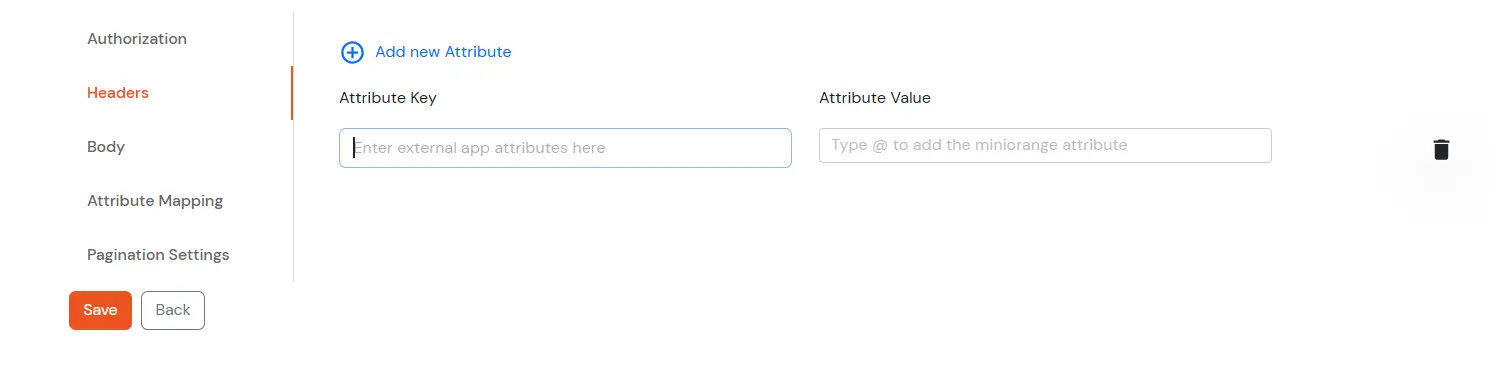
    • Provide headers required for the API.
    • Roles and Permissions APIs: Select Headers

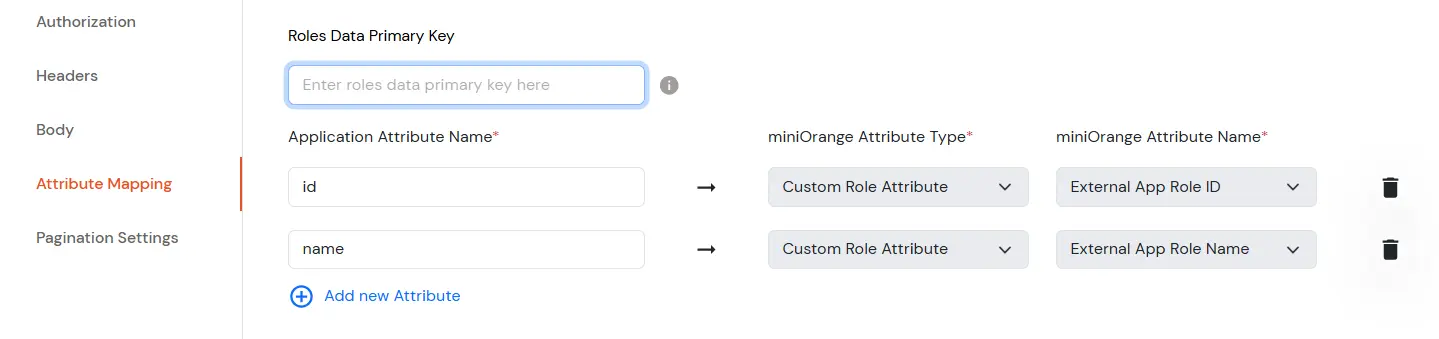
    • Configure Attribute Mapping:
      • Map the Roles Data Primary Key with the roles key (corresponding to which you get all the roles) coming in the response of the API. Keep it blank if the roles list is not mapped to any field.
      • Configure Attribute Mapping to map individual role attributes with miniOrange attributes like Role ID, Role Name, etc.
      Roles and Permissions APIs: Select Attribute Mapping

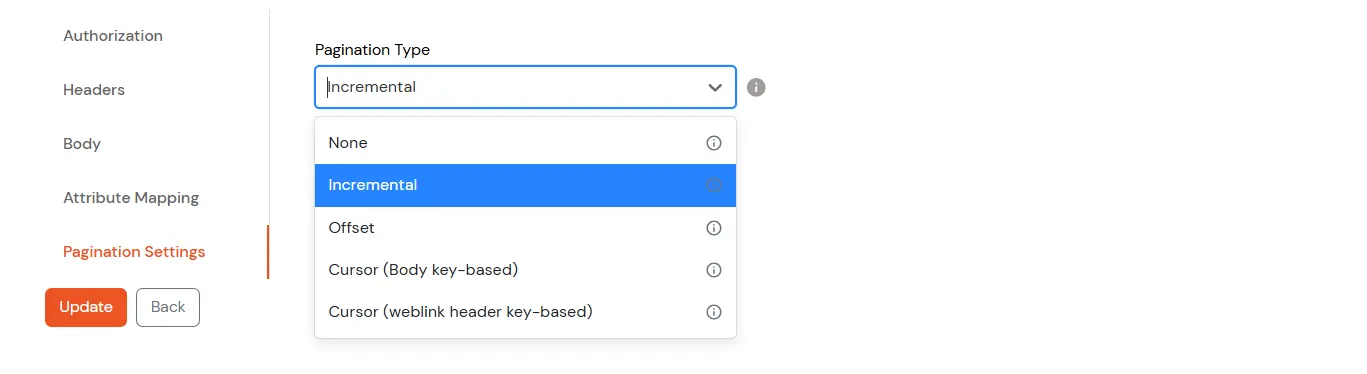
    • Configure Pagination Settings:
      • Configure the Pagination Type and the Pagination Key if supported by the API.
      Roles and Permissions APIs: Select Pagination Settings

    • Click on Save configuration.
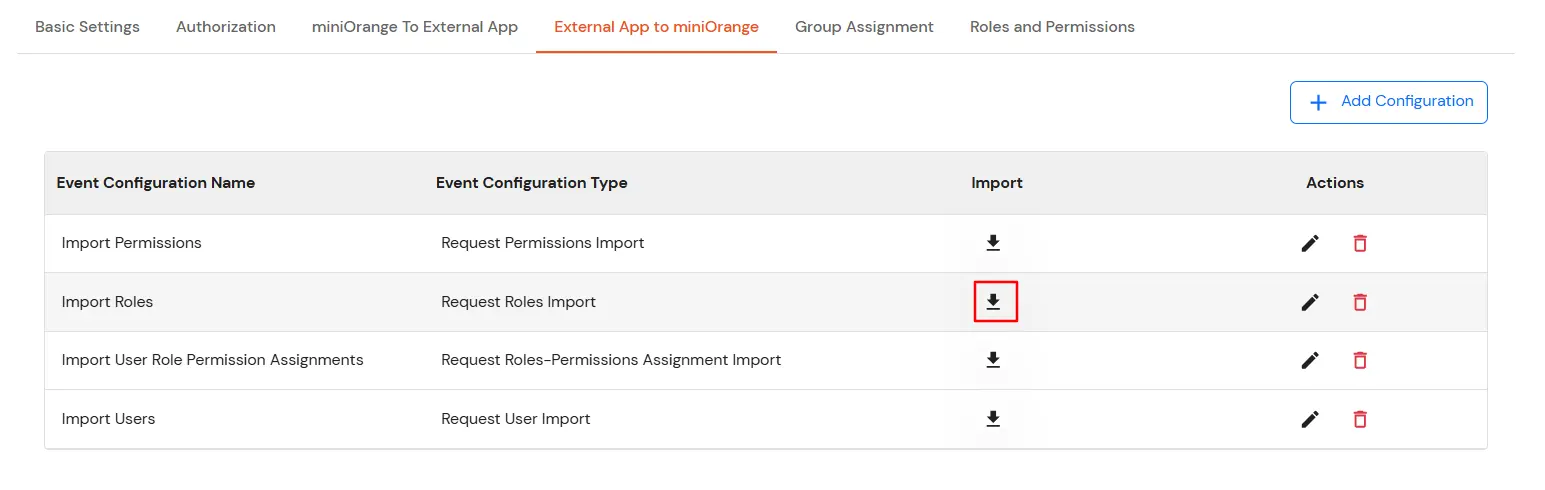
    • To Import Roles, click on the import button (down arrow) corresponding to the Import Role event in the list on the External app to miniOrange tab.
    • Roles and Permissions APIs: Click Import button

    1.2 Configure Import Permissions API

    This API will be used to import the allowed permissions on the external application, which can be added to the roles, deciding the access level of the user in the application.
    • Go to the External app to the miniOrange tab. Click on Add Configuration.
    • Add Configuration button under External App in miniOrange - import users

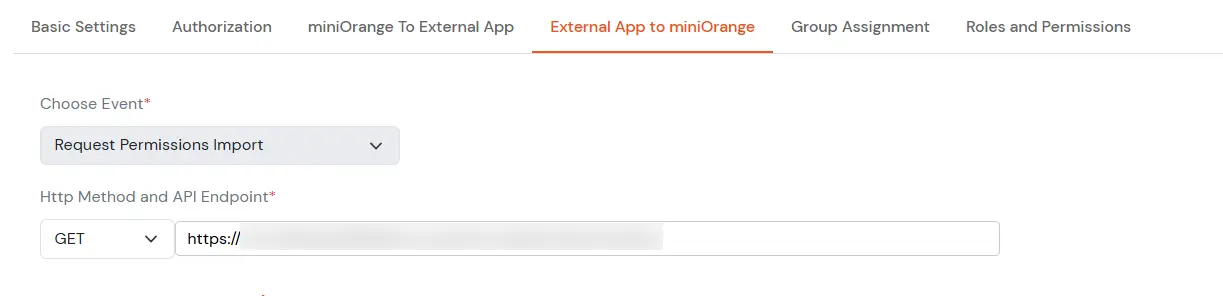
    • Provide an Event Configuration Name. Select Event Type as Import Permissions Request. Add the GET endpoint to import/fetch permissions.
    • Roles and Permissions APIs: Select Import Permissions request

    • Select the Authorization that is configured in the Authorization tab.
    • Roles and Permissions APIs: Select Authorization

    • Provide headers required for the API.
    • Roles and Permissions APIs: Select Headers

    • Configure Pagination Settings:
      • Configure the Pagination Type and the Pagination Key if supported by the API.
      Roles and Permissions APIs: Select Pagination Settings

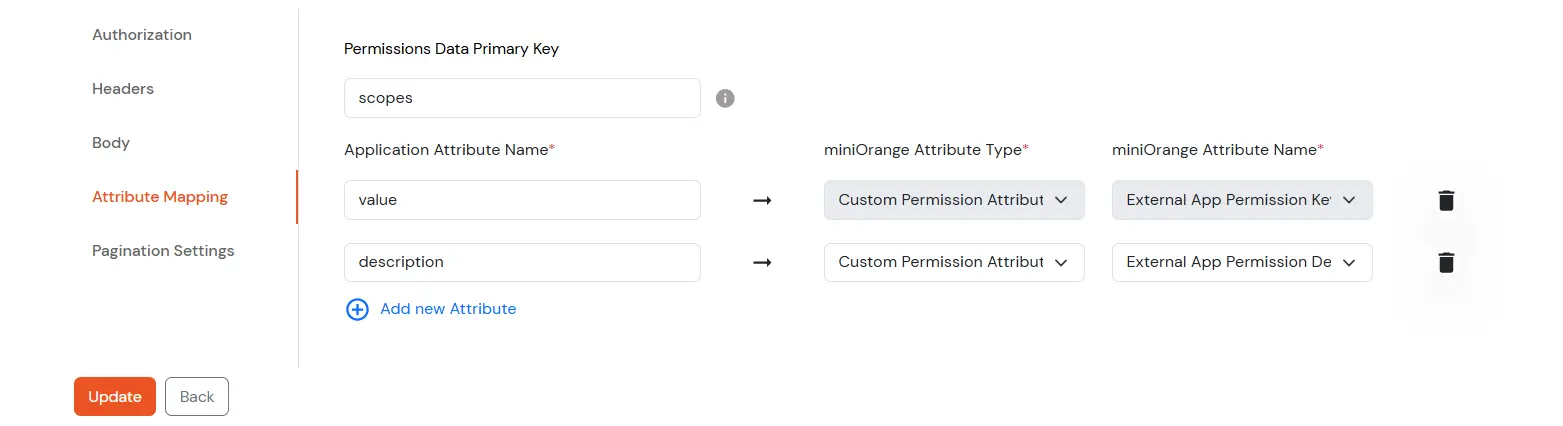
    • Configure Attribute Mapping to map individual permission attributes with miniOrange attributes.
      • Map the Permissions Data Primary Key with the permissions key (corresponding to which you get all the permissions) coming in the response of the API.
      • If permissions are received as a list of strings, use the attribute List of permissions names.
      • If permissions are received as key-value pairs, use attributes Permission Name and Permissions Description.
      Roles and Permissions APIs: Select Application Attribute name Under Attribute Mapping

    • Click on Save configuration.
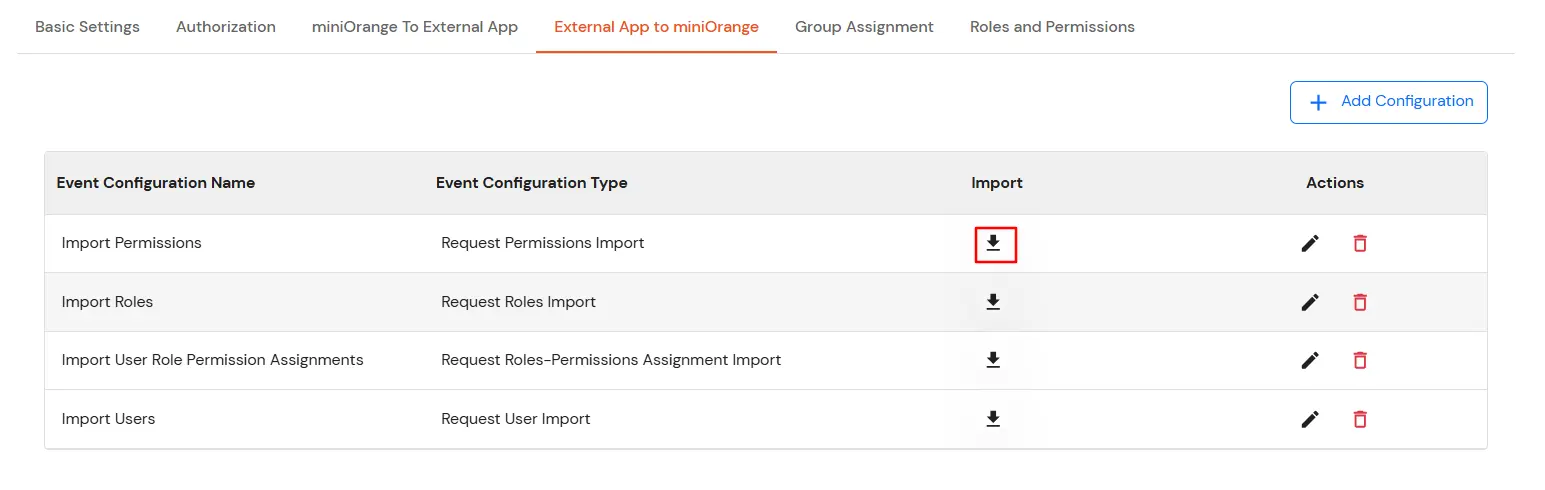
    • To Import Permissions, click on the import button (down arrow) corresponding to the Import Permissions event in the list on the External app to miniOrange tab.
    • Roles and Permissions APIs: Click Import Button

    1.3 Configure Import Roles & Permissions Assignments API

    This API will be used to import the roles and permissions assignments to determine which permissions exist under a particular role.
    • Go to the External app to miniOrange tab. Click on Add Configuration.
    • Add Configuration button under External App in miniOrange - import users

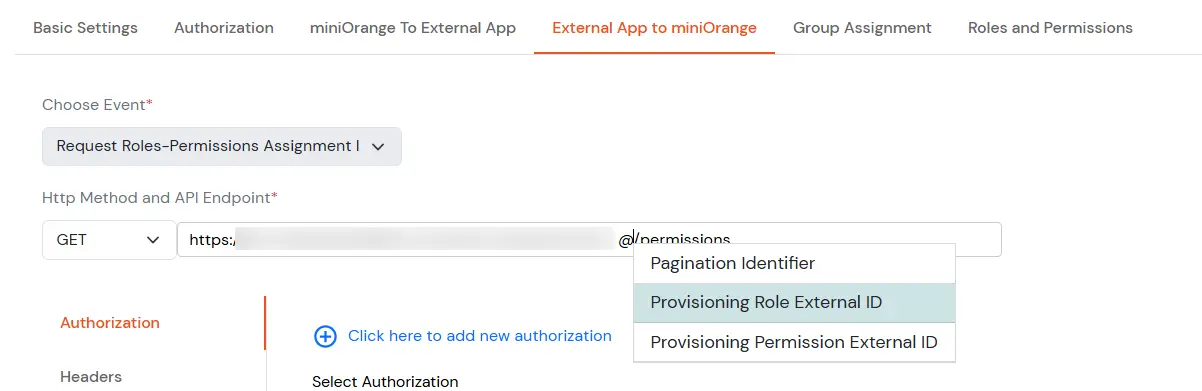
    • Provide an Event Configuration Name. Select Event Type as Import Roles and Permissions Assignment Request. Add the GET endpoint to import/fetch permissions of a role. You need to add the External Role ID in the endpoint (press Spacebar > @ > select External Role Id).
    • Roles and Permissions APIs: Select Event Type as Import Roles and Permissions Assignment Request

    • Select the Authorization that is configured in the Authorization tab.
    • Roles and Permissions APIs: Select Authorization

    • Provide headers required for the API.
    • Roles and Permissions APIs: Select Headers

    • Configure Pagination Settings:
      • Configure Next page key (if the API provides data in batches).
      • Configure Start Page Number (if the API supports pagination).
      Roles and Permissions APIs: Select Pagination Settings

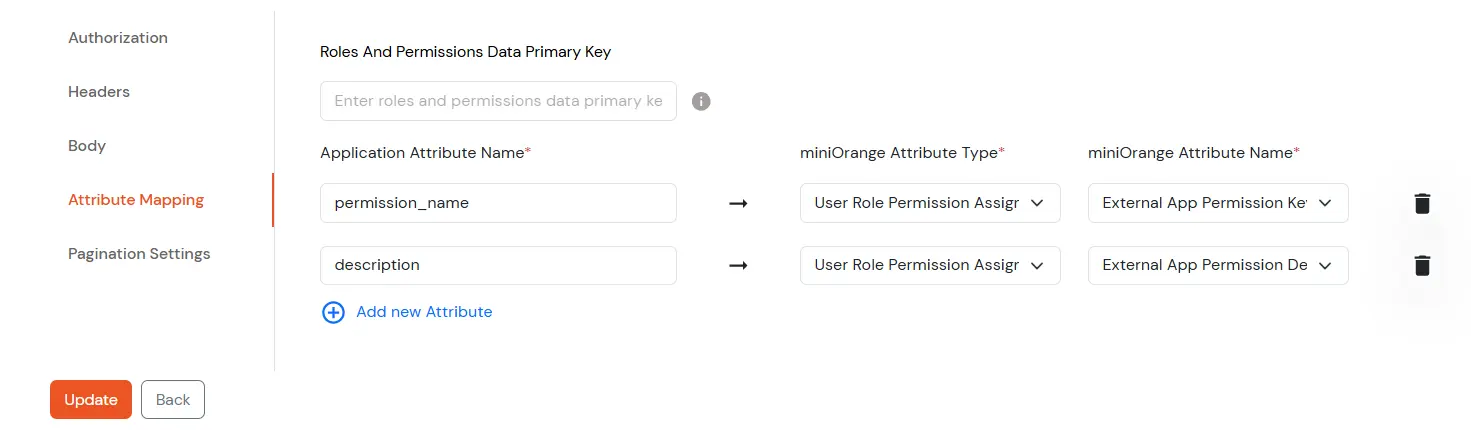
    • Configure Attribute Mapping to map individual permission attributes with miniOrange attributes.
      • Map the Permissions Data Primary Key with the permissions key (corresponding to which you get all the permissions) coming in the response of the API.
      • If permissions are received as a list of strings, use the attribute List of permission names.
      • If permissions are received as key-value pairs, use attributes Permission Name and Permissions Description.
      Roles and Permissions APIs: Select Attribute Type

    • Click on Save configuration.
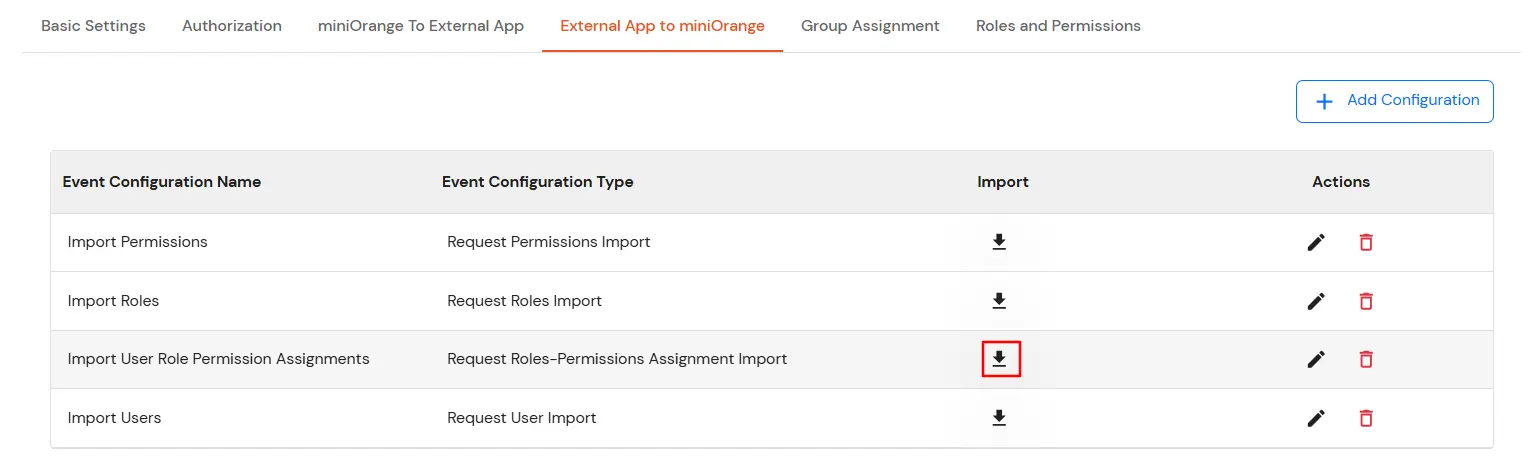
    • To Import Role and Permissions Assignments, click on the import button (down arrow) corresponding to the Import Role event in the list on the External app to miniOrange tab.
    • Roles and Permissions APIs: Import User Role permissions

2. Configure miniOrange to External App APIs

In the custom provisioning application, navigate to the miniOrange to External app tab.

    2.1 Configure Create Role API

    This API will be used when you create a role in the Roles and Permissions section.
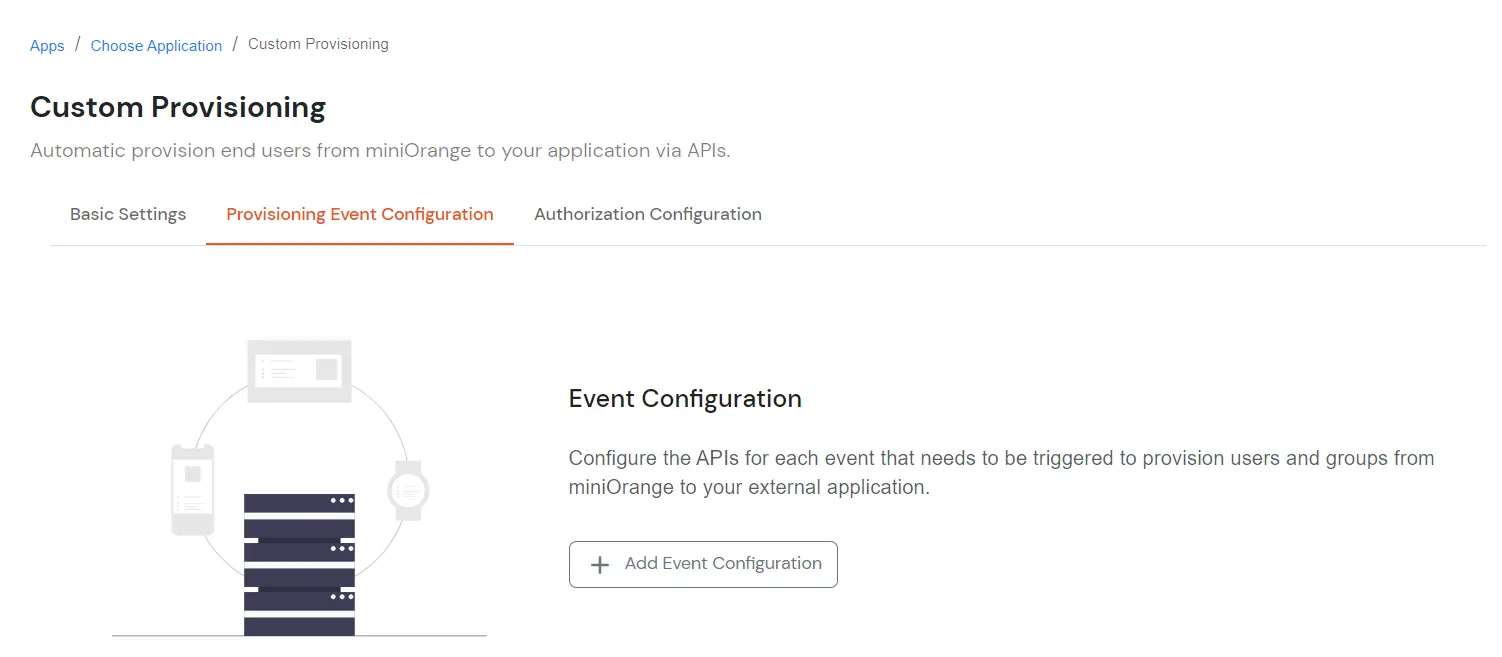
    • In the miniOrange to External app tab, click on Add Configuration.
    • Roles and Permissions APIs: - Select Provisioning event configuration

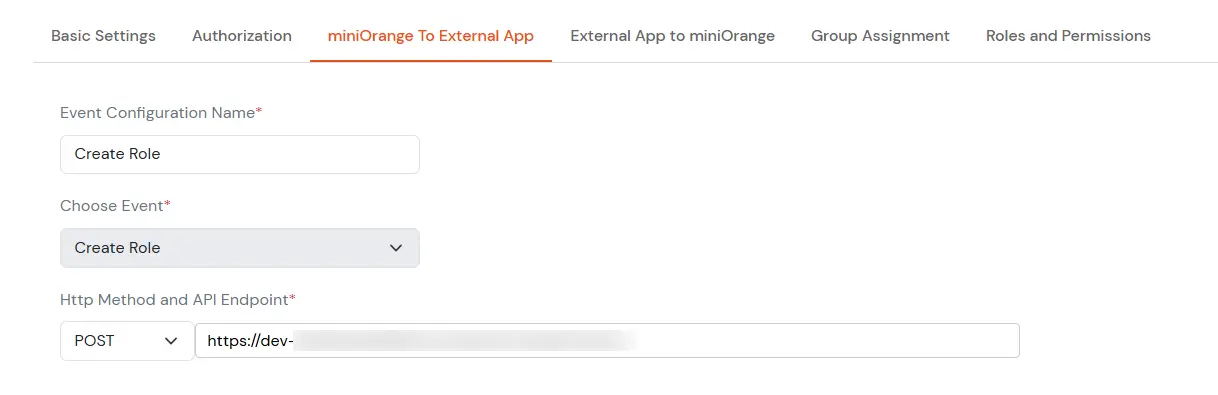
    • Provide an Event Configuration Name. Select Event Type as Create Role. Add the POST endpoint to create a role on the external application.
    • Roles and Permissions APIs: Create Role Endpoint

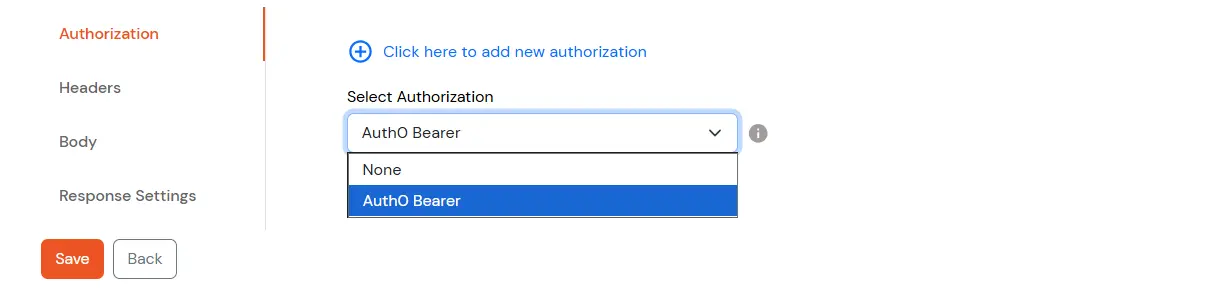
    • Select the Authorization configured in the Authorization tab.
    • Roles and Permissions APIs: Select Authorization AuthO bearer

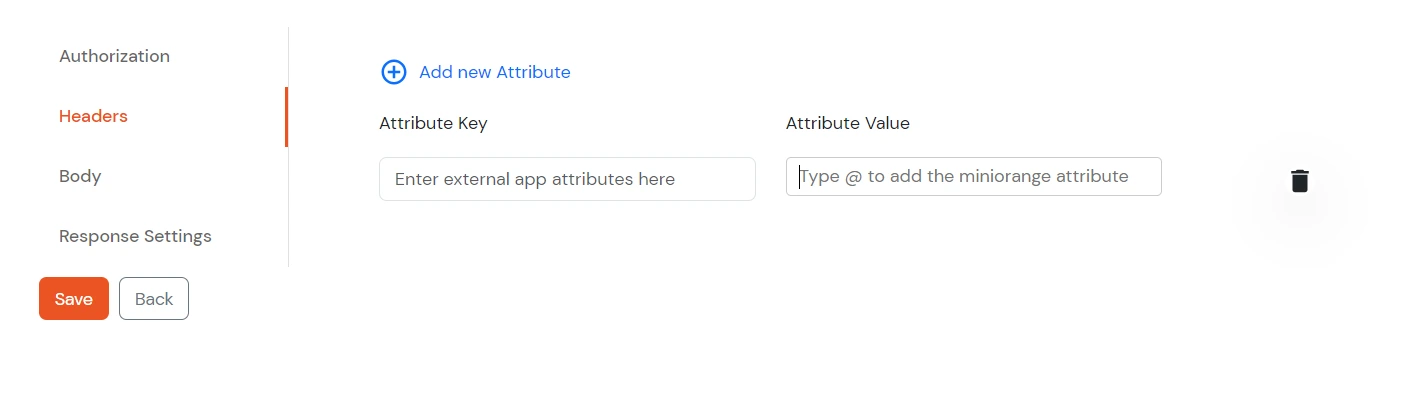
    • Provide headers required for the API.
    • Roles and Permissions APIs: - Add headers

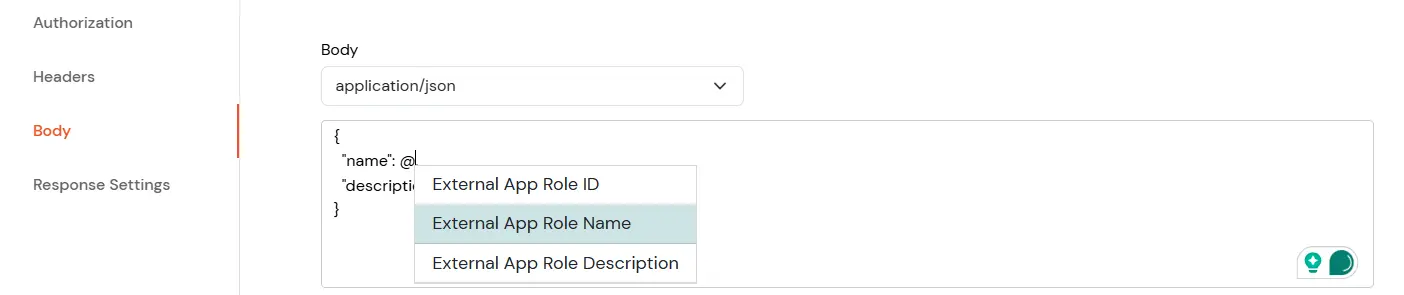
    • Configure Body to add the request body. Get the structure from the external app's documentation. Corresponding to the attributes of the body, add miniOrange attributes for the role by pressing Spacebar > @ > select relevant role attributes.
    • Roles and Permissions APIs: Configure Body

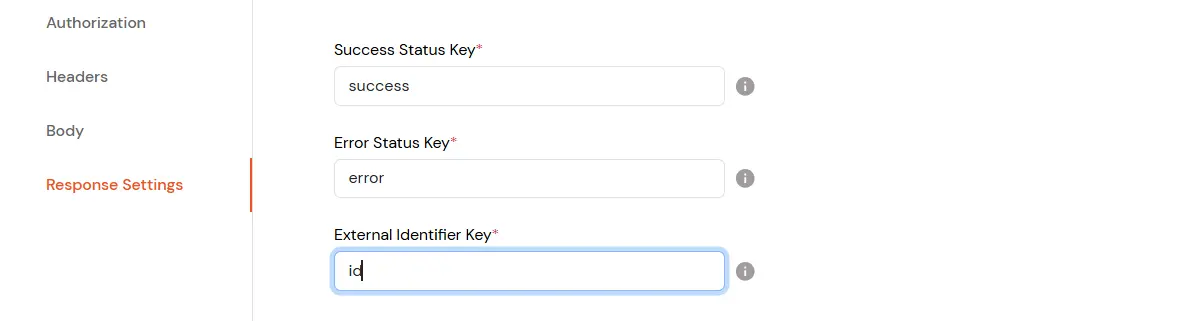
    • Configure Response Settings to map the Status key, Error key, and external identifier of the role received in the response. Keep the status key and error key as they are if they are not present in the response.
    • Roles and Permissions APIs: Response Settings

    • Click on Save Configuration.

    2.2 Configure Update Role API

    This API will be used when you update a role in the Roles and Permissions section.
    • Go to the miniOrange to External app tab and click on Add Configuration.
    • Roles and Permissions APIs: Select Provisioning event configuration

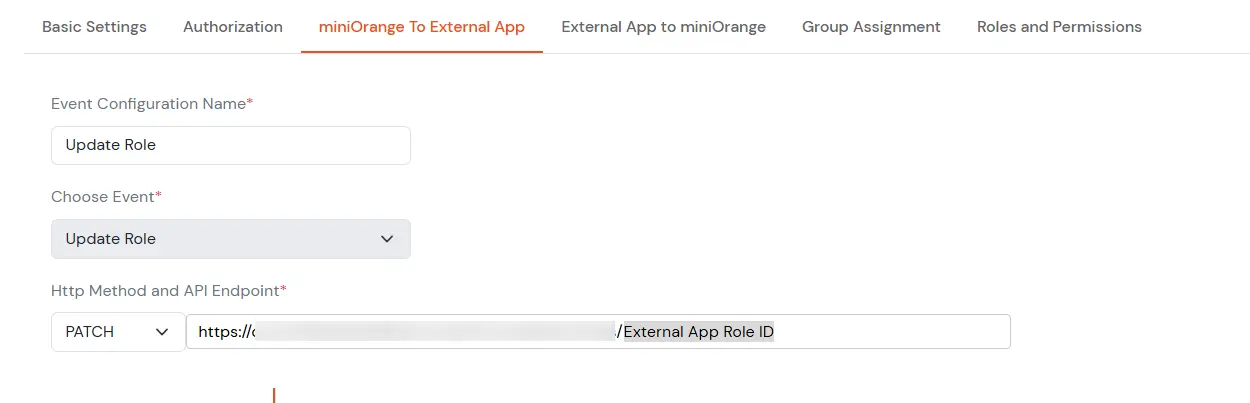
    • Provide an Event Configuration Name. Select Event Type as Update Role. Add the POST/PUT endpoint You need to add External Role Id/Name in the endpoint (press Spacebar > @ > select External Role Id/Name).
    • Roles and Permissions APIs: Update Role Endpoint

    • Select the Authorization configured in the Authorization tab.
    • Roles and Permissions APIs: Select Authorization AuthO bearer

    • Provide headers required for the API.
    • Roles and Permissions APIs: Add headers

    • Configure Body to add the request body. Corresponding to the attributes of the body, add miniOrange attributes for the role by pressing Spacebar > @ > select relevant role attributes.
    • Roles and Permissions APIs: Configure Body

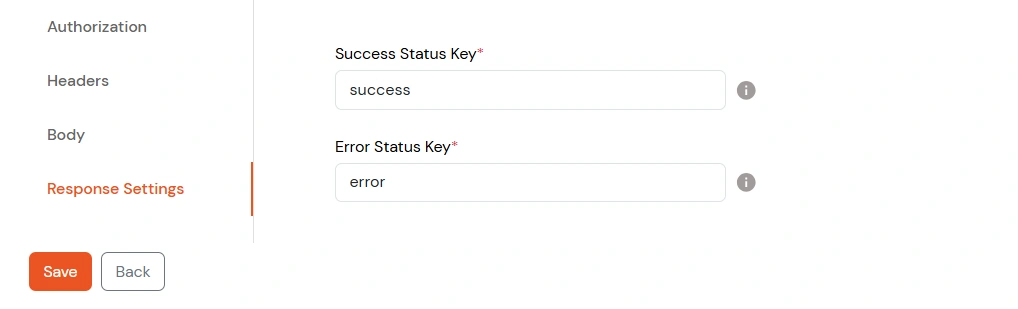
    • Configure Response Settings to map the Status key and Error key received in the response.
    • Roles and Permissions APIs: Error Status Key

    • Click on Save Configuration.

    2.3 Configure Delete Role API

    This API will be used when you delete a role in the Roles and Permissions section.
    • Go to the miniOrange to External app tab. Click on Add Configuration.
    • Roles and Permissions APIs: Select Provisioning event configuration

    • Provide an Event Configuration Name.
    • Select Event Type as Delete Role.
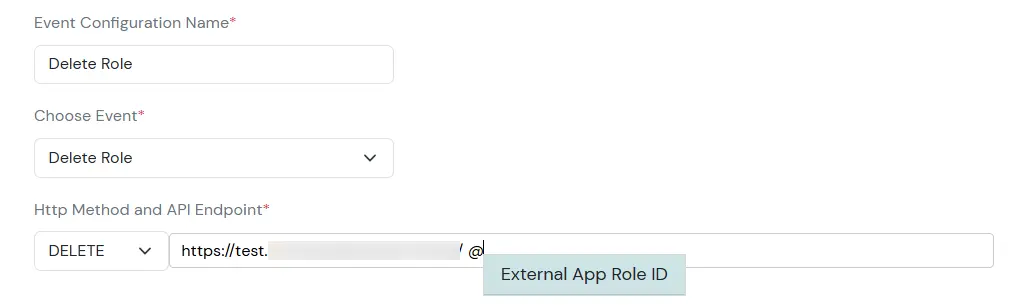
    • Add the POST/PUT/DELETE endpoint You need to add External Role Id/Name in the endpoint (press Spacebar > @ > select External Role Id/Name).
    • Roles and Permissions APIs: Delete Endpoint

    • Select the Authorization configured in the Authorization tab.
    • Roles and Permissions APIs: Select Authorization AuthO bearer

    • Provide headers required for the API.
    • Roles and Permissions APIs: Add headers

    • Configure Body to add the request body if required. Corresponding to the attributes of the body, add miniOrange attributes for the role by pressing Spacebar > @ > select relevant role attributes.
    • Configure Response Settings to map the Status key and Error key received in the response.
    • Roles and Permissions APIs: Error Status Key

    • Click on Save Configuration.

    2.4. Configure Assign Permissions to Role API

    This API will be used when you assign permissions to a role during role configuration in the Roles and Permissions section.
    • Go to the miniOrange to External app tab. Click on Add Configuration.
    • Roles and Permissions APIs: Select Provisioning event configuration

    • Provide an Event Configuration Name.
    • Select Event Type as Assign Permissions to Role..
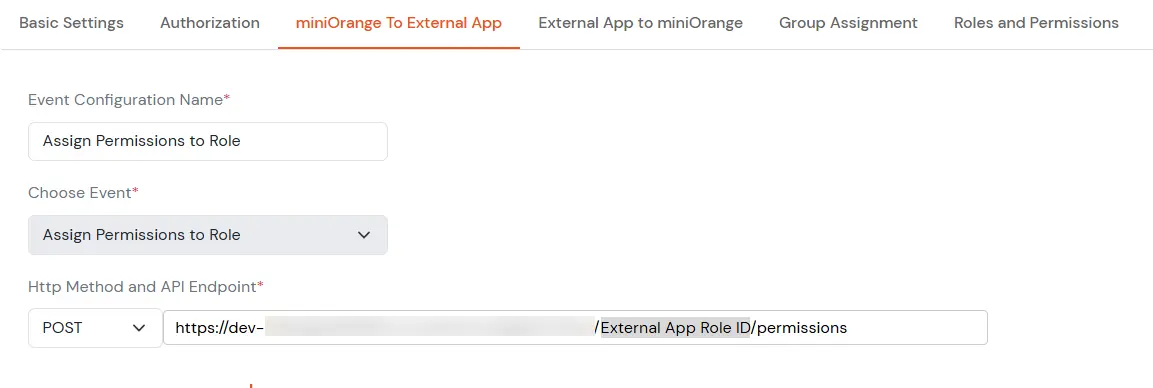
    • Add the POST/PUT endpoint. You need to add External Role Id/Name in the endpoint (press Spacebar > @ > select External Role Id/Name).
    • Roles and Permissions APIs: Assign Permissions Endpoint

    • Select the Authorization that is configured in the Authorization tab.
    • Roles and Permissions APIs: Select Authorization AuthO bearer

    • Provide headers required for the API.
    • Roles and Permissions APIs:  Add headers

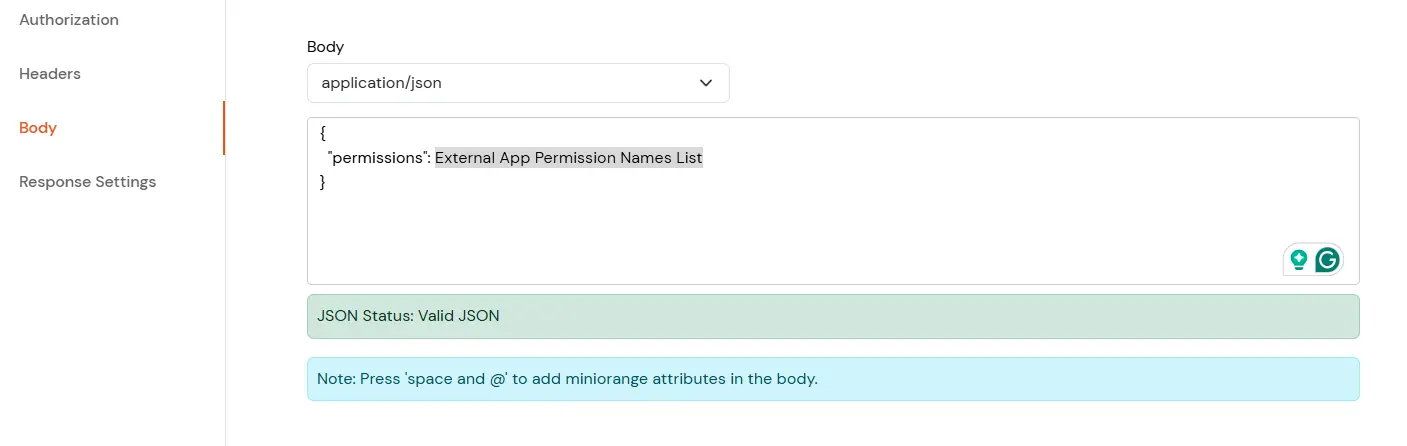
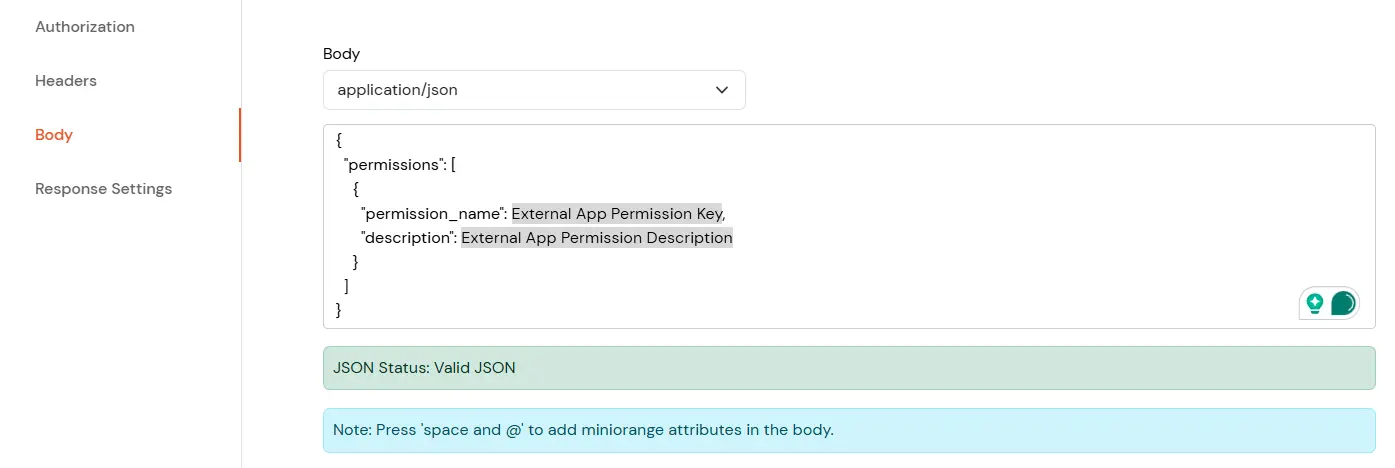
    • Configure Body to add the request body. Corresponding to the permission attributes of the body, add miniOrange attributes for permissions by pressing Spacebar > @ > select relevant permission attributes.
      • If permissions are to be sent as a list of strings, use the attribute List of permissions names.
      • Roles and Permissions APIs: Configure Request Body

      • If permissions are to be sent as key-value pairs, use attributes Permission Name and Permissions Description.
      • Roles and Permissions APIs: Use Attributes permissions

    • Configure Response Settings to map the Status key and Error key received in the response.
    • Roles and Permissions APIs: Error Status Key

    • Click on Save configuration.

    2.5 Configure Assign Roles to User API

    This API will be used when you assign a group to a role during role configuration in the Roles and Permissions section. Users in the assigned group will be assigned to the role in the external application. This API is also triggered when you assign a user to a group in the Groups >> Manage Groups.
    • Go to the miniOrange to External app tab. Click on Add Configuration.
    • Roles and Permissions APIs: Select Provisioning event configuration

    • Provide an Event Configuration Name.
    • Select Event Type as User Assign To Role.
    • Add the POST/PUT endpoint. You need to add the External User ID in the endpoint (press Spacebar > @ > select External User ID).
    • Roles and Permissions APIs: Assigns Roles Endpoint

      If the API demands a role ID in the endpoint itself, make the endpoint as follows.

      Roles and Permissions APIs: Roles ID

    • Select the Authorization that is configured in the Authorization tab.
    • Roles and Permissions APIs: Select Authorization AuthO bearer

    • Provide headers required for the API.
    • Roles and Permissions APIs: Add headers

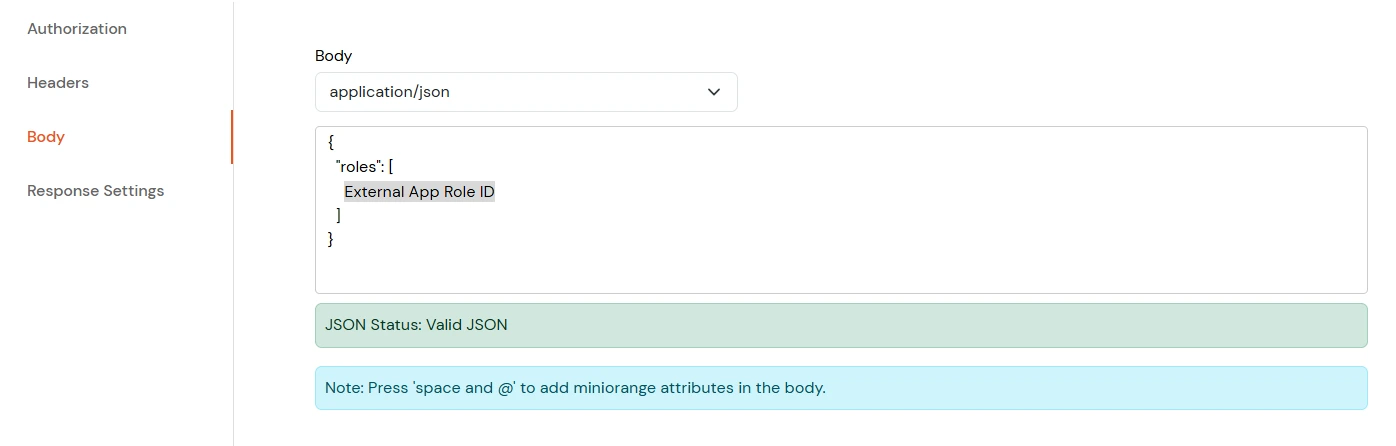
    • Configure Body to add the request body. Corresponding to the role attribute of the body, add miniOrange attributes for the role by pressing Spacebar > @ > select relevant role attribute.
    • Roles and Permissions APIs: Add Request Body

    • Configure Response Settings to map the Status key and Error key received in the response.
    • Roles and Permissions APIs: Error Status Key

    • Click on Save configuration.

    2.6 Configure Unassign Roles from User API

    This API will be used when you unassign a group from a role during the update role in the Roles and Permissions section. Users in that group will be unassigned from the role in the external application. This API is also triggered when you unassign a user from a group in the Groups >> Manage Groups.
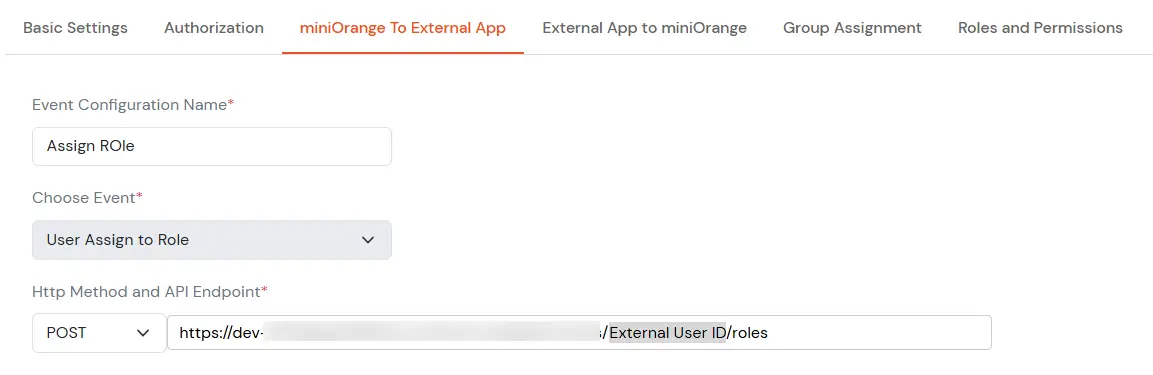
    • Go to the miniOrange to External app tab. Click on Add Configuration.
    • Roles and Permissions APIs: Select Provisioning event configuration

    • Provide an Event Configuration Name.
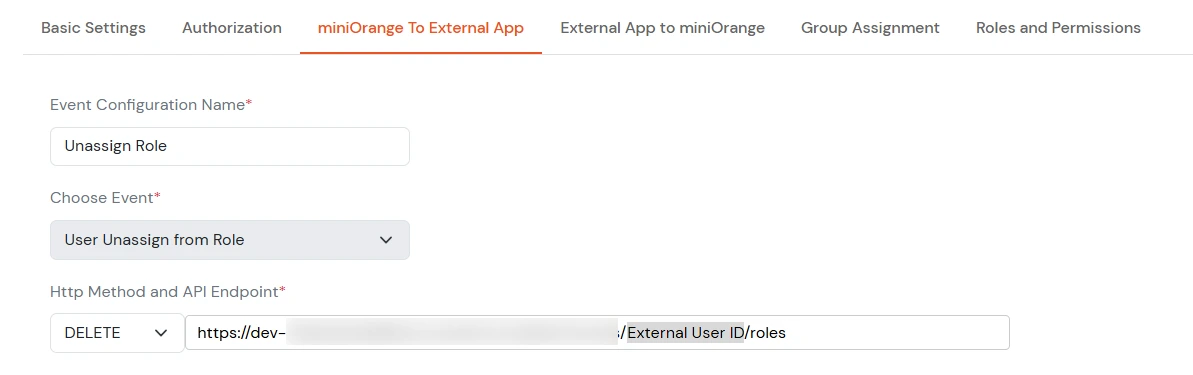
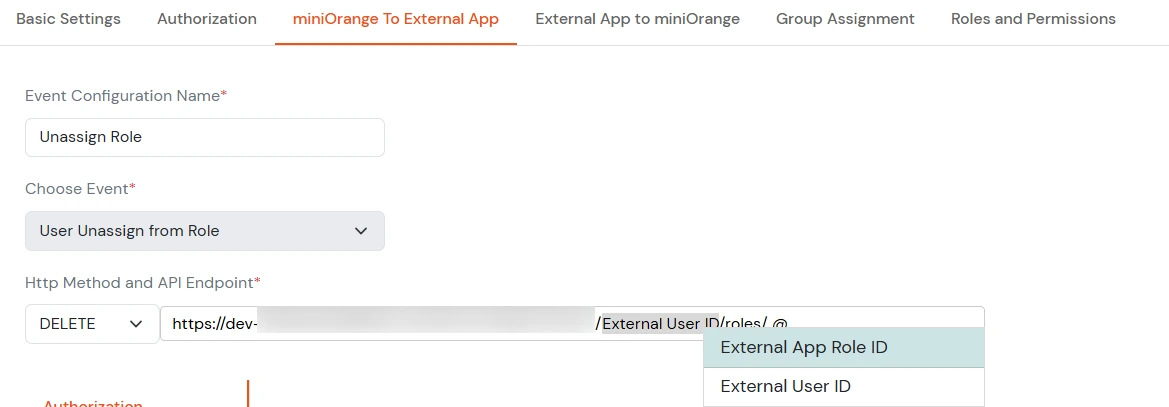
    • Select Event Type as User Unassign from Role.
    • Add the POST/PUT/DELETE endpoint. You need to add the External User ID in the endpoint (press Spacebar > @ > select External User ID). If the endpoint requires a role ID as well, add it the same way.
    • Roles and Permissions APIs: User Unassign Role

      If the API demands a role ID in the endpoint itself, make the endpoint as follows.
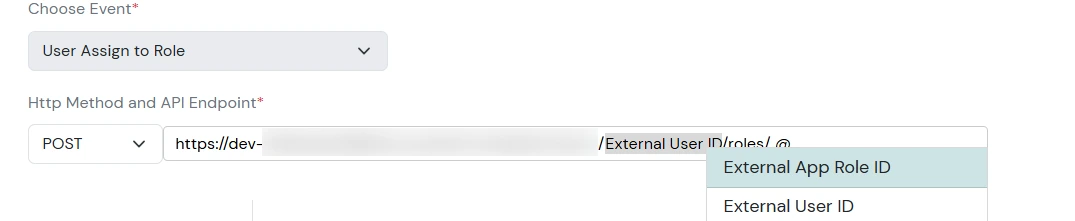
      Roles and Permissions APIs: Unassign Role ID

    • Select the Authorization that is configured in the Authorization tab.
    • Roles and Permissions APIs: Select Authorization AuthO bearer

    • Provide headers required for the API.
    • Roles and Permissions APIs: Add headers

    • Configure Body to add the request body if required. Corresponding to the role attribute of the body, add miniOrange attributes for the role by pressing Spacebar > @ > select relevant role attribute.
    • Roles and Permissions APIs: Add Request Body

    • Configure Response Settings to map the Status key and Error key received in the response.
    • Roles and Permissions APIs: Error Status Key

    • Click on Save Configuration.

Want To Schedule A Demo?

Request a Demo


Our Other Identity & Access Management Products