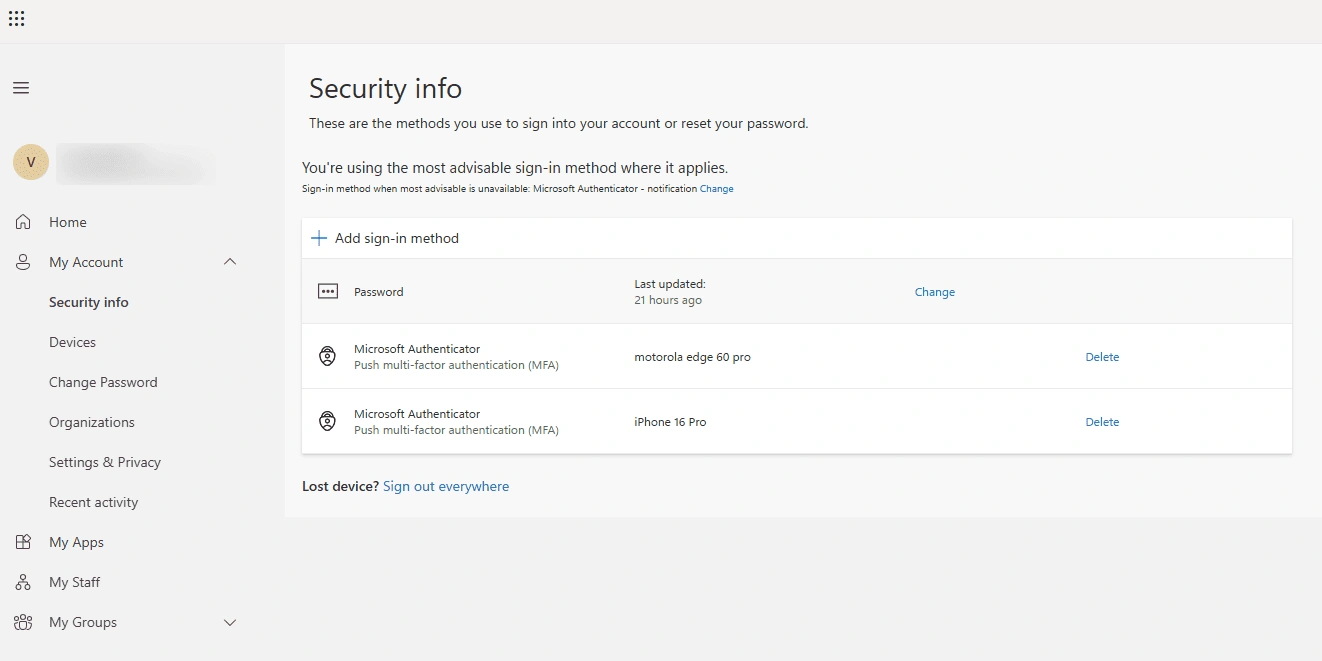
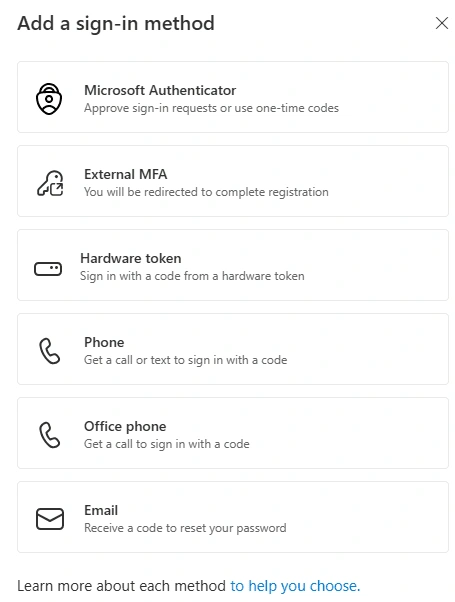
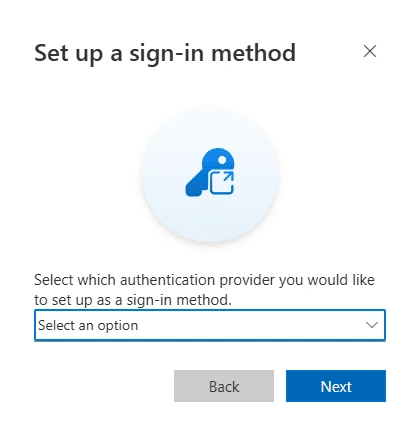
Configure miniOrange as an External MFA Provider for Microsoft Entra ID (Azure AD)
External Multi-Factor Authentication (External MFA), previously introduced by Microsoft as “External Authentication Methods” (EAM), lets you delegate only the second authentication factor to a third-party provider over OpenID Connect -without making that provider your Single Sign-On (SSO) / primary identity provider. Microsoft Entra ID (Azure AD) continues to perform primary sign-in and evaluate Conditional Access; miniOrange is invoked only to complete the MFA challenge and hands control back to Entra ID with a signed OIDC id_token.
This is different from setting up miniOrange as an External Identity Provider for Entra ID SSO. There, miniOrange (or a directory behind it) authenticates the user for sign-in. Here, Entra ID still owns the primary credential and Conditional Access decision -miniOrange is used purely as the second factor.
This guide sets up the integration end to end:
- Create the OAuth / OpenID Connect application in miniOrange and enable its MFA policy.
- Capture the Client ID, MFA discovery endpoint and MFA authorization endpoint that miniOrange generates.
- Register an application and add the External MFA method in Microsoft Entra ID.
- Enable and target the method, and enforce it with a Conditional Access policy.
- Walk through end-user enrolment and verify the sign-in flow.
Prerequisites
- An administrator account on the miniOrange (Xecurify) Admin Console with permission to create and manage applications.
- A group in miniOrange that the new application can be assigned to.
- At least one test user with an MFA method already configured and activated in miniOrange (for example, miniOrange Authenticator push, TOTP, or OTP over Email).
- An Entra ID administrator account with sufficient privileges -Authentication Policy Administrator (or Global Administrator) to add the external method, Application Administrator to register the app, and Conditional Access Administrator to create the enforcement policy.
- Permission to grant tenant-wide admin consent for the integration application -this is requested while configuring the External MFA method in step 6.
- A Microsoft Entra ID P1 licence or higher -required for Conditional Access and External MFA.
- Users exist in both miniOrange and Microsoft Entra ID with the exact same email address. This is the identifier used to correlate the two accounts.
- The miniOrange callback URL is reachable from the internet, for example
https://<companyName>.xecurify.com/moas for miniOrange Cloud, or https://<your-on-prem-domain>/moas for an on-premise deployment. Entra ID must be able to reach this endpoint during sign-in.
Note: If Security Defaults are enabled in the tenant, disable them before rollout -they add Microsoft’s own methods to the sign-in page and can prevent the external method from being offered to users.
Follow the steps below to configure miniOrange as an External MFA Provider for Microsoft Entra ID (Azure AD)
1. Configure an OAuth / OpenID Connect Application in miniOrange
- Log in to the miniOrange Admin Console.
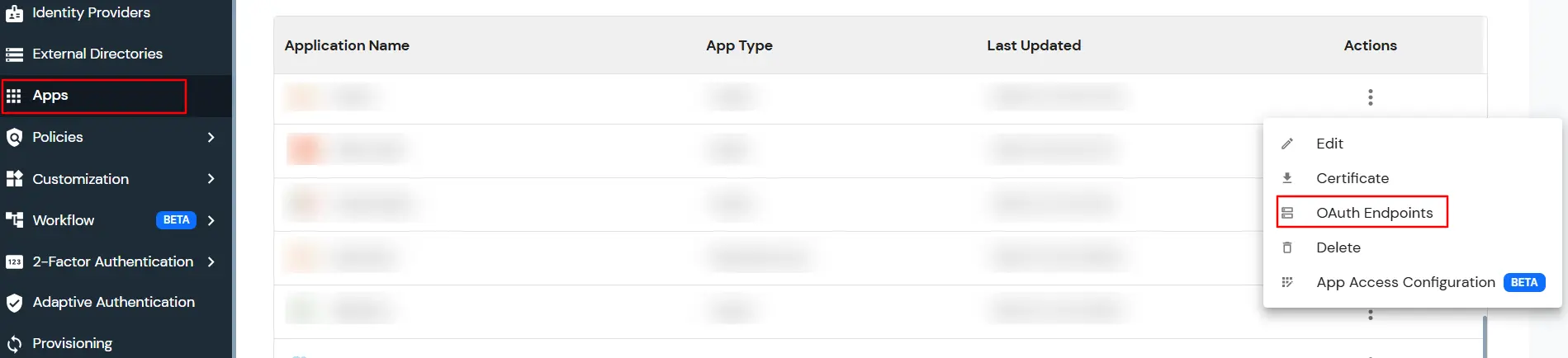
- Go to Apps and click on Add Application.
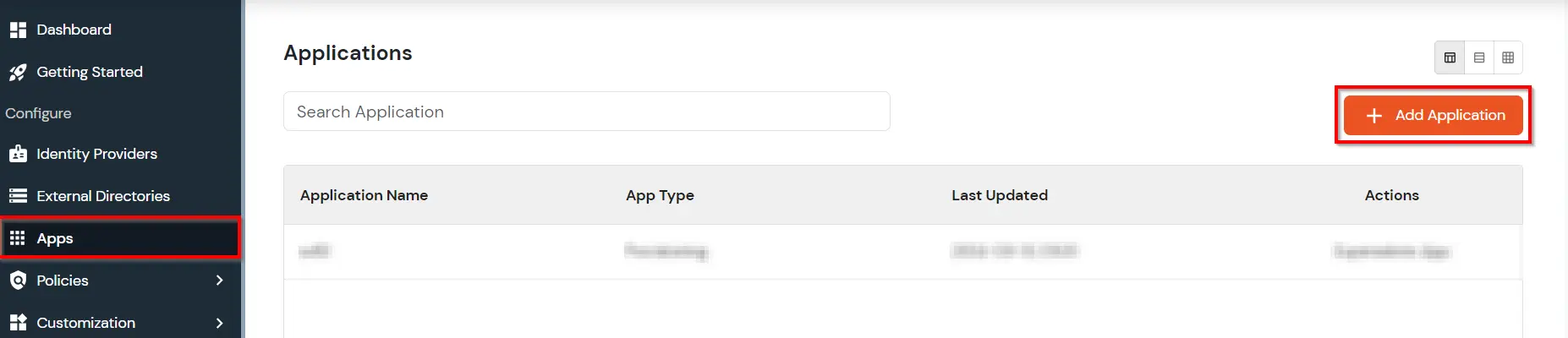
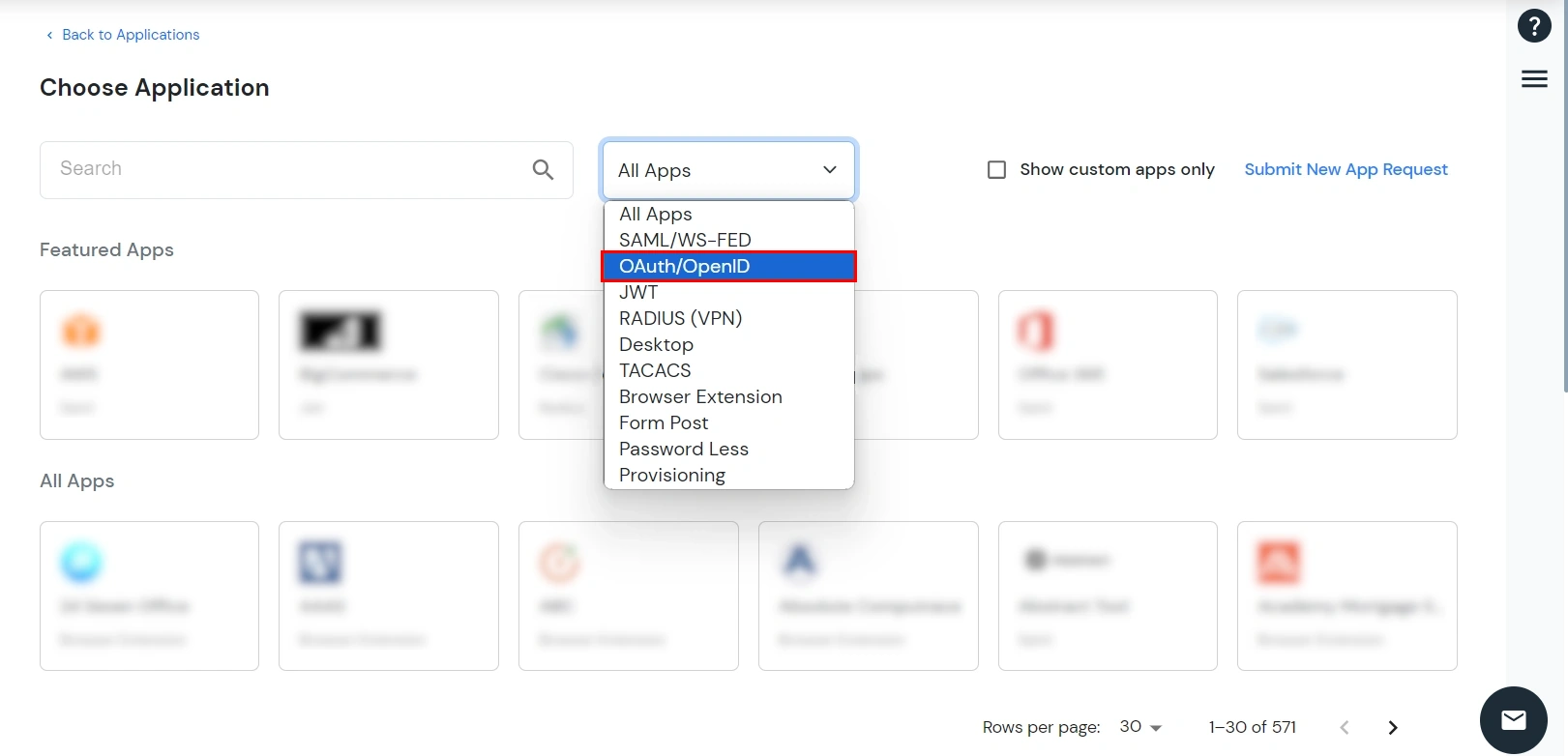
- Select OAuth 2 / OpenID Connect as the application type from the All Apps dropdown.
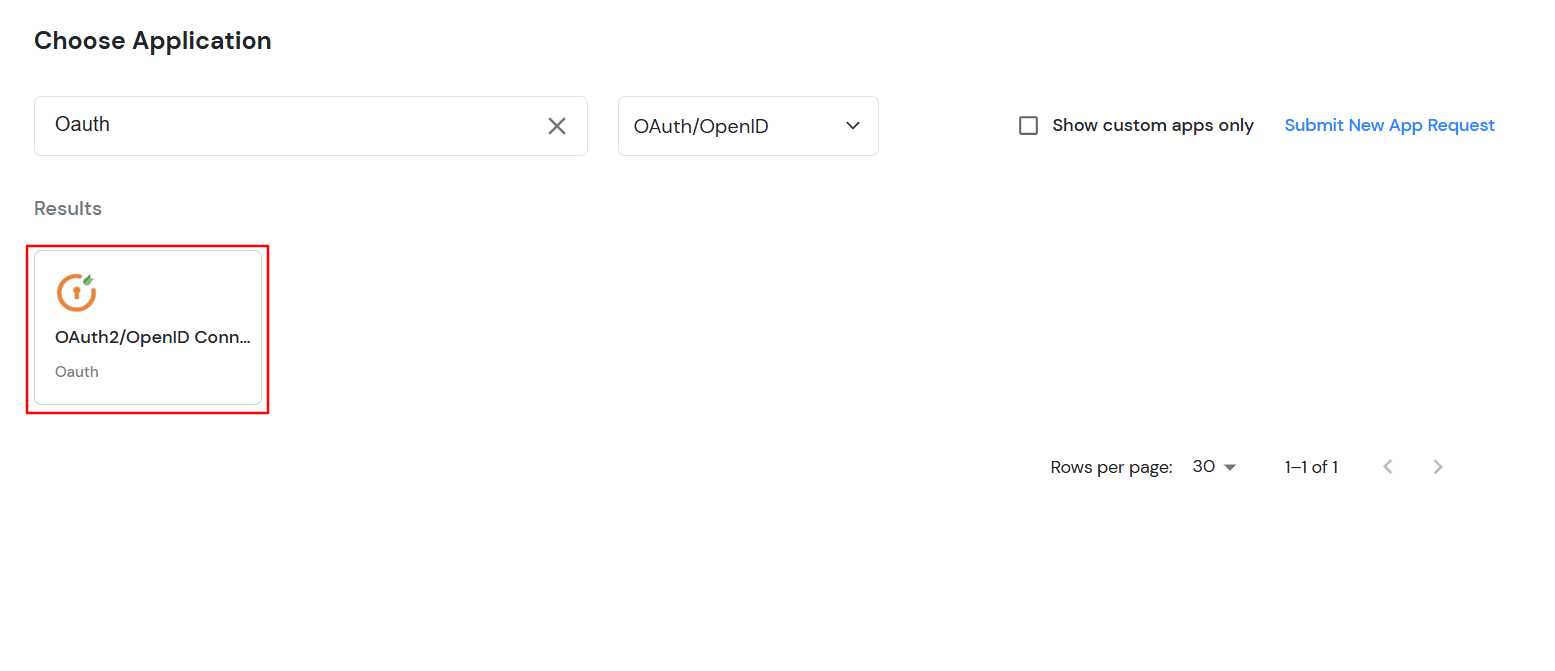
- Search for OAuth2/OpenID Connect and set up the application.
- Enter a Display Name for the application, for example Entra_External_MFA.
- In Redirect URL, enter the fixed Microsoft external authentication provider callback:
https://login.microsoftonline.com/common/federation/externalauthprovider
- Keep Subject set to E-Mail Address so the assertion miniOrange issues is matched against the same email as the Entra ID user.
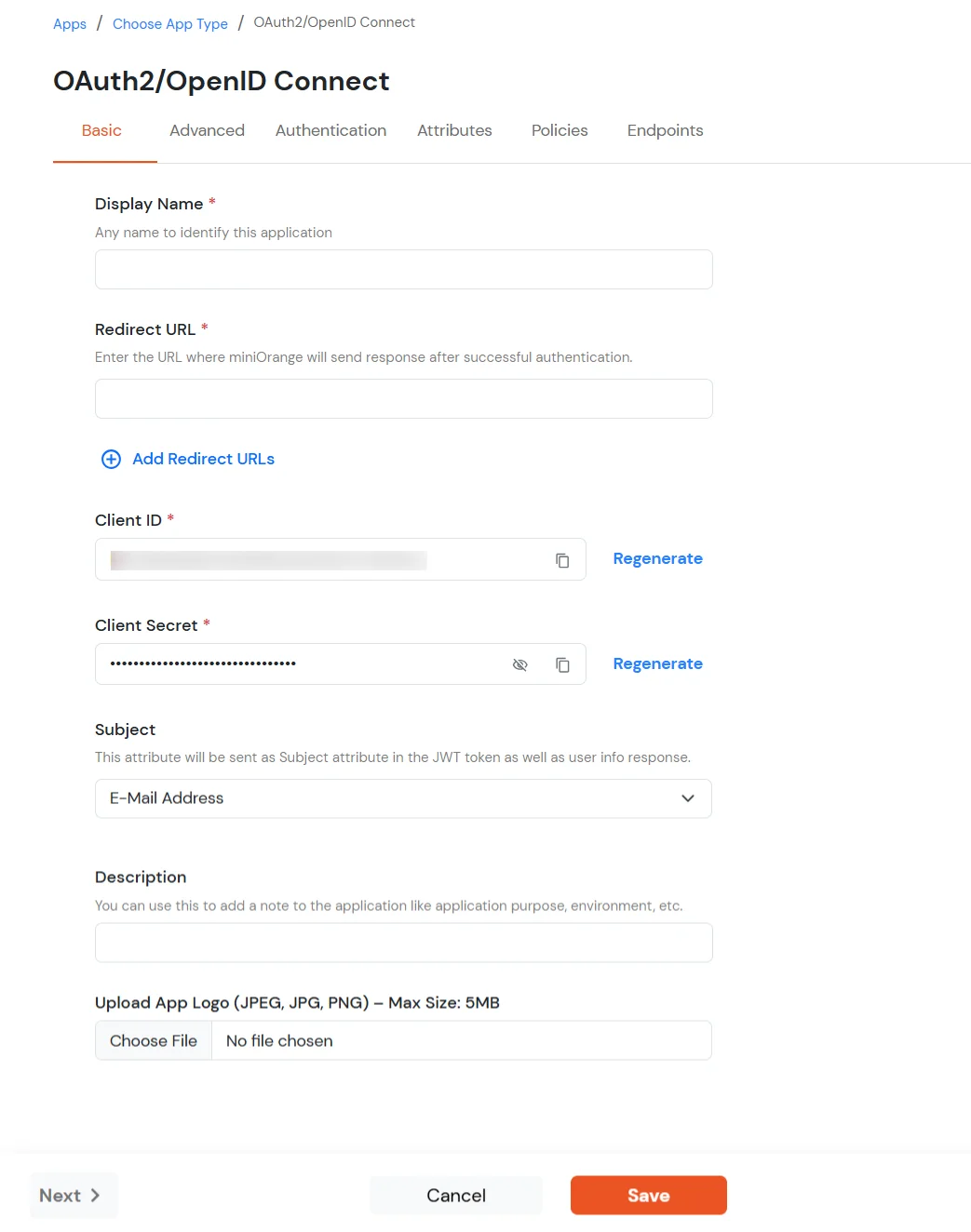
- Click Save. miniOrange generates the Client ID and Client Secret for the application.
Note: Copy the Client ID now - you will paste it into the Entra ID External MFA configuration in step 6.
2. Assign a Group and Enable the MFA Policy
- Open the application and go to the Policies tab.
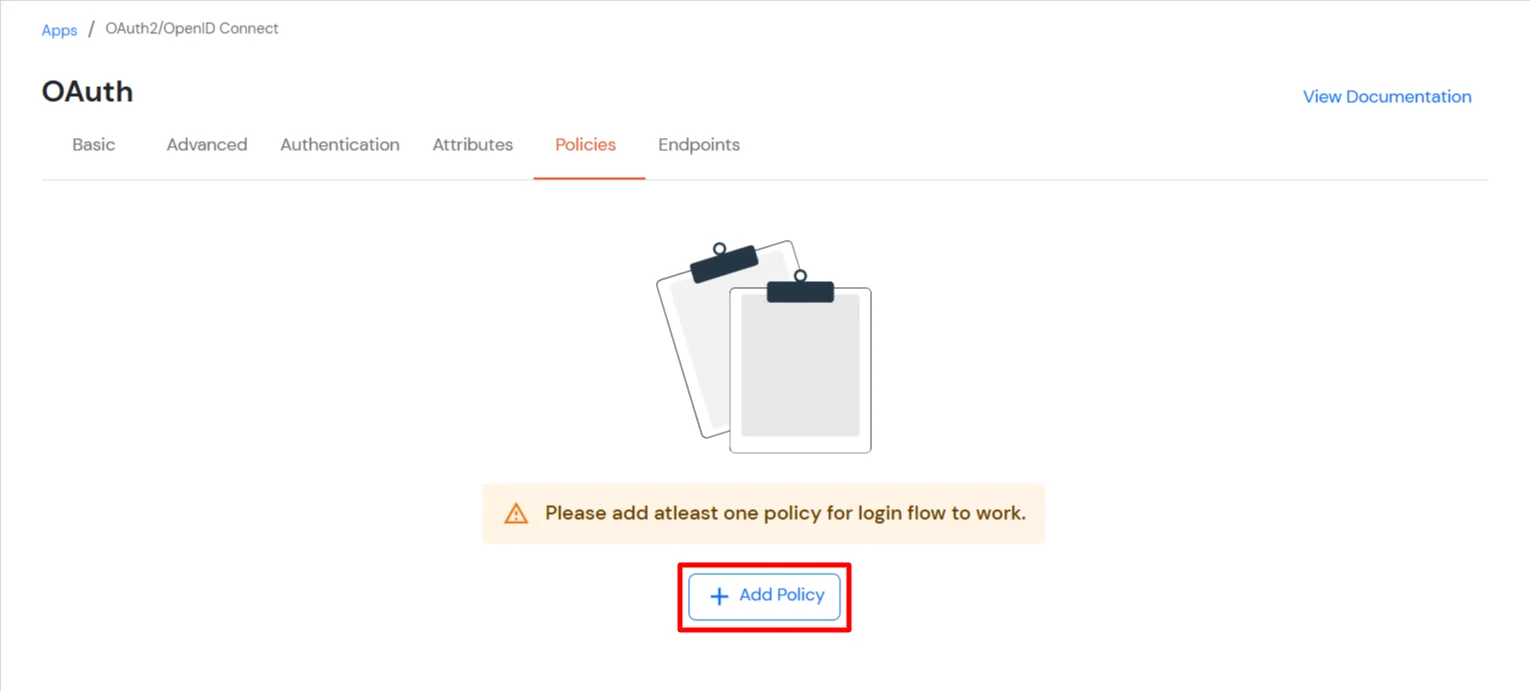
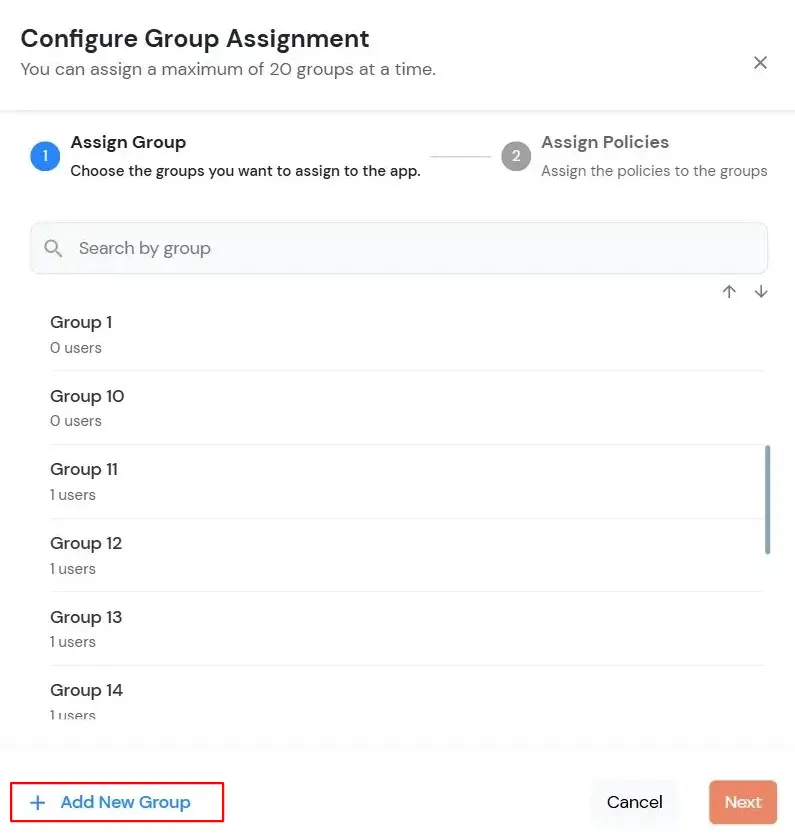
- Click Assign Group, select the group whose users are allowed to use this application, and click Next.
- In the Assign Policies step, set First Factor to Password-less and select Enable 2-Factor Authentication (MFA). Click Save.
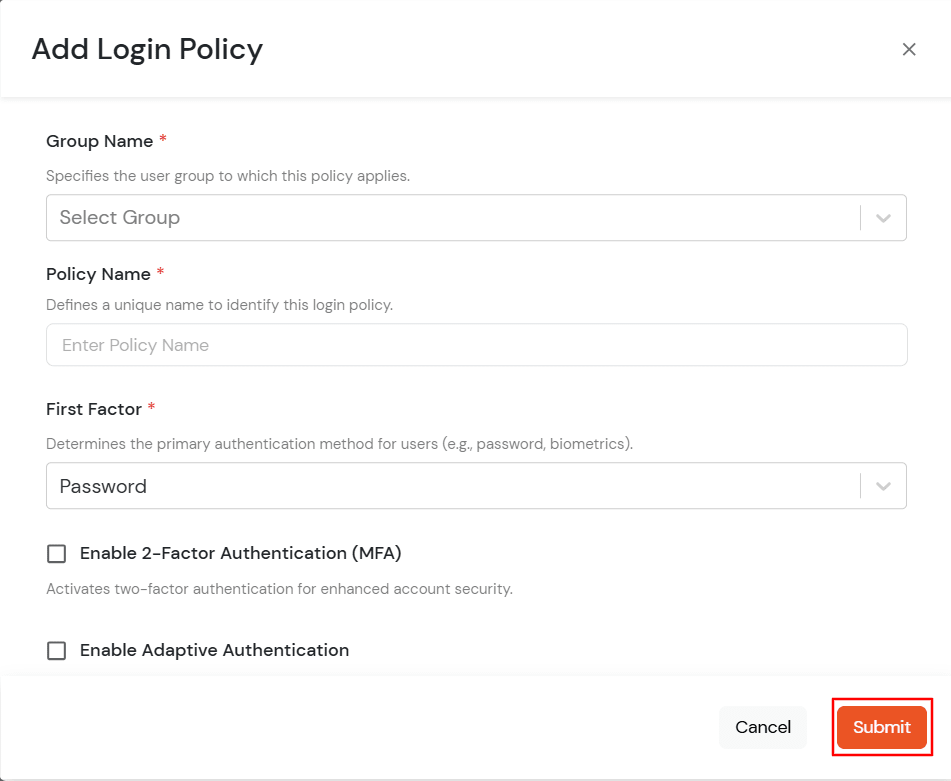
Why Password-less: Entra ID has already validated the user’s primary credential before redirecting to miniOrange. Setting First Factor to Password-less stops miniOrange from prompting for a password a second time, so the user goes straight to the MFA challenge.
3. Get the MFA Endpoints from miniOrange
- On the application’s Basic tab, copy the Client ID if you haven’t already.
- Open the Endpoints tab and select MFA OpenID Endpoints from the left panel.
- Copy the MFA OpenID Connect Metadata (Discovery) URL and the MFA Authorization Endpoint URL.
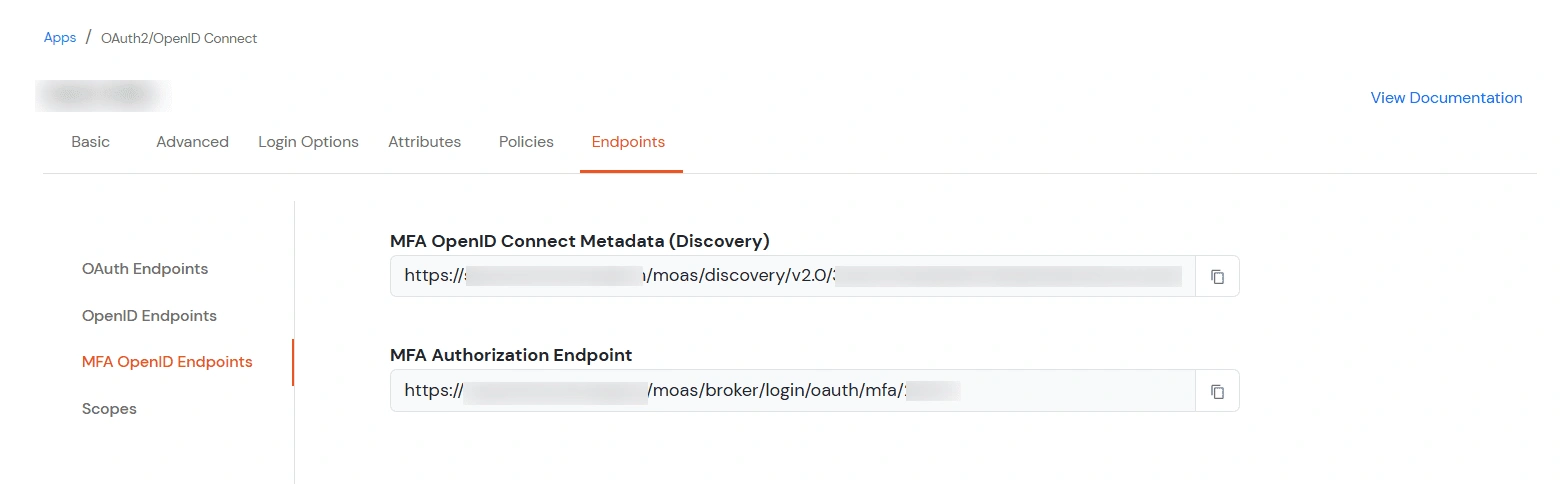
Note: Use the MFA-specific endpoints shown here, not the general OAuth or OpenID Connect endpoints on the other tabs. Entra ID’s External MFA configuration expects this MFA discovery document -it is the only one that will drive the flow correctly.
4. Register an Application in Microsoft Entra ID
- Sign in to the Microsoft Entra admin center (entra.microsoft.com) or the Azure portal.
- Go to Identity › Applications › App registrations › New registration.
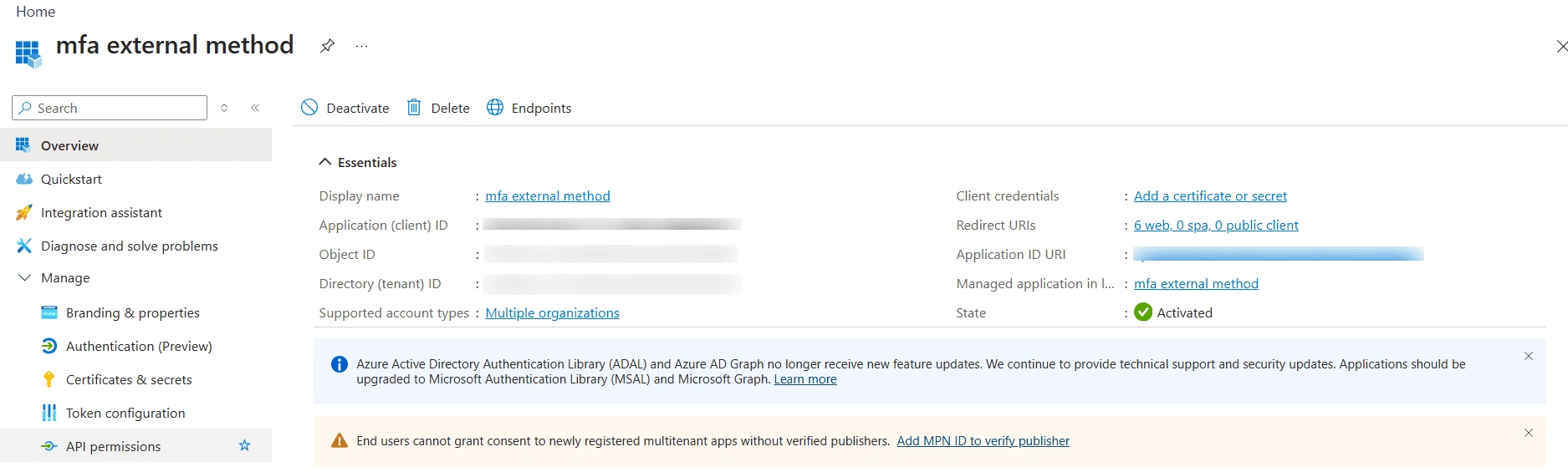
- Give the registration a clear name, for example mfa external method, set Supported account types to Accounts in any organizational directory (multitenant) unless your deployment guidance says otherwise, and click Register.
- Copy the Application (client) ID from the Overview blade - this is the App ID used in step 6.
- If your tenant requires user assignment for enterprise applications, assign the required users or groups to the corresponding enterprise application -otherwise those users may be blocked even after the method is enabled.
5. Add miniOrange as a Redirect URI
- In the app registration, open Manage › Authentication.
- Click Add a platform › Web.
- Paste the MFA Authorization Endpoint URL copied from miniOrange in step 3, then Save.
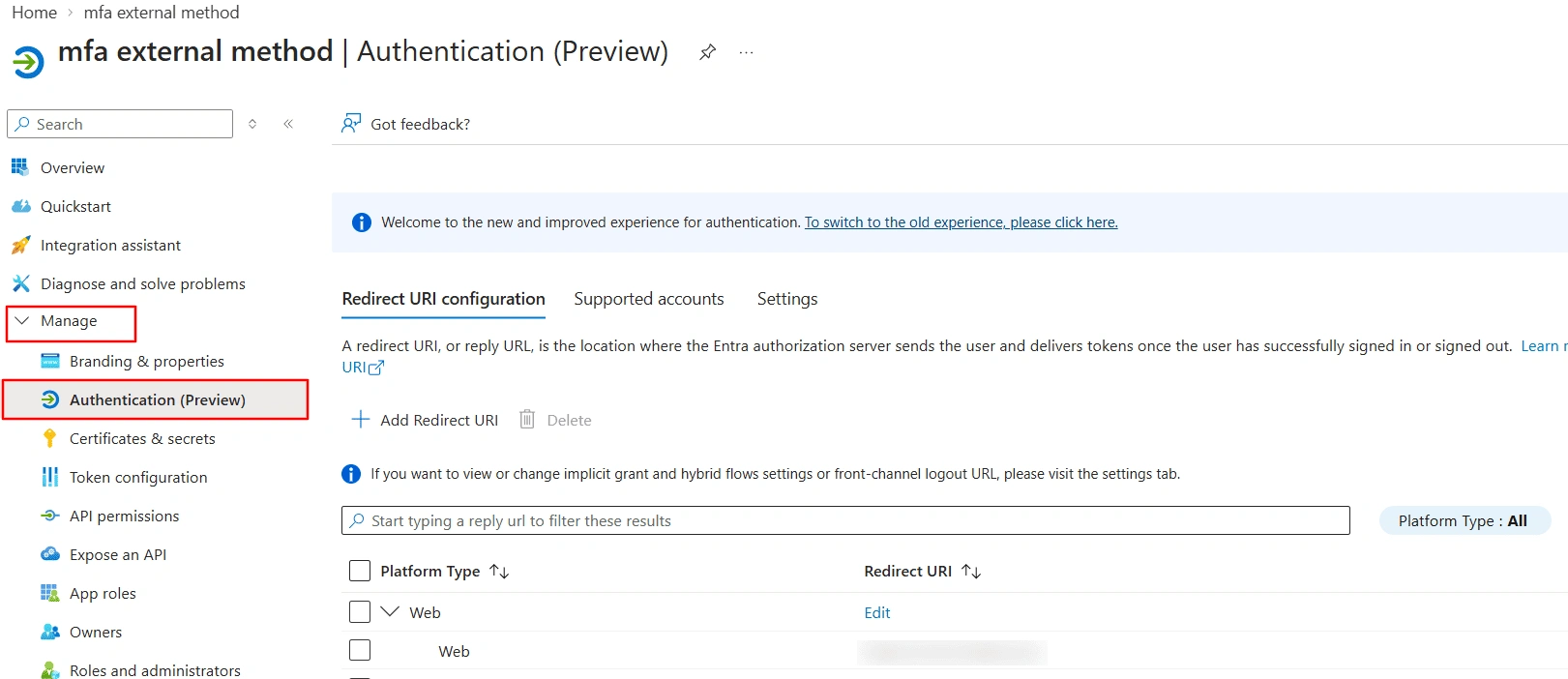
Tip: The redirect URI must match the miniOrange authorization URL exactly -scheme, host, path and any trailing identifier. A single character difference produces a redirect_uri mismatch error at sign-in.
6. Add miniOrange as an External MFA Method
- In the Entra admin center, go to Protection › Authentication methods › Policies (or Microsoft Entra ID › Security › Authentication methods › Policies).
- Click + Add external MFA and enter a unique Name for the method -this is the label end users will see when choosing their second factor.
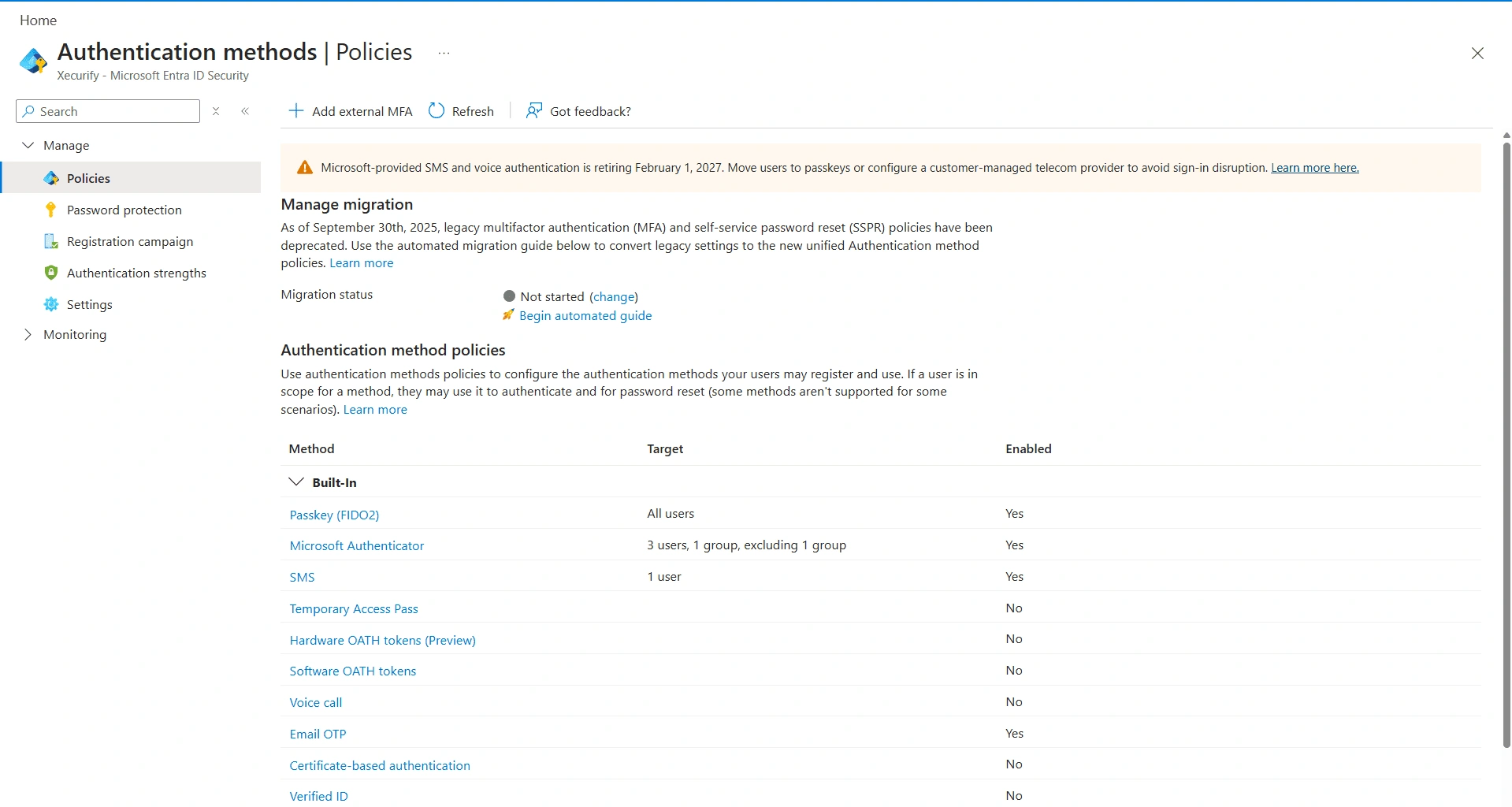
- Warning: The method name cannot be changed after it is created and must be unique across all external methods in the tenant. Agree the name before saving -for example “miniOrange MFA” rather than a test value.
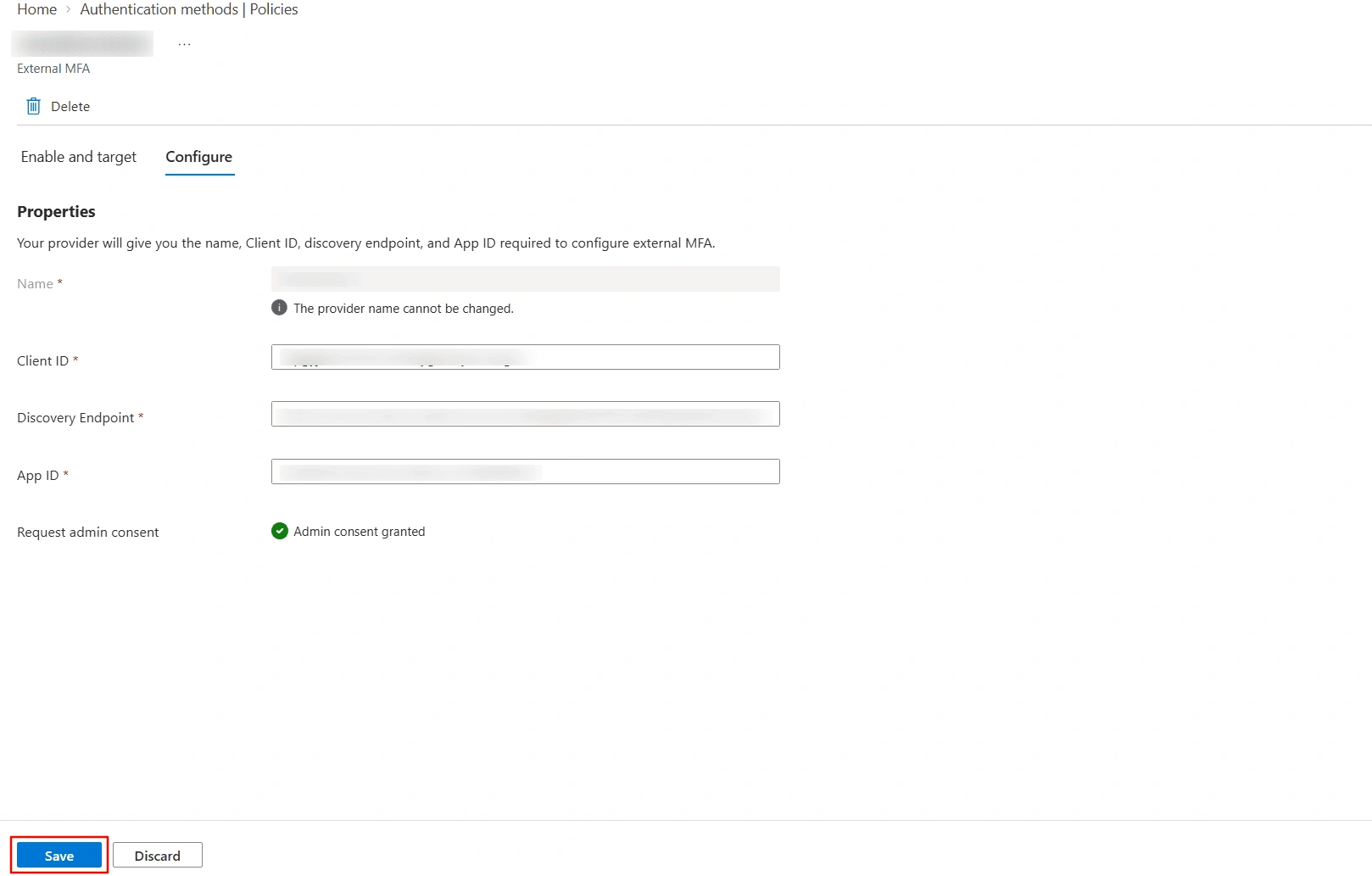
- On the Configure tab of the new method, enter the three values collected earlier:
| Field |
Value to Paste |
Source |
| Client ID |
miniOrange application Client ID |
Step 1 / 3 |
| Discovery Endpoint |
miniOrange MFA OIDC discovery URL |
Step 3 |
| App ID |
Application (client) ID of the Entra app registration |
Step 4 |
- Click Request admin consent and accept the consent prompt on behalf of the organisation -the field should then show Admin consent granted. Click Save.
7. Enable and Target the Method
- Open the method and go to the Enable and target tab.
- Set Enable to On.
- Under Include, add a pilot group first rather than All users -widen the rollout only after successful testing.
- Optionally add an Exclude group for break-glass accounts, then click Save.
Important: Break-glass and emergency-access accounts should always be excluded from the external method and from the Conditional Access policy that requires it. If miniOrange ever becomes unreachable, these accounts remain your way back into the tenant.
8. Require MFA through Conditional Access
The external method is only offered to a user when a policy actively requires MFA. Go to Protection › Conditional Access › Policies › New policy.
- Under Users, include the pilot group and exclude break-glass accounts.
- Under Target resources, select the applications in scope (or All cloud apps).
- Under Grant, select Require multifactor authentication.
- Create the policy in Report-only mode first, review the sign-in logs, then switch it to On.
Note: External MFA methods are not currently supported with Conditional Access authentication strengths. Use the Require multifactor authentication grant -an authentication-strength requirement will prevent the miniOrange method from being offered.
9. End-User Enrolment
10. Test the Configuration
- Open the miniOrange discovery URL directly in a browser -it should return a JSON metadata document containing issuer, authorization_endpoint, jwks_uri and id_token_signing_alg_values_supported.
- Sign in to an application in scope of the Conditional Access policy -primary authentication should complete, then the MFA method list is shown.
- Select the miniOrange method -the browser should redirect to miniOrange without a second password prompt.
- Complete the second factor in miniOrange -the browser returns to Microsoft and sign-in completes.
- Check Entra ID › Monitoring › Sign-in logs for the test sign-in -the Authentication details tab should show the external method as the second factor, with a success result.
- Check the miniOrange dashboard reports for a matching MFA transaction for the correct user and application.
- Attempt sign-in with a user who is in scope of the Conditional Access policy but has not enrolled the method -the user should be prompted to register a method, confirming that enrolment communication is needed before a wider rollout.
Troubleshooting
| Issue |
What to check |
| The miniOrange method is not offered at sign-in. |
Confirm the method is enabled and targeted to the user’s group (step 7), and that a Conditional Access policy with the Require multifactor authentication grant applies to the user and resource (step 8). |
| The method is offered but sign-in fails immediately. |
Re-open the method and confirm Admin consent is granted. Verify the App ID matches the Application (client) ID of the app registration exactly (step 6). |
| Error saving the method / invalid discovery URL. |
Use the exact MFA discovery URL from the miniOrange Endpoints tab, with no additions -it must be HTTPS and end with /.well-known/openid-configuration (step 3). |
| redirect_uri mismatch or reply-URL error after redirect. |
Add or correct the Web redirect URI in the app registration so it matches the miniOrange MFA authorization URL character-for-character (step 5). |
| User is asked for a password again on the miniOrange page. |
Set First Factor to Password-less on the application policy and save (step 2). |
| User not found, or the wrong user is challenged. |
Confirm the email addresses match exactly between miniOrange and Entra ID, and that the application’s Subject attribute is set to E-Mail Address (step 1). |
| User reaches miniOrange but has no MFA method to use. |
Enrol the user in at least one miniOrange MFA method, or enable self-service registration. |
| Microsoft’s own methods still appear alongside the external method. |
Disable Security Defaults in the tenant and restrict the built-in authentication methods you do not want offered. |
| Token signature or validation failure in the sign-in logs. |
Confirm the miniOrange jwks_uri is publicly reachable over HTTPS with a valid certificate and is served consistently. |
| Method name is wrong and cannot be edited. |
The name is immutable after creation. Delete the external method and recreate it with the correct name, then re-enrol affected users. |
Known Limitations and Considerations
- Entra ID P1 or higher is required, since the integration depends on Conditional Access.
- External MFA methods are not currently supported with Conditional Access authentication strengths.
- The method name is fixed once created and must be unique in the tenant.
- Enrolment is self-service and per user -it cannot be pre-provisioned by an administrator.
- Users must exist in both directories with matching email addresses. Consider provisioning or synchronisation if the populations are large or change frequently.
- Availability of the miniOrange endpoints becomes part of the sign-in path. Excluded break-glass accounts and a documented fallback method are required.
- Parts of the Entra admin center experience for External MFA are still labelled Preview, so screen names and layout may change -verify against Microsoft’s current documentation before publishing this guide externally.
External References