Integrate Oracle Siebel SSO using Microsoft Entra ID
Integrating Oracle Siebel with Microsoft Entra ID, which allows users to use their Microsoft Entra ID credentials to access Siebel, eliminating the need for them to remember and manage separate Siebel login credentials. This can be achieved using a reverse-proxy, such as miniOrange access gateway and miniOrange IAM, which acts as a bridge between Microsoft Entra ID and Siebel, allowing users to log in to Siebel using their Microsoft Entra ID credentials.
Oracle Siebel SSO with Entra ID Authentication Flow with miniOrange access gateway Solution:
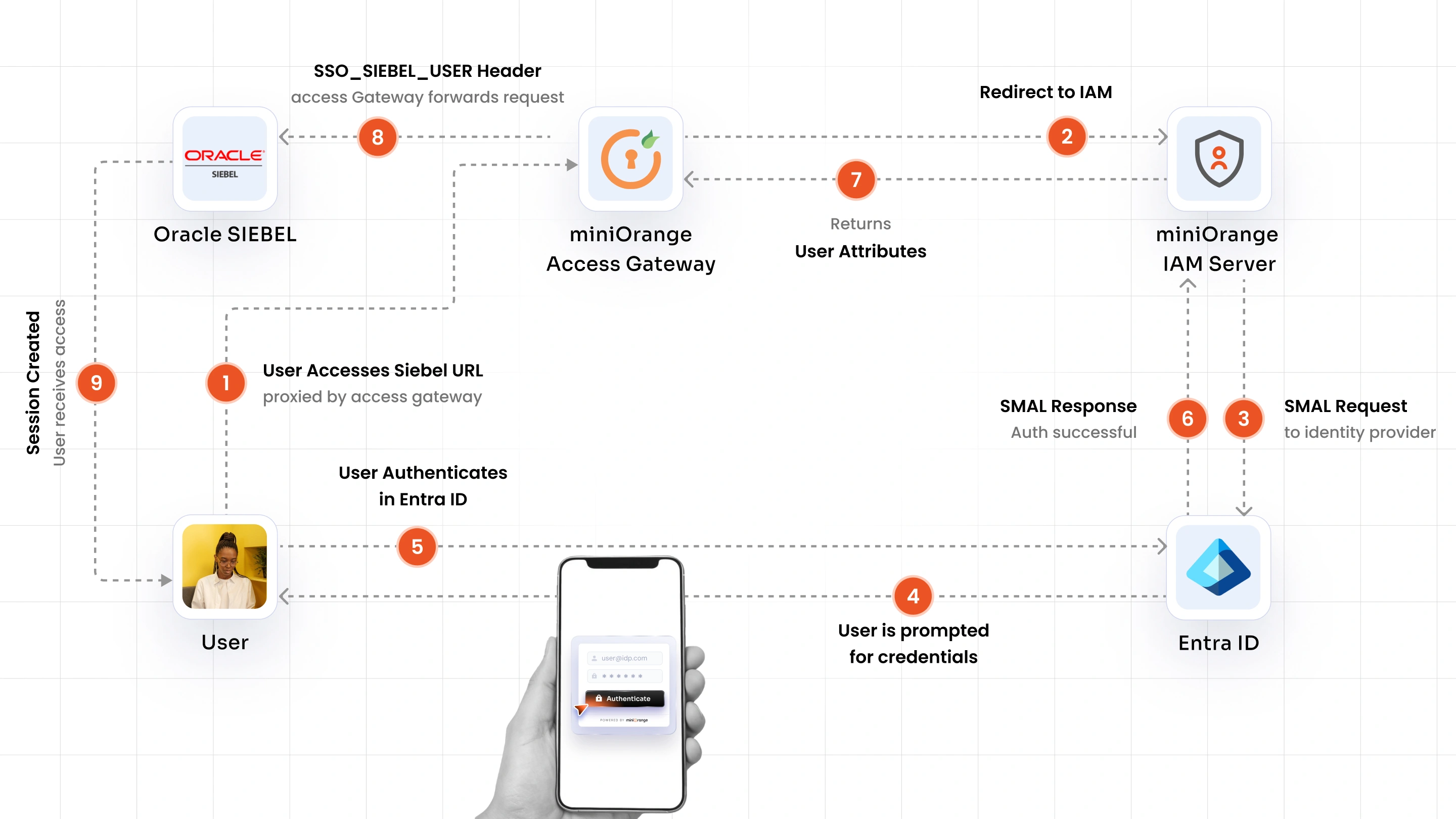
1. The user sends a request to access Oracle Siebel via the miniOrange Access Gateway URL.
2. The Access Gateway intercepts the request and redirects the user to miniOrange IAM for authentication.
3. miniOrange IAM initiates a SAML 2.0 request and redirects the user to Microsoft Entra ID for authentication.
4. The user is prompted to enter their Microsoft Entra ID credentials and is authenticated upon a successful response.
5. miniOrange IAM receives the SAML response from Microsoft Entra ID and confirms successful primary authentication.
6. miniOrange IAM enforces the MFA policy (if configured) and sends a challenge to the user via OTP, push notification, SMS, or email OTP.
7. The user approves the MFA challenge and miniOrange IAM validates the second factor, marking the session as fully authenticated.
8. miniOrange IAM sends the authenticated user attributes to the miniOrange Access Gateway.
9. The Access Gateway injects the SSO_SIEBEL_USER header along with user attributes and forwards the request to Oracle Siebel.
10. Oracle Siebel validates the Trust Token, resolves the user via the LDAP Security Adapter, creates an authenticated session, and redirects the user to their Siebel home page without any password prompt.
Get Free Installation Help
miniOrange offers free help through a consultation call with our System Engineers to Install or Setup Oracle Siebel Microsoft Entra ID SSO solution in your environment with a 30-day free trial.
For this, you need to just send us an email at idpsupport@xecurify.com to book a slot and we'll help you in no time.
Prerequisites
-
miniOrange IAM: Create an account in miniOrange IAM cloud or Download the miniOrange IAM on-premise.
- miniOrange Access Gateway : To download and install miniOrange Access Gateway follow the guide link.
- Requires Java 17 (JDK 17+) with
JAVA_HOME and JRE_HOME environment variables correctly set on the gateway server.
Configure network access
- The Access Gateway server must have outbound network access to the miniOrange IAM Cloud endpoint (if using miniOrange IAM Cloud).
- The Access Gateway server must have outbound network access to the Oracle Siebel application server.
- End-user browsers must reach the Access Gateway URL — direct browser access to the Siebel application server must not be permitted.
- Access is required to create and configure an Enterprise Application in Microsoft Entra ID for the miniOrange SAML 2.0 integration.
Follow the steps below to set up Oracle Siebel SSO with Microsoft Entra ID.
1. Setup Entra ID for miniOrange IAM
- Log in to Microsoft Entra ID (Formerly Azure AD) Portal.
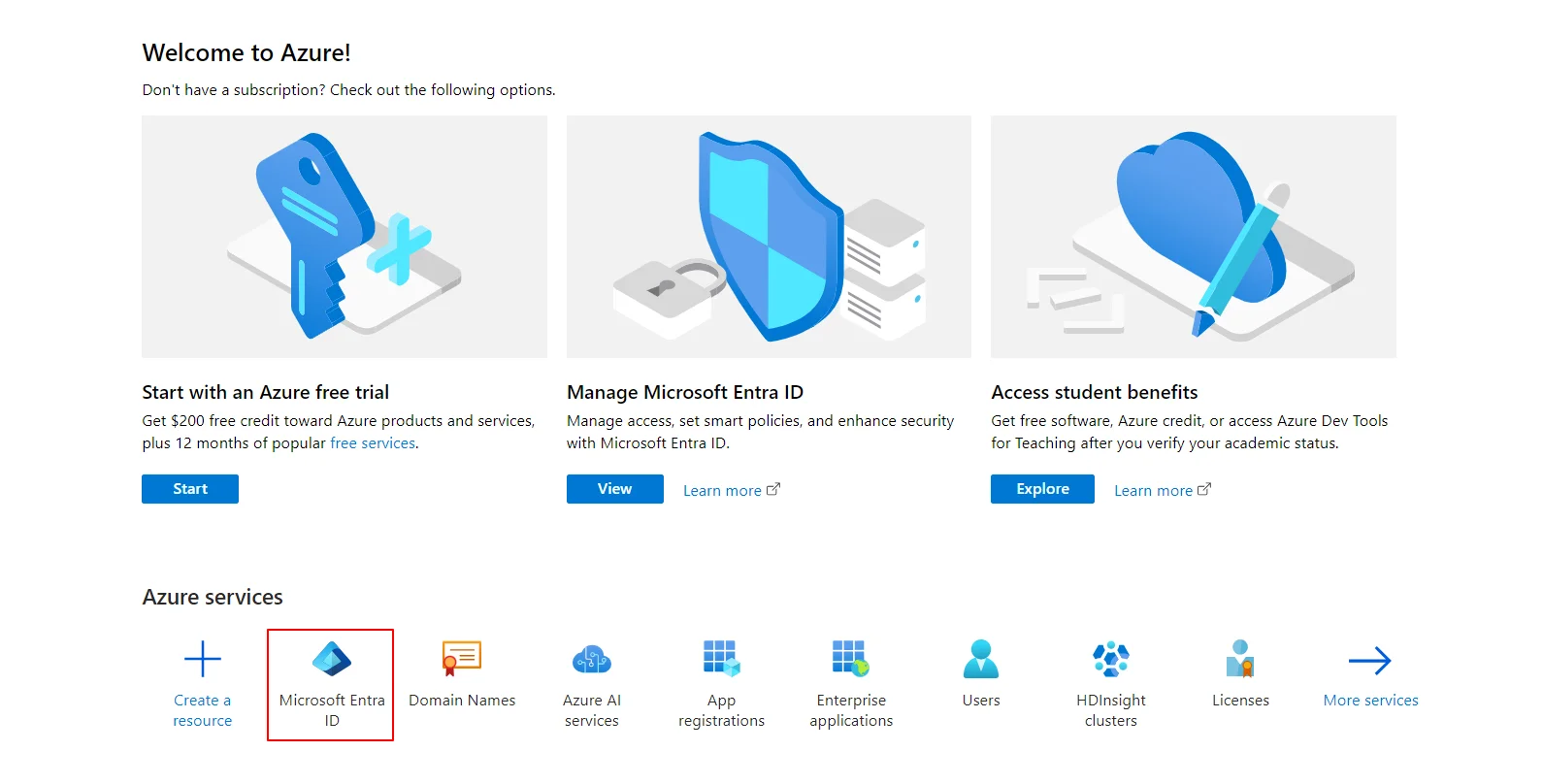
- Select Microsoft Entra ID.
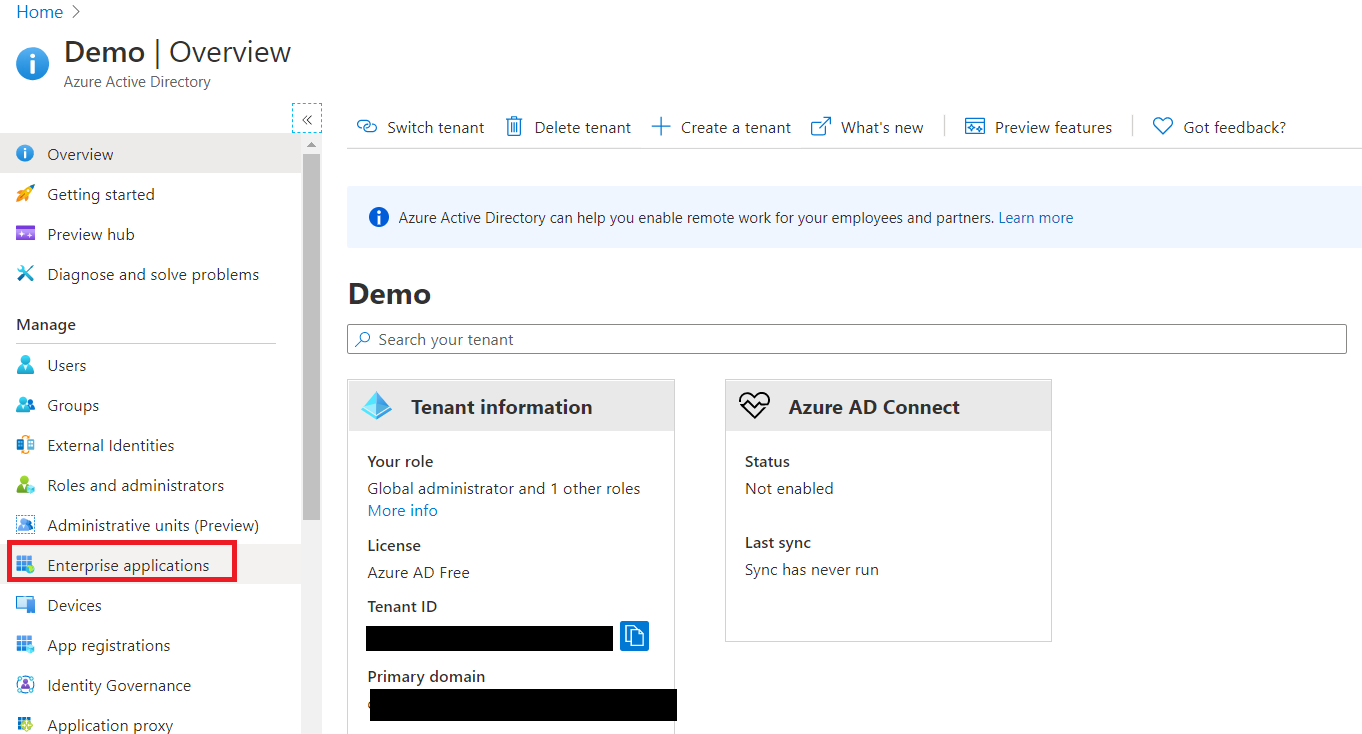
- Select Enterprise Application.
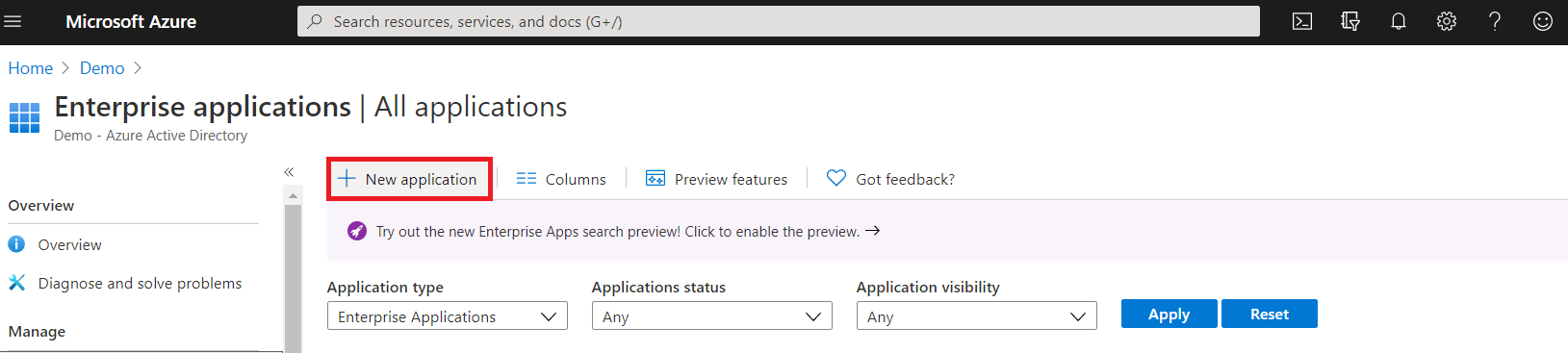
- Click on New Application.
- Click on Create your own Application under Browse Microsoft Entra ID Gallery.
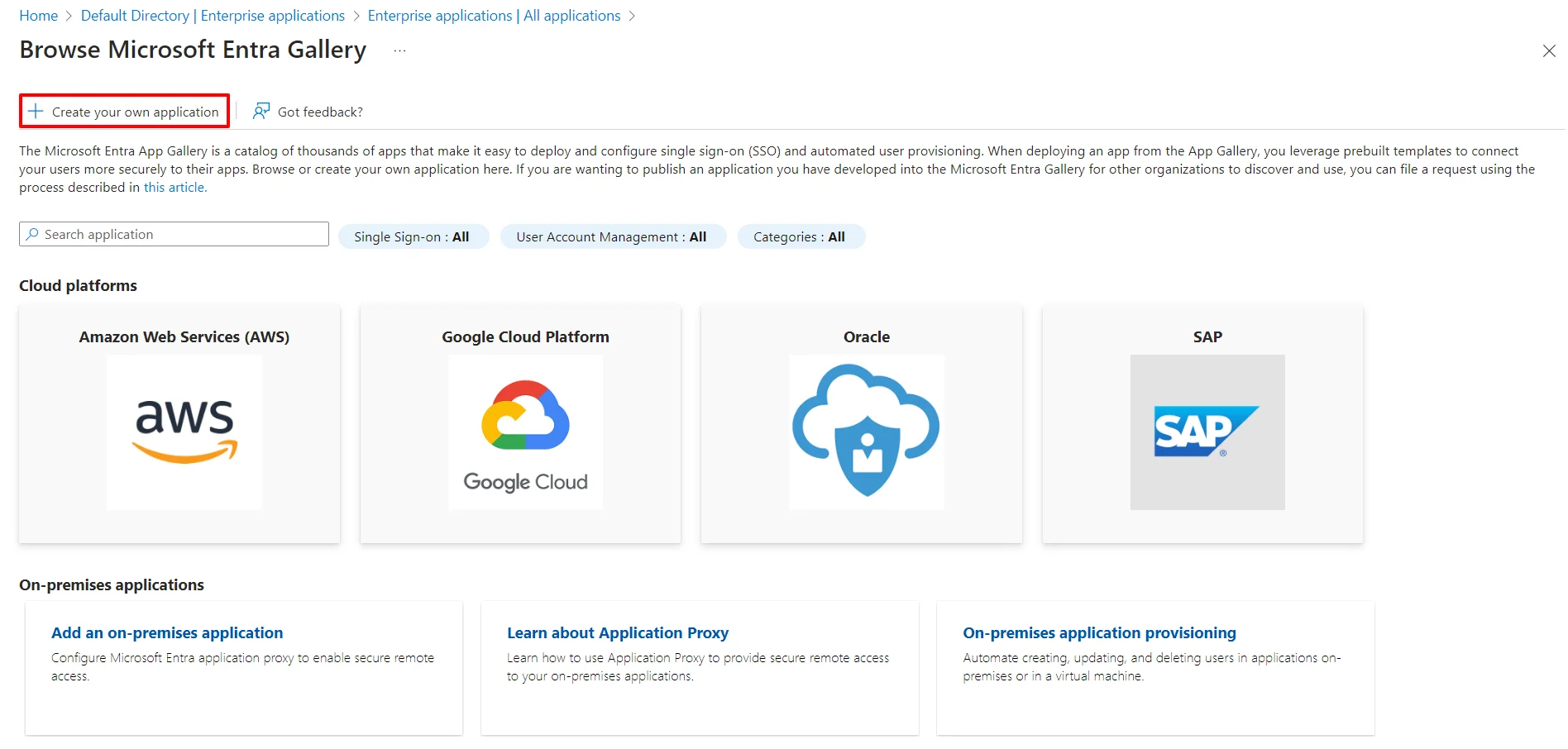
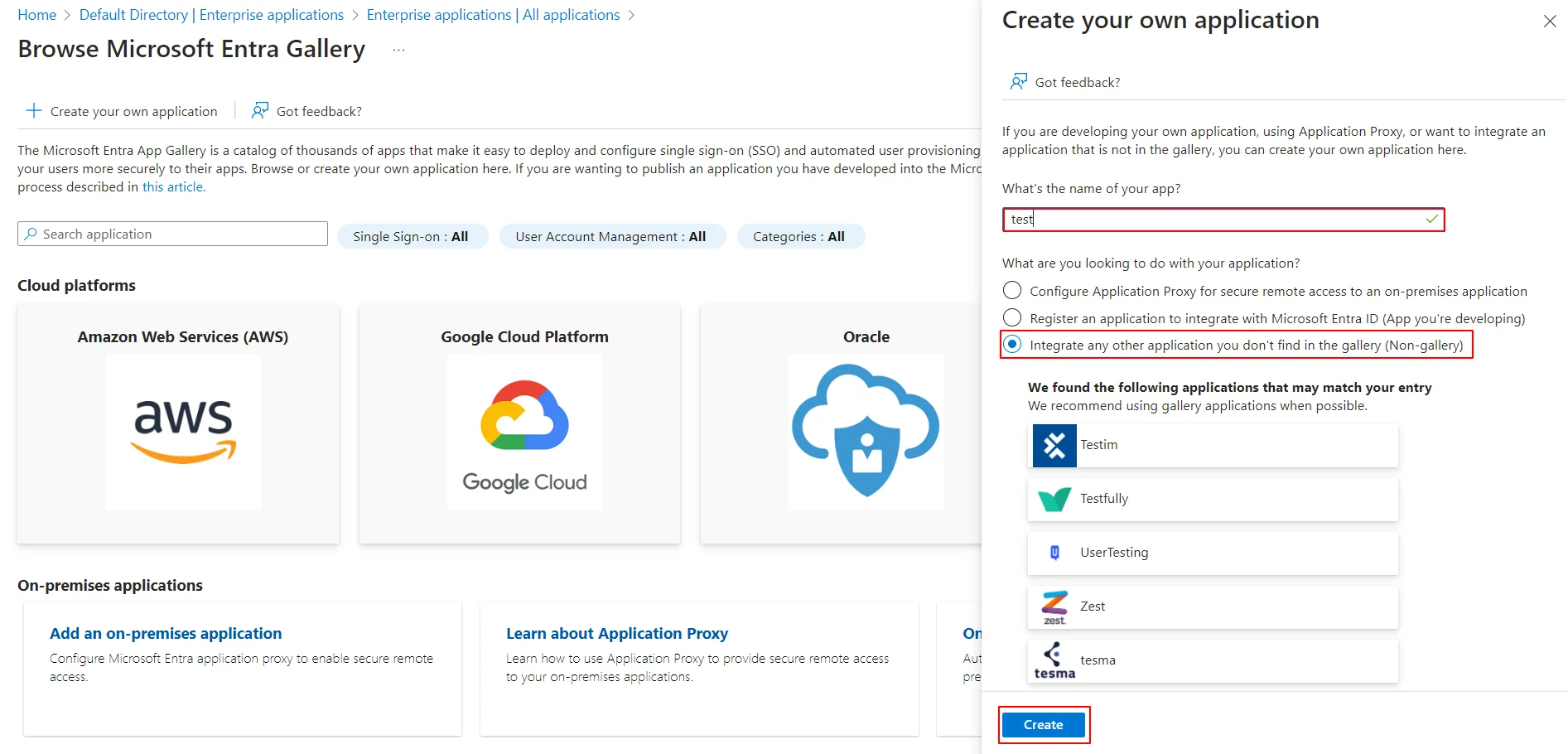
- Enter the name for your app, then select Non-gallery application section and click on Create button.
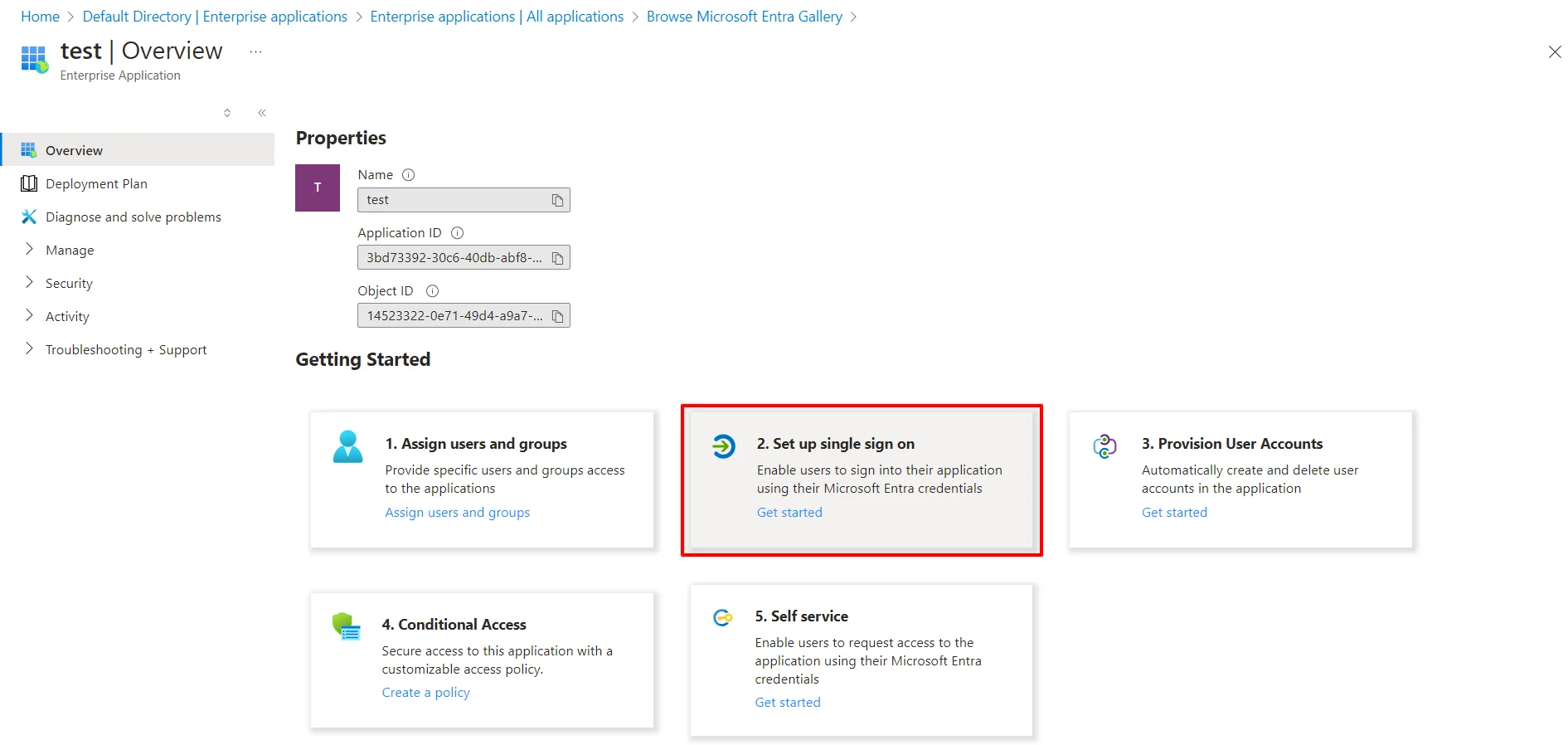
- Click on Setup Single Sign-On .
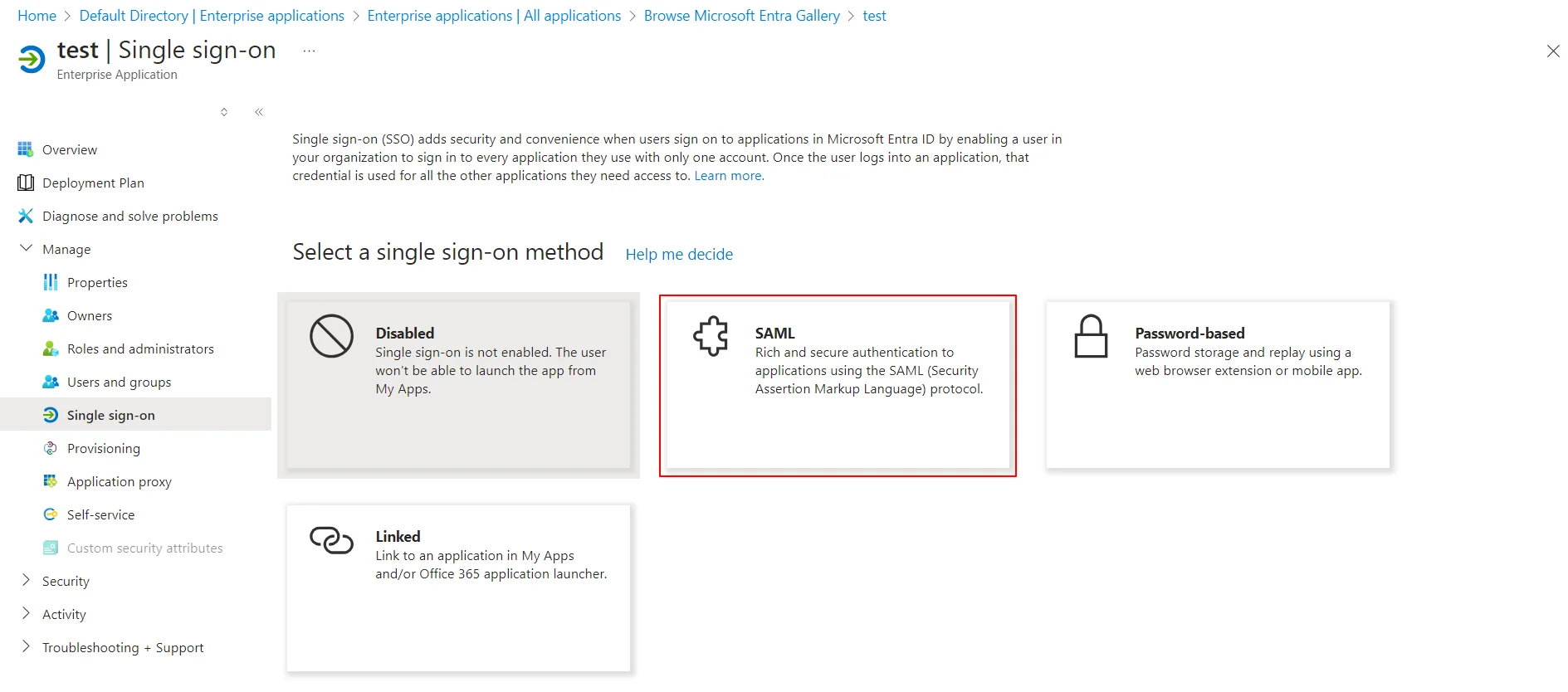
- Select the SAML tab.
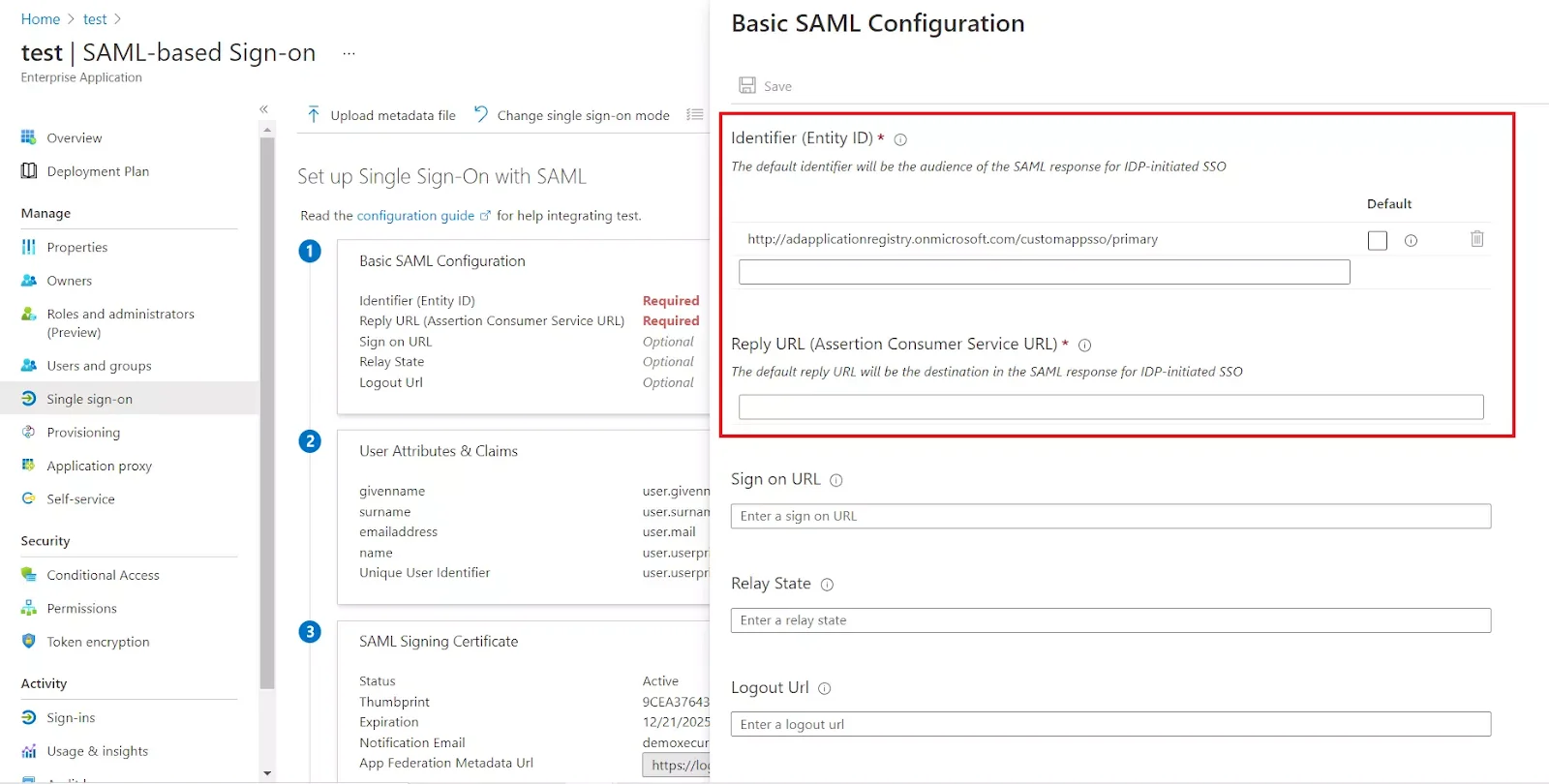
- For Basic SAML configuration you need to get the Entity ID, ACS URL, and the Single Logout URL from miniOrange.
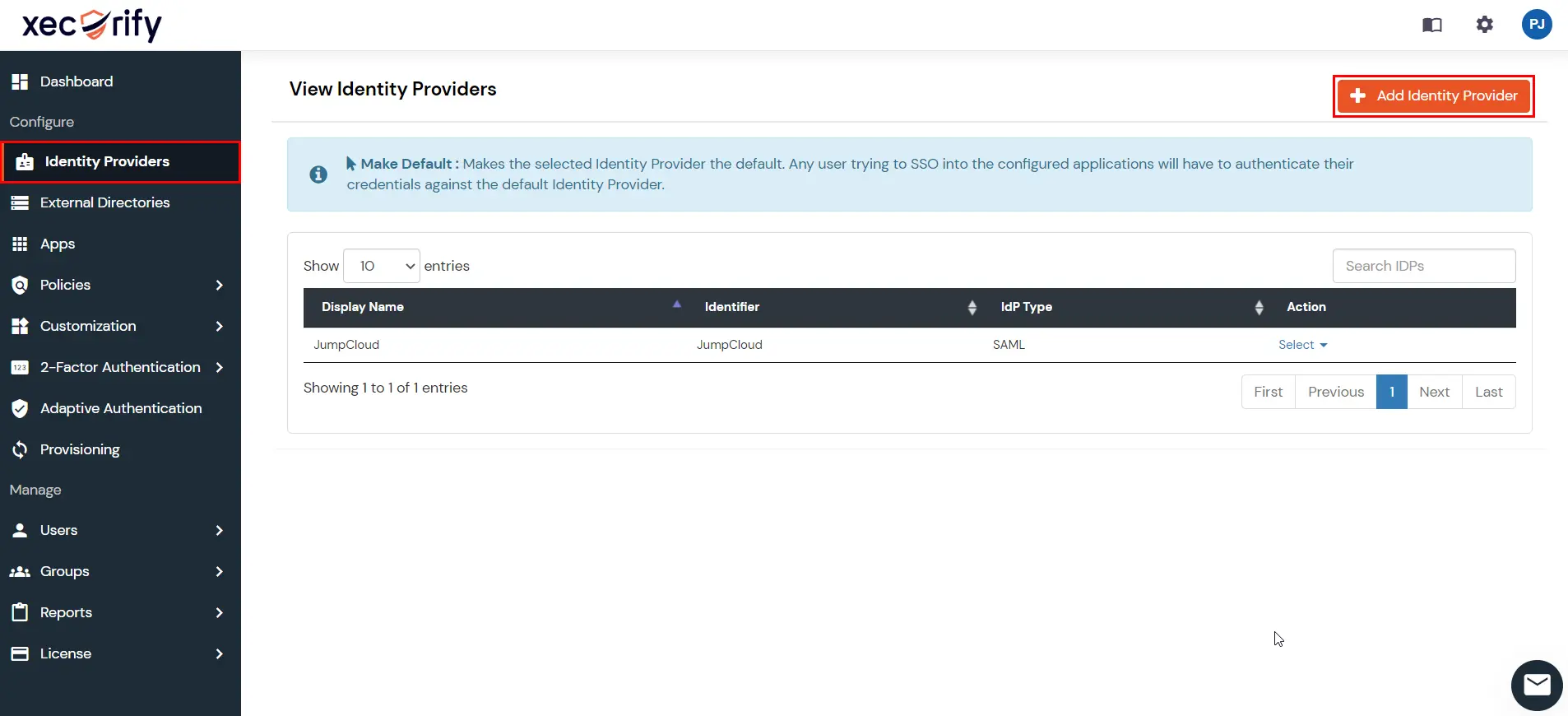
- Login into miniOrange Admin console , then go to Identity Providers in the left navigation menu. Click on Add Identity Provider button.
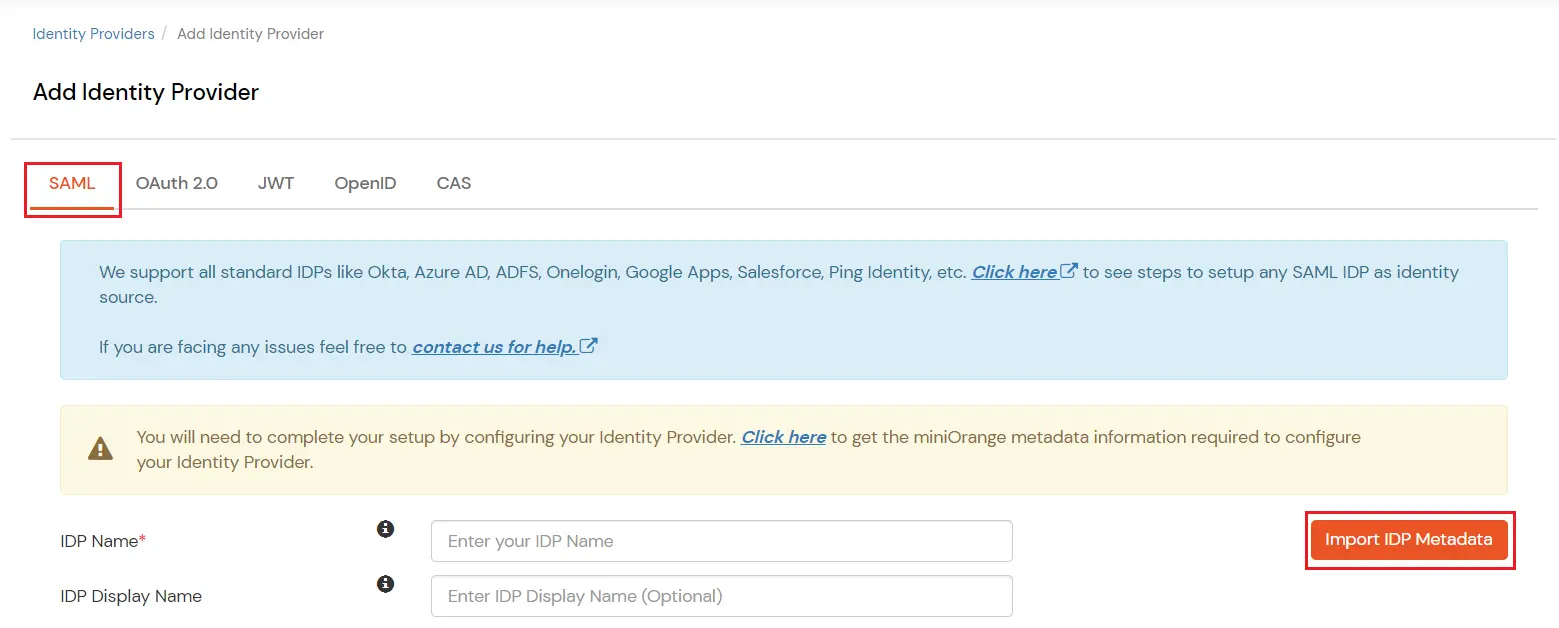
- In Choose Identity Provider, select SAML from the dropdown.
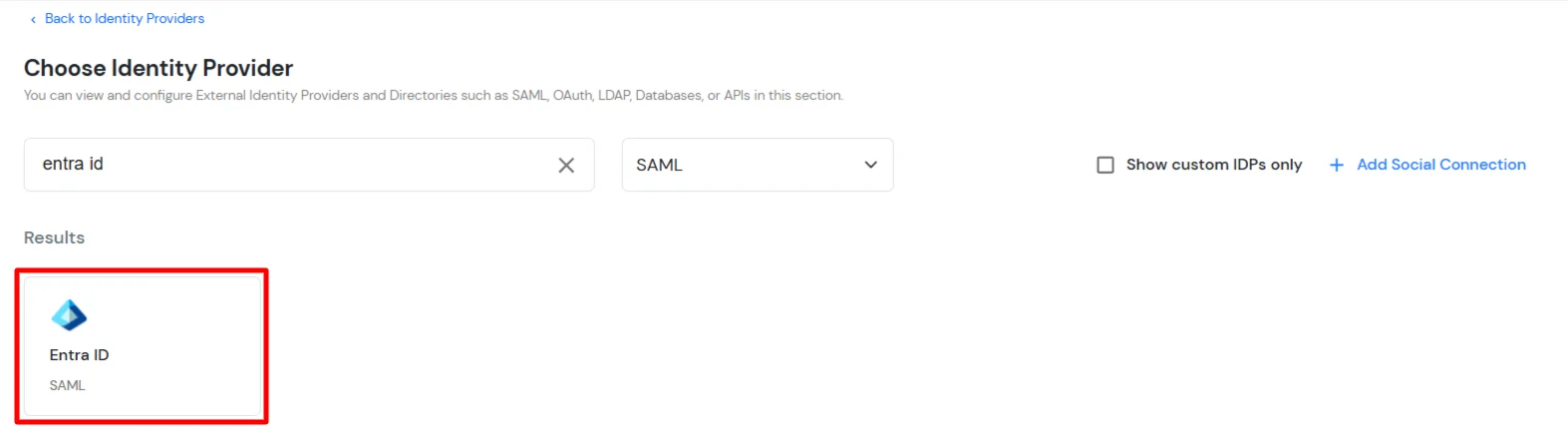
- Then, search for Entra ID and click on it.
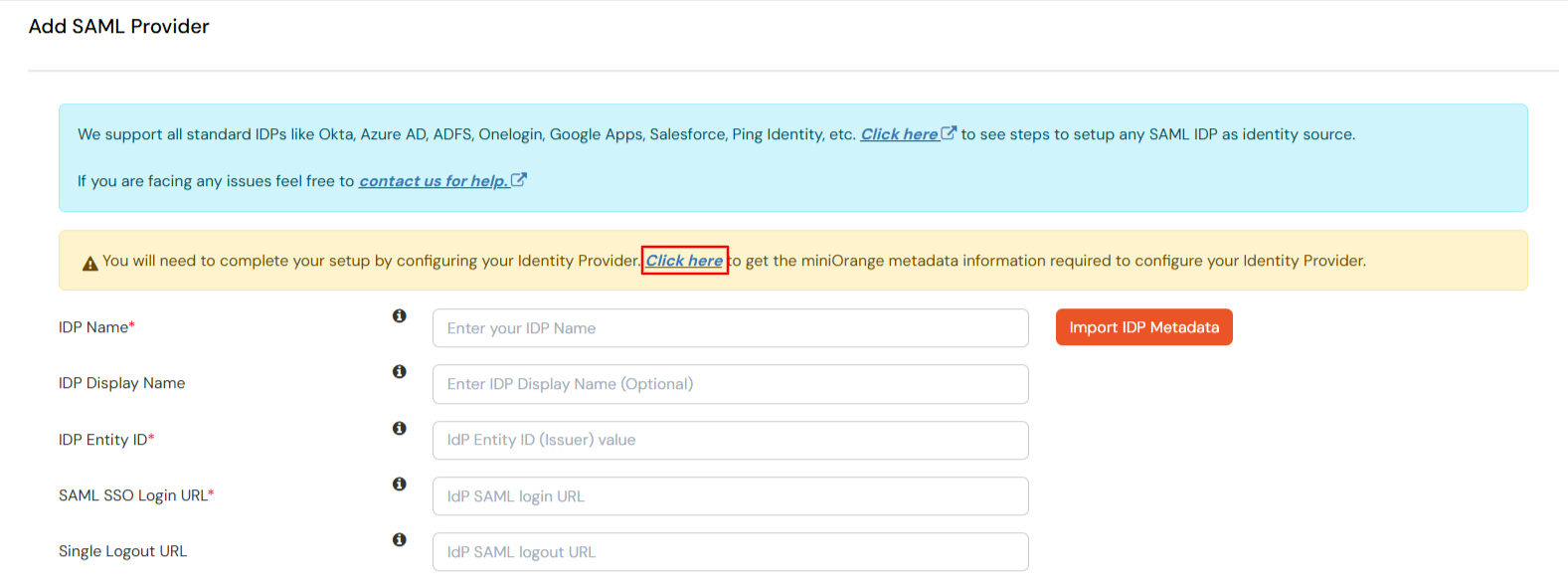
- Now click on the Click here link to get miniOrange metadata as shown in Screen below.
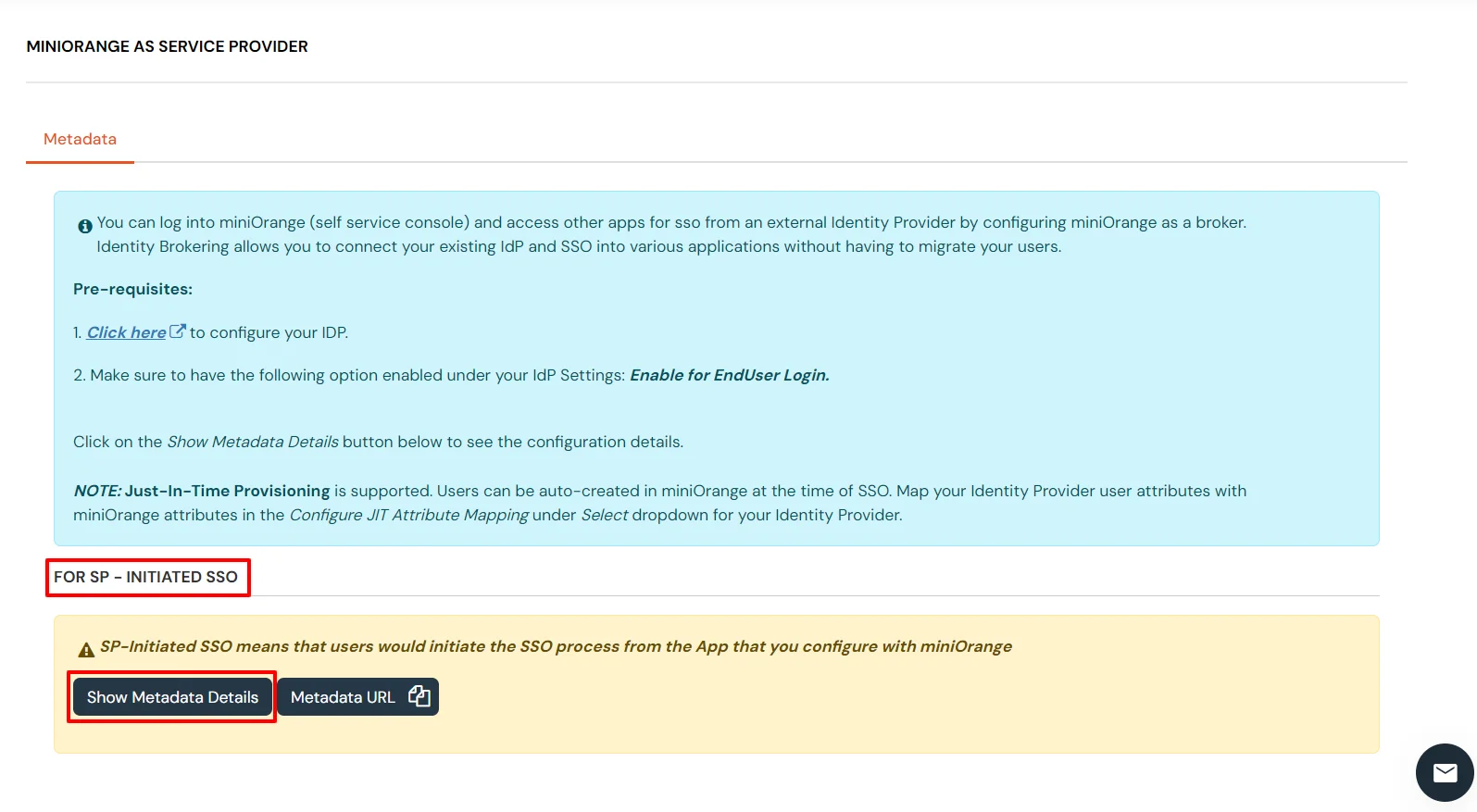
- For SP - INITIATED SSO section, select Show Metadata Details.
- Then, click on Download Metadata.
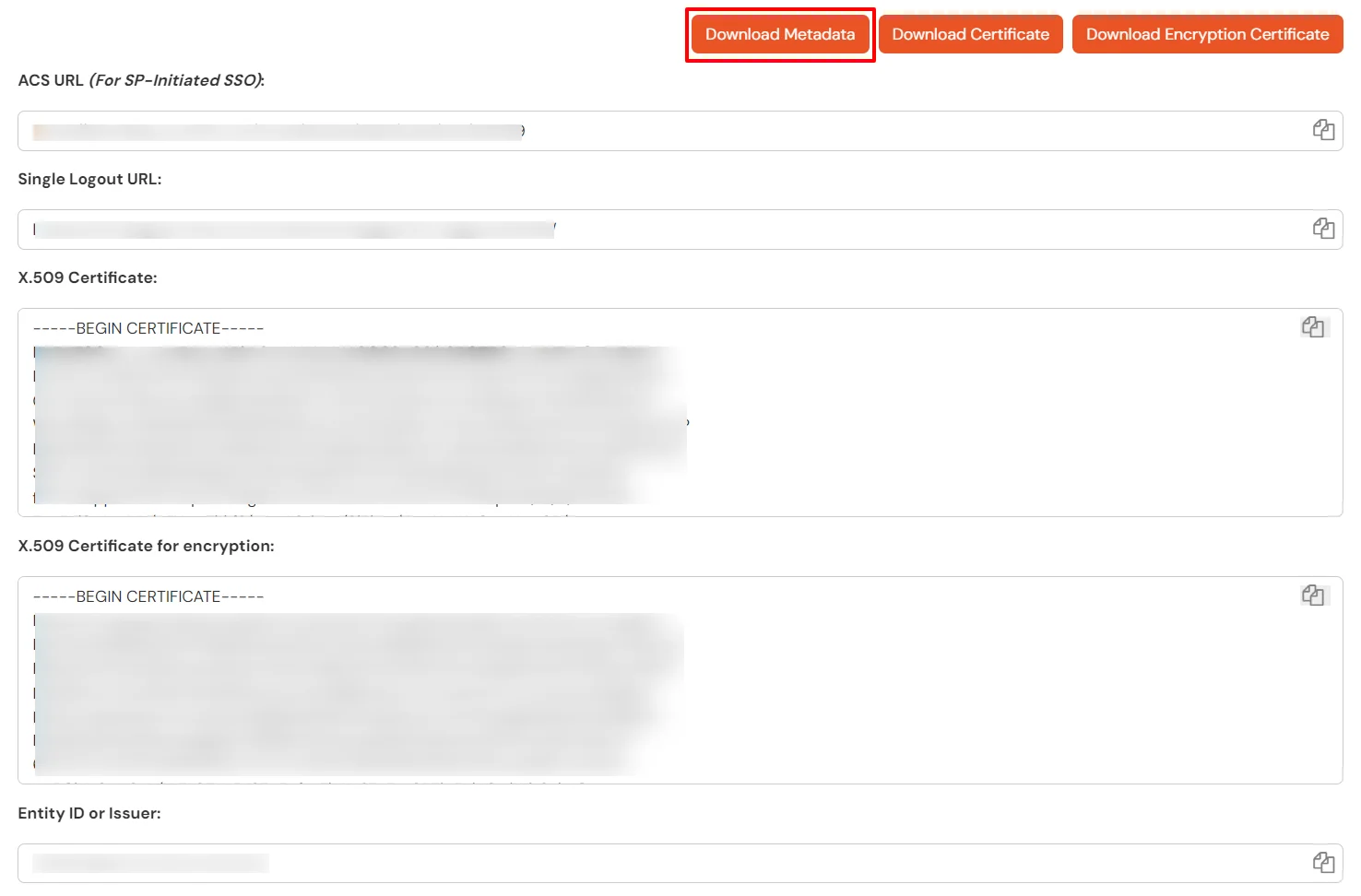
- Enter the values in basic SAML configuration as shown in below screen:
Identifier (Entity ID): Entity ID or Issuer
Reply URL (Assertion Consumer Service URL): ACS URL
Sign on URL (optional required during IDP-initiated SSO): SSO Login URL
Logout URL: Single Logout URL
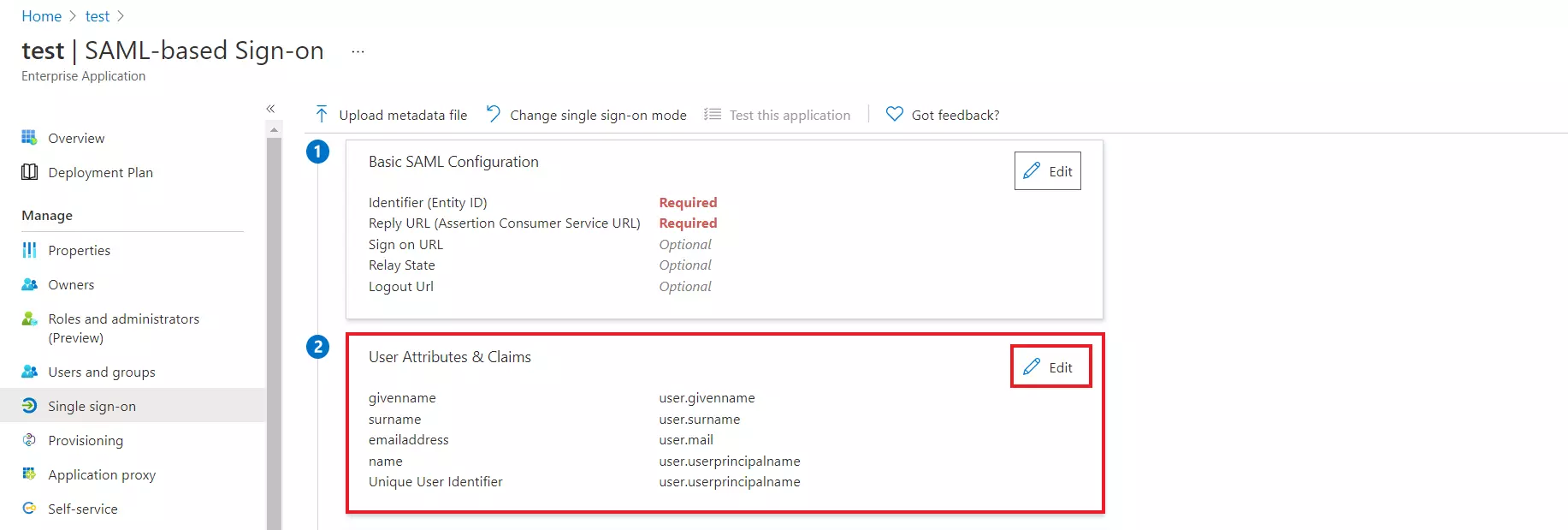
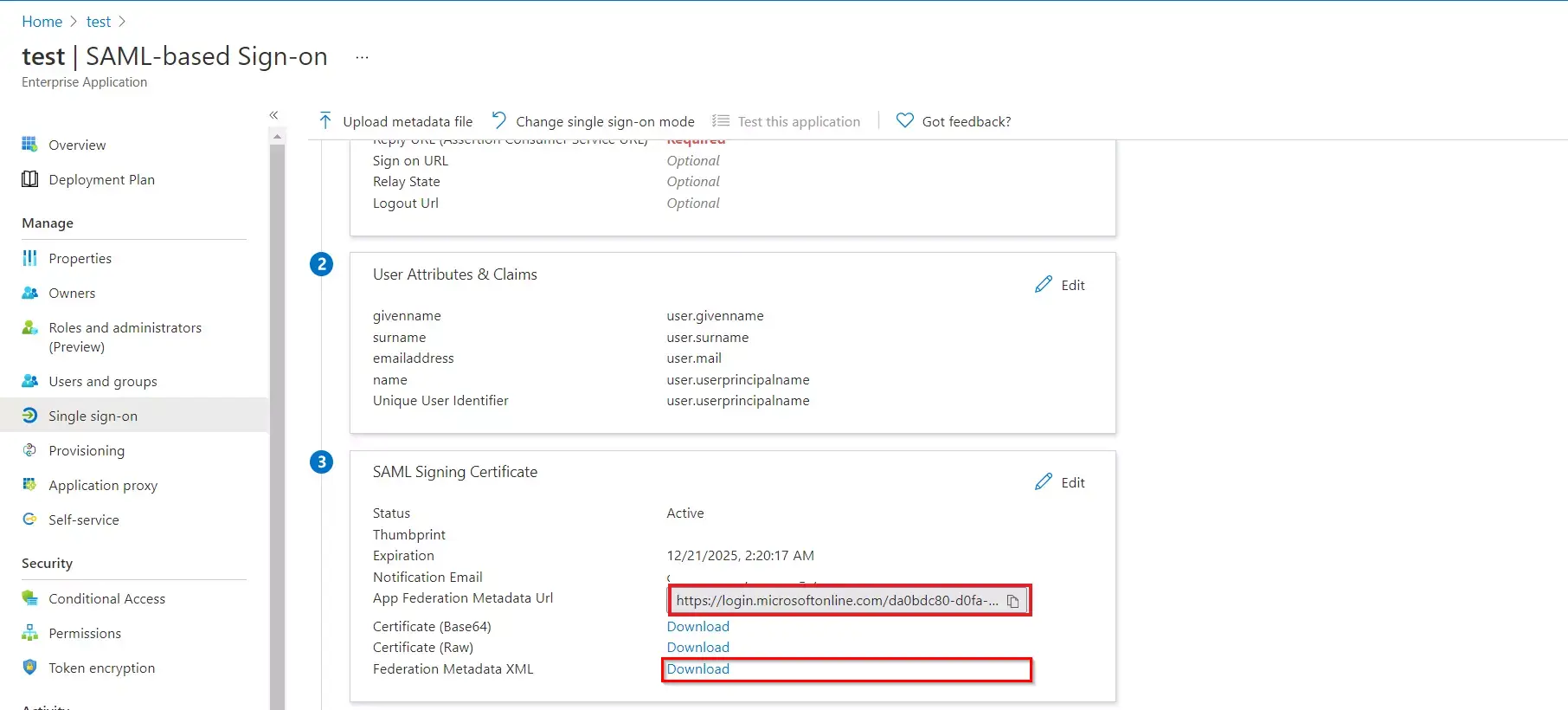
- By default, the following Attributes will be sent in the SAML response. You can view or edit the claims sent in the SAML response to the application under the Attributes tab.
- Copy the App Federation Metadata Url to get the Endpoints required for configuring in miniOrange IAM.
- Assign users and groups to your SAML application.
- As a security control, Microsoft Entra ID will not issue a token allowing a user to sign in to the application unless Microsoft Entra ID has granted access to the user.
- Users may be granted access directly, or through group membership.
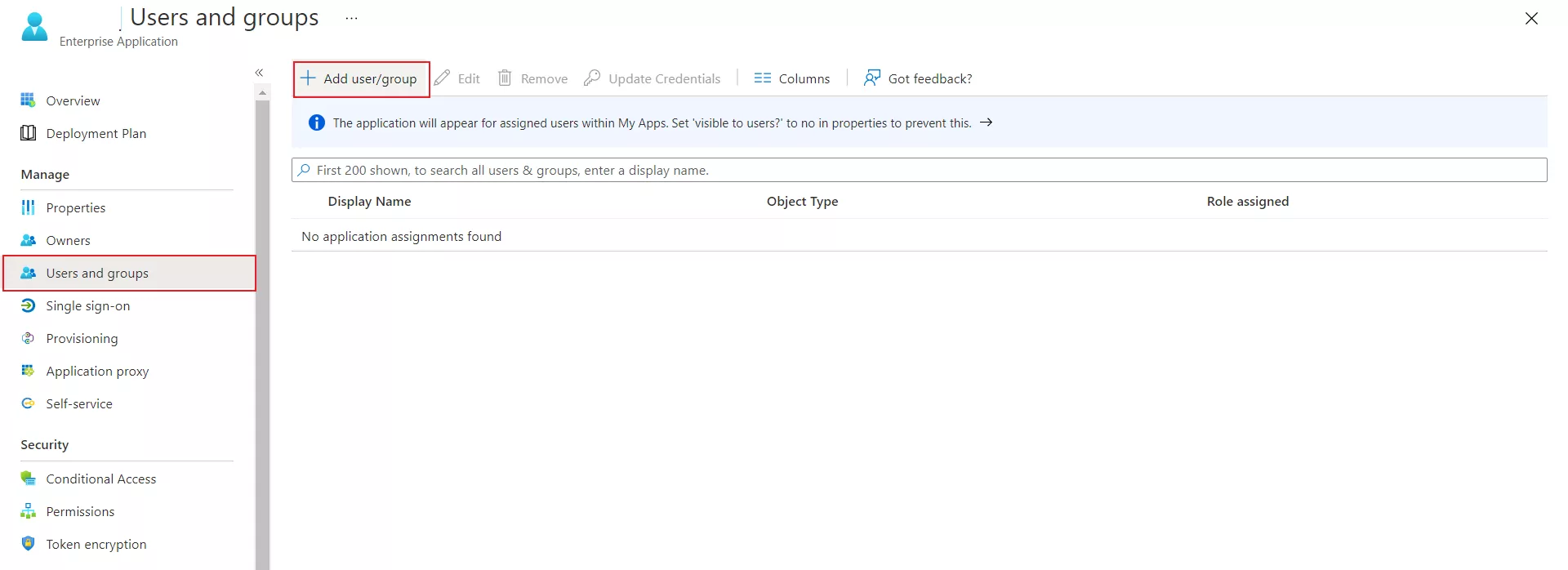
- Navigate to Users and groups tab and click on Add user/group.
- Click on Users to assign the required user and then click on select.
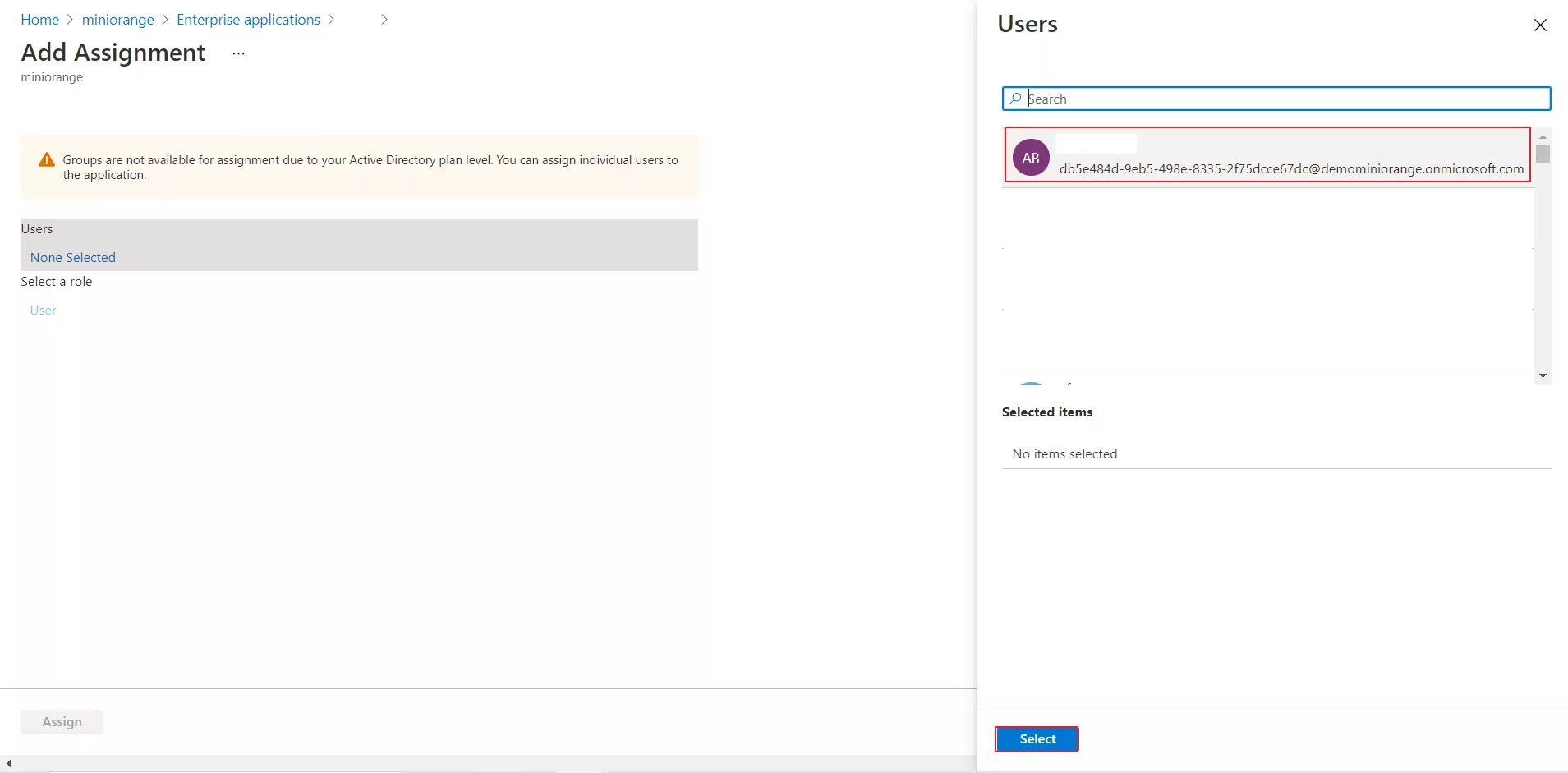
- You can also assign a role to your application under the Select Role section. Finally, click on the Assign button to assign that user or group to the SAML application. Your configuration in Microsoft Entra ID is done.
2. Configure Microsoft Entra ID as a SAML Identity Provider in the miniOrange IAM.
- Return to the miniOrange Admin Console.
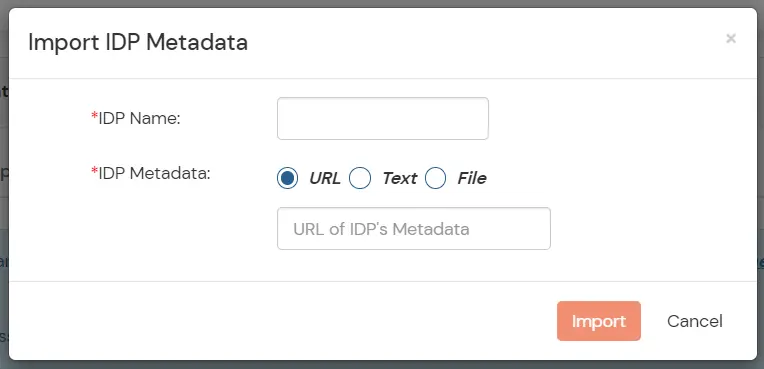
- Click on Import IDP metadata.
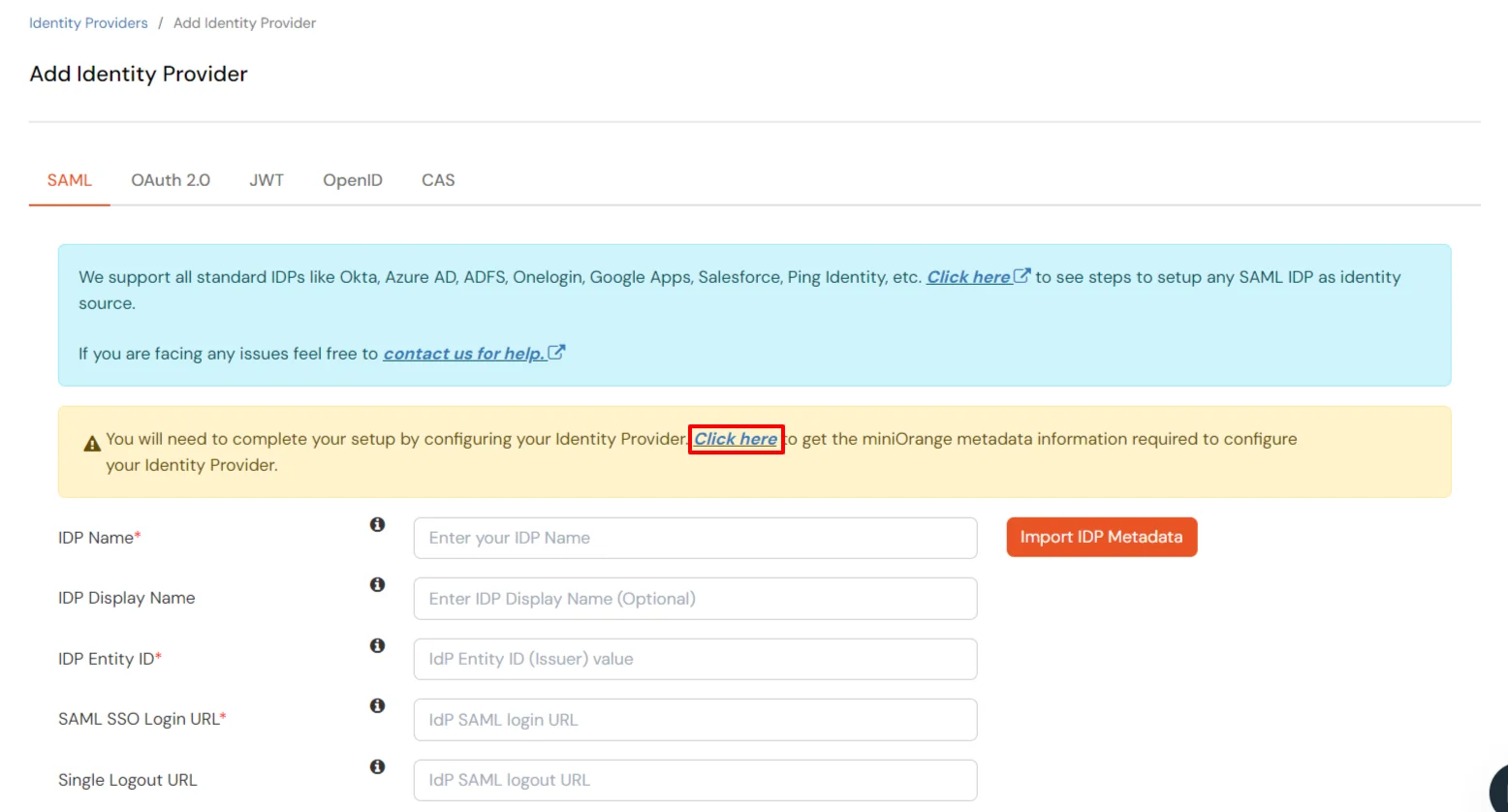
- Choose an appropriate IDP name. Enter the URL which you have saved in the previous step from Entra ID.
- Click on Import.
- As shown in the below screen the IDP Entity ID, SAML SSO Login URL and x.509 Certificate will be filled from the Metadata file we just imported.
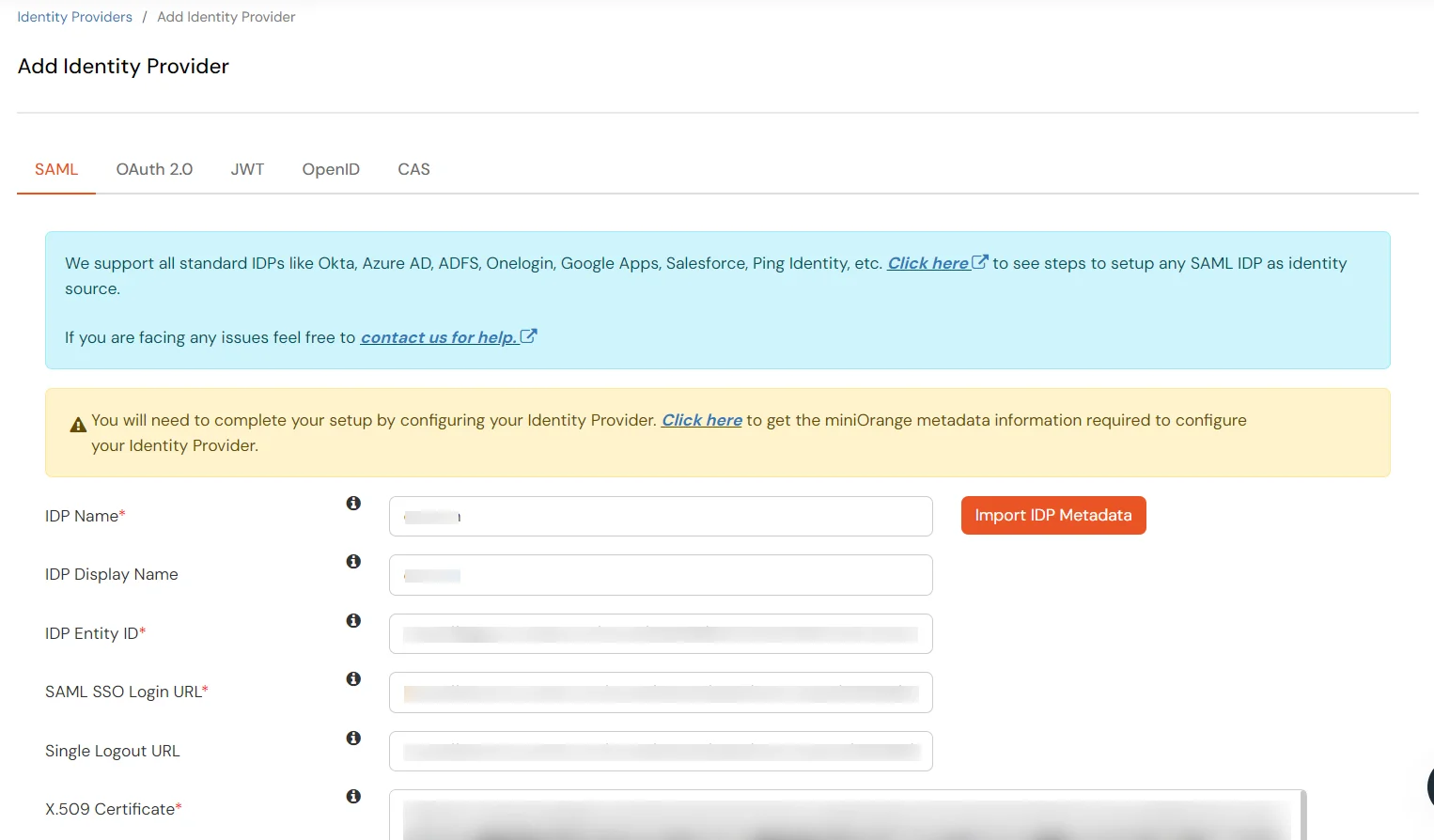
- Click Save.
3. Setup miniOrange Access Gateway
Note: To enable Single Sing-on for Oracle Siebel, We need to configure the Siebel Server details in miniOrange Access Gateway, Complete miniOrange access gateway setup is here. click here.
4. Enable Web Single Sign-On in Oracle Siebel Management Console (SMC)
Follow the steps below to complete the setup.
Before You Begin
- Ensure that your Siebel application is configured to use the LDAP or ADSI security adapter.
- Confirm that LDAP/ADSI authentication is working correctly using the
LDAPSecAdpt or ADSISecAdpt profile before enabling SSO.
Configure the Security Profile
- Log in to the Oracle Siebel Management Console (SMC) using your Admin credentials:
http://{your-siebel-fqdn}:{port}/siebel/smc/index.html
- Navigate to Profiles > Security > LDAP Datasource and update the following parameters:
- Set Configure Web SingleSignOn to
True
- Set Trust Token to your chosen secret value (e.g.,
SiebelTrustToken)
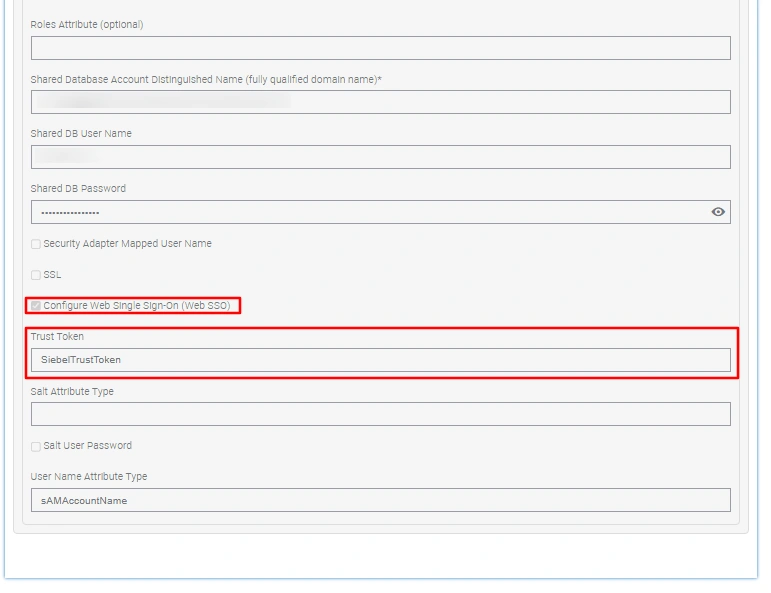
Note for older Siebel versions:
These parameters can alternatively be configured via Site Map > Administration - Server Configuration > Profile Configuration.

Configure the Application Interface (AI) Profile
- Navigate to Siebel Deployment > Profiles > Application Interface (AI) Profile, select the relevant profile, and click Edit.
-
Under Applications, locate your application (e.g.,
fins (enu)), expand Enhanced Authentication, and configure the following:
- Enable the Configure Web Single Sign On checkbox.
- Enter the Trust Token : this must exactly match the value set in the Security Profile above.
- Set the User Specification to
SSO_SIEBEL_USER : this must match the HTTP header attribute injected by the miniOrange Access Gateway.
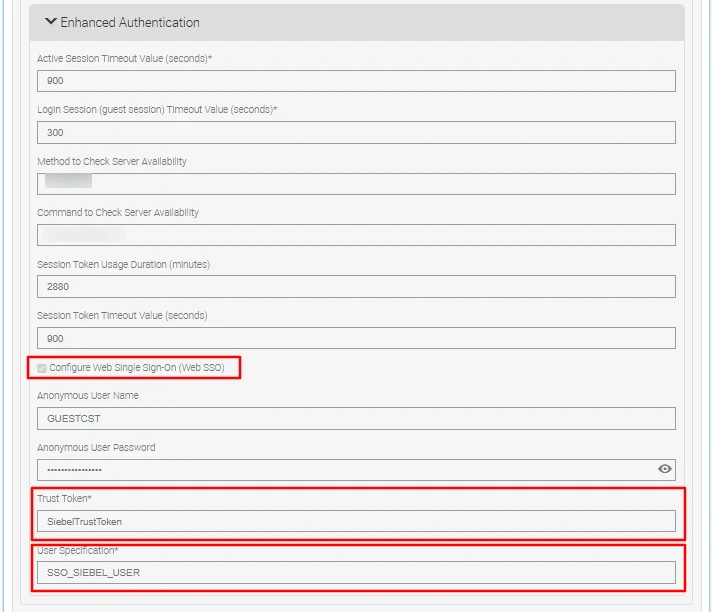
Note for older Siebel versions:
Edit the eapps.cfg file directly and set the following values:
SingleSignOn = TRUE,
TrustToken = SiebelTrustToken,
UserSpec = SSO_SIEBEL_USER,
UserSpecSource = Header.
Important: The Trust Token configured in the Siebel Security Profile must exactly match the value configured in the miniOrange Access Gateway. A mismatch will cause authentication to fail silently.
Apply the Changes
Restart the following services in sequence for all configuration changes to take effect:
- Siebel Server
- Application Interface (AI) Application Container
- Siebel Enterprise Server (SES) Application Container
- Gateway Server
5. Test the Oracle Siebel Single Sign-on (SSO)
- Open a new private/incognito browser window and navigate to your Siebel proxied URL (e.g.,
https://mag.miniorange.com/siebel/app/ecom/enu). The miniOrange Access Gateway will intercept the request and automatically redirect you to Microsoft Entra ID for authentication.
- Enter your Microsoft Entra ID corporate credentials and complete the MFA challenge (OTP, Push Notification, SMS, or Email OTP) when prompted by miniOrange IAM.
(MFA will invoke only if configured).
- Upon successful authentication and MFA verification, you will be automatically logged in and redirected to the Oracle Siebel home page .