Hello there!

Need Help? We are right here!

Support Icon
miniOrange Email Support
success

Thanks for your Enquiry. Our team will soon reach out to you.

If you don't hear from us within 24 hours, please feel free to send a follow-up email to info@xecurify.com

Search Results:

×

Importing Users from a File on an SFTP Server


This section explains how to import users into miniOrange using a file hosted on an SFTP server. The system securely connects to the SFTP location, fetches the file, and processes user records to create, update, or delete users in miniOrange. This enables automated and reliable user provisioning from external sources.

Get Free Installation Help


miniOrange offers free help through a consultation call with our System Engineers to Install or Setup ADFS SSO solution in your environment with 30-day free trial.

For this, you need to just send us an email at idpsupport@xecurify.com to book a slot and we'll help you in no time.
Prerequisites

  • Admin access to the miniOrange Admin dashboard.
  • An SFTP server configured with username and password authentication
  • User data file in CSV or PSV format

Configure User Provisioning from SFTP

  • Log in to the miniOrange Admin Console.
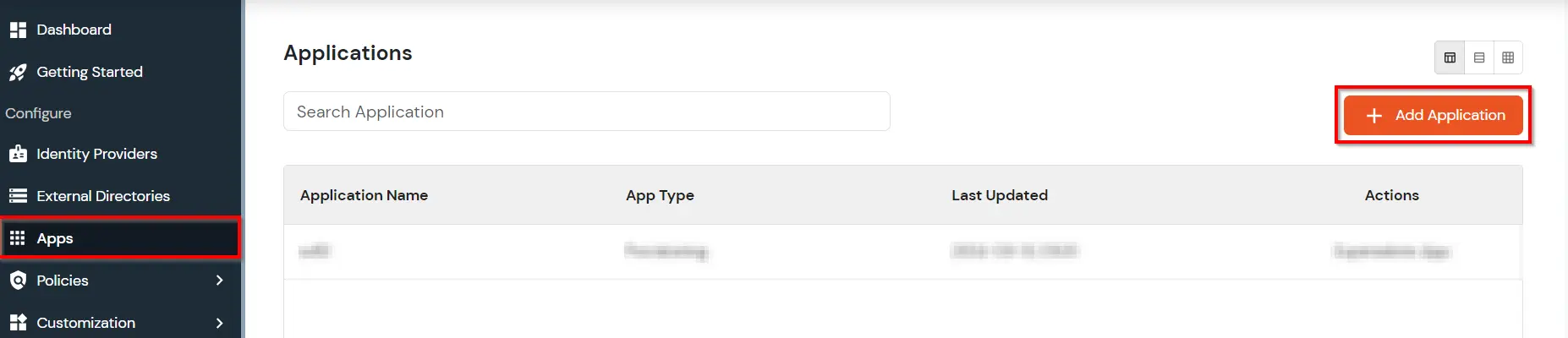
  • Click on Apps. It shows a list of all configured applications and option to modify them. Click on Add Application.
  • File Server Provisioning  - Select Add Application

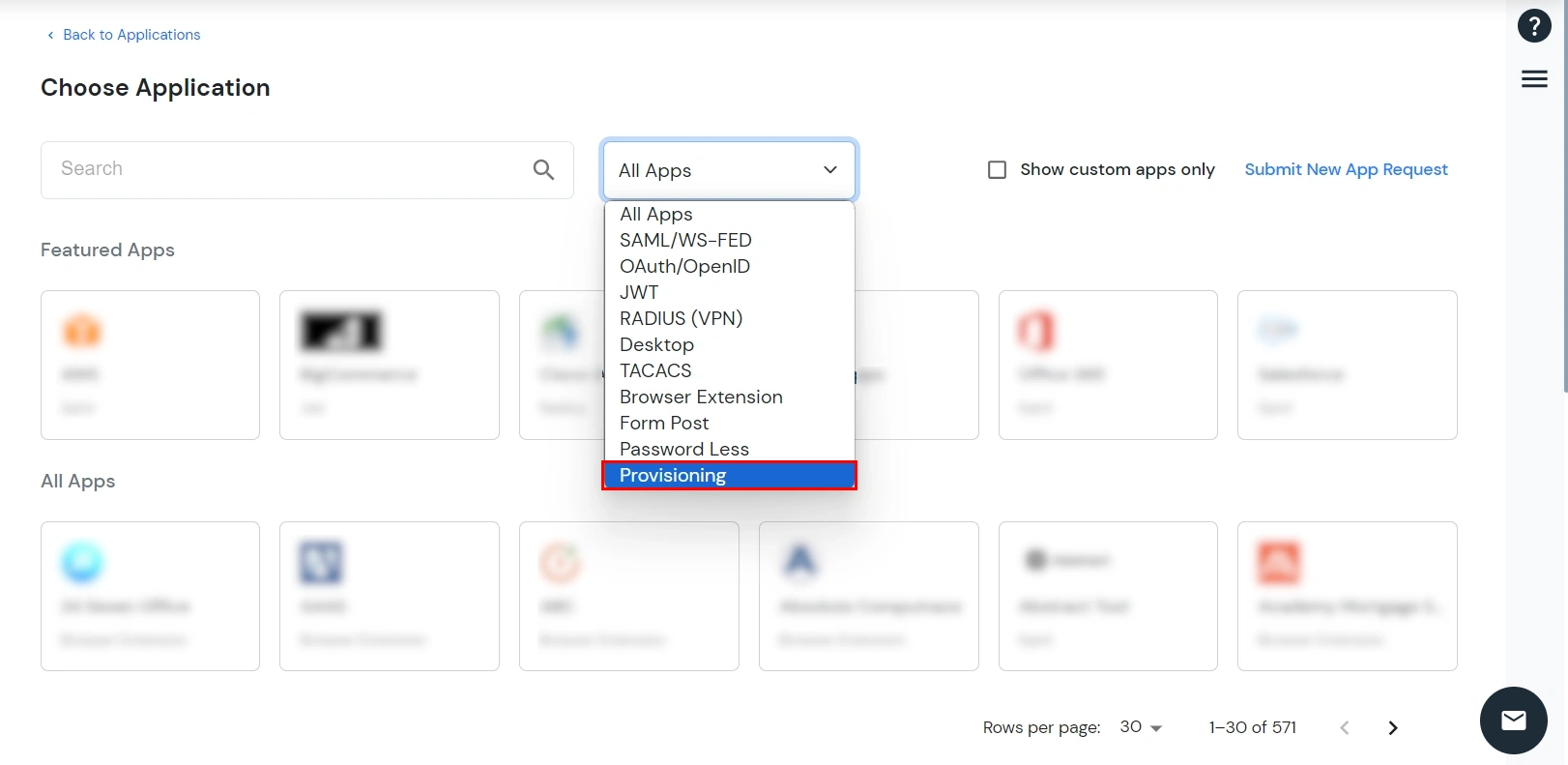
  • Under Choose Application, select Provisioning from the All Apps dropdown.
  • File Server Provisioning - Select Provisioning

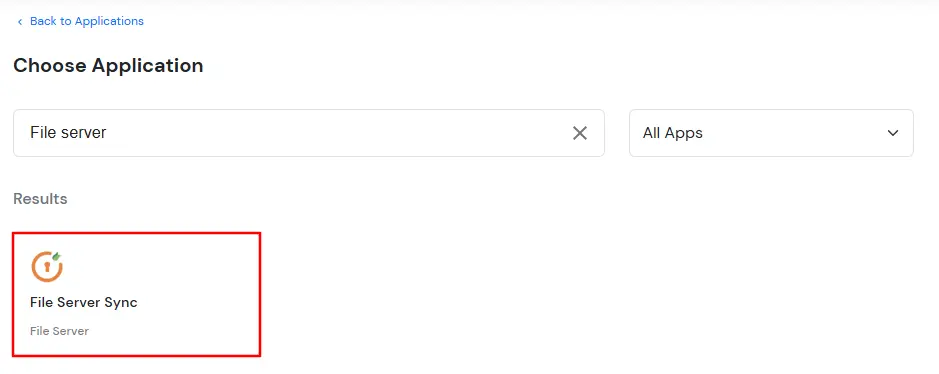
  • Search for File Server Sync and select the File Server Sync application.
  • File Server Provisioning - Select File Server Sync

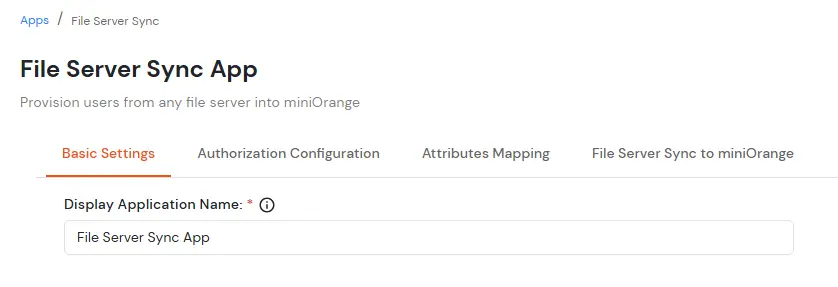
  • Enter a Display Application Name and click Save.
  • File Server Provisioning - Add Display Application Name

  • In the Authorization Configuration tab, provide the following details:
    • Field name Description
      Host name Host name or IP address of the SFTP server where the file is present.
      Port Port for accessing SFTP server.
      Authentication Type Currently we support only Password based authentication for accessing SFTP server.
      Username Username for accessing SFTP server.
      Password Password for accessing SFTP server.
      File Path Path of the CSV or PSV file from which the users needs to be imported.
  • Click Save & Next once all details are entered.
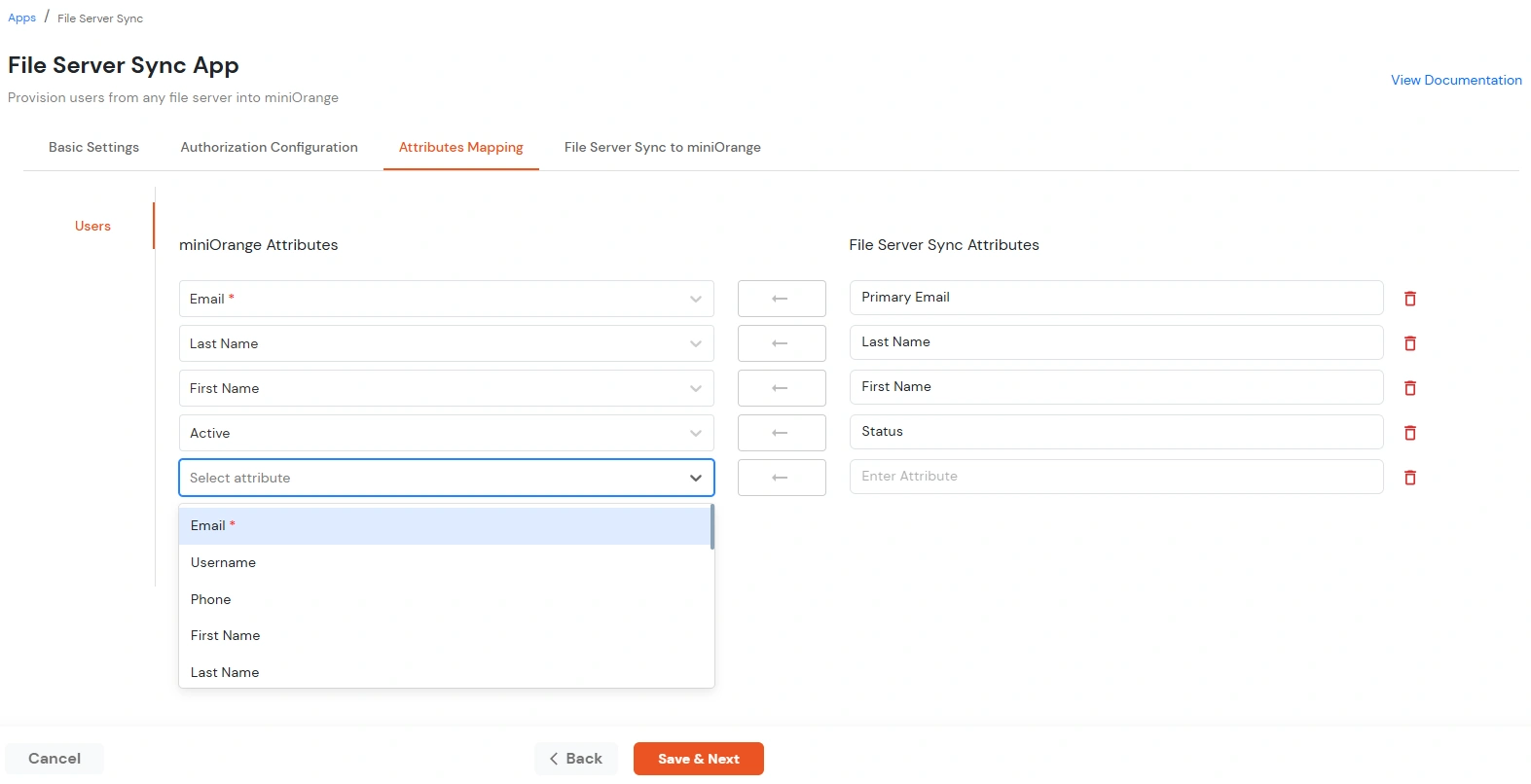
  • In the Attribute Mapping section, map the headers from the CSV/PSV file to the corresponding miniOrange user attributes.
  • Attribute Mapping Tab

  • After completing the mapping, click Save & Next.
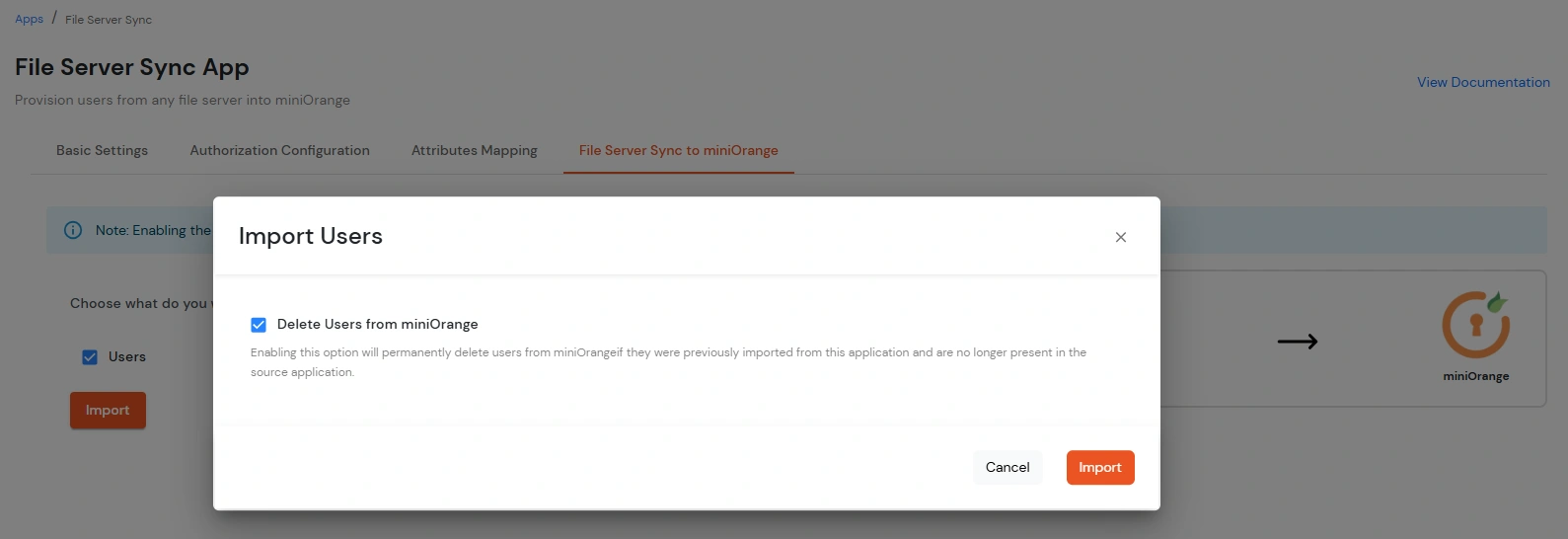
  • Once the configuration is complete, users can be imported from the file server. Navigate to the File Server Sync to miniOrange tab. Select users, and click on Import.
  • If Delete users not present in file is enabled, users missing from the file will be deleted from miniOrange.
  • Delete Users

  • If this option is disabled, such users will be disabled instead of deleted.


Want To Schedule A Demo?

Request a Demo


Our Other Identity & Access Management Products